NMI (Network Merchants Inc.) is a payment gateway that lets your practice accept credit and debit card payments securely across order forms, invoices, and payment links. This guide walks through connecting NMI to Aesthetix CRM, enabling 3DS and ACH bank transfers, and managing the subscriptions and transactions that run through it.
Tip: Aesthetix CRM offers AX Pay, our own payment processing with rates better than Stripe. Before connecting an outside gateway, we recommend starting with AX Pay. See AX Pay Overview and Setup Guide.
NMI is a well-known gateway with a broad feature set for processing online transactions:
Multiple currencies and payment methods so you can serve a wide patient base.
Tokenization and encryption that keep sensitive cardholder information secure and reduce fraud risk.
Fraud prevention tools such as Address Verification System (AVS) and Card Verification Value (CVV) to help block suspicious transactions.
Customizable checkout that can match your practice branding for a smooth patient experience.
Recurring billing and subscription management for memberships and payment plans.
Integration options including APIs and pre-built plugins.
Reporting and analytics to track and analyze transaction data.
Customer vault that securely stores patient payment information for returning patients and recurring charges.
The NMI integration processes payments in three areas of Aesthetix CRM:
Order form payments on Version 2 funnels, including one-step and two-step order forms and one-click upsells.
Invoice payments.
Payment link payments (send-to-pay links).
Other areas such as calendars, memberships, and SaaS continue to process through Stripe. If NMI is set as your default gateway, only order forms, invoices, and payment links route through NMI.
NMI requires three credentials:
Gateway ID
Security key
Public key
Sign in to your NMI merchant account. Go to Settings and then Account Information, where you will find the Gateway ID for your account.
If you do not already have your Security key and Public key, follow NMI's instructions for obtaining security keys.
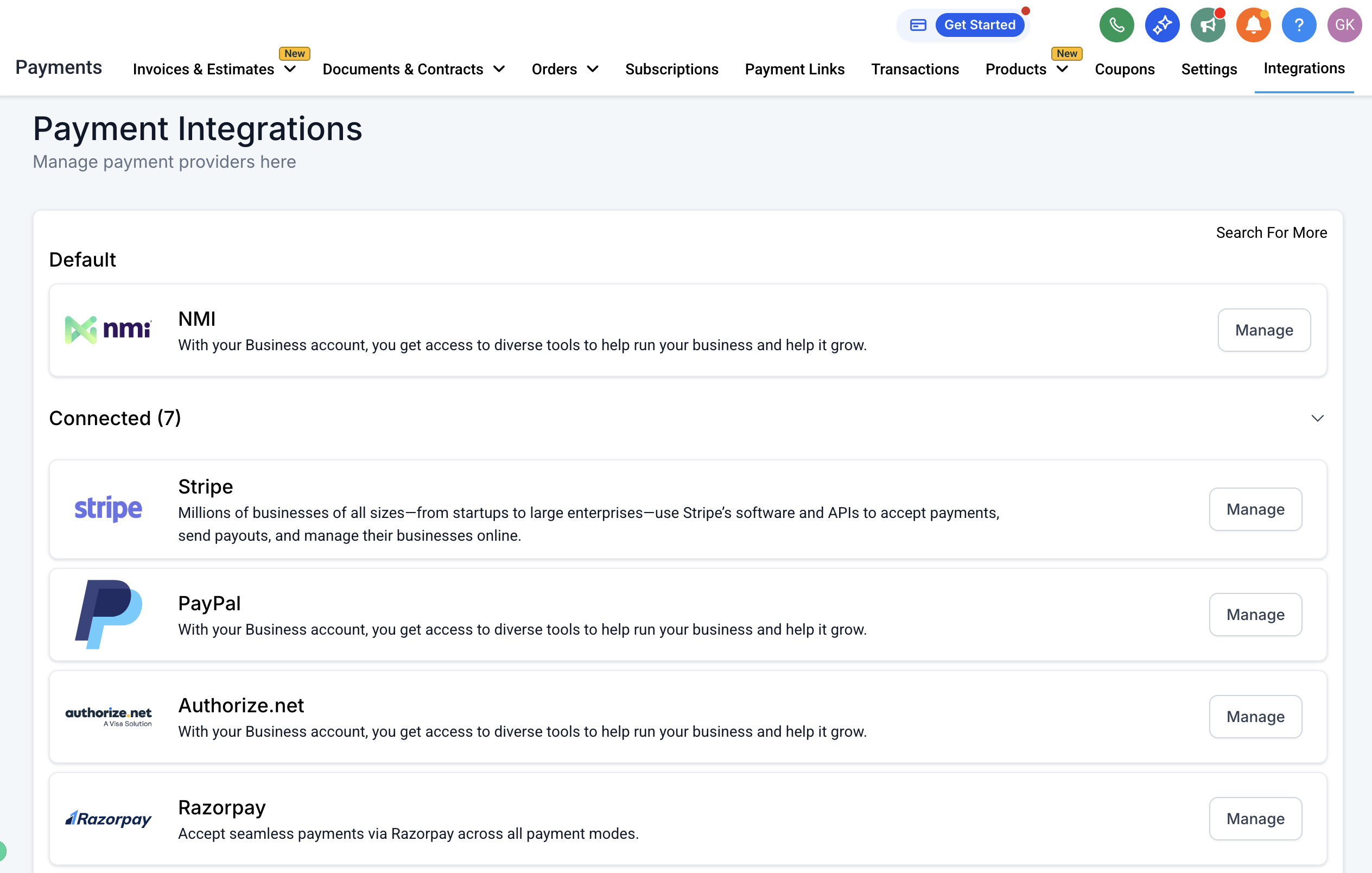
In your account, open the Payments section and go to Integrations.
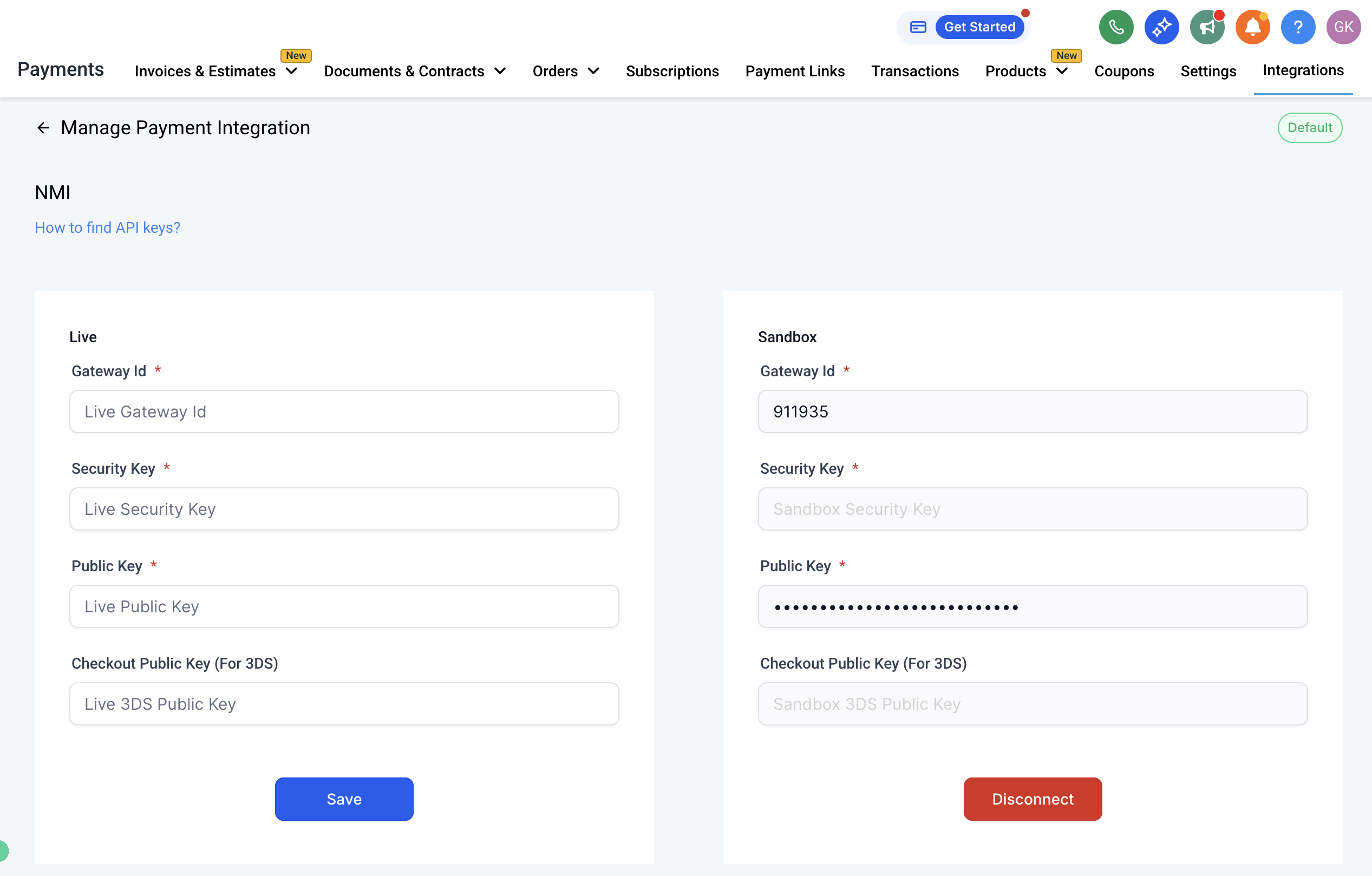
Fill out the Gateway ID, Security key, and Public key fields with your NMI credentials, then click Save.
Your account must be on Version 2 funnels to use this integration. If you are still on Version 1, upgrade before connecting NMI.
3D Secure (3DS) adds an extra authentication step for cards that require it. NMI 3DS support is available and takes a quick one-time setup:
Enroll in Payer Authentication 2.0 in your NMI account.
Confirm the service status is Active.
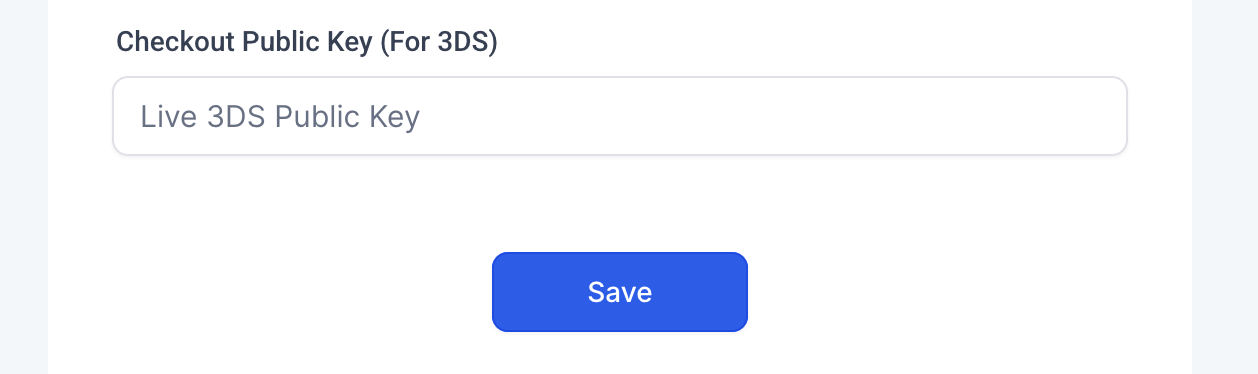
Generate a Checkout Public Key for 3DS in your NMI Merchant Portal, then add it to your NMI integration in Aesthetix CRM.
NMI can also accept ACH bank transfers on invoices. To set this up:
Make sure ACH is enabled on your NMI account.
If the feature is gated behind Labs in your account, enable it there as well.
In your NMI dashboard, enable the required webhooks for settlements and payment status updates. NMI's webhook documentation covers the setup steps.
Use this webhook URL in your NMI dashboard:
https://backend.leadconnectorhq.com/payments/nmi/webhook
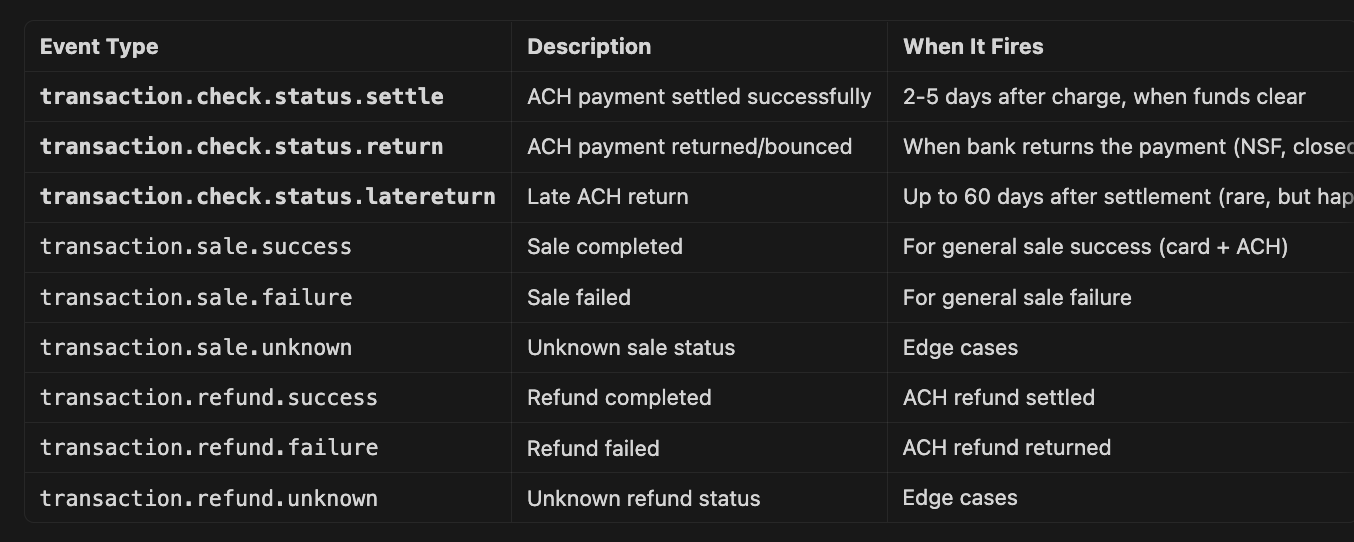
Enable the settlement and payment status events shown below.
Keep in mind that ACH transfers can take up to 5 business days to reach a final status, depending on the patient's bank. We recommend providing services only after the payment status changes to Success.
Recurring invoices and subscriptions can only be started with a bank account that has already been saved. To save a patient's bank account, collect a payment through a standard invoice first. Once the bank account is saved, it can be reused for future recurring debits.
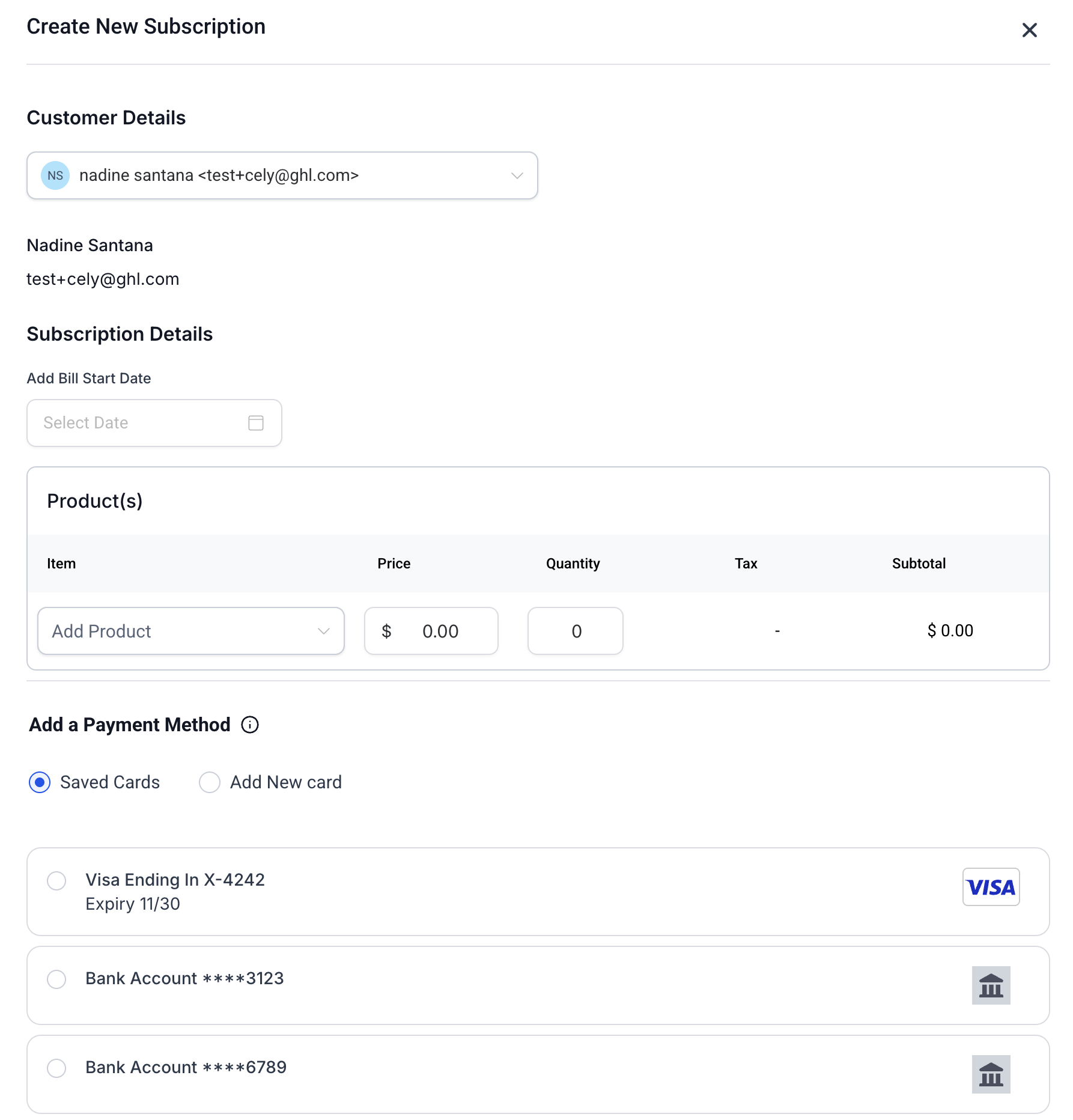
You do not need to sync products or create new ones to use NMI. Create a one-time or recurring product under Payments and then Products, and it will charge according to the price you set. Products you already use with Stripe or PayPal will work with NMI as soon as you switch the default provider under Payments and then Integrations. No additional sync is required.
You do not have to disconnect Stripe to connect NMI. You can connect both gateways on the Integrations page. Because more than one gateway can then process payments, you must choose a default gateway for order form payments. The default must be one of Stripe, NMI, or Authorize.net.
PayPal is handled separately. You can offer PayPal alongside your default card gateway, and PayPal can be added or removed independently. That is why PayPal does not appear among the default gateway choices: only your card gateway needs a default.
We recommend keeping existing connections in place rather than disconnecting them. Any active subscriptions or pending transactions on Stripe continue to run as long as the Stripe connection stays connected. Setting a new default only routes new transactions through your chosen gateway.
Recurring product purchases are supported with NMI. Track subscriptions under Payments and then Subscriptions, and see order details in the Orders and Transactions tables. Note that only one recurring product per order form checkout is supported.
Subscriptions created through NMI use the following statuses:
Pending: The first subscription payment could not be completed, or the transaction is held for review.
Trial: The subscription is in its trial period.
Active: The last payment succeeded and another payment is upcoming.
Expired: All subscription payments have completed and the subscription no longer exists.
Canceled: Your practice canceled the subscription and no further payments will process.
Unpaid: The last payment did not succeed. The subscription is ongoing but the payment failed.
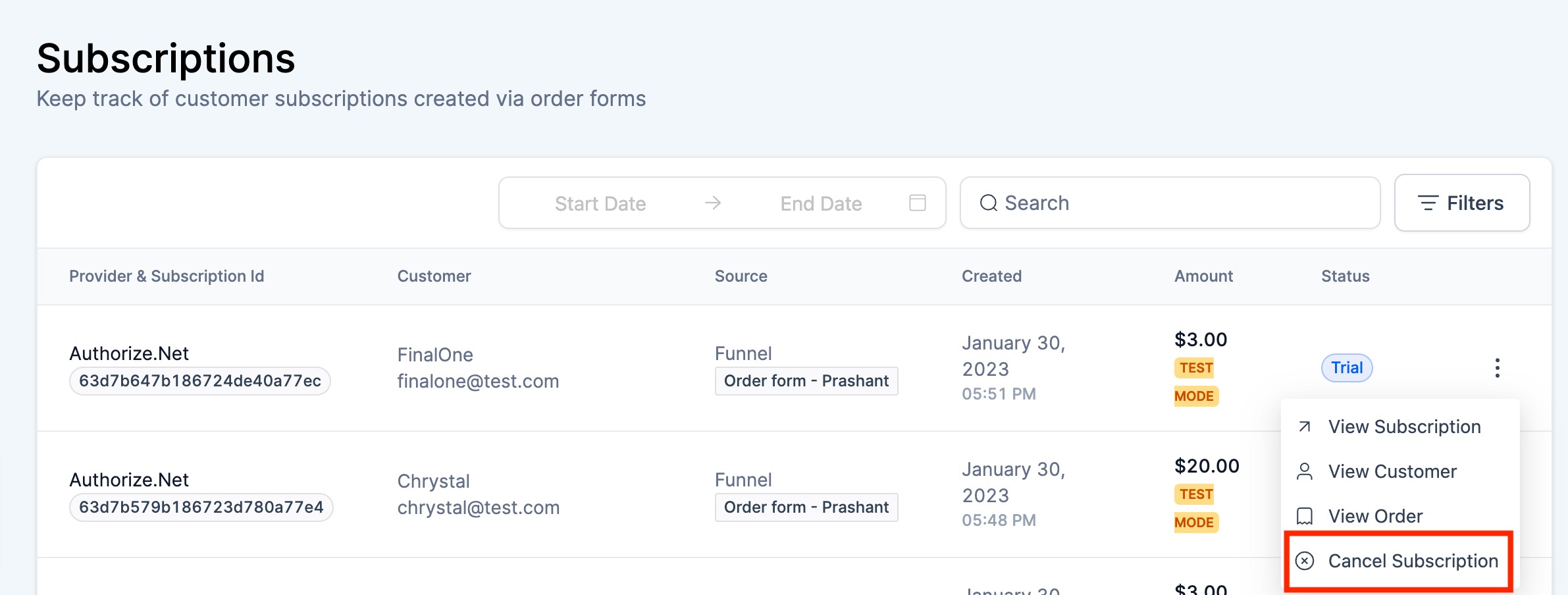
The Cancel action is available depending on status:
Action / Status | Pending | Trial | Active | Expired | Canceled | Unpaid |
|---|---|---|---|---|---|---|
Cancel | No | Yes | Yes | No | No | Yes |
If the first subscription payment succeeds at checkout, the subscription moves to Active (or Trial if a trial period is attached). It stays Active until every recurring payment completes, then moves to Expired.
If a recurring payment fails, it is retried two more times, 24 hours apart, while the status stays Unpaid. If any retry succeeds, the subscription returns to Active. If all retries for the final payment fail, the status moves to Expired. If you disconnect the gateway while a subscription is ongoing, its payments cannot process and it moves to Unpaid, with retries continuing per this logic.
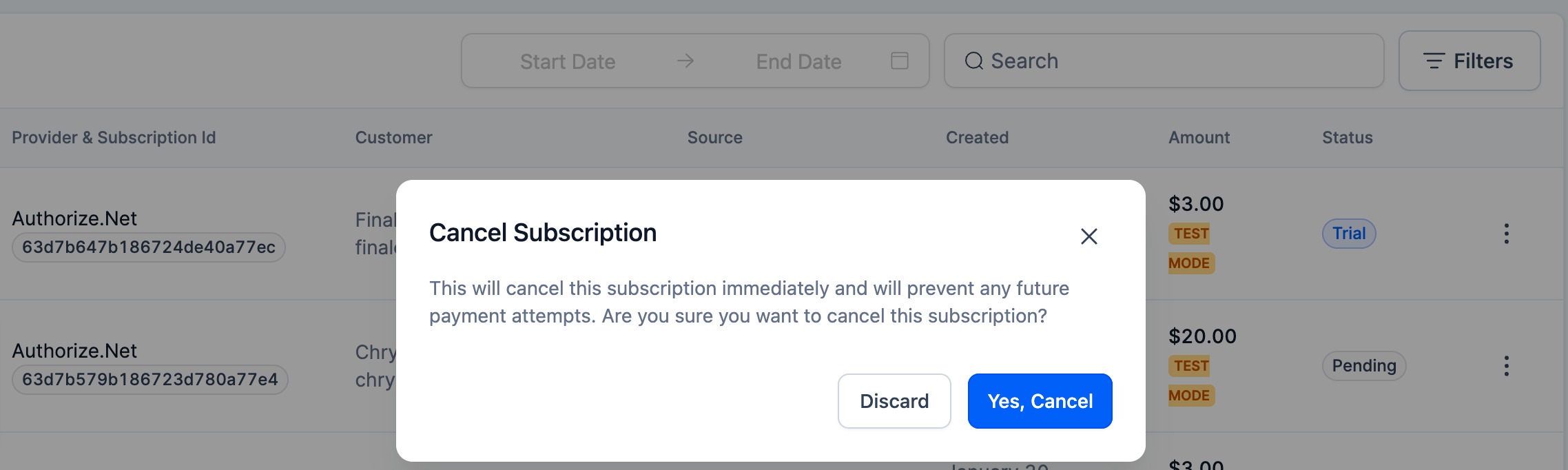
Cancel NMI subscriptions from the Subscriptions page using the Cancel Subscription action. Aesthetix CRM does not use NMI's Automatic Recurring Billing, so your NMI merchant portal shows only the individual charges tied to each subscription transaction, not the subscription itself.
All NMI payments appear under Payments and then Transactions, alongside your other transactions. Triggers and attribution tied to order forms work exactly as they do with other gateways. Refunds are not yet available inside Aesthetix CRM for NMI, so process refunds through your NMI merchant portal for now.
What payment methods does NMI support?
Credit and debit card payments, plus ACH bank transfers on invoices once ACH is enabled. Apple Pay and Google Pay are not supported through NMI.
Can I offer Apple Pay and Google Pay through Stripe while processing cards through NMI?
No. Apple Pay and Google Pay are available only through Stripe, and only one gateway (Stripe or NMI) can be the default for order form payments. You cannot run both at once for card processing.
Do I need to create new products to use NMI?
No. Existing products work with NMI after you switch the default provider. New products just need to be created under Payments and then Products with a price set.
My patient just paid by ACH, but the transaction still shows as processing. Is something wrong?
No. ACH transfers can take up to 5 business days to settle, depending on the patient's bank. Wait until the status shows Success before providing services.
I do not see the ACH option on an invoice. What should I check?
Confirm the feature is enabled in Labs (if applicable) and that ACH is enabled on the NMI side. If it still does not appear, contact Support.
Why can't I add a bank account for recurring invoices and subscriptions?
Recurring ACH can only use a bank account that has already been saved. Collect a one-time invoice payment first to save the bank account, then reuse it for recurring debits.
Can I refund an NMI transaction inside Aesthetix CRM?
Not yet. Use your NMI merchant portal to process refunds for now.
Where do NMI subscriptions and transactions show up?
Subscriptions live under Payments and then Subscriptions. All payments appear under Payments and then Transactions.
Does connecting NMI affect my existing Stripe subscriptions?
No. Existing Stripe subscriptions and pending transactions keep running as long as Stripe stays connected. Setting NMI as default only affects new transactions.
