Authorize.net is a trusted, long-established payment gateway that lets your practice securely process card payments for invoices, order forms, subscriptions, and memberships inside Aesthetix CRM. This guide walks through obtaining your API keys, connecting the gateway, setting a default gateway, and managing subscriptions, refunds, and reporting.
Tip: Before connecting a third-party gateway, consider AX Pay, Aesthetix CRM's own payment processing with rates better than Stripe. It works natively across the platform and keeps billing, reporting, and support in one place. See AX Pay Overview and Setup Guide. If Authorize.net is the right fit for your practice, the steps below will get you connected.
The Authorize.net integration lets you securely process card payments in Aesthetix CRM using Authorize.net as your gateway. You can accept card payments for invoices, order forms, subscriptions, and memberships, and track everything directly in the Payments section. Key benefits include:
Secure payment processing: Advanced security protocols keep patient data safe.
Card payment support: Accept credit card payments, with more methods coming.
Streamlined invoicing and order forms: Process payments for invoices, subscriptions, and order forms without manual work.
Real-time tracking: Track and manage payments directly in the Payments section.
Professional checkout: Give patients an efficient, trustworthy checkout experience.
If you do not already have an Authorize.net account, create one at https://www.authorize.net/.
Authorize.net accepts transactions from merchants in the United States, Australia, and Canada.
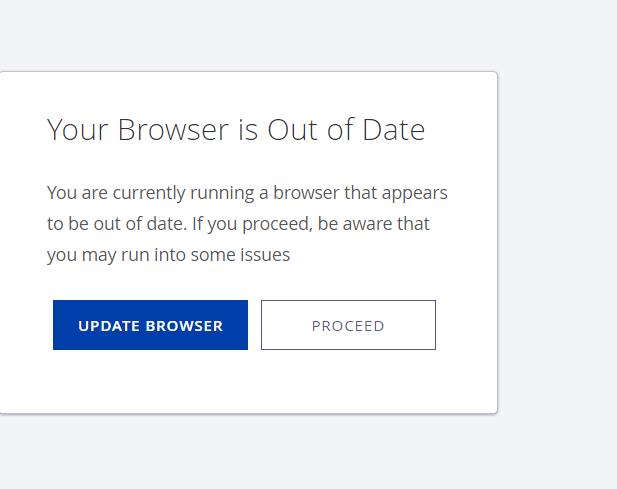
You must use a supported browser to access the Authorize.net Merchant Interface.
Supported browsers:
Browser | Recommended version |
|---|---|
Chrome | v80 or higher |
Edge (Chromium) | v85 or higher |
Firefox | v78 or higher |
Safari | v12 or higher |
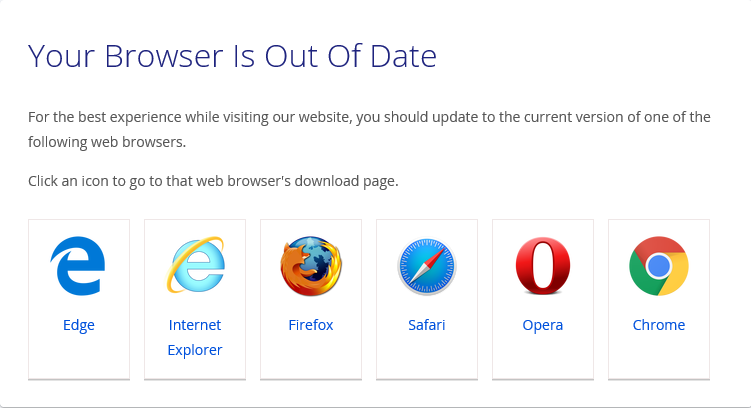
If Authorize.net detects an unsupported or outdated browser (such as Internet Explorer 11, Edge Legacy, or Opera), it may show a warning or block access. Update to a newer version or switch to a supported browser. You can check your browser version through your browser's Help or About screen, or with a tool like https://www.whatismybrowser.com/.
You need three API keys from your Authorize.net Merchant Interface. Get keys for both environments:
Sandbox (test) keys: Log in to the sandbox Merchant Interface.
Live keys: Log in to the Live Merchant Interface.
In your Merchant Interface, go to Account Settings → API Credentials & Keys to generate your keys. For more on the difference between Sandbox and Live mode, see Authorize.net's testing guide.
Once you have your keys and a supported browser, connect the gateway in Aesthetix CRM.
In the left navigation, open Payments.
Select Integrations.
Locate Authorize.net in the list of available providers.
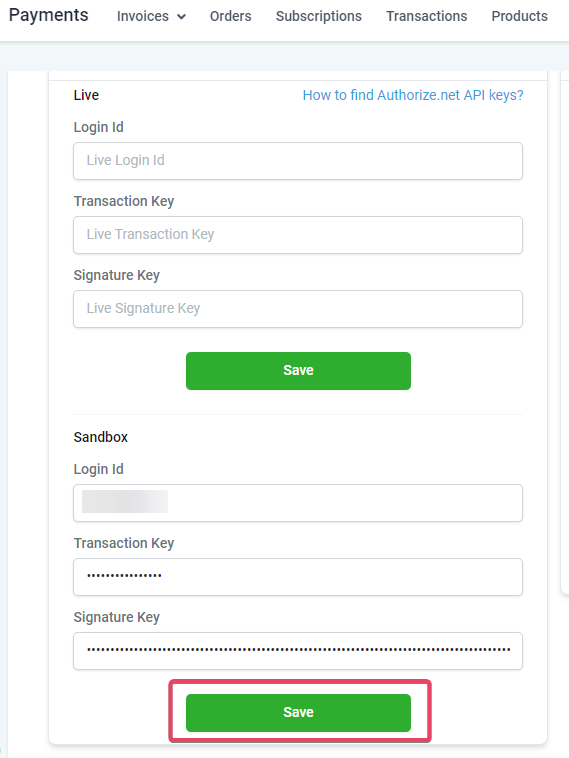
Enter the three Live API keys in the corresponding Live fields.
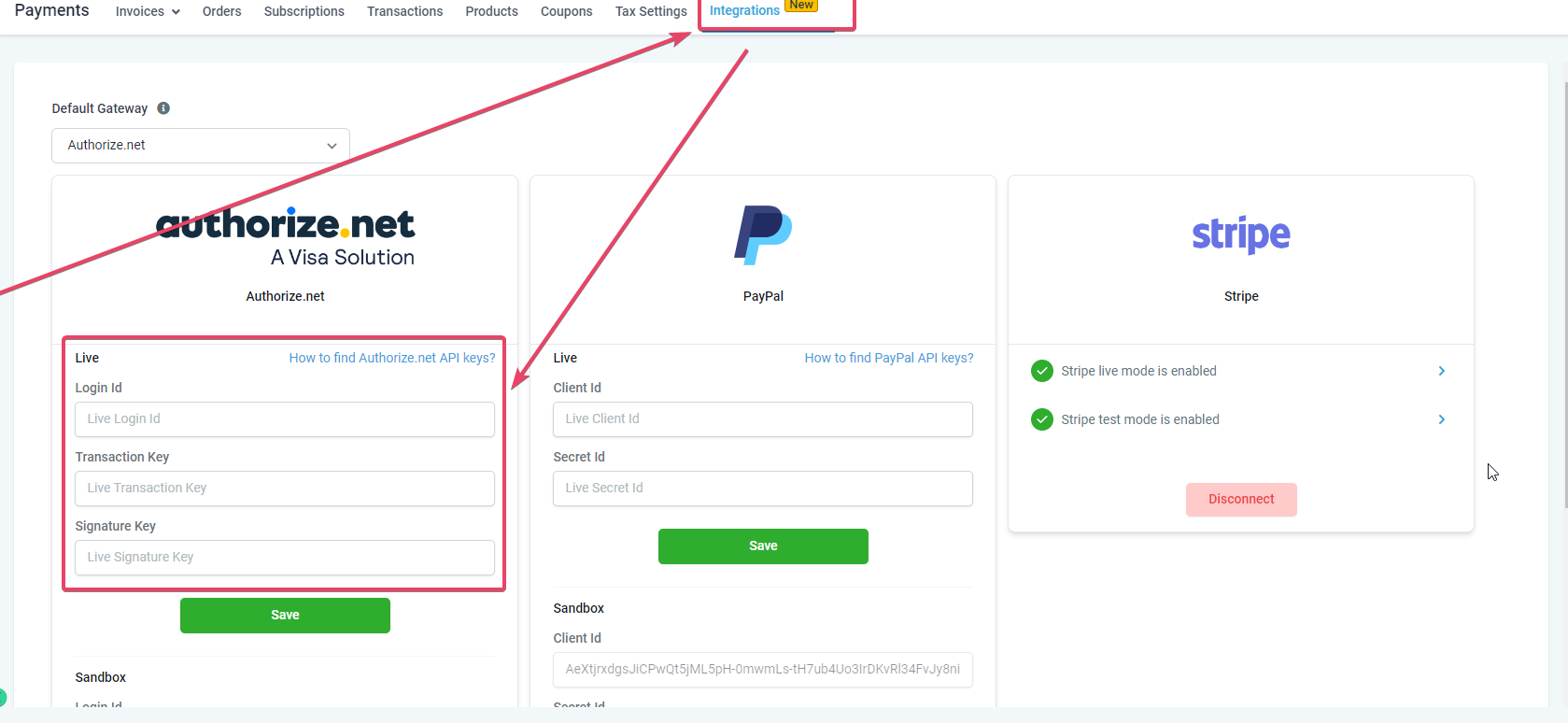
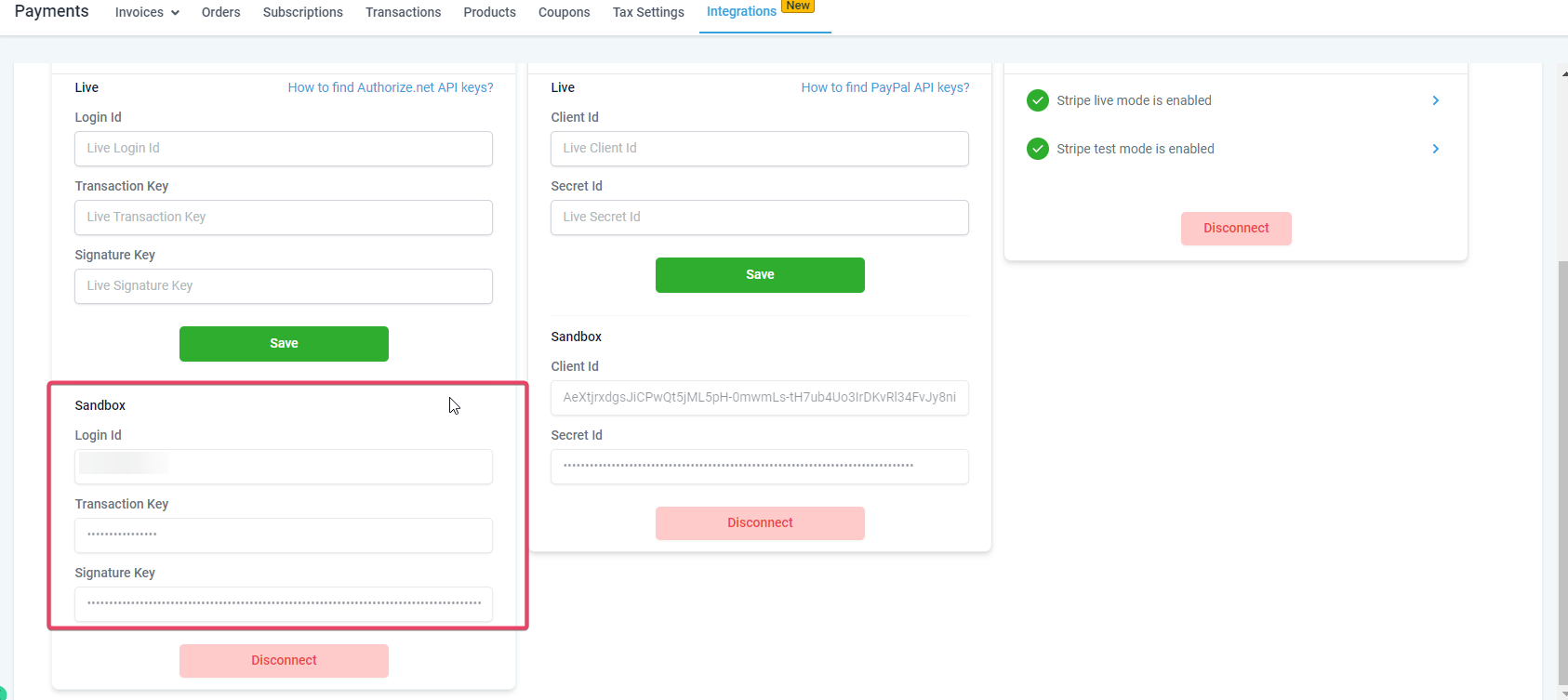
Enter your Sandbox API keys in the Sandbox fields, then click Save.
A prompt asks whether you want to make Authorize.net your default payment gateway.
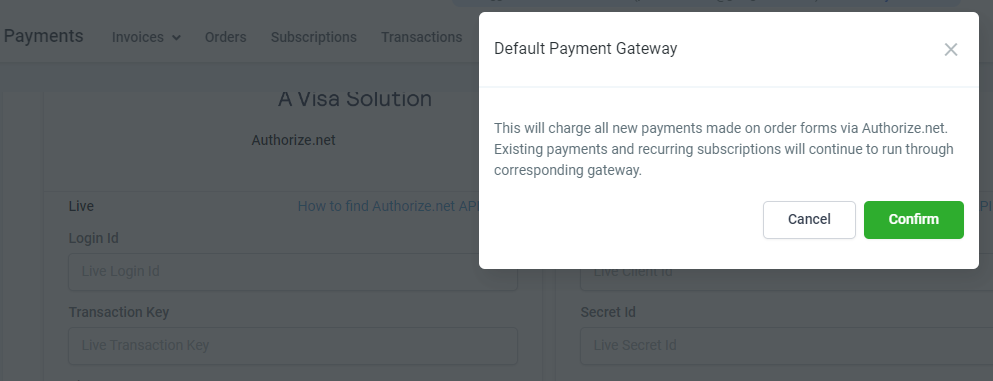
Clicking Cancel still integrates Authorize.net, but does not make it the default gateway.
Clicking Confirm integrates Authorize.net and makes it your default payment gateway.
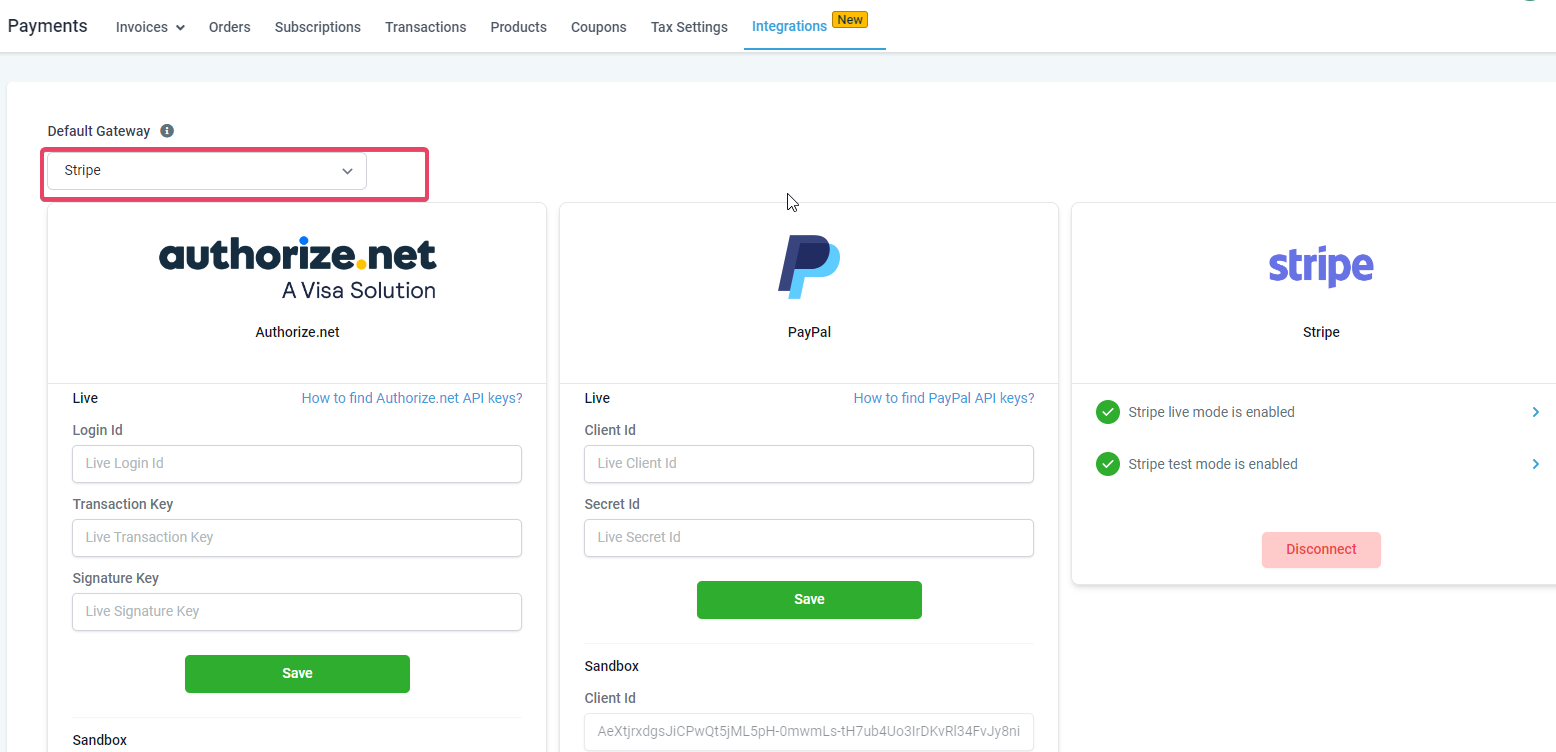
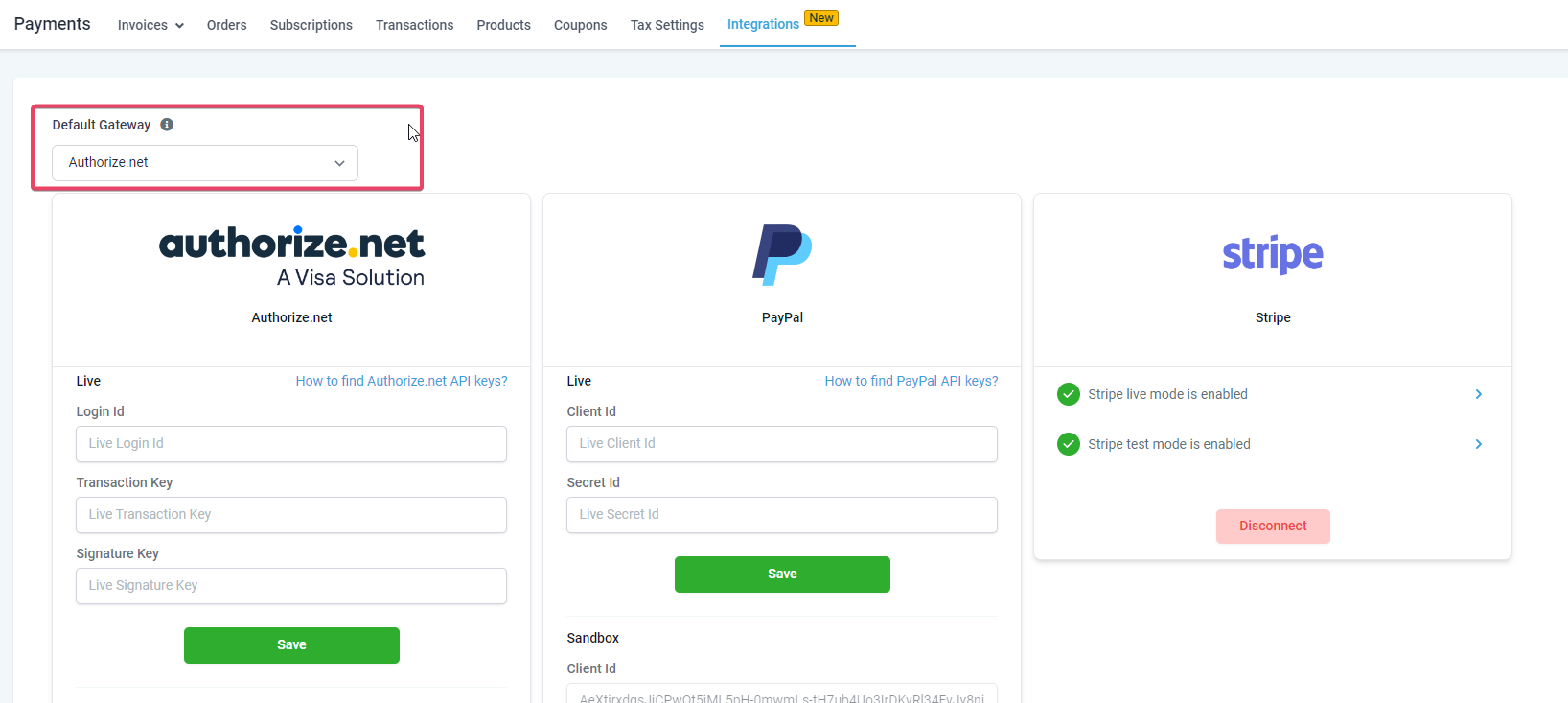
You are not required to disconnect Stripe to connect Authorize.net. You can connect both gateways on the Integrations page. Because you have two gateways connected, you must define a default gateway for processing new payments. PayPal continues to work alongside Authorize.net or Stripe in order forms, whichever is set as the default.
You need funnels version 2 to use this feature.
If Authorize.net is connected and set as the default gateway, some product areas (such as memberships and SaaS payment links) may still process through Stripe.
If you have recurring subscriptions or pending transactions on Stripe, they continue to run as long as the Stripe connection stays in place. Do not disconnect a gateway. Setting a default routes new transactions through your chosen gateway while keeping existing Stripe and PayPal subscriptions running.
Authorize.net is available for membership checkouts and for SaaS v2 functionality.
Use any future expiry date and any 3 or 4 digit CVC:
4007000000027 (Visa)
4012888818888 (Visa)
4111111111111111 (Visa)
370000000000002 (American Express)
5424000000000015 (Mastercard)
2223000010309703 (Mastercard)
2223000010309711 (Mastercard)
6011000000000012 (Discover)
3088000000000017 (JCB)
38000000000006 (Diners Club / Carte Blanche)
Choosing between AX Pay, Stripe, PayPal, and Authorize.net depends on your practice's needs. AX Pay is the recommended option because it offers rates better than Stripe and works natively across Aesthetix CRM. Among third-party gateways:
Stripe: A popular, developer-friendly platform with transparent pricing and custom integrations.
PayPal: A well-established processor with global reach, invoicing, and recurring payments.
Authorize.net: A trusted processor with a long history, comprehensive features, fraud detection, and mobile compatibility.
Compare each processor's features, fees, and support before deciding. Fees change over time, so check each provider's current pricing page: Stripe, PayPal, and Authorize.net.
Subscriptions created on order forms are tracked under Payments → Subscriptions.
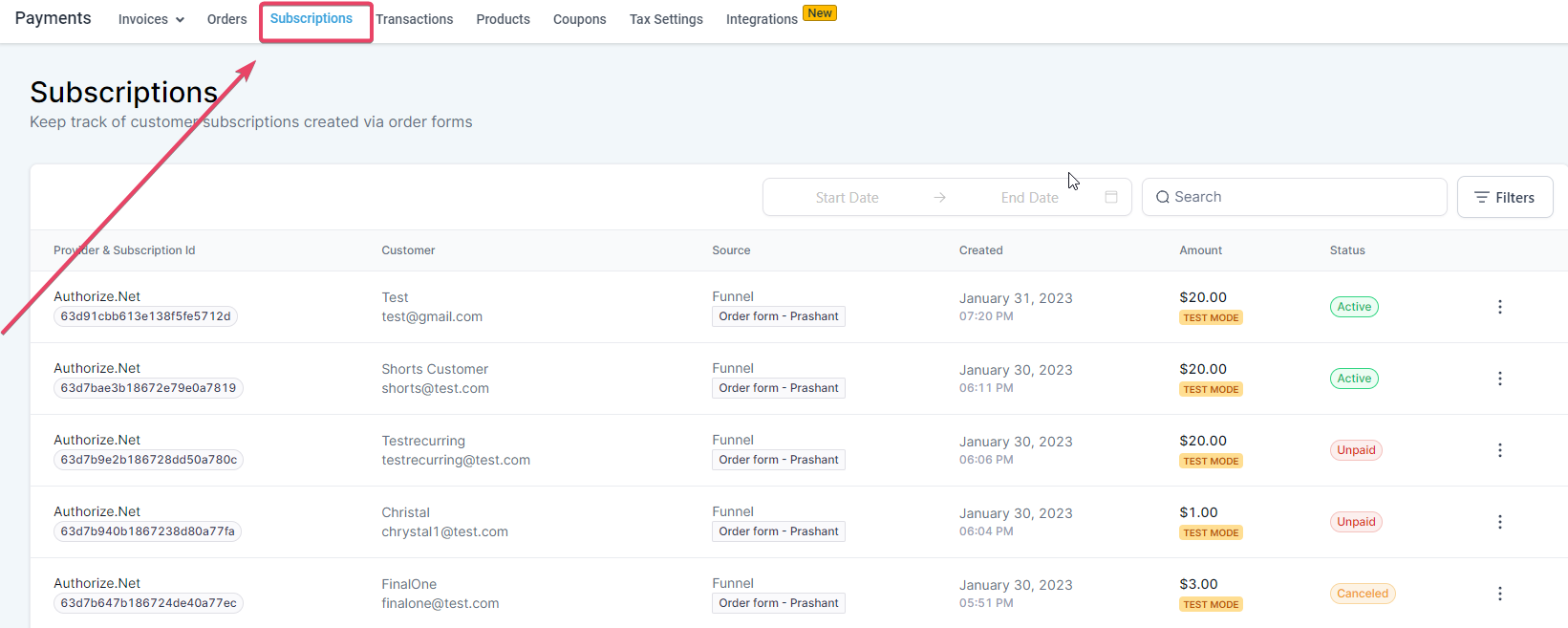
Subscription statuses and what they mean:
Pending: Held for merchant review due to FDS (Fraud Detection Suite) filters.
Trial: The subscription is in its trial period.
Active: The last payment succeeded and another payment is upcoming.
Expired: All subscription payments are complete and the subscription no longer exists.
Canceled: You canceled the subscription with the Cancel action; no further payments will process.
Unpaid: The last payment did not succeed. The subscription is ongoing but the final payment failed.
Whether a subscription can be canceled depends on its status:
Status | Can cancel |
|---|---|
Pending | No |
Trial | Yes |
Active | Yes |
Expired | No |
Canceled | No |
Unpaid | Yes |
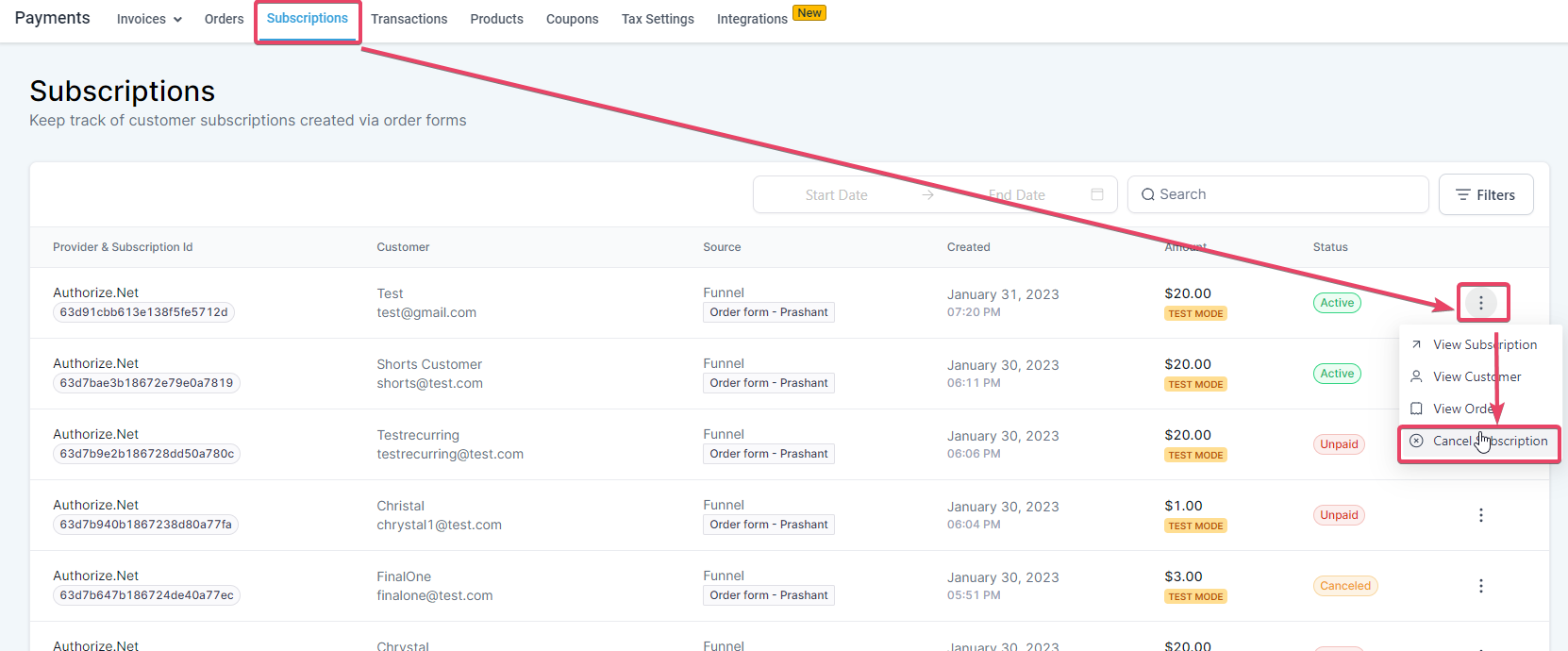
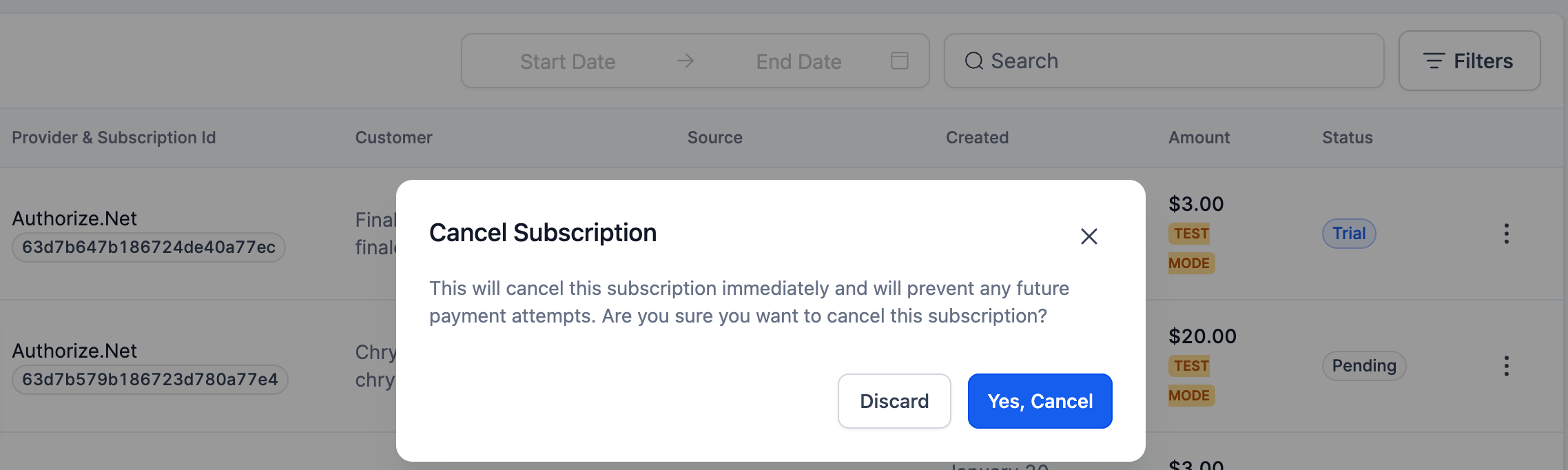
The Cancel action is available only for subscriptions created on Authorize.net. Cancellation for Stripe and PayPal subscriptions is being added.
How payment retries work: When the first payment on an order form succeeds, the subscription becomes Active (or Trial if the product has a trial). It stays Active until all recurring payments complete, then moves to Expired. If a payment fails (for example, an expired card or one that needs authentication), the status moves to Unpaid, and the payment is retried up to two more times, 24 hours apart. The subscription keeps attempting subsequent payments with two retries each. If any payment succeeds, it returns to Active; otherwise it stays Unpaid and moves to Expired after all retries on the final transaction are exhausted. If you disconnect the gateway during an active subscription, the payment cannot process and the subscription moves to Unpaid while retries continue.
To cancel a subscription, open the Subscriptions page and use the Cancel Subscription action.
There is no change to Orders, Subscriptions, or Transactions reporting when you use Authorize.net. All payments processed through Authorize.net appear under Payments → Transactions, and workflow triggers and attribution work the same as with other gateways.
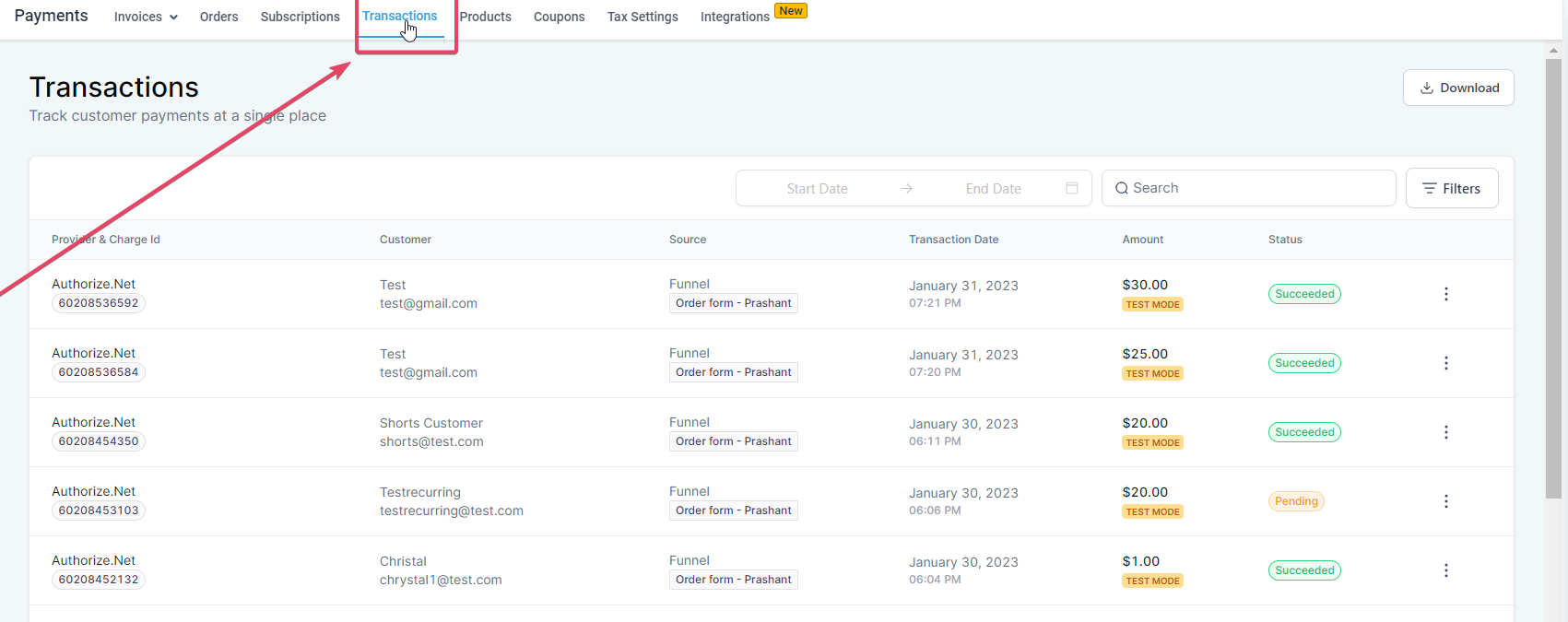
To refund a payment, open Payments → Transactions and refund any transaction directly in the application.
Do I need to disconnect Stripe to connect Authorize.net?
No. You can connect both gateways on the Integrations page. Since you have two gateways connected, you must set a default gateway for new payments. Existing Stripe and PayPal subscriptions keep running.
Why don't I see PayPal among the default gateway options?
The default gateway must be either Stripe or Authorize.net. PayPal can be used on its own and alongside a card payment method (through Stripe or Authorize.net) on order forms, so it is not a default gateway choice.
Where can I track payments made with Authorize.net?
All Authorize.net payments appear under Payments → Transactions, with no change to your existing reporting or workflow triggers.
Can I refund transactions inside Aesthetix CRM?
Yes. Refund functionality is built in. Refund any transaction under Payments → Transactions.
How do I cancel a subscription created via Authorize.net?
Open the Subscriptions page and use the Cancel Subscription action. You cannot cancel these subscriptions from the Authorize.net merchant portal.
Are my FDS (fraud) filters supported?
Yes. If you hold order-form transactions for review based on FDS filters, they are held (or declined per your settings) and appear in your merchant portal, with the corresponding status shown on the Transactions page. For recurring invoice payments and calendar booking payments, held transactions are treated as declined so the appointment or auto-payment is not scheduled.
Does Authorize.net work for membership checkouts?
Yes. Authorize.net is available for membership checkouts.
Is Authorize.net available for SaaS?
Yes. It is available under SaaS v2 functionality.
Why is Authorize.net blocked in my browser?
Authorize.net requires a supported, up-to-date browser. Update to a current version of Chrome, Edge, Firefox, or Safari, and avoid outdated browsers like Internet Explorer 11 or Edge Legacy.
