PayPal gives your patients a trusted, familiar way to pay, and adding it to checkout can increase conversions. This guide walks through connecting your PayPal account to Aesthetix CRM with your Live and Sandbox credentials, then enabling PayPal and PayLater buttons across your forms, invoices, payment links, order forms, and online store.
Tip: Before connecting a third-party gateway, consider AX Pay, Aesthetix CRM's own payment processing with rates better than Stripe. It works natively across the platform and keeps billing, reporting, and support in one place. See AX Pay Overview and Setup Guide. PayPal works well alongside your primary gateway to give patients an extra payment option, and the steps below will get it connected.
The PayPal Payment Element lets patients pay with their PayPal account or choose PayLater (if eligible) without a complex setup. Adding PayPal:
Gives patients more payment choices beyond cards, which reduces drop-offs.
Builds trust by using a widely recognized payment method.
Supports international patients.
Integrates into your existing payment workflows with minimal changes.
You can offer PayPal across:
Websites and funnels: Use 1-step and 2-step order form elements.
Forms and surveys: Use the Collect Payment element.
Invoices: Let patients pay invoices with PayPal buttons.
Payment links: Add PayPal to your one-time payment links.
Online store: Give shoppers PayPal at checkout.
You will need your PayPal API credentials before you start. Log in to your PayPal developer account, go to My Apps & Credentials, and create an app to generate your Client ID and Secret Key. You will do this for both Live and Sandbox environments.
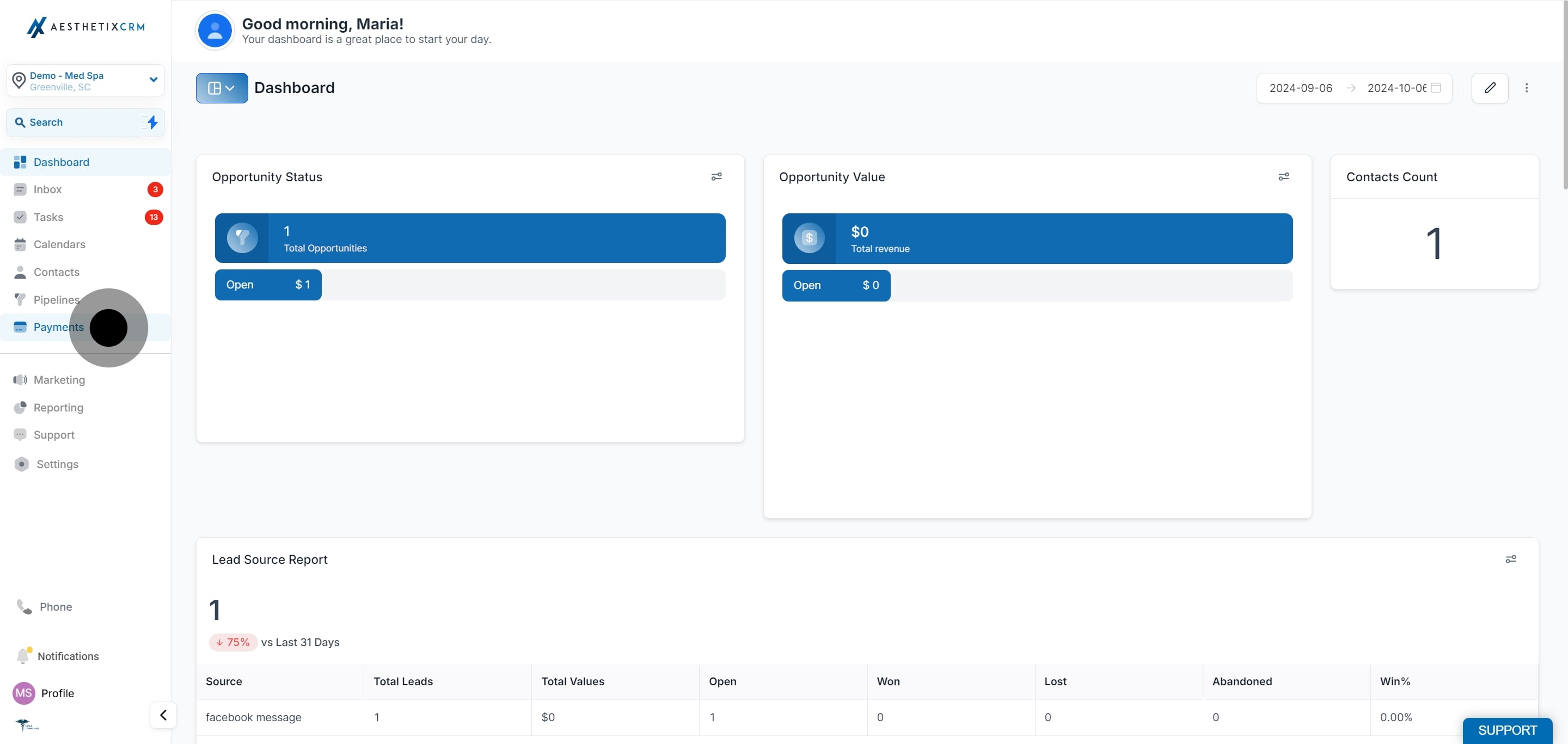
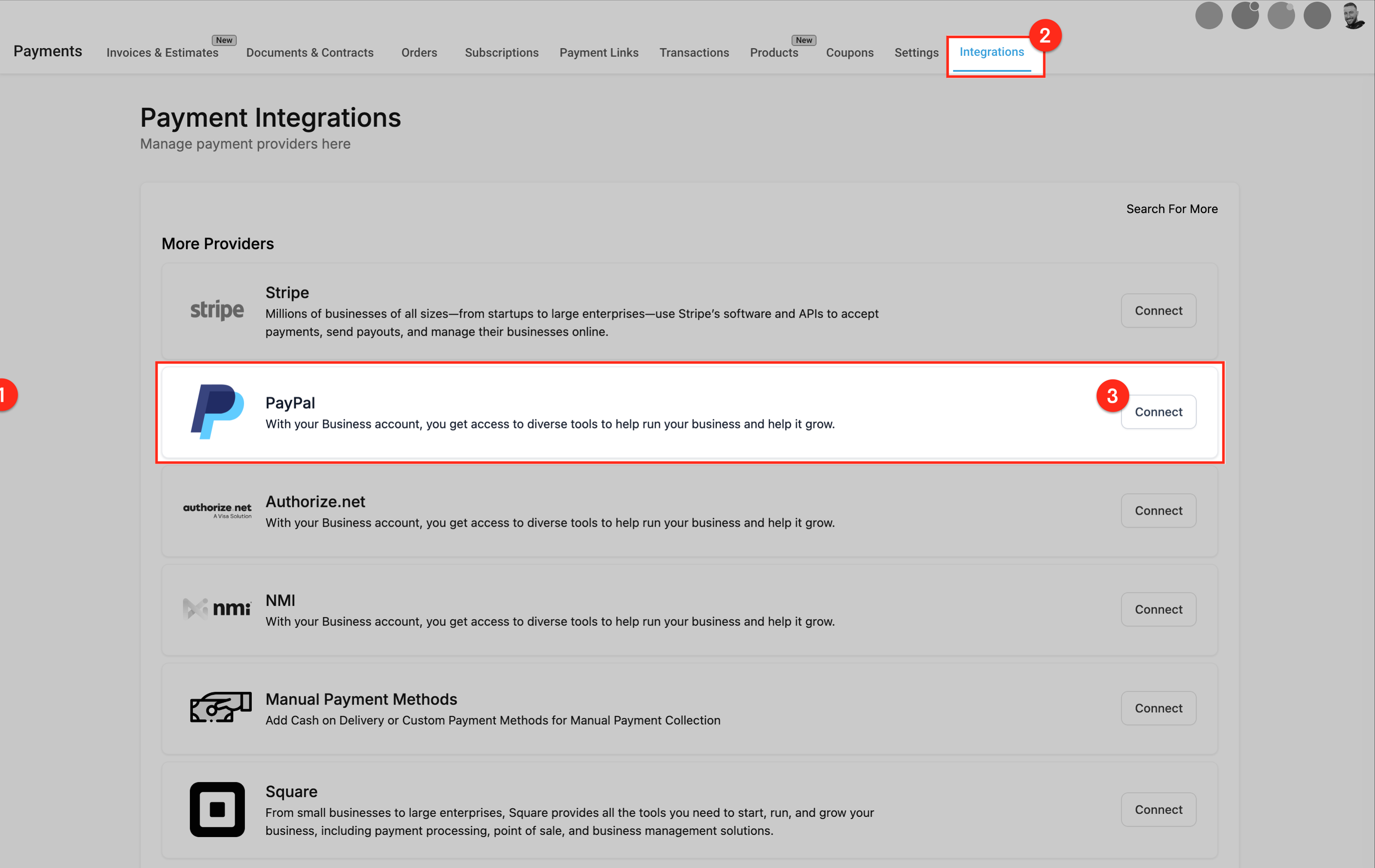
In the left navigation, click Payments.
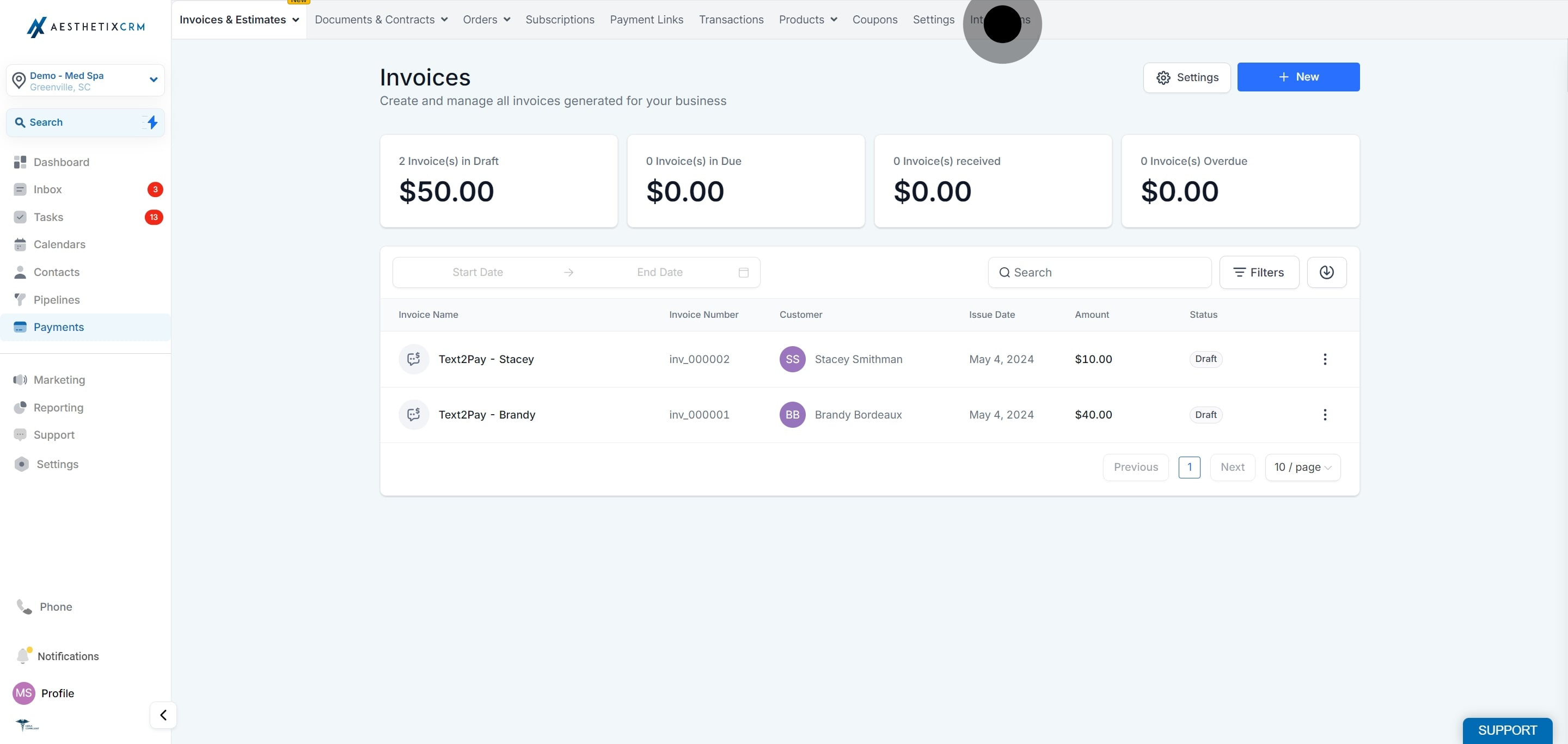
Select Integrations.
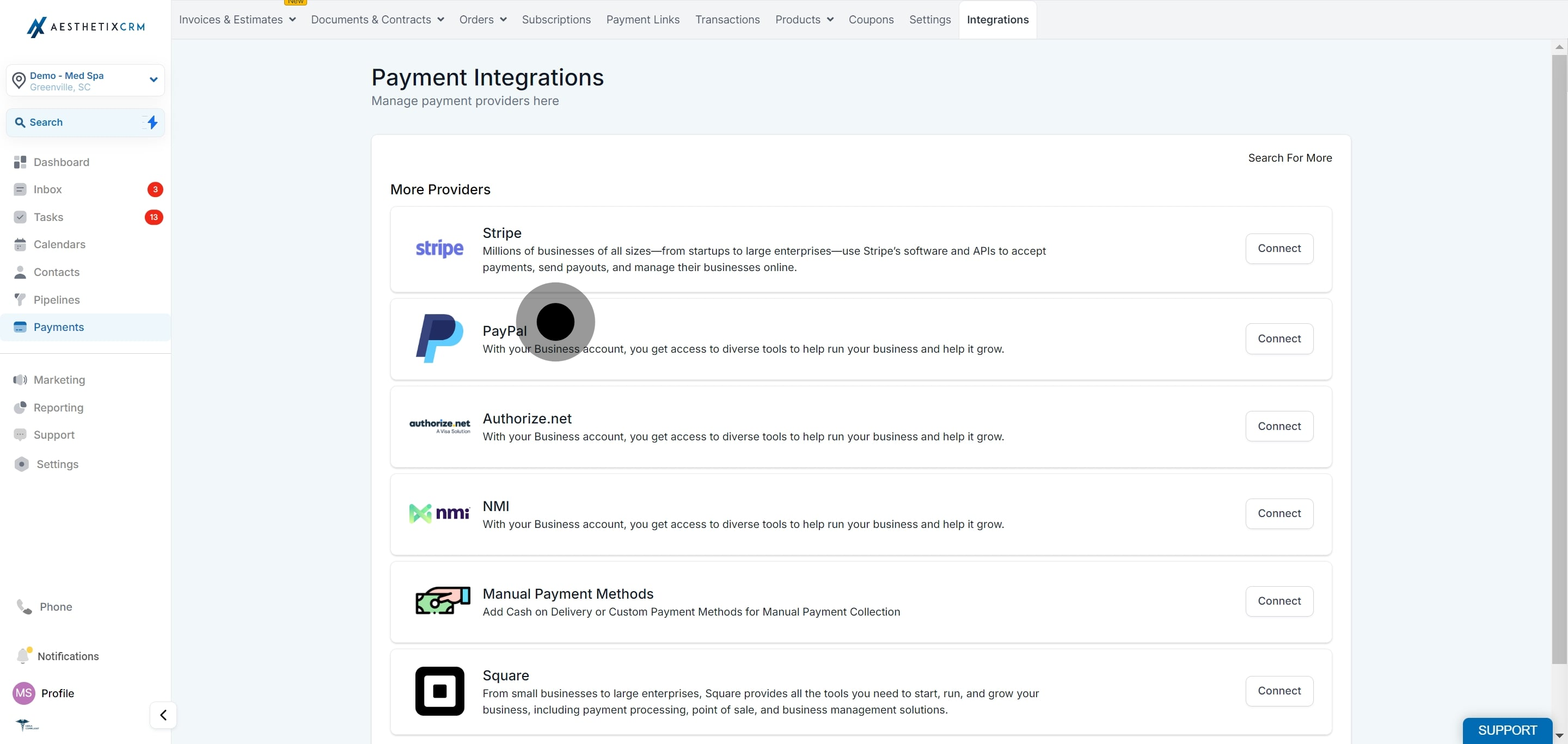
From the list of available integrations, select PayPal.
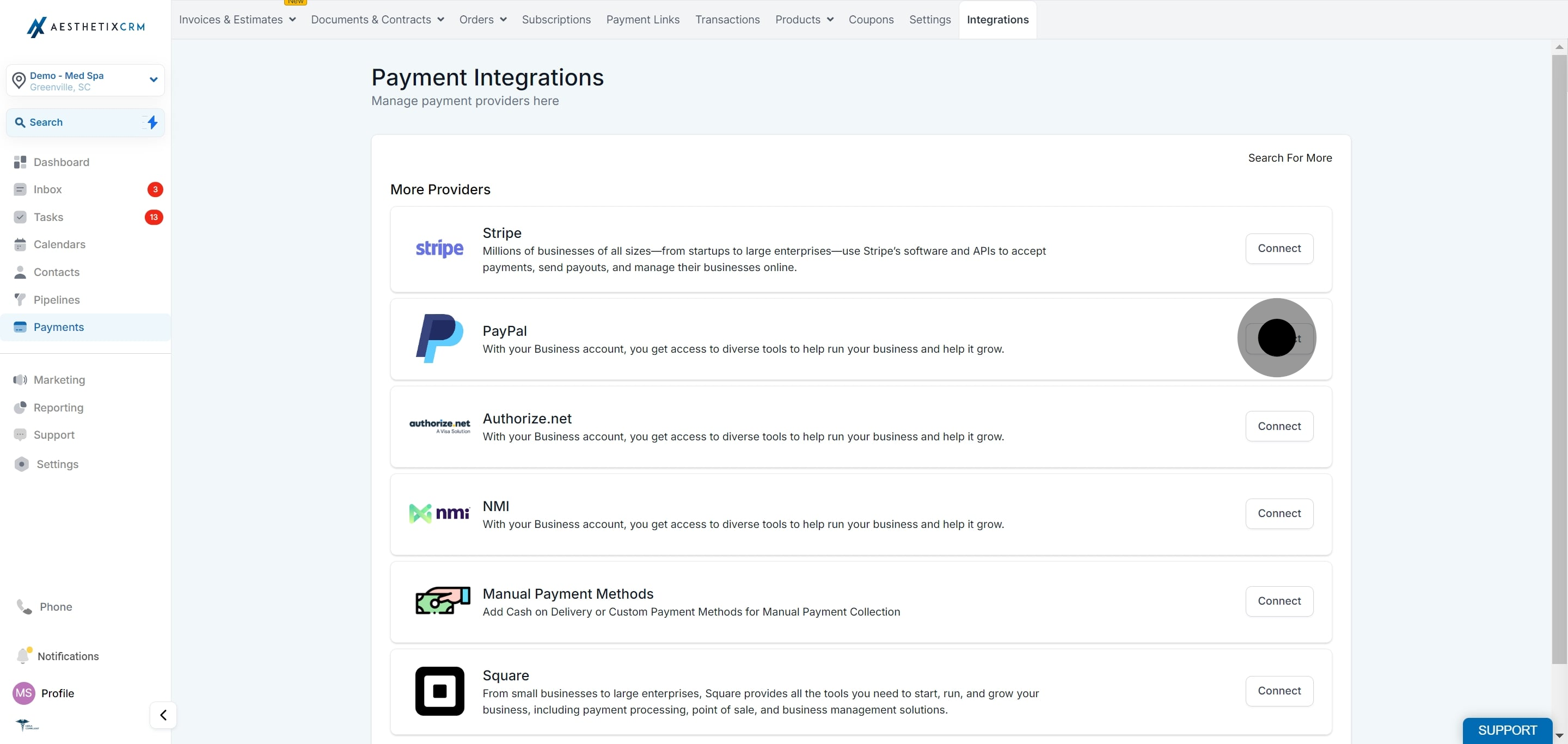
Click Connect to begin the integration.
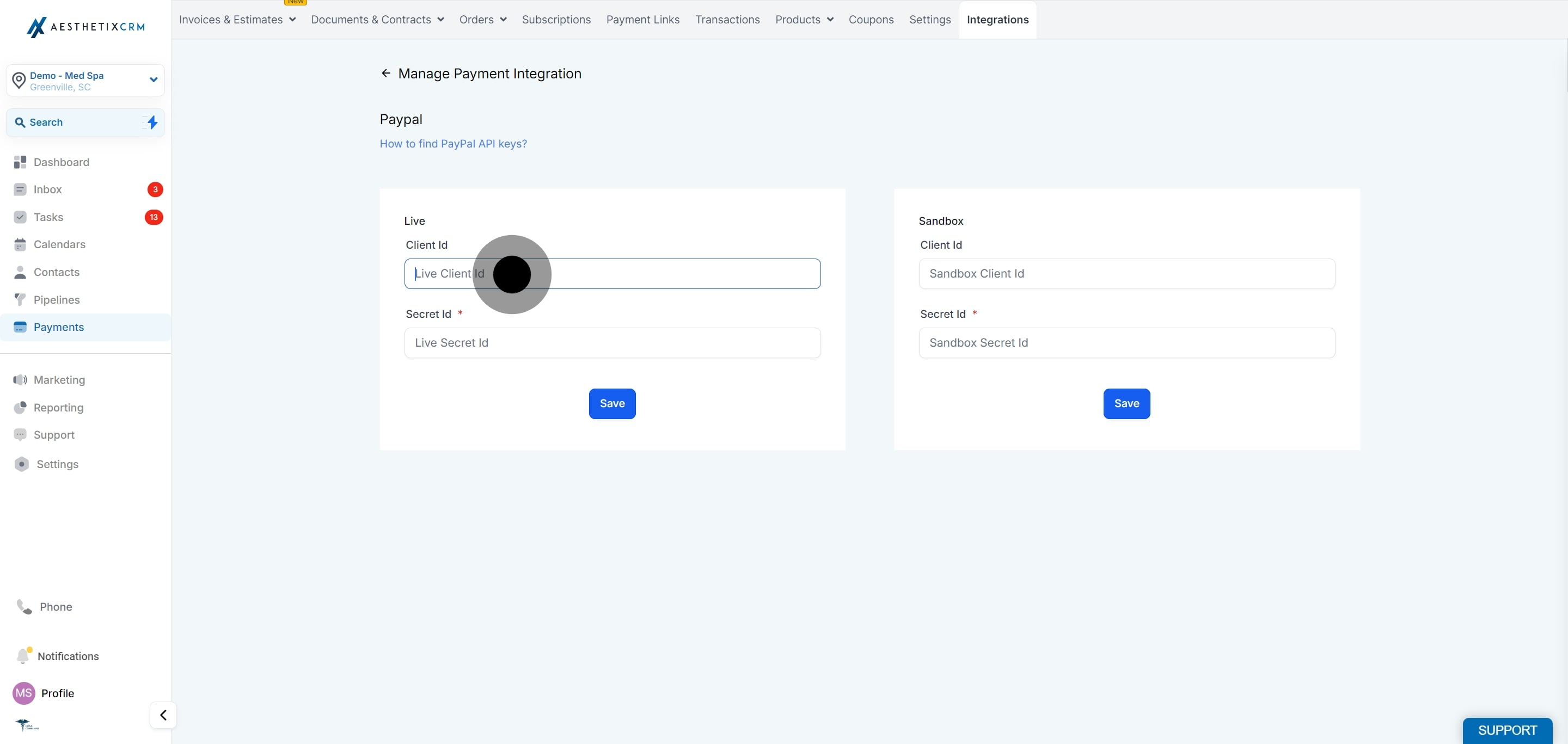
Enter your Live Client ID in the field provided.
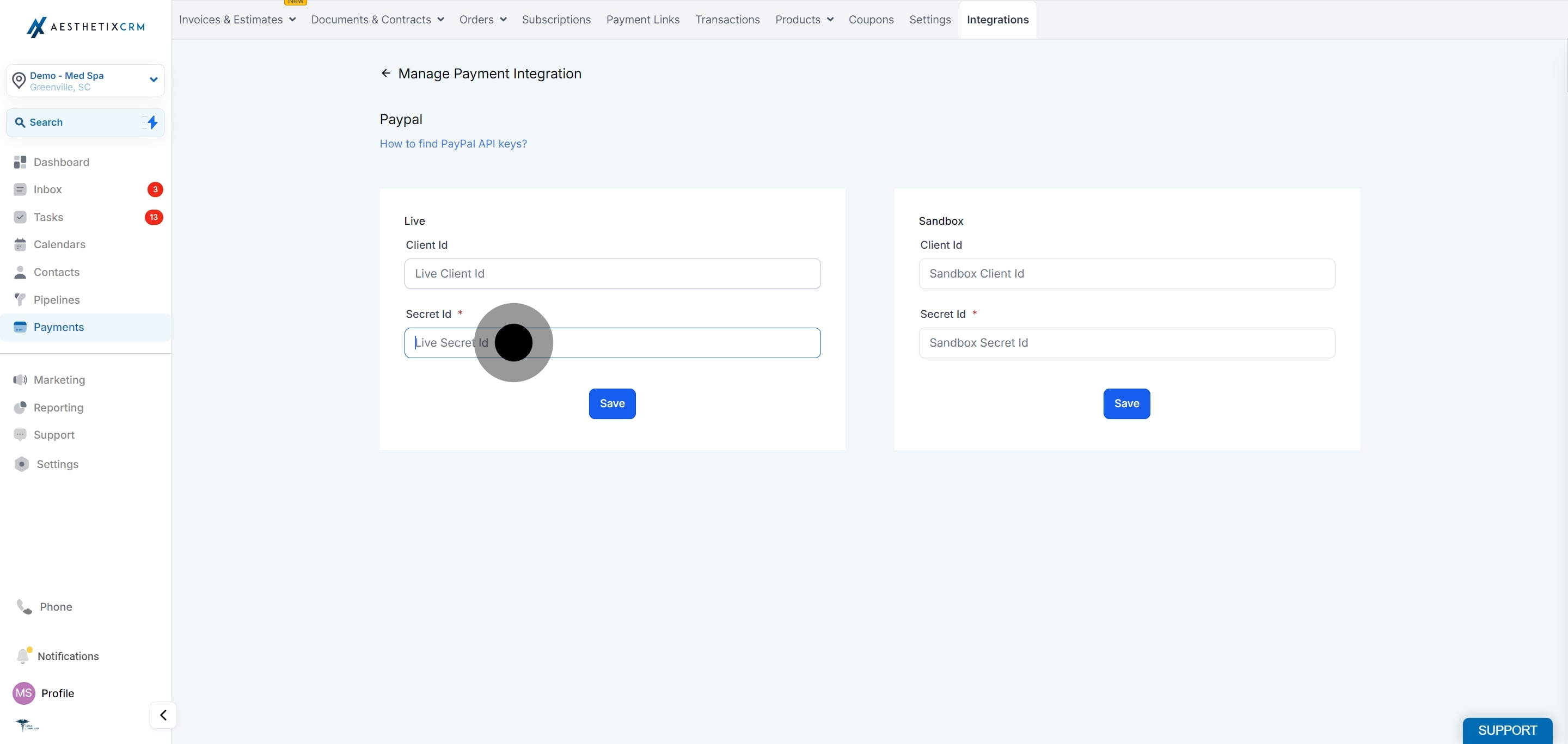
Input your Live Secret ID in the next field.
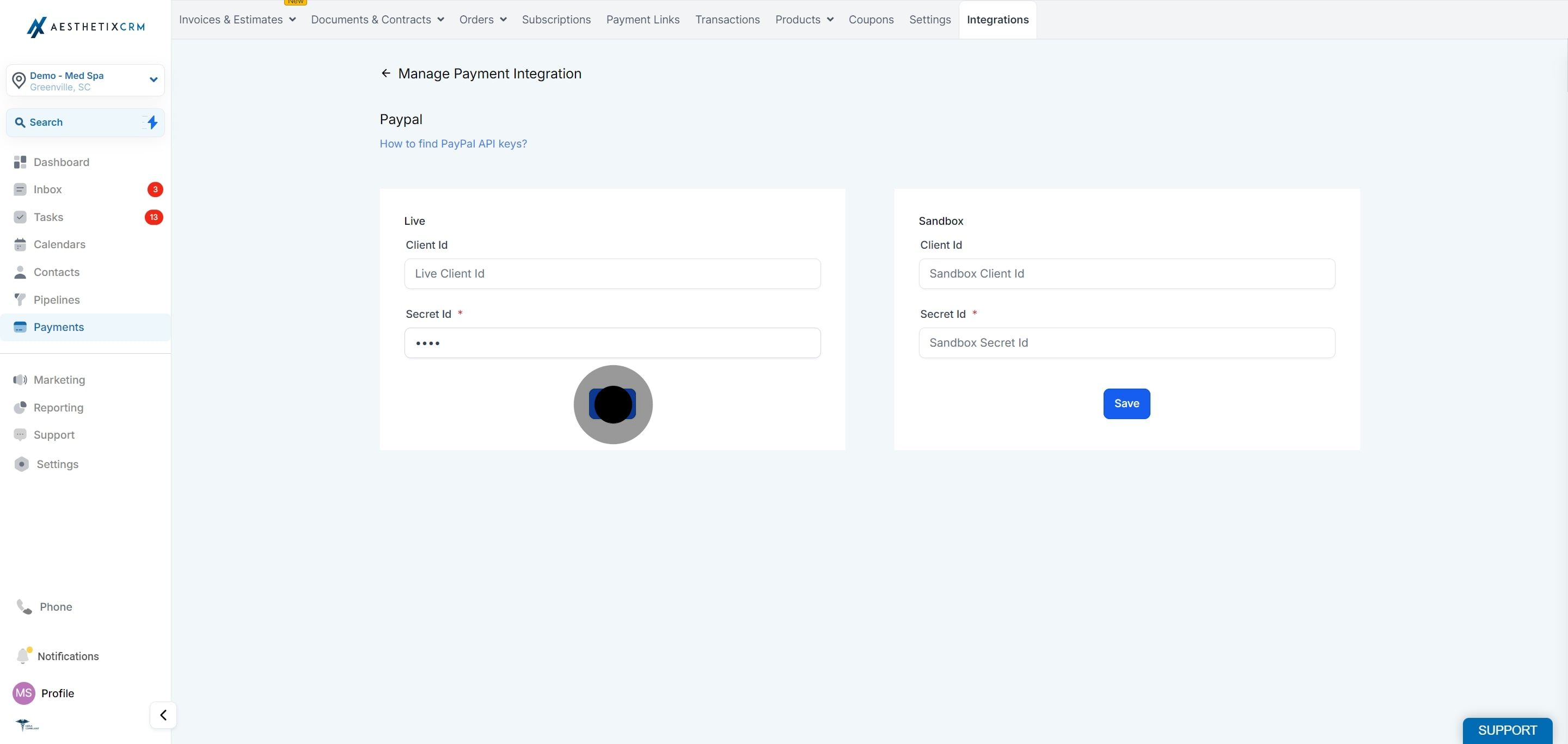
Click Save to secure your details.
Switch to the Sandbox section to add your test credentials.
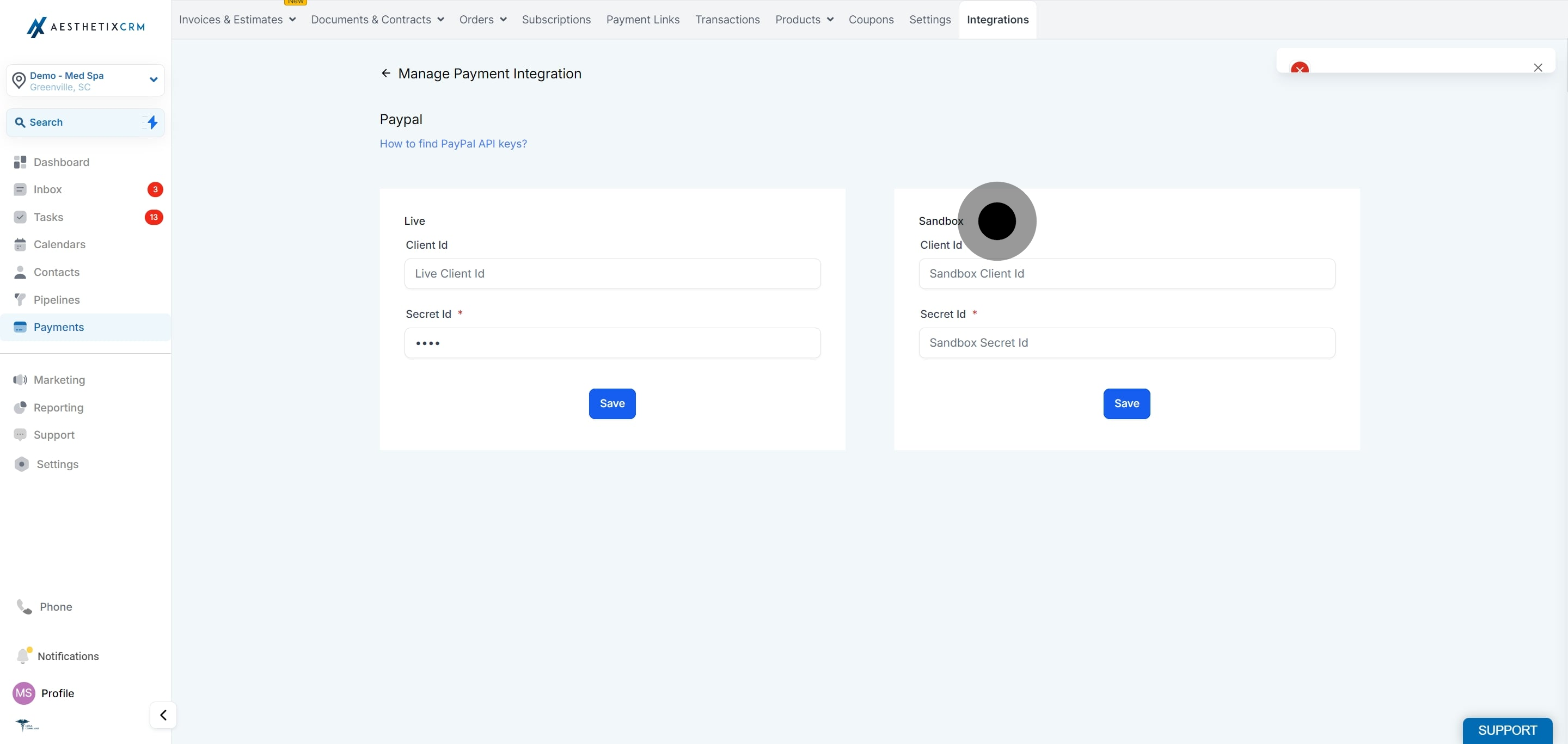
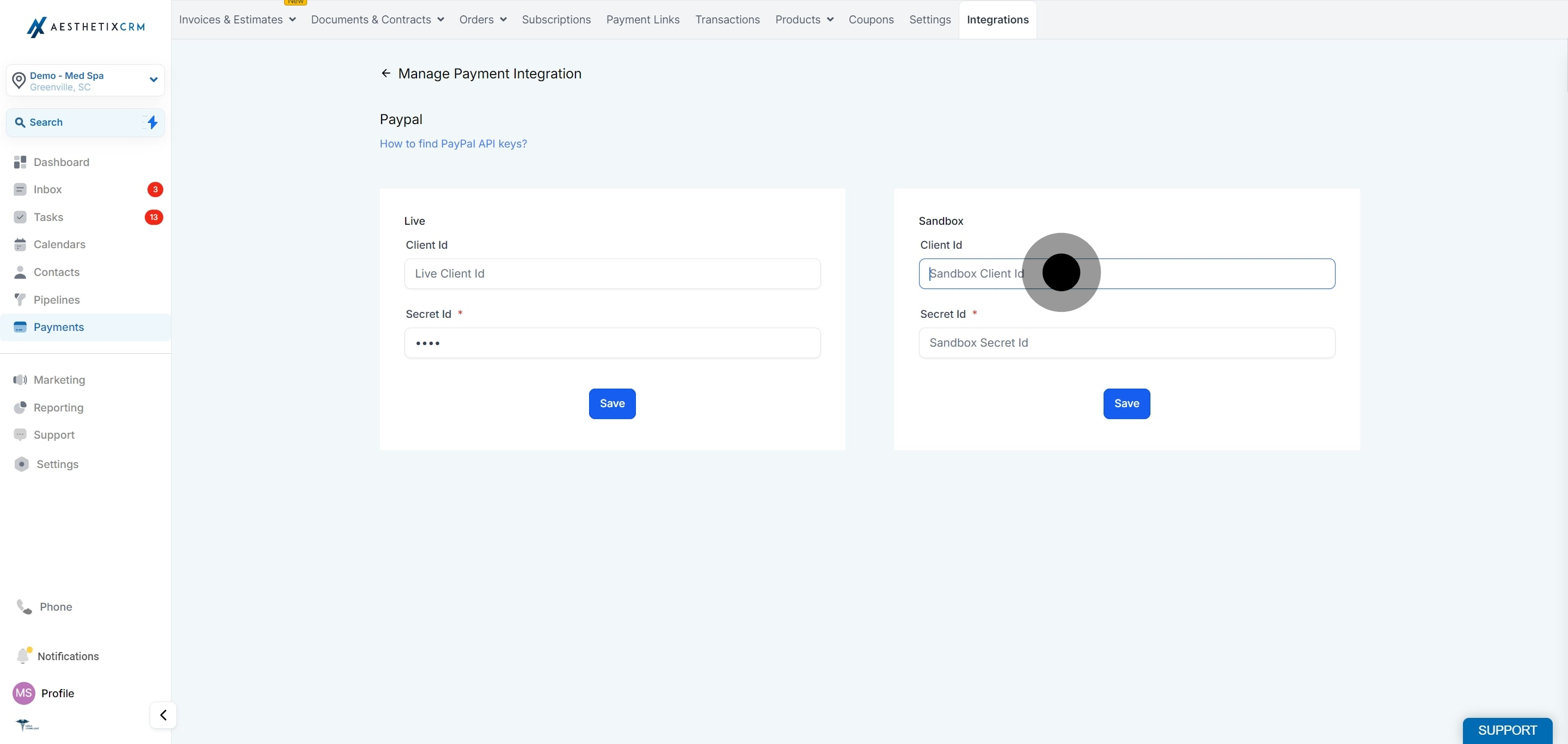
Input your Sandbox Client ID in the designated field.
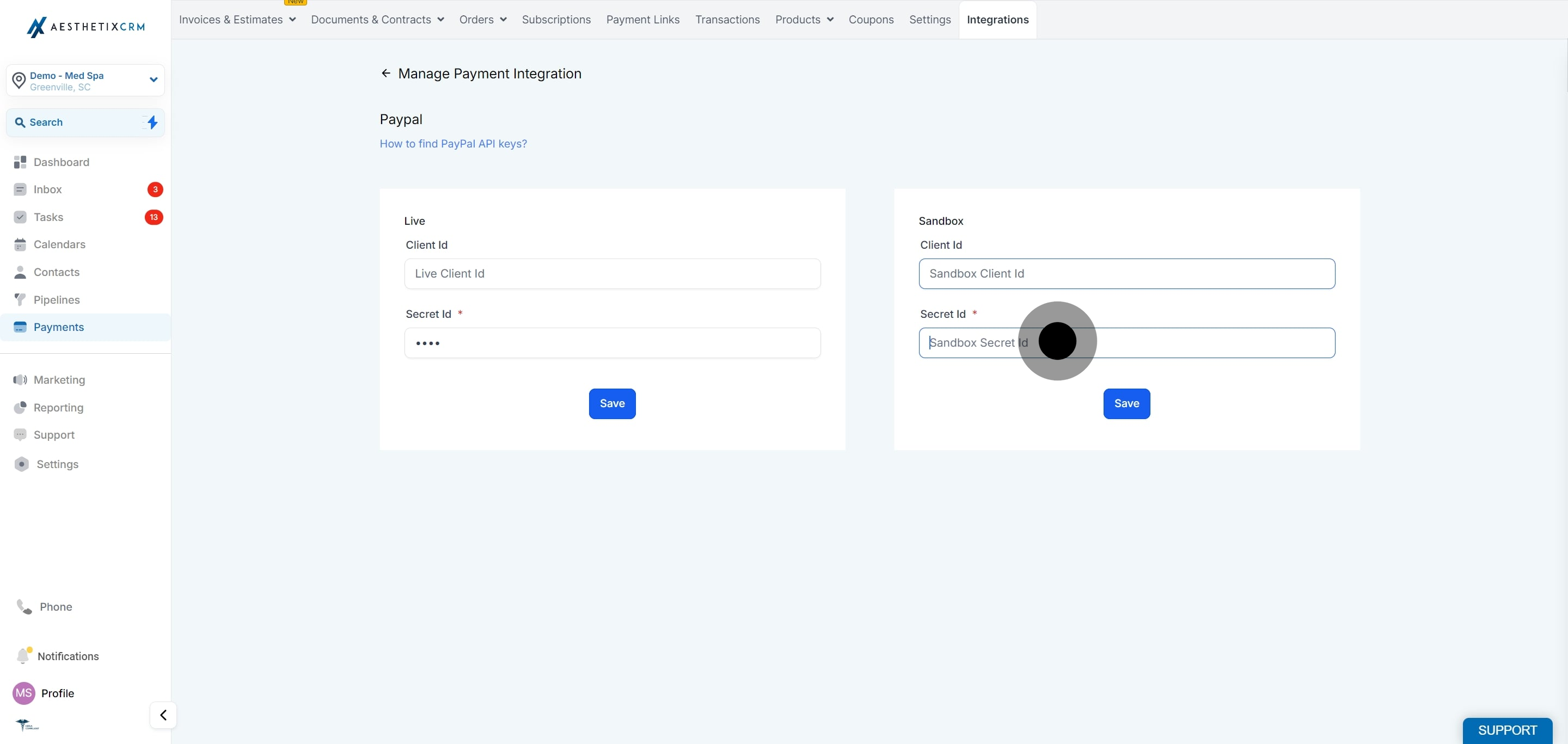
Enter your Sandbox Secret ID in the next field.
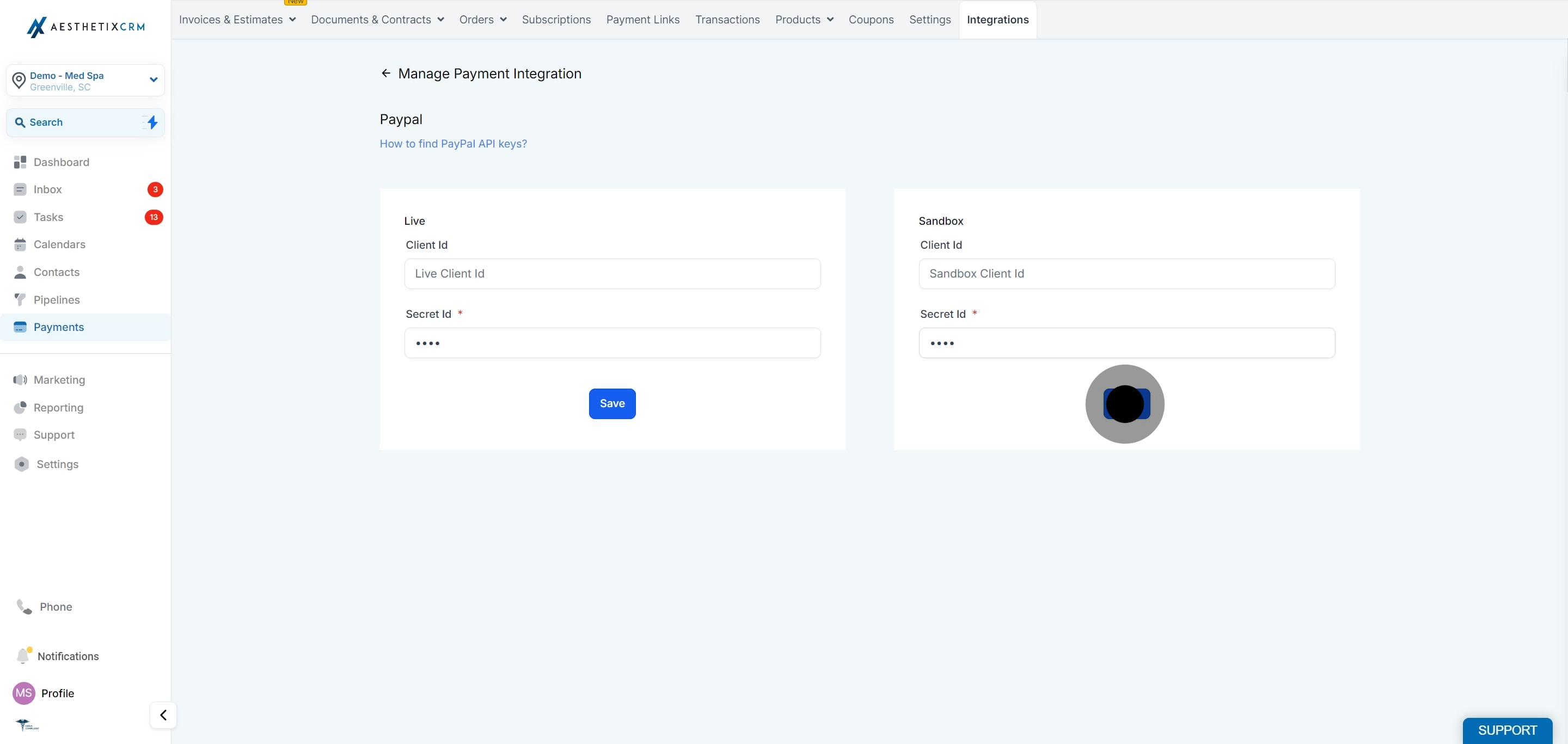
Confirm and save all your changes by clicking Save.
Connecting your account is the first step. To show PayPal buttons where patients pay, add or update the payment element.
Make sure PayPal is connected under Payments → Integrations with your Client ID and Secret Key saved.
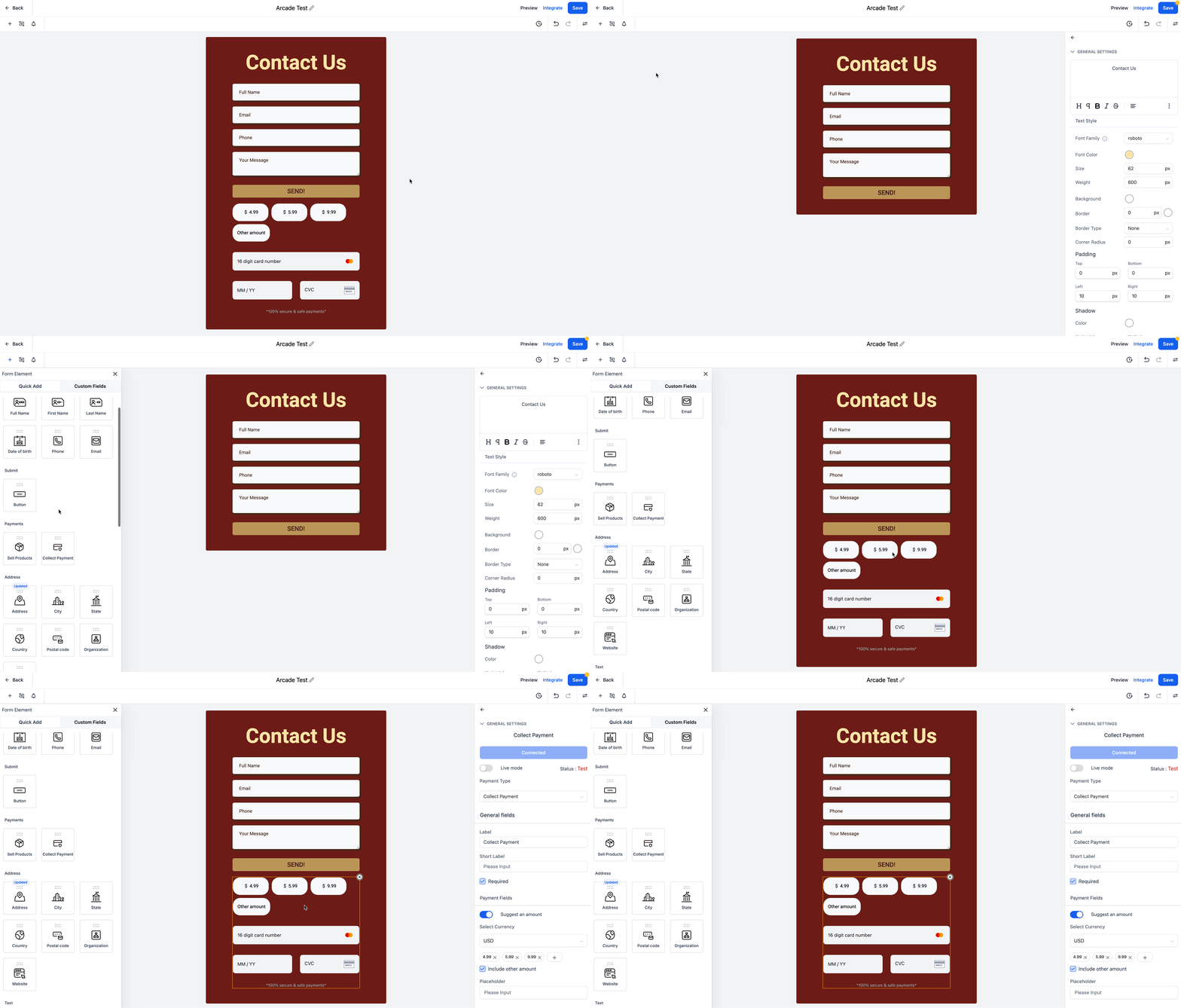
If you collect payments in forms or surveys, add the Collect Payment element to enable PayPal buttons at checkout.
If you collect payments in funnels or websites, use the 1-Step or 2-Step Order Form elements. These support PayPal automatically, so no additional payment element is needed.
If you already have a payment element, make sure it is updated to the latest version that supports PayPal.
If you added your order form before November 1, 2024, delete it and re-add it to ensure PayPal compatibility.
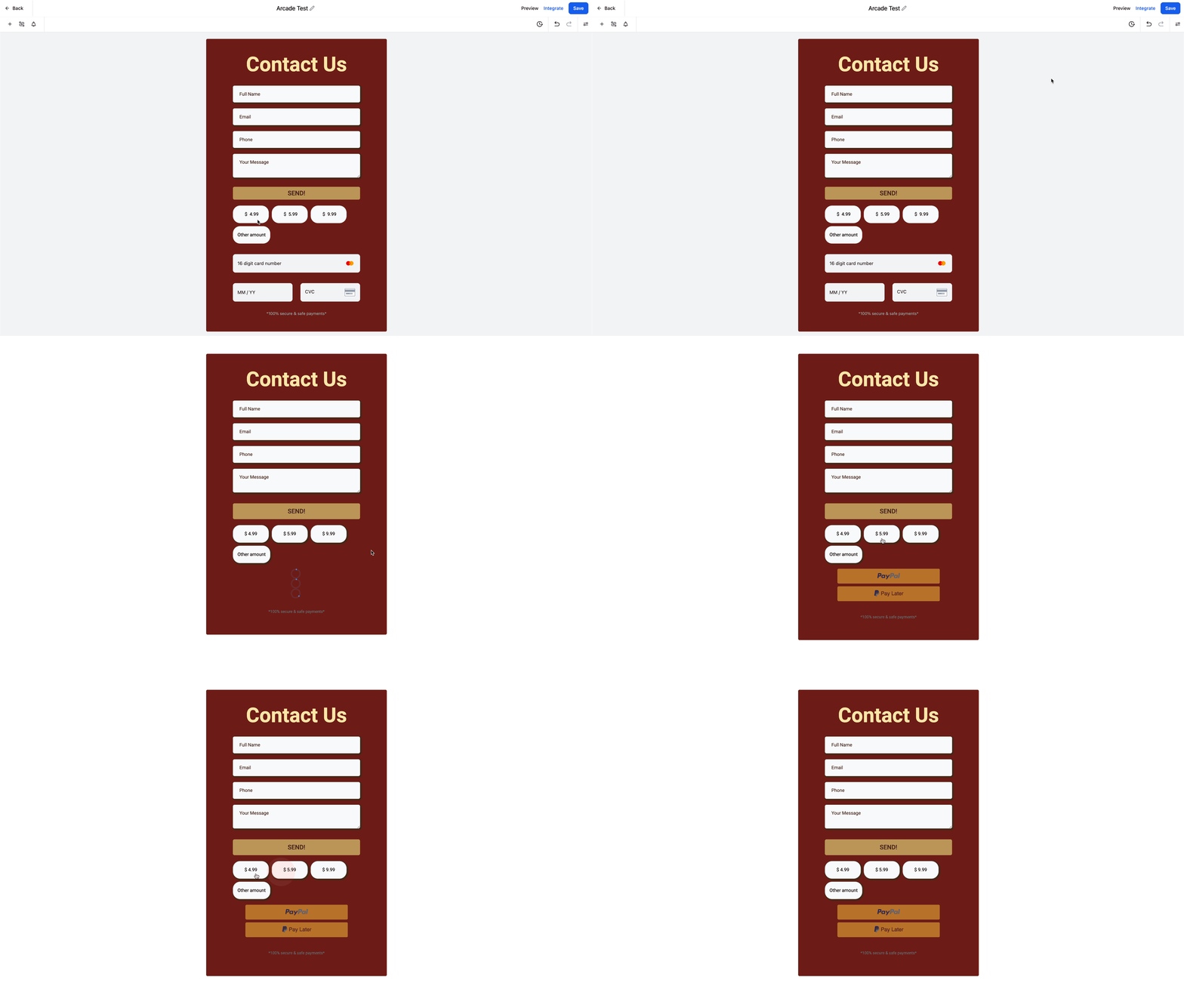
PayPal buttons only appear in preview or live mode. Preview your form, survey, website, or funnel to confirm the PayPal options are visible.
Important: PayPal buttons will not appear inside the builder or editor view. You must preview to see them.
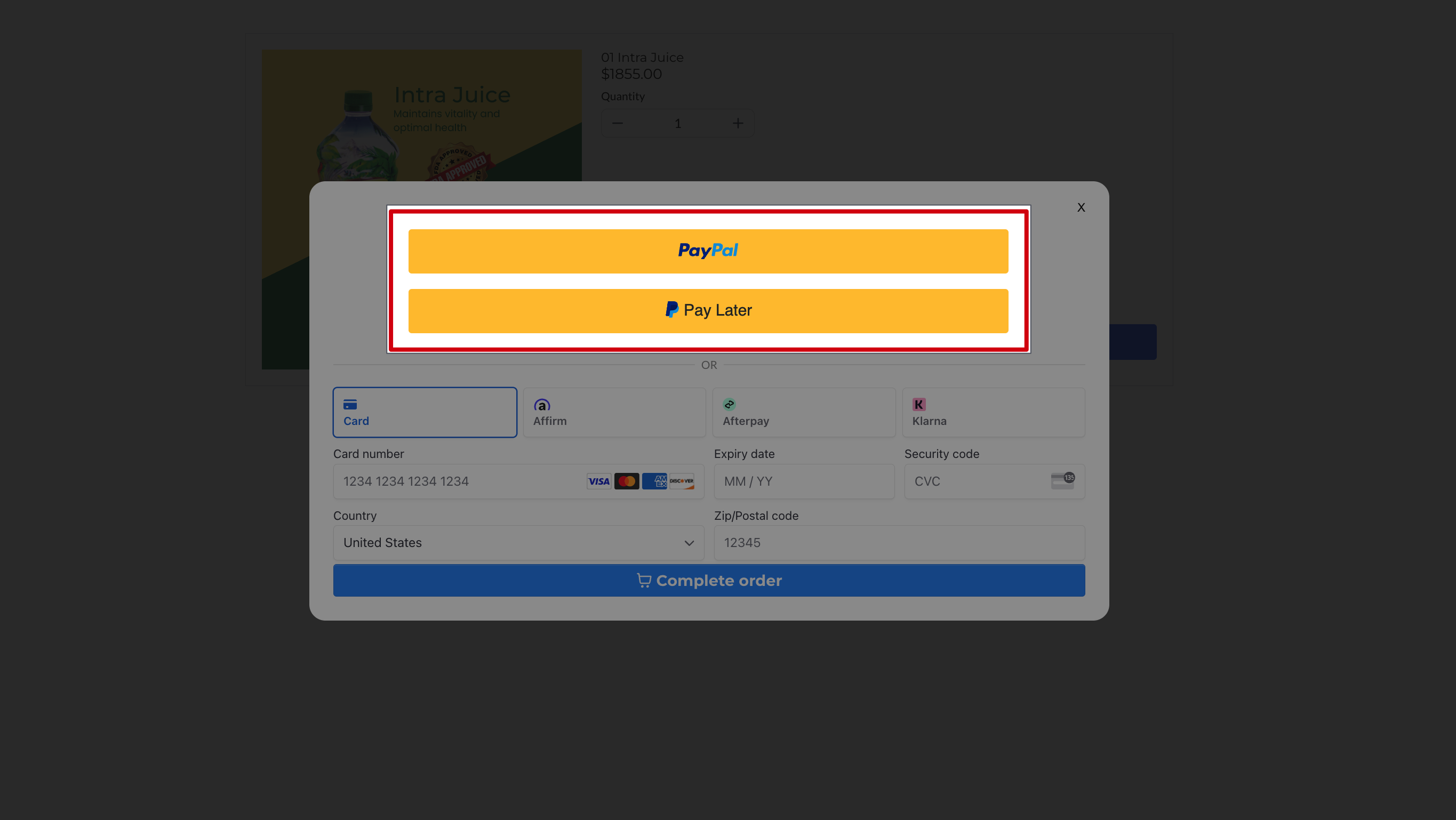
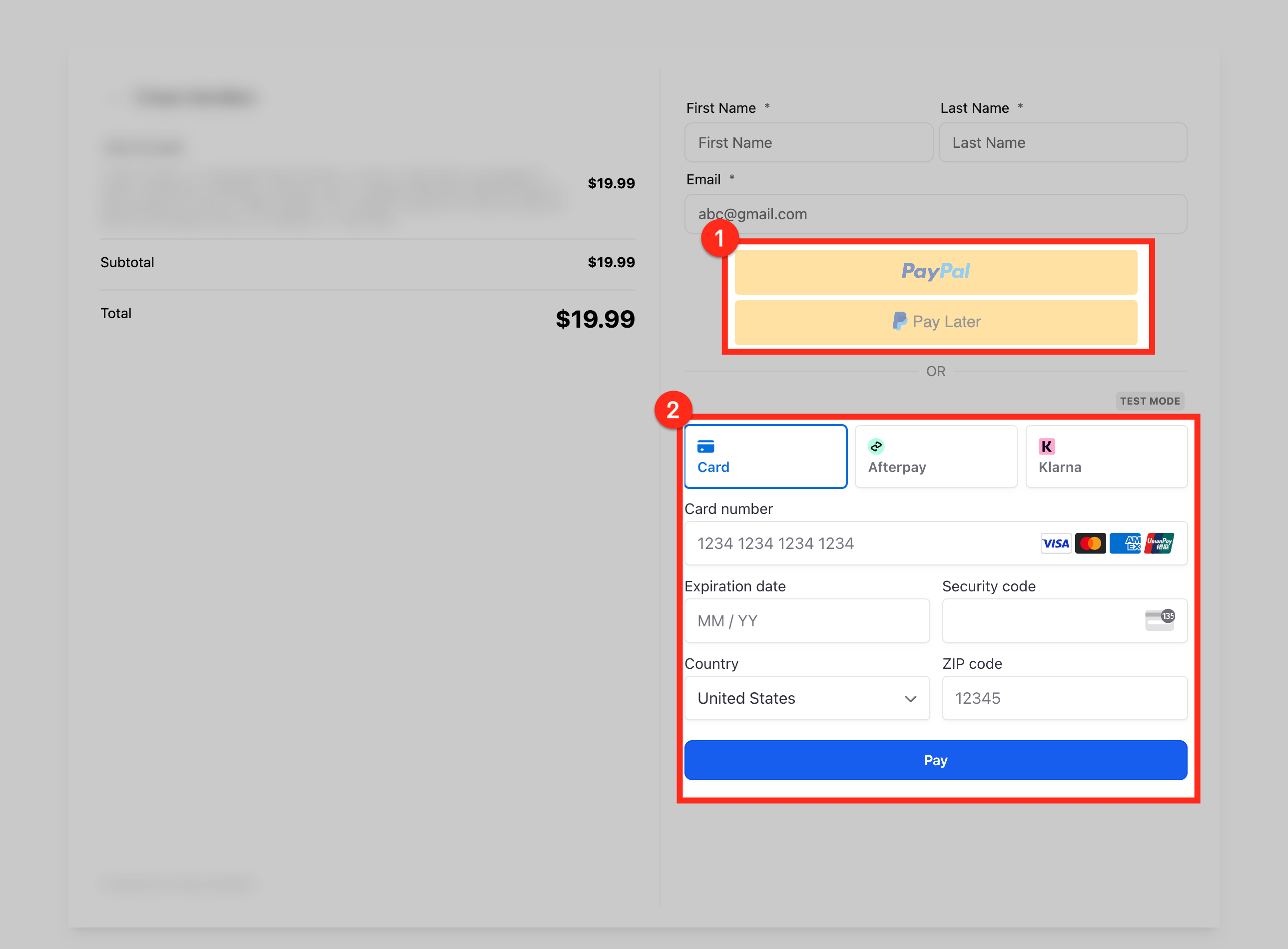
If you have multiple providers connected, patients can choose their preferred method at checkout. The example below shows what a patient sees when both PayPal and a card provider are connected.
How do I get my PayPal Client ID and Secret Key?
Log in to your PayPal developer account, go to My Apps & Credentials, and create a new app to receive your Client ID and Secret Key. Do this for both Live and Sandbox.
What is the difference between the Live and Sandbox credentials?
Live credentials process real patient payments. Sandbox credentials let you test the checkout flow without moving real money. Enter both so you can test safely before going live.
Can I use PayPal alongside other payment providers?
Yes. If multiple providers are connected, patients see all available options at checkout and can choose PayPal or a card.
Is PayLater available for all transactions?
No. PayLater availability depends on PayPal's terms and the patient's eligibility. It is not configured inside Aesthetix CRM.
Why don't I see PayPal buttons in the builder?
PayPal buttons only render in preview or live mode, not inside the editor. Preview your form, page, or funnel to see them.
Do I need to update my existing payment elements to support PayPal?
Yes. Older elements must be updated to the latest version, or removed and re-added, to support PayPal. Order forms added before November 1, 2024 should be deleted and re-added.
Where can I use PayPal?
PayPal works on websites and funnels (order forms), forms and surveys (Collect Payment element), invoices, payment links, and your online store.
