Square lets your practice accept both online and in-person payments through Aesthetix CRM, making it a strong choice if you also collect payments at the front desk. This guide covers connecting your Square account, using mobile point-of-sale (POS) with a card reader through the mobile app, and how 3D Secure (3DS) adds an extra layer of fraud protection to online checkouts.
Tip: Before connecting a third-party gateway, consider AX Pay, Aesthetix CRM's own payment processing with rates better than Stripe. It works natively across the platform and keeps billing, reporting, and support in one place. See AX Pay Overview and Setup Guide. If Square is the right fit for your practice, especially for in-person checkouts, the steps below will get you connected.
Once connected, Square lets you process one-time and subscription payments by configuring products in the Payments section. It works across order forms, invoices, online stores, forms, memberships, and payment links. All payments are tracked under Payments in the Transactions and Orders views, and your existing workflow triggers continue to work.
Square also powers in-person payments through the Aesthetix CRM mobile app. Whether you process transactions manually or with a card reader, you can connect Square and collect patient payments on the go, which means faster front-desk checkouts and more flexibility.
You connect Square from the web platform, then it becomes available on mobile.
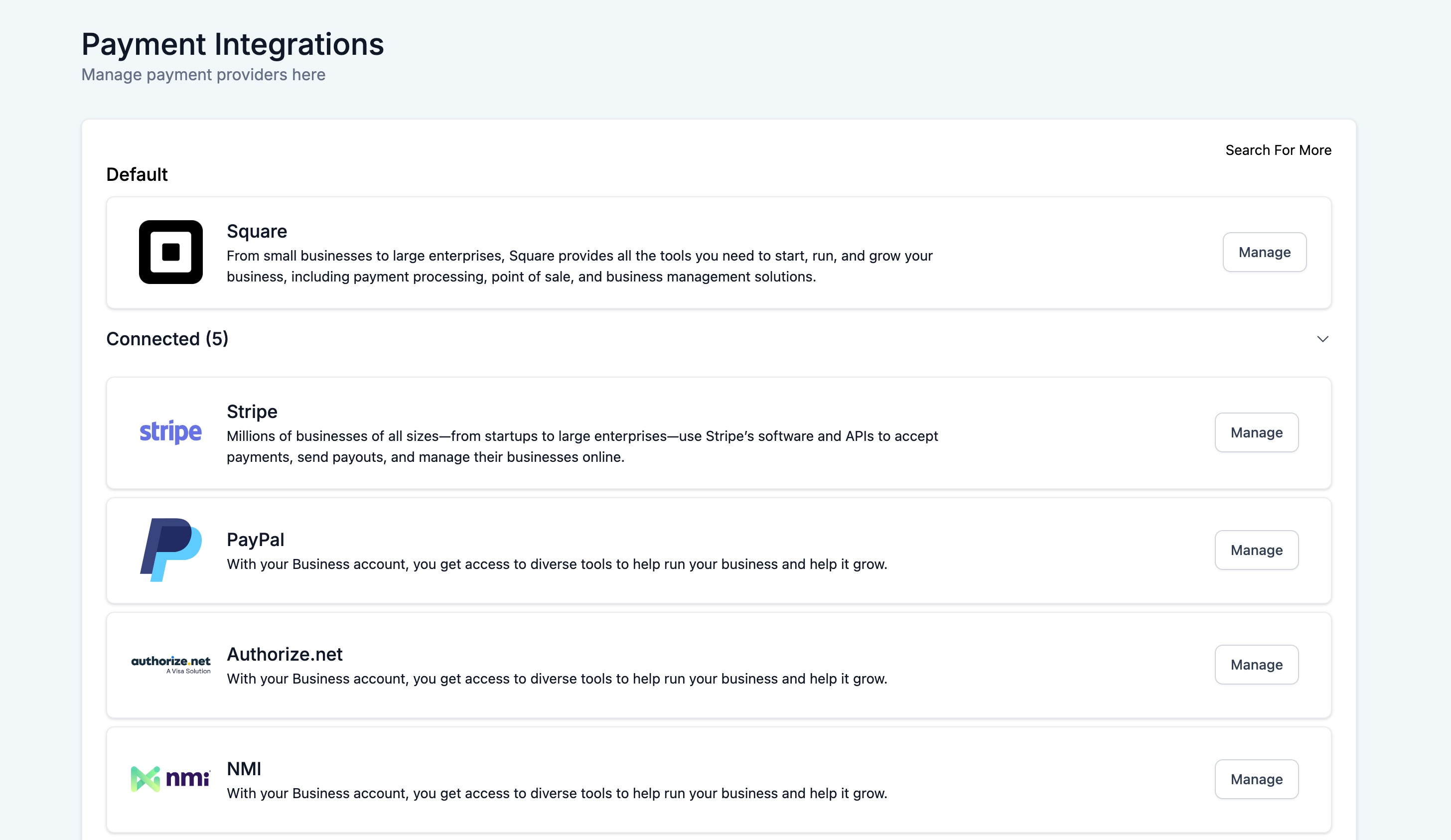
Go to Payments → Integrations on the Aesthetix CRM web platform.
Find Square and click Connect. Existing Square users can click Reconnect to refresh access and re-fetch their Square locations. If you connected Square before enabling mobile payments, re-initiate the connection to enable mobile compatibility.
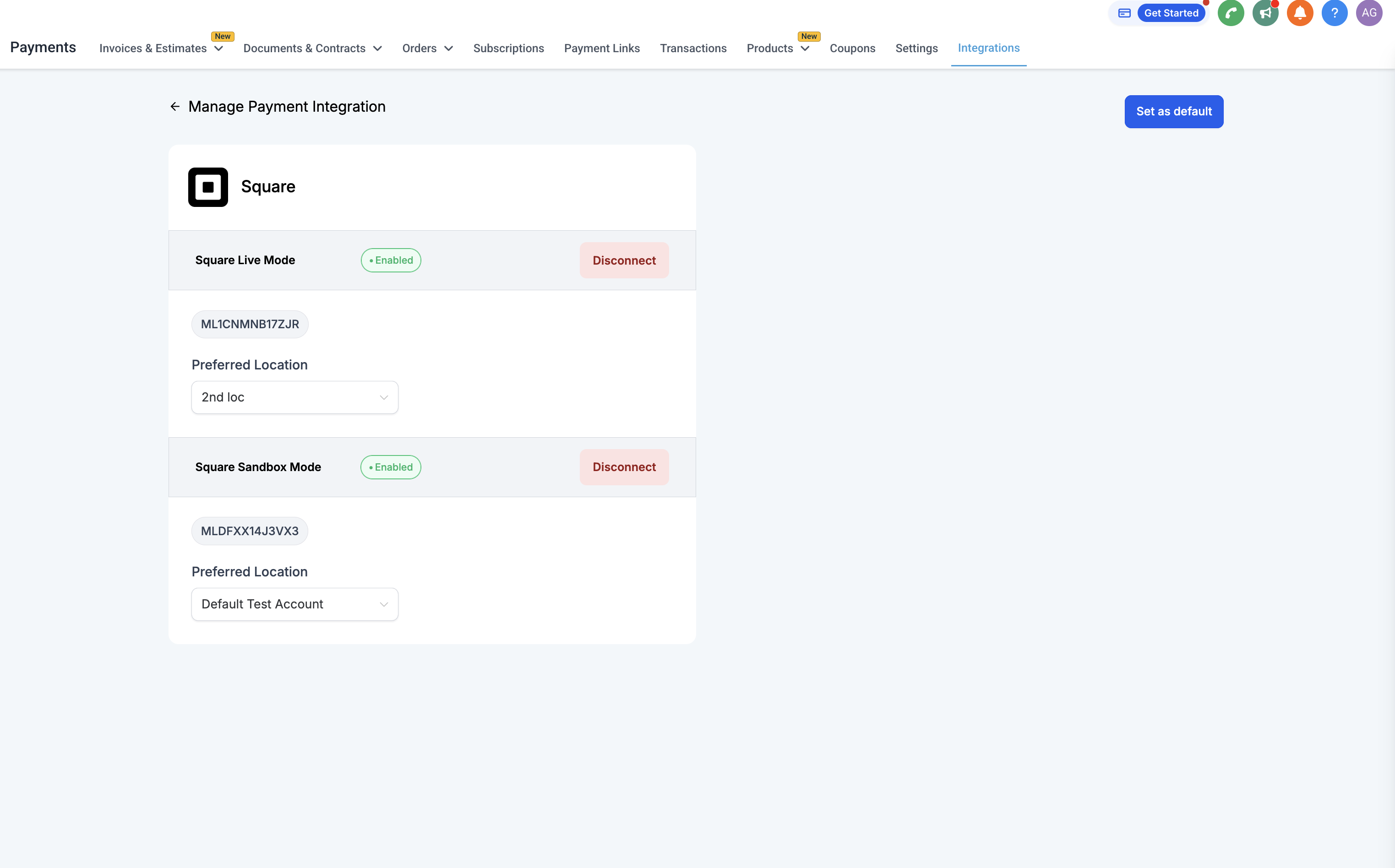
You will see all the physical locations in your Square account. Choose which Square Location to associate with your account. A location is selected automatically as soon as the connection succeeds, and you can change it afterward.
For mobile use, select an active Square Location under Square Live Mode.
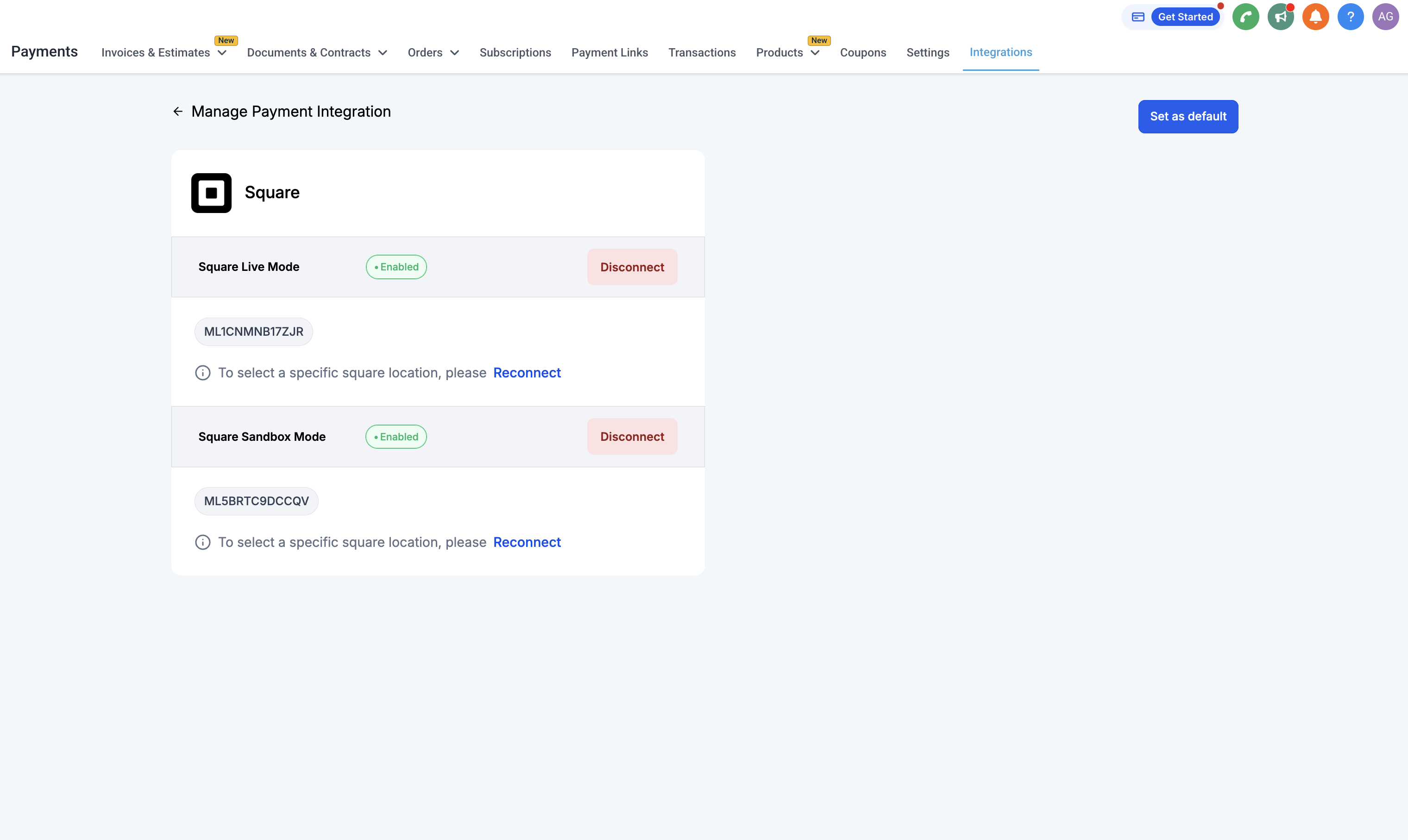
To connect in Sandbox (test) mode instead, log in to your Square account at https://app.squareup.com/login, open the sandbox account from your Square dashboard and stay signed in as a sandbox user, then click Connect for Square Test Mode. The signed-in sandbox account is picked up and connected automatically.
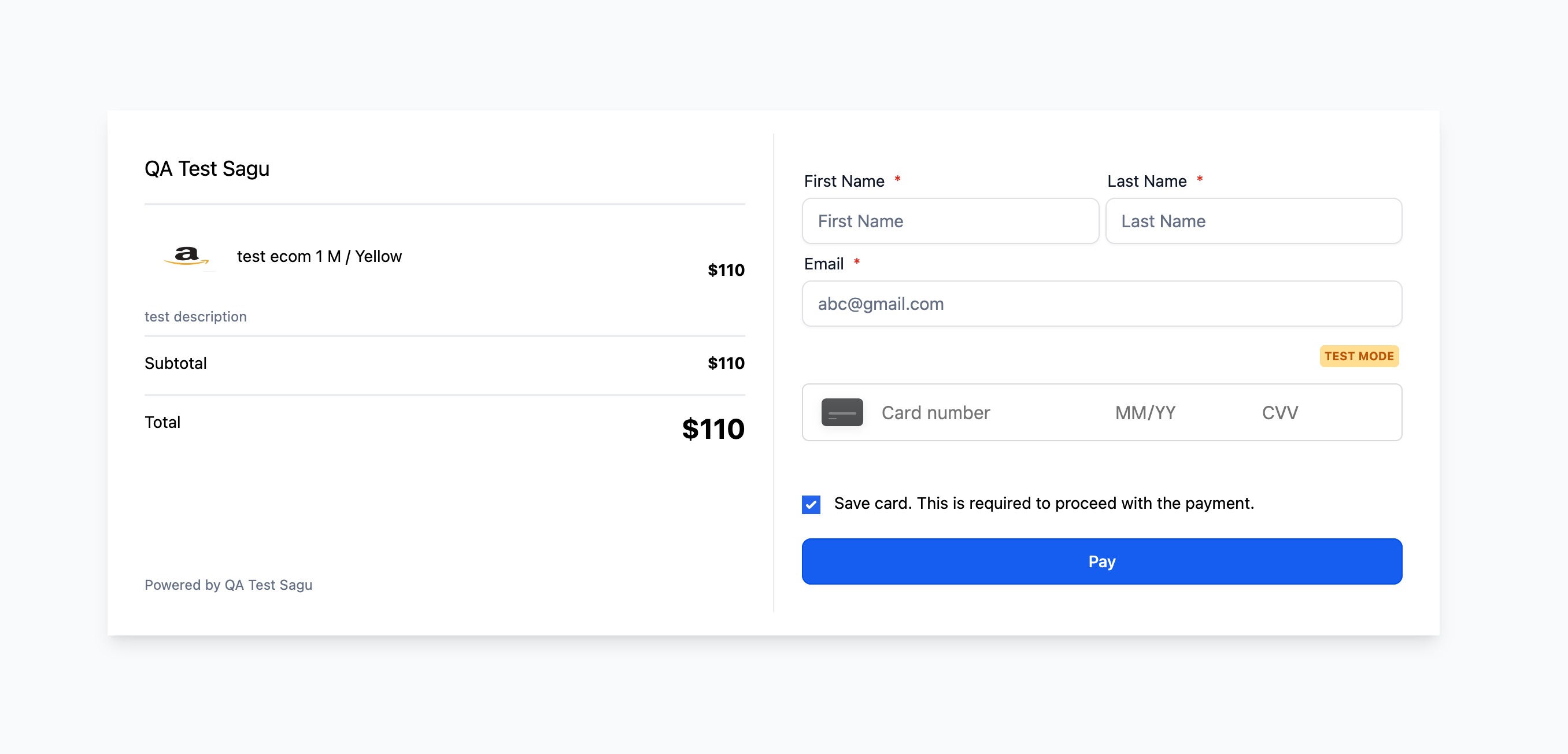
Reference views of the Square integration and the patient-facing checkout:
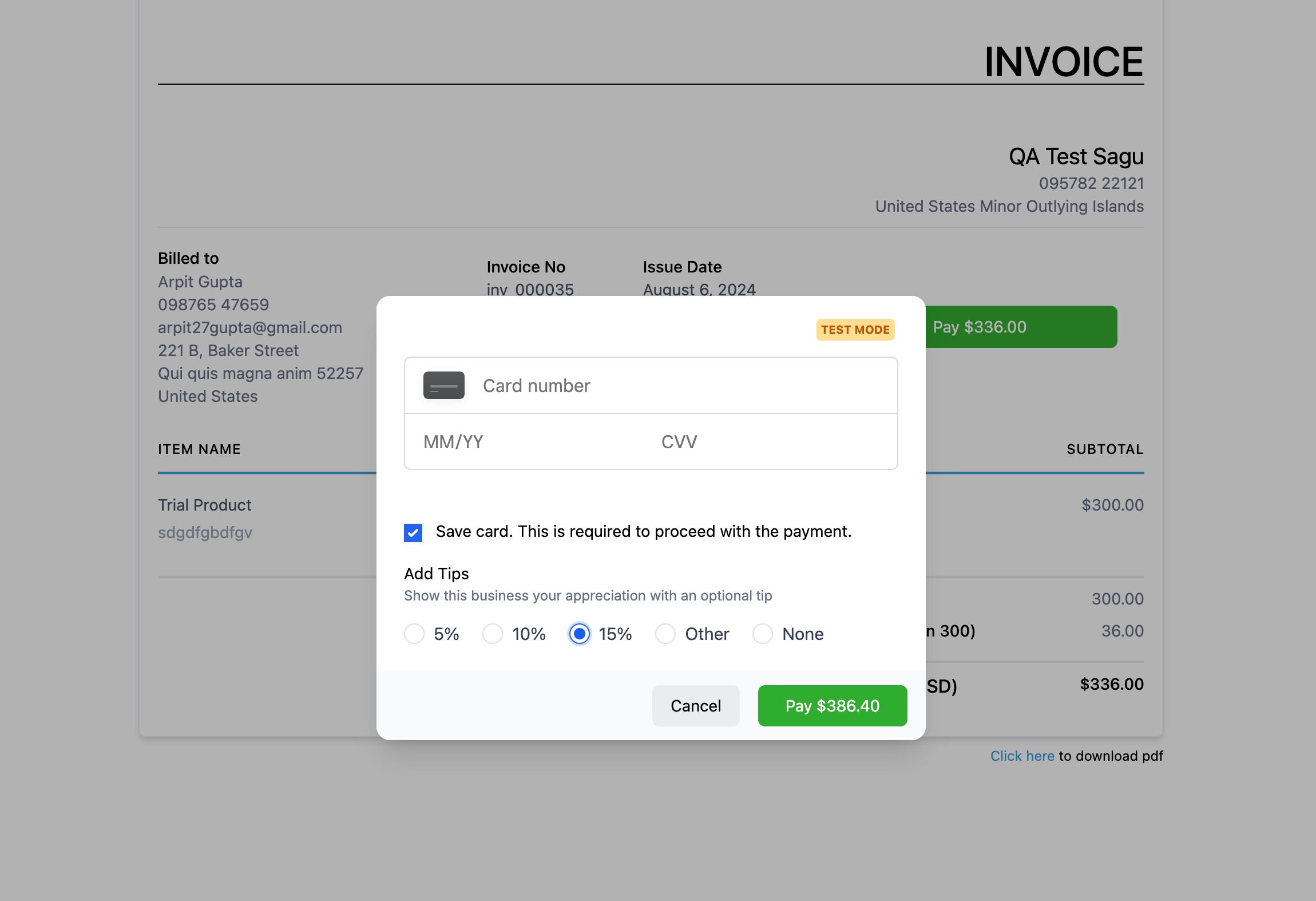
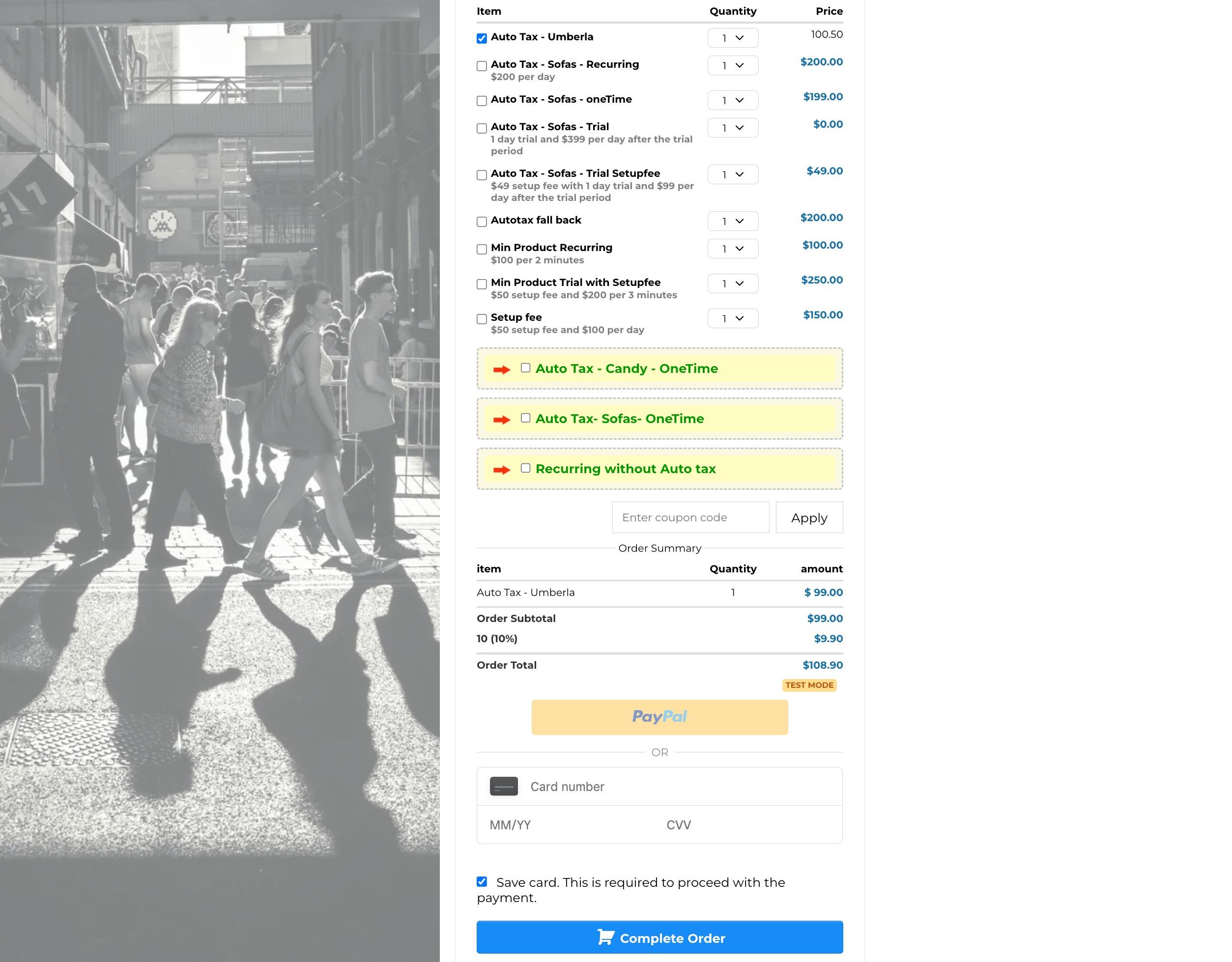
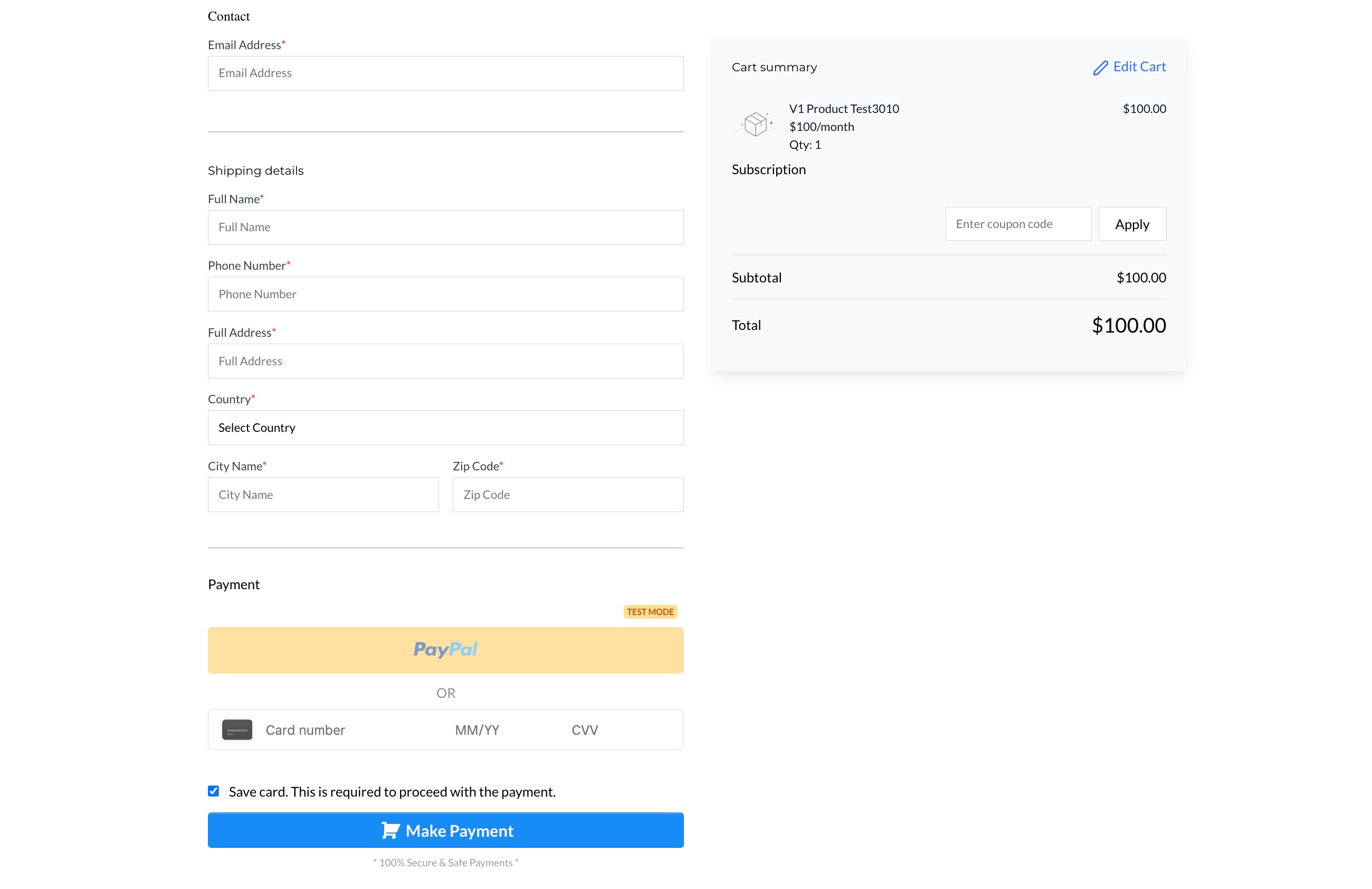
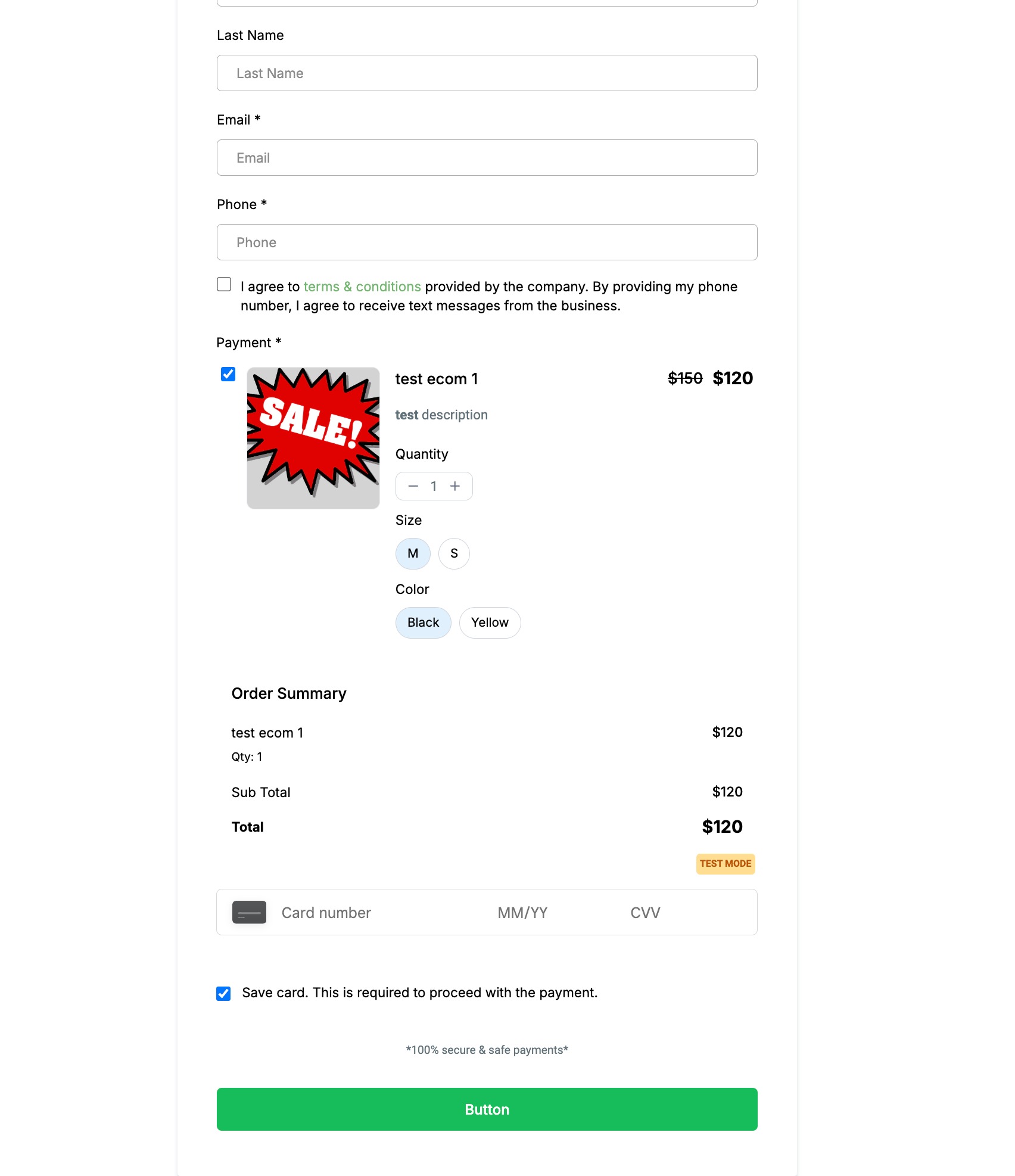
Accepting in-person payments is easier with Square integration for the Aesthetix CRM mobile app. You can charge cards manually or with a card reader, and use existing Cards on File for faster repeat checkouts.
The Mobile Payments SDK is currently available only for accounts based in:
United States
Canada
United Kingdom
Australia
Accept card payments securely and quickly in person.
Use existing Cards on File for faster checkouts.
Manually enter card details when needed.
Link a Square Reader for tapping or swiping cards (iOS only).
Work directly inside the Aesthetix CRM mobile app.
Prepare for Square Tap to Pay support.
Make sure Square is connected under Payments → Integrations on the web platform, with an active location selected under Square Live Mode. If Square was connected before mobile payments were available, reconnect it.
Join the Aesthetix CRM public beta program to access the Square mobile payment features.
Open the Aesthetix CRM mobile app.
Go to Settings → Square Payment Devices.
Follow the prompts to connect your Square Reader via Bluetooth.
Open the mobile app and select the account linked to Square.
Tap POS and start a new transaction.
Enter a custom amount and/or add items from your product catalog.
Link a patient (contact) to the transaction.
Choose Square Payments as the payment method.
Then either tap or insert the patient's card using a connected reader, or select Manual Card Entry to key in the card details.
Tap Charge to complete the transaction. You have now accepted a payment using Square with Aesthetix CRM.
Cards on File with Square speeds up repeat transactions and in-person collection.
Quickly charge existing saved cards during checkout.
Add a new card on file directly from the payment screen for future use.
Improve transaction efficiency and patient convenience.
Manual Card Entry lets you charge a patient without a physical reader.
Securely enter the patient's card details in the app.
Ideal for collecting payments over the phone or in rooms without a reader.
Provides a backup when a reader is unavailable.
Connecting a Square Reader supports tap, swipe, and chip card transactions for a smoother checkout.
Link your Square Reader via Bluetooth from the app settings.
Accept physical card payments by tapping, inserting, or swiping.
Keep in-person experiences fast, especially during busy front-desk hours.
Square Reader support is currently available for iOS devices only.
Aesthetix CRM supports 3D Secure (3DS) with Square, which adds an extra layer of cardholder authentication to online checkouts. 3DS automatically triggers a verification step whenever a card or regional regulation requires Strong Customer Authentication (SCA), helping you capture more payments while reducing fraud.
3DS prompts the buyer to verify their identity (for example, a one-time SMS code, Face ID, or a redirect to their bank) before the transaction is authorized. Once authentication succeeds, chargeback liability shifts to the card issuer. Square provides 3DS through its built-in Risk Manager, and Aesthetix CRM passes the data Square needs to invoke the step when required.
Fewer payment failures on cards that mandate 3DS, which improves conversion.
Added fraud protection and a chargeback liability shift once authentication succeeds.
Automatic SCA compliance in regions such as the UK and EU, with no extra setup.
A light, in-checkout pop-up that keeps patients inside your checkout for a smooth experience.
3DS is fully automatic once your Square account is connected.
The patient enters the required billing address and contact fields on an order form, Payment element, invoice, or store checkout.
Aesthetix CRM sends the request to Square, and Square's risk rules decide whether 3DS is required based on the card, amount, location, and other factors.
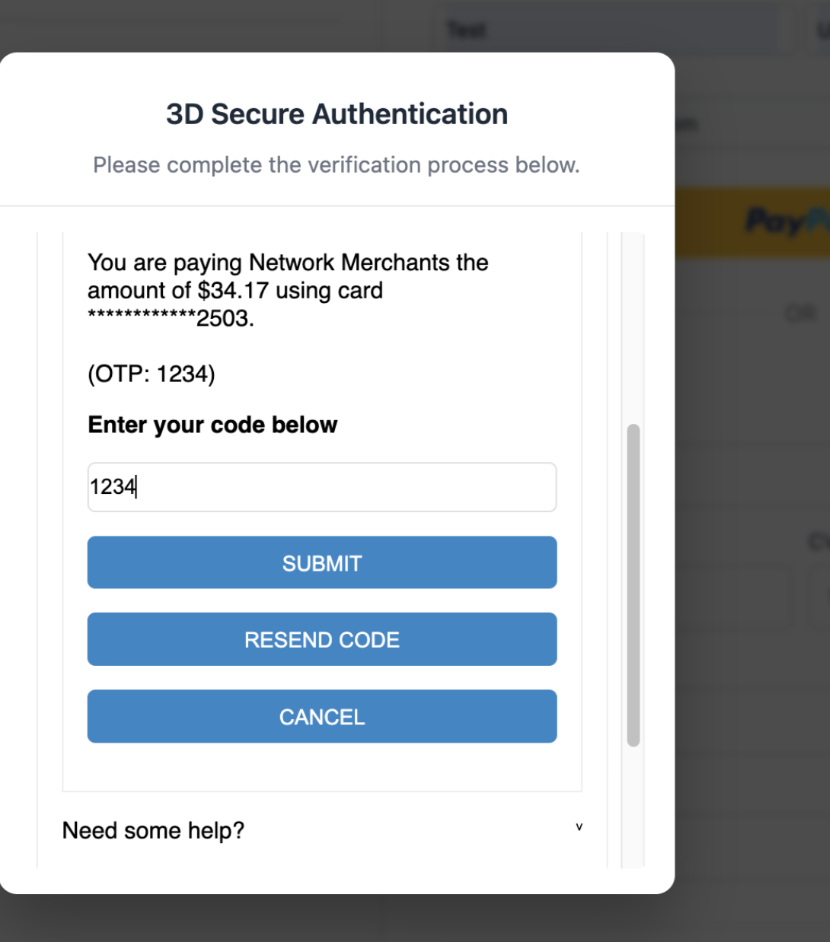
If 3DS is triggered, a secure pop-up appears for the patient to complete authentication.
On success, the payment is captured and the order or invoice status updates to Paid.
If verification fails or times out, the payment is declined and the error is surfaced so the patient can try another card.
3DS for Square works anywhere you accept Square card payments: order forms, payment links, online store, invoices, and more. You need:
A connected Square account under Payments → Integrations.
Your Square location set to Live mode.
Billing Address and Email or Phone fields visible (and preferably required) on the checkout so Square can validate the buyer.
A patient using a card and issuing bank that support 3DS.
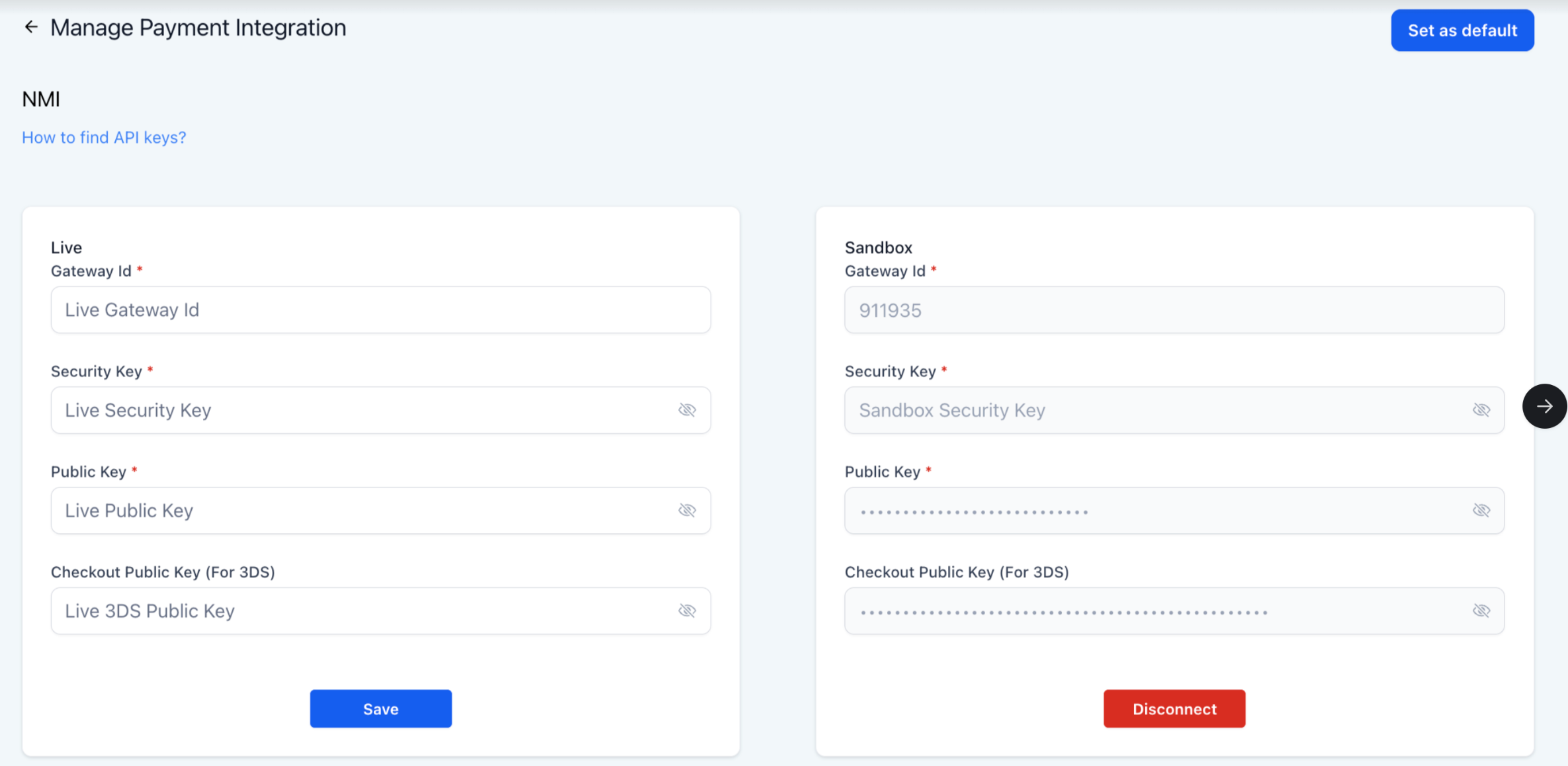
For Square, no additional setup is needed once the address and contact fields are collected at checkout. (If you use NMI, a one-time setup is required: enroll in Payer Authentication 2.0, confirm the service is Active, then generate a Checkout Public Key for 3DS in your NMI Merchant Portal and add it to your integration.)
"Authentication failed": The patient entered an incorrect SMS code or declined Face ID. Ask them to retry or use another card.
"Issuer declined": The card-issuing bank blocked the transaction. Suggest they contact their bank.
"3DS not completed": The patient closed the pop-up. Encourage them to complete the step.
The gateway response is always logged under Payments → Transactions for reference.
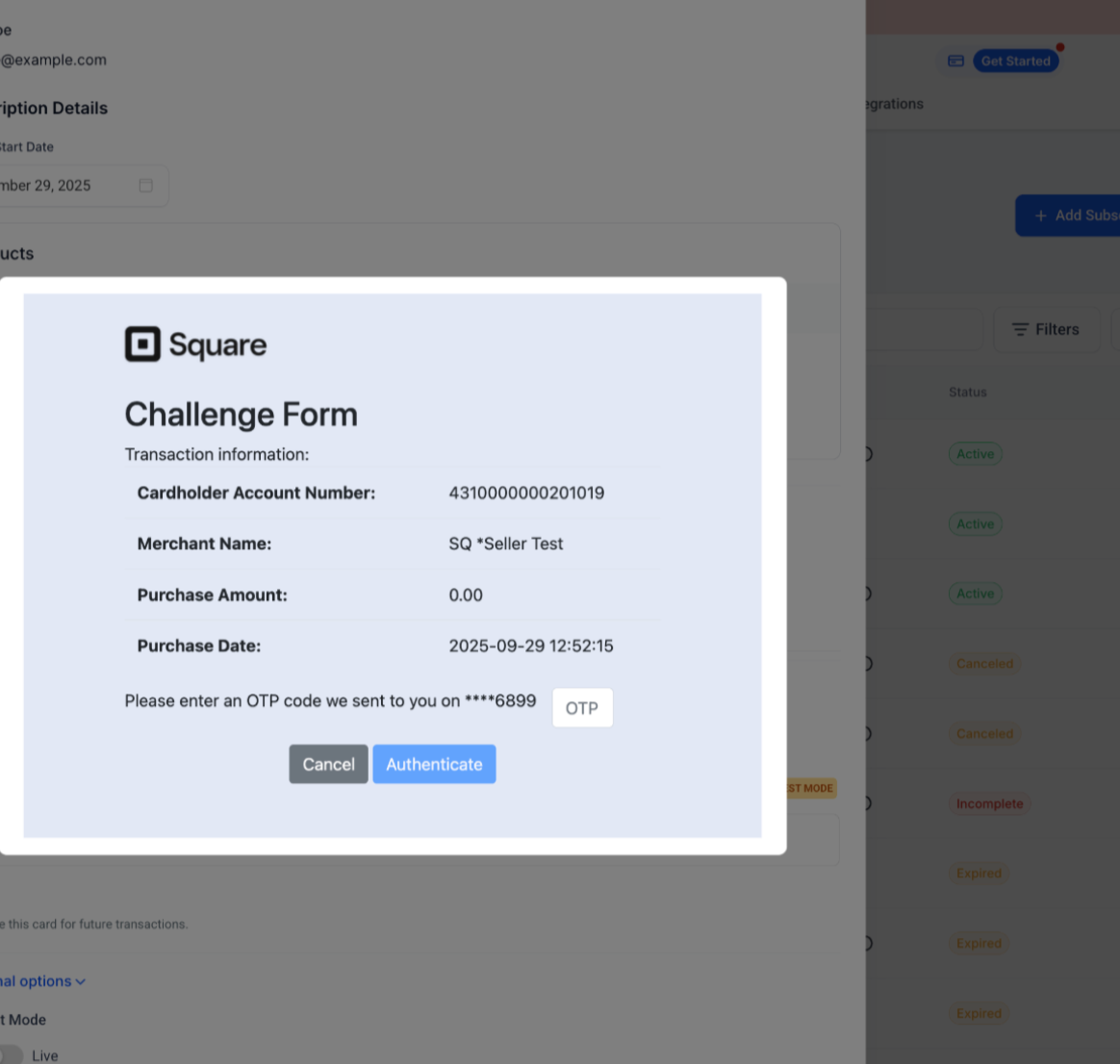
If you use NMI, the 3DS flow and the public key addition look like this:
Where do I connect Square?
Go to Payments → Integrations on the web platform and click Connect (or Reconnect if you connected Square previously). Then choose which Square location to associate with your account.
Can I use a Square Reader with Android?
Not yet. Square Reader support is currently available for iOS devices only. Android compatibility is under review for a future update.
Is Tap to Pay available now?
Tap to Pay for Square is supported on iOS, so you can accept contactless payments directly on the device without extra hardware.
What happens if I connected Square before mobile payments were added?
Reconnect your Square account under Payments → Integrations to enable mobile payment compatibility.
Can I manually enter a card without a reader?
Yes. Select Manual Card Entry after choosing Square Payments during checkout, which is useful for phone payments or rooms without a reader.
Do I need to enable anything in the Square Dashboard for 3DS?
No. Square's default Risk Manager rules already apply 3DS to high-risk or SCA-mandated transactions.
Does 3DS work for saved Card on File payments?
No. Square 3DS applies only to real-time, cardholder-initiated payments. Card-on-file debits are exempt.
Is there an extra fee for 3DS?
No. Square does not charge additional 3DS fees; standard Square processing rates apply.
Will 3DS appear on every transaction?
No. Square's risk engine and the card issuer decide when to trigger 3DS. Many low-risk payments go straight through.
Is 3DS supported on POS or mobile payments?
No. 3DS is only for online (card-not-present) checkouts. In-person Square POS transactions use chip or tap for security instead.
Where do I track Square payments?
All Square payments appear under Payments in the Transactions and Orders views, and existing workflow triggers continue to work.
