Stripe lets your practice securely accept credit card payments, manage recurring memberships and payment plans, and track every transaction inside Aesthetix CRM. This guide walks through connecting your Stripe account, controlling which payment methods appear at checkout, troubleshooting missing methods, and meeting Stripe's Nacha compliance requirements for ACH payments.
Tip: Before you connect a third-party gateway, consider AX Pay, Aesthetix CRM's own payment processing with rates better than Stripe. It works natively across the platform and keeps billing, reporting, and support in one place. See AX Pay Overview and Setup Guide. If Stripe is the right fit for your practice, the steps below will get you connected.
If you do not already have a Stripe account, create one first at https://dashboard.stripe.com/register.
Connecting Stripe lets you:
Process one-time and recurring card payments securely.
Offer faster, lower-friction checkouts.
Manage memberships and payment plans with recurring billing.
Keep all payment activity centralized in the Payments section.
Scale your payment capabilities as your practice grows.
Configure supported payment methods separately for Test Mode and Live Mode.
Follow these steps to connect your Stripe account to Aesthetix CRM.
In the left navigation, click Payments.
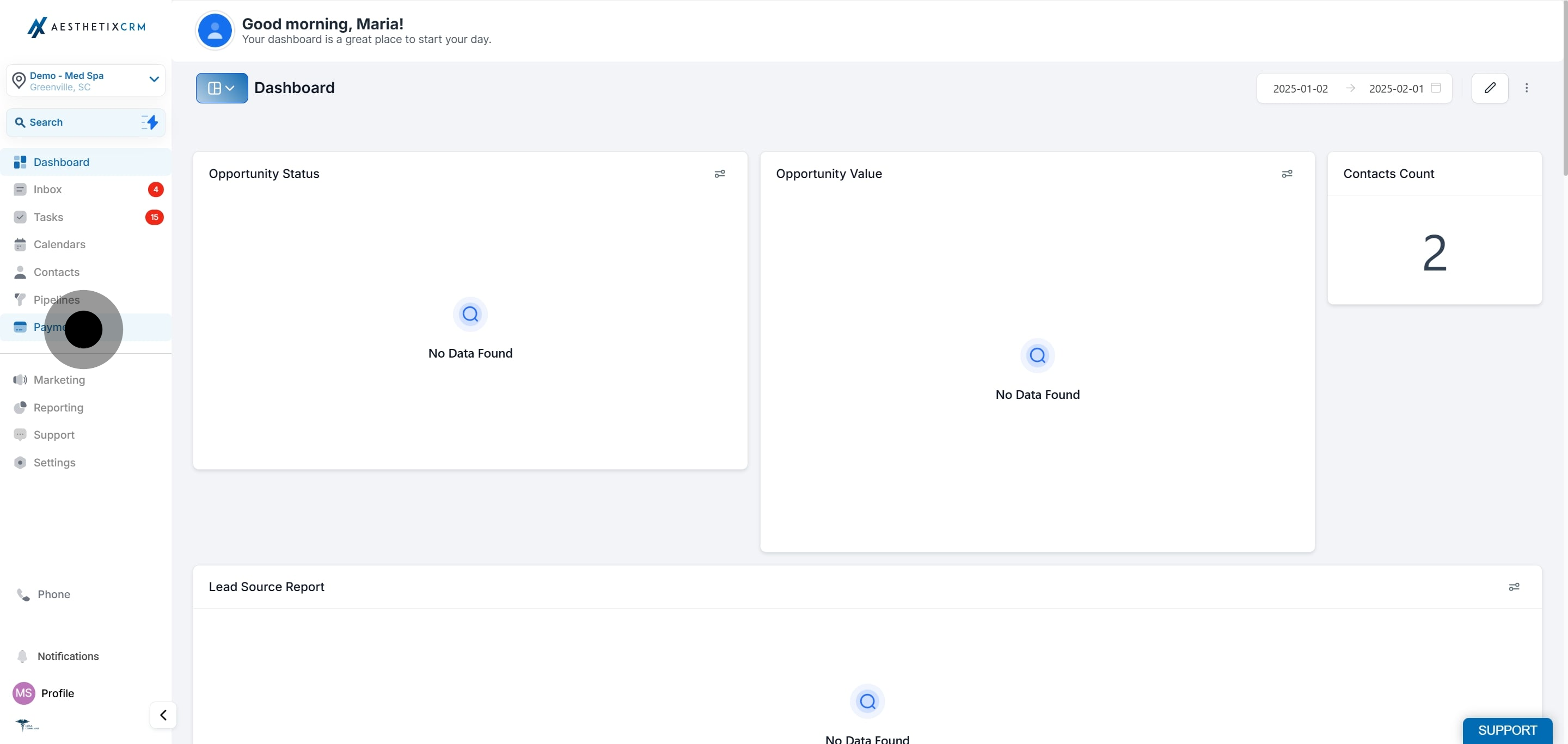
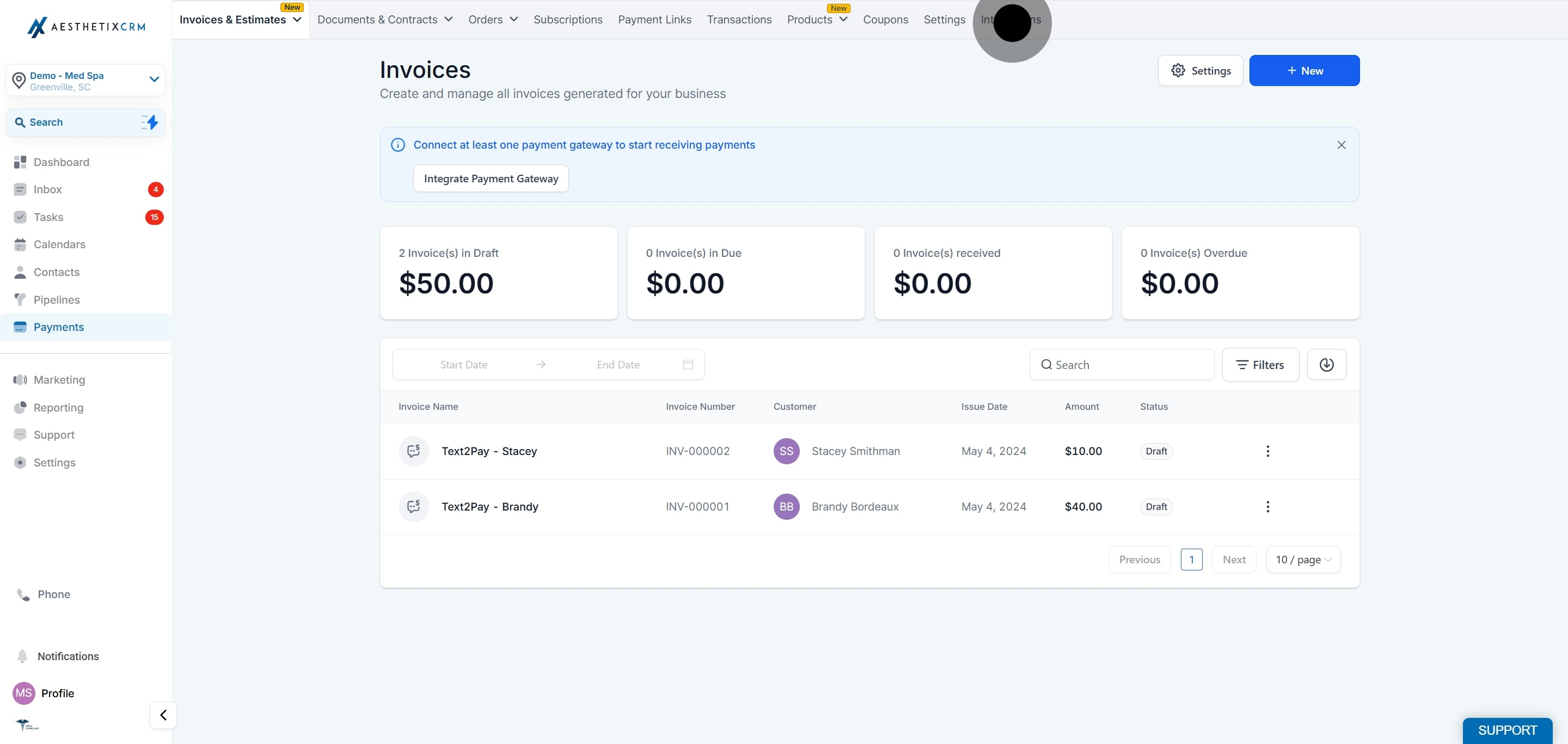
Select Integrations from the menu.
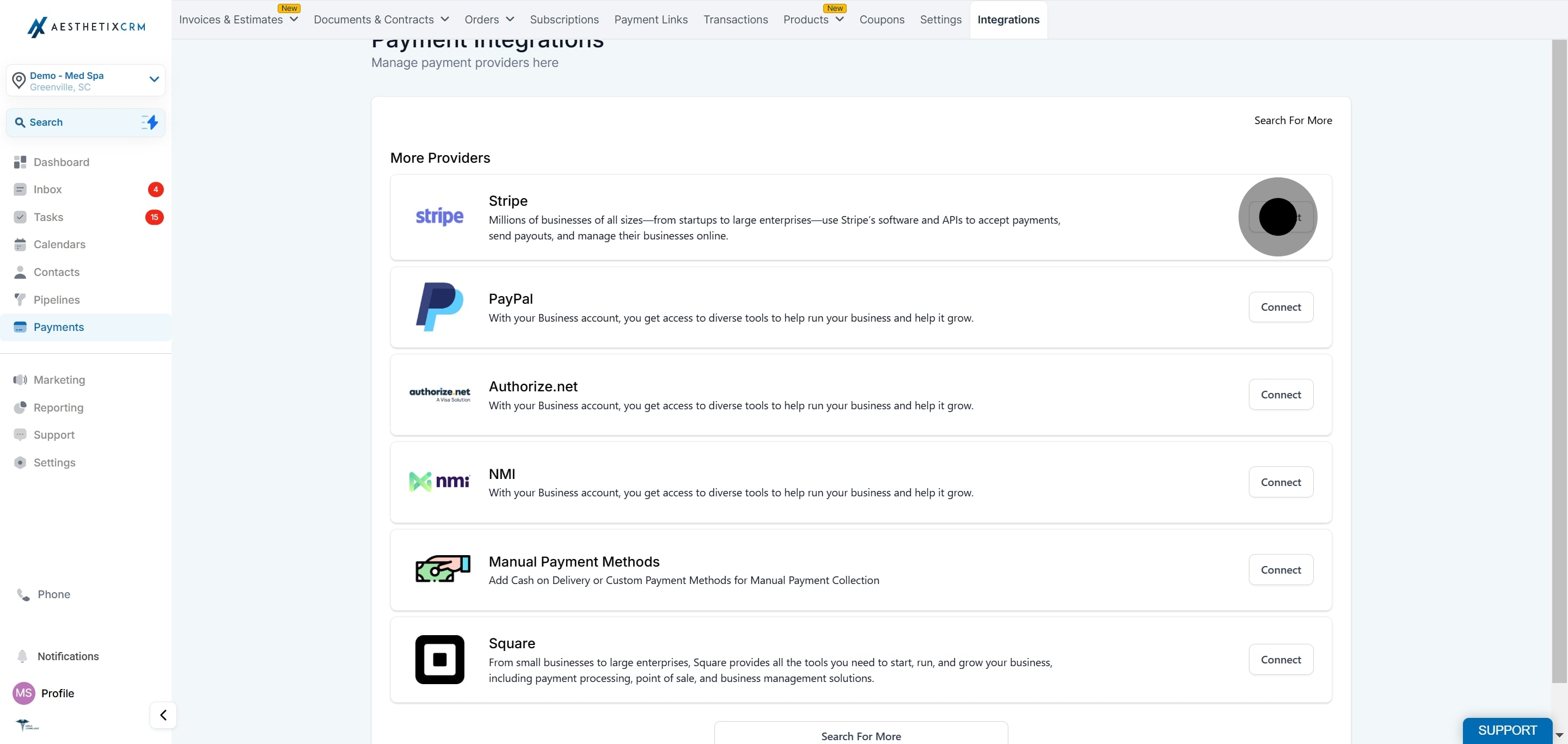
Locate Stripe in the list of available providers and click Connect.
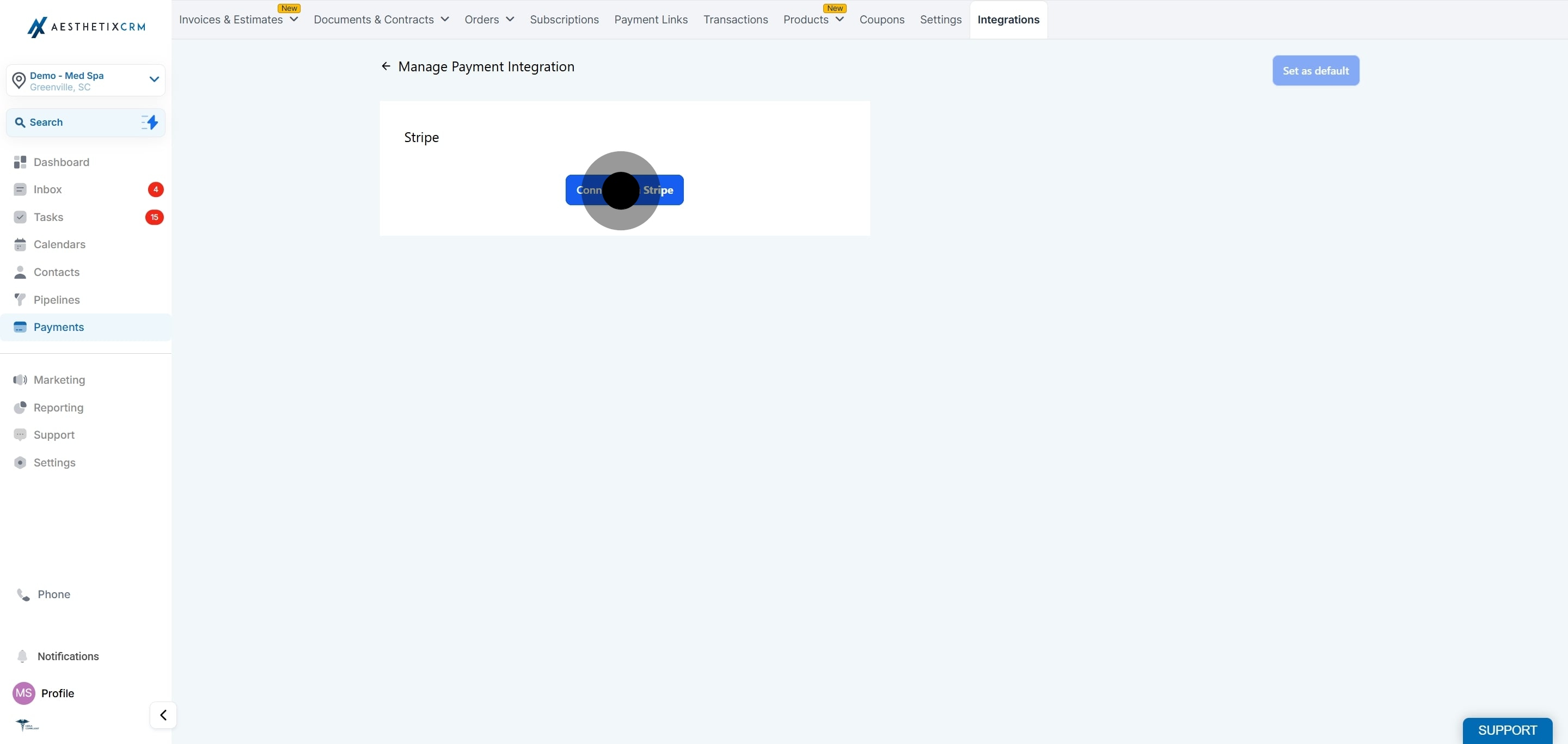
Click Connect with Stripe to start the secure connection. You will be redirected to Stripe to sign in or create an account.
Sign in with your Stripe credentials, or create a new account, and fill in all the required information. Review the access permissions Stripe requests to complete the integration.
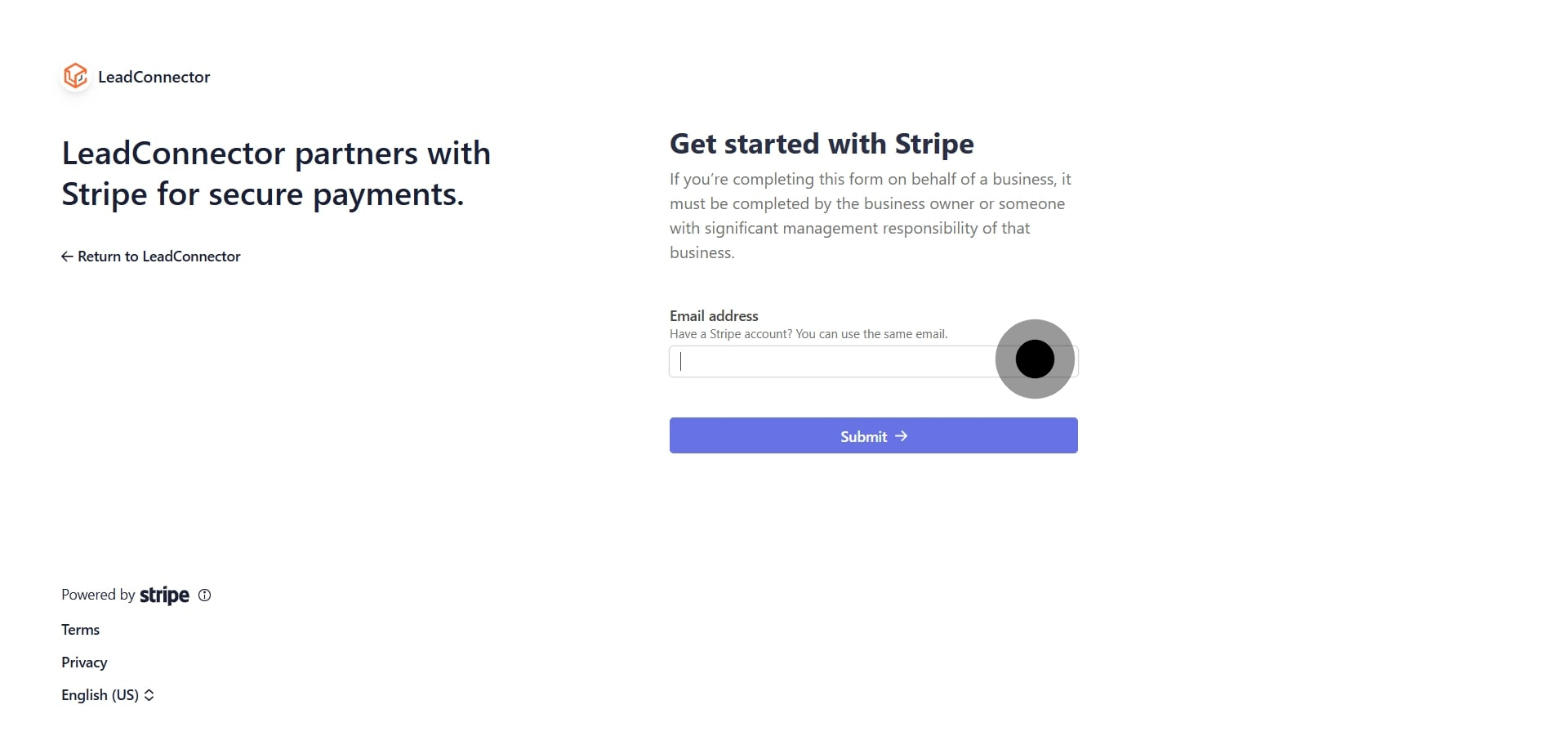
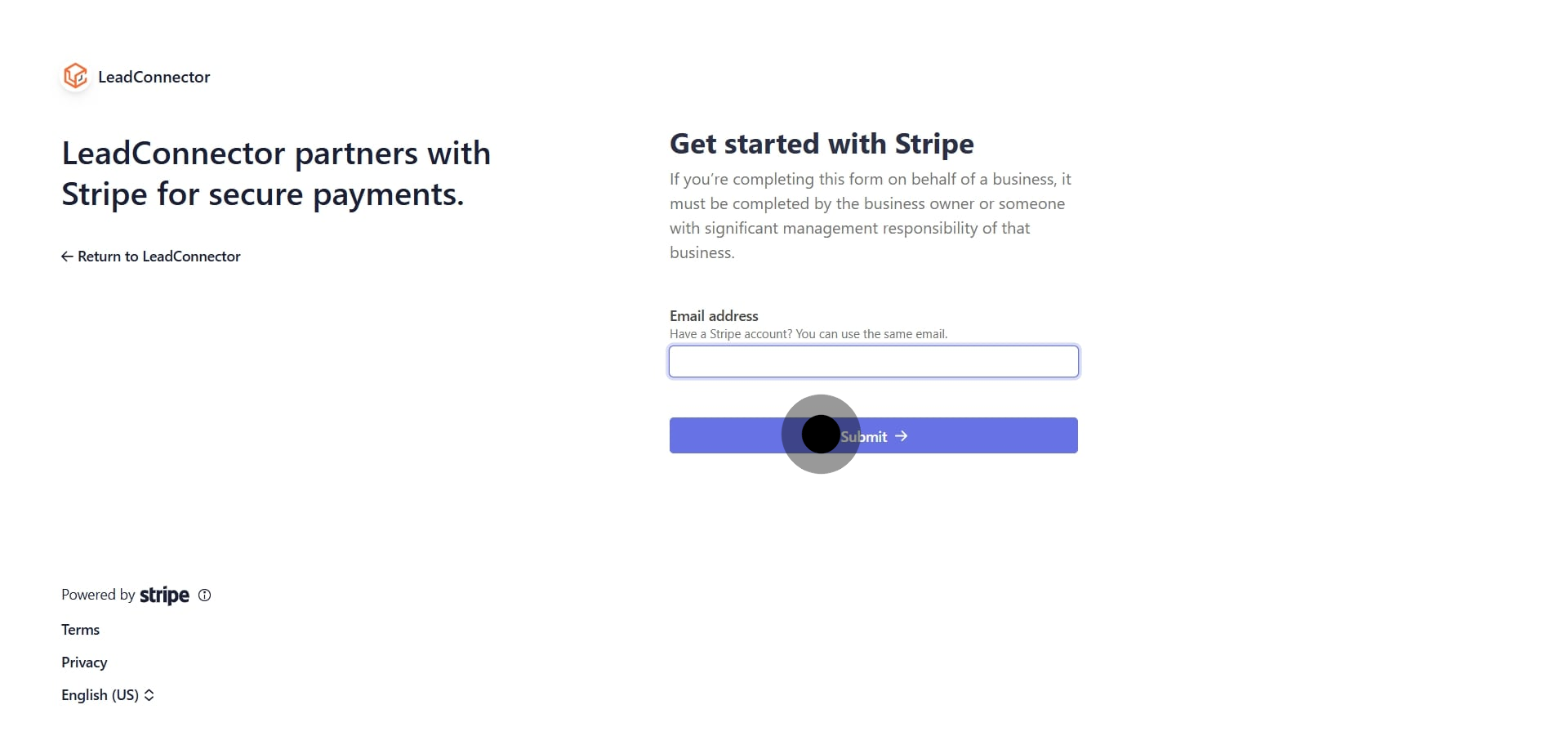
Click Submit (or Get started with Stripe) to authorize and finalize the connection. Once complete, your account will show as connected, and you can click Manage at any time to review or update settings.
Switch this toggle on to allow Apple Pay and Google Pay through Stripe on both 1-step and 2-step order forms, as well as one-click upsells. This applies only to version 2 of funnels for 1-step and 2-step order forms. If you are still using version 1, upgrade to version 2 first.
This change does not affect how transactions and orders are captured. All payments made through Apple Pay or Google Pay remain visible in the Orders and Transactions tables.
Use a verified Stripe account before connecting.
Double-check the account permissions during setup.
Run a test payment after connecting to confirm everything works.
Keep your billing and product data organized for accurate reporting.
Stripe supports many payment methods beyond cards. As of today, the supported methods include:
Cards
Apple Pay (requires registered domains)
Google Pay
ACH Direct Debit
Affirm (requires shipping address)
Klarna (requires shipping address)
Afterpay (requires shipping address)
Bancontact
iDEAL
SEPA Direct Debit
Link (requires registered domains)
Amazon Pay
Revolut Pay (popular in the UK)
Cash App
GrabPay (popular in Malaysia)
Zip (popular in Australia)
BACS Direct Debit (popular in the UK)
BECS Direct Debit (popular in Australia)
FPX (popular in Malaysia)
Offering additional methods across order forms, forms, invoices, payment links, and online stores can increase conversions by giving patients payment flexibility across different regions. This is available only when you use Stripe as your provider.
To turn specific payment methods on or off, manage them from your Stripe dashboard. Go to Settings → Connect → Payment methods → Your account to see the list of payment methods activated for the integration.
Select the connection configurations in the dropdown, since your Stripe account may be connected to more than one platform.
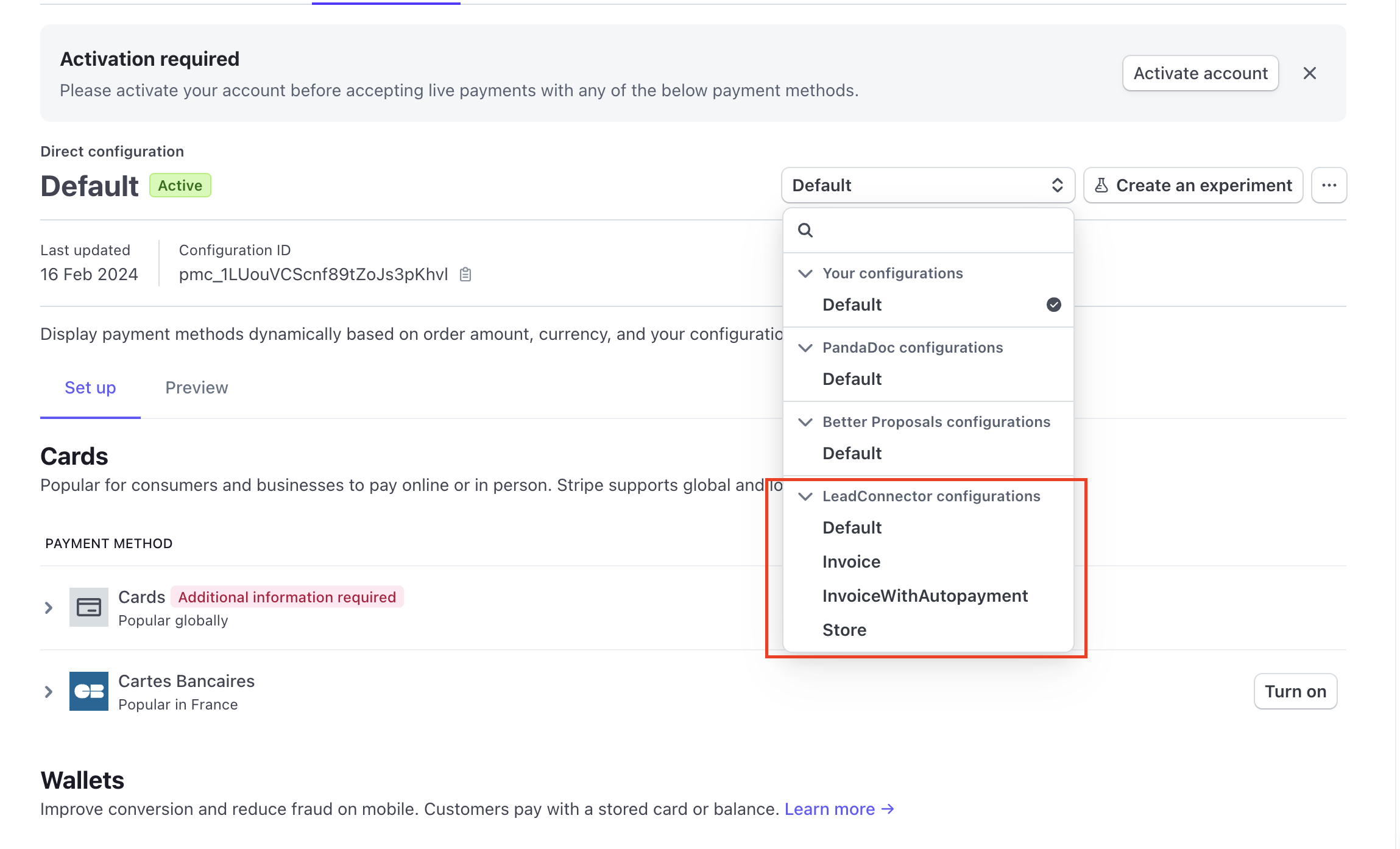
There are four configurations available, each of which controls payment methods for a different type of checkout in Aesthetix CRM:
Invoice: Used for one-time invoices, recurring invoices with auto-payment turned off, and Text2Pay links. Cards, Apple Pay, Google Pay, ACH Direct Debit, Affirm, Klarna, Afterpay, Link, Amazon Pay, and Revolut Pay are on by default.
InvoiceWithAutopayment: Used for recurring invoices with auto-payment enabled. Cards, Apple Pay, Google Pay, and ACH Direct Debit are on by default.
Store: Used for payment methods on online stores. Cards, Apple Pay, Google Pay, Affirm, Klarna, Afterpay, Link, Amazon Pay, and Revolut Pay are on by default.
Default: Used everywhere else, such as 1-step and 2-step order forms, payment links, memberships, and communities. Cards, Apple Pay, Google Pay, Link, Amazon Pay, and Revolut Pay are on by default.
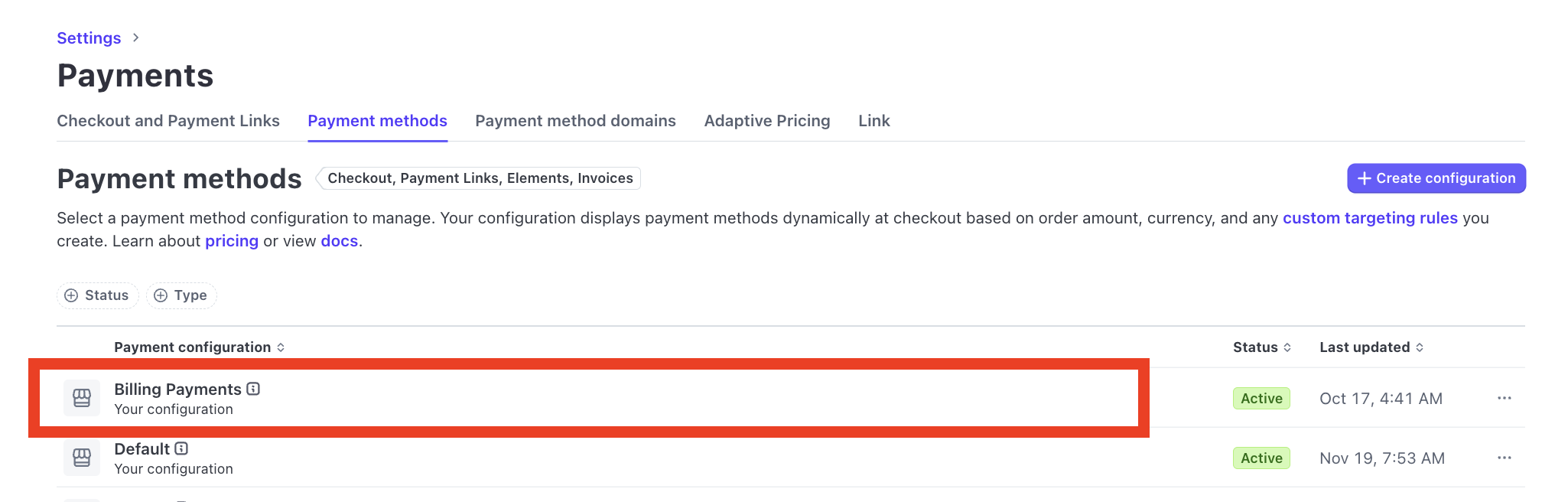
Recurring payments and subscriptions: For a payment method to appear on subscriptions, it must also be enabled in Stripe Settings → Payment Methods → Billing Payment Methods, in addition to being enabled in the configurations above.
All order and transaction details are recorded under the Payments section just like a credit card payment, including the Order Submitted and Payment Received triggers. Some newly added methods (such as iDEAL, Bancontact, and SEPA Direct Debit) roll out from Stripe over a few days, so they may already be available on some accounts and still propagating on others.
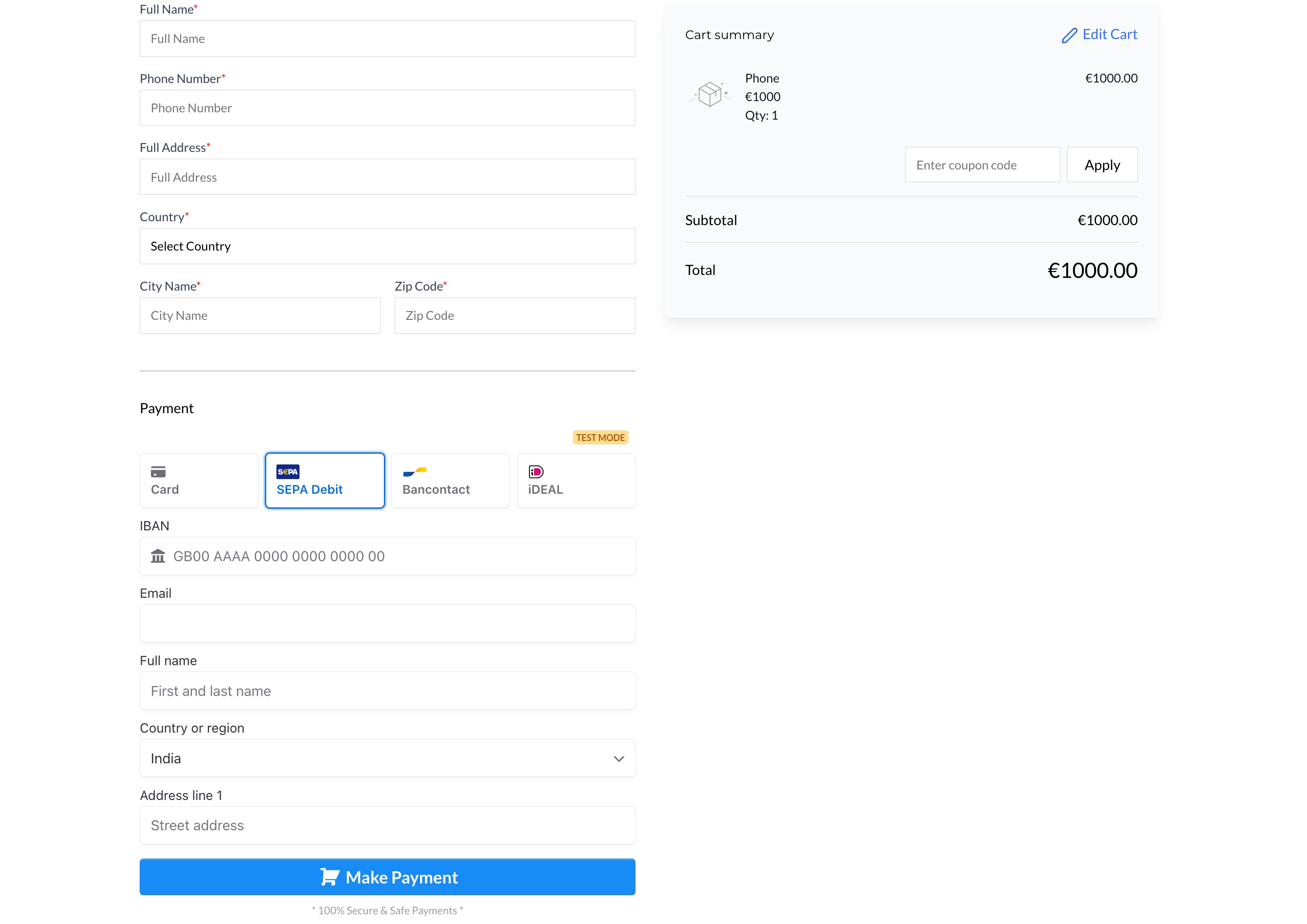
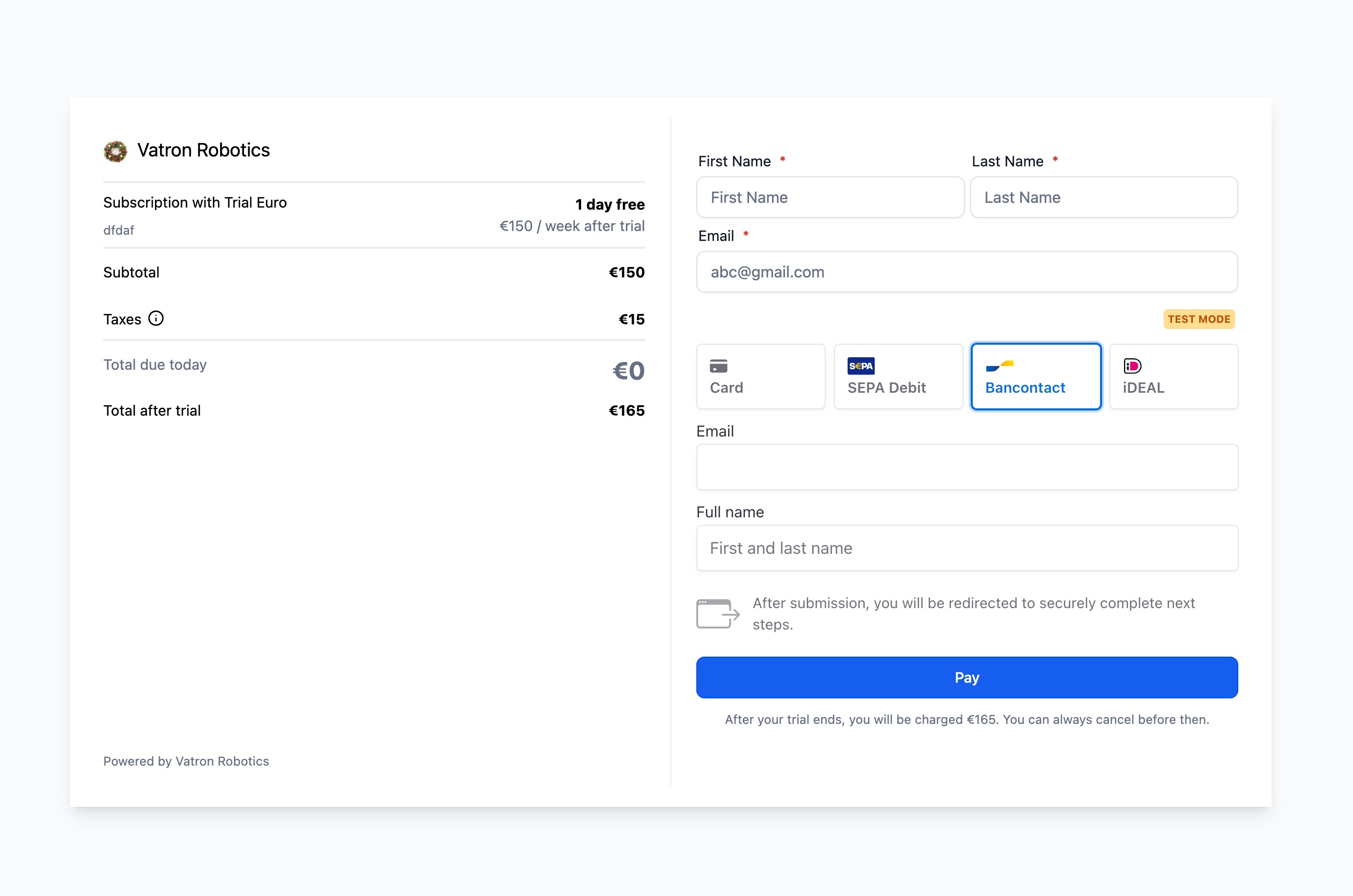
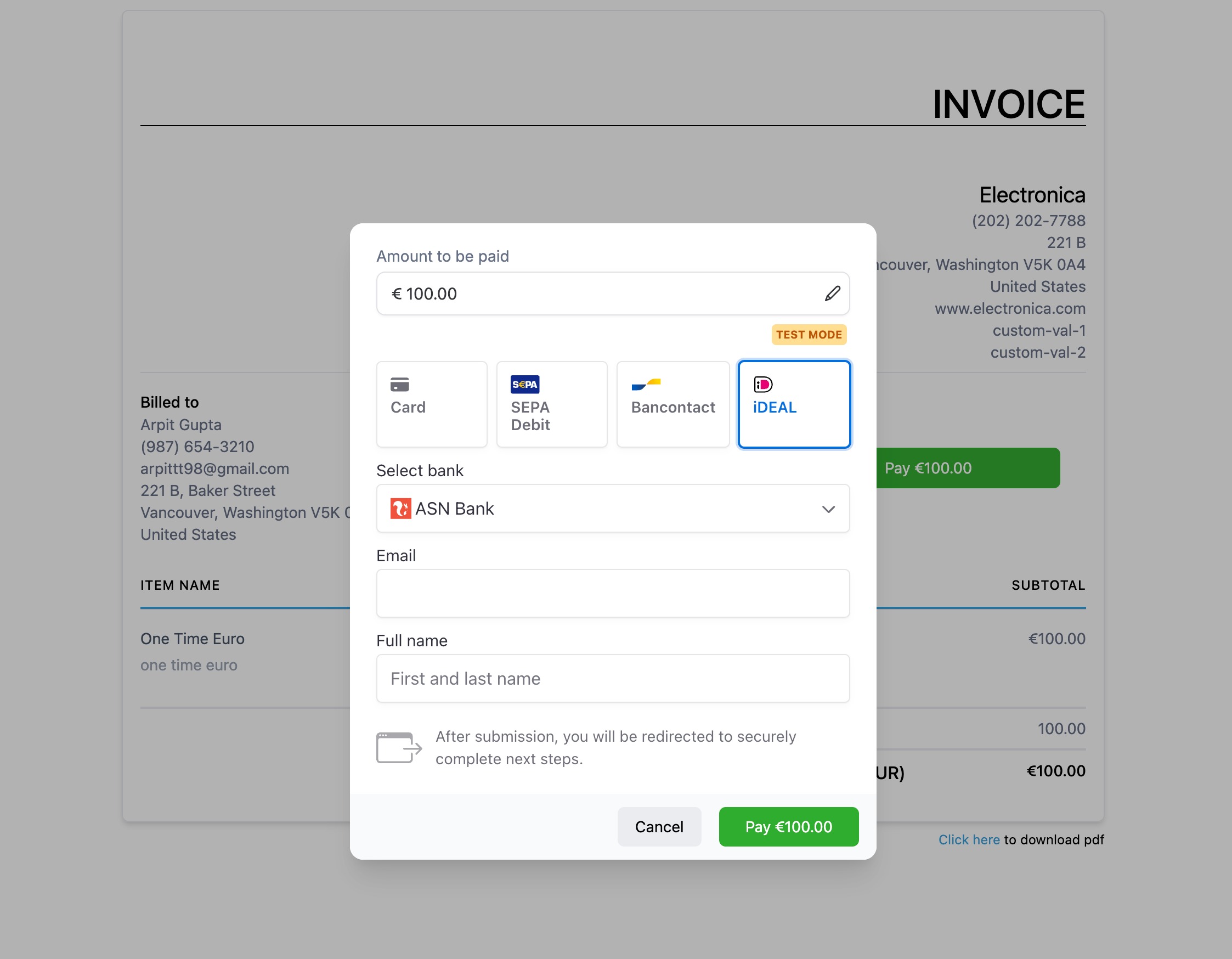
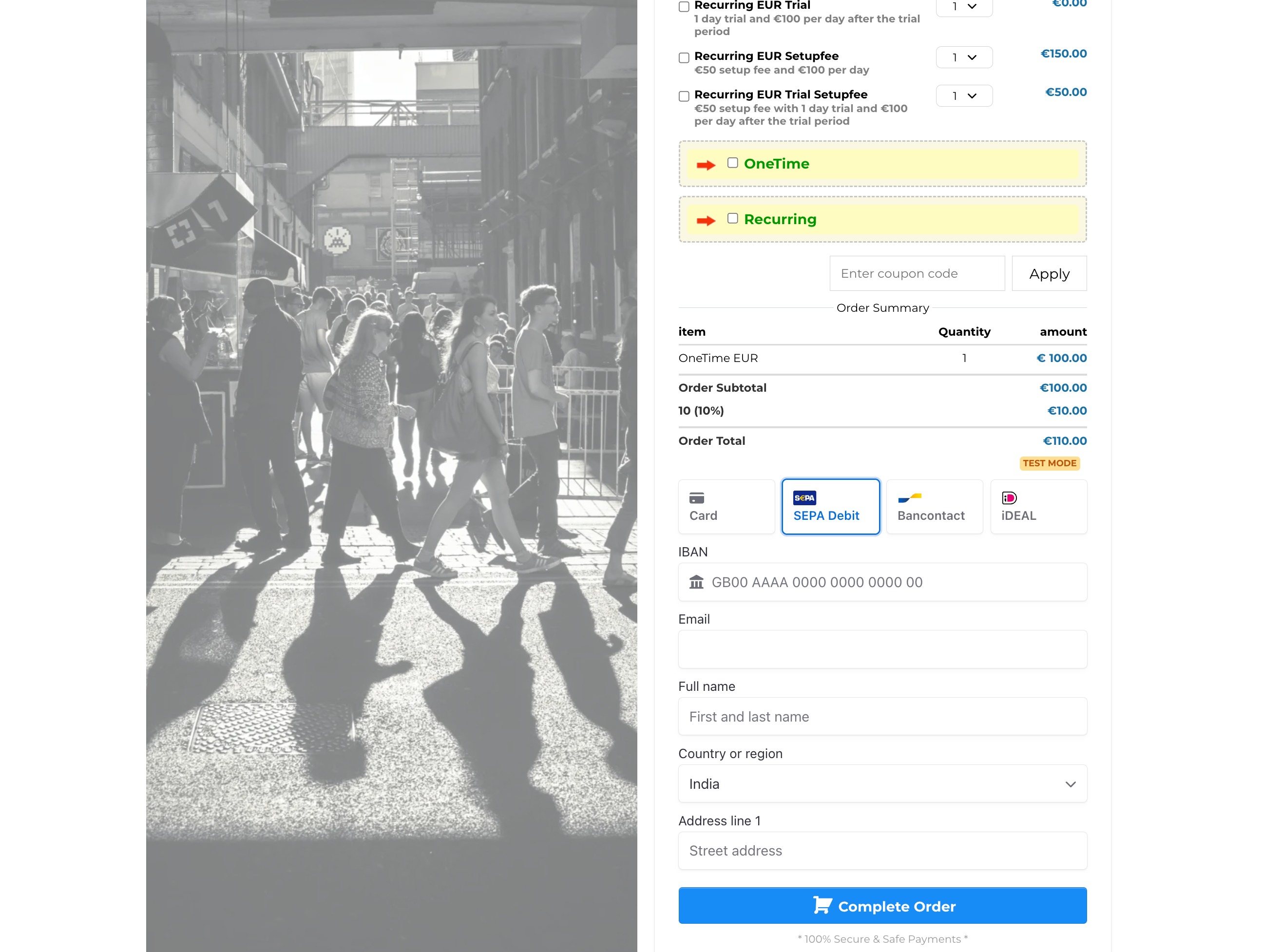
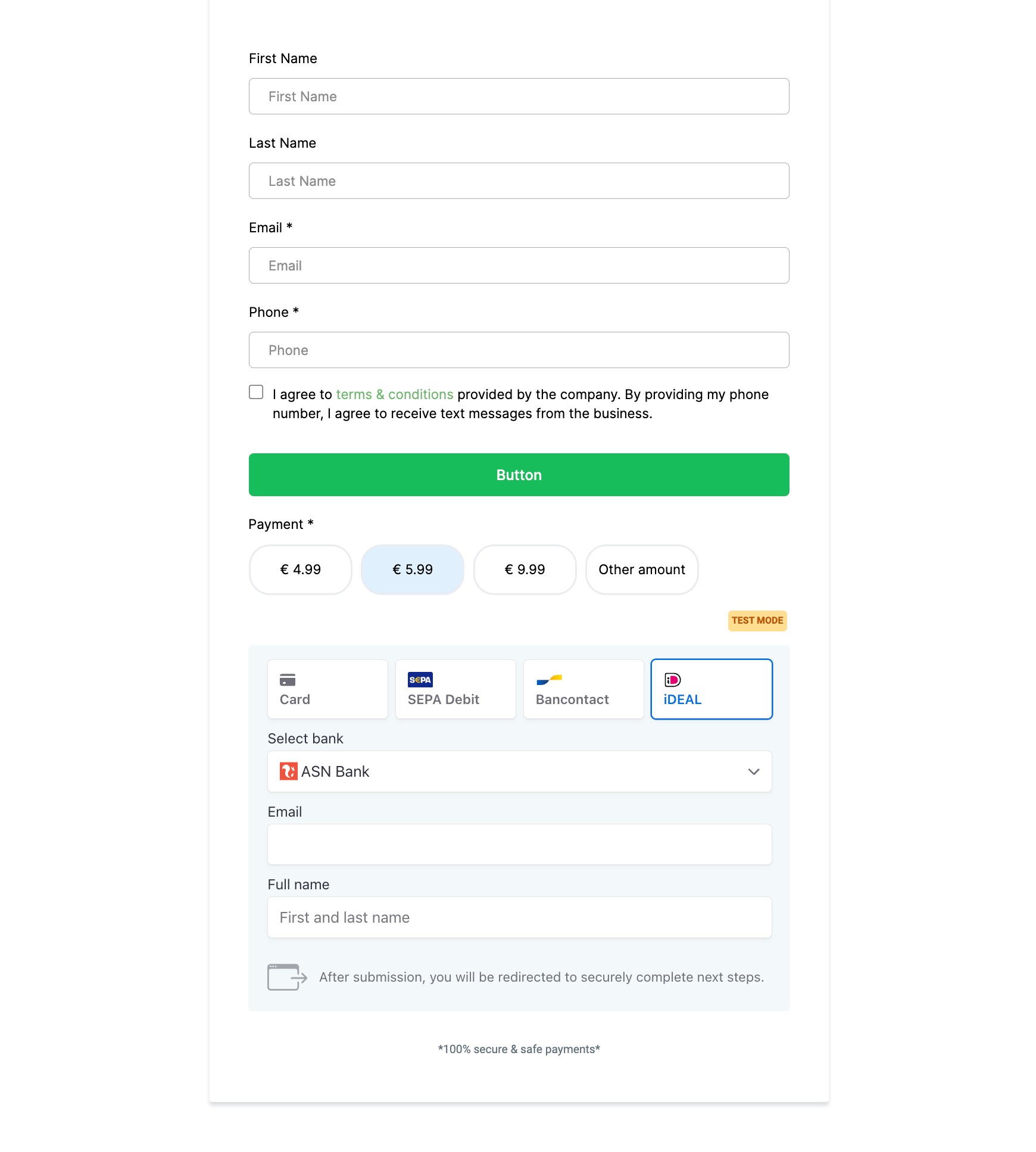
The payment methods shown at checkout (such as Klarna, Afterpay, cards, and others) are decided dynamically by Stripe. Even when a method is enabled in Stripe and enabled in Aesthetix CRM, Stripe may still hide it for certain payments.
Stripe decides which methods to show based on several conditions, including:
Your Stripe account's default currency.
The presentment currency (the currency of the product or invoice being purchased).
The payer's location and IP address.
Eligibility and restrictions on the method for your account.
Transaction amount limits for that method.
Whether the method is supported in the payer's country or region.
Because the Stripe Payment Element adapts per payer and per transaction, different patients may see different payment methods.
You can troubleshoot this in two ways.
Option 1: Use Stripe's troubleshooting tool. Stripe provides a dedicated tool to debug missing payment methods at https://support.stripe.com/questions/troubleshoot-missing-payment-methods.
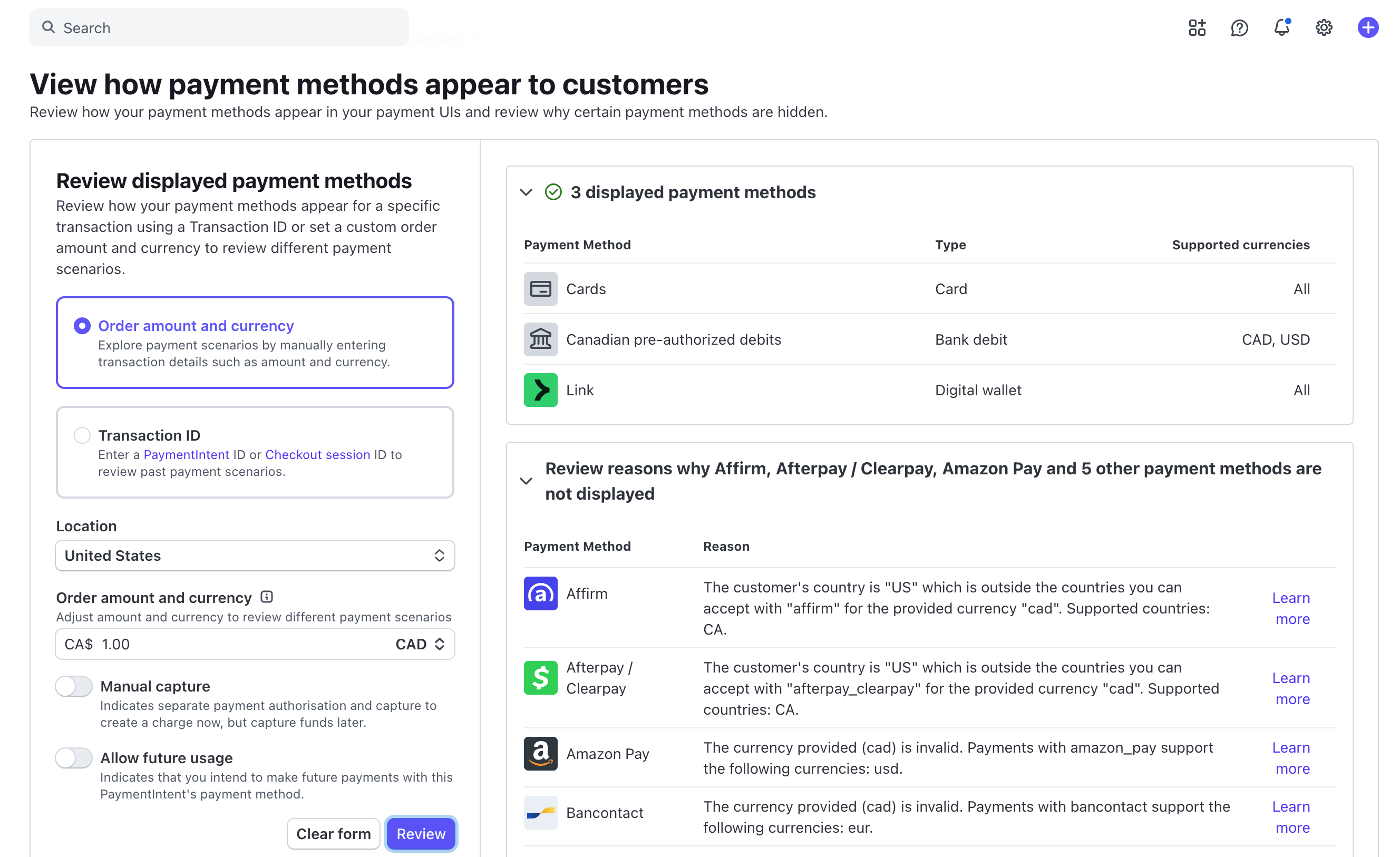
Option 2: Check method requirements inside the Stripe dashboard.
Open your Stripe Dashboard.
Go to Settings (the gear icon in the top right).
Under Product settings, open Payments.
Open the Payment methods tab.
Find the payment method your payer cannot see.
Click View details.
A panel opens with the method's requirements and eligibility. Common reasons a method is hidden include mismatches in transaction amount limits, presentment currency support, customer location support, and global availability or restrictions. If any requirement is not met for that transaction, Stripe hides the method.
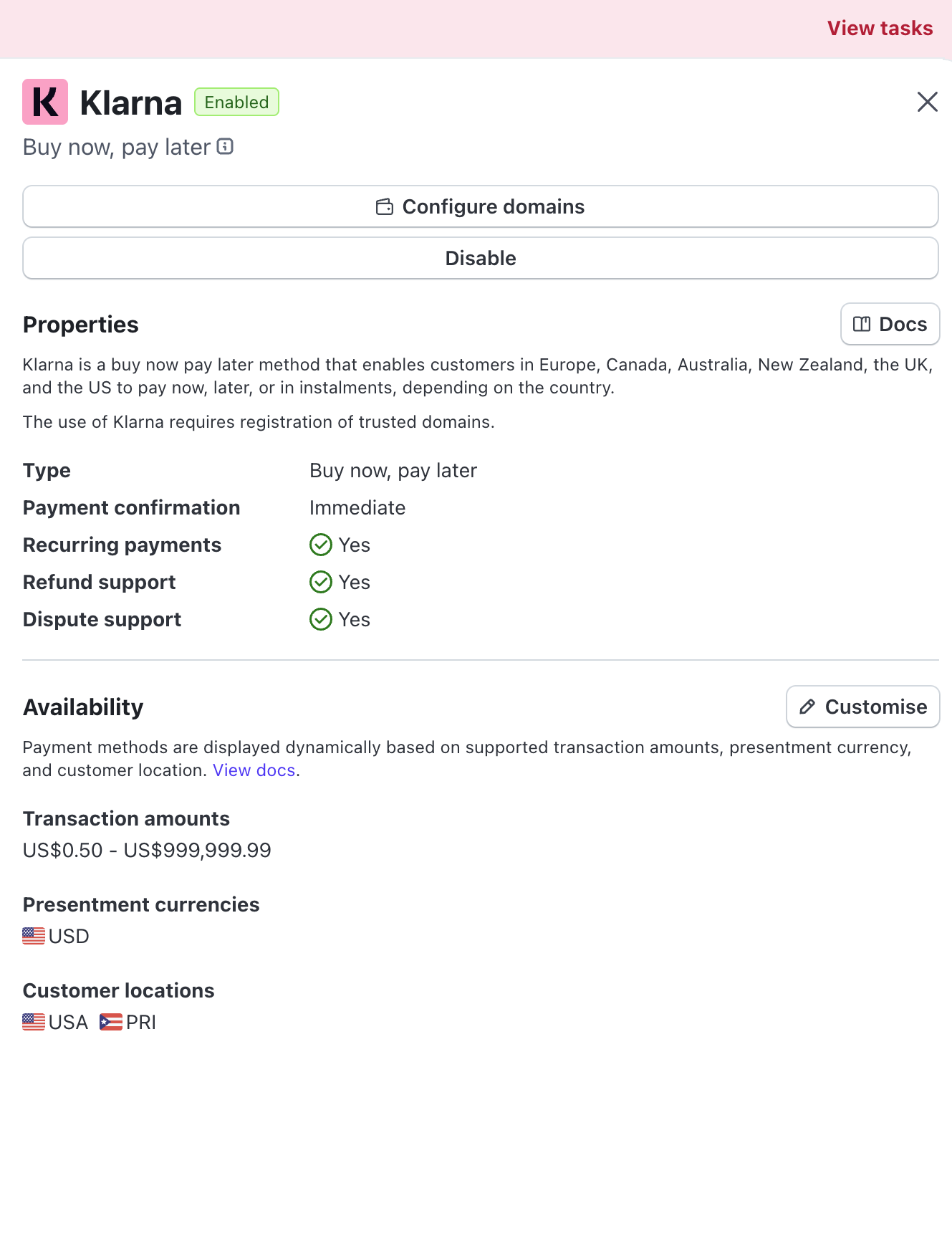
For example, on some accounts Klarna will only appear if the payer is in the USA or Puerto Rico and the checkout currency is USD.
Aesthetix CRM only controls whether a payment method is globally enabled on our side. Stripe fully renders the checkout and decides which methods appear based on the eligibility rules above, so we cannot force Stripe to display a method that Stripe has hidden.
Stripe updated its requirements for ACH Direct Debit payments to comply with Nacha operating rules. If you accept U.S. bank account payments through Stripe in Aesthetix CRM, you may need to update your Stripe account settings so patients can clearly identify your practice on their bank statements and have a way to contact you.
Effective date: March 20, 2026
Review and update your Stripe settings if:
You have a Stripe account connected to Aesthetix CRM and accept ACH Direct Debit payments.
You plan to accept U.S. bank account payments through Stripe in the future.
Stripe requires you to specify how ACH bank payment transactions are classified. Choose one of the following options.
1. Automatically classify transactions. Stripe automatically determines whether a transaction is a purchase of goods, using signals such as merchant information and transaction details. This is recommended for most practices and requires no code changes.
2. Classify all ACH transactions as goods. Choose this only if your practice exclusively sells physical or digital products. All ACH transactions will be categorized as goods purchases.
3. Do not classify transactions as goods. Choose this if your practice primarily provides services, accepts donations, or collects bill payments. This fits most med spas and clinics, since treatments and services are not goods.
Log in to your Stripe Dashboard.
Navigate to Settings.
Select Payments.
Locate the Link section.
Find the Nacha Compliance settings.
Select one of the three transaction classification options.
Click Save to apply your changes.
If your practice accepts ACH payments through Stripe, update these settings before March 20, 2026 to stay compliant with Nacha requirements.
Do I need a Stripe account before I connect?
Yes. You will sign in to an existing Stripe account or create one during setup.
What happens after I connect Stripe?
You can immediately start accepting one-time payments, subscriptions, and other transactions across invoices, payment links, order forms, and stores.
Can I disconnect or change Stripe later?
Yes. You can manage or disconnect the integration at any time from the Integrations page in the Payments section.
Is patient payment information stored securely?
Yes. All payment data is handled securely through Stripe, so sensitive card details are not stored in your CRM.
Can I use Stripe alongside other payment providers?
Yes. If you connect more than one provider, patients can choose their preferred option at checkout, and available buttons appear automatically.
Why can one patient see Klarna or Afterpay while another cannot?
Stripe decides which methods to show per payer and per transaction based on currency, location, amount, and eligibility. Different patients can therefore see different options.
Does Aesthetix CRM update my Stripe Nacha settings automatically?
No. ACH classification and statement descriptor settings live in your Stripe Dashboard and must be updated there manually.
What should I use as my statement descriptor?
Use a business name your patients will recognize, since it appears on their bank statements for ACH Direct Debit transactions. A clear descriptor reduces confusion and disputes.
Do card readers work with Stripe on order forms or invoices?
No. Stripe card readers (such as the M2 and BBPOS WisePad 3) are only supported for in-person POS checkouts, not online order forms or invoices.
Can I use different payment methods for Test Mode and Live Mode?
Yes. Supported payment methods can be configured independently for Test Mode and Live Mode, so the methods available while testing do not have to match what patients see once you go live.
