Taxes add up quickly, so recording them accurately matters. Aesthetix CRM lets you create one or more taxes and apply them to invoices, orders, and products. You can set manual tax rates yourself, or use tax categories for automatic calculation based on a patient's location and your configured tax addresses.
Manual taxes are defined once in your payment settings and then applied to invoices and products as needed.
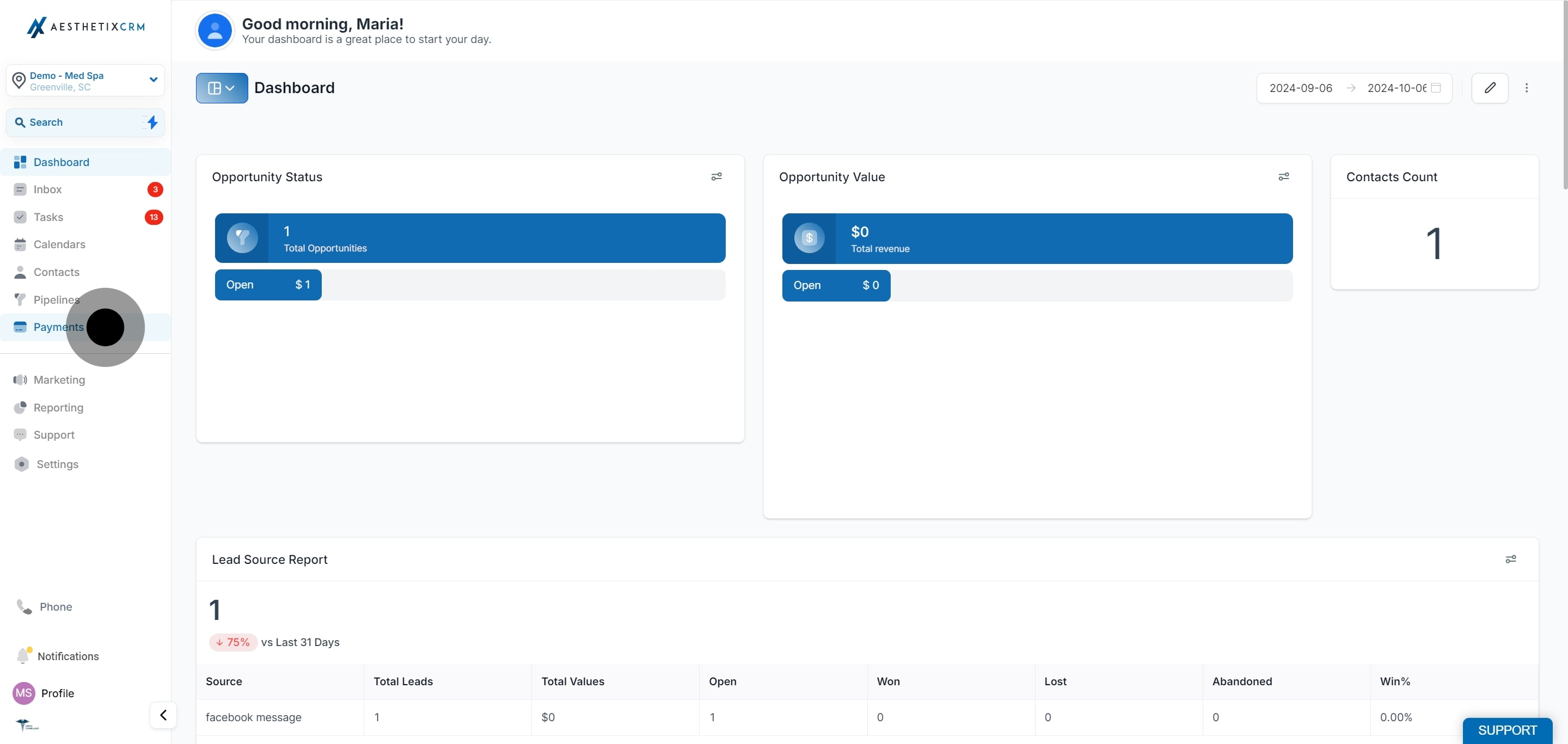
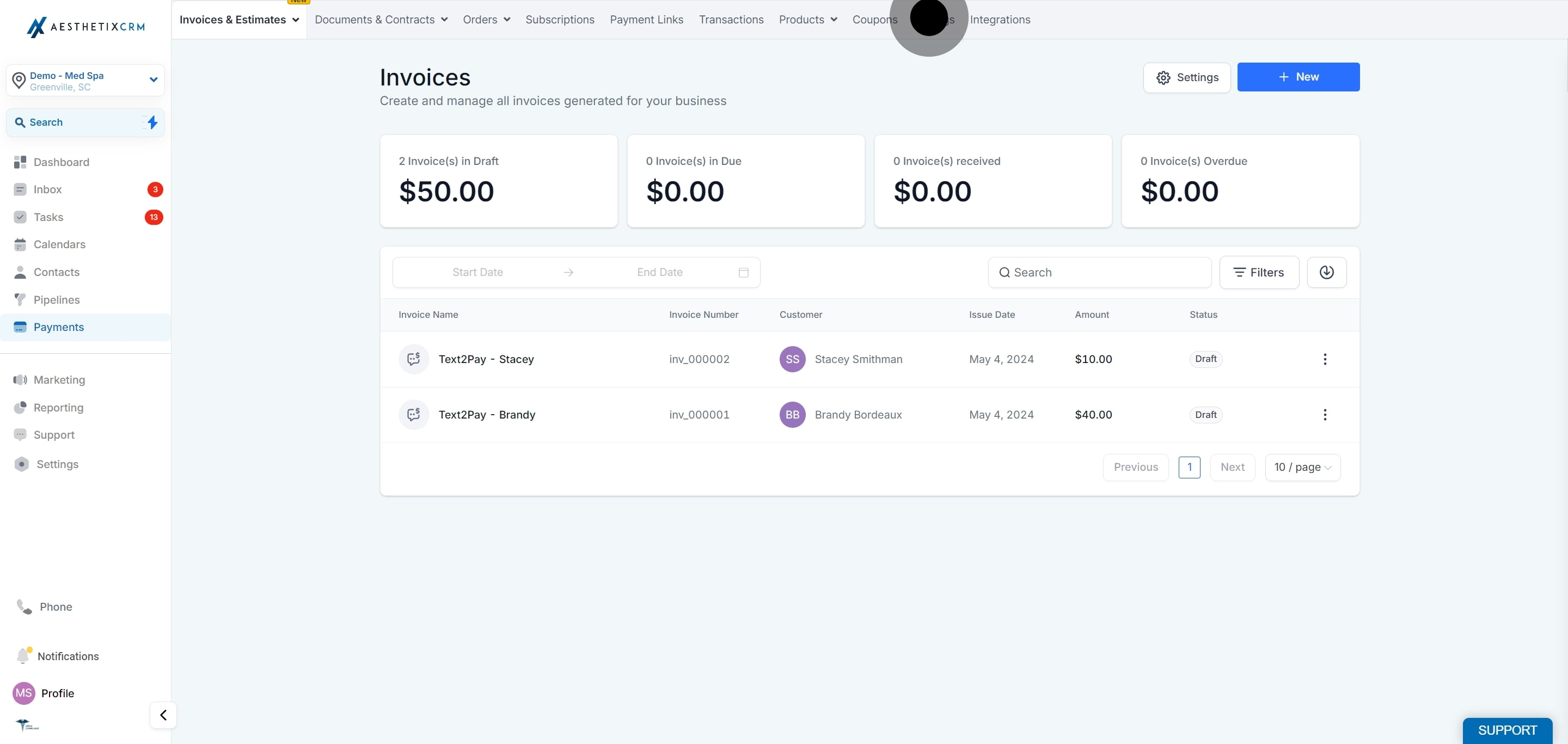
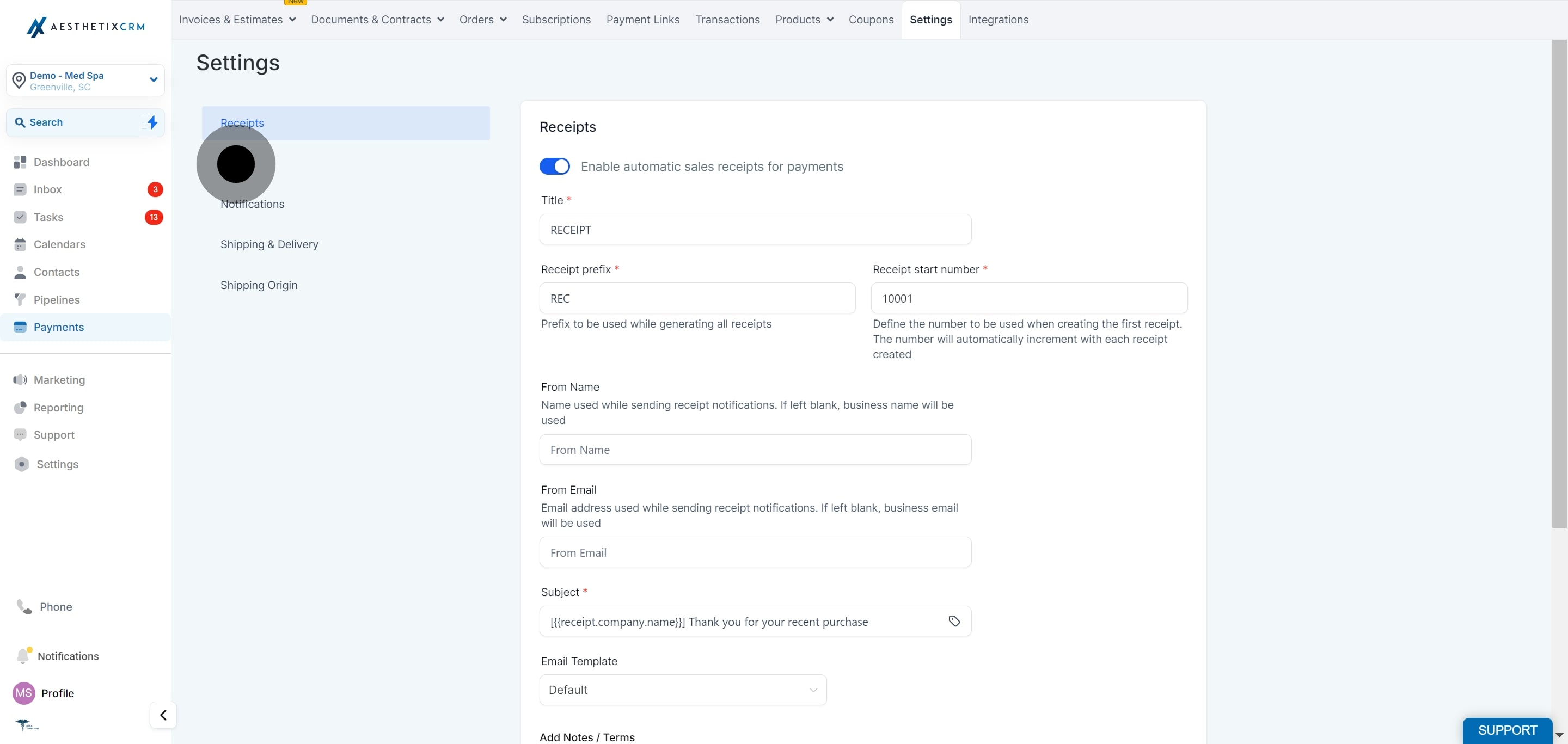
In the Payments section, open Settings, then click the Taxes tab. This is where you manage the tax rates used on your invoices.
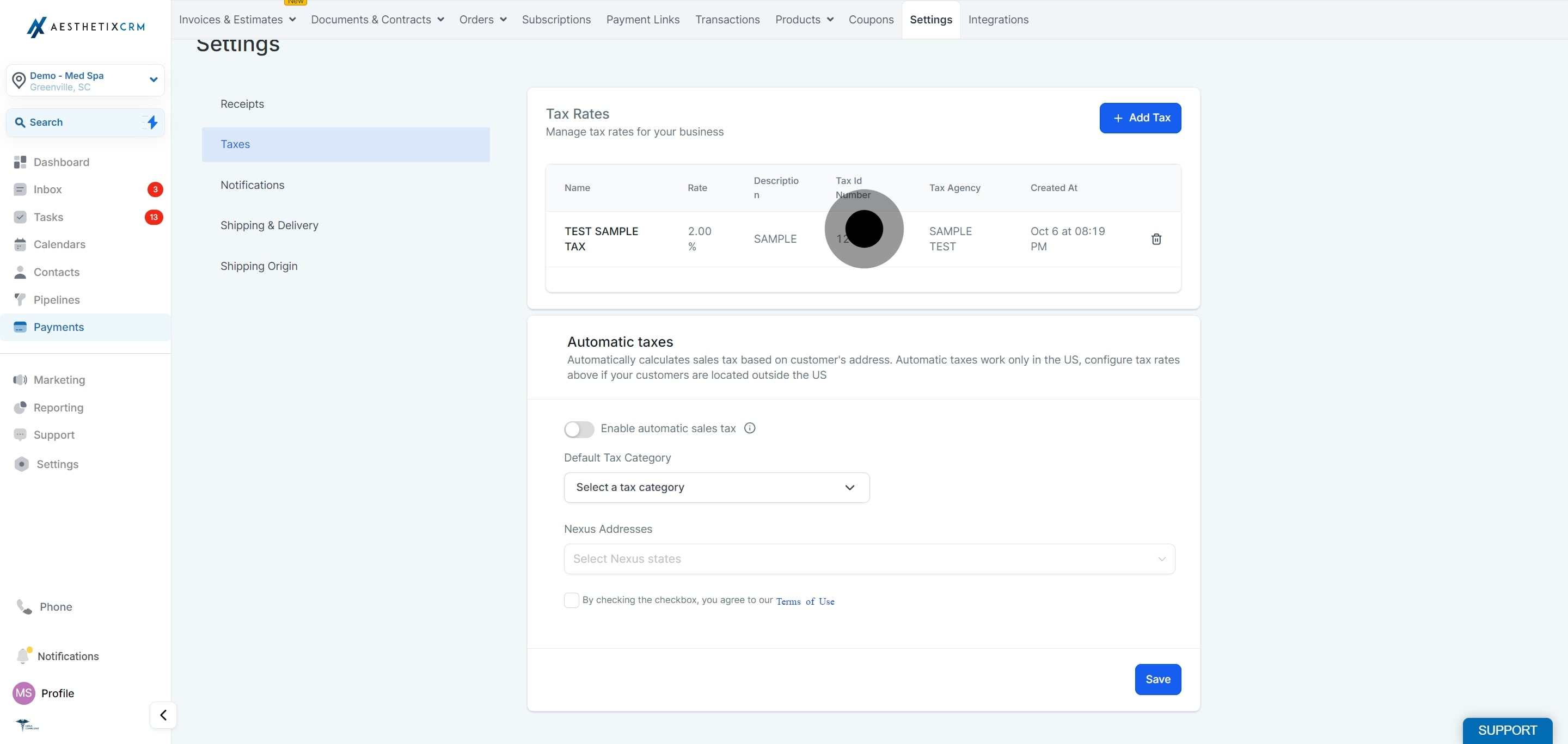
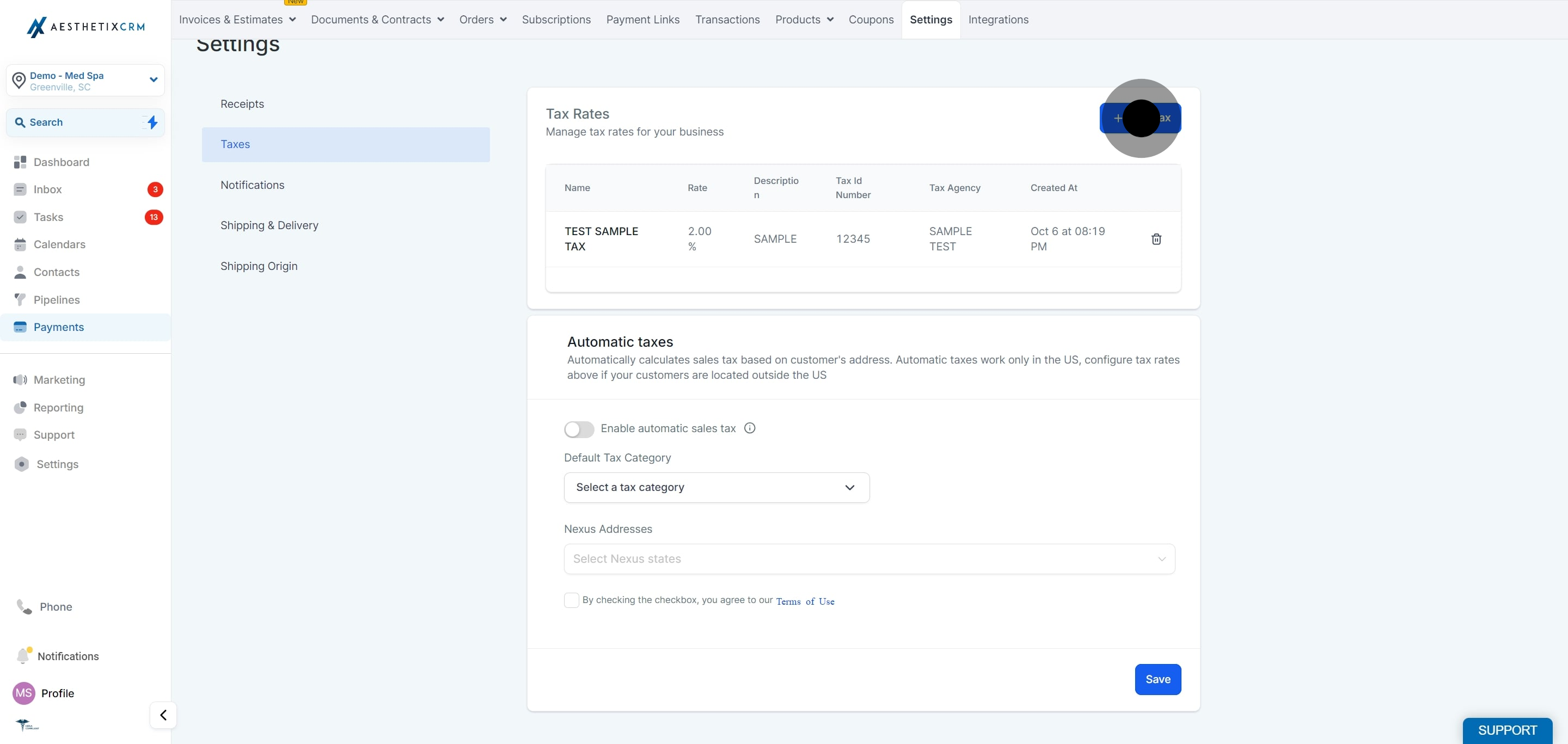
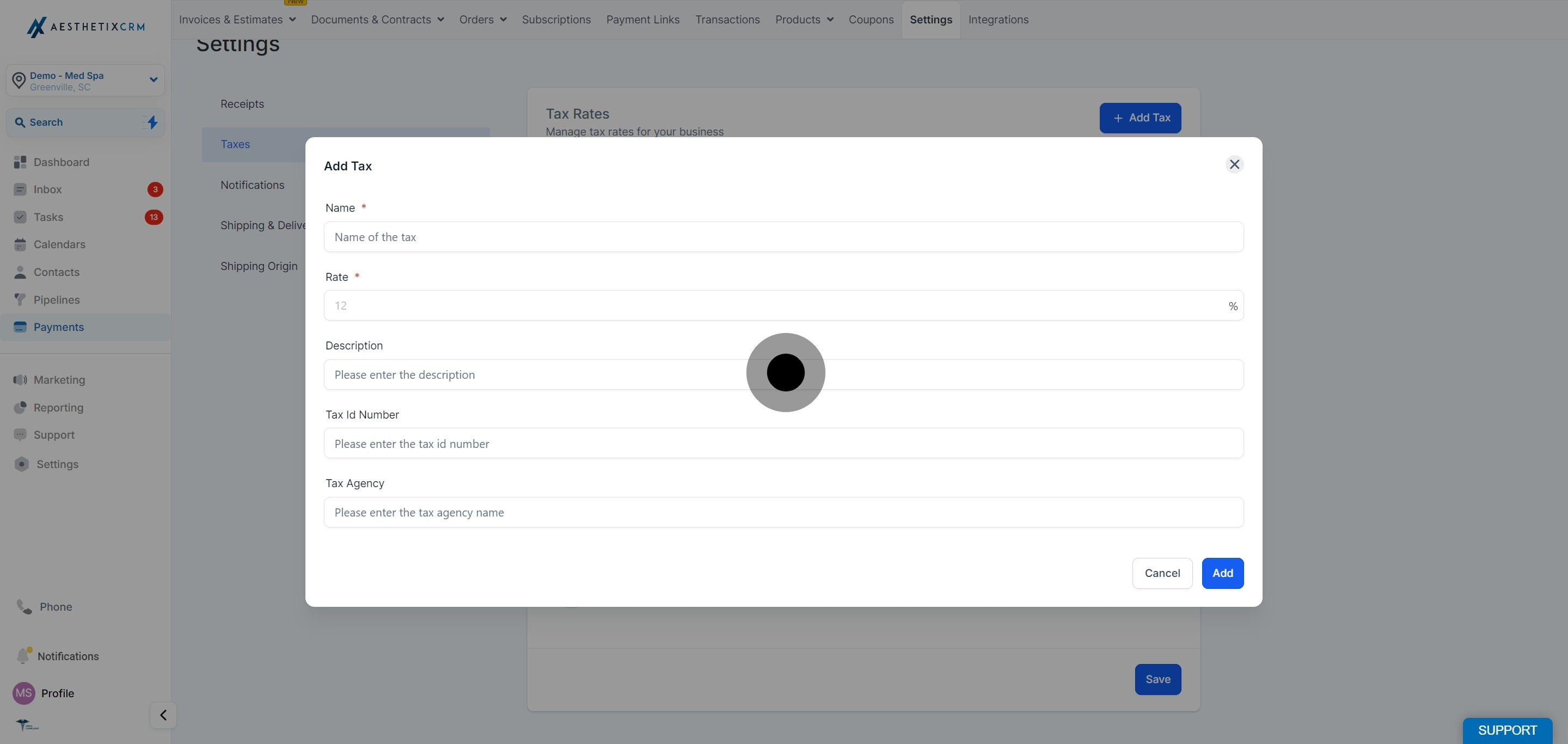
Click Add Tax, then complete the form. Each tax record includes:
Tax Name: The name of the tax (for example, State Sales Tax).
Tax Rate: The percentage rate to apply.
Tax Description: An optional brief description of the tax.
Tax ID Number: An optional tax identification number.
Tax Agency: The agency the tax is associated with.
You can also see the Created At date for reference. When you are finished, click Add. The tax then appears in your list of taxes.
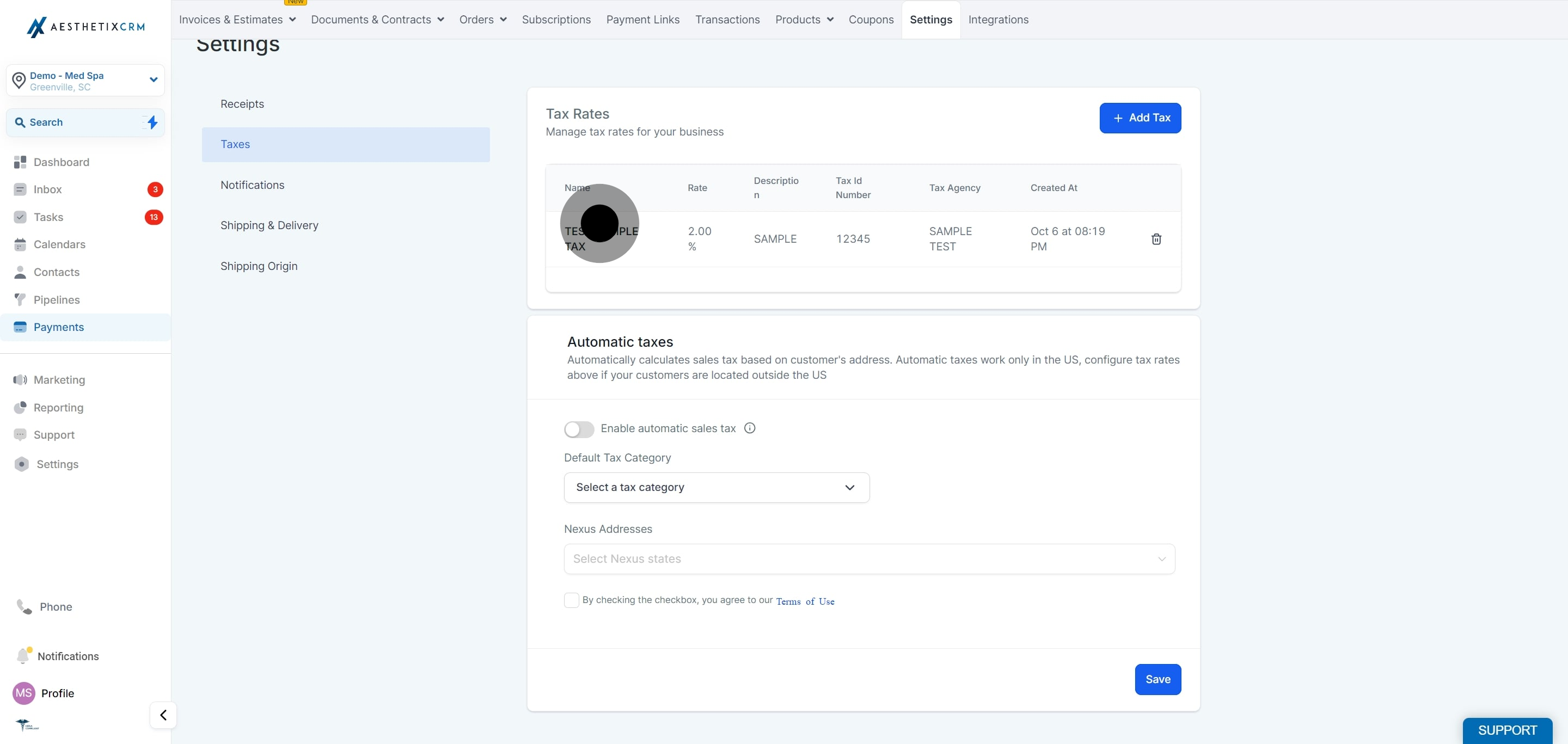
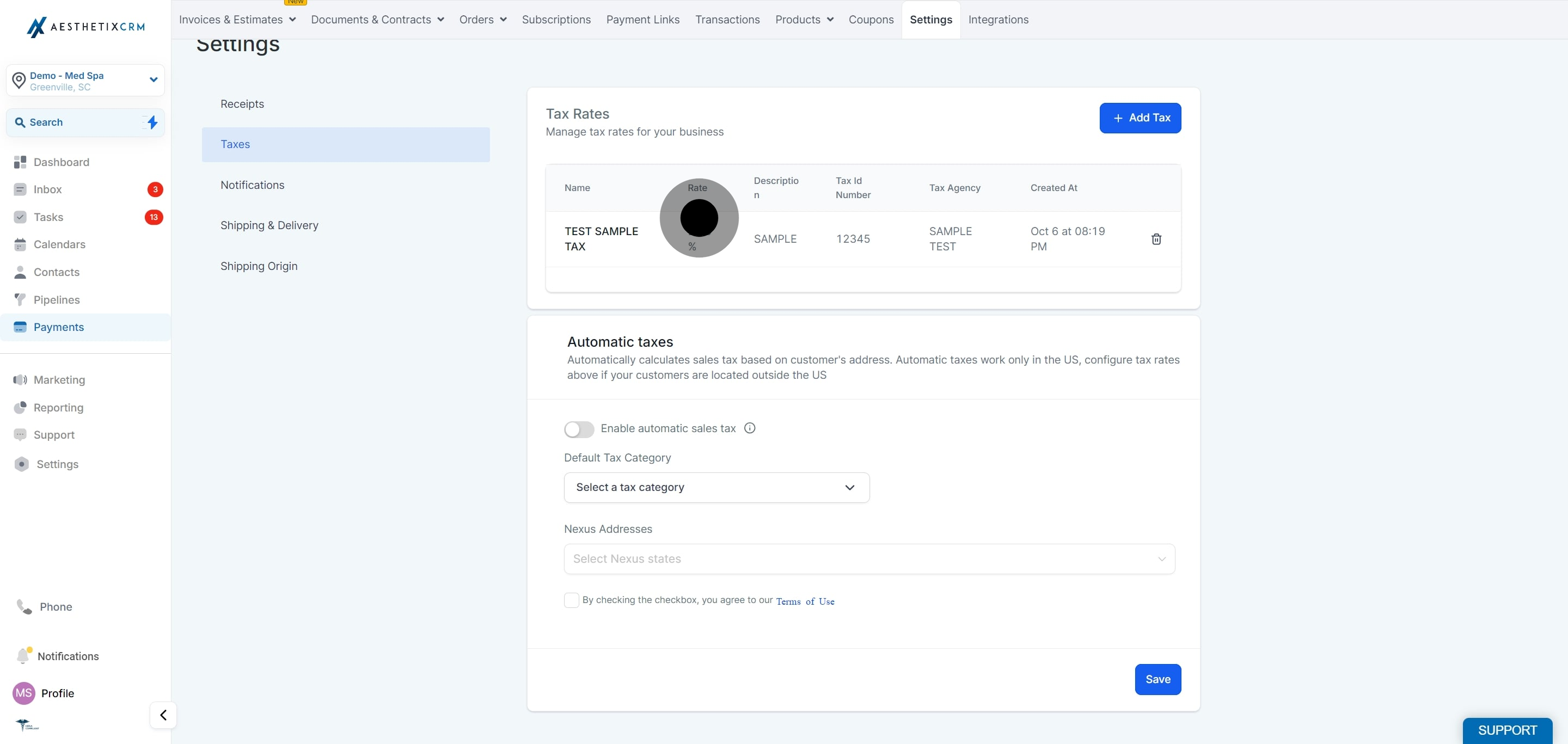
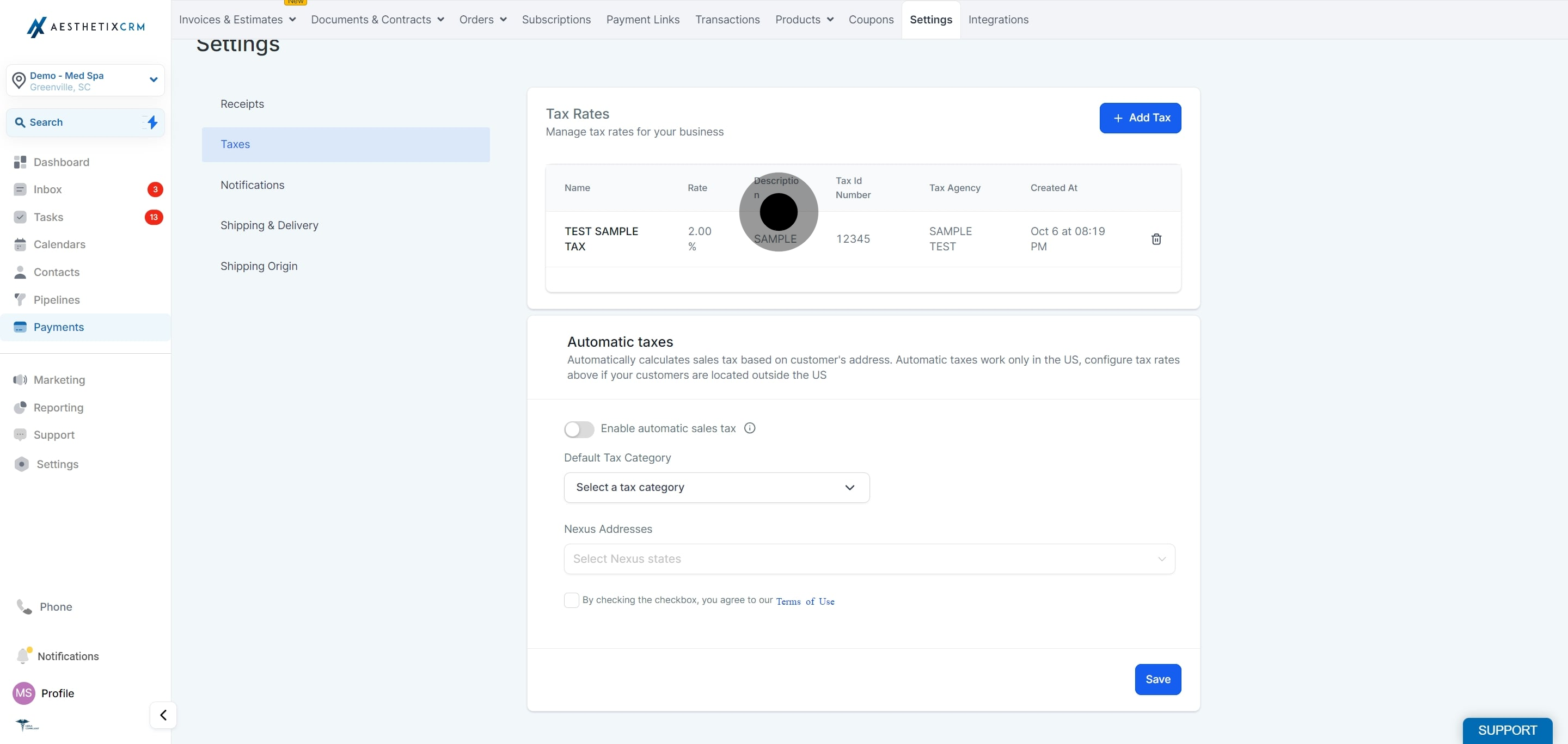
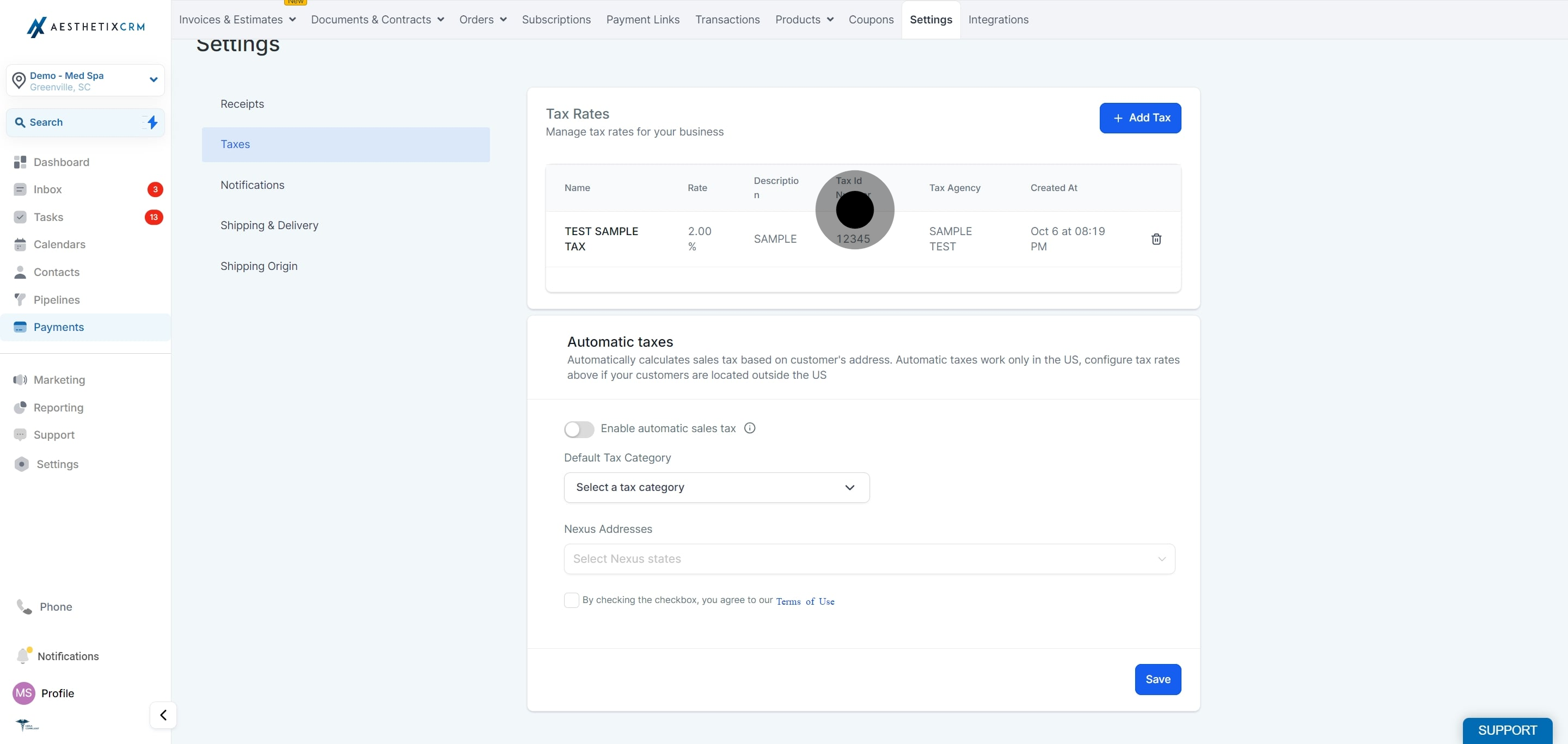
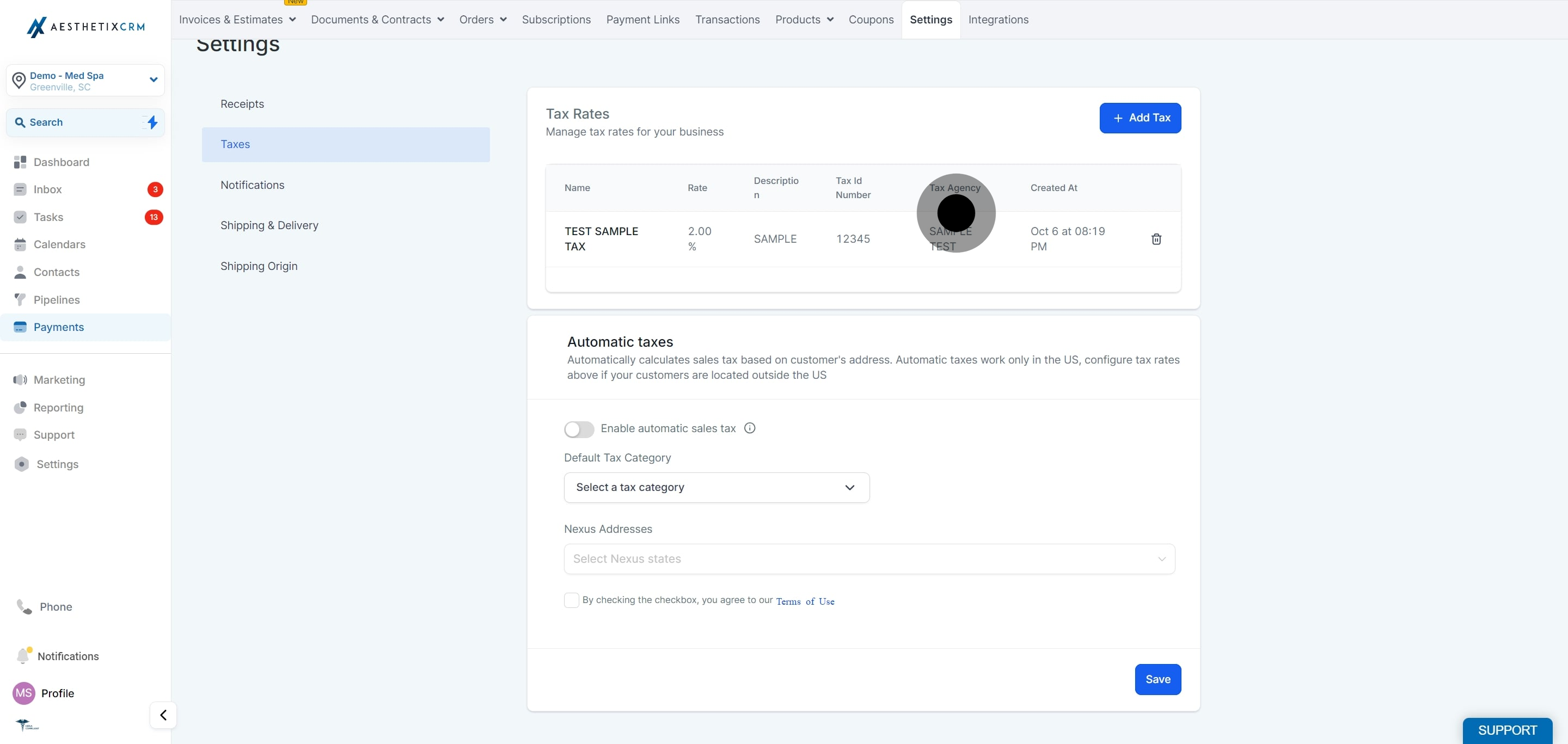
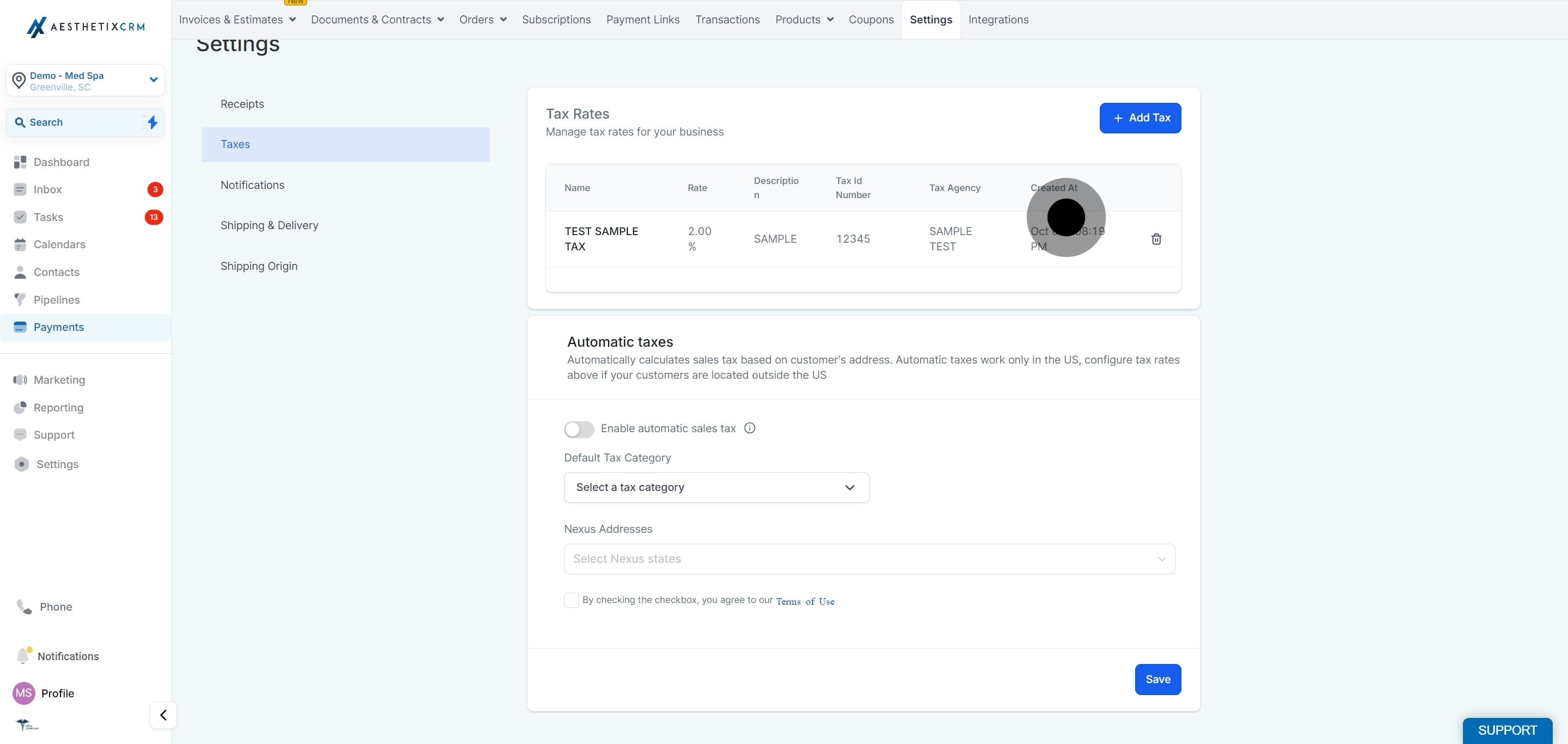
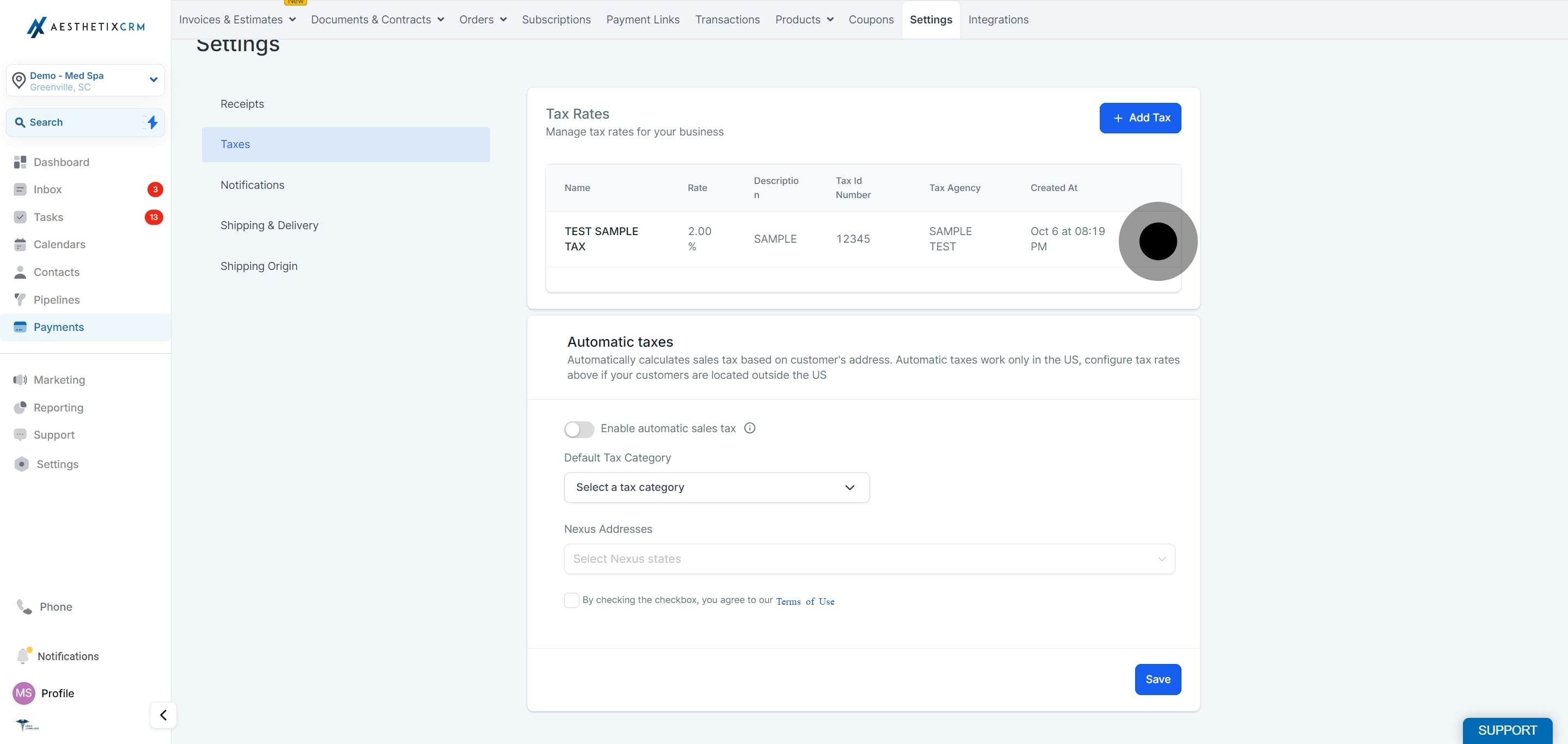
To add another tax, click Add Tax again, enter the details, and confirm with Add. To remove a tax you no longer need, click the Delete icon on the right of that tax row.
Once your taxes are defined, you can add them to individual invoice line items.
In the Payments section, create a New Invoice.
Click Add an Item, then select a product and save.
Click Add Tax on the item.
In the Add Tax pop-up, check the box for the tax or taxes you want to include.
Click Save to apply the tax to the item.
The tax is now added and reflected in the invoice total.
You can also control tax behavior at the product level when creating or editing a product. Under the product's tax settings you can:
Set a Product Tax Code: Choose the tax category that best matches the item for automatic calculation.
Include Tax in Prices: Choose As per global settings, Yes (tax included in the displayed price), or No (tax added separately at checkout).
Attach Tax Rates: Manually attach one of your saved tax rates, useful where automatic calculation is not available.
For details on setting up products, see the guide on creating and managing products.
Aesthetix CRM can calculate tax automatically using tax categories. On the interface you select a Tax Category Name, which maps to a unique tax category ID on the backend used for calculation and reporting. The system then applies the correct rate based on the patient's location and your configured tax addresses (your tax nexus).
A few common categories for an aesthetics practice:
Services: For treatments and service-based offerings.
Tangible Personal Property: For physical retail products such as skincare.
Non-Taxable Product: Select this (or the appropriate category) when tax should not be applied to a transaction.
The full catalog of tax categories, each mapped to a standard tax code, is available in the tax category selector when you create or edit a product or set your account defaults. Assign categories carefully so tax is applied correctly, and review your tax settings periodically to stay compliant as local tax rules change.
Because medical and aesthetic services are taxed differently across states and jurisdictions, confirm with your tax advisor which of your treatments and products are taxable before relying on automatic calculation.
If your practice serves customers in certain international jurisdictions, VAT, GST, or HST may be applied to comply with local tax regulations. Whether these taxes apply depends on the jurisdiction. In many cases they are charged only when a Tax ID number has not been provided in the billing profile, but some countries require them even for business-to-business transactions regardless of a Tax ID (for example, Mexico, Switzerland, South Africa, Malaysia, Indonesia, Serbia, and some Canadian provinces). You can add or update your Tax ID in your billing profile so the correct treatment is applied. For a US-based med spa, these charges typically do not apply. If you have questions about applicability or a specific charge, consult your tax advisor or contact support.
Where do I set up taxes? In the Payments section, open Settings, then the Taxes tab. Click Add Tax to create a rate.
What details does a tax record include? A tax name, rate, optional description, optional Tax ID number, and tax agency. The created date is shown for reference.
Can I apply more than one tax to an item? Yes. When you click Add Tax on an invoice item, you can check multiple taxes to apply them together.
What is the difference between a manual tax and a tax category? A manual tax is a fixed rate you define and apply yourself. A tax category enables automatic calculation based on the patient's location and your configured tax addresses.
How do I make a product non-taxable? Assign the Non-Taxable Product category (or the appropriate category) to the product so no tax is calculated on it.
How do I remove a tax? On the Taxes tab, click the Delete icon next to the tax you want to remove.
Are my aesthetic services taxable? It depends on your state and jurisdiction. Medical and aesthetic services are taxed differently from place to place, so confirm with your tax advisor which treatments and products are taxable.
Why might an international invoice include VAT or GST? Some jurisdictions require VAT, GST, or HST on sales, sometimes even when a Tax ID is provided. Adding a valid Tax ID to your billing profile applies the correct treatment where eligible. For US-based practices, these charges generally do not apply.
