Building a large catalog by hand takes time. Aesthetix CRM lets you add many products at once by uploading a CSV file, and it lets you bring existing recurring pricing plans over from Stripe. This is useful when you are migrating from another system, launching a new retail line, or moving established memberships into your account.
Tip: Aesthetix CRM offers AX Pay, our own payment processing with rates better than Stripe. See AX Pay Overview and Setup Guide. If you are still setting up processing, AX Pay is the recommended option.
Bulk CSV import adds multiple products in one upload. Once imported, products are immediately available for use in payment links, invoices, order forms, and your product catalog.
Access to the Payments → Products page.
A properly formatted CSV file with your product details.
The sample CSV template downloaded from the import window for reference.
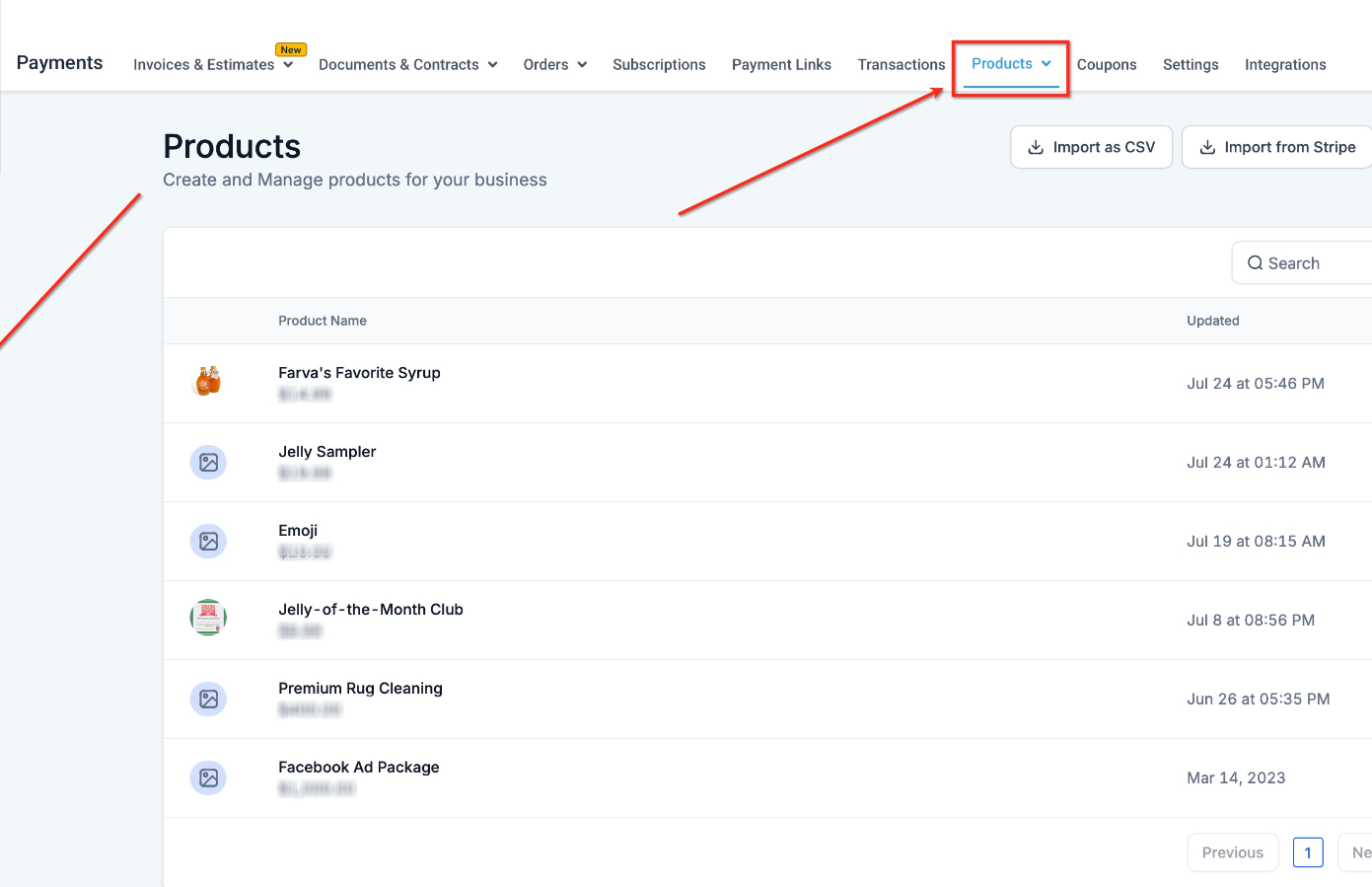
In the Payments section, open Products.
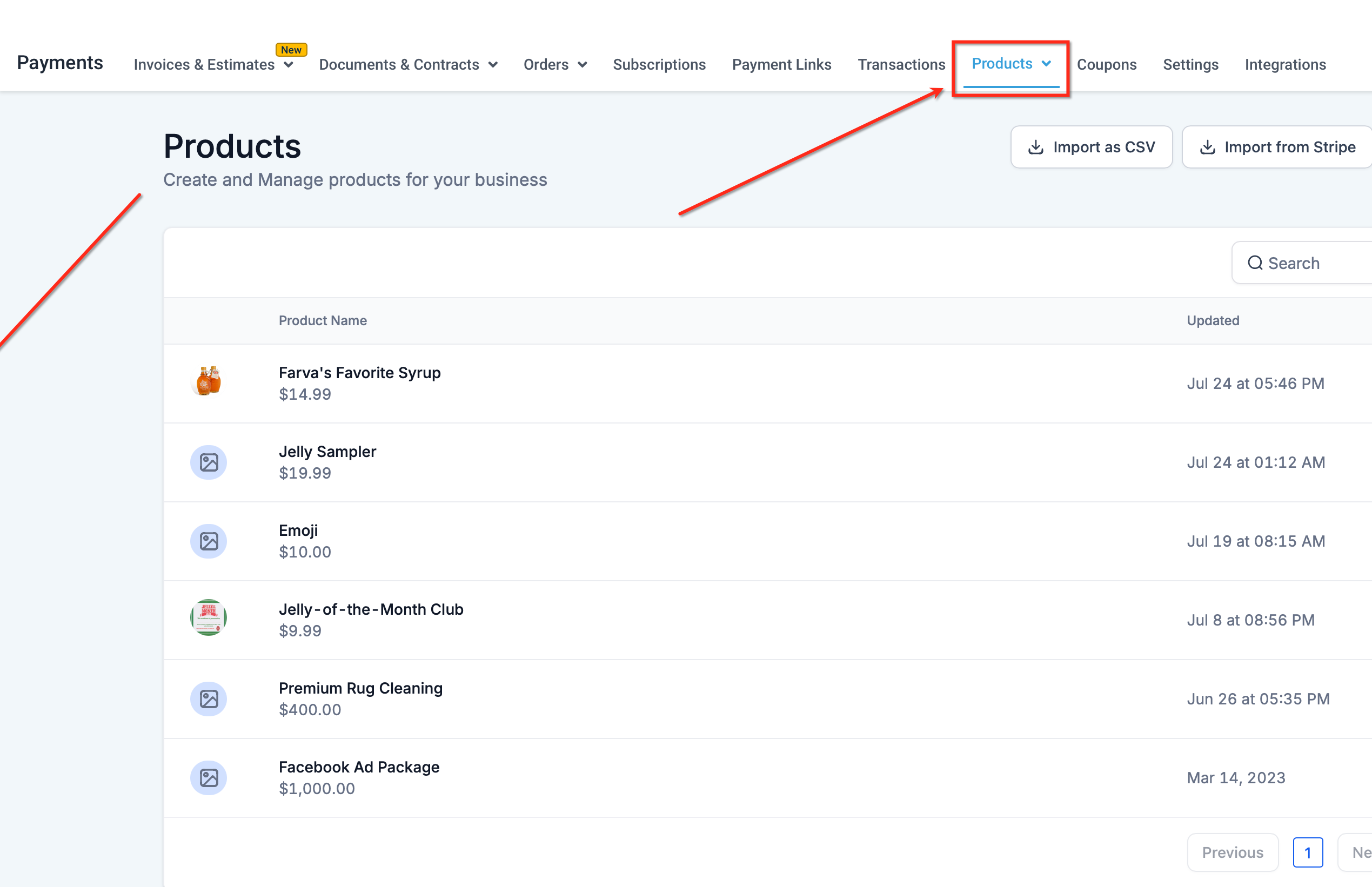
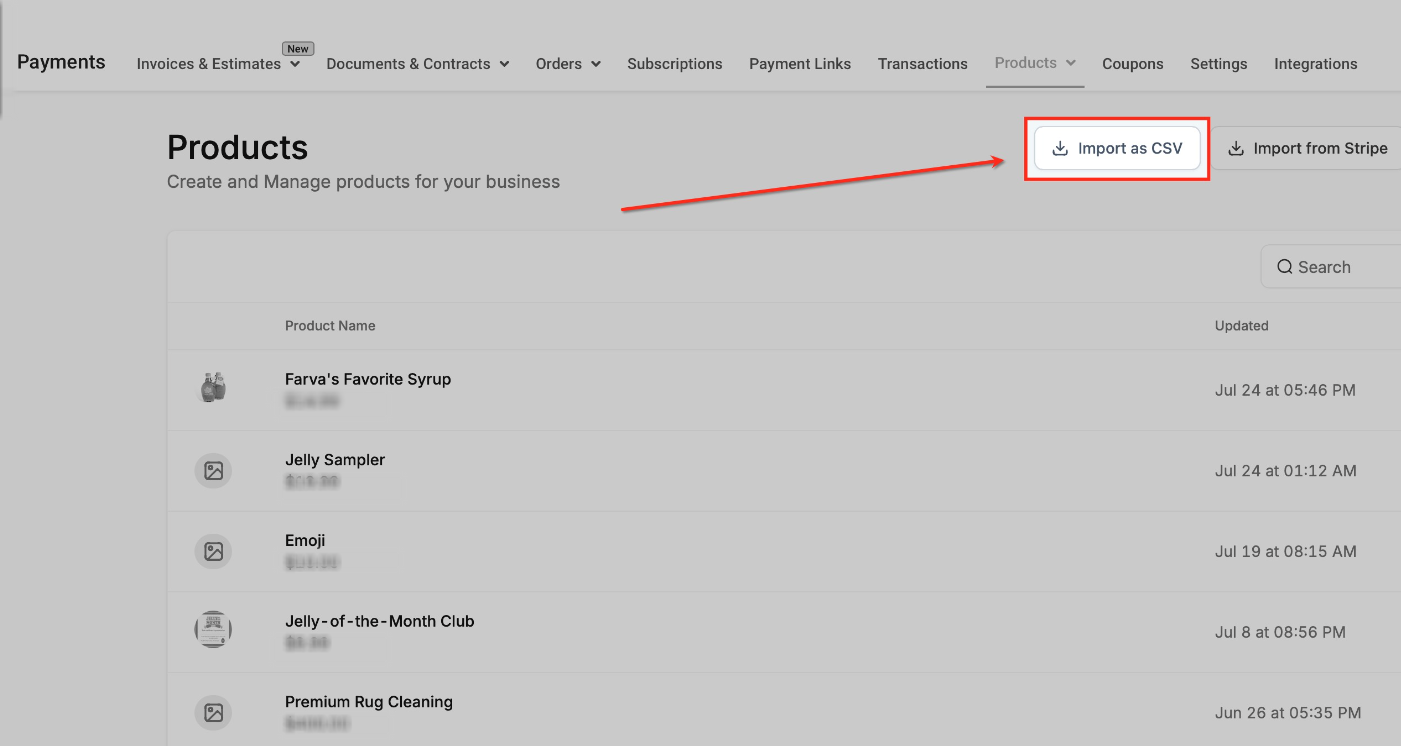
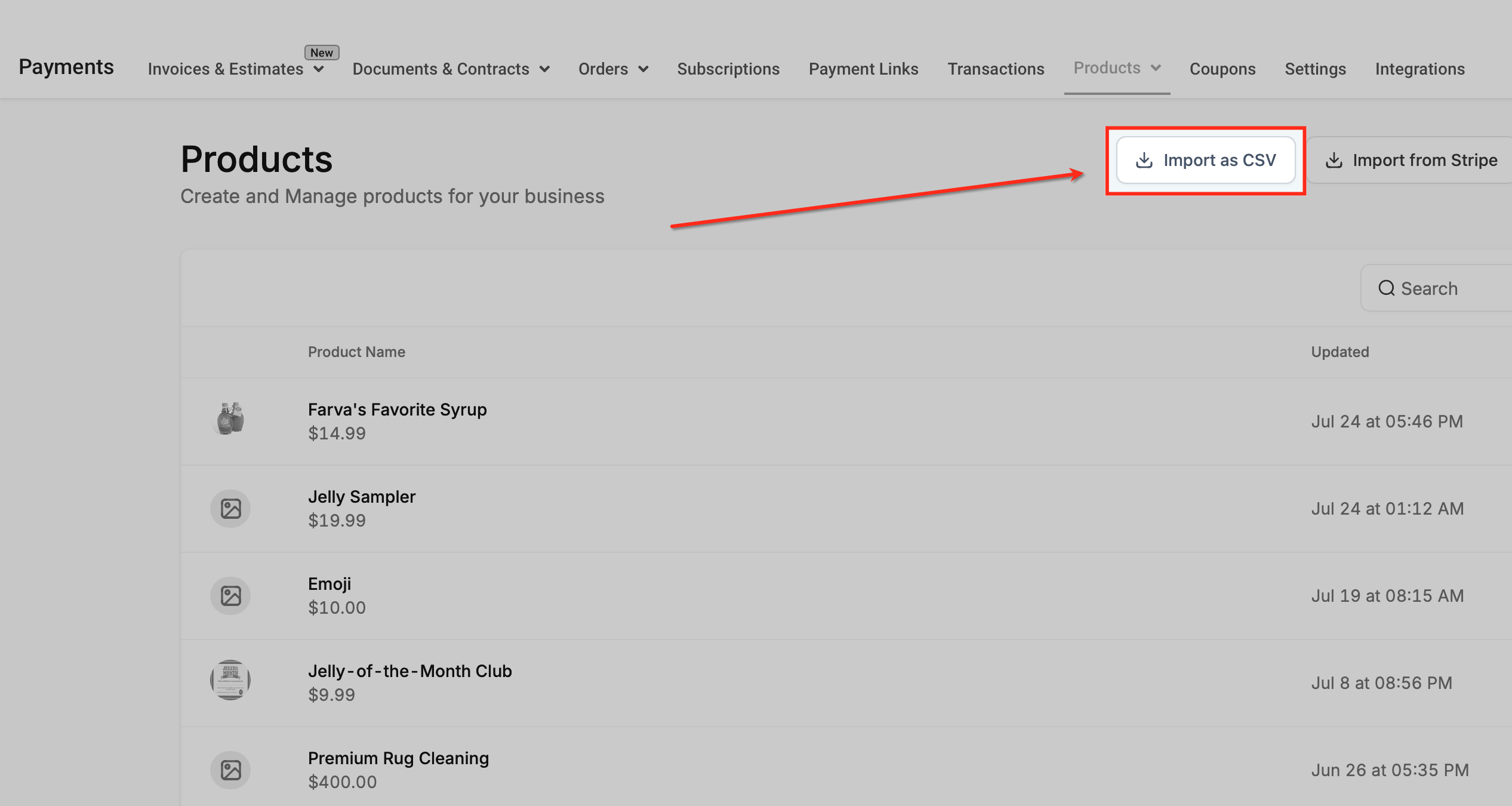
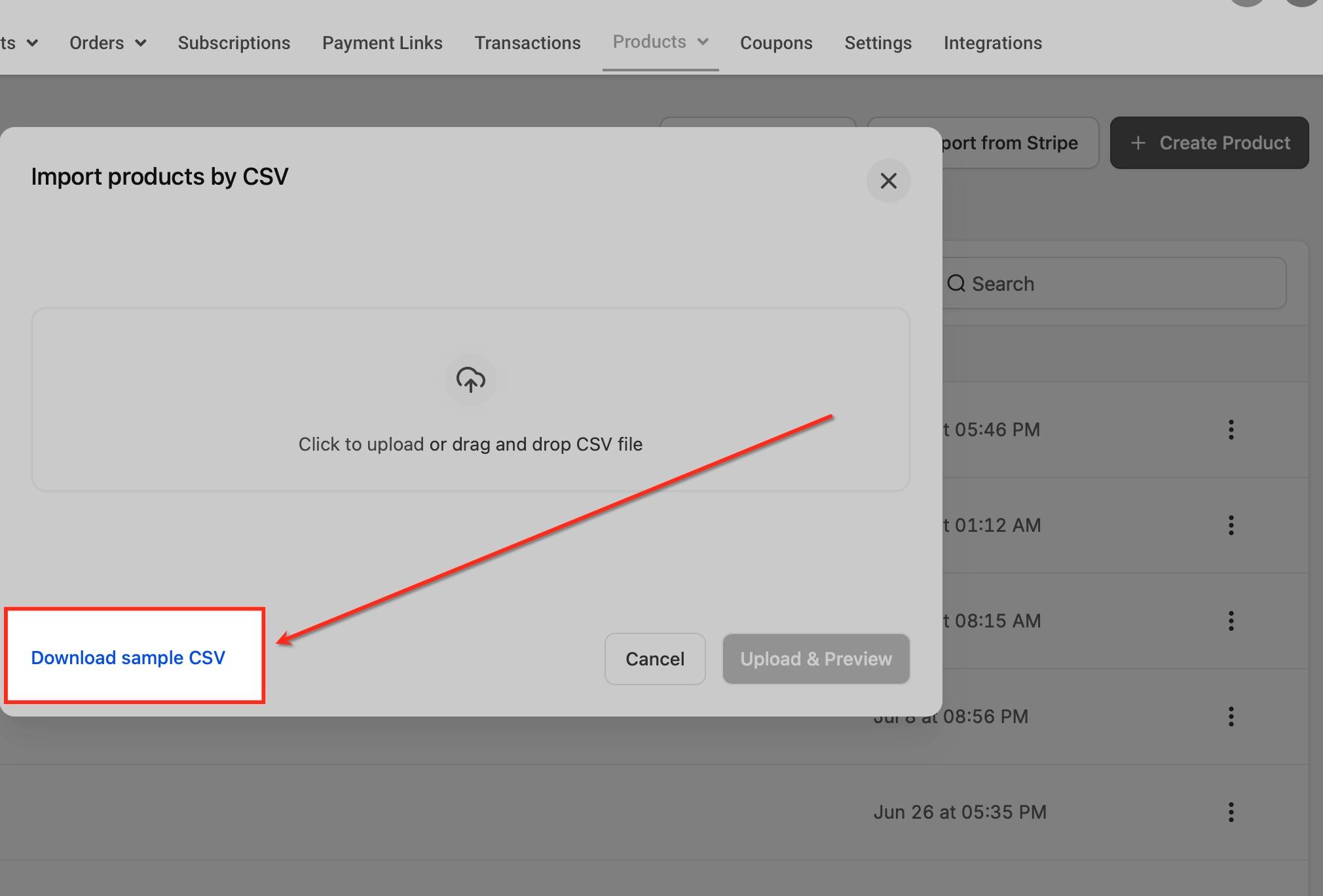
On the Products page, click Import as CSV. In the pop-up, use the option to download the sample CSV file so you can match the required format and fields.
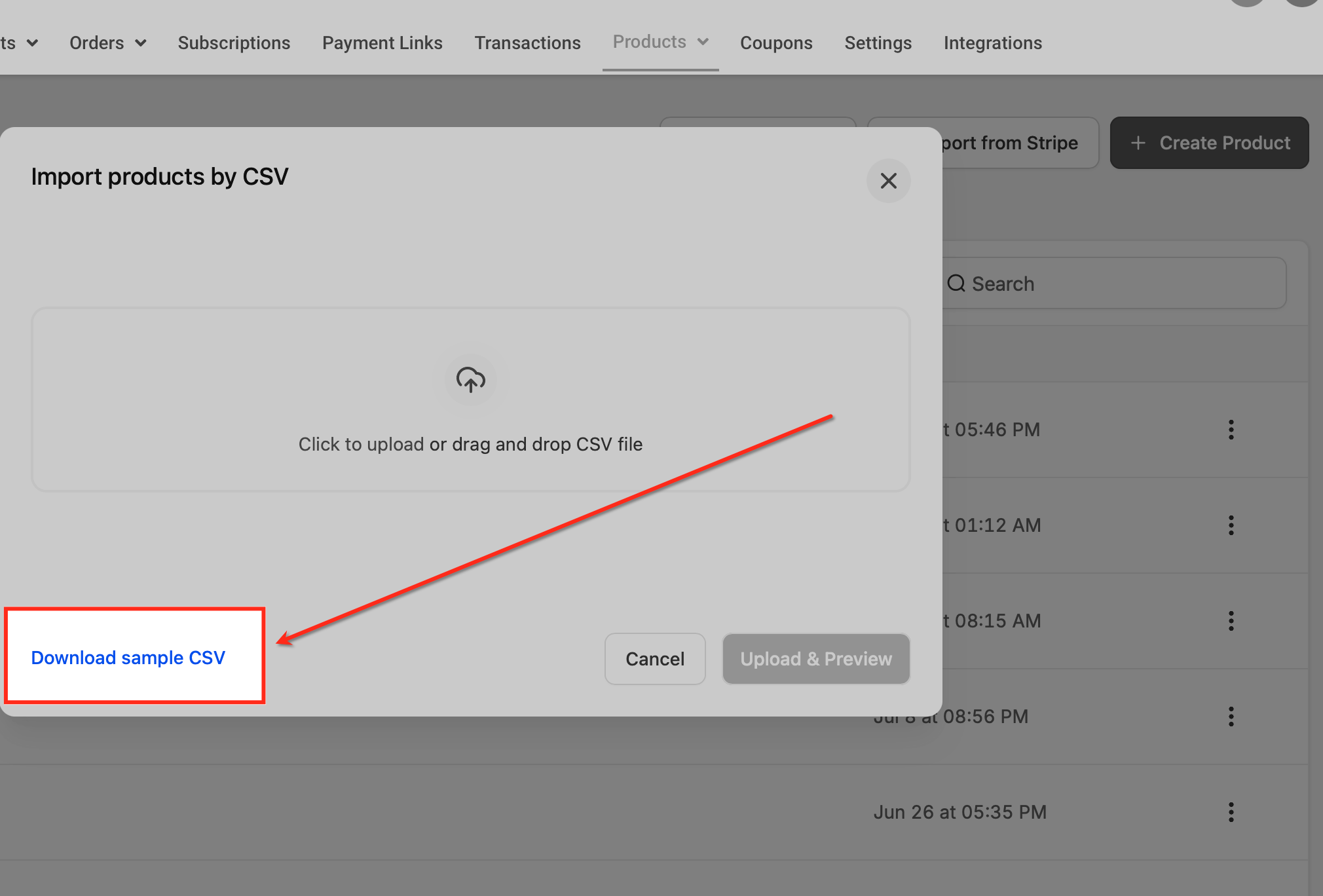
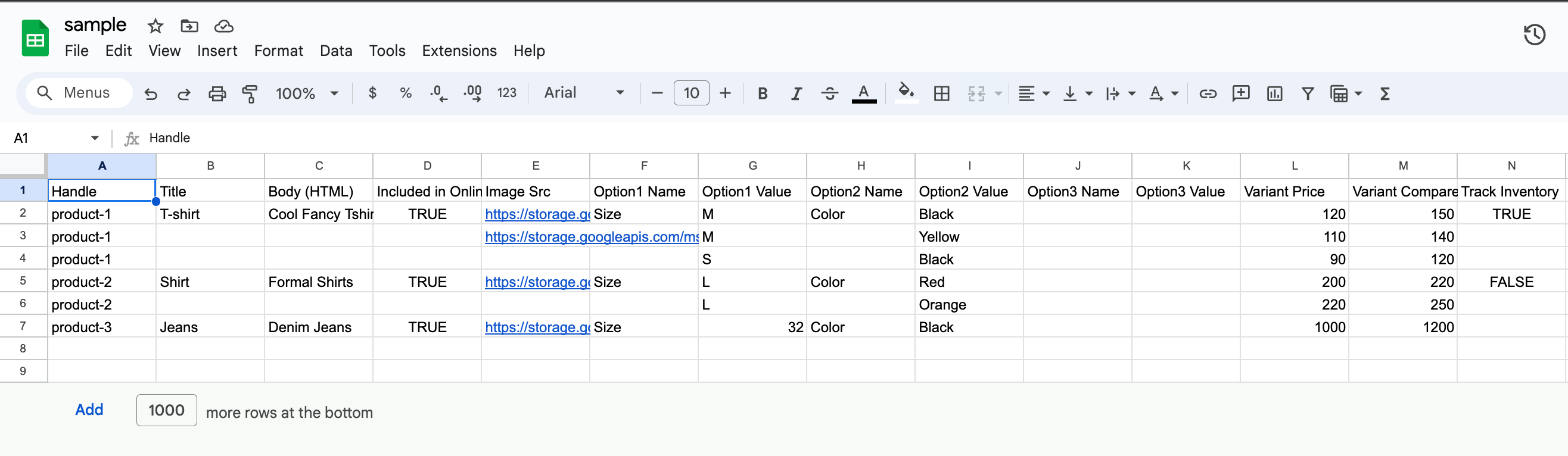
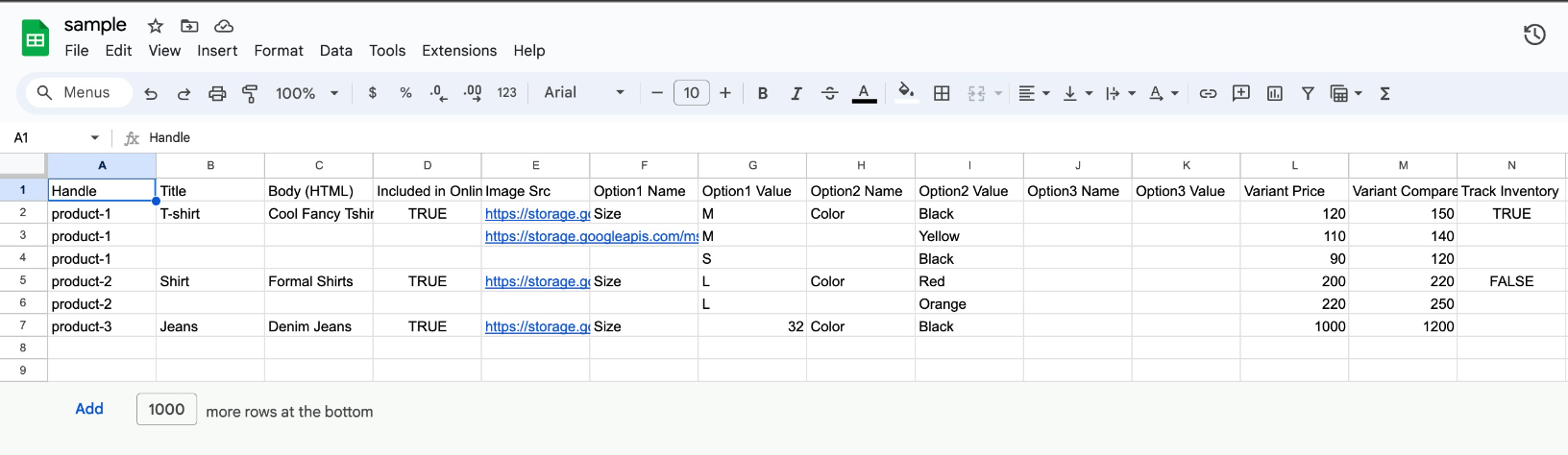
Open the sample file in Excel, Google Sheets, or another spreadsheet tool and fill in your product data. Typical fields include product name or handle, description, variant options (such as size or volume), price, compare-at price, inventory tracking, SKU, and image URLs. Each row represents a product or a product variant, and multiple rows sharing the same product handle create variants of one product.
Keep these points in mind:
Match the exact column structure of the sample. All column headers must stay intact, even for fields you leave blank. Removing or renaming columns causes errors such as "Column 1 is not correct."
If you are importing services rather than physical products, you can leave fields like weight, dimensions, inventory, or image source blank, but keep their headers.
Use numeric values only in price fields.
Remove special characters that could break formatting, and confirm image URLs are publicly accessible.
Check for duplicate SKUs or handles unless you are intentionally creating variants.
Save the completed file as a .csv.
Return to the Payments → Products page, click Import as CSV again, and select or drag in your prepared file. The system reads the file and generates a preview.
Review the preview to verify product titles, variant pricing, compare-at pricing, inventory tracking, and variants. If anything is wrong, correct it in your CSV and re-upload.
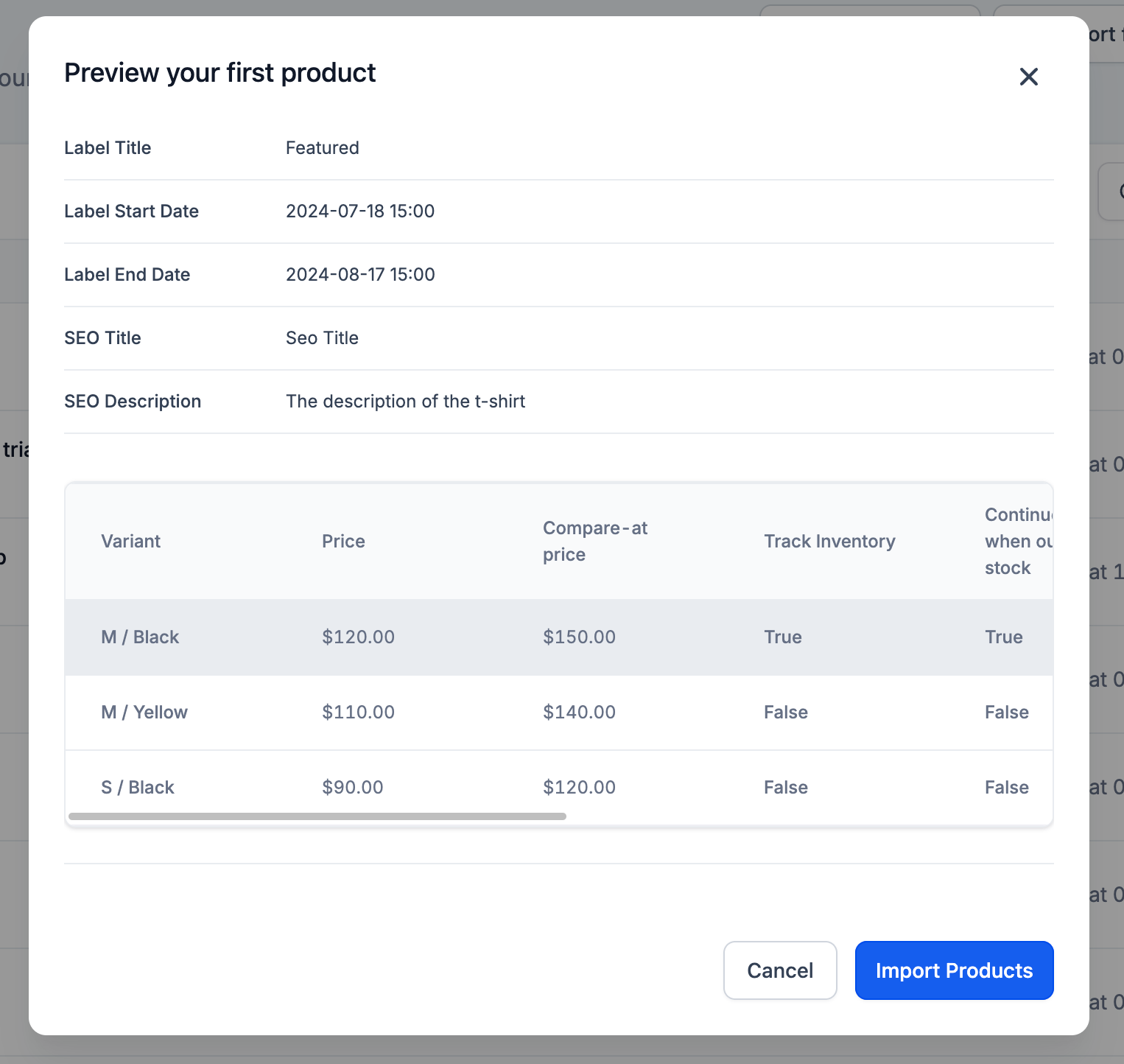
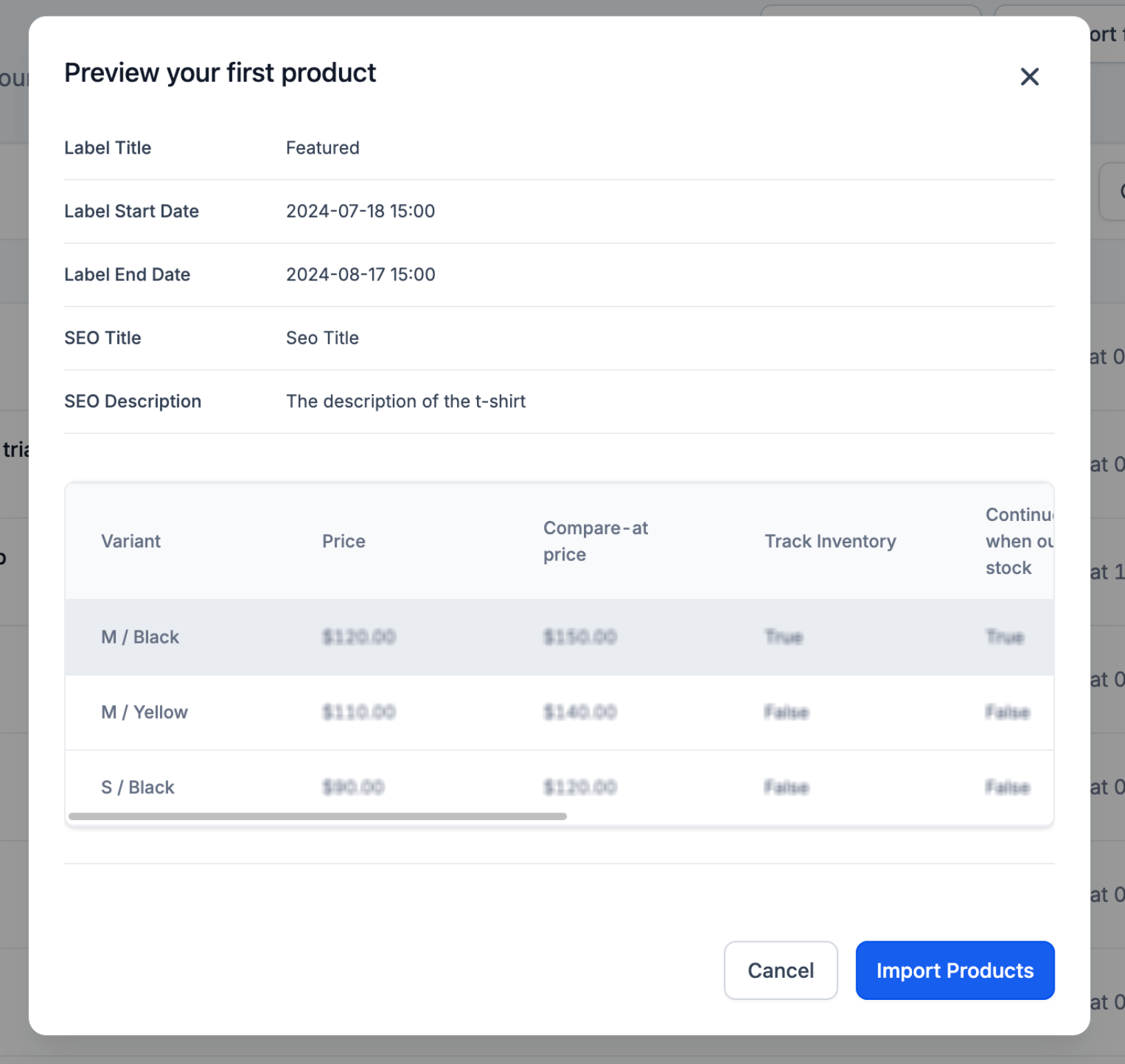
Click Import Products to finish. Once the import completes, your products appear in the product list and are ready to sell. Large imports may take a few moments.
Maximum file size: CSV uploads are limited to 10MB.
Errors: If the file has issues, an error message shows what to fix. Correct your file and re-upload.
Common causes: File not saved as .csv, missing required fields (such as product name or price), incorrect variant formatting, or unsupported special characters.
Updating products: CSV import is designed primarily for adding new products in bulk. Depending on your setup, rows whose identifiers (such as SKU or handle) match existing products may update those products' details, so double-check identifiers before uploading.
If you already run memberships or subscriptions in Stripe, you can bring those plans into Aesthetix CRM with Import From Stripe on the Products page.
Only recurring / subscription plans can be imported.
One-time prices cannot be imported. Create those directly in Aesthetix CRM.
Plans must exist in Stripe Live Mode, not Test Mode.
Metered prices cannot be imported.
Plans that have already been imported will not appear again in the Import From Stripe list.
When you import a price from Stripe, Aesthetix CRM:
Imports the Stripe product linked to the price.
Creates the product in Aesthetix CRM if it does not already exist.
Creates the price under that product.
Replicates the same product and price in Stripe Test Mode.
Creates the same pricing in PayPal, if PayPal is connected.
Because Stripe does not allow editing an existing price through its API, updates always create a new price entry rather than changing the old one. Knowing this helps you keep the right price live on your checkout pages.
Products created in Aesthetix CRM: A matching plan and price are automatically created in Stripe. Editing the price in Aesthetix generates a new price in Stripe. Editing the price directly in Stripe does not sync back to Aesthetix, so you would import the updated price as a new product.
Prices created directly in Stripe: Use Import From Stripe to bring them in as Aesthetix CRM products. Editing the price in Aesthetix creates a new price in Stripe. Editing directly in Stripe does not sync back, so import the updated price again to apply it.
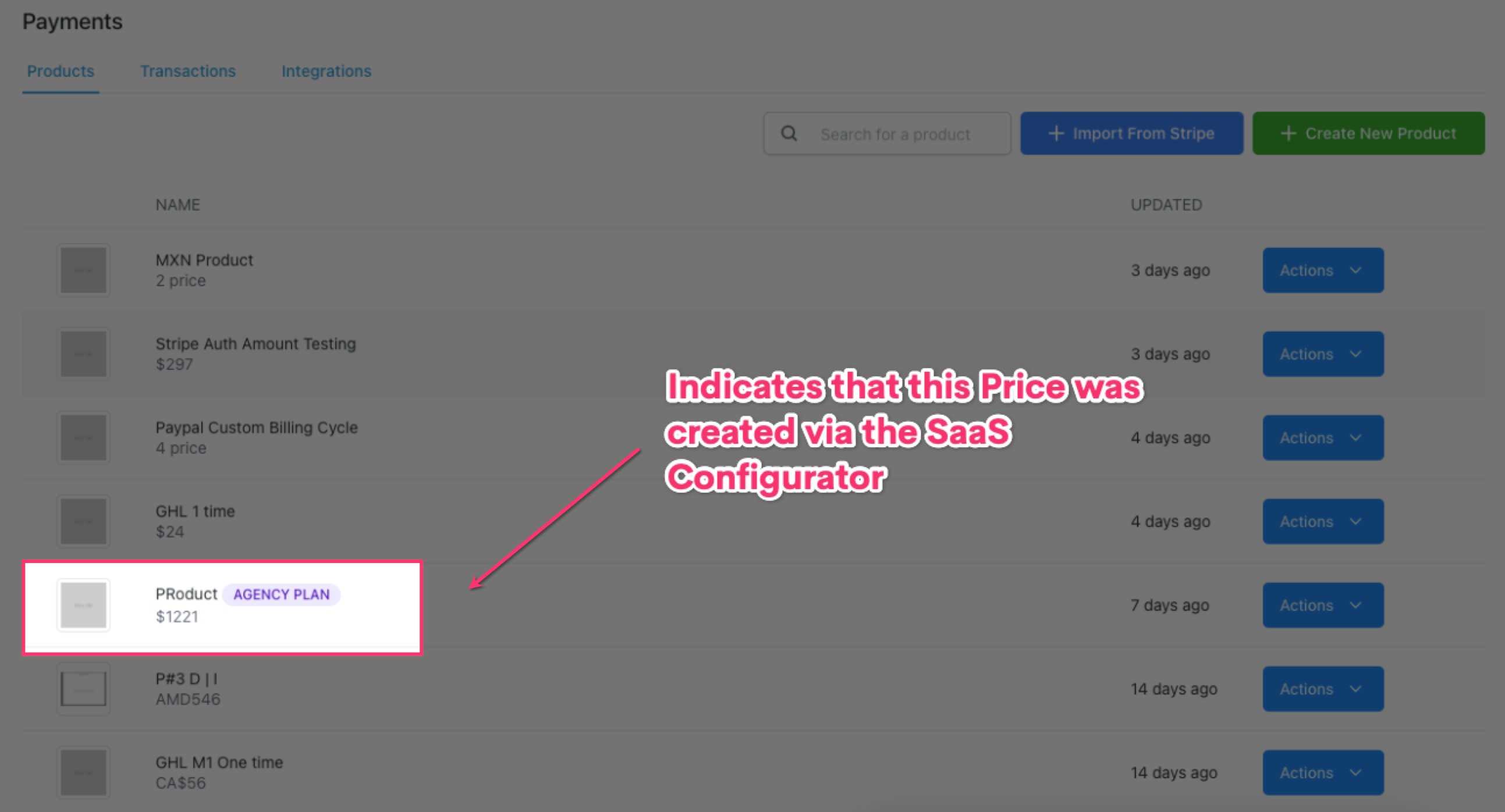
Plans created at the platform level (for example, through a SaaS configurator): These display a plan tag on the product listing and details page and cannot be edited in Aesthetix CRM Payments. To change one, edit the price in Stripe, click Import From Stripe to bring in the updated price as a new tagged product, then select the new plan in your funnel or website settings.
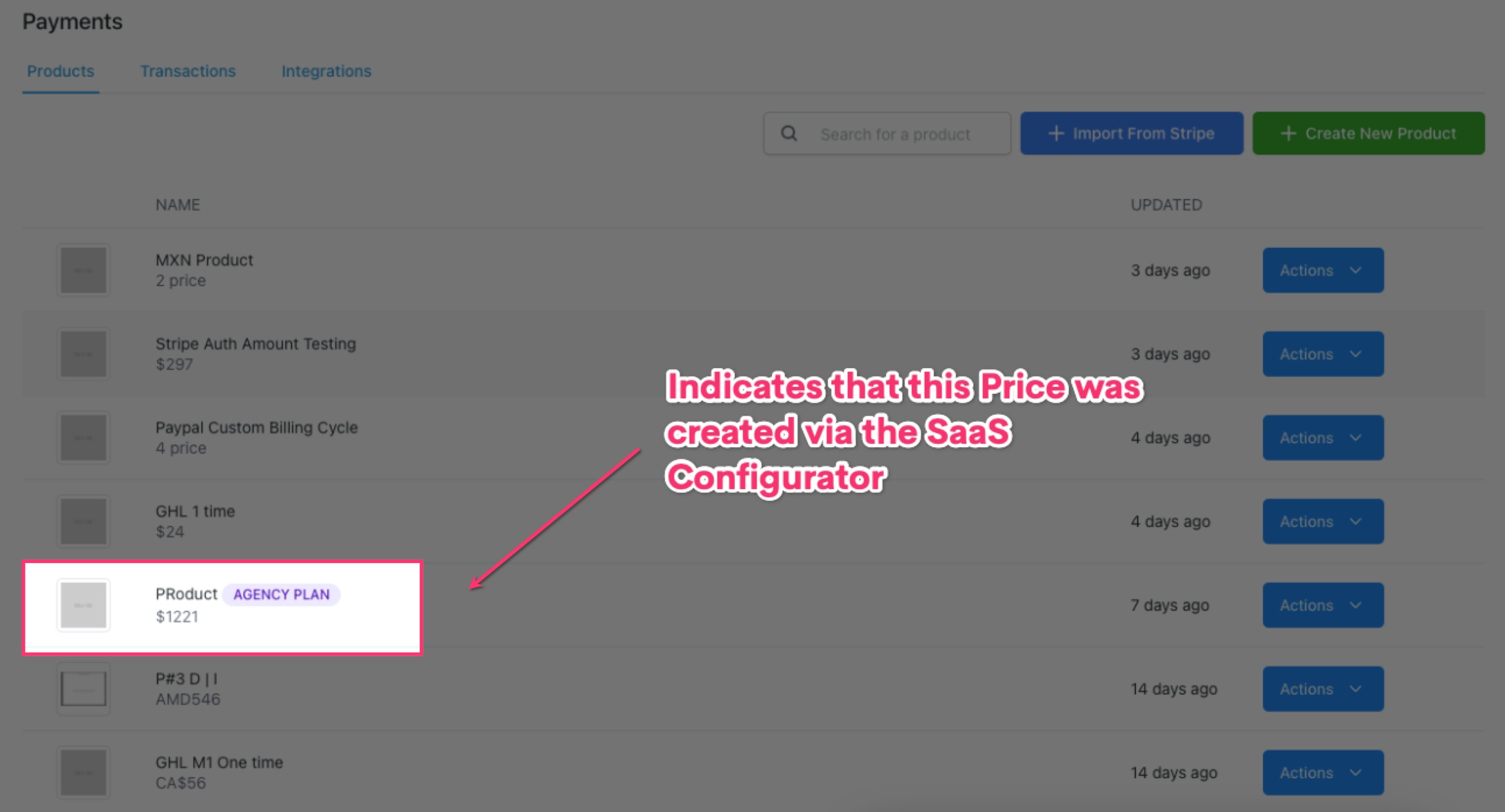
Because updated prices import as new products, always confirm the latest price version is the one selected on your funnels, payment links, and checkout pages.
What file format is required for product import? Only CSV files are supported for bulk product imports.
Is there a limit to how many products I can import at once? The CSV file must be 10MB or smaller. Within that limit, you can import many products in a single file.
Can I update existing products with a CSV import? CSV import is built primarily for adding new products. Depending on your configuration, rows that match existing product identifiers may update those products' details, so verify your identifiers before importing.
I'm importing services, not physical products. What about fields like weight or inventory? Leave those fields blank, but keep their column headers. Removing or renaming columns causes formatting errors.
Can products have multiple variants in the import file? Yes. Use multiple rows that reference the same product handle to create variants such as size or volume.
Why is my CSV not importing correctly? The most common causes are incorrect column formatting, missing required fields, invalid characters in cells, or a file saved in a format other than .csv.
Which Stripe plans can I import? Only recurring or subscription plans that exist in Stripe Live Mode. One-time prices and metered prices cannot be imported, and plans already imported will not appear again.
Why didn't my Stripe price update sync automatically? Stripe does not allow editing an existing price through its API, so changes made in Stripe do not sync back to Aesthetix CRM. Use Import From Stripe again to bring in the updated price as a new product.
Do imported plans also appear in Test Mode and PayPal? Yes. Importing a Stripe price replicates the product and price in Stripe Test Mode, and also creates the same pricing in PayPal if PayPal is connected.
