Saving a card on file lets your practice keep a patient's payment method ready for future charges, such as a monthly membership, a treatment package, or a follow-up service. This guide covers how to add, view, and delete cards on a patient's record, plus how card data is kept secure.
Tip: Aesthetix CRM offers AX Pay, our own payment processing with rates better than Stripe. See AX Pay Overview and Setup Guide.
Card management lives on the individual patient's record. Follow this navigation path:
Contacts → Contact Details → Payments ($ icon) → Actions
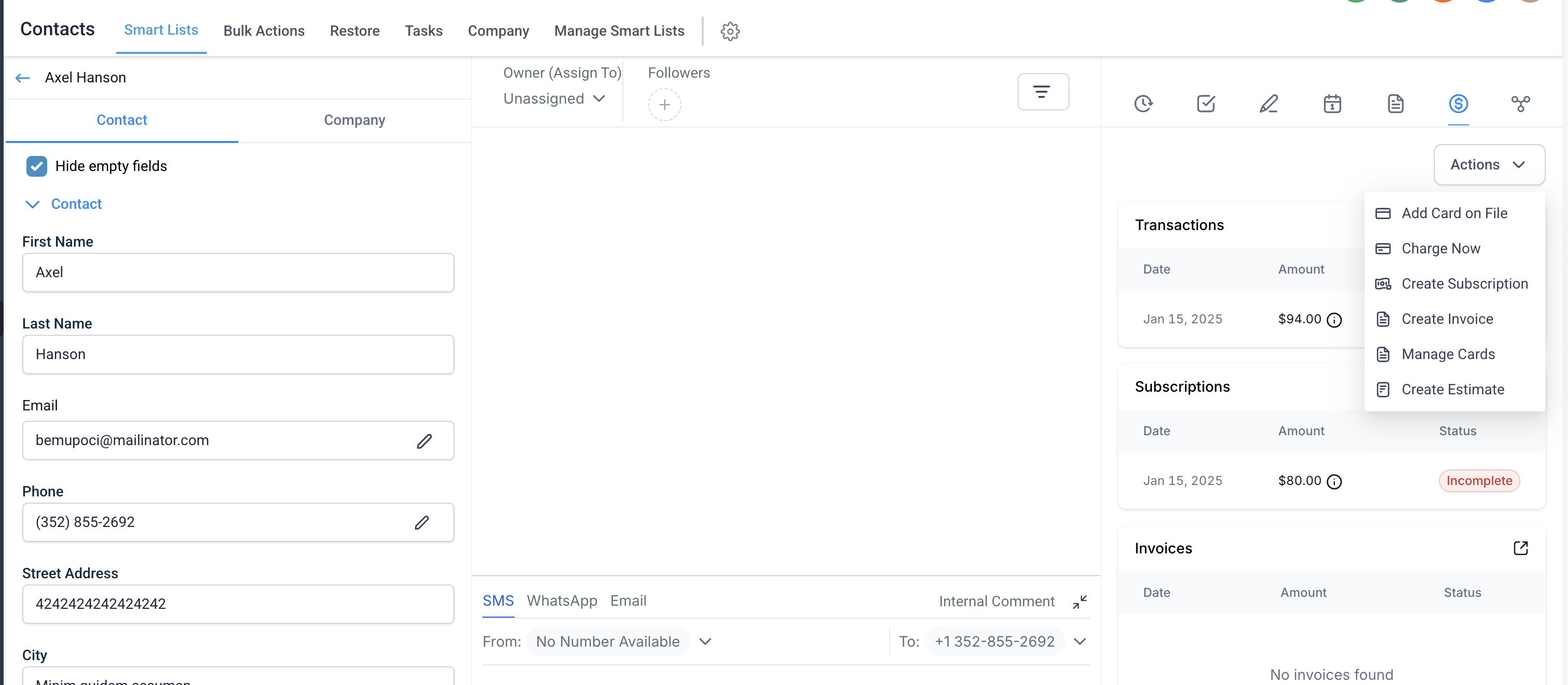
Open the patient's Contact Record.
Click the Payments ($ icon) inside the contact details.
Click Actions.
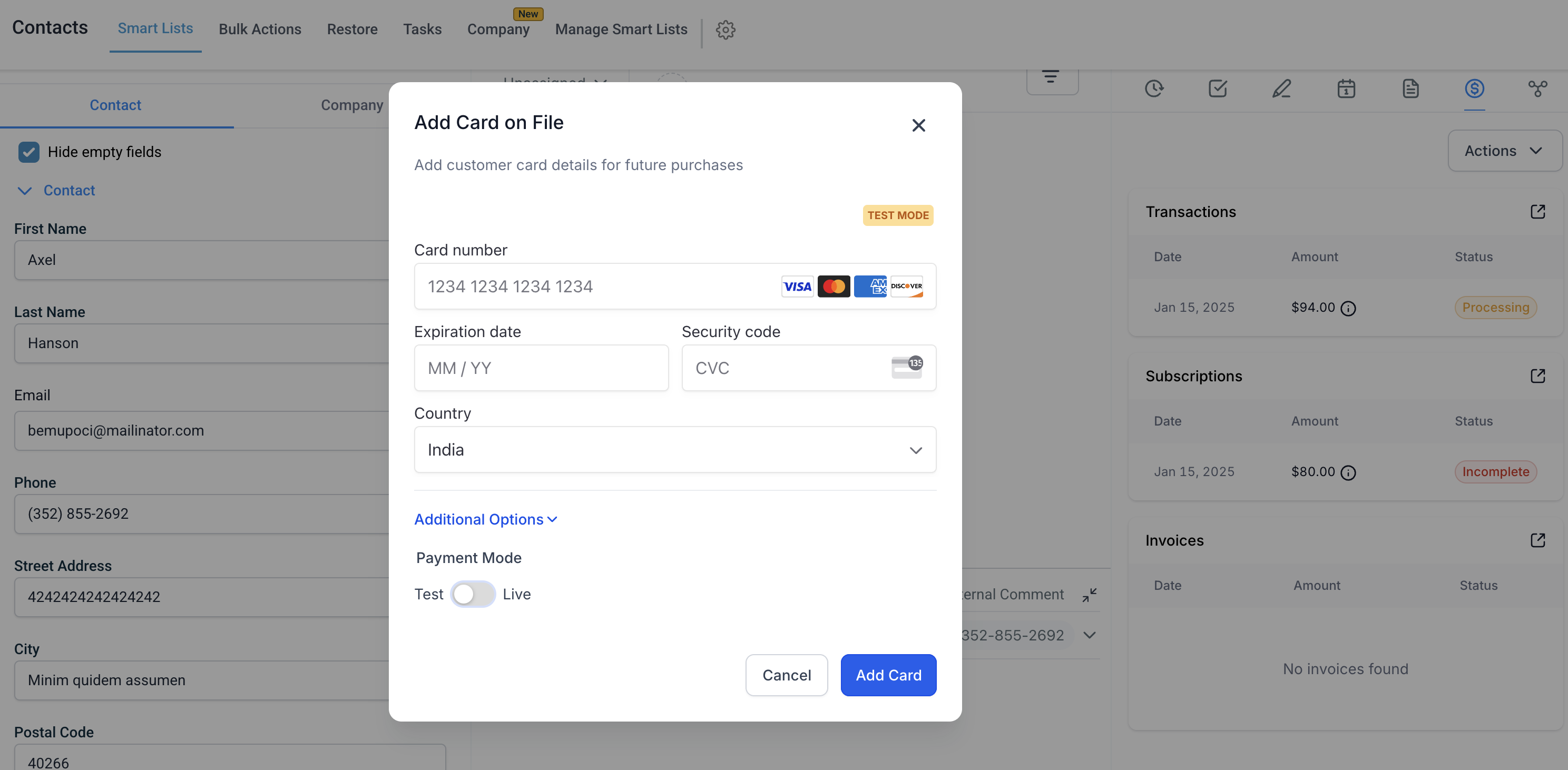
Select Add Card on File.
Enter the required card details:
Card Number
Expiration Date
CVV
Country
Verify the information entered.
Click Add Card.
Cards can be added in both Live Mode and Test Mode.
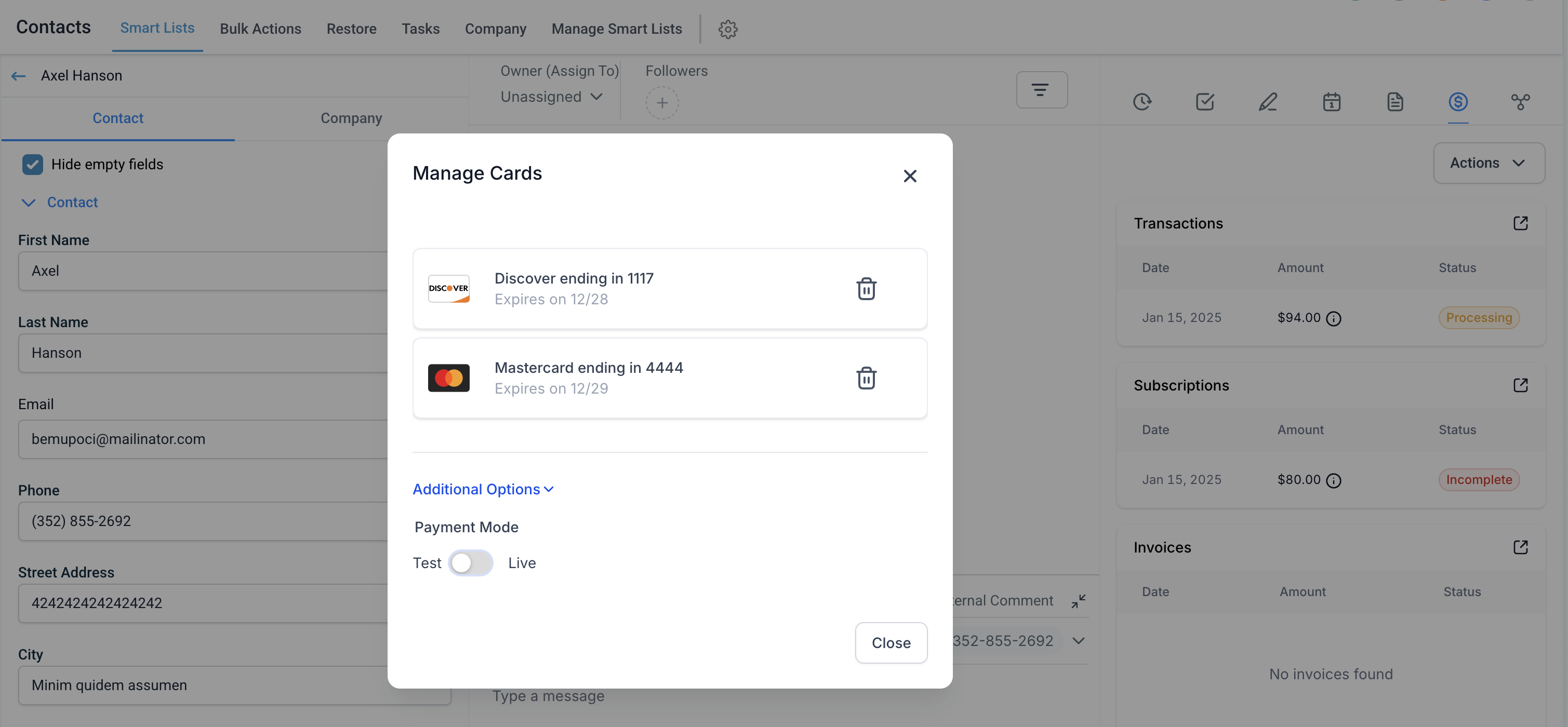
Open the patient's Contact Record.
Click the Payments ($ icon).
Click Actions.
Select Manage Cards.
A list of cards appears, showing:
Last 3 to 4 digits of the card
Expiration date
Card provider (for example, Visa or Mastercard)
Any associated label
Note: Test Mode and Live Mode cards appear in separate lists.
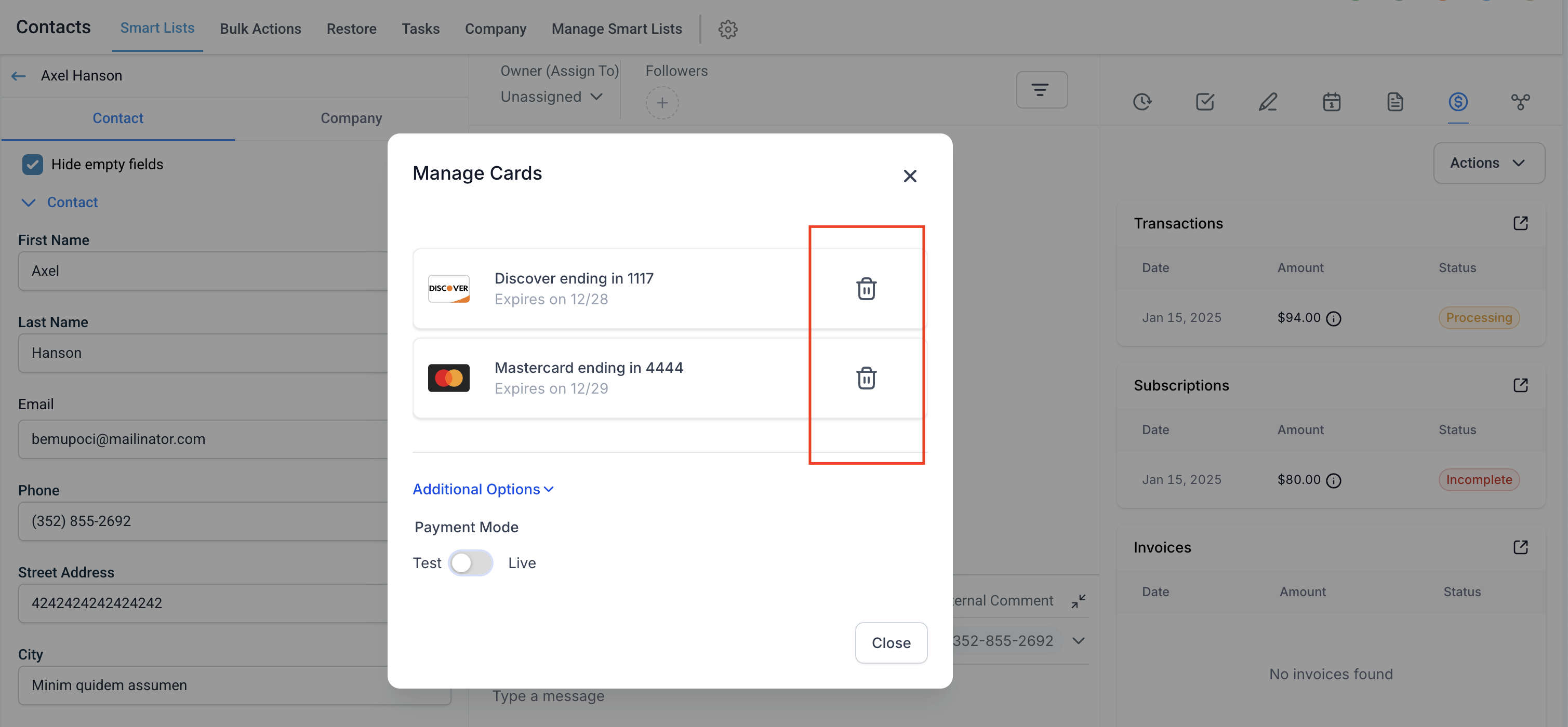
Open the Manage Cards window.
Locate the card you want to remove.
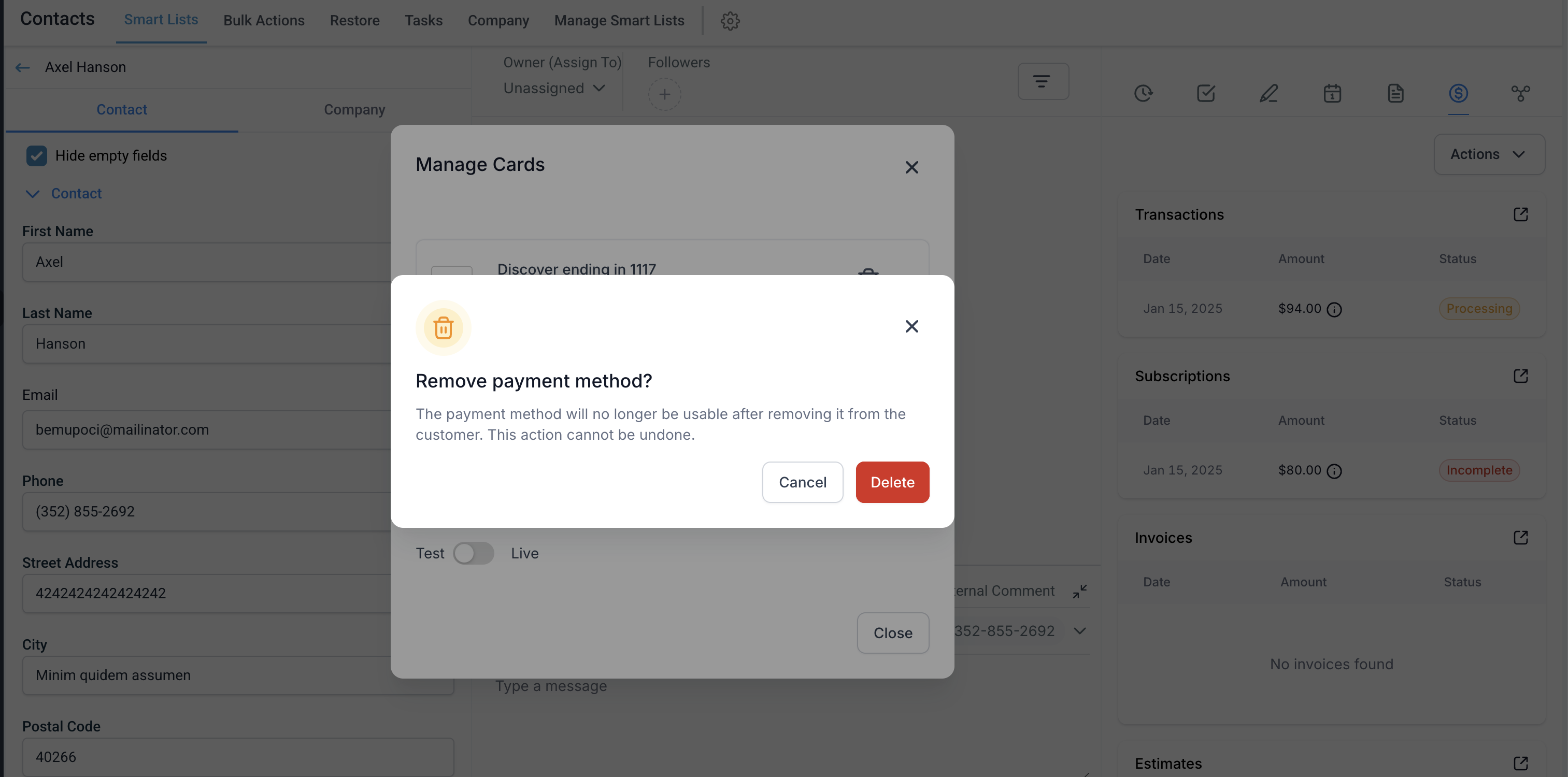
Click Delete next to the card.
Confirm the deletion in the prompt.
If the card is connected to an active subscription, a warning appears before deletion. Removing the card leaves the subscription without a payment method for automatic charges.
For security and compliance:
Card information is not stored within Aesthetix CRM.
Only limited card details are displayed: the last 3 to 4 digits, the expiration date, and the card provider (for example, Visa or Mastercard).
Each time you open the Manage Cards window, card data is securely fetched directly from the payment provider. All card deletions are also processed through the payment provider to maintain compliance with payment security standards.
Where do I add a card for a patient?
On the patient's contact record: Contacts → Contact Details → Payments ($ icon) → Actions → Add Card on File.
Can I add a card in Test Mode?
Yes. Cards can be added in both Live Mode and Test Mode, and they appear in separate lists in the Manage Cards window.
What card details are visible after I save a card?
Only limited details: the last 3 to 4 digits, the expiration date, and the card provider. Full card numbers are never stored in Aesthetix CRM.
Is the full card number stored anywhere in Aesthetix CRM?
No. Card information is held by your payment provider, not in Aesthetix CRM. Data is securely fetched from the provider each time you open Manage Cards.
What happens if I delete a card tied to an active subscription?
A warning appears before deletion. If you continue, the subscription is left without a payment method for automatic charges, so you should add a replacement card to avoid failed renewals.
Why do I see two separate lists of cards?
Test Mode and Live Mode cards are kept in separate lists so test data never mixes with real payment methods.
