Aesthetix CRM lets you export your payment data to CSV for reporting, reconciliation, accounting, and compliance, and import historical transactions and orders from other platforms so your revenue history stays complete. This guide covers exporting transactions, orders, and subscriptions, how to read the CSV format, and how to import transactions and orders using CSV files.
Go to Payments → Transactions.
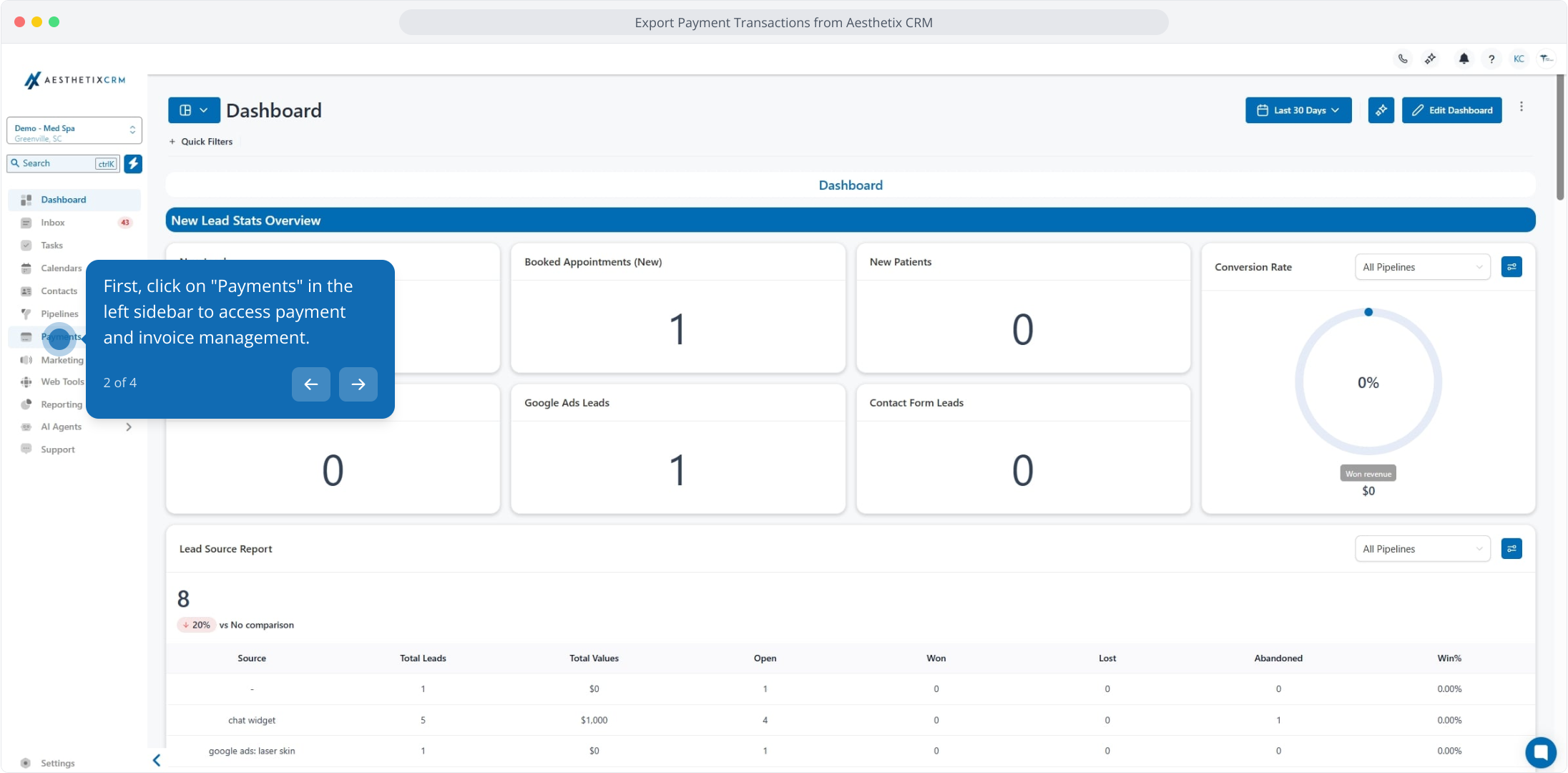
Open the Transactions tab to view all payment transaction records.
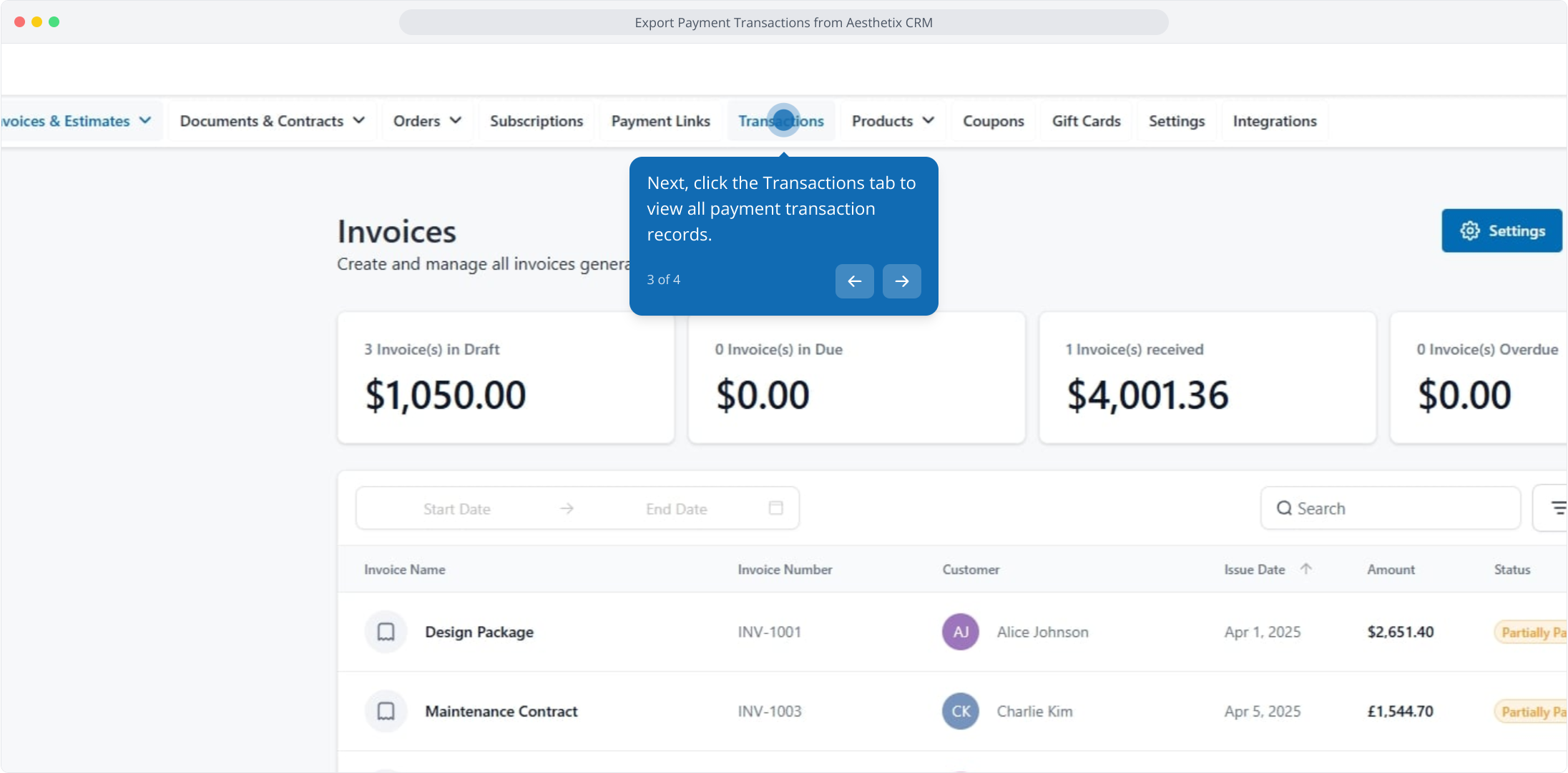
Apply any filters or a search if needed (for example, date range, payment status, or source type).
Click the export (Download) button. A secure download link is emailed to the logged-in user.
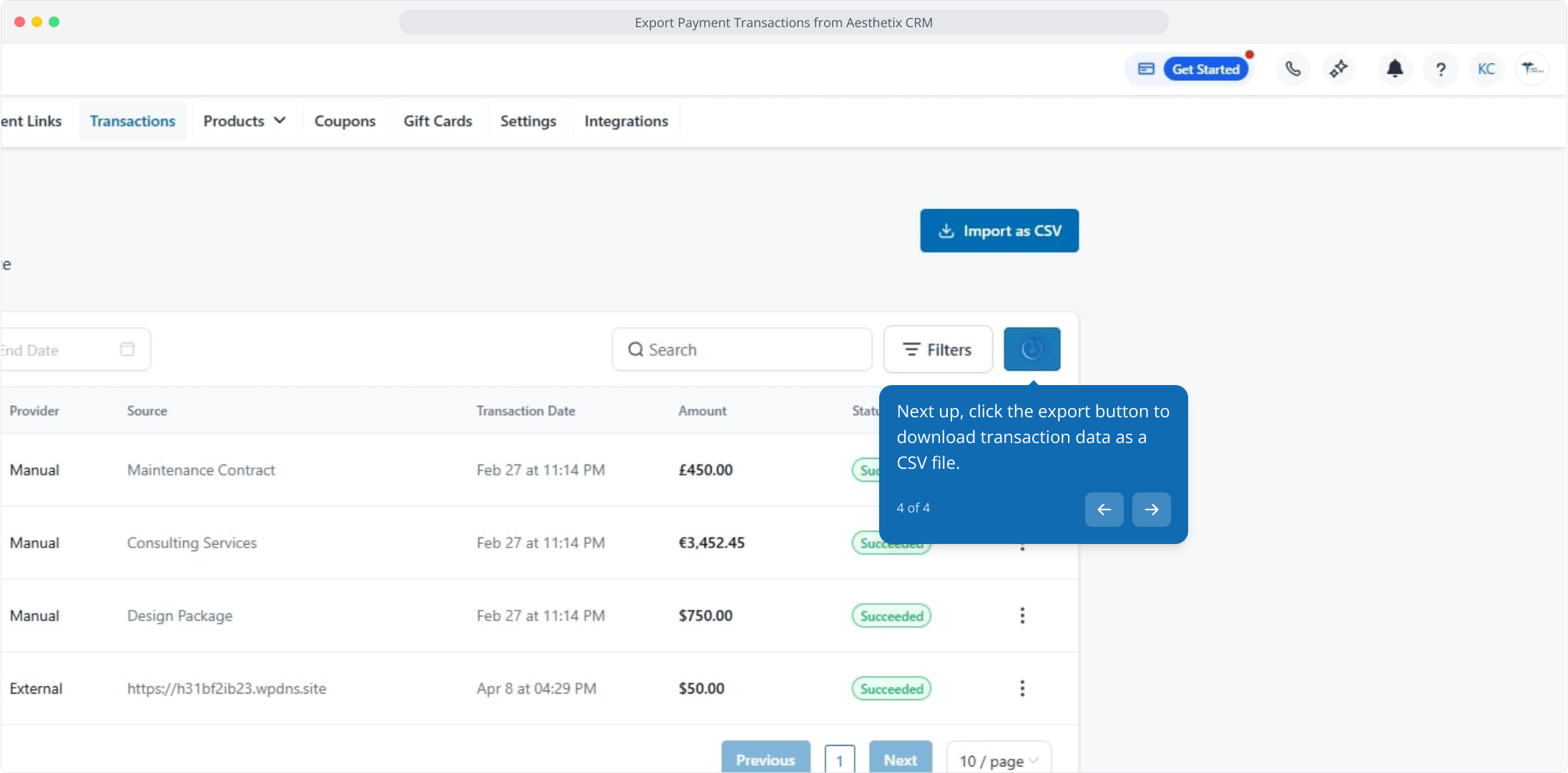
Security note: The email link is valid for 7 days and is unique to the requesting user. If it expires, simply generate a new export.
Go to Payments → Orders.
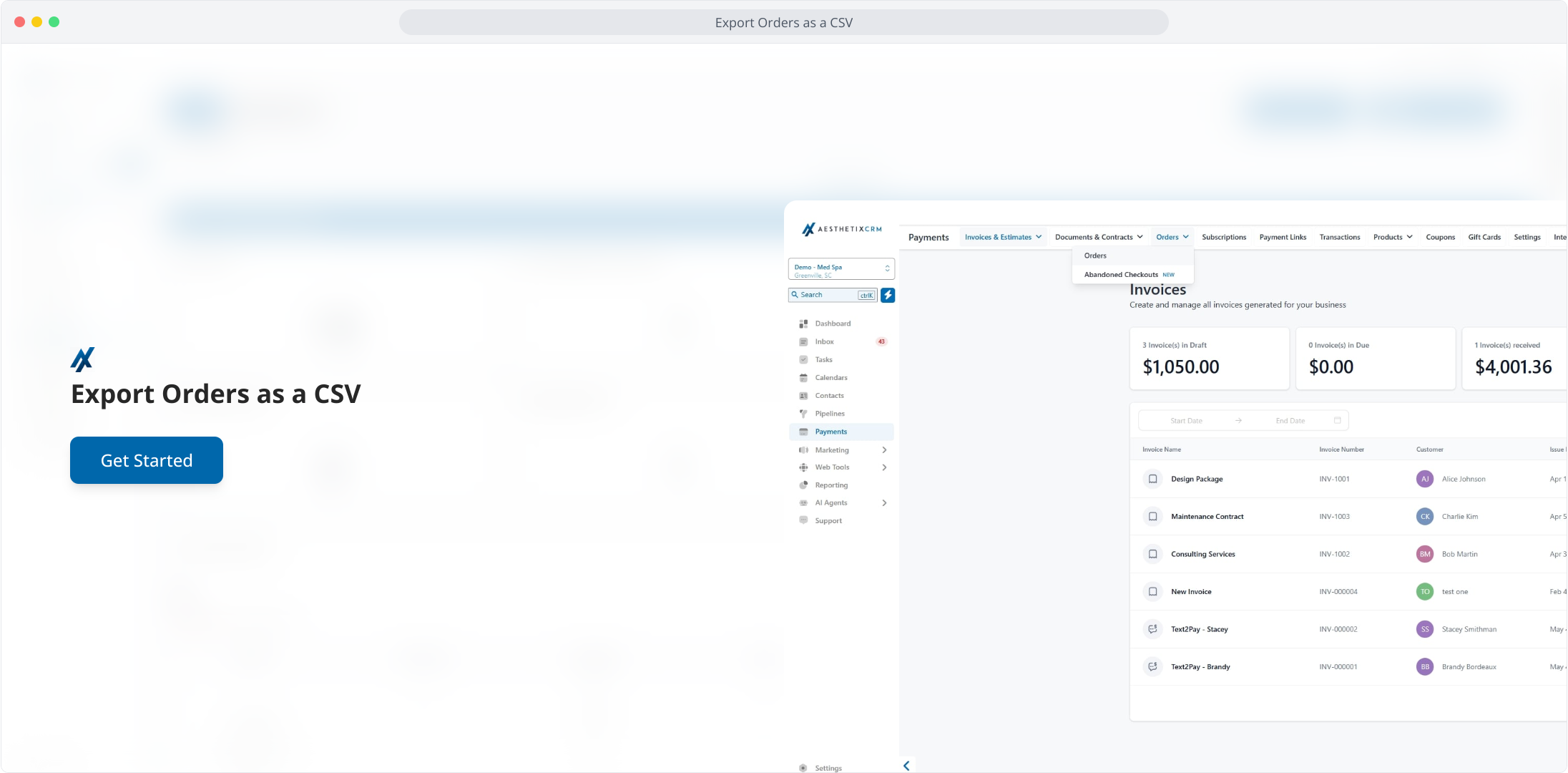
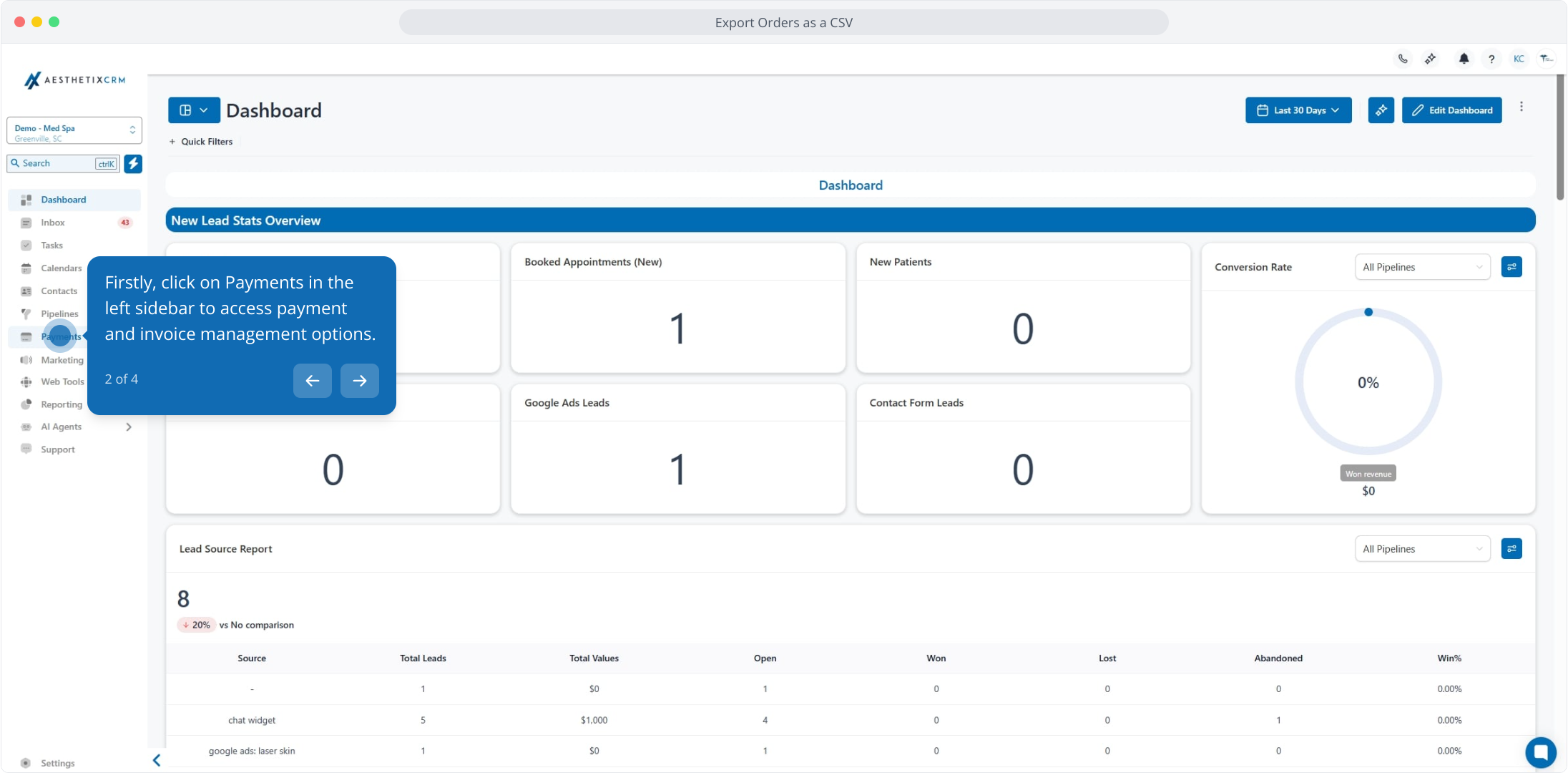
Open Orders to view and manage all orders.
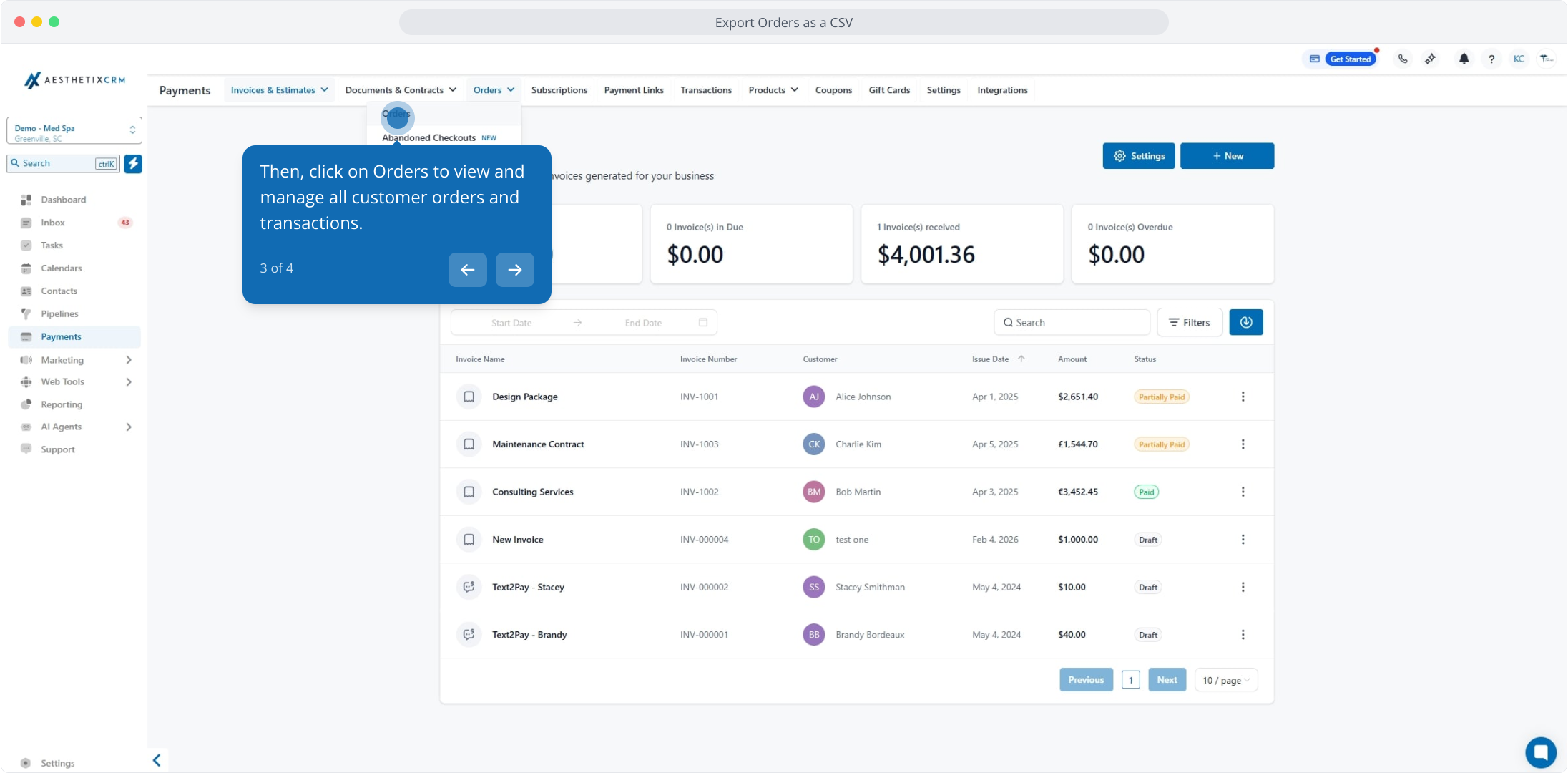
Optionally apply filters such as order status, date range, source type (Funnel, Payment Link, Store Checkout), or product type (one-time vs. recurring).
Click the export button to download all orders as a CSV file. A secure download link is emailed to you and expires after 7 days.
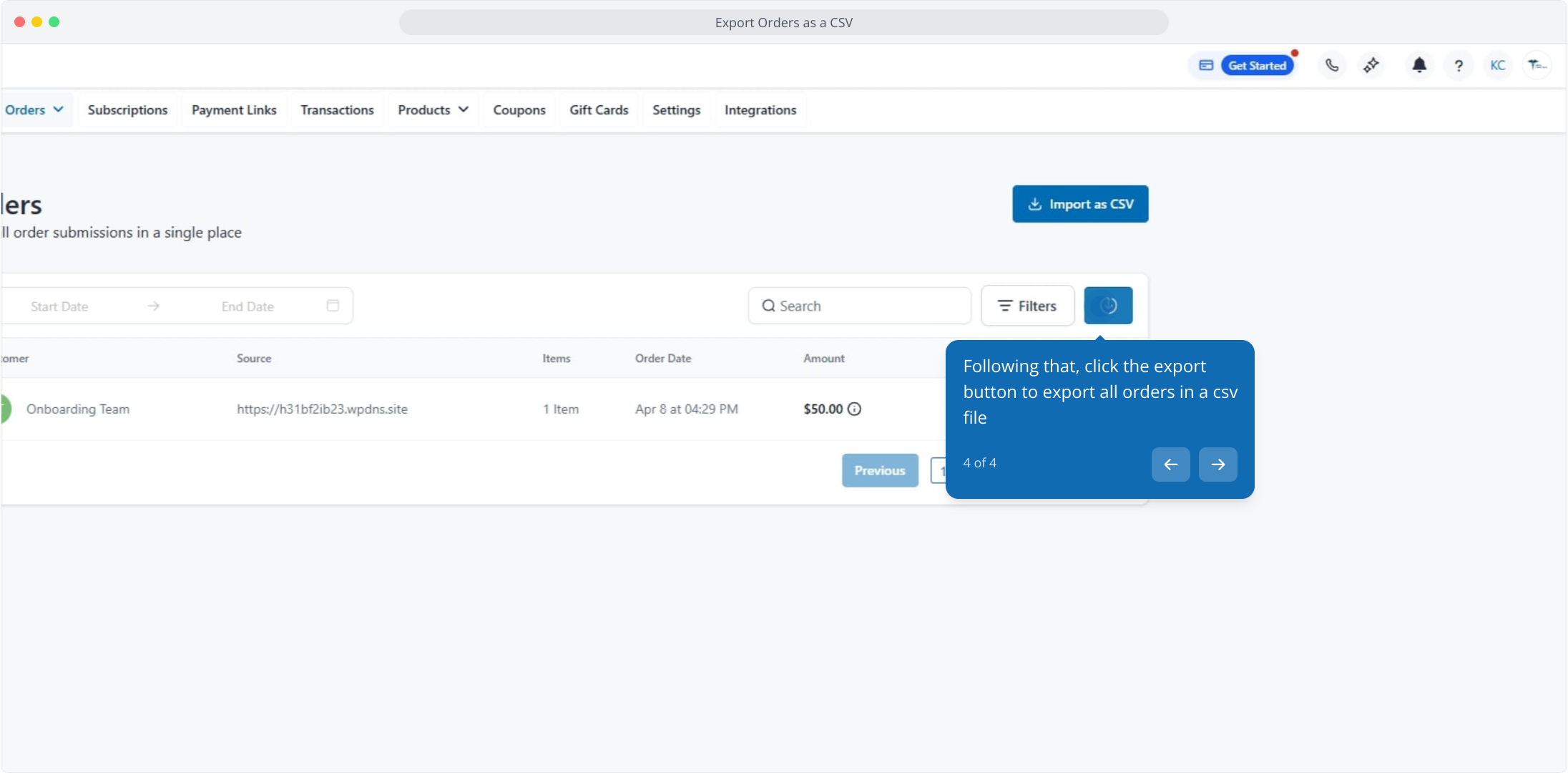
Interactive walkthrough
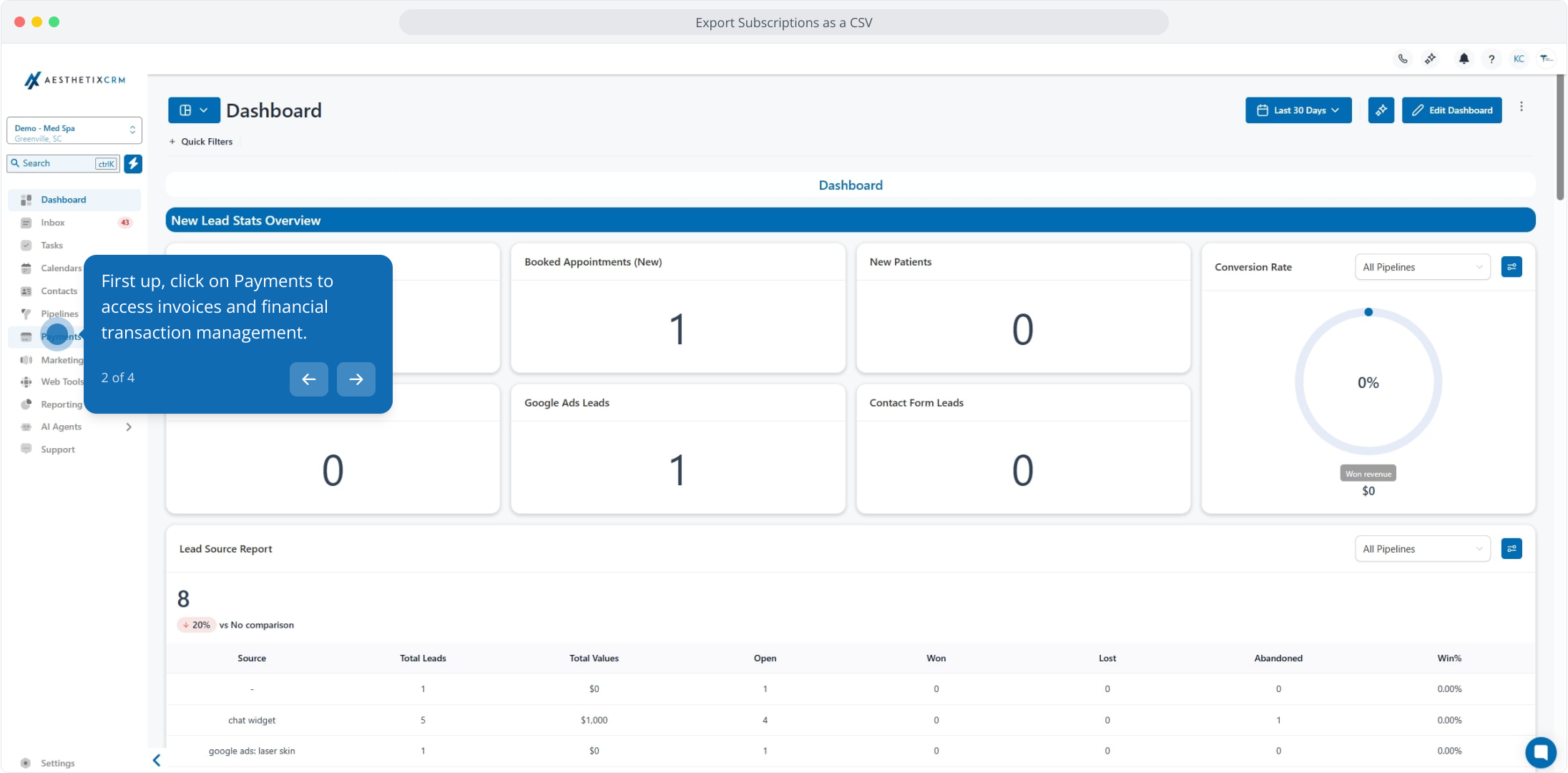
Go to Payments → Subscriptions.
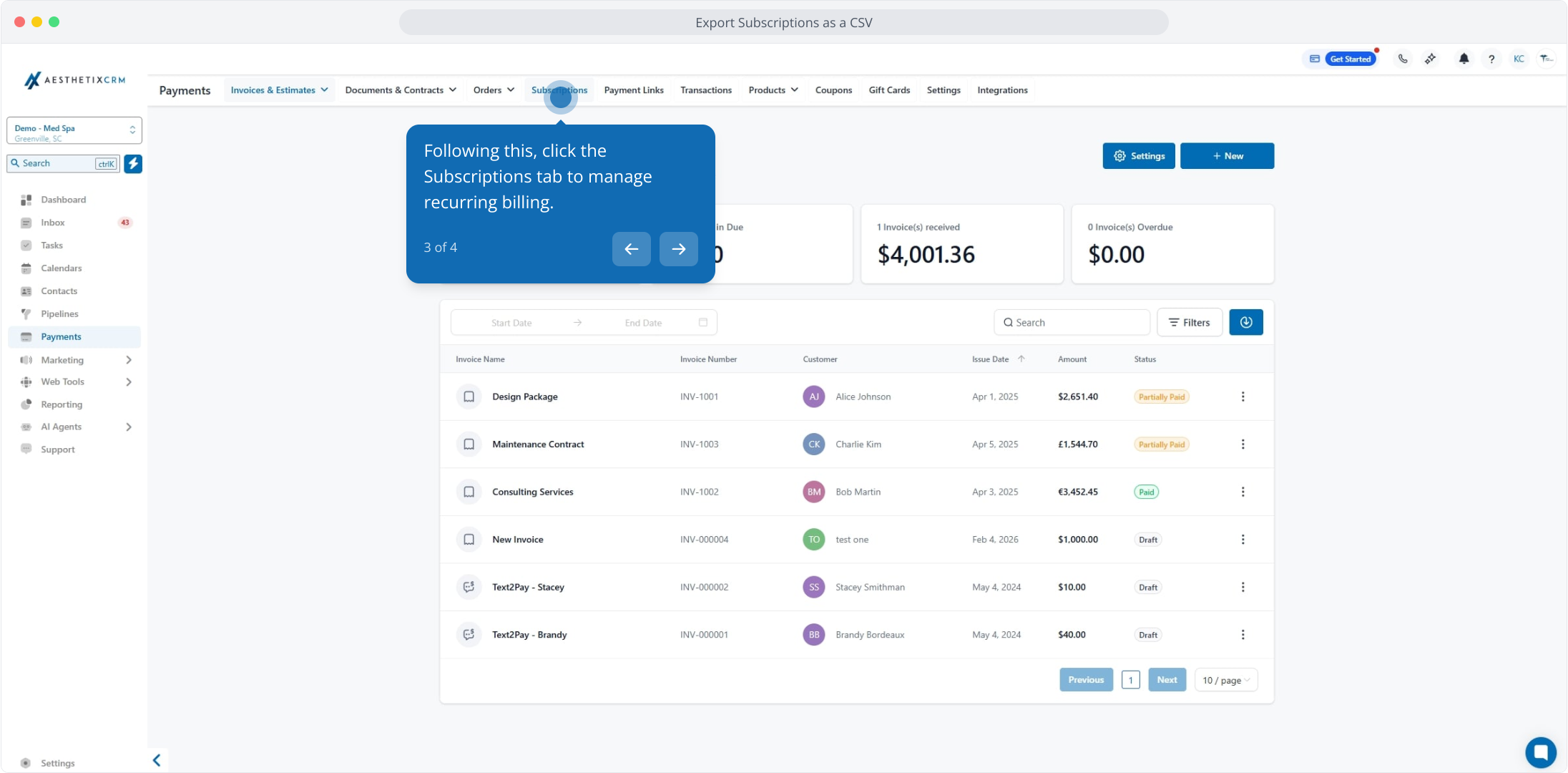
Open the Subscriptions tab to manage recurring billing.
Optionally apply a search or filters such as status (Active, Canceled, Past Due), product type, customer details, provider, currency, or date range.
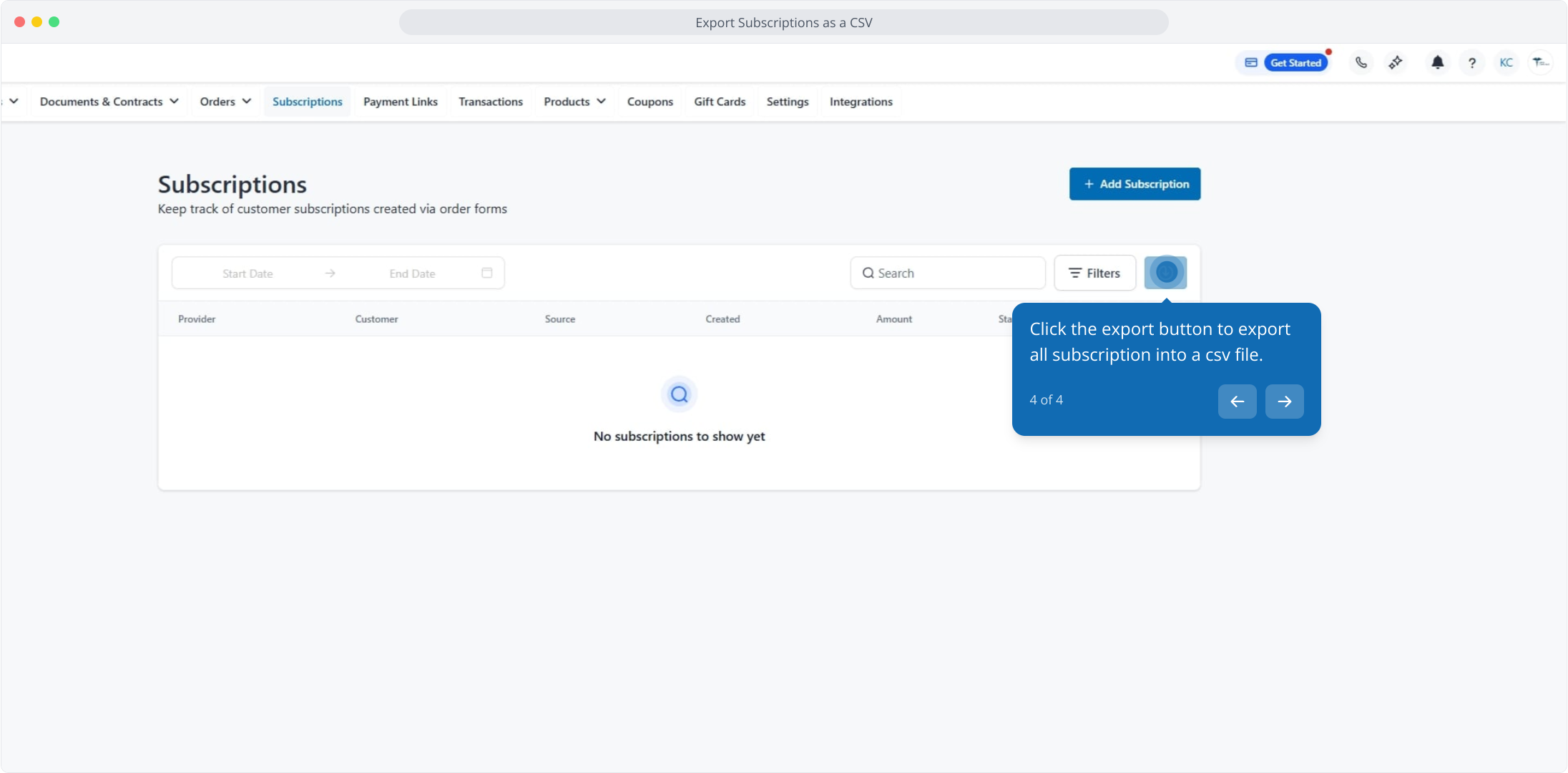
Click the export button to download all subscriptions as a CSV file. The secure download link is emailed to you and expires after 7 days.
Exports are delivered as a link via email (not downloaded directly in-app) and can be opened in any spreadsheet tool. Before you analyze the data, it is important to understand that one row does not always equal one transaction, order, or subscription.
A single record can spread across multiple rows because it may include multiple:
Products: Each product creates its own line row.
Taxes: Each unique tax name per product creates a row.
Miscellaneous charges: Processing charges, late fees, and tips are broken out.
This ensures every financial component is separately identifiable for accounting-grade reporting. When a record spans multiple rows, not all columns are populated on every row. Product-specific and tax-specific data appears on its own row, and full record data appears on one row per transaction, order, or subscription.
To summarize totals correctly in Sheets or Excel, group values by the record's ID (Internal transaction id, Internal order id, or Subscription id) so you do not double-count.
Example: An order with 3 products and 2 exclusive taxes could generate 6 rows: 2 rows per product and additional rows where each tax amount for each product is its own row. All rows share the same order ID. When some products have inclusive taxes and others have none, the row count changes accordingly, and the tax columns are blank on rows with no tax.
These exports are built for reconciliation, accounting, and BI workflows with stable, predictable formatting:
0 vs. blank: A 0 appears only when the field applies and the value is truly zero. A blank appears only when the field does not apply to that row (for example, a payment method on an unpaid order, or trial fields when no trial exists).
Stable structure: Column ordering is consistent to support pivots, imports, and BI pipelines.
Tax rate precision: Tax rate percentages export with 4 decimal places (for example, 7.1250%) to support fractional rates. Tax amounts remain rounded to 2 decimals based on currency standards.
Combined payments: When a patient pays with more than one method (for example, card plus gift card), each is shown distinctly in the value columns.
Column name | Description | Example |
|---|---|---|
Internal transaction id | Unique transaction identifier inside Aesthetix CRM |
|
Location id | Your account identifier |
|
Customer id | Customer identifier |
|
Customer name | Display name from transaction |
|
Customer email | Email used for receipt delivery | |
Customer phone | Phone number used at checkout |
|
Payment method | Method used for payment |
|
Currency | Currency of transaction |
|
Sub total | Product total before discounts and exclusive taxes |
|
Discount | Total discounts applied on the subtotal |
|
Total tax amount (excluded in prices) | Tax added on top of subtotal after subtracting discounts |
|
Total tax amount (included in prices) | Tax included within product prices (already part of the subtotal) |
|
Tip amount | Tip added voluntarily; not included in the amount due |
|
Late fees | Late fee added beyond product price |
|
Total amount due | Original total for the order/invoice (subtotal, discount, taxes, late fees); does not consider partial payments and always shows the initial amount due |
|
Total amount paid | Actual amount paid in this transaction (amount due plus any tips and processing charges) |
|
Coupon code | Applied coupon, if any |
|
Status | Status of transaction |
|
Live mode | Whether it occurred in Live mode or Test mode |
|
Source type | Checkout where purchase occurred |
|
Source id | Internal ID of the source entity |
|
Source name | Display name of source as defined by your practice |
|
Internal order id | Order reference (if applicable) |
|
Payment provider | The gateway used for the transaction |
|
Subscription id | Subscription reference (if applicable) |
|
Charge id | Provider charge identifier |
|
Connected account | Connected payment provider merchant/client account id |
|
Transaction date | Date of charge |
|
Transaction time | Time of charge |
|
Timezone | Timezone of record |
|
Is refunded | Refund status reference; NA if not refunded |
|
Amount refunded | Total refunded amount (sums all refunds) |
|
Refund date | Date of refund (last refund date if multiple) |
|
Line item name | Product name |
|
Line item quantity | Quantity purchased |
|
Line item price | Price per line item |
|
Line item coupon discount | Coupon portion for the product |
|
Line item subtotal | Subtotal specific to the product |
|
Line item product id | Product identifier |
|
Tax name | Unique tax label (shown once per transaction) |
|
Tax amount | Tax value for this tax line (summed across products with this tax name) |
|
Processing charge name | Name of misc fee (maximum 1 per transaction; blank if none) |
|
Processing charge amount | Misc fee amount; blank if none |
|
Gift card order number | If a gift card was used; blank if not |
|
Gift card amount used | Amount redeemed using the gift card; blank if not used |
|
Column name | Description | Example |
|---|---|---|
Internal order id | Internal identifier for the order |
|
Location id | Your account identifier |
|
Customer id | ID of the customer who placed the order |
|
Customer name | Customer display name |
|
Customer email | Email collected via checkout | |
Customer phone | Phone collected via checkout |
|
Payment method | Method collected during checkout; blank if unpaid |
|
Currency | Currency of product pricing |
|
Sub total | Value of items before discount and exclusive taxes |
|
Discount | Discounts applied to the order |
|
Total tax amount (excluded in prices) | Tax added on top of subtotal |
|
Total tax amount (included in prices) | Tax already part of item prices |
|
Total amount | Total payable after discounts, taxes, and misc charges |
|
Coupon code | Code used at checkout (if any) |
|
Status | Order's payment status |
|
Live mode | Confirms Test vs. Live environment |
|
Total products | Total number of products in the order |
|
One-time products | Number of one-time products |
|
Recurring products | Number of subscription products |
|
Source type | Entry point where order was created |
|
Source id | Internal ID of the source |
|
Source name | Display name of the source |
|
Order date | Date the order was finalized |
|
Order time | Time the order was finalized |
|
Timezone | Timezone of the order record |
|
Line item name | Product name |
|
Line item quantity | Quantity purchased |
|
Line item price | Price per unit |
|
Line item discount | Discount allocated to this line |
|
Line item subtotal | Subtotal for the product line |
|
Line item product id | System identifier for product |
|
Line item price id | Identifier for price or variant |
|
Tax name | Tax type applied |
|
Tax amount | Amount of tax for this line |
|
Address line 1 | Shipping/billing street (if captured) |
|
City | City |
|
State | State/Region |
|
Country | Country |
|
Postal code | Zip or postal code |
|
Processing charge name | Any miscellaneous charge name |
|
Processing charge amount | Value of misc charge |
|
Column name | Description | Example |
|---|---|---|
Subscription id | Internal system ID of subscription |
|
Location id | Your account identifier |
|
Customer id | System identifier for customer |
|
Customer name | Customer display name |
|
Customer email | Email stored for subscriber | |
Customer phone | Phone stored for subscriber |
|
Subscription start | Date subscription was created |
|
Subscription end | End date if canceled or expired; blank if not ended |
|
Number of trial days | Applied trial length; blank if no trial |
|
Trial start | First day of trial; blank if no trial |
|
Trial end | Trial completion date; blank if no trial |
|
Cancelled at | Timestamp subscription was canceled; blank if not |
|
Payment method | Method used for latest successful charge |
|
Currency | Subscription currency |
|
Sub total | Total before discount and exclusive tax (excludes setup fees) |
|
Discount | Discount applied (coupon, etc.) |
|
Total tax amount (excluded in prices) | Taxes applied on top (excludes setup fees) |
|
Total tax amount (included in prices) | Taxes baked into price (excludes setup fees) |
|
Total amount | Final charge value (after discount and taxes; excludes processing charges) |
|
Coupon code | Coupon applied (if any) |
|
Status | Subscription lifecycle state |
|
Live mode | Whether subscription is test or live |
|
Source type | Checkout origin |
|
Source sub type | More specific source classification |
|
Source id | Internal identifier of the checkout |
|
Source name | Display title of source |
|
Payment provider | Provider used for billing |
|
Connected account | Provider account used for billing |
|
Transaction date | Date of last successful renewal |
|
Transaction time | Time of last charge |
|
Timezone | System timezone |
|
Total products | Count of products tied to subscription |
|
Line item name | Product title |
|
Line item quantity | Product quantity |
|
Line item price | Price per product unit |
|
Line item discount | Discount applied to product |
|
Line item subtotal | Product subtotal (before tax and fees) |
|
Line item product id | Product reference ID |
|
Tax name | Tax label for line |
|
Tax amount | Tax portion allocated to this line |
|
Last paused on date | Most recent pause timestamp |
|
Resumed on date | Actual date the subscription resumed from a paused state |
|
Pause end date | Projected end date of the most recent pause |
|
Processing charge name | Additional fee name |
|
Processing charge amount | Value of charge |
|
You can bulk import historical transactions and orders using CSV files. This consolidates financial data from previous platforms into your account, so dashboards and patient timelines reflect an accurate revenue history. Importing can also create or update patient records, uses separate timestamps for when data was ingested vs. the actual transaction time, and includes a preview and validation step before upload.
Importing transactions brings in data that reflects actual payment events, without necessarily creating linked order items.
Go to Payments → Transactions.
Click the Import button.
Download the Sample CSV and make sure your data matches the required format.
Upload your file and review the preview modal for validation.
Confirm the import.
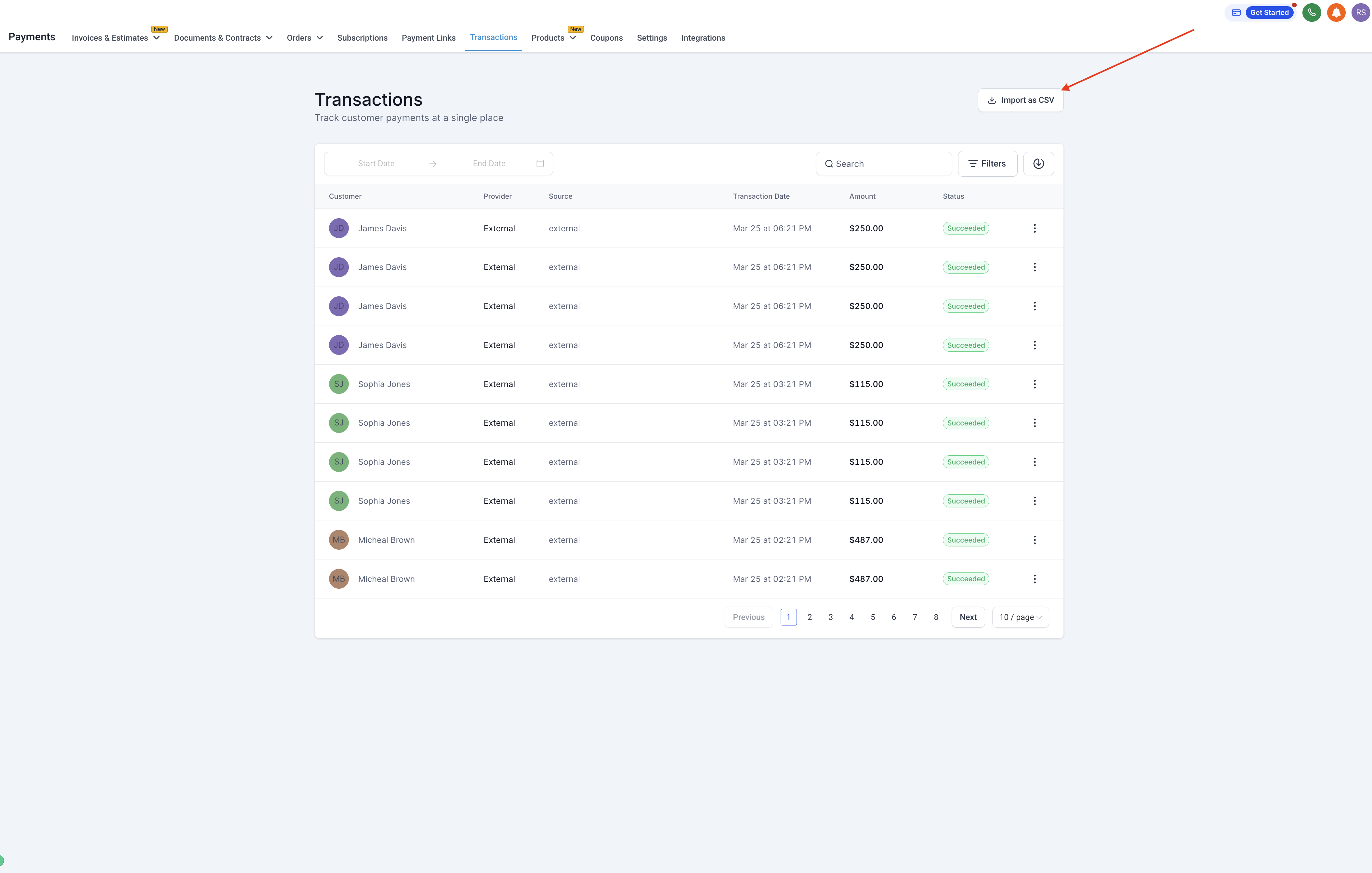
Note: Transactions impact revenue metrics immediately once added.
Orders represent itemized sales and automatically generate a linked transaction entry.
Go to Payments → Orders.
Select Import, then upload a properly formatted CSV.
Validate your data in the preview.
Confirm. Each order record auto-creates a transaction and impacts revenue.
Note: Both order and transaction entries reflect on dashboards and reporting.
The file must be saved in .csv format.
Column headers must exactly match the required field names in the sample file.
Each row should represent one transaction. For orders, each line item must be a separate row, with all order-level fields repeated.
All required fields must contain valid data.
Avoid extra spaces, symbols, or unsupported formatting.
Customer First Name / Last Name: Identifies the patient associated with the transaction.
Customer Email: Used for contact identification and communication.
Customer Phone: Include the country code for accuracy.
Currency: Use standard 3-letter codes (for example, USD, EUR).
Amount Paid: Final amount collected from the patient.
Transaction Date and Time: When the payment occurred.
Payment Method: How the payment was made (for example, card or cash).
Payment Provider: The processor used.
Address Fields: Billing or location details.
Optional fields such as taxes, discounts, tips, and item details can be included for deeper insights.
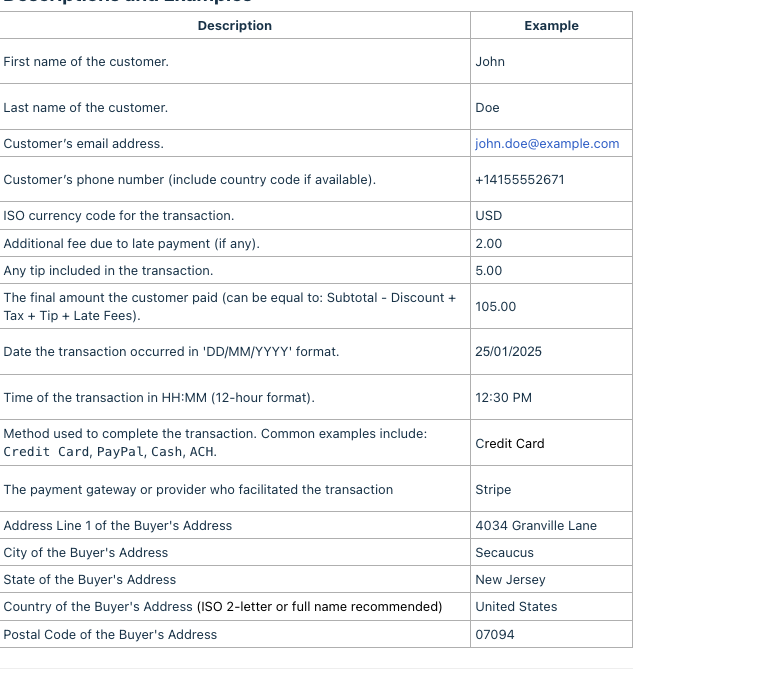
Column name | Description | Example |
|---|---|---|
Customer First Name | First name of the patient |
|
Customer Last Name | Last name of the patient |
|
Customer Email | Patient's email address | |
Customer Phone | Phone number (include country code if available) |
|
Currency | Currency used (ISO code) |
|
Subtotal | Cost before tax, discount, and shipping |
|
Discount | Any discount applied |
|
Total Tax Amount | Total tax charged |
|
Amount | Final amount paid (Subtotal − Discount + Tax) |
|
Order Date | Date the order was placed (DD/MM/YYYY) |
|
Order Time | Time the order was placed (HH:MM) |
|
Payment Method | Method used (Credit Card, PayPal, Cash, ACH) |
|
Payment Provider | Gateway that facilitated the transaction |
|
Line Item Name | Name of the individual item |
|
Line Item Quantity | Quantity of the line item |
|
Line Item Price | Price per unit, before tax or discount |
|
Address Line 1 | Buyer's street address |
|
City | Buyer's city |
|
State | Buyer's state |
|
Country | Buyer's country (ISO 2-letter or full name) |
|
Postal Code | Buyer's postal code |
|
Missing required fields such as Amount Paid, Transaction Date, or Customer Email.
Incorrect date or time formats.
Using currency symbols instead of ISO codes (use USD, not $).
Invalid email or phone number formats.
Mismatched or misspelled column headers.
Order line items not grouped correctly.
Amount mismatch: ensure Amount = Subtotal − Discount + Total Tax Amount.
Double-check column headers before uploading.
Keep formatting consistent across all rows.
Validate your data in a spreadsheet tool before exporting to CSV.
Test with a small file before importing large datasets.
Why does a single transaction or order show multiple rows in the CSV?
Products are tracked per line item and tax details per unique tax name, so each financial component gets its own row. This is standard for accounting-grade reporting. Group by the record's ID to total correctly.
Why does Total Amount Due differ from Total Amount Paid?
Processing charges, tips, and partial payments affect the final amount paid, not the original amount due.
Why don't I see some transactions in my export?
Check that filters are cleared and the correct date range is applied.
Will exports include failed transactions?
Yes, unless you filter to include only Successful or Refunded records.
Does the export include partial refunds?
Yes. The Amount Refunded column reflects the full cumulative refunded amount.
Can I re-export or regenerate a previous file?
Yes. Exports are always generated fresh and can be repeated anytime.
Who can export payment data?
Only users with permission to view and export the relevant records (transactions, orders, or subscriptions).
Can I check subscription billing history from the Orders export?
No. The Orders export shows order-level subscription presence (a count), not billing history. Use the Subscriptions or Transactions export for that.
Will contacts be duplicated when I import?
No. The system matches patients by email or phone before creating a new contact.
Can I backdate an imported transaction?
Yes. You can set the transaction execution date separately from when it is added to your account.
Can I import refunds or voided transactions?
Not at this time. Only successful, completed transactions and orders are supported.
Does importing affect revenue tracking?
Yes. Revenue and financial dashboards update based on your imports.
