When a recurring membership or treatment-package payment fails, you do not have to chase it manually. Failed Payment Retry Settings let Aesthetix CRM automatically re-attempt the charge on a schedule you define, so you recover revenue and keep billing consistent. This guide explains how to configure retries, what happens after all retries fail, and how a patient can retry a failed payment on their end.
Tip: Aesthetix CRM offers AX Pay, our own payment processing with rates better than Stripe. See AX Pay Overview and Setup Guide.
Instead of stopping after the first failure, the system retries the payment based on your selected schedule. This gives patients multiple opportunities to complete payment while keeping the process fully automated, which reduces lost revenue on recurring services.
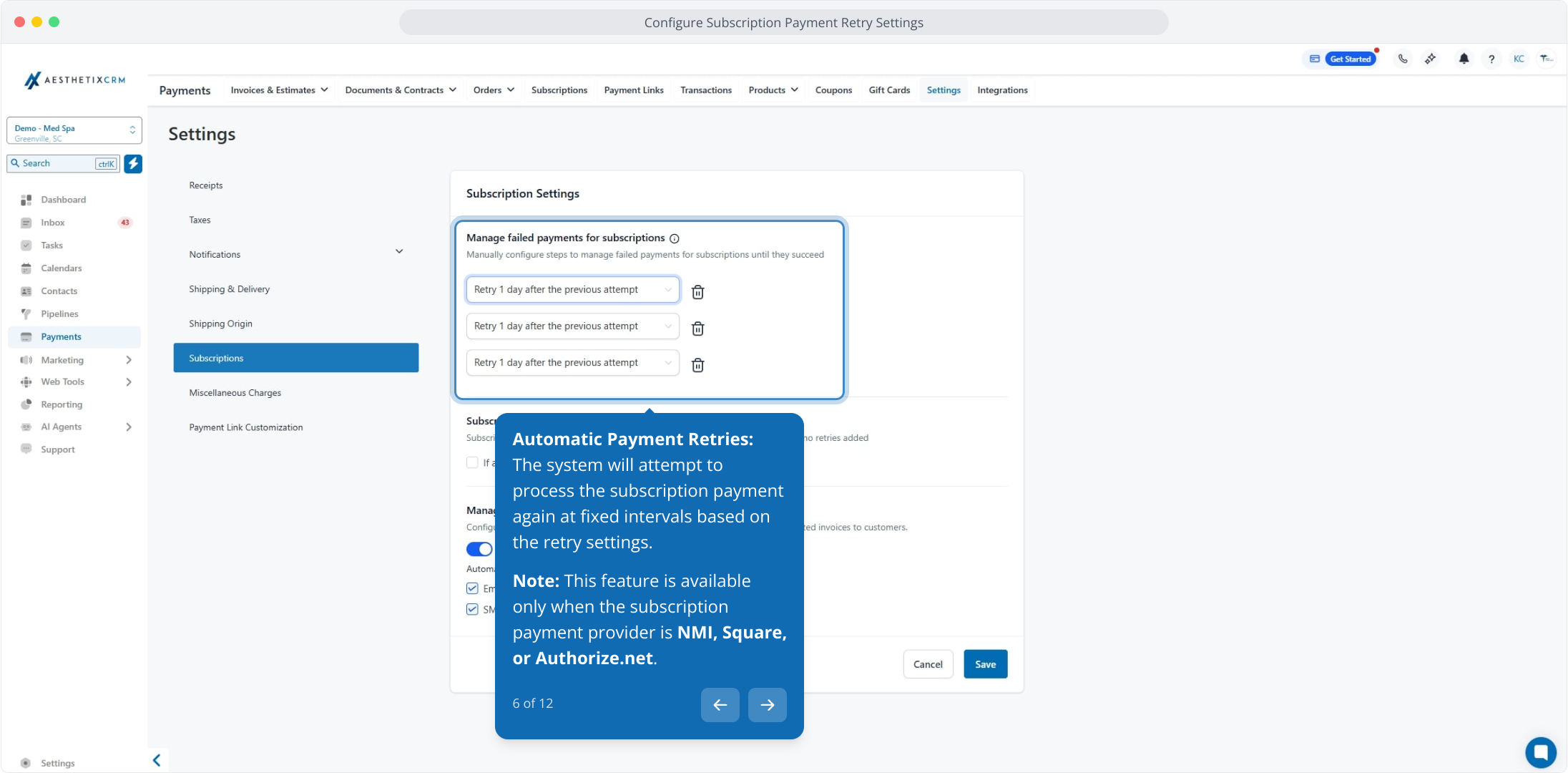
Note: This feature is available only when the subscription payment provider is NMI, Square, or Authorize.net.
Automated retries: Recover failed payments without manual follow-up.
Flexible timing: Choose retry gaps of 1, 3, 5, or 7 days.
Consistent rules: Apply the same retry logic across all subscriptions.
Reduced revenue loss: Increase the chance of collecting payment successfully.
Control over outcomes: Decide whether to cancel or keep unpaid subscriptions after all retries fail.
By default, the system attempts 3 retries with a 1-day gap between each, but you can change this.
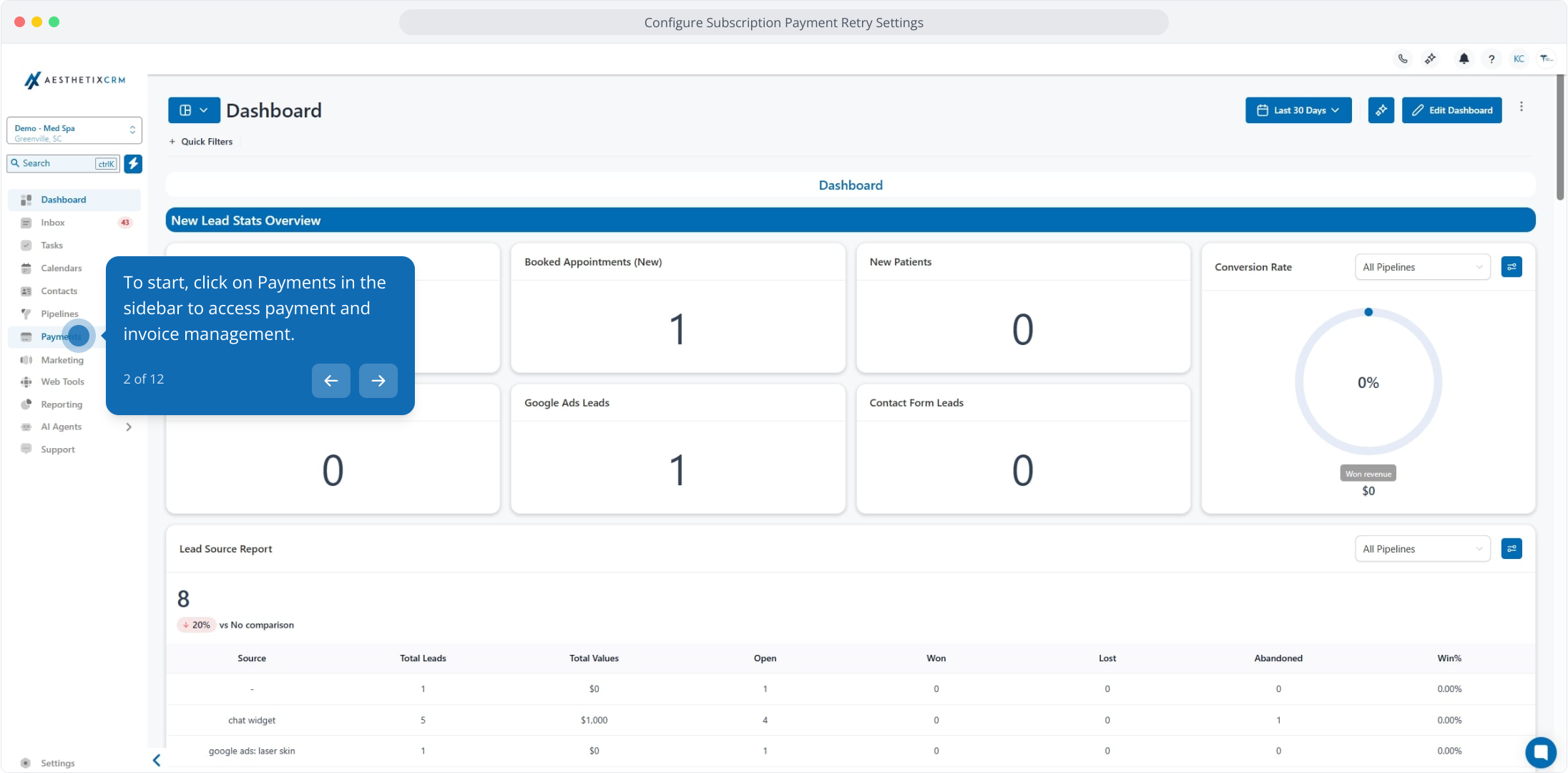
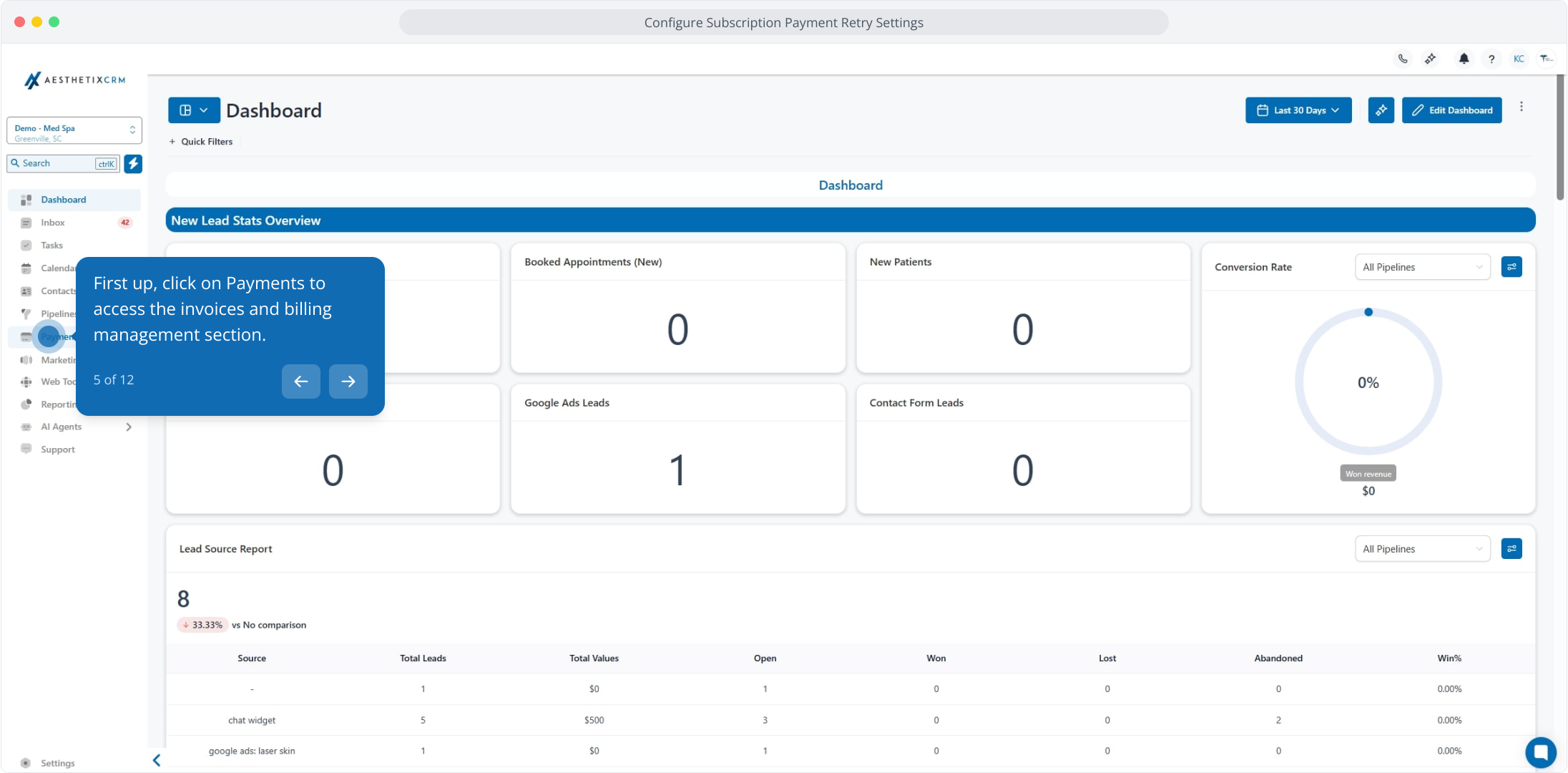
Go to Payments in the sidebar.
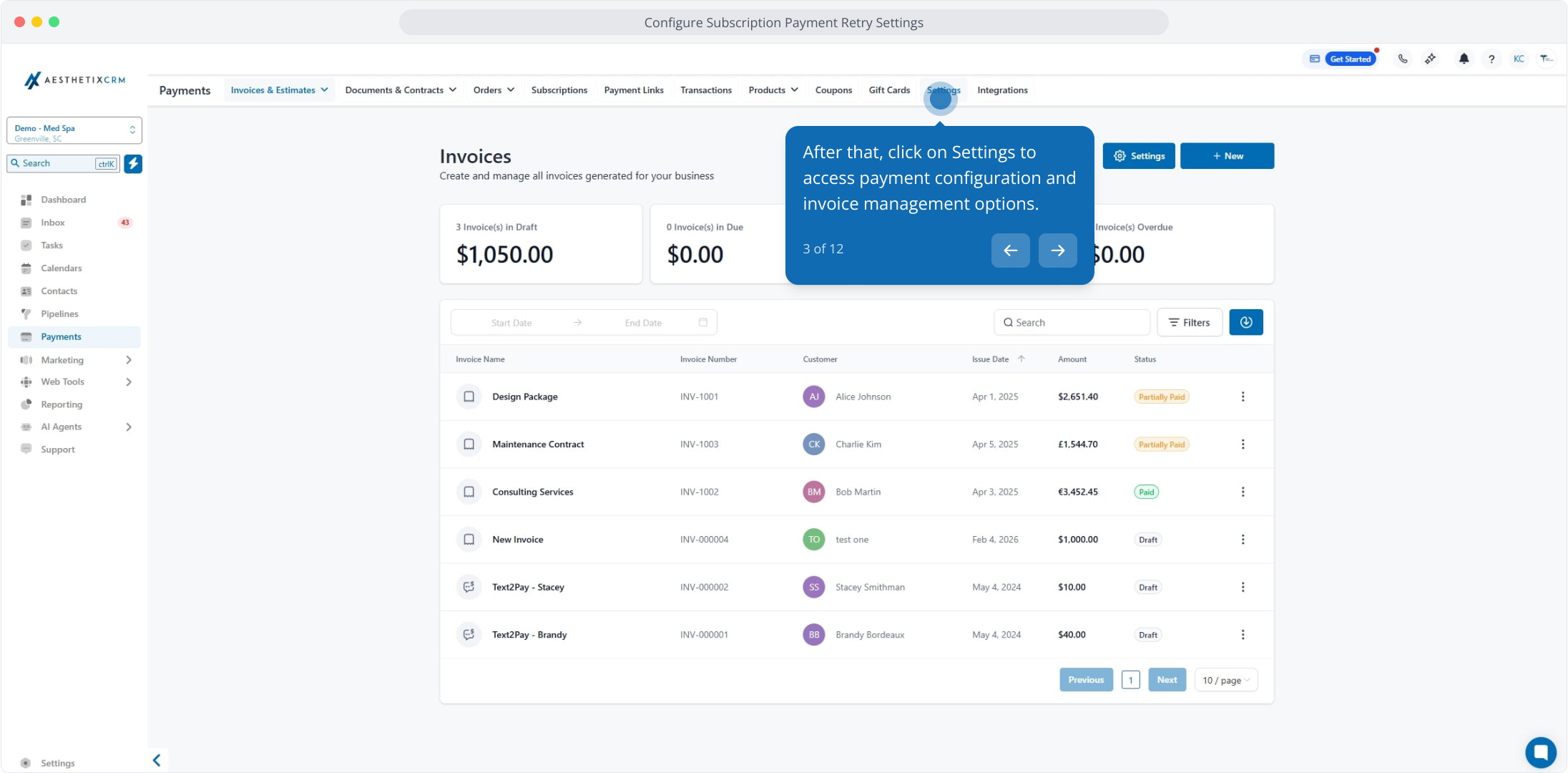
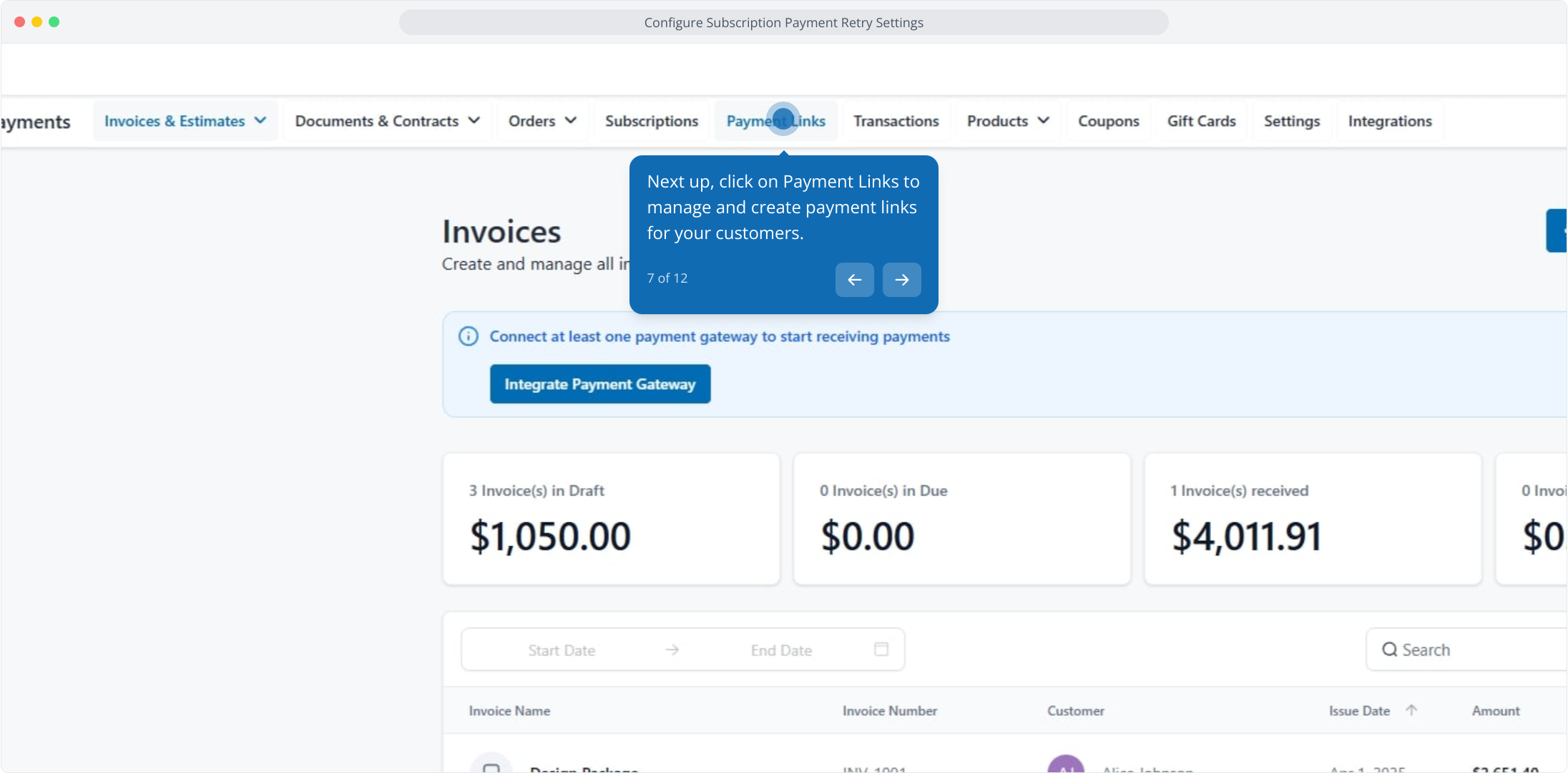
Click Settings to access payment configuration options.
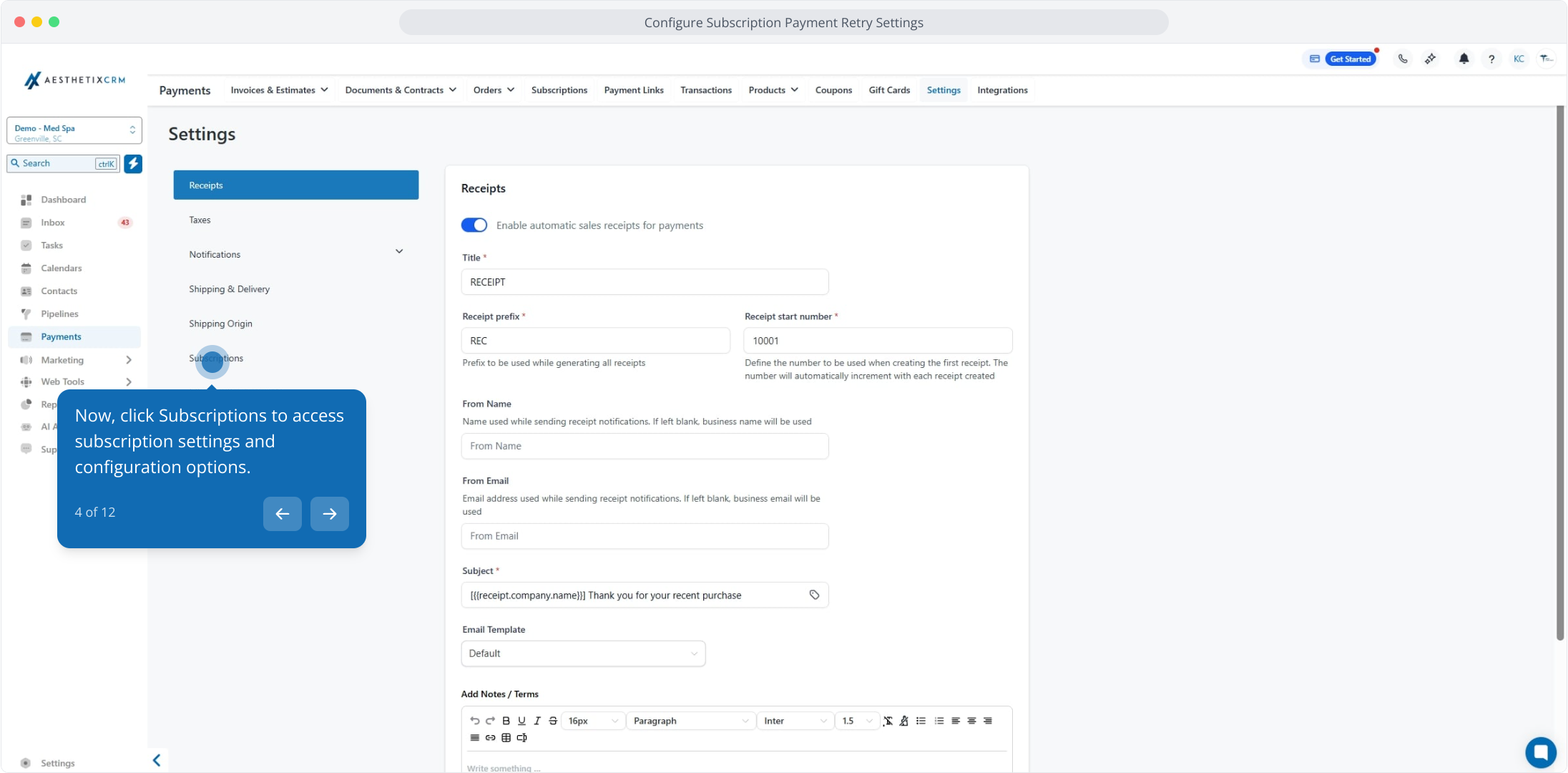
Click Subscriptions to open subscription settings, then locate Manage failed payments for subscriptions.
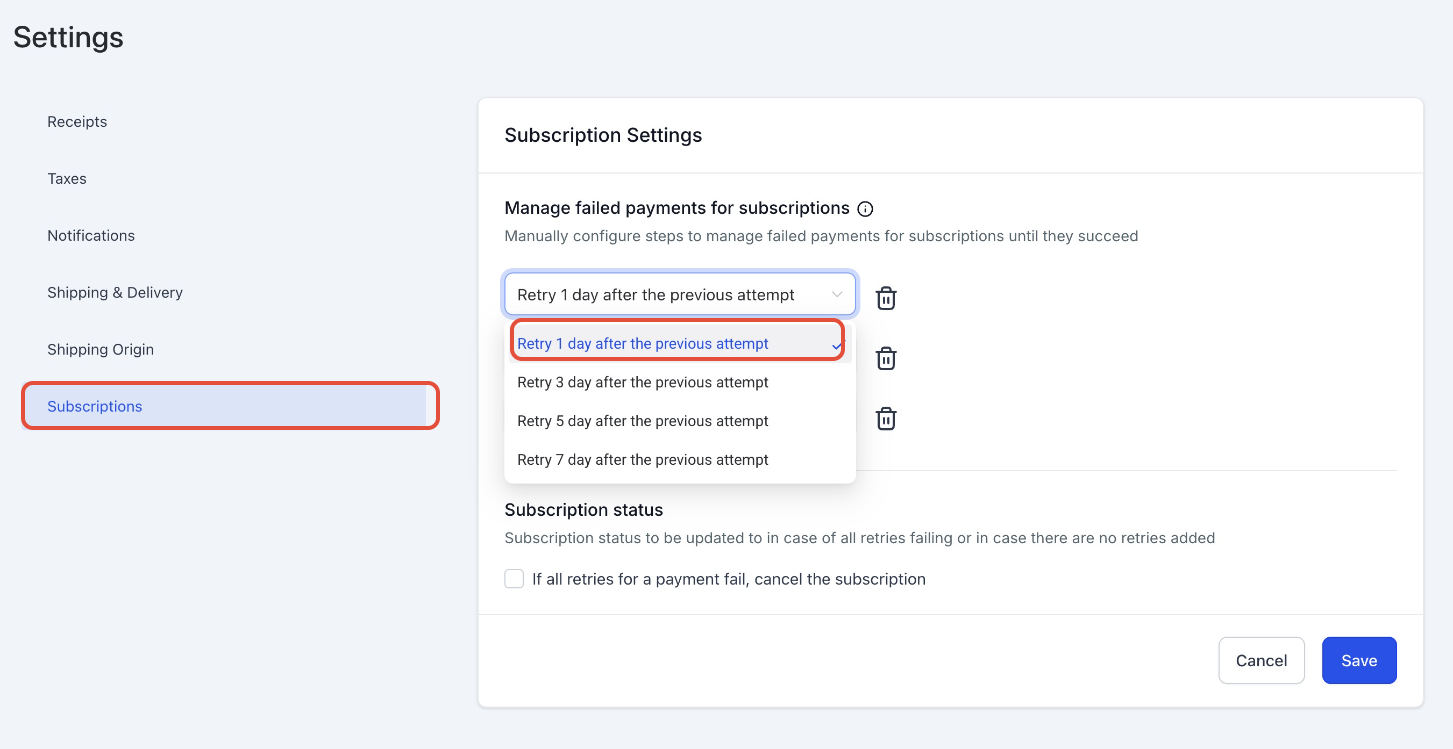
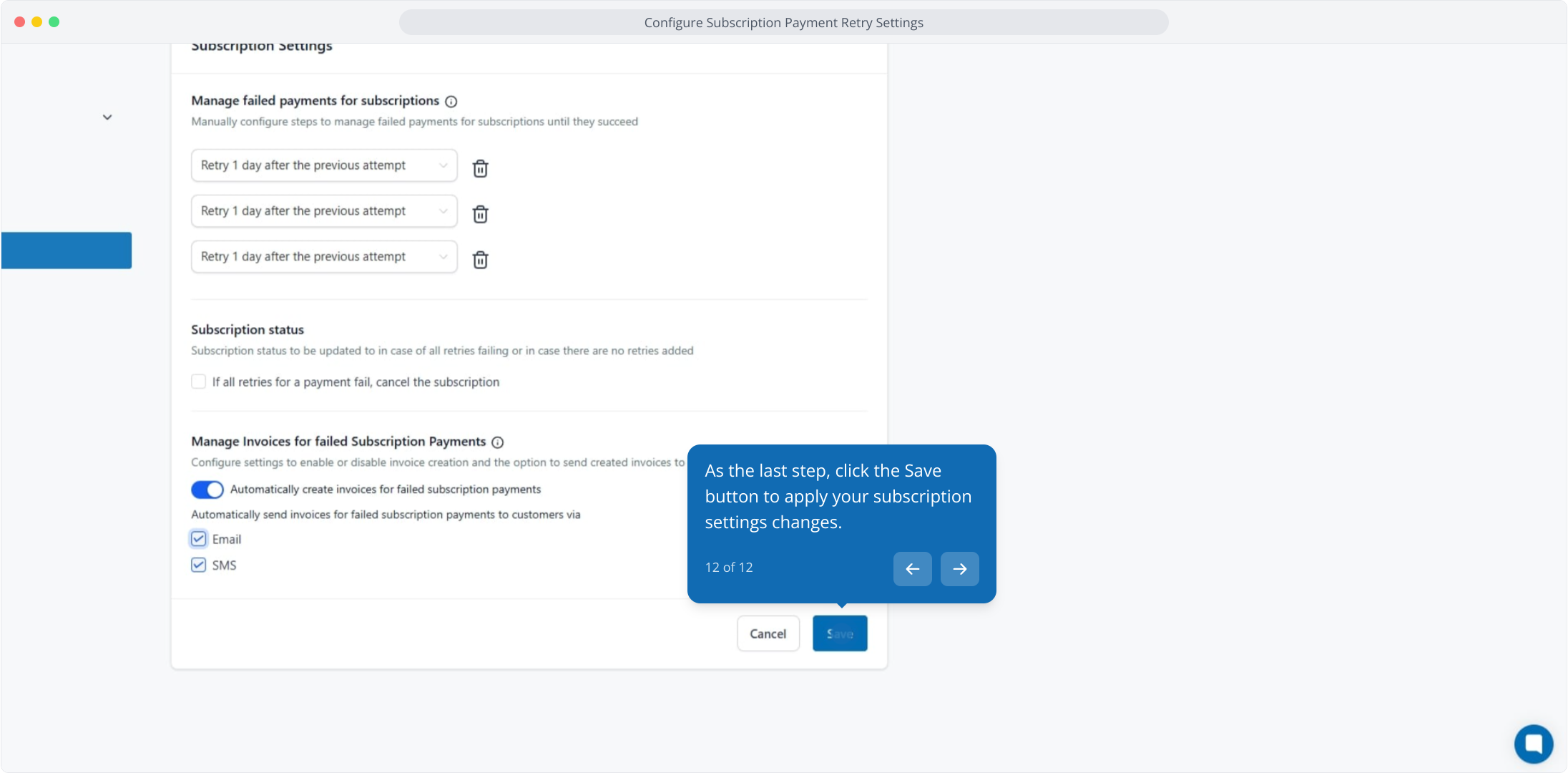
Set automatic payment retries. The system re-attempts the subscription payment at fixed intervals based on your retry settings.
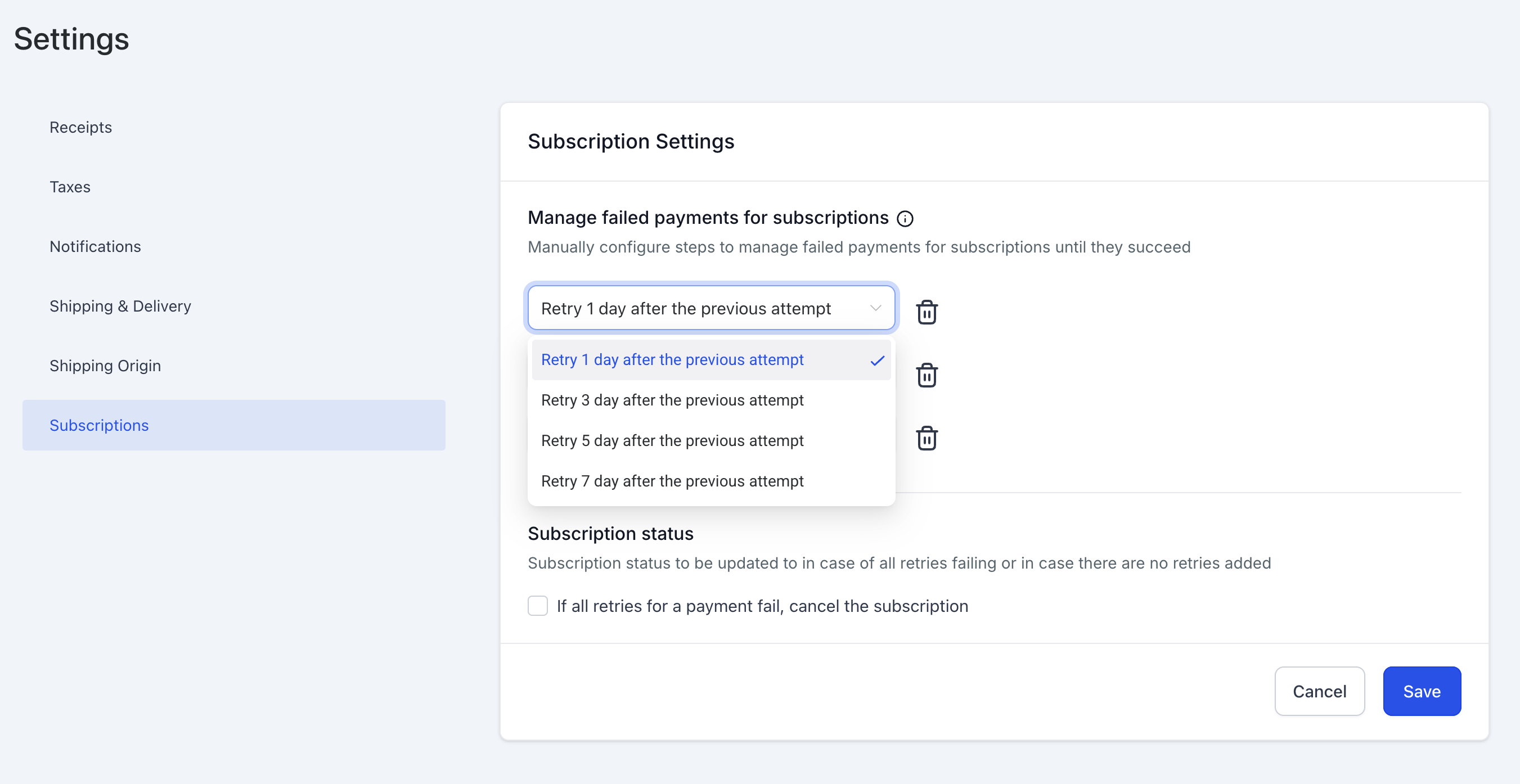
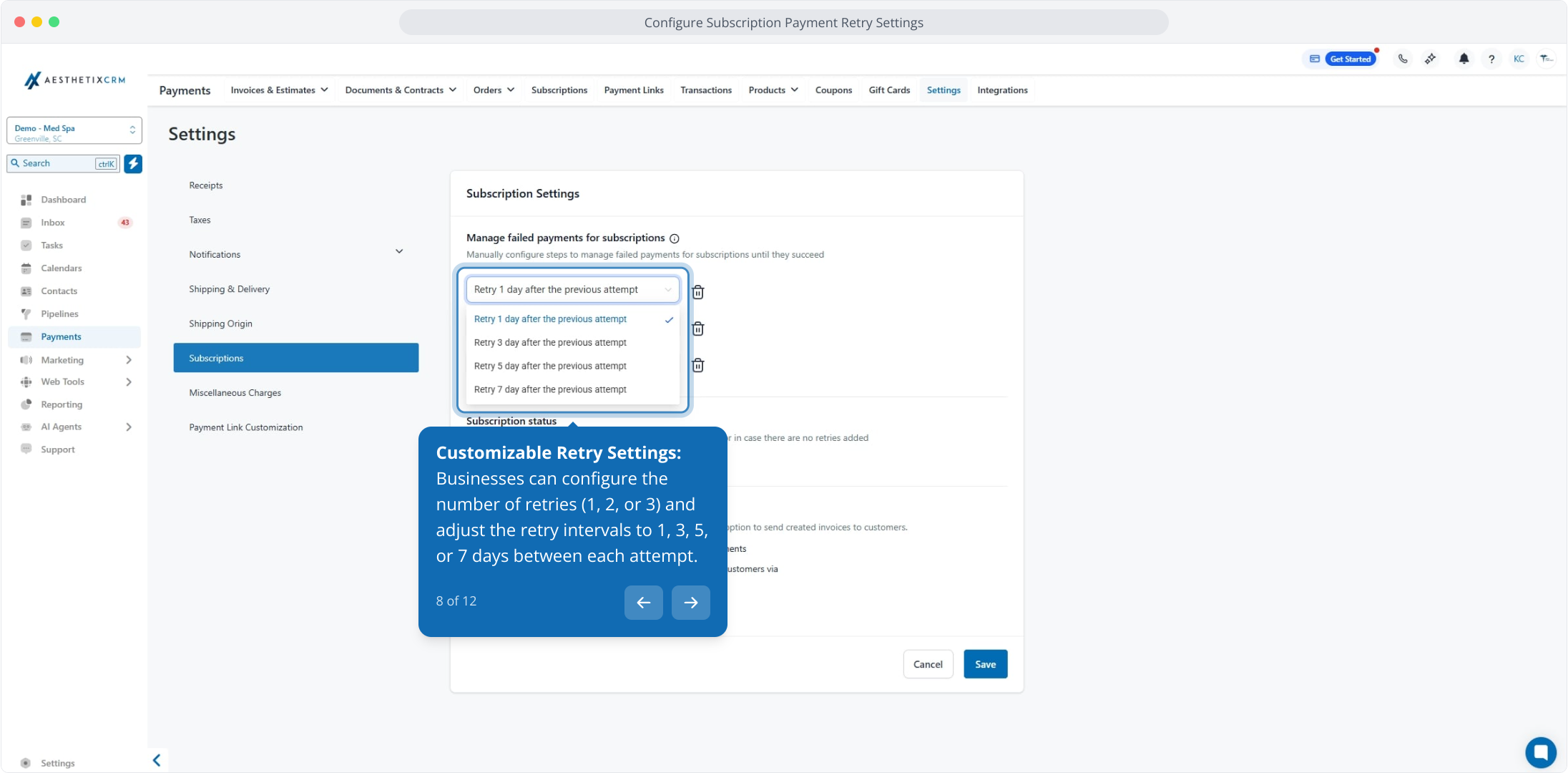
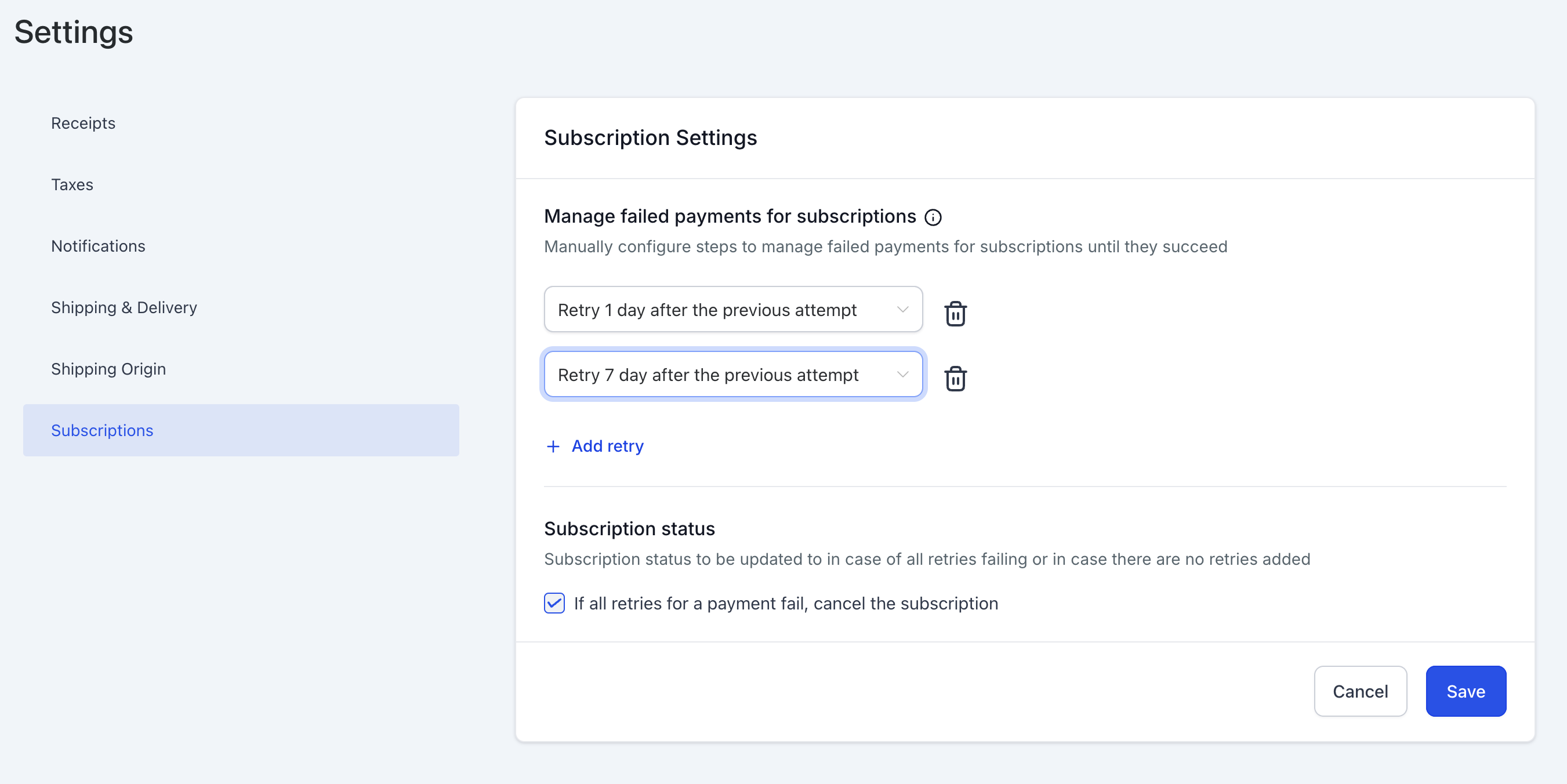
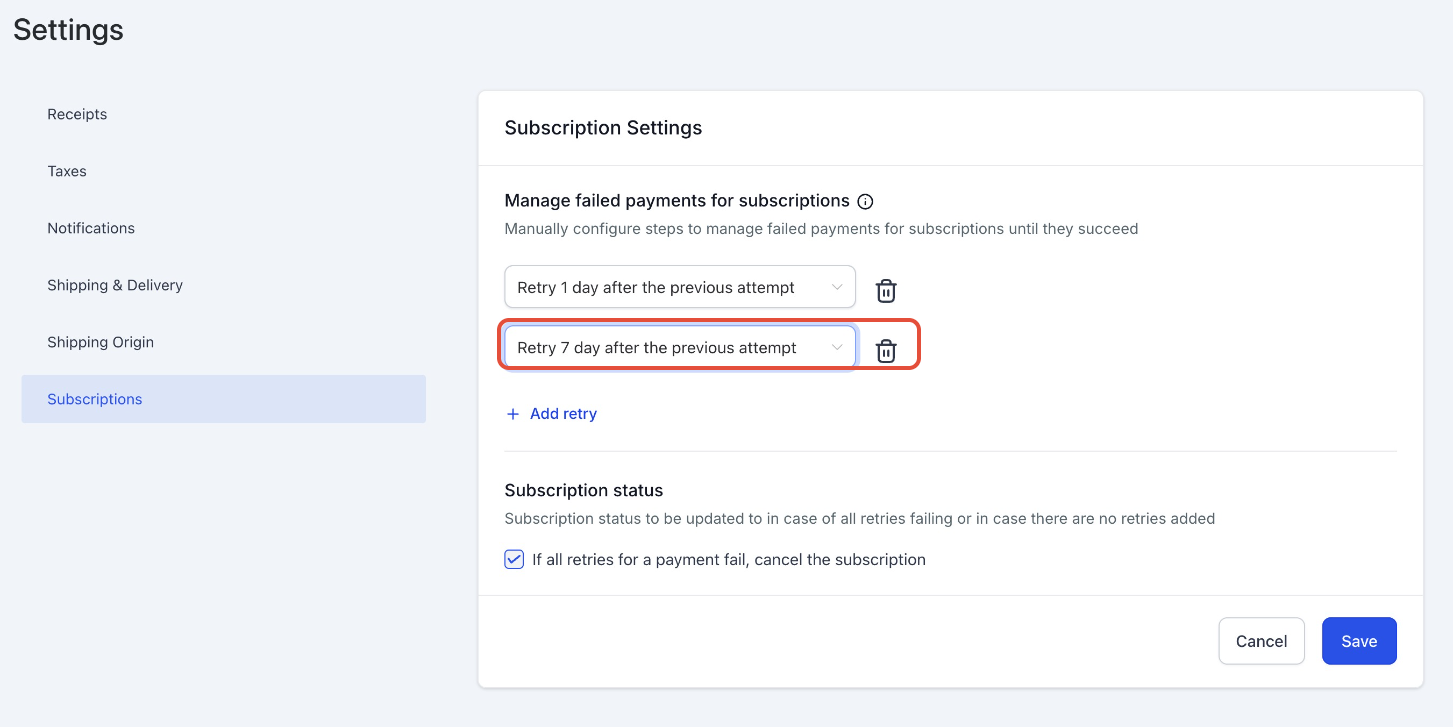
Define retries and timing. Choose the number of retries (1, 2, or 3) and the gap between each attempt (1, 3, 5, or 7 days).
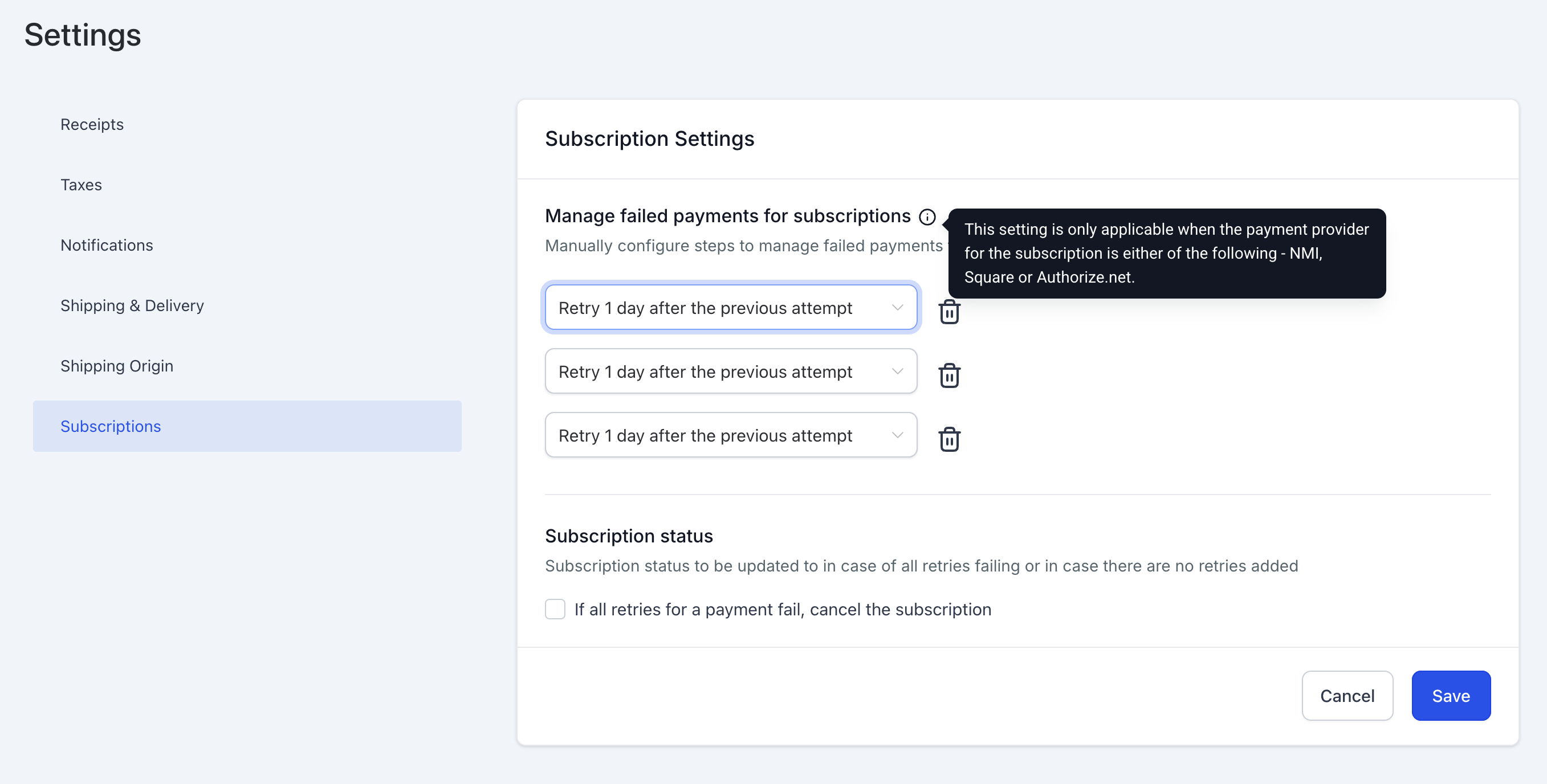
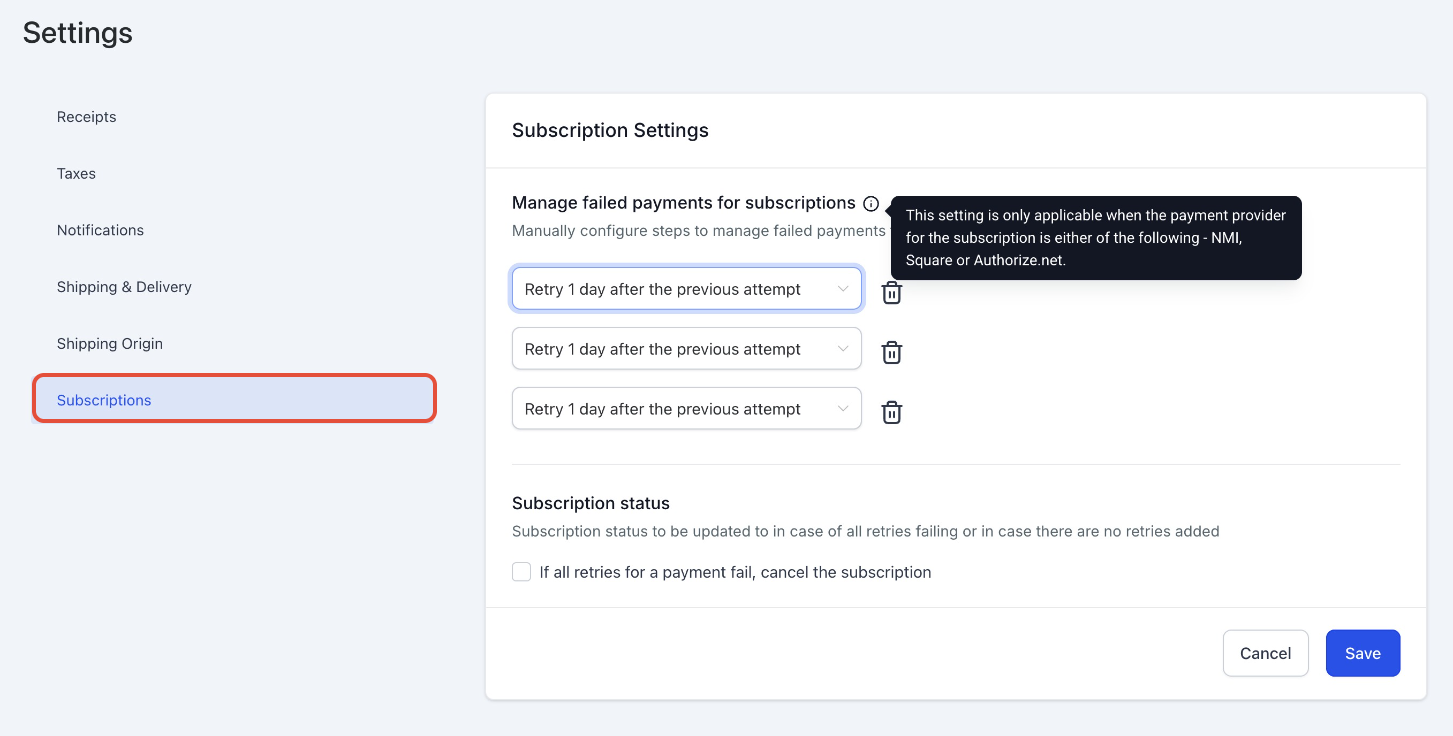
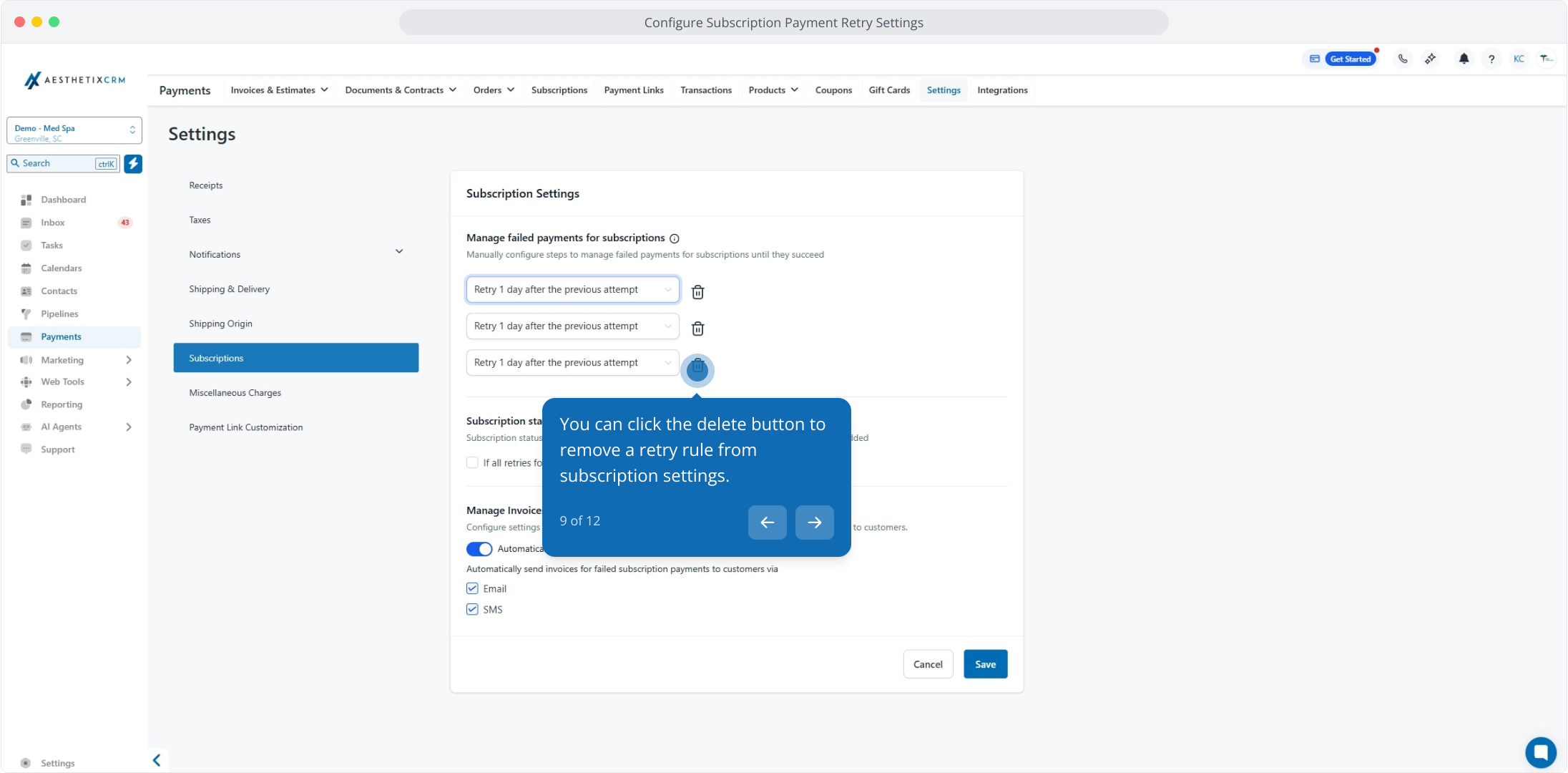
To remove a retry rule, click the delete button next to it.
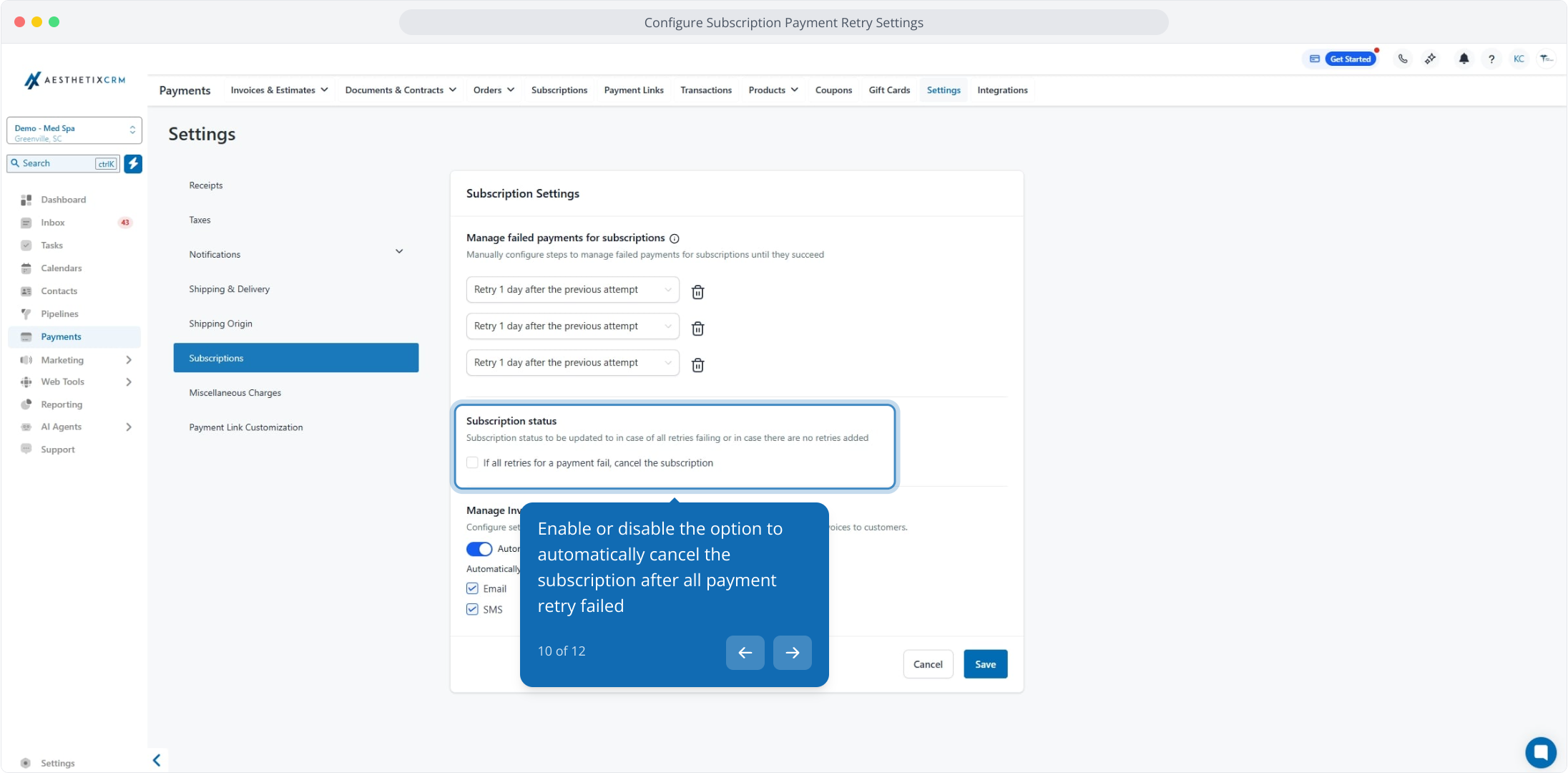
Manage what happens after the final failure. Enable the option to automatically cancel the subscription once all retries fail, or leave it unchecked to keep the subscription in an Unpaid state.
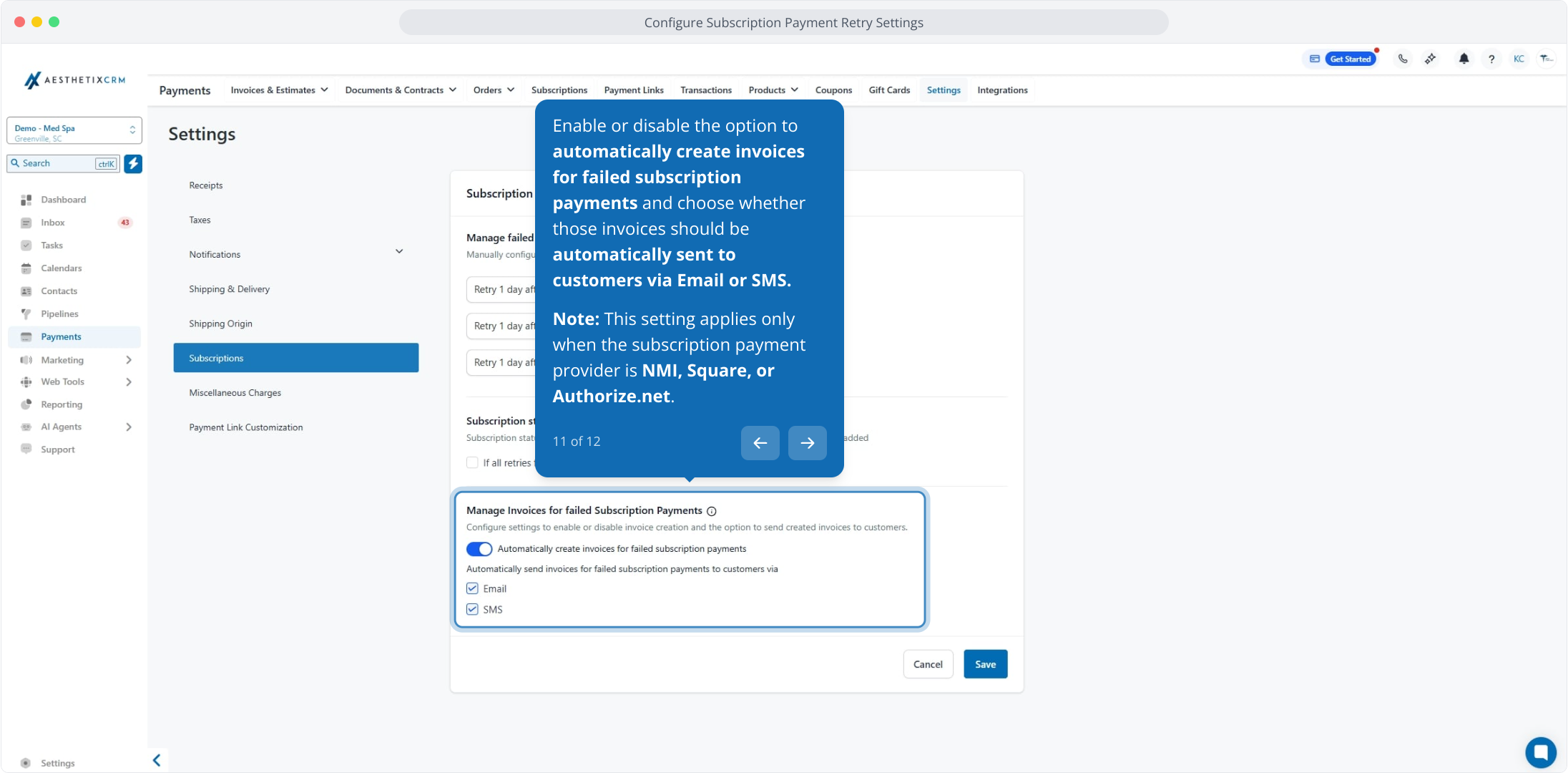
Optionally, enable the setting to automatically create invoices for failed subscription payments, and choose whether those invoices are sent to patients via Email or SMS.
Note: This setting applies only when the subscription payment provider is NMI, Square, or Authorize.net.
Click Save to apply your changes. Updated retry settings apply immediately to both new and existing subscriptions, including those already in the retry process.
Interactive walkthrough
Suppose a subscription is set to 3 retries with a 3-day gap and one retry has already been attempted. If you then change the settings to 2 retries with gaps of 3 and 5 days, then:
The second retry occurs after 5 days instead of 3.
No third retry takes place.
If a patient's payment fails at checkout (for example, when joining a membership), they can retry it directly from the purchase screen.
Most failures are temporary and easy to resolve. Common reasons include:
Insufficient funds
Incorrect card details (invalid number or security code)
Expired card
Bank security restrictions or fraud protection flags
Mismatch between billing address and card information
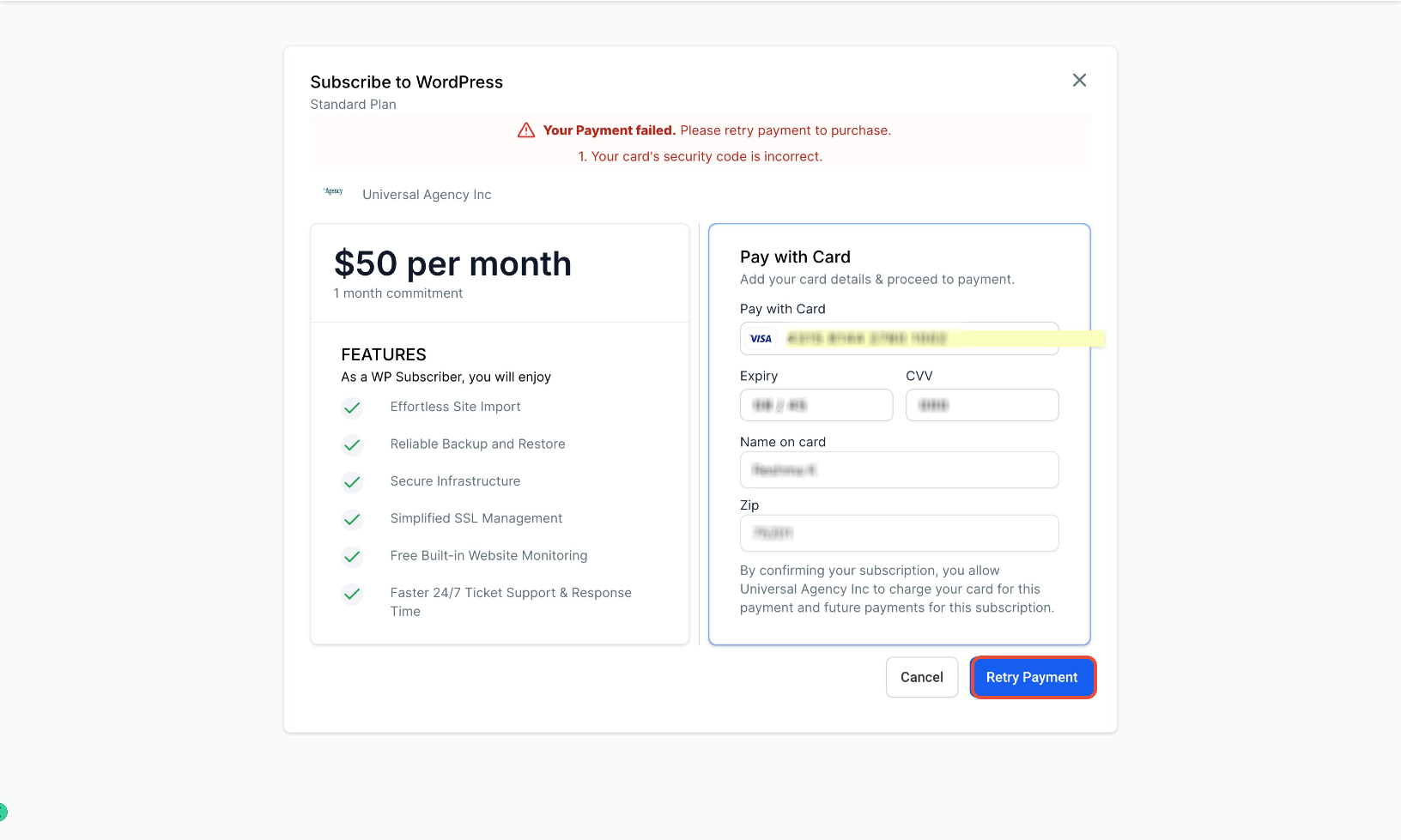
When a payment fails, a notification appears on the checkout screen explaining the reason and prompting a retry.
Return to the product or subscription page.
Review the payment failure message at the top of the screen.
Click the Retry Payment button to reopen the payment form.
If the failure was caused by incorrect or outdated card information, the patient should update their details before retrying:
Re-enter the card number carefully
Verify the expiration date
Confirm the security code (CVV)
Double-check the billing ZIP or postal code
Ensure the name on the card matches bank records
Then click the payment confirmation button, wait for the transaction to process, and look for a confirmation message. On success, the subscription or purchase activates immediately.
Confirm there are sufficient funds available.
Contact the bank to make sure the transaction is not being blocked.
Check that international or online payments are enabled on the card.
Try an alternate payment method.
Wait a few minutes and retry, since temporary banking network issues can occur.
This usually happens when the product linked to the subscription was renamed or modified under Payments → Products, which can break the sync with the payment provider. To restore billing:
Go to Payments → Subscriptions.
Locate the subscription, click the three dots, and select Update Subscription.
Add the updated product and remove the old one.
Save to restore future billing.
Note: Missed payments are not charged automatically. To collect them, send a manual invoice or a one-time payment link.
How many retries can I configure?
Up to 3 retry attempts, with gaps of 1, 3, 5, or 7 days between each.
Will changes to retry settings apply to existing subscriptions?
Yes. Updates apply to both new and existing subscriptions, including those already in the retry process.
What happens if all retries fail?
You can either keep the subscription in an Unpaid state or automatically move it to Canceled, depending on the option you select in settings.
Which payment providers support automatic retries?
Automatic retries are supported for NMI, Authorize.net, and Square only.
Can I control the retry timing?
Yes. You can select predefined intervals of 1, 3, 5, or 7 days between attempts.
How many times can a patient retry a failed payment at checkout?
A patient can retry multiple times. If it keeps failing, they should check with their bank before trying again.
Will a patient be charged multiple times if they retry?
No. Charges are only processed when a payment is approved. Failed attempts are not charged.
Will the subscription activate automatically after a successful retry?
Yes. Once the payment processes successfully, access activates immediately.
