Subscriptions let your practice bill patients on a recurring schedule, which is ideal for monthly memberships, treatment packages, injectable clubs, and other ongoing services. This guide covers how to create a subscription, what the Subscriptions page shows, how to read subscription statuses, and how to modify, pause, or resume an active subscription.
Tip: Aesthetix CRM offers AX Pay, our own payment processing with rates better than Stripe. See AX Pay Overview and Setup Guide.
You can create a subscription manually from the Payments section (for example, to set up a monthly membership for a patient who signed up in person).
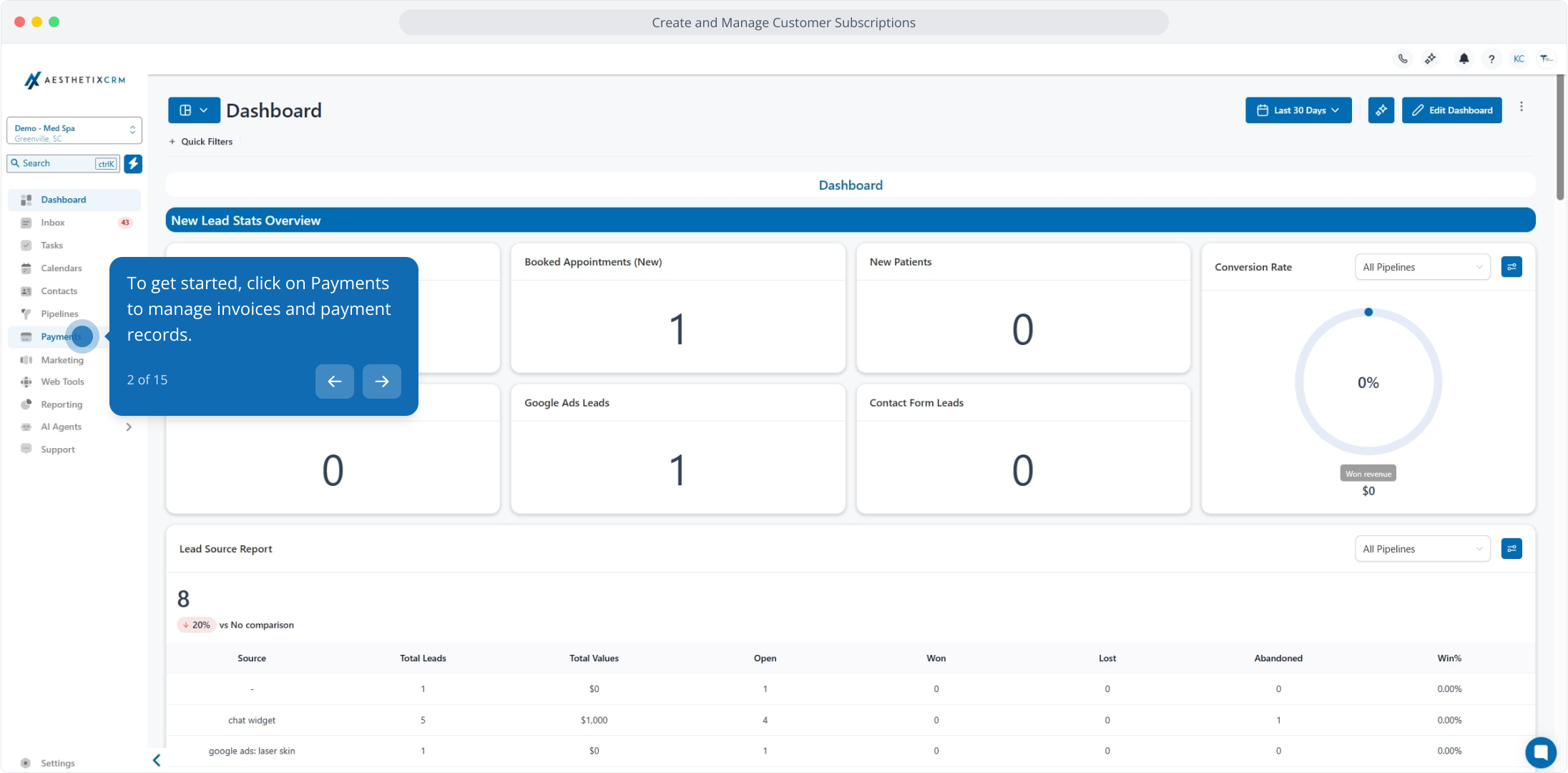
From the sidebar, click Payments to manage invoices and payment records.
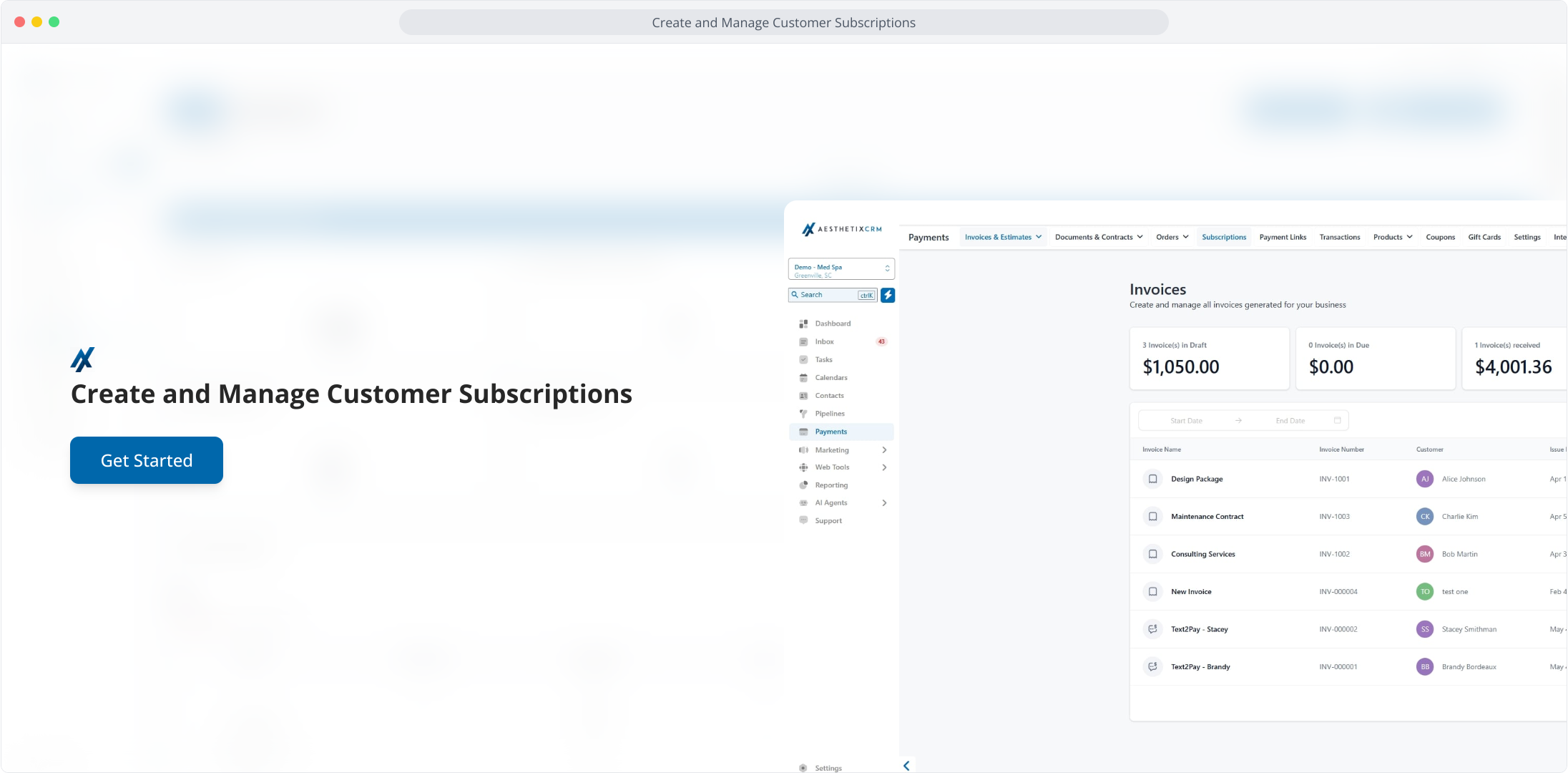
Open Payments to reach your invoices and payment records.
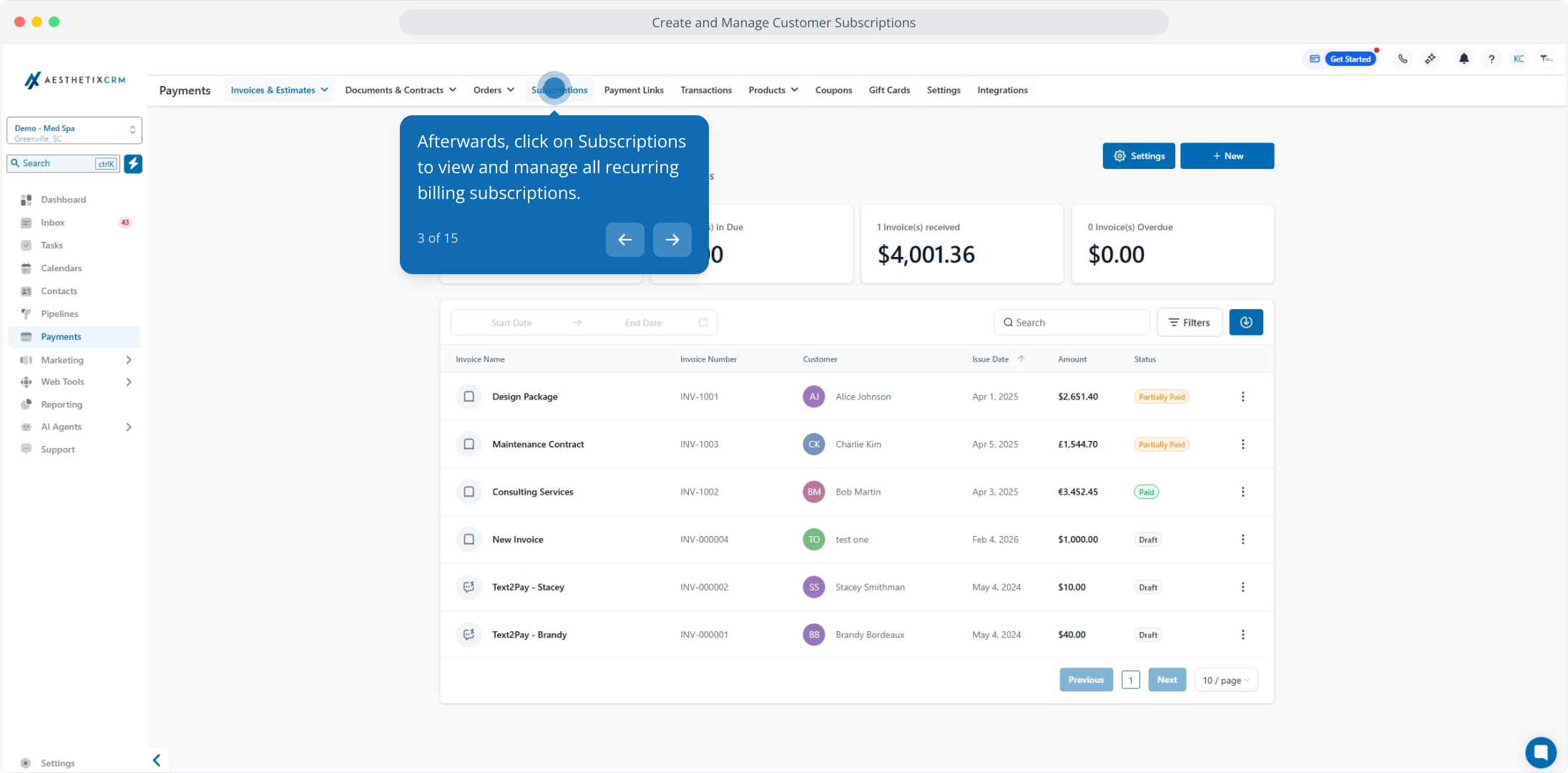
Click Subscriptions to view and manage all recurring billing subscriptions.
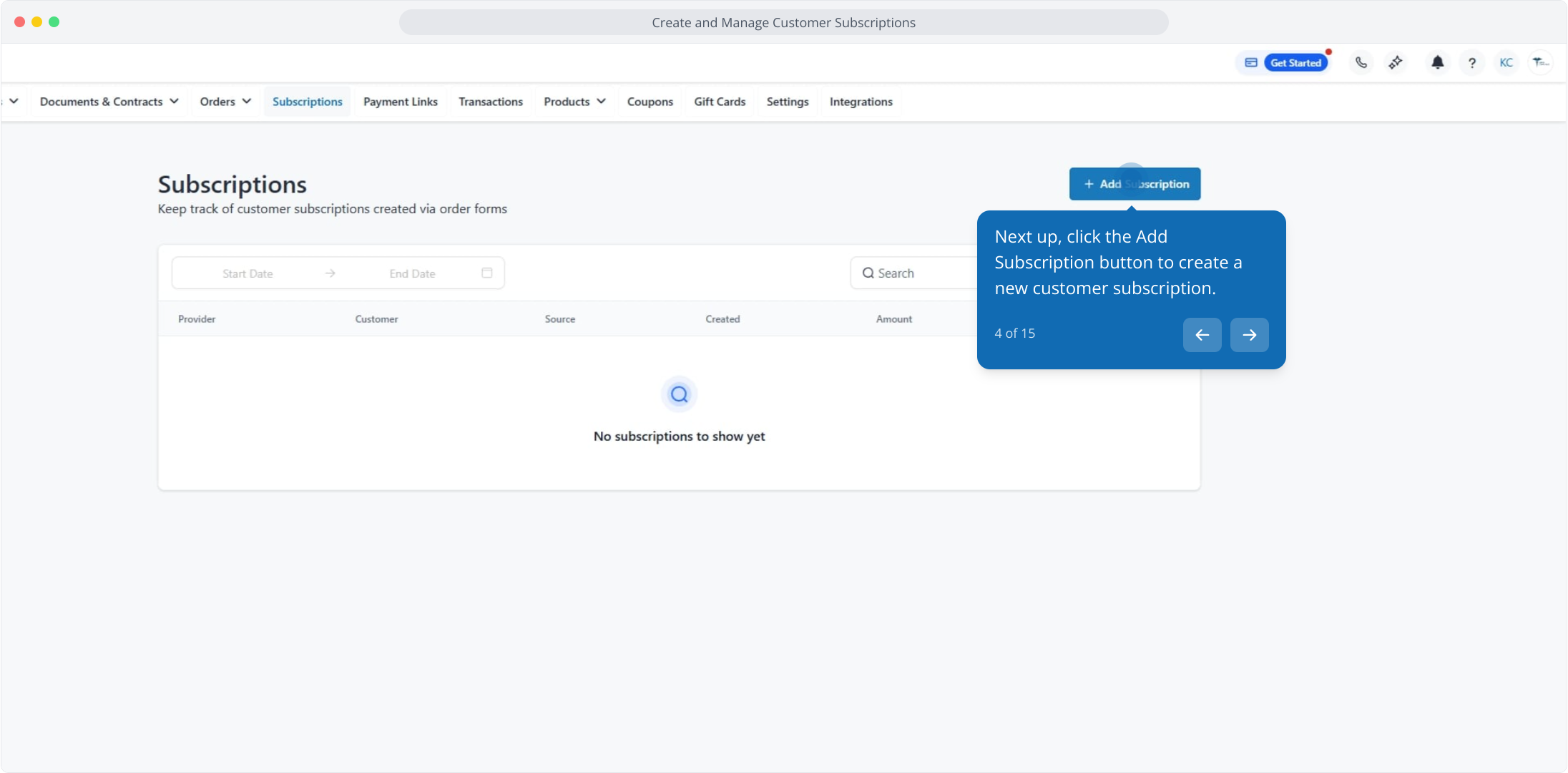
Click the Add Subscription button to create a new subscription.
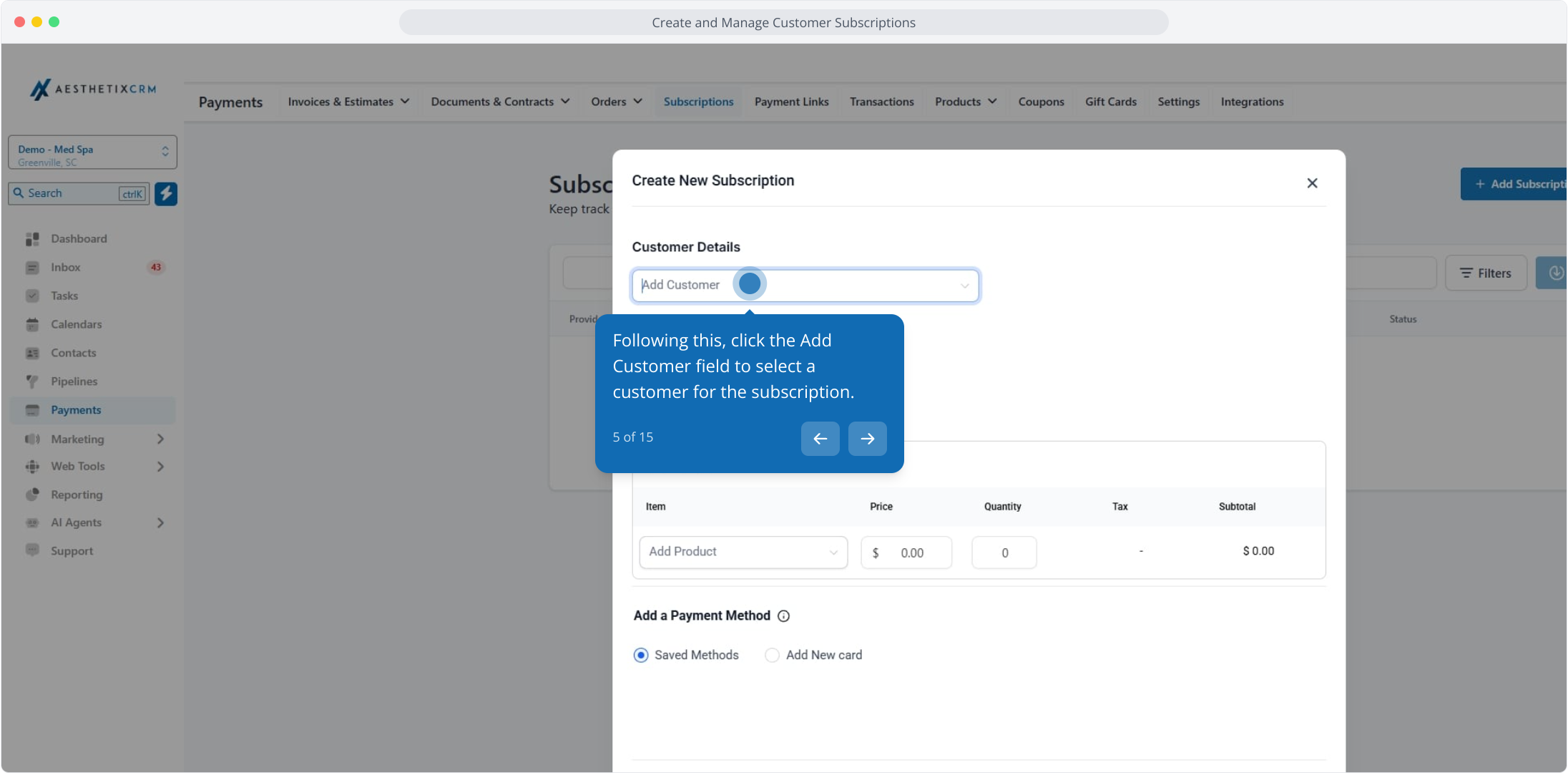
Click the Add Customer field to choose who the subscription is for.
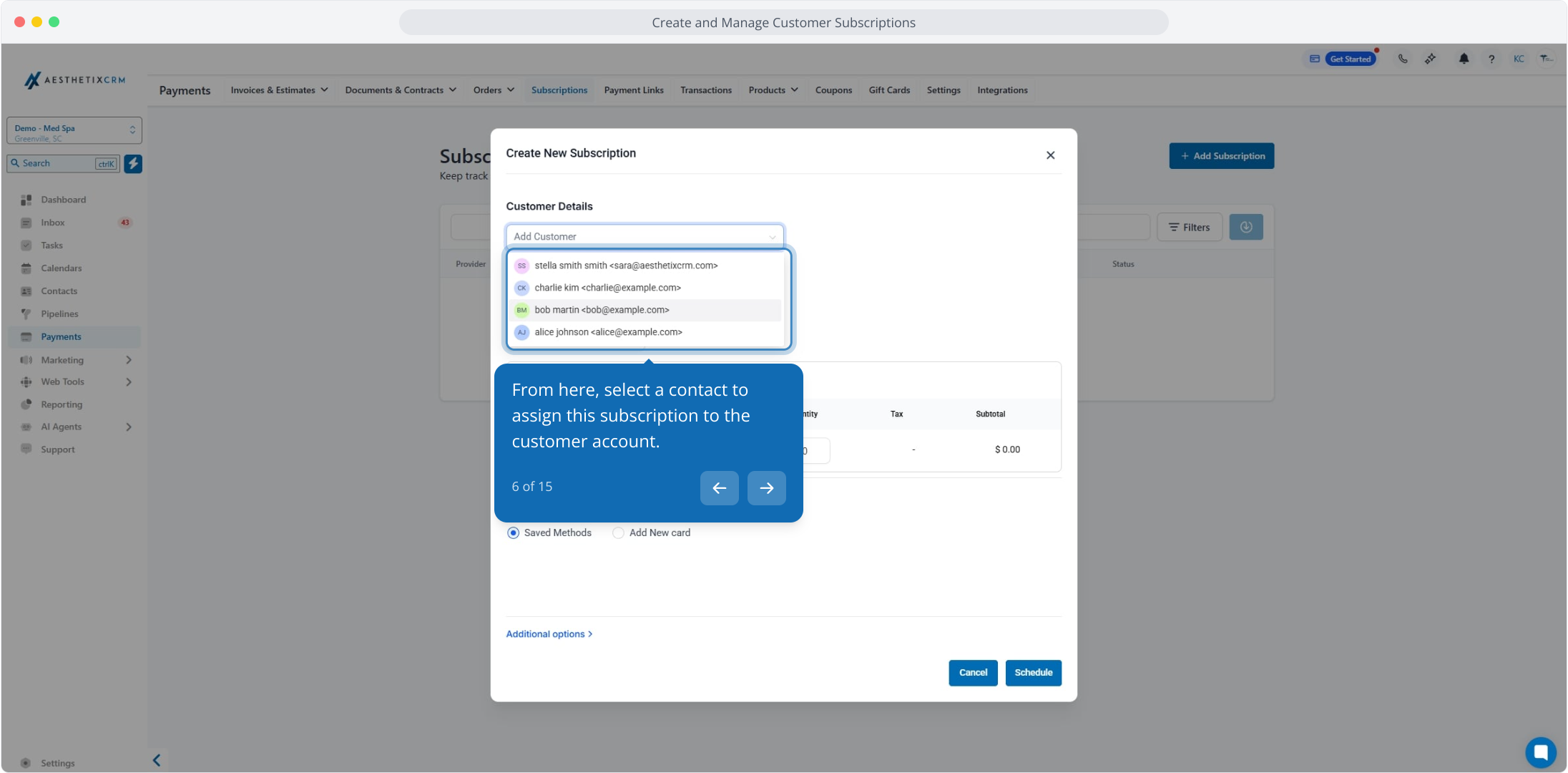
Select the patient (contact) to assign this subscription to their account.
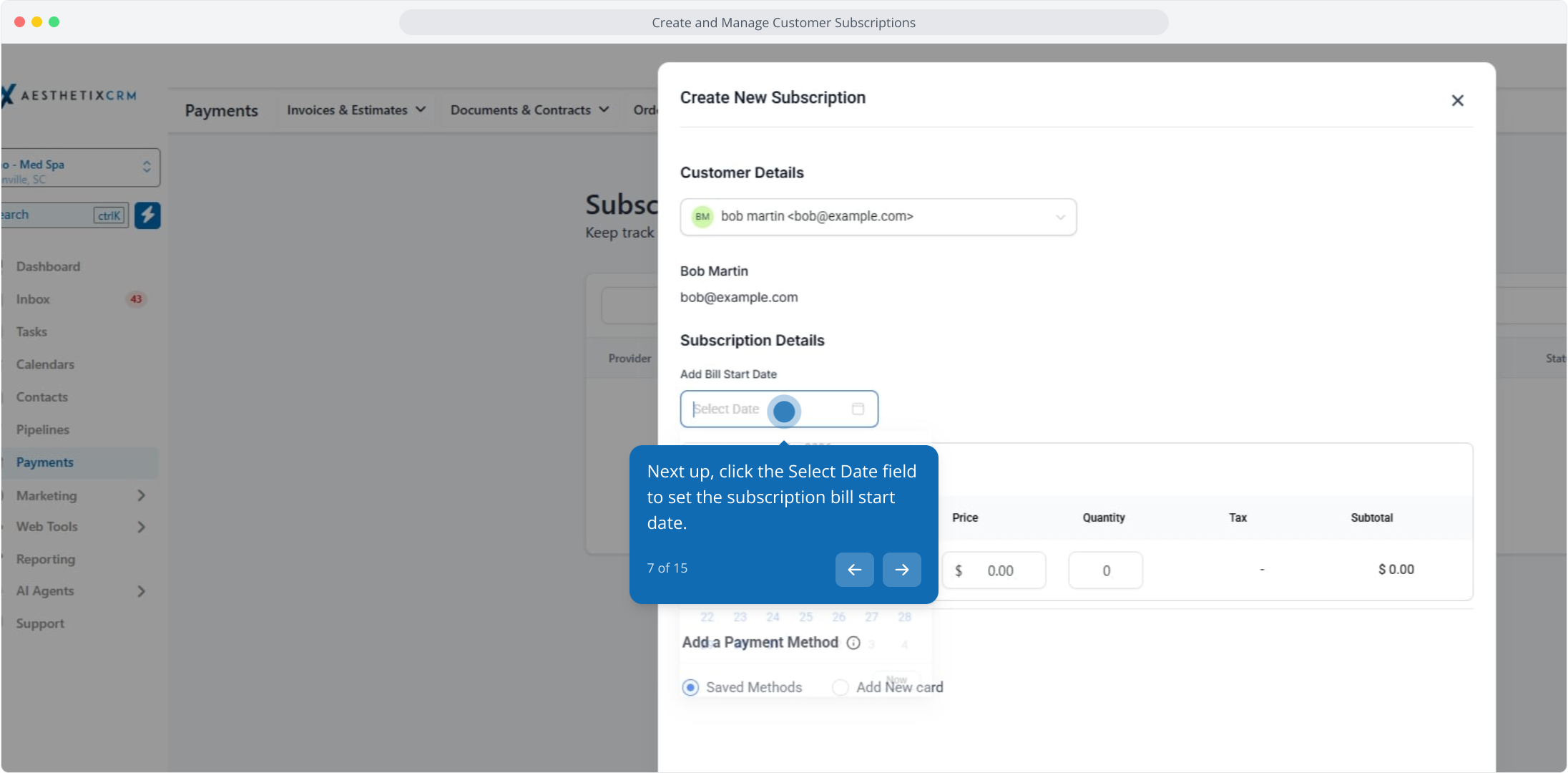
Click the Select Date field to set when billing should start.
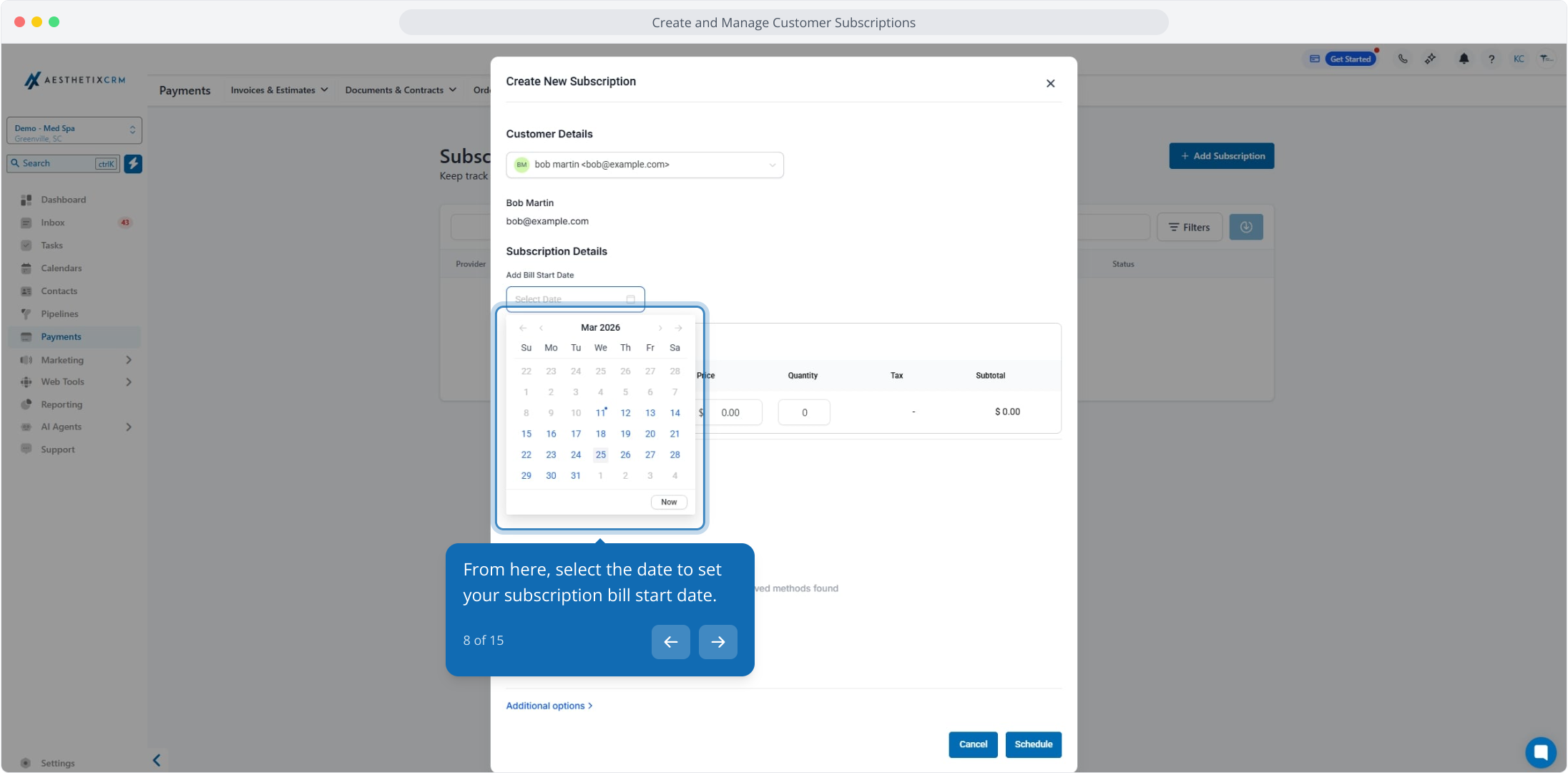
Choose the date to set your subscription bill start date.
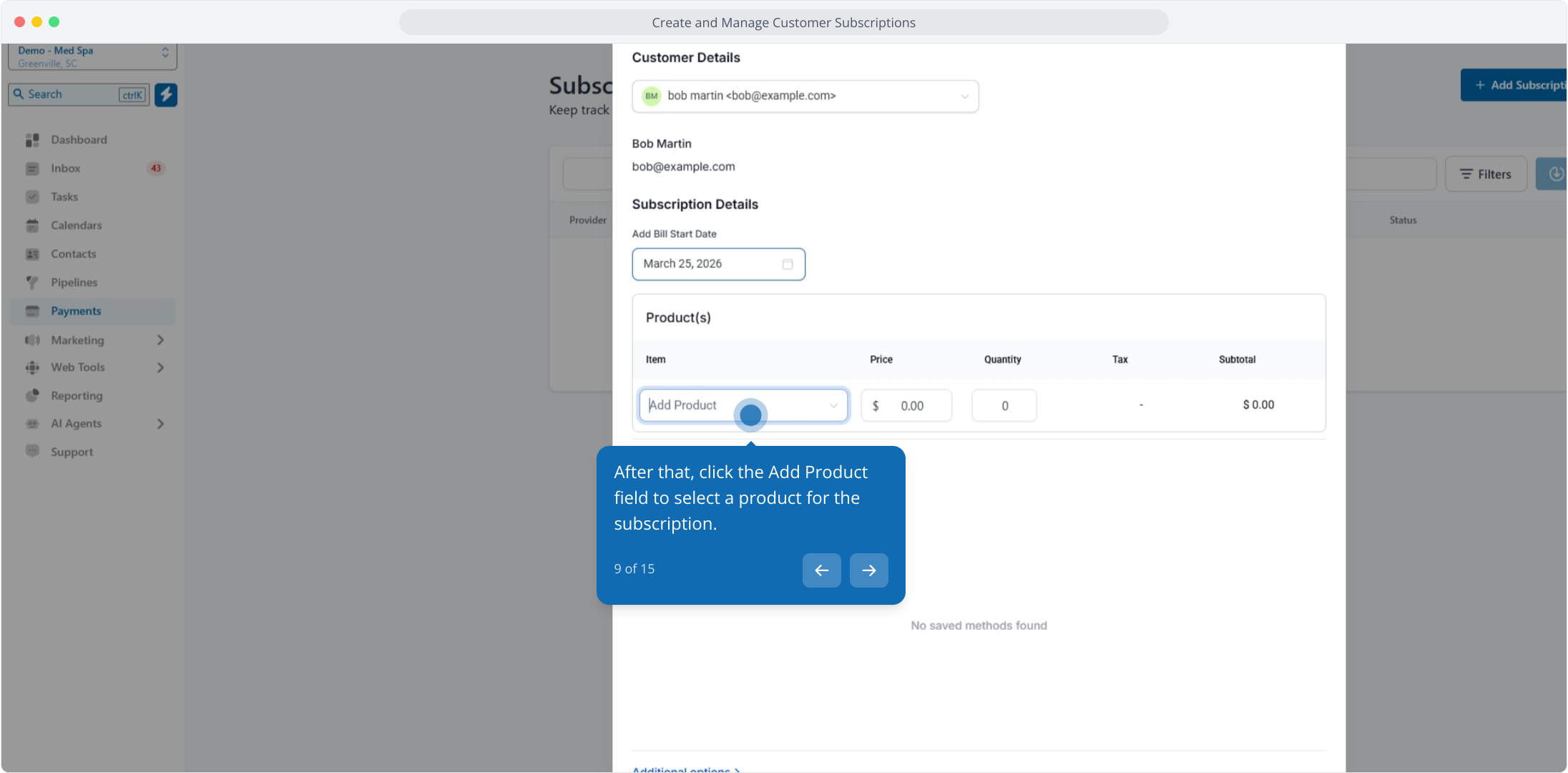
Click the Add Product field to choose the product or plan being billed (for example, a monthly membership).
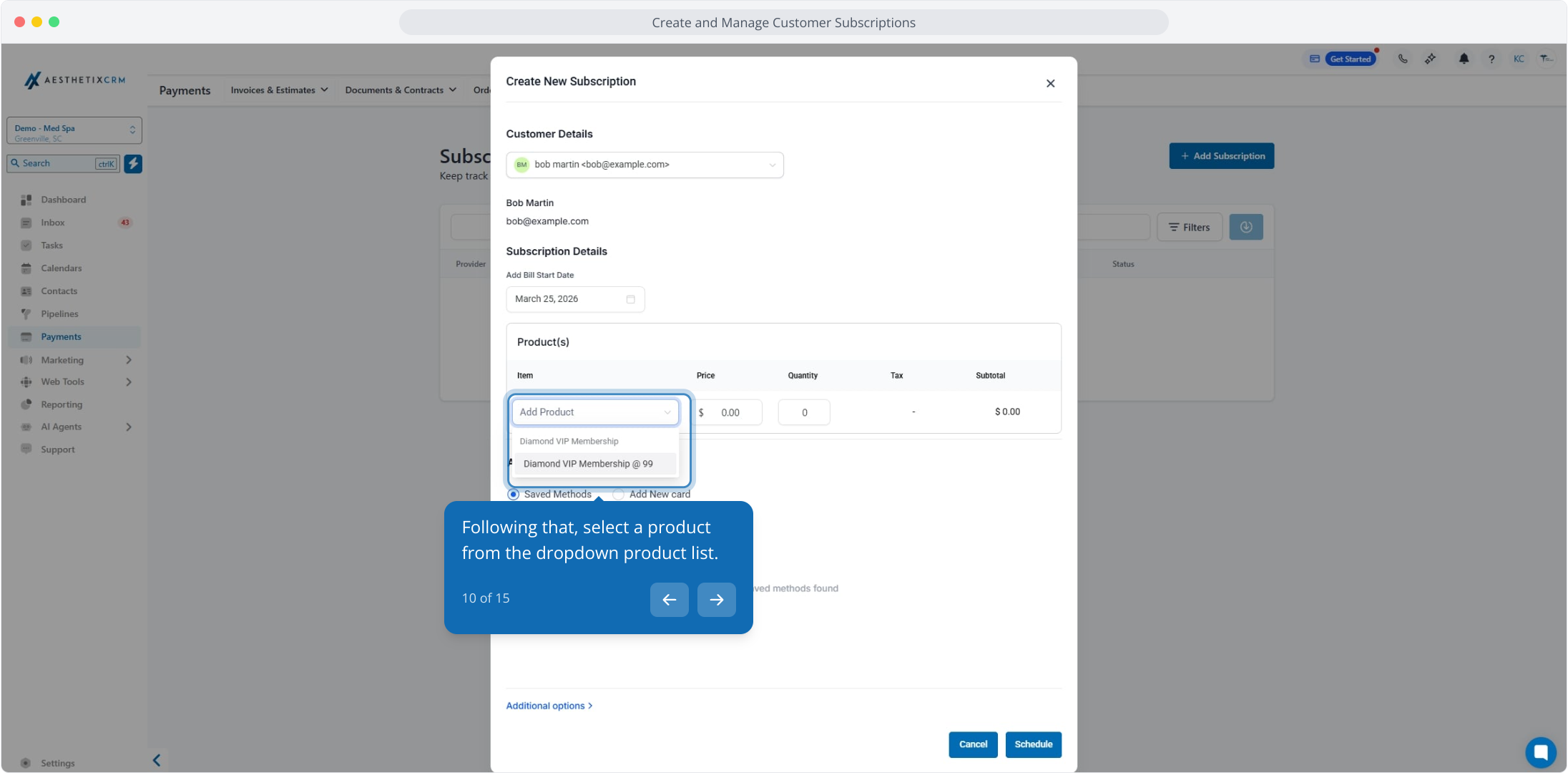
Select a product from the dropdown product list.
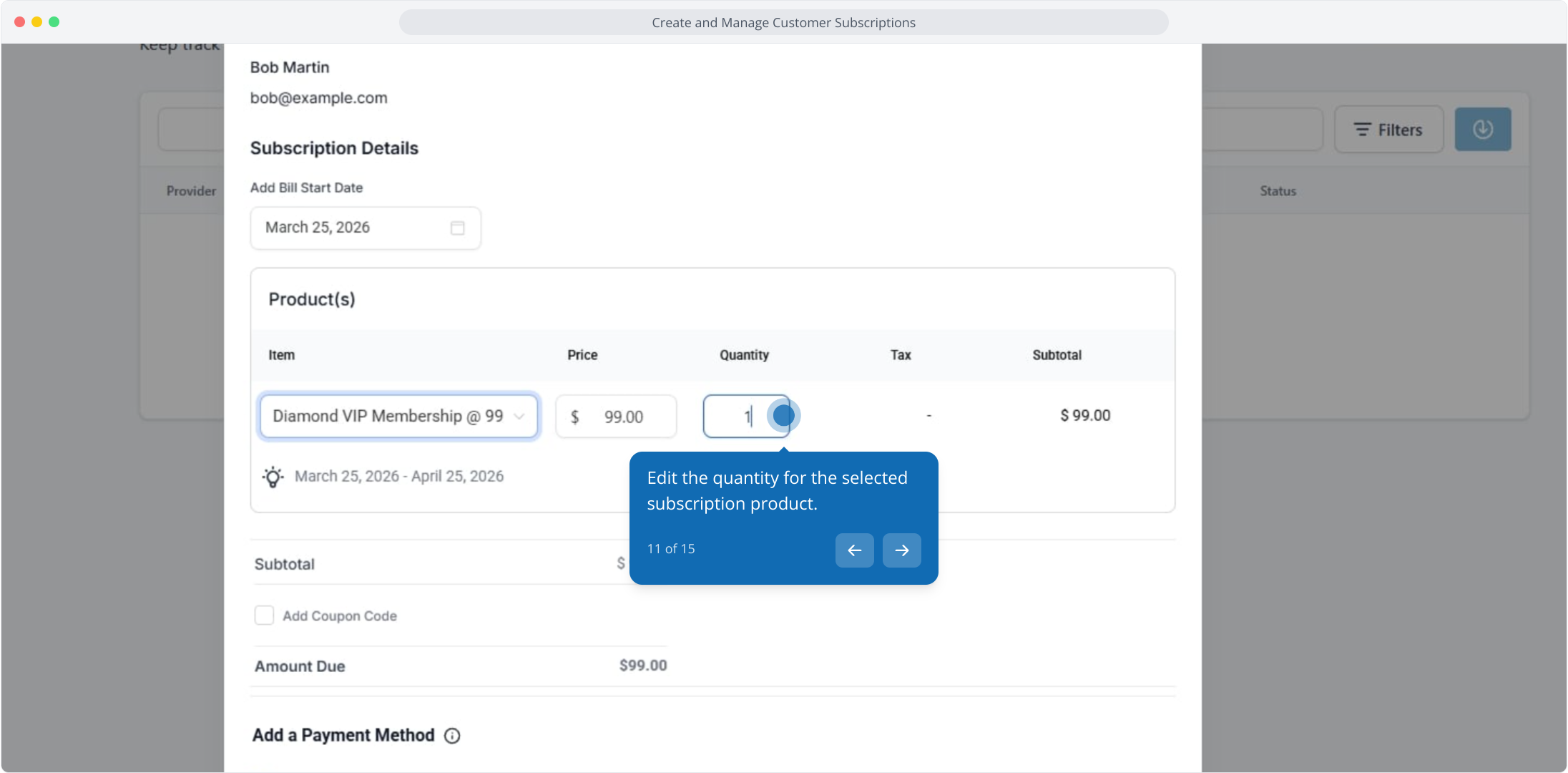
Edit the quantity for the selected product.
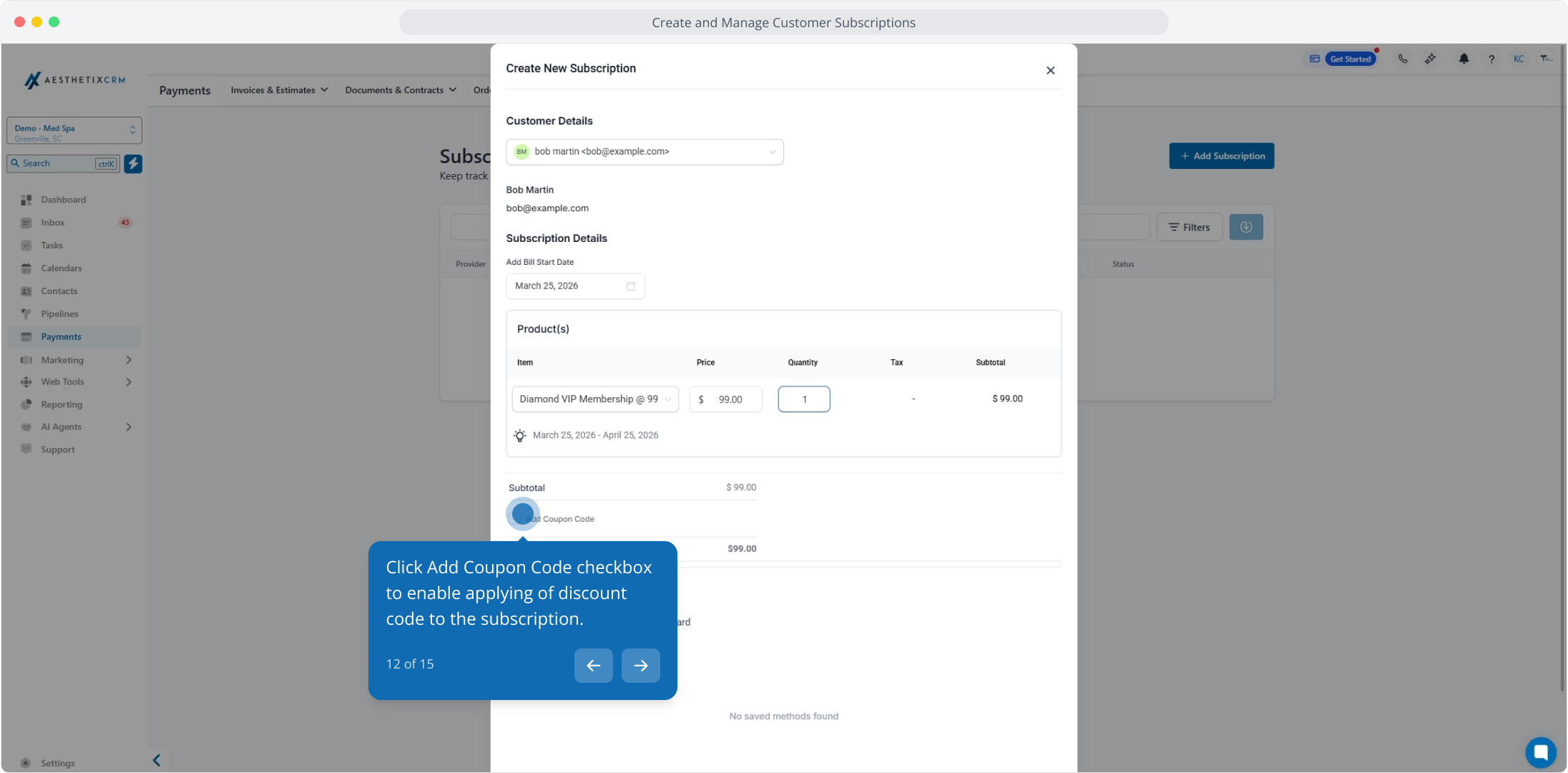
Click the Add Coupon Code checkbox to apply a discount code to the subscription.
Enter the coupon code, then click Apply.
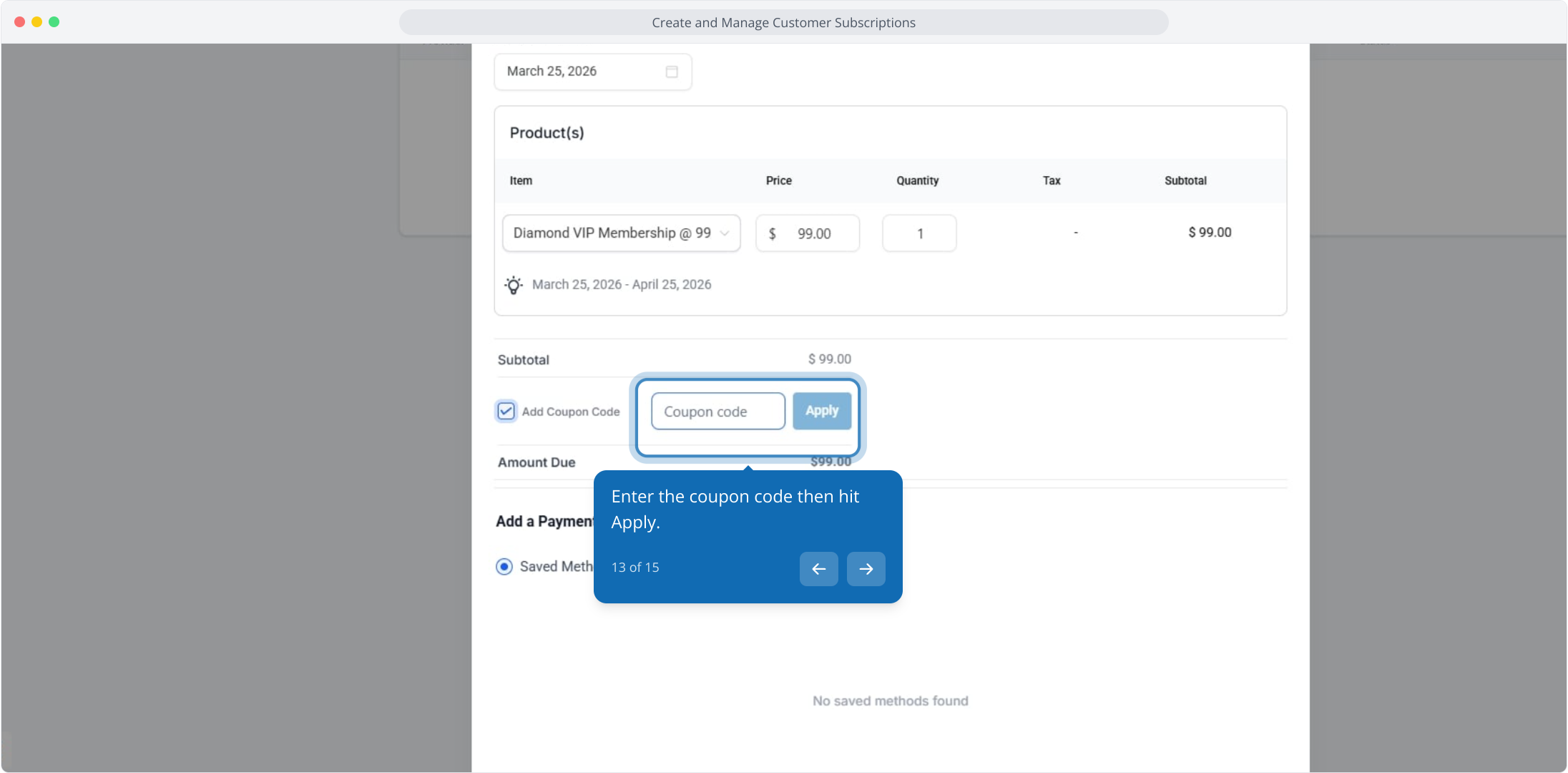
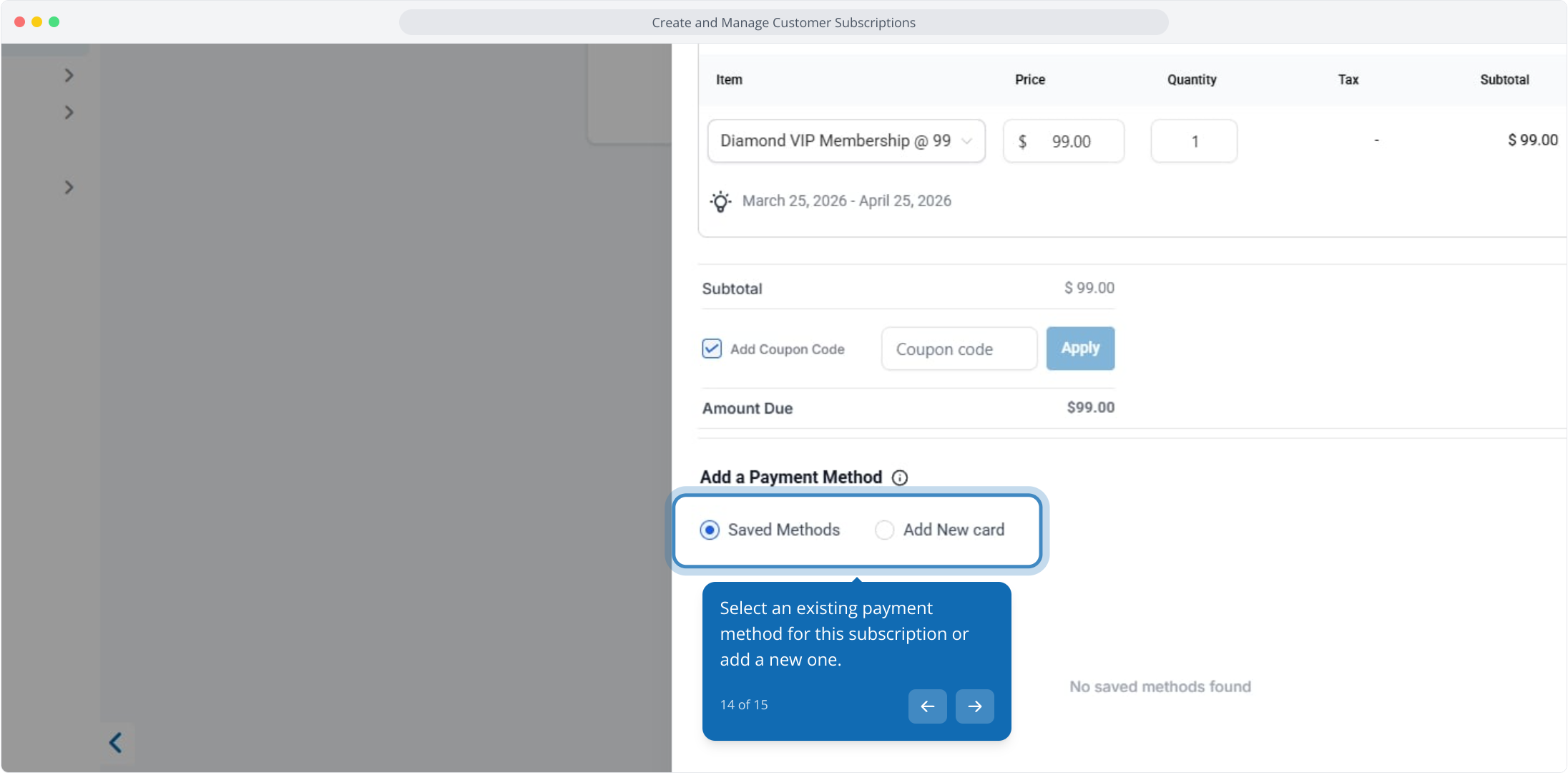
Select an existing payment method for this subscription or add a new one.
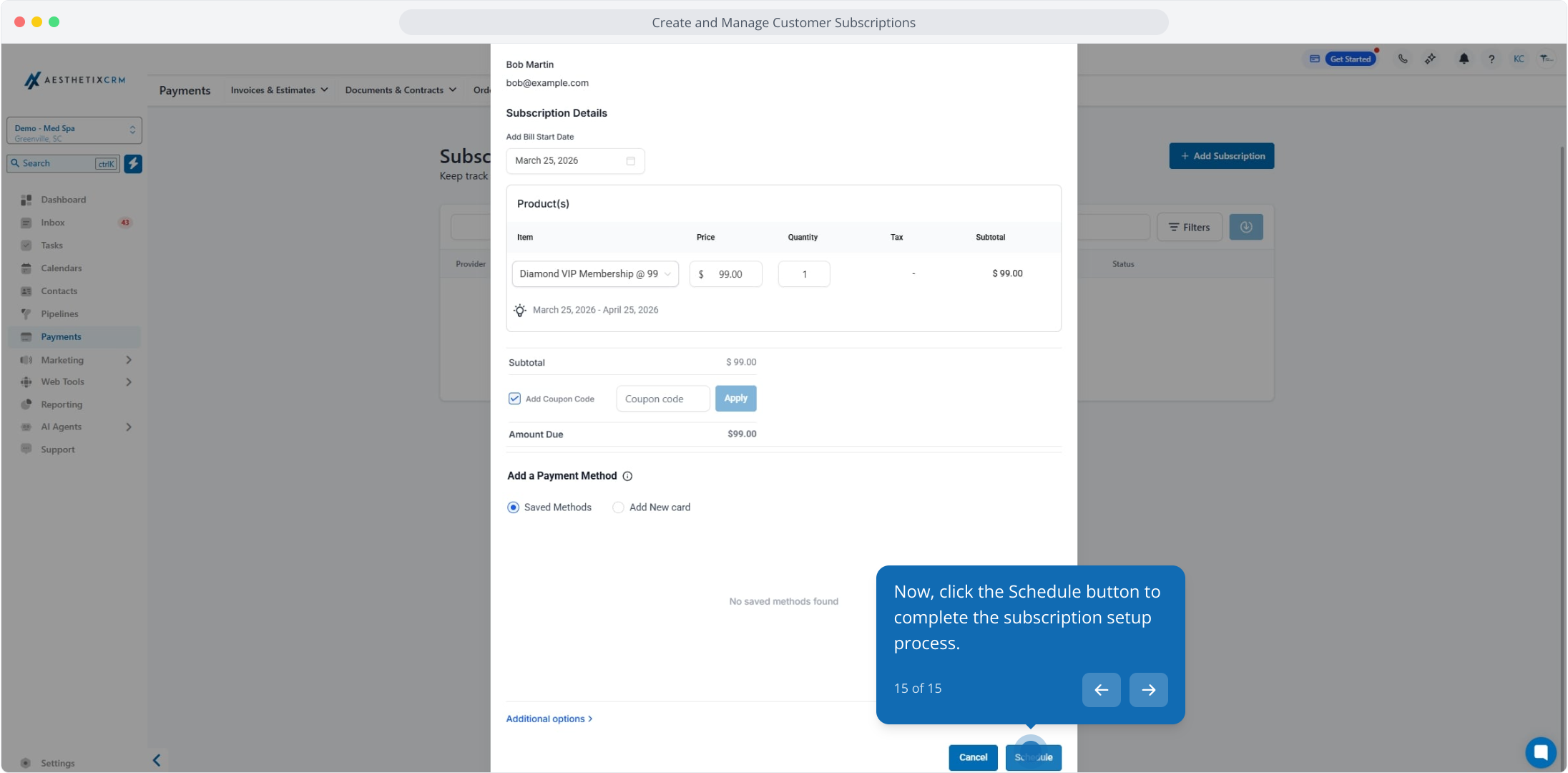
Click the Schedule button to complete the subscription setup.
The Subscriptions page gives you a centralized view of all recurring payments, whether they were created manually or through an order form. This lets you monitor active memberships, track patient payments, and understand the lifecycle of each subscription without reviewing every transaction by hand.
To open it, go to Payments, then click Subscriptions.
Subscriptions listed here can come from multiple sources, including order forms and manual subscription creation.
For each subscription, the list shows:
Payment provider and subscription ID (a unique ID the system assigns to help with tracking and troubleshooting)
Customer (patient) details
Source of subscription creation
Date of creation
Subscription amount
Current subscription status
Filters help you quickly find the subscriptions you need:
Search bar: Enter a patient's name to pull up their subscription.
Date filter: Narrow the list to a specific period.
Status filter: Sort by Trial, Active, Overdue, Unpaid, Canceled, or Failed.
Payment mode: Switch between Live Mode (real subscriptions from an active, payment-accepting checkout) and Test Mode (test subscriptions created during setup, which are not genuine).
Source type: Show subscriptions from All sources, only a Funnel, or only a Website.
If your Payments permissions allow it, use the download/export option on the Subscriptions page to download your current subscription list as a CSV file. Exports reflect the latest available subscription data, including any updated products or quantities from a modification.
Opening a subscription reveals more detail:
Payment provider information and the source of subscription creation
Transaction history, including subsequent renewal charges for supported providers such as Stripe
Optional metadata fields captured during checkout (for example, a company name)
The Subscriptions page focuses only on subscription sources. It does not include:
Recurring templates created in the Invoices section
Subscriptions created inside the Memberships section
Statuses indicate the current state of a patient's recurring payment. They are grouped to simplify tracking across different payment providers.
Status | Meaning |
|---|---|
Trial | Subscription is in a trial period |
Active | Subscription is active and billing normally |
Canceled | Subscription has been canceled |
Suspended | Subscription is temporarily paused |
Failed | Initial payment attempt failed |
Incomplete | Setup started but not completed |
Unpaid | Payment is due but not completed |
Expired | Subscription has ended |
Stripe: The subscription status and payments received stay in sync with your Stripe dashboard. If you cancel the subscription in Stripe, it shows as Canceled in your subscriptions list, and upcoming payments stay in sync as well.
PayPal: The status will not stay in sync, and subscription details will not currently capture upcoming payments. A subscription entry is still created so you can track subscriptions that came through PayPal.
For reference, here is how each provider's native subscription state maps to the status shown in your subscriptions list:
Status Shown | Stripe State | PayPal State |
|---|---|---|
Trial | trialing | N/A |
Active | active | active |
Canceled | canceled | canceled |
Suspended | N/A | suspended |
Failed | incomplete_expired | N/A |
Incomplete | incomplete, past_due | approval pending, approved |
Unpaid | unpaid | N/A |
Expired | N/A | expired |
If a subscription fails during the very first payment attempt (for example, when a patient submits an order form), the subscription will not appear in the subscriptions list. The patient's contact record is still created, so you can follow up manually.
You can update products, quantities, or start and end dates without canceling and recreating a subscription. This keeps billing dates consistent while adapting to a patient's changing needs (for example, adding a second membership product or adjusting quantity).
Add products, as long as they share the same billing frequency and currency
Remove products so they no longer bill in future cycles
Adjust the quantity of any product (between 1 and 1000)
Change the start date if the subscription is scheduled but not yet active
Update the end date for active subscriptions
Preview all changes and updated totals before saving
Access to Payments → Subscriptions
A subscription in Scheduled, Trialing, or Active status
A supported payment provider: Stripe, Square, NMI, or Authorize.net
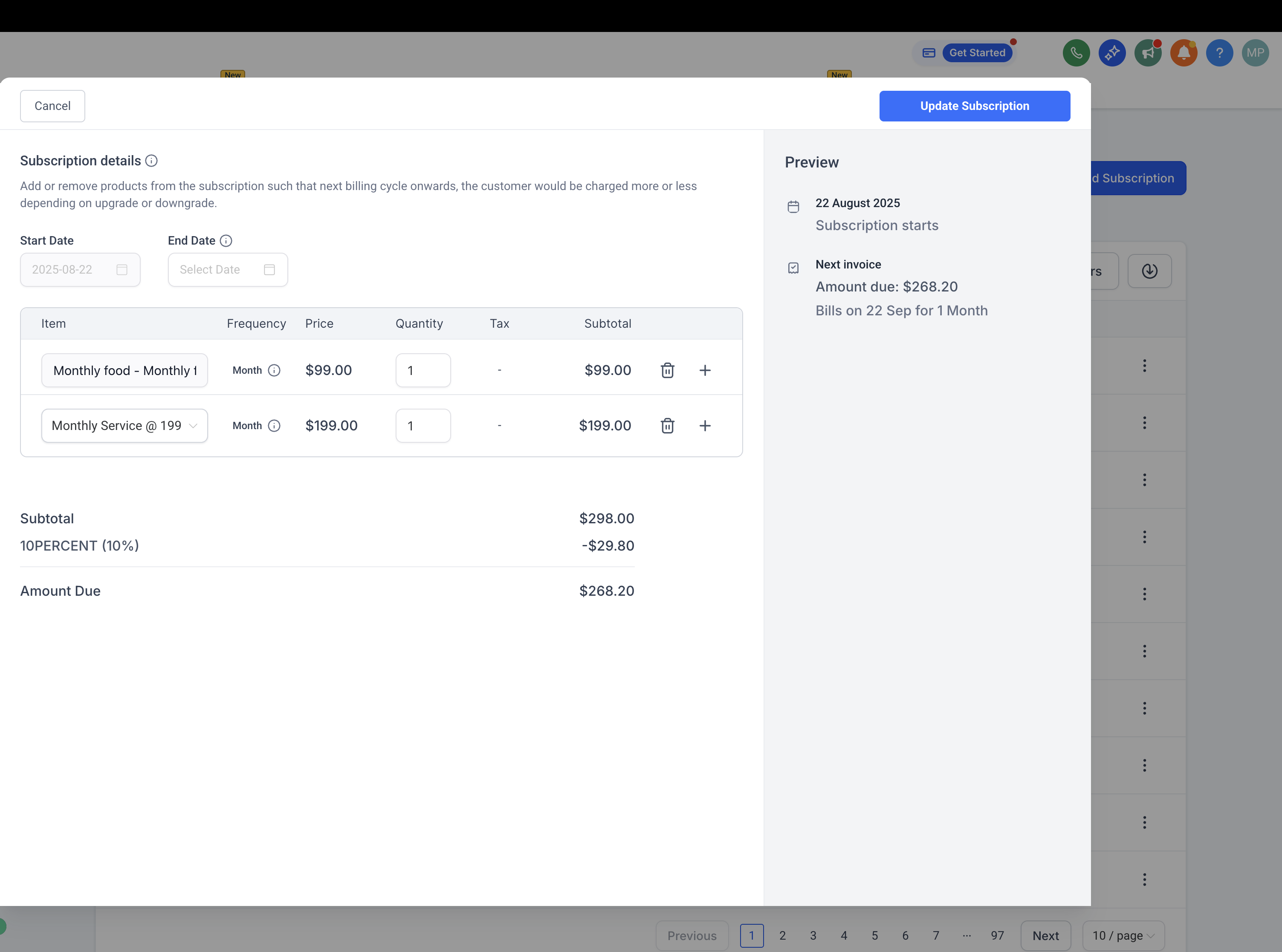
Go to Payments → Subscriptions.
Select the subscription to modify.
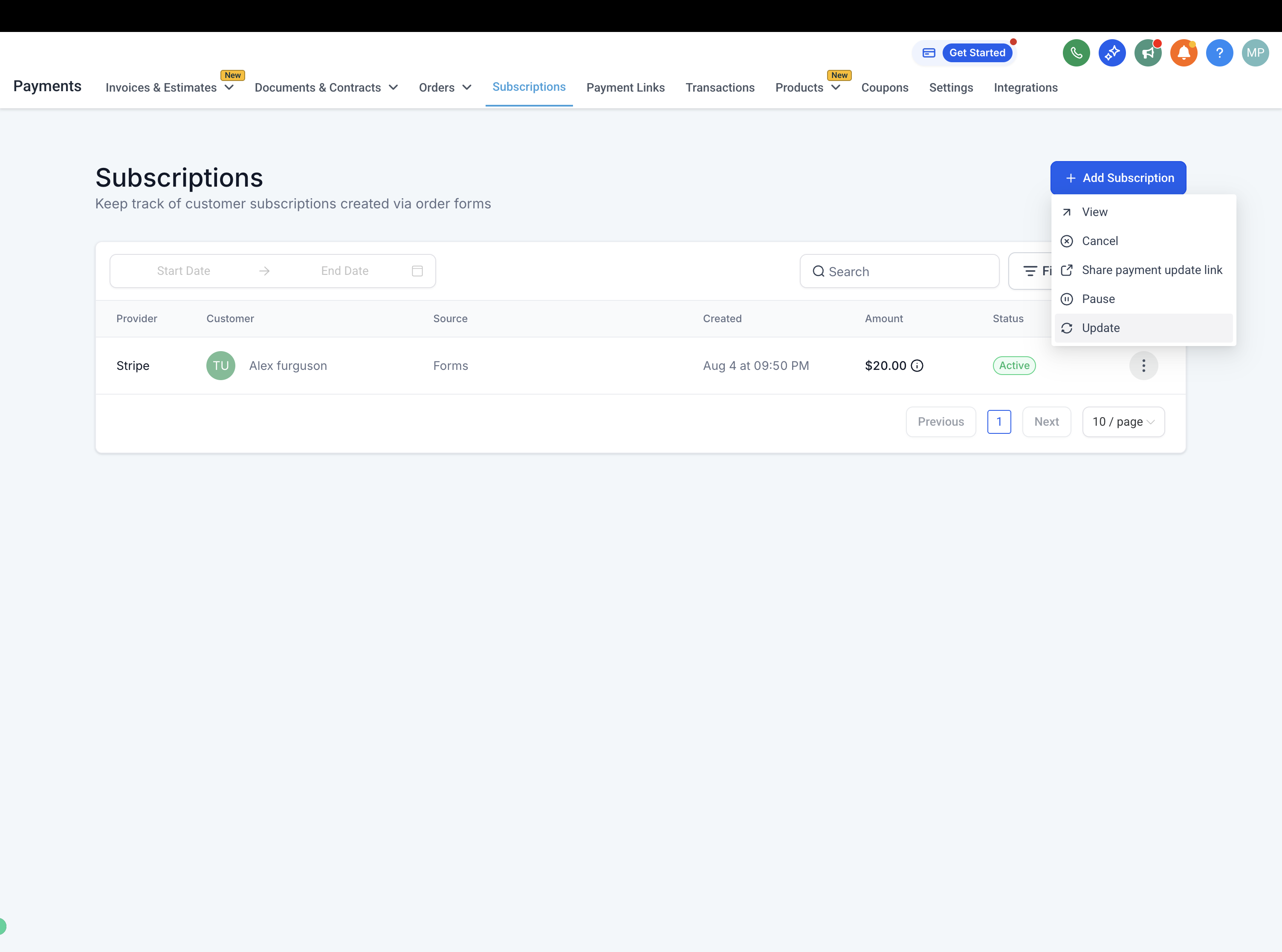
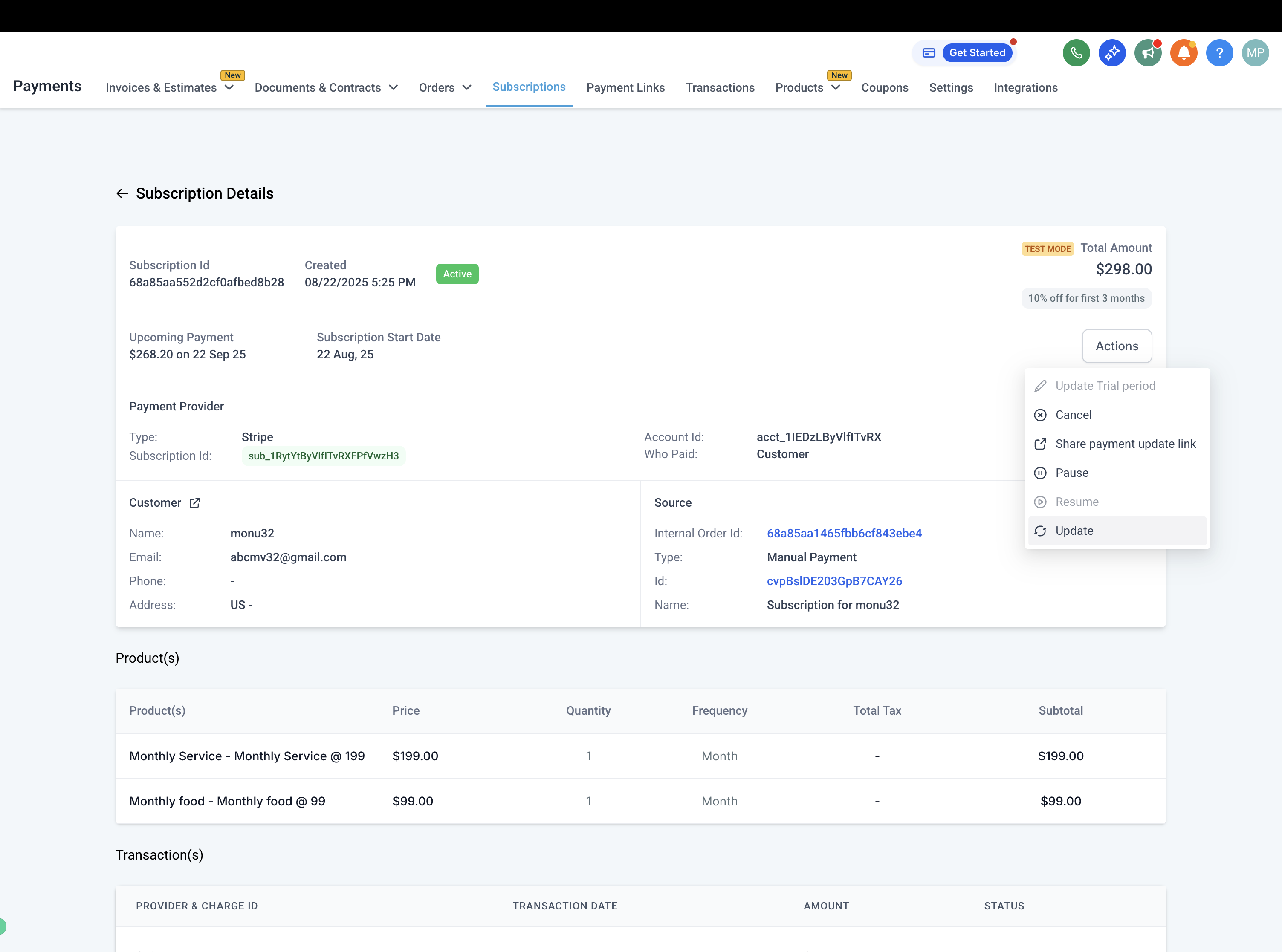
Open the menu and click Update. You can also open the Subscription Details page and choose Update under Actions.
To add a product, click the + button. Available products match the billing frequency of the subscription.
To remove a product, use the delete icon next to the product name.
To update quantities, adjust the number in the Quantity field.
To edit dates, set the Start Date (for Scheduled subscriptions) or update the End Date (for Active subscriptions).
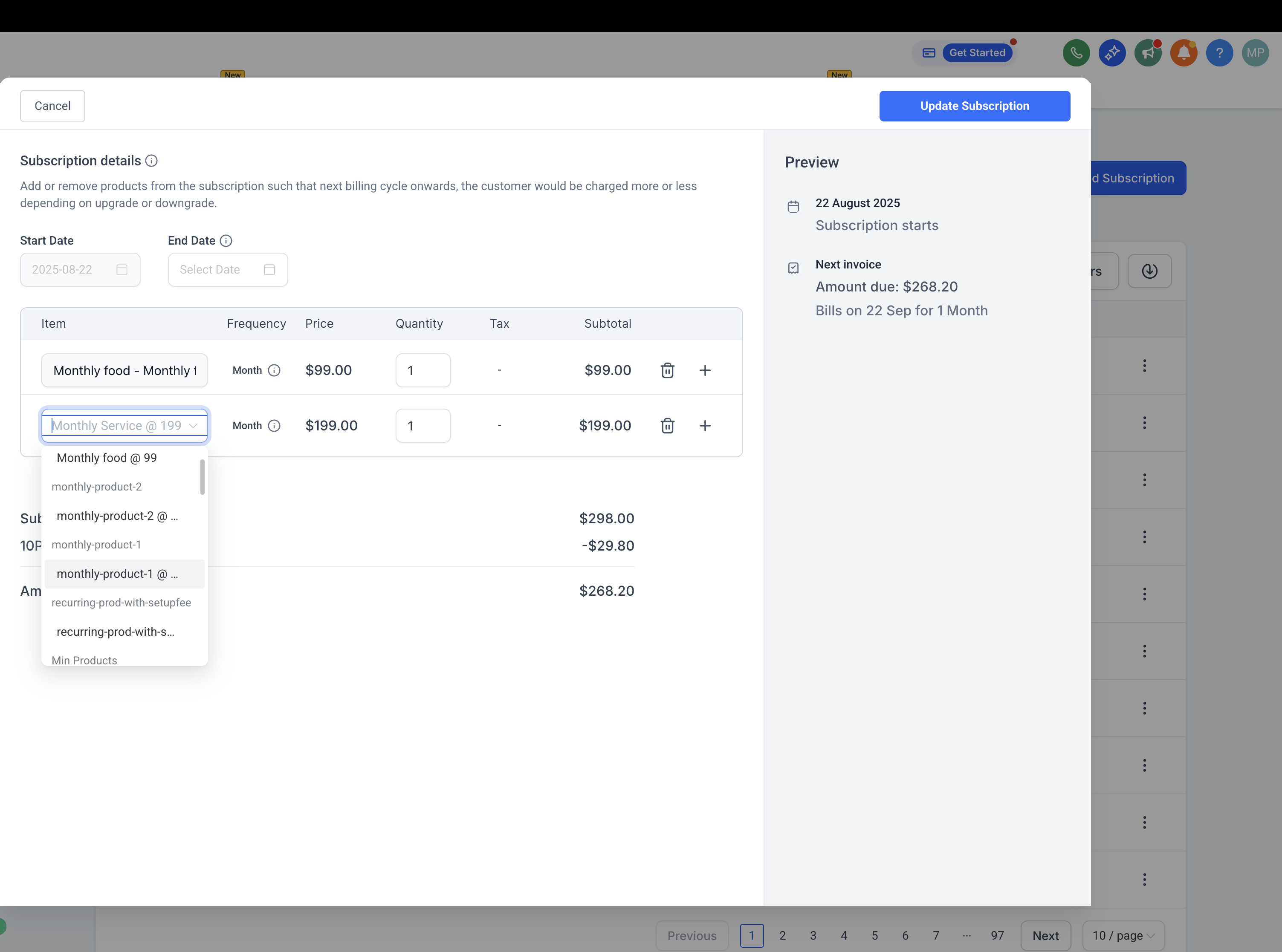
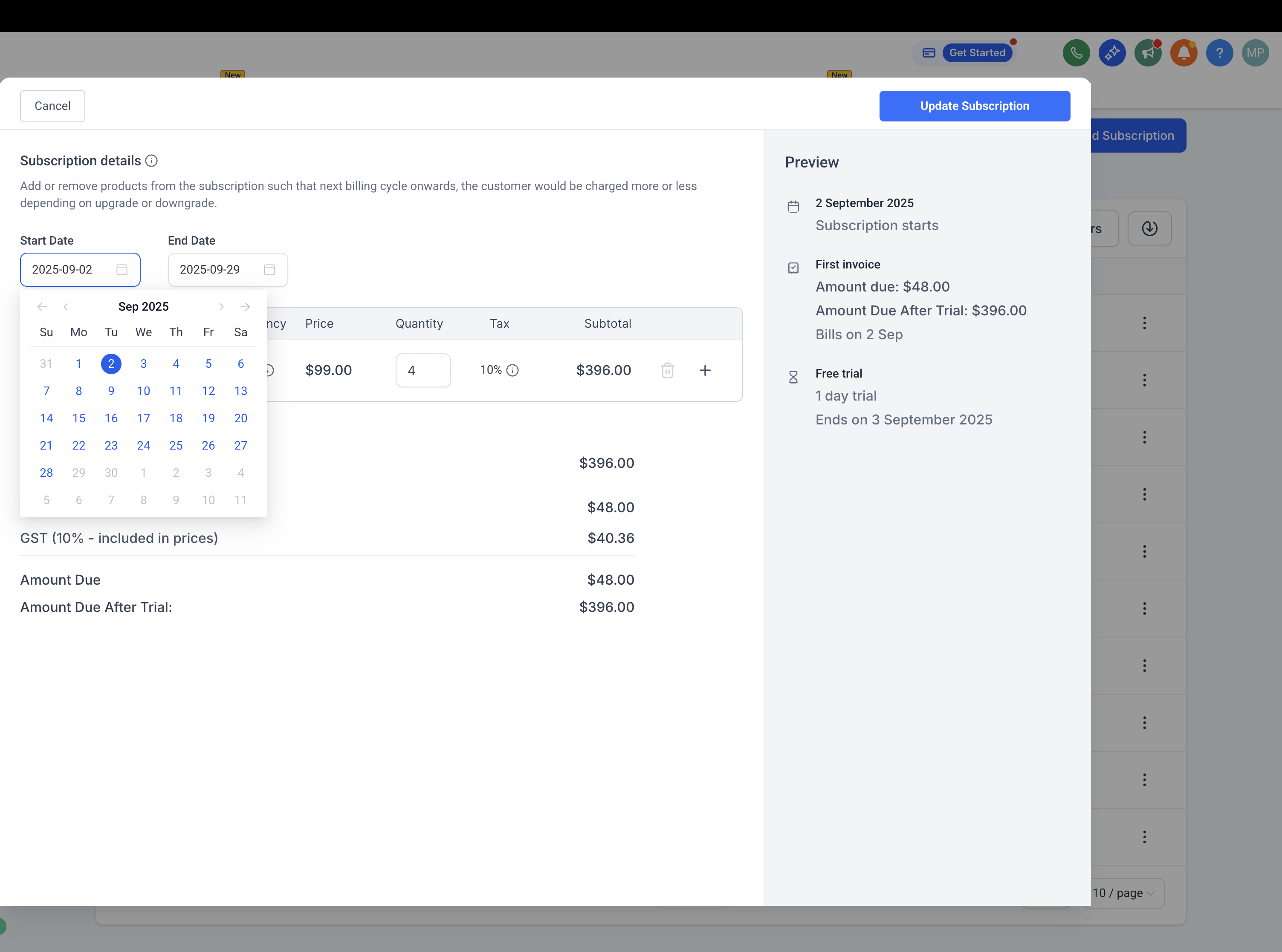
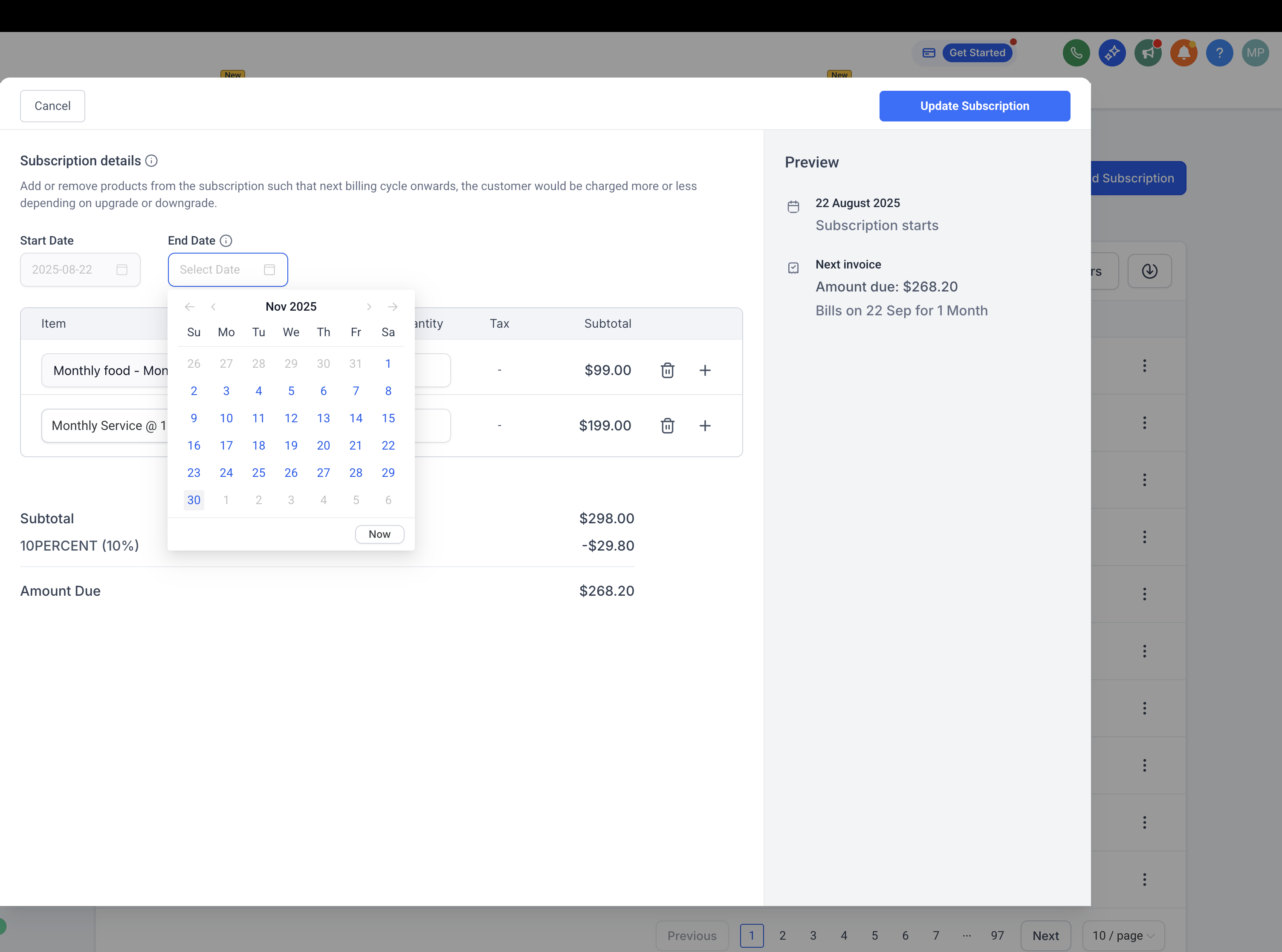
A preview displays the updated products, quantities, dates, and new totals.
Confirm the changes to update the subscription.
The new settings apply from the next billing cycle onward. Charge proration is not currently available, so the new total applies on the next charge date.
To update the card on file for a subscription, send the patient a secure payment update link:
Go to Payments → Subscriptions.
Find and select the patient's subscription.
Click the three dots (⋮) on the right.
Select Share Payment Update Link.
Send the link by copying and sharing it, or use the Email option to send it directly.
The patient can use the secure link to update their card details themselves.
Pausing lets a patient temporarily hold a subscription without canceling it, so they keep their history and can resume where they left off. This is helpful when a member travels or wants to skip a month.
Go to Payments → Subscriptions.
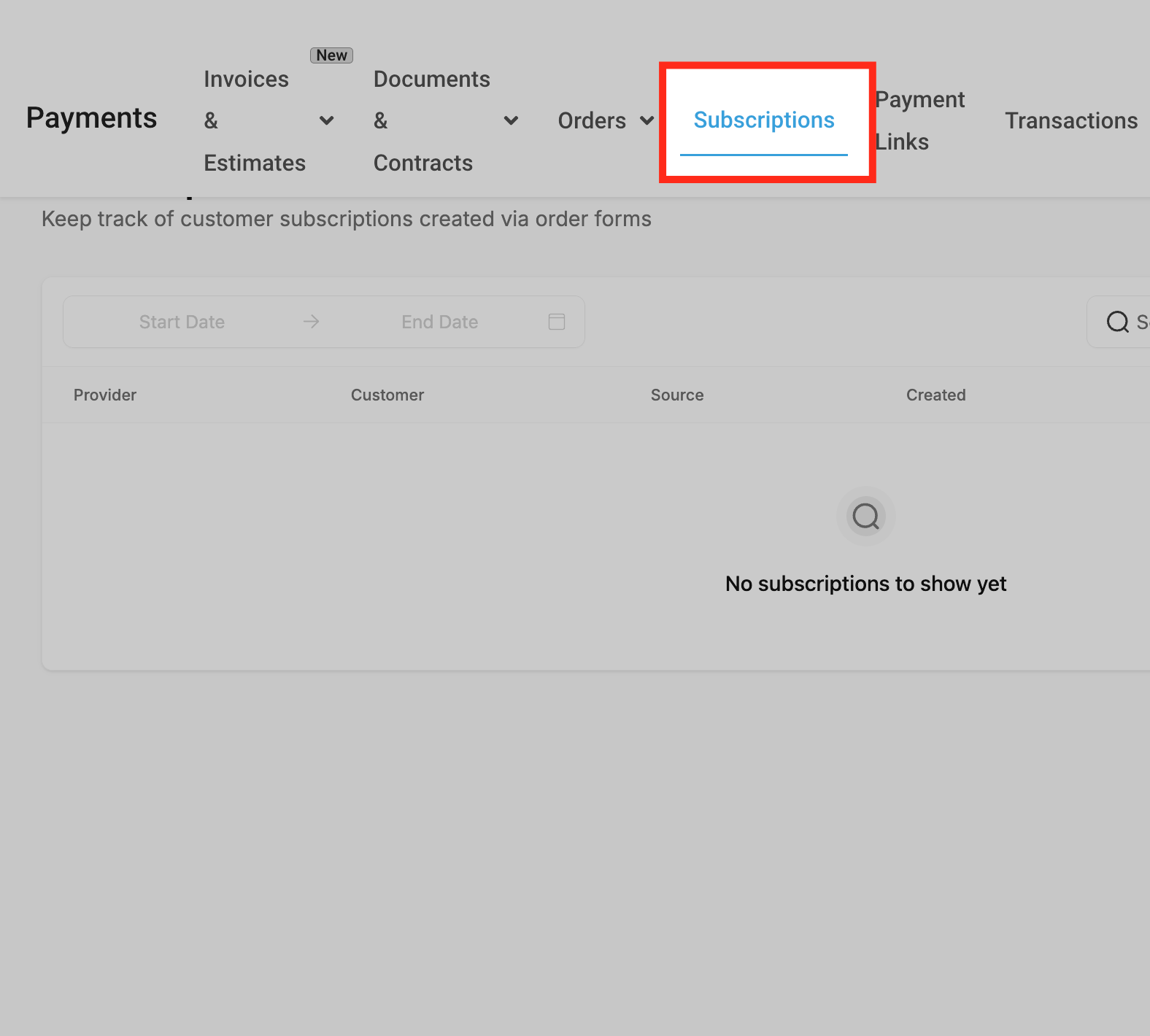
Hover over the subscription you want to pause or resume, then click the three dots menu.
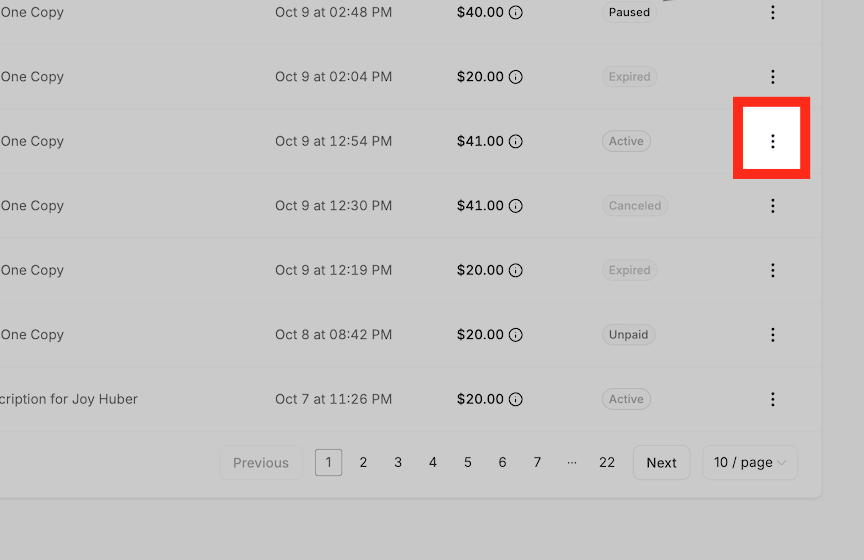
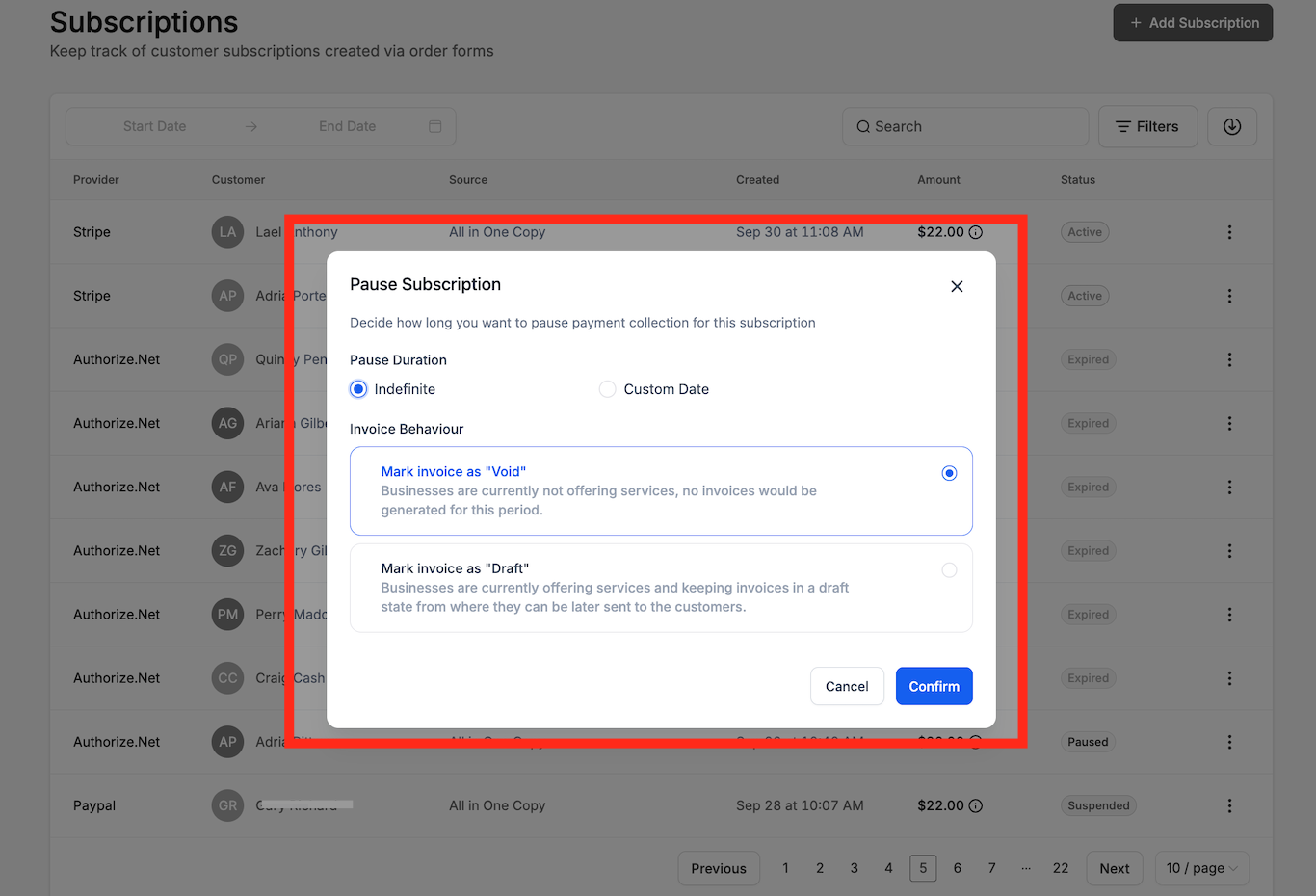
Choose one of two pause methods:
Indefinite: Keep the subscription paused with no time limit. Resume manually whenever you are ready.
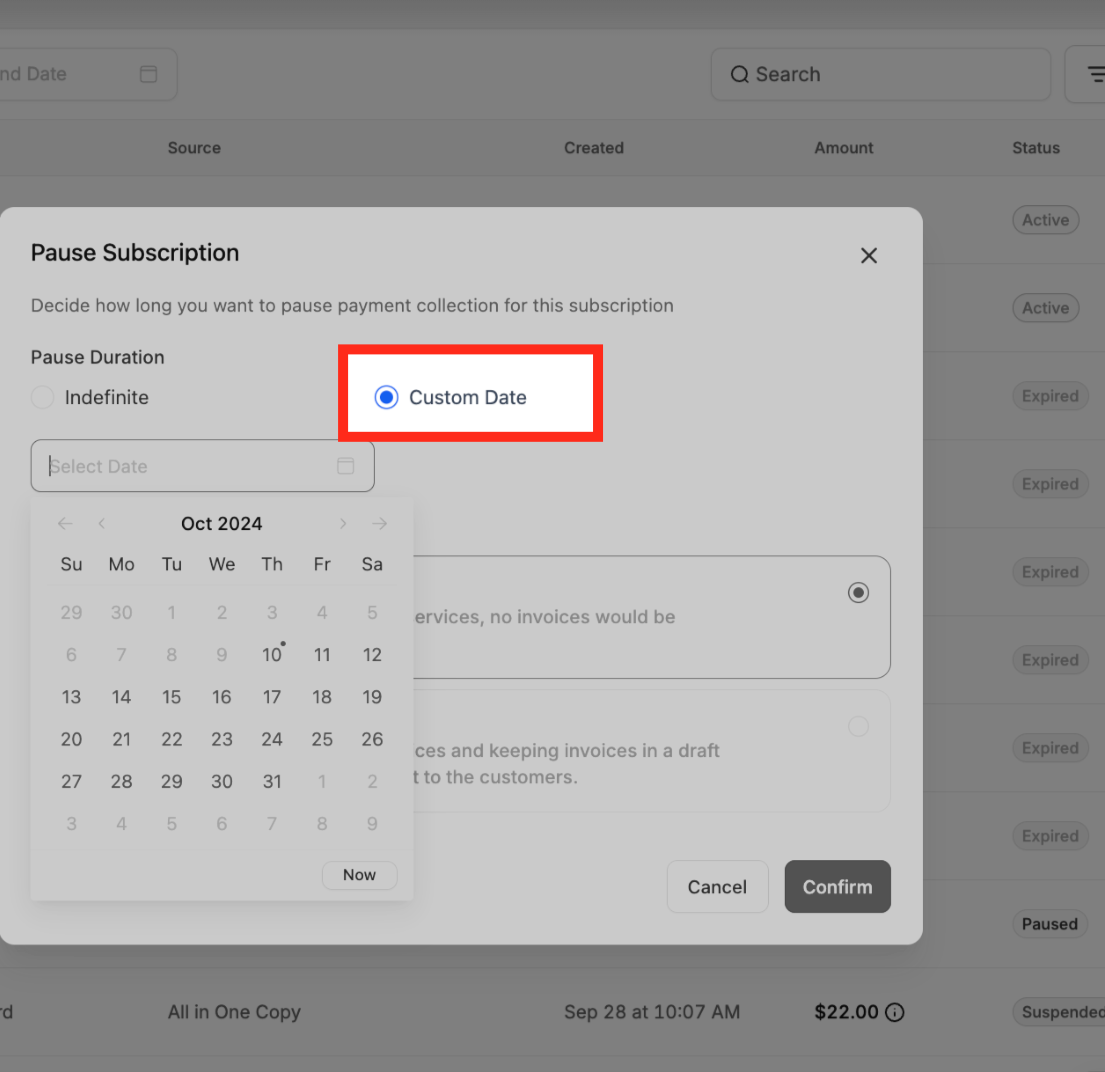
Custom Date: Choose a specific date to resume automatically, which is useful when you know how long the pause should last. You can still resume manually before that date.
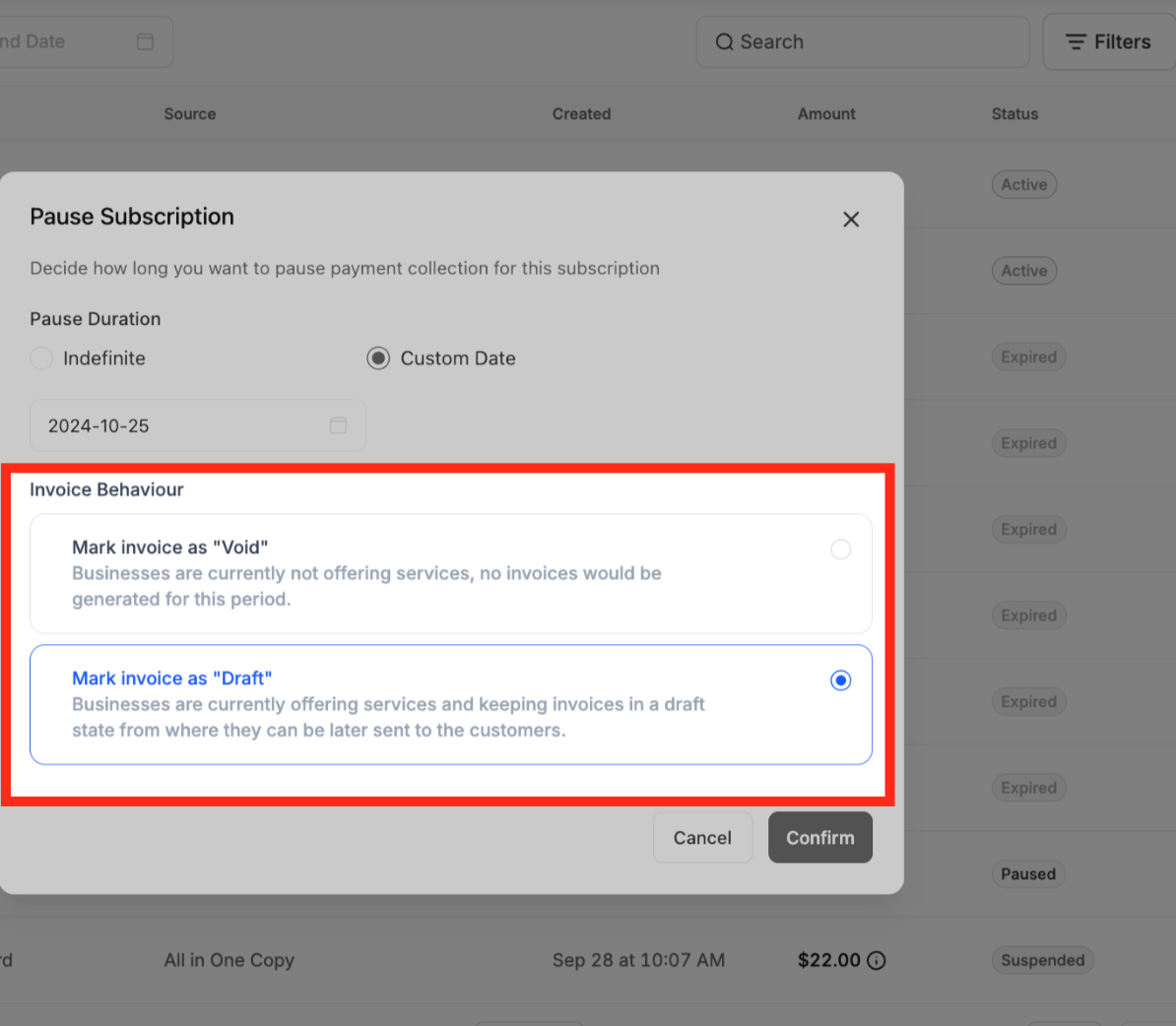
Invoice behavior during a pause: On each payment due date while paused, an invoice is generated. You can choose how these are handled:
Mark as void: Stops generating invoices for that period.
Draft: Keeps invoices in draft so they can be sent to the patient later.
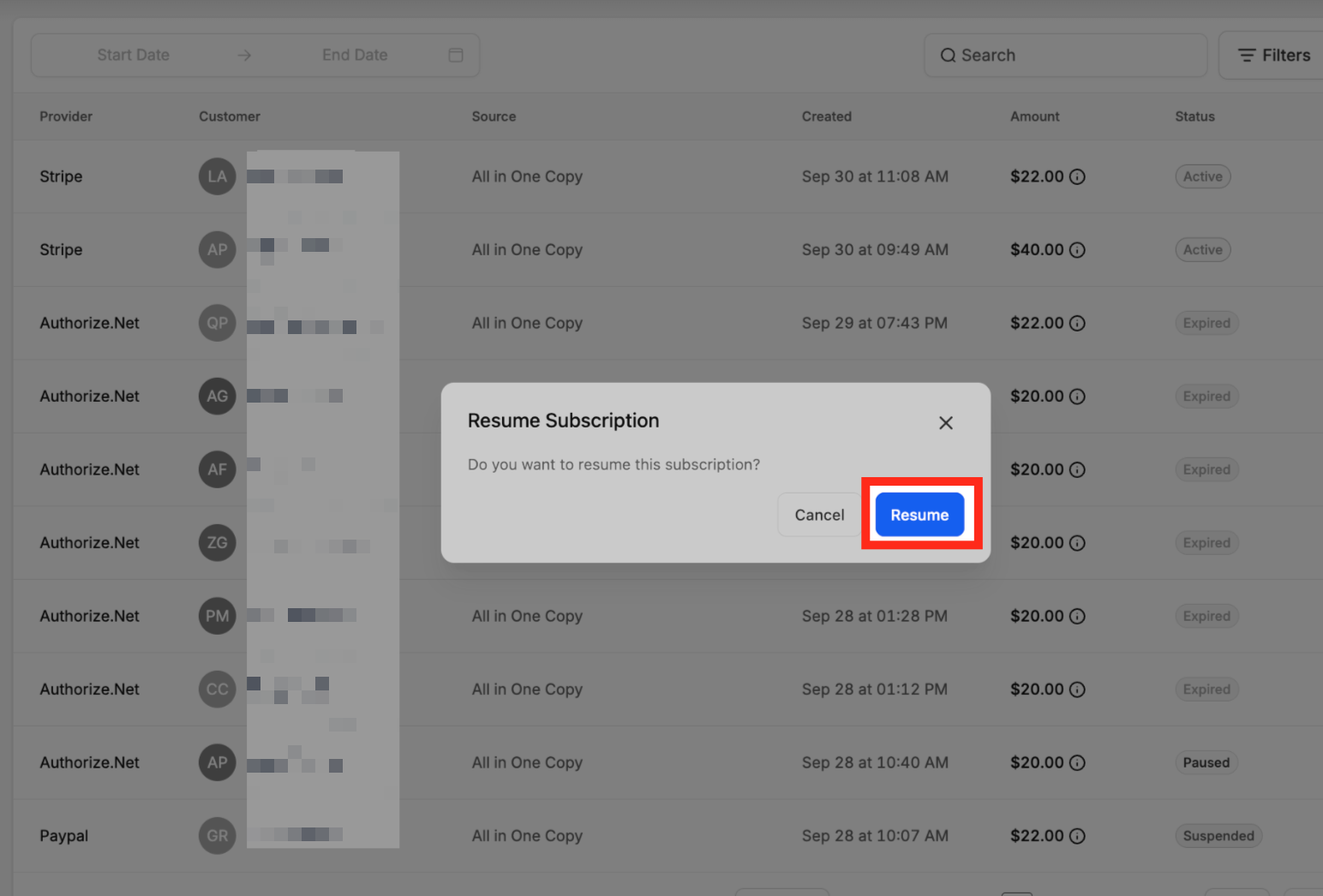
To resume a paused subscription, open the three dots menu and click Resume. Confirm in the popup, and the subscription moves from Paused back to active.
Can I create a subscription without an order form?
Yes. You can create one manually from Payments → Subscriptions by clicking Add Subscription and assigning it to a patient, as long as the selected payment provider supports it.
Does changing a product or quantity affect past transactions?
No. Past transactions remain unchanged. Updates only apply to future billing cycles.
What happens to the charge date when I make changes?
The charge date does not change. All updates take effect on the same billing schedule.
Can I add multiple products at once?
Yes, as long as they share the same billing frequency.
Can I modify a subscription that is Canceled, Overdue, or Unpaid?
No. Only Scheduled, Active, and Trialing subscriptions can be modified.
What happens if I add a product that has a trial period?
If you add it to an active subscription (or change quantities on one), the trial is skipped. If the subscription is still in a Trial state, the new product trials until the original trial date, and charges apply on the next billing cycle after the trial ends.
What happens to setup fees when I add a product mid-subscription?
A one-time setup fee for the new product applies on the next billing cycle. If you increase quantities of a product that has a setup fee, that fee is charged for the added quantities on the next cycle.
Where can I find a record of modifications?
All changes are logged on the Subscription Details page for reference and auditing.
Why can't I see a subscription after a failed payment?
Subscriptions are only created after a successful initial payment. Failed first attempts do not appear in the list, though the patient's contact record is still created.
Can I cancel or refund directly from the Subscriptions page?
Subscription actions like update, pause, resume, and cancel are available directly from the Subscriptions page when supported by your provider, status, and permissions. To refund an individual payment, go to Payments → Transactions and use the refund action on that transaction.
Why can I see a subscription but not update, pause, or cancel it?
Payments permissions can separately control who can view, update, pause or resume, and cancel subscriptions. The subscription's payment provider and current status can also limit which actions are available to you.
Can I export my subscription records?
Yes, if your Payments permissions allow it. Use the download/export option on the Subscriptions page to download your subscription list as a CSV file.
Management capabilities vary by provider. Some actions may still require handling through the original payment setup or provider dashboard.
