Aesthetix CRM connects to both Xero and QuickBooks so your billing activity stays aligned with your accounting system. Invoices you create in Aesthetix CRM flow into your accounting platform automatically, with contacts, line items, discounts, taxes, and status updates carried along, which reduces manual export and re-entry.
This guide covers how each integration works and how to set it up. You can connect one accounting platform per account.
The Xero integration uses a one-way sync model: contacts are imported from Xero into Aesthetix CRM for mapping, and invoices created in Aesthetix CRM are synced out to Xero.
Contacts: Contacts are imported from Xero into Aesthetix CRM so your invoices map to the correct Xero contact. If no matching contact exists in Xero at the time of invoice sync, a new contact is created in Xero automatically.
Invoices: Any invoice created in Aesthetix CRM is created in Xero automatically, including line items, discounts, invoice totals, and status updates. Products and items are not created as standalone products in Xero; line items exist only within the synced invoice.
Taxes: If the mapped tax rate already exists in Xero, it is applied. If it does not exist, a new tax rate is created automatically in Xero during the sync. This keeps tax mapping accurate even with multi-component tax structures.
Currencies: The invoice currency is passed to Xero. If the currency does not exist in your Xero organization, it is added automatically. Your Xero plan must support multi-currency for this to work.
Invoice status: When an invoice status changes in Aesthetix CRM (for example, Sent, Partially Paid, or Void), the update syncs to Xero, keeping your accounting records aligned with your billing activity.
What does not sync (yet): Receipts do not sync at this time. Receipt syncing will be available in a future update.
Invoices link to the correct accounting contact through accurate contact mapping.
Invoices transfer automatically, with no manual export or import.
Payment and invoice status changes stay aligned in real time.
Tax mapping is precise, including multi-component tax rates.
Only accounts enabled for payments appear for selection, keeping your data organized.
Step 1: Navigate to Xero under Integrations. In the left navigation, click Settings → Integrations → Xero.
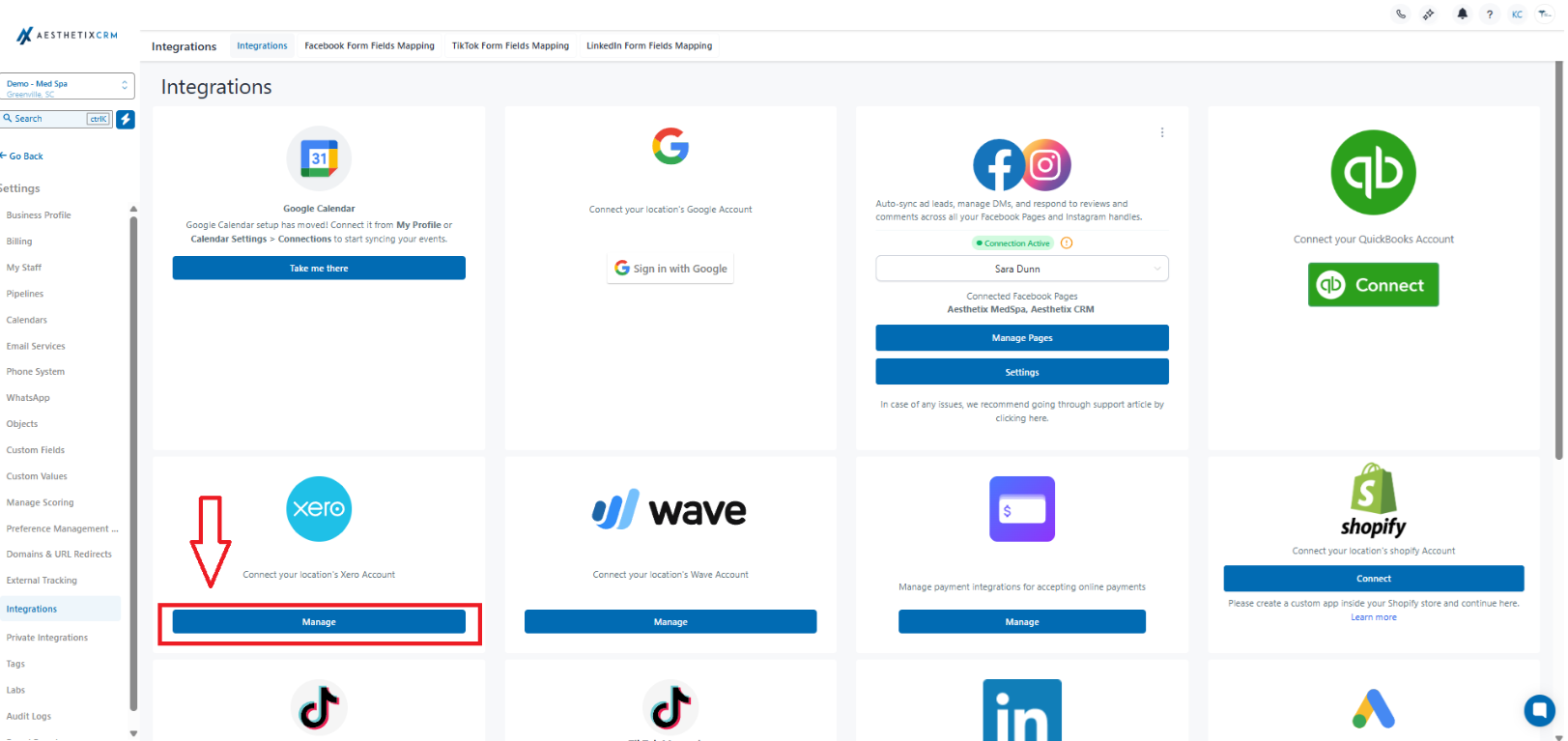
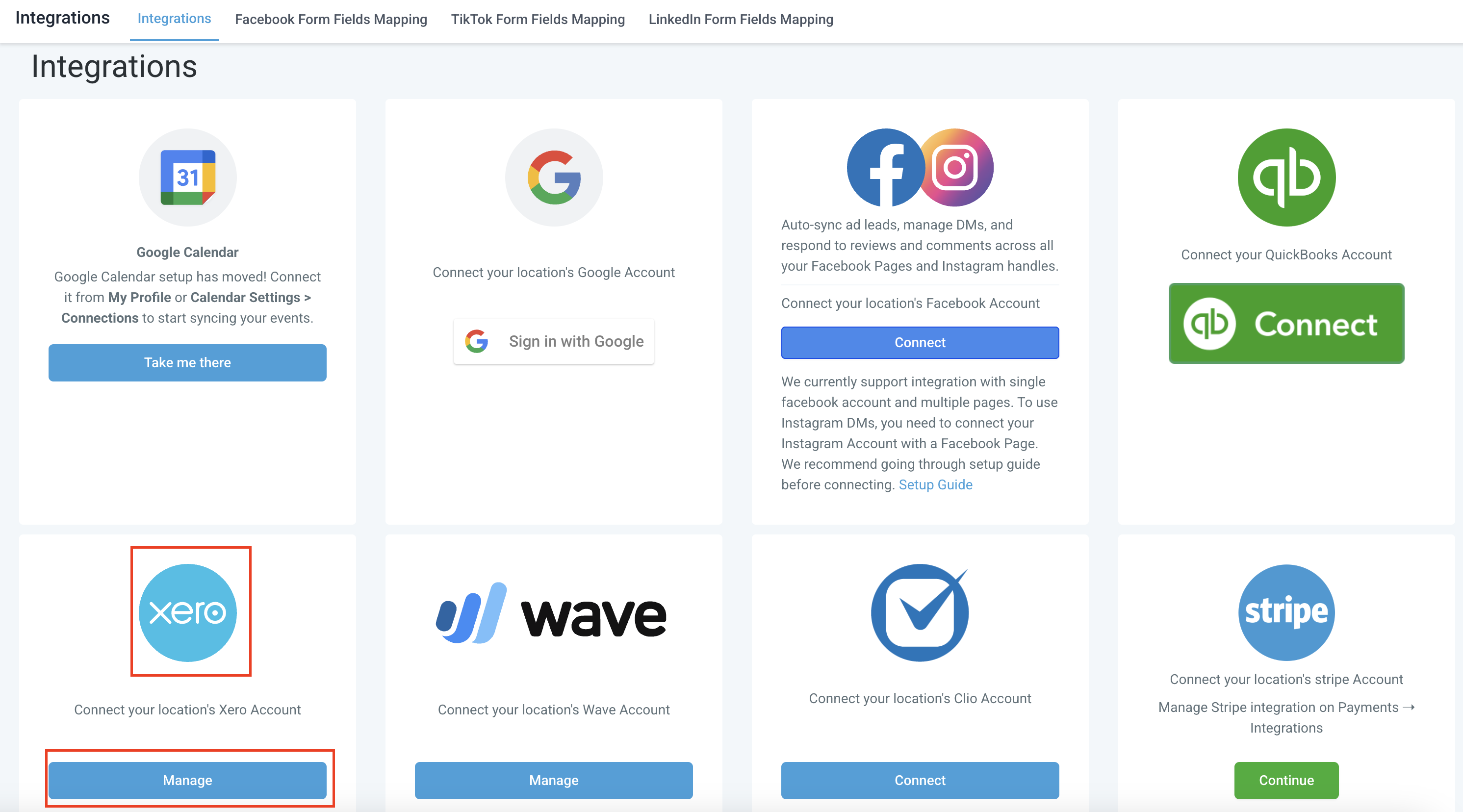
Step 2: Choose Xero. In the Integrations list, click the Xero tile, then select Connect. This opens a secure Xero window for authorization.
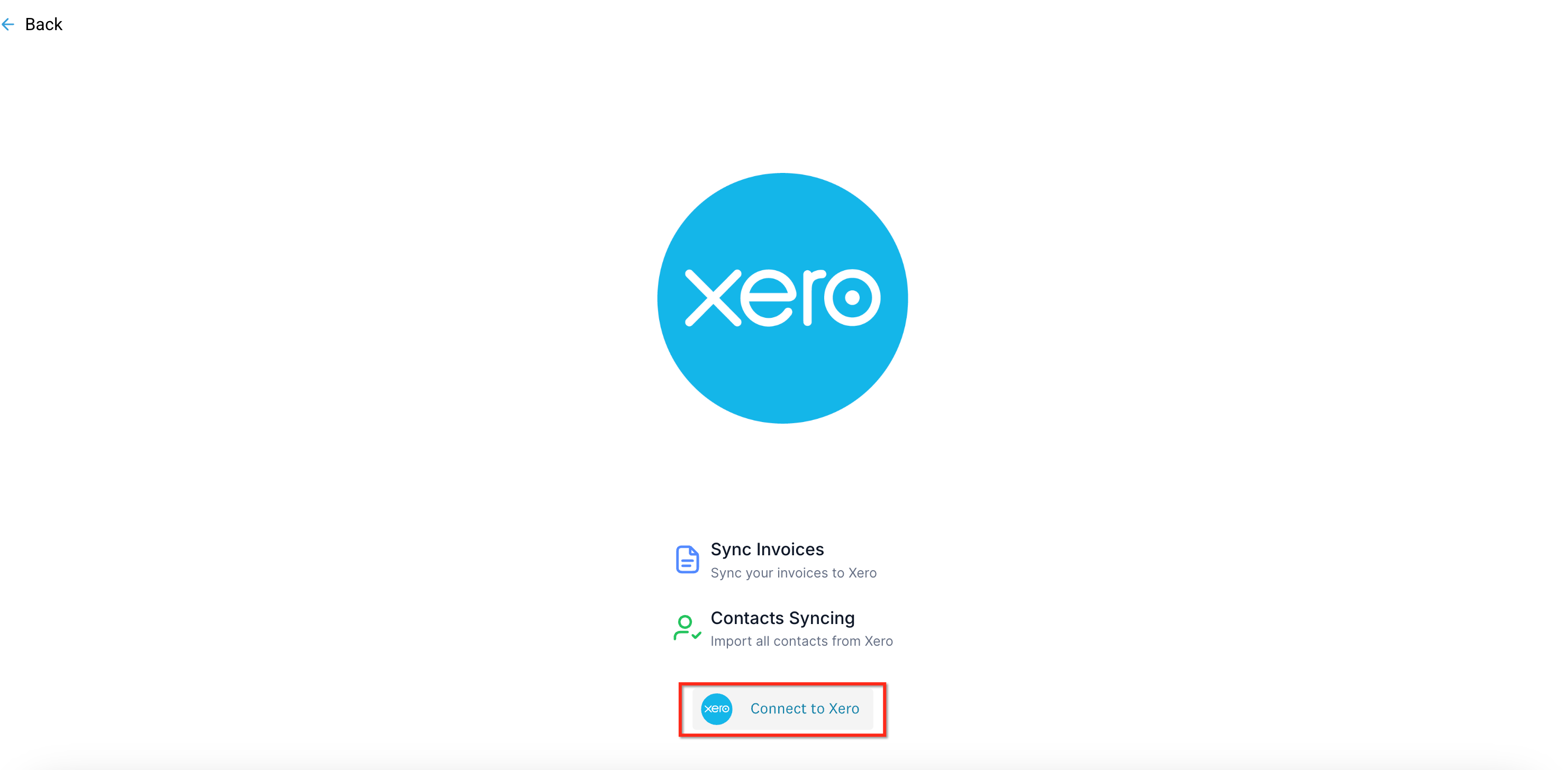
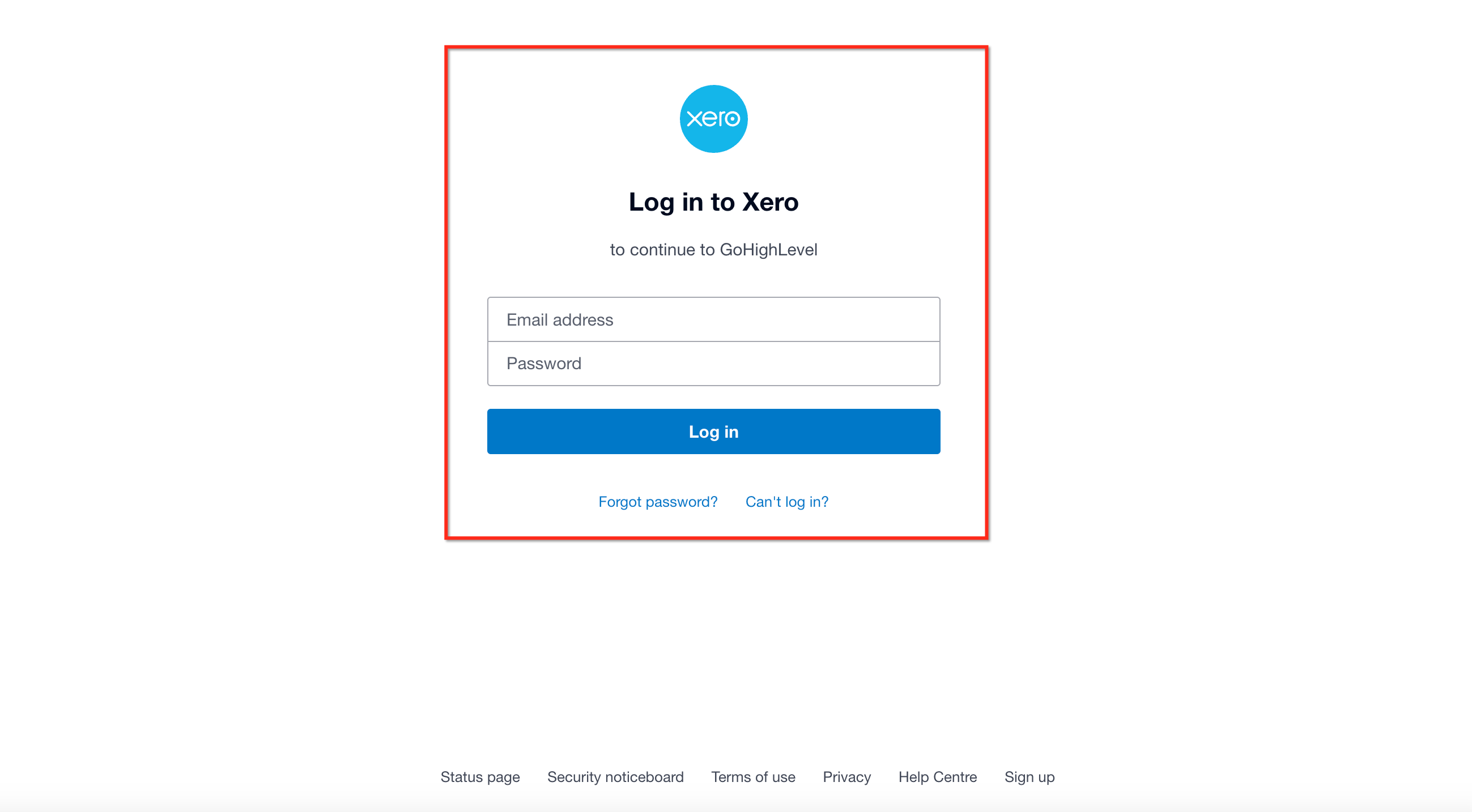
Step 3: Sign in and authorize. Sign in to Xero if prompted, select the Xero organization you want to connect, and click Allow access. Aesthetix CRM requests standard scopes to read contacts and settings and to create invoicing transactions.
Once connected, confirm the connection in Aesthetix CRM. You will see the connected organization name and connection status under Integrations → Xero.
Step 4: Choose a default account for invoices. In the Xero settings pane inside Aesthetix CRM, select the account and organization you want to use when posting invoices.
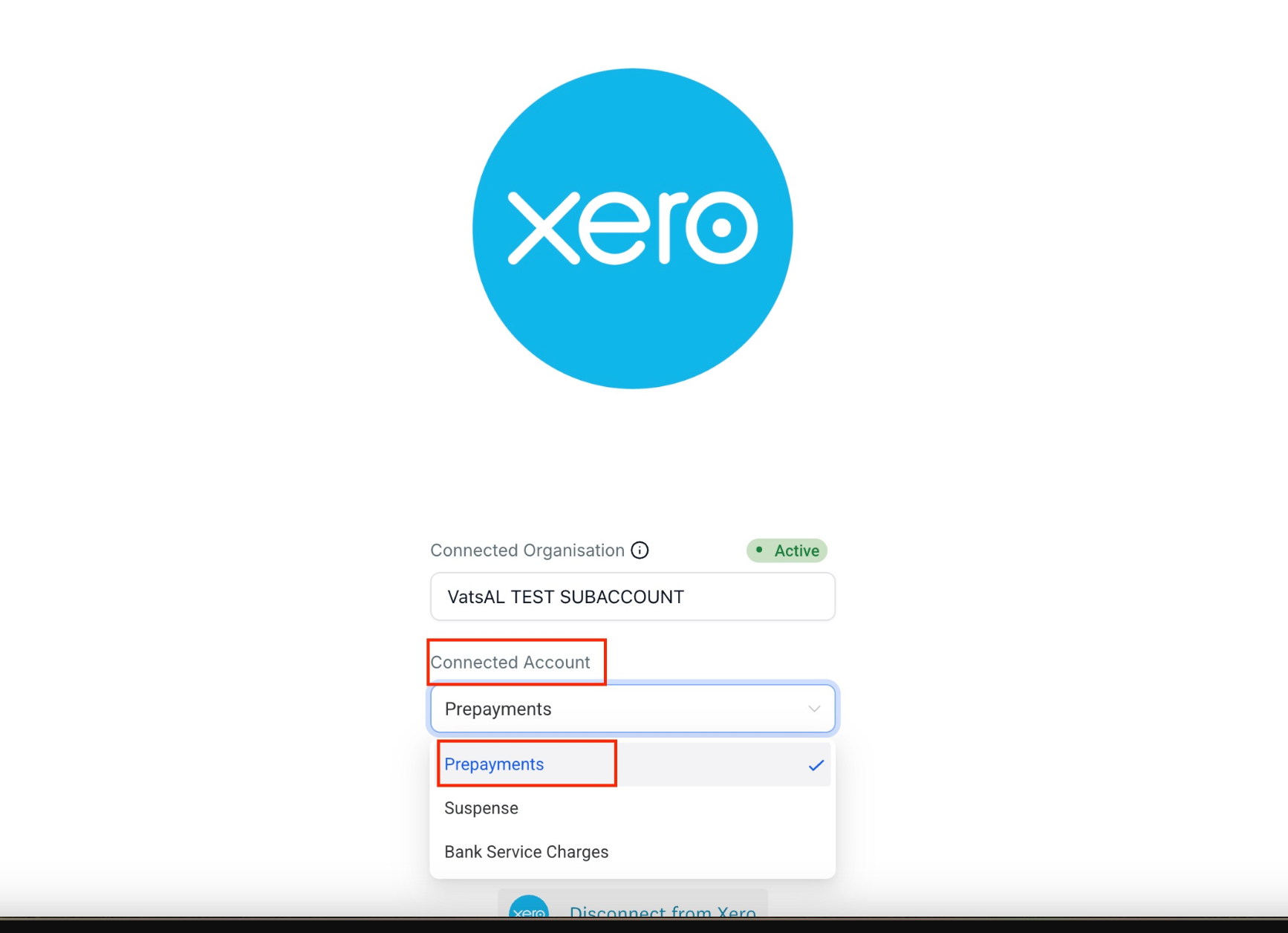
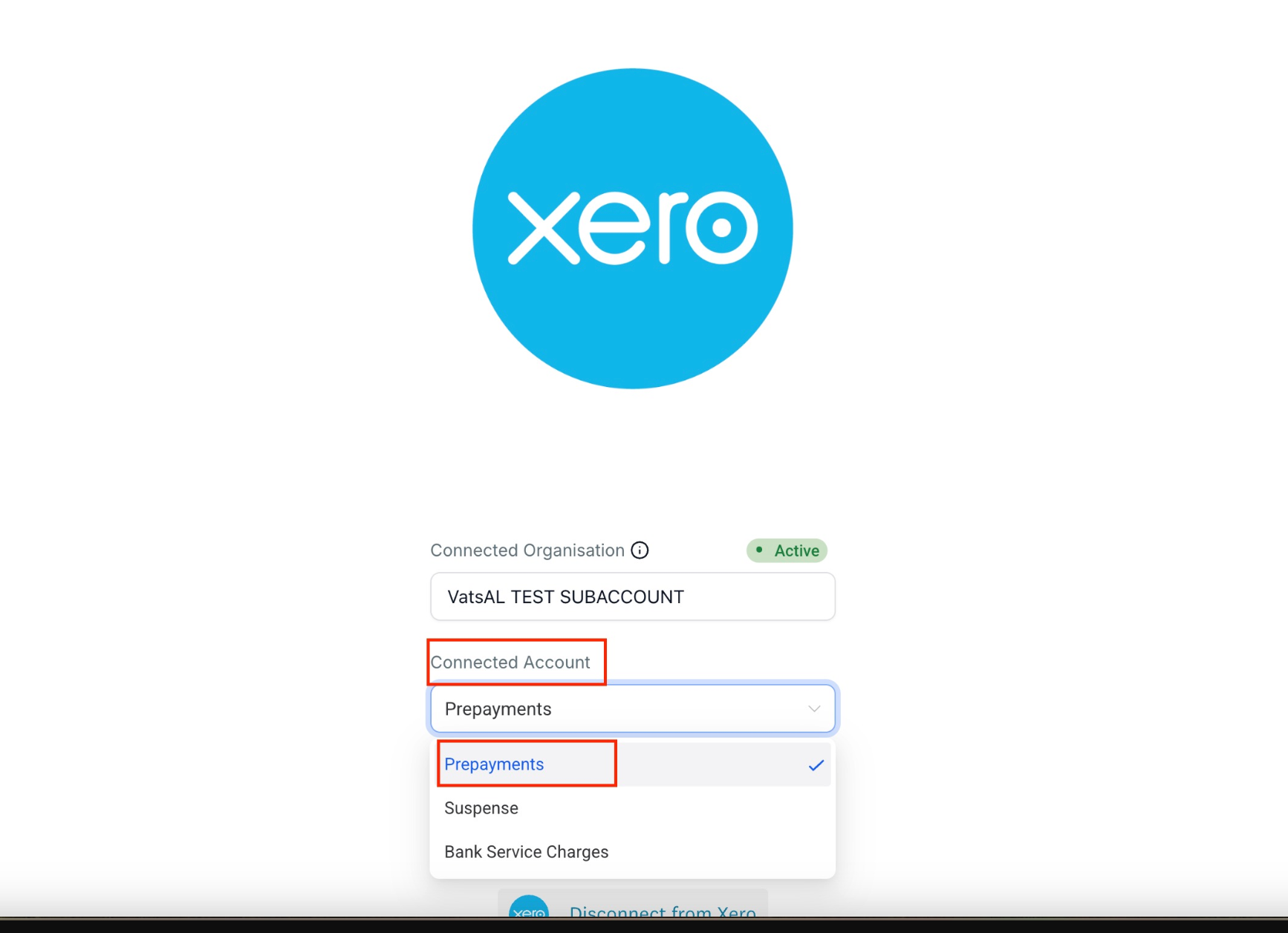
If you cannot see your Chart of Accounts in Aesthetix CRM after connecting to Xero, enable it in Xero using the steps below.
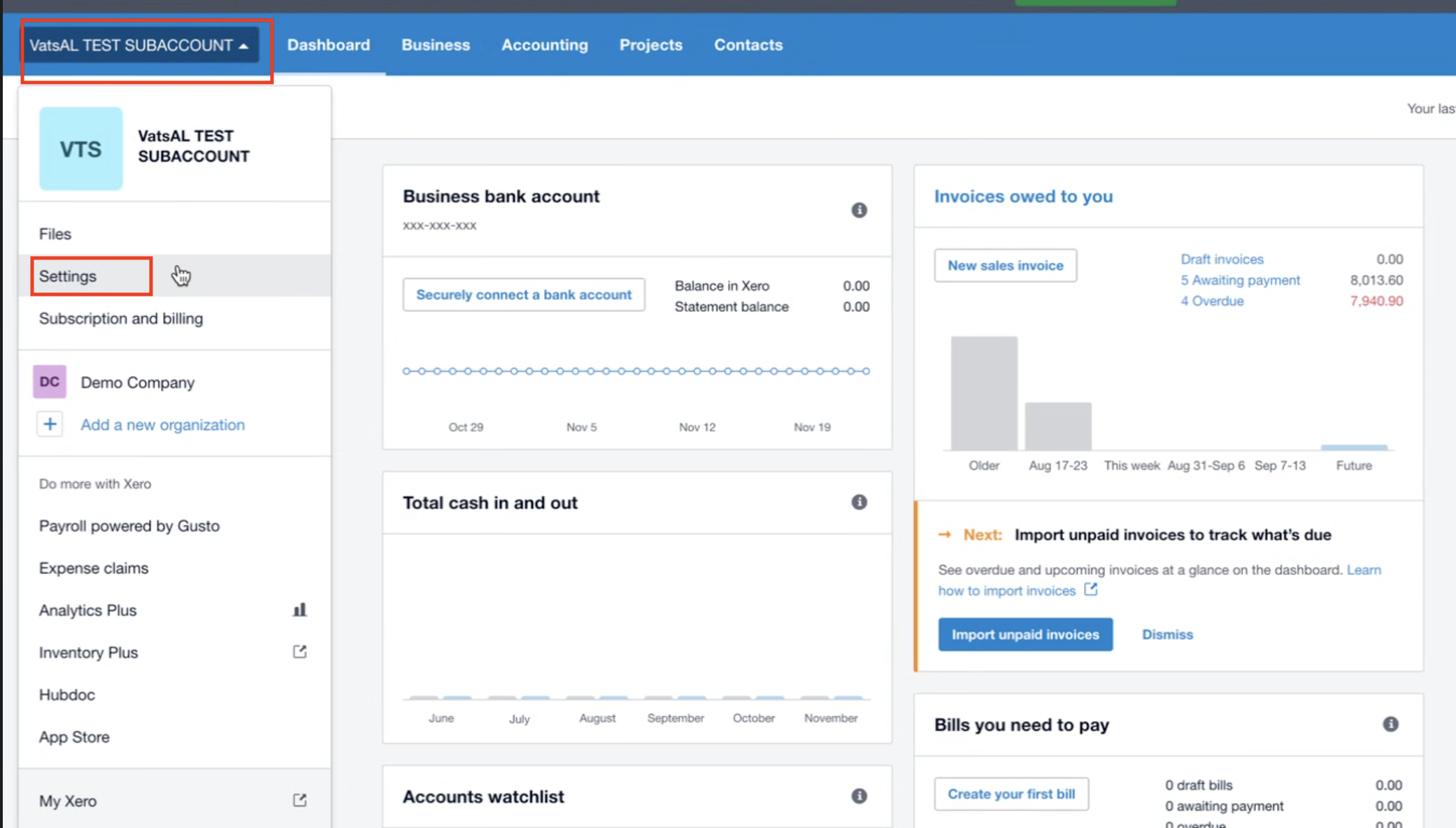
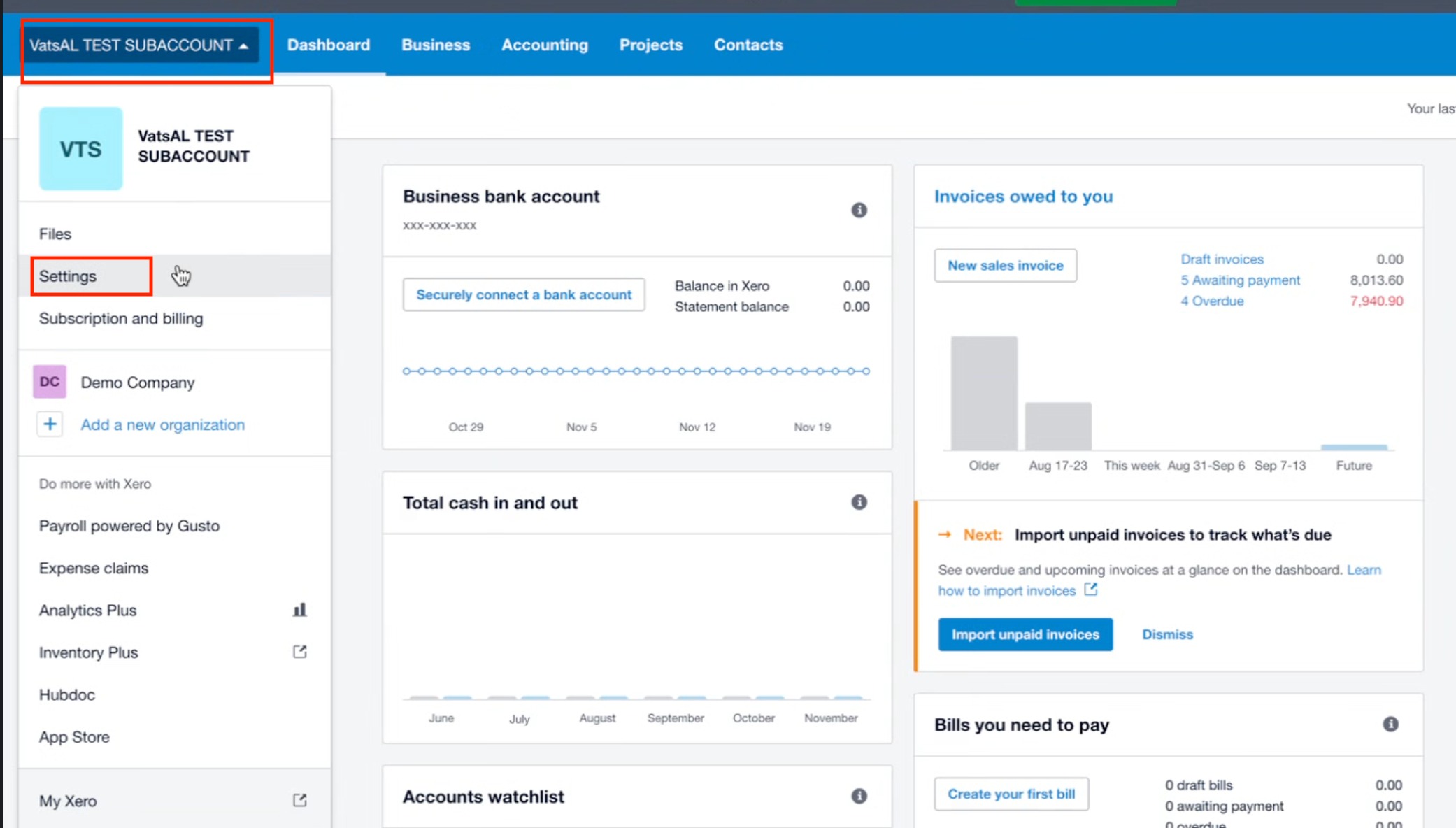
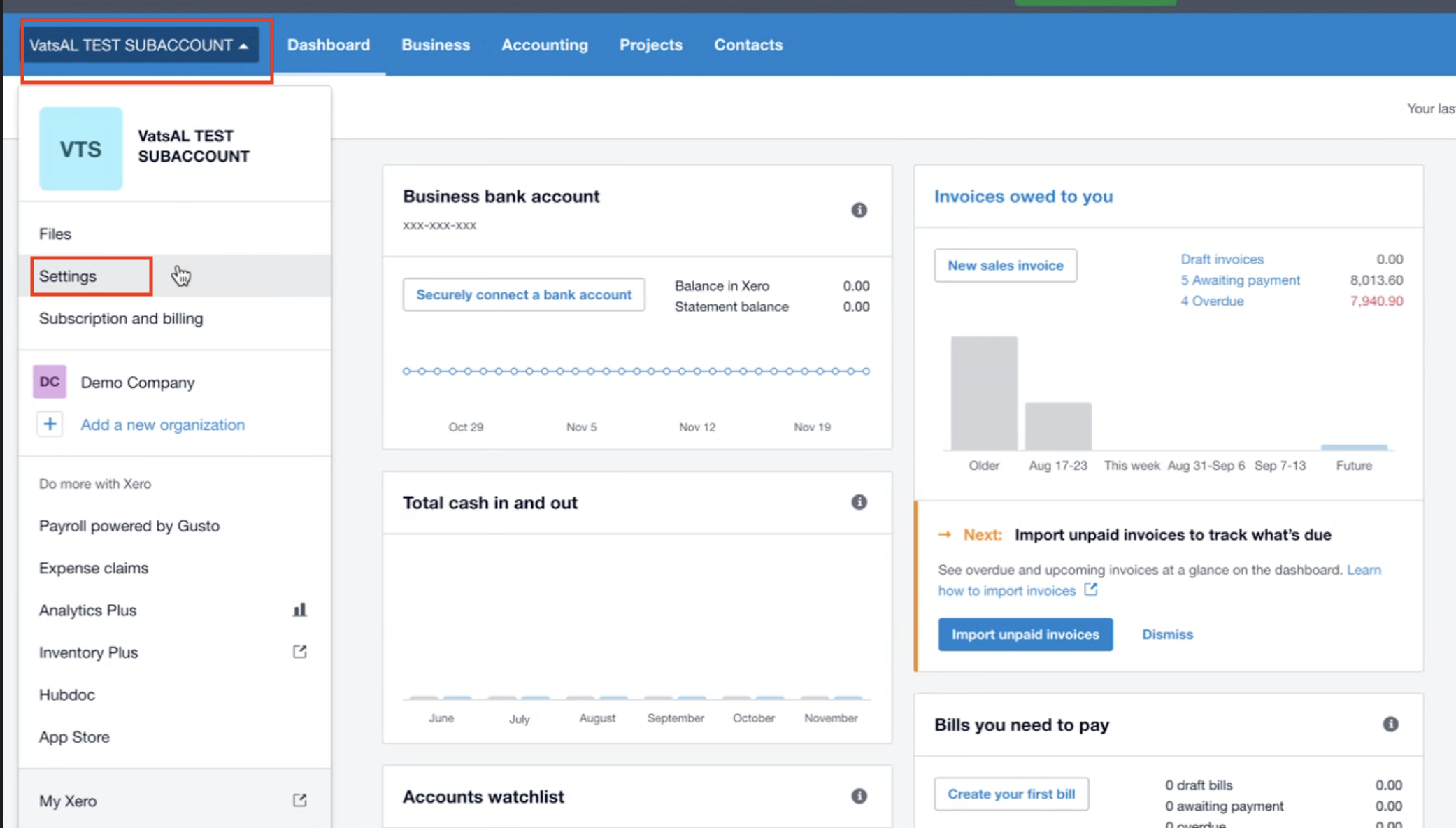
Step 1: Go to Settings in Xero. From your Xero dashboard, select your organization, then click Settings from the dropdown menu.
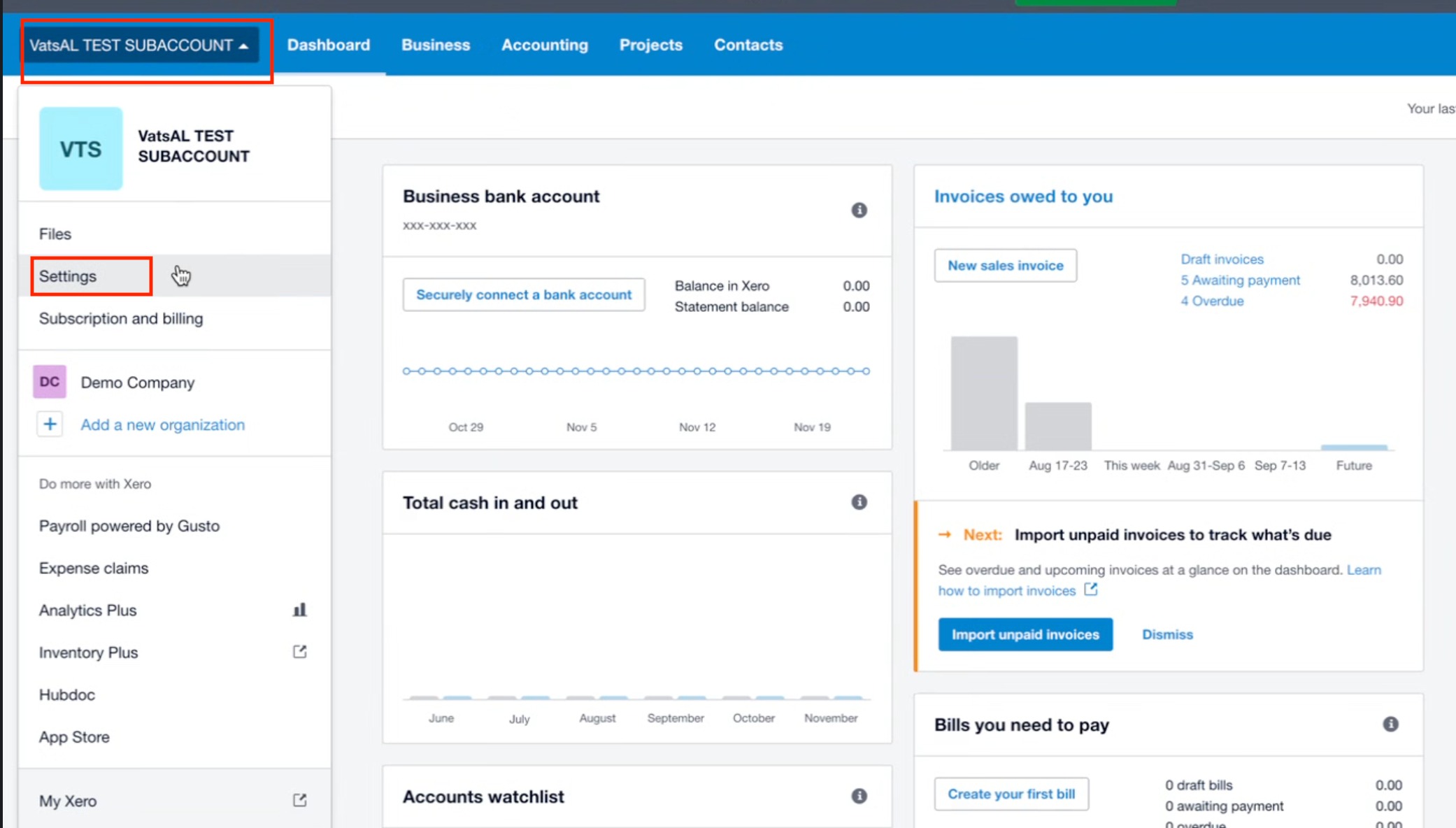
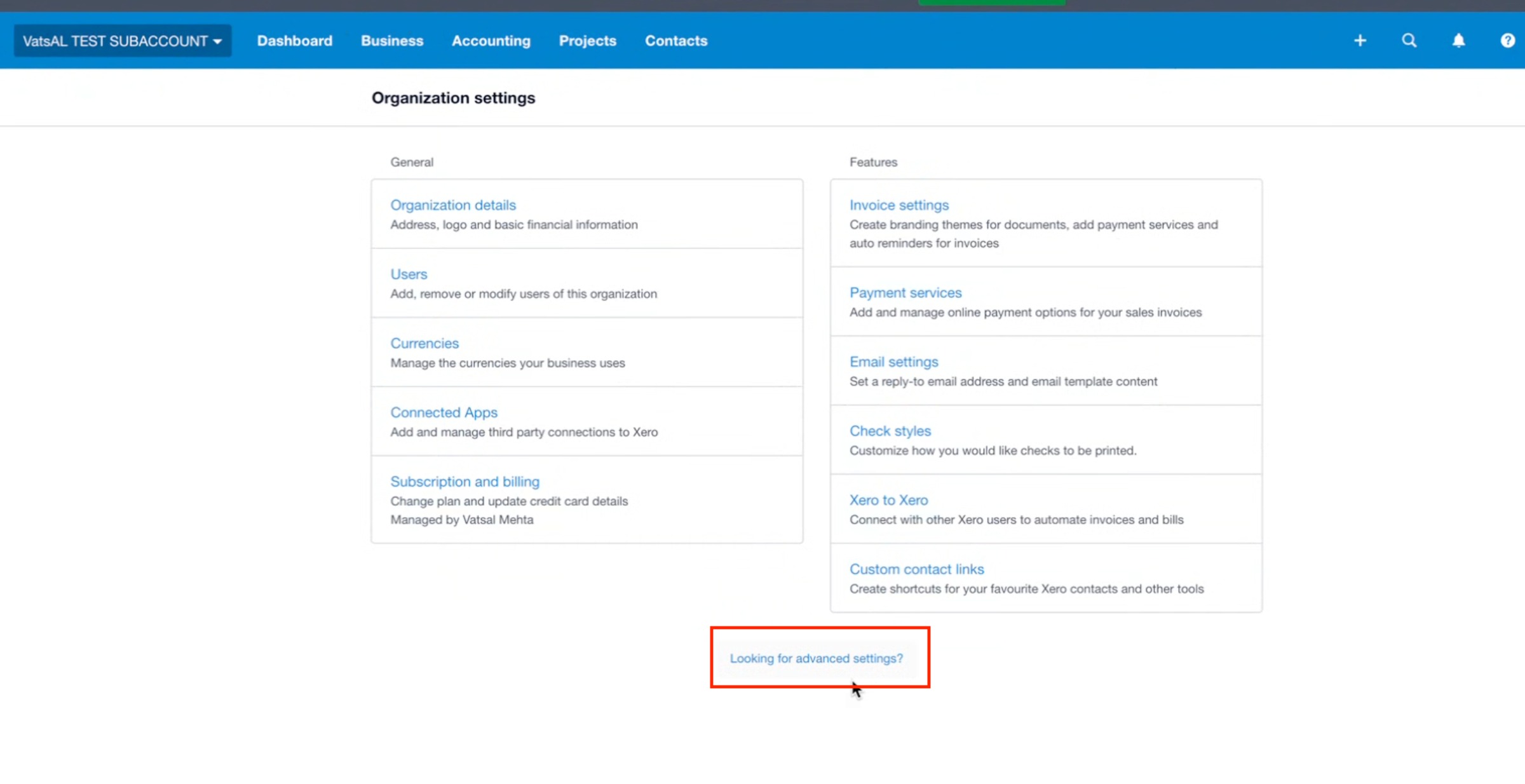
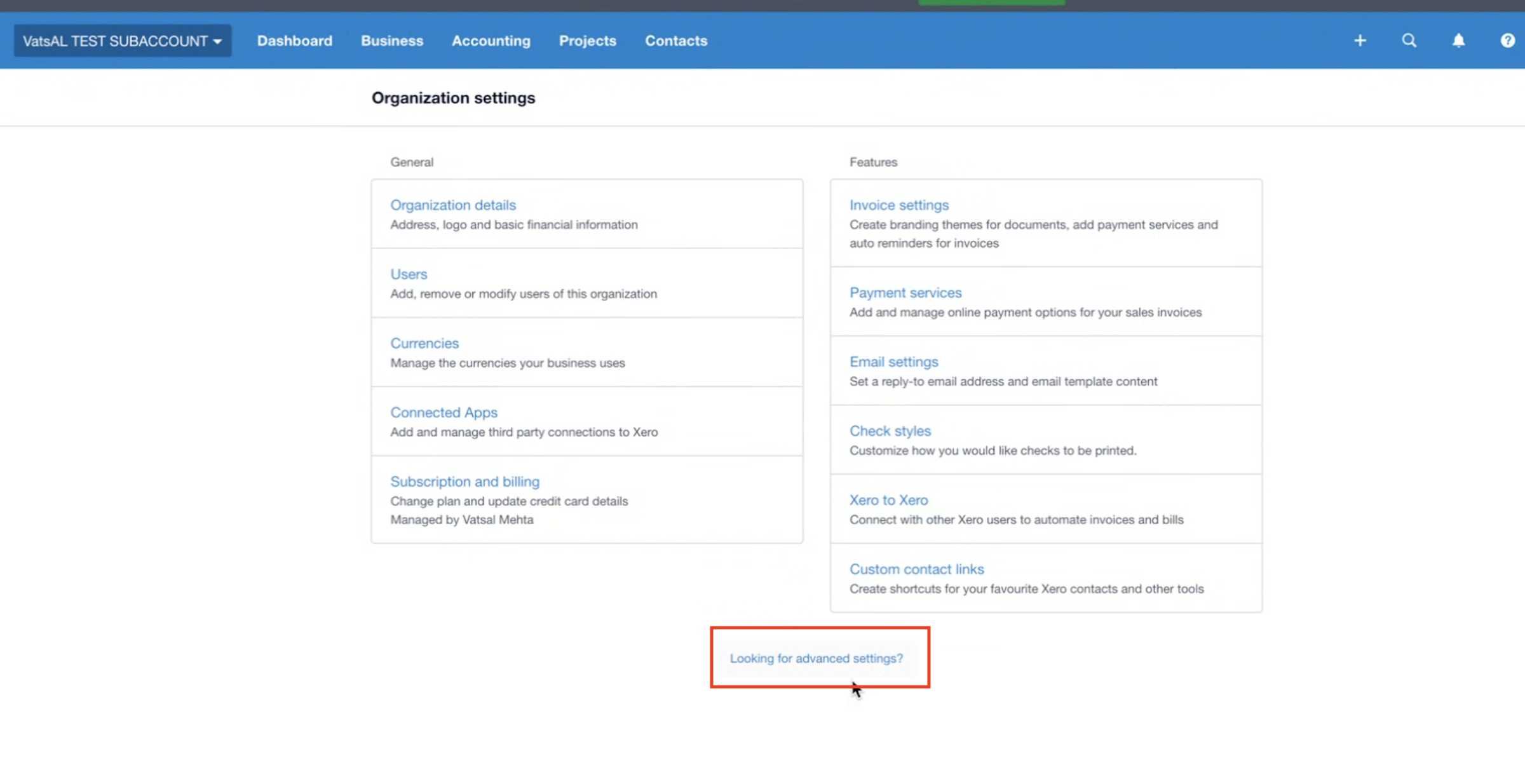
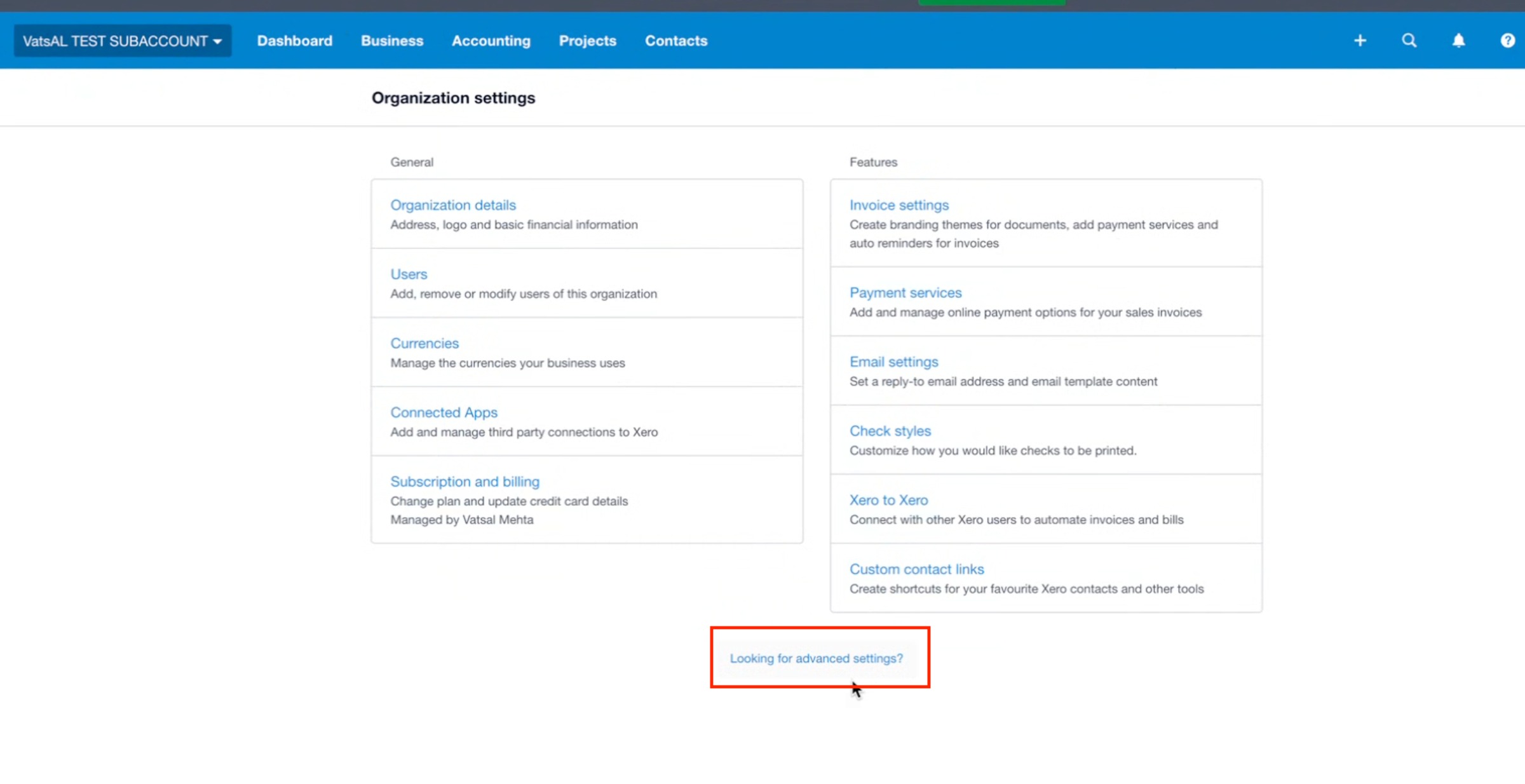
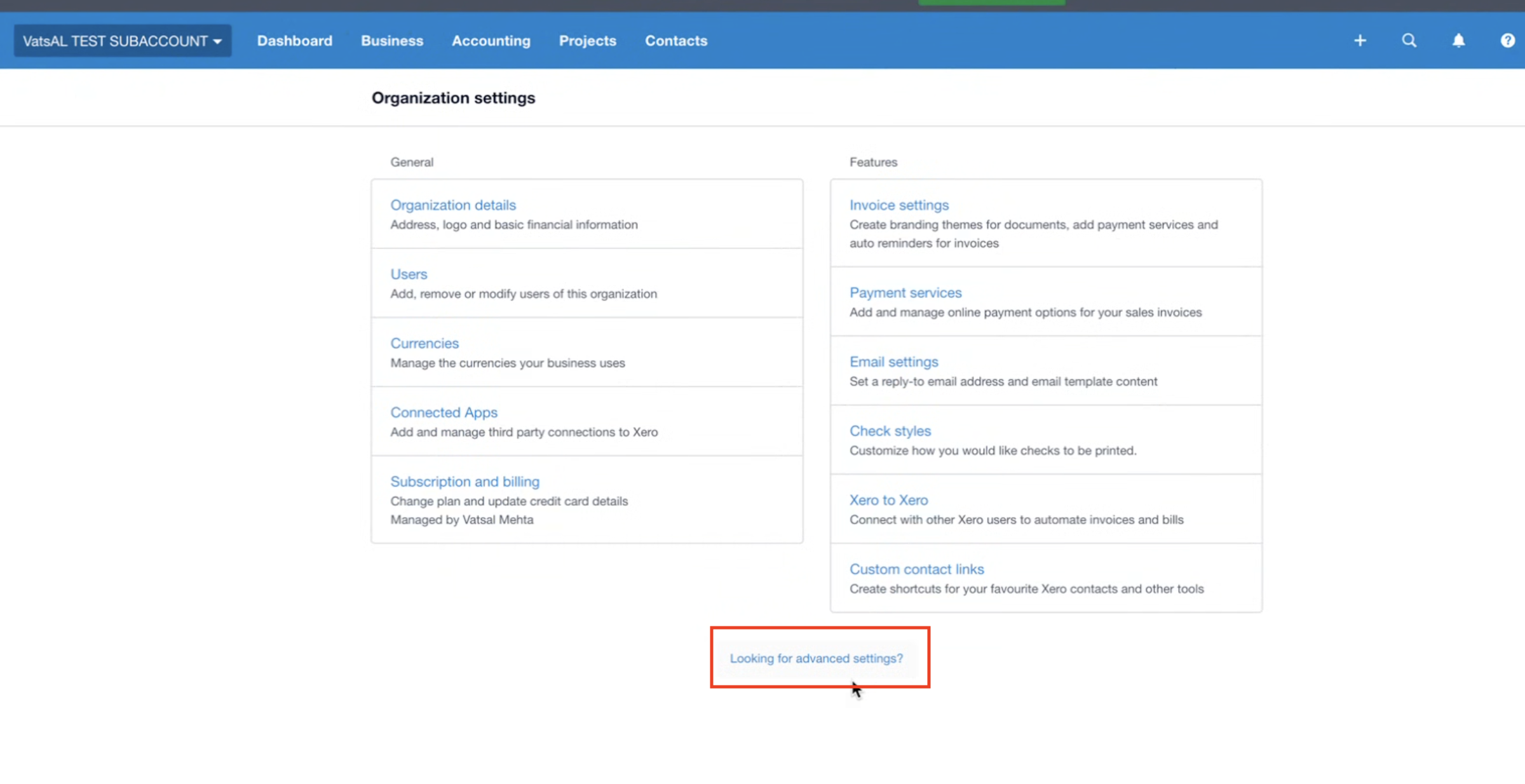
Step 2: Open Advanced Settings. In Organization settings, scroll down and click Looking for advanced settings?
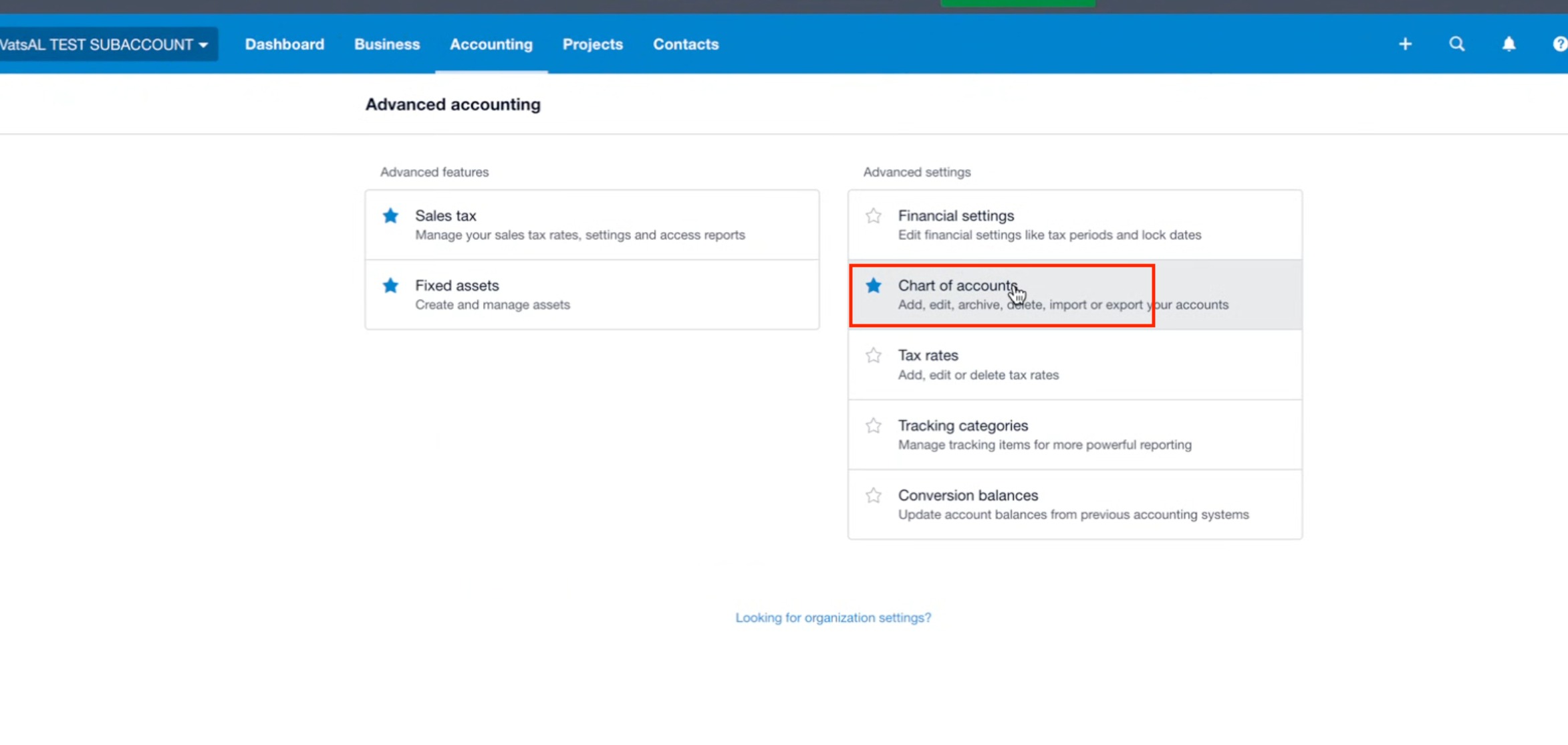
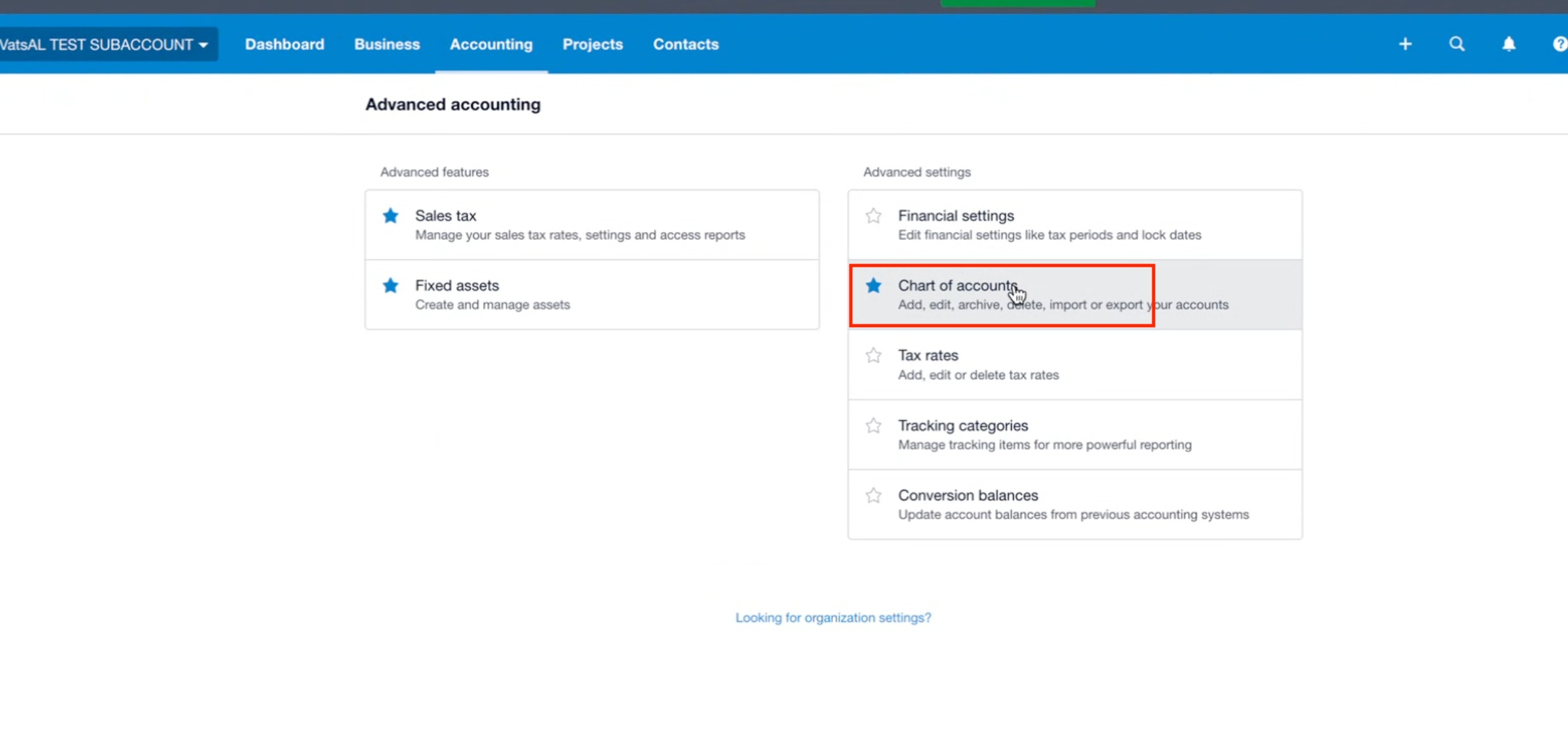
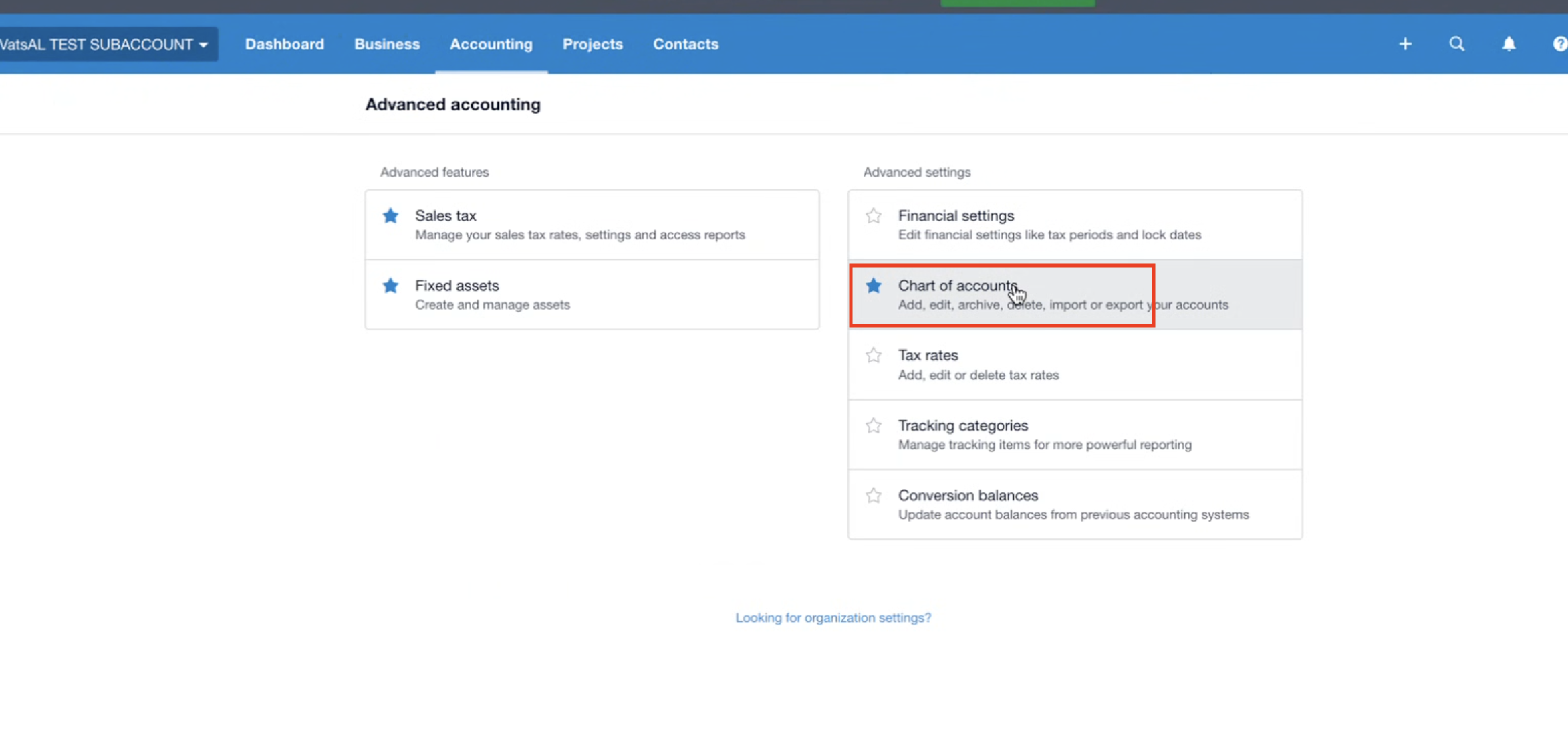
Step 3: Access Chart of Accounts. Under Advanced Accounting, click Chart of accounts.
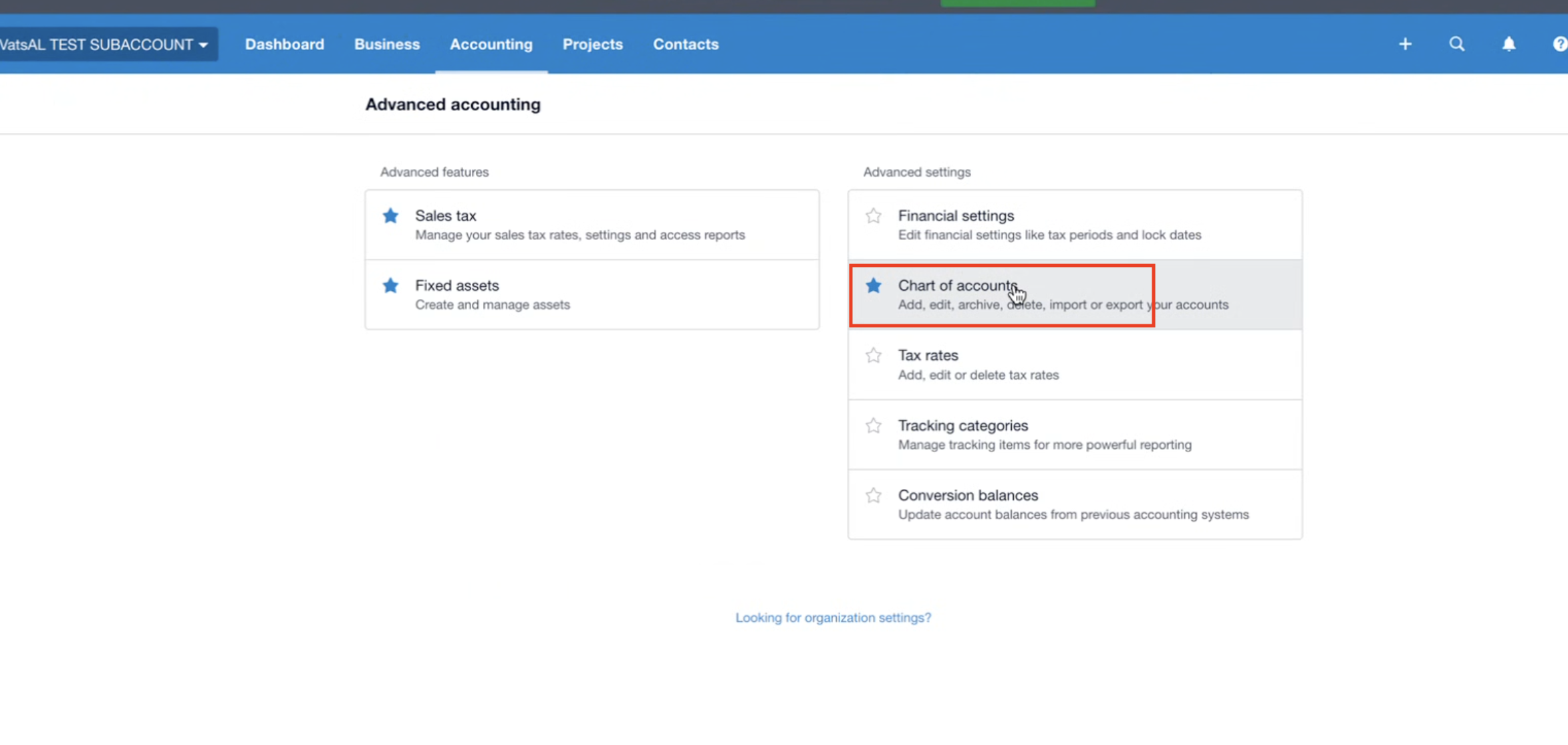
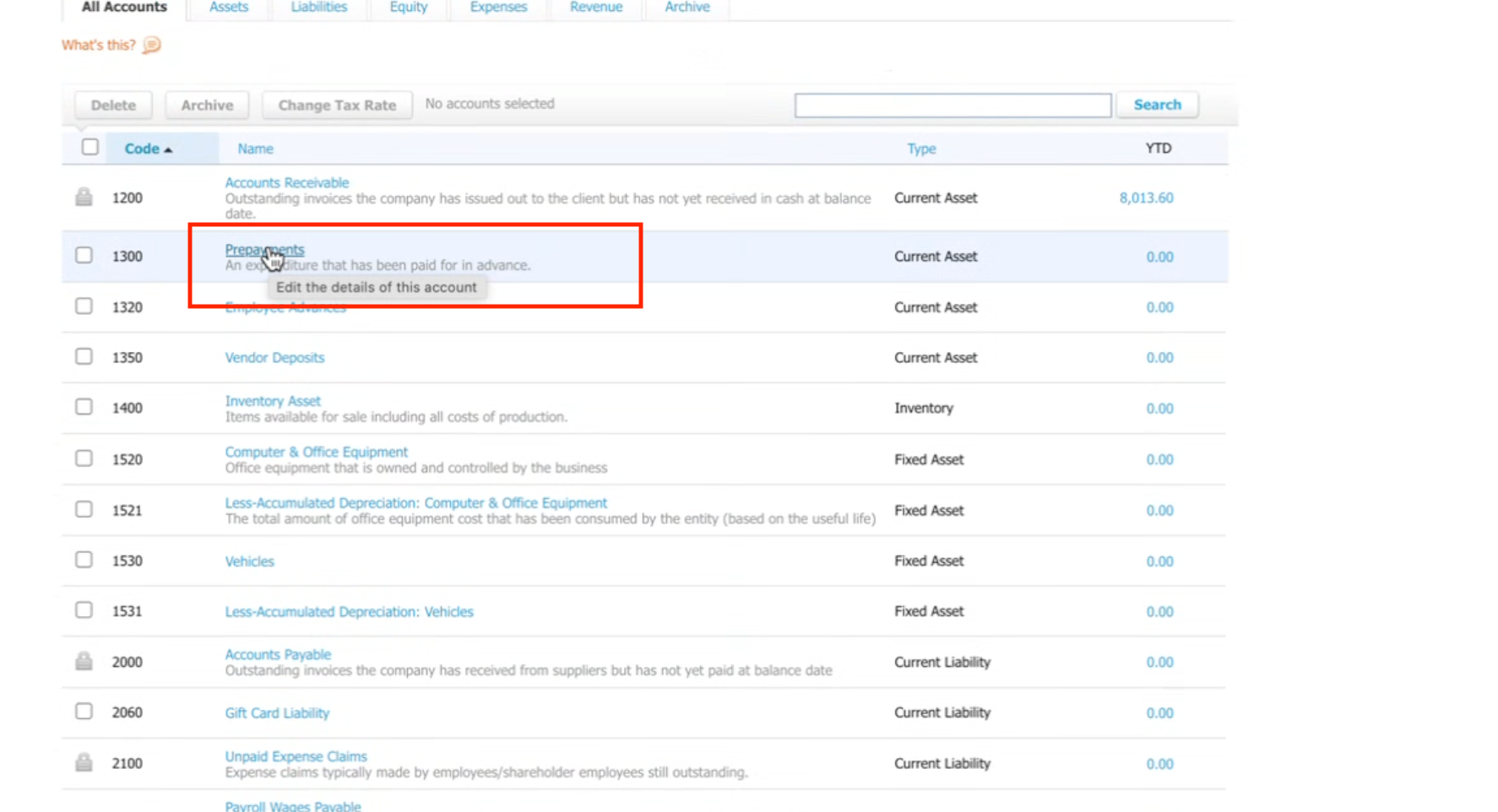
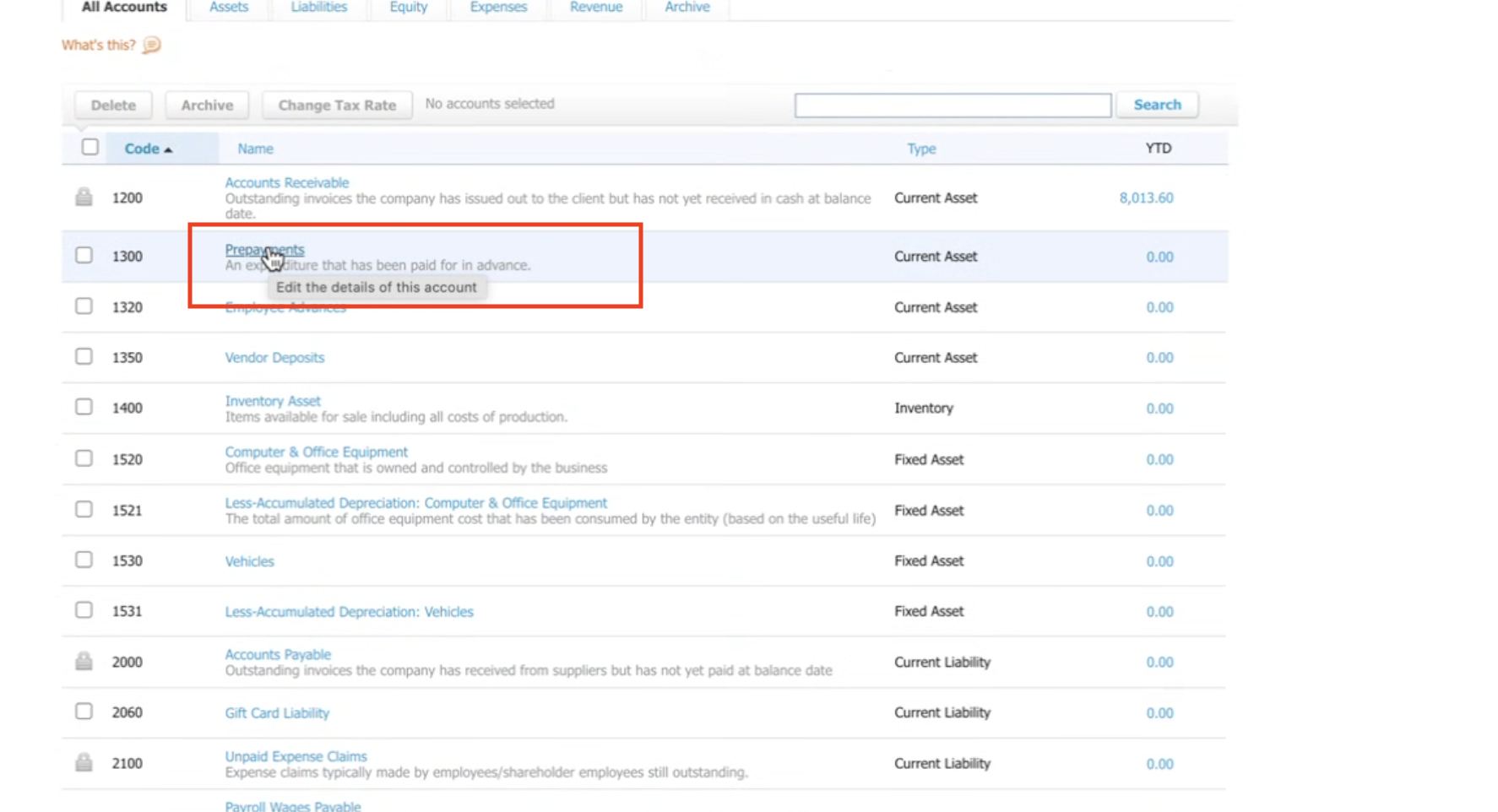
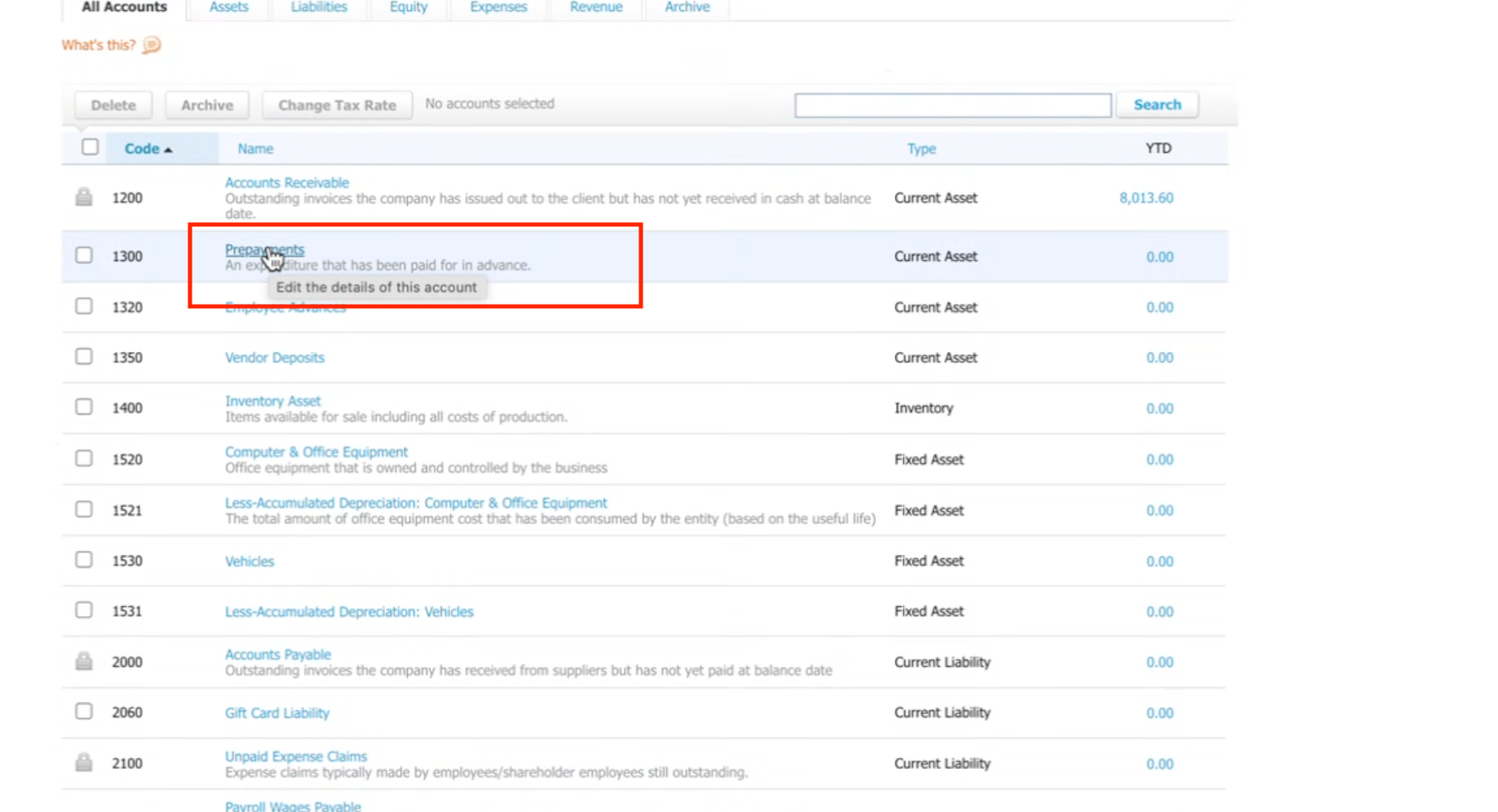
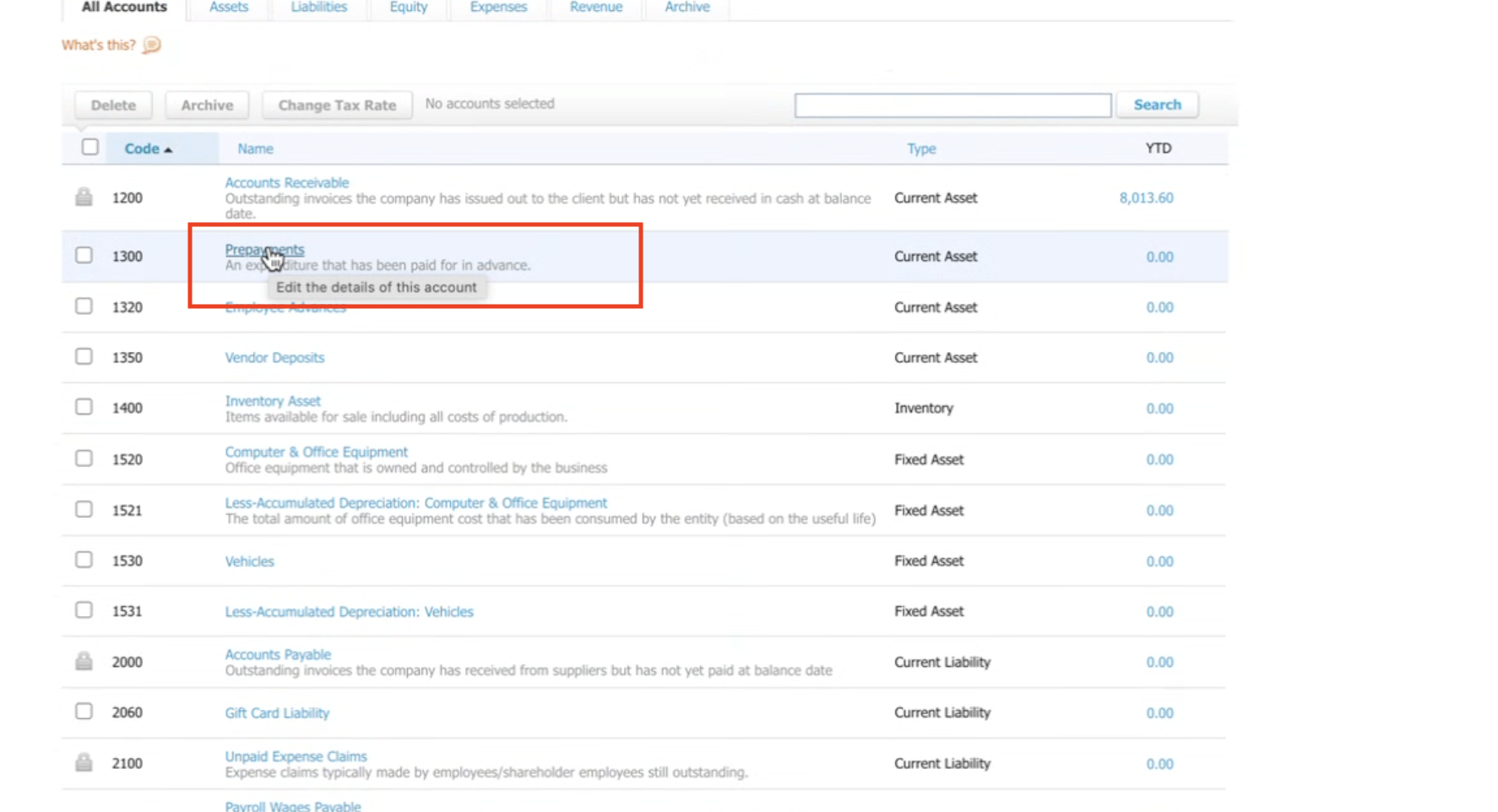
Step 4: Select the relevant account. From the list of accounts, choose the account you want to connect (for example, Prepayments), and click to edit its details.
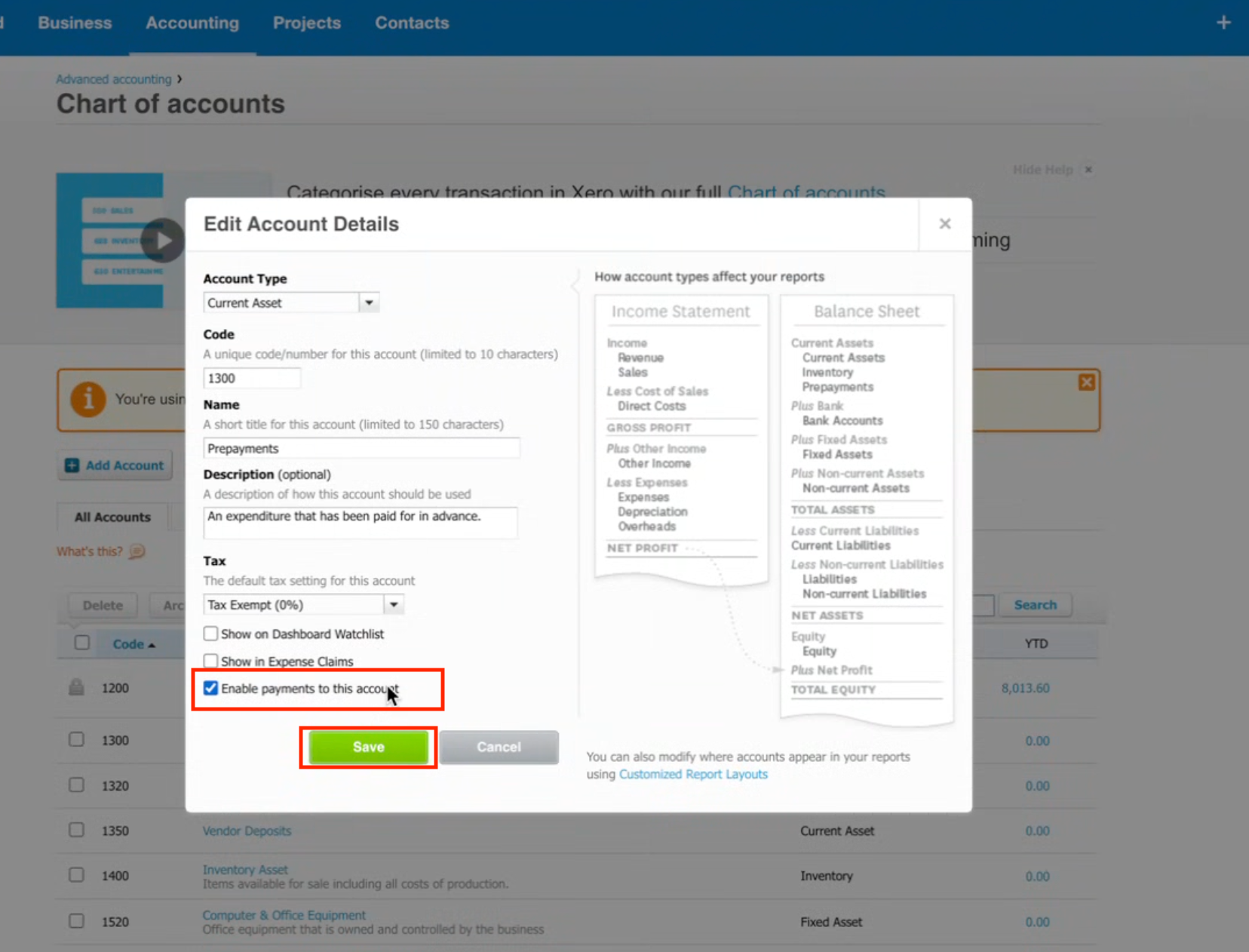
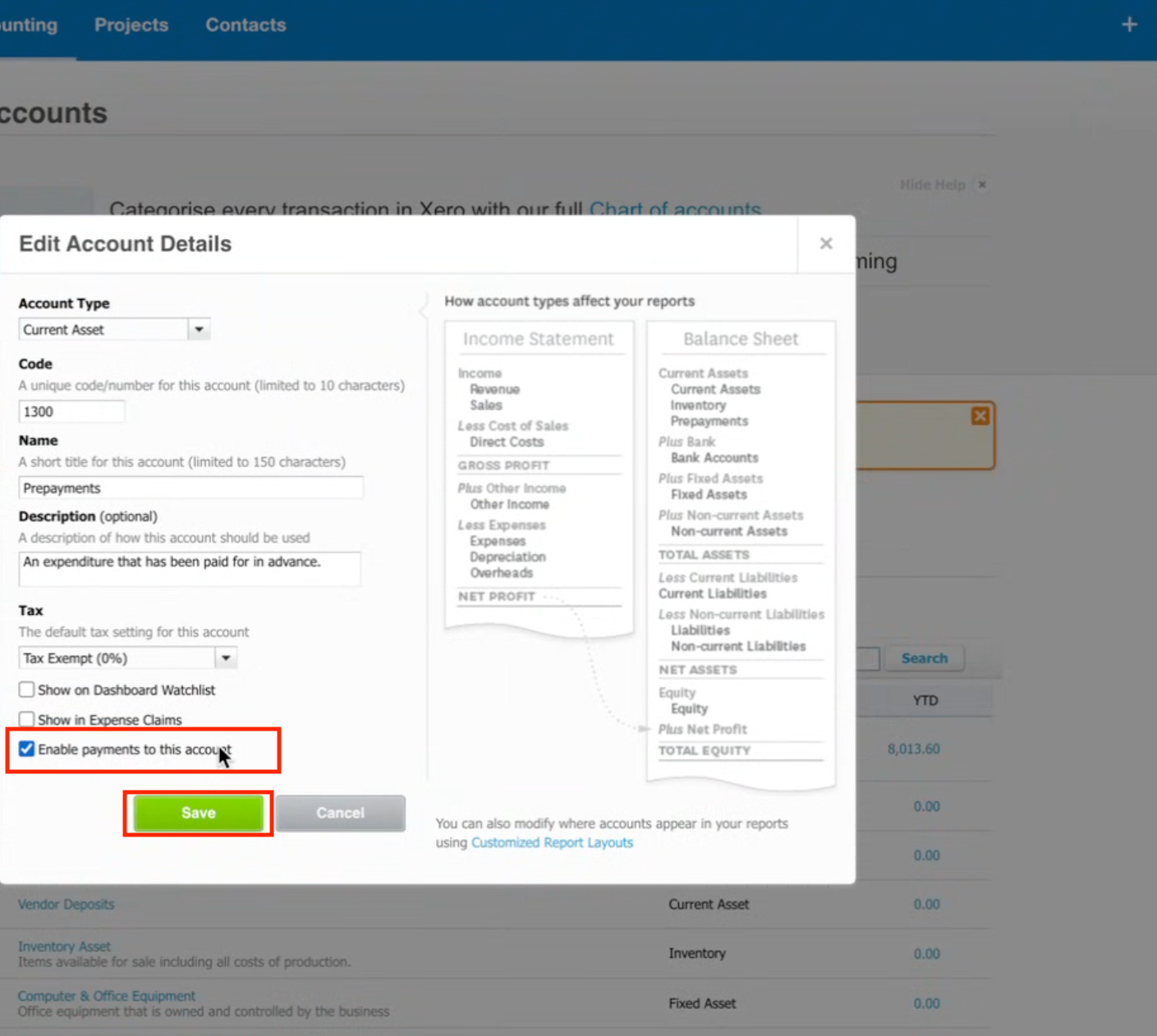
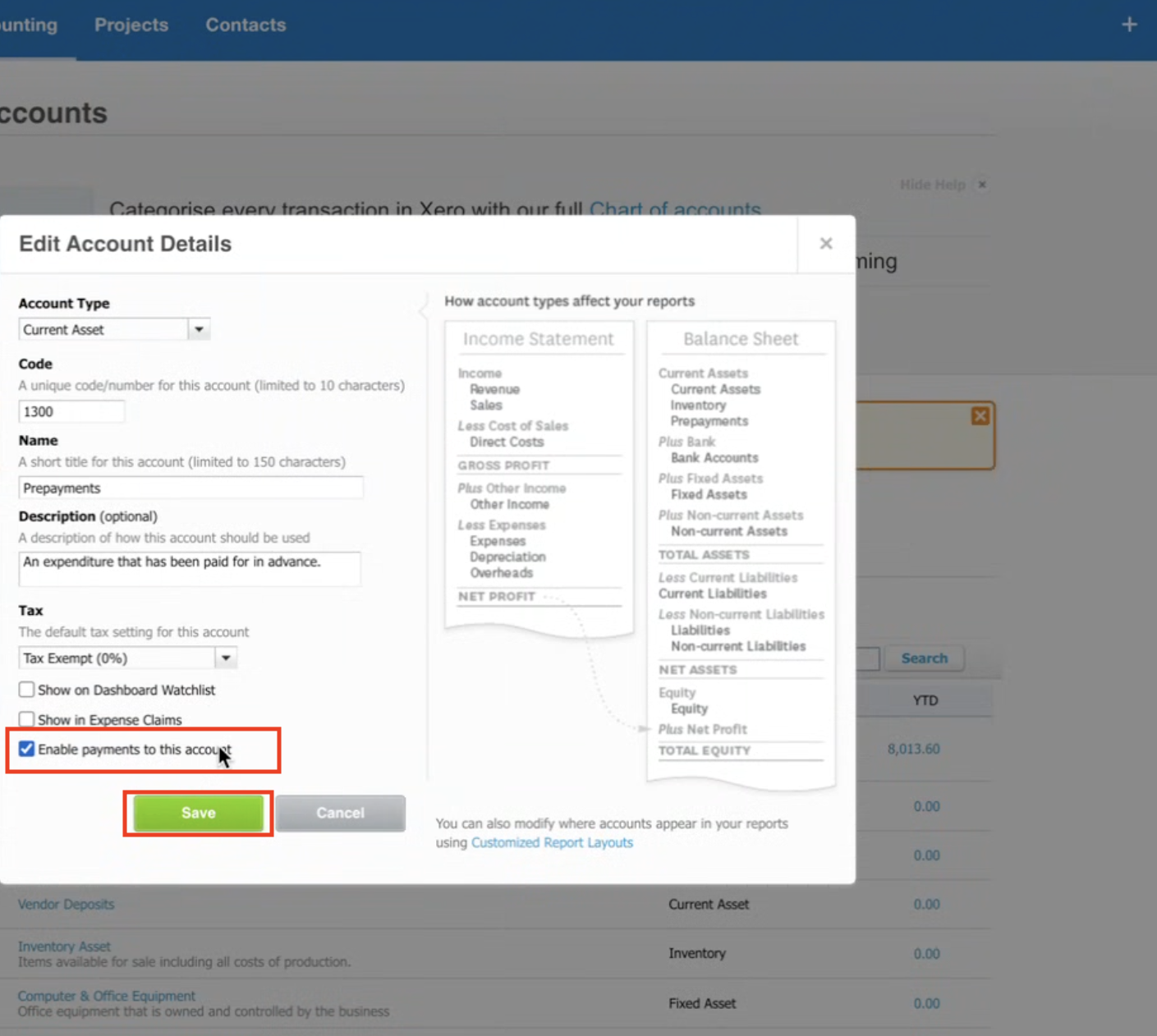
Step 5: Enable payments for the account. In the edit popup, tick Enable payments to this account, then click Save.
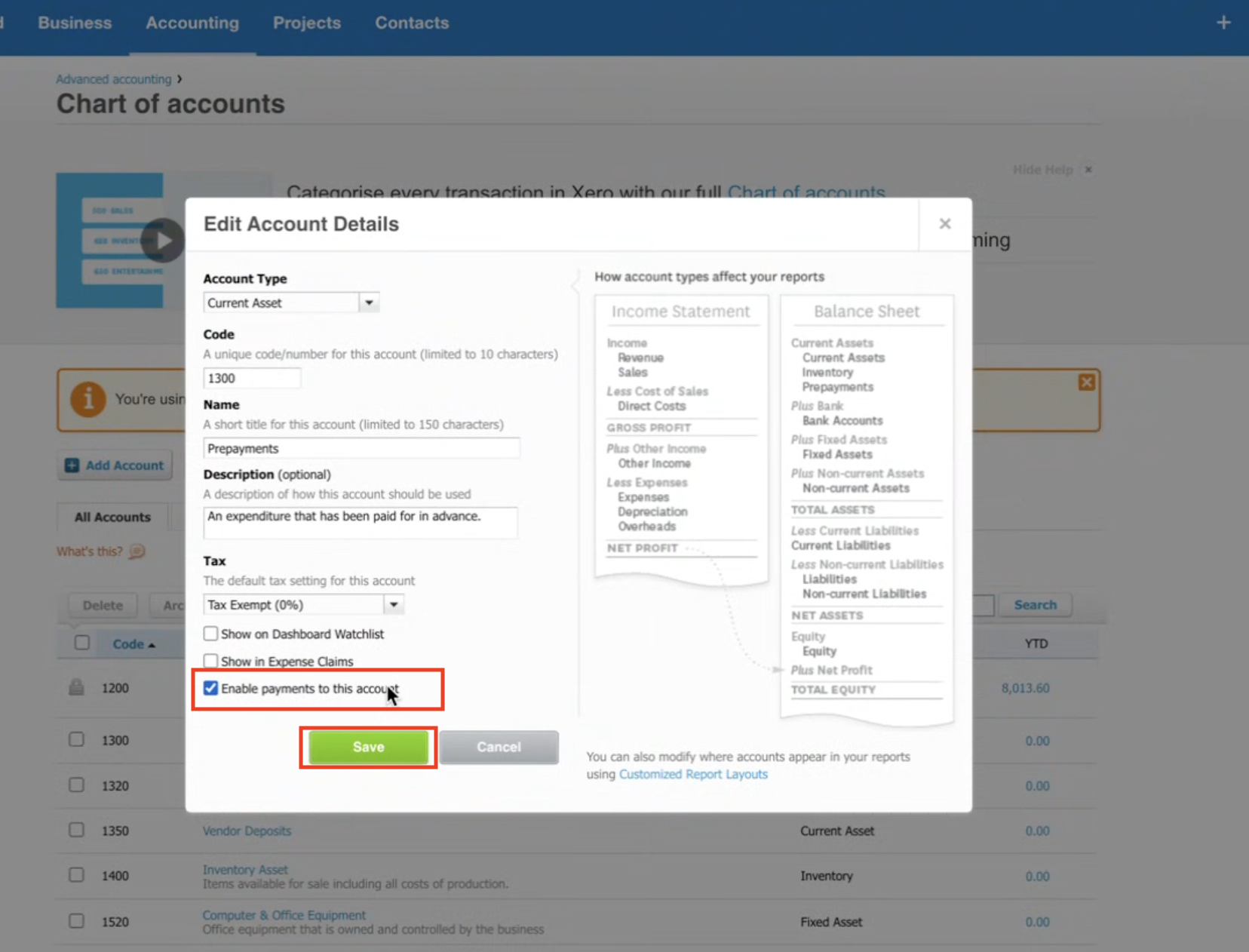
Step 6: Connect in Aesthetix CRM. Go back to your Xero integration in Aesthetix CRM. Under Connected Account, select the account you just enabled (for example, Prepayments).
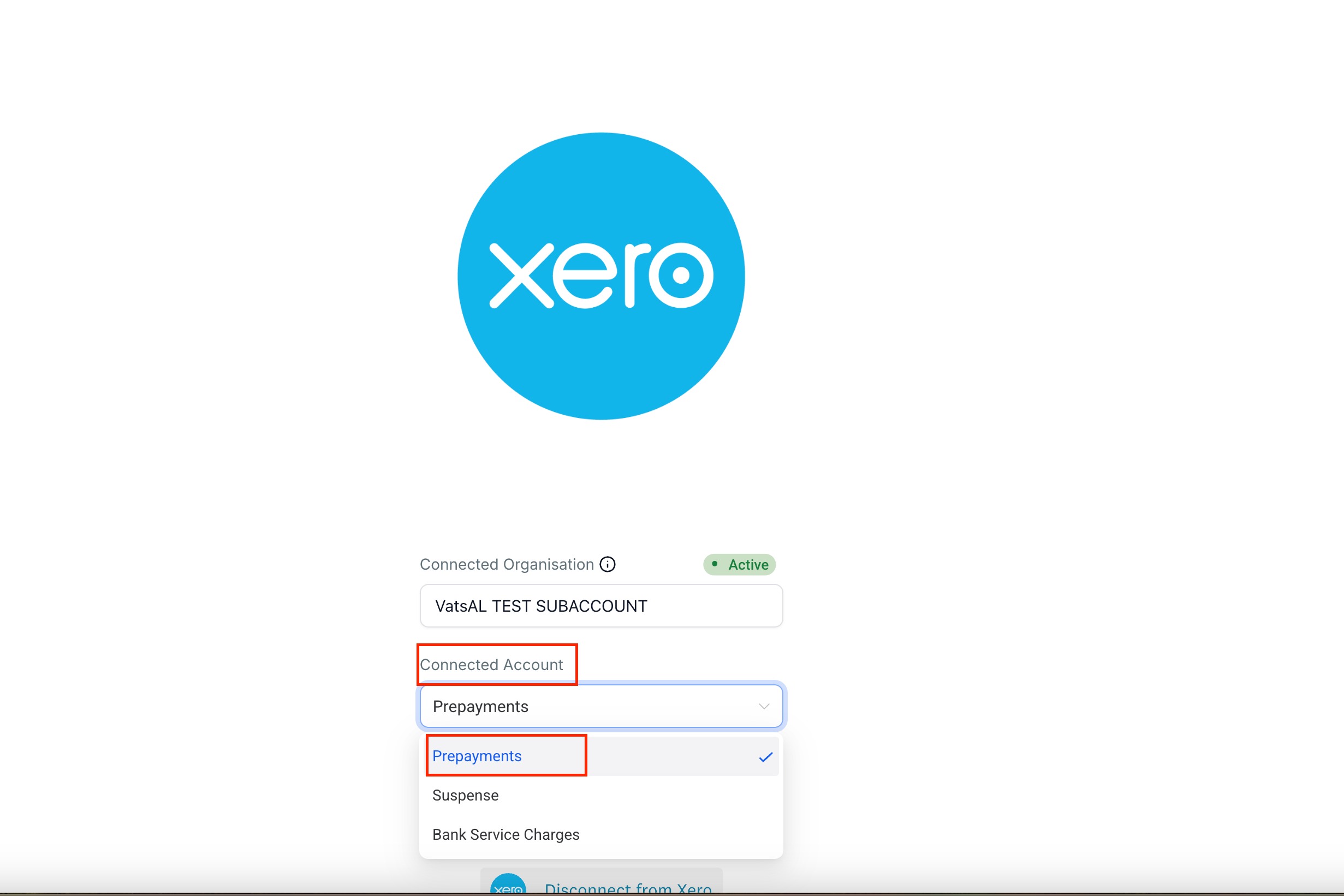
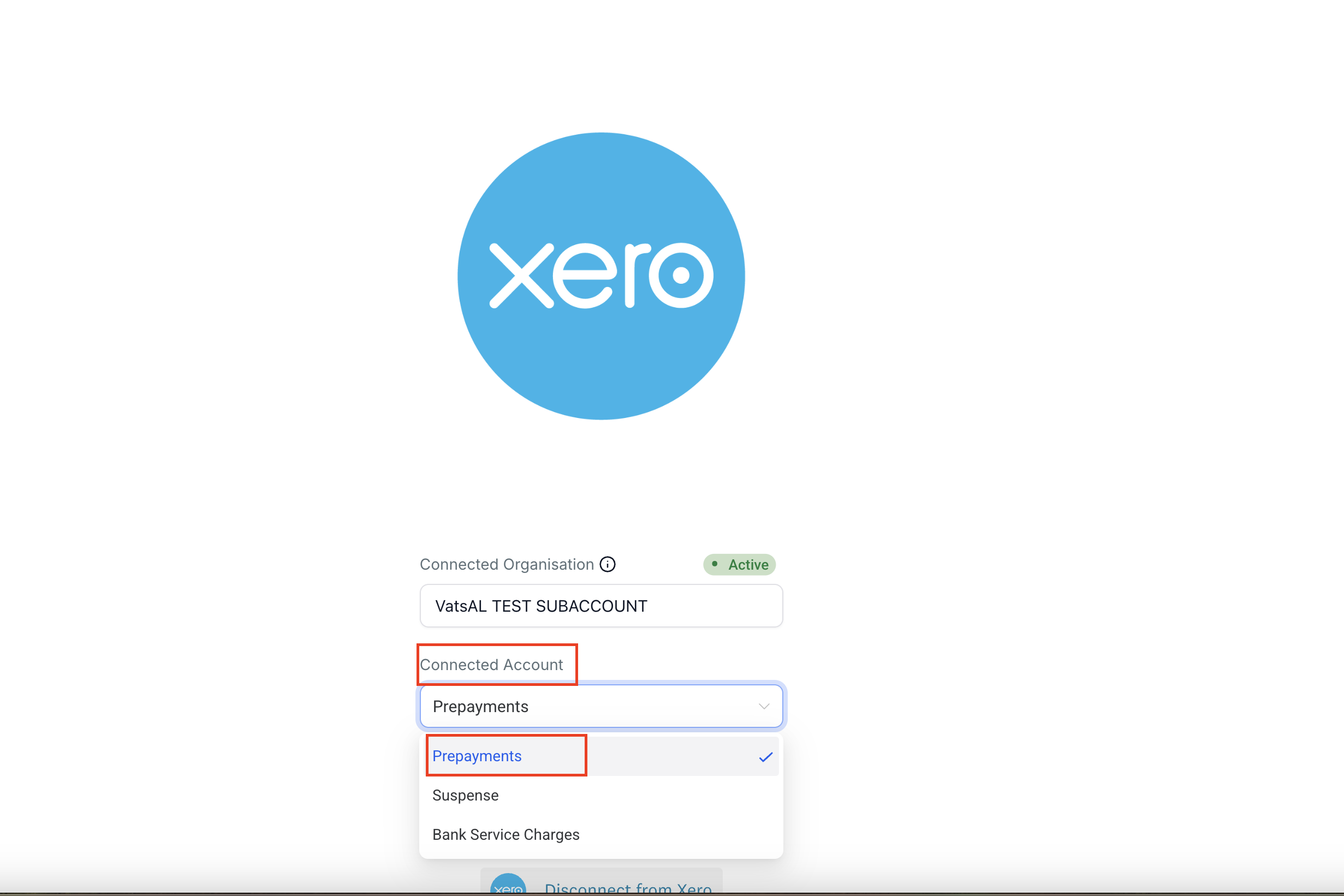
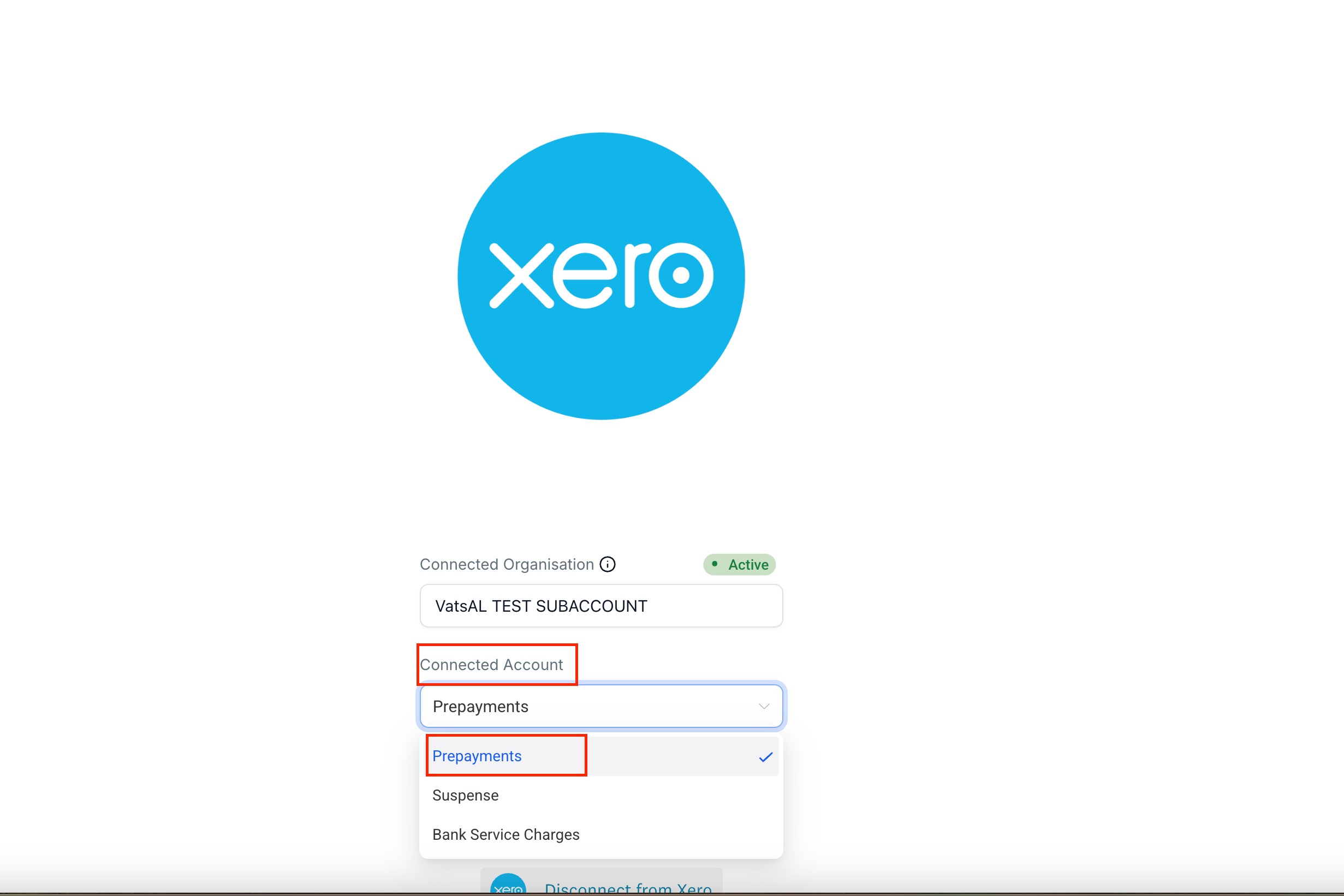
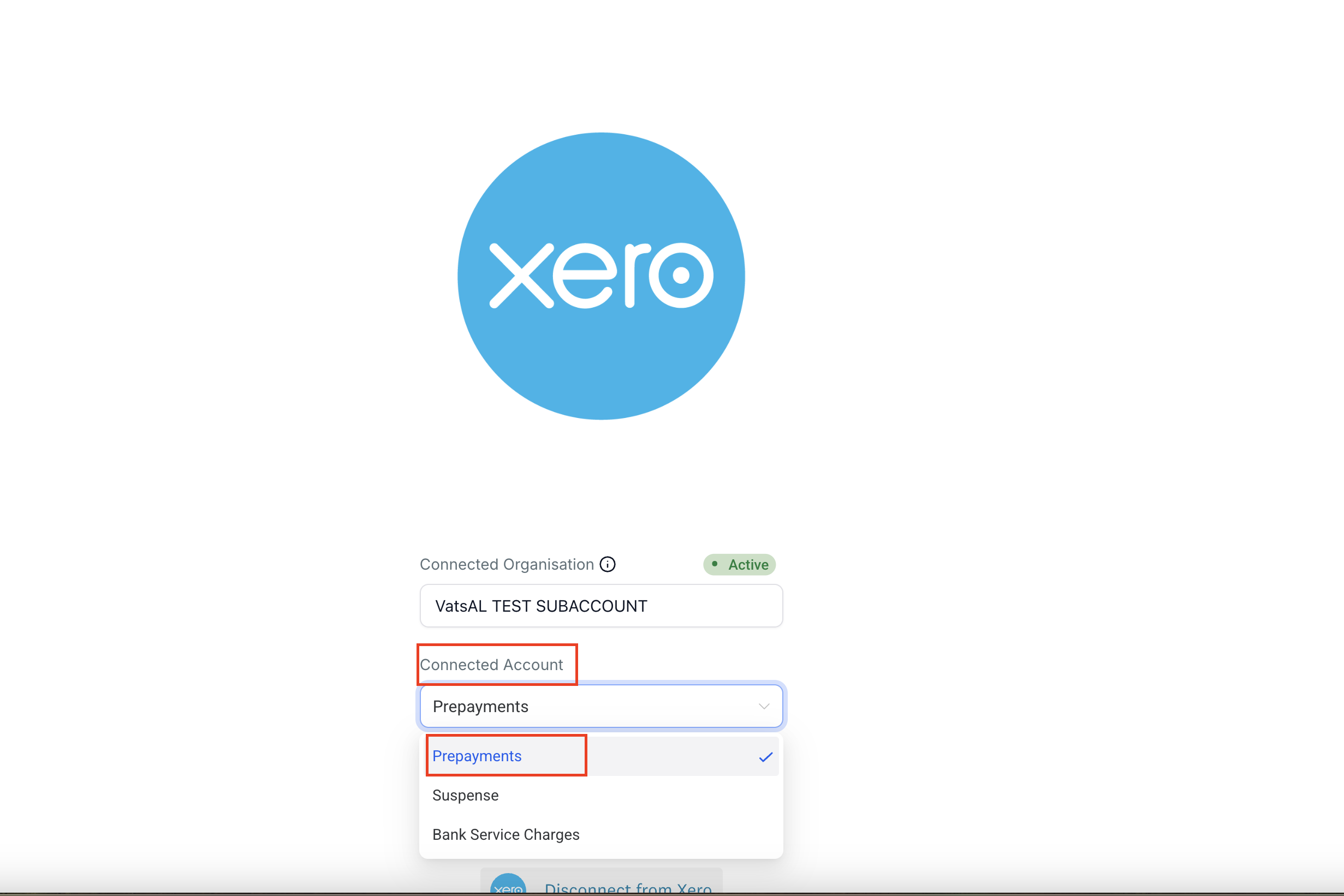
Once done, your Chart of Accounts is visible and ready to use in Aesthetix CRM.
You can view the connected organization name, check status, and disconnect or reconnect at any time under Settings → Integrations → Xero.
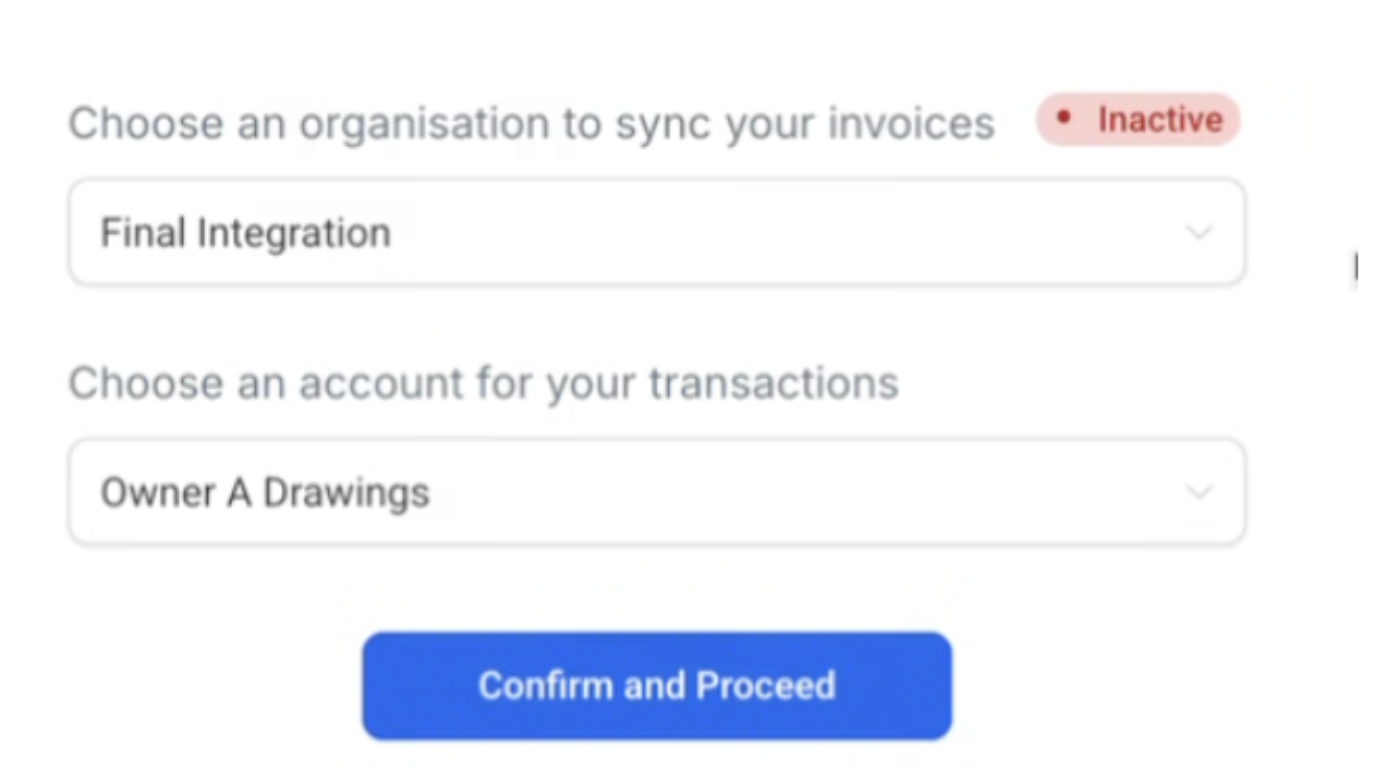
Best practice: If you use accounting-specific tracking categories or bespoke revenue accounts in Xero, set the default account mapping in your Xero settings carefully, and avoid mapping bank accounts to line items to prevent Xero validation errors.
The QuickBooks integration is a two-way integration. Invoices and payments flow from Aesthetix CRM to QuickBooks, and contacts and existing invoices can flow from QuickBooks back into Aesthetix CRM.
Aesthetix CRM to QuickBooks:
Creates customers in QuickBooks when they have activity in Aesthetix CRM.
Registers sales receipts in QuickBooks when a payment is made in Aesthetix CRM (for example, order forms, subscriptions, membership checkouts, and calendar payments), matching on contact email.
Creates an invoice in QuickBooks when an invoice is marked as sent in Aesthetix CRM, then continues to sync updates including invoice number, status (paid, voided, and so on), issue date, due date, contact (created in QuickBooks if it does not already exist), billing email, invoice total, amount paid, and line item name. Discounts and taxes are adjusted against the item price for US accounts; for other regions they are synced as well.
Will not sync existing invoices, only new invoices created after the integration is connected.
QuickBooks to Aesthetix CRM:
Brings existing contacts from QuickBooks into Aesthetix CRM and continues to sync new contacts (this can take up to 5 minutes).
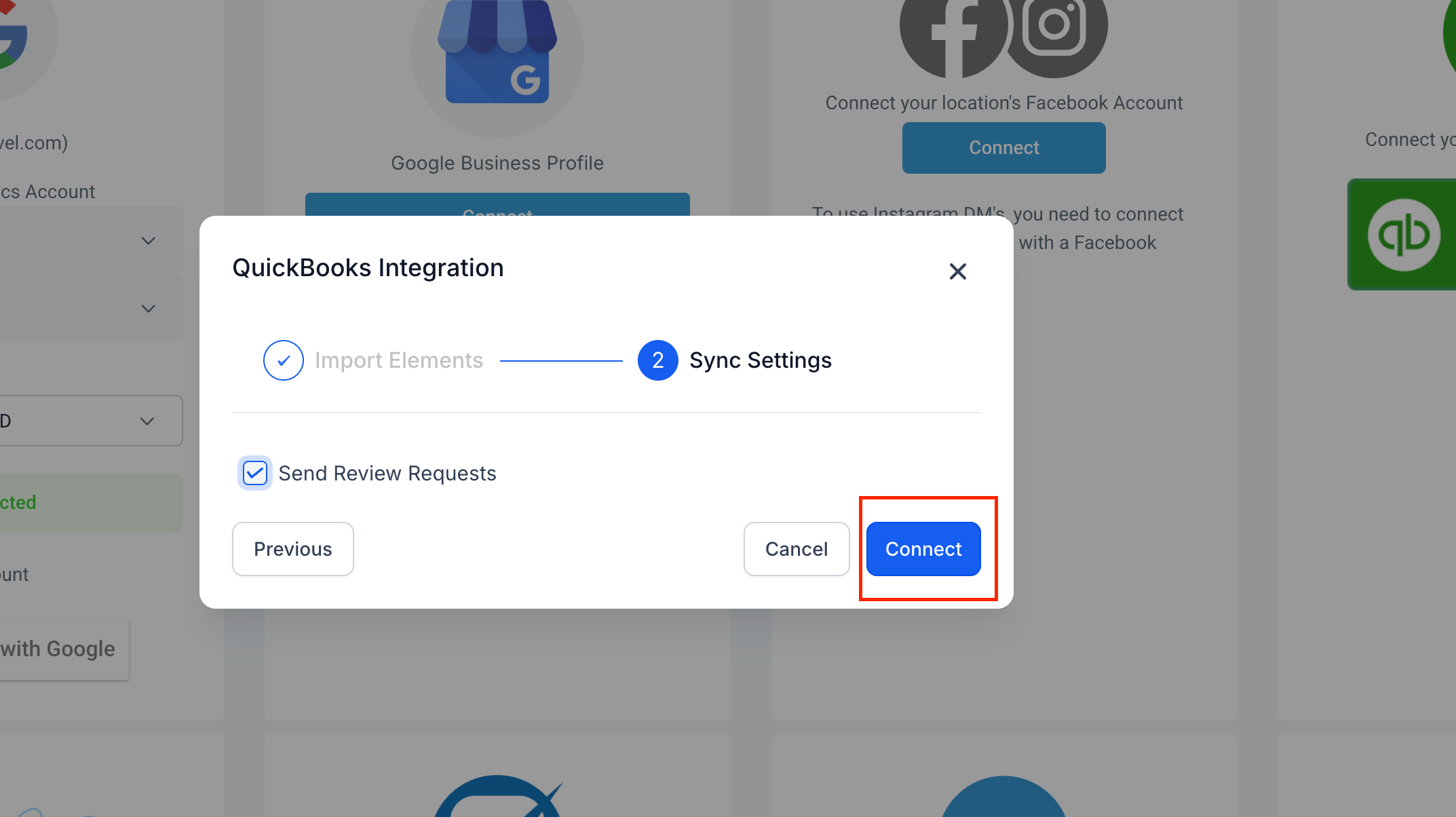
Sends a review request from Aesthetix CRM when QuickBooks shows a contact's first invoice paid in full (balance at $0). This can be turned on or off on the integration card.
Imports old invoices from QuickBooks into Aesthetix CRM if enabled during the initial connection. Changes made to those imported invoices in Aesthetix CRM will not sync back to QuickBooks, and imported invoices will not create a loop back into Aesthetix CRM.
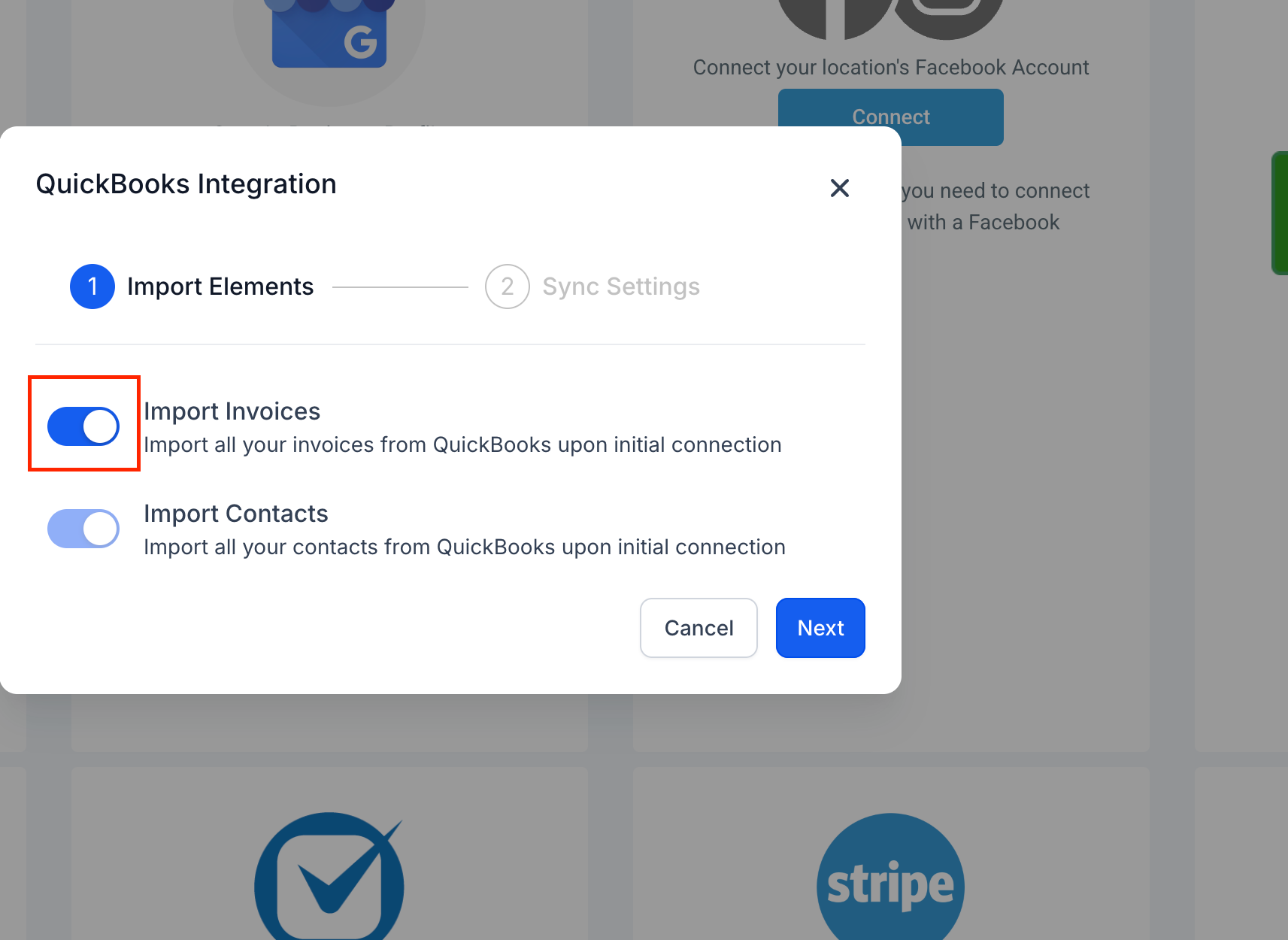
Navigate to Settings → Integrations and click the QB Connect button. Toggle Import invoices if you want to import previously created invoices, enable review automation if needed, then connect and log in with your QuickBooks credentials. Be sure to accept all permissions.
Is the Xero integration one-way or two-way? One-way. Contacts import from Xero into Aesthetix CRM for mapping, and invoices sync from Aesthetix CRM to Xero.
Will Aesthetix CRM create new contacts in Xero or QuickBooks? Yes. If an invoice's patient does not match an existing contact, a new contact is created in Xero (at sync time) or in QuickBooks (matched on email) automatically.
Do products or items get created in the accounting platform? For Xero, no. Line items are posted on the invoice only; products and items are not created or maintained in Xero.
How are taxes handled with Xero? If the mapped tax rate already exists in Xero, it is used. If it does not, Aesthetix CRM creates the tax rate and applies it to the invoice.
How are currencies handled with Xero? The invoice currency is passed to Xero and added to your organization if it is not already enabled. Make sure your Xero plan supports multi-currency. If you see "Organisation is not subscribed to currency," enable multi-currency in Xero and retry.
Are receipts synced to Xero? No. Receipt syncing is not included in the Xero integration yet.
Can I connect multiple Xero organizations to one account? No. One Aesthetix CRM account connects to one Xero organization at a time.
Will invoices created before I connected Xero sync automatically? No. Only invoices created after the integration is connected sync automatically.
Why is my invoice not syncing to QuickBooks? Draft invoices do not sync. Only Sent, Pending, or Paid invoices are pushed to QuickBooks. Open the invoice, click Send, confirm the patient exists in QuickBooks, and the invoice should sync automatically. Note that accepting an estimate does not automatically create the customer in QuickBooks.
Will QuickBooks import my existing invoices into Aesthetix CRM? Only if you enable the Import Invoices toggle during the initial connection. Changes made to those imported invoices in Aesthetix CRM do not sync back to QuickBooks.
Are taxes and discounts included in invoices synced to QuickBooks? Yes. Synced invoices include total amounts, taxes, and discounts.
