Importing invoices with a CSV file lets you bring in many invoices at once instead of creating them manually. This is ideal when you are migrating from another billing system or loading historical records into Aesthetix CRM. During the import you map fields such as issue date, due date, and taxes, and you receive an automated summary of the results.
The system depends on exact column names and valid data. Even small mistakes, such as an incorrect header or a missing value, can cause the import to fail, so format your CSV carefully.
Required fields (must be included, with valid data in every row):
Invoice number
Invoice name
Customer name
Customer email
Issue date
Due date
Currency
Item name
Item rate
Optional fields (helpful for tracking and reporting):
Payment terms
Item description
Quantity
Tax details
Discounts
Payment status
Two more requirements before you upload:
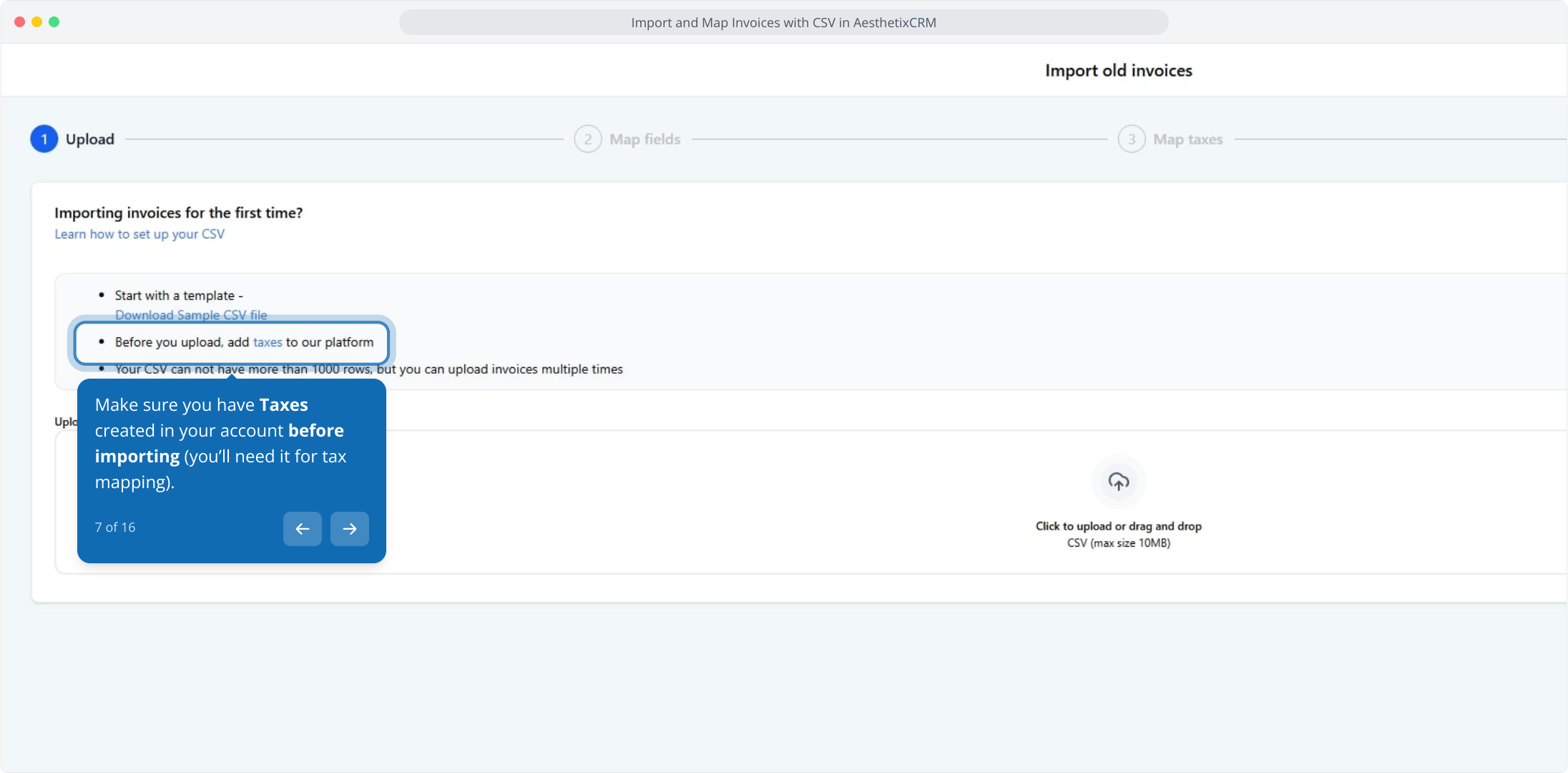
Make sure your Taxes are already created in your account (under Settings → Taxes) so you can map them during import.
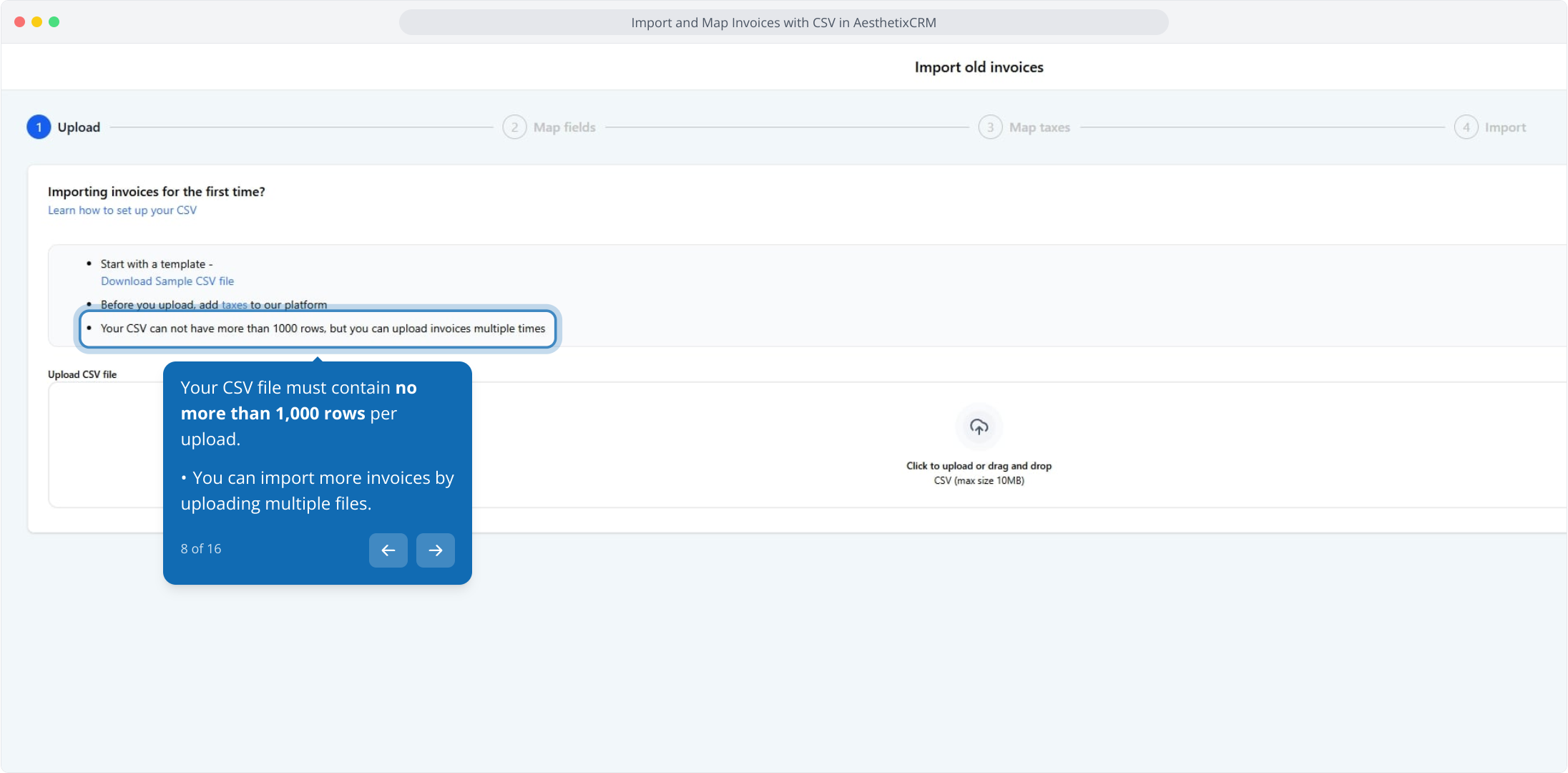
Keep each CSV file to no more than 1,000 rows. To import more invoices, upload multiple files.
Here is a simple example of a correctly formatted CSV:
*InvoiceNo,*InvoiceName,*CustomerName,*CustomerEmail,*IssueDate,*DueDate,*Currency,*ItemName,*ItemRate
INV001,Botox Package,Jane Doe,[email protected],2025-03-01,2025-03-31,USD,Botox 20 Units,300
To add multiple items to one invoice, use the same invoice number across multiple rows.
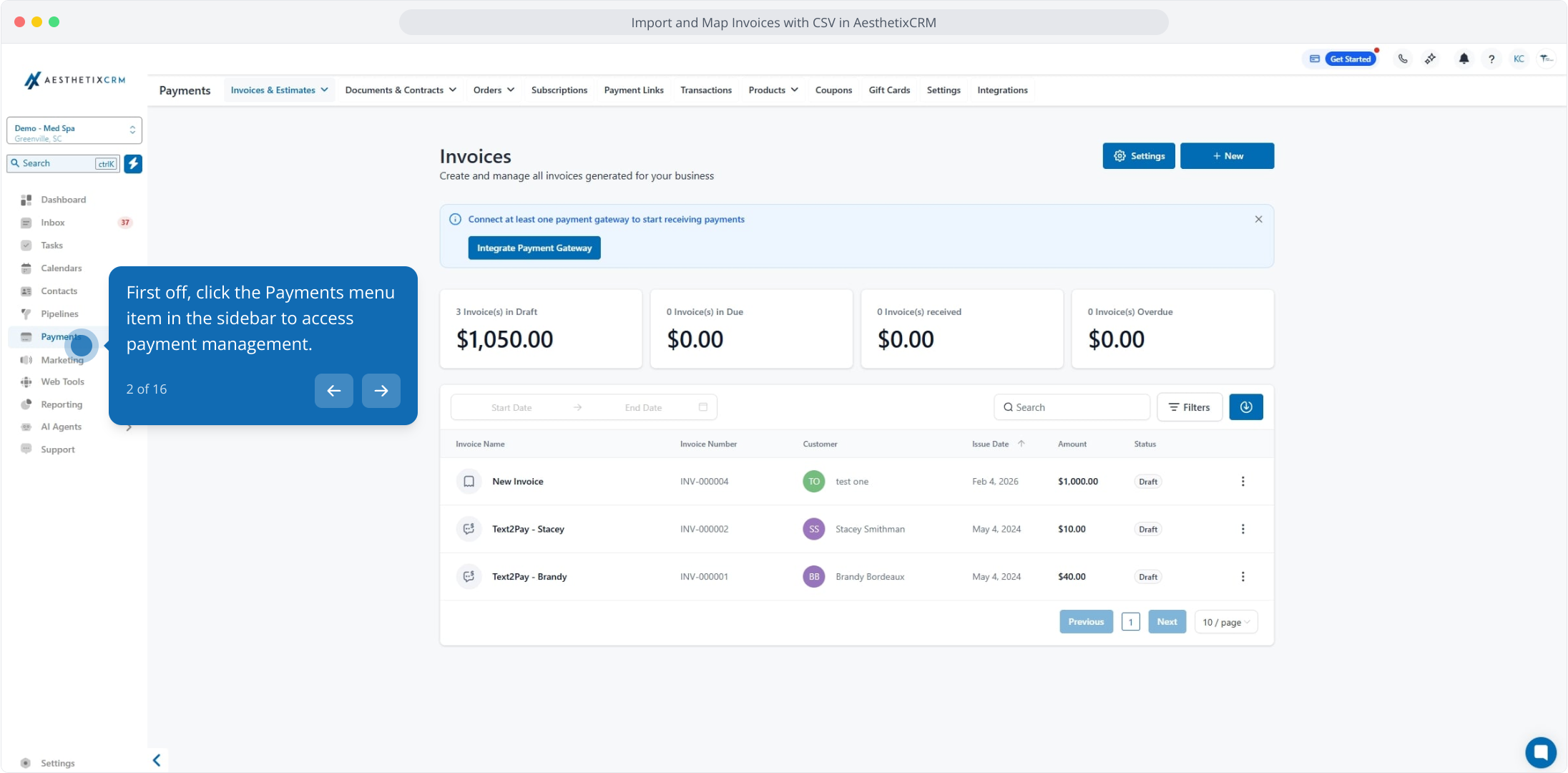
Click the Payments menu item in the sidebar.
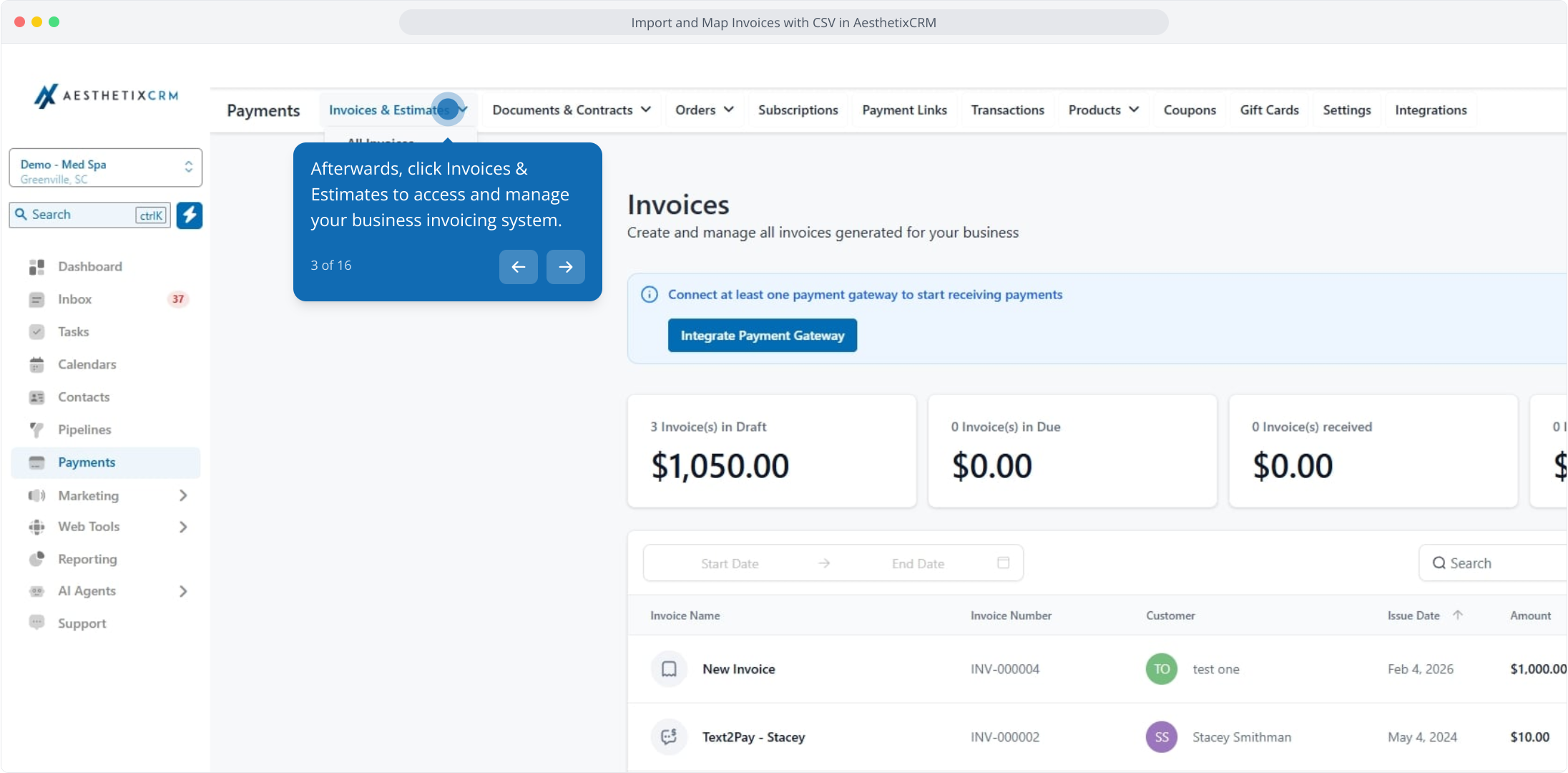
Click Invoices & Estimates to open your invoicing area.
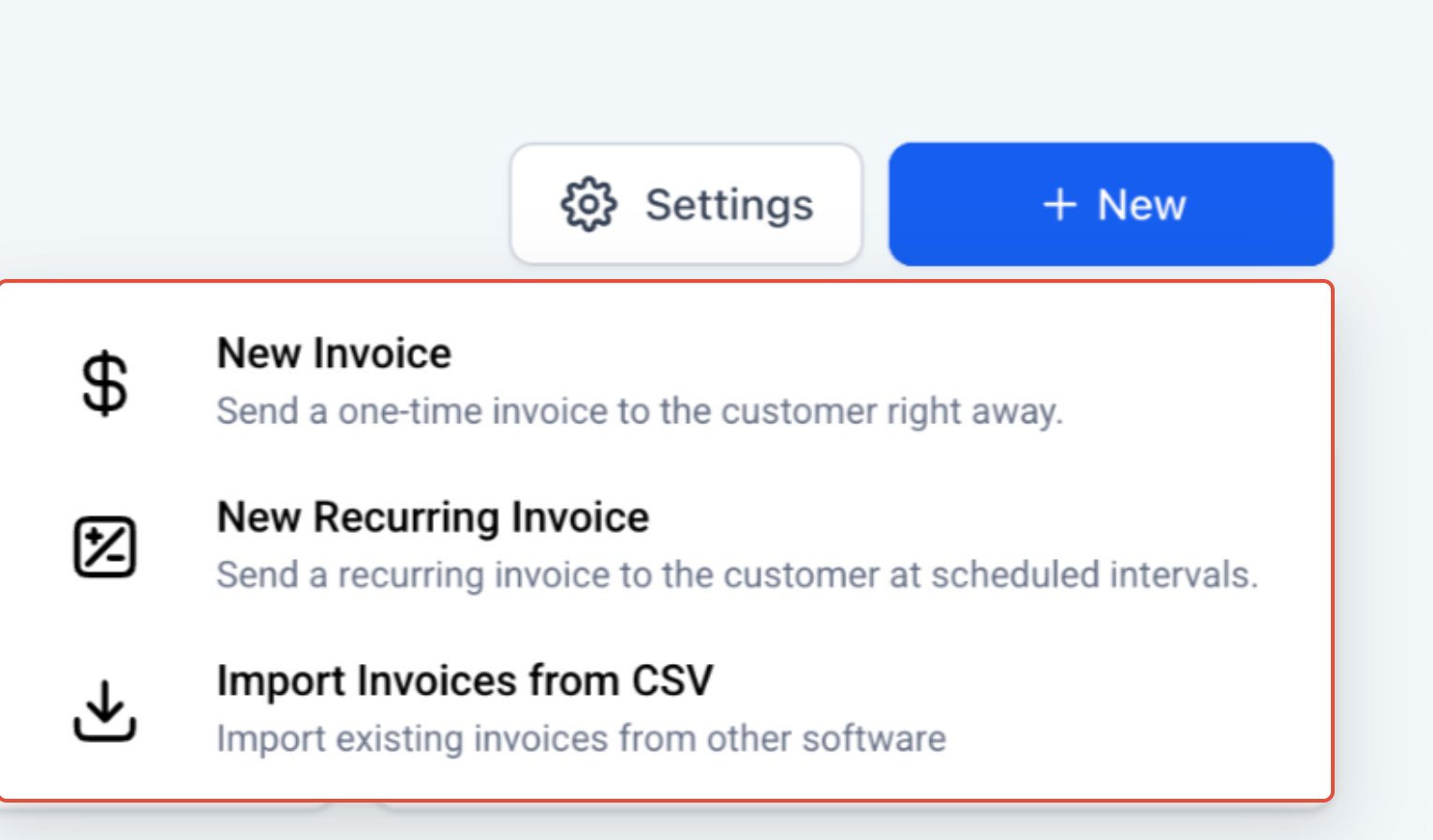
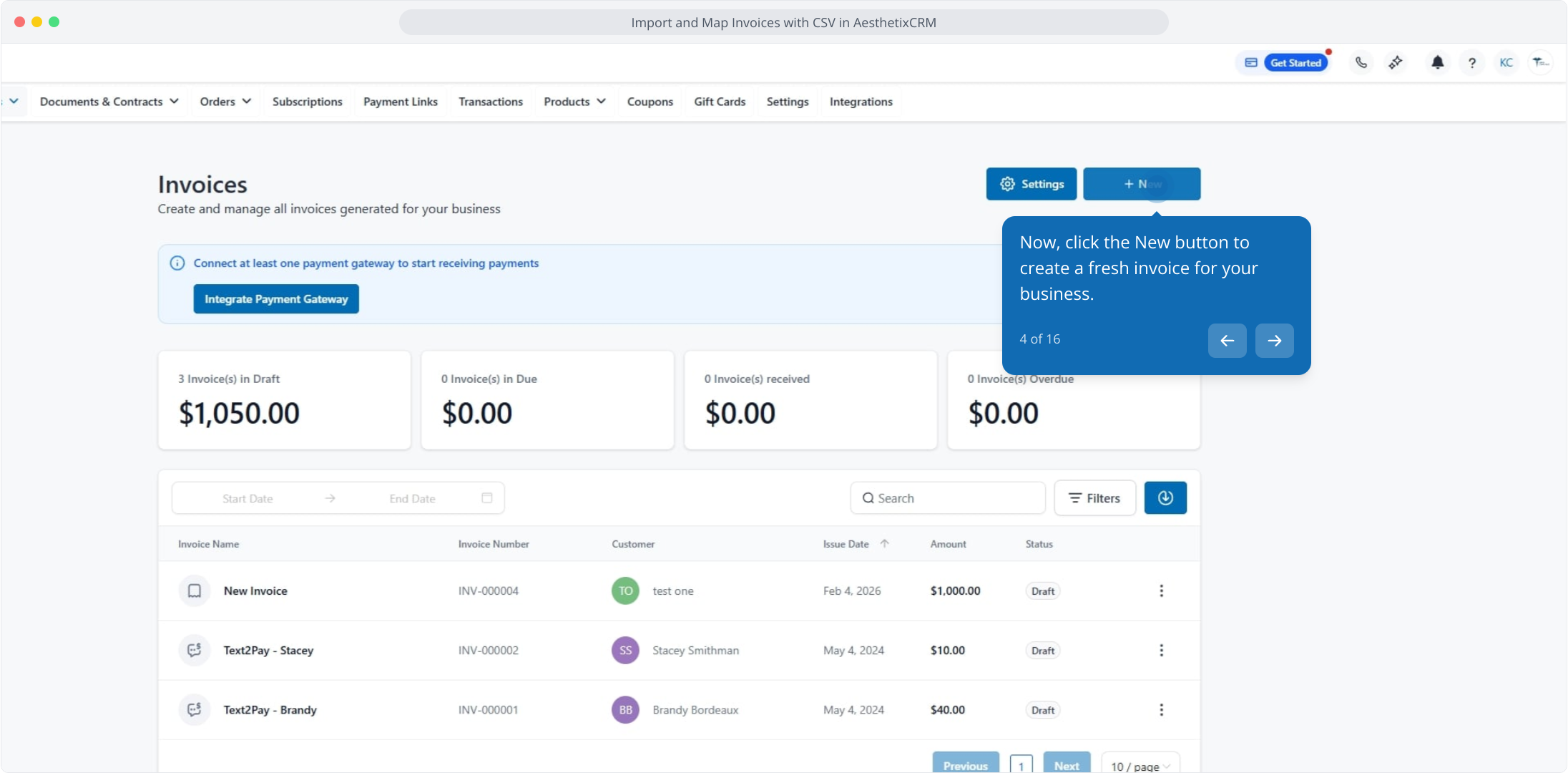
Click the New button.
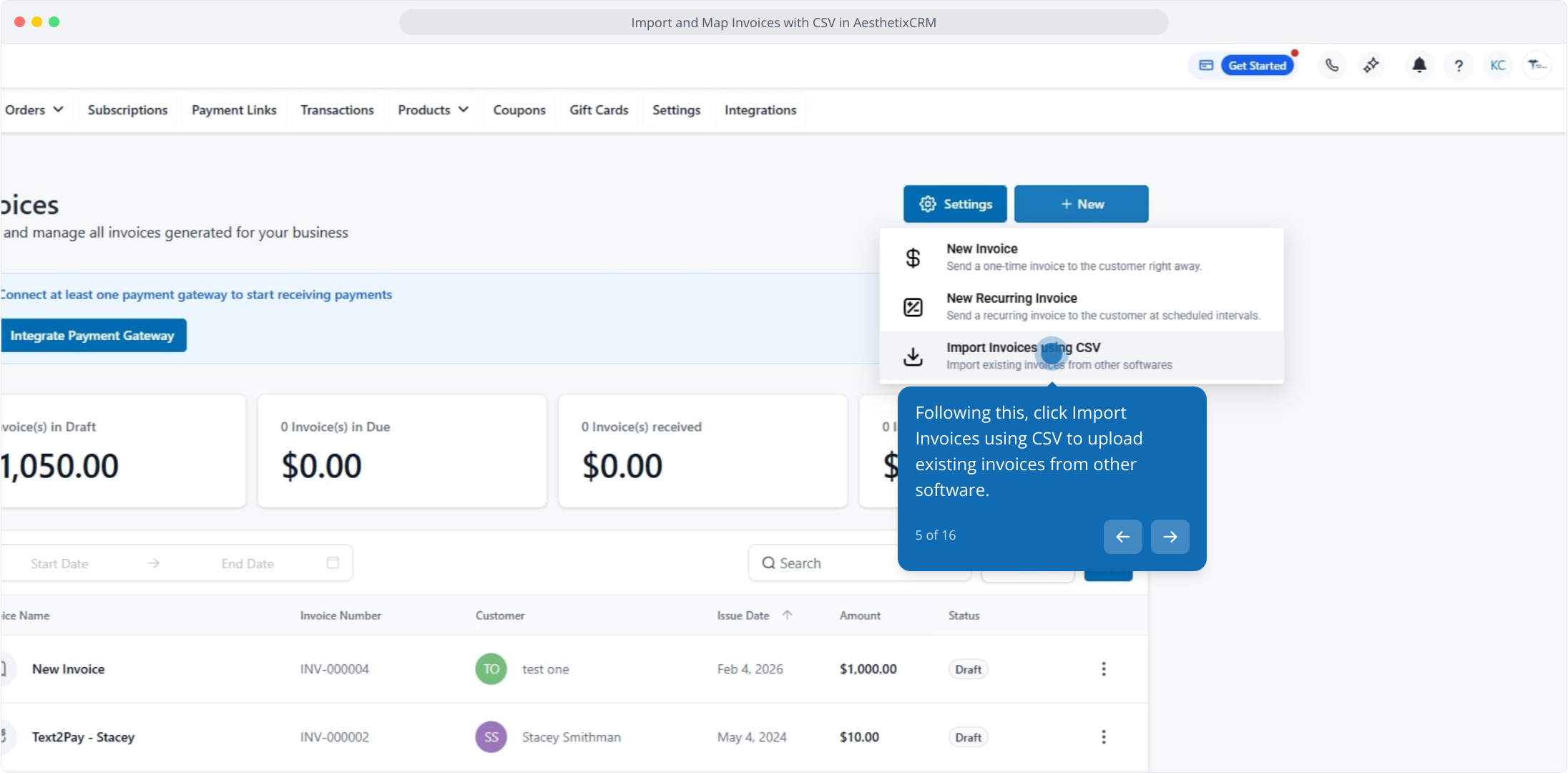
Select Import Invoices using CSV to upload invoices from other software.
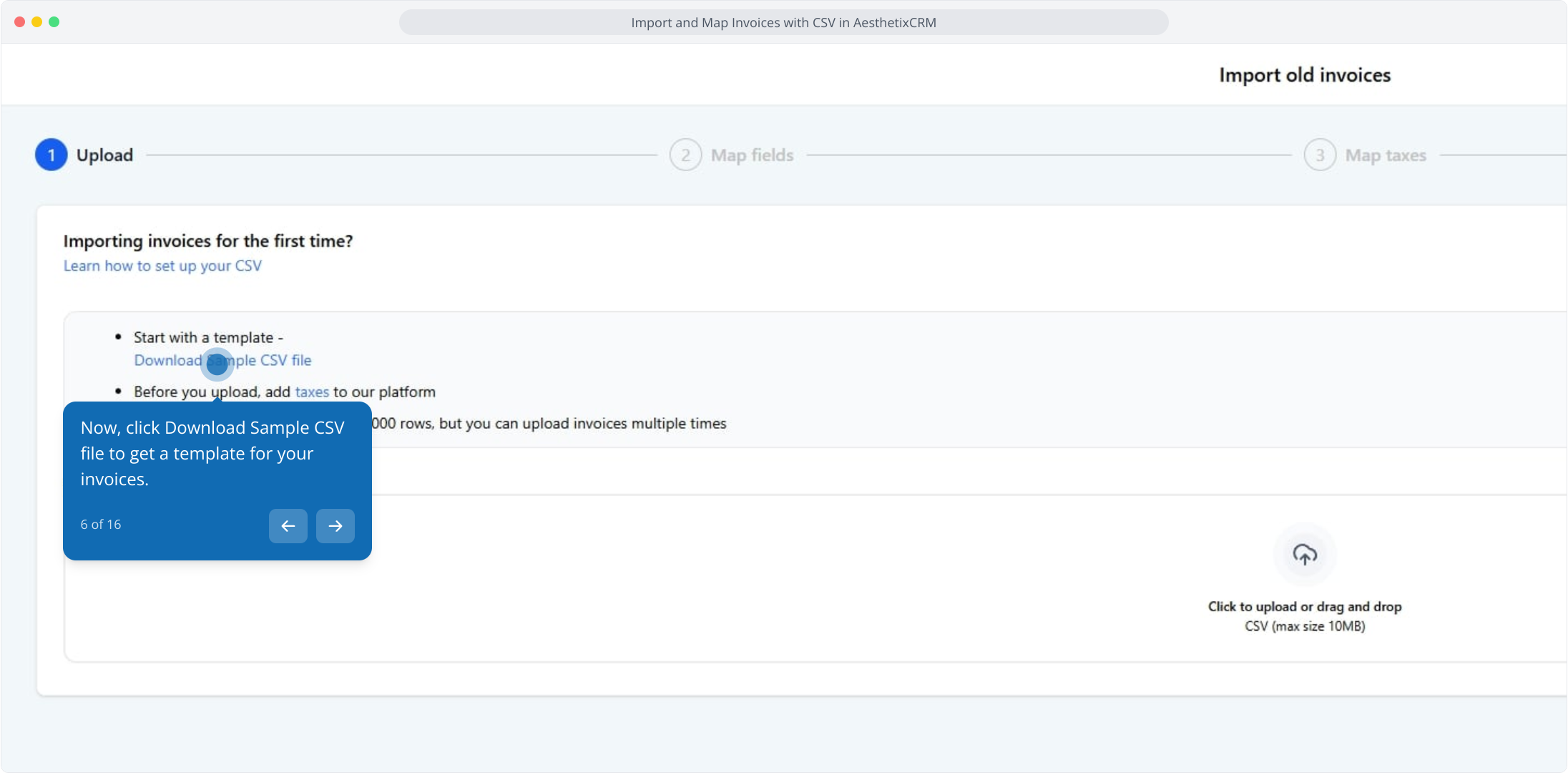
Click Download Sample CSV file to get a template with the required column structure, then match your data to that format.
Confirm your Taxes are already created in your account before importing, since you will need them for tax mapping.
Remember that each CSV file must contain no more than 1,000 rows. You can import more invoices by uploading multiple files.
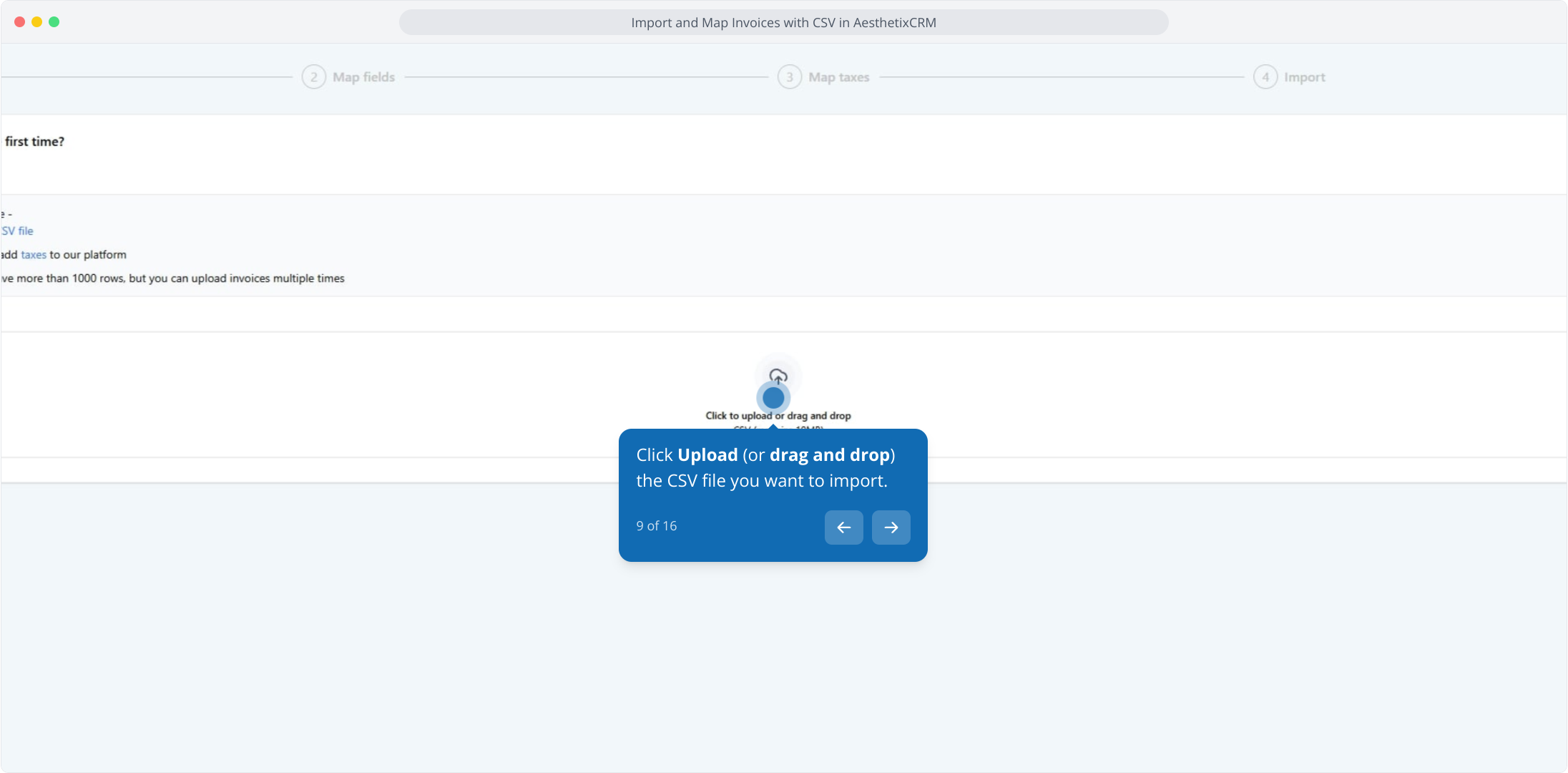
Click Upload, or drag and drop the CSV file you want to import.
Click the Next button to proceed to field mapping.
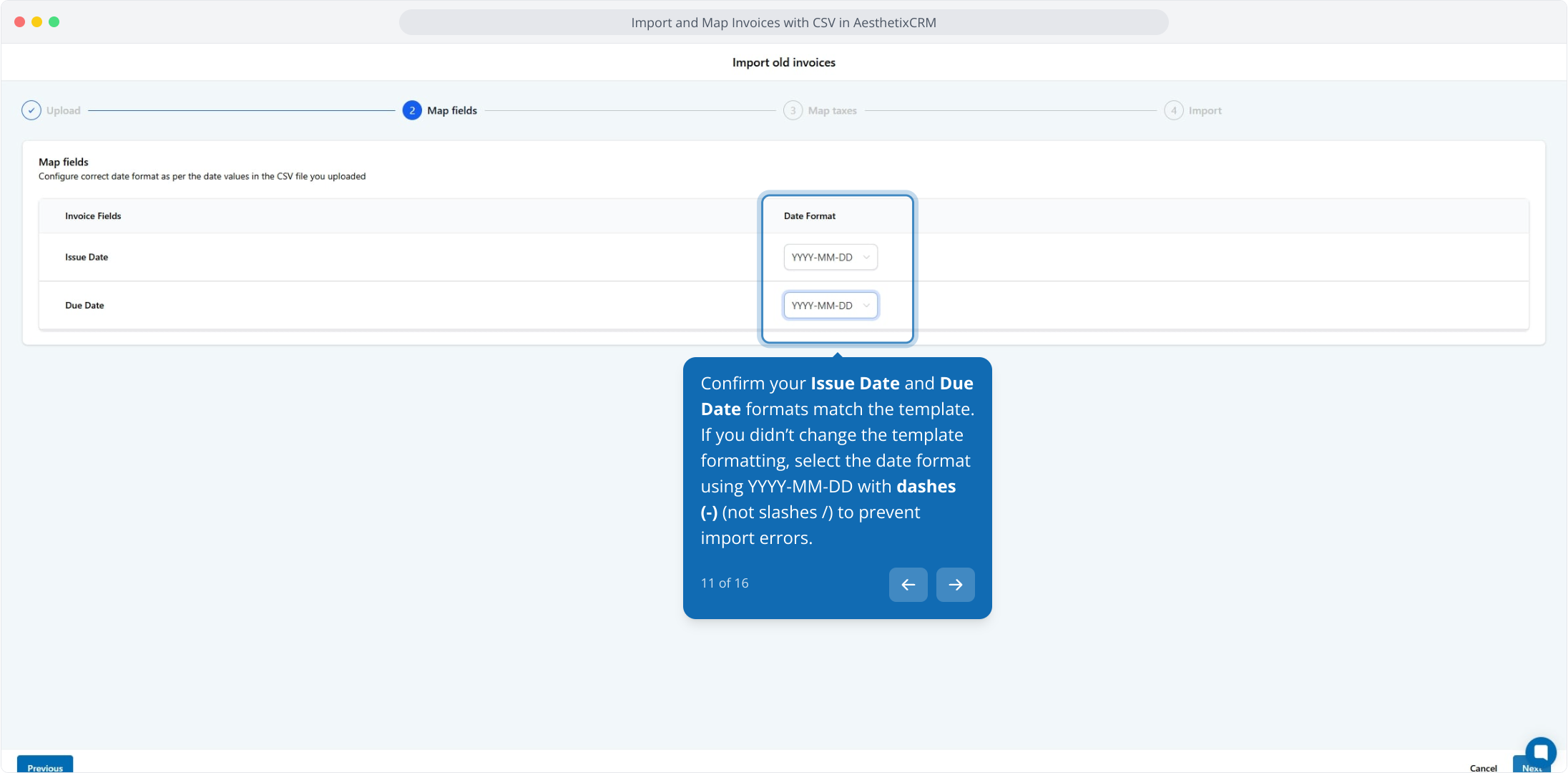
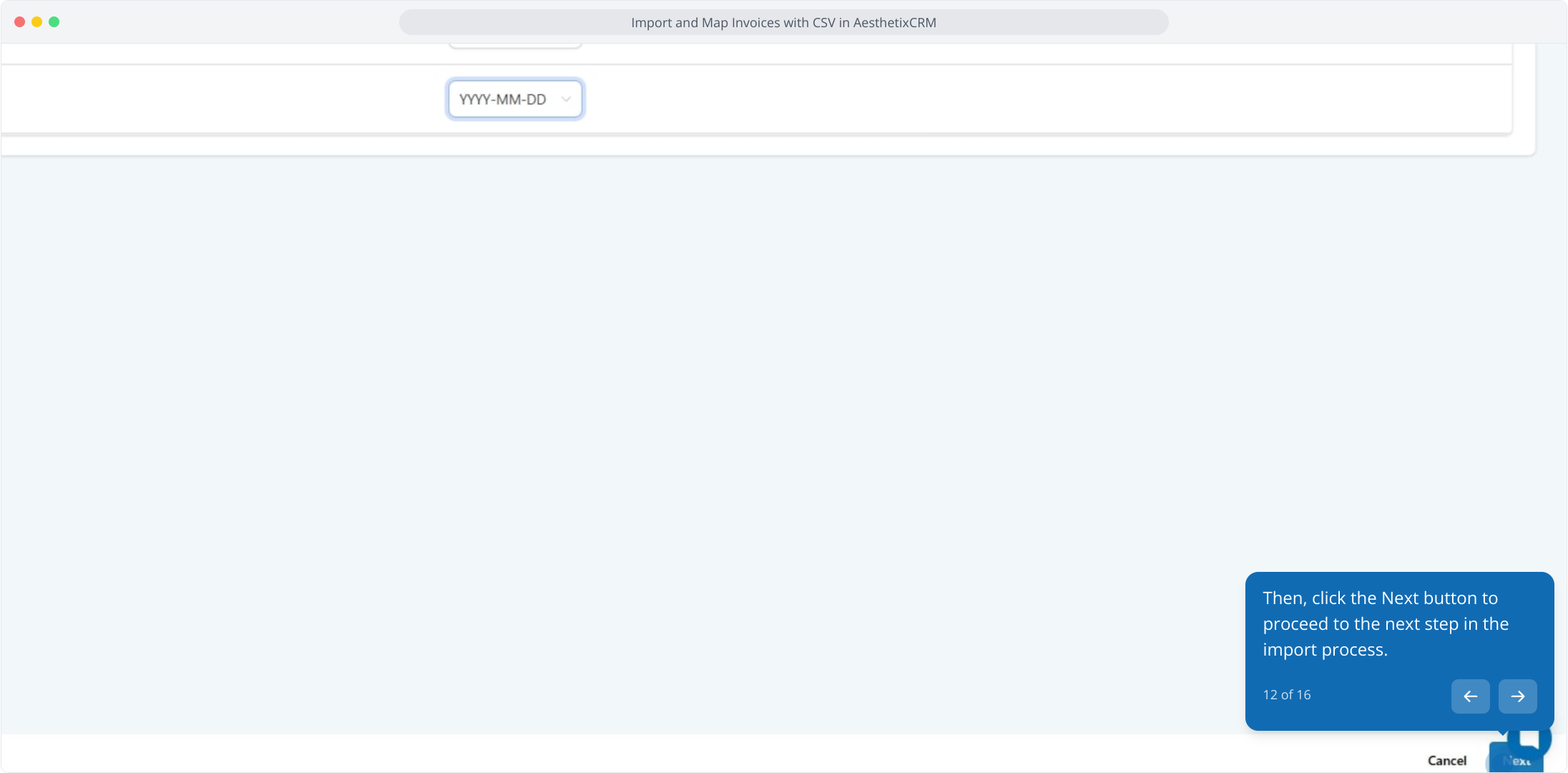
Confirm your Issue Date and Due Date formats match the template. If you did not change the template formatting, select the date format YYYY-MM-DD using dashes (-) rather than slashes (/) to prevent import errors.
Click Next to continue.
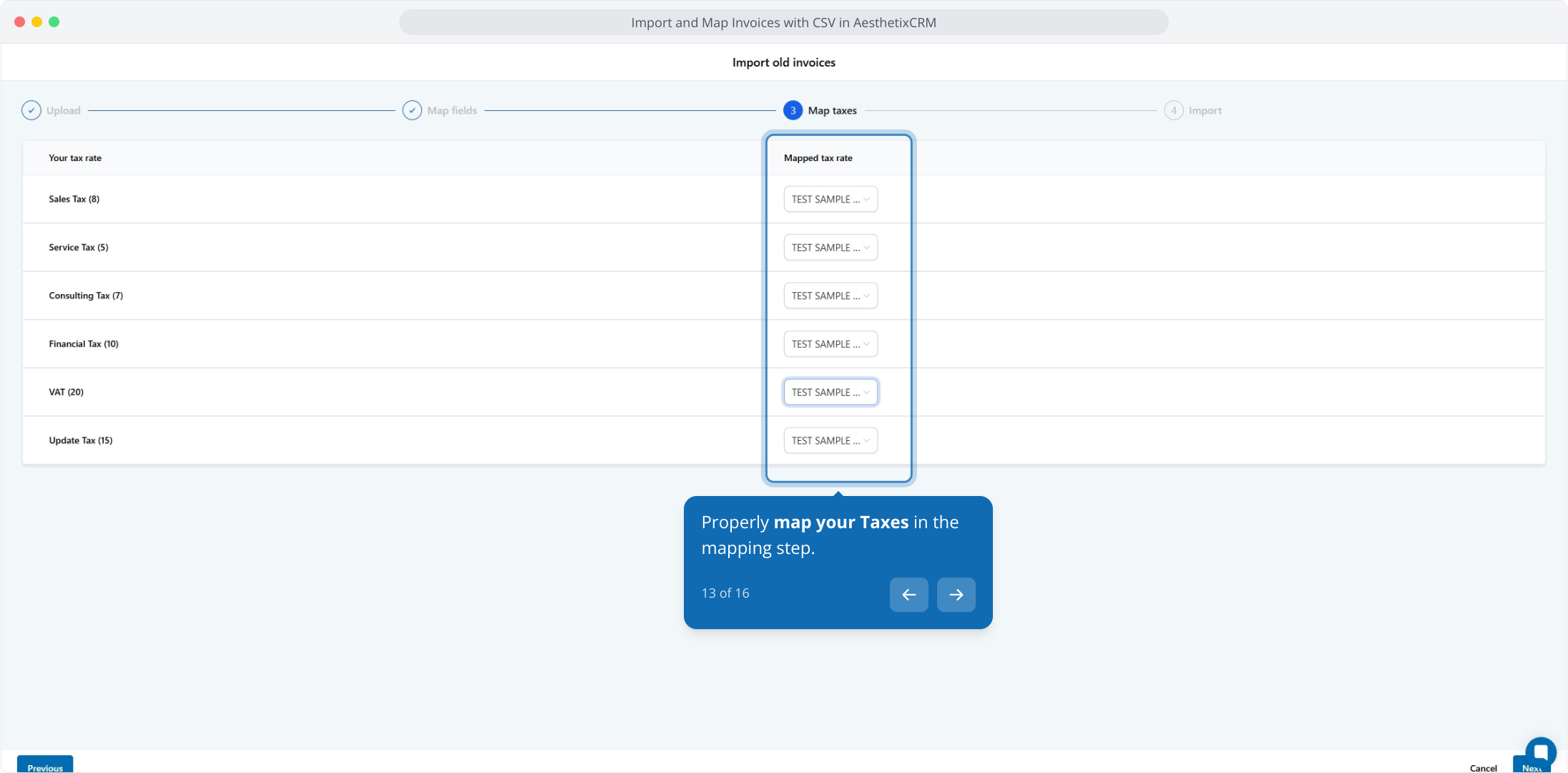
Map your Taxes in the mapping step. The system detects tax-related columns and prompts you to match each one to an existing tax rate.
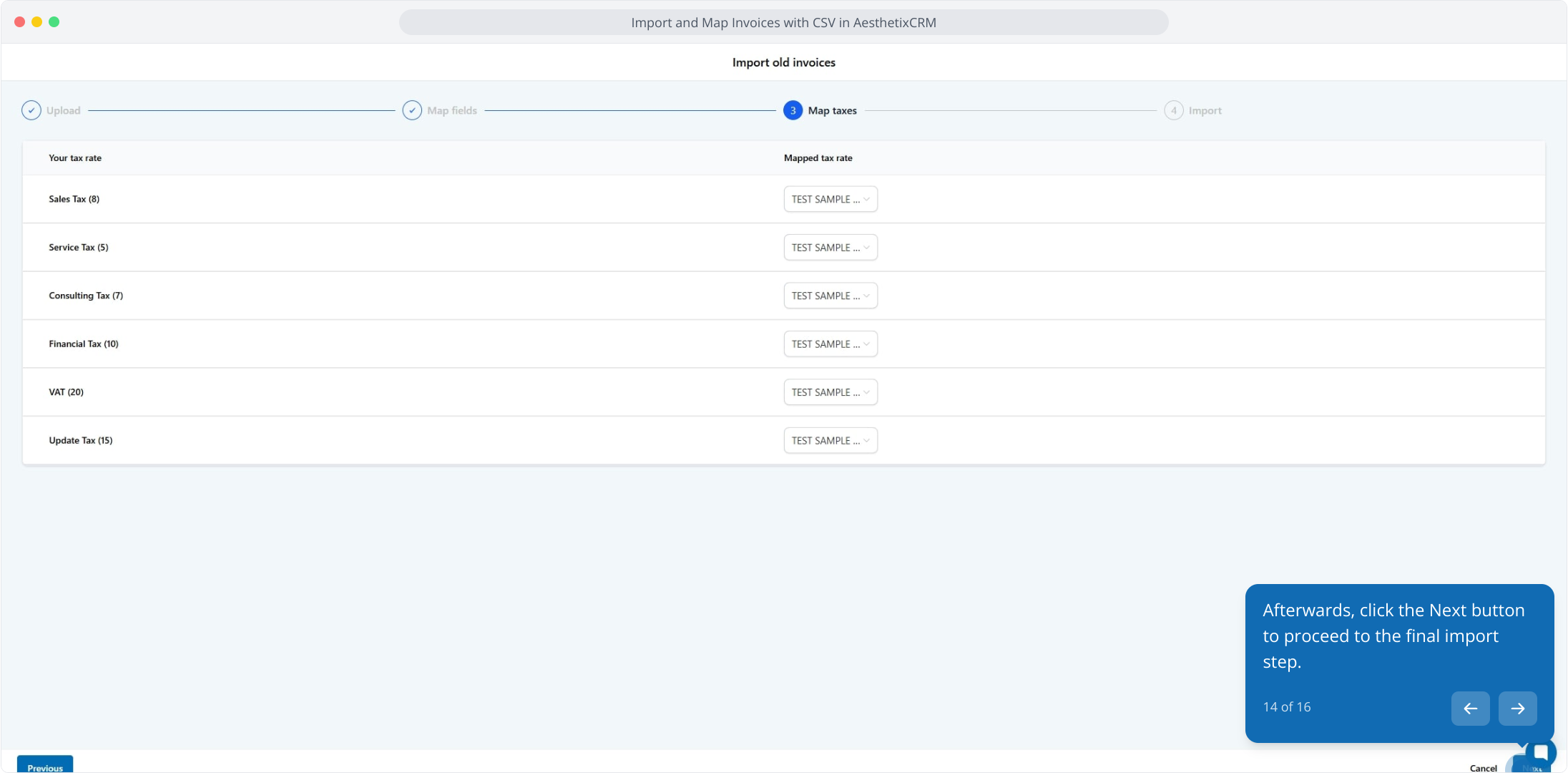
Click Next to proceed to the final step.
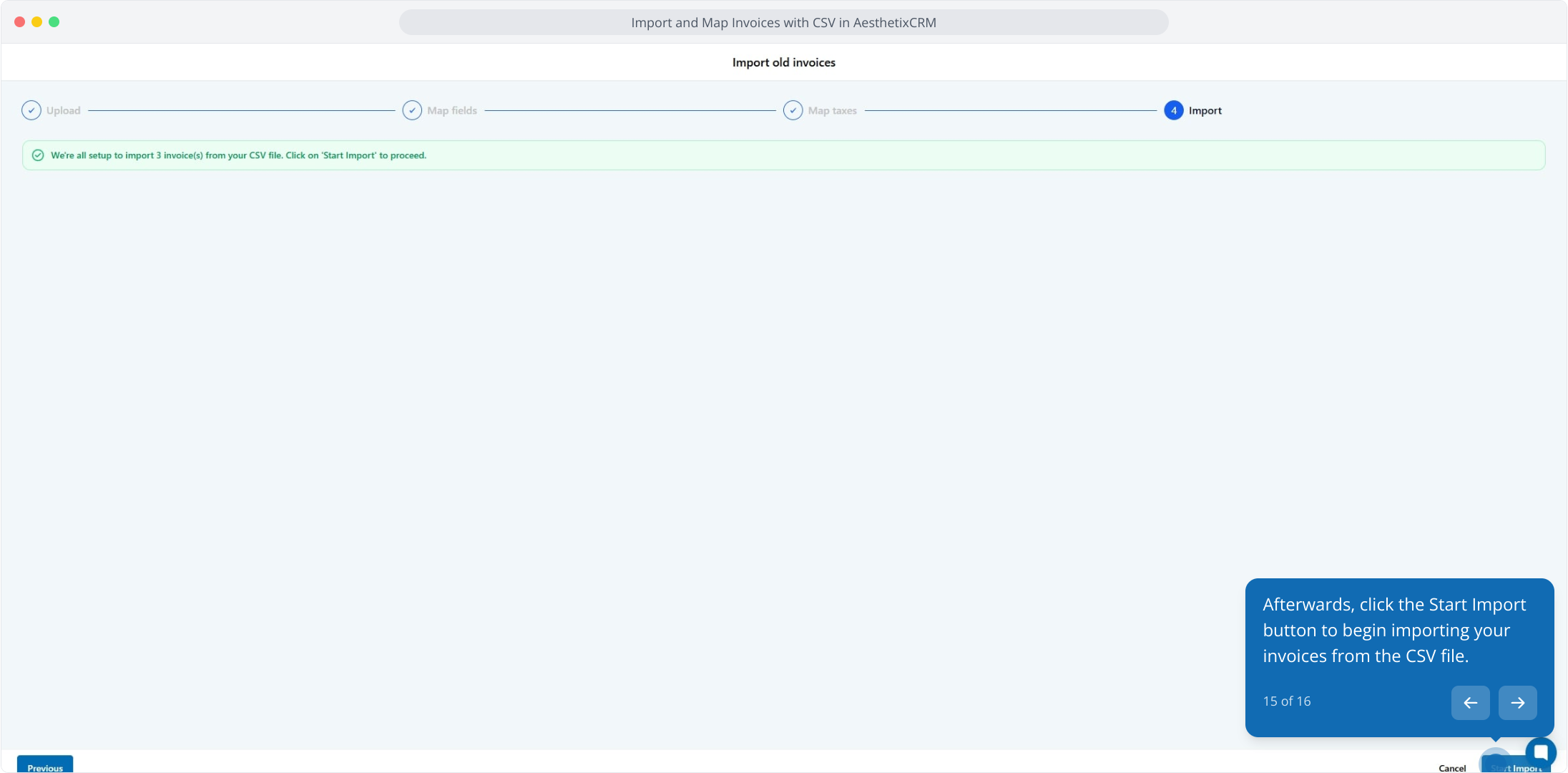
Click the Start Import button to begin importing your invoices.
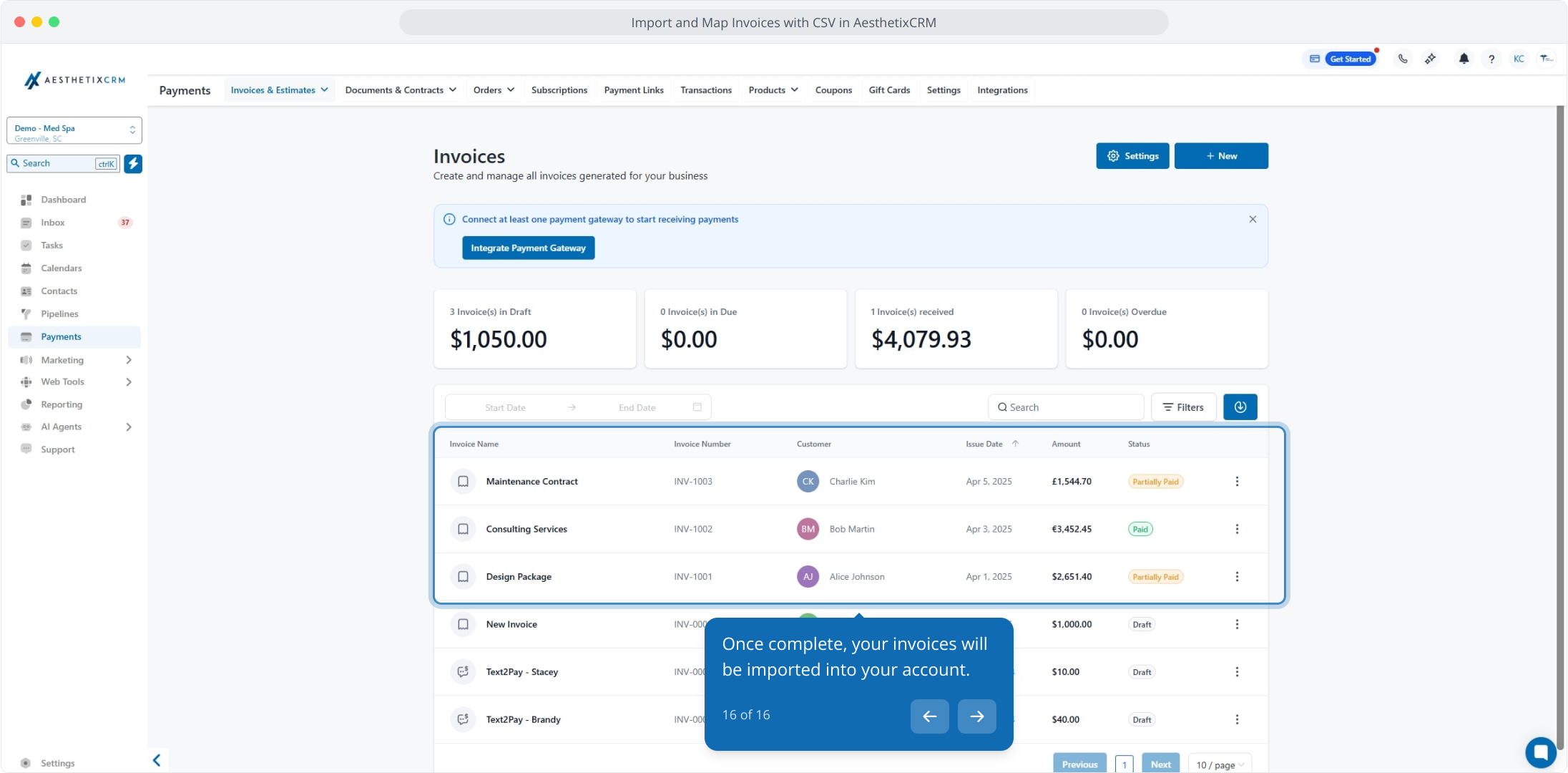
Once complete, your invoices are imported into your account.
Proper tax mapping ensures imported invoices reflect accurate tax values that match your existing configuration.
Each detected tax column must be matched to a tax rate previously created under Settings → Taxes.
If a matching tax rate does not exist, add it before completing the mapping.
The import pauses if a tax field remains unmapped, which prevents inaccurate data from being imported.
After the import completes, an automated summary email is sent to your registered address. It includes:
A count of successfully imported invoices.
A detailed list of failed entries with the specific reason for each failure (for example, an invalid date format or an unmatched tax value).
A CSV attachment showing each row's import status.
Imported invoices differ from invoices created directly in Aesthetix CRM in two important ways:
No automated reminders: Imported invoices do not trigger reminder emails or text messages. Reminder workflows apply only to new invoices created inside the platform.
Late fees and tips: Imported invoices follow your configured default or global settings for late fees and tips. To disable these for a specific invoice, edit it manually after import.
Can I import invoices with multiple tax types? Yes. As long as each tax type is labeled in your CSV and already exists under Settings → Taxes, you can map and import them.
Will imported invoices send emails or notifications to patients? No. Imported invoices are treated as historical records and do not trigger reminder or notification emails.
Can I use the import tool to update or overwrite existing invoices? No. The CSV import tool only creates new invoices. It cannot update or replace invoices that already exist.
Can I add multiple items to a single invoice? Yes. Use the same invoice number across multiple rows to include multiple line items on one invoice.
What happens if some rows fail to import? Failed rows are listed in the summary email with a specific reason for each, such as an invalid date format or an unmatched tax value. Fix those rows and re-import them.
What happens if required data is missing? The import fails for those rows. Correct the file so every required field has valid data, then upload again.
Do I need to include the optional fields? No. Optional fields can be left blank. They are useful for better tracking and reporting but are not required.
Is there a limit to how many invoices I can import at once? Each file is limited to 1,000 rows. For smoother processing and easier error management, consider importing in smaller batches and uploading multiple files.
My import is not working. What should I check? Double-check your column names, required fields, and date formats (use YYYY-MM-DD with dashes), and confirm your invoice numbers are not duplicated. If you are still stuck, contact support.
