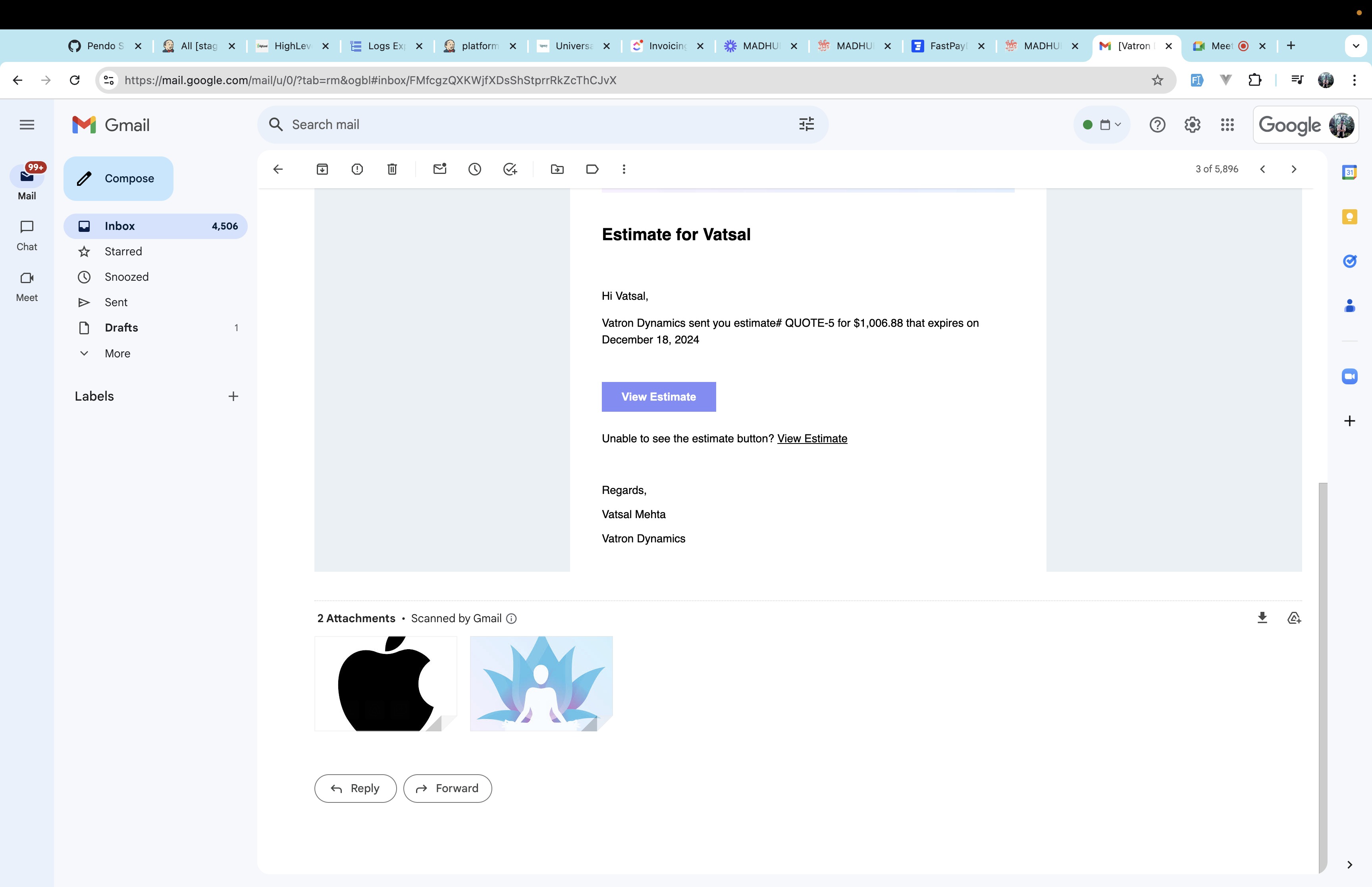
Attachments let you include supporting files directly with an estimate or invoice, so patients receive everything in one complete package. You can attach documents such as treatment plans, consent forms, terms, spec sheets, or reference visuals, and they are delivered automatically when the document is sent.
Each document supports up to 10 attachments with a 20 MB total size limit across all files. Common formats such as PDF, PNG, and CSV are supported.
Attachments are available on:
Estimates
Estimate templates
Invoices
Recurring invoices
Each document manages its own attachments independently.
Note: Attachments are only included with the first email send. They are not resent with reminders or scheduled follow-ups.
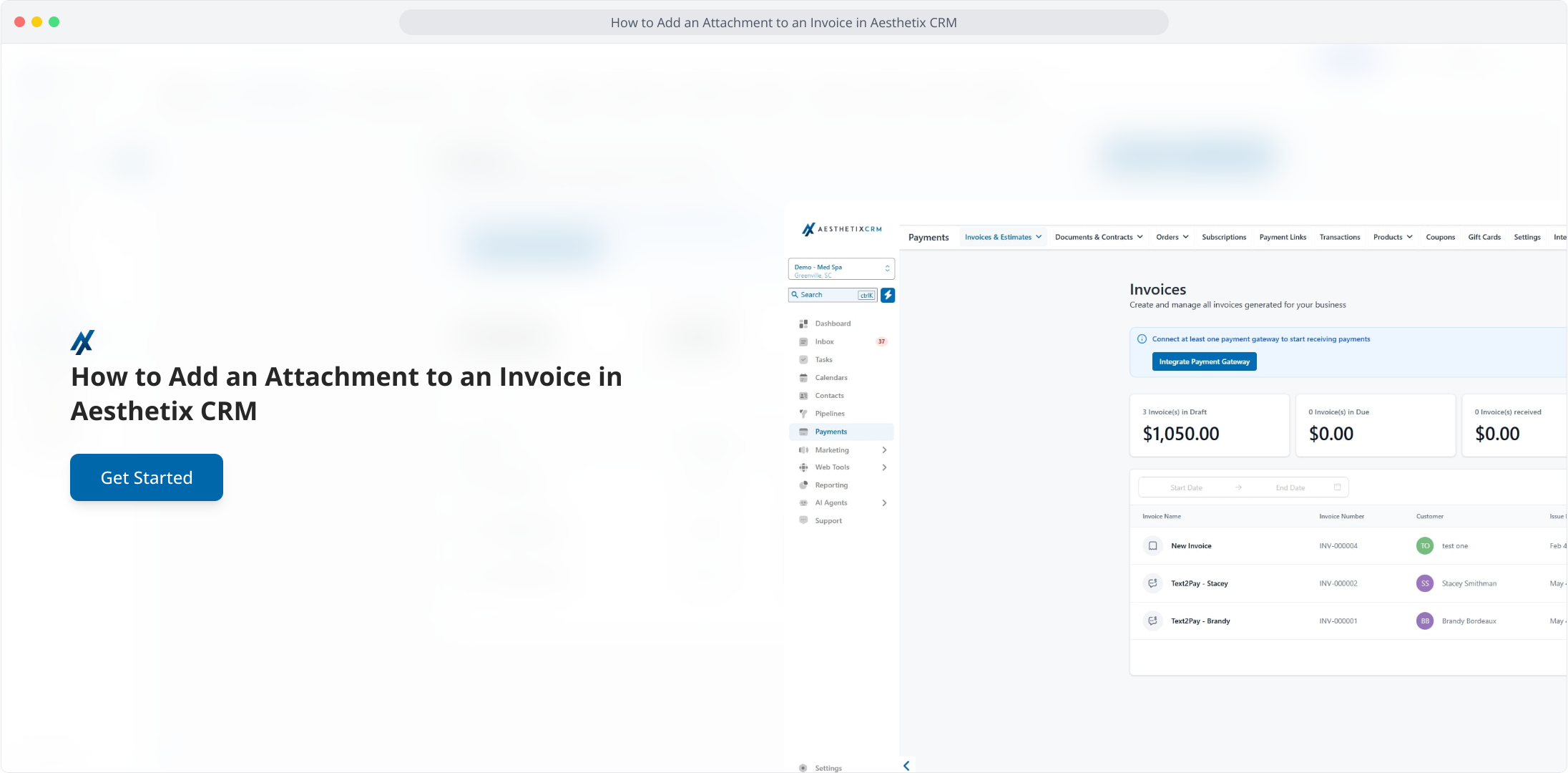
Click the Payments menu option to access your invoicing tools.
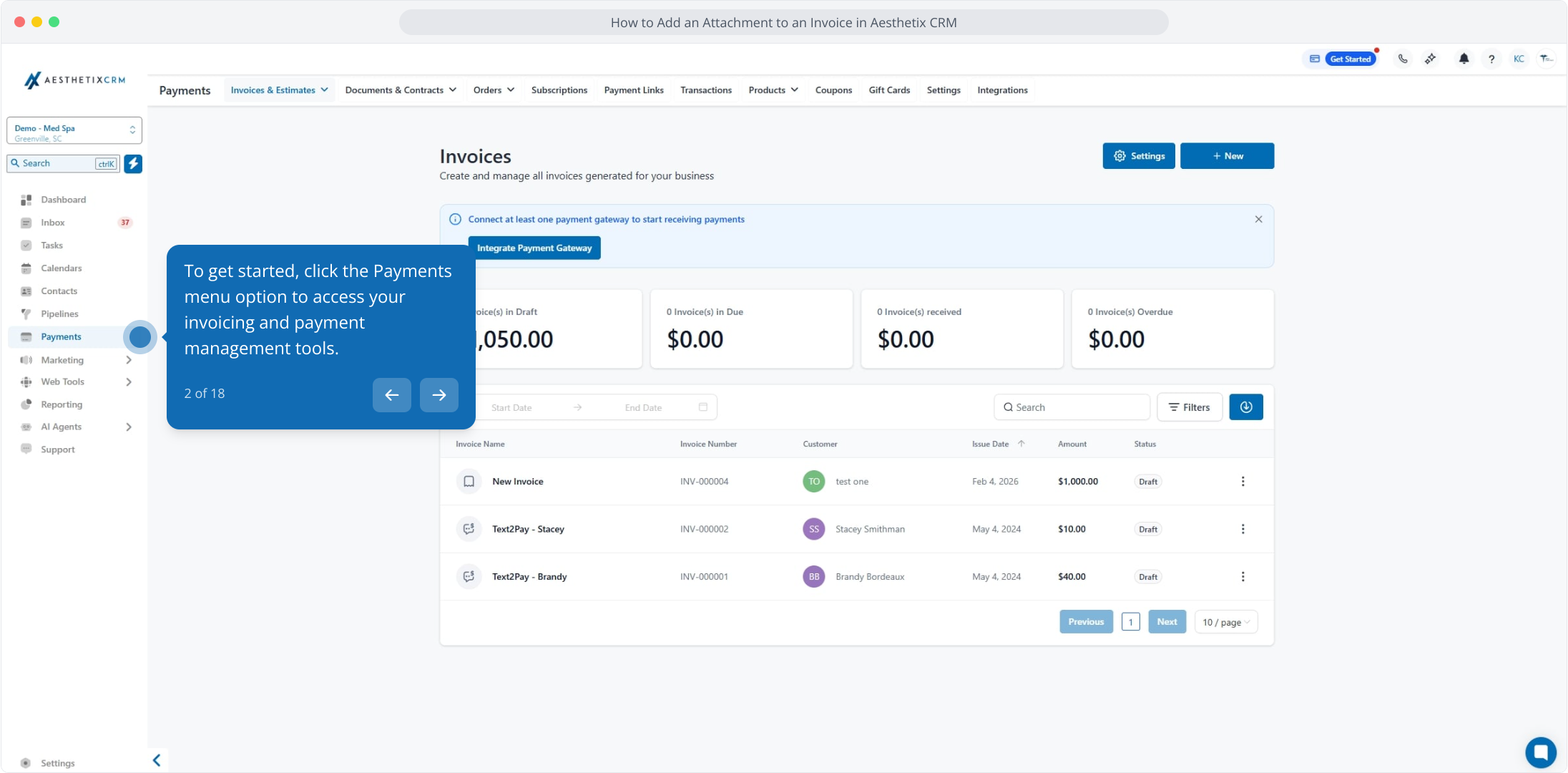
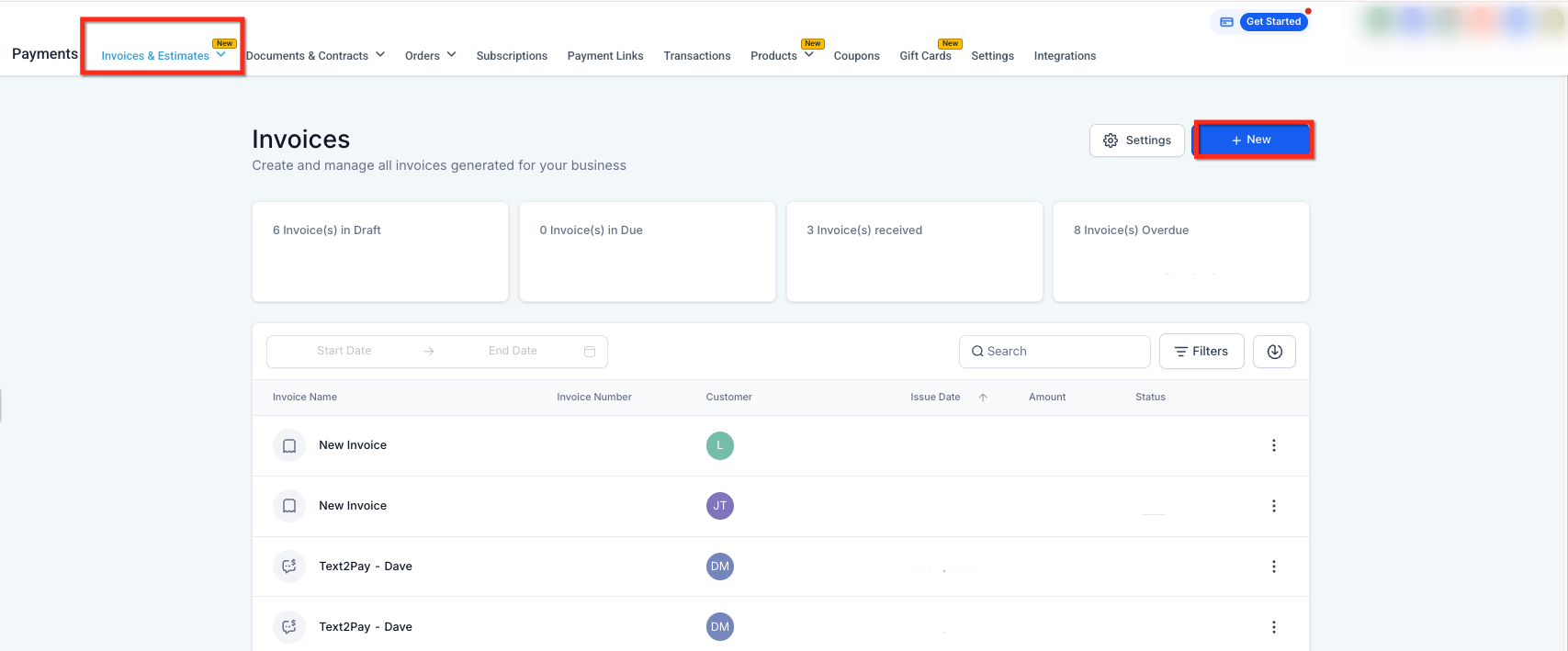
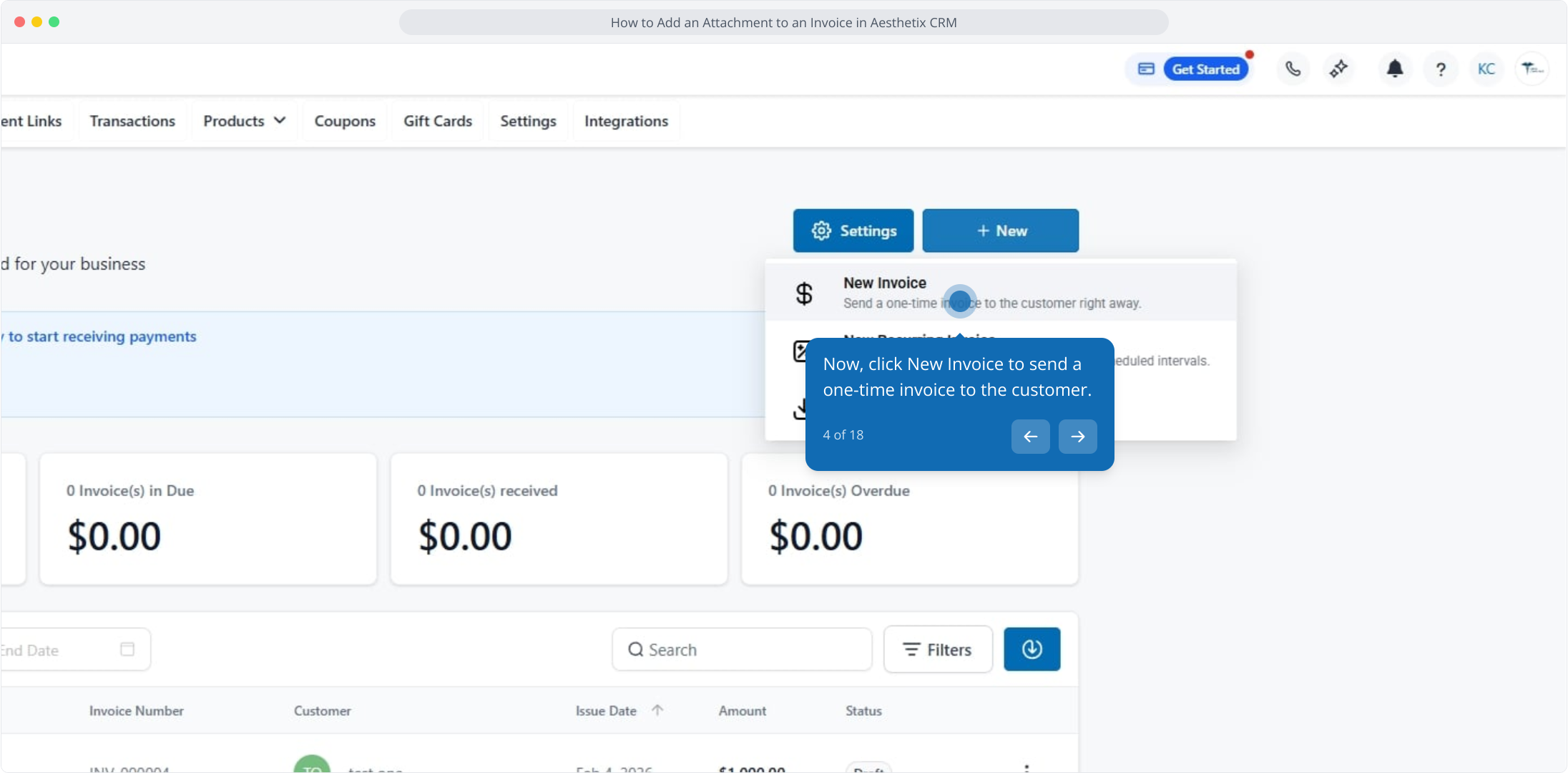
Click the New button to create a new invoice.
Click New Invoice to send a one-time invoice to the patient.
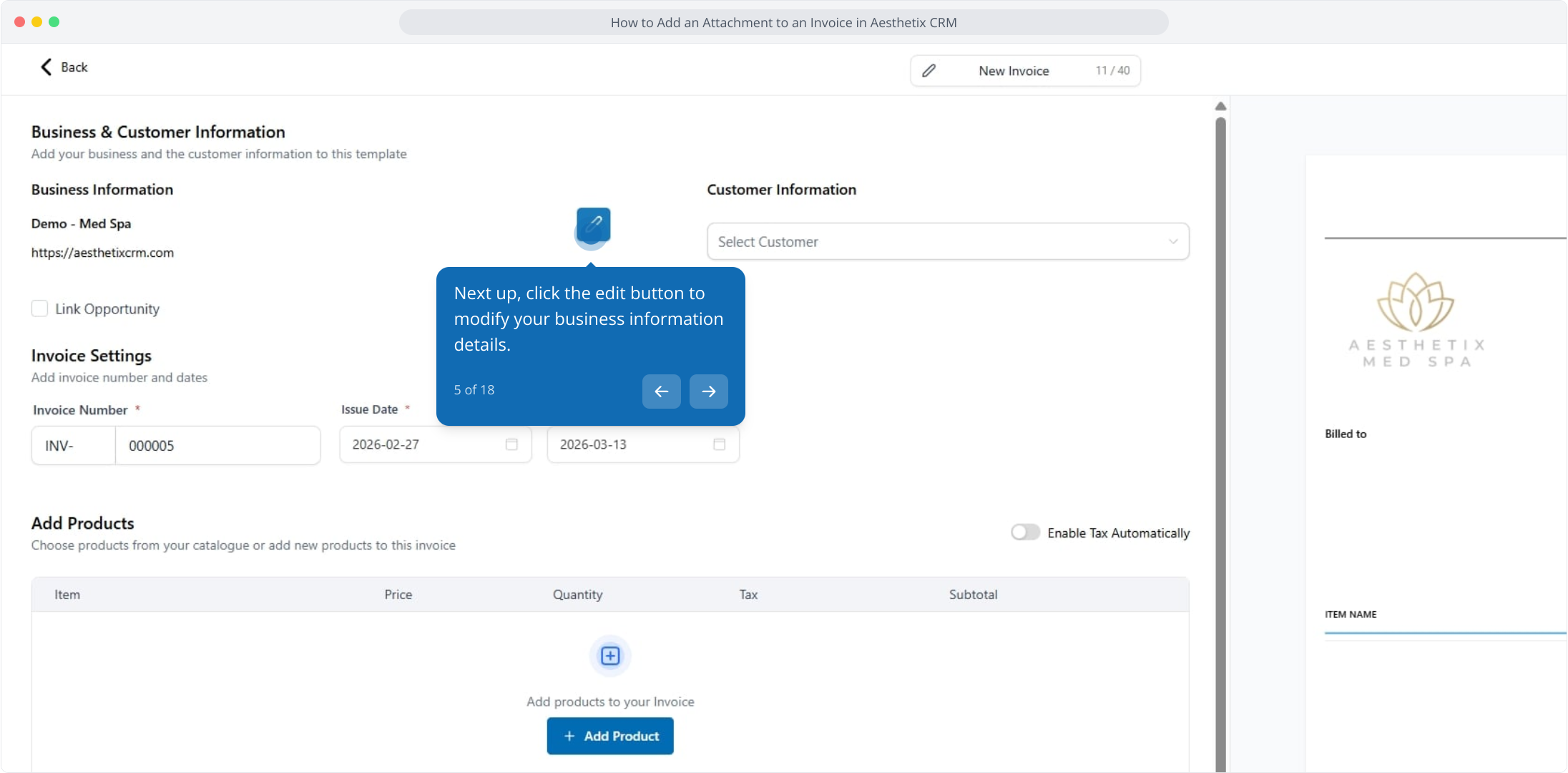
Click to edit your Business Information.
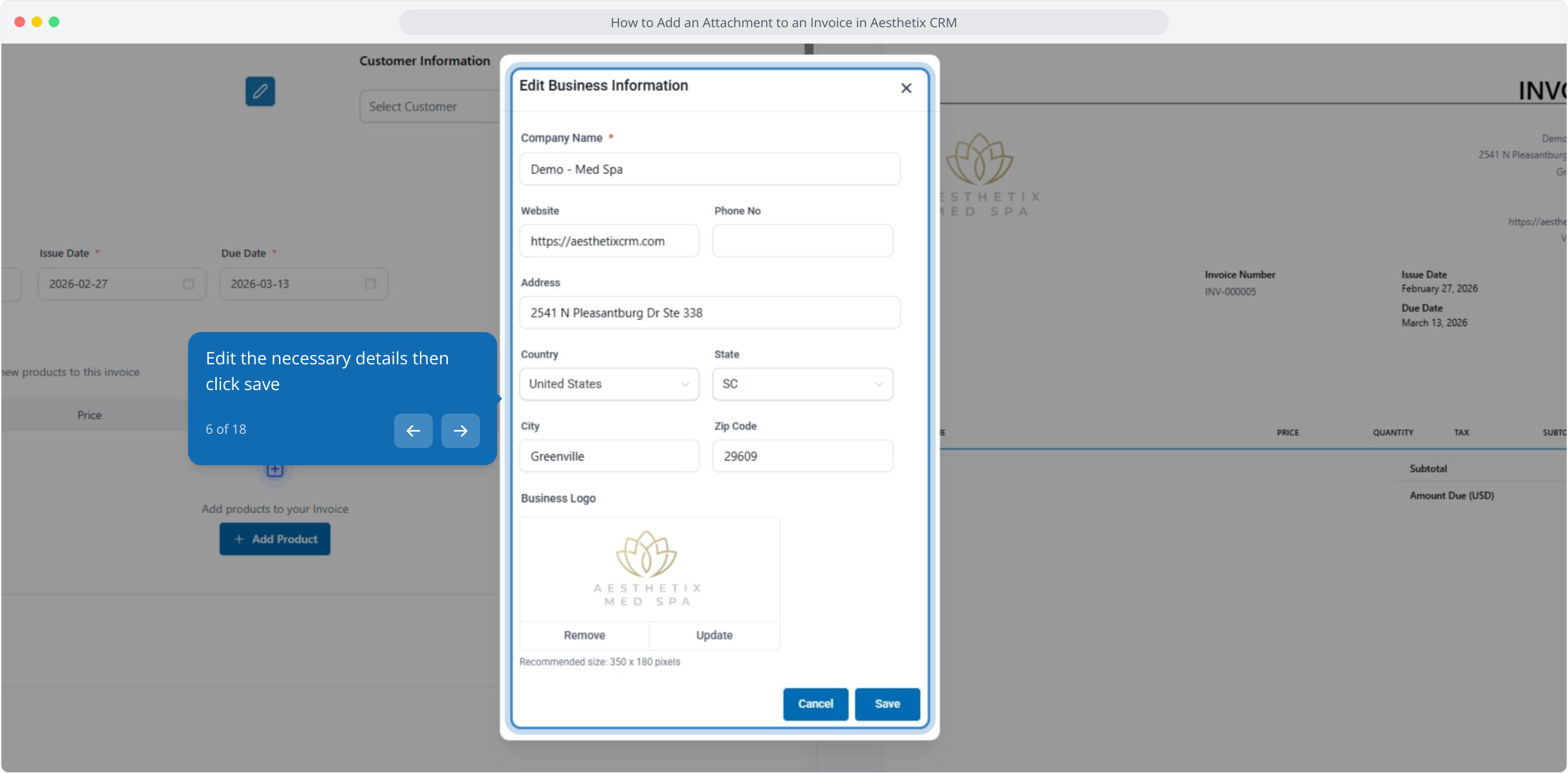
Edit the necessary details, then click Save.
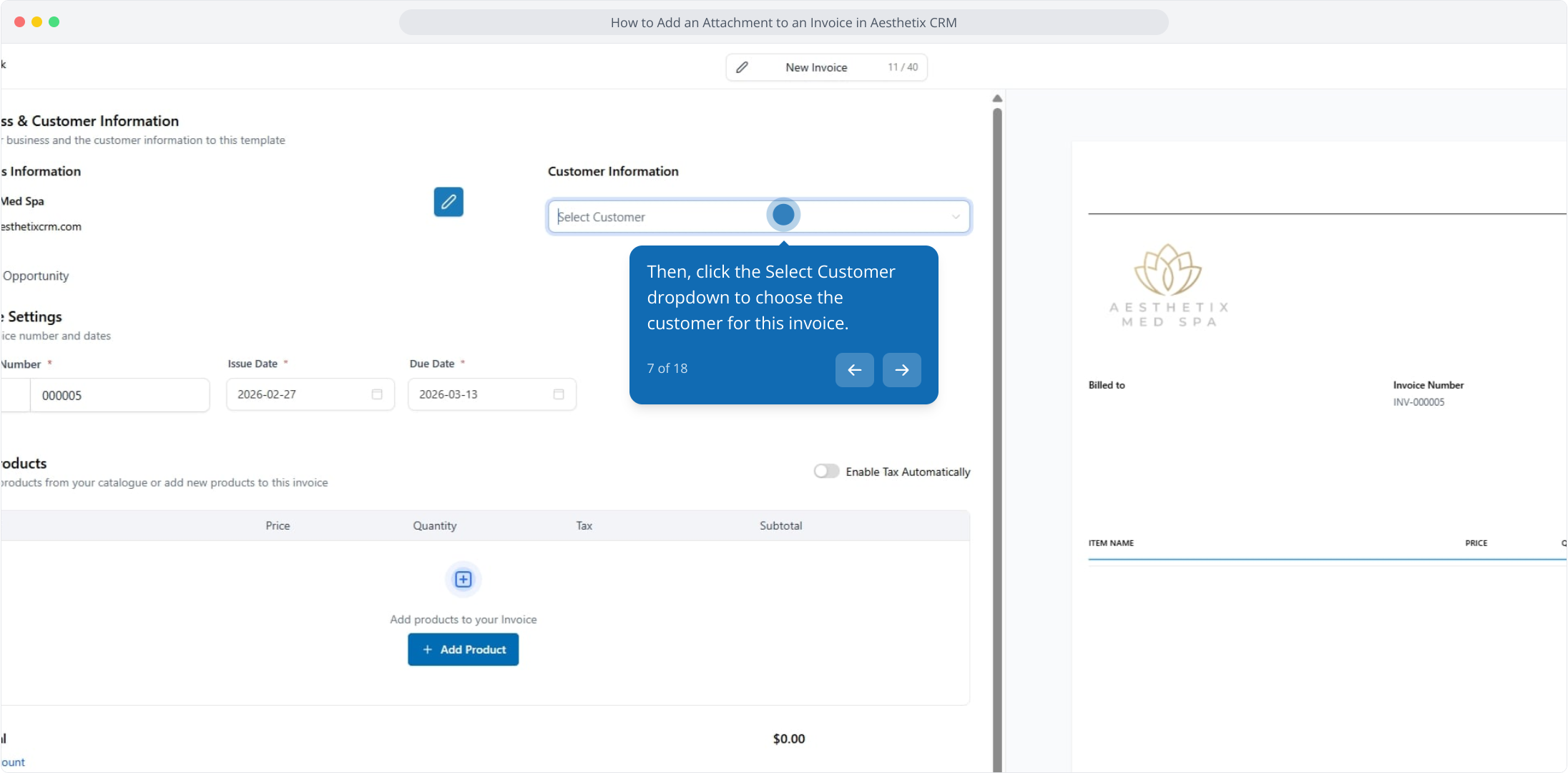
Click the Select Customer dropdown to choose the patient for this invoice.
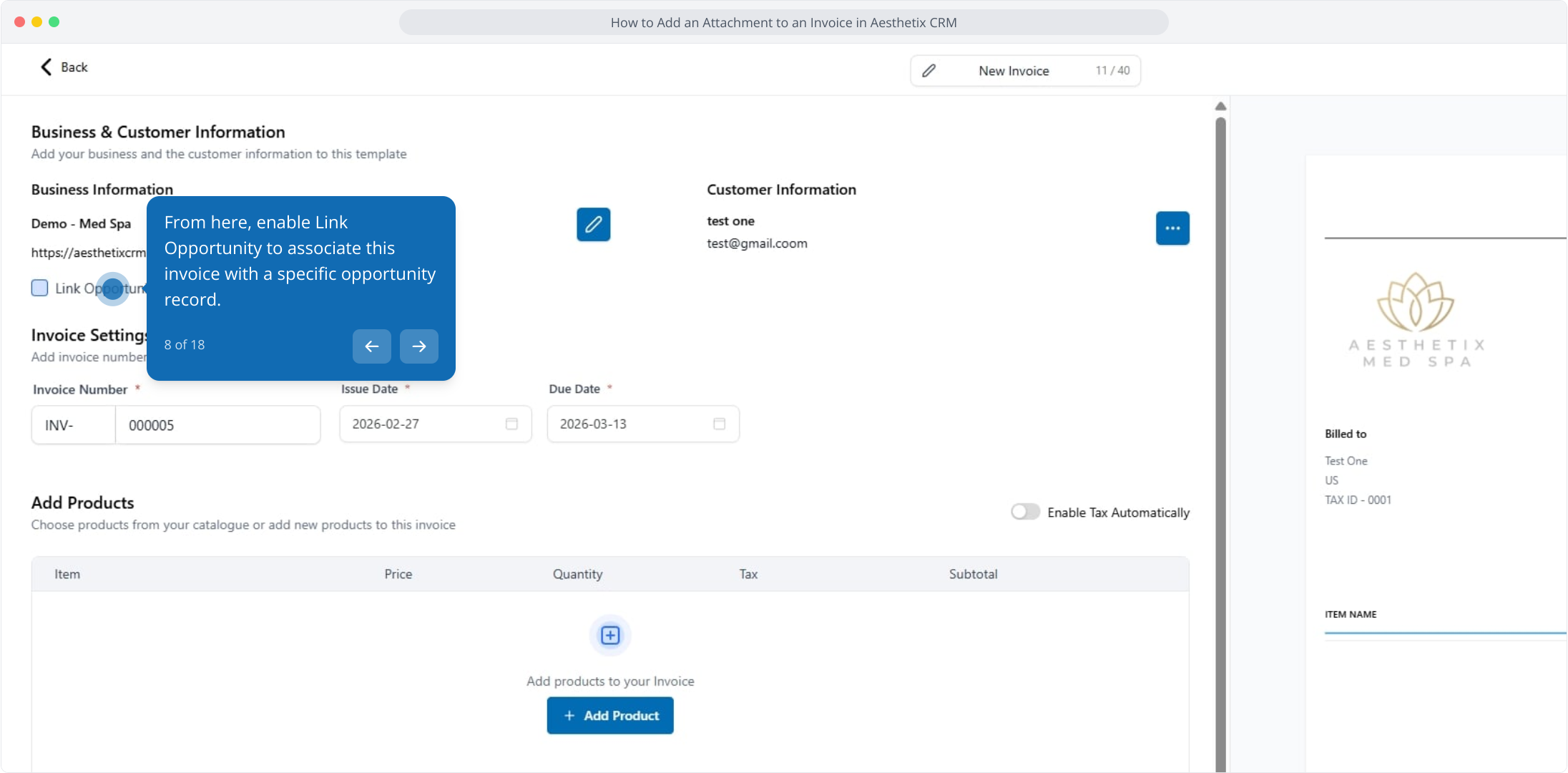
If you want to tie this invoice to a deal, enable Link Opportunity.
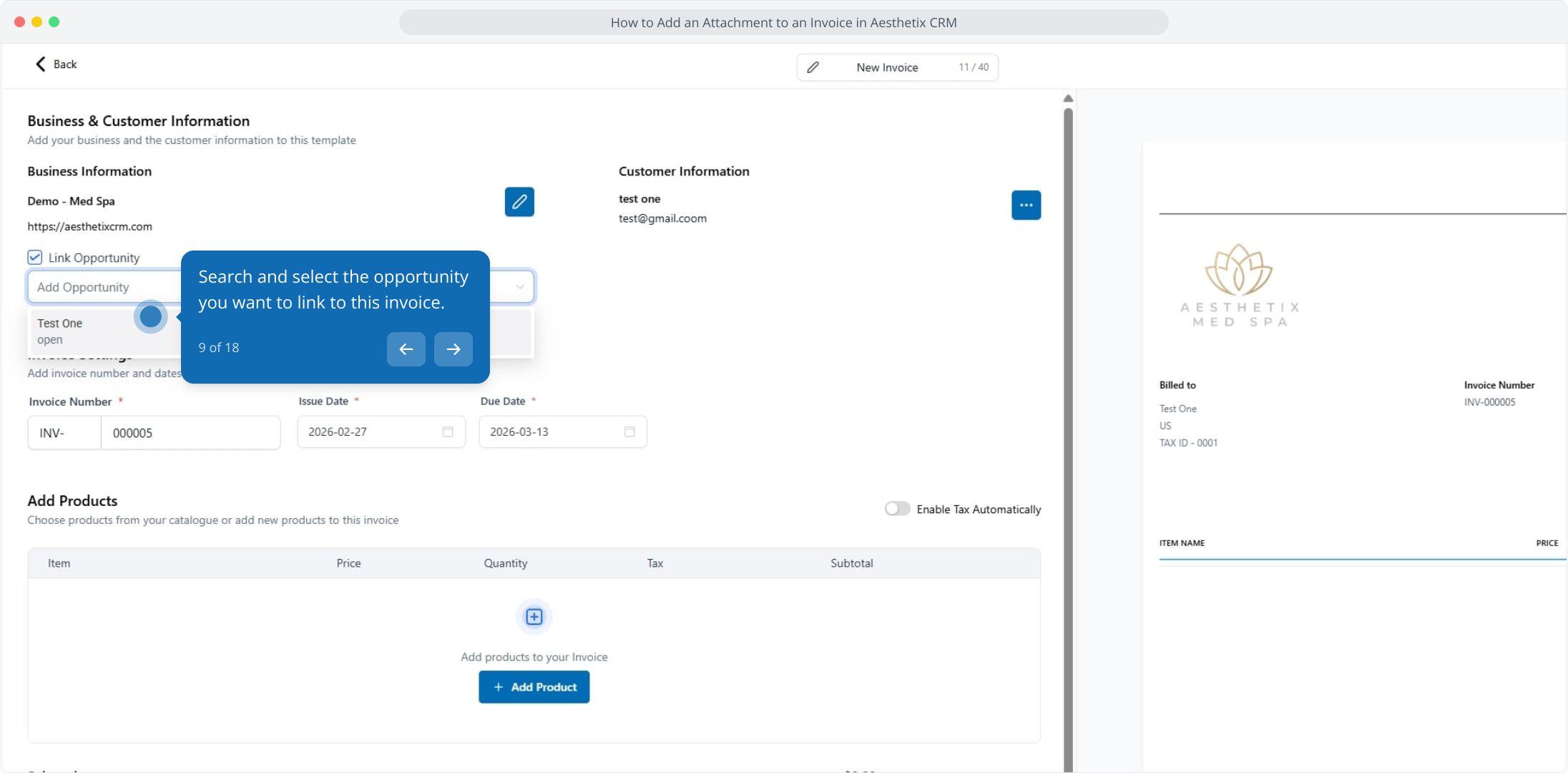
Search for and select the opportunity you want to link.
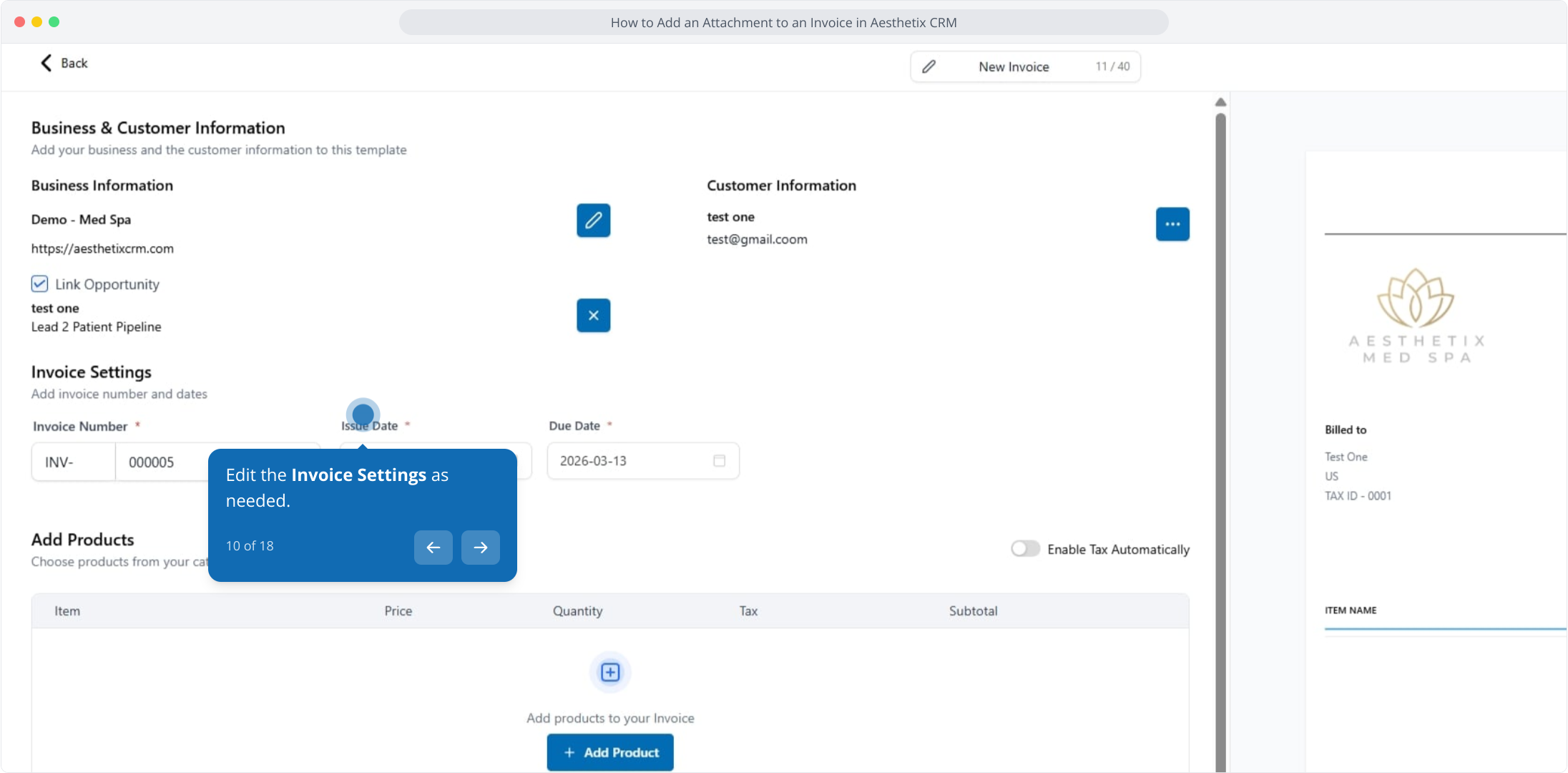
Edit the Invoice Settings as needed.
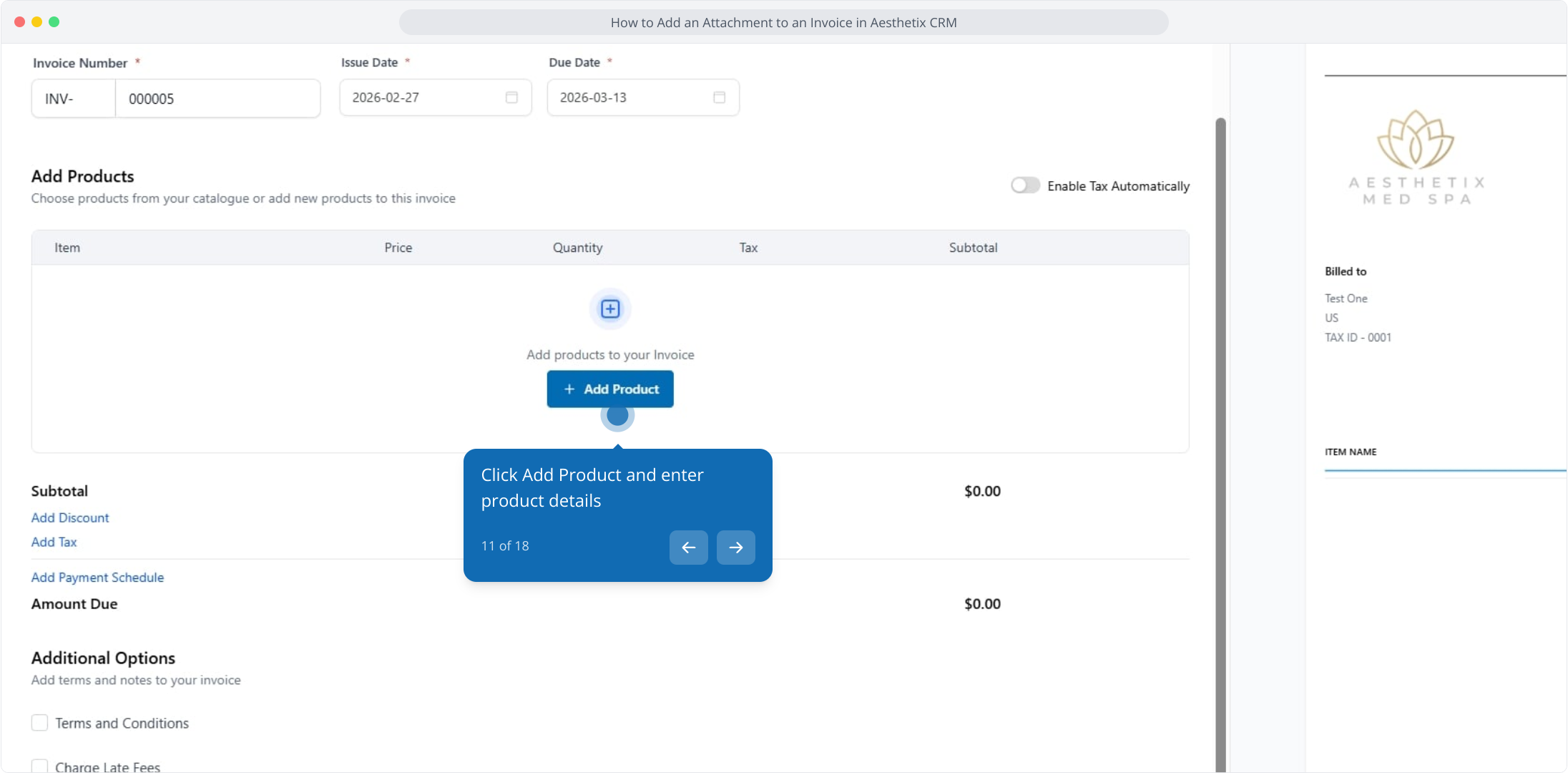
Click Add Product and enter the product details.
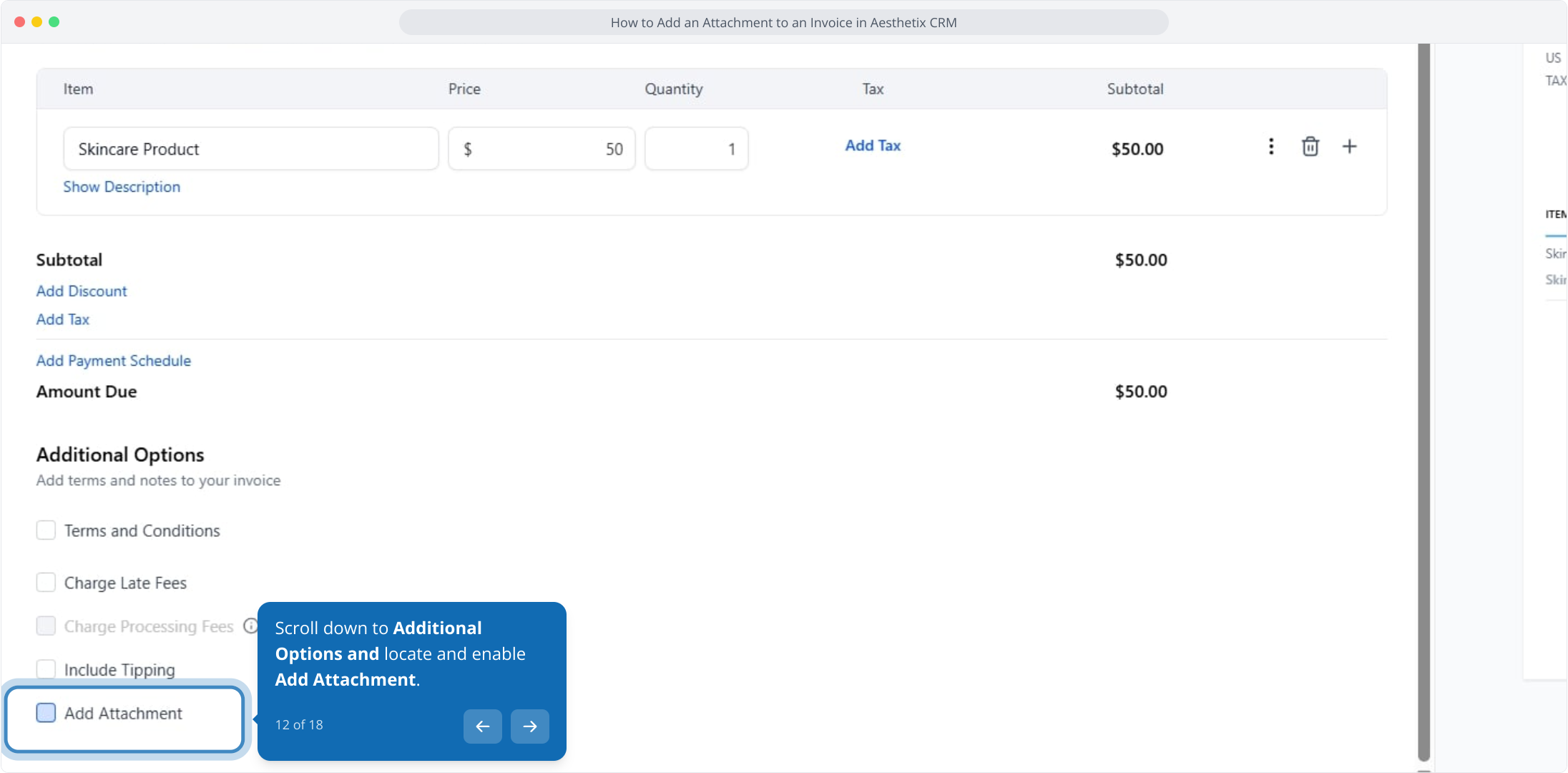
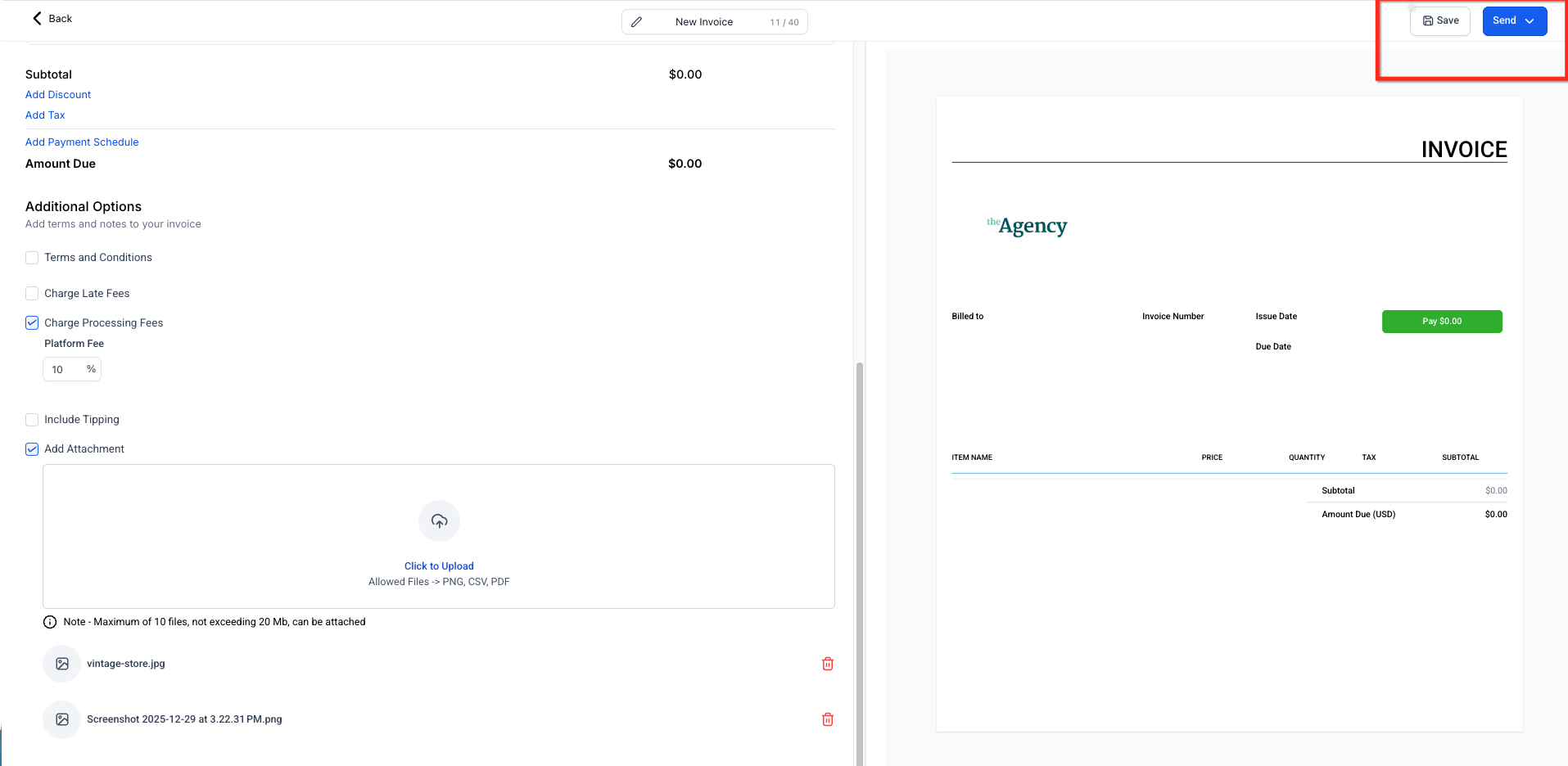
Scroll down to Additional Options, then locate and enable Add Attachment.
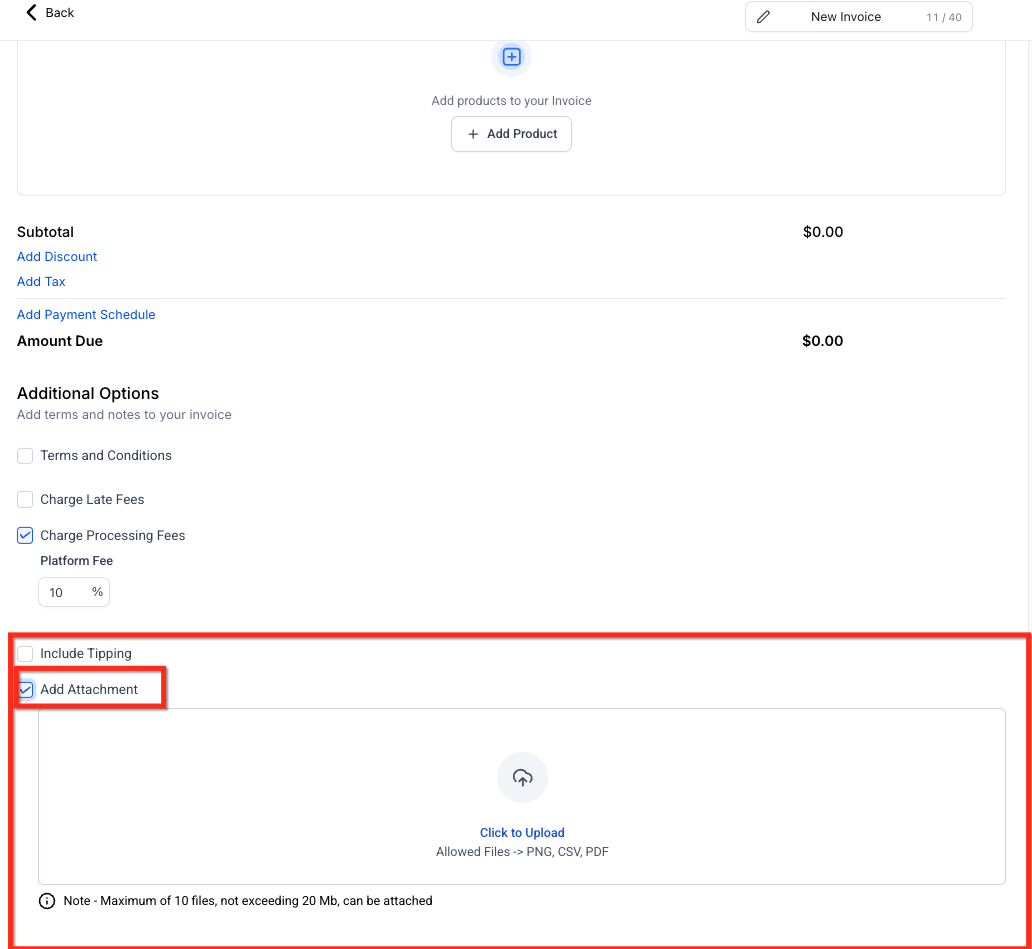
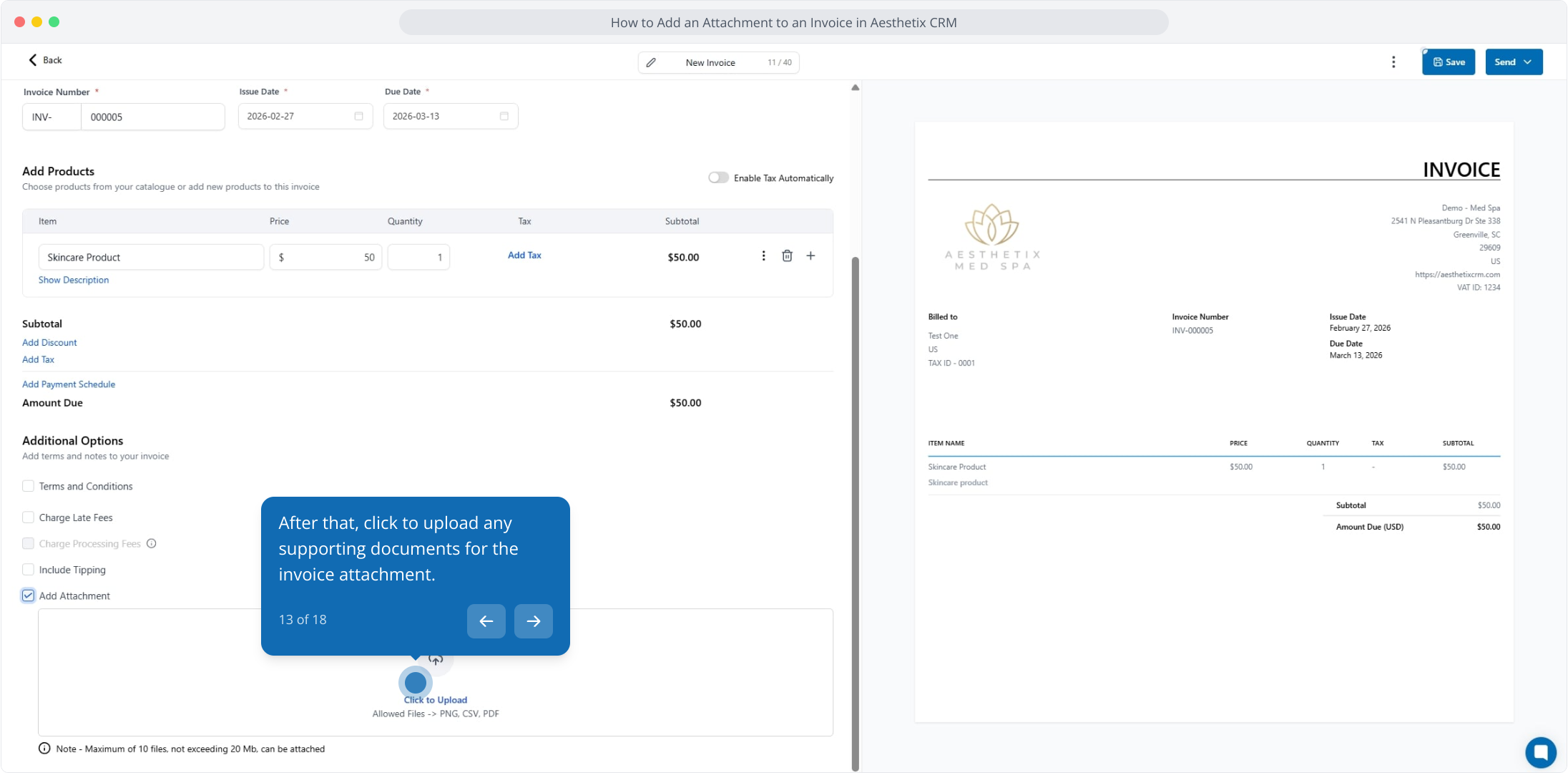
Click to upload any supporting documents for the invoice.
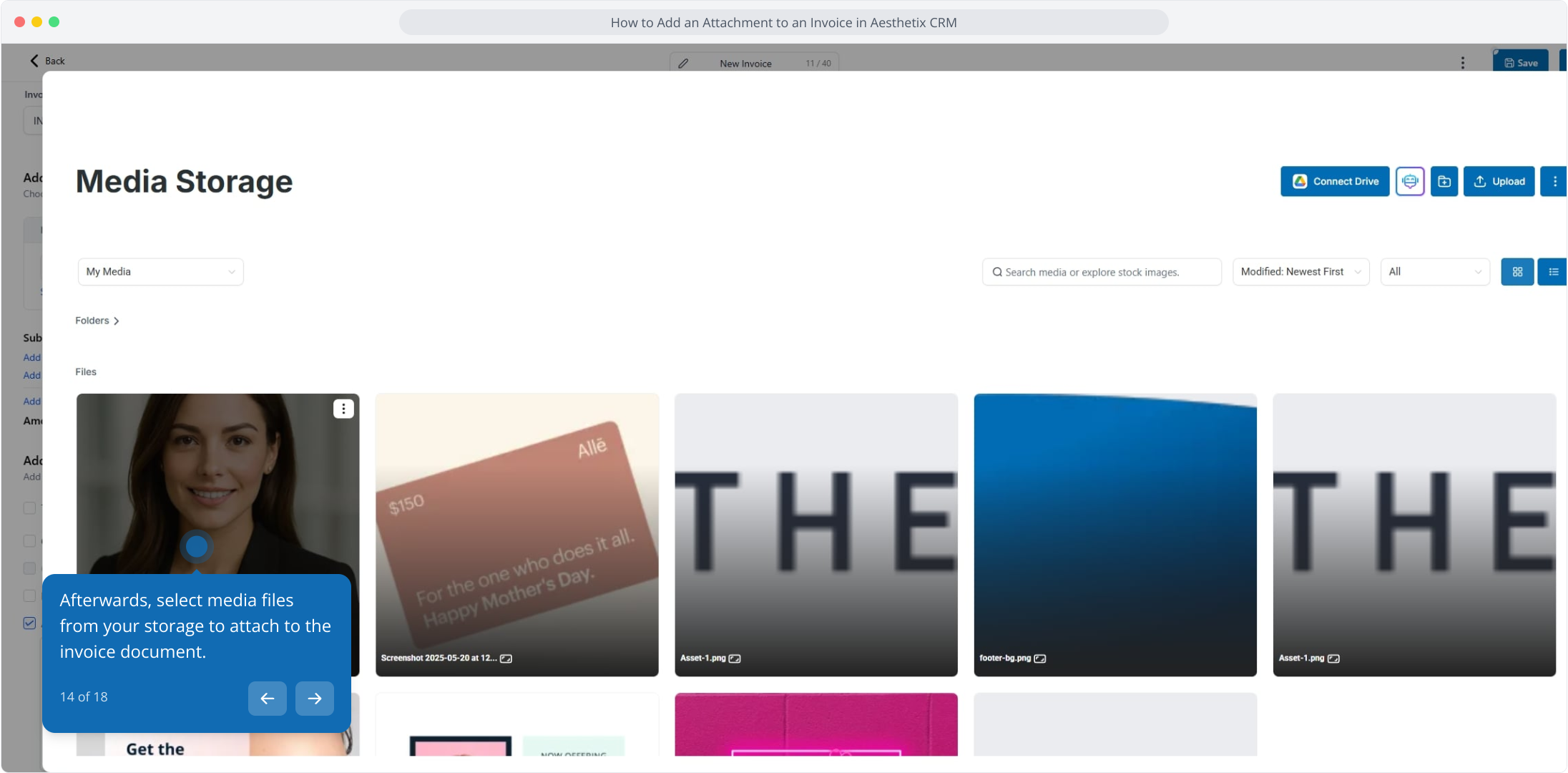
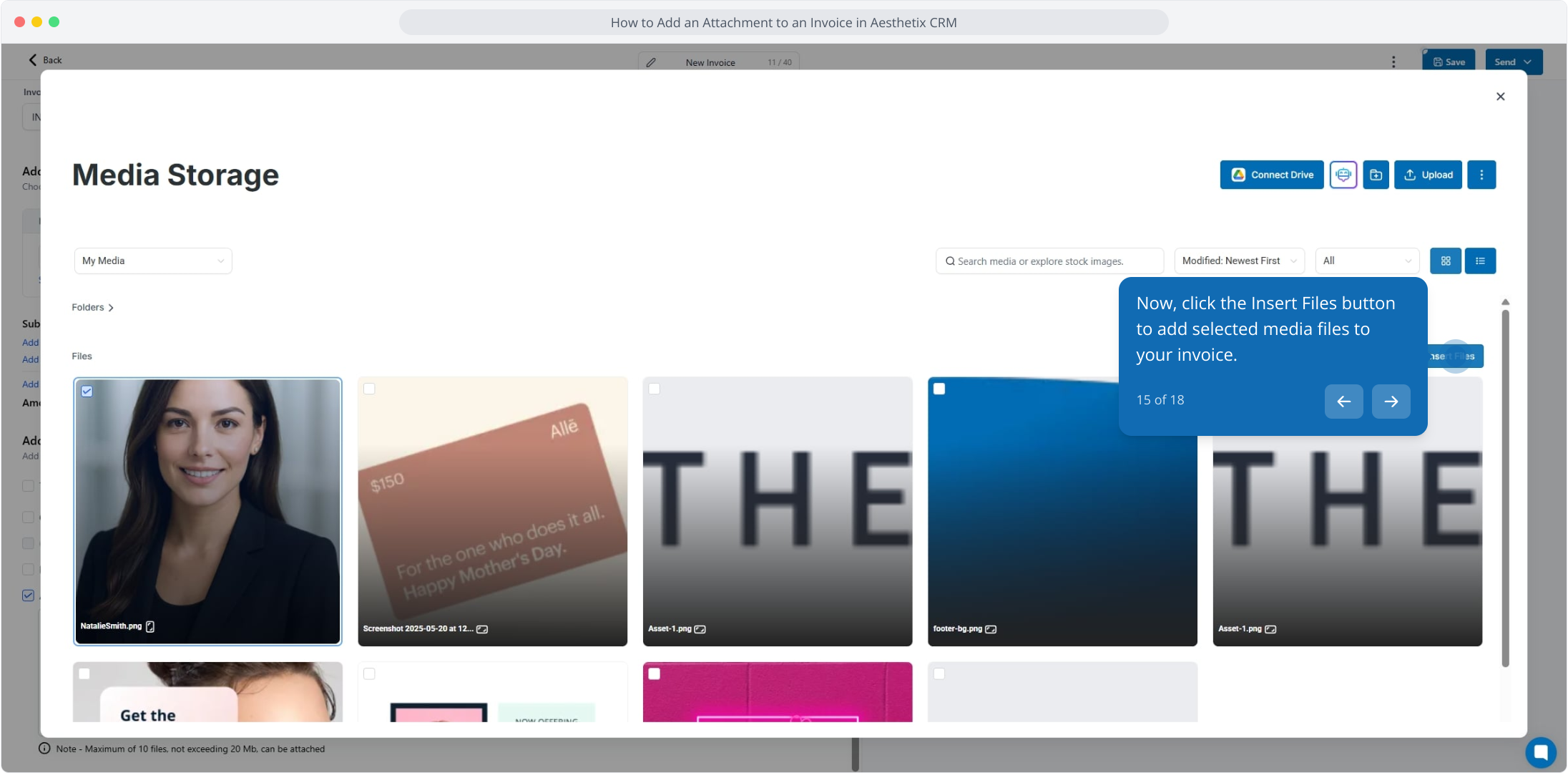
Select media files from your storage to attach to the invoice.
Click the Insert Files button to add the selected files to your invoice.
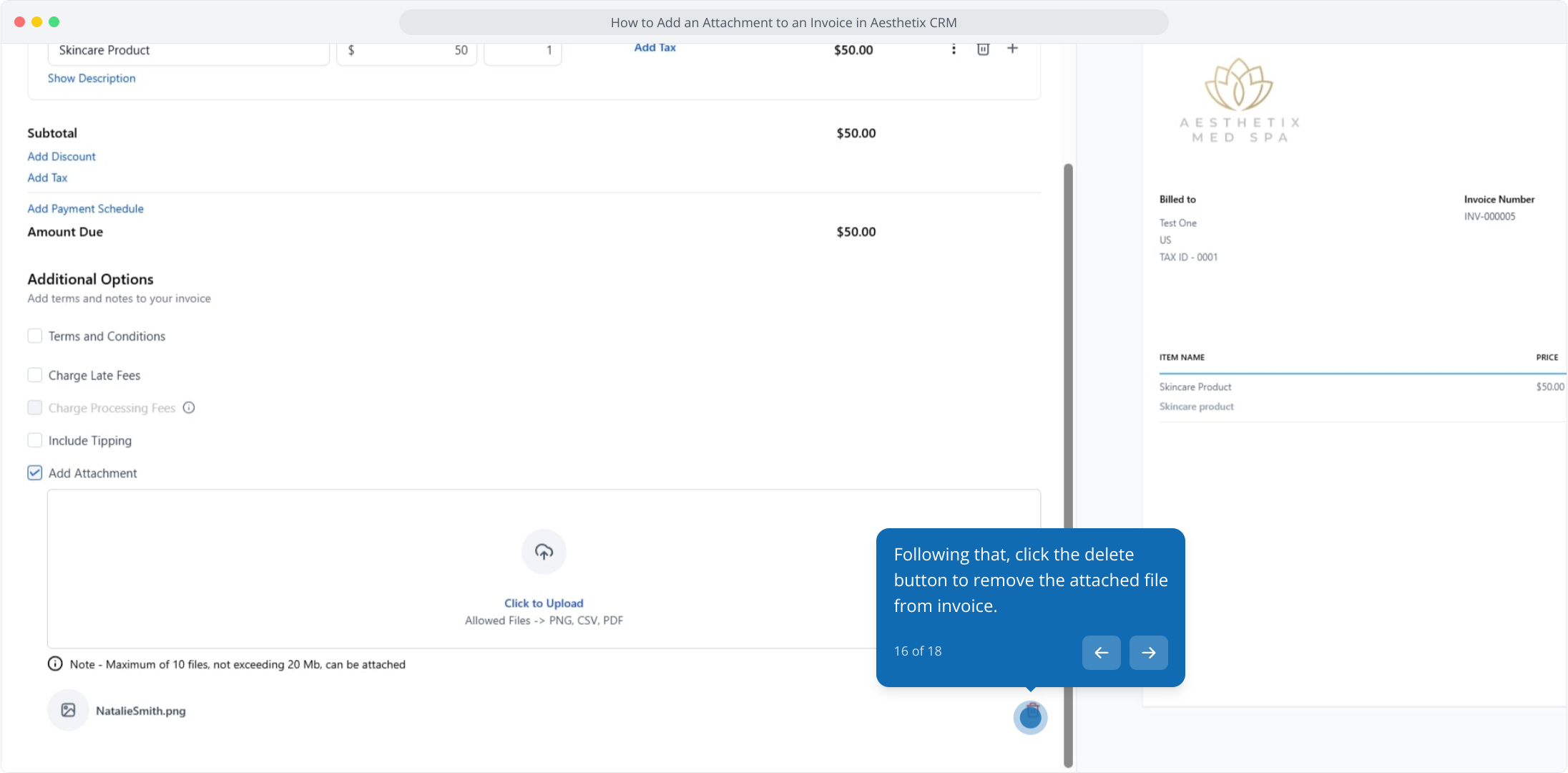
If you need to remove a file, click the delete button next to it.
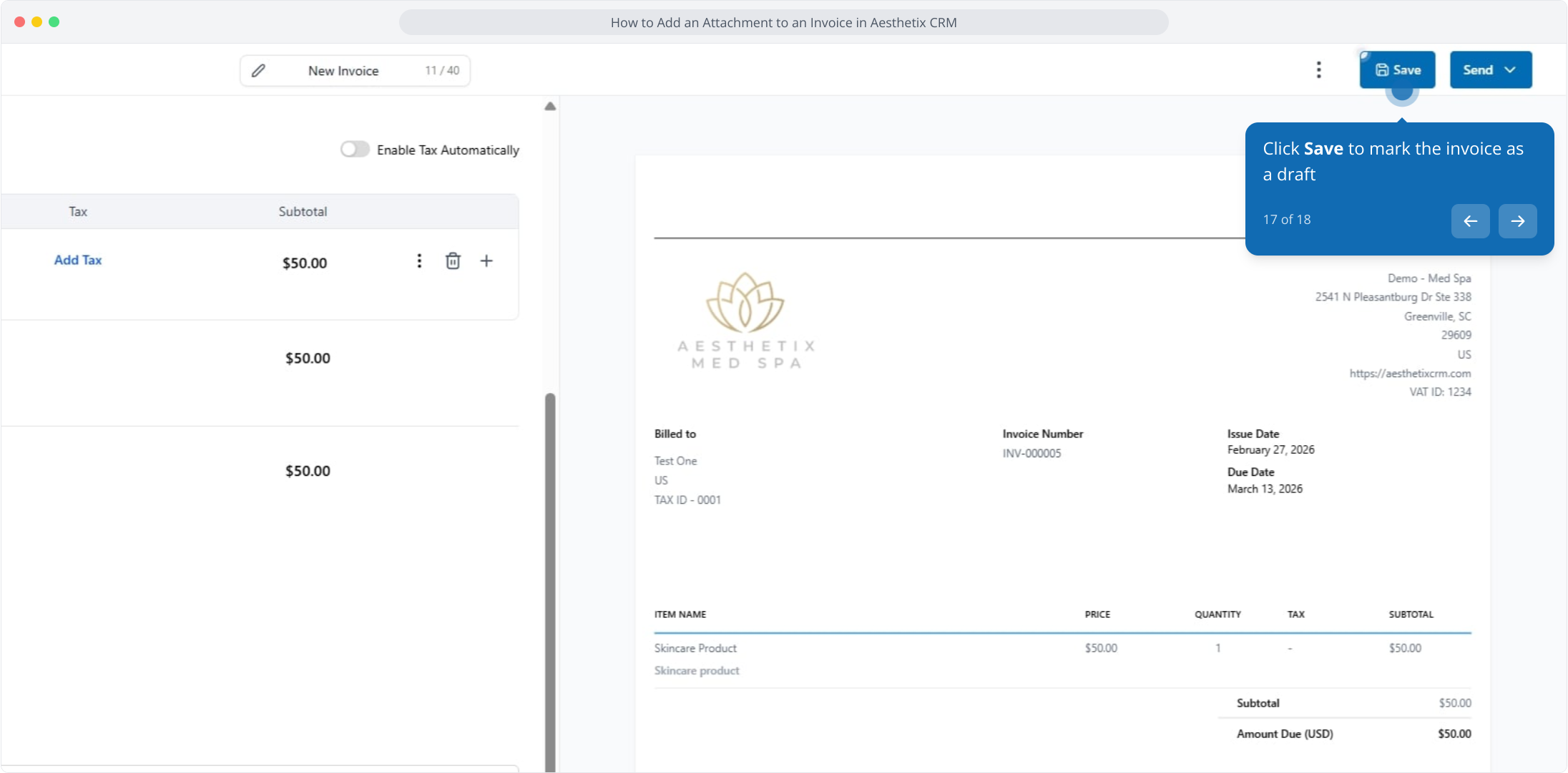
Click Save to keep the invoice as a draft.
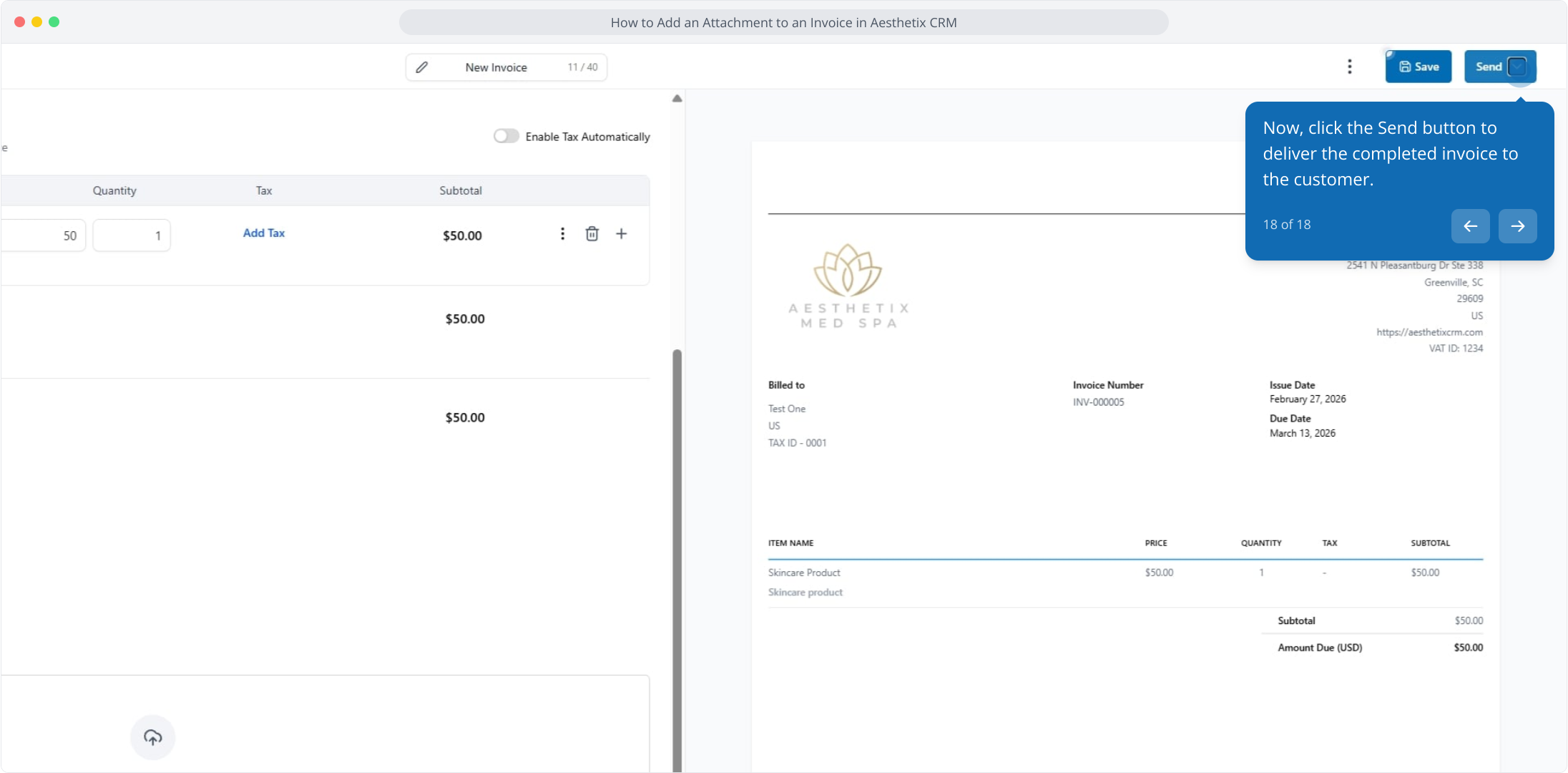
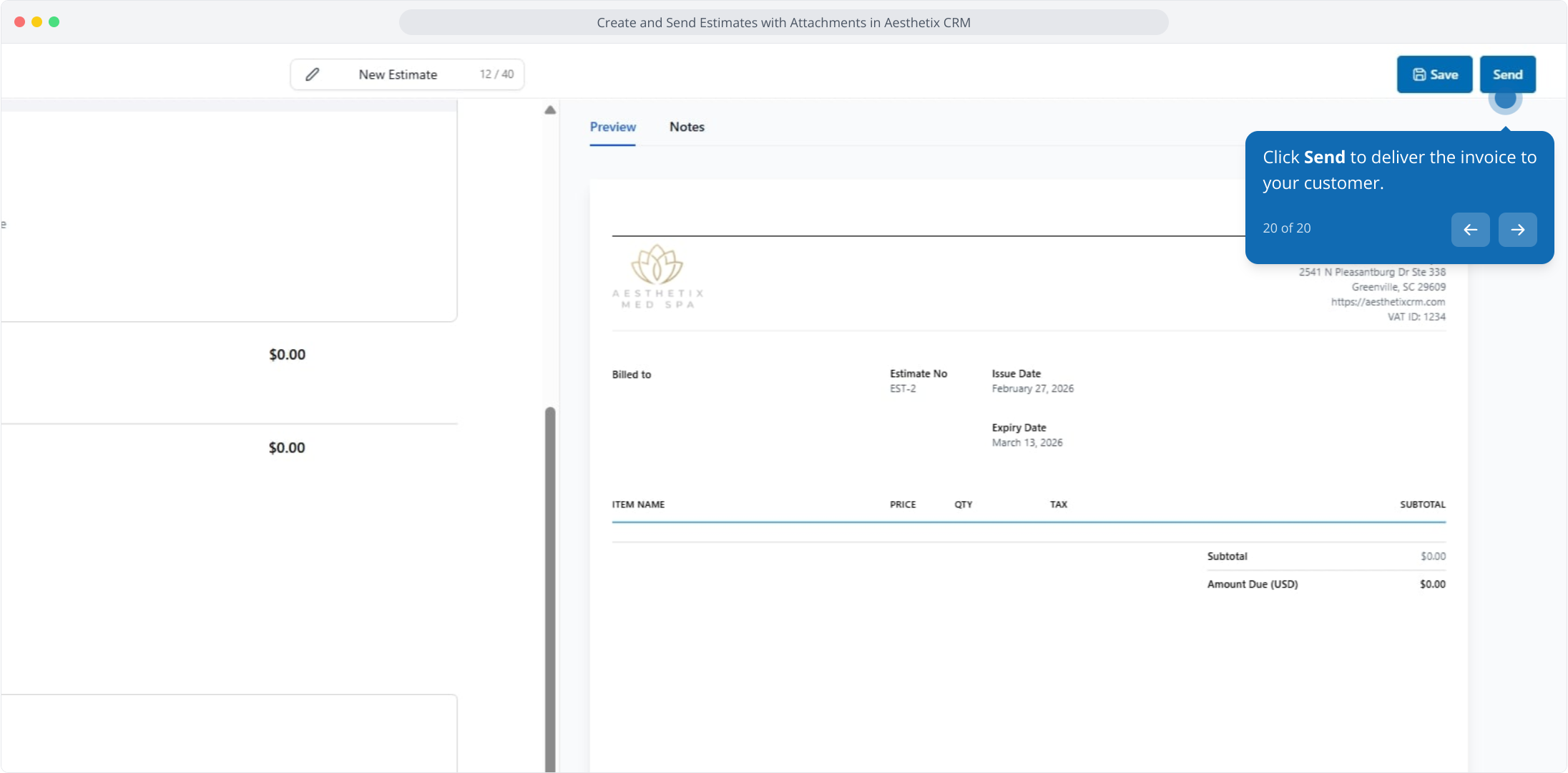
Click the Send button to deliver the invoice, along with its attachments, to the patient.
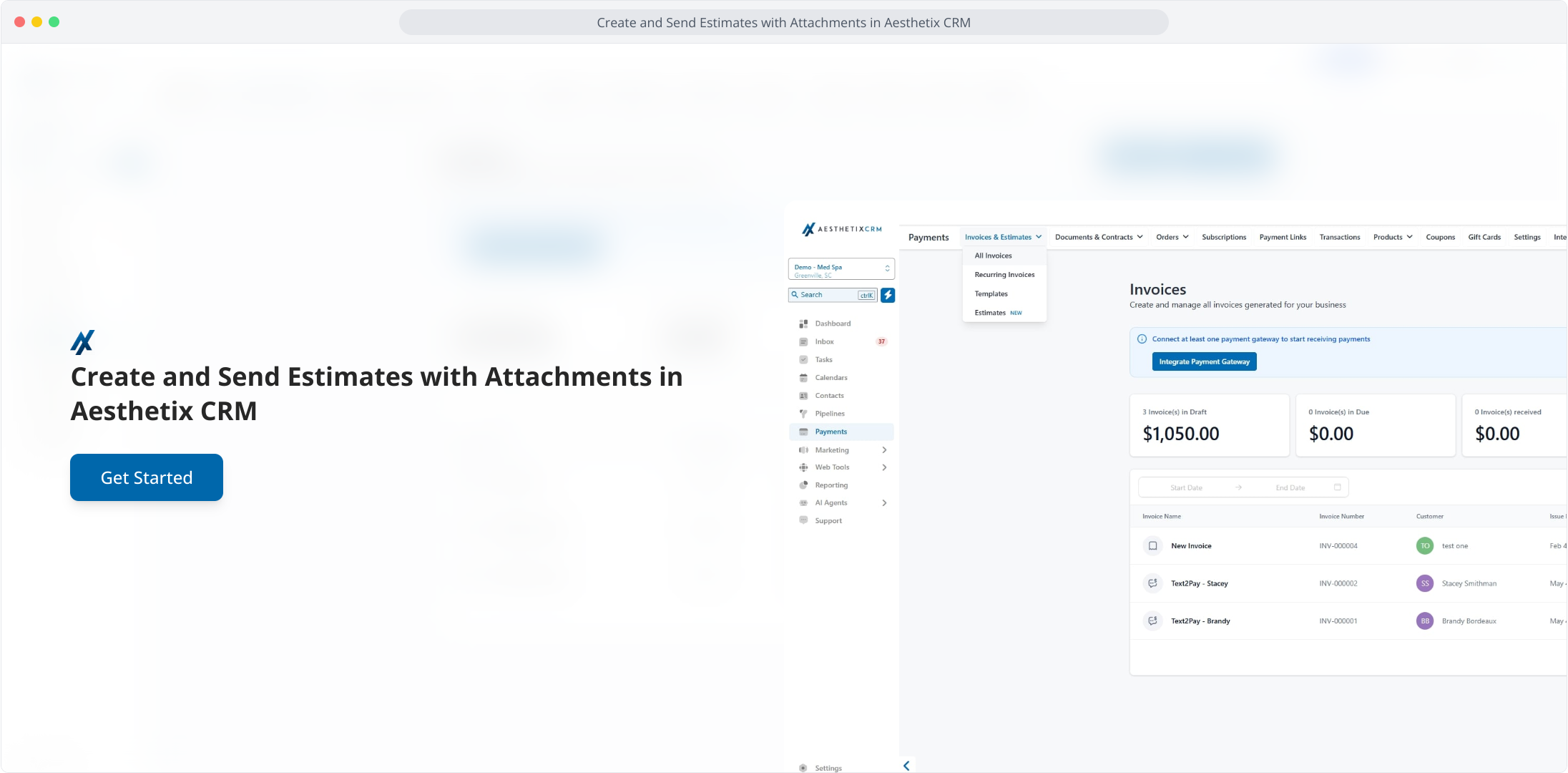
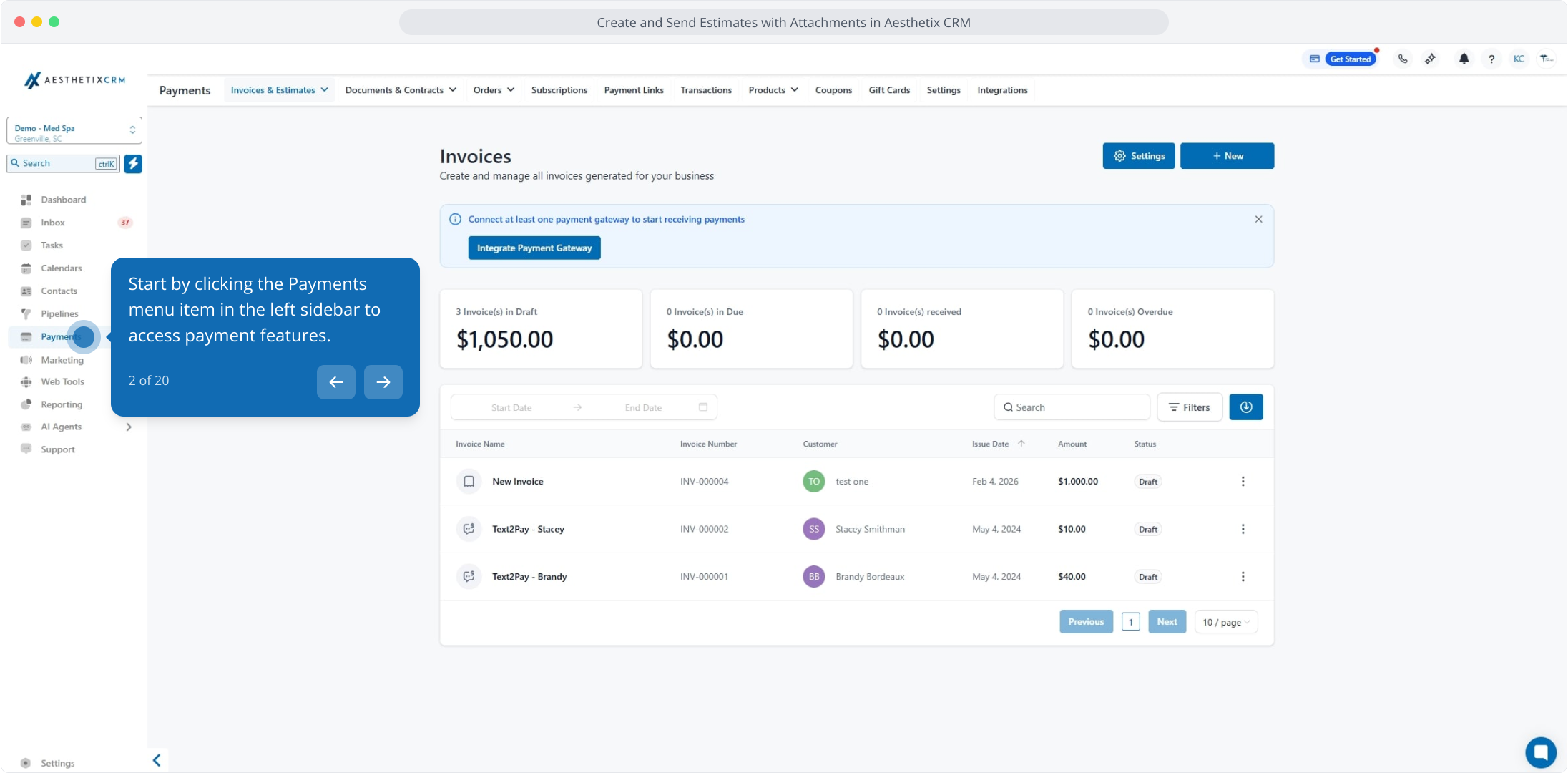
Click the Payments menu item in the left sidebar.
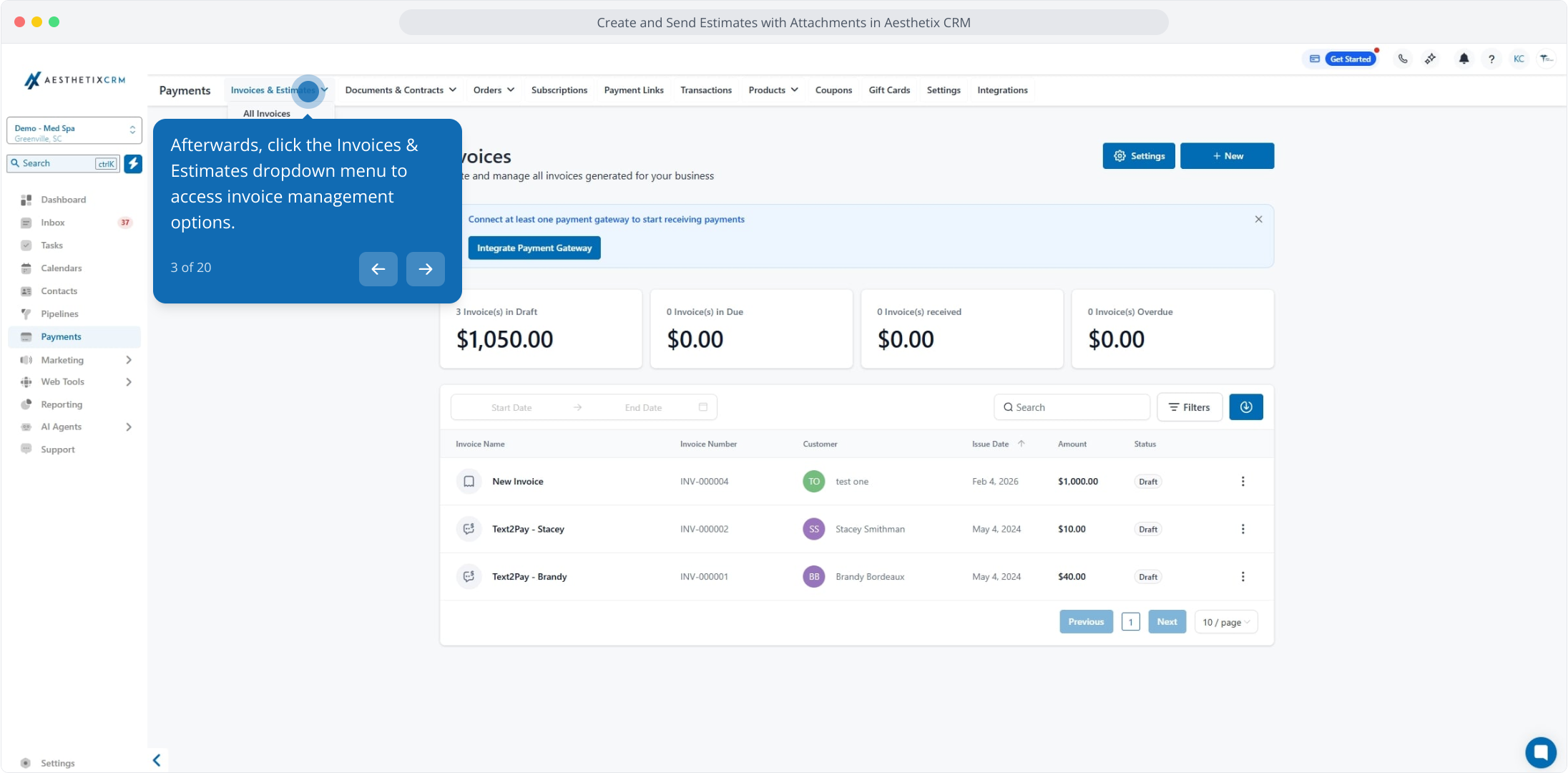
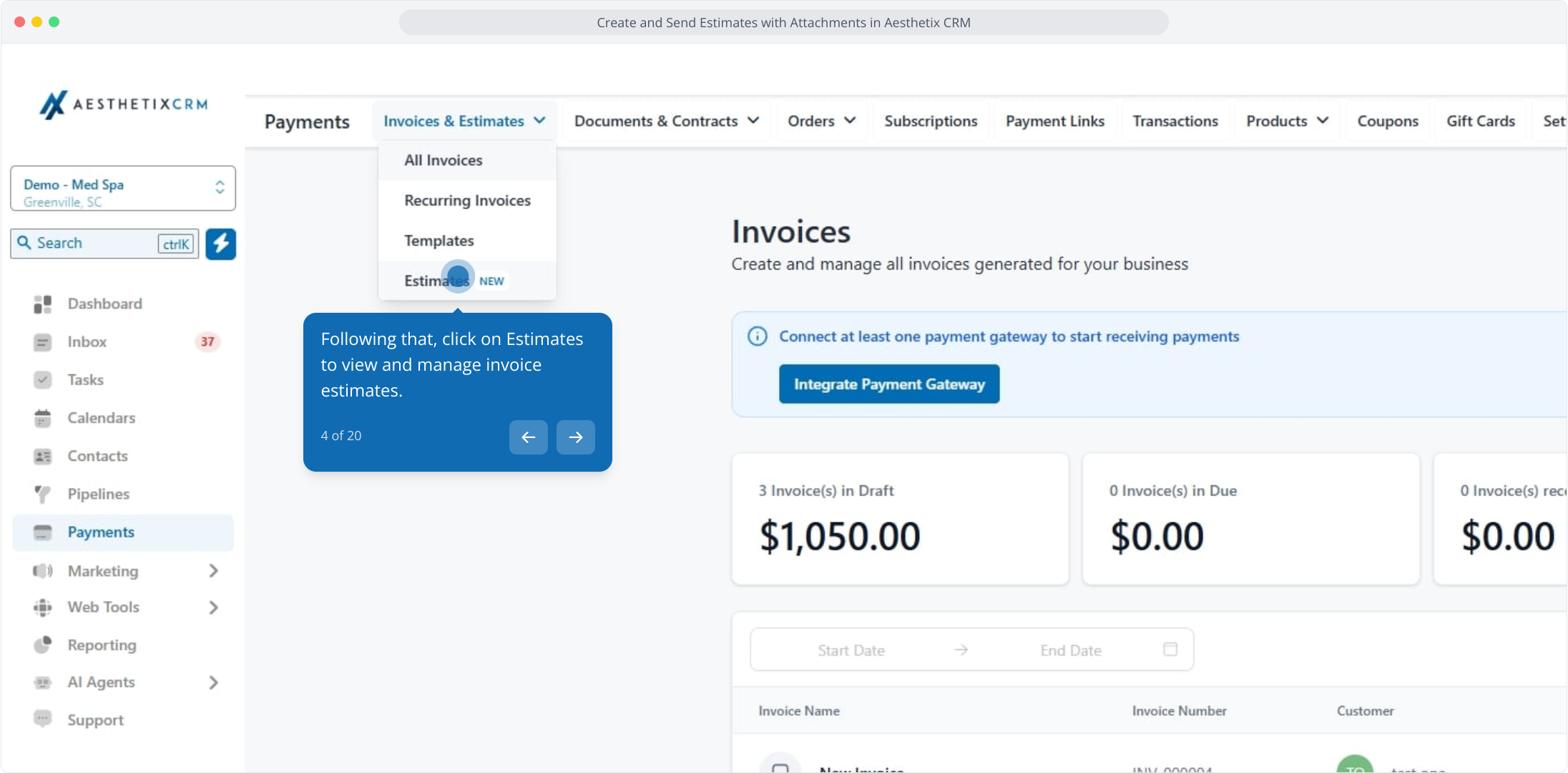
Click the Invoices & Estimates dropdown.
Click Estimates to view and manage estimates.
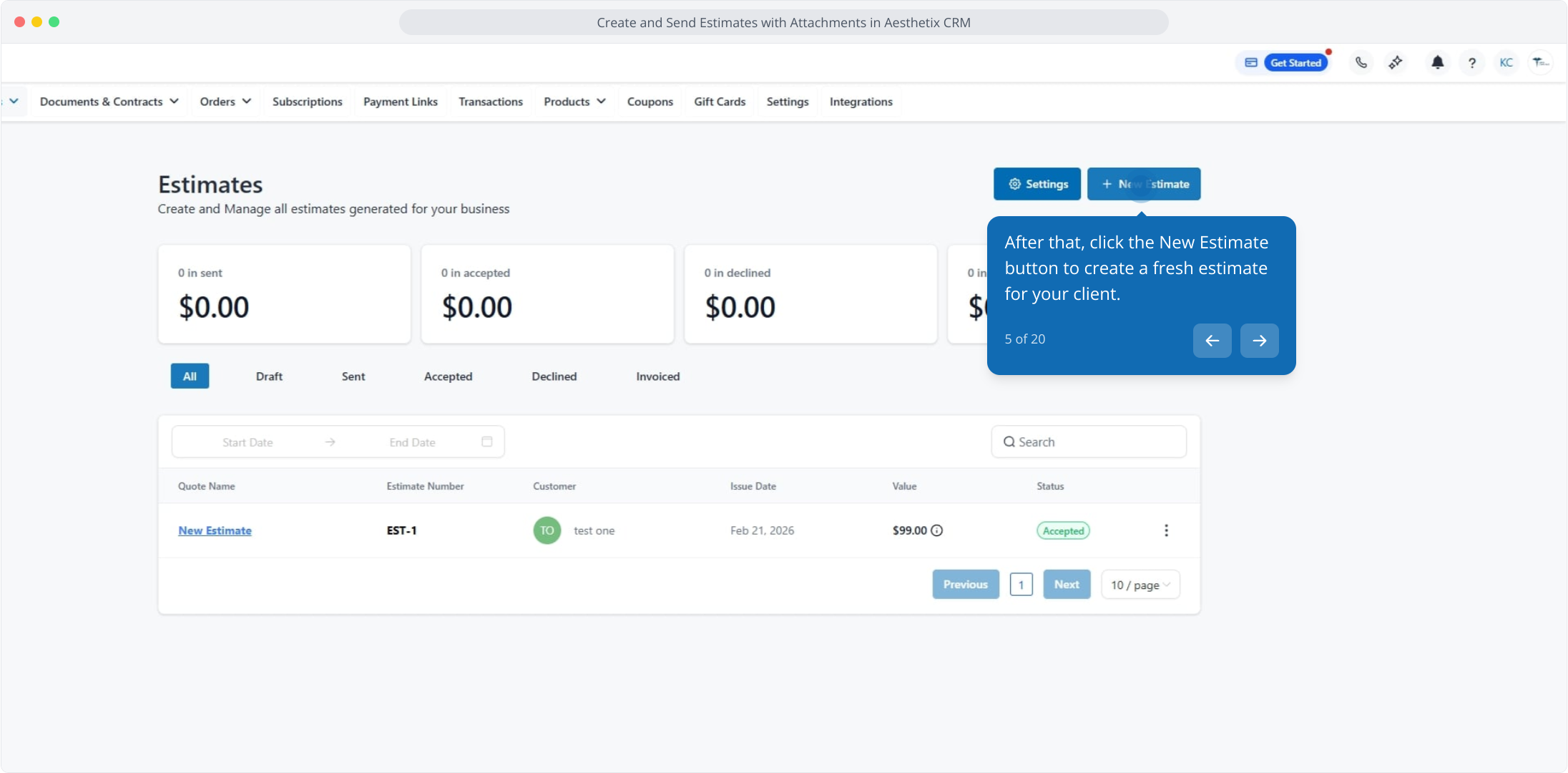
Click the New Estimate button to create a fresh estimate.
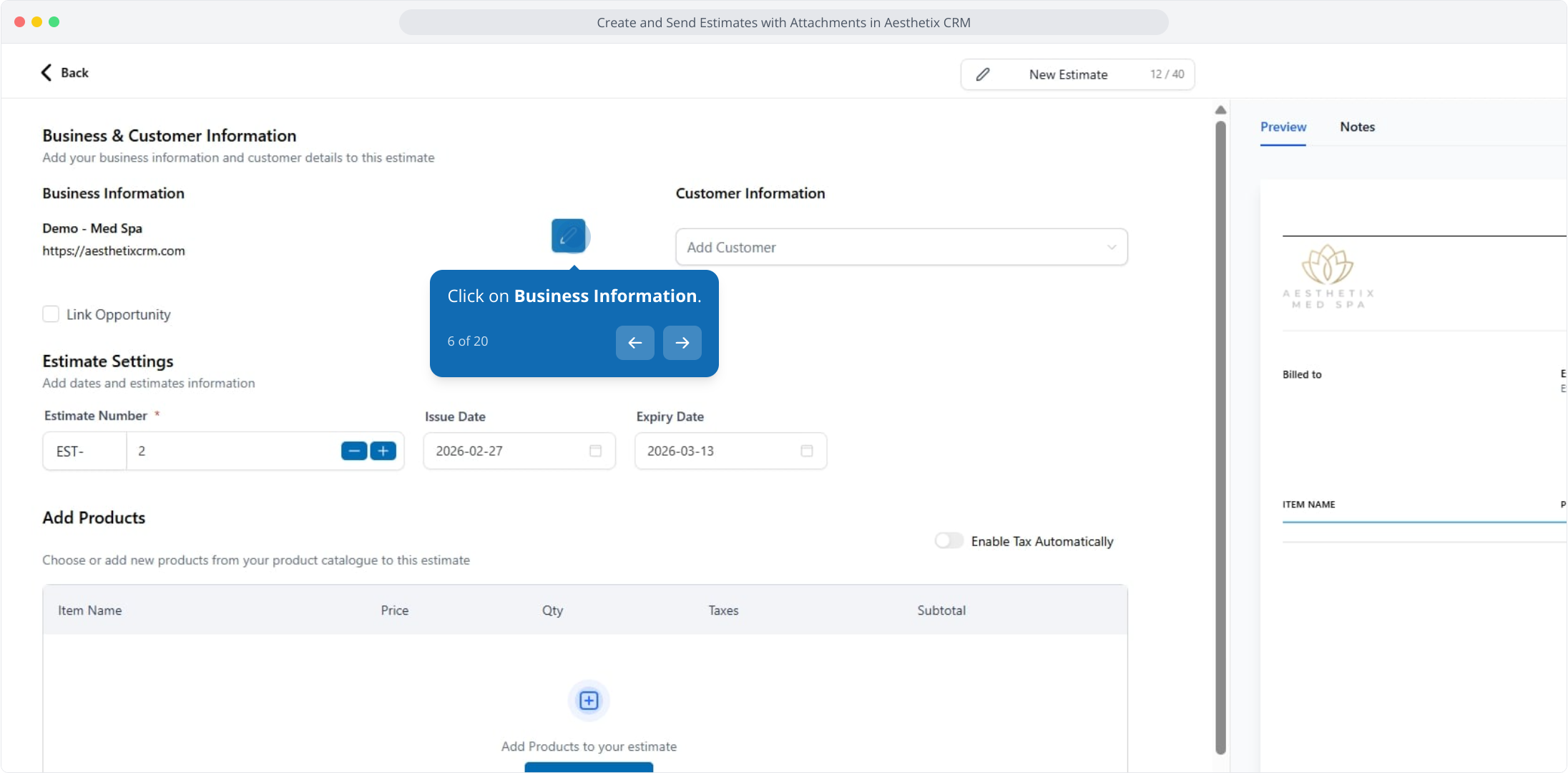
Click Business Information.
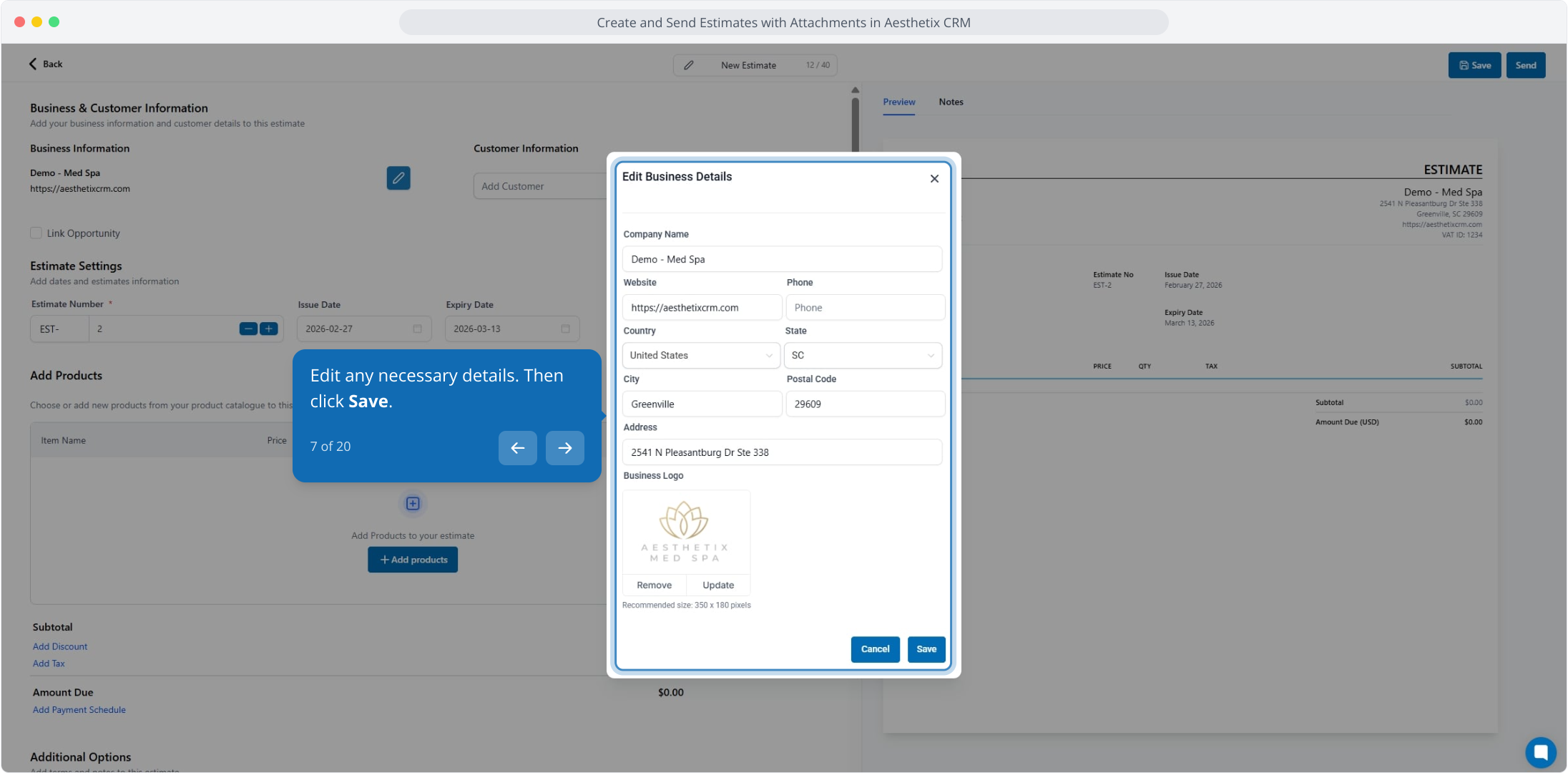
Edit any necessary details, then click Save.
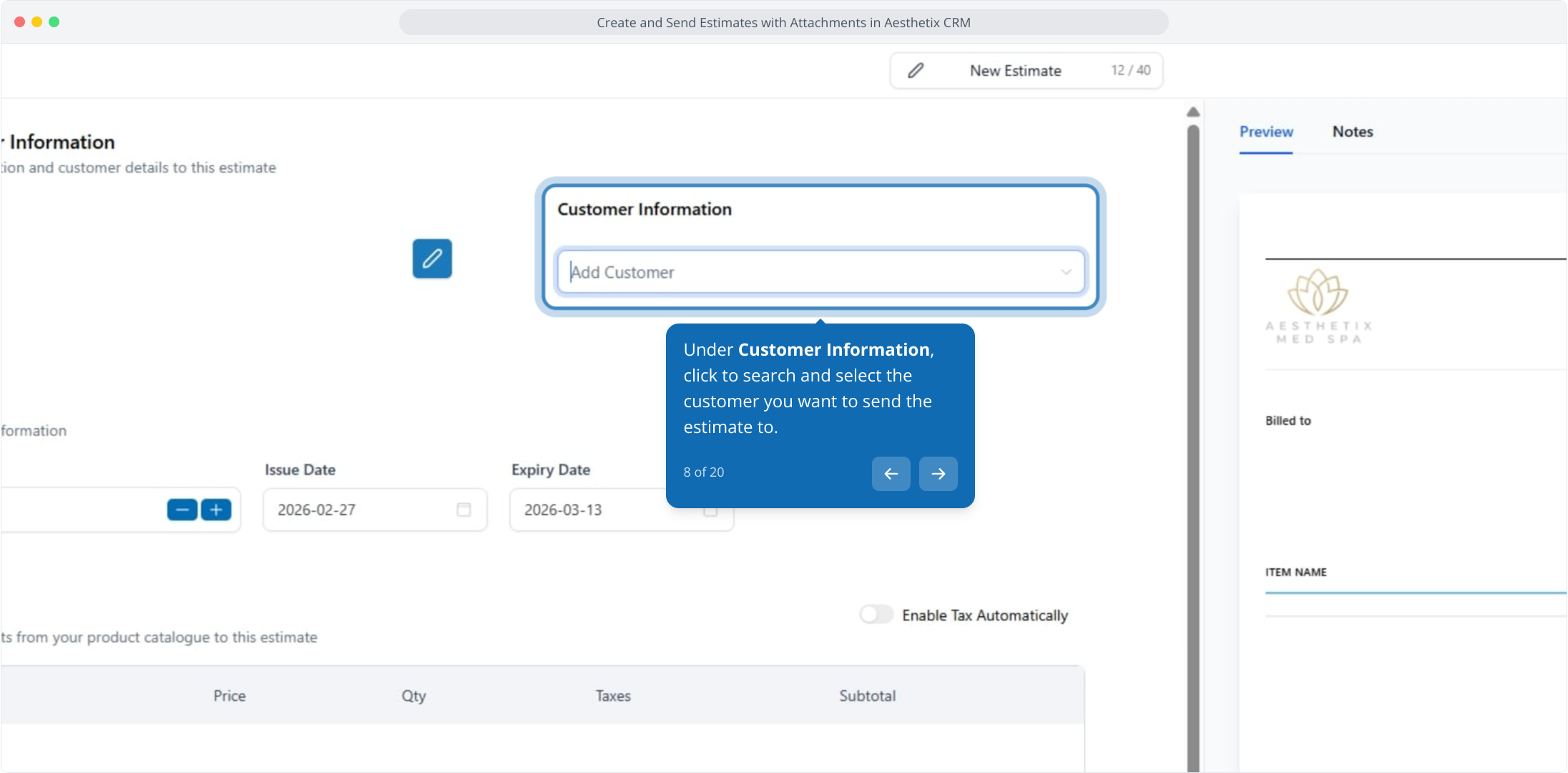
Under Customer Information, search and select the patient you want to send the estimate to.
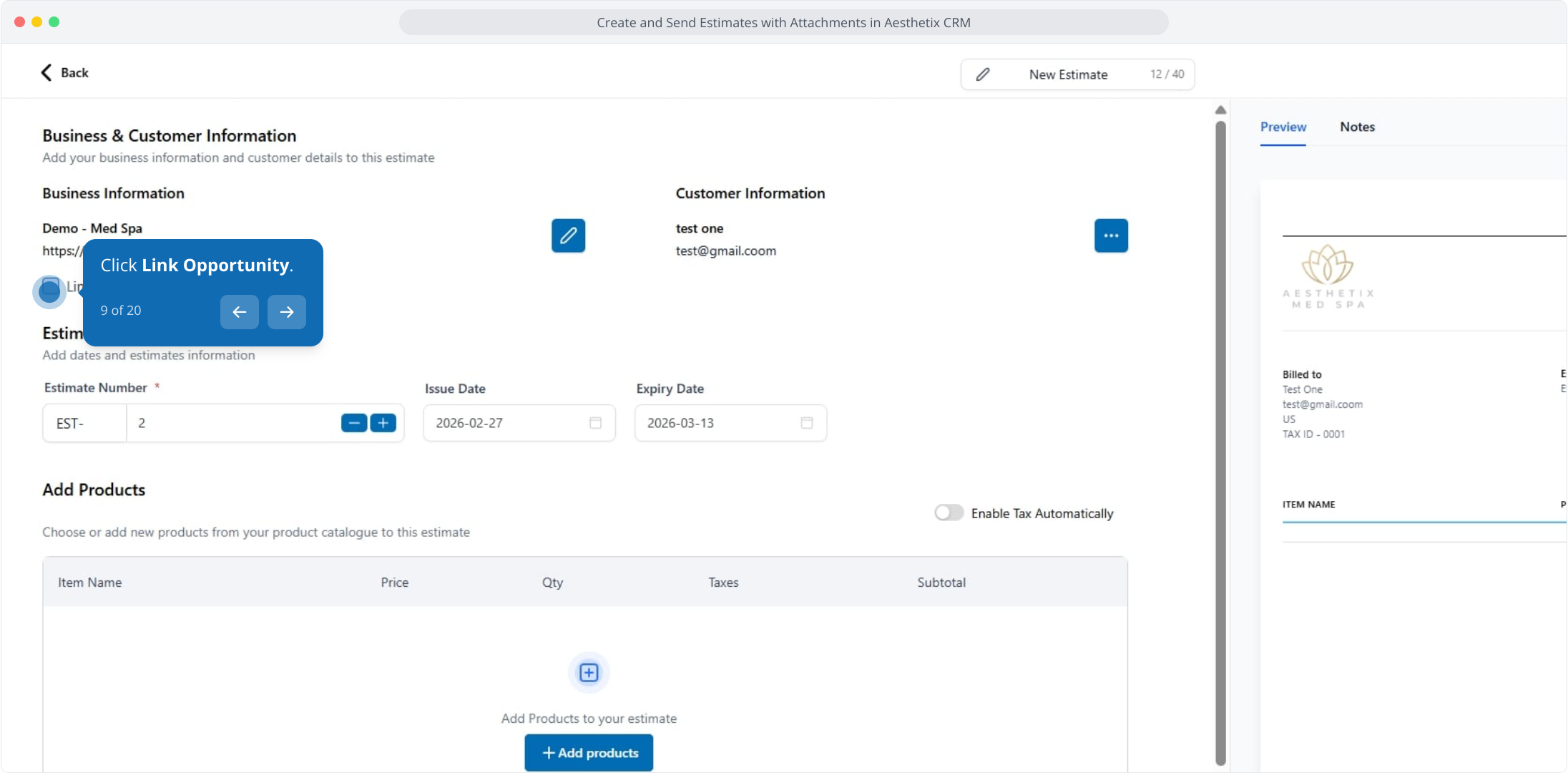
Click Link Opportunity if you want to connect this estimate to a deal.
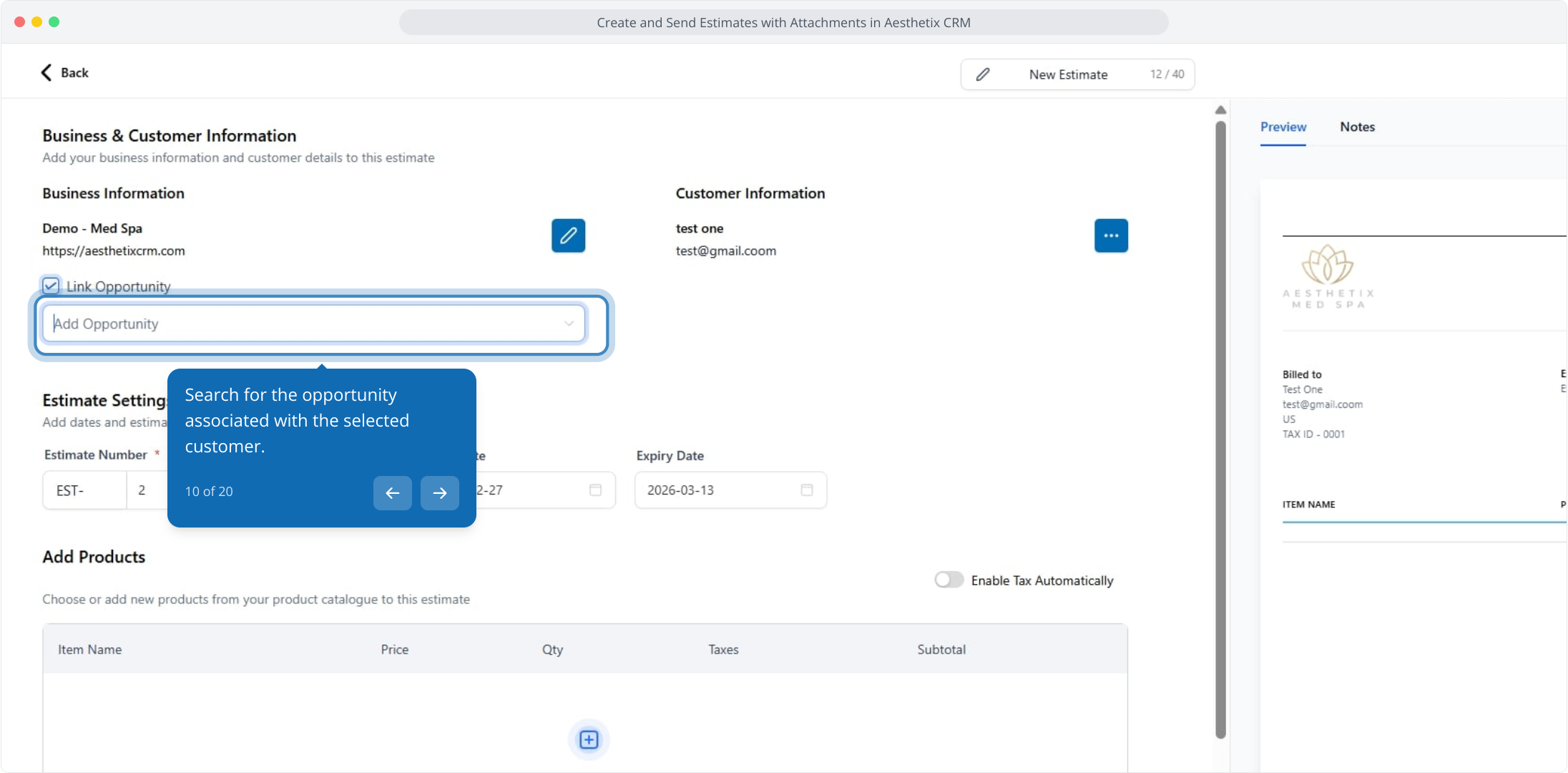
Search for the opportunity associated with the selected patient.
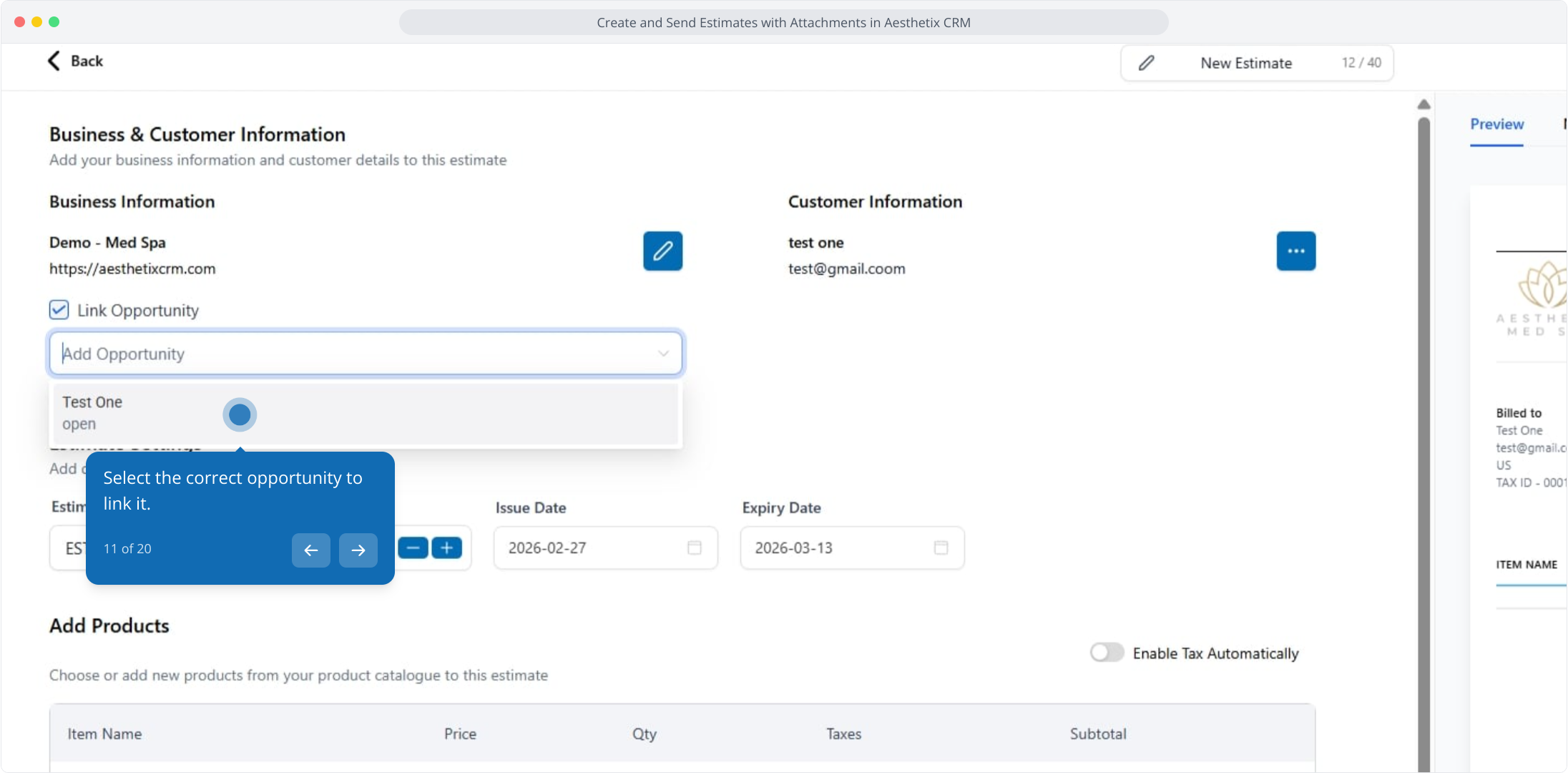
Select the correct opportunity to link it.
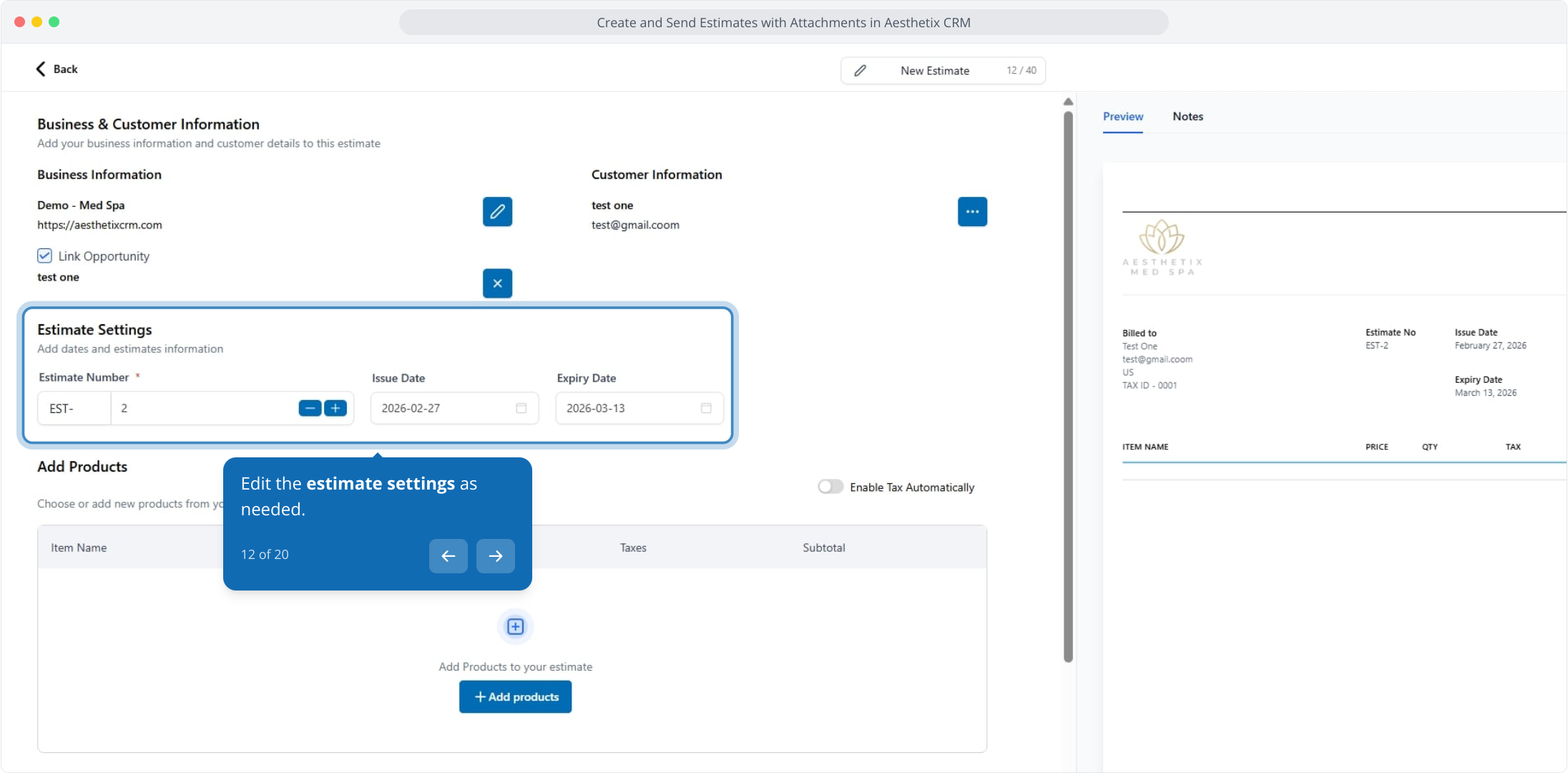
Edit the estimate settings as needed.
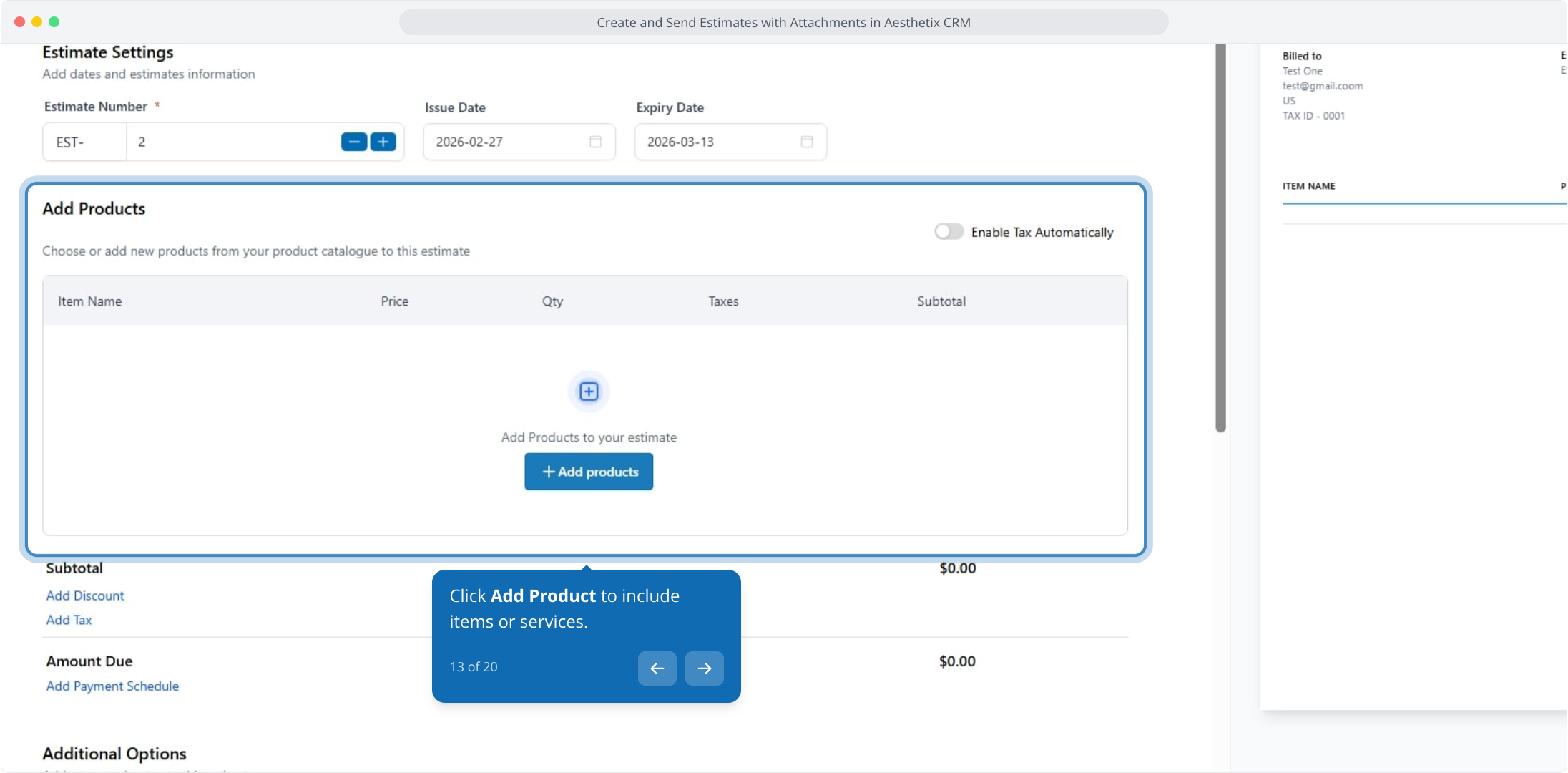
Click Add Product to include items or services.
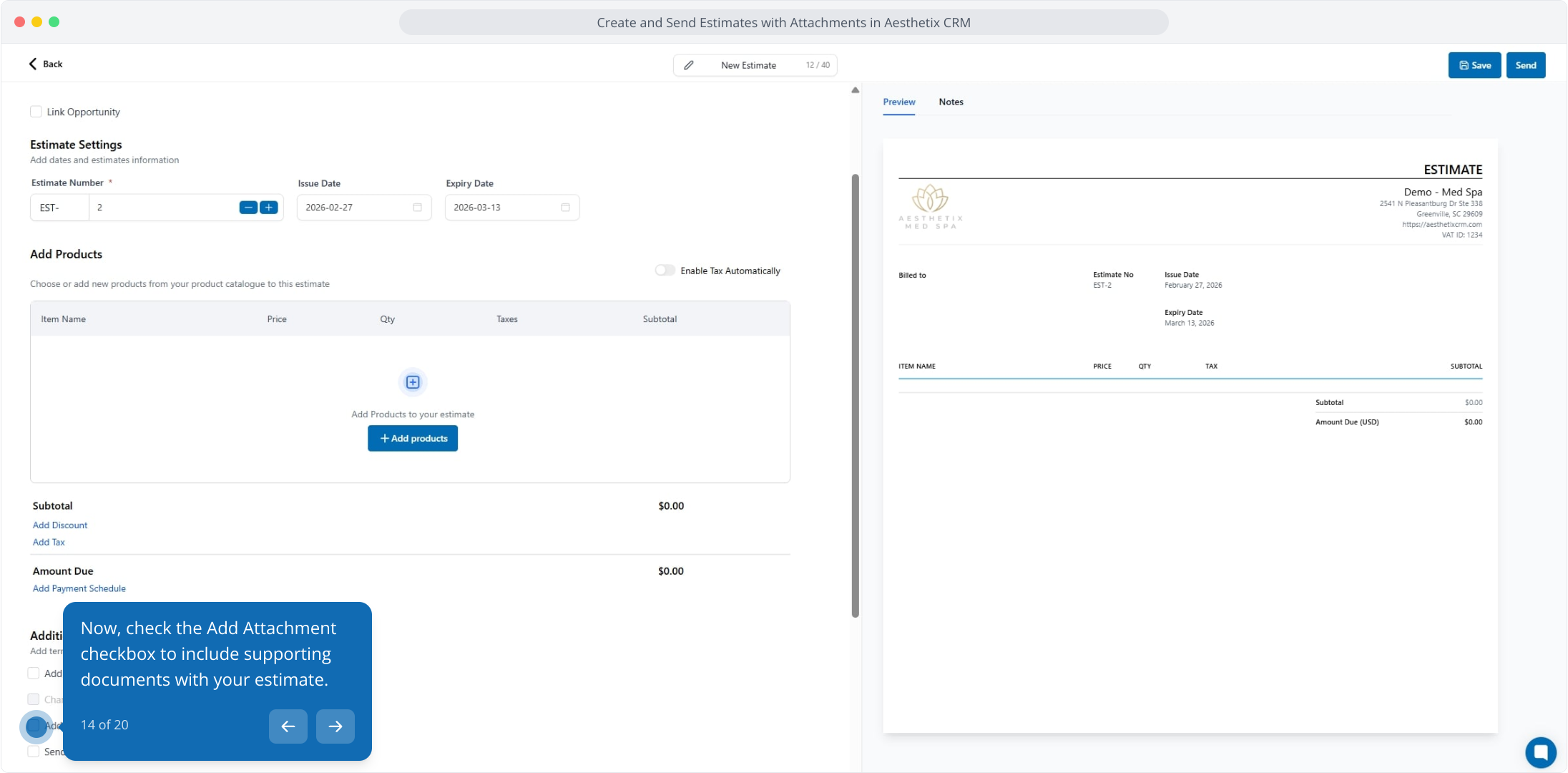
Check the Add Attachment checkbox to include supporting documents with your estimate.
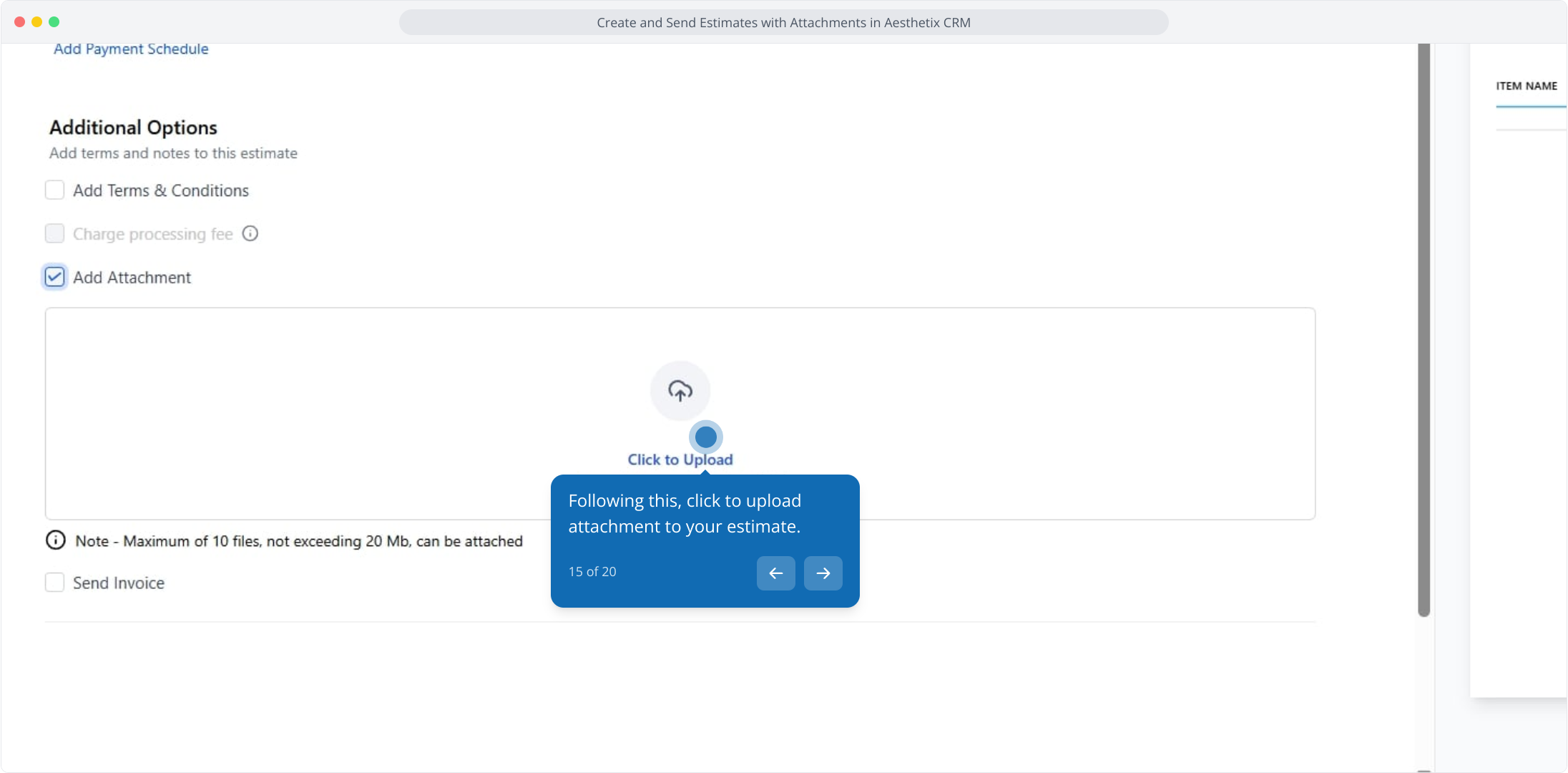
Click to upload an attachment to your estimate.
Select the media file to attach it to your estimate.
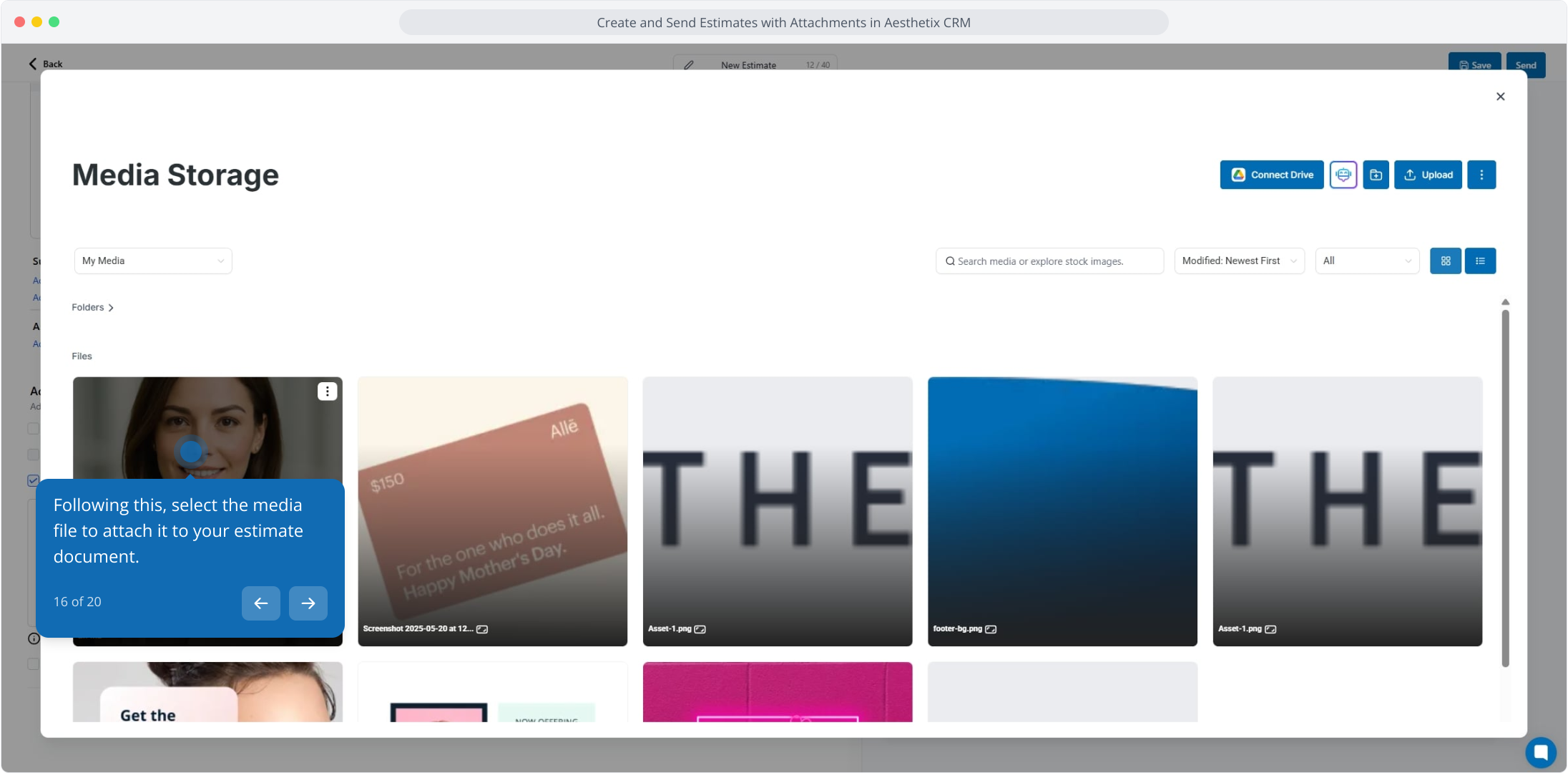
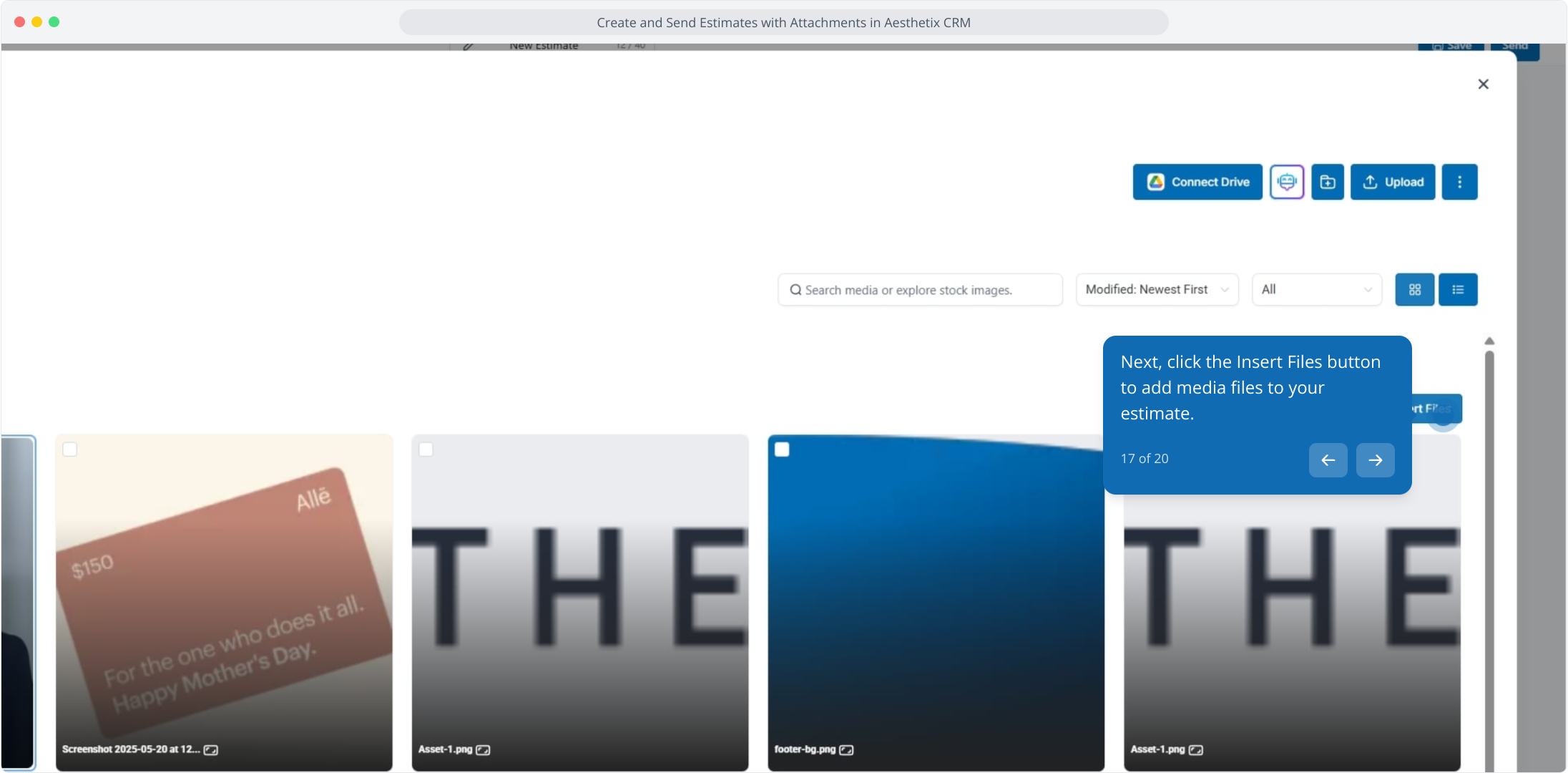
Click the Insert Files button to add the file to your estimate.
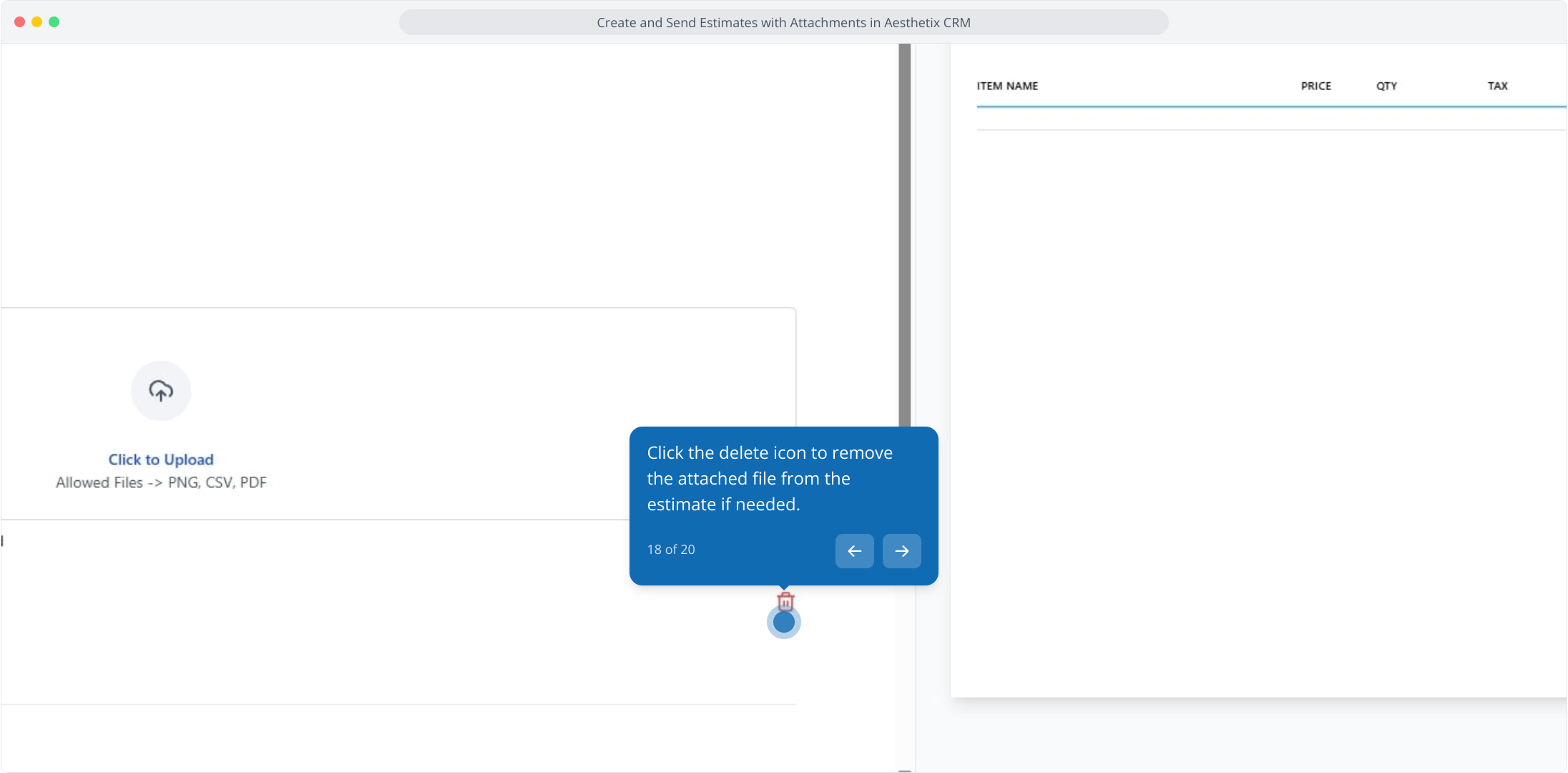
To remove an attached file, click the delete icon next to it.
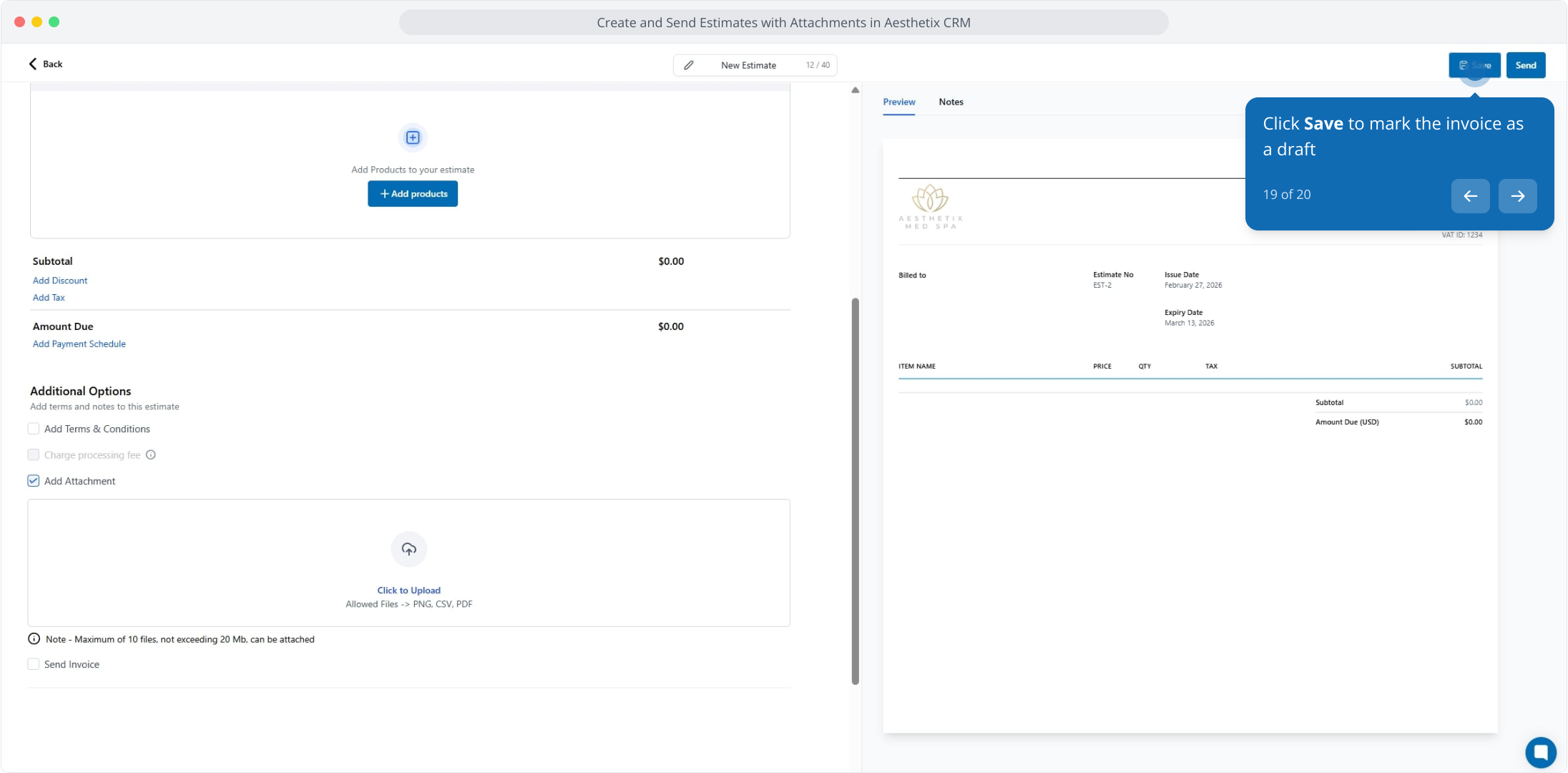
Click Save to keep the estimate as a draft.
Click Send to deliver the estimate, with its attachments, to the patient. The patient receives the attachments in the email automatically, with no extra selection required.
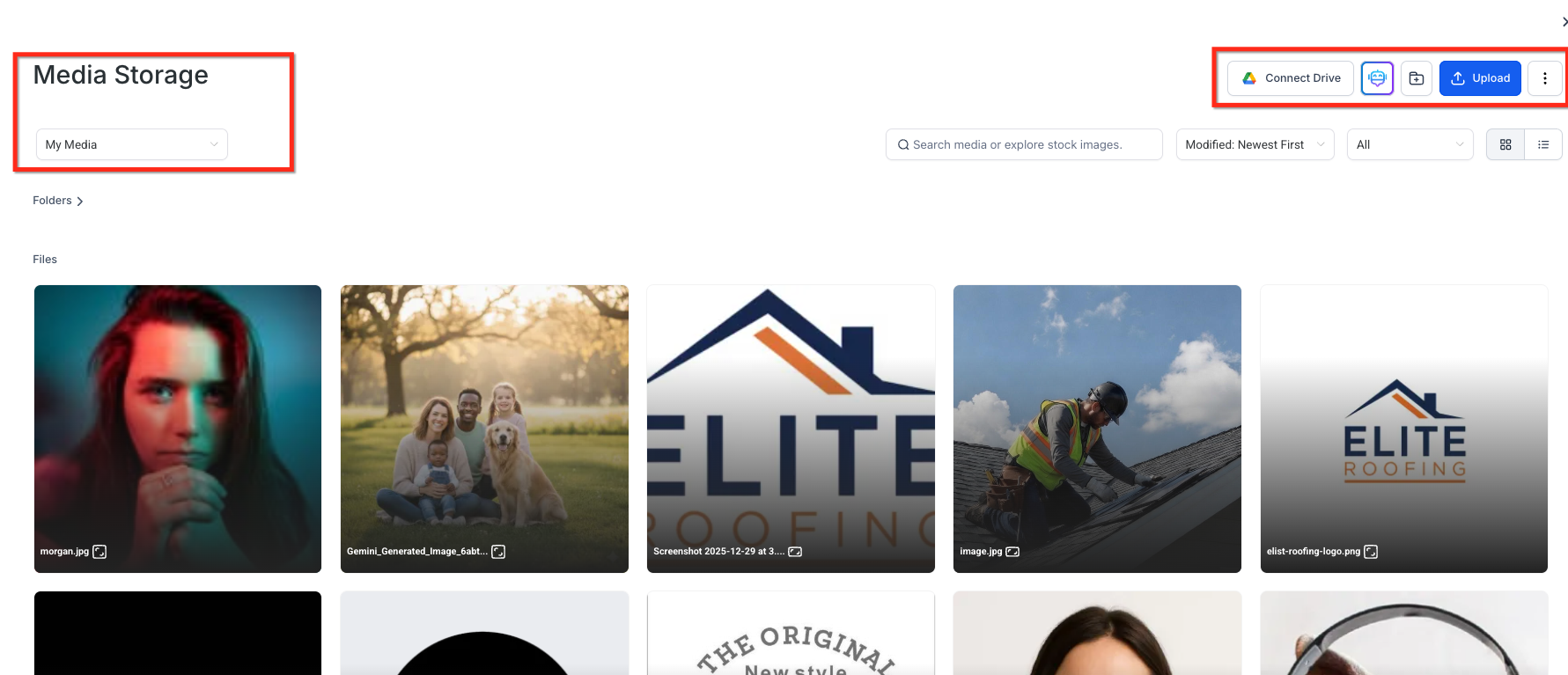
Every file you upload as an attachment is automatically saved to Media Storage, where you can view, organize, and reuse it in future estimates and invoices. You can also upload files directly to Media Storage ahead of time so they are ready to attach later.
How many files can I attach to one document? Up to 10 attachments per document, with a combined size limit of 20 MB across all files.
What file types can I upload? Common formats such as PDF, PNG, and CSV are supported.
Are attachments included in reminders or follow-up emails? No. Attachments are only sent with the first email. They are not resent with reminder emails or scheduled recurring invoices.
What happens if my files exceed the 20 MB limit? The document cannot be sent until you remove or reduce files to stay within the 20 MB total limit.
Where can I add attachments in the editor? Attachments are added under Additional Options, below the amount due, in both the invoice and estimate editors. Enable the attachment option to reveal the upload area, where you can click to browse or drag files in.
Are my attachments saved for future use? Yes. Every uploaded attachment is automatically stored in Media Storage so you can reuse it in future documents.
Do attachments carry over when I convert an estimate to an invoice? Attachments follow standard estimate and template rules. Review the file on the converted invoice before sending to confirm it is still attached.
My attachment did not upload or send. What should I check? Confirm the file is within the supported formats, that you have not exceeded 10 files or 20 MB total, and that you added it before the first send. If the issue continues, contact support.
