Aesthetix CRM invoices can accept more than just credit cards. You can offer ACH bank debit, Apple Pay, Google Pay, and bank-only transfers, giving patients flexible ways to pay for treatments, packages, and deposits. This guide explains each method, how to enable it, and how to troubleshoot common issues.
Tip: Aesthetix CRM offers AX Pay, our own payment processing with rates better than Stripe. For the best rates and the simplest setup, we recommend using AX Pay as your payment provider. See AX Pay Overview and Setup Guide. The provider-specific steps below (for Stripe) still apply if you use Stripe.
ACH Direct Debit lets your practice accept payments directly from a patient's bank account through ACH (Automated Clearing House) transfers. It is a cost-effective alternative to credit card payments, especially for larger transactions such as surgical procedures or high-value packages. ACH is available for one-time invoices, Text2Pay links, and recurring invoices with auto-payments.
With ACH Direct Debit, patients can authorize one-time or recurring payments straight from their bank account, supporting reliable cash flow and reducing manual payment reminders.
Lower processing costs: ACH transactions typically incur lower fees than credit card payments.
Convenience for patients: Patients can pay directly from a bank account without a credit or debit card.
Ideal for large transactions: ACH bypasses credit card limits, making it well suited to high-value payments.
Auto-payment for recurring invoices: Enable auto-payments so recurring charges process without manual intervention.
If you use Stripe as your provider, ACH Direct Debit is enabled through Stripe:
Enable ACH Direct Debit in Stripe: Log in to your Stripe account, go to Settings → Payment Methods, and make sure ACH Direct Debit is enabled.
Connect Stripe to Aesthetix CRM: In Aesthetix CRM, go to Payments → Integrations, click Connect Stripe, and follow the prompts to link your account.
Configure payment options on the invoice: When creating an invoice, select ACH Direct Debit as a payment method. For recurring invoices, enable Auto-Payment if applicable.
Send the invoice: Once setup is complete, patients see the ACH Debit option when viewing their invoice and can enter their bank details to authorize payment securely.
Monitor payments in Stripe: Use your Stripe dashboard to track ACH payments, resolve failed transactions, and update bank details as needed.
The bank-only transfer option restricts an invoice to accept only bank transfers, avoiding card transactions altogether. This is useful when you want to minimize processing fees or a patient prefers a direct bank-to-bank payment.
Lower costs: Avoid the higher processing fees associated with card payments.
Flexibility: Cater to patients who prefer or require direct bank transfers.
Simplified payment: Streamline the invoice by offering a single, secure payment option.
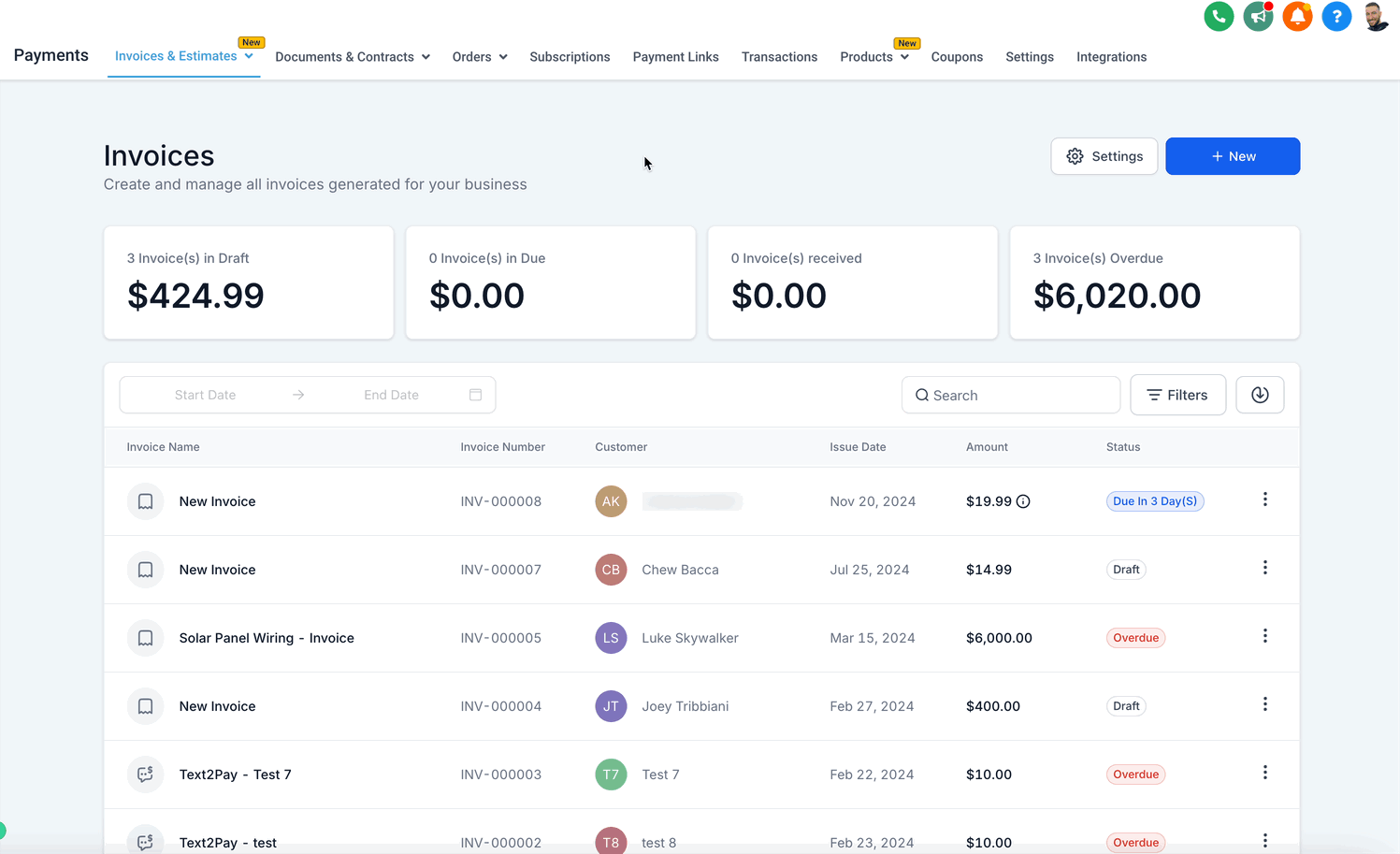
Step 1: Access the Invoices section. Go to Payments → Invoices & Estimates.
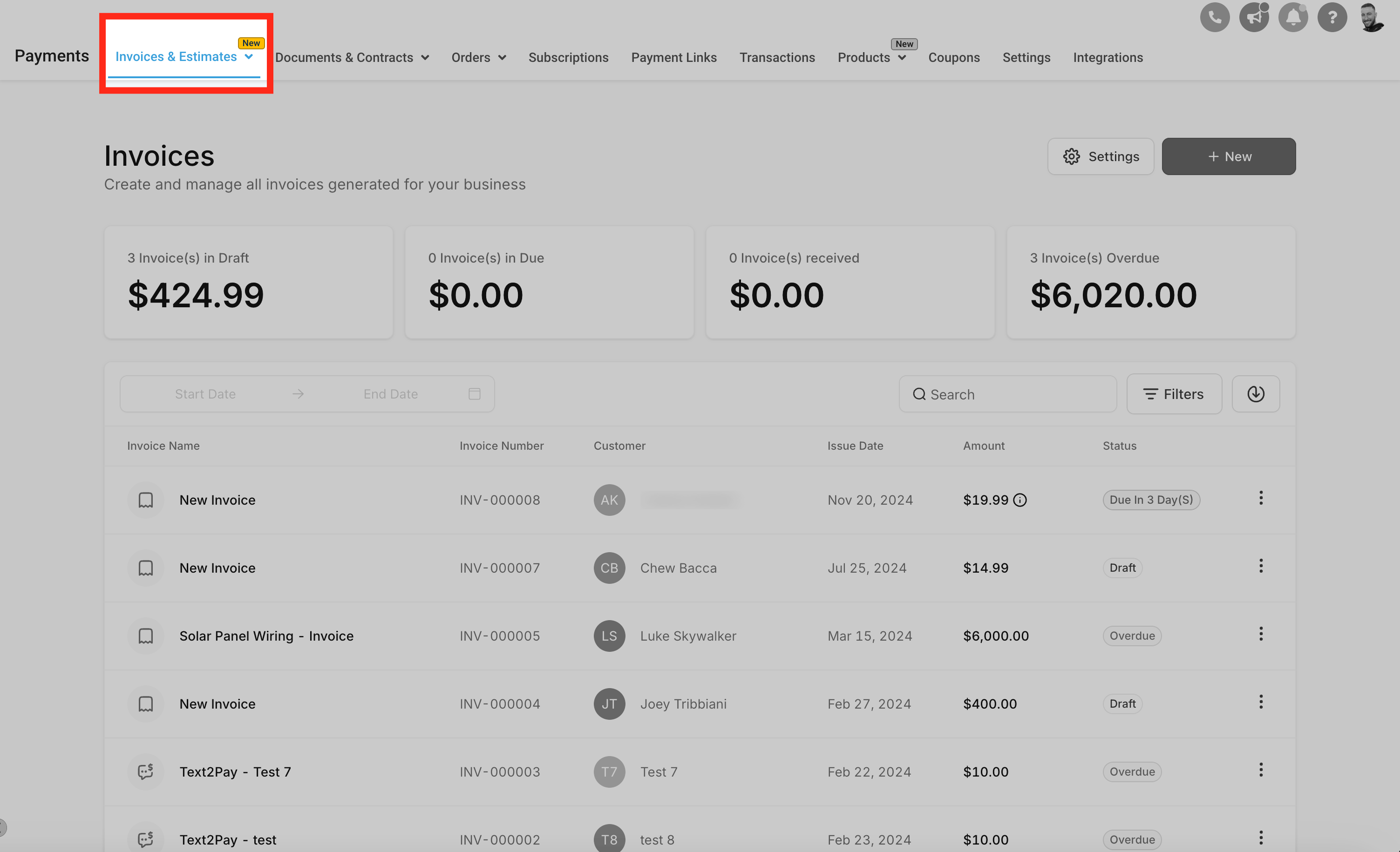
Step 2: Create or edit an invoice. To create a new invoice, click + Create Invoice. To edit an existing one, locate it in the list and click Edit.
Step 3: Select the bank transfer payment option. Scroll to the Payment Options section and choose Bank Transfer as the exclusive payment method.
Step 4: Save and send. Click Save, then use the Send Invoice button to email the invoice to your patient.
Minimizing transaction costs by avoiding card processing fees.
Patients who prefer or require direct, secure bank-to-bank transactions.
Apple Pay and Google Pay are supported on one-time and recurring invoices as well as Text2Pay links. Patients see Apple Pay or Google Pay based on their geographic location and browser, and only if they have a payment method associated with their Apple or Google account. When those conditions are met, the digital wallet appears alongside the default credit card option.
Currently supported browsers include Chrome Desktop, Chrome Android, macOS Safari, iOS Safari, and Microsoft Edge for Windows.
Apple Pay and Google Pay are enabled through Stripe Connect. Once your Stripe account is connected under Payments → Integrations, enable Apple Pay and Google Pay in your Stripe account and they will automatically start appearing on invoices and Text2Pay links.
Apple Pay requires one additional step: the domain where payment is accepted must be registered with Apple Pay. Aesthetix CRM performs this registration automatically as soon as the Stripe account is connected, allowing Apple Pay to be offered on invoices and Text2Pay links.
The toggle to enable Apple Pay and Google Pay should be on while Stripe is connected.
Make sure Apple Pay is available in your country.
Ensure the domain hosting the invoice is registered with Stripe. This should happen automatically when the toggle is turned on. To check, open your Stripe dashboard and see if the domain is listed under Web Domains. If it is not, you can add it manually with Add New Domain, but if it does not register automatically, raise a support ticket.
If the domain appears registered, ensure the domain association file is hosted (visiting https://yourdomain.com/.well-known/apple-developer-merchantid-domain-association should download a file).
Confirm the browser and device meet Apple Pay requirements (the patient is on Safari, iOS 10 or macOS Sierra or later).
Stripe should be connected on the Integrations page.
Make sure Google Pay is available in the patient's country.
The patient is using Google Chrome or Safari.
The patient has a valid card registered with Google Pay.
Are there fees for accepting ACH Direct Debit? Yes. If you use Stripe, it applies specific fees for ACH Direct Debit that differ from card fees. If you use AX Pay, refer to your AX Pay rates. Check your provider's current pricing for details.
Can I use ACH Direct Debit for recurring invoices with auto-payments? Yes. When setting up a recurring invoice, enable auto-payments during the send process so subsequent payments are automatically charged on scheduled dates.
How do I control which payment methods patients see on invoices? You can manage displayed methods in your invoice payment settings and, if using Stripe, in your Stripe dashboard under Settings → Connect → Payment Methods. You can enable or disable specific methods there.
What should I do if an ACH payment fails? Your provider notifies you of the failure reason, such as insufficient funds or an invalid account number. Contact the patient to update their bank details or choose another payment method.
How do I save a patient's ACH bank account for future payments? When a patient pays by ACH and selects auto-pay, their bank account is securely stored for future use. If auto-pay is not selected, use your provider's customer management features to save the account, or send a payment link that saves the account by default.
Is there a pricing difference between credit cards and Apple Pay or Google Pay? No. Apple Pay and Google Pay are treated as card payments and are priced the same as credit card transactions. They also appear the same way in your reporting on the Invoices and Transactions pages.
Can I offer Apple Pay or Google Pay if I use PayPal, Authorize.net, or NMI instead of Stripe? Apple Pay and Google Pay are provided through Stripe Connect only. If you use another provider, these wallets are not available. AX Pay is the recommended option for the best rates.
Can I enable both card payments and bank transfers on the same invoice? Yes, but you would enable All Valid Payment Methods, which allows more than just cards and bank transfers. The bank-only option is specifically designed to make bank transfer the exclusive method for that invoice.
How do I track payments made by bank transfer? Bank transfer payments are recorded under the Invoices section, the same as other payment methods.
