Gift Cards give your practice a powerful way to drive revenue, reward loyal clients, and simplify promotions, all within your existing Aesthetix CRM payments ecosystem. With fully customizable Gift Card Products, you can design and sell beautiful, branded digital cards that reflect your practice's identity. From choosing artwork and denominations to setting expiry dates and terms, you have complete control over how your Gift Cards look and function.
Gift Cards let you create branded Gift Card Products, sell or send them, and track every issued card from a dedicated Gift Card Orders page, all from inside your Payments section.
Whether a client is buying a gift for a friend or family member, or you are rewarding a loyal patient with complimentary credit, Gift Cards make every transaction more personal. They can be sold through a dedicated checkout, embedded on your website, shared through a QR code, or sent directly to contacts with a custom message. Every card issued is automatically tracked under Gift Card Orders, giving you clear visibility into balance, status, and redemption.
With Gift Cards you can:
Create Gift Card Products with your branding, denominations, expiry dates, and more.
Sell Gift Cards from a dedicated checkout, embedded on your site, or via QR code.
Send Gift Cards directly to contacts without collecting payment (great for promotions or service recovery).
Track every issued card from the Gift Card Orders page with status, balance, and details.
Let clients redeem Gift Cards seamlessly at supported checkouts, with automatic balance display and fallback payment collection when needed.
Flexible selling options: Dedicated checkout, embed, QR code, or add to existing checkouts.
Scheduled delivery: Choose immediate delivery or schedule for a future date.
Operational visibility: Track orders, code, amount, and status under Gift Card Orders.
Brand consistency: Use gradients or upload artwork so cards match your practice's brand.
Gifting built in: "Myself or Someone Else" flows make it simple to buy for others with scheduled delivery.
Frictionless redemption: Recipients can redeem on supported checkouts with their code or link.
Before you start, make sure you have:
Access to Payments > Gift Cards in your account.
A connected payment method, so you can collect payment when selling gift cards.
At least one Gift Card Product created and active.
Active checkouts (Forms, Funnels, Payment Links, Invoices, Store, Calendars, and similar) to support redemption.
(Optional) Artwork and terms and conditions for your Gift Card branding.
Tip: To collect payment when selling gift cards you need a connected payment processor. Aesthetix CRM offers AX Pay, our own payment processing with rates better than Stripe. See AX Pay Overview and Setup Guide.
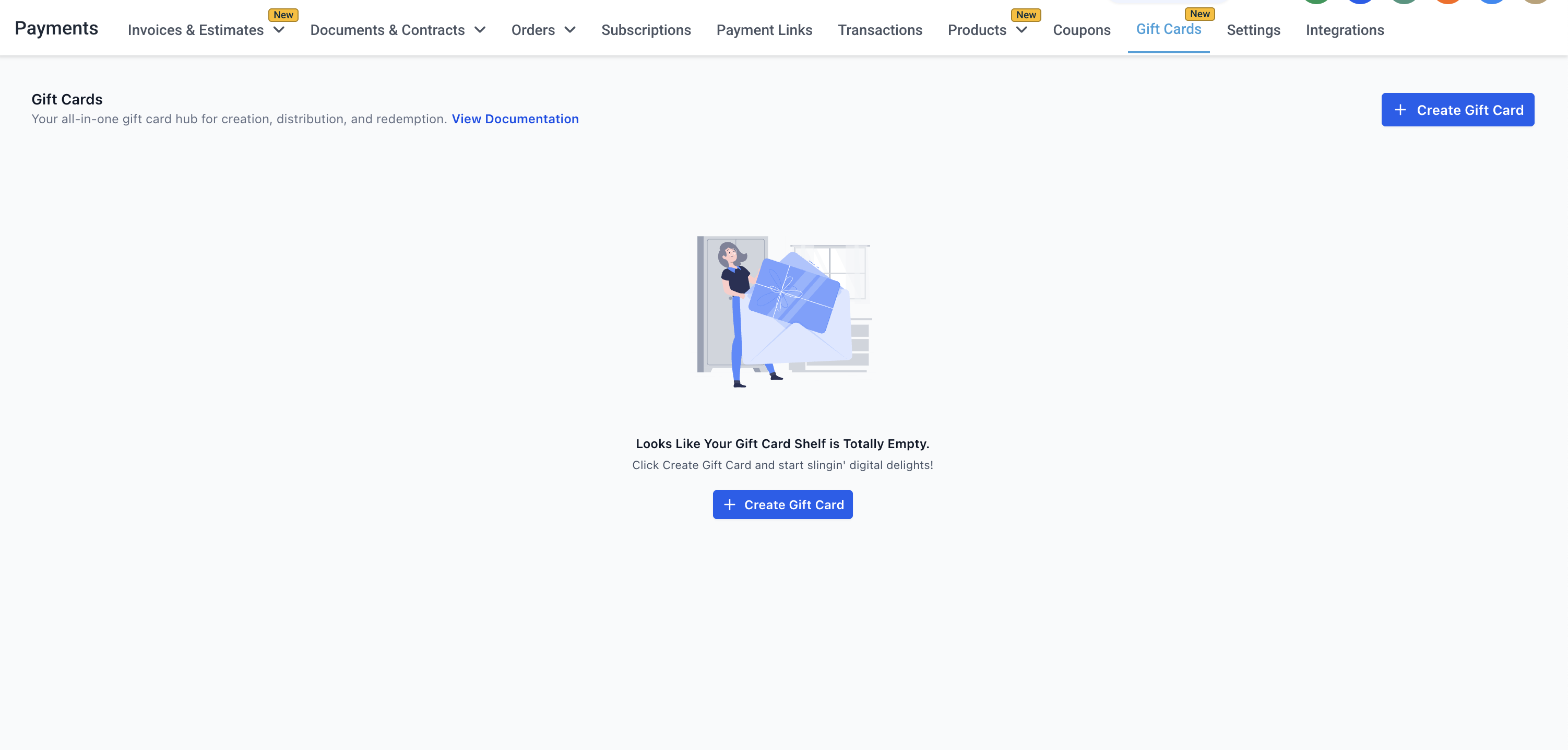
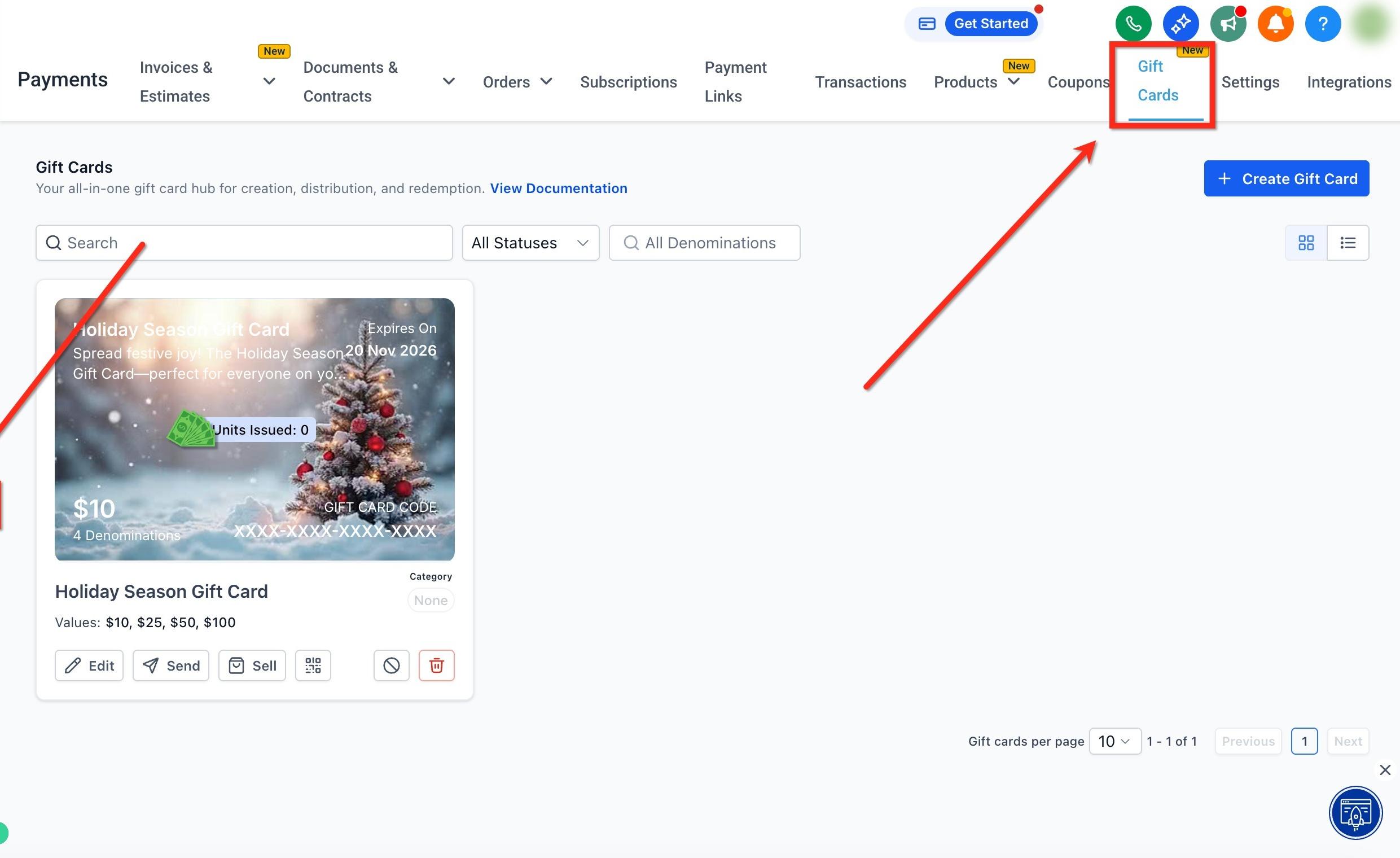
Step 1: Navigate to Gift Cards. In the left menu, click the Payments tab. Then in the top ribbon, click Gift Cards to open the Gift Cards dashboard.
Step 2: Create Gift Card. Click the blue + Create Gift Card button. For a first-time user, only the option to create a card is visible. Orders, Sell and Send options, and other details appear once your first Gift Card Product is created.
Step 3: Add details. Fill in the Basic Information. Key attributes include (but are not limited to):
Name and description
Terms and conditions
Expiry date for the Gift Card Product (applies to all Gift Card Orders for this product)
URL to redemption instructions
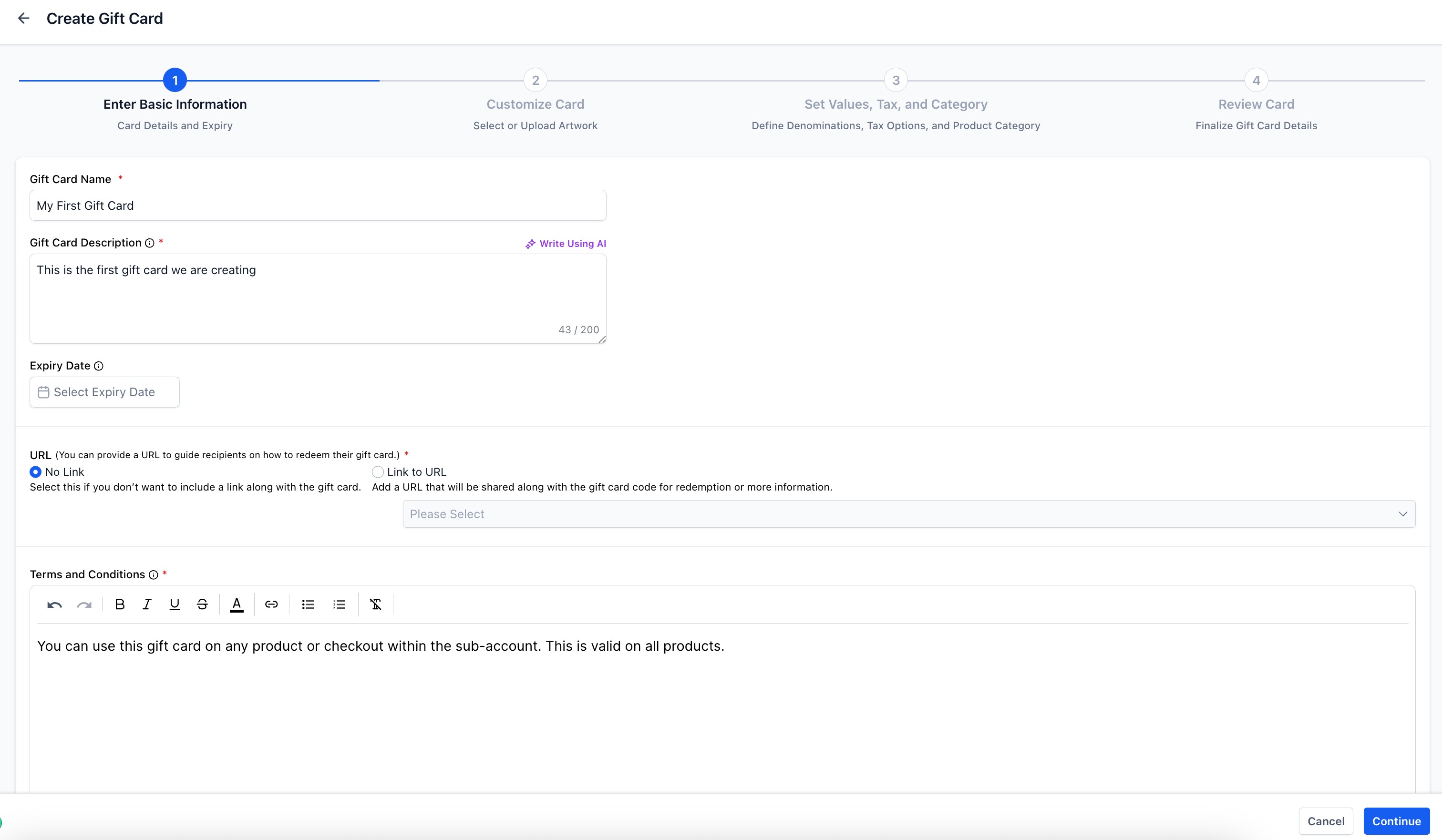
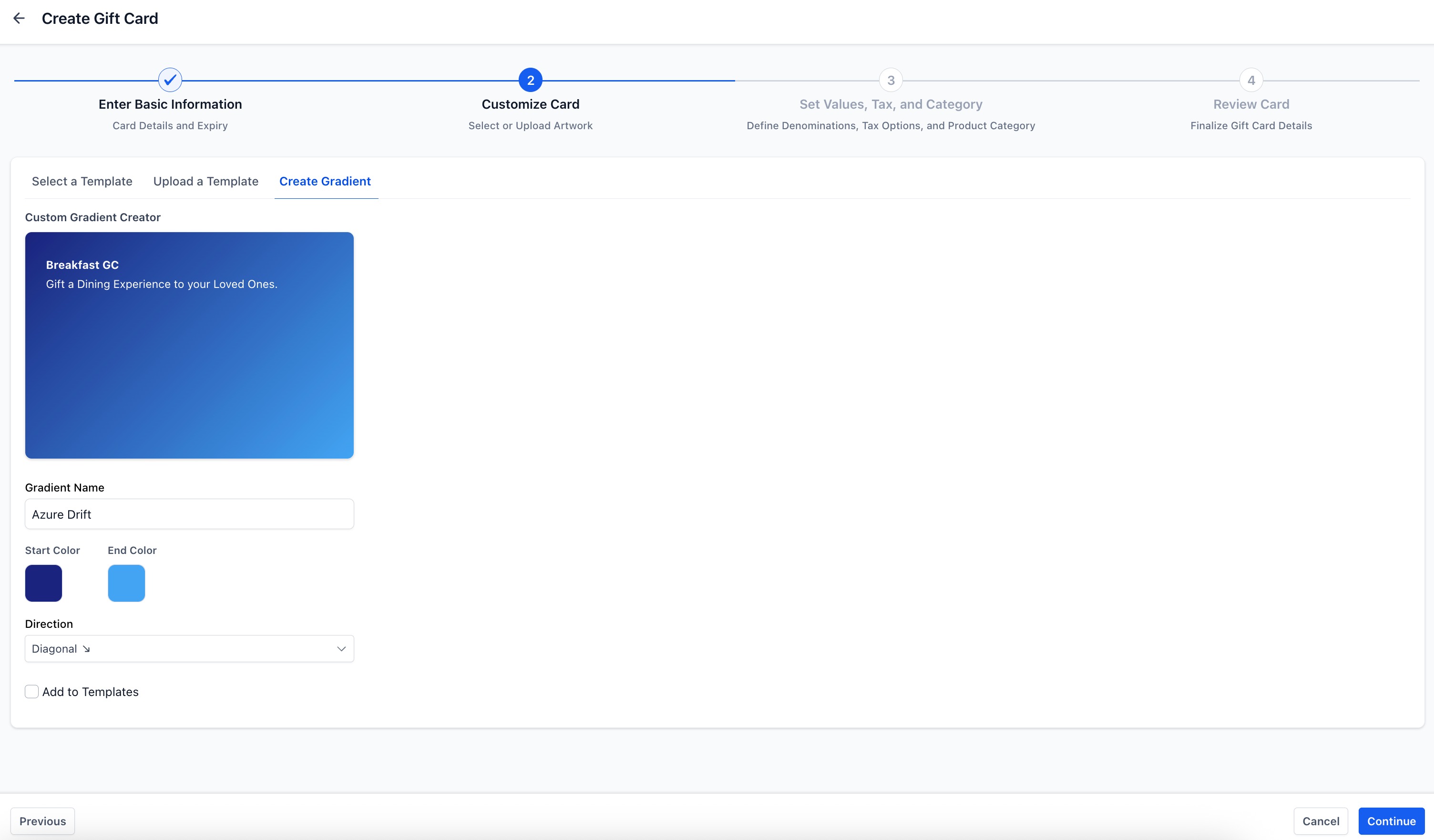
Step 4: Customize the Gift Card. Choose how the card looks so it aligns with your brand. You have two options:
Create a gradient: Pick brand-aligned colors and a gradient style and direction.
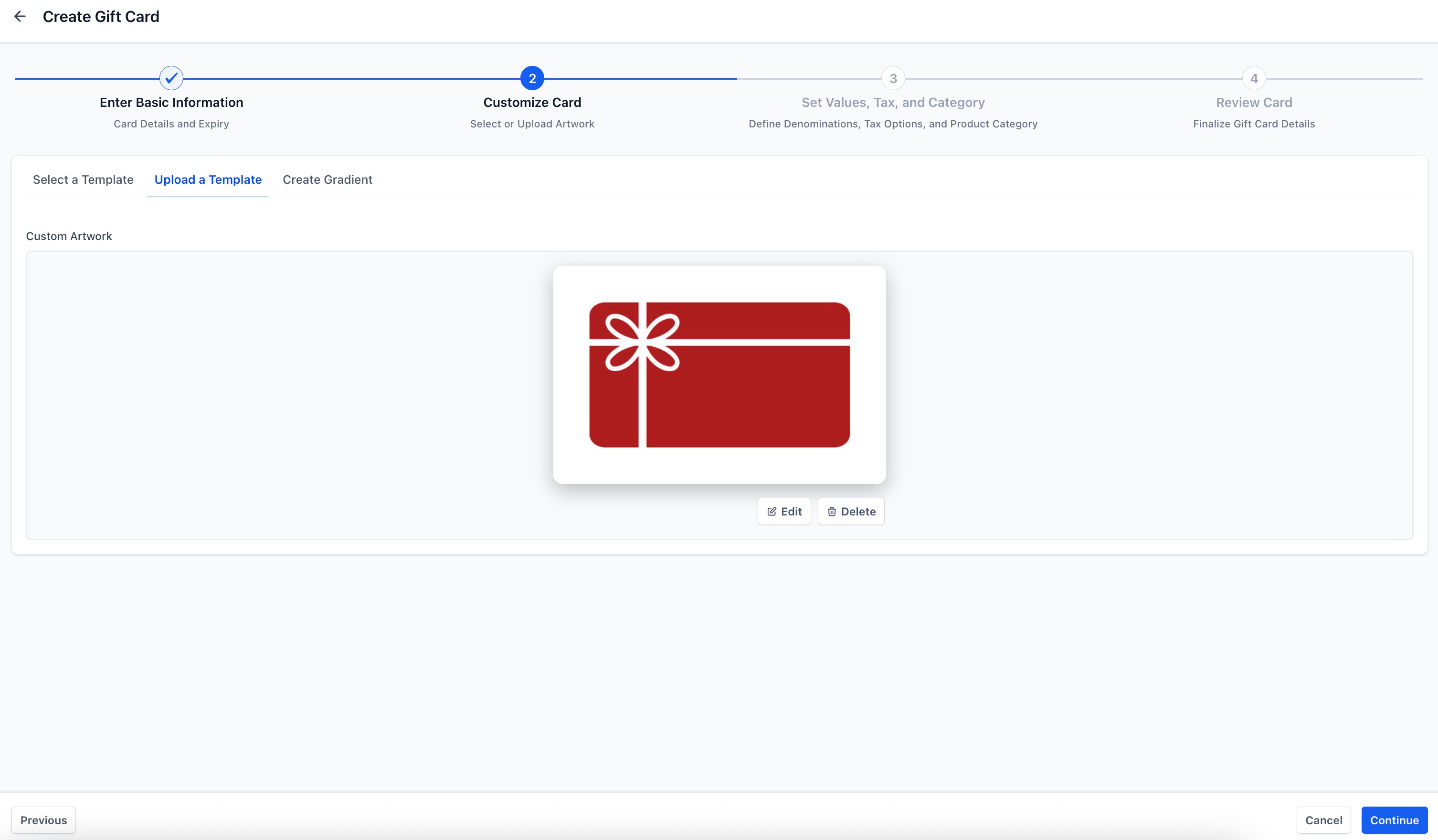
Upload custom artwork: Upload a high-resolution image (for example, PNG or JPG) that matches your branding.
Step 5: Set values, tax, and category.
Add one or more denominations (for example, $25, $50, $100).
Set Quantity (Inventory).
(Optional) Enable automatic taxes.
(Optional) Assign a Category to help filter and report on promotions.
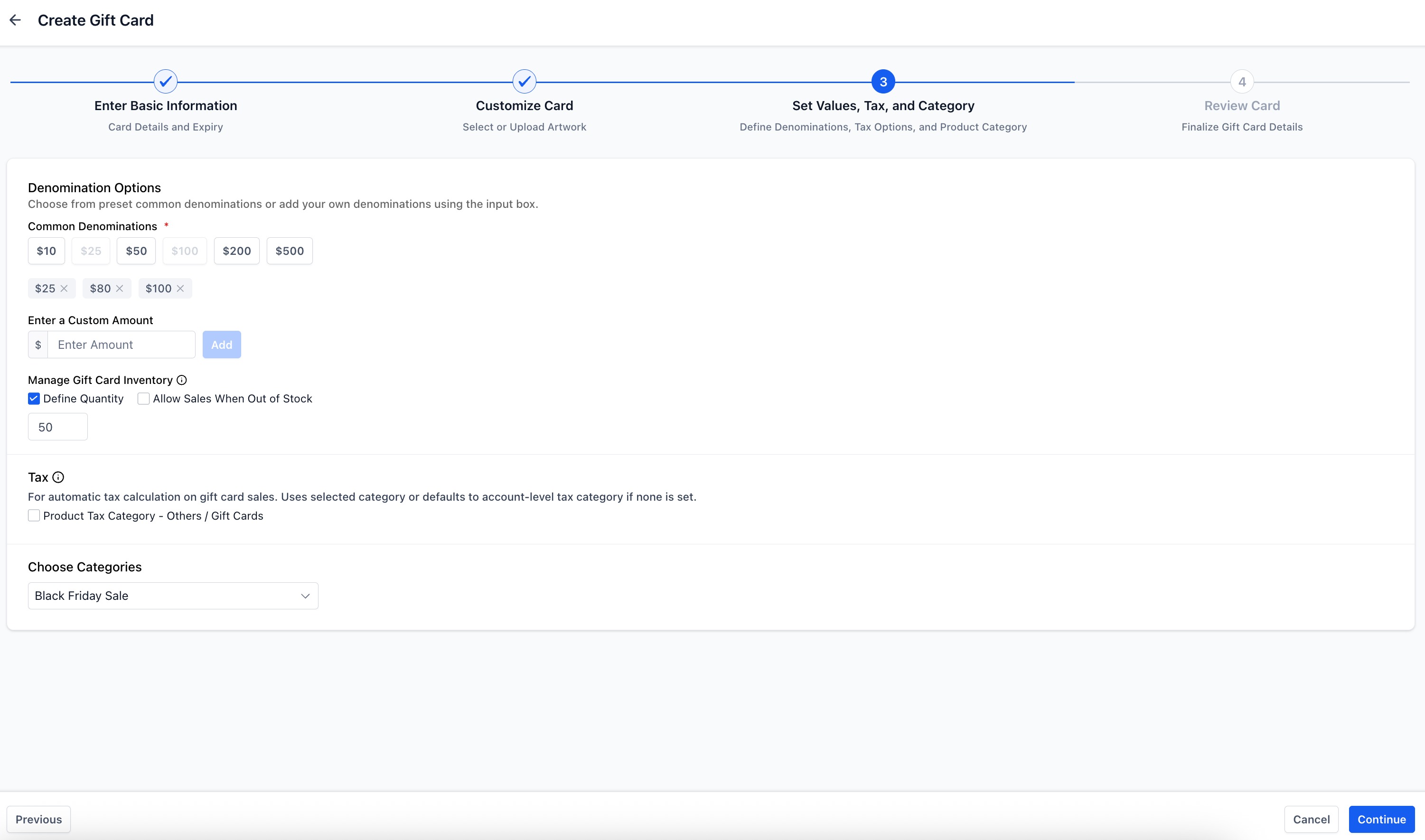
Tip: Inventory cannot be defined separately for each denomination today. Once inventory is set, it applies individually to each denomination. For example, a quantity of 100 with 2 denominations gives each denomination 100 cards, for a total of 200 gift cards.
Step 6: Review and save. Review the summary and preview. When everything looks right, click Create Gift Card to finish.
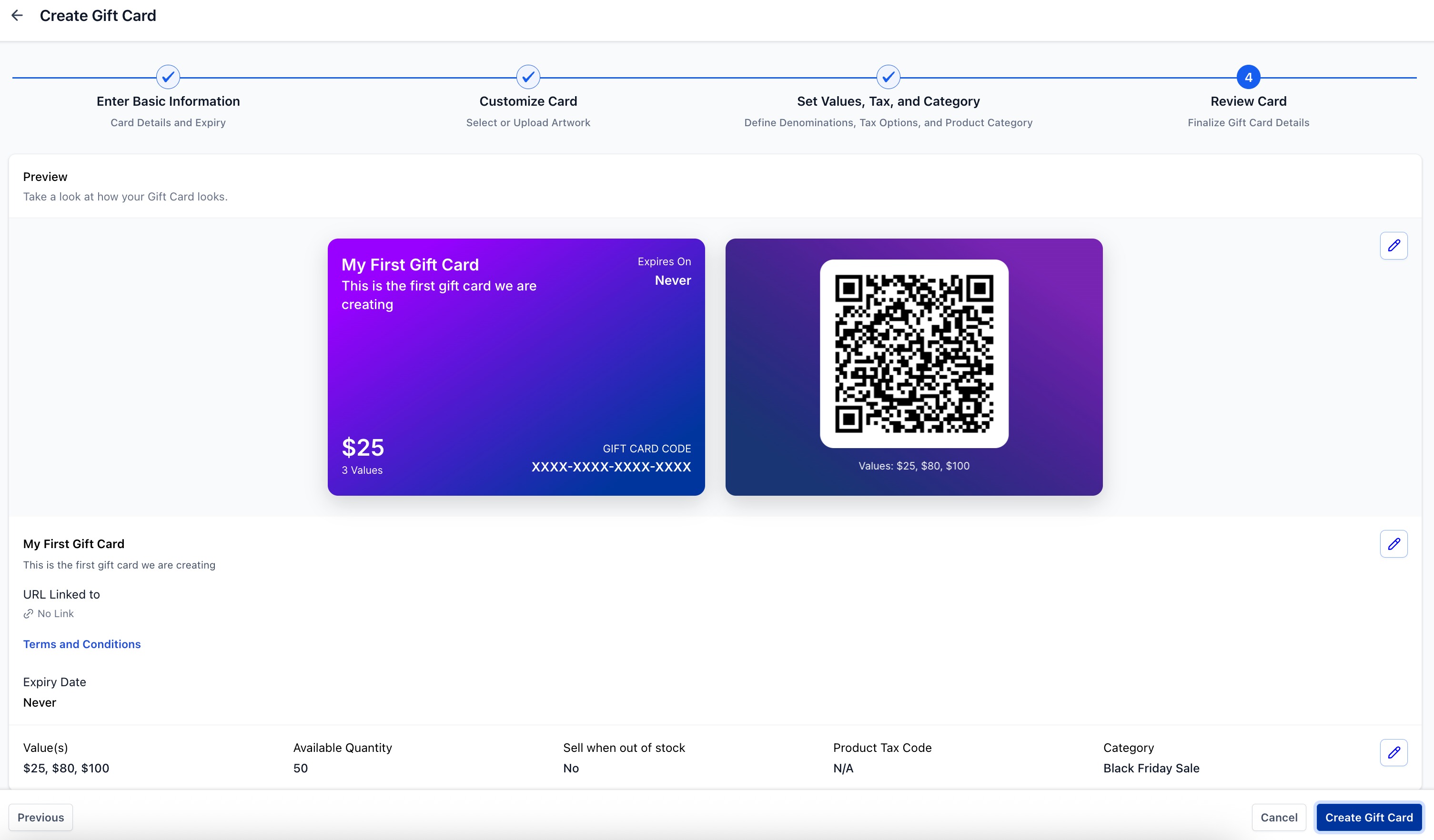
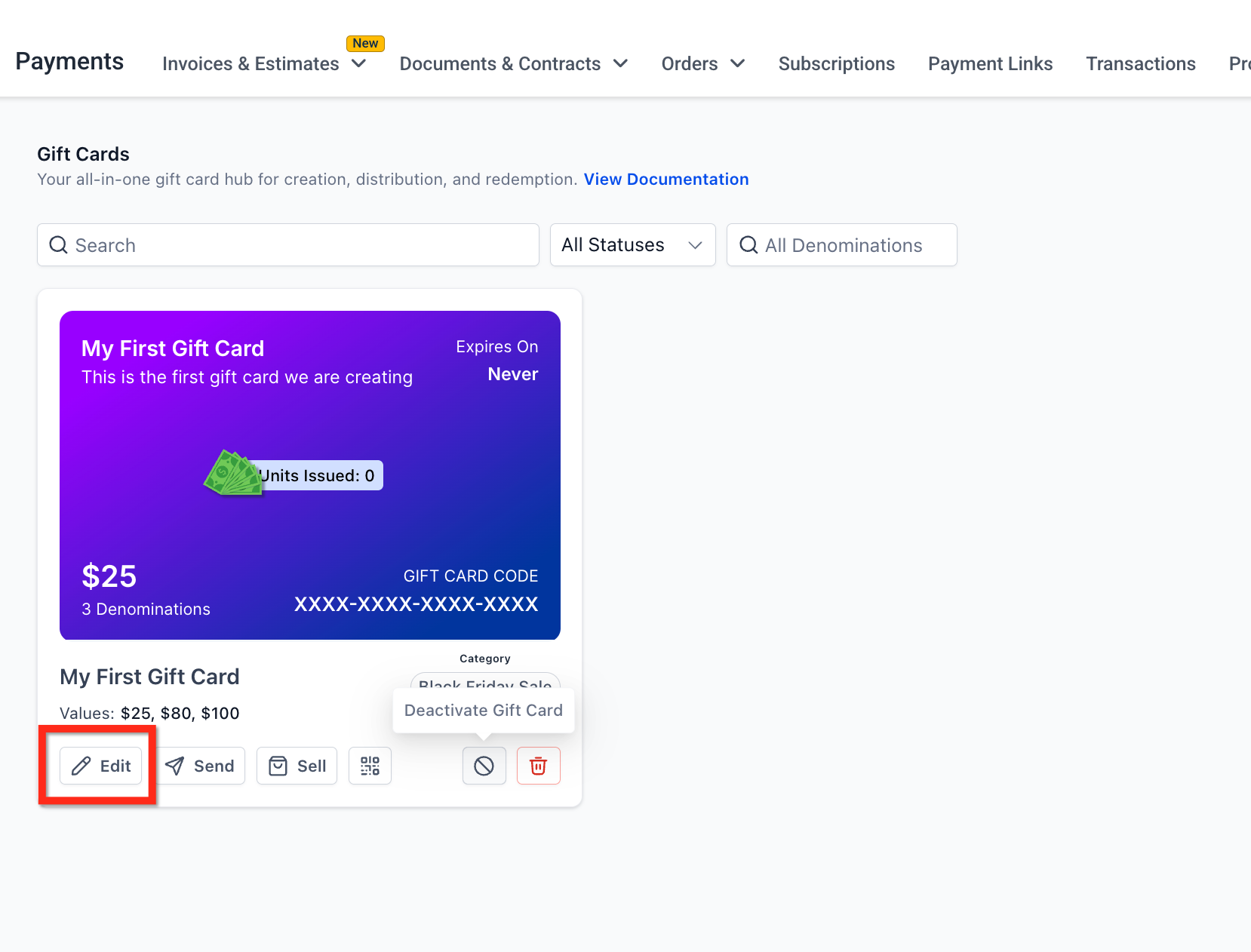
You can edit, archive, or deactivate a Gift Card Product at any time.
Edit: Update denomination, quantity (inventory), terms, expiry, category, or tax behavior. Updates apply to future issuances.
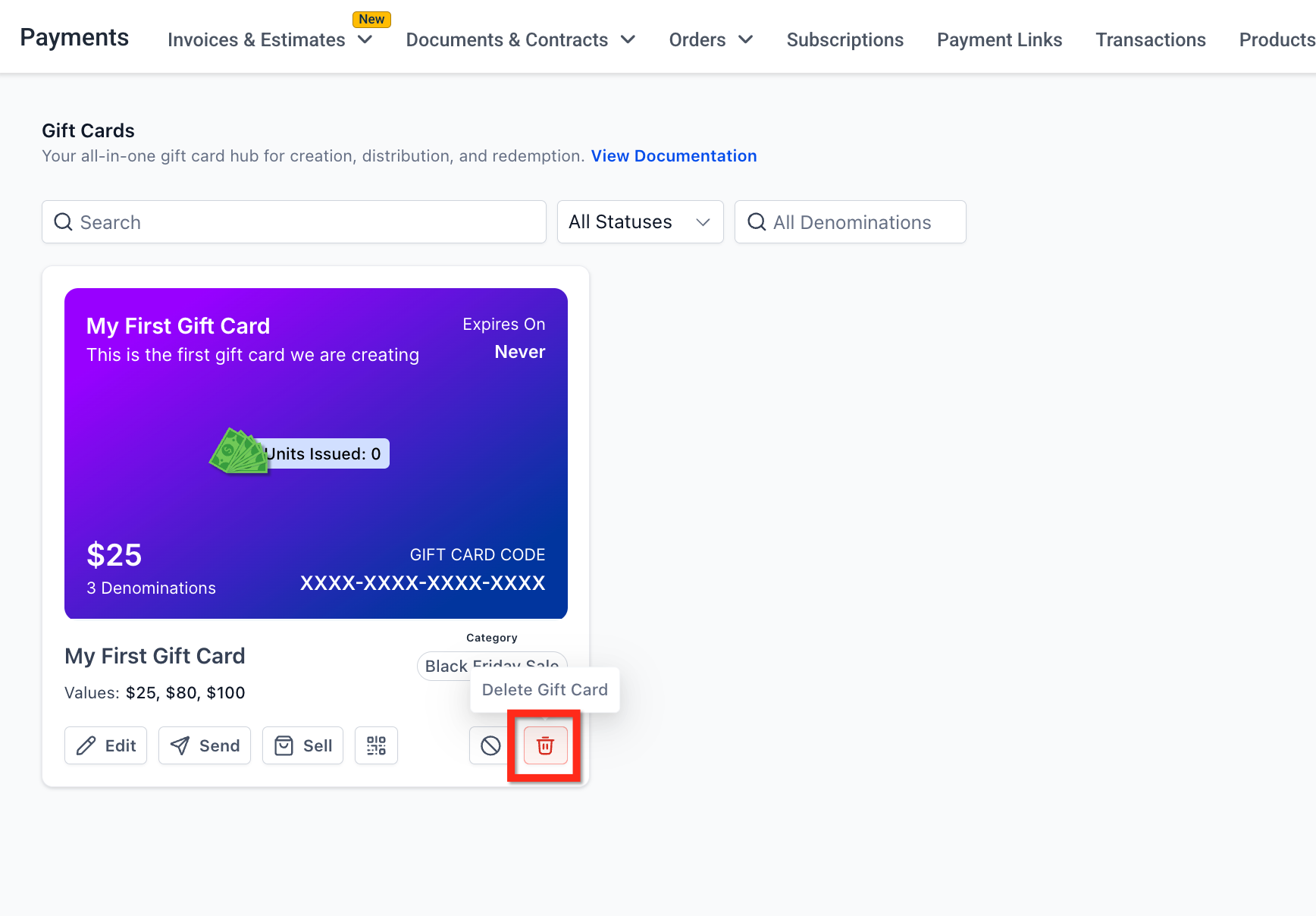
Delete: Archive Gift Card Products you are no longer using.
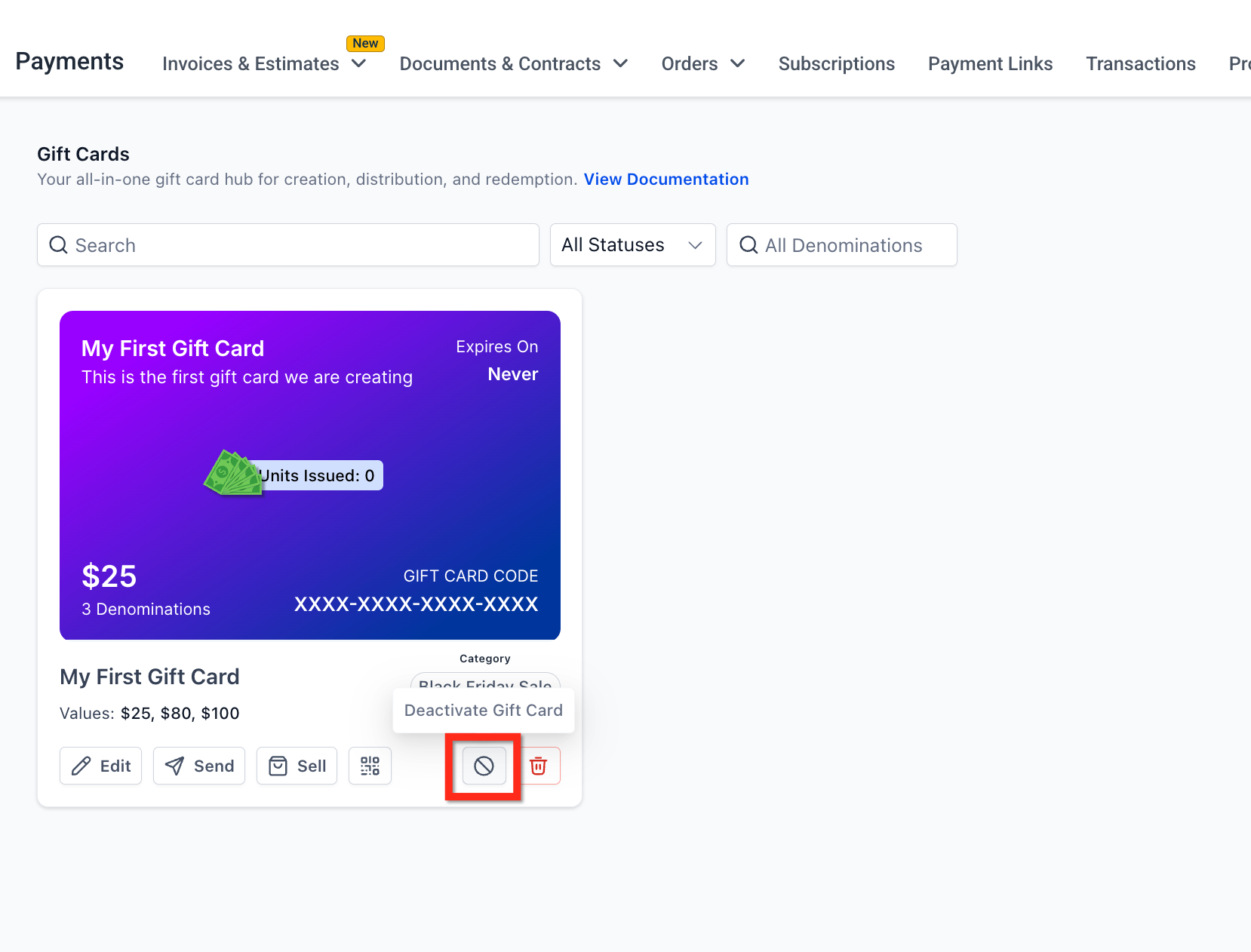
Deactivate: When deactivated, Sell and Send actions are disabled, and the dedicated checkout link or Store (where this gift card was added as a product) stops working immediately. On any other checkout where the gift card was added as a product, it continues to be sold unless you remove it manually.
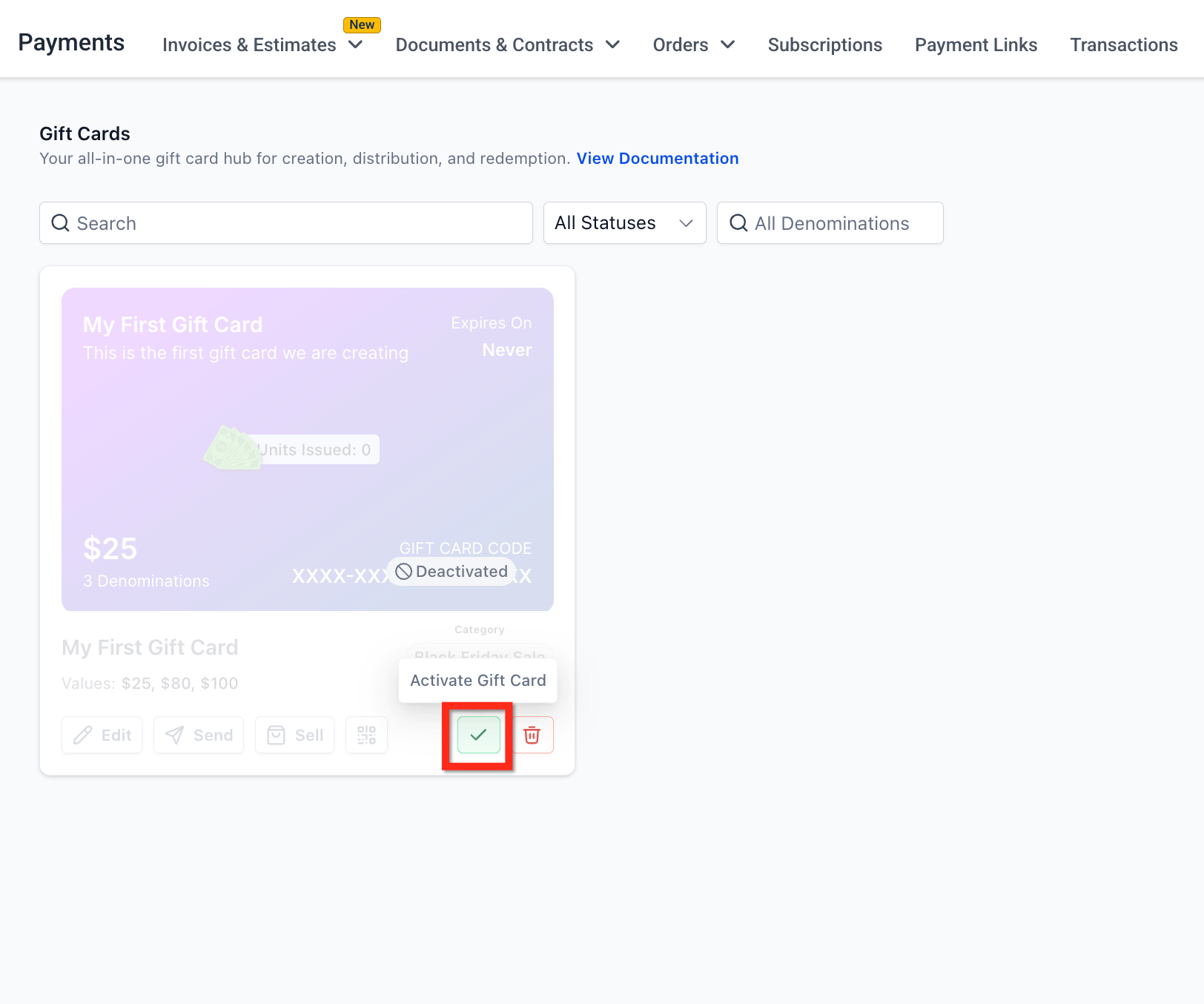
Activate: Re-enables sales and sending for the Gift Card Product. If you removed the product from existing checkouts, add it back where needed.
Test Mode is a safe sandbox with separate checkout links and payment keys. Use it to simulate purchases, validate pricing and taxes, check inventory behavior, preview delivery messages, and test redemption. Live Mode is for real transactions.
Gift cards purchased in Test Mode are redeemable only on test-mode checkouts, and gift cards purchased in Live Mode are redeemable only on live-mode checkouts. The reverse is not possible.
You can sell a gift card through its own checkout or by adding it to your existing selling workflows (Funnels, Forms, Stores, Websites, Payment Links, Invoices, and Calendars). This lets you sell gift cards wherever your clients already buy. When a client completes a purchase, Aesthetix CRM creates a Gift Card Order and delivers the gift card based on the delivery option selected at checkout (immediate or scheduled).
Each Gift Card Product comes with a dedicated checkout link, an embed code, a QR code, and the ability to be added to any checkout that supports product selection.
Step 1: Navigate to Gift Cards. From the Payments tab, click Gift Cards in the top ribbon.
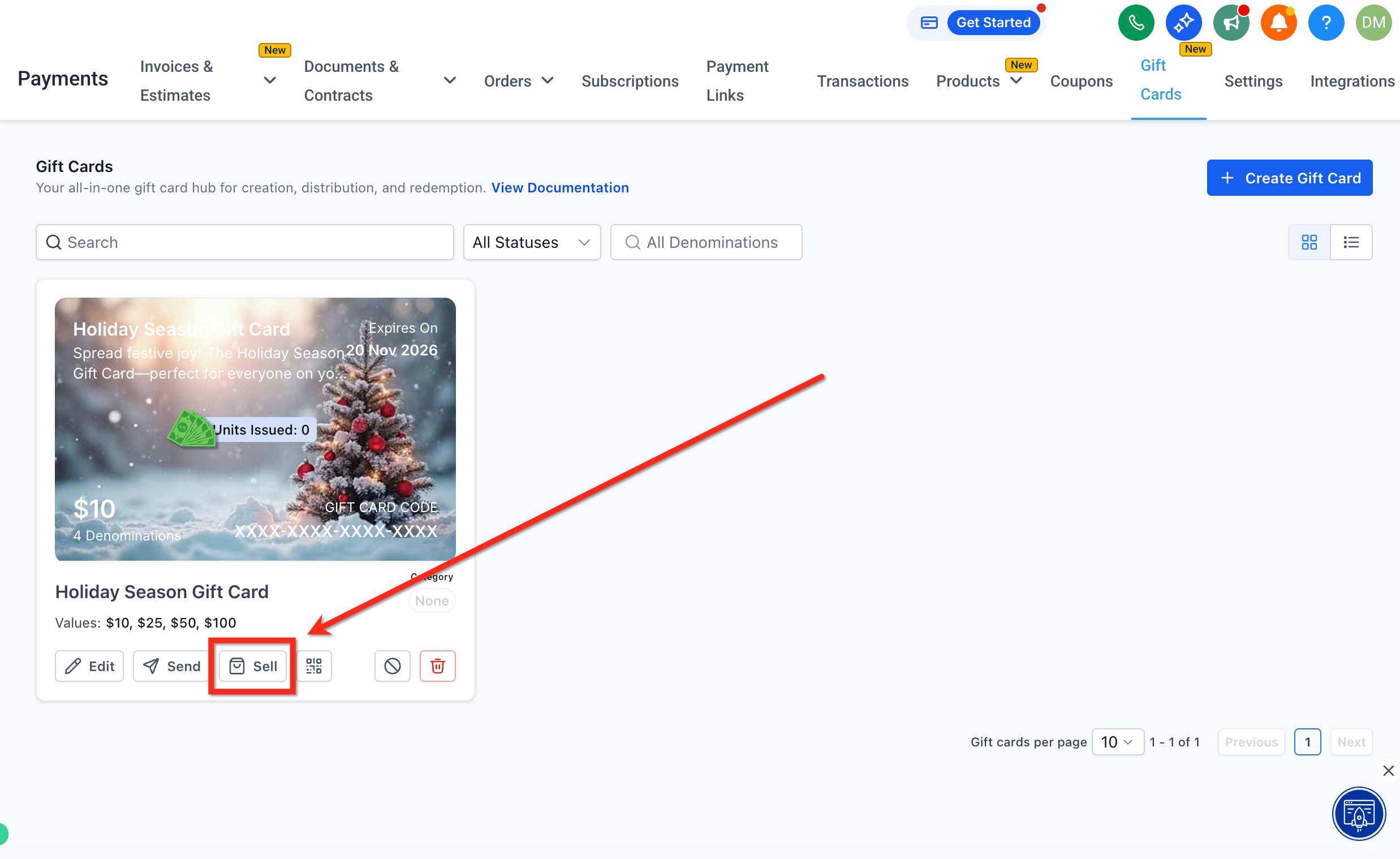
Step 2: Choose a Gift Card. Locate the card you want to open the Dedicated Checkout Link for. On the Gift Card tile, click Sell.
Step 3: Share the dedicated checkout. There are two ways to share it:
Copy the checkout link: Click the Copy icon to copy the Live Mode checkout link. Share this link with your clients so they can purchase the gift card.
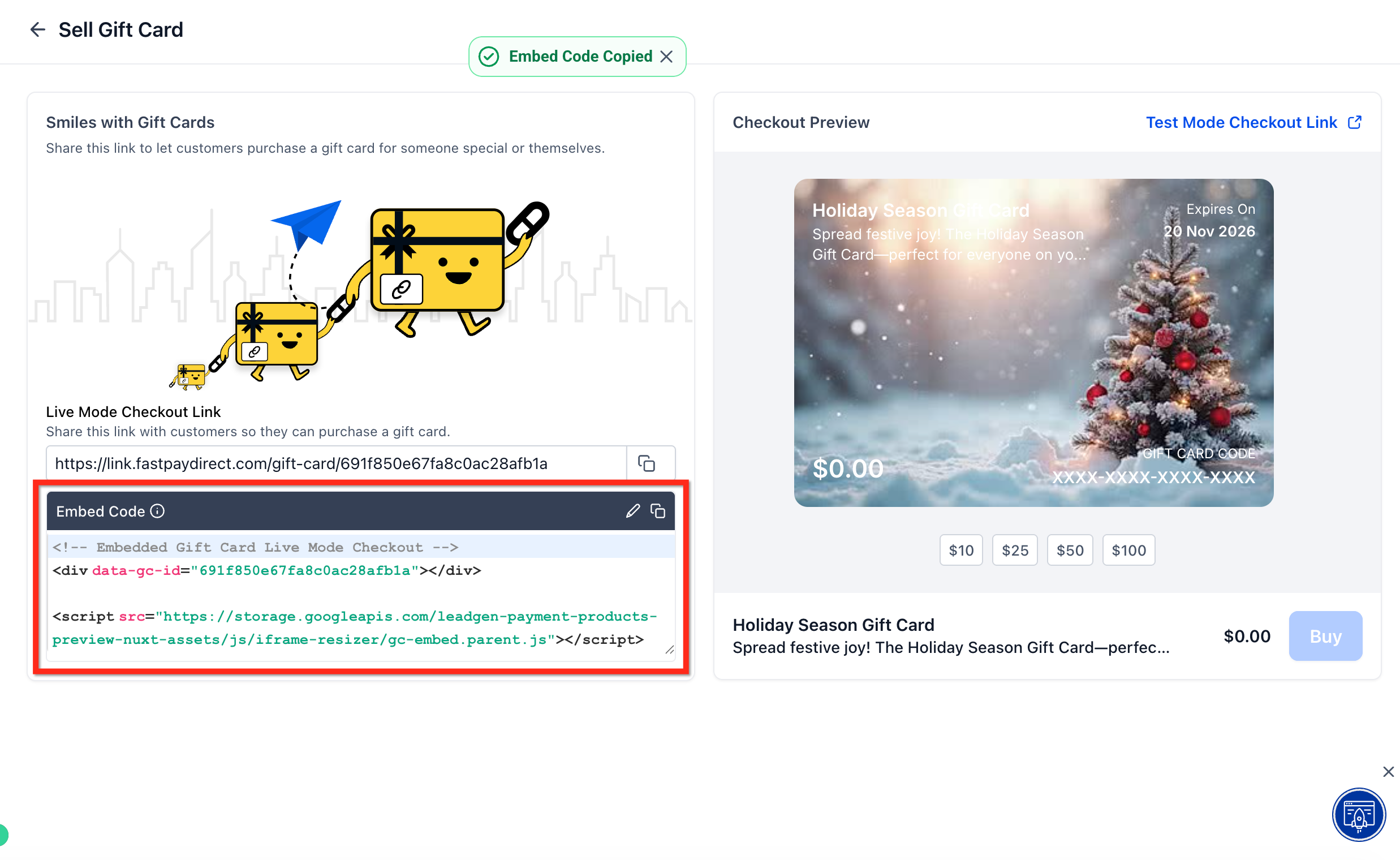
Copy the embed code: Click the Copy button to copy the embed code. Use this code to embed the dedicated gift card checkout directly onto any external webpage.
To grab a Test link for internal QA without affecting real balances, open the same Sell panel and click Test Mode Checkout Link in the upper-right corner.
This is the flow buyers go through when purchasing a gift card using the dedicated checkout.
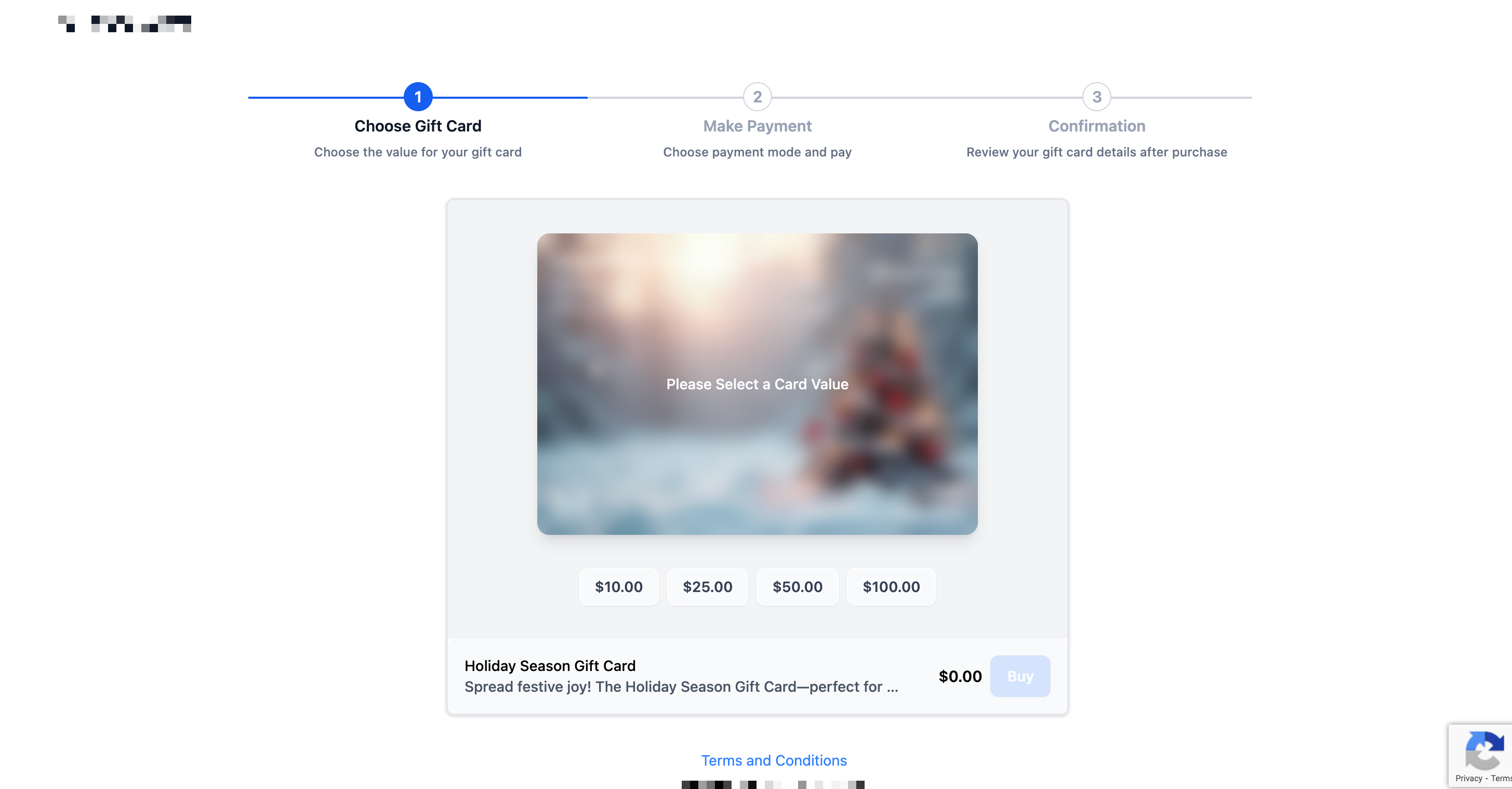
Step 1: Select a denomination. The buyer selects one of the available values (for example, $10, $25, $50, $100).
Step 2: Select who the gift card is for. The buyer chooses Myself or Someone Else. If the gift is for someone else, the checkout collects the recipient's name and email plus the sender's name and email. If the gift is for the buyer, it collects only the buyer's name and email.
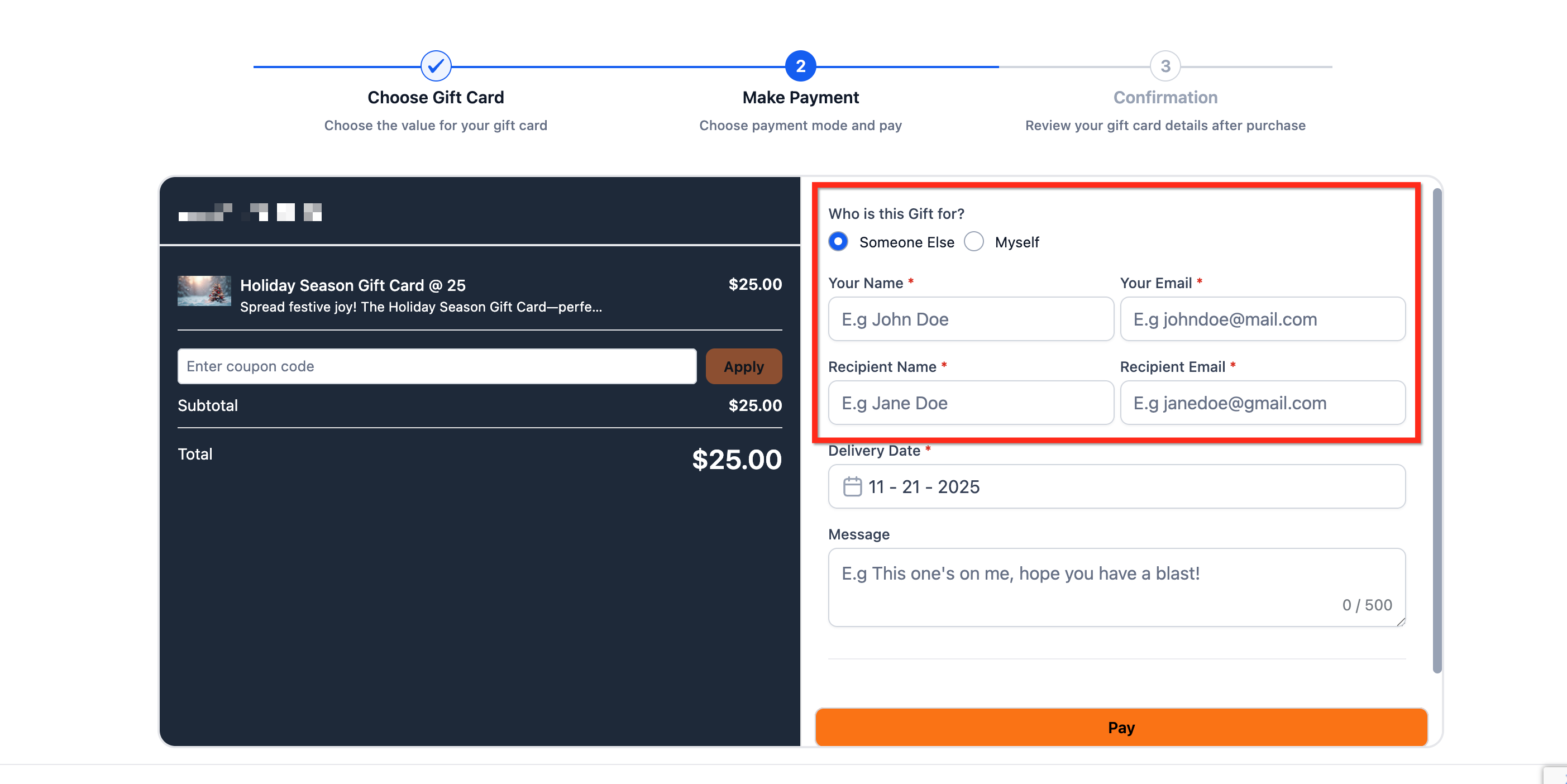
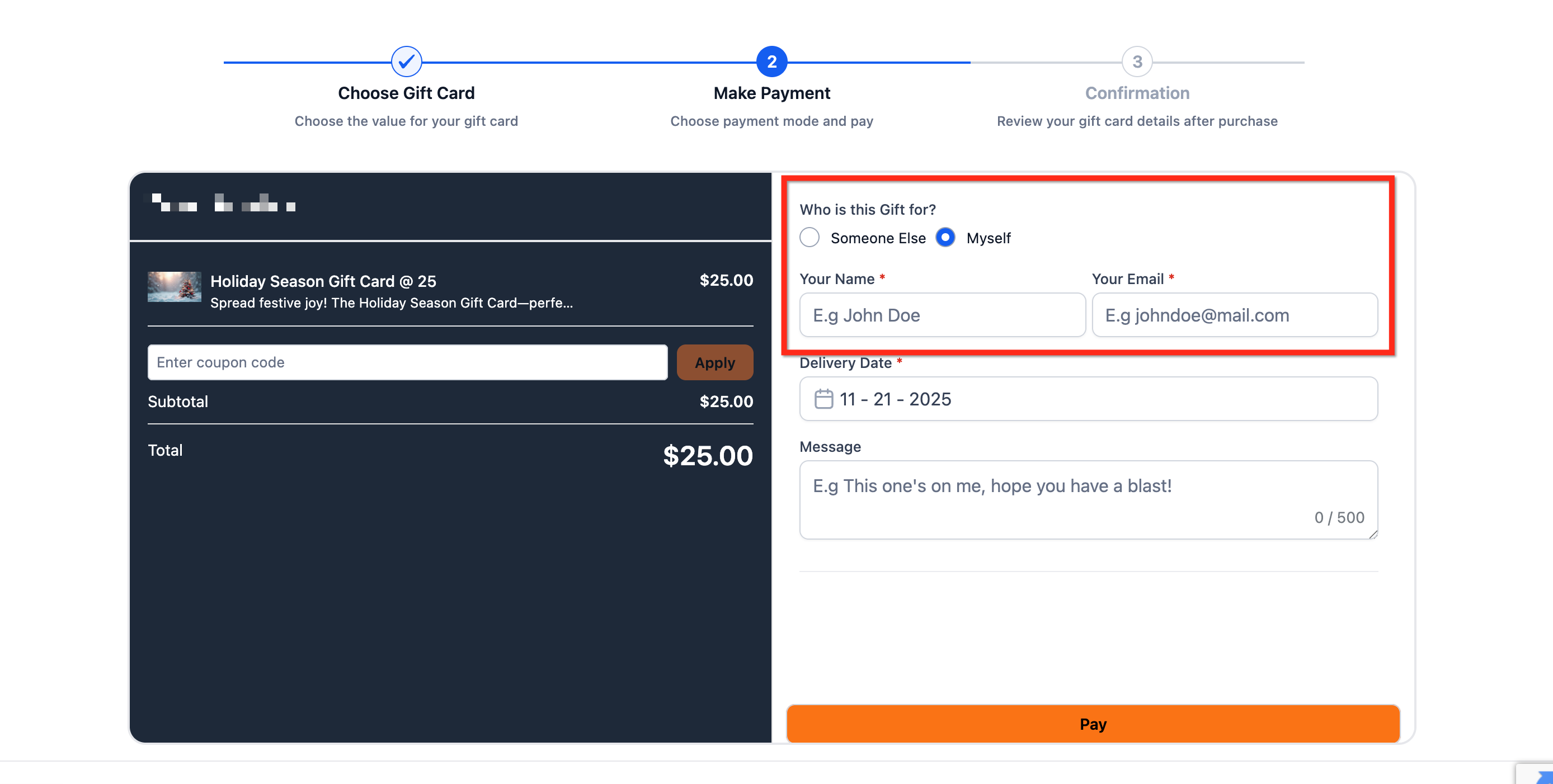
Step 3: Add a delivery date. Choose Deliver Now (immediate) or schedule for later and pick a date (and time, if shown). The buyer can add an optional message for the recipient.
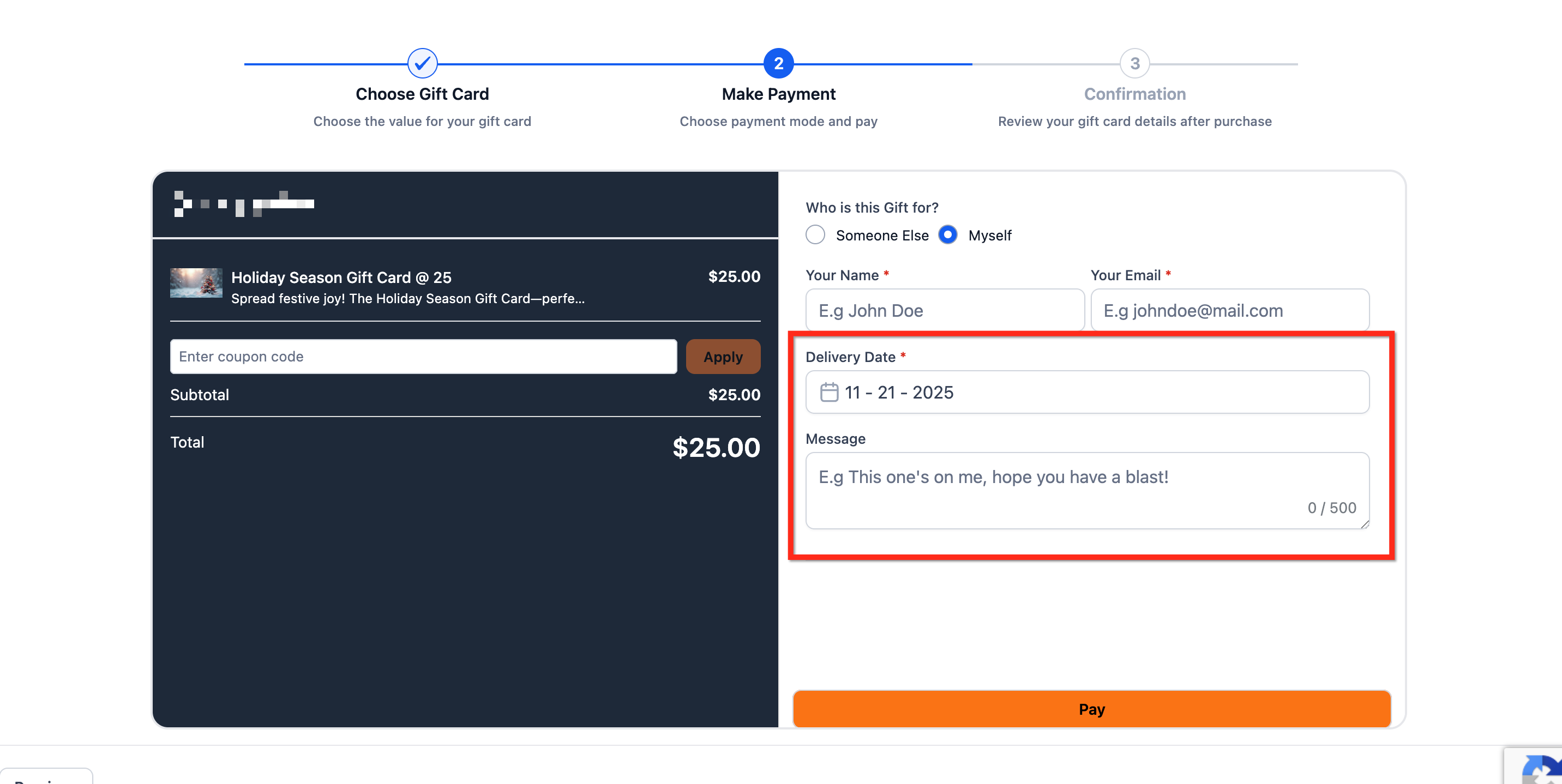
Important: Scheduled gift cards are delivered later, but if the code is accessed and used on any checkout for redemption before the scheduled date, it will still be allowed to redeem.
Step 4: Complete payment and confirmation. The buyer selects an available payment method and clicks Pay. Once payment is confirmed, the buyer can download the gift card from this screen. If buying for someone else, the recipient receives the gift card by email at the chosen time.
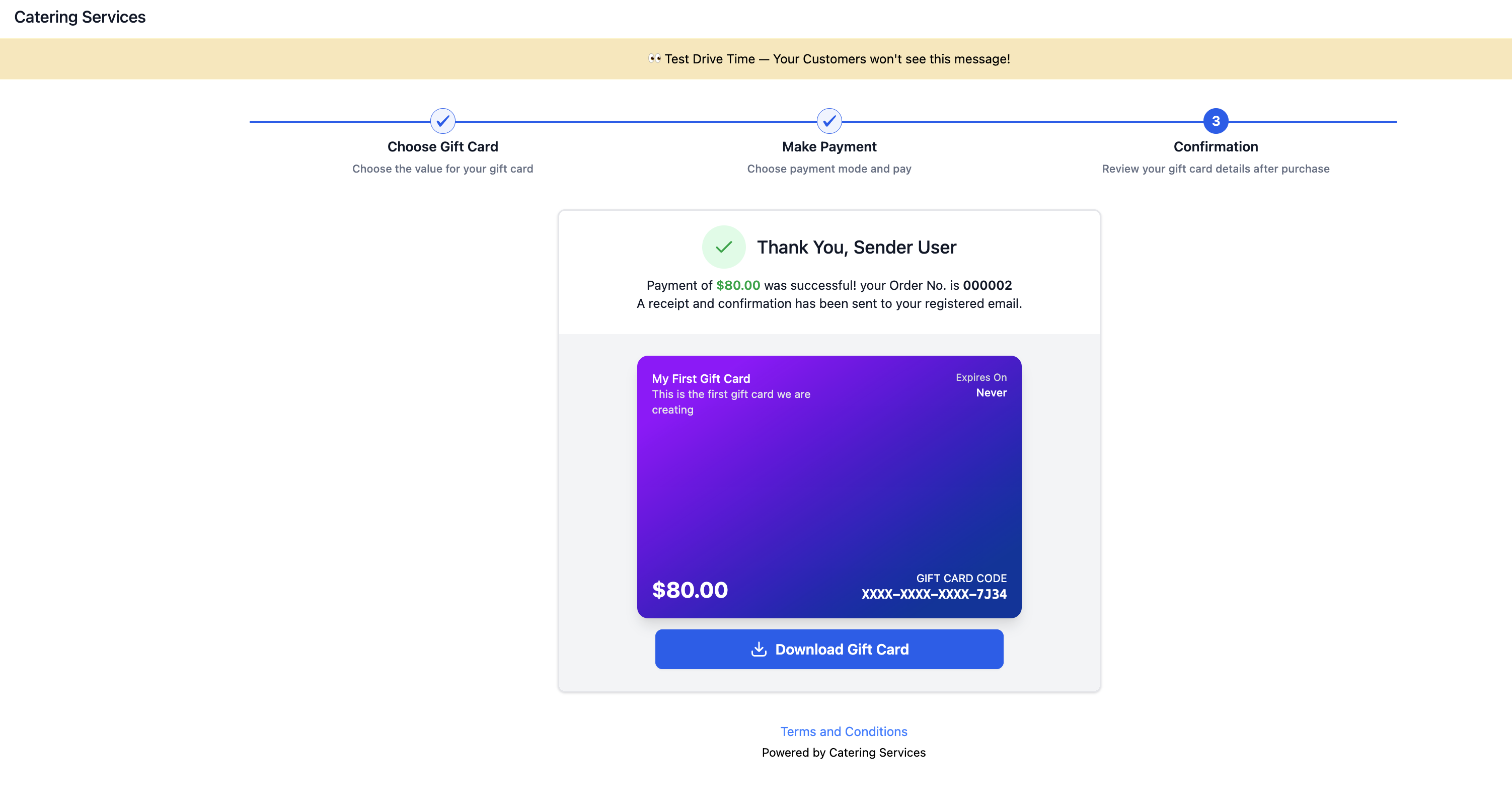
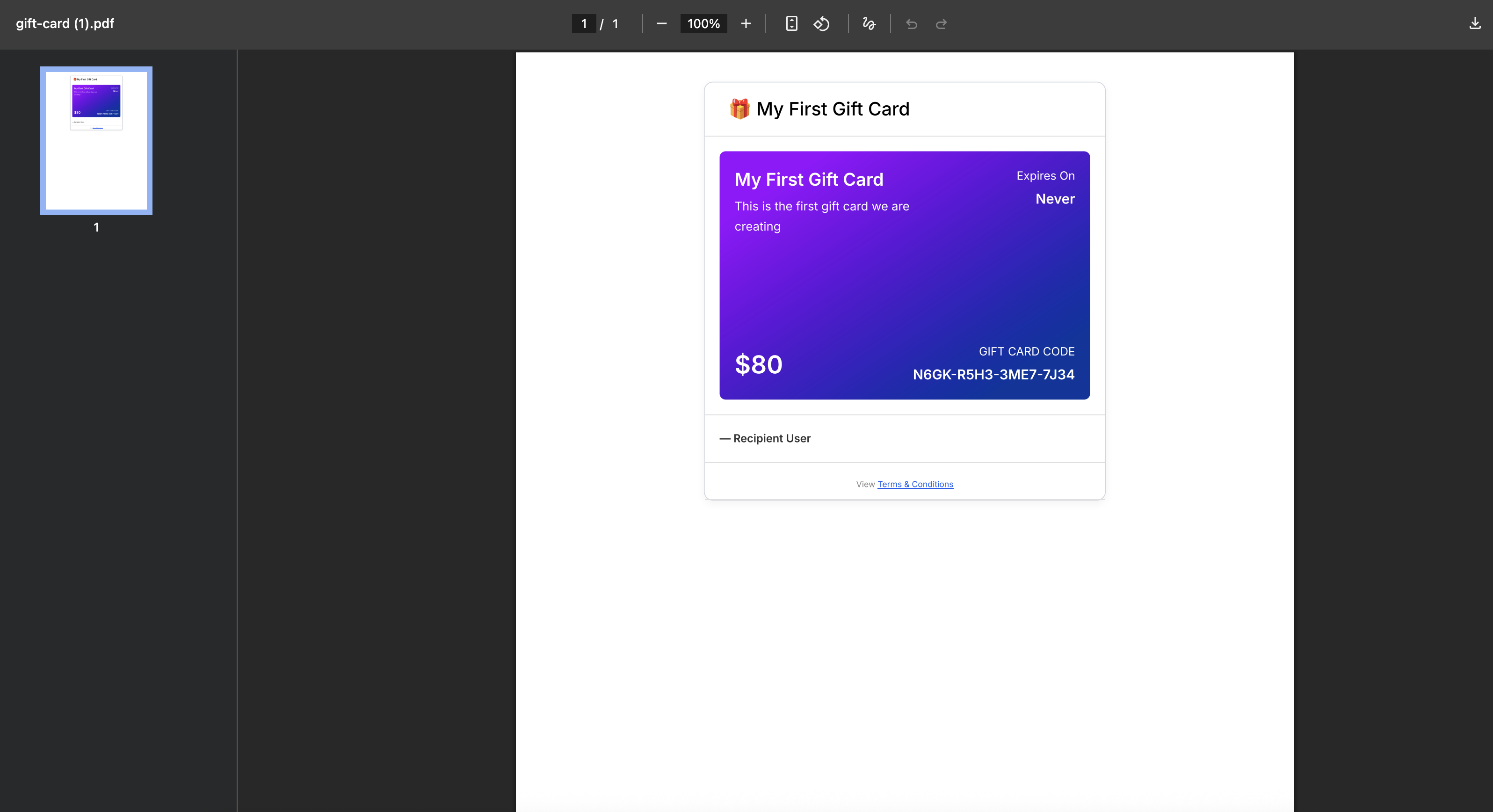
Note: Live mode Gift Cards are redeemable on live checkouts, and test mode Gift Cards on test checkouts. The reverse is not possible.
Add the dedicated checkout to any external webpage without custom development. Once embedded, clients can browse gift cards and complete purchases without leaving your website. This code can be embedded into WordPress websites, HTML landing pages, blog pages, custom portals, and link-in-bio pages.
Step 1: Navigate to Gift Cards. From the Payments tab, click Gift Cards.
Step 2: Click Sell. Locate the card you want the embed code for. On the Gift Card tile, click Sell.
Step 3: Copy the embed code. Click the Copy button to copy the embed code, then place it on your external webpage.
QR codes make in-person and offline selling easy. Scanning the code opens your same dedicated checkout link, perfect for in-store displays, print campaigns, or any medium that is not clickable.
Step 1: Navigate to Gift Cards. From the Payments tab, click Gift Cards.
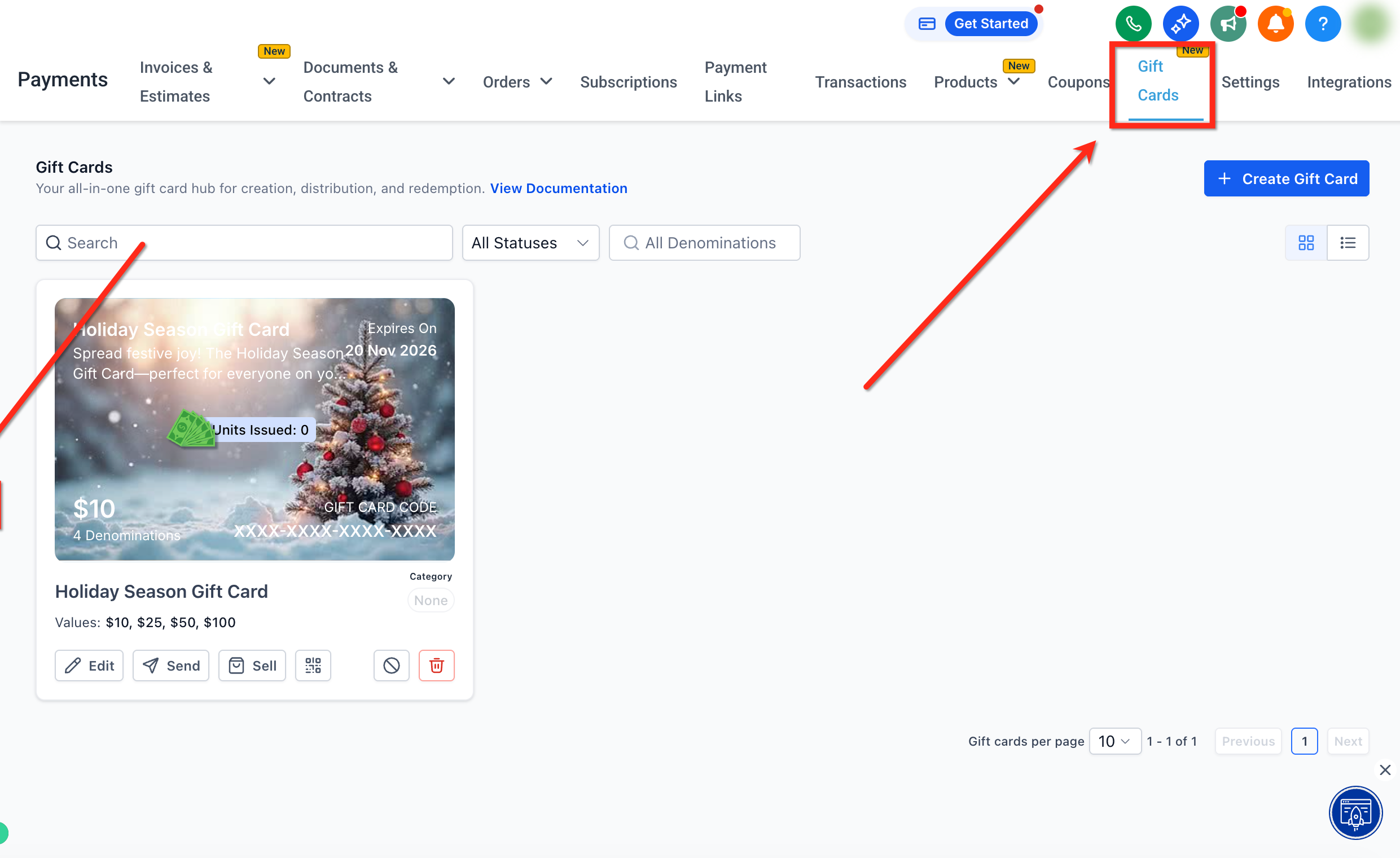
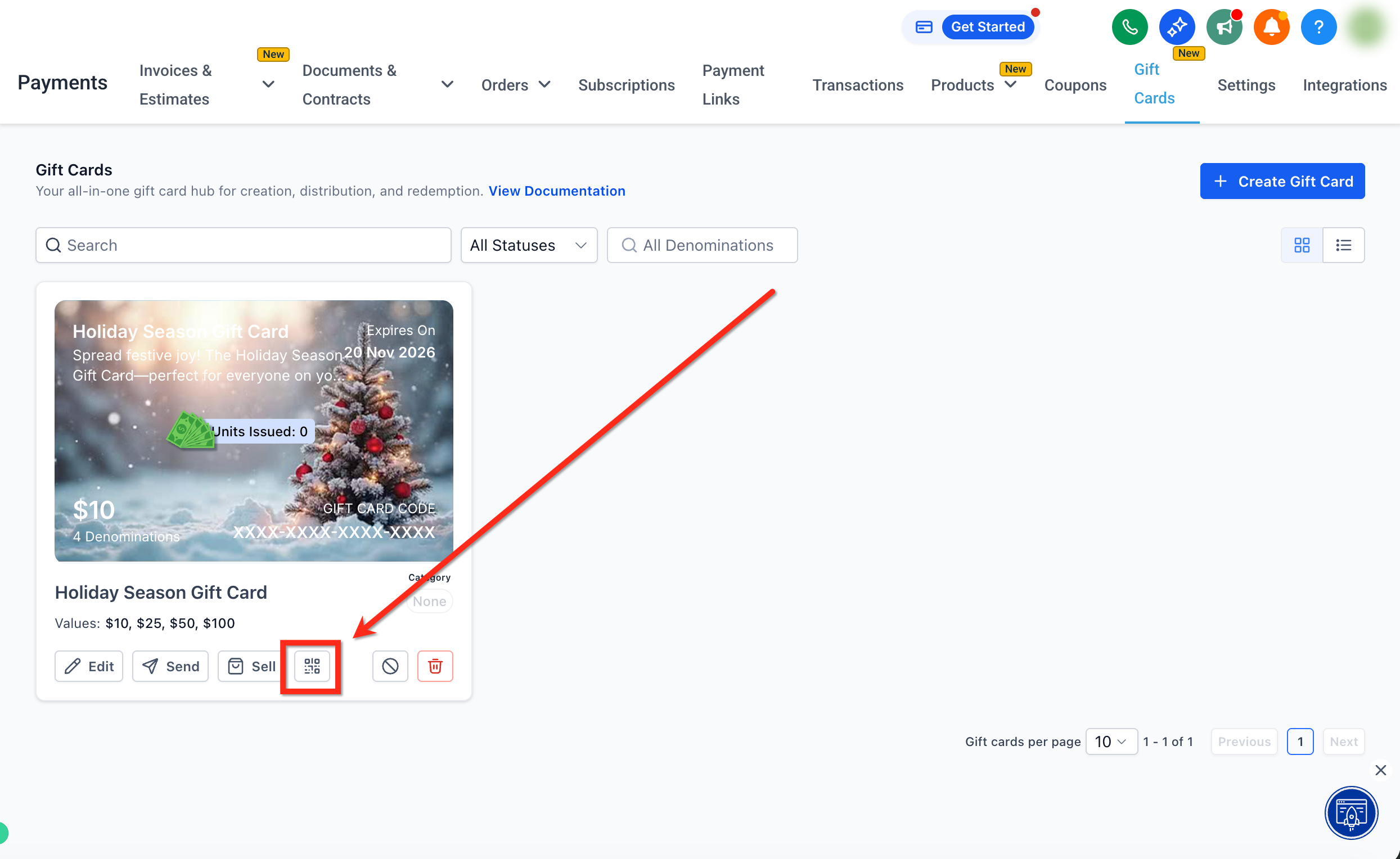
Step 2: Open QR Code. Locate the card you want the QR code for. On the Gift Card tile, click QR Code.
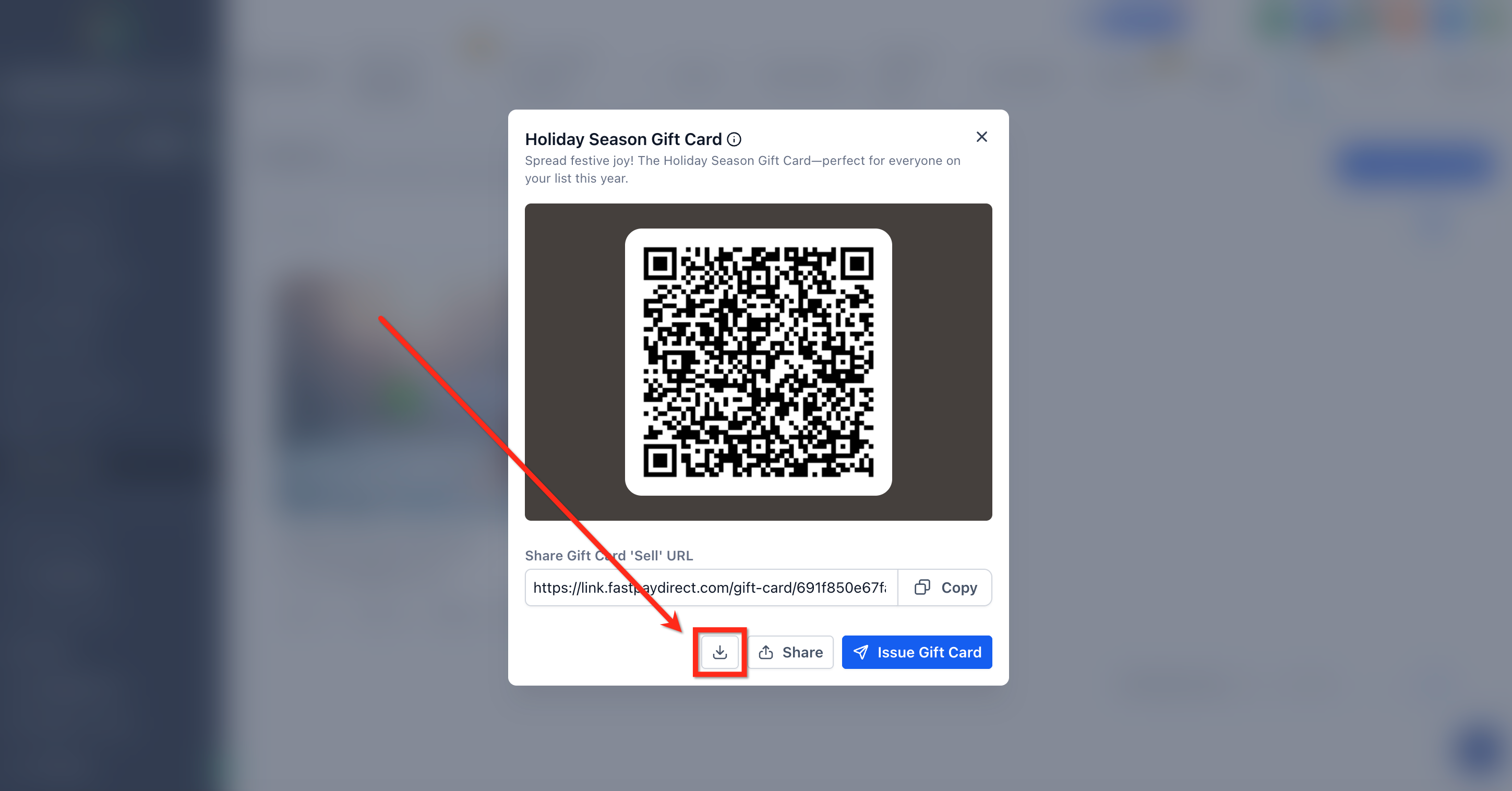
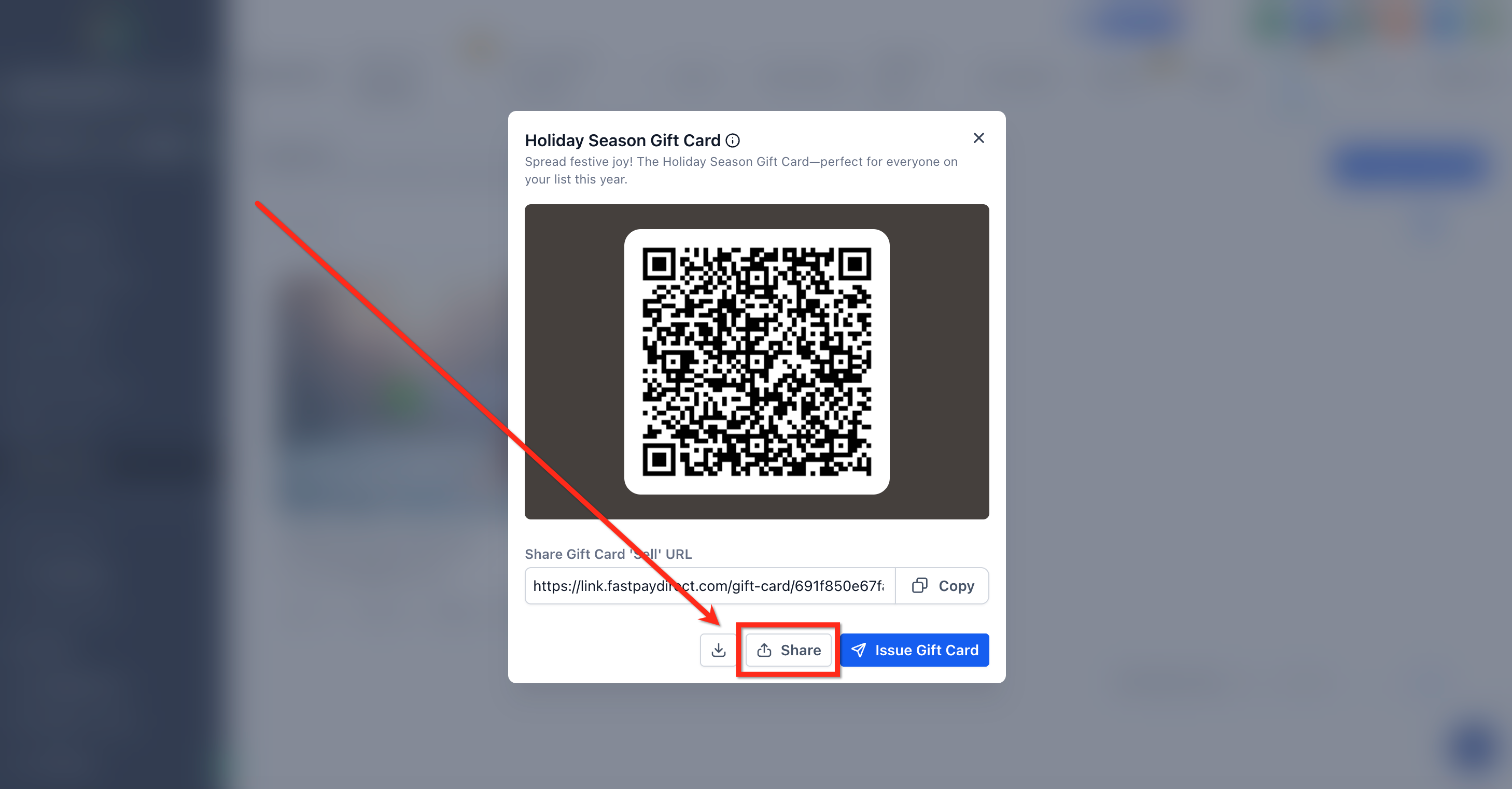
Step 3: Share the QR code. Click Download to save the QR image for print media and campaigns, or click Share, then Copy to copy the QR code link.
Gift Cards can be sold as a product on all supported checkouts, giving you the flexibility to bundle gift cards with your other items. Adding a Gift Card Product is supported in Forms, Funnels, Store, Payment Links, Websites, Invoices, and Calendars (if the calendar supports products).
Use the Payment Element in Forms to collect payment and sell a gift card in a single form submission.
Step 1: Navigate to Sites > Forms and open an existing form or create a new one.
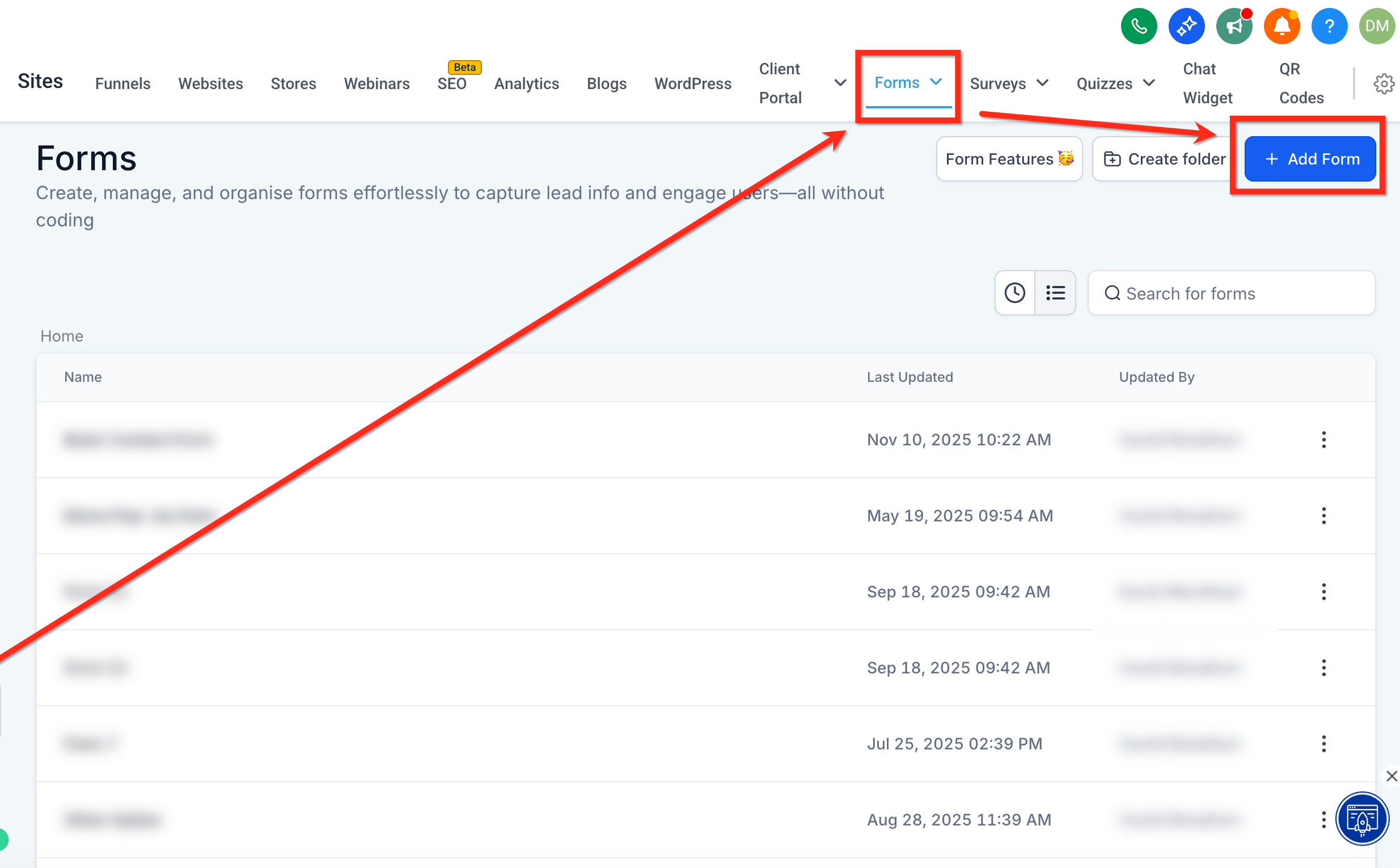
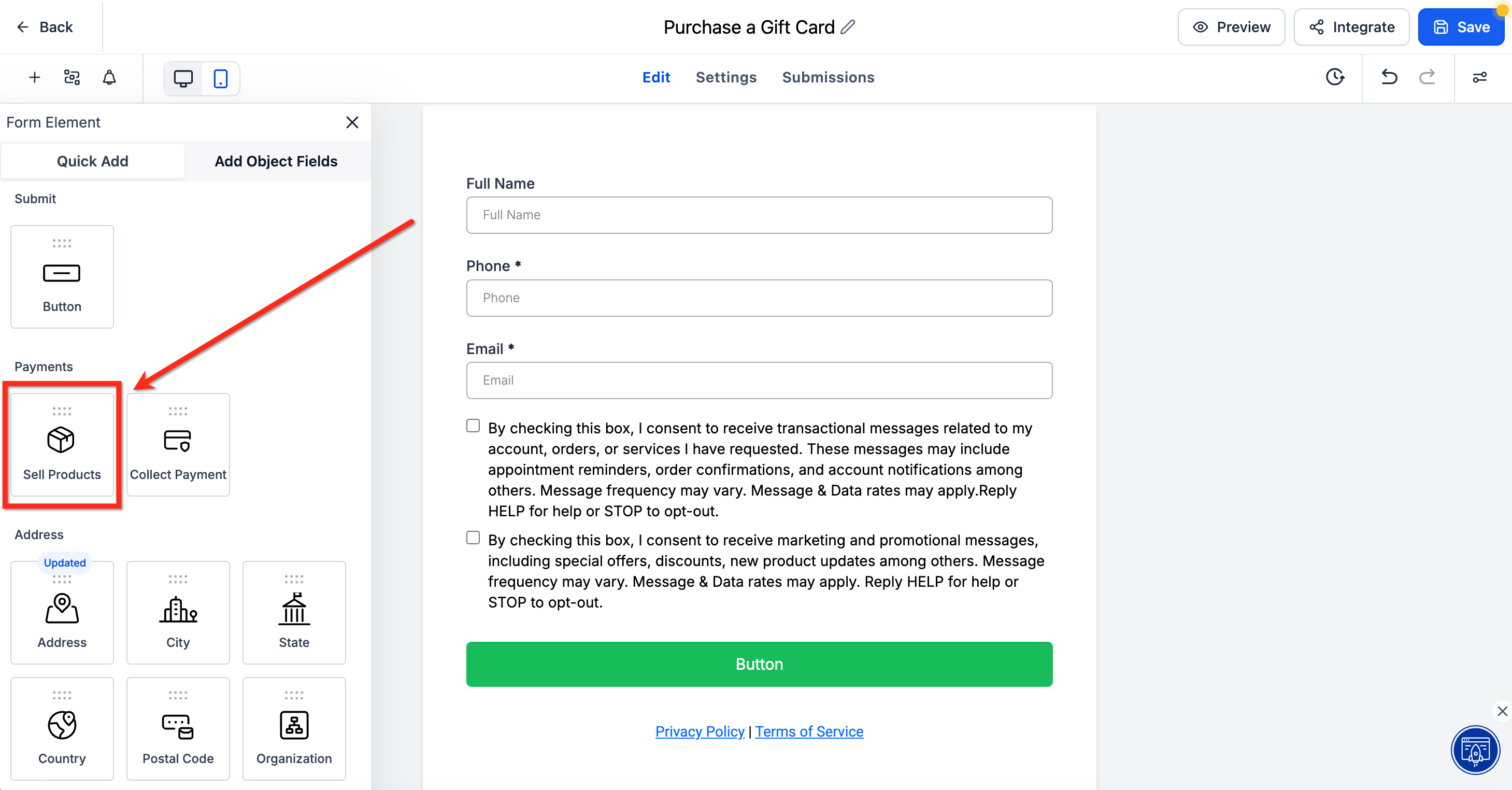
Step 2: Locate the Sell Products element under Payments and drag it onto your form.
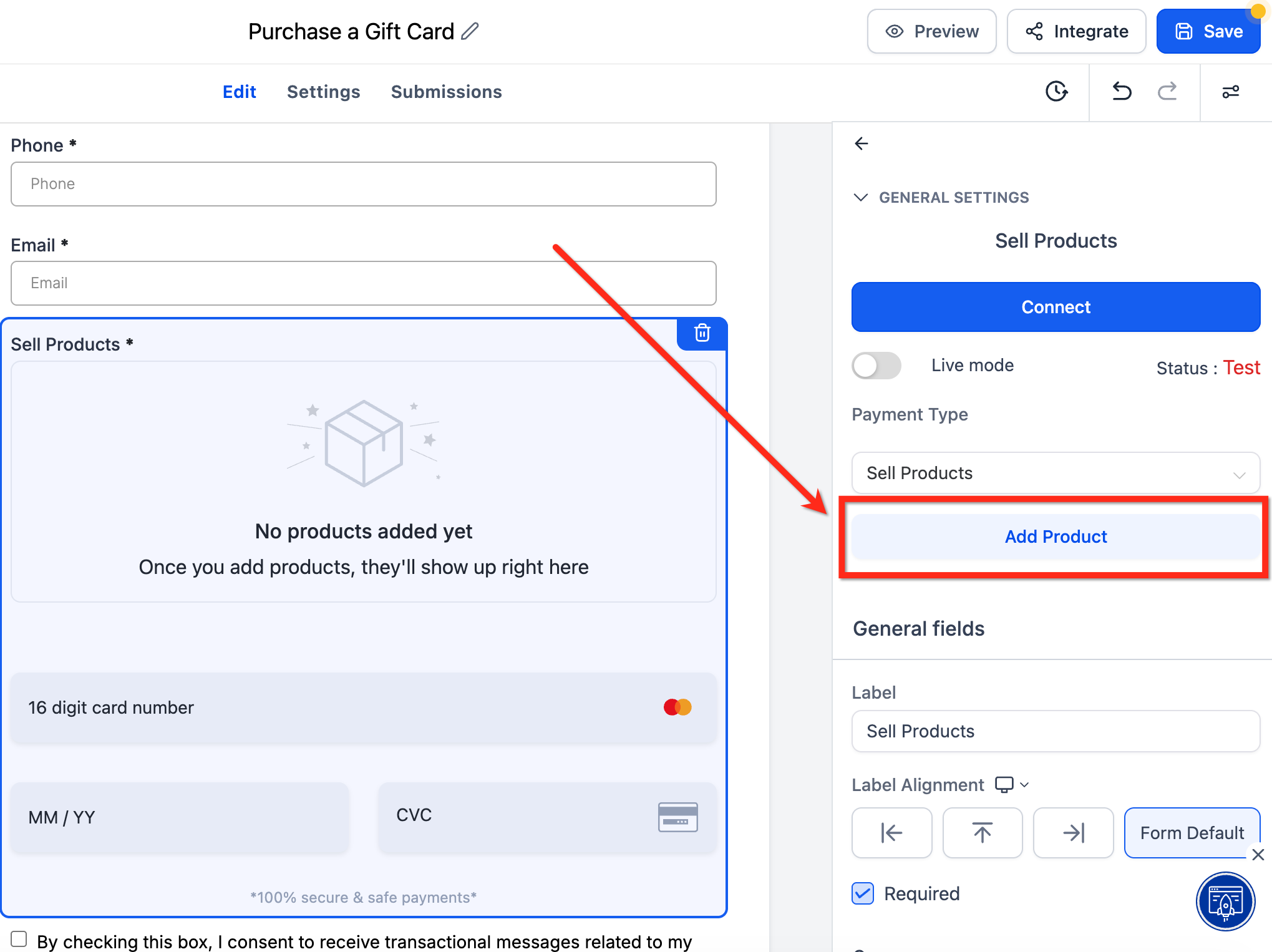
Step 3: Click the Sell Products element to open its settings, click Add Product, select your gift card, then click Save.
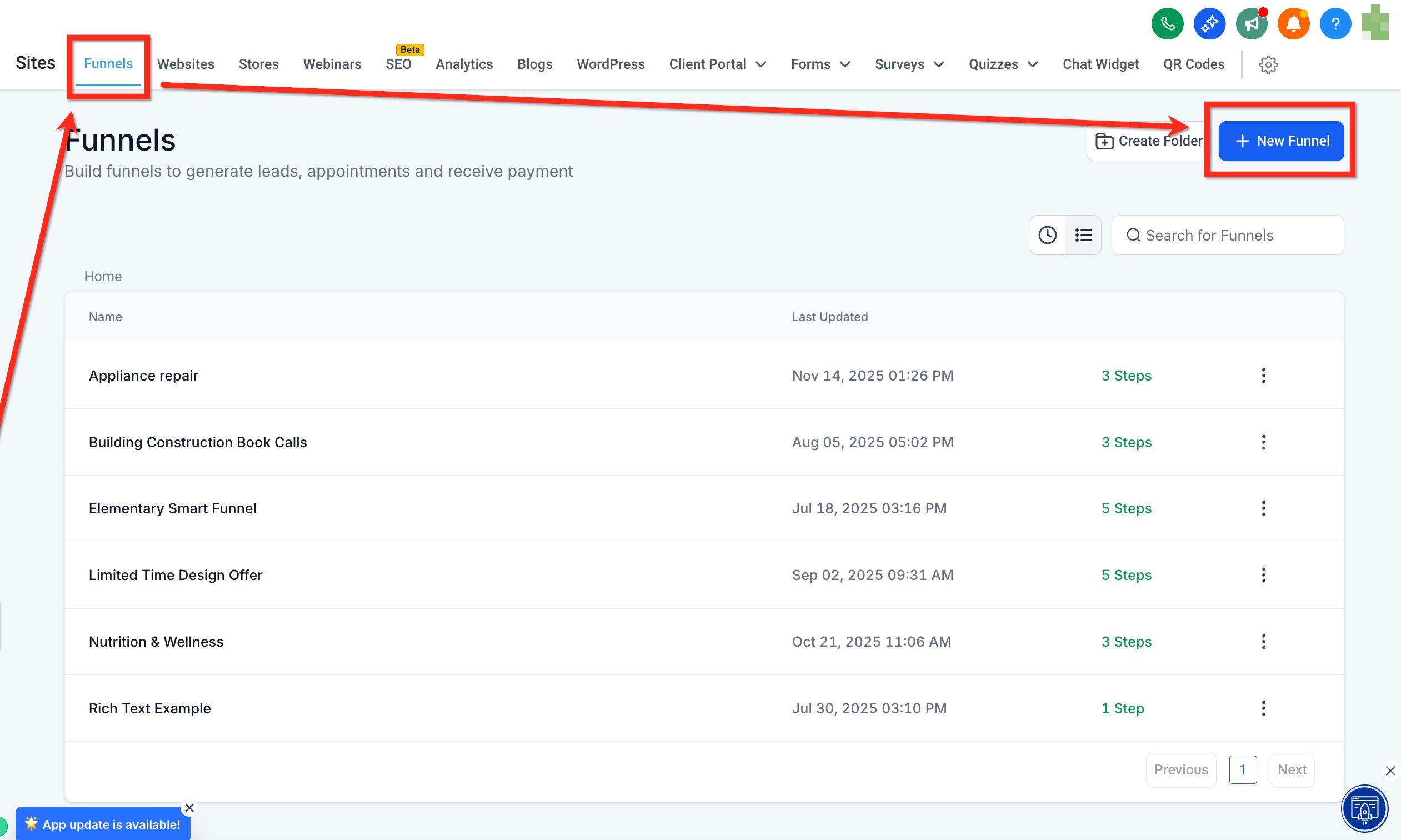
Offer gift cards on one-step or two-step order forms within a funnel. Clients buying through a funnel receive the gift card automatically after successful payment.
Tip: If you add gift cards to a test-mode funnel, clients receive test gift cards only.
Step 1: Navigate to Sites > Funnels and open an existing funnel or create a new one.
Step 2: Locate the Form element and drag it into your page.
Step 3: Click the Form element and use the dropdown to select the form you set up for purchasing gift cards. If you do not have one, use the link to create a new form. Once added and edited, publish your funnel.
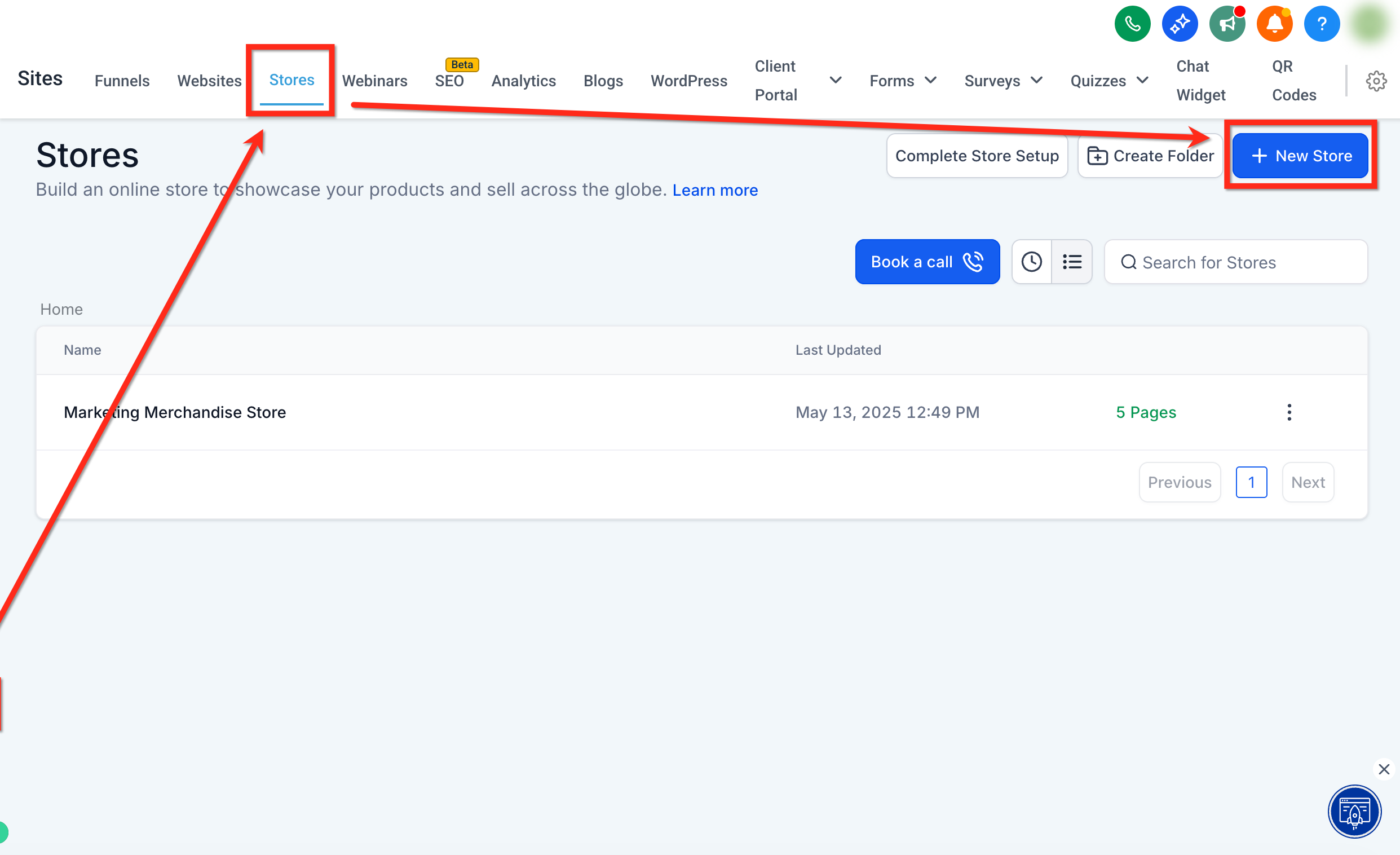
Display gift cards in your online storefront so clients can browse and buy like any other product.
Step 1: Navigate to Sites > Stores and open an existing store or create a new one.
Step 2: From the store page, go to the Products tab.
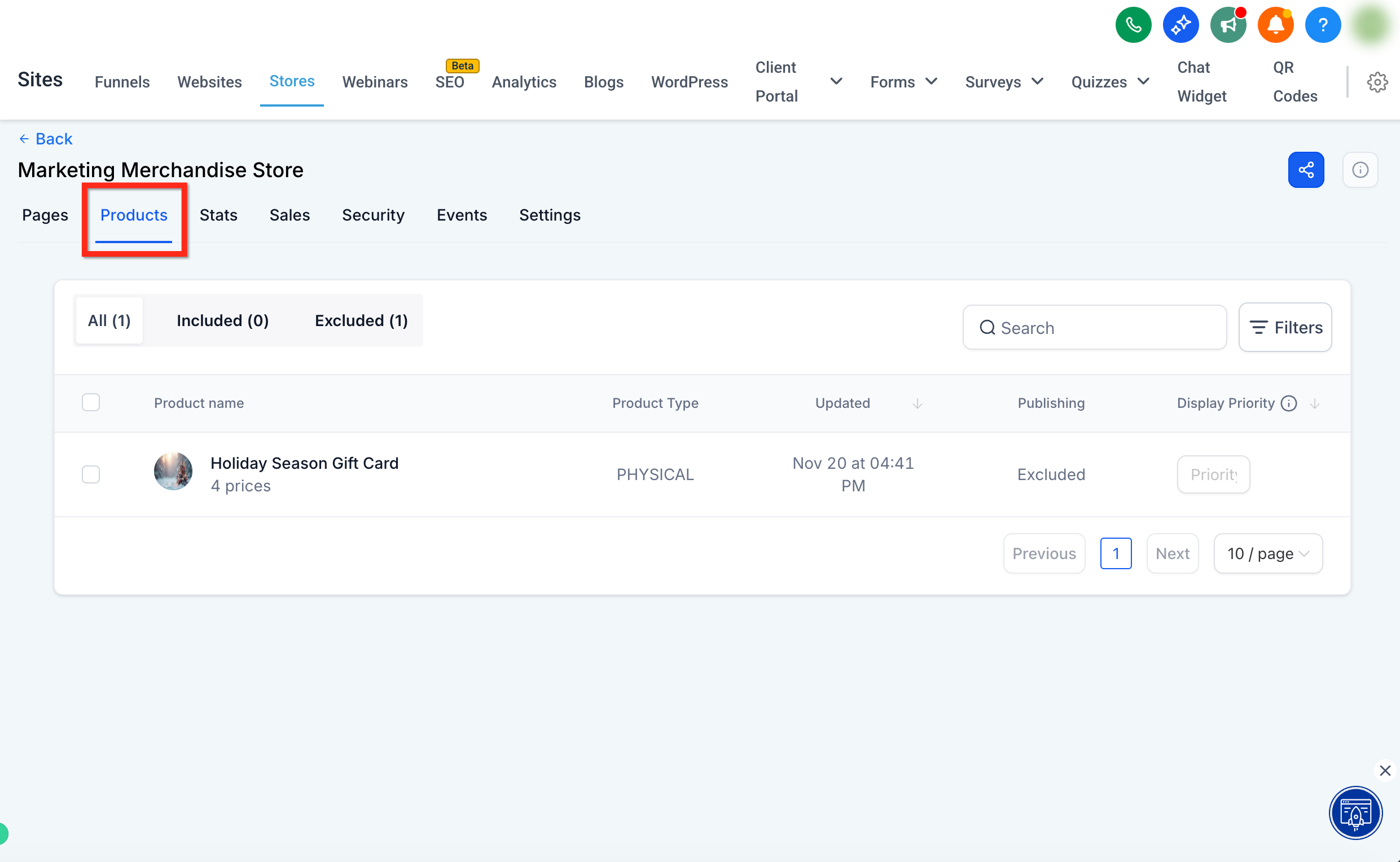
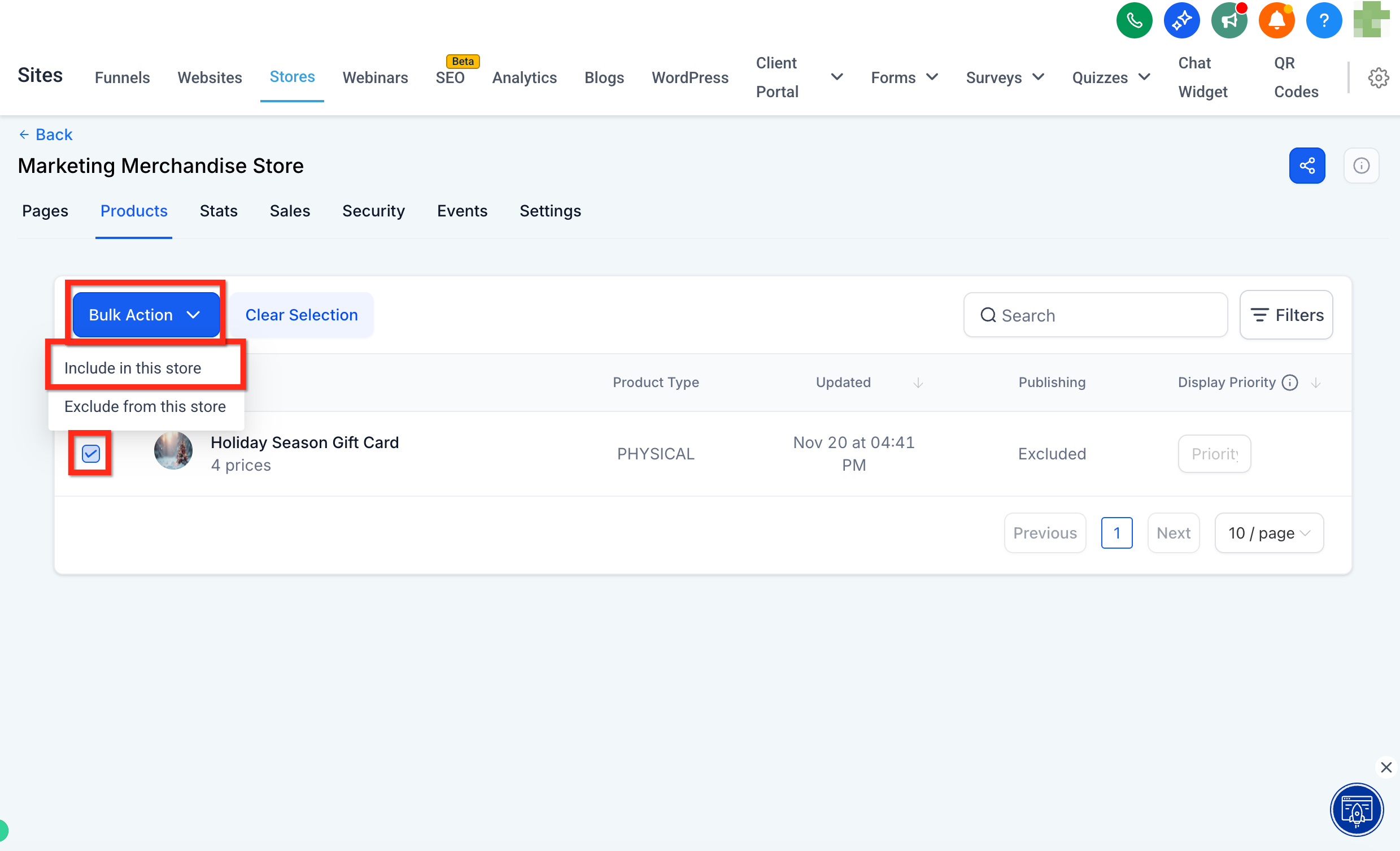
Step 3: Check the box next to the gift card you want to add, click Bulk Actions, and select Include in this store.
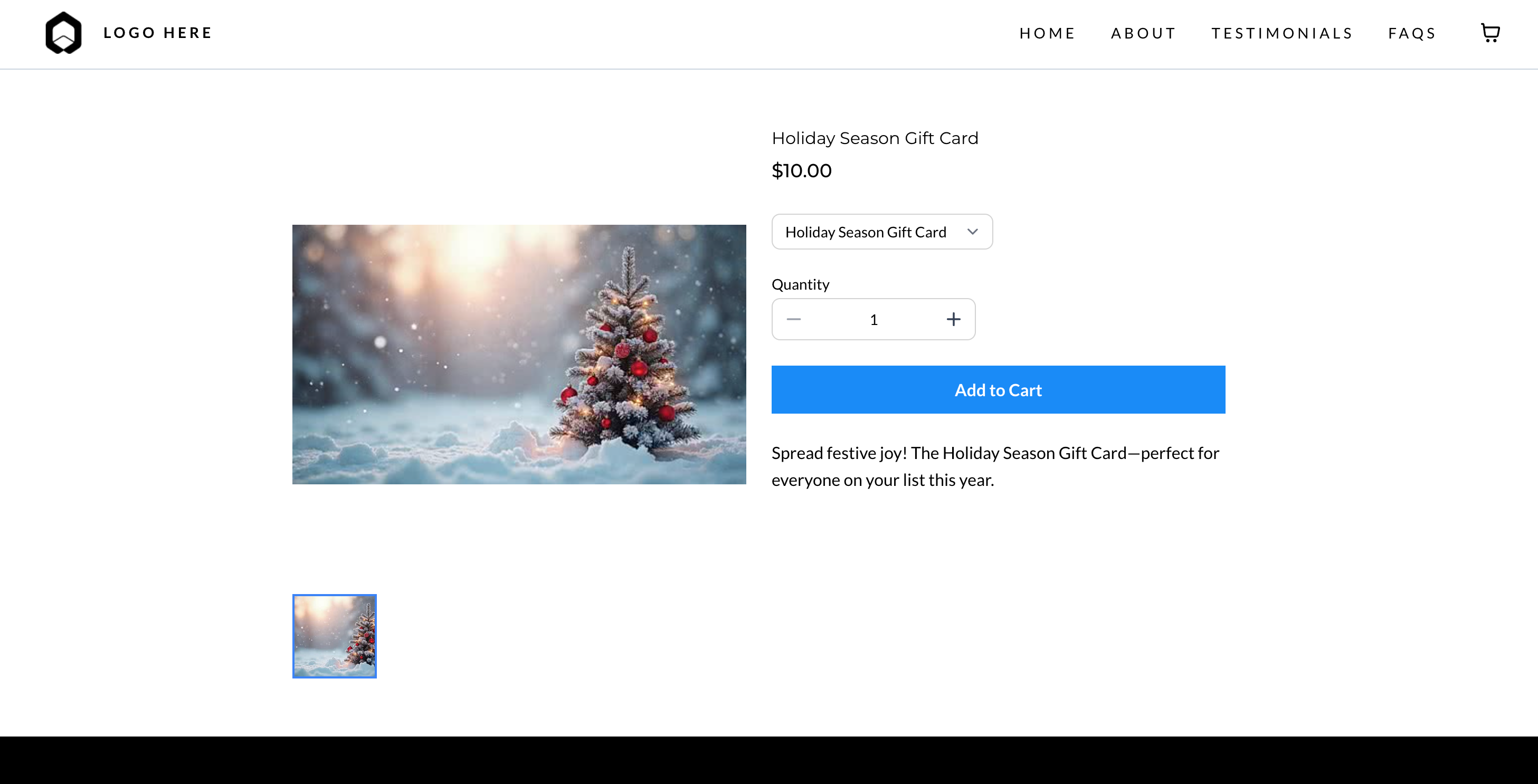
Clients can now browse and purchase gift cards like any other item.
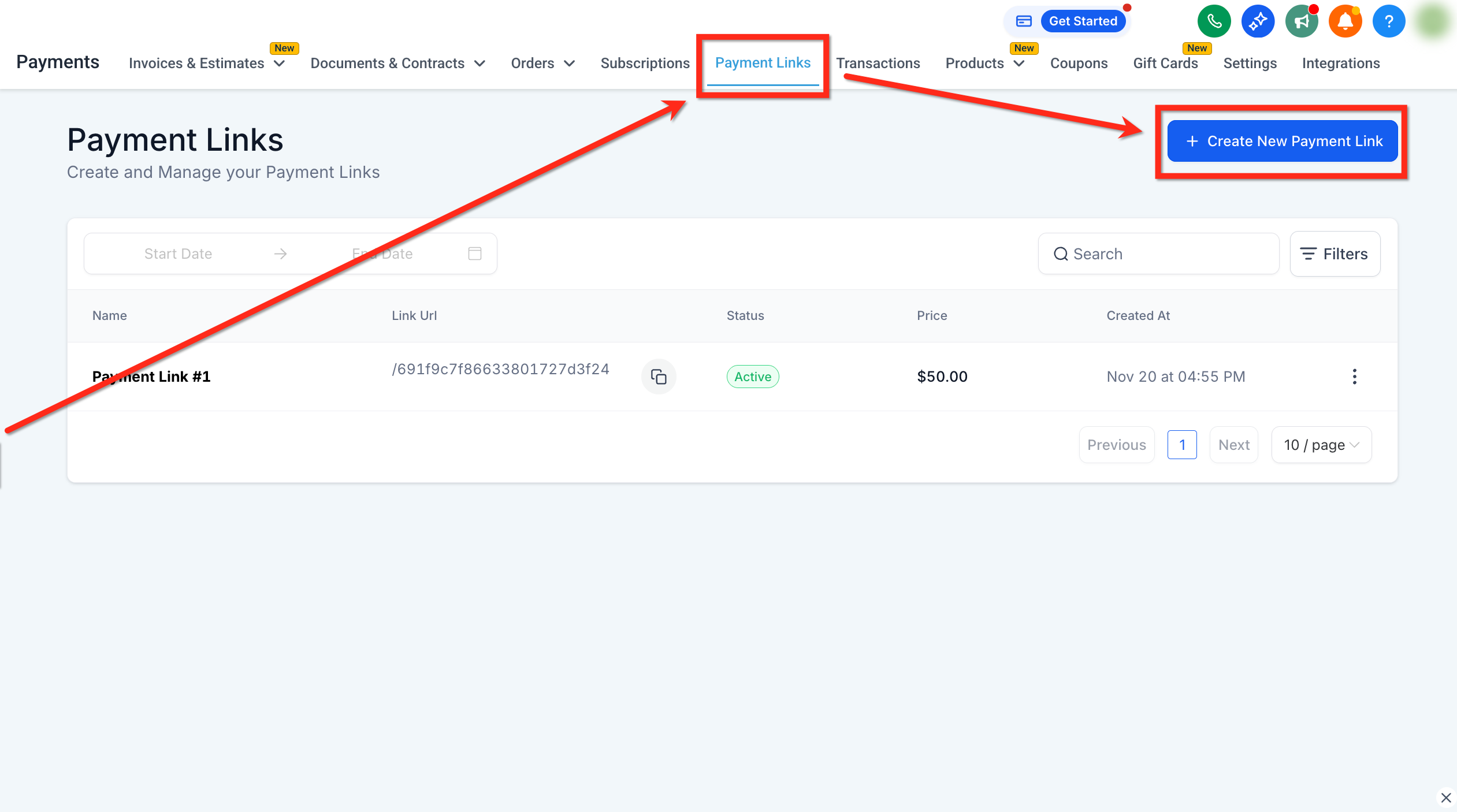
Payment Links are fast to create and easy to share, making them great for email or chat.
Step 1: Navigate to Payments > Payment Links and create a new Payment Link.
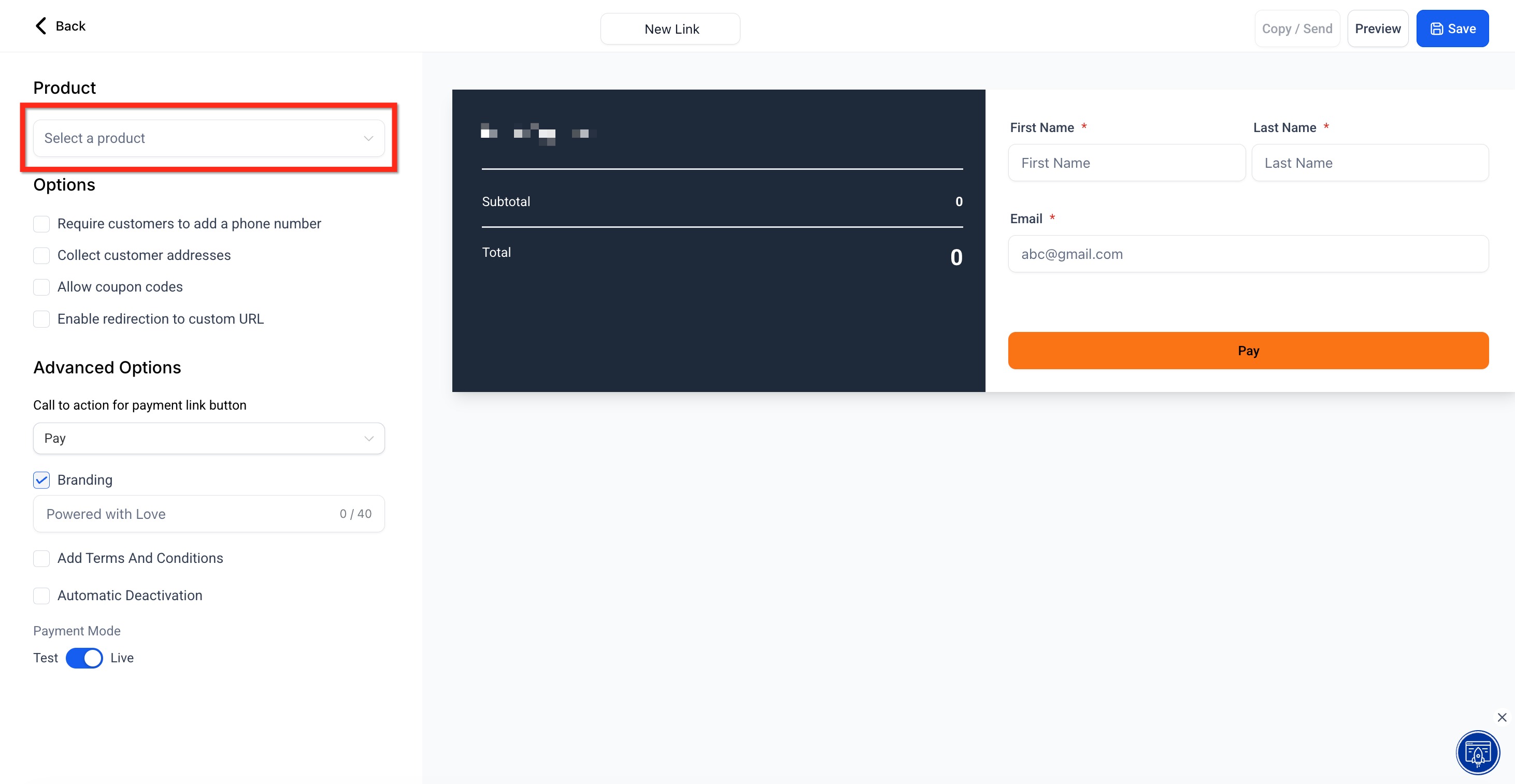
Step 2: Click Select a Product, choose the gift card, then click Save.
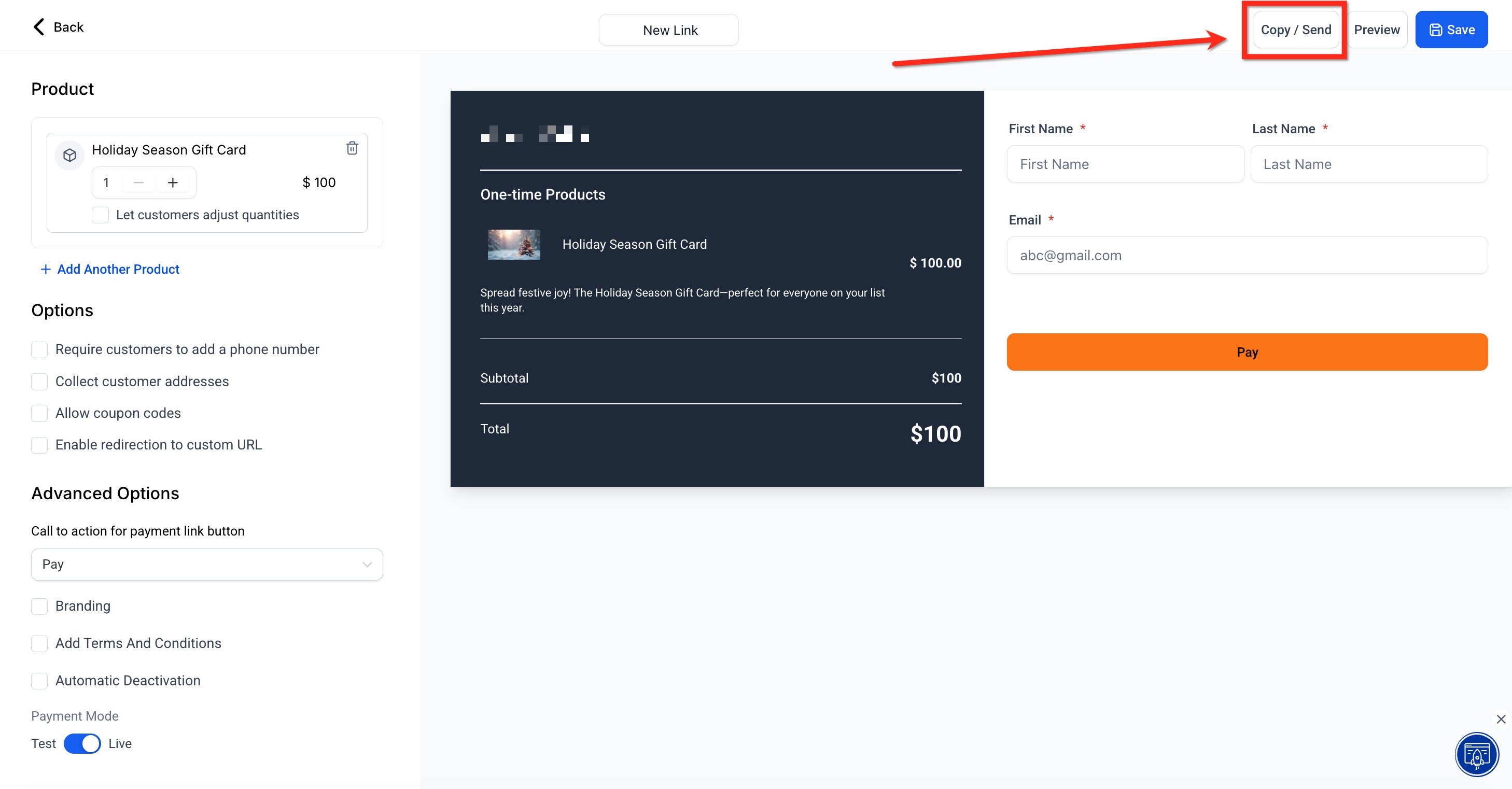
Step 3: Click Copy/Send to get the shareable payment link and share it with clients.
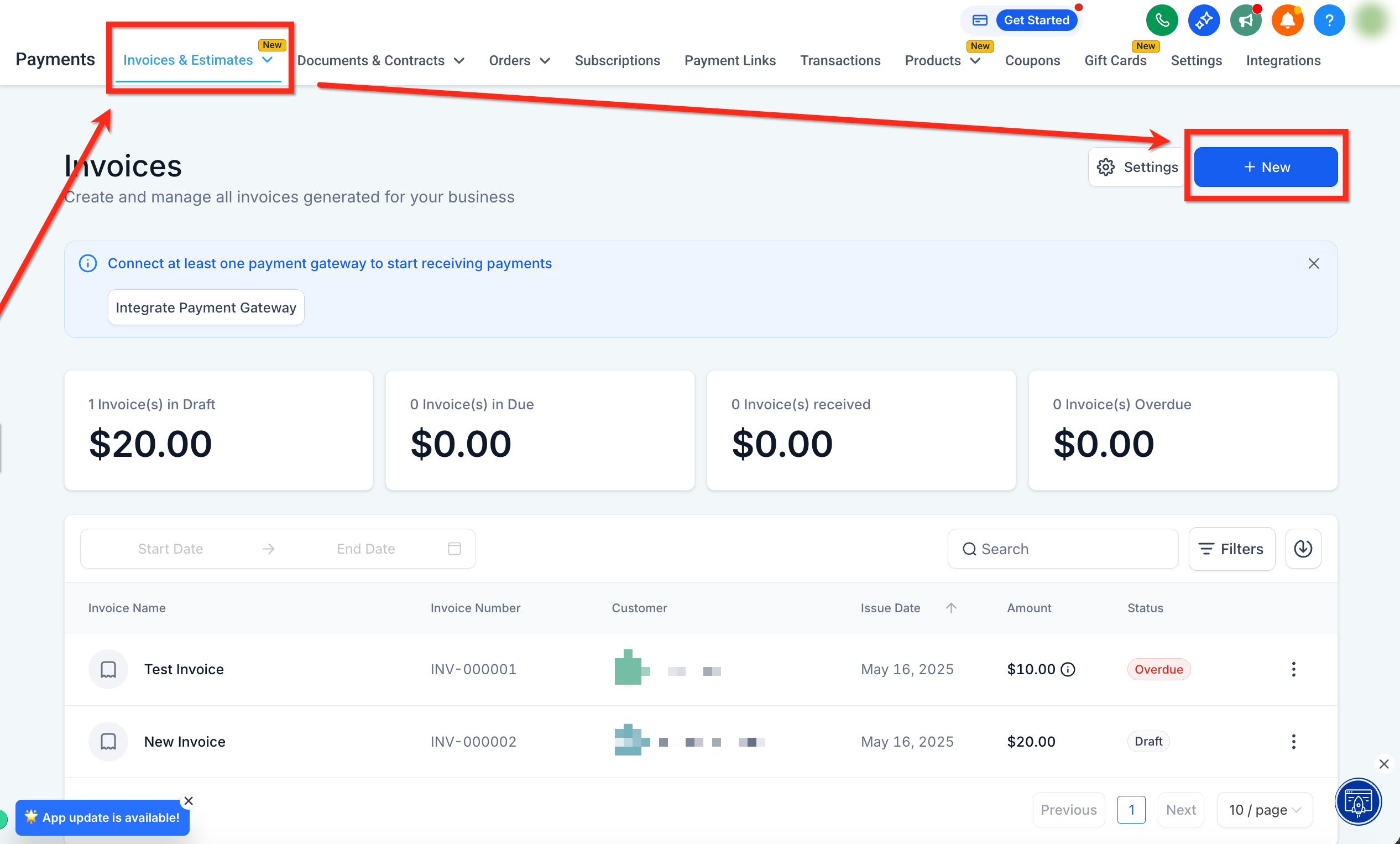
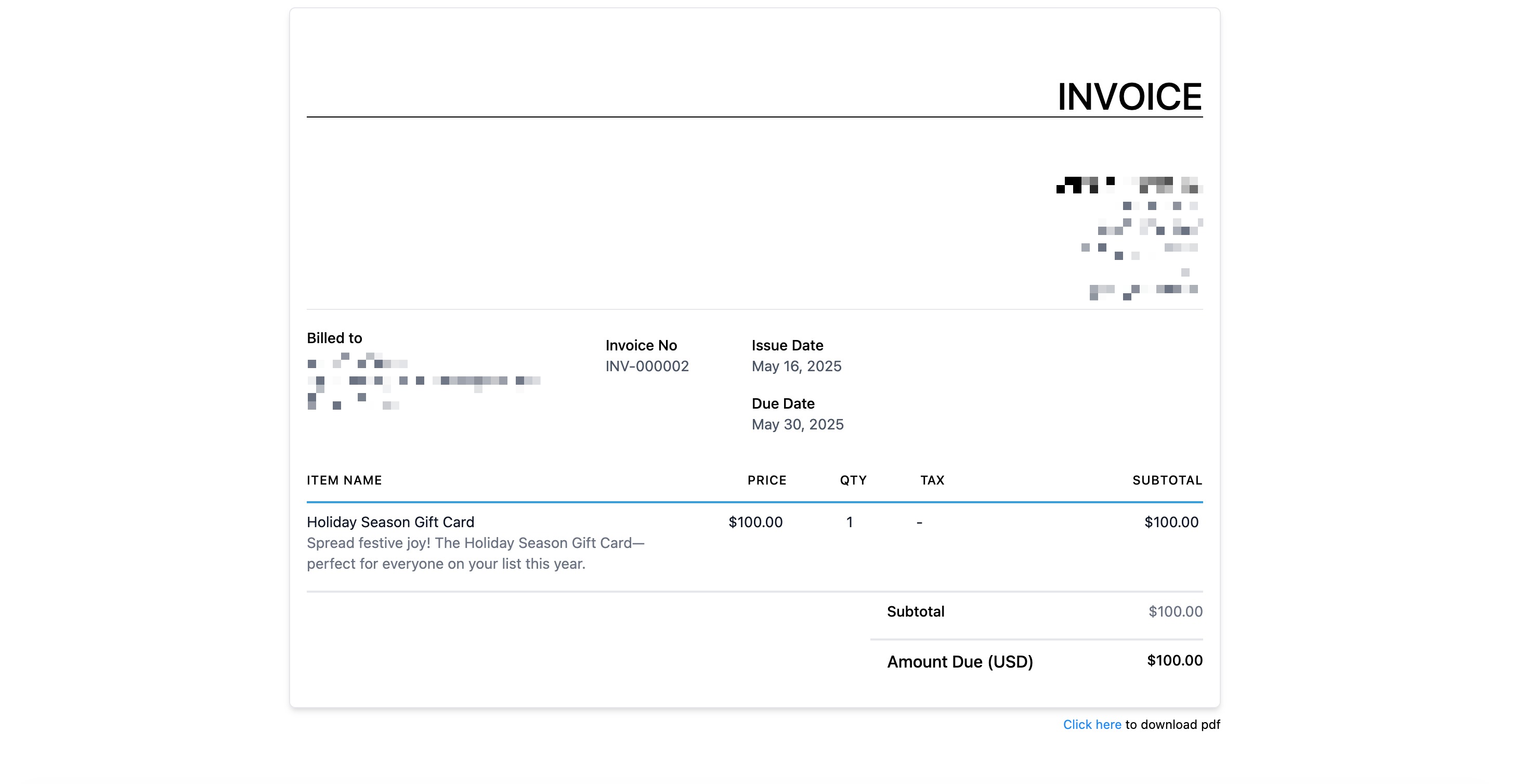
Add Gift Cards to invoices for clients who prefer invoicing workflows. When the invoice is paid, a Gift Card Order is created automatically.
Step 1: Navigate to Payments > Invoices and open an existing invoice or create a new one.
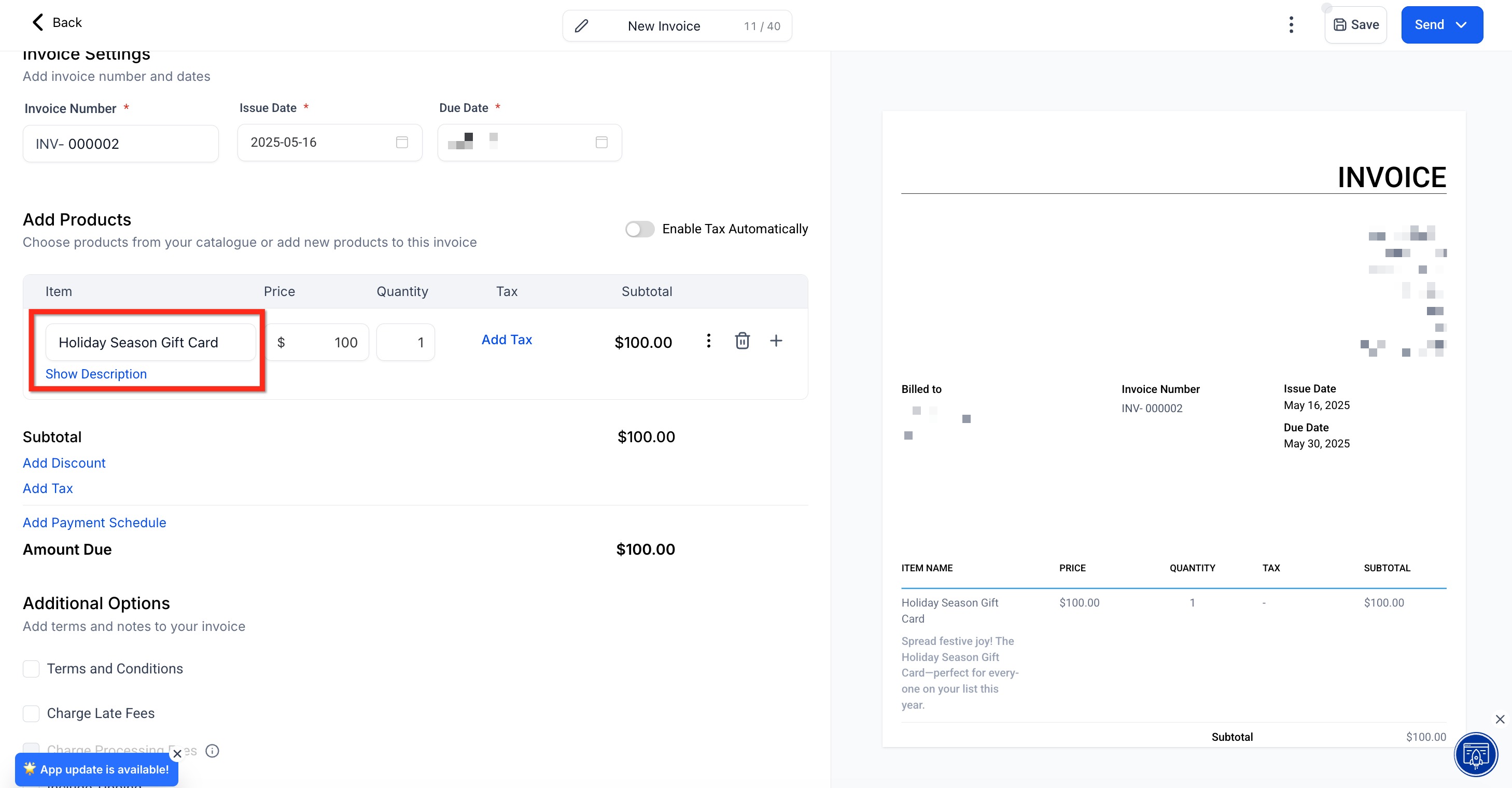
Step 2: Under Add Products, select the gift card(s) to include, then click Send.
Once the invoice is paid, the gift card is delivered to the buyer.
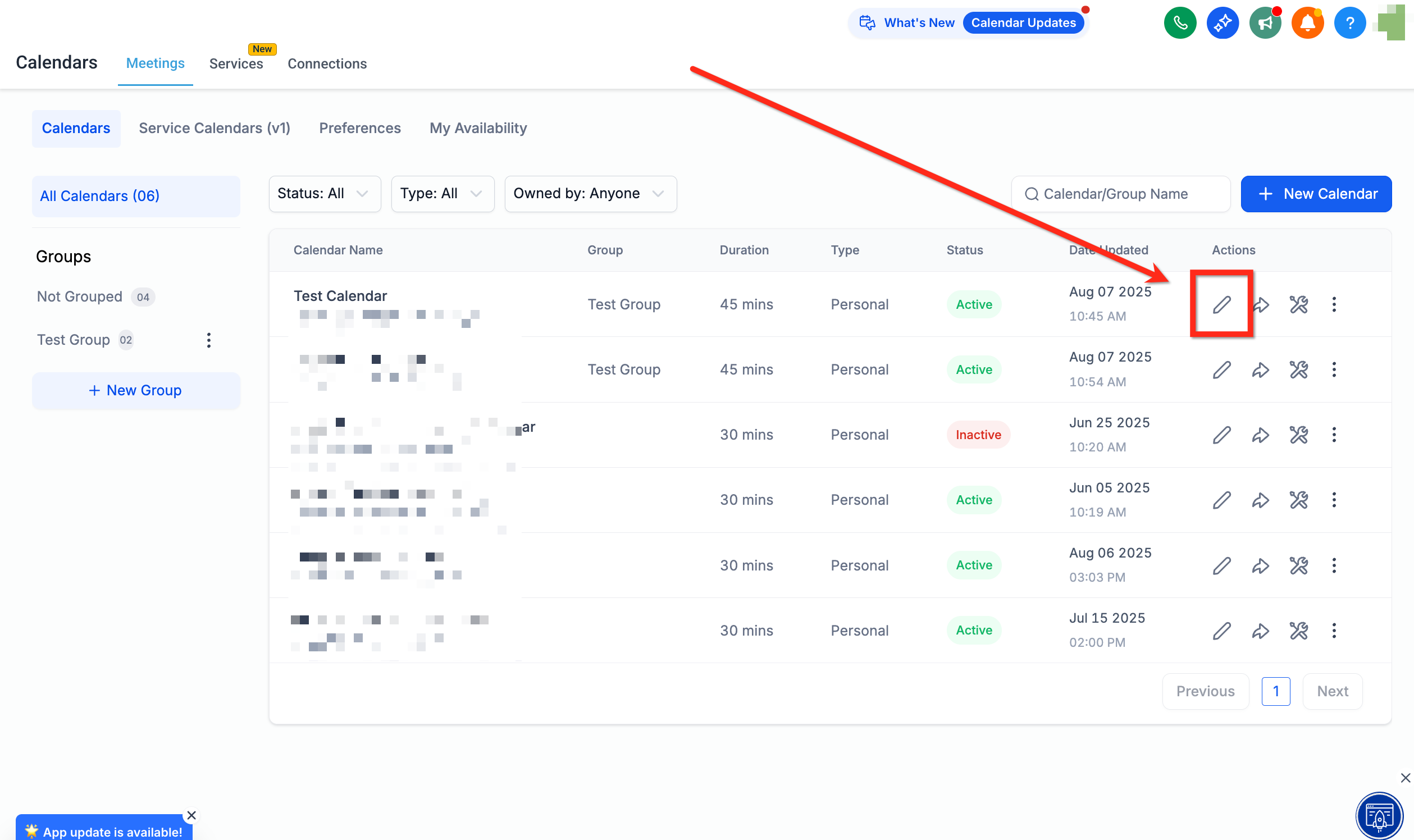
If your calendar supports product-based payments, you can add your Gift Card Product to the appointment flow. To sell gift cards through the calendar flow, you must first create a form.
Step 1: Navigate to Calendar Settings and click Edit on the calendar you want to add Gift Cards to.
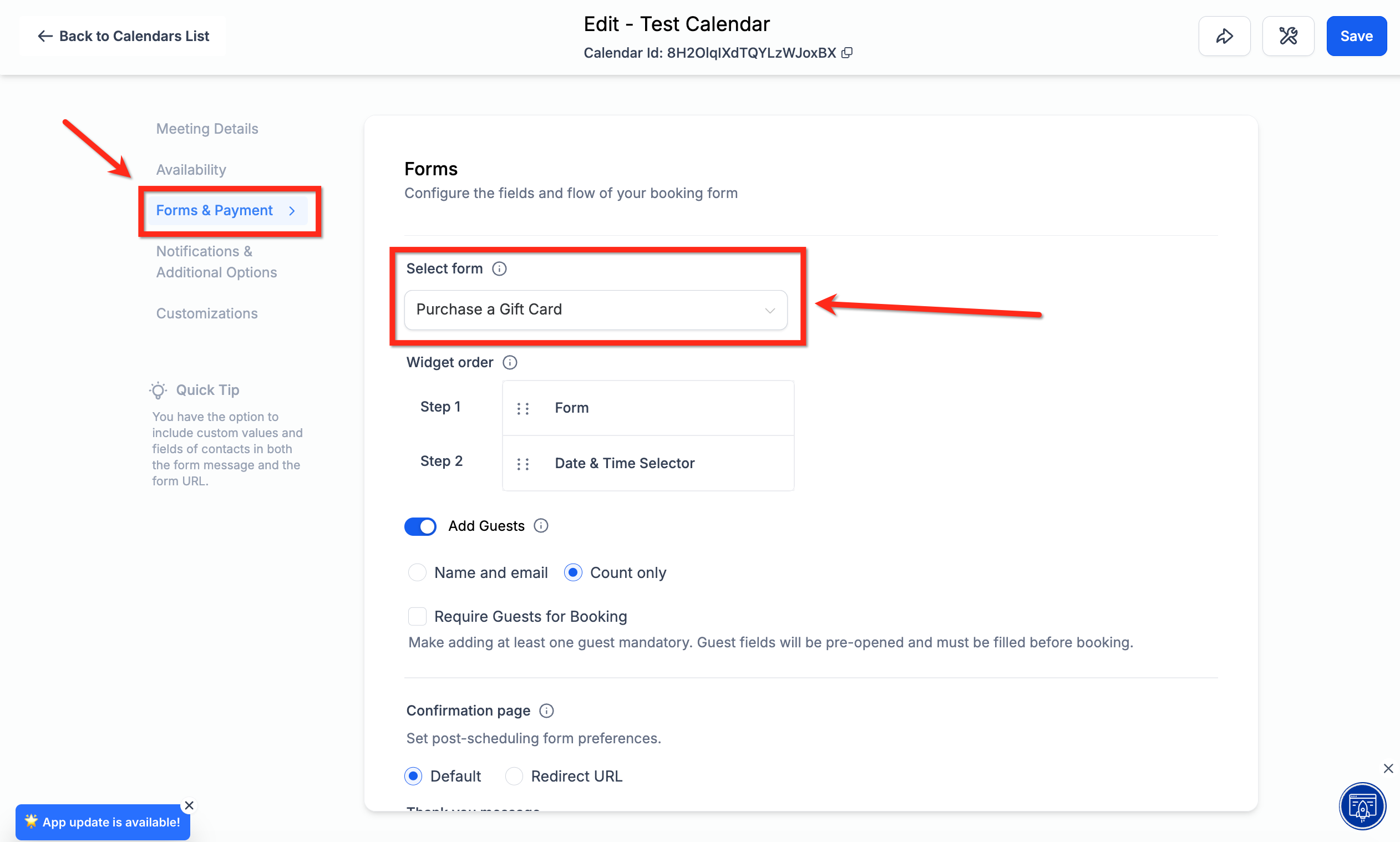
Step 2: Under the Forms & Payments tab, use the Select Form dropdown to select the form you set up for purchasing gift cards.
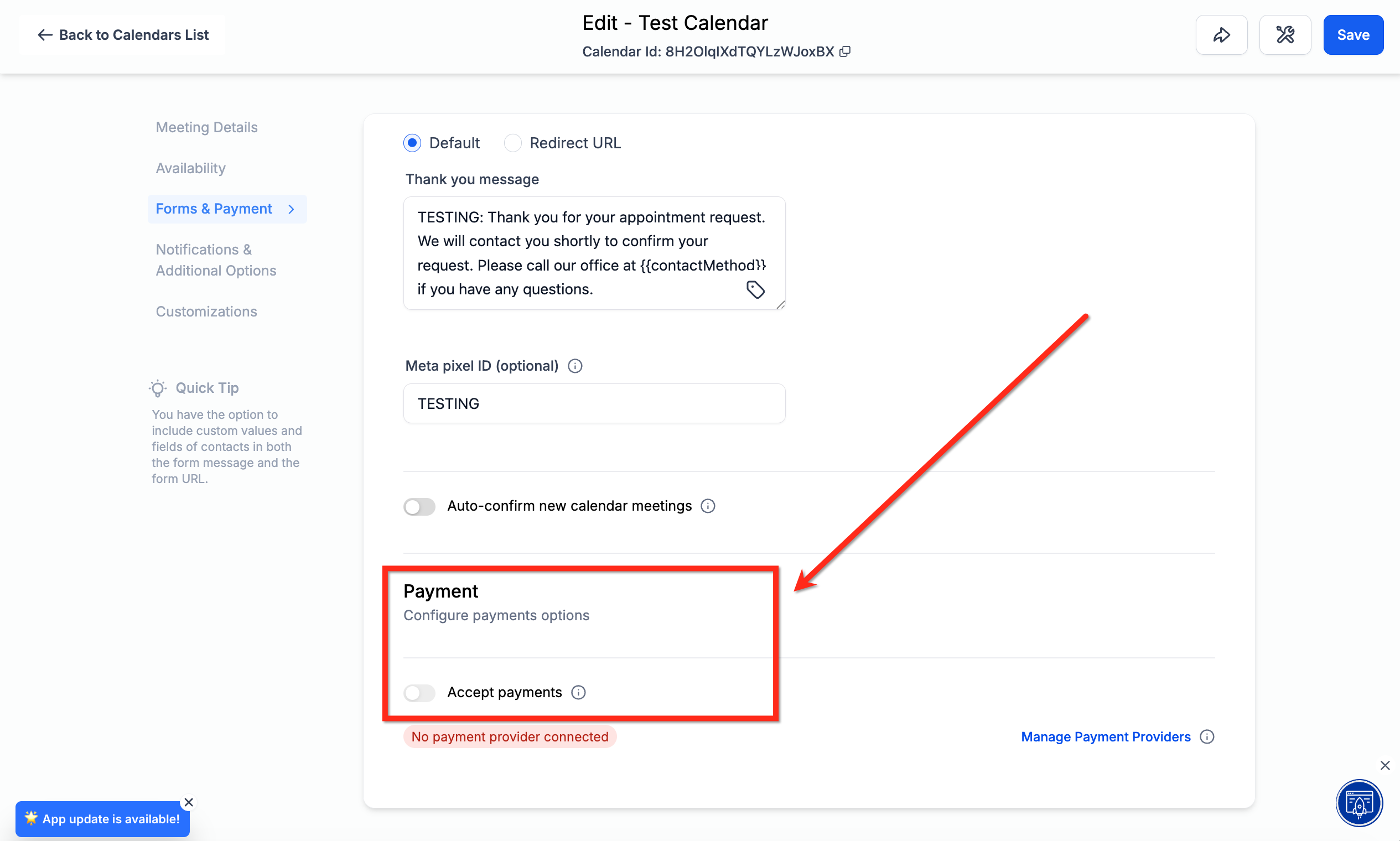
Step 3: Under Payments, toggle on Accept Payments, then click Save.
Sending Gift Cards lets you issue gift cards directly to any client without requiring a purchase or payment. Sending a gift card creates a one-time, prepaid credit and delivers it to a chosen recipient by email, SMS, PDF, or QR code. This is ideal for service recovery, loyalty gestures, and VIP perks. Redemption happens on supported Aesthetix CRM checkouts where gift cards are accepted. The Send flow works exclusively in Live Mode, so only real, fully functional gift cards are delivered.
Before sending, make sure a Gift Card Product exists and is Active (not Deactivated or Archived), and that the recipient has either an email address or a phone number (for SMS delivery).
Step 1: Navigate to Gift Cards. From the Payments tab, click Gift Cards.
Step 2: Choose a Gift Card. On the Gift Card you want to send, click Send to enter the Send flow.
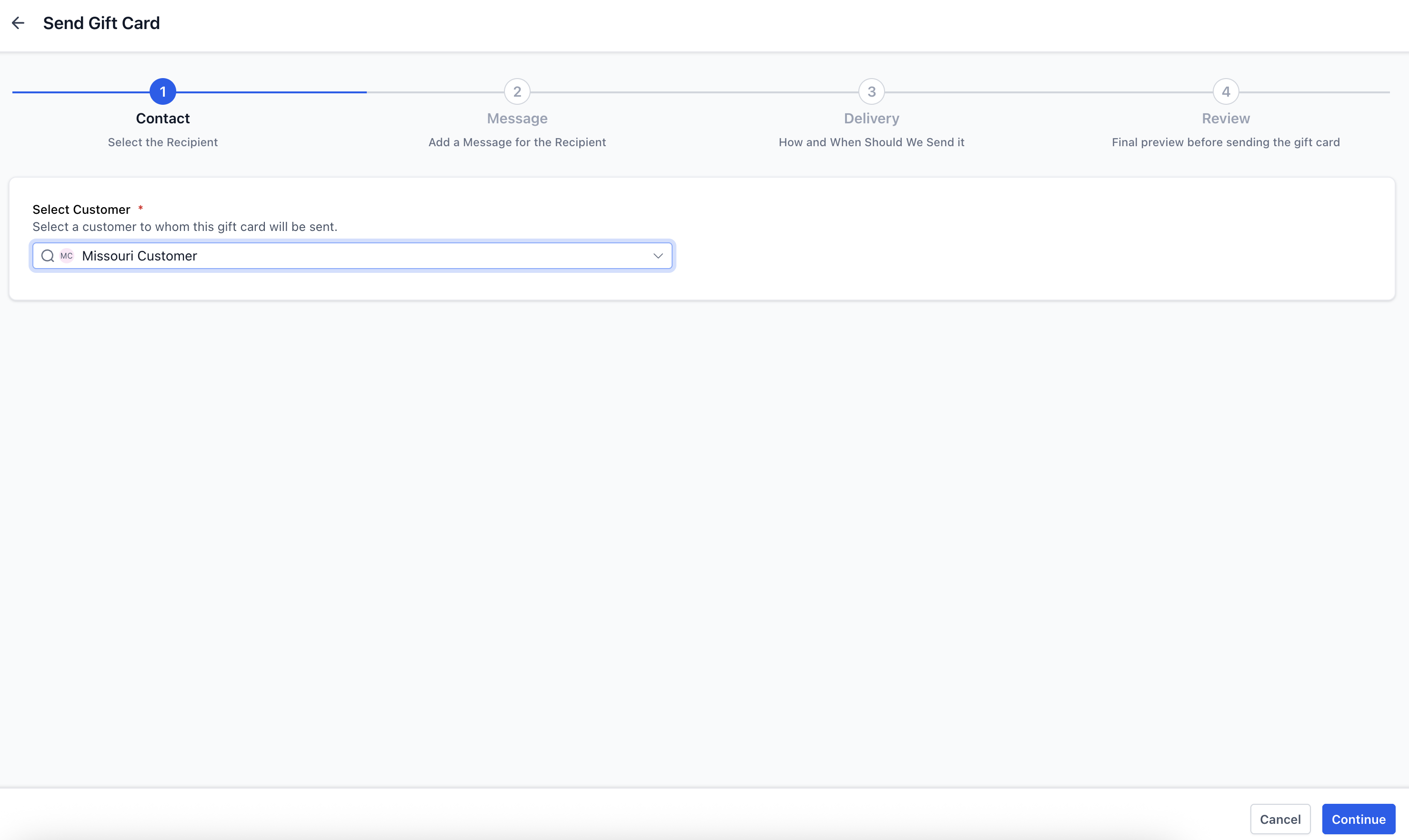
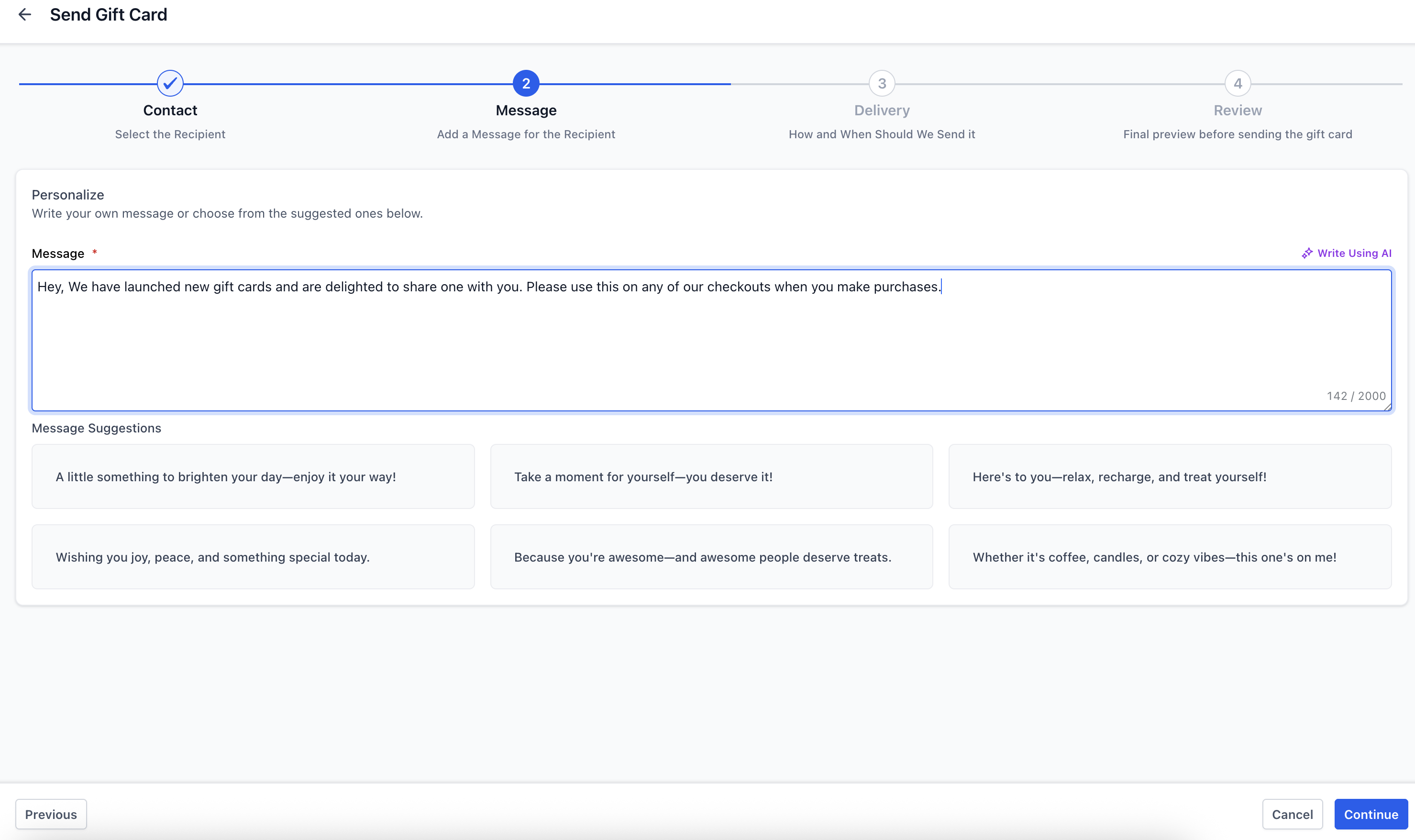
Step 3: Choose a contact. Select an existing client or contact from your list, or Add a Contact, and click Continue. Add a personalized message (write your own, pick a pre-populated message, or use Write with AI), then click Continue.
Step 4: Select denomination and delivery method. Choose one of the preset denominations configured for the product, then select a delivery method: Email, SMS, QR via Email, or PDF via Email. You can also schedule the send date (optional).
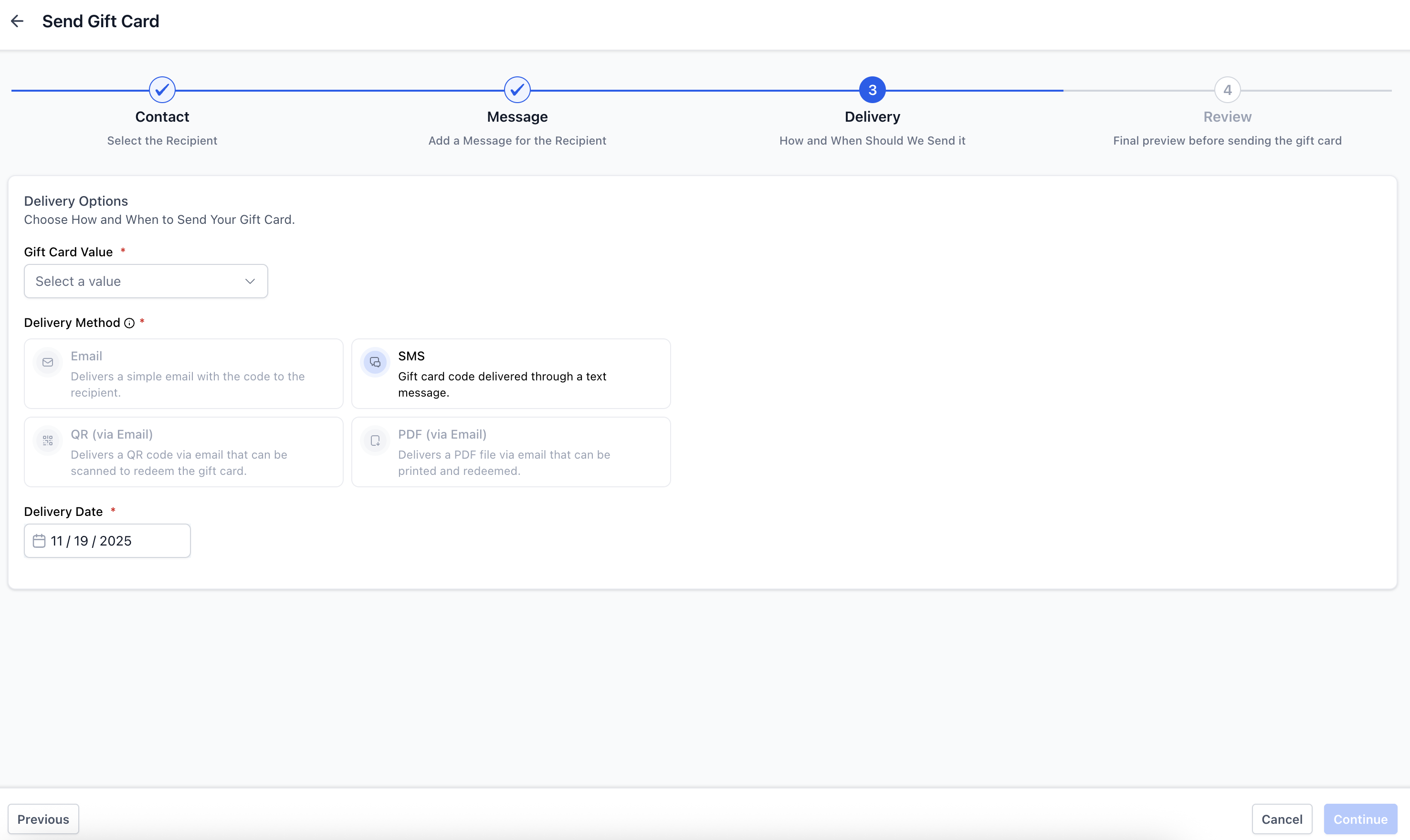
Note: Only delivery methods supported by the contact's available information (email or phone) are enabled. A gift card's delivery date range is set by the card's expiry: if the card has an expiry date, the delivery date must fall between today and the expiry date; if it has no expiry, it can be scheduled for any future date.
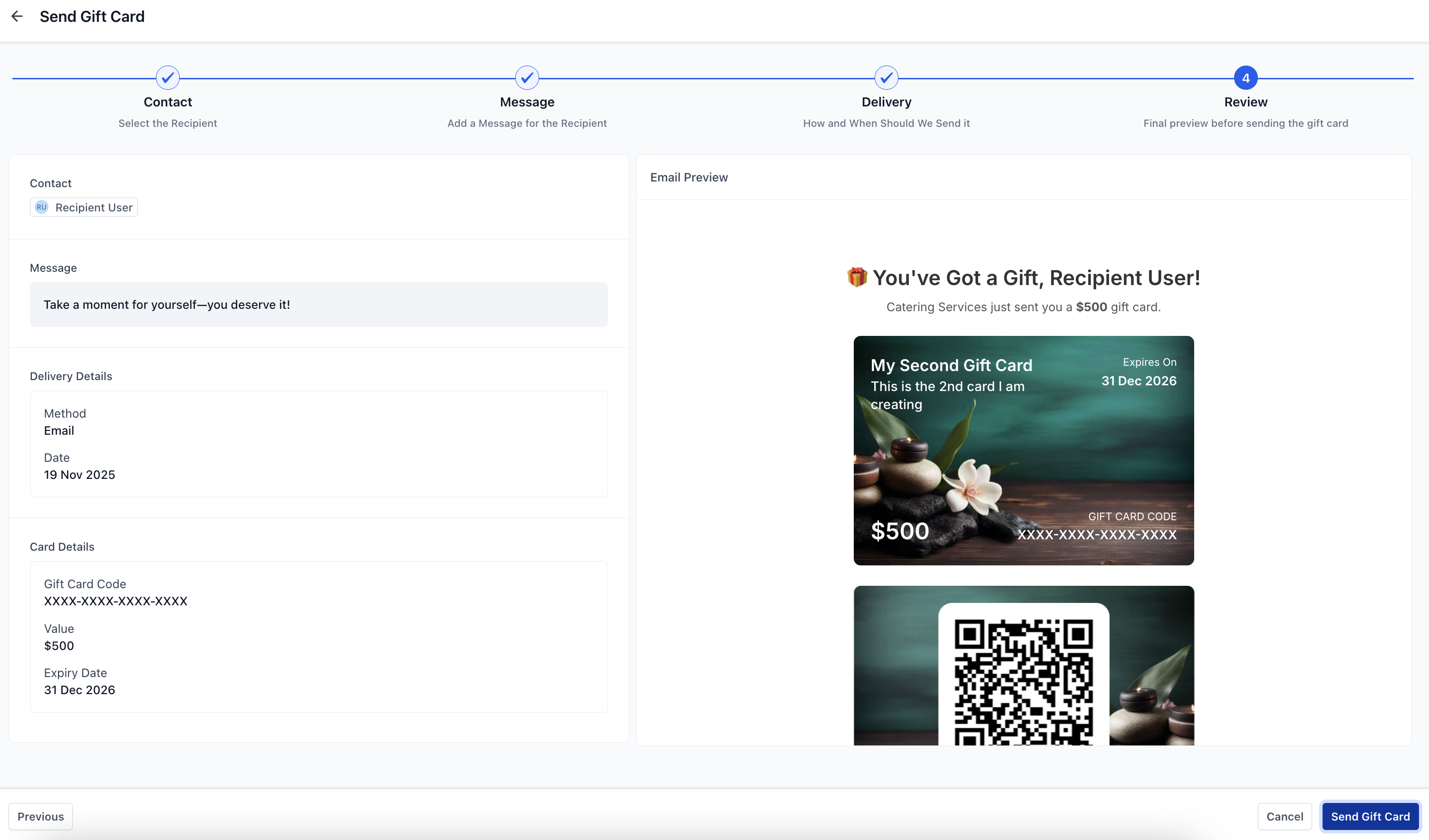
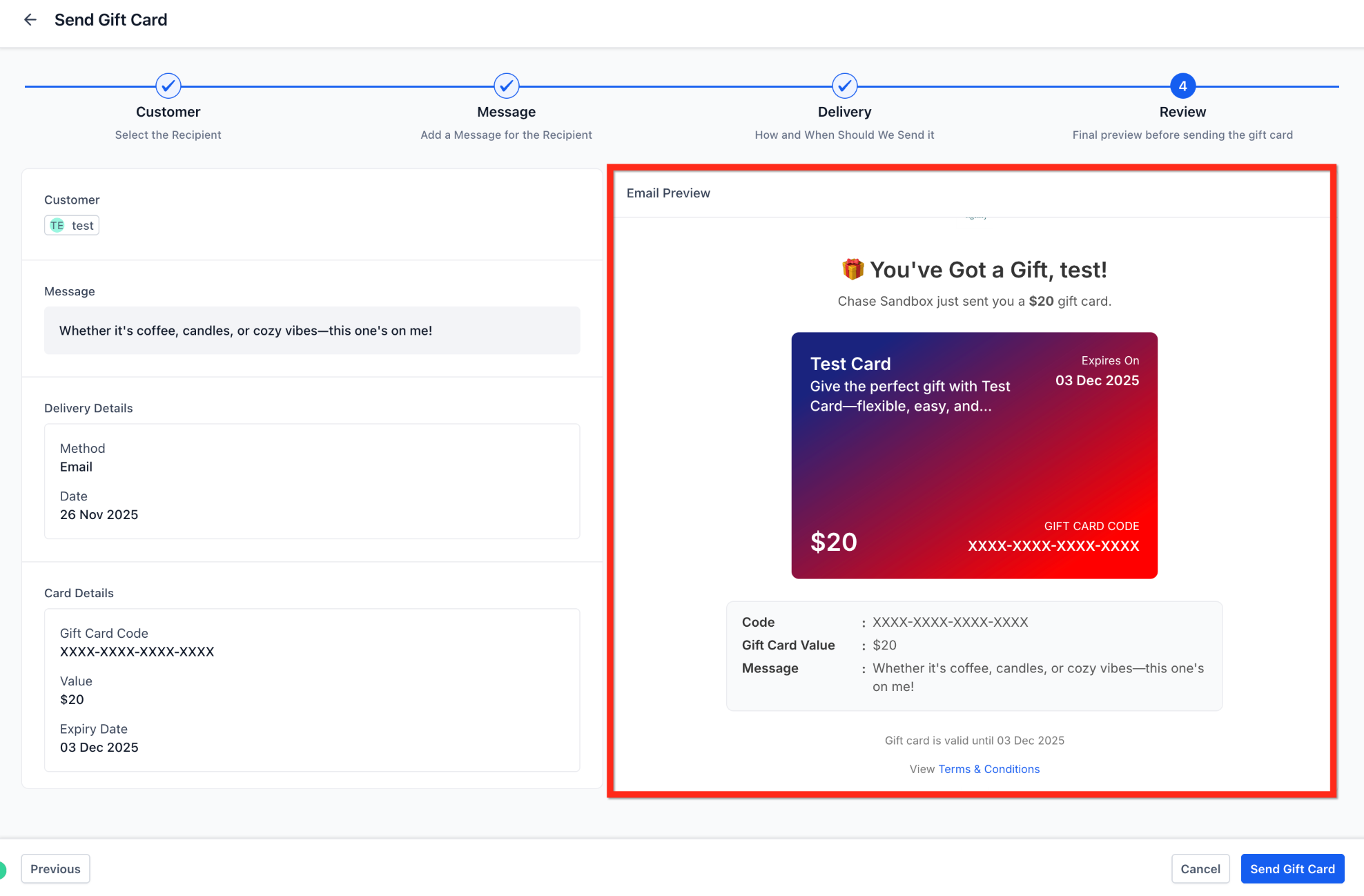
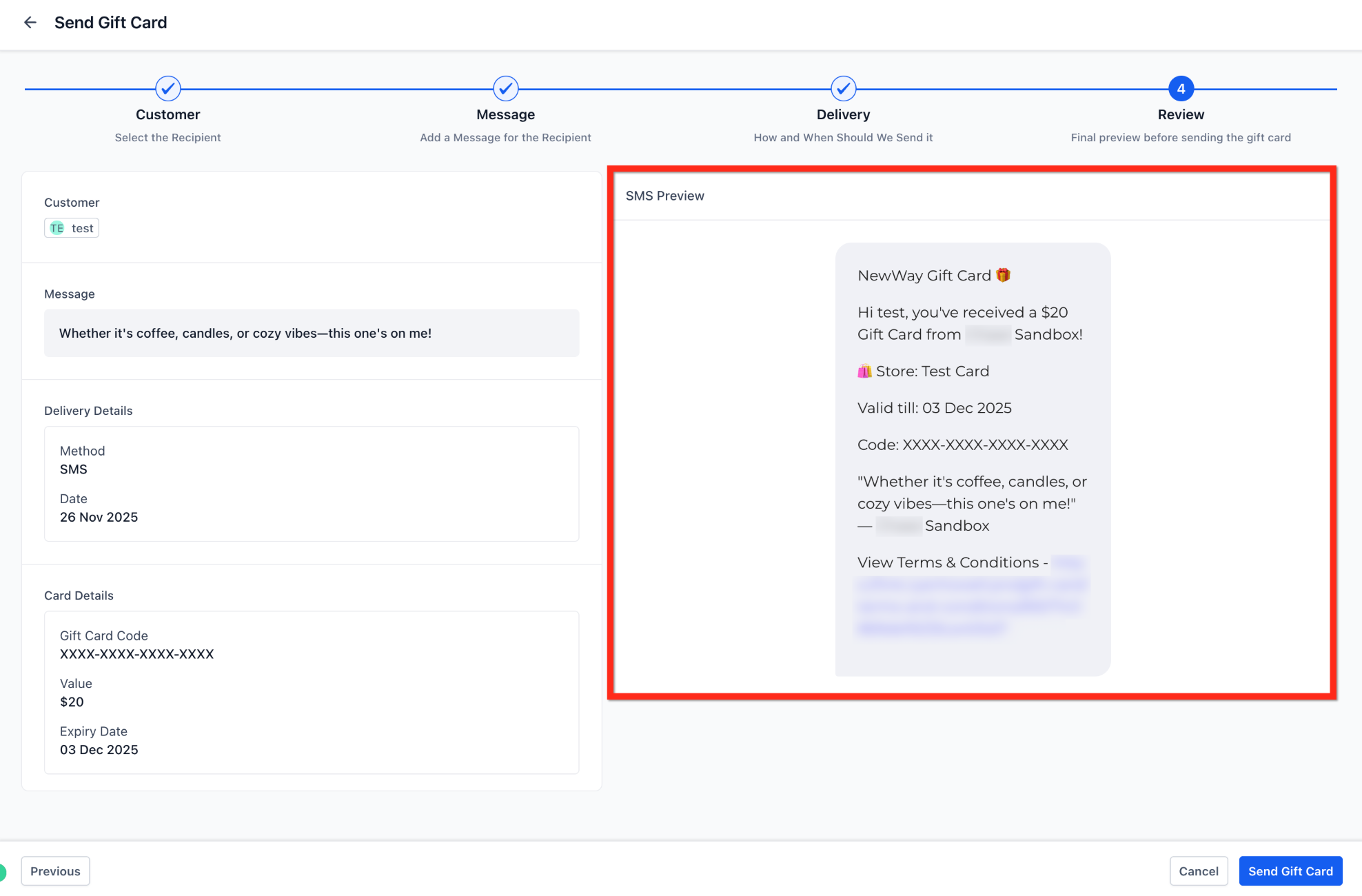
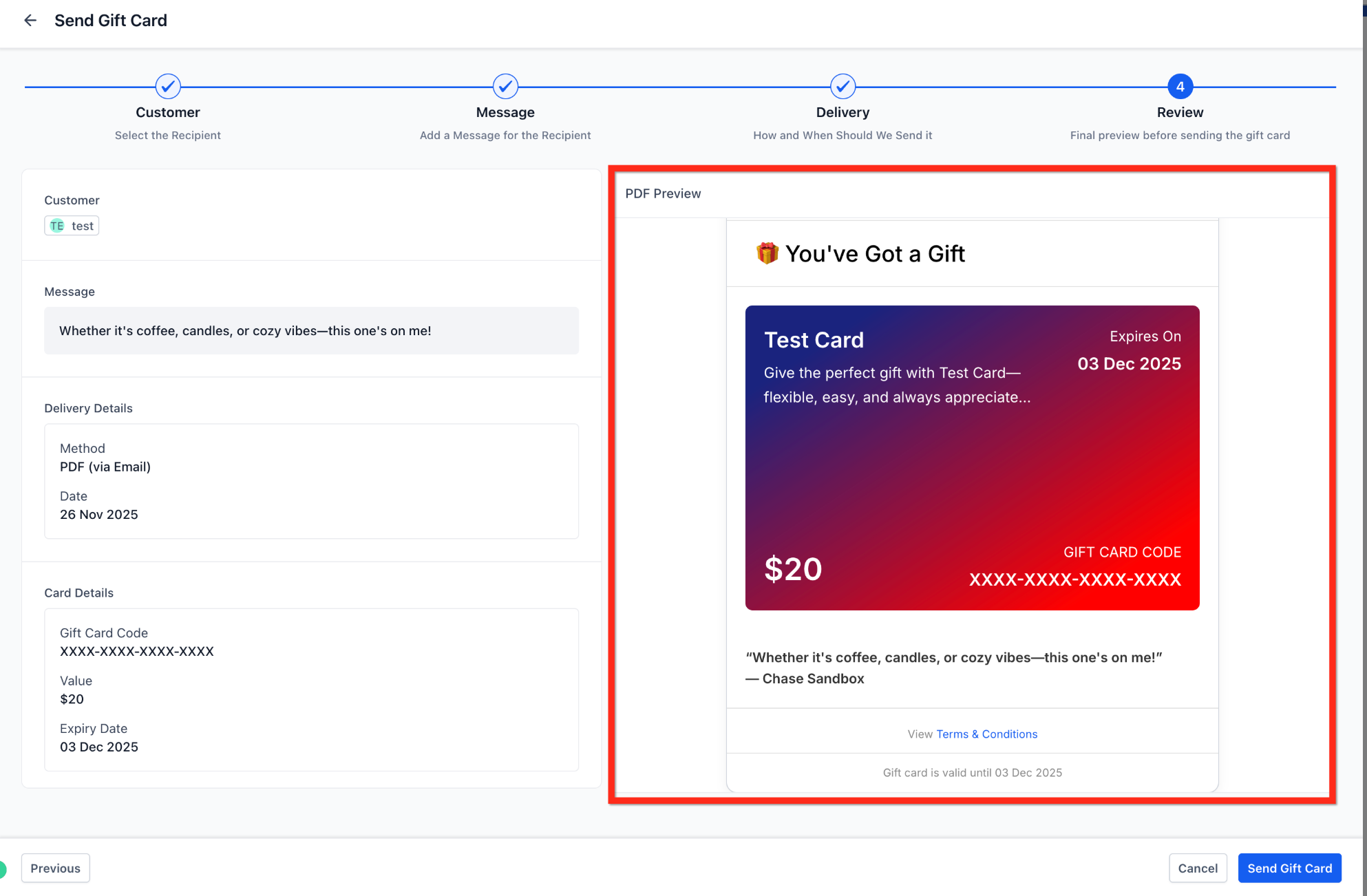
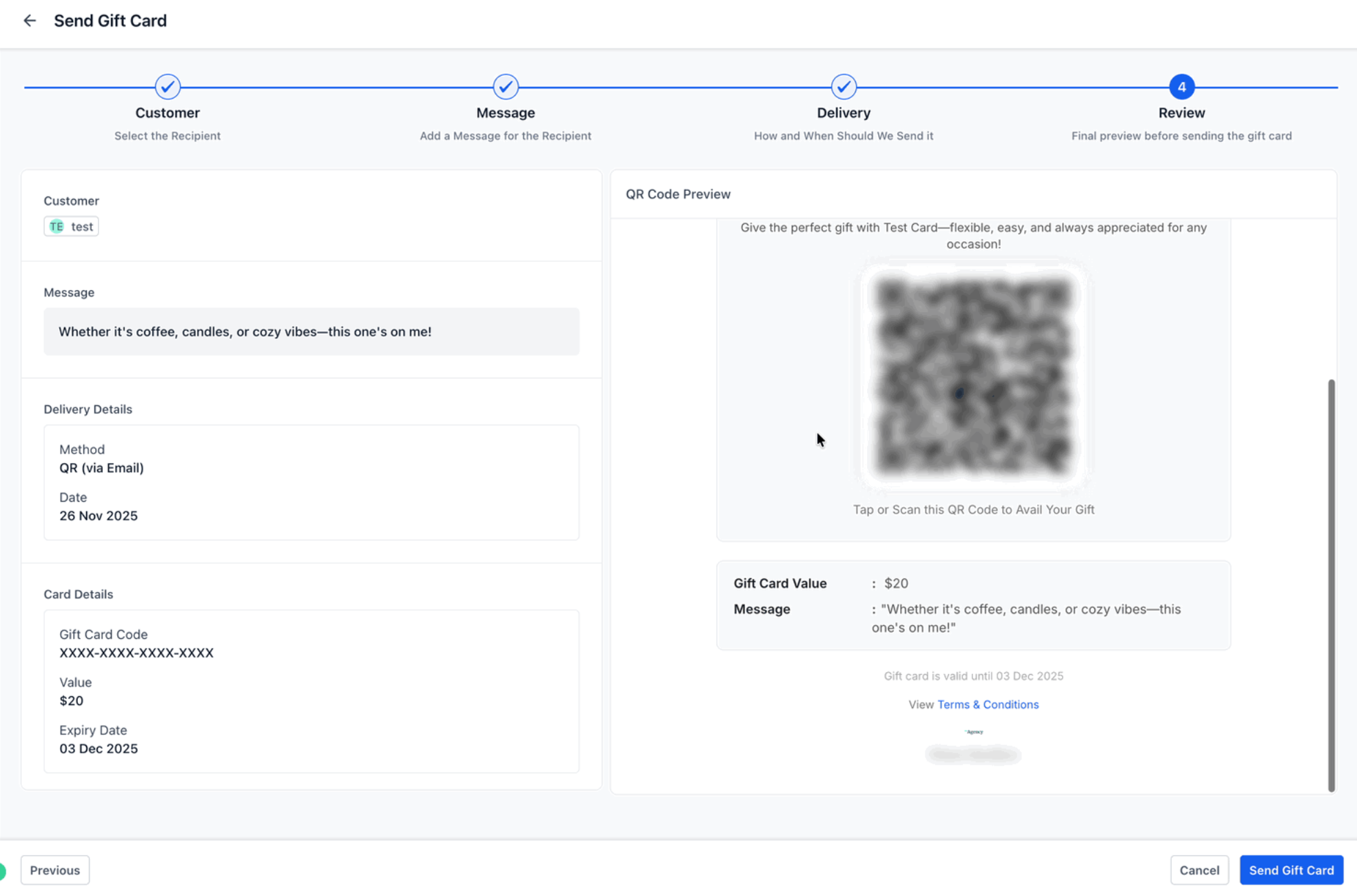
Step 5: Review and send. Before confirming, review the automatically generated email or SMS preview. This includes the gift card amount, your custom message, the expiry date, redemption instructions, and artwork. Then click Send Gift Card.
A free Gift Card is issued to the contact, ideal for loyalty, service recovery, or special campaigns. It appears in Gift Card Orders but not on the general Payments > Orders page, since no payment occurred.
Email: Full visual gift card with artwork, including expiry, balance, and redemption link. Recommended for most cases.
SMS: A clean message with the gift card link. Artwork is not included due to SMS formatting.
PDF (via Email): A downloadable, printable PDF. Great for in-store gifting, physical wrapping, or events.
QR Code (via Email): A scannable QR that opens the gift card. Useful for in-person gifting or events.
The Send flow works only in Live Mode.
You can send one gift card to one client at a time.
No payment is collected in the Send flow.
Directly sent gift cards do not appear in Payments > Orders (no order, no transaction).
Gift Cards issued via Send are fully redeemable everywhere, both fully and partially.
You must have the client's email or phone number for delivery.
All issued Gift Cards (whether sold or sent) are listed under Payments > Gift Cards > Gift Card Orders. This page lists every sold or sent gift card along with its status, balance, filters, and contact details. Every card on the page is clickable and opens a detailed view for that order.
Tip: The generic Payments > Orders page only shows paid orders. Gift Cards sent directly without payment do not appear there. The Gift Card Orders page is your central hub for every card issued or purchased.
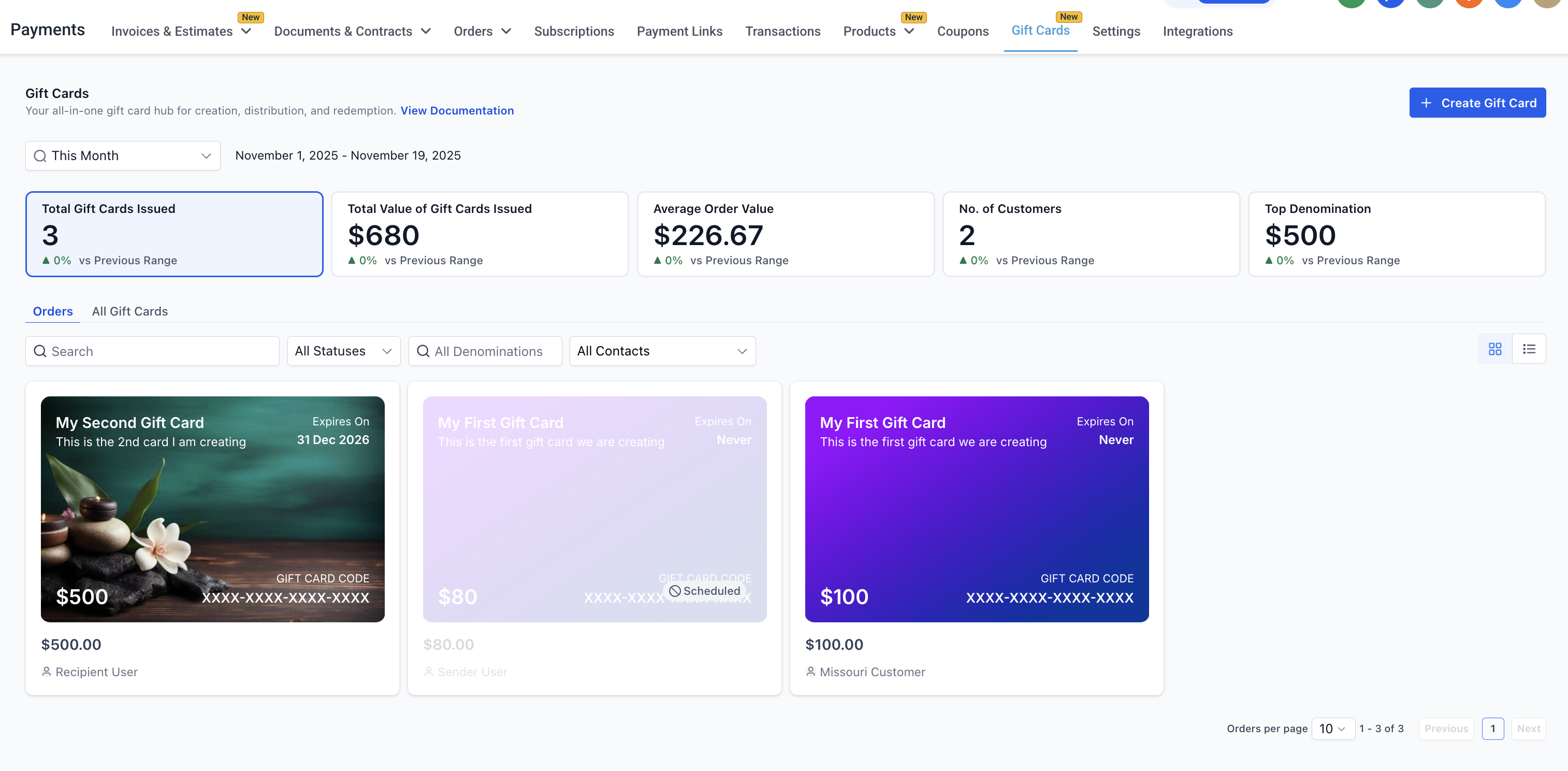
The Gift Card Dashboard gives you a quick snapshot of your overall gift card performance, with high-level metrics such as:
Total Gift Cards Issued (sold plus sent)
Total Value of Gift Cards Issued for the selected time period
Average Gift Card Order Value for the selected time period
Number of Unique Clients who purchased or received gift cards in the selected time period
Top Denominations issued, including the most popular denomination and a Top 5 chart
These insights help you understand client behavior, track gift card adoption, and plan better inventory and promotional strategies.
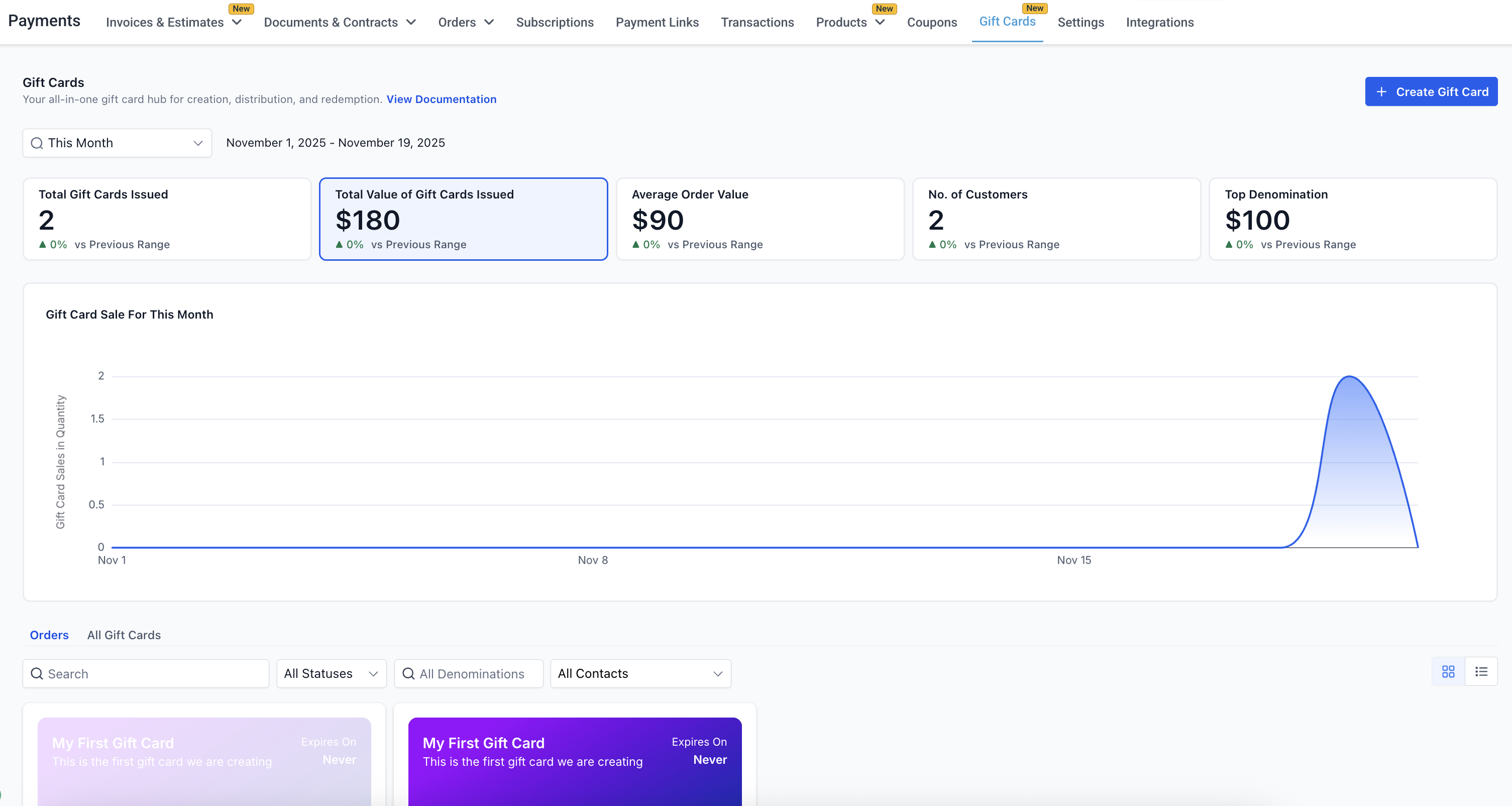
You can filter the dashboard using the date range control in the top-left of the Gift Cards page (Today, Yesterday, Last 7 or 30 days, This or Last Month, or a custom range), with This Month as the default. Here is more detail on each metric:
Total Gift Cards Issued: The total number of gift cards created in the selected period, combining cards sold through any checkout and cards sent directly through the Send flow.
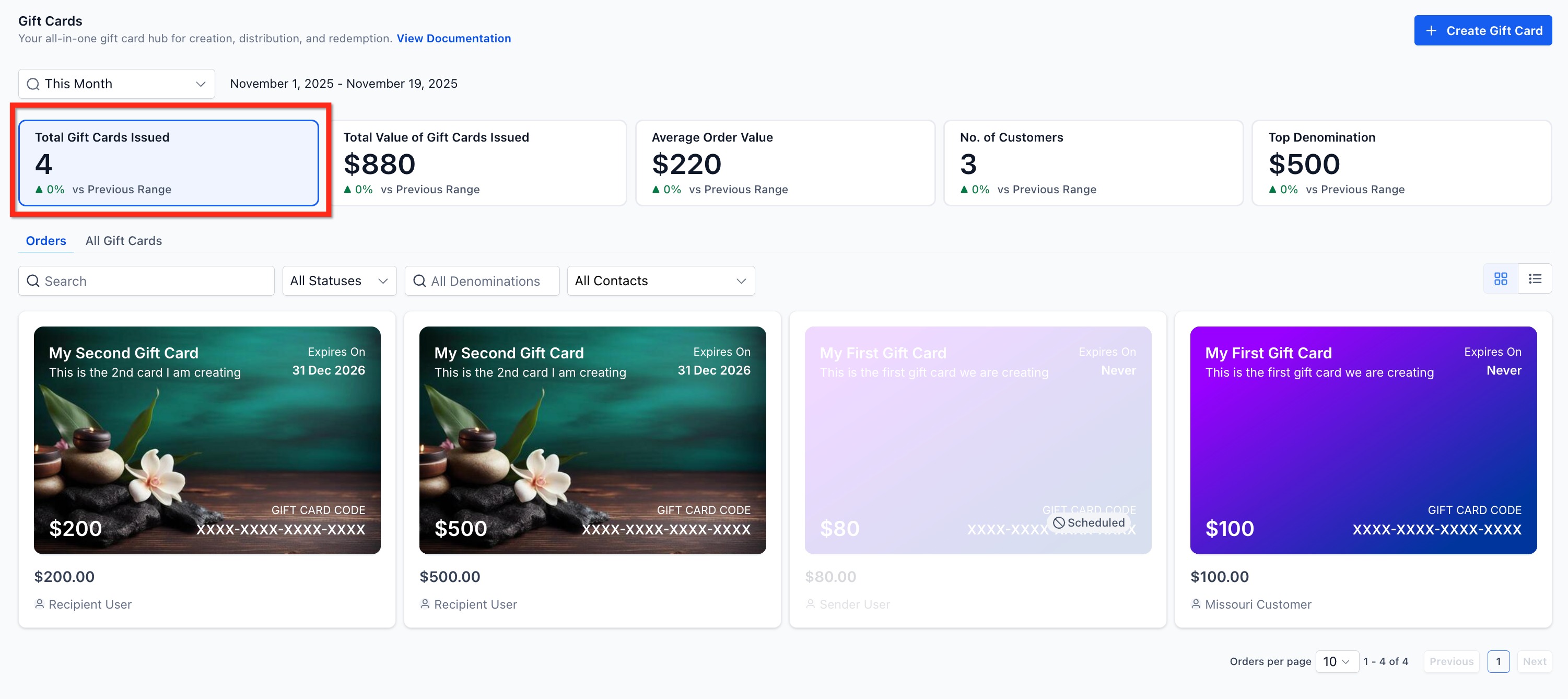
Total Value of Gift Cards Issued: The total monetary value of all issued gift cards, with a trend chart to spot seasonal peaks or campaign-driven spikes. For example, five $500 cards and two $2,000 cards issued in a week reflect a total value of $6,500.
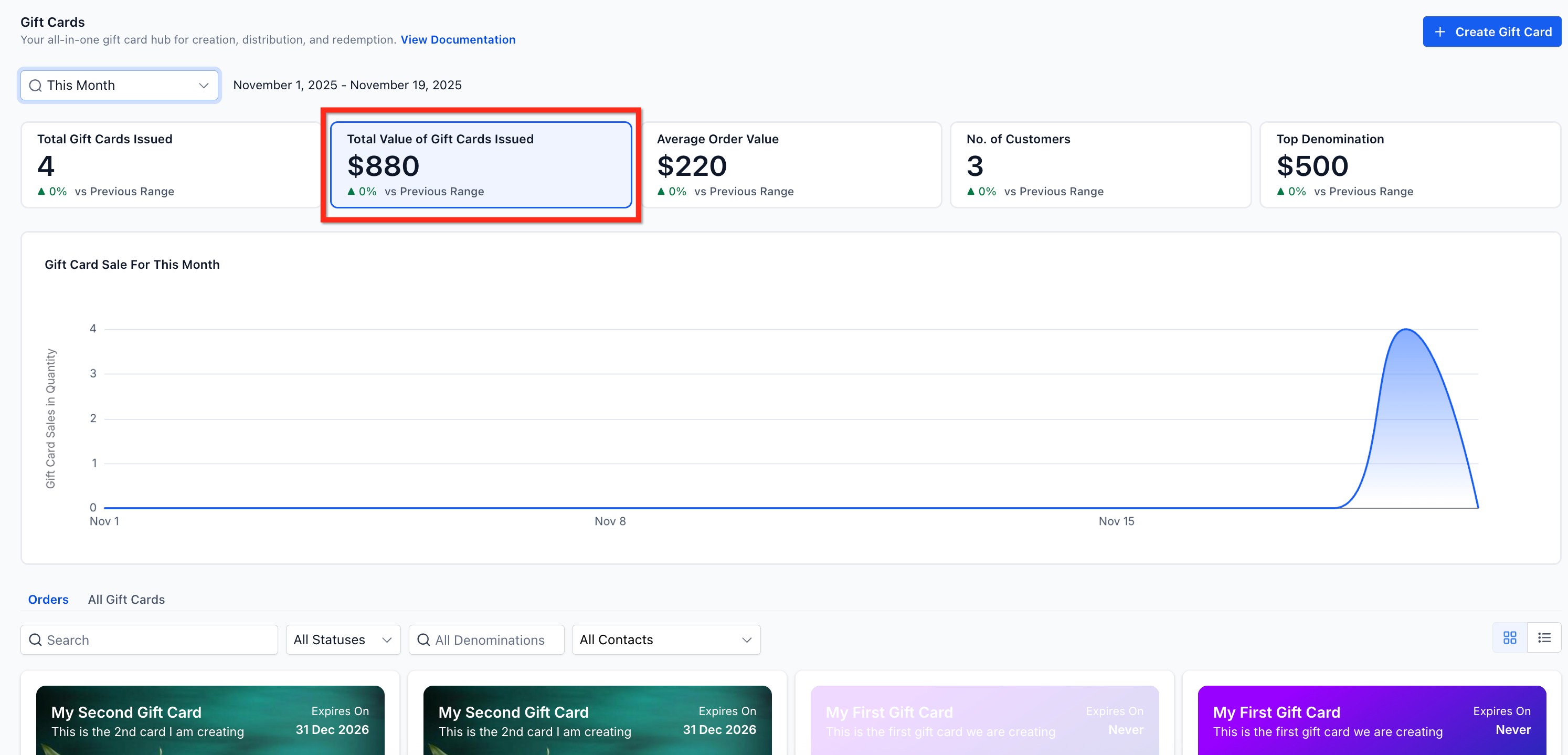
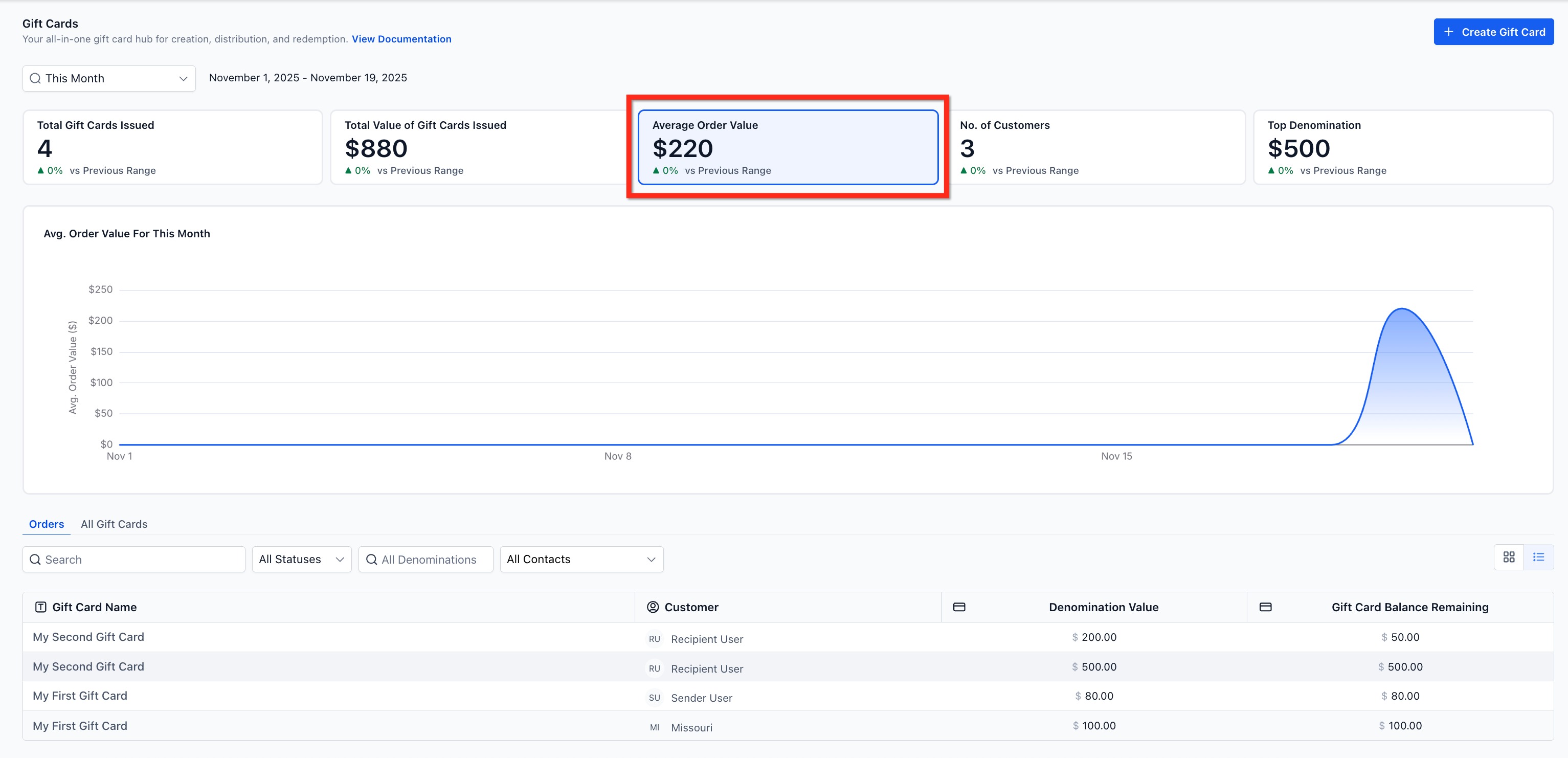
Average Order Value (AOV): The average value of gift card orders, which helps you see whether clients gravitate toward smaller or larger denominations.
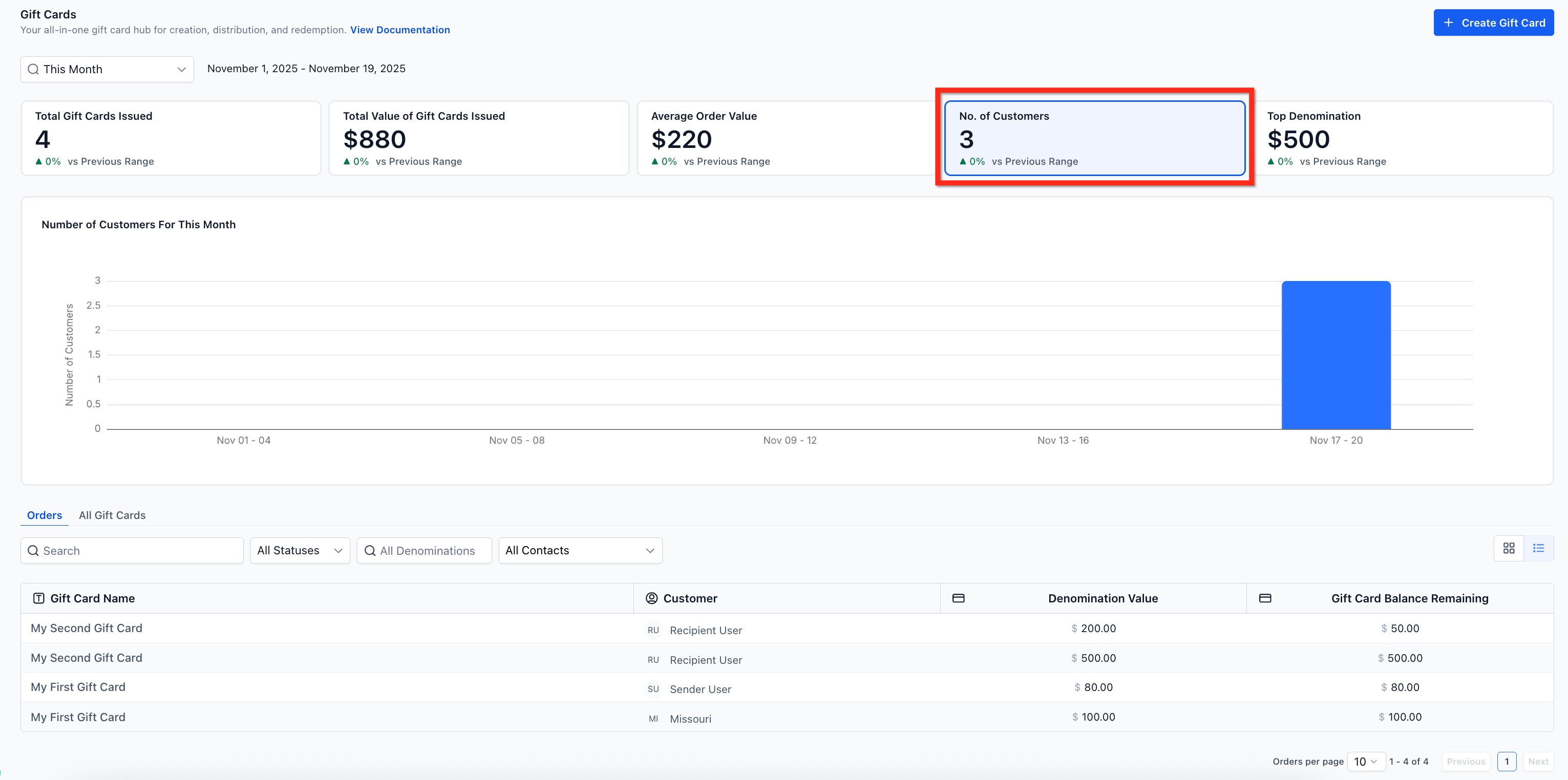
Number of Unique Clients: How many unique individuals purchased or received a gift card during the period, useful for measuring program reach and repeat engagement.
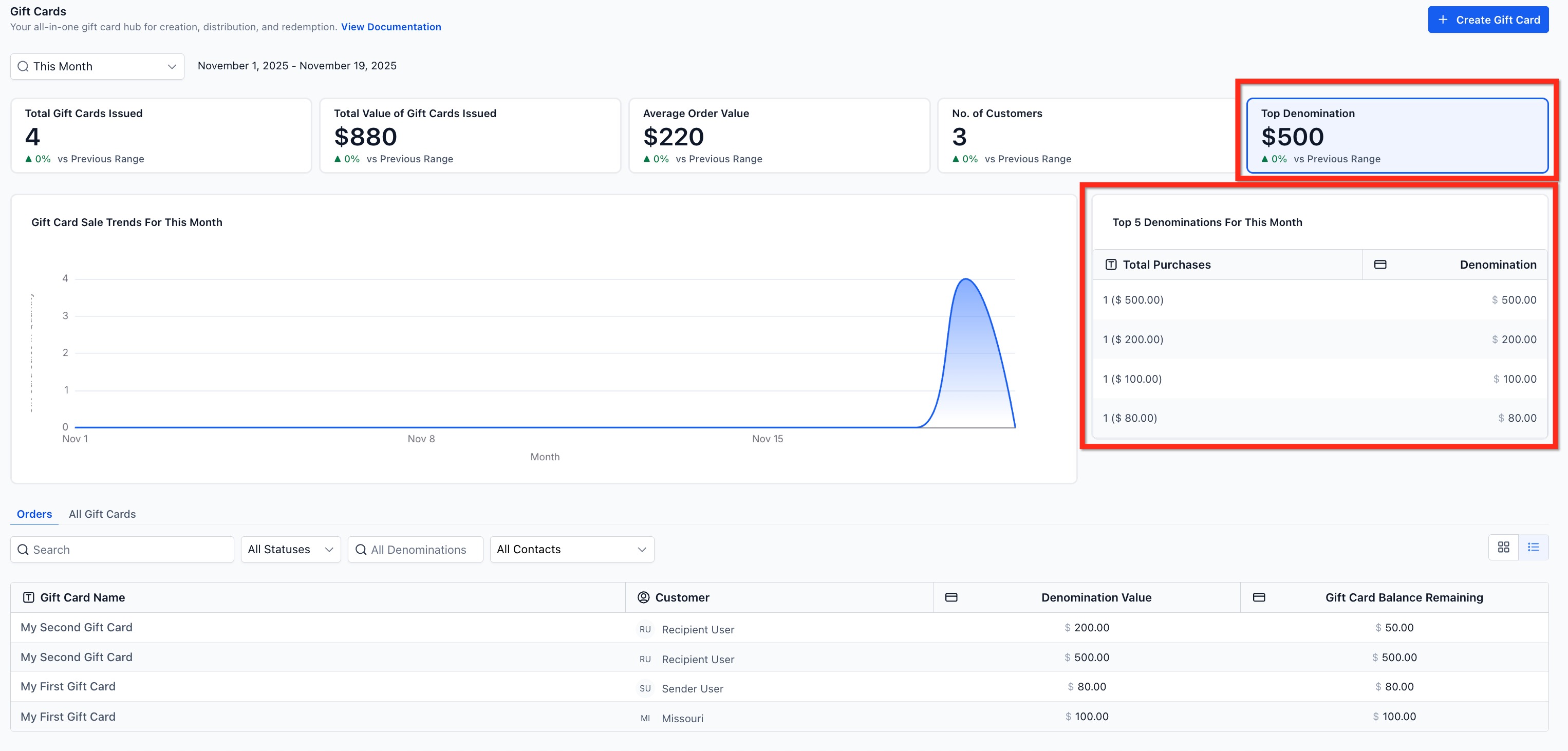
Top Denominations and Popularity Chart: The most frequently issued denomination and a Top 5 chart, which help you optimize future inventory and denomination options.
Note: Gift cards created in Test mode do not affect analytics in the Gift Card Dashboard. Scheduled gift cards are included in issuance totals for the selected date range; use the Status filter to analyze Scheduled or Active cards specifically.
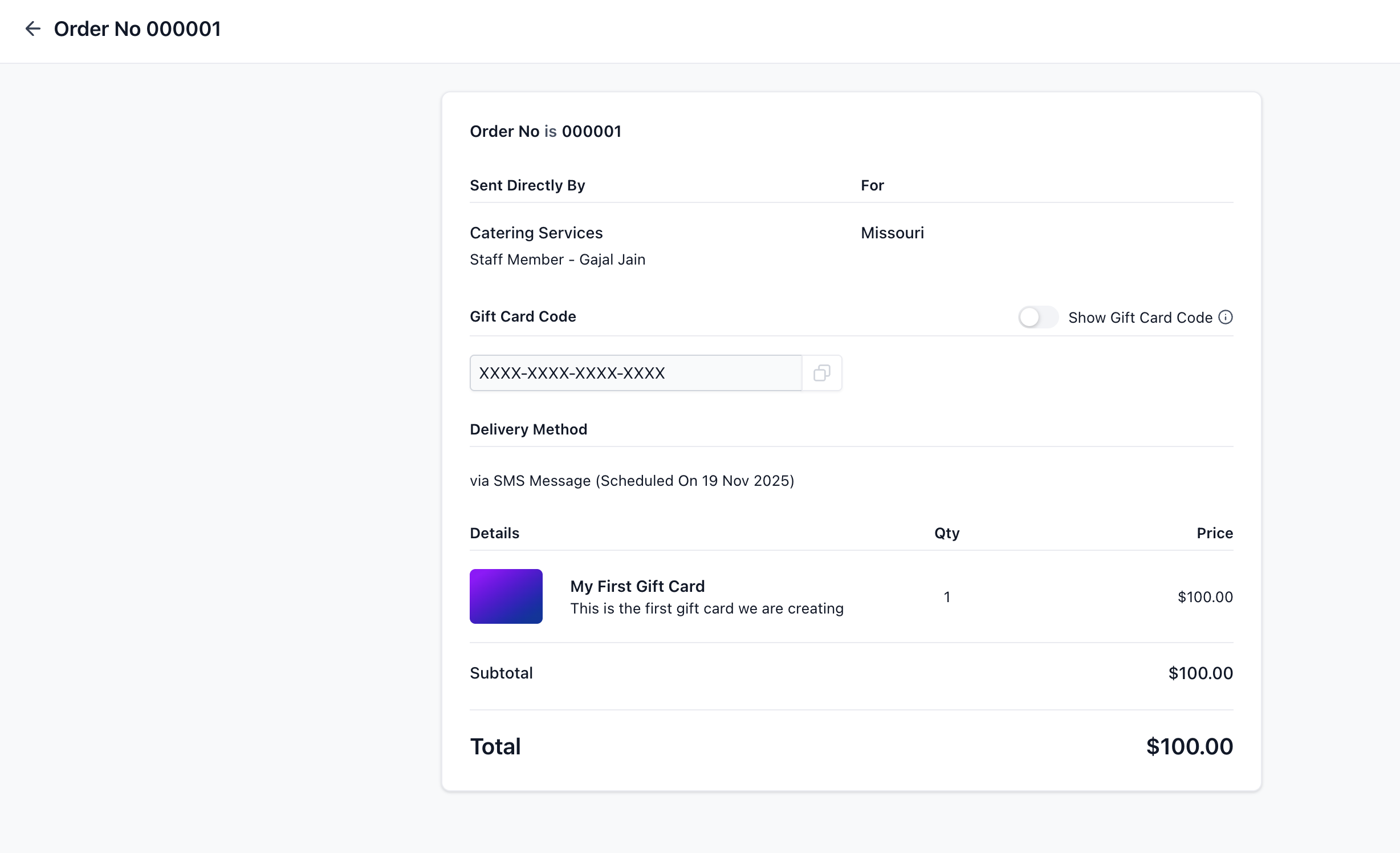
The Gift Card Order details page is the single source of truth for every Gift Card in your account. For each order, you can view:
Purchaser info
Recipient info
Denomination
Expiry date (the same as the Gift Card Product)
Remaining balance
Status (Scheduled, Active, Inactive)
Hidden Gift Card number (visible inside the order details page)
Delivery method and delivery schedule
Transaction reference (for paid cards)
The client goes to any supported checkout (Forms, Funnels, Payment Links, Invoices, Store, Calendars, and Services V2 during appointment booking).
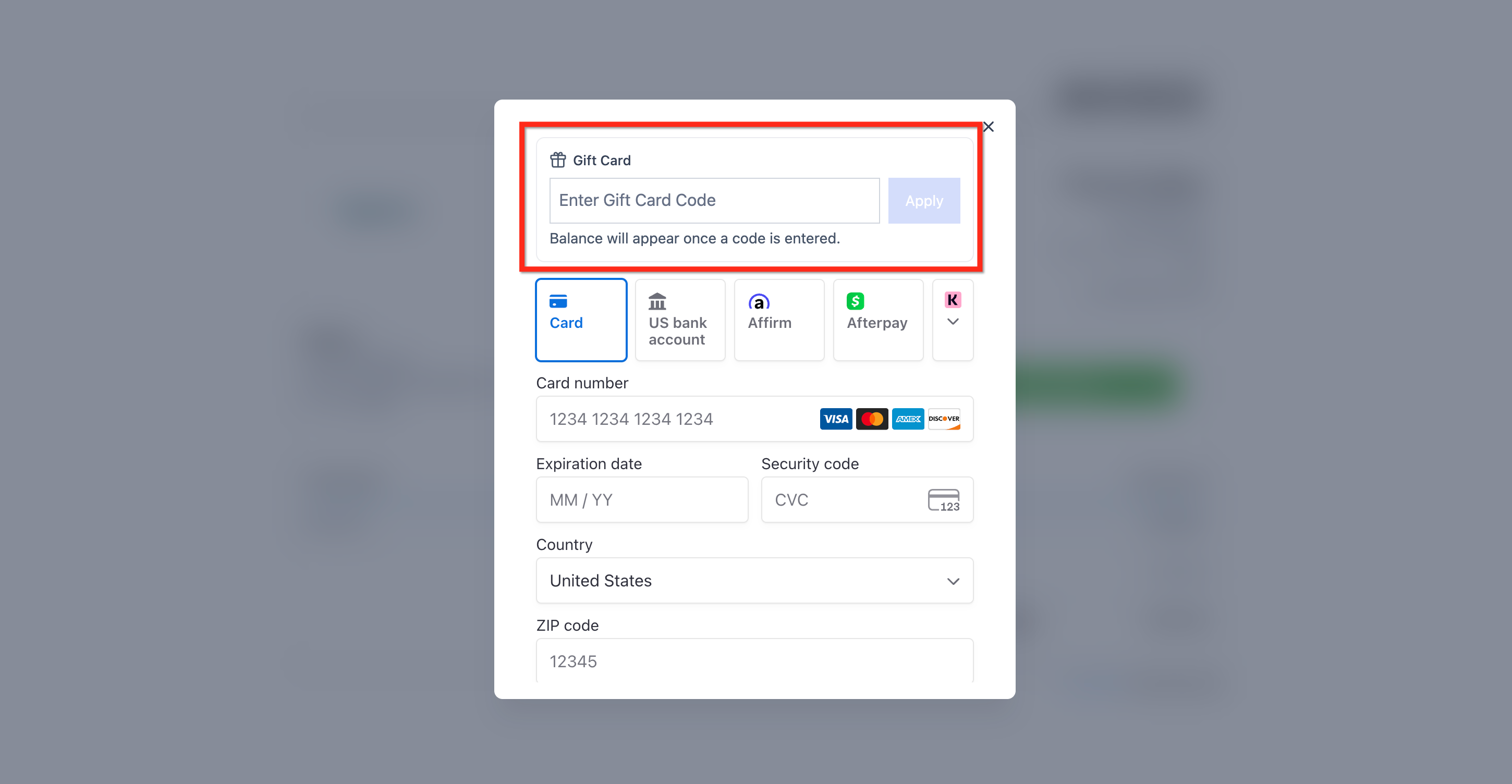
They enter their Gift Card Code in the Gift Card field.
The gift card is applied and displays the amount used, the remaining gift card balance, and the amount left to pay (shown only if additional payment is required).
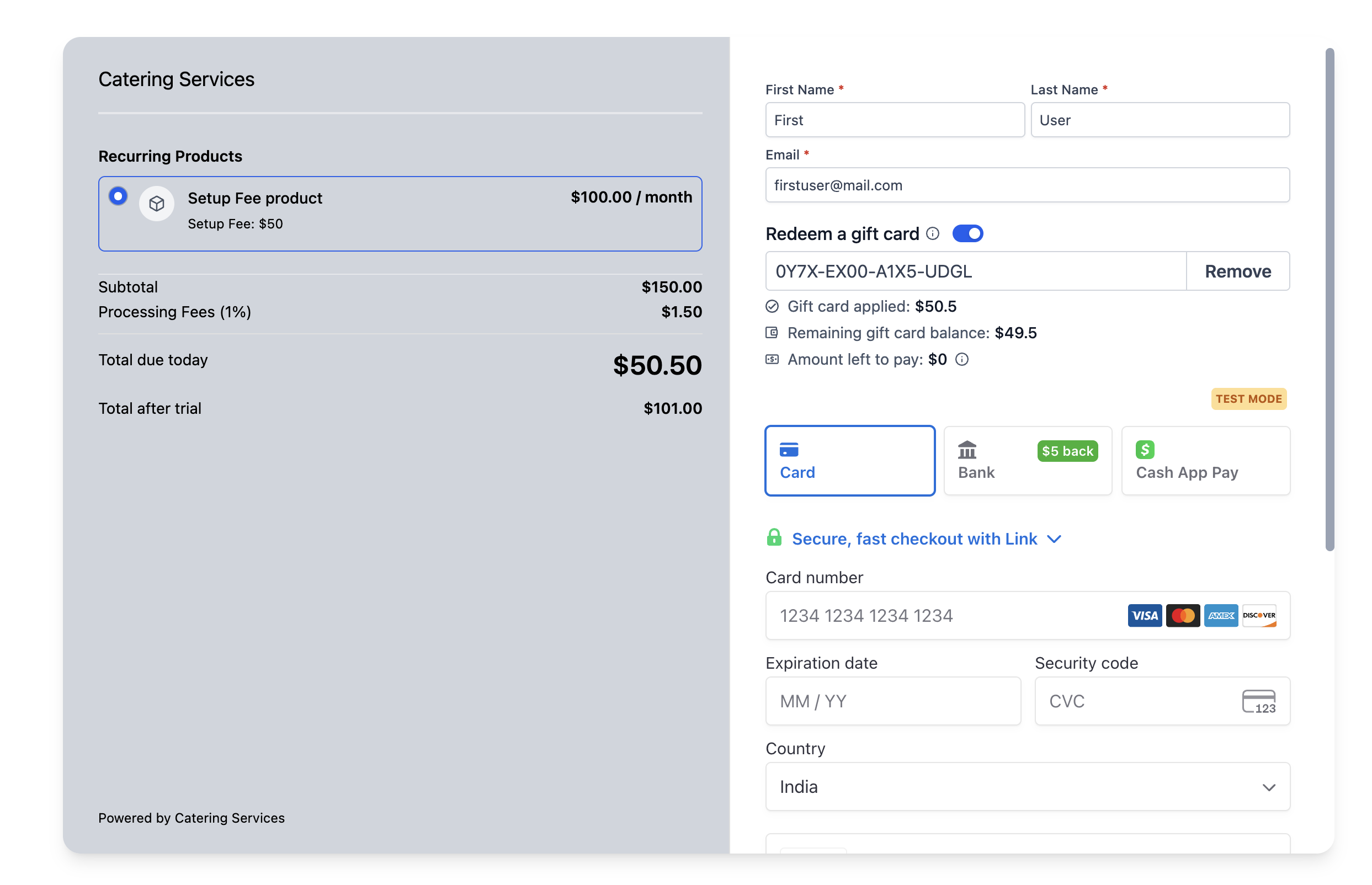
If the balance is greater than or equal to the order total for one-time products, no extra payment is needed.
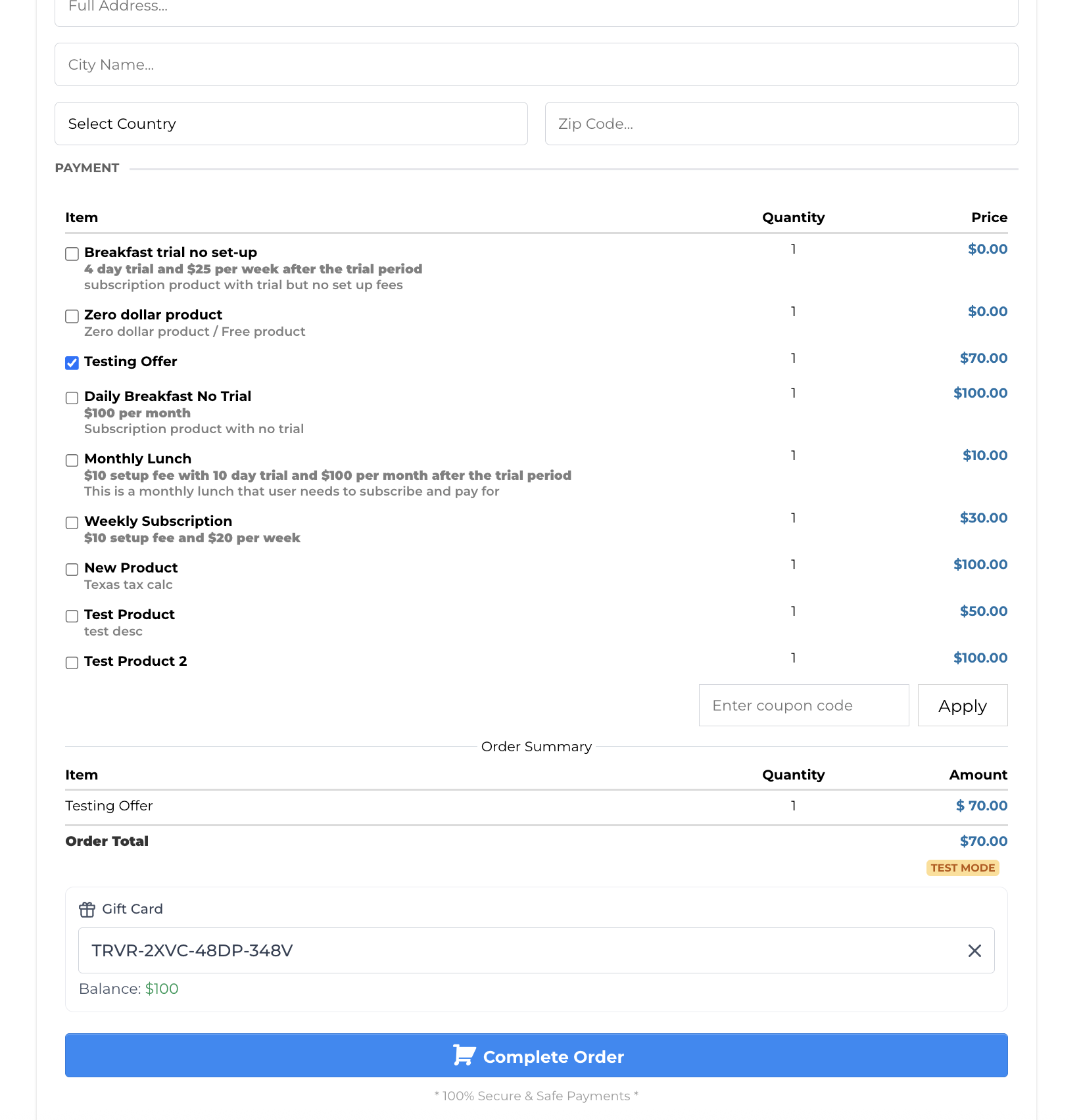
If the balance is less than the order total, or the order includes subscriptions, the checkout captures an additional payment method for the remainder.
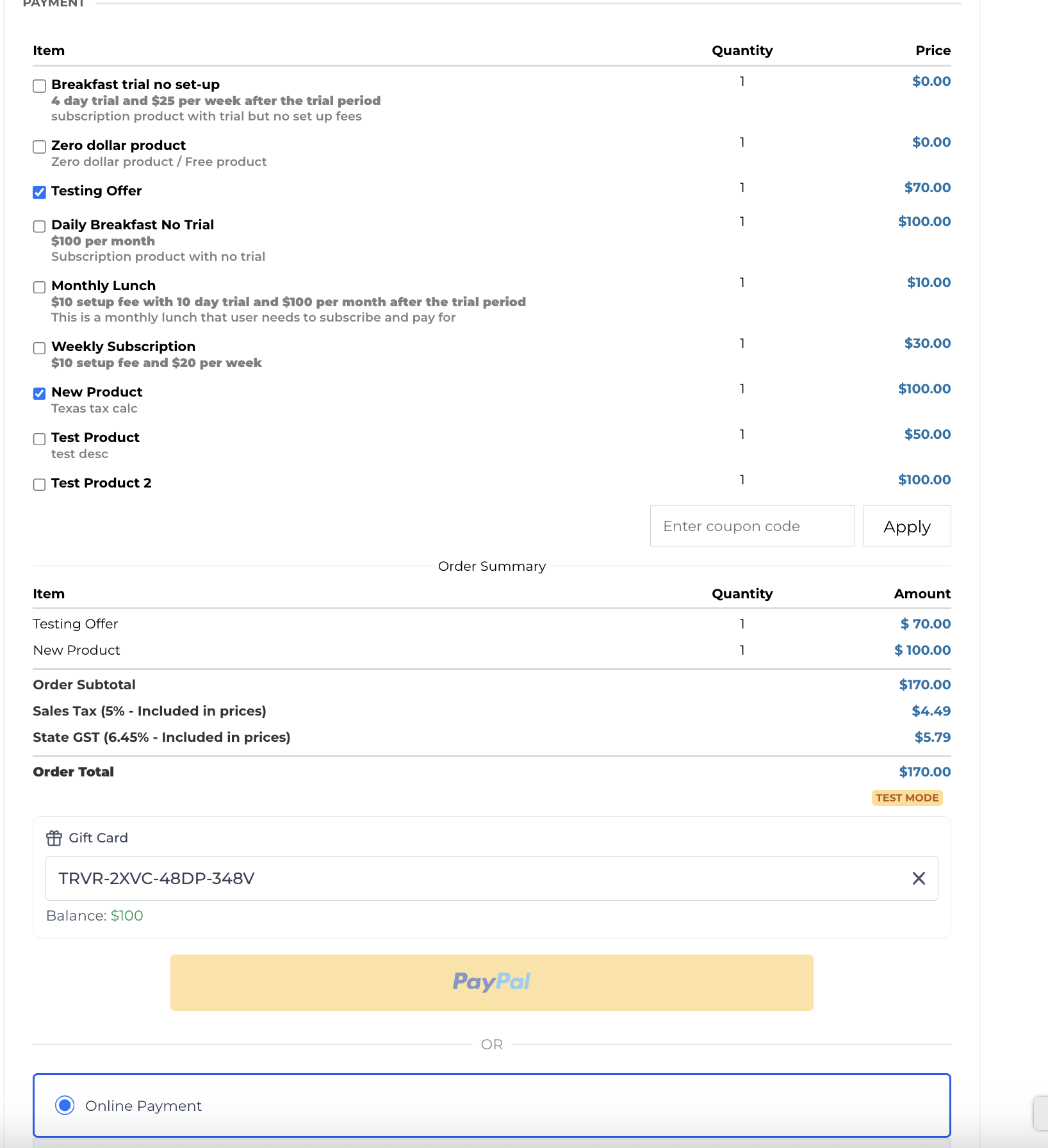
Transaction details show a separate line item for "Gift Card Balance Used."
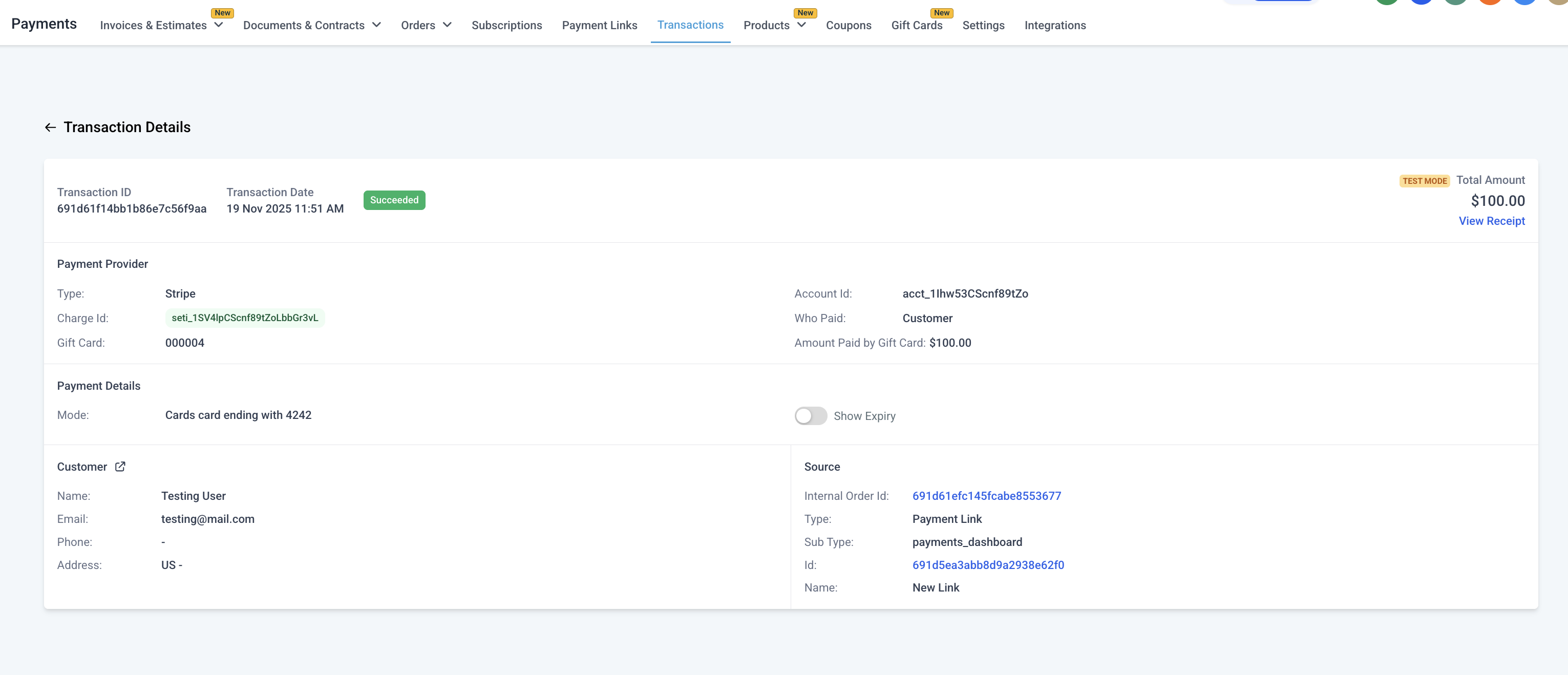
Note: Gift Card redemption is fully supported with Stripe, NMI, Authorize.net, and Square. Support is limited for PayPal, Adyen, and custom payment providers: with those, a gift card can be redeemed only if its balance fully covers the order total and the order contains no recurring or subscription products. Gift Cards are not yet supported on Memberships, Donation Forms, or Rentals.
Your team can also redeem a client's Gift Card directly while collecting payment on their behalf, without sending them through a separate checkout. This is available in the following payment flows:
Payments > Orders: open an order, then Record Payment > Charge a Card.
Payments > Invoices: open an invoice, then Record Payment > Charge a Card.
Contacts: open a contact, then Charge Now.
Contacts: open a contact, then Create Subscription.
Payments > Subscriptions: Create Subscription.
Each of these flows includes a Gift Card field. Enter the client's Gift Card code and click Apply to check its available balance and apply it toward the amount due.
If the Gift Card covers the full amount, the payment is completed using the Gift Card and no other payment method is charged.
If the Gift Card covers only part of the amount, the available balance is applied first, and the remaining amount is collected using a saved card or a new card.
If the Gift Card cannot be used (invalid code, expired, or no remaining balance), a validation message explains why.
Example: On a $200 payment with a $150 available Gift Card balance, $150 is applied from the Gift Card and the remaining $50 is collected from another payment method, leaving a $0 Gift Card balance.
You can apply only one Gift Card per payment, and a Test Mode Gift Card cannot be redeemed against a Live Mode payment (or the reverse). After a successful payment, open Transaction Details to confirm the amount covered by the Gift Card, and check the Gift Card Order to see its updated remaining balance.
A Gift Card can be applied toward the initial payment collected when you create a supported subscription, but it does not replace the payment method used for future recurring charges.
Gift Cards cannot be applied to future dated or already scheduled subscription payments, only the initial charge collected at creation.
Every later recurring payment is collected from the card attached to the subscription, even when the Gift Card covered the entire first payment.
A saved or new card may still be required on the subscription even when the Gift Card fully covers the initial amount.
Staff-initiated Gift Card redemption is not yet available when collecting payment through Calendars or Tap to Pay. Clients can still redeem a Gift Card themselves through a supported Calendar checkout; this limitation applies only to staff manually collecting payment on a Calendar booking, not to client-facing Calendar checkouts.
What is the difference between Gift Card Orders and the regular Orders page?
Gift Card Orders (inside Payments > Gift Cards) track every card issued or purchased. The generic Orders page only records paid transactions.
Which payment providers can clients redeem gift cards on?
Redemption is fully supported with Stripe, NMI, Authorize.net, and Square. Support is limited for PayPal, Adyen, and custom payment providers: a gift card can be redeemed only if its balance fully covers the order total and the order has no recurring products. Partial payments with gift cards, or using gift cards toward recurring products, are not yet live on those providers.
Can I sell gift cards through all payment providers?
Yes. A gift card can be sold through any of your default checkout payment providers. Full redemption across all product types and scenarios is limited to Stripe, NMI, Authorize.net, and Square.
Can I sell the same gift card through multiple channels at once?
Yes. A gift card can be sold via its link, QR, embed, and through any existing checkout. Inventory keeps depleting as more sales happen for the card.
What happens if a Gift Card Product is deactivated?
Its Sell flow stops working: the checkout link becomes invalid and it cannot be purchased from Stores. Other checkouts where it is already added continue to sell it until you manually remove the product.
Can I set different expiry dates per order?
Not yet. All Gift Card Orders for a product share the product's expiry. Order-level validity is planned for a future release.
How does inventory work with multiple denominations?
Inventory applies per denomination. For example, three denominations with an inventory of 50 each equals 150 total cards.
Can I restrict where Gift Cards are redeemable?
Gift Cards are currently redeemable on all products except when purchasing another gift card. More fine-grained controls (product-level and variant-level) are coming soon.
Can clients check their balance without starting checkout?
Not yet. For now, entering the card number at any supported checkout displays the balance. A dedicated balance-check link is coming soon.
Can clients buy gift cards using gift cards?
No. Gift cards cannot be used to purchase more gift cards. An option to allow or disallow this is planned for a future release.
Can I send gift cards in Test Mode?
Not yet. The Send flow supports Live Mode only. Test Mode support is planned for a future release.
Can I send multiple gift cards at once?
Currently no. You can send one gift card to one client per Send flow. Bulk sending is planned for future versions.
Can a scheduled gift card be used before its delivery time?
Yes. Until the scheduled delivery time, the card remains in a Scheduled state but is still active and valid. If someone has the code and uses it at checkout before the scheduled time, it will work.
Can I edit the email or SMS template before sending?
Templates are system-generated and currently not editable. Email and SMS template customization will be available later.
When does the redemption option appear on checkouts?
The redemption option is available once a gift card order has been placed (regardless of order status) after creating a Gift Card Product. There is currently no way to turn off gift card redemption, but that control is in development.
Which checkouts have the gift card redemption option?
Supported checkouts are Forms (Sell Product), Funnels, Payment Links, Invoices, Store, Calendars, and Services V2.
Can my team redeem a Gift Card for a client instead of having them check out themselves?
Yes. From Payments > Orders, Payments > Invoices, a contact's Charge Now action, or a subscription created from a contact or from Payments > Subscriptions, enter the client's Gift Card code in the Gift Card field and click Apply.
Can more than one Gift Card be applied to the same payment?
No. Only one Gift Card can be applied per payment, whether the client checks out themselves or a staff member collects the payment.
Does a Gift Card cover future subscription payments?
No. A Gift Card can only be applied to the initial payment collected when a subscription is created. Every later recurring charge is collected from the card on file for that subscription, not the Gift Card balance.
Can I redeem a Gift Card that was sent directly to a client, without a purchase?
Yes. A Gift Card issued through the Send flow can be redeemed the same as a purchased Gift Card, as long as it is active, has not expired, and has an available balance.
Is there a dedicated permission for redeeming Gift Cards during staff-collected payments?
No. There is no permission specific to Gift Card redemption. A team member needs the appropriate access to the area where they are collecting the payment (Orders, Invoices, Contacts, or Subscriptions).
