Granular Payments permissions let you delegate payment-related tasks safely by controlling exactly who on your team can view, create, edit, refund, export, or configure each area of Payments. Instead of a single all-or-nothing Payments toggle, access is split into focused modules, so each staff member gets only the access their role needs without exposing sensitive operations like refunds or tax configuration.
This structure gives practice administrators precise control over sensitive payment operations while keeping day-to-day work moving. Each module includes standardized permission toggles: View, Create, Update, Delete, Export, and Configure. Built-in safeguards automatically enforce dependencies between actions. For example, bulk product actions only become available if Create or Edit permissions are enabled.
Minimize risk: Restrict high-impact actions (like refunds, product deletion, or tax configuration) to trusted staff only.
Faster onboarding: Assign just the categories and actions each role needs so new hires can start safely.
Cleaner audits: Narrow permissions make it easier to trace who changed what and when using Audit Logs.
Operational clarity: Clear categories reduce confusion about where tasks live (for example, refunds versus order edits).
Workflow control: Bulk, import, and export capabilities can be restricted based on a staff member's permissions, protecting data quality.
If you managed payments under the old single Payments toggle, here is what is different:
Permissions re-homed: Existing capabilities such as Refund Transactions and Manage Subscriptions now live inside their dedicated modules (Transactions and Subscriptions). This makes it easy to grant research access without refund rights, or subscription oversight without full payments access.
Standardized actions: Each module uses a consistent action set (View, Create, Update, Delete, Export, Configure), so roles are simpler to compare, train on, and audit.
Enforced dependencies: Certain high-impact tools depend on foundational permissions. For example, bulk product actions and CSV imports require Create or Update access, preventing accidental multi-record changes by read-only staff.
Tighter control of sensitive operations: You can explicitly decide who may issue refunds, edit subscriptions, or adjust tax settings.
The following six payment modules are available in Roles & Permissions.
Governs one-time orders and charges created through Payment Links, checkout pages, stores, and POS. Allows staff to:
View orders
Export orders
Import orders
Collect payments (including partial payments)
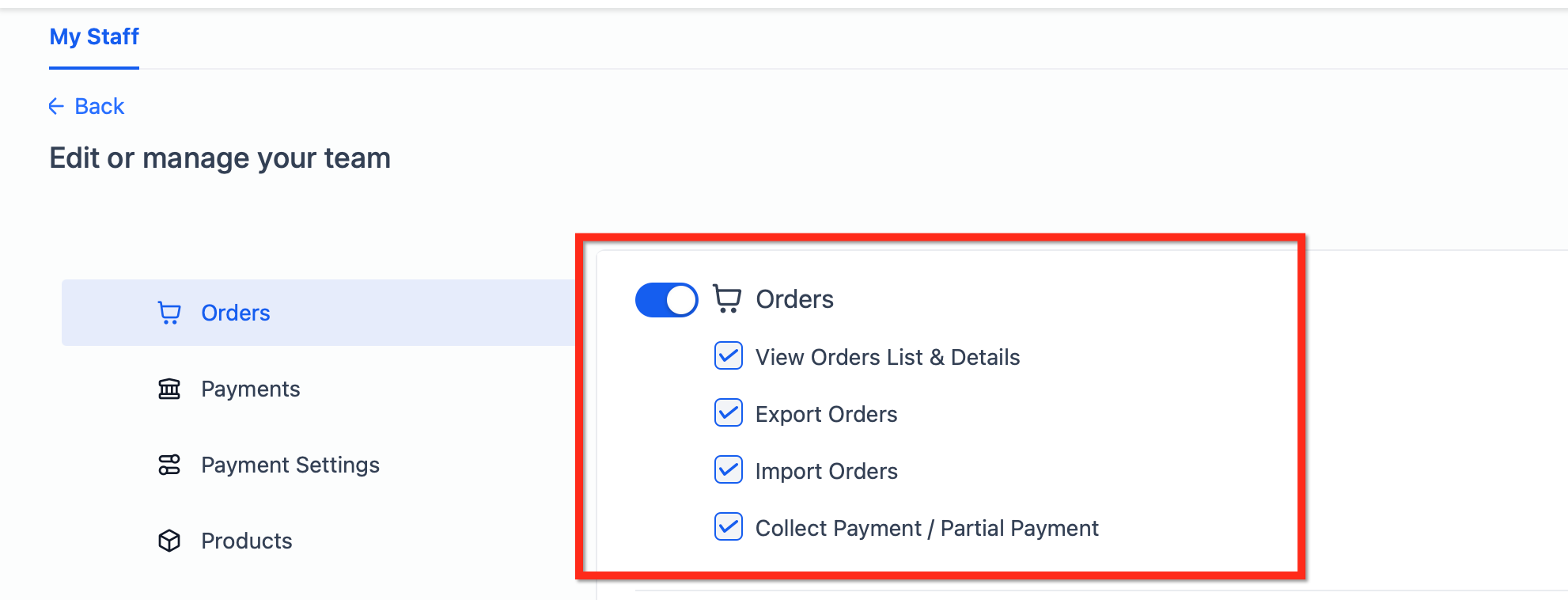
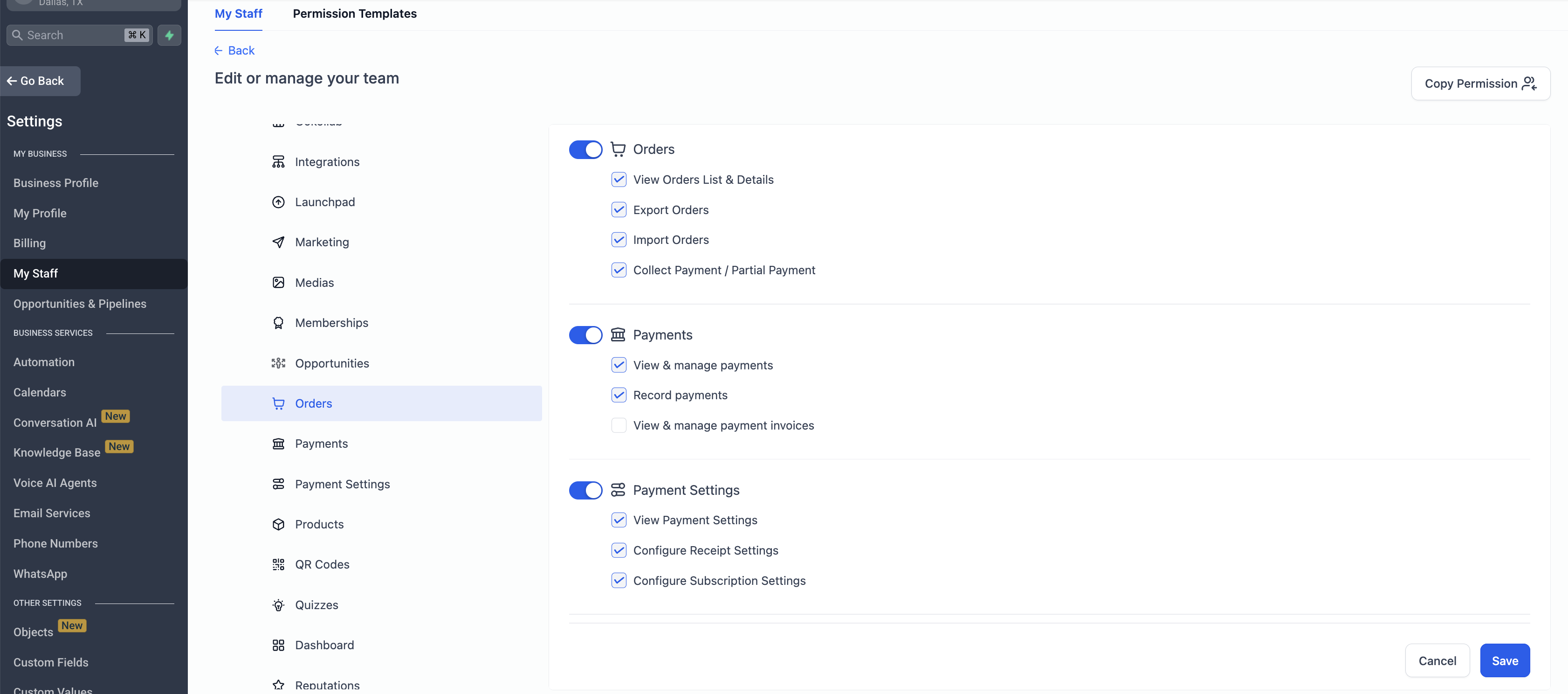
Recommended role fit: Front desk or billing support who need to look up orders, export lists, and perform limited adjustments.
Covers recurring billing lifecycles for memberships and treatment payment plans: creating plans, assigning subscriptions to patients, pausing, resuming, canceling, and updates like payment method changes. Allows staff to:
Create subscriptions
Modify subscriptions
Pause subscriptions
Resume subscriptions
Cancel subscriptions
Export subscription data
Update patient payment methods
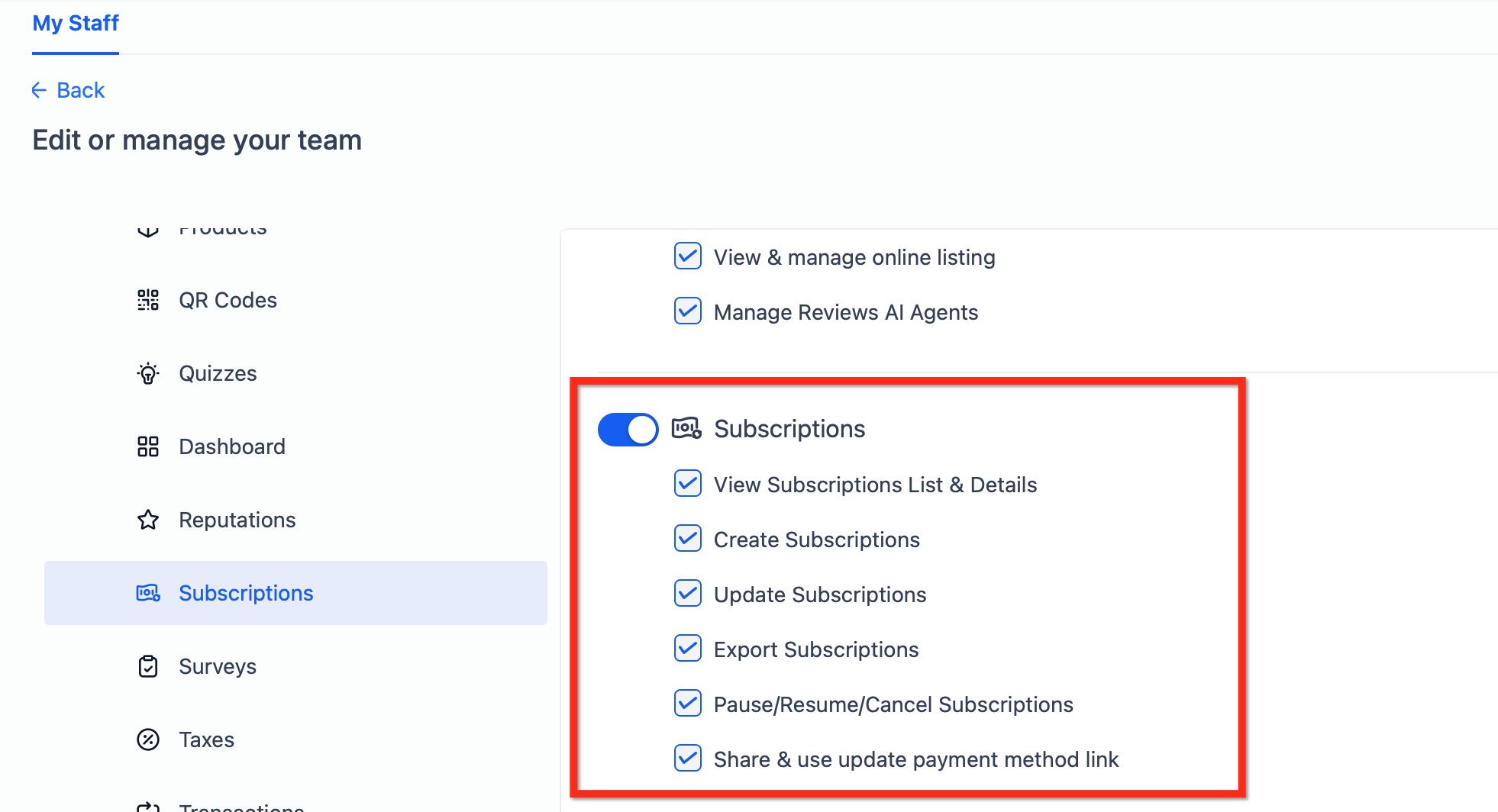
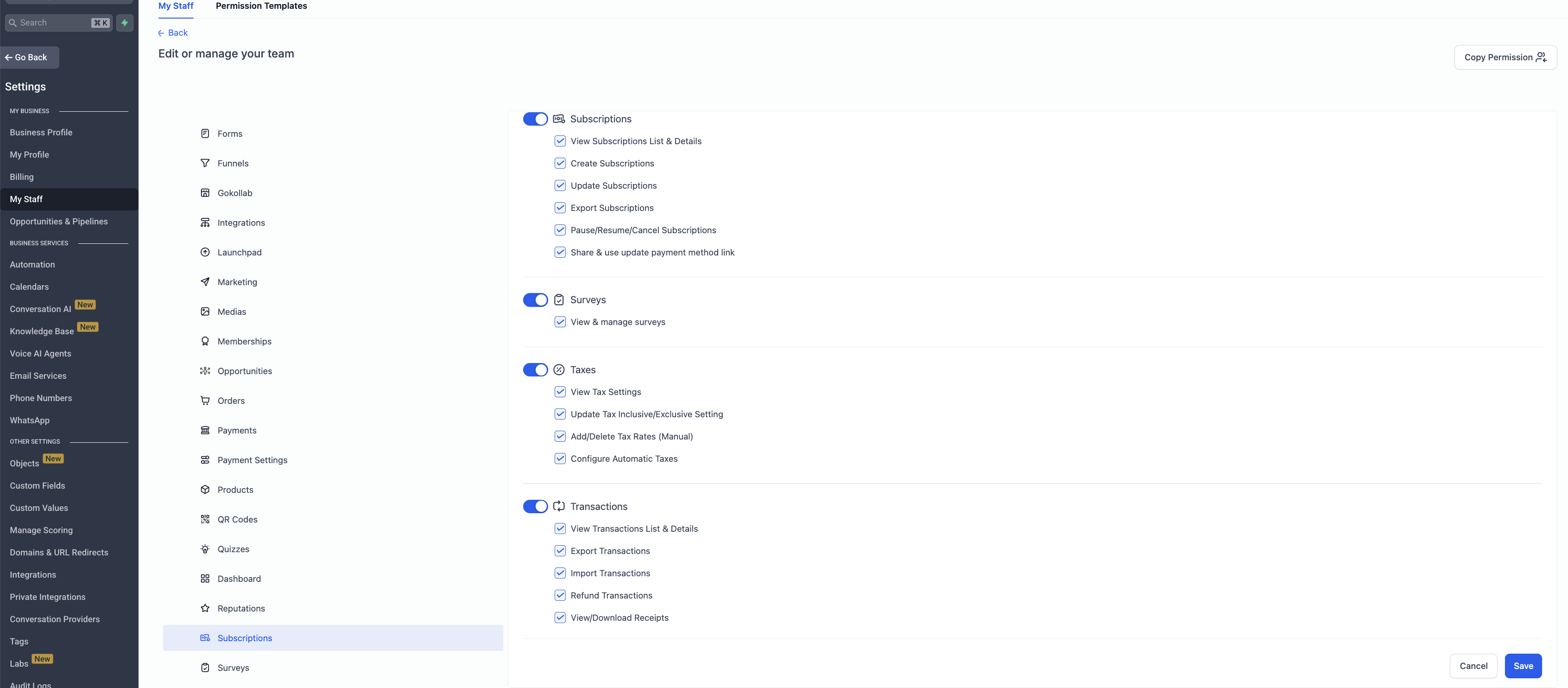
Recommended role fit: Billing staff and account managers who own membership health and retention. Grant View to support and limit Create, Update, and Cancel to designated owners.
Applies to completed payments and refunds. These are sensitive because they allow refunding money and downloading official receipts, so keep tight control and separate "view" from "refund" where possible. Allows staff to:
View transactions
Issue refunds
Export transaction records
Import transactions
Download receipts
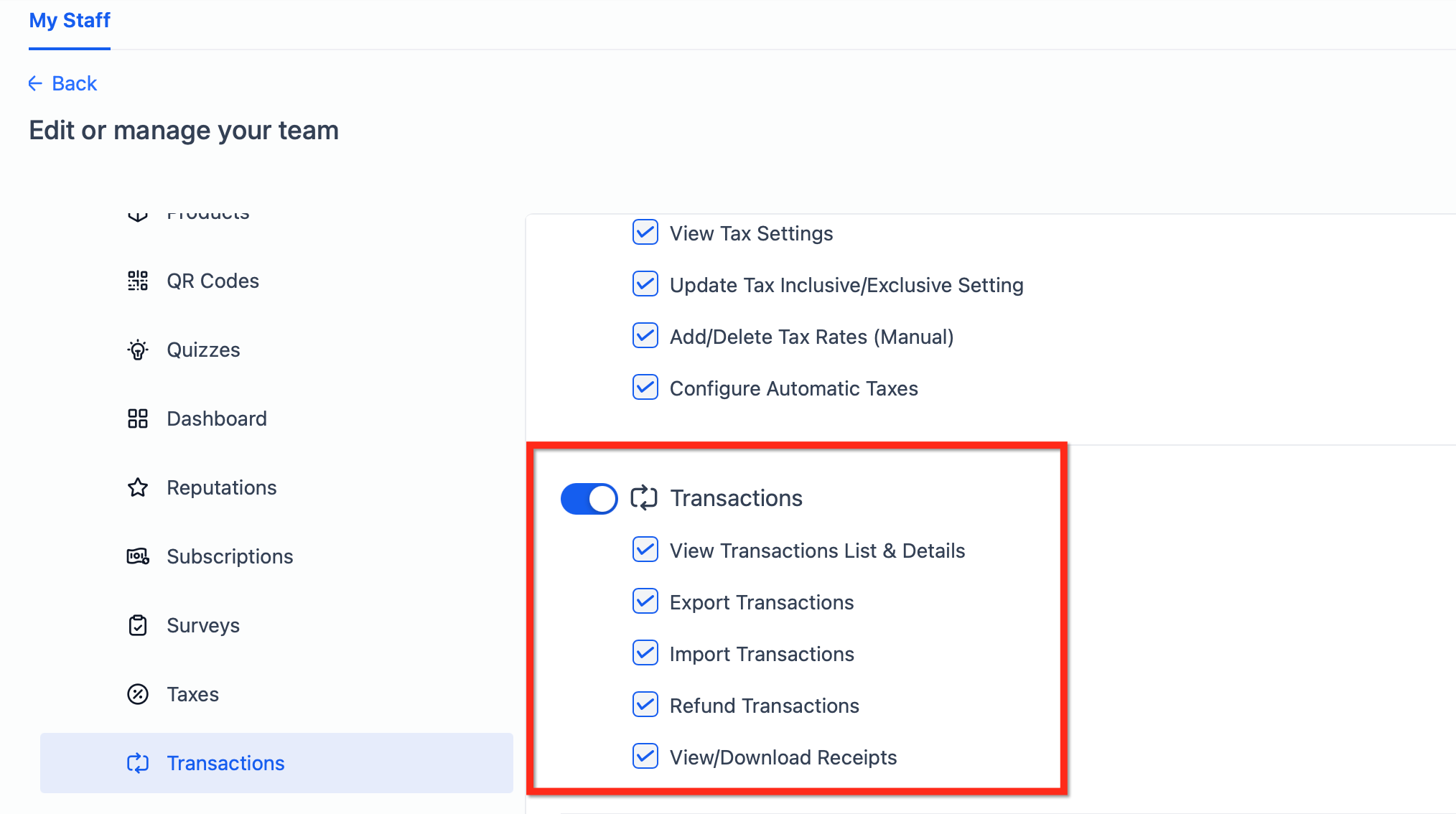
Recommended role fit: Billing support for research (View, Export, Receipts) and finance leads for refunds. Restrict refund rights to finance staff only.
Controls who can configure or adjust tax behavior, including manual rates and automatic tax calculation. Because tax settings impact compliance, reserve these for finance owners. Allows staff to:
View tax settings
Configure tax settings
Add manual tax rates
Delete manual tax rates
Enable automatic tax calculations
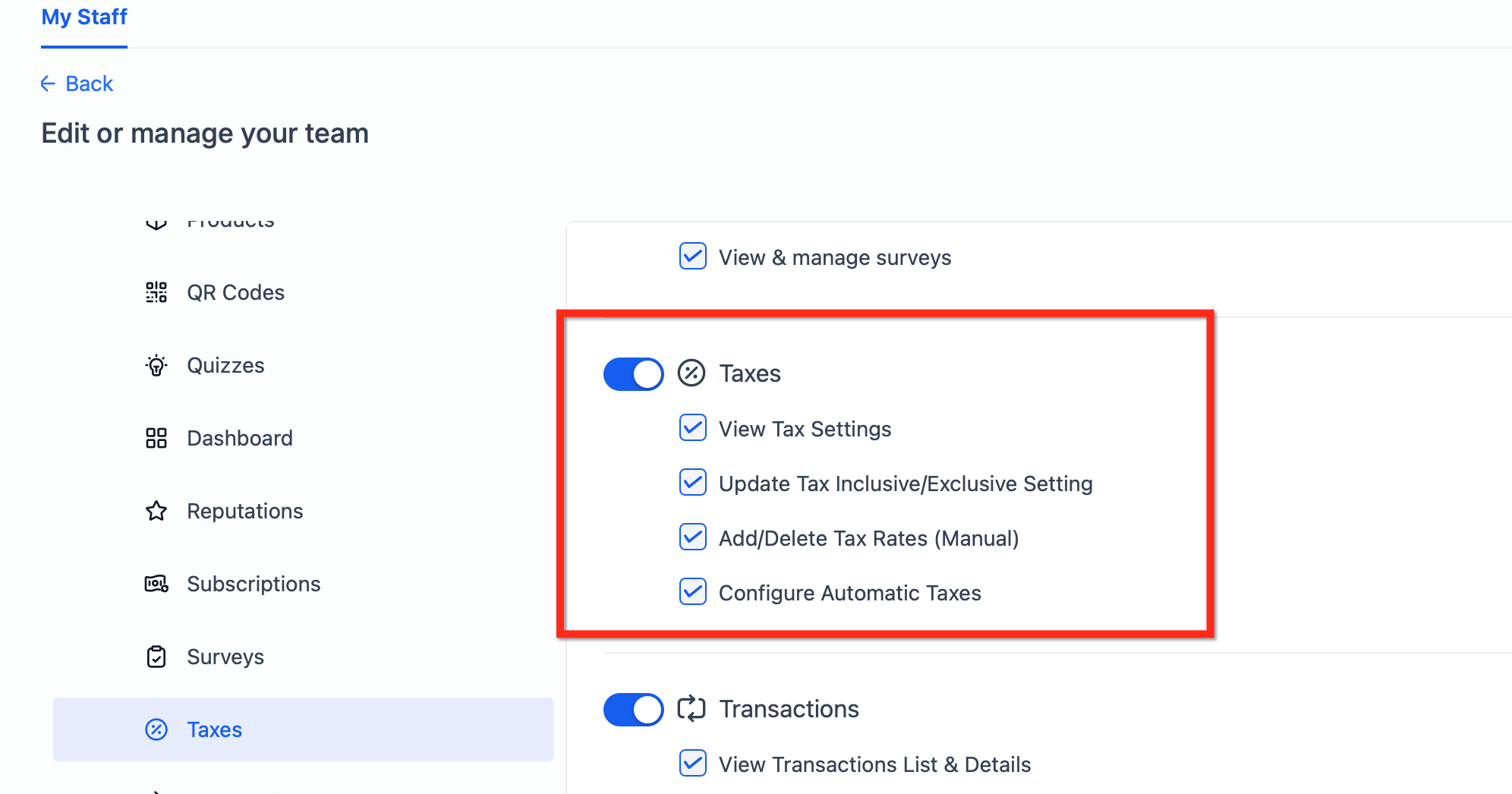
Recommended role fit: Accountant, controller, or finance admin responsible for compliance. Avoid granting Configure or Delete to non-finance staff.
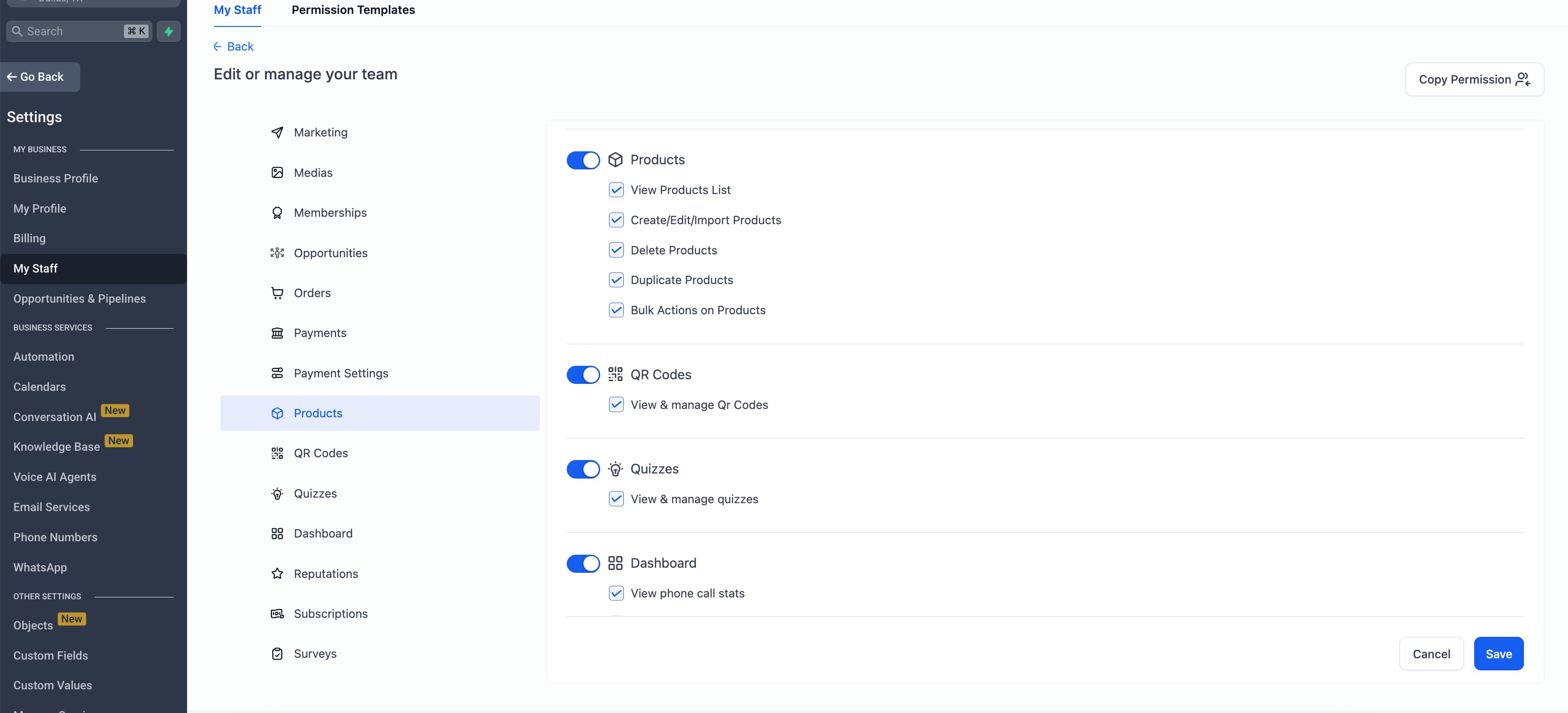
Determines who can create, edit, duplicate, import, export, or delete products. These changes cascade to Payment Links, stores, and checkout pages, so limit destructive actions and require review for catalog changes. Allows staff to:
View products
Create products
Edit products
Import products
Duplicate products
Perform bulk product actions
Delete products
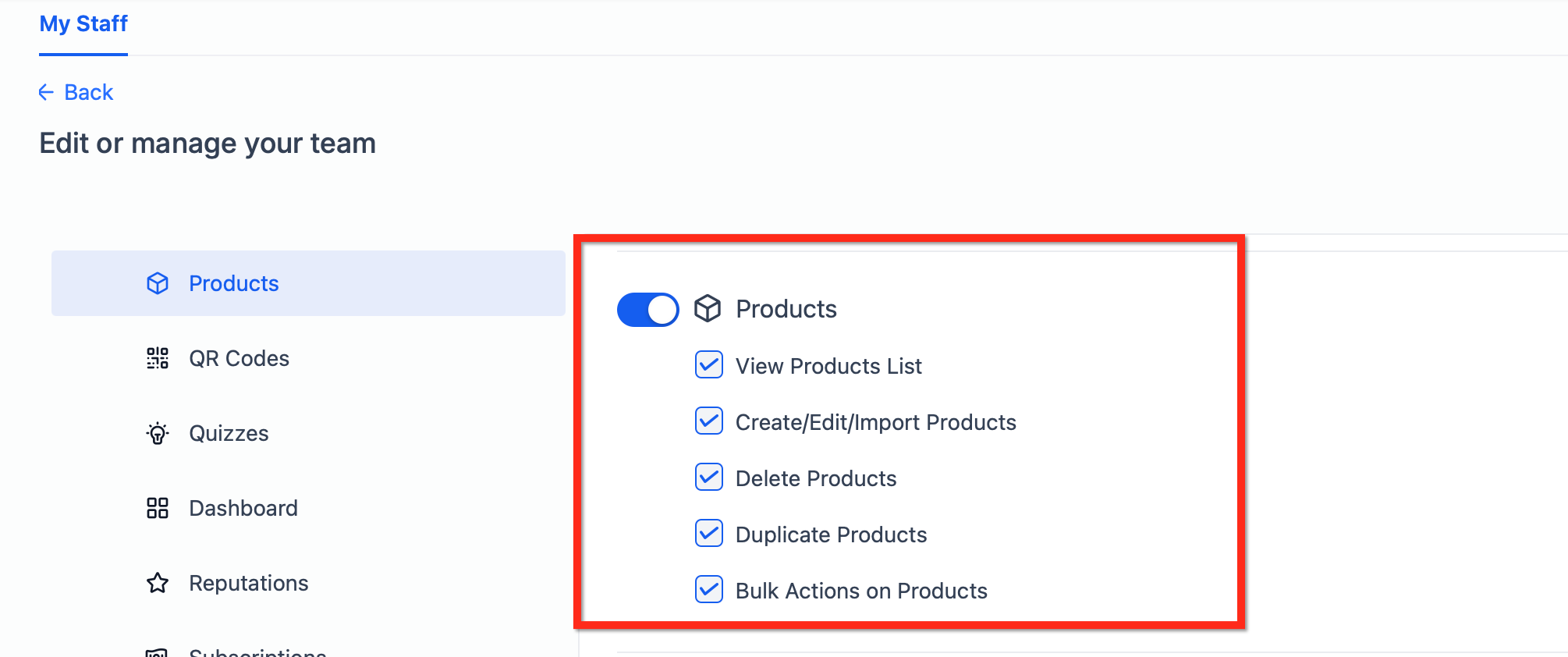
Recommended role fit: Store or catalog owner for day-to-day updates. Reserve Import, Export, and Delete for administrators.
Covers global payment preferences such as receipts, subscription defaults, and payment-related notifications. These shape the patient experience and should be restricted to administrators. Allows staff to configure:
Payment receipts
Subscription defaults
Other payment-related system settings
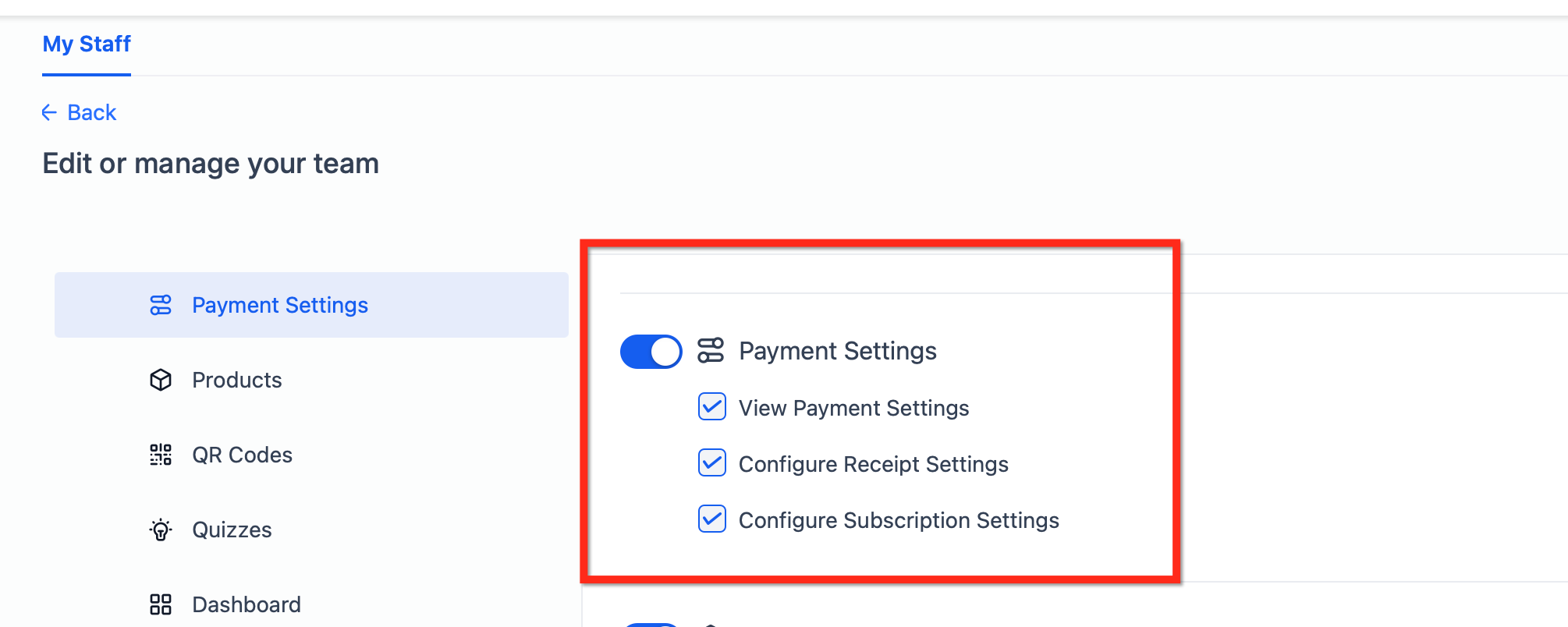
Recommended role fit: Administrators or finance owners who manage receipts, defaults, and notifications. Keep configuration centralized.
To configure payment permissions, you need:
Access to Settings > My Staff
Permission to edit staff roles
A clear understanding of which staff members should manage each payment module
A staff member or role to assign permissions to
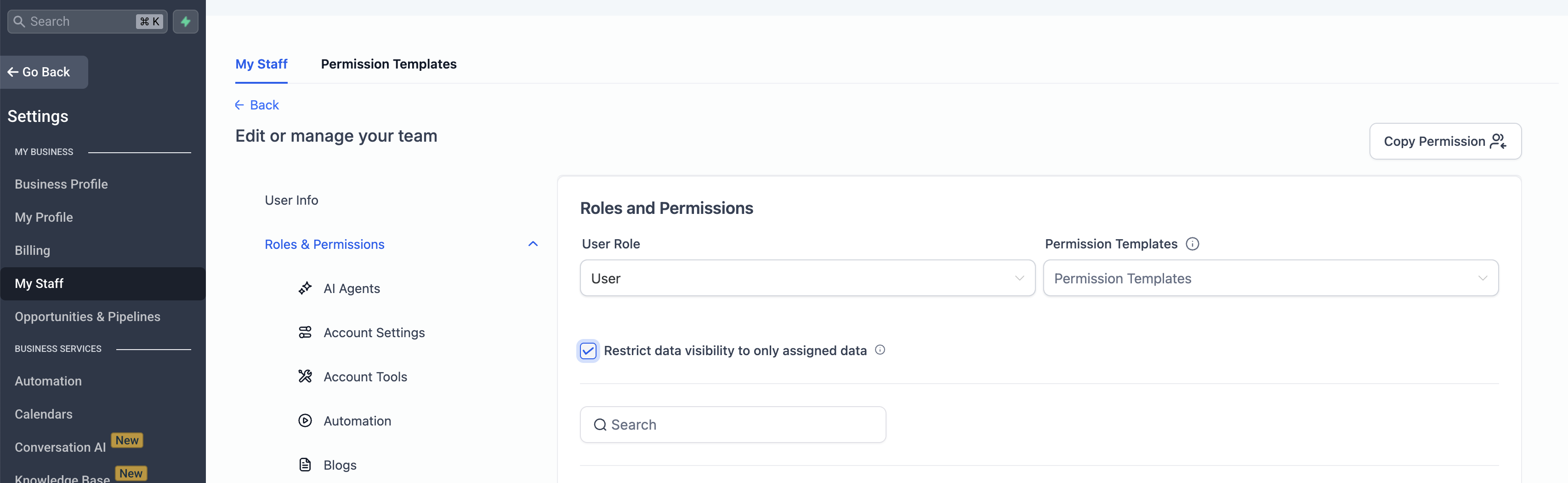
Step 1: Open Roles & Permissions.
Go to Settings > My Staff.
Click the pencil (Edit) icon next to the staff member you want to update.
Expand the Roles & Permissions section.
Step 2: Configure the six payment modules.
For each module (Orders, Subscriptions, Transactions, Taxes, Products, Payment Settings), toggle the actions the role needs (View, Create, Update, Delete, Export, Configure). Dependencies are handled automatically: if a required base permission is missing, related actions are disabled. Some bulk, import, and export actions may be unavailable to staff without Create or Update privileges.
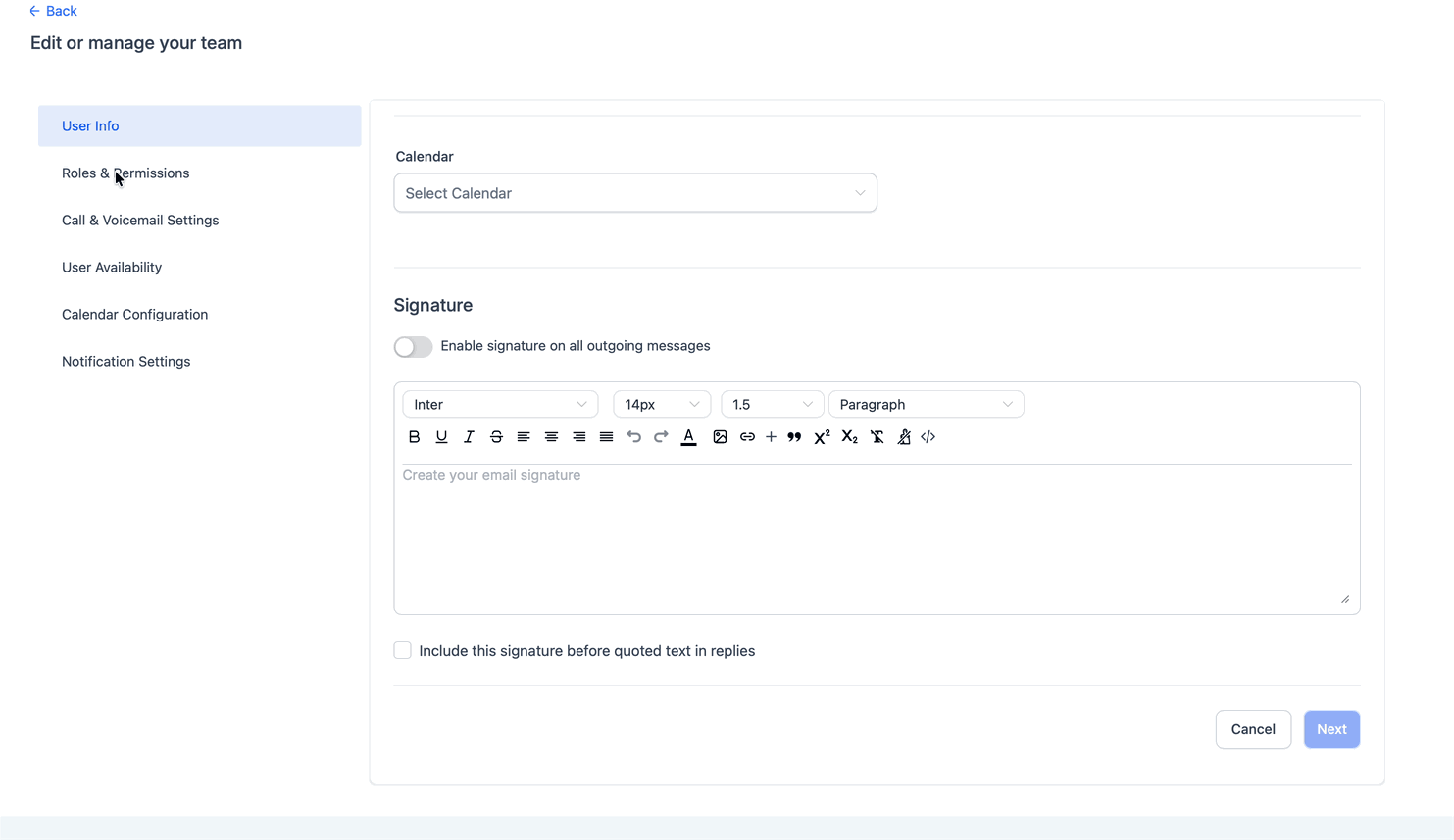
You can also modify multiple payment permissions at once and apply Assigned Data Only permissions for specific staff members, limiting them to records assigned to them.
Step 3: Save.
Click Save to apply the changes. Once saved, the updated permissions immediately apply to the user across all modified modules.
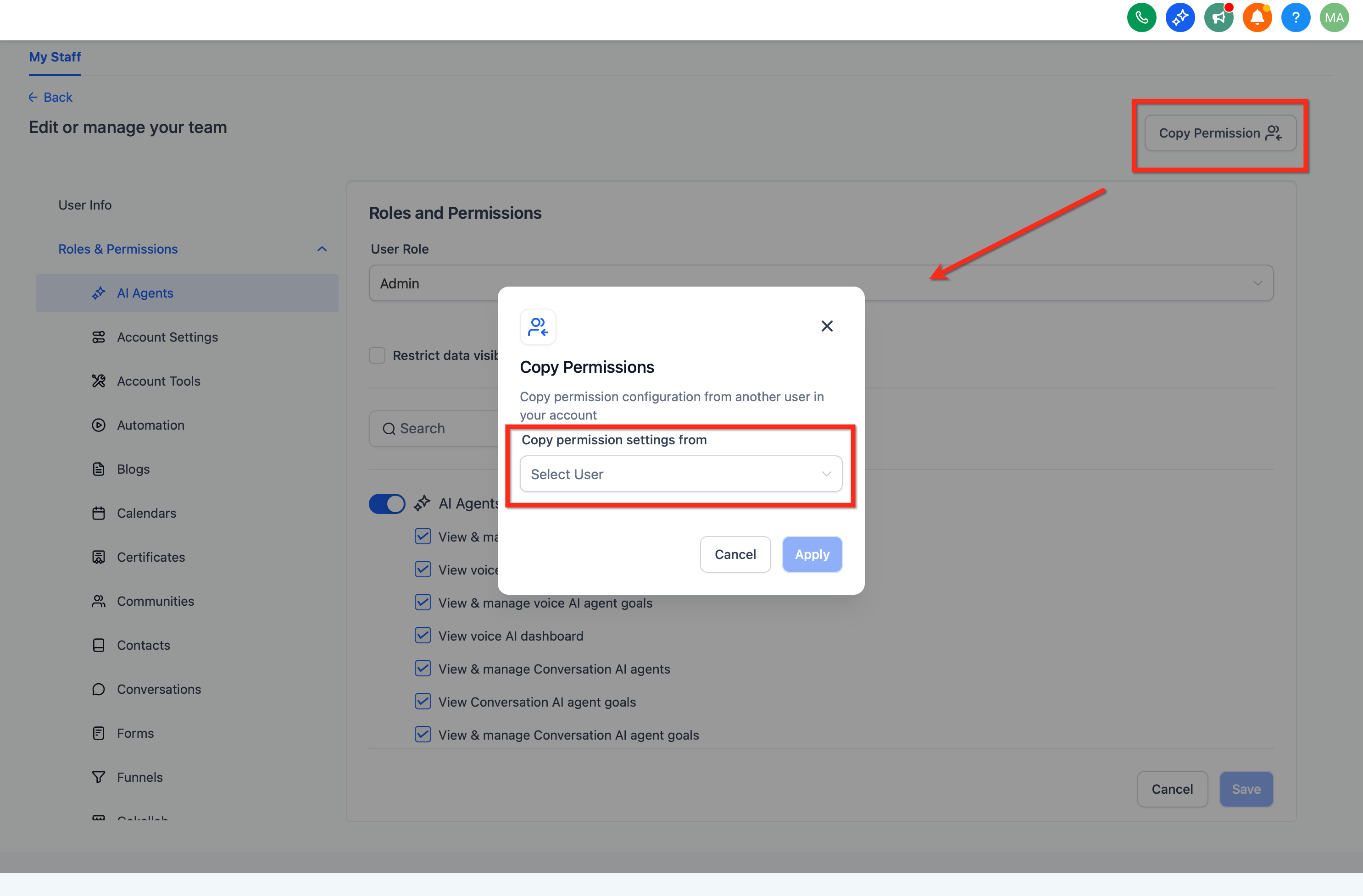
Step 4 (optional): Copy the configuration to another user.
Click Copy Permissions to apply the same configuration to another staff member. This is the fastest way to replicate a tested setup across similar roles.
Have the staff member sign out and back in if needed, then validate access using a test record (for example, open a product or view a transaction).
These presets map common practice roles to safer permission sets. Treat them as starting points and adapt to your practice's policies.
Role | Module | Actions | Notes |
|---|---|---|---|
Billing Support | Transactions | View, Export, Download Receipt (Refund OFF) | Allow research and receipts without refund authority. Elevate temporarily if a supervised refund is required. |
Subscriptions | View, Pause/Resume/Cancel | Avoid Create/Update/Cancel unless trained to manage lifecycle changes. | |
Orders | View, Export | Useful for answering order status questions. | |
Products | View | Catalog visibility only, no edits. | |
Payment Settings | None | Keep configuration with admins and finance. | |
Front Desk / Store Manager | Orders | View, Export, Update (Create optional, Delete OFF) | Supports adjustments. Keep Delete to admins. |
Products | View, Update (Create for catalog owner; Import/Export/Delete OFF) | Bulk and import may require Create/Update; restrict to trained owners. | |
Transactions | View | No refund capability. Escalate refund requests to finance. | |
Subscriptions | View (optional) | Context only; lifecycle changes handled by billing. | |
Account Manager | Subscriptions | View, Create, Update, Pause/Resume/Cancel, Export | Owns membership health, renewals, and retention; manages card updates when required. |
Transactions | View | Research billing history; no refunds. | |
Orders | View | Context for patient conversations. | |
Products | View (optional) | Read-only product context for pricing discussions. | |
Accountant / Controller | Transactions | View, Export, Refund | Refunds restricted to finance leads; monitor via Audit Logs. |
Taxes | View, Configure, Update, Delete | Sensitive. Limit to qualified finance staff; deleting or replacing rates requires care. | |
Payment Settings | Configure, Update | Controls receipts, defaults, and payment notifications. | |
Orders | View | Read-only operational context. | |
Products | View, Export (optional) | Export for reconciliation; avoid edits unless necessary. | |
Administrator | All modules | View, Create, Update, Delete, Export, Configure (as applicable) | Full control for a minimal, trained admin group. Use Delete sparingly; enforce change management and reviews. |
Tip: Use Copy Permissions on the staff record to replicate a tested configuration for similar roles.
What happens if I enable bulk product actions without Create or Edit?
Bulk actions are automatically disabled. The required base permissions must be enabled first.
Where do I find these permission settings?
Go to Settings > My Staff, click the Edit icon next to the staff member, and expand Roles & Permissions. You will see the six payment permission modules available for configuration.
Do permissions affect CSV imports and exports in Payments?
Yes. Import and export capabilities can be restricted based on a staff member's assigned actions and role. If someone cannot see bulk tools, review their Create, Update, and Export permissions for that module.
Can someone research transactions without being able to refund?
Yes. Grant Transactions View (and Export if needed) while limiting refund access to finance owners.
Will disabling Products permissions break existing checkout or payment links?
No. Live checkout experiences continue to sell as configured. The staff member simply will not be able to edit the underlying products or links.
Where can I see who changed a product, tax setting, or payment preference?
Use Audit Logs to review staff actions and changes. Asset-level audit logs are also available for funnels, websites, and stores.
What should I do if a staff member reports that buttons are greyed out in Payments?
This usually indicates insufficient permissions for Create, Update, or Export in that module. Review their role configuration, or temporarily test with an admin role to confirm.
Do Taxes permissions include automatic calculation features?
Yes, where available. Finance owners can enable and manage automatic tax calculation. Make sure addresses are captured on the payment experience for accurate results.
