Follow-ups rarely live in one place. A single task might touch a patient's contact record and the opportunity tracking their treatment package at the same time. Aesthetix CRM gives you one consistent task interface across contacts and opportunities, so you can create, filter, edit, and manage tasks the same way no matter where you are working. You can also link a single task to more than one record, so everyone involved sees the same to-do without anyone cloning it.
The task panel works the same whether you open it from a contact or from an opportunity. On a contact record, the task panel lets you create, view, and manage tasks tied to that patient. On an opportunity record, the same panel manages tasks tied to that specific deal or pipeline stage, using the identical layout, filters, and options.
Key benefits:
Consistent interface across modules: tasks look and function the same whether you are working from a contact or an opportunity, which standardizes how your team handles follow-ups.
Simplified task creation: a clean task form with clearly labeled fields for title, description, due date, and assignee.
Recurring task options: set tasks to repeat on a schedule to automate ongoing reminders without extra manual work.
Centralized filtering and search: built-in filters and a search bar work across all task views, no matter the module.
Quick edits: open and edit tasks directly using the unified layout.
A task in Aesthetix CRM is no longer limited to a single contact. You can connect one task to multiple records, including contacts, opportunities, companies, and custom objects, so every stakeholder gets instant visibility into the same to-do item.
You can associate up to 10 records of each type with a single task. That means one task can be linked to 10 contacts, 10 opportunities, and so on.
Benefits of linking a task to several records:
End-to-end visibility: the same task shows inside each linked record's Associated Objects panel.
Cross-team collaboration: front desk, coordinators, and providers can all follow the same action item even if they work in different areas of the CRM.
Less duplication: one task replaces the multiple copies you would have had to create for each record.
Powerful filters: narrow task lists by assignee, status, or any linked contact or opportunity.
Aesthetix CRM pre-fills sensible associations to save you clicks, and you can always adjust them:
From the Tasks list: starts with no associations, so you pick the records you need.
From a contact: pre-links that contact plus its primary company, if any.
From an opportunity: pre-links the opportunity, its primary contact, and that contact's primary company.
From a company: pre-links the company.
Edit, add, or remove associations at any time using the Associate To field.
Every contact, opportunity, company, and custom object record includes an Associated Objects section. Hover the chain-link icon in any task row to preview all linked records, and click a record name to open it in a new tab.
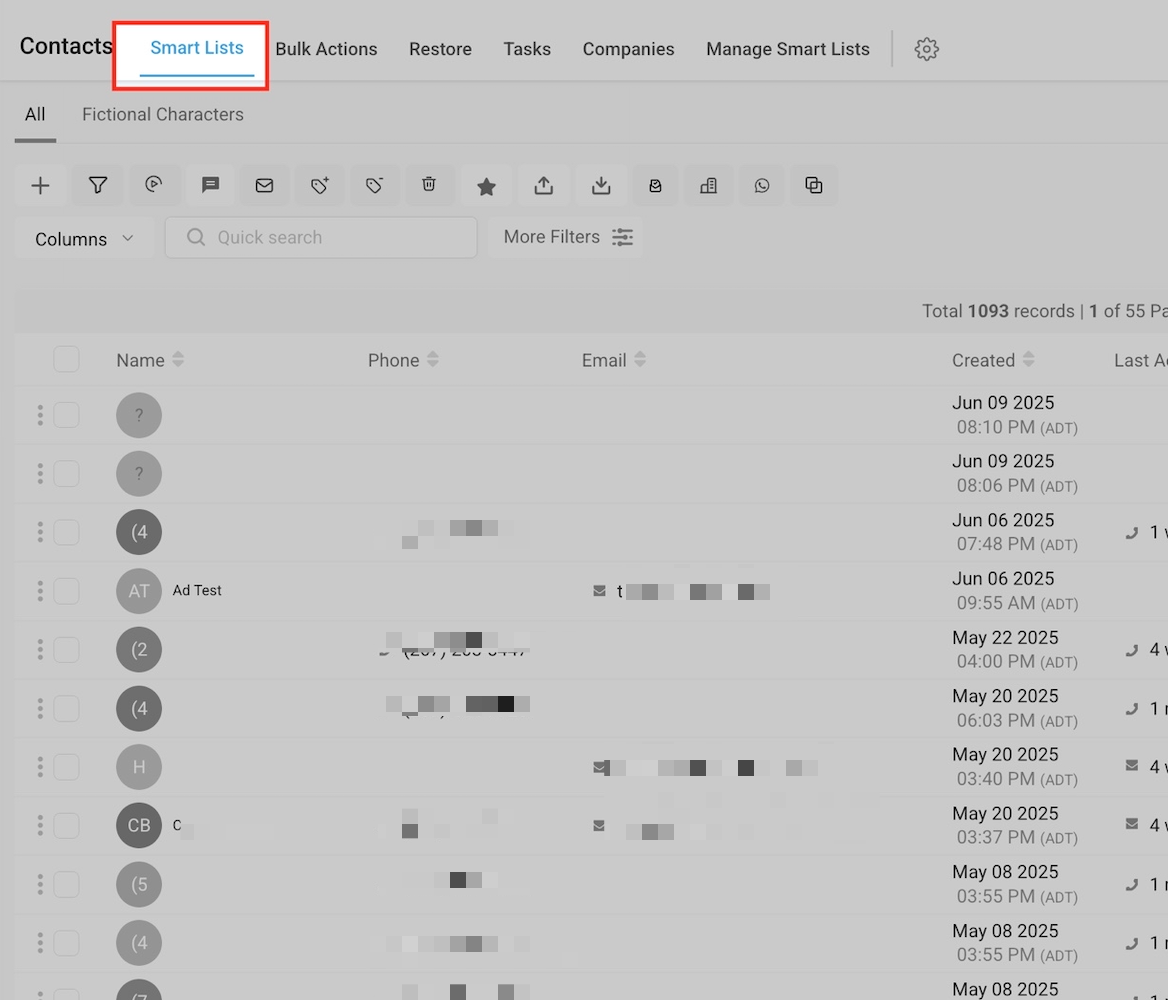
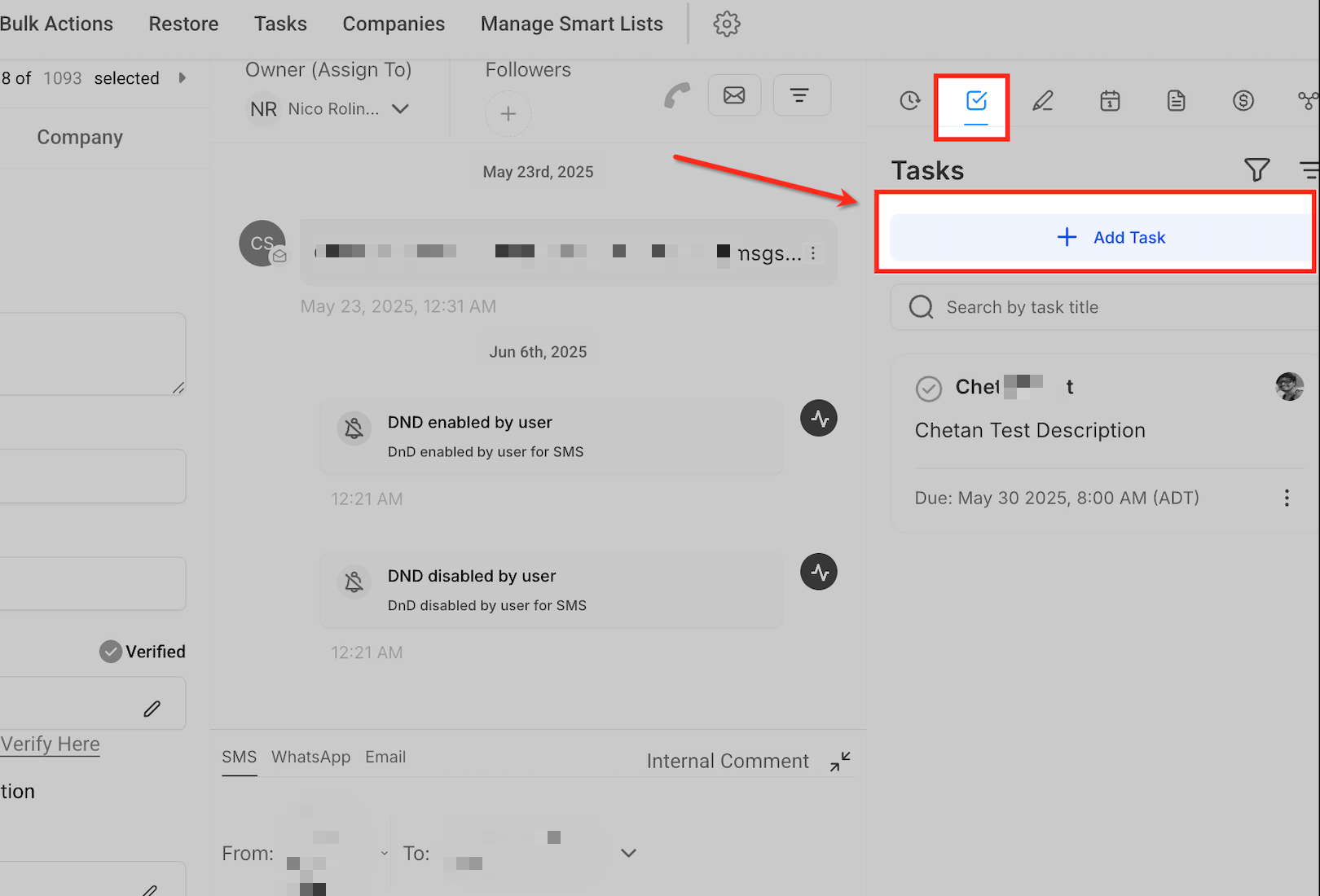
Go to the Contacts section and open a patient's record, or open an opportunity from your pipeline. To manage tasks, open the Tasks panel on the record.
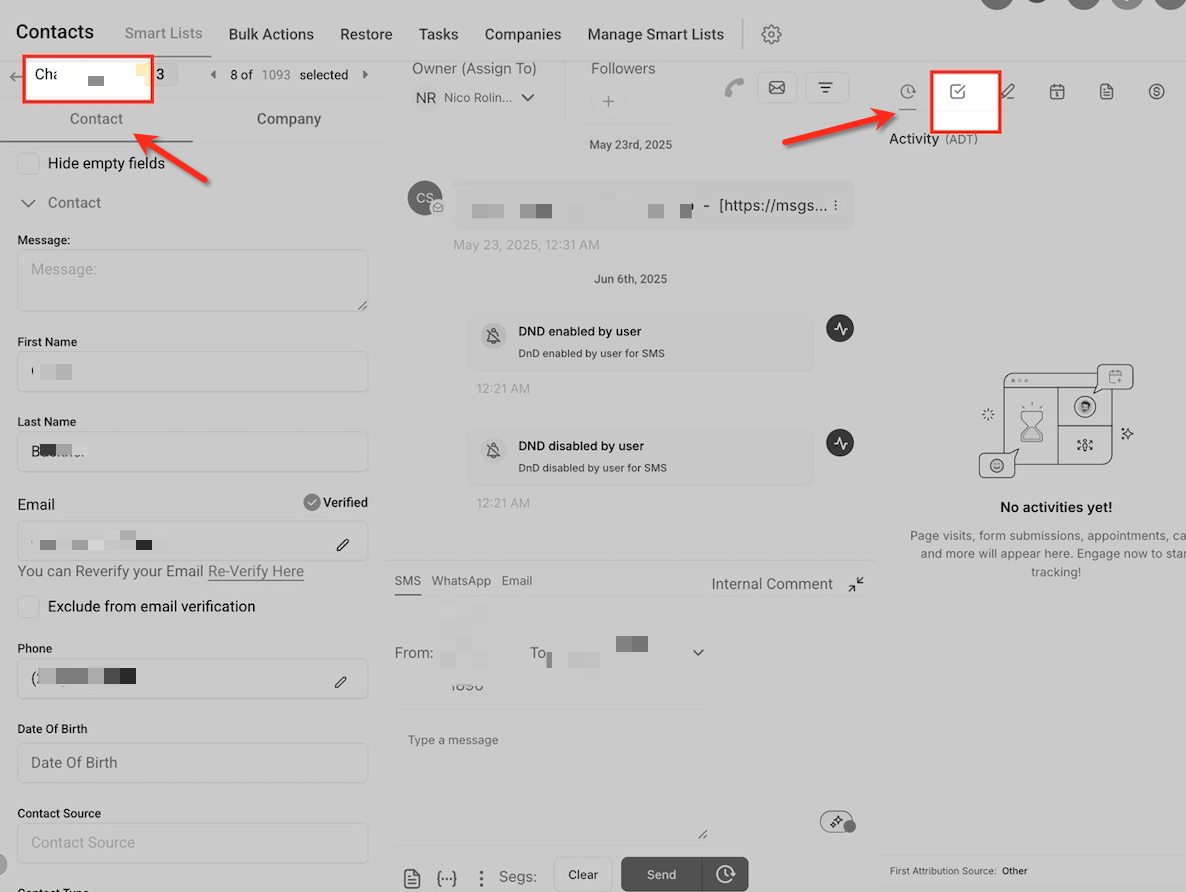
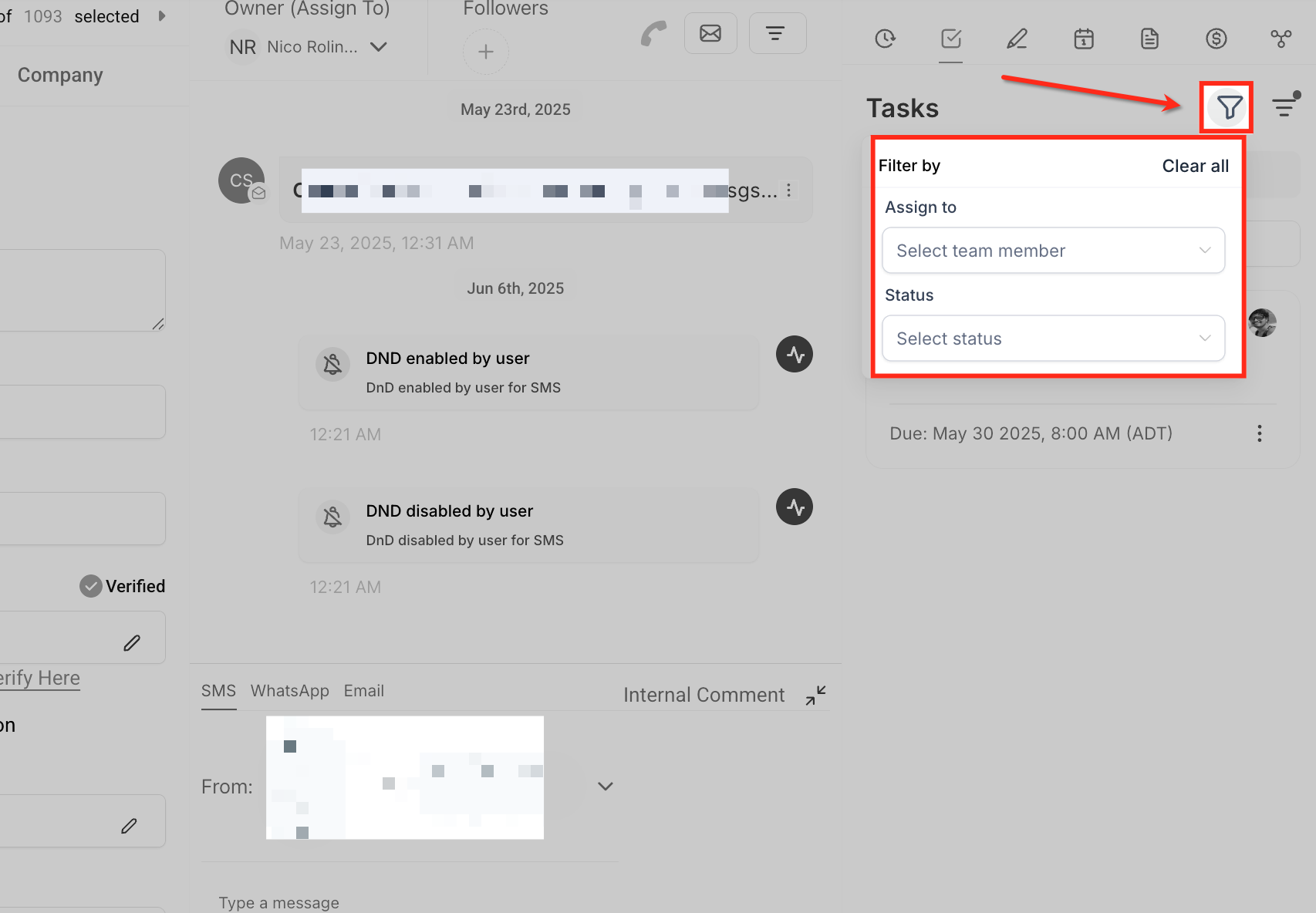
Use the filter icon to narrow your task list by assignee or status. This helps you focus on what is relevant and keeps accountability clear across your team.
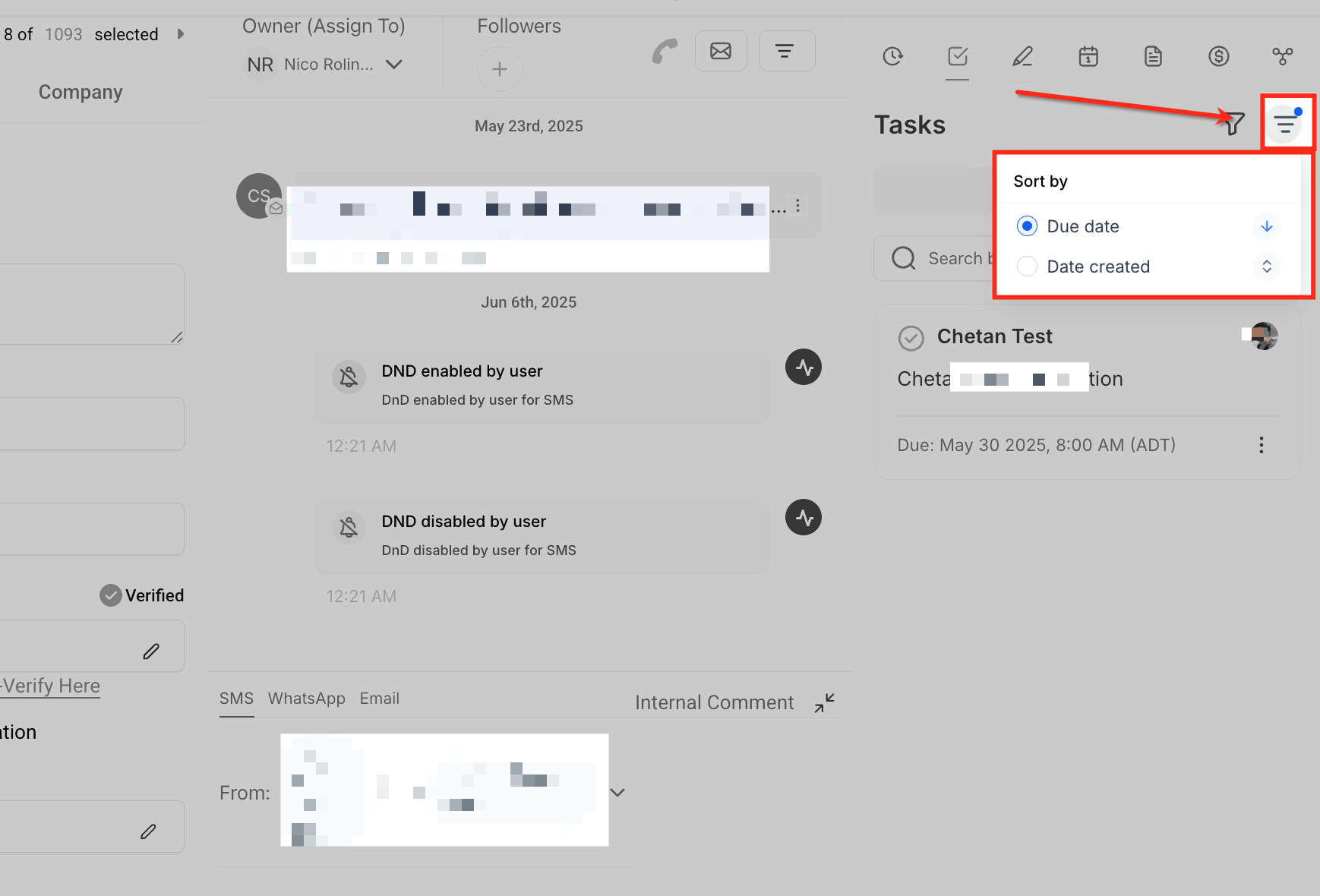
Click the sort icon to organize tasks by due date or creation date. Toggle ascending or descending order to prioritize what needs attention first.
Click the three-dot menu next to any task to edit its details or delete it from the record.
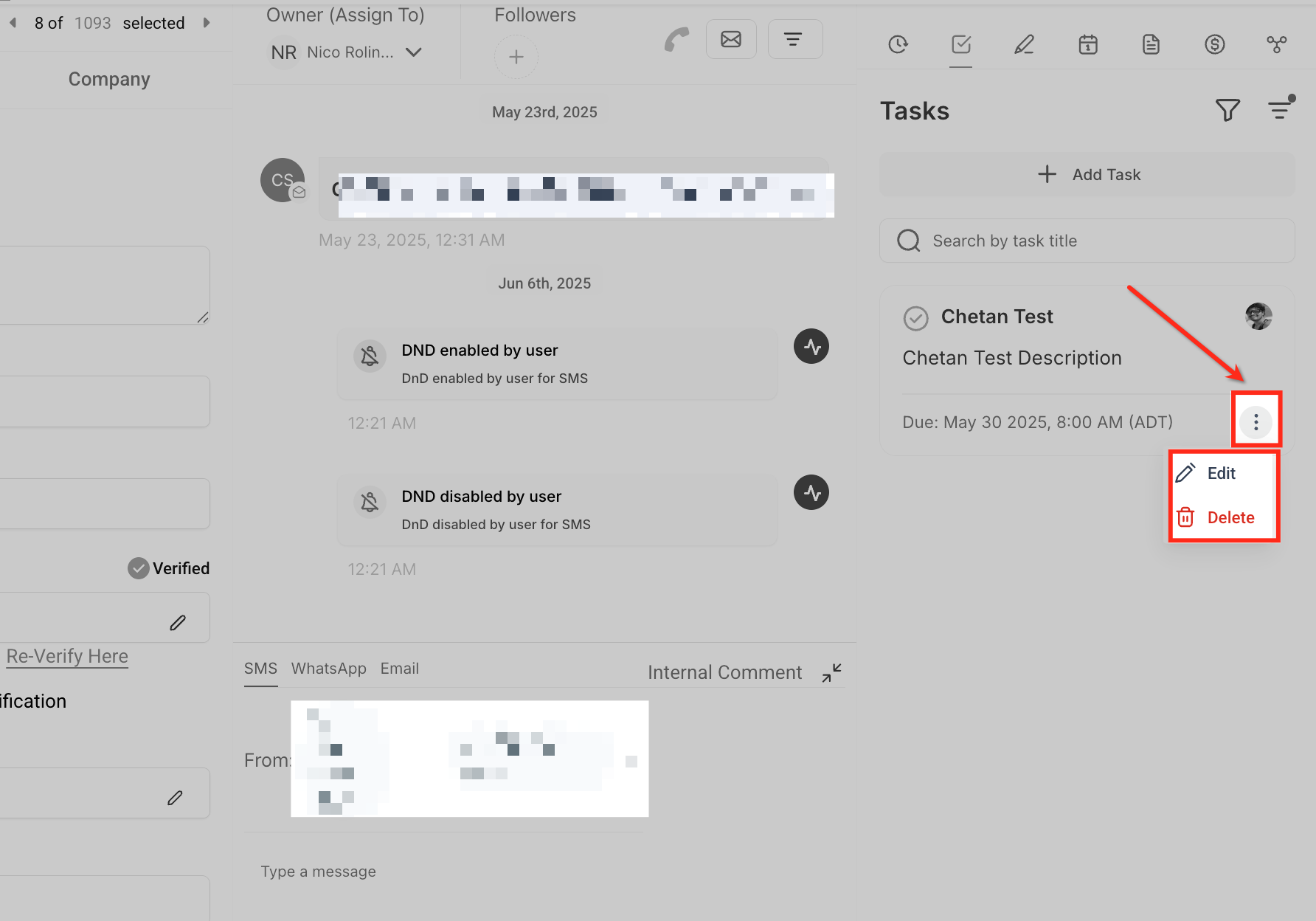
From the Tasks panel of a contact or opportunity, click + Add Task to open the full task creation form.
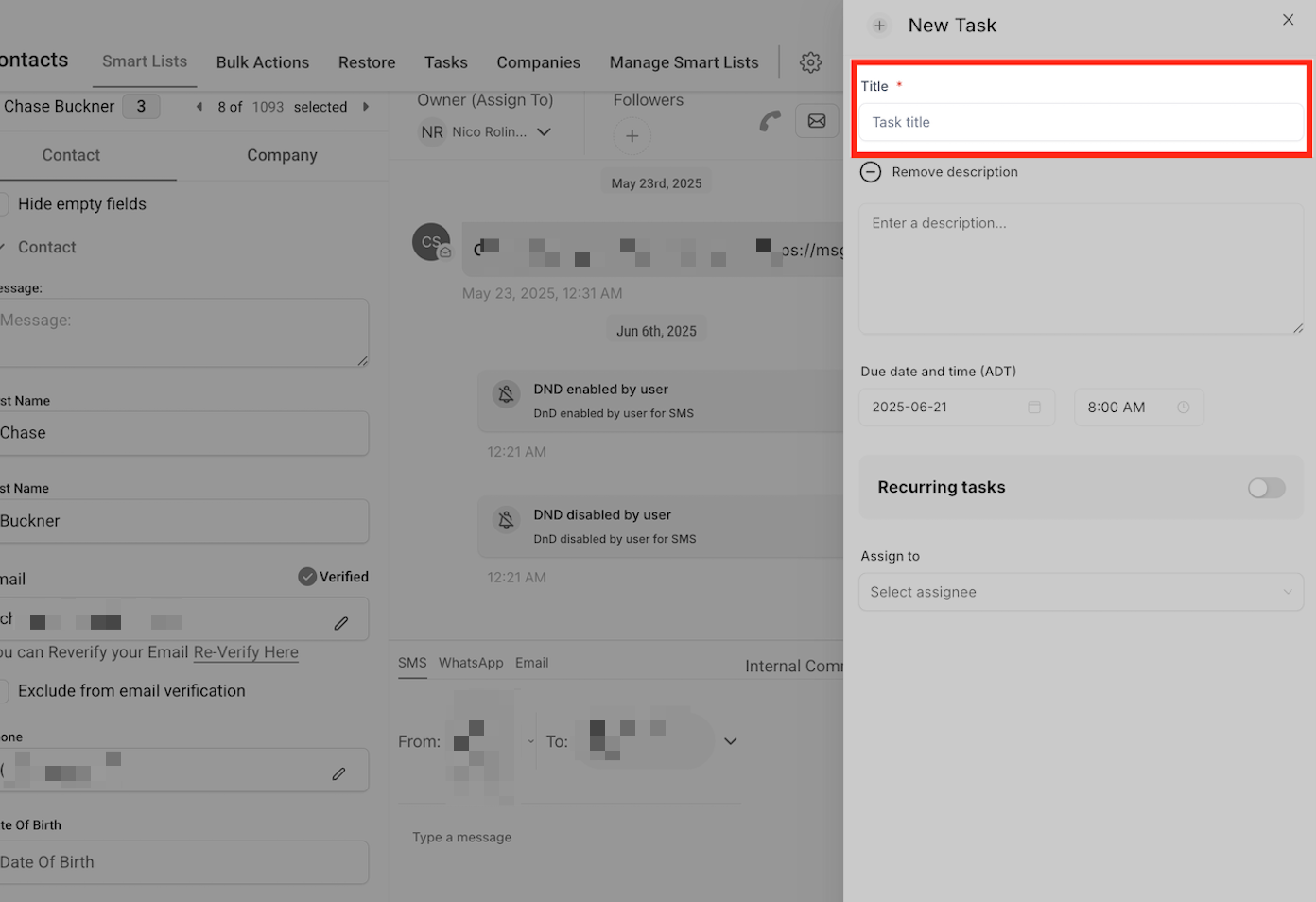
Give your task a clear, concise title in the Title field. This is required and helps identify the task in lists and filters, for example "Follow up on Botox consult for Maria L."
Click Add description to include context, instructions, or notes that help the assignee understand the objective.
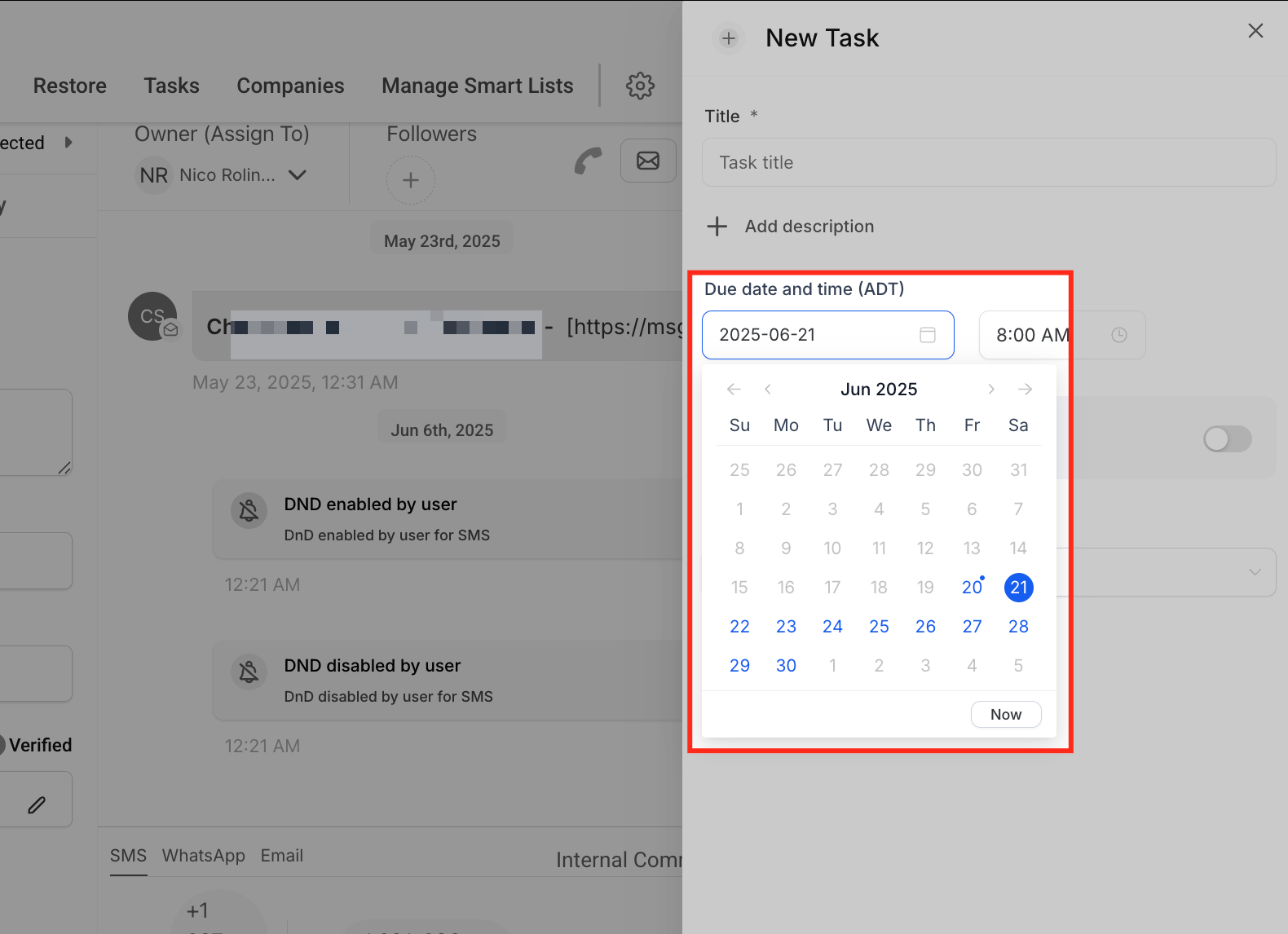
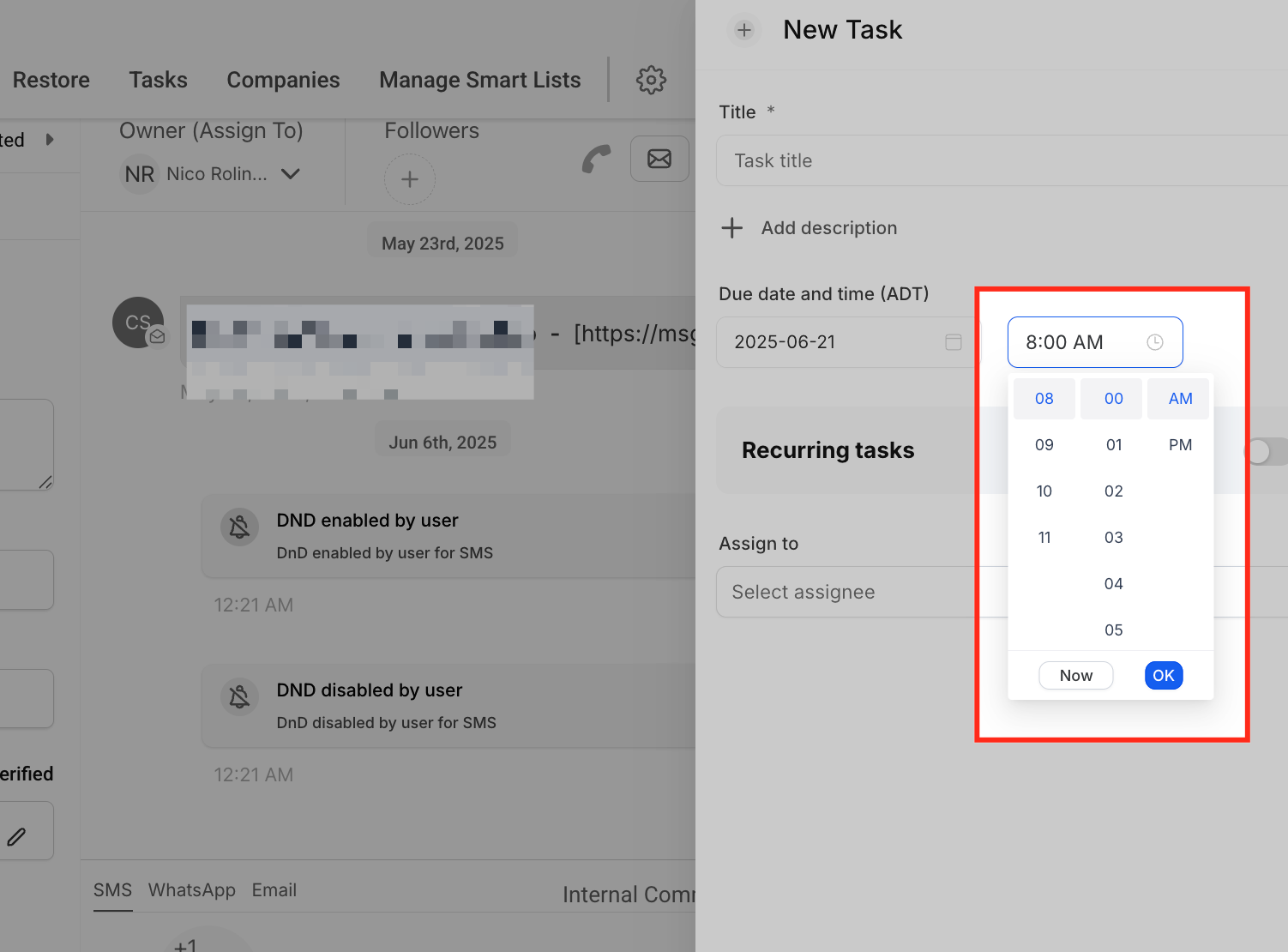
Use the calendar and time picker to select when the task should be completed.
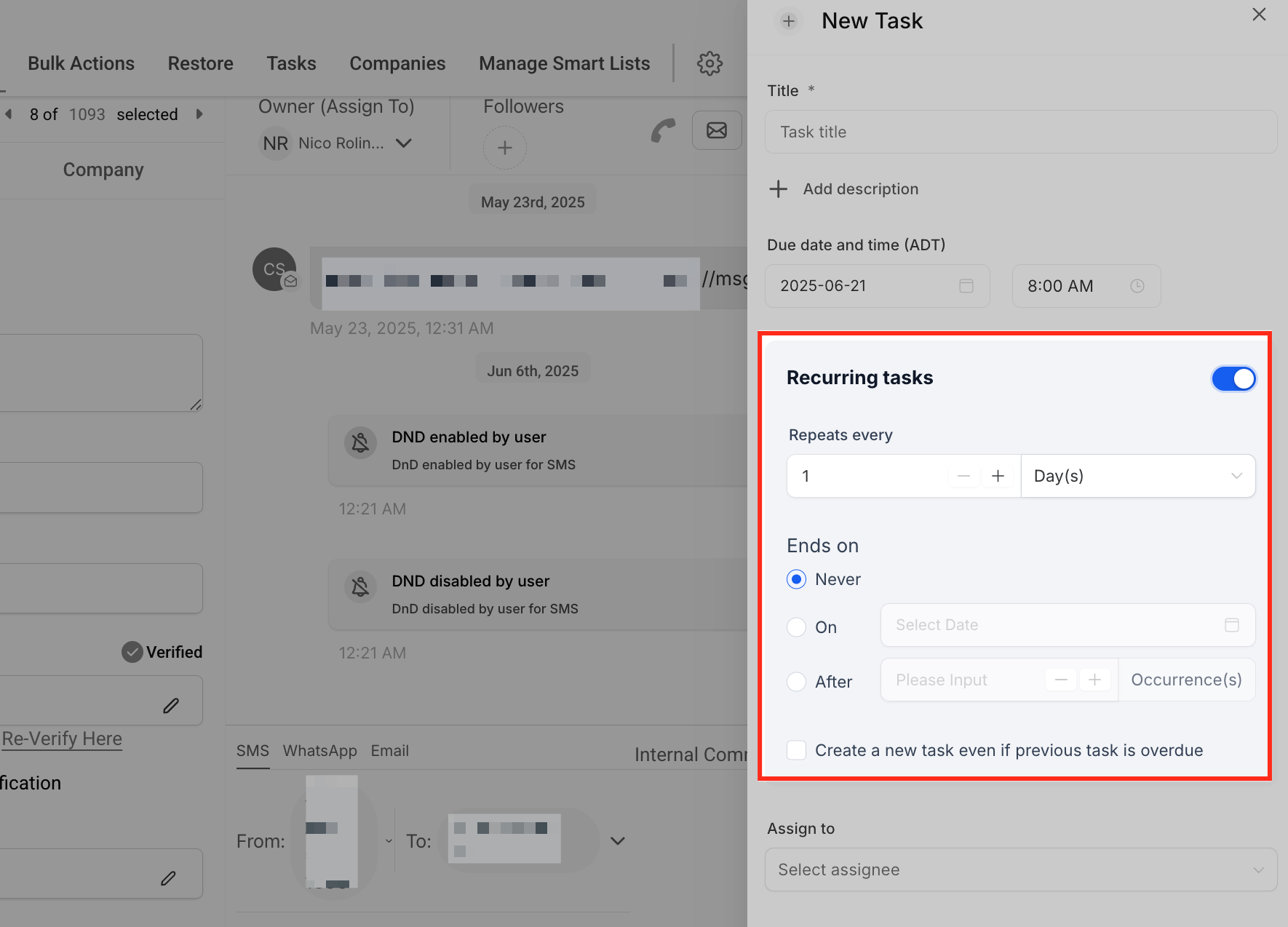
To make the task recurring, toggle on the Recurring tasks option. Use Repeats every to define how often it recurs, and under Ends on choose whether it repeats indefinitely (Never), stops on a date (On), or ends after a set number of repetitions (After). You can also enable the option to create a new task even if the previous one is overdue, so the recurrence stays on schedule.
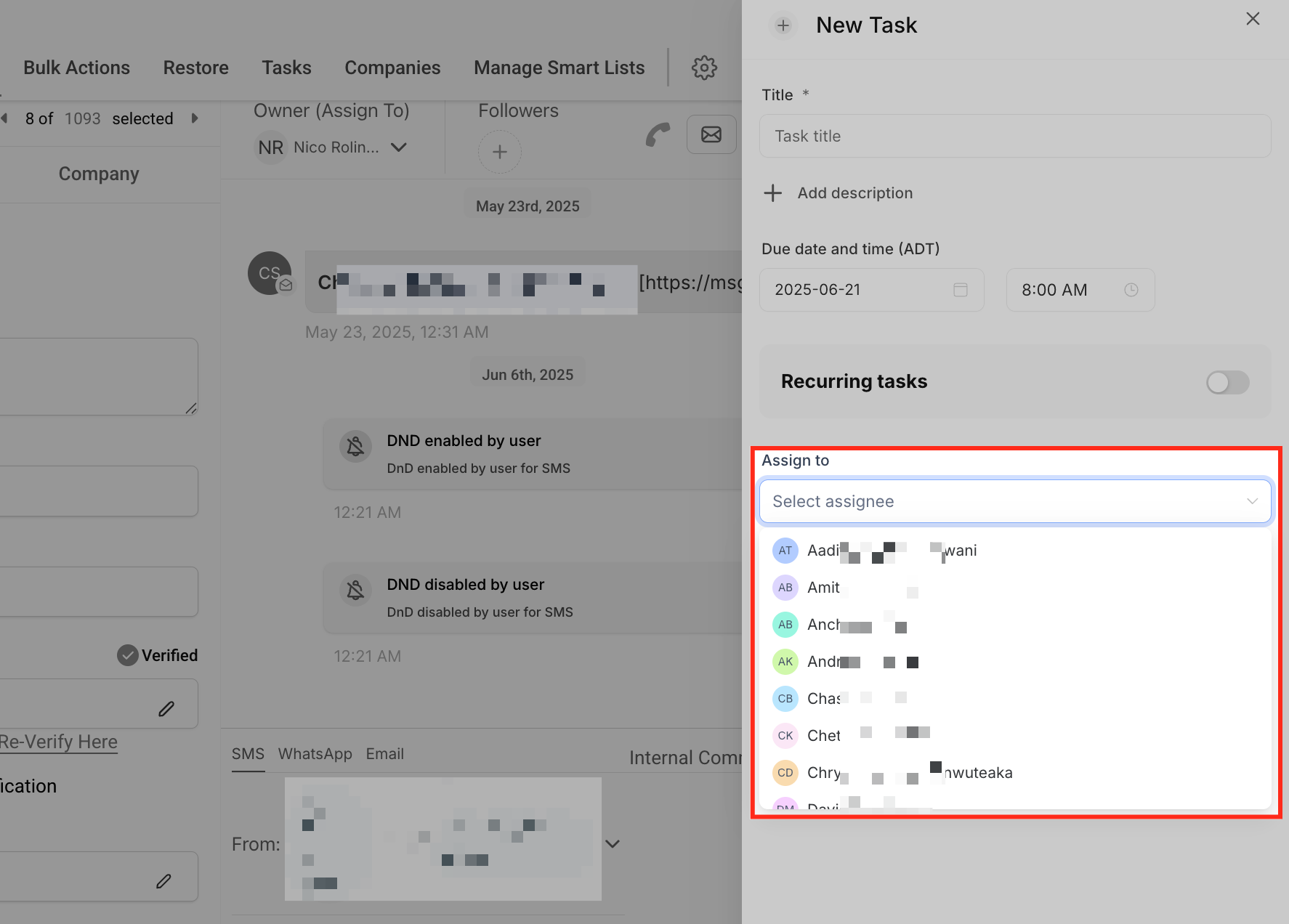
Use the Assign to dropdown to select the person responsible for the task. Assigning tasks keeps ownership of each follow-up clear.
Confirm the pre-filled associations in the Associate To field, or click + Add Association to link additional records, up to 10 per object type.
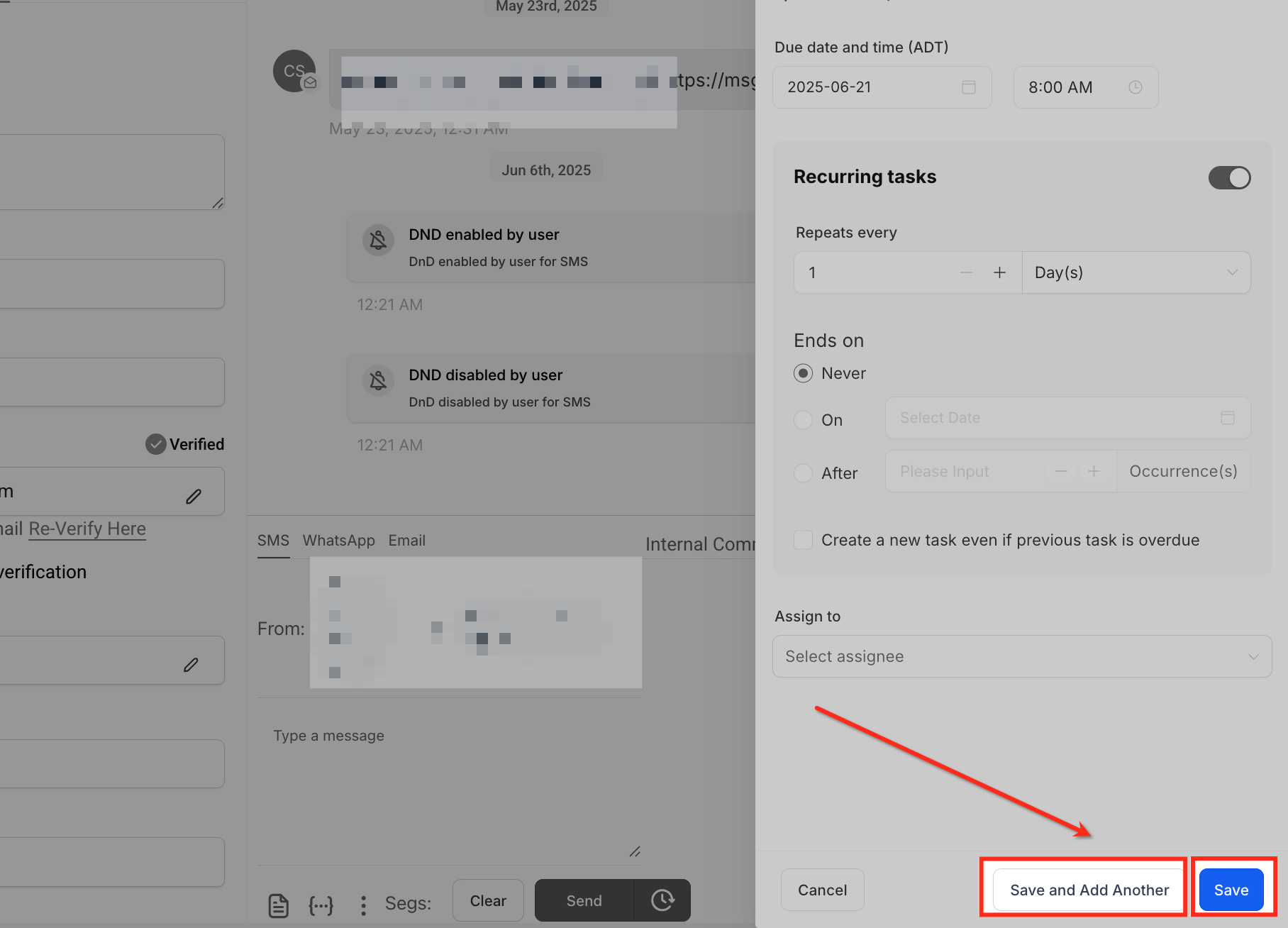
Click Save to finalize the task, or choose Save and Add Another to keep creating tasks without reopening the form.
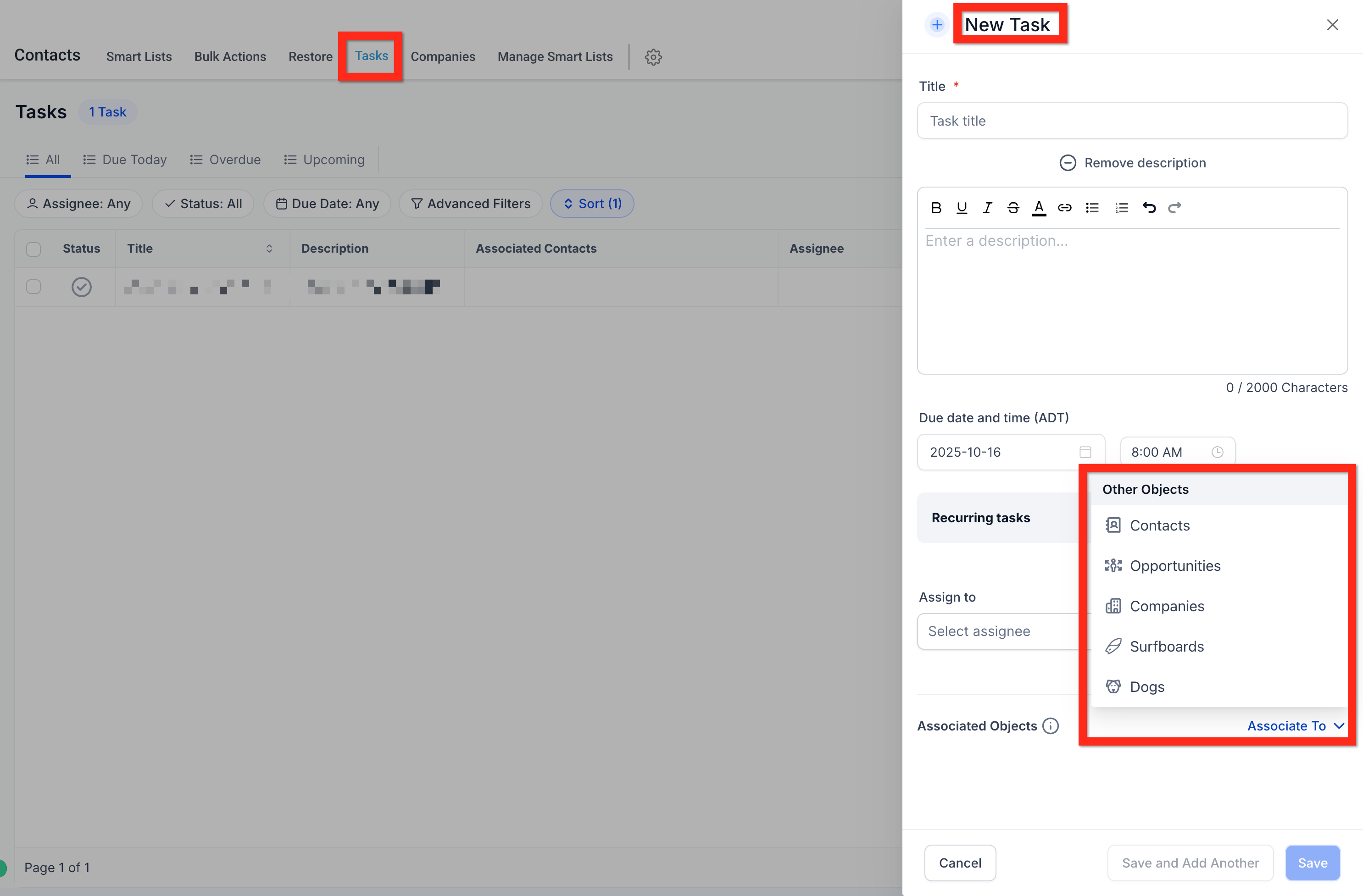
To edit associations later, open the task, click the pencil icon next to Associated Objects, adjust the links, and Save.
Because tasks can carry patient details across several linked records, only associate a task with the records that genuinely need it, and keep task titles and descriptions free of unnecessary protected health information.
Can I create and manage tasks from both contacts and opportunities?
Yes. The task panel works the same way on a contact record and on an opportunity record, so you create, filter, sort, edit, and delete tasks using one consistent interface.
How many records can I link to a single task?
You can associate up to 10 records of each type with one task, for example 10 contacts and 10 opportunities. The limit is enforced to keep task data manageable. For larger efforts, split the work into multiple tasks.
Does this affect my existing tasks?
No. Tasks created before these features remain linked to their original contact only, with no data loss. You can edit any of them to add more associations.
Can I create recurring tasks on both contacts and opportunities?
Yes. Recurring task functionality is available on any record with a Tasks panel, so it works across contacts and opportunities alike.
Will a recurring task keep the same associations?
Yes. When a recurring instance is generated, it inherits all associations from the original task.
Who can see a task linked to multiple records?
A user can see a task if they have access to any one of its associated records, so linked tasks stay visible to everyone who works with those records.
Do these features change my automations or workflows?
The unified interface applies to the task management experience and does not affect your automations. Managing associations is currently done in the CRM interface rather than through workflow actions.
How do I find tasks linked to a specific patient or deal?
Use the filter icon on the Tasks list or inside a record's task panel to show only tasks linked to a specific contact or opportunity, and combine that with status and assignee filters for a focused list.
