Some follow-ups happen on a rhythm. A monthly membership check-in, a weekly review of aging leads, a quarterly outreach to lapsed patients. Recurring tasks in Aesthetix CRM let you create a task once and have it repeat automatically at the interval you choose, so routine work is generated on schedule without anyone rebuilding it by hand. You can set how often a task repeats, when it should stop, and whether new instances keep appearing even if an earlier one is still overdue.
Choose how often the task should repeat. Options are Hourly, Daily, Weekly, Monthly, or Yearly. Pick the interval that matches your workflow, for example weekly for a lead review or monthly for a membership touchpoint.
Decide when the recurrence should stop:
Never: the task continues indefinitely.
Custom Date: set a specific end date for the recurring task.
After a Set Number of Occurrences: specify how many times the task should recur.
Enable this option to ensure the next instance of the task is created on schedule, even if previous occurrences are still incomplete or overdue. This keeps a recurring series moving so a missed week does not stall the whole schedule.
Create a New Task: set up a brand new recurring task from scratch.
Convert an Existing Task to Recurring: update a task you already have so it repeats at set intervals.
Adjust a recurring task by applying changes to all future occurrences or to a single instance, depending on what you need.
You can either delete all upcoming tasks in the series or delete just a specific occurrence.
Accidentally deleted tasks can be restored, bringing back instances that were previously removed. Note that if a deleted task is restored, the recurrences during the deleted period are not recreated.
You can start a new task from the Tasks list or directly from a patient's contact record.
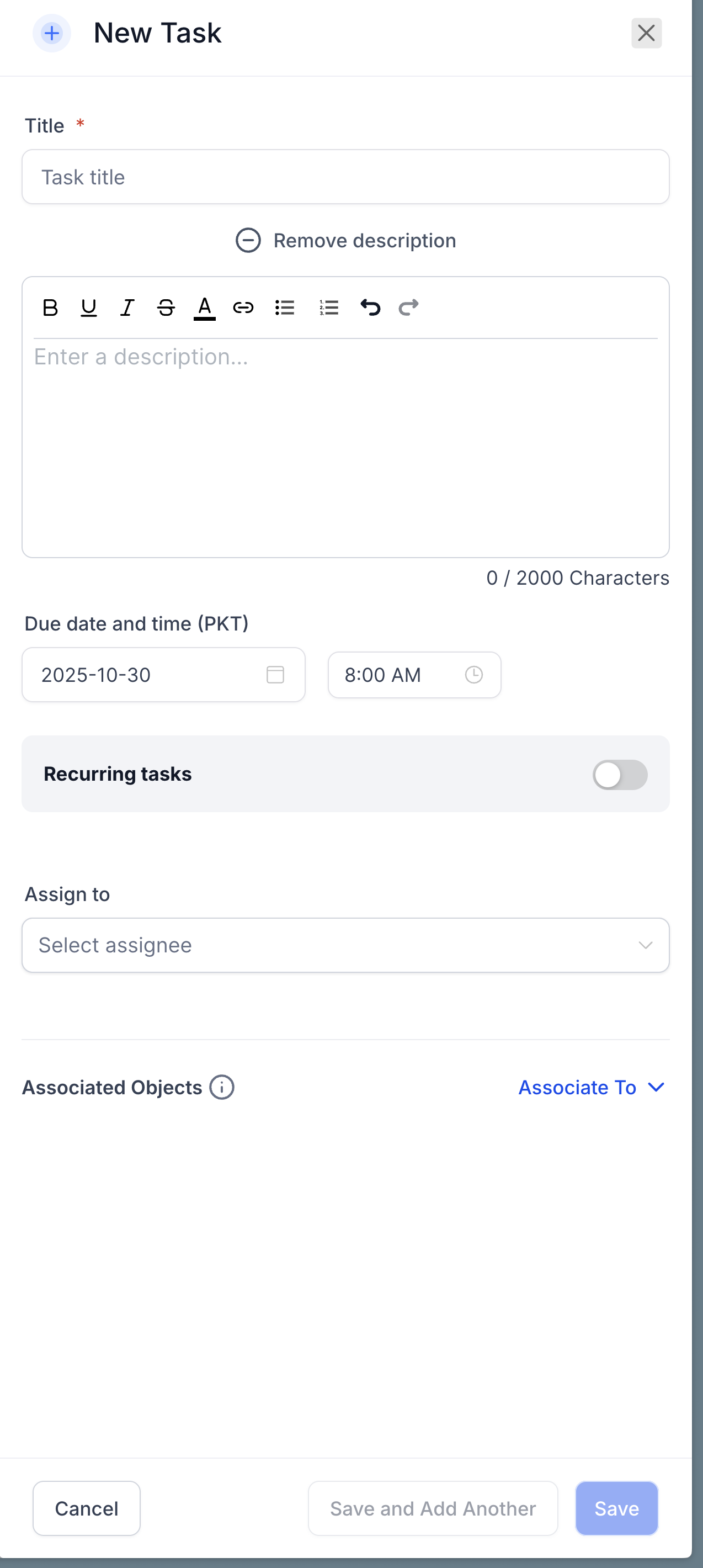
Fill in the relevant details, such as the task name, description, and any notes the assignee will need.
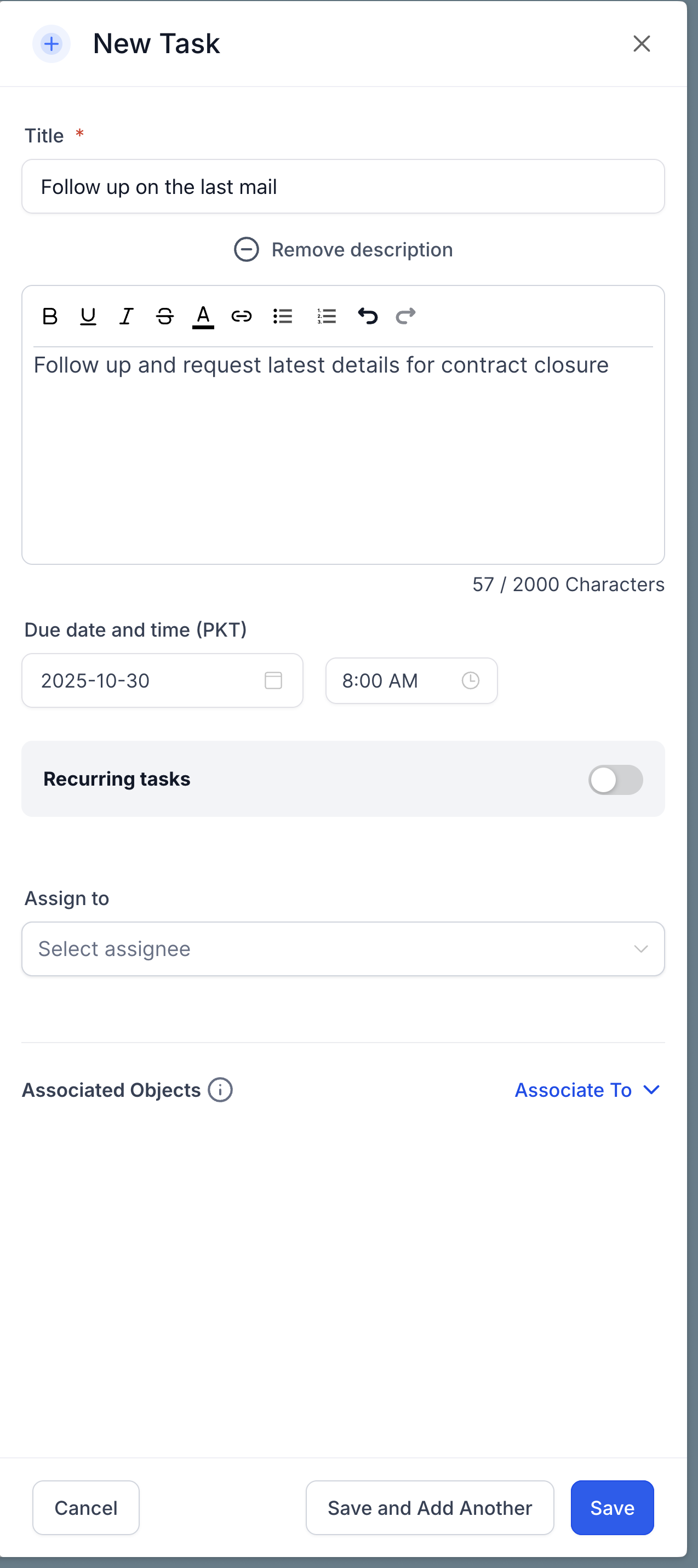
Toggle on the Recurring Task option, then configure the schedule:
In the Repeats Every field, specify how often the task should repeat (for example, every 1 day or every 2 weeks).
Choose an end using the Ends On options: Never, a Custom Date, or after a set number of occurrences.
Optionally, check the setting to create a new task even if the previous one is overdue so tasks stay on schedule.
Note that the next task is created only at its scheduled time, based on the created date, not immediately after the previous task is closed.
Select the Assignee and, if relevant, the Contact the task relates to.
Click Save to create the task and start the recurrence schedule.
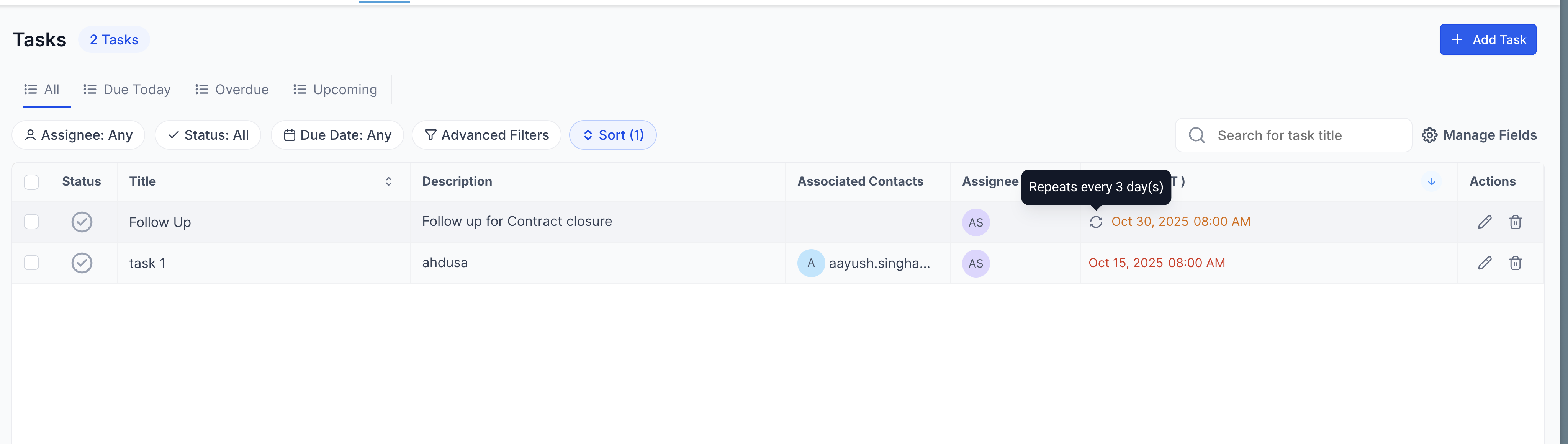
How often can a task repeat?
You can set a recurring task to repeat hourly, daily, weekly, monthly, or yearly, using the Repeats Every field to define the exact interval.
When is the next occurrence created?
The next task is created at its scheduled time based on the recurrence you set, not the moment the previous task is completed. Closing one instance early does not pull the next one forward.
What happens if a previous occurrence is still overdue?
By default the schedule waits, but if you enable the option to create a new task even if the previous one is overdue, the next instance is still generated on time so the series does not stall.
Can I turn an existing task into a recurring one?
Yes. You can convert an existing task to recurring so it starts repeating at set intervals, in addition to creating a new recurring task from scratch.
How do I change a recurring task?
Edit the task and choose whether the change applies to all future occurrences or to just the single instance you opened.
How do I stop or delete a recurring task?
When deleting, choose to remove all upcoming tasks in the series or just one specific occurrence. To stop a series without deleting past work, edit the recurrence and set an end date or occurrence limit.
If I restore a deleted recurring task, do the missed occurrences come back?
No. A restored task returns, but the occurrences that would have been created during the period it was deleted are not recreated.
Can I create recurring tasks on both contacts and opportunities?
Yes. Recurring task functionality is available on any record with a Tasks panel, including patient contact records and opportunities.
