As things change at your practice, the tasks your team relies on need to change with them. Maybe a patient rescheduled their consult, a follow-up needs to move to a different coordinator, or a note needs more detail before the next touch. Editing a task in Aesthetix CRM lets you update the title, description, and assignee at any time without recreating it from scratch.
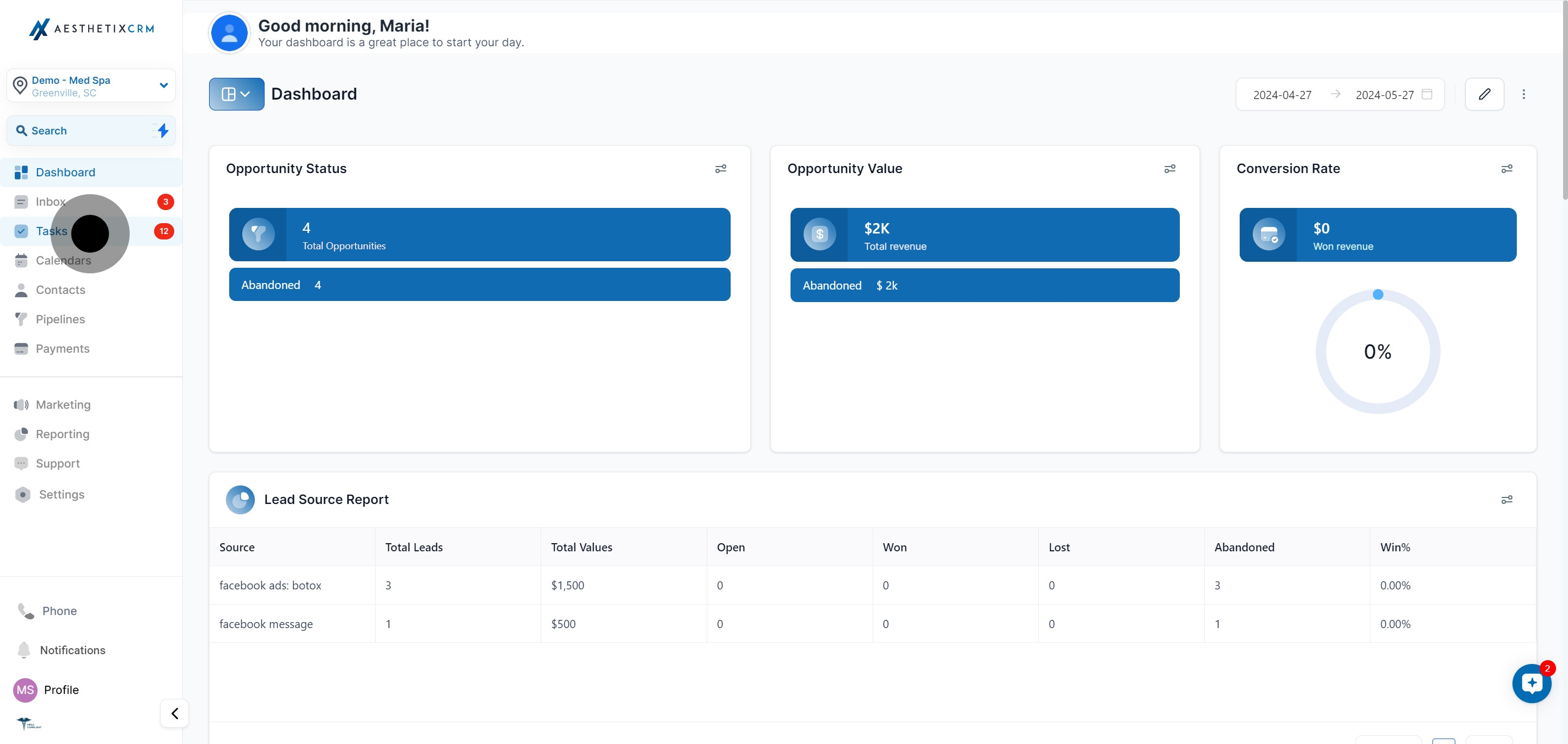
From the main menu, open Tasks to view your task list.
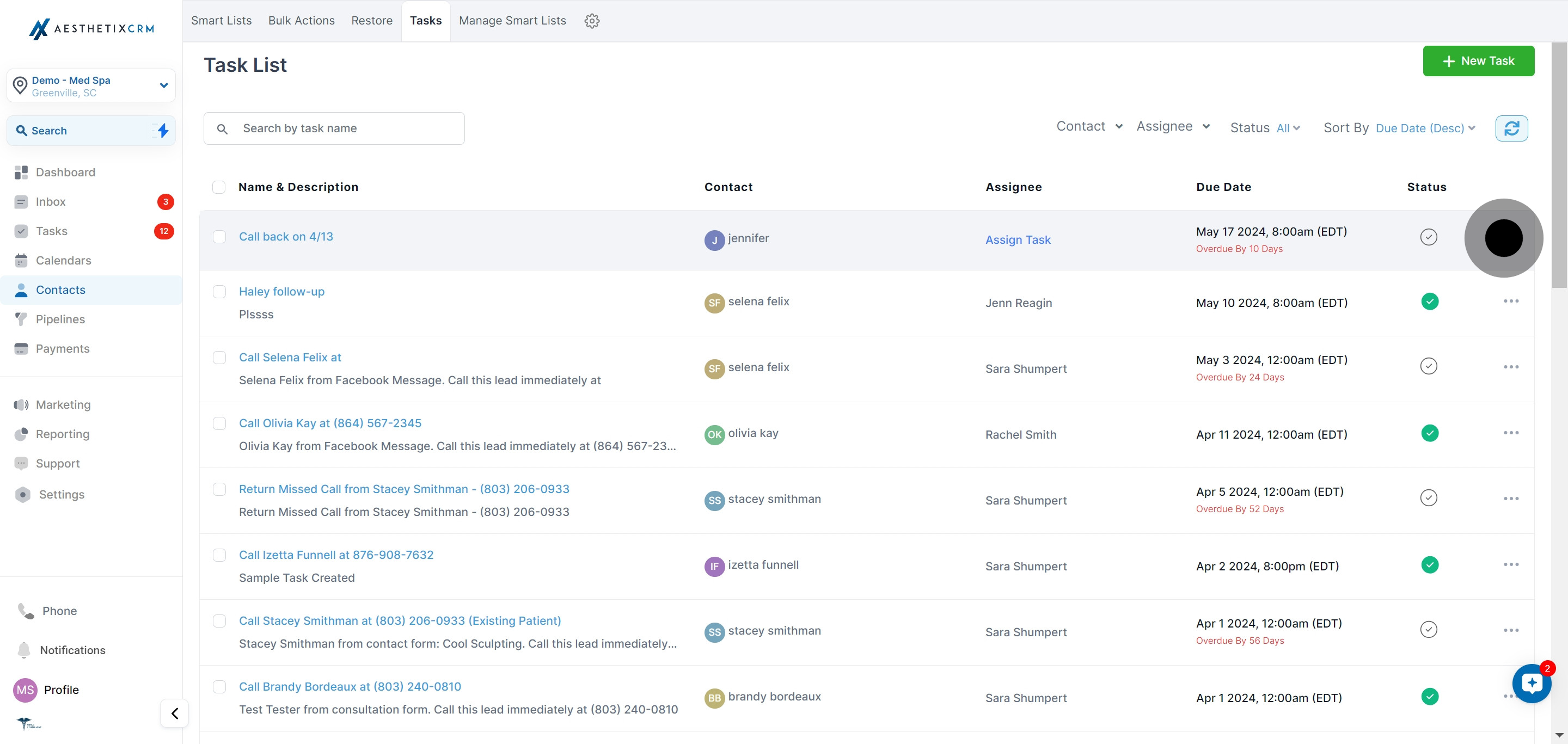
Locate the specific task you want to edit and click the three dots next to it.
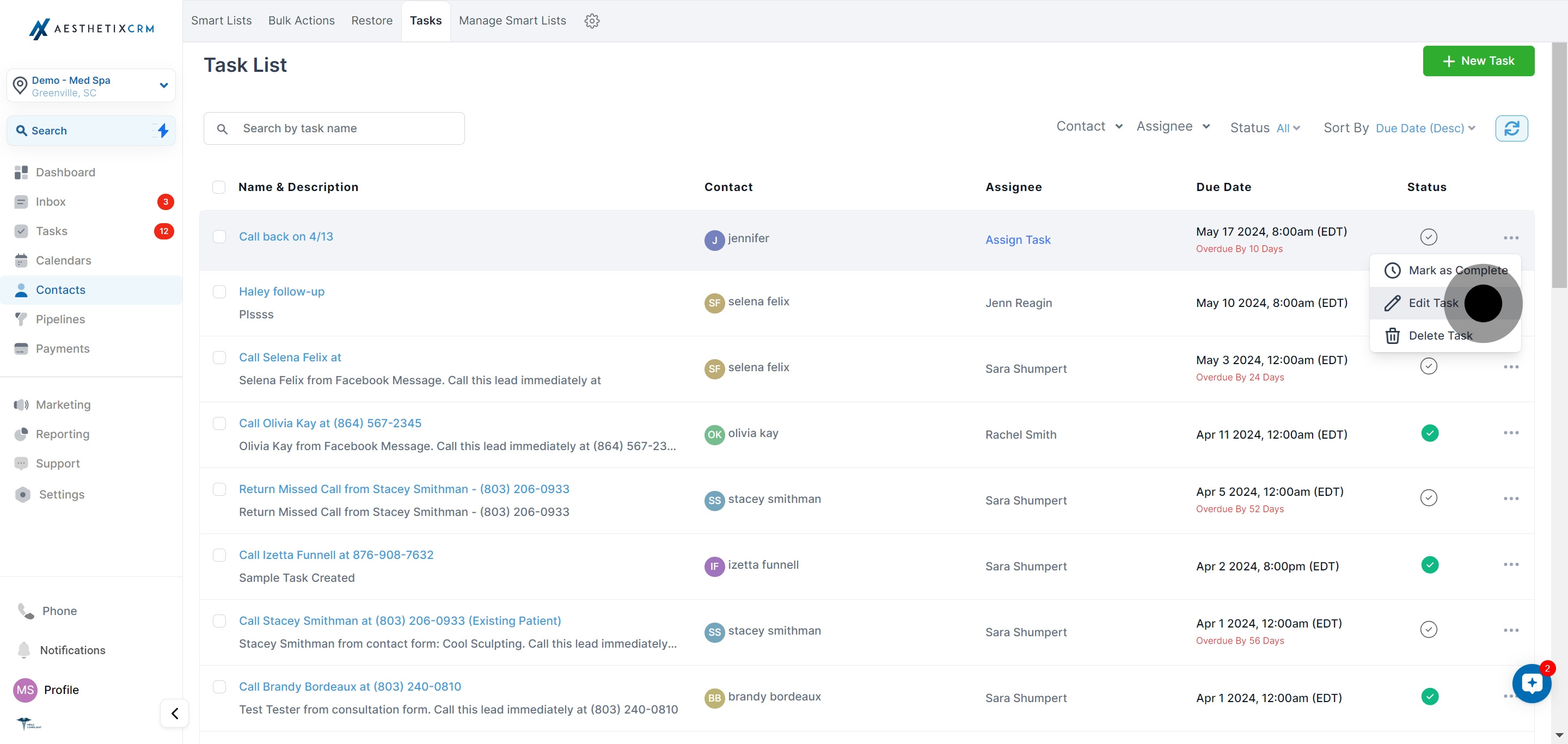
Select Edit Task from the options provided.
Input the title of your task in the designated field. Keep it clear and specific, for example "Confirm pre-op paperwork for Jane D." so the task is easy to identify in a list.
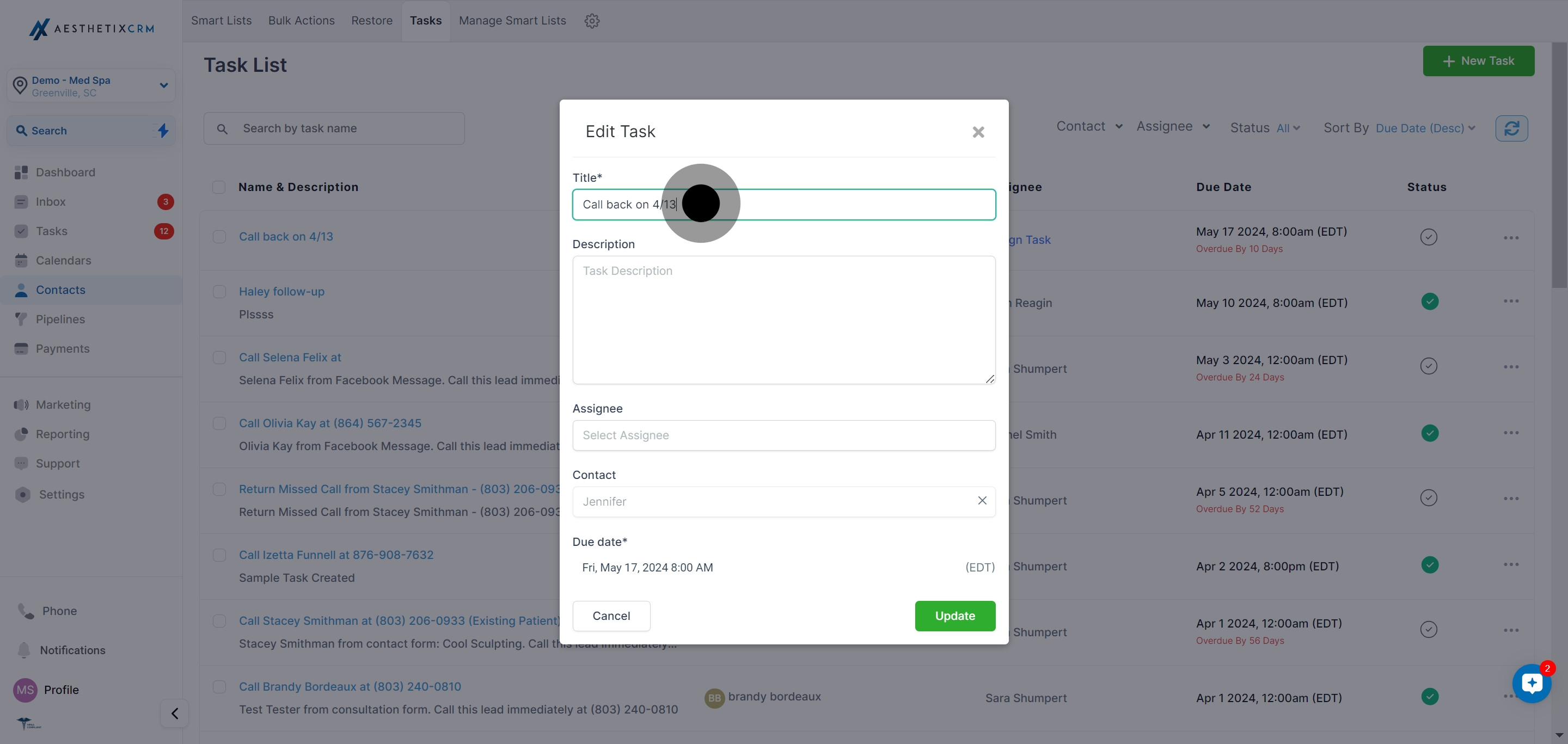
Enter the task description to provide context and details for whoever completes it.
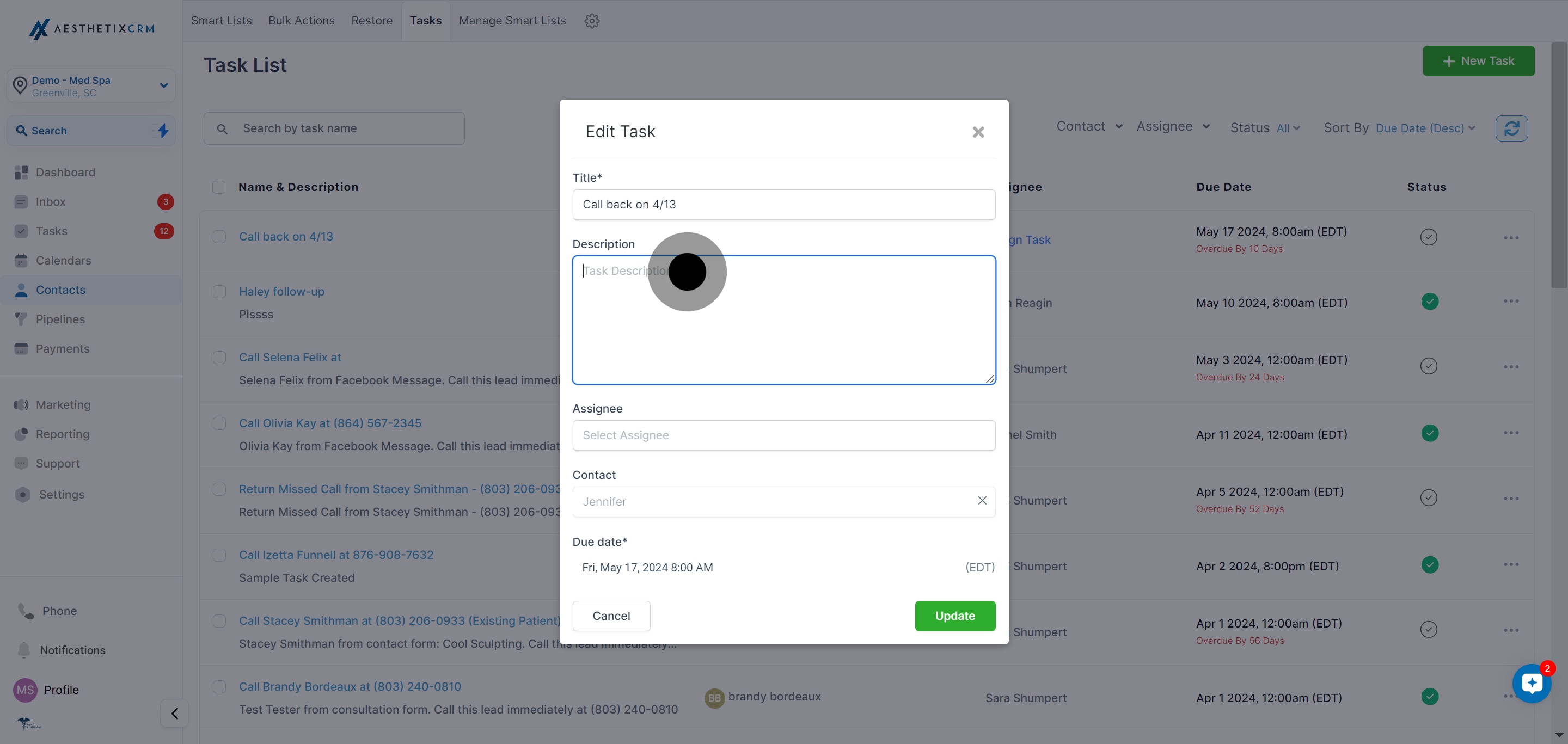
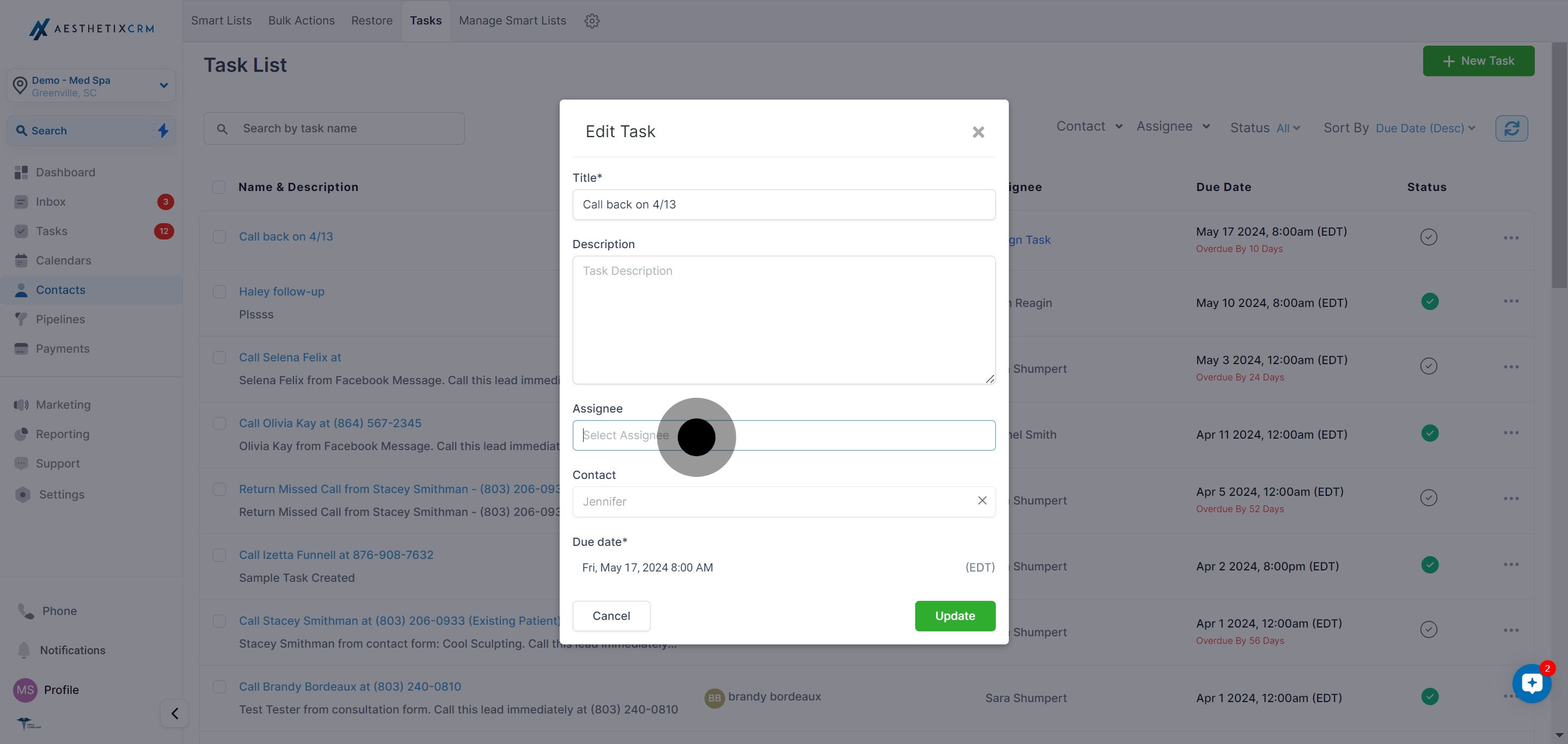
Select the assignee responsible for completing the task. Reassigning is useful when a coordinator is out or when a patient follow-up should move to a provider.
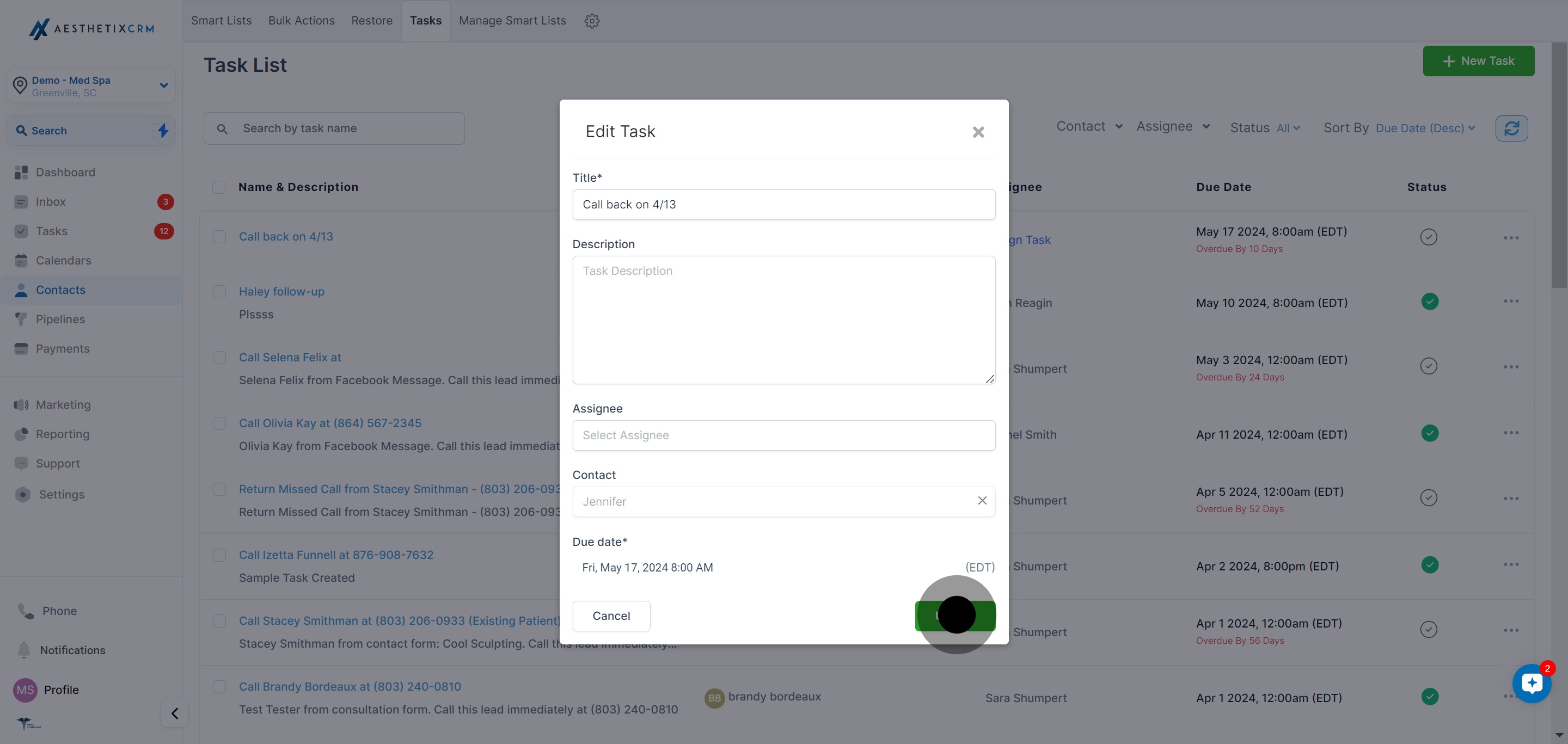
Review everything to make sure your edits are correct, then click Update to save.
Where can I edit a task from?
You can edit a task from the main Tasks list using the three-dot menu. You can also edit tasks directly on a patient's contact record from the Tasks panel, which is handy when you are already reviewing that patient.
Can I change who a task is assigned to?
Yes. Open the task for editing and choose a different team member from the assignee field. This is the fastest way to hand off a follow-up when someone is out or a task belongs with another role.
Will editing a task change its due date?
Editing lets you update the title, description, and assignee. If the due date and time fields are shown in your task form, you can adjust them there as well before saving.
Do my edits notify the assignee?
Edits update the task record so the current assignee sees the latest details the next time they open the task. Assigning the task to a new person makes it appear in that person's task list.
Can I edit a recurring task?
Yes. When you edit a recurring task, you can choose to apply the change to all future occurrences or to just the single instance you opened, depending on what you need.
I do not see the task I want to edit. What should I check?
Confirm you are looking at the right filter and status view. Tasks can be filtered by assignee and status, so a completed or reassigned task may be hidden by your current filter. Clear the filters and search by the task title.
Can I edit a task that is already marked complete?
Yes. Open the task from the list and choose Edit Task. You can update the details and, if needed, set the status back to pending so it reappears as active work.
