The Tasks list view gives your practice a single place to track and manage every follow-up your team owns. Each task carries the details you need at a glance: its name and description, the linked patient, the team member responsible, the due date, and the current status. Centralizing this work keeps your front desk, coordinators, and providers aligned and helps nothing slip through the cracks.
Tasks are the backbone of staying organized. They keep key activities (confirming a consult, chasing a pre-op form, checking in on a post-treatment patient) tracked in one place so every responsibility is accounted for.
In your account, most tasks are not added by hand. Tasks are primarily used inside your Lead Nurture and Patient Nurture workflows to track the phone calls your team makes during the automated nurture process. As a contact moves through a nurture, the workflow automatically creates a call task at the right step, so your team always knows who to reach out to and when.
Each of these tasks is assigned to the user assigned to the contact. That assignment comes from your global user assignment workflow, which routes every contact to the right team member, so the task lands with the person who owns that patient relationship. Because of this, the Tasks list is where your coordinators work their daily call lists: completing a task keeps your follow-up on track and your nurtures moving.
Note: Your access to specific components may vary depending on your user permissions.
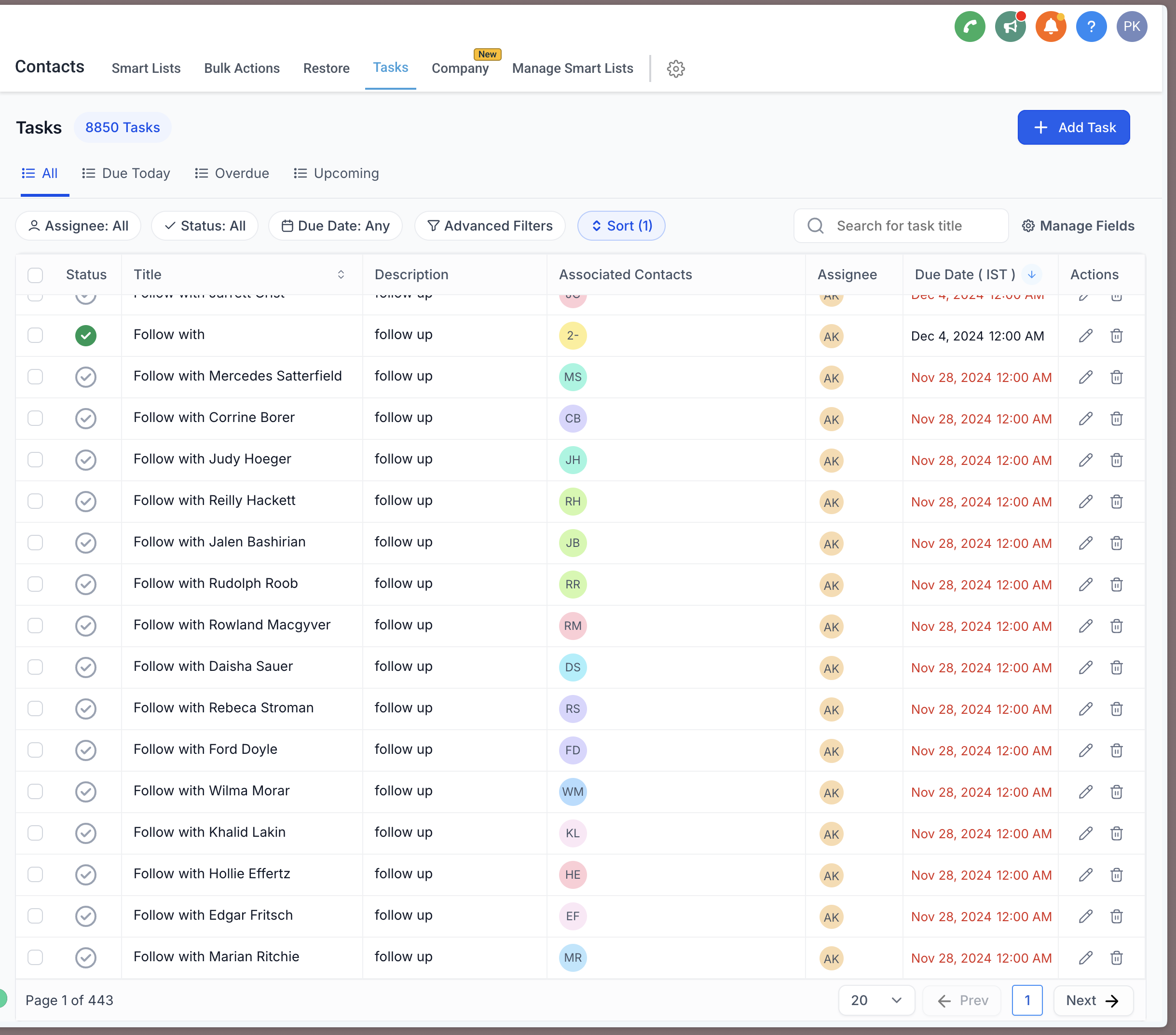
Open the Tasks list to see all tasks across your practice, along with the filtering, sorting, and bulk actions available at the top of the list.
Tasks can also be created and completed automatically through Workflows, so many of the items you see here (especially the call tasks from your Lead and Patient Nurtures described above) were generated by an automation rather than added by hand.
The Tasks list is organized into columns so you can read every task quickly.
Name and Description
This column shows the name of each task along with the description you entered. To see the full details of any task, click on it. This opens the linked patient's record, where you can review everything related to the task.
Contact
This column shows the patient linked to each task. Tying tasks to patients makes it easy to reference and manage work in the context of the person it involves.
Assignee
This column shows the team member assigned to each task, giving you a clear view of how work is distributed across your team.
Due Date
This column shows the due date for each task, so deadlines are visible at a glance and nothing runs late.
Status
This column shows the current status of each task. To mark a task complete, click the checkmark icon. This makes it easy to track and update progress as work moves along.
You can act on tasks directly from the list.
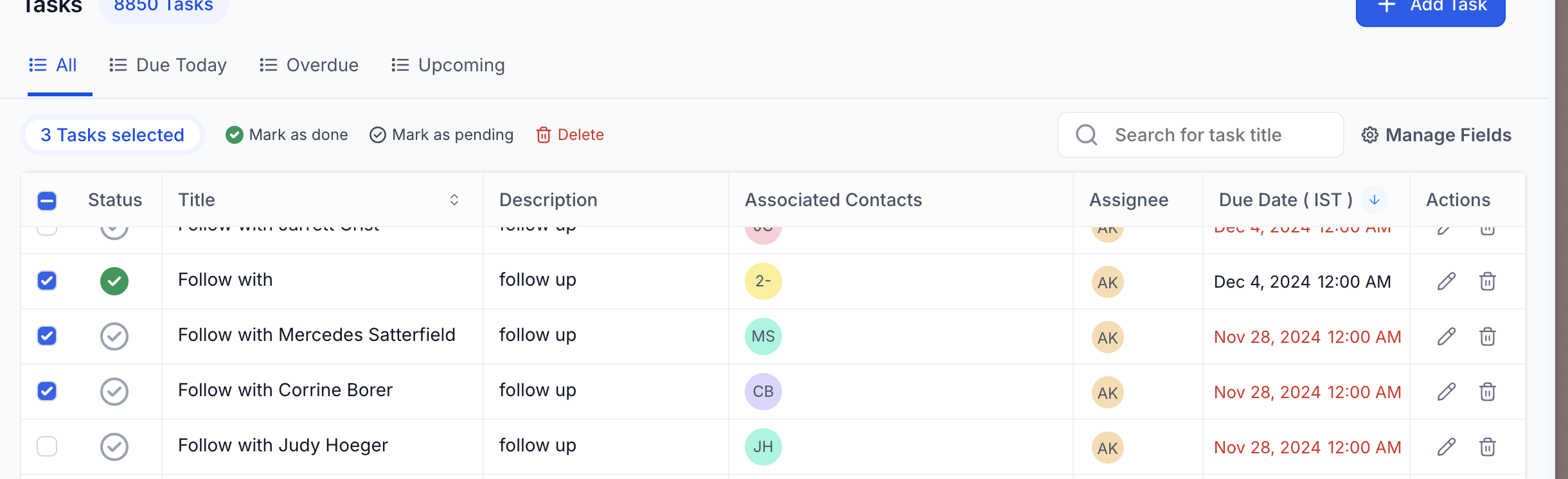
Edit fields: Use the pencil icon in the Actions column, or click the task title, to change its details.
Delete tasks: Select a task and click Delete. Deleted tasks can be restored within two months.
Bulk actions: Select multiple tasks and perform bulk actions such as marking them done or deleting them.
To act on a single task, you can also click the three dots at the far end of any task row to open the task actions menu, which lets you mark the task complete, edit it, or delete it.
Viewing standalone tasks
Some tasks are created without a patient attached (for example, internal to-dos for your team, or tasks generated by an automation). These appear as standalone tasks in the list. Use the filters to find and work them quickly.
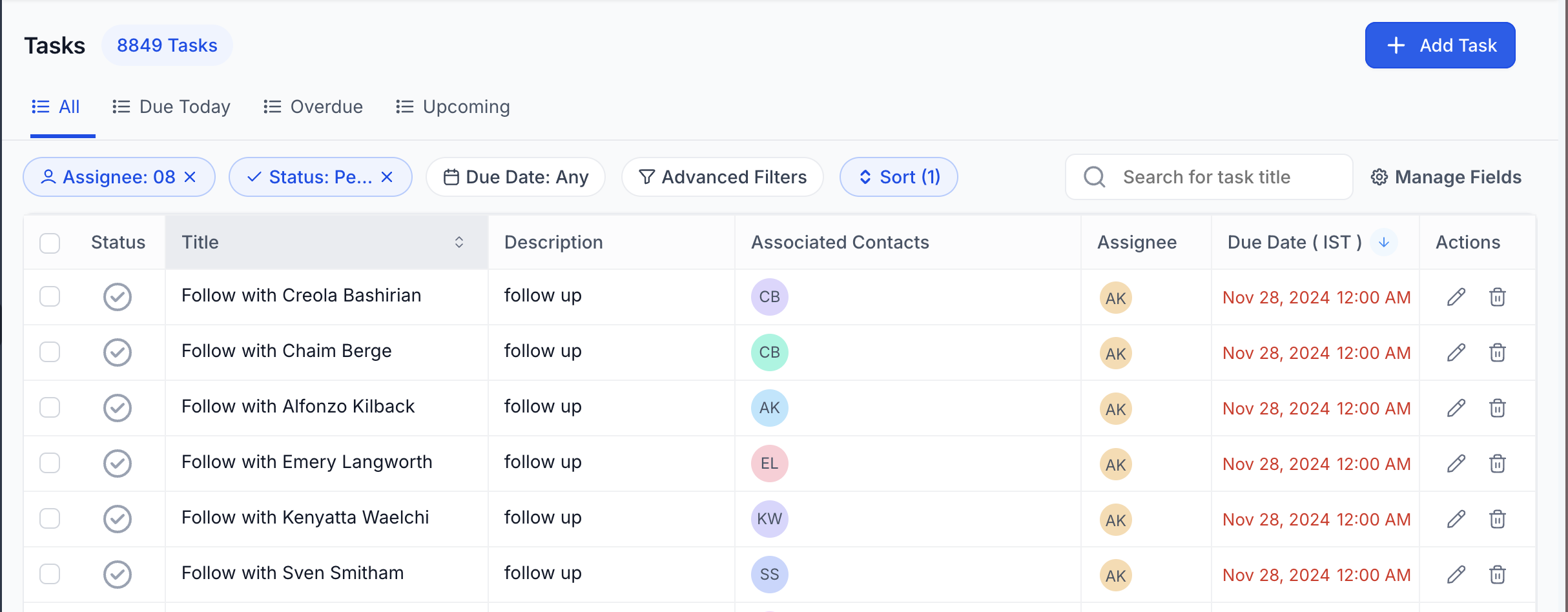
Click Advanced Filters to narrow the list by:
Assignee
Status (All, Due Today, Overdue, Upcoming)
Due Date
Custom fields (if applicable)
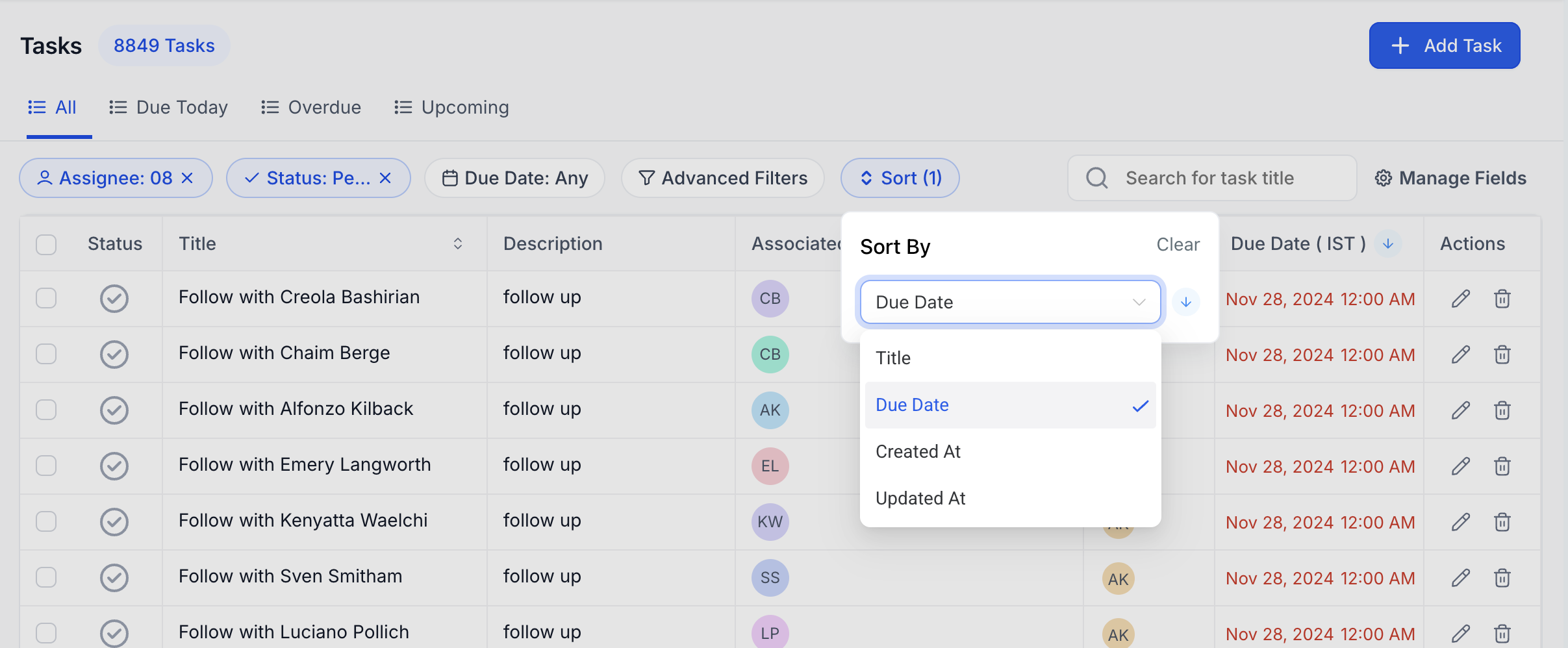
Click Sort to reorder tasks by:
Due Date
Title
Created At
Updated At
What information does the Tasks list show for each task?
Each task displays its name and description, the linked patient, the assigned team member, the due date, and the current status, all in one row.
How do I mark a task as complete?
Click the checkmark icon in the Status column, or use the three-dot actions menu at the end of the row and choose to mark it complete.
How do I open the full details of a task?
Click the task name, or click the pencil icon in the Actions column. Clicking the task takes you into the linked patient's record for the complete context.
Can I complete or delete several tasks at once?
Yes. Select multiple tasks and use the bulk actions to mark them done or delete them together.
I deleted a task by mistake. Can I get it back?
Yes. Deleted tasks can be restored within two months.
Where do most of my tasks come from?
Most tasks are created automatically by your Lead Nurture and Patient Nurture workflows to track the calls your team makes during the nurture process. Each one is assigned to the user assigned to that contact through your global user assignment workflow, so it reaches the right team member without anyone adding it by hand.
Why do some tasks show no patient?
Those are standalone tasks, created either as internal to-dos for your team or automatically by an automation with no patient in context. Filter by an unassigned contact to find them.
Why can't I see every column or action?
Your view depends on your user permissions. If something is missing, ask an administrator at your practice to review your access.
Can I filter tasks by team member and status at the same time?
Yes. Open Advanced Filters to combine Assignee, Status, Due Date, and any available custom fields.
