Comment and DM automation turns your social comment sections and direct messages into hands-free lead capture. When a prospective patient comments a keyword like "price" on your Instagram, Facebook, or TikTok post, a Workflow can automatically reply in the comments and send them a DM, then save them as a contact for follow-up. This article explains how the automation works, how to set up the triggers and actions, and the important limits set by each platform.
This is different from manually viewing and replying to comments. If you just want to read and answer comments yourself from one dashboard, see the guide on managing comments in Social Planner. For building the automations described here, you will use the Workflows builder, and you can pair these campaigns with Conversational AI to handle the follow-up conversation.
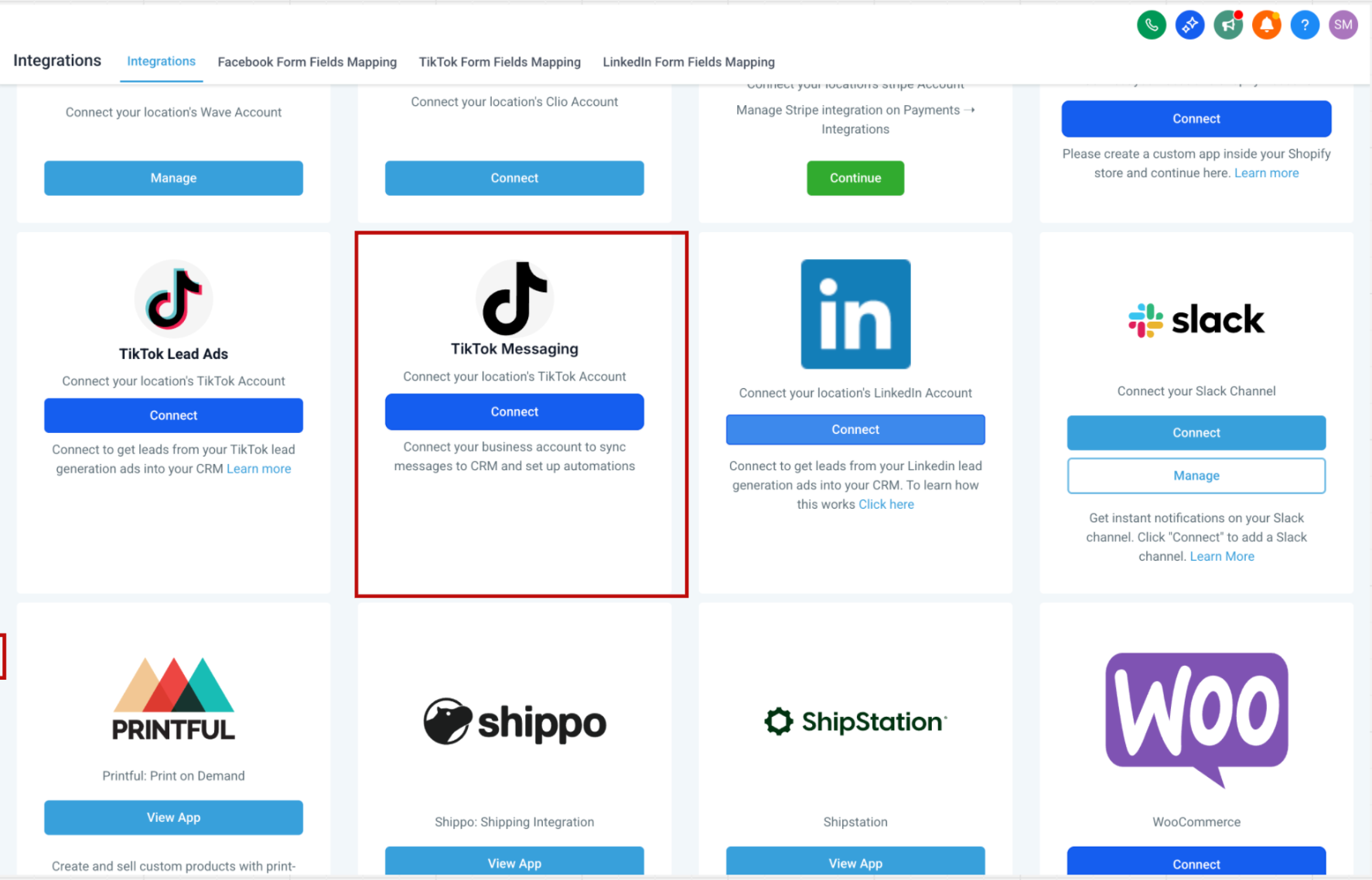
Connect your accounts first. Connect your Instagram, Facebook, or TikTok integration before you build these automations, or the features will not be available. From your account, go to Settings > Integrations and connect the relevant account.
Contact capture: If you ask for an email or phone number in your DM, that information is automatically added to a new contact record or matched to an existing contact.
Boosted posts for ads: For Facebook and Instagram, boosted posts are currently the only way to use this feature in relation to paid advertising.
24-hour messaging window: After someone leaves a comment, you have a 24-hour window to message them directly through the API (automation). This limit is set by Meta.
Duplicate your Workflow per campaign: Always duplicate an existing Workflow and rename it for each new post campaign, so you can run multiple post campaigns at the same time.
Automated public replies and DMs go to prospective and existing patients, so they must never reference specific treatments, procedures, or any protected health information (PHI). Keep automated replies generic and non-identifying (for example, "Thanks for your interest! Check your DMs for details" rather than naming a treatment the person asked about). Do not build automations that confirm someone is a patient or restate health details in a comment or message. Move any treatment-specific conversation to a private, secure channel, and make sure you have proper consent before sending automated messages.
Comment and DM automation connects your social accounts to your account so that:
Direct messages and post comments appear inside the Inbox in real time.
Workflows can be triggered by those incoming messages to send interactive replies, assign leads, create tasks, or start nurture sequences.
Every touchpoint is stored on the contact record, giving you a complete conversation history across all channels.
Unified inbox: Manage social conversations alongside SMS, Email, WhatsApp, and more in the Inbox, without switching tabs.
Faster response times: Use Workflows to send instant, around-the-clock answers that keep prospective patients engaged.
Automation-driven efficiency: Use triggers and actions to auto-reply, route leads, and hand off to your team without manual effort.
Conversion focus: Turn social engagement into contacts and nurture sequences you can track and report on.
Real-time notifications: Get notified of new direct messages and comments so your team can respond faster from the Inbox.
The examples below use TikTok, but the same trigger-and-action pattern applies to Facebook and Instagram comment and DM automation.
Incoming DMs and comments sync to the Inbox like any other channel, making it easy to:
See profile photos, usernames, and message history in one thread.
Reply manually with text, emojis, media, or saved snippets.
Use quick-action buttons to add notes, tags, or tasks.
If a message fails to deliver, the Inbox provides clearer feedback so you can identify failed sends and take corrective action.
Triggers
Comment on a post/reel: The Workflow starts when there is a new comment on your post.
Customer Replied: Fires on an incoming DM. Select the reply channel (for example, TikTok) to scope it.
Actions
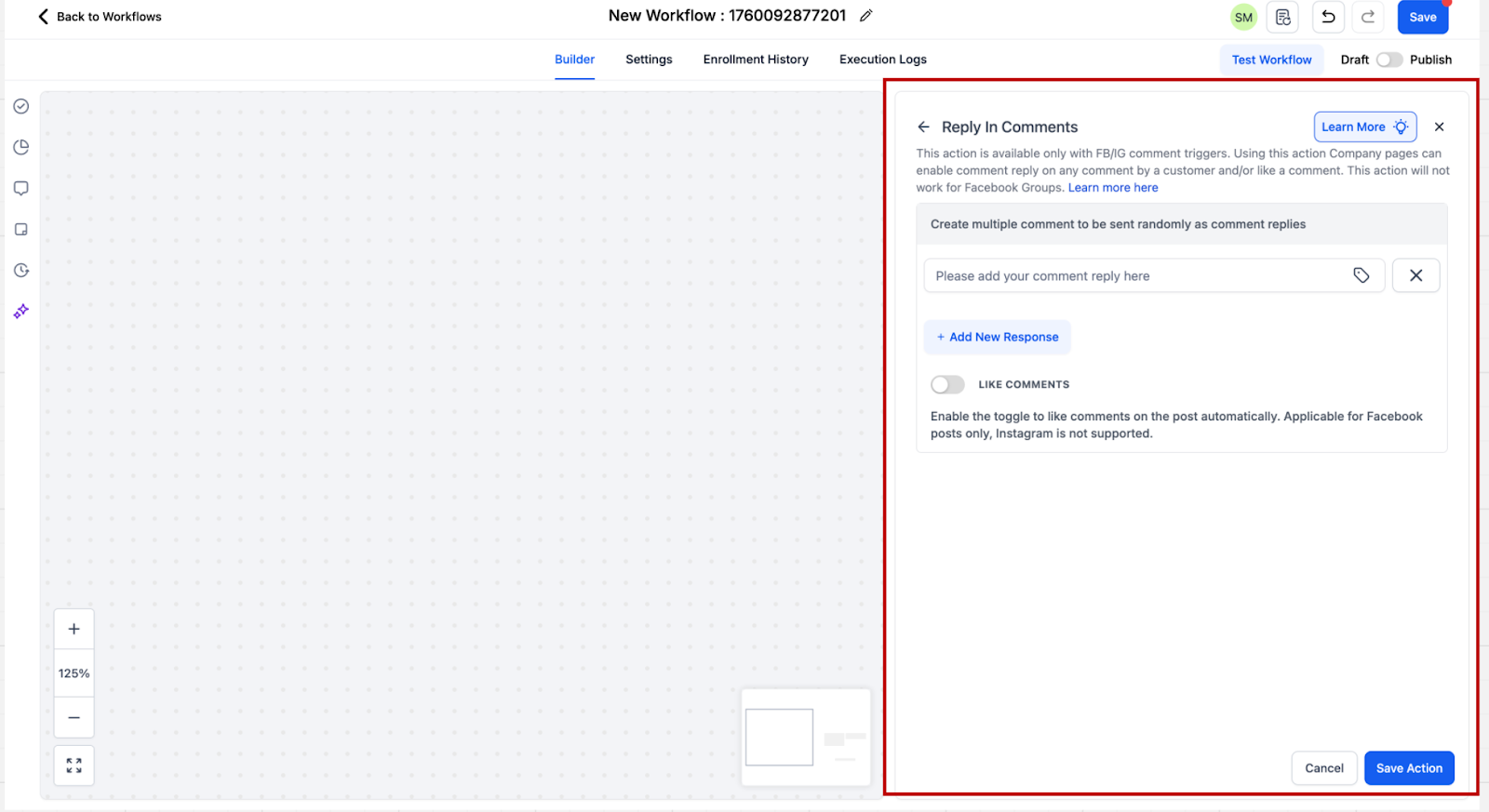
Reply in Comments: Reply to a comment with a comment beneath it.
Interactive Messenger: Send an automated reply or start a nurture sequence.
Turn comment sections into lead magnets by triggering "Comment(s) on a post/reel" for any or specific posts, using the "Reply in Comments" action to answer publicly (like the comment or tag the user), and following up with a DM or assigning the contact to a team member.
Automate conversational follow-ups when someone sends a private message. Pair the "Customer Replied" trigger with the reply-channel filter so the Workflow fires only for that channel, then use the Interactive Messenger action to send rich-button replies.
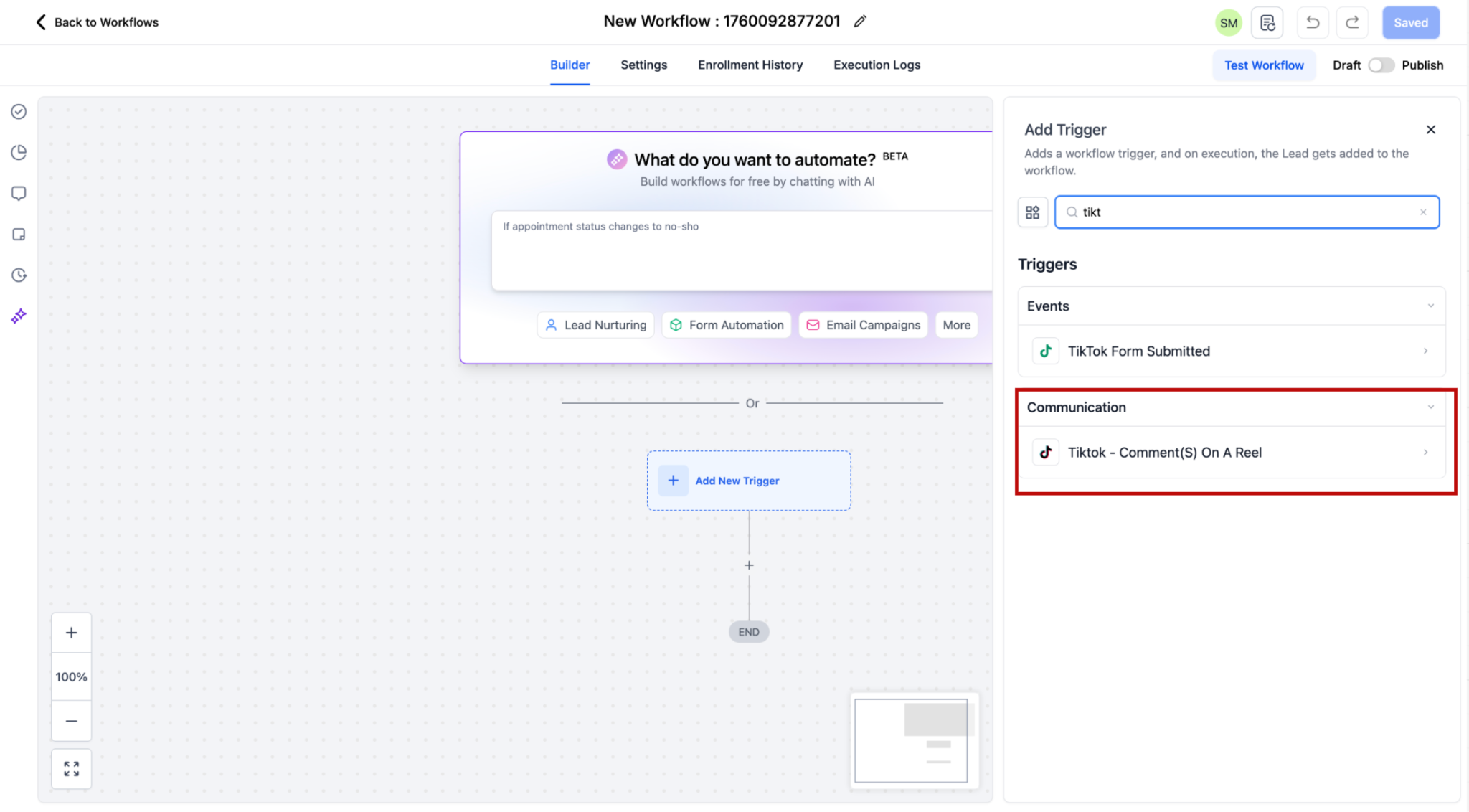
In the Workflow builder, click + Add New Trigger and select the comment-on-a-post trigger for your platform (for example, TikTok - Comment(s) on a Post).
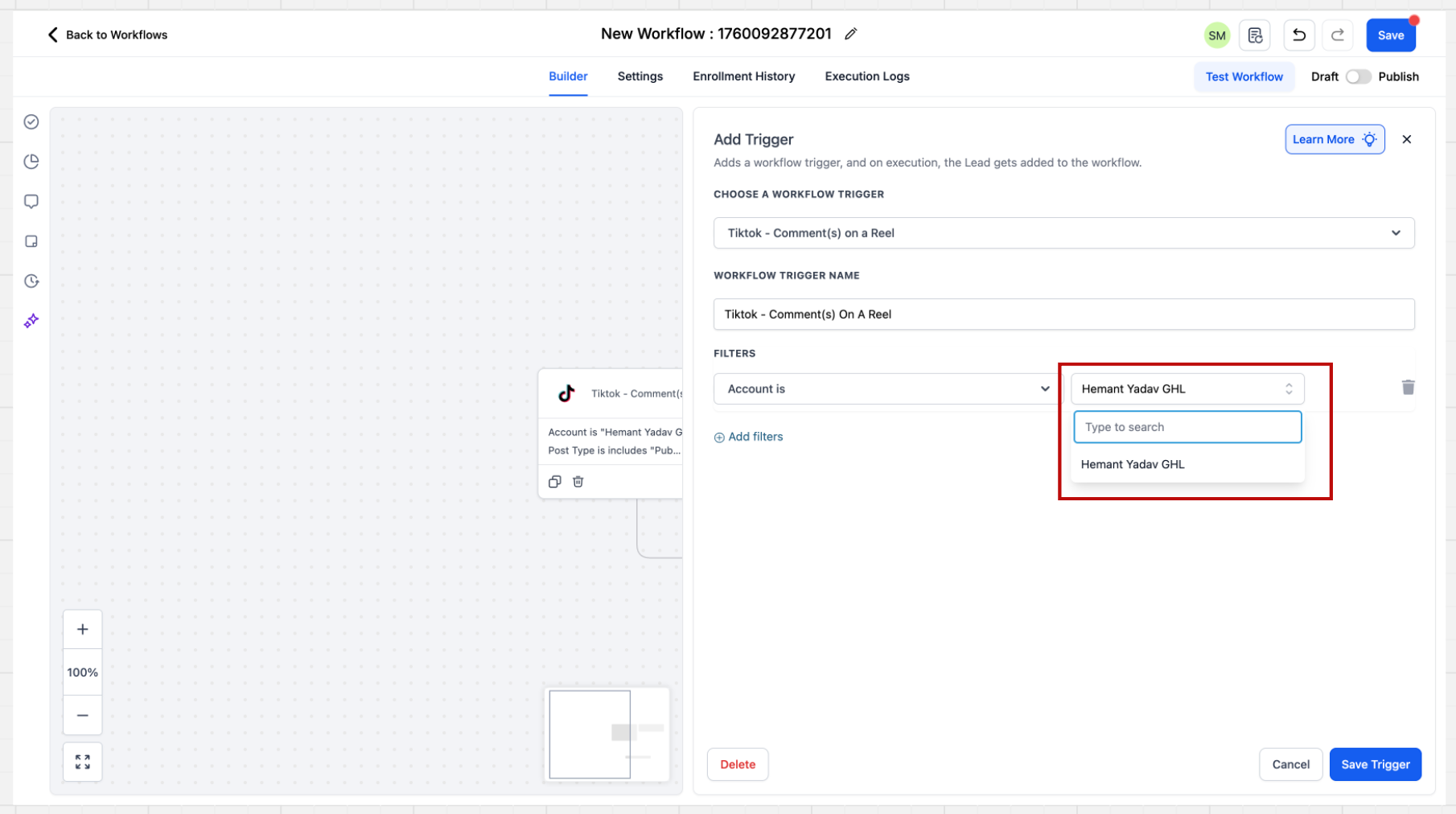
The sidebar opens with several filters. First, select the account. If you do not select a specific account, the system automatically considers all accounts integrated on your account, and the automation runs across all of them.
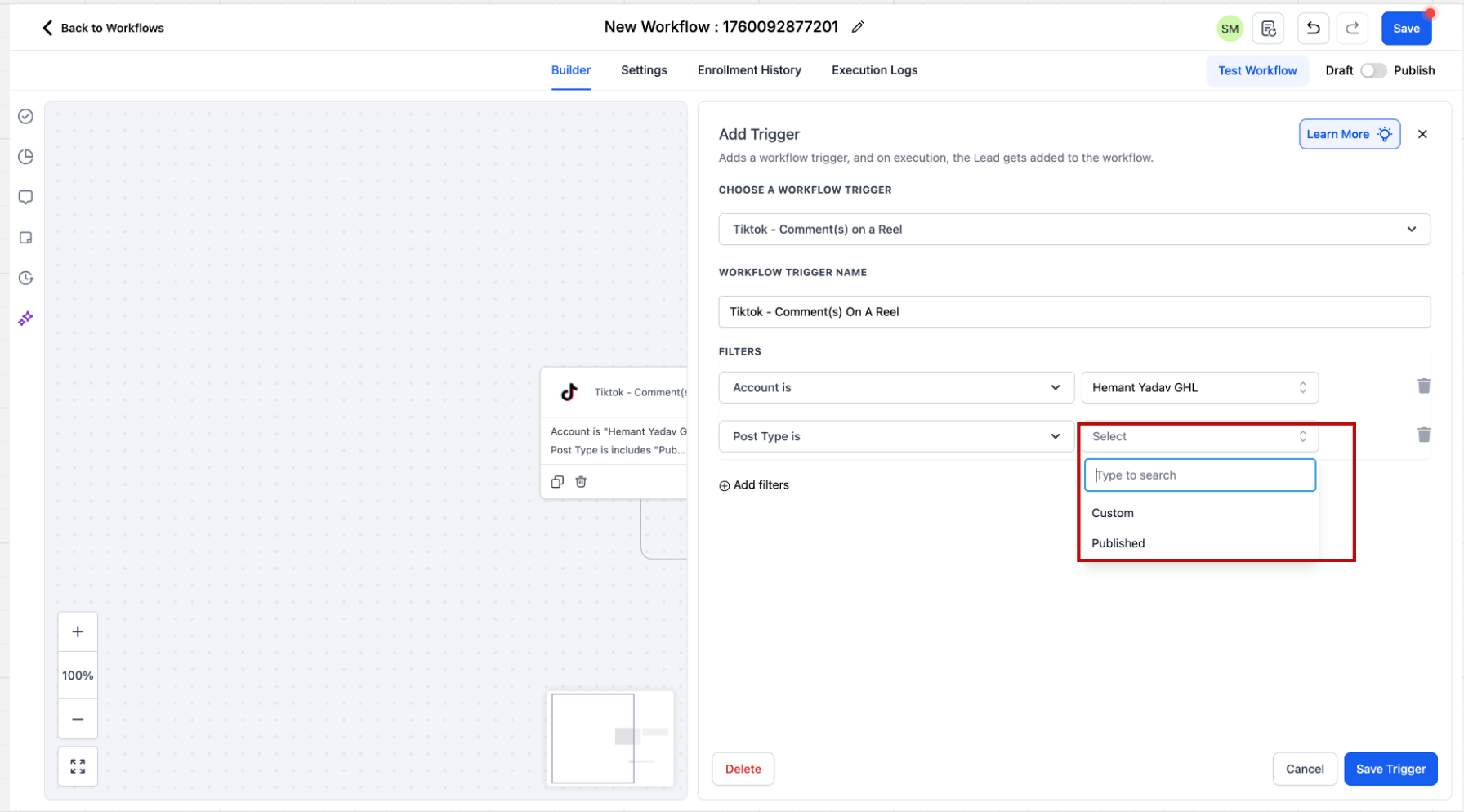
After selecting the account, choose the post type: Published or Custom.
Published Post: Fetches all posts on your business page; each appears in a dropdown for selection.
Custom Post: Lets you define the post to monitor by providing a URL.
If you do not select a specific post, the system automatically includes all posts associated with the connected account.
Select the post, or provide the URL of the post you want the automation to run on.
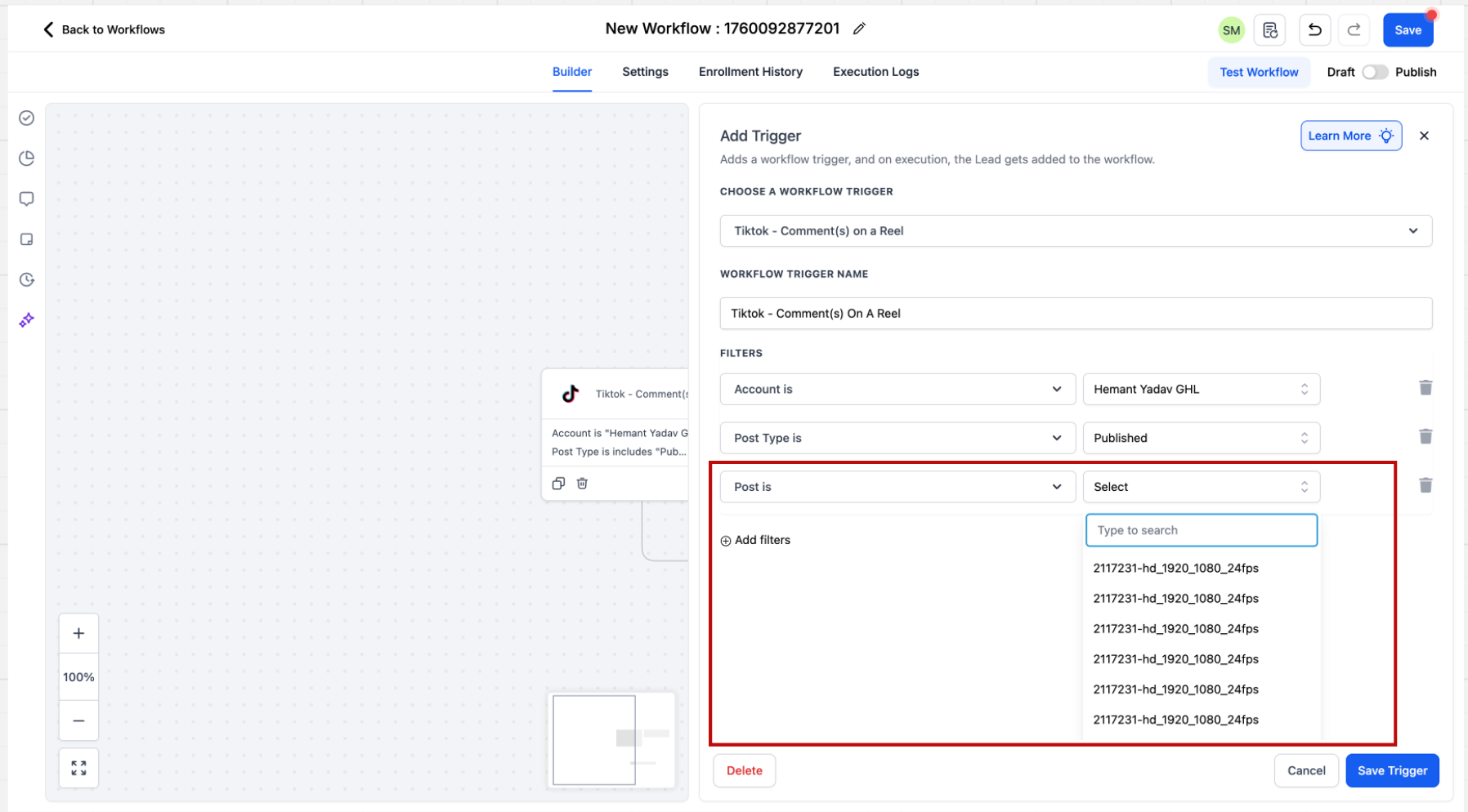
Enter what you are looking for in the comment. Choose "Contains Phrase" or "Exact Match." Examples:
Exact Match "Price": inbound comment "Price" passes.
Exact Match "Share the Price": inbound comment "Share the Price" passes, but "Please share the Price" fails.
Contains Phrase "I bought from you": inbound comment "I bought from you yesterday" passes, but "I bought one from you" fails.
When a contact comes through the trigger, they are saved as a contact and their first name and last name are stored.
Add the "Reply in Comments" action to the Workflow.
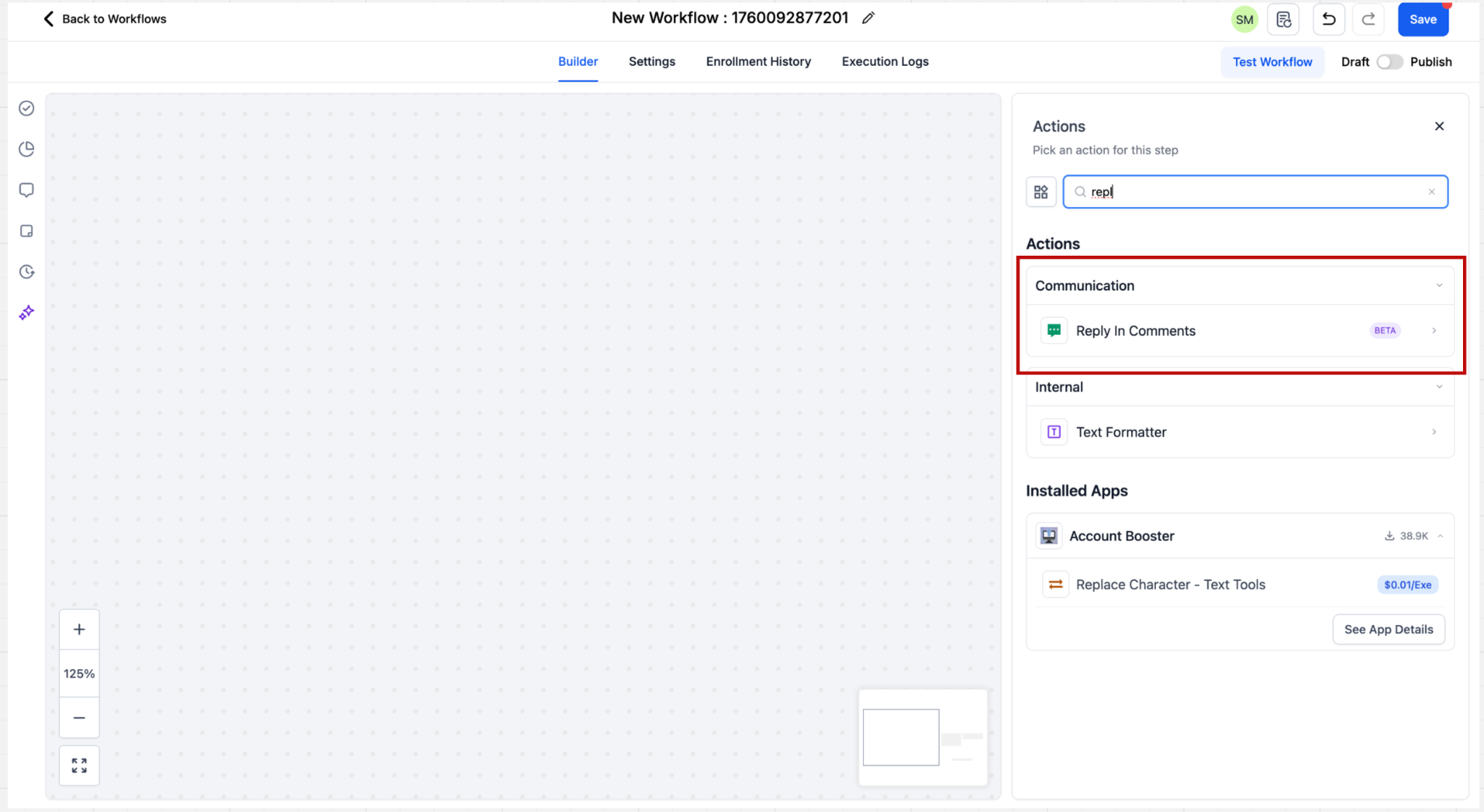
You can configure up to 10 reply comments, which are randomly selected during execution.
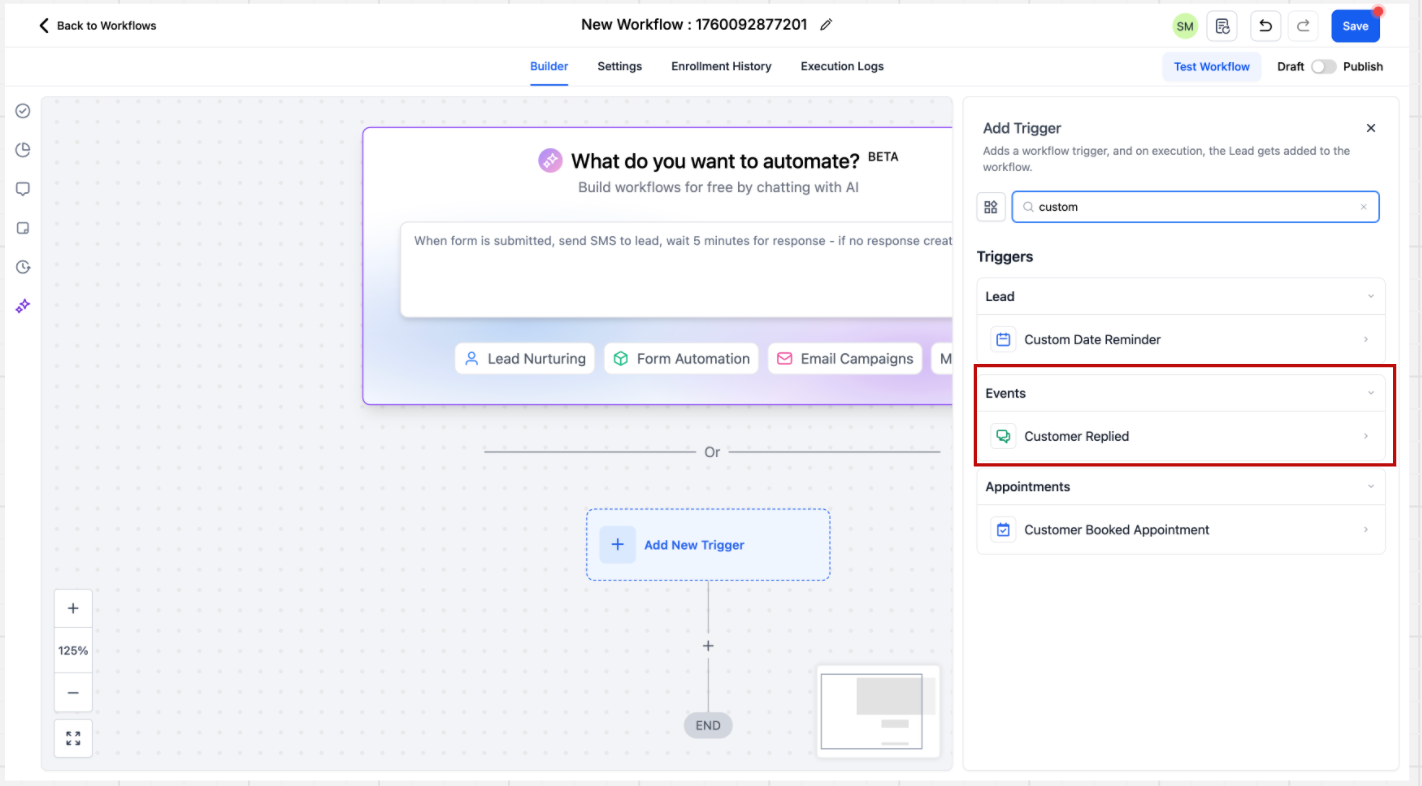
The DM-automation trigger, "Customer Replied," is in the Events category. Search for it directly or scroll to the category.
Go to triggers and select Customer Replied.
In the sidebar, set the Reply Channel filter to the platform you want (for example, TikTok).
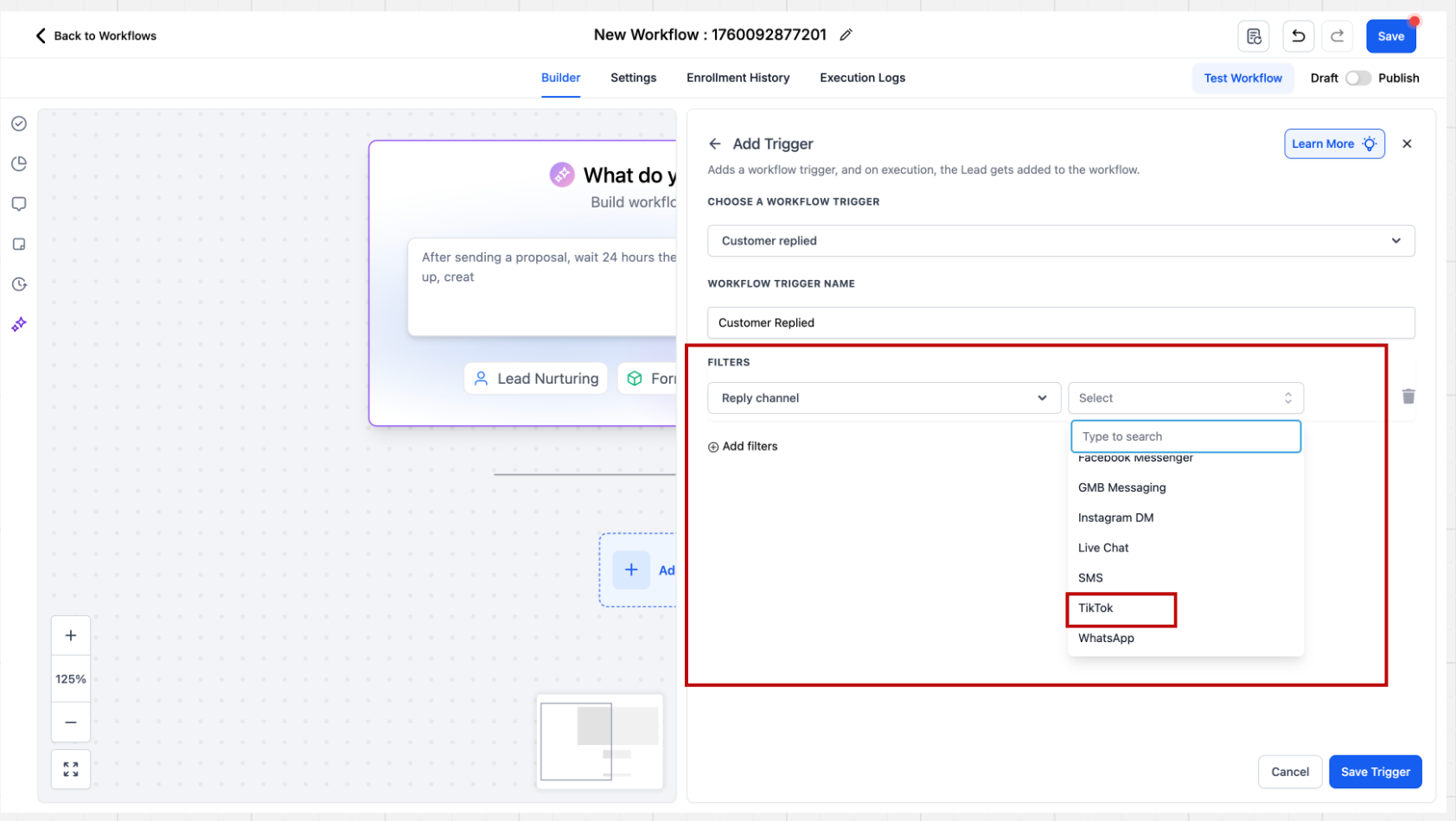
Set matching conditions such as "Contains Phrase" or "Exact Match Phrase" to define when the automation triggers.
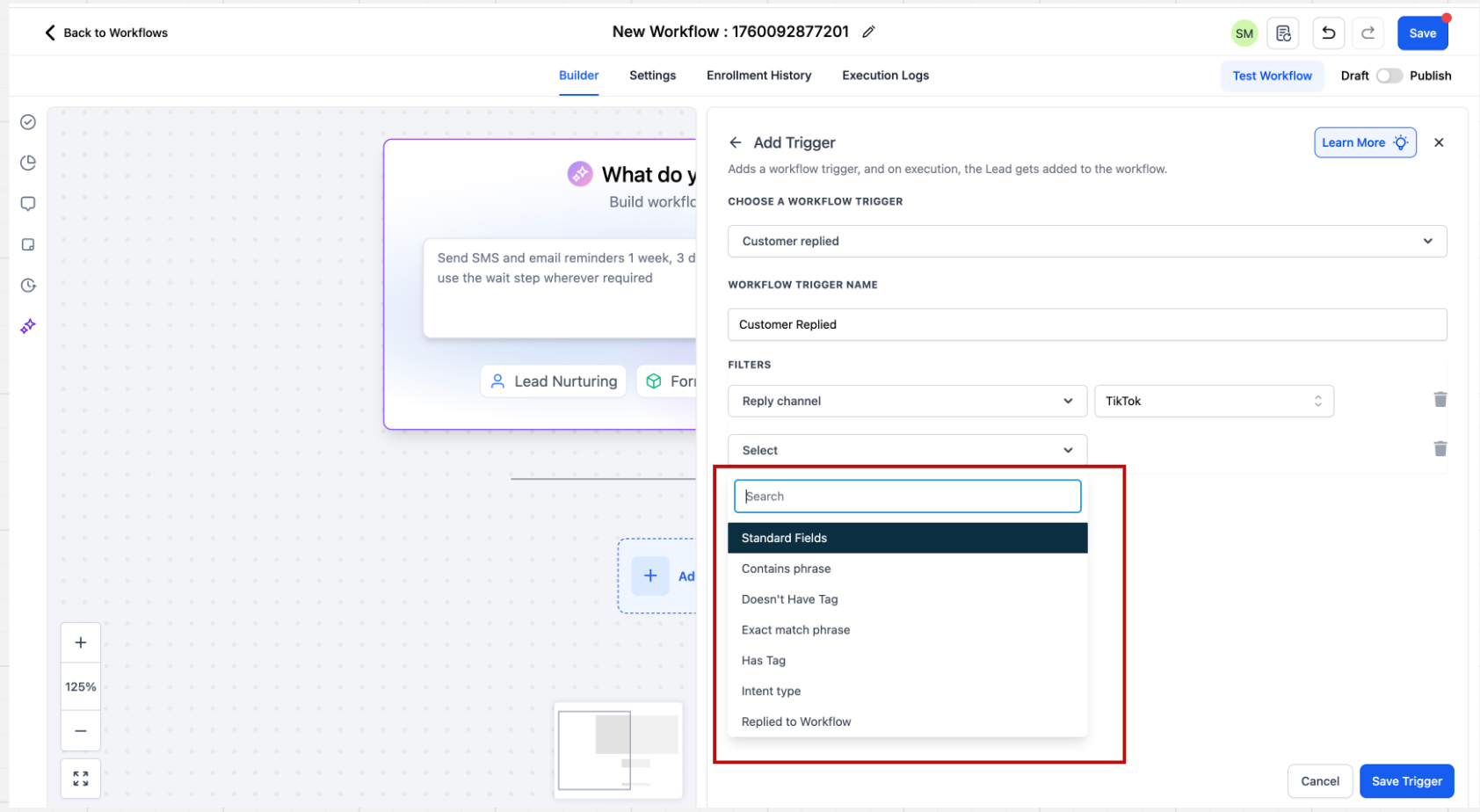
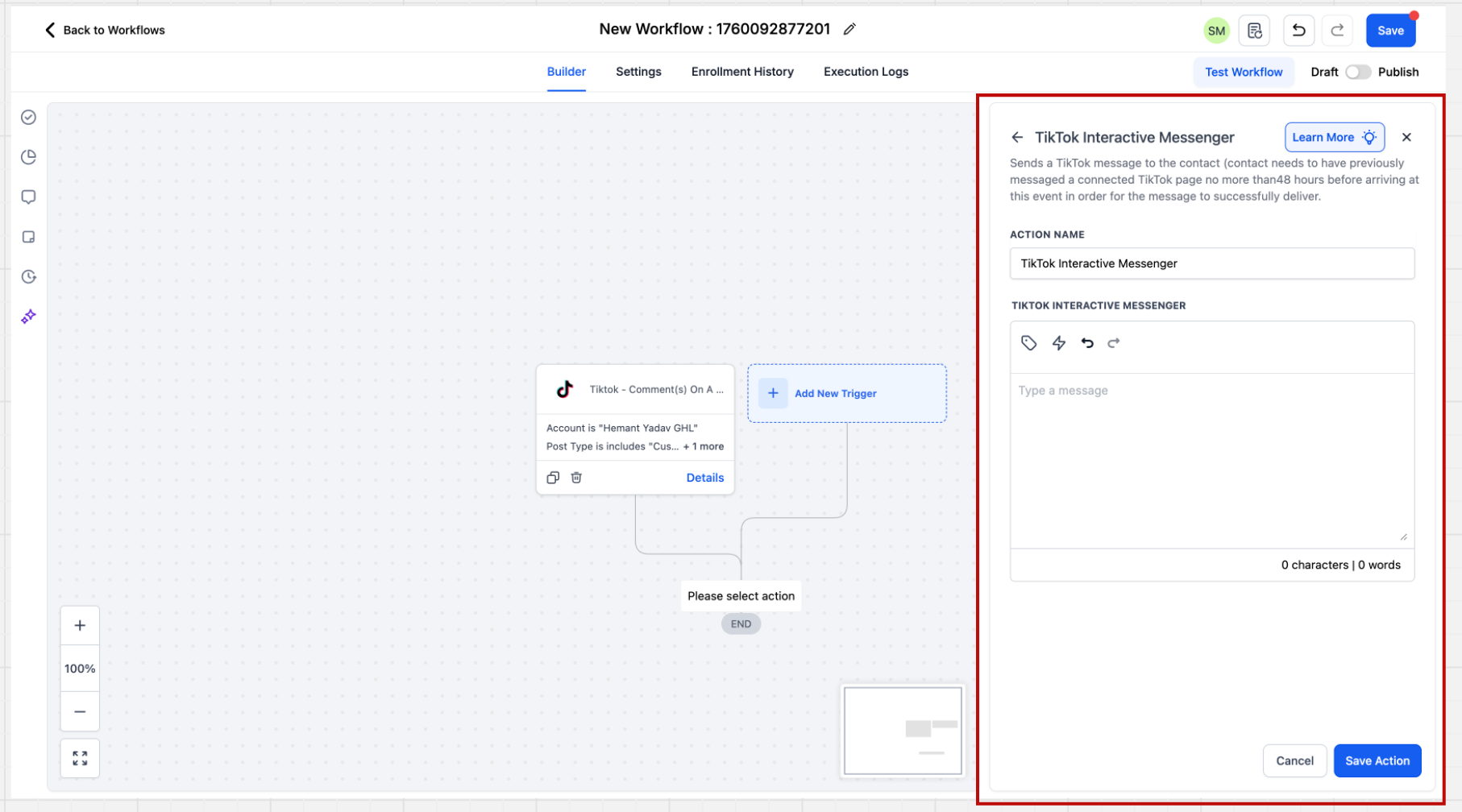
In the Workflow builder, click + Add New Action and select the Interactive Messenger action for your platform.
Enter the message you want to send in response to the trigger, then save the action.
Important points to note for the TikTok Interactive Messenger action specifically:
Unlike Facebook and Instagram, it does not yet support a Reply Type field (such as "Reply as DM" or "Reply to Comment via DM"). This will be enabled once TikTok's APIs support it.
It does not yet support templates. This will be enabled incrementally.
It does not support attachments, buttons, or quick replies. These will be enabled once TikTok's APIs support them.
How is this different from managing comments manually? Managing comments is you reading and replying by hand from one dashboard. This automation runs campaigns that reply and send DMs automatically based on keywords you define, capturing the person as a contact for follow-up.
How many reply variations can I add in the Reply in Comments action? Up to ten replies, used in a randomized order.
Can I scope an automation to a specific post? Yes. Use the comment trigger and select the specific post or reel you want to monitor, or provide its URL as a custom post.
Can I connect multiple accounts? Yes. Authorize the account or accounts you intend to use under Settings > Integrations, then scope your triggers and filters to the right account when building the Workflow.
Why can't I message someone who commented a while ago? Meta enforces a 24-hour messaging window after a comment. After 24 hours, the API will not deliver an automated DM to that person.
Do I need boosted posts to use this? For paid advertising use cases on Facebook and Instagram, boosted posts are currently the only supported path. Organic comment and DM automation works on regular posts.
How do I run several post campaigns at once? Duplicate the existing Workflow and rename it for each new post campaign. This keeps multiple campaigns running independently at the same time.
Can I have AI handle the follow-up conversation? Yes. You can hand the conversation off to Conversational AI so it responds to the patient's replies in the Inbox, while keeping automated messages generic and free of any treatment details or PHI.
