When a scheduled post fails to publish, it is almost always caused by one of a handful of issues: an expired or revoked account token, missing posting permissions, content that violates a platform's rules, or a temporary error on the platform's side. This guide brings together the most common failure reasons for Facebook, Instagram, LinkedIn, and Google Business Profile, a reference table of error codes and fixes, and step-by-step help for the two most frequent Facebook problems: pages not appearing in the list, and posts failing to publish.
There are several reasons a social post can fail. The table below lists the failure messages and the error codes that produce them, along with the fix to apply for each. The connection between your account and each social platform is powered by our underlying provider, which appears as "LeadConnector" on the platform's side (for example on Facebook's app and permission screens). This is expected and safe.
Platform | Failed Message with Solution | Error Code |
|---|---|---|
The social account token has expired. Please reconnect the social account. | OAuthException, 102, 109, 463, 467 | |
There was a temporary error from Facebook. Give your browser a hard refresh to clear your cache and retry in a few minutes. | 1, 2, Unexpected Error | |
The token has expired or the connected account does not have permission to post. Reconnect via an account that has posting permission. | 3 | |
LeadConnector app is missing. Add LeadConnector to your Page or Group. | 10 | |
The connected account does not have permission to post. Reconnect via an account that has posting permission. | 200-299 | |
Post content violates community standards. | 368 | |
Duplicate post content. Posting duplicate content within 12 hours is prohibited. | 506 | |
Invalid link in a post. | 1609005 | |
User checkpoint. Log into Facebook and confirm that the LeadConnector app has been added to your page or group. | 459 | |
Password mismatch. Log into Facebook and confirm that the LeadConnector app has been added to your page or group. | 460 | |
Unconfirmed user. Log into Facebook and confirm that the LeadConnector app has been added to your page or group. | 464 | |
Insufficient posting permission or expired token. Reconnect the account and check permissions. | 492 | |
Temporary block. Facebook makes you wait a period before restoring your profile's ability to post. | Temporary Block | |
File upload timeout. Try attaching a smaller file. | 400-2207003 | |
Undefined Instagram issue. This should resolve itself shortly. | 400-2207001, 2207053 | |
Post content violates community standards. | 400-2207051 | |
Daily publishing limit reached. The API only allows a certain number of posts per day. | 400-2207042 | |
The token has expired, was revoked, or is invalid. Reconnect the Instagram Business account in Social Planner. | 400-2207006 | |
Instagram account is restricted. Make sure it is a Business account. | 400-2207050 | |
Carousel posts support more than 2 and fewer than 10 images/videos. | 400-2207028 | |
Maximum tag limit exceeded. Use 30 tags or fewer. | 400-2207040 | |
Insufficient user permission. Reconnect via an account that has posting permission. | 400-2207005 | |
The token has expired, was revoked, or is invalid. Reconnect LinkedIn. | 400 or 403 | |
Undefined LinkedIn issue. This should resolve itself shortly. | 404, 500, 504 | |
Duplicate post content. Posting duplicate content within 12 hours is prohibited. | 422 | |
A required field is missing or the post copy is too large. | 422 | |
The connected account does not have permission to post. Reconnect via an account that has posting permission. | 400 | |
There was a temporary error from LinkedIn. Hard refresh your browser and retry in a few minutes. | 409 | |
Google Business Profile | Missing value. Complete your Google Business Profile setup and reconnect in Social Planner. | MISSING_VALUE, INVALID_VALUE |
Google Business Profile | Post character limit exceeded. Reduce the number of words in the post copy. | VALUE_OUTSIDE_ALLOWED_RANGE |
Google Business Profile | The token has expired. Reconnect the social account. | OPERATION_EXECUTION_ERROR, EXPIRED_VALUE |
Google Business Profile | The media upload failed. | PHOTO_FETCH_FAILED, PHOTO_UPLOAD_FAILED |
Google Business Profile | Operation is not supported due to account conditions. | OPERATION_UNSUPPORTED_UNDER_ACCOUNT_CONDITION |
Google Business Profile | Local Post API disabled. This usually happens when the location is part of a chain. | LOCATION_DISABLED_FOR_LOCAL_POST_API |
It is important to connect your Facebook account with all of the required permissions. If a page you expect is missing when you try to connect, there are two common causes.
Content permission is missing, but you have permission through Business Manager. You need admin rights to the Facebook page itself. We do not recommend connecting through Business Manager. Social Planner requires content and insight permission at connection time.
Your page is missing even though you are an admin. The person who set up the original integration did not grant permission to all pages. When you later try to add another page under Social Planner > Settings > Integration, that page does not appear in the authentication screen.
Step 1: Log into the Facebook account for the page.
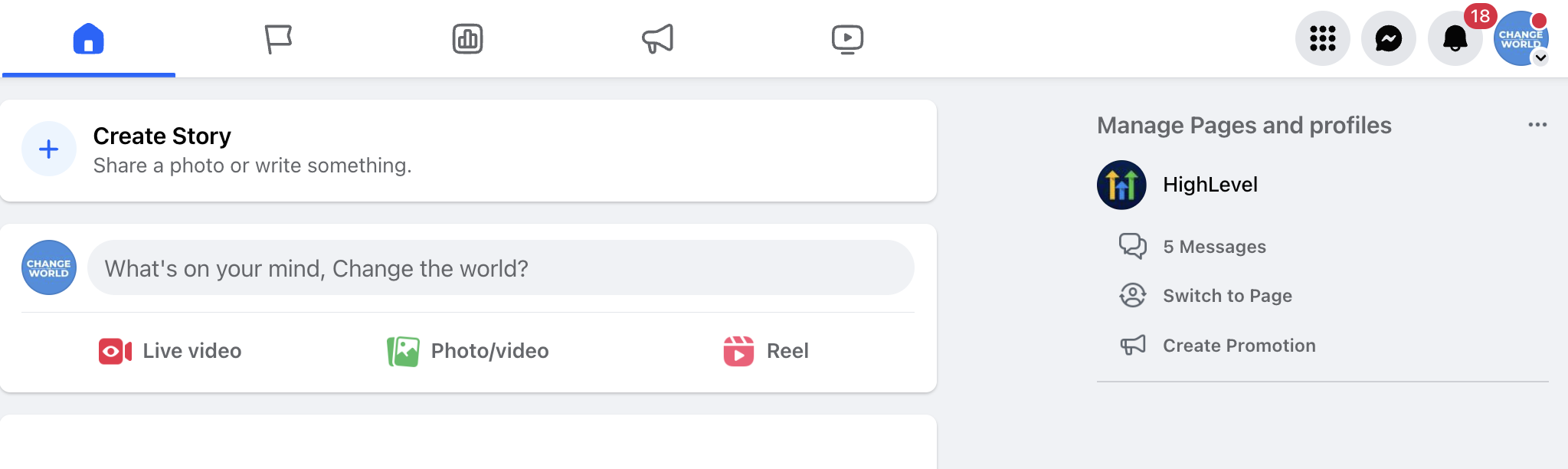
Step 2: Go to your profile icon and click Facebook Page.
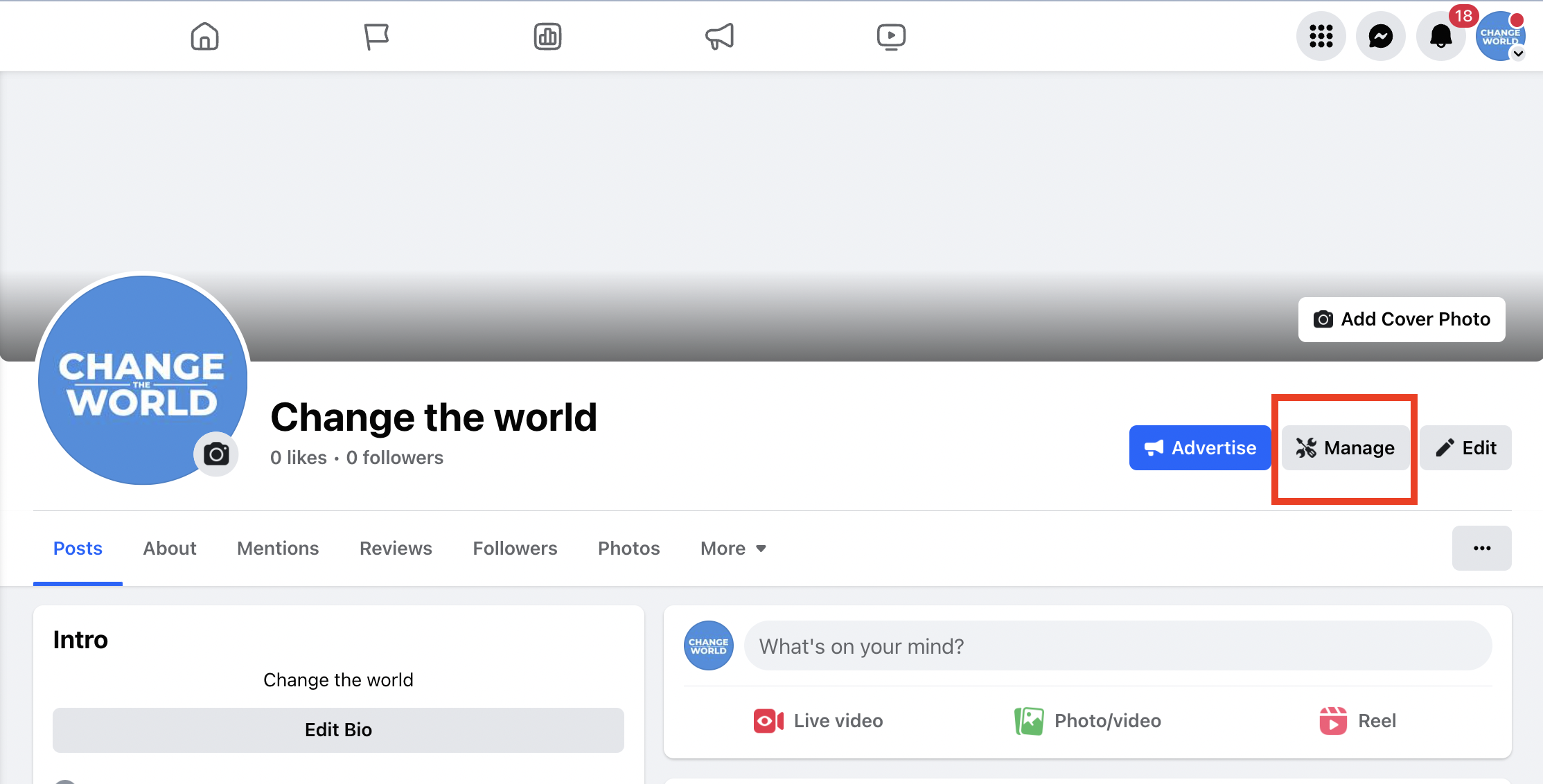
Step 3: Go to the Facebook page and click Manage.
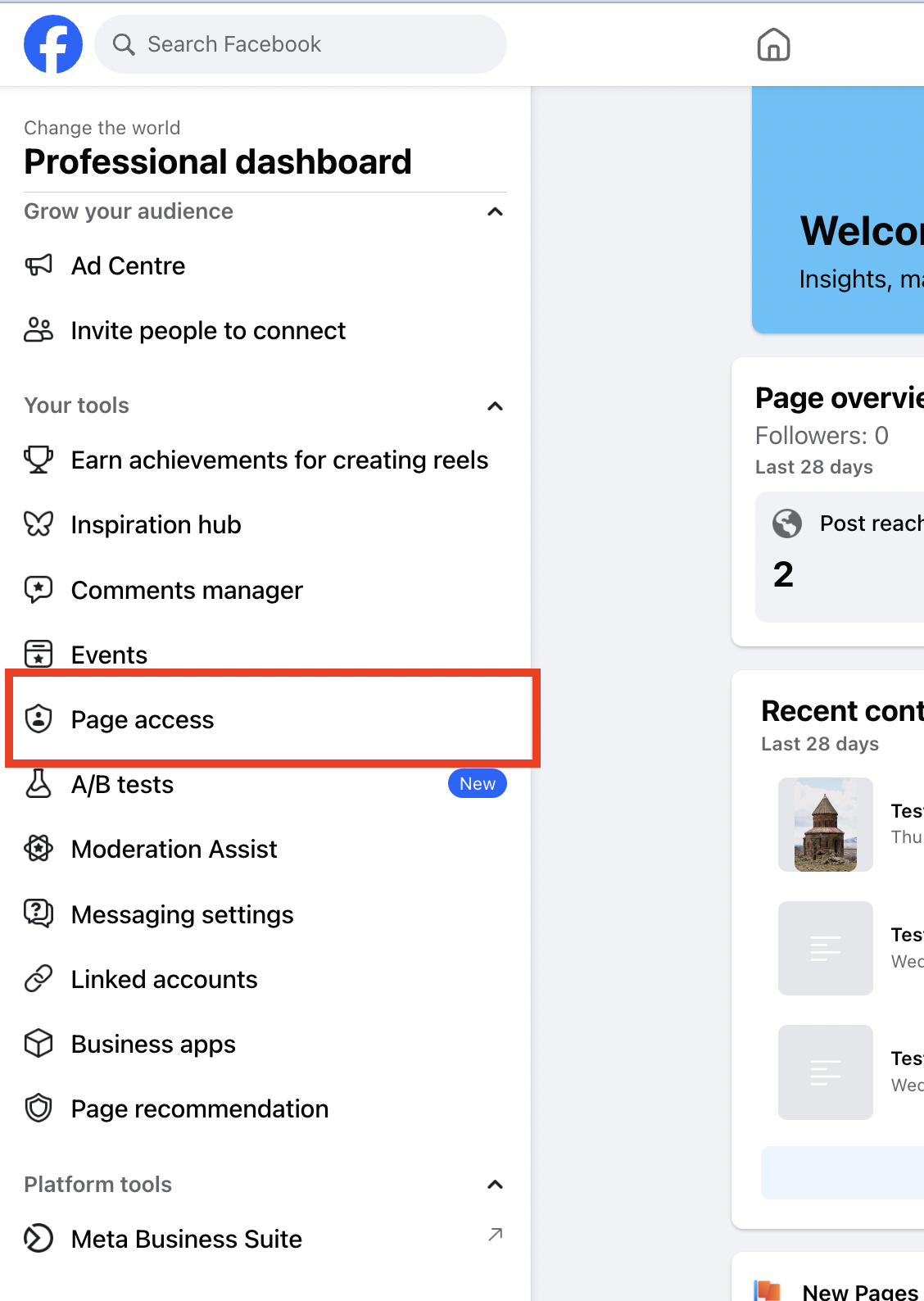
Step 4: In the left panel, look for Page Access.
Step 5: Check whether you are listed under the page name. If you are not, ask the owner or admin of the page to add the person who wants to connect and publish in Social Planner.
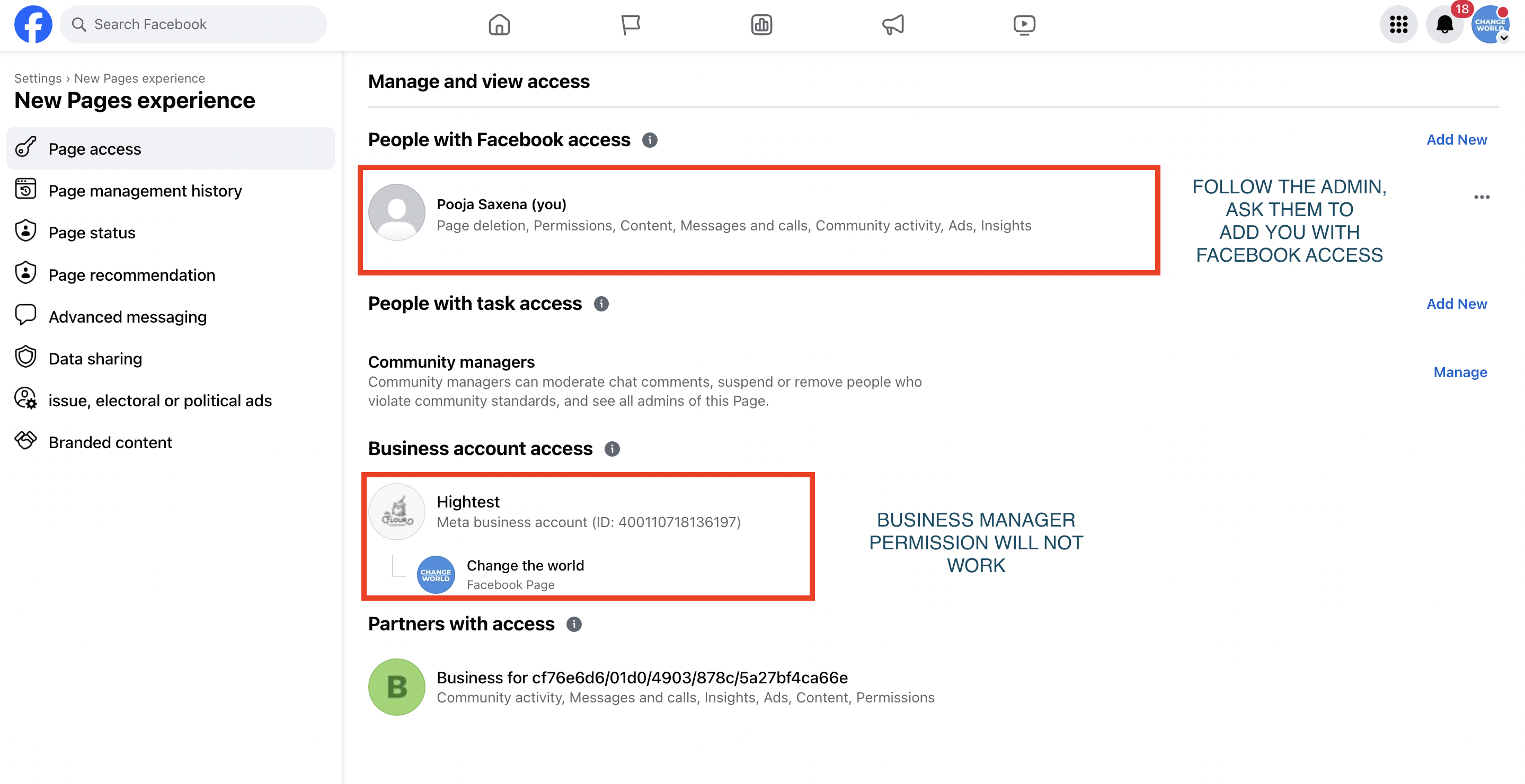
If the page does not list the person who owns it under People with Facebook access, they can try the following:
Invite someone else as an admin with full access. Sending them a friend request first can help you find their name when searching.
That person invites the admin who owns the page under People with Facebook access (full access).
Optionally, remove the initial person once the admin has full permissions.
If some of your Facebook pages are missing from the list when you try to connect, follow this guide.
Step 1: Log into the Facebook account (admin) for the page.
Step 2: Go to your profile picture icon on the right, then click Settings and Privacy.
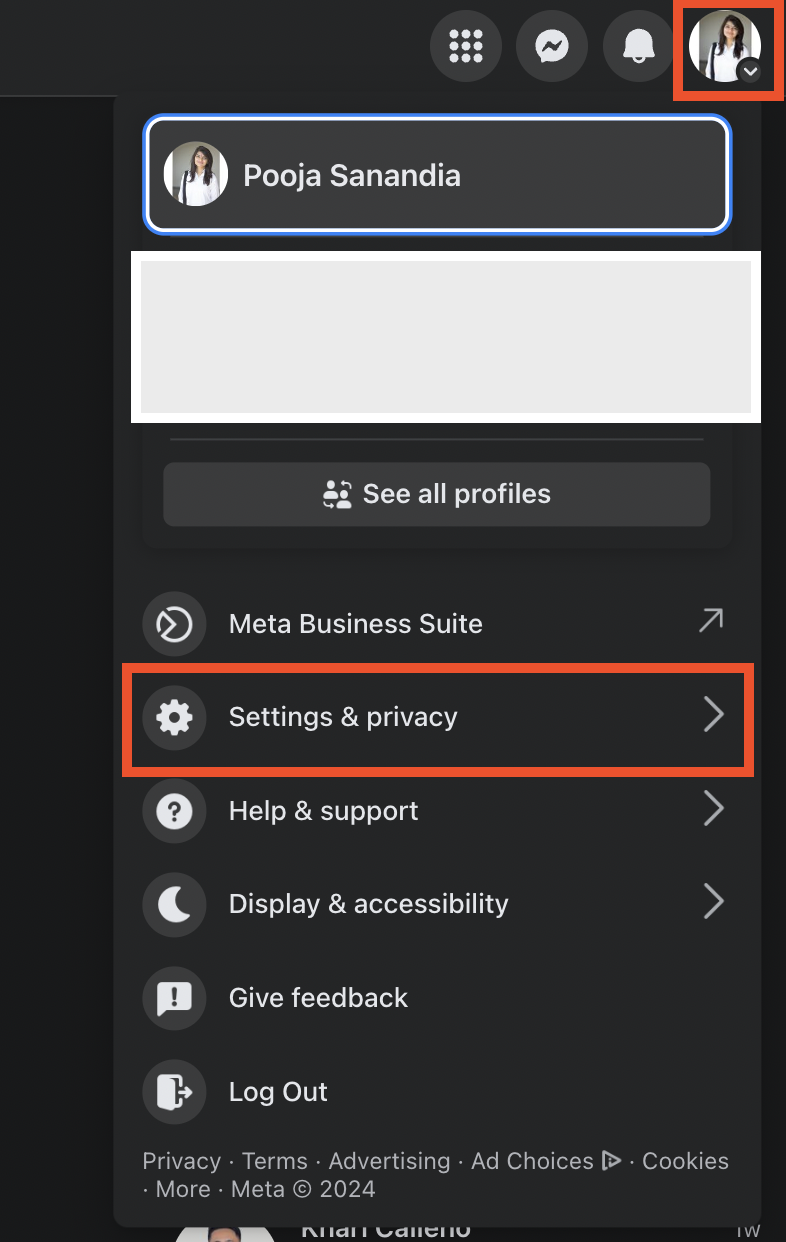
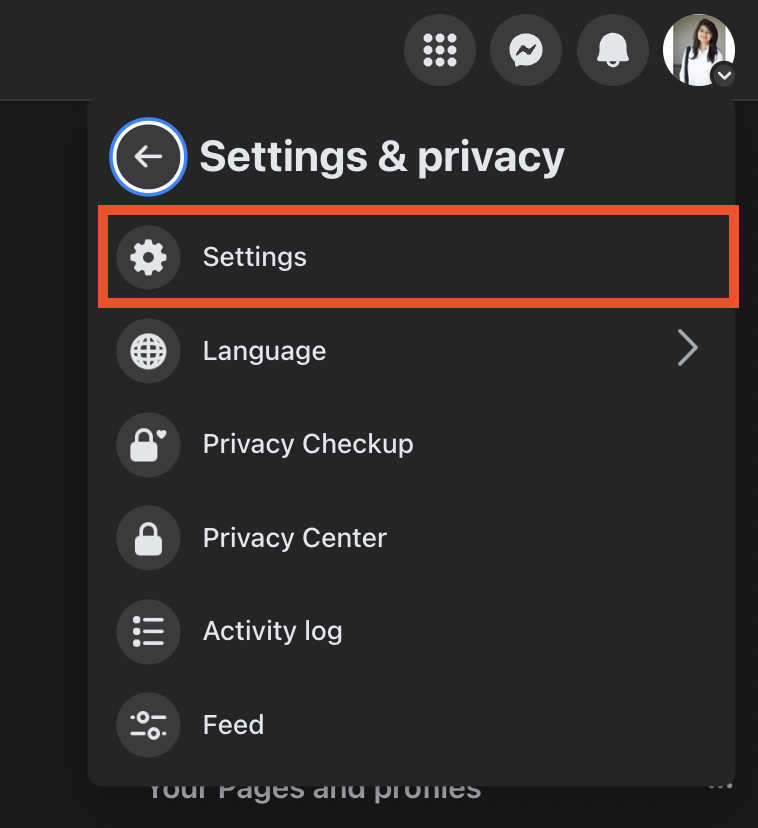
Step 3: Go to Settings and Privacy > Settings.
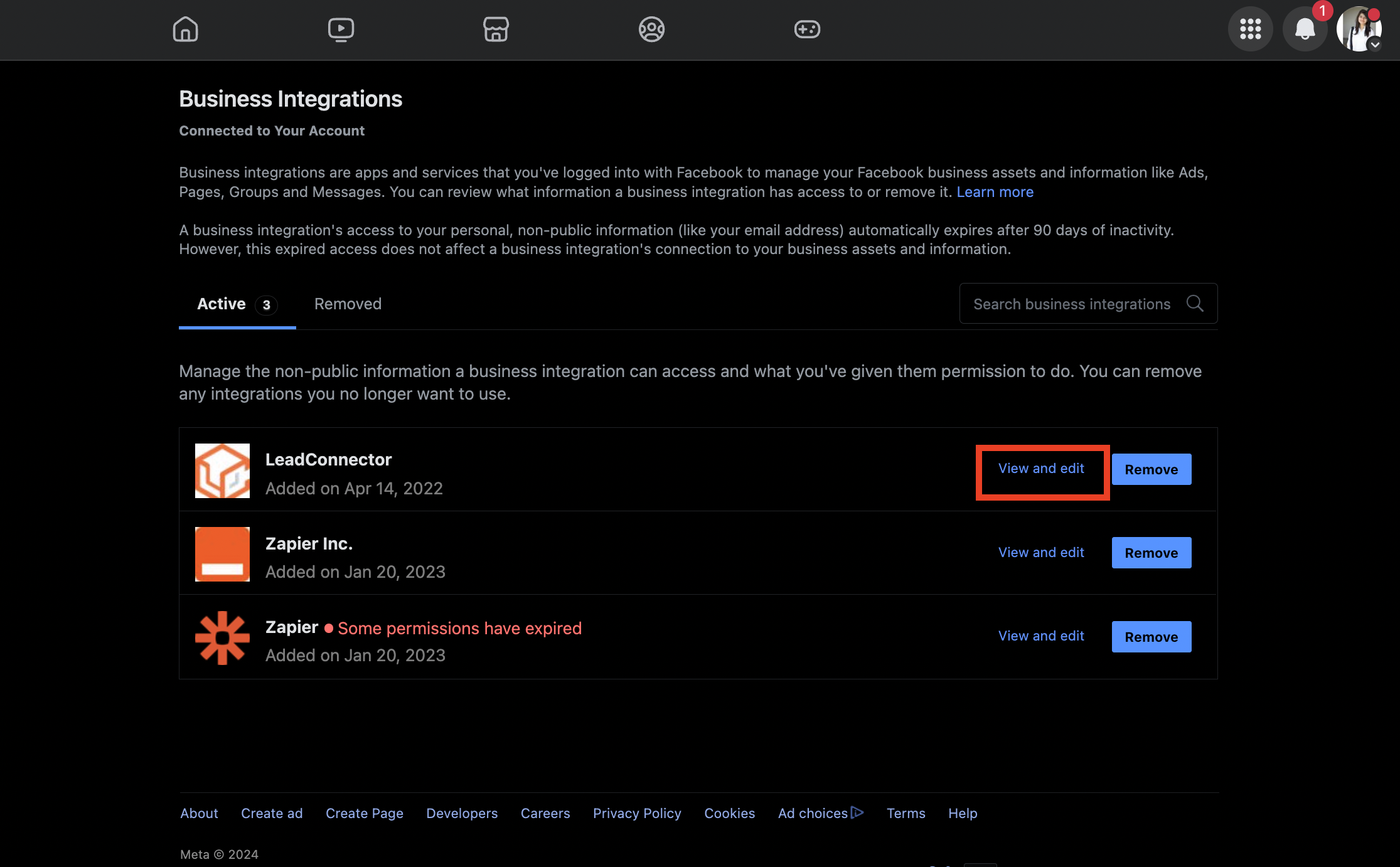
Step 4: In Settings, go to Business Integration > LeadConnector, then click the View and Edit link. LeadConnector is our underlying provider, and seeing it here is expected.
Step 5 (Select the list of pages): In the popup, make sure you have granted all permissions and selected all of your social channels. If any channels are unchecked, check them here.
Step 6 (Save and reconnect): Once you have changed the permissions or selected the new pages, click Save. Then go to Settings in Social Planner and connect your Facebook pages. The pages that were not shown previously should now appear.
Below are the most common reasons a Facebook post fails to publish, along with what each error means and how to resolve it.
1. Abusive/reported content, or link goes against community standards. Your message could not be sent because it includes content others on Facebook have reported as abusive or inappropriate, or the link goes against Facebook's Community Standards.
2. Error validating access token. The session was invalidated because the admin changed their password or Facebook reset the session for security. This happens if you changed your account password, or if you have not posted to Facebook from Social Planner in the past 90 days.
3. Two-factor authentication. If the business page you manage has two-factor authentication enabled, you must enable two-factor authentication at your own account level, then reconnect. You must be an administrator, editor, or moderator of the page to publish on its behalf.
4. "manage_permissions" must be granted. If you publish to a client's pages where you were added as an administrator, you may see this error. Make sure you have administrative access to those pages, and grant the manage permissions to the Pages section when connecting, so your post publishes without issues.
5. Missing or invalid image. If a scheduled post shares a link with an image, and that link no longer opens, you will see this error.
6. An unknown error occurred. This usually means the Facebook page access token does not have enough permission to publish. Posts may succeed sometimes and fail other times. Reconnect your pages and grant all permissions while connecting the Facebook page.
7. The URL you supplied is invalid, or this link could not be posted. When you publish a message that includes a link, Facebook indexes it. When Facebook's servers are overloaded they cannot index it during the request, and the post errors. Facebook still indexes the link, so retrying a couple of minutes later usually works.
8. Unable to reconnect a page or group in Social Planner.
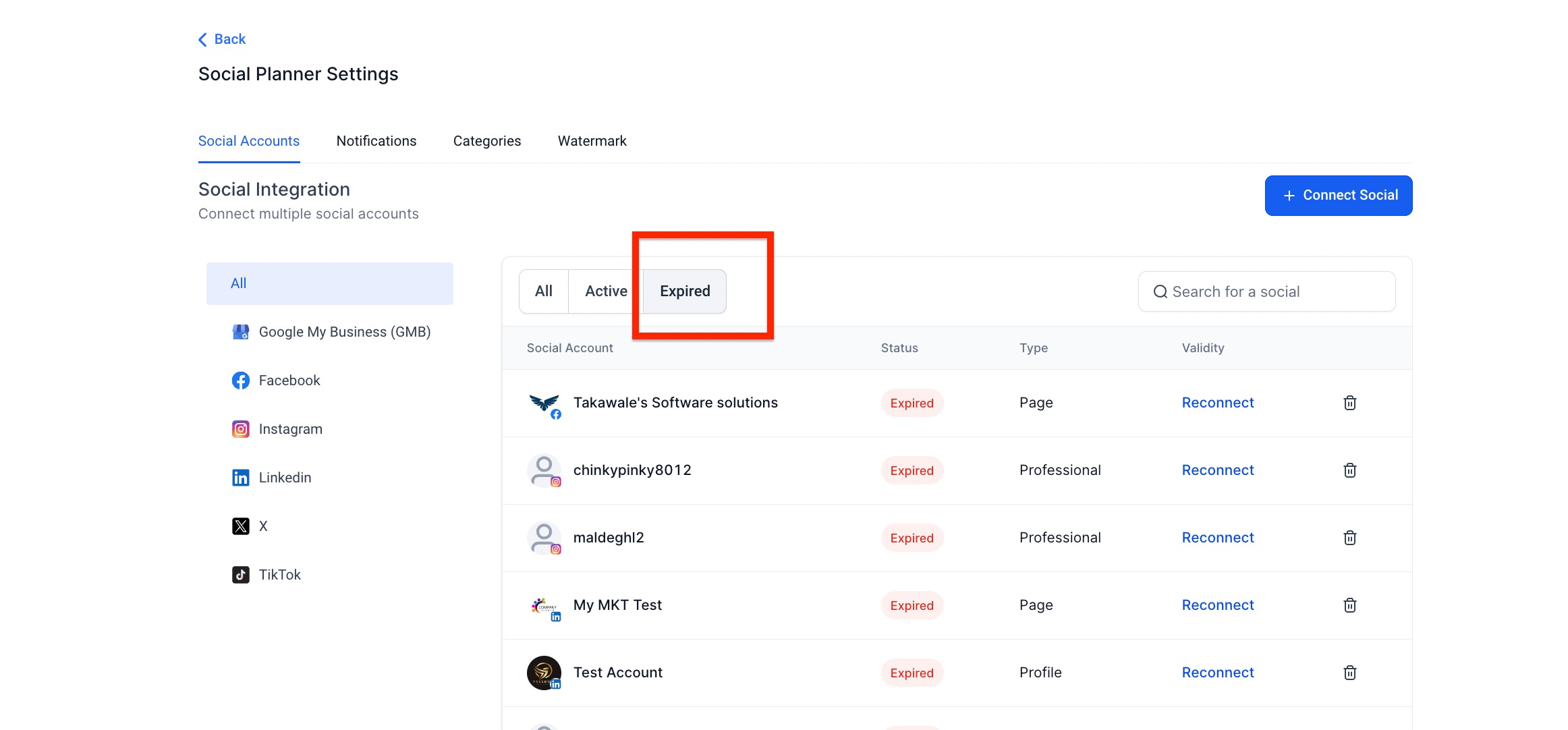
To reconnect a page or group within Social Planner, reconnect using the same user's social media account that originally connected the page or group to your account. Alternatively, have the current user go to your account Settings > Integrations, click Disconnect, then click Connect for the accounts with expired tokens. That user must be a page admin. Once done, return to Social Planner and check whether the token is still expired.
For example: if Emily connected the Facebook page using her account, and Alex (account admin) now wants to reconnect because the integration expired, Alex must use Emily's Facebook account to reconnect, or ask Emily to reconnect the page herself using her account in Social Planner settings (gear icon) > Integrations > Disconnect, then reconnect the social pages showing expired tokens.
Why do my scheduled posts keep failing? The most common cause is an expired or revoked account token. Reconnect the affected account under your account Settings > Integrations, or in the Social Planner settings gear icon > Integrations, and make sure all permissions are granted.
What does the error code next to a failed post mean? Match the code to the table above to see the exact cause and the fix. Codes generally fall into token/permission problems, content violations, or temporary platform errors.
I see "LeadConnector" on Facebook. Is that a problem? No. The connection between your account and Facebook is powered by our underlying provider, which appears as LeadConnector on Facebook's app and permission screens. Seeing it there is expected and safe, and the app must remain added to your page for posting to work.
A page I manage is not appearing when I try to connect it. What do I do? Confirm you have admin rights on the page itself (not just through Business Manager), and that all content and insight permissions were granted at connection. Follow the "Facebook Pages Not Showing in the List" steps above to review Page Access and Business Integration settings.
Why did I get a duplicate content error? Facebook, Instagram, and LinkedIn block posting the same content within 12 hours. Edit the caption or media so the post is unique, then reschedule.
My Instagram post failed. Are there special requirements? Yes. Instagram publishing requires a Business account. Carousels must contain more than 2 and fewer than 10 items, tags are limited to 30, and there is a daily publishing limit set by the API. Check the Instagram rows in the table for the specific code.
Who has to reconnect an expired Facebook account? The same user who originally connected the page, using that user's Facebook account. If a different admin needs to reconnect, they must log into the original connector's Facebook account, or have that person reconnect their own pages.
A post failed because of a temporary platform error. Should I do anything? Usually it resolves on its own. Give your browser a hard refresh to clear the cache and retry in a few minutes. If the failure persists, check for an expired token or a permission issue.
