The post approval flow in Social Planner lets you route a scheduled social post to another person for review before it goes live. This is useful when a coordinator drafts a promotion and the practice owner or marketing lead needs to sign off, or when an outside marketing partner reviews your content. You can approve posts two ways: with an internal approver who has a login to your account, or with a secure external link that a client or stakeholder opens without logging in at all.
This article covers both the internal approval flow and the external link approval flow, along with bulk approvals, the approval email template, and how approvers can reschedule during review.
The internal flow sends a post to a team member in your account, who reviews it and either approves or rejects it.
1. Go to Marketing.
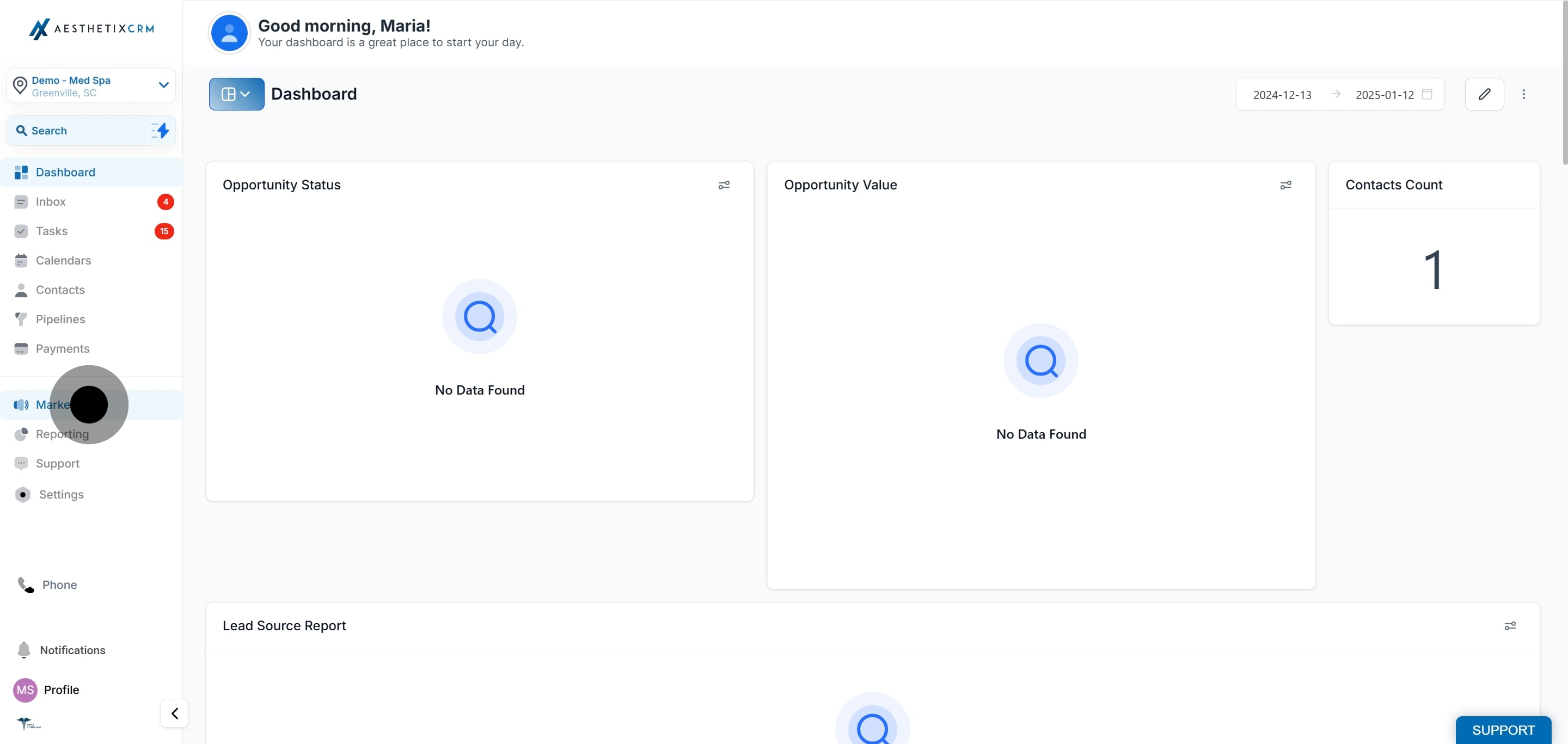
2. Select Social Media Planner.
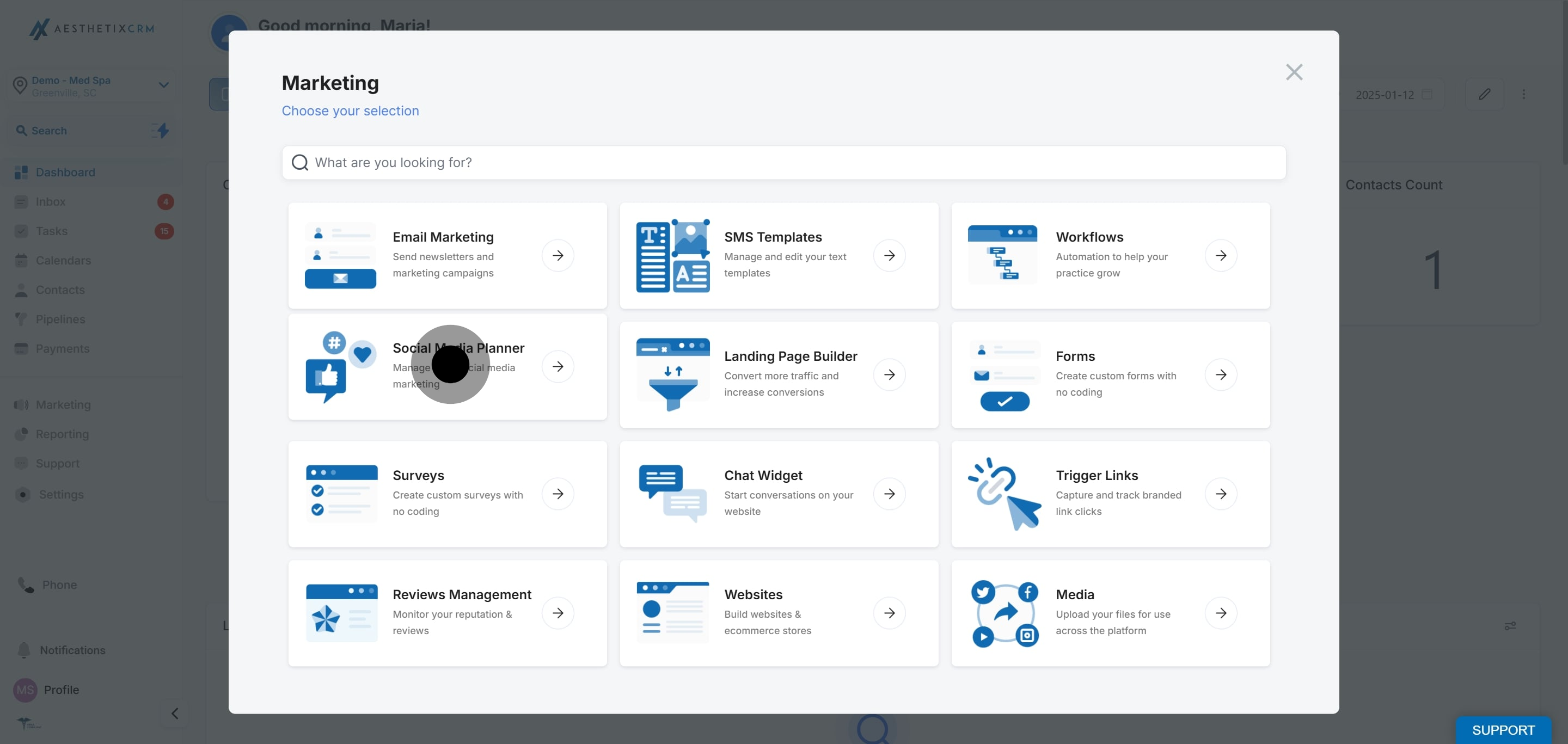
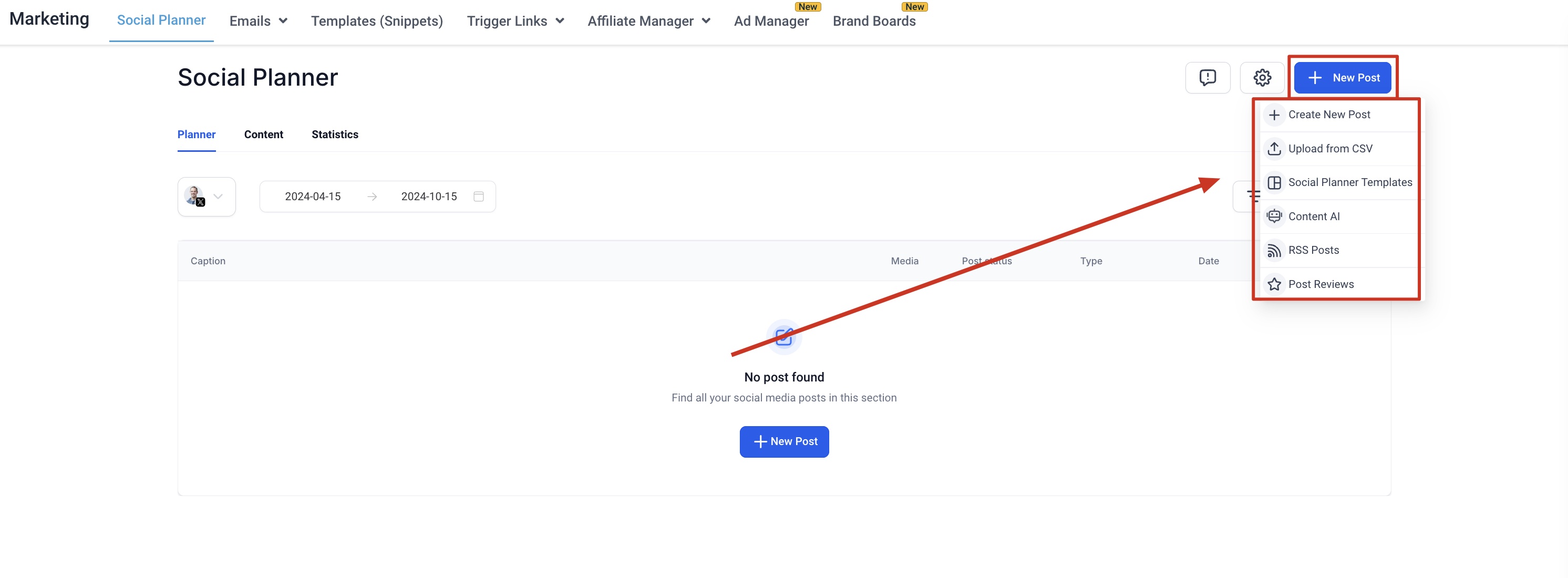
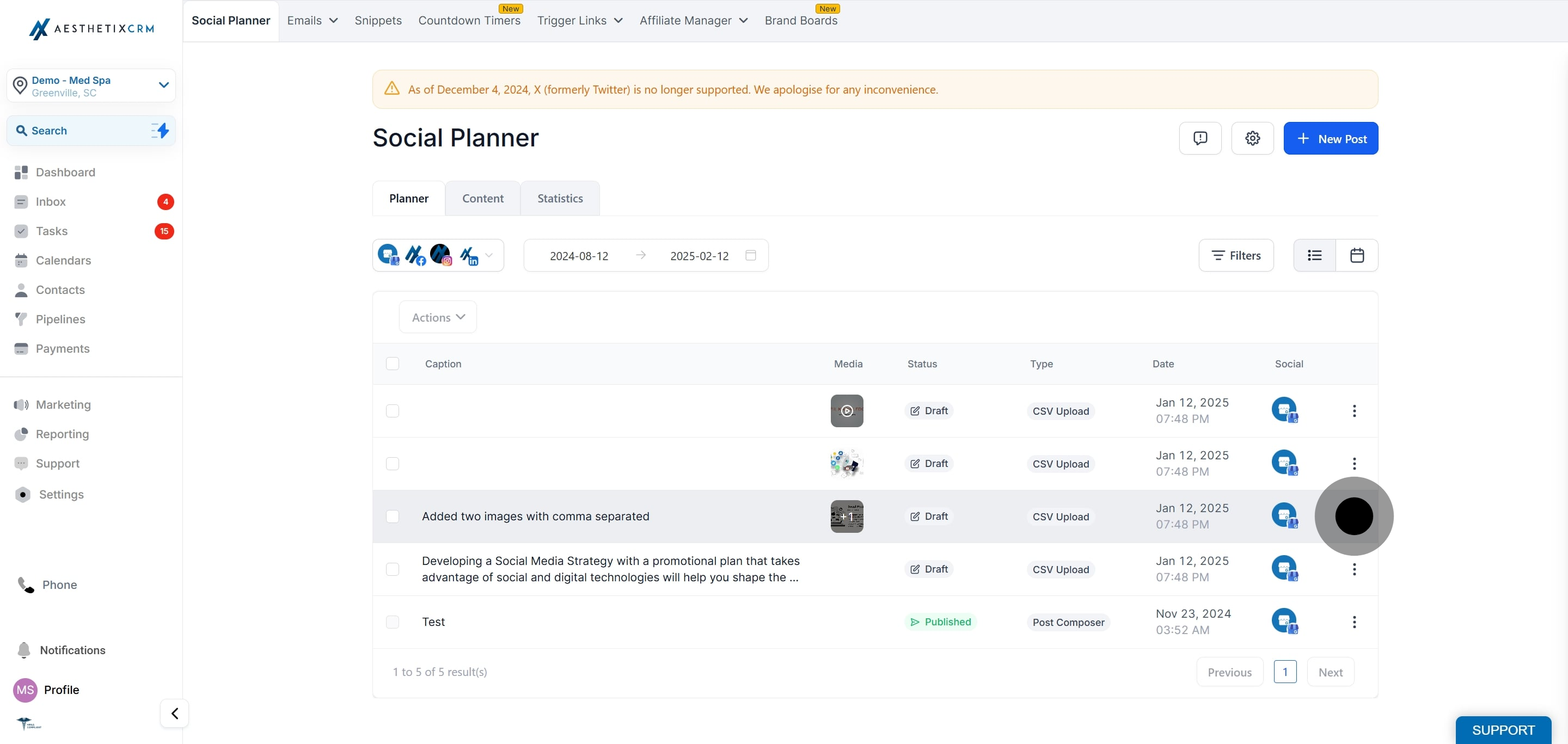
3. Choose the desired planner, click the three dots next to it, and click Edit.
4. Once the post is created with content, media, and hashtags, select the Scheduled for Approval option to submit the post for review.
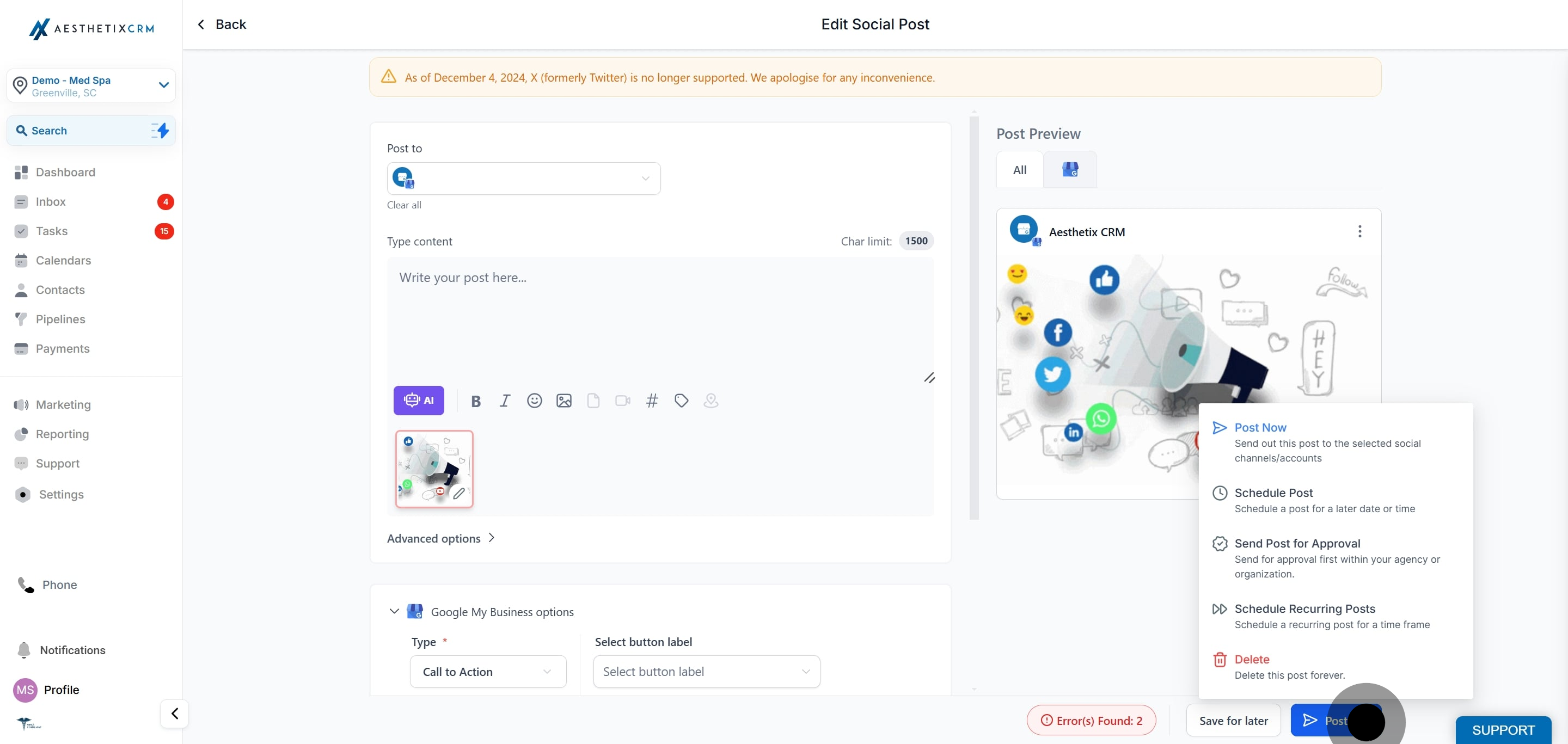
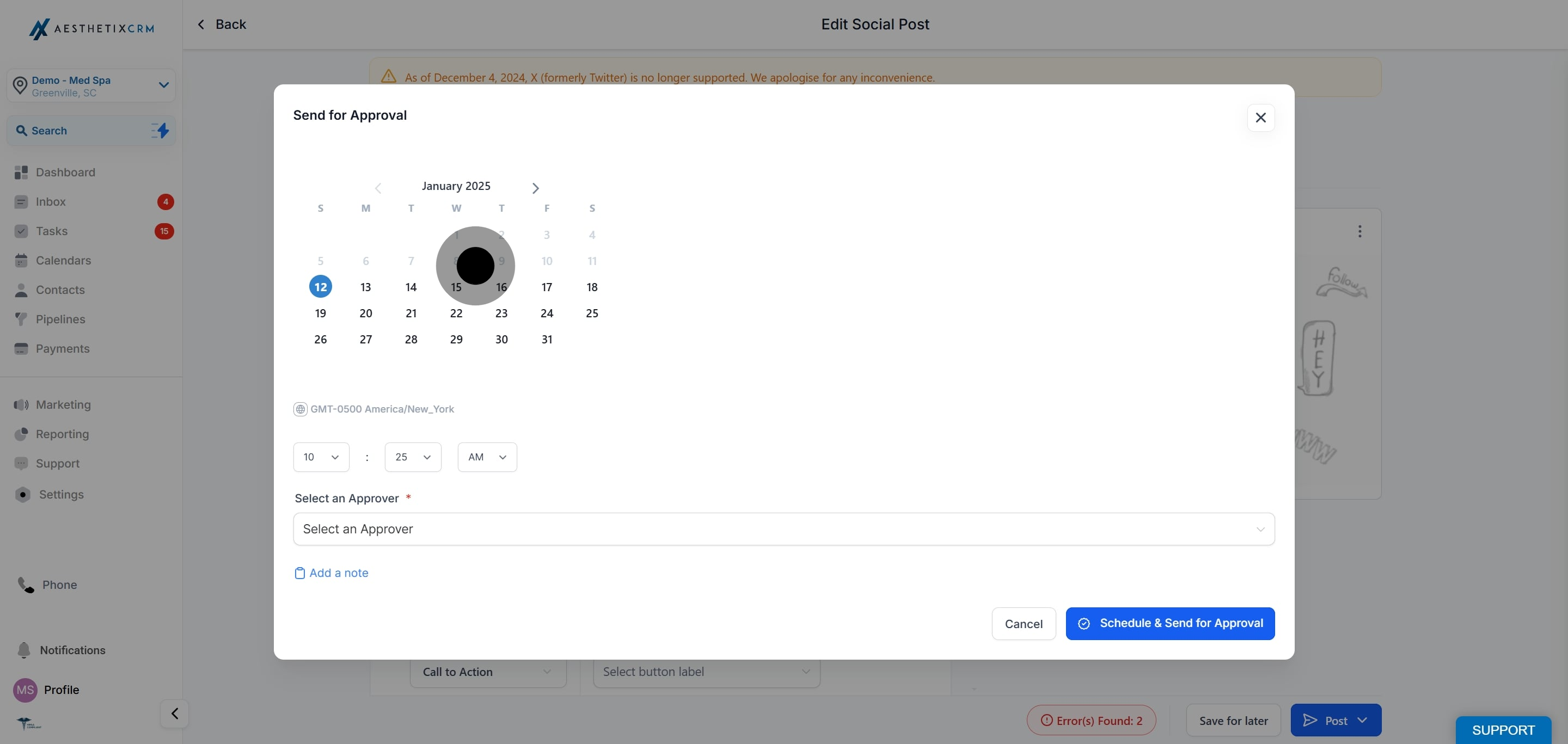
5. Specify the date and time for when the post should be scheduled.
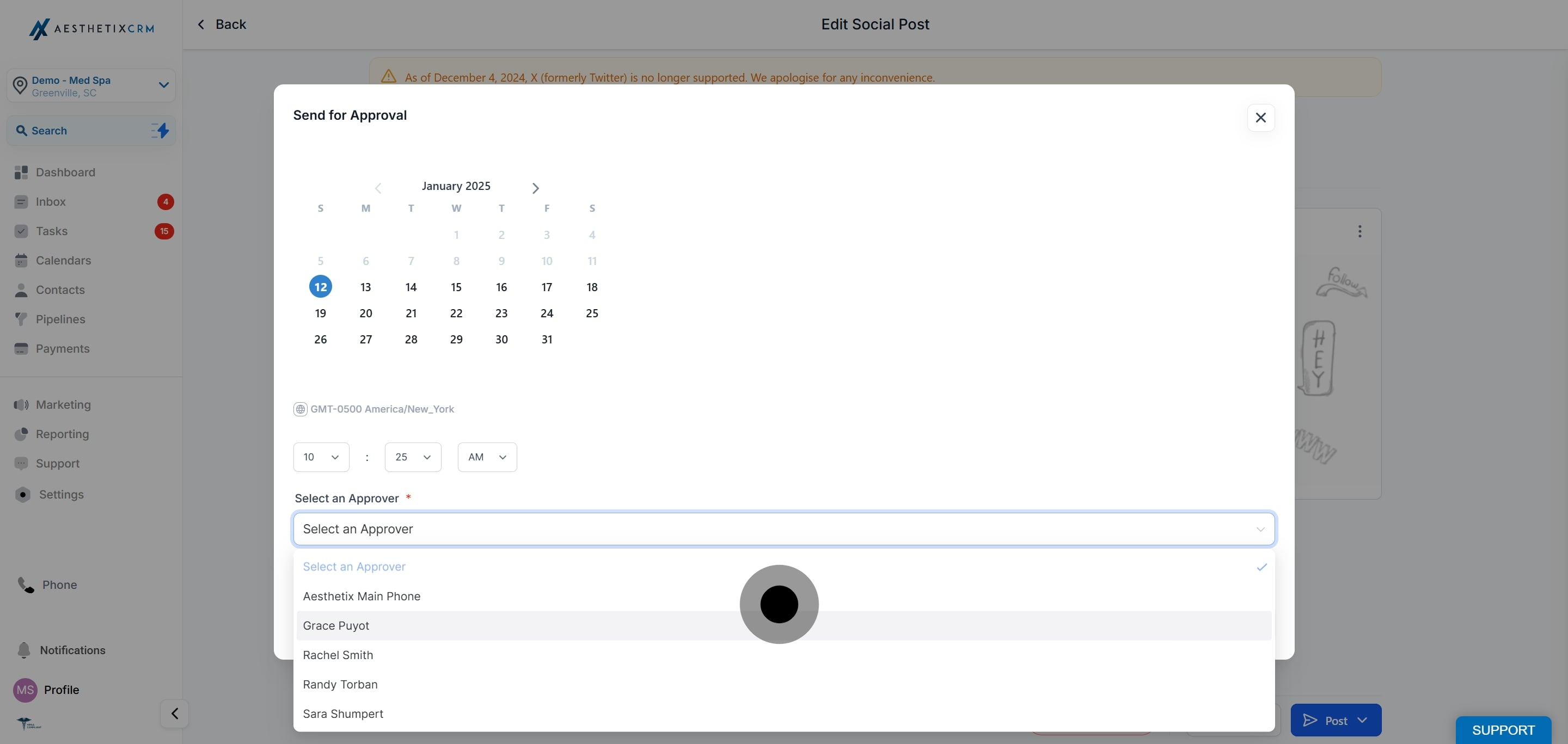
6. Choose the user responsible for approving the post to be scheduled on the social calendar.
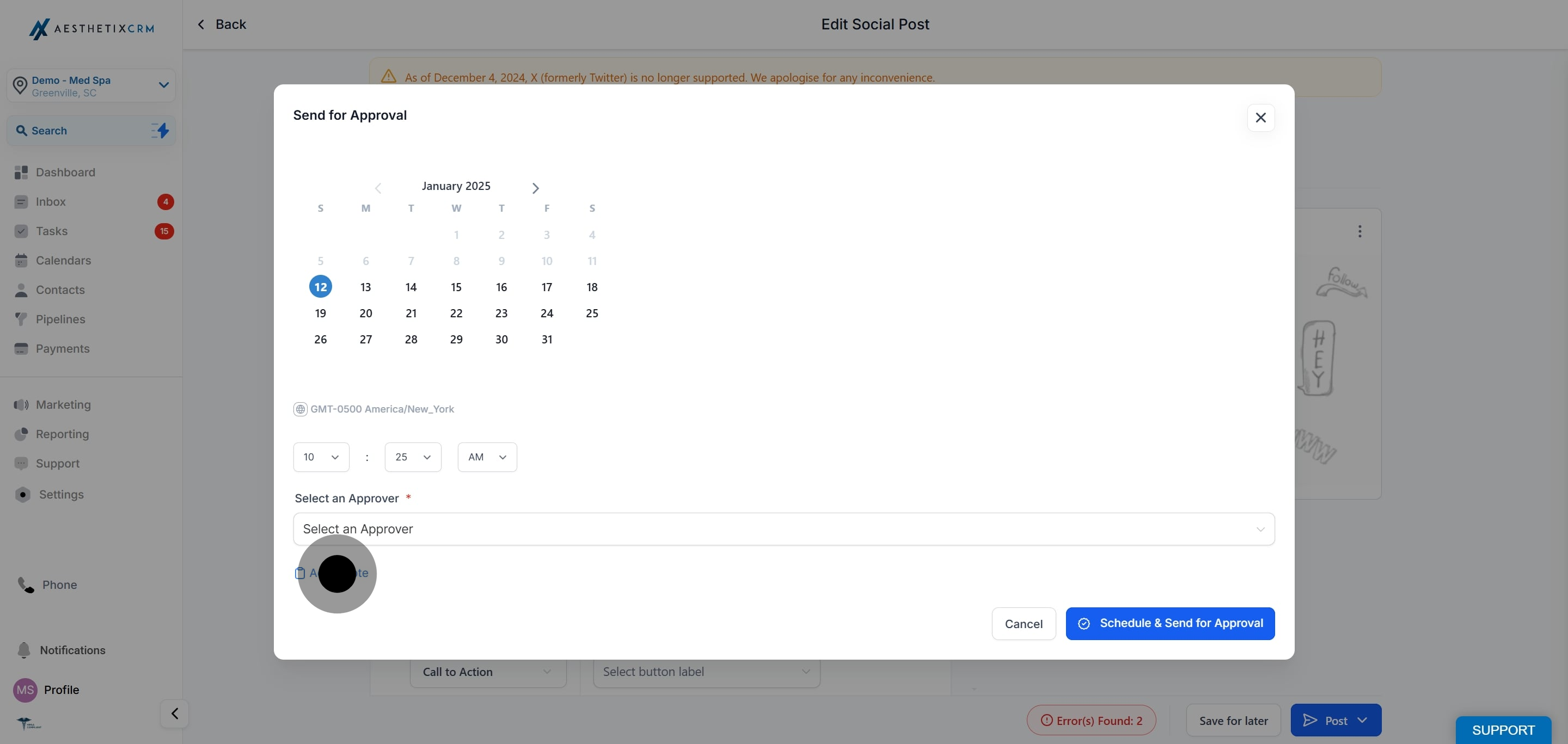
7. Add an internal note to give the approver additional information or context.
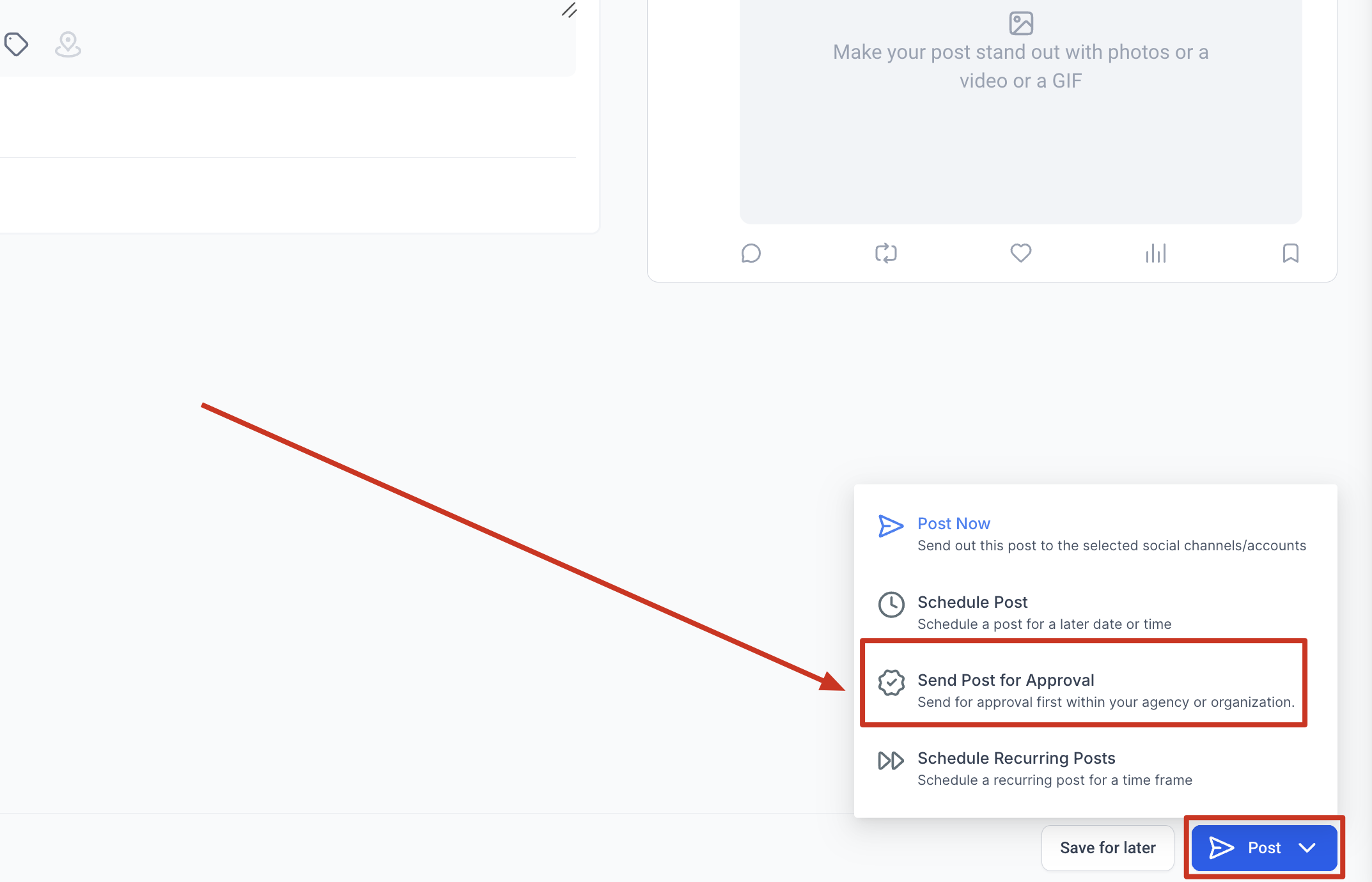
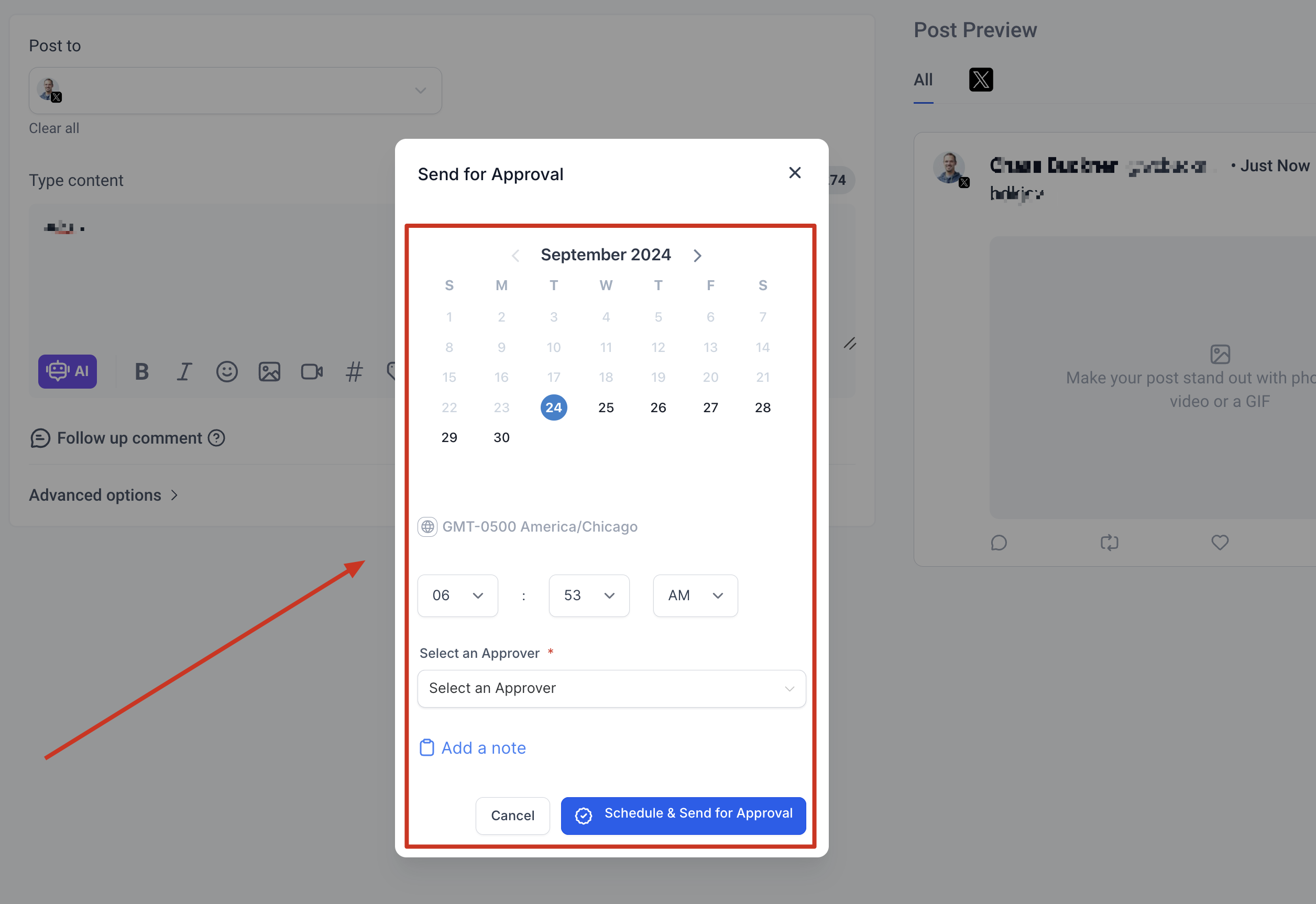
8. Click Schedule and Send for Approval to complete the process.
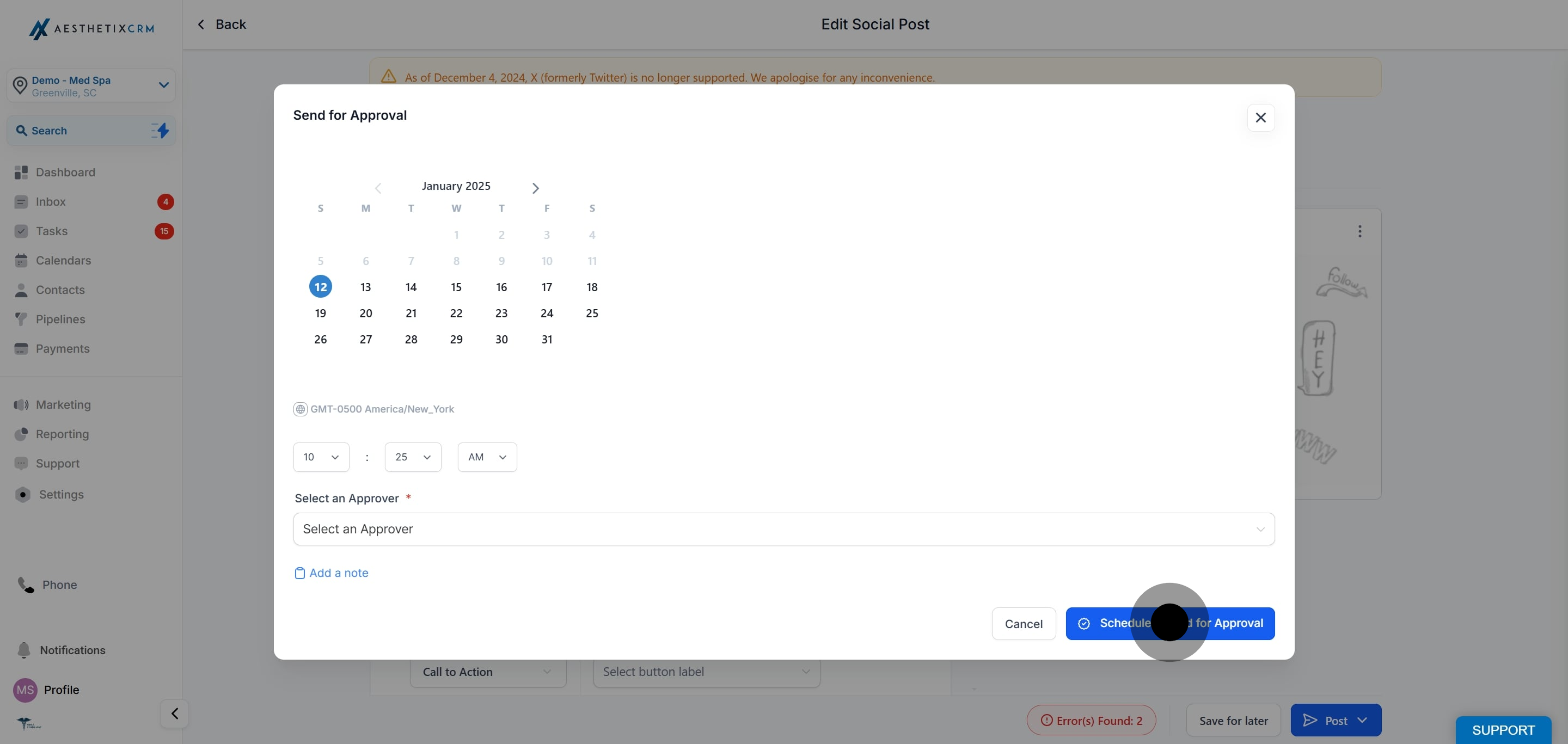
Once the post is sent for review, an email notification is delivered for the scheduled post.
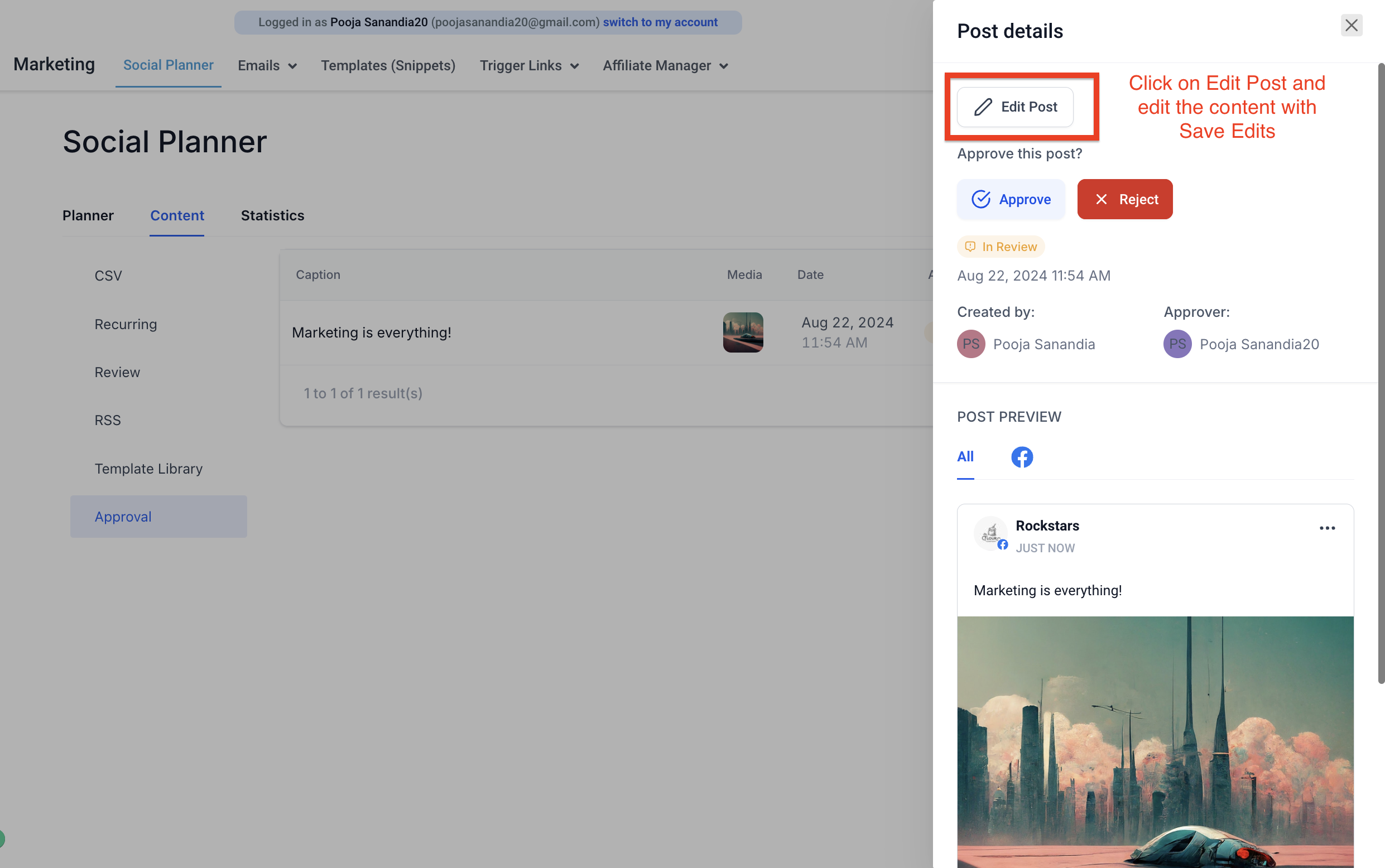
The reviewer can see the post in the Content > Approval tab, with the option to view, approve, or reject. The view option opens the full details of the post so the reviewer can approve or reject from there. The reviewer can also edit the content before approving by clicking Edit in the view screen.

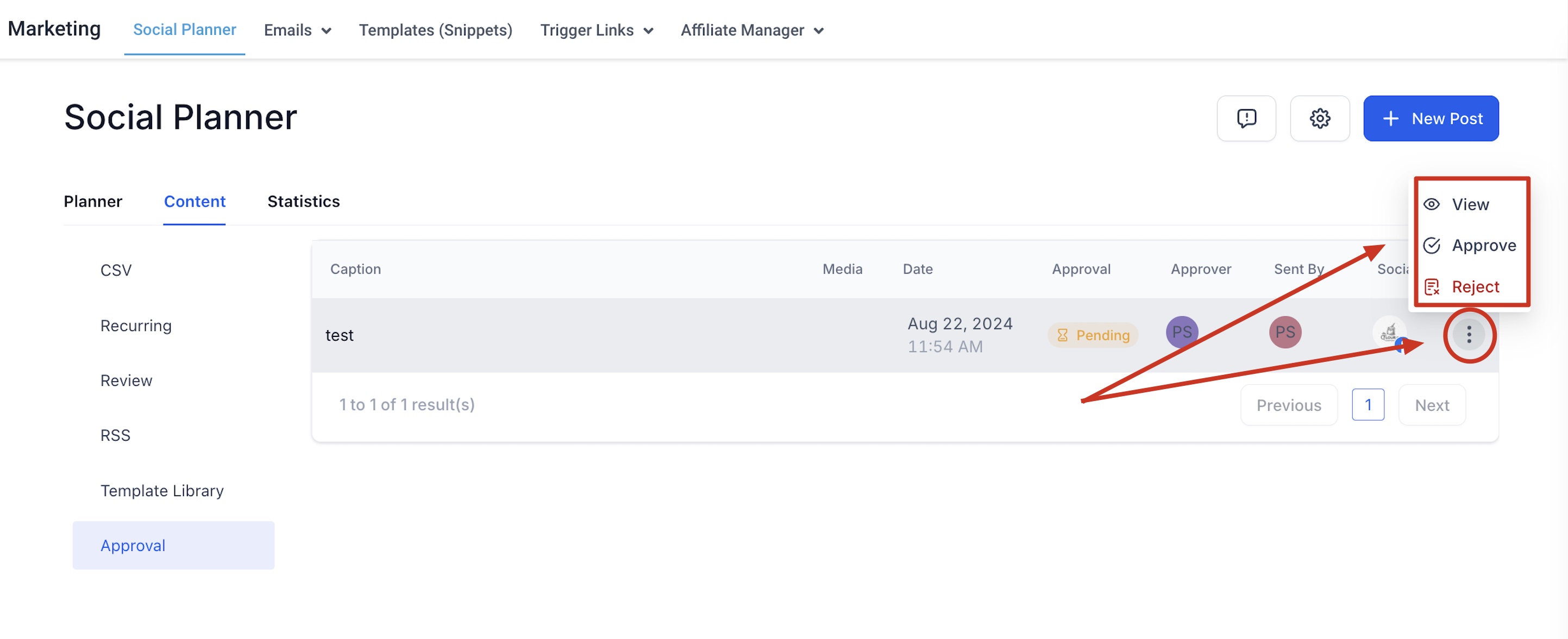
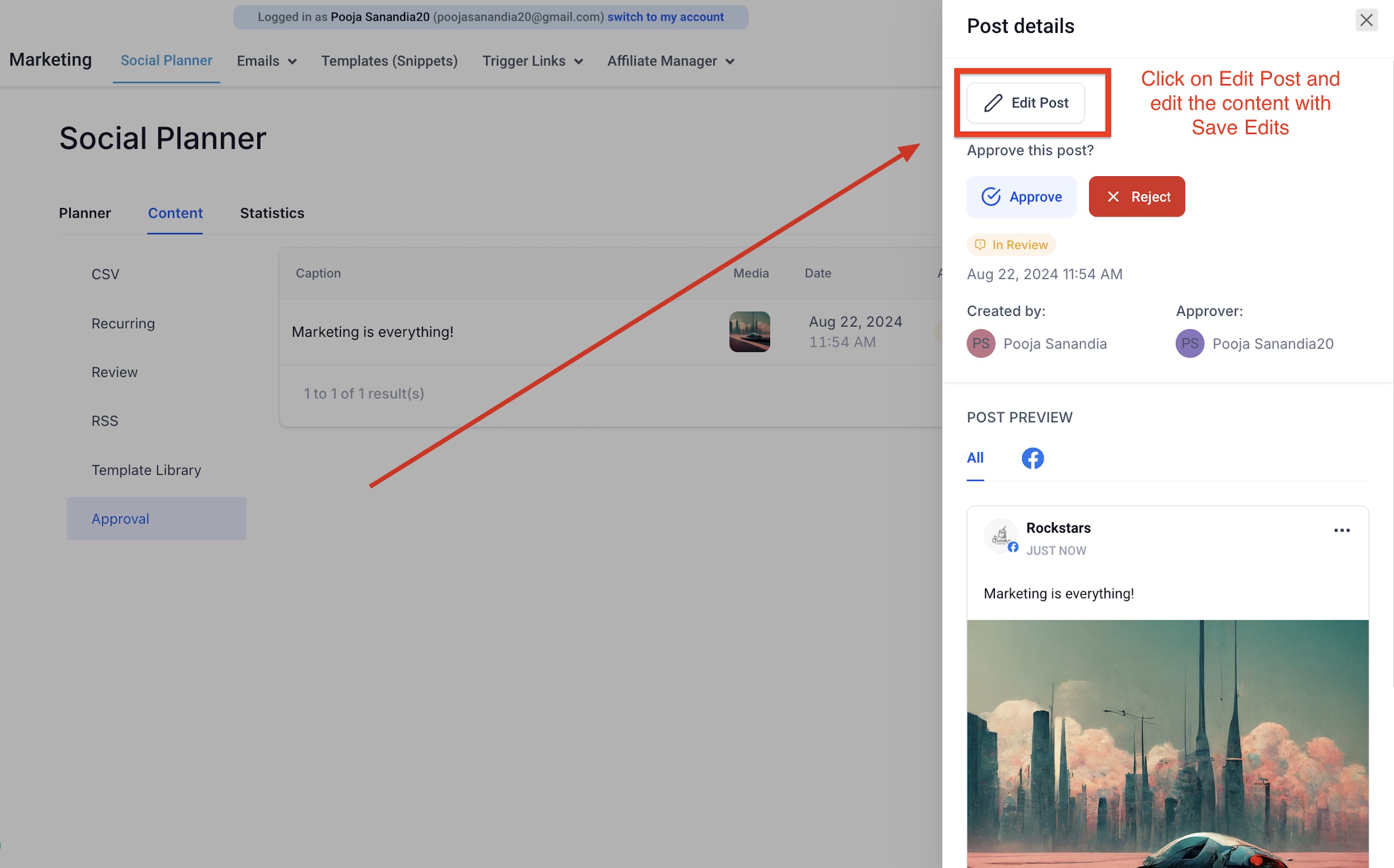
Once the post is approved, it is scheduled on the social calendar. If the post is rejected, the creator can view the comment left by the reviewer.
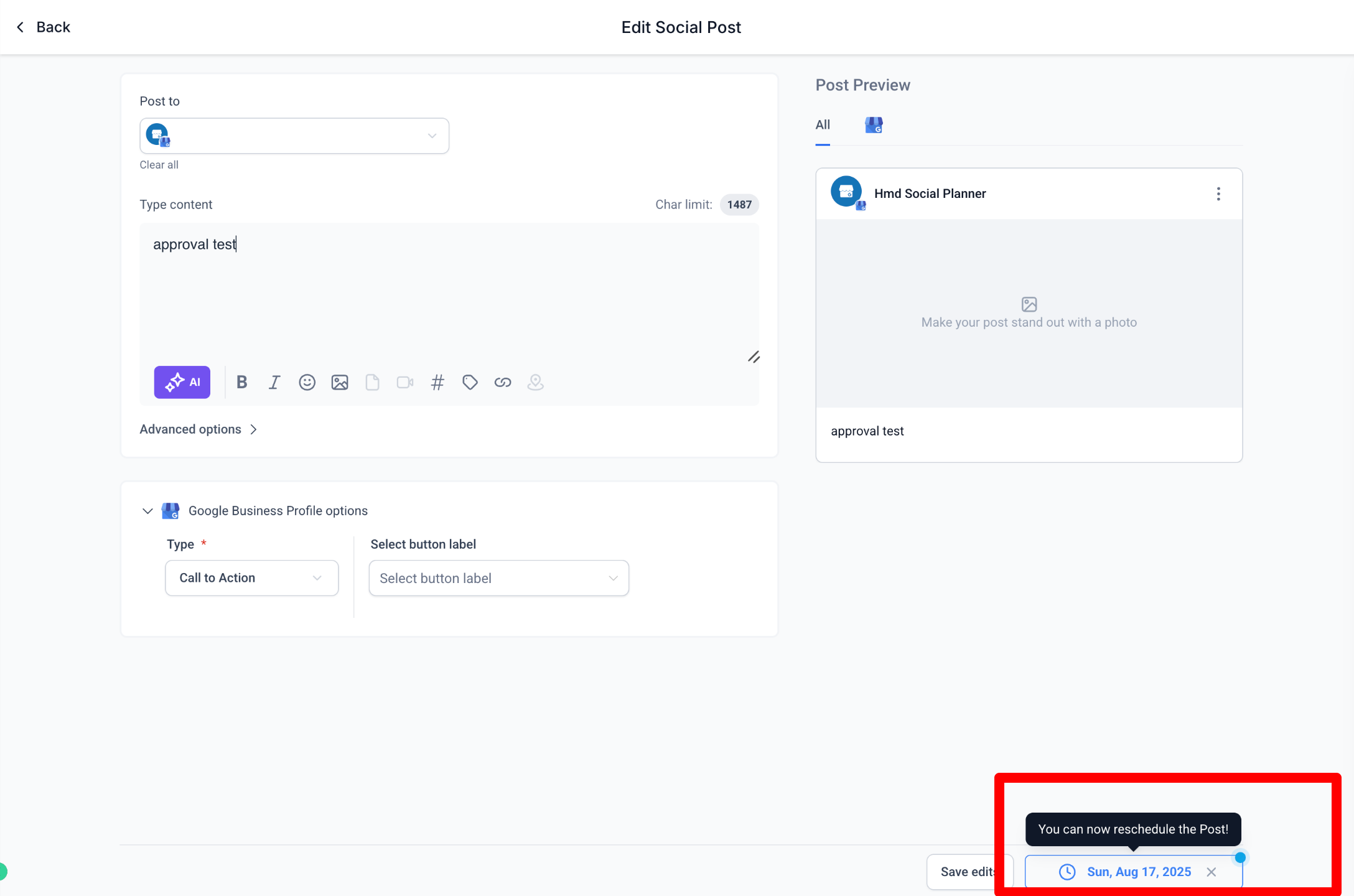
Approvers can also reschedule posts directly within the approval flow. In the approval review screen, they can click the scheduled date and time, choose a new publish date and time, and then click Approve to confirm both the approval and the updated schedule. After approval, the Social Planner calendar updates immediately to show the new scheduled time.
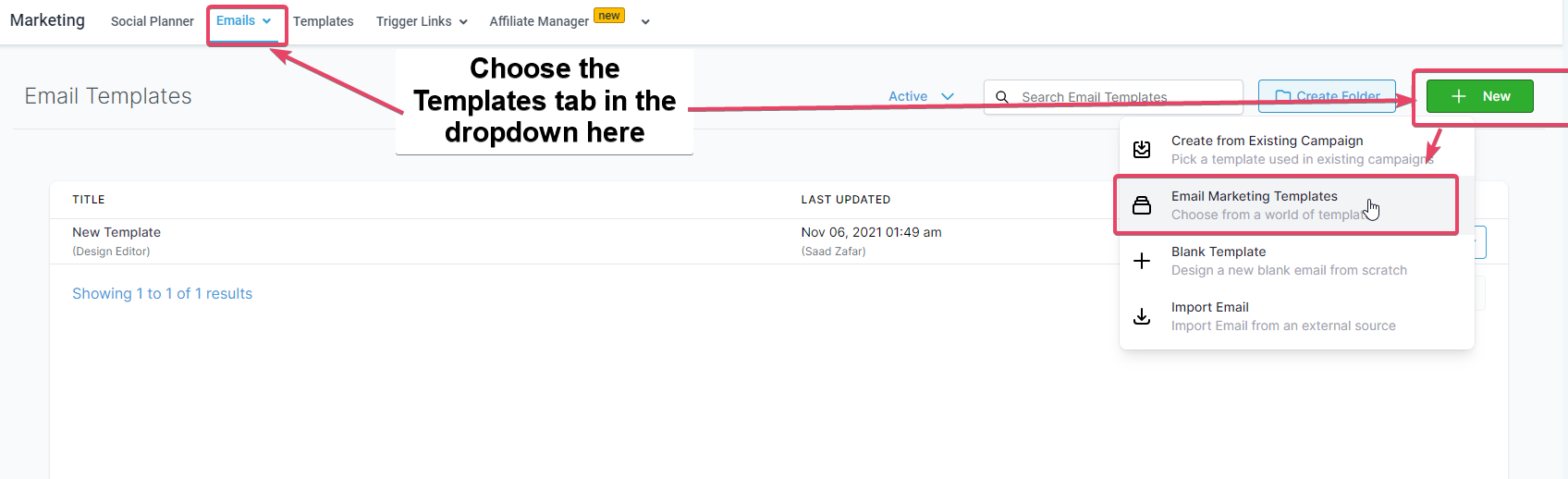
You can set which email the approver receives from Social Planner Settings. To brand the email, first build a template by going to Marketing > Emails > Templates > New > Email Marketing Templates.
You are taken to the Template Library. Go to System Templates > Social Planner: Post Approval and use the template. Edit it as you see fit.
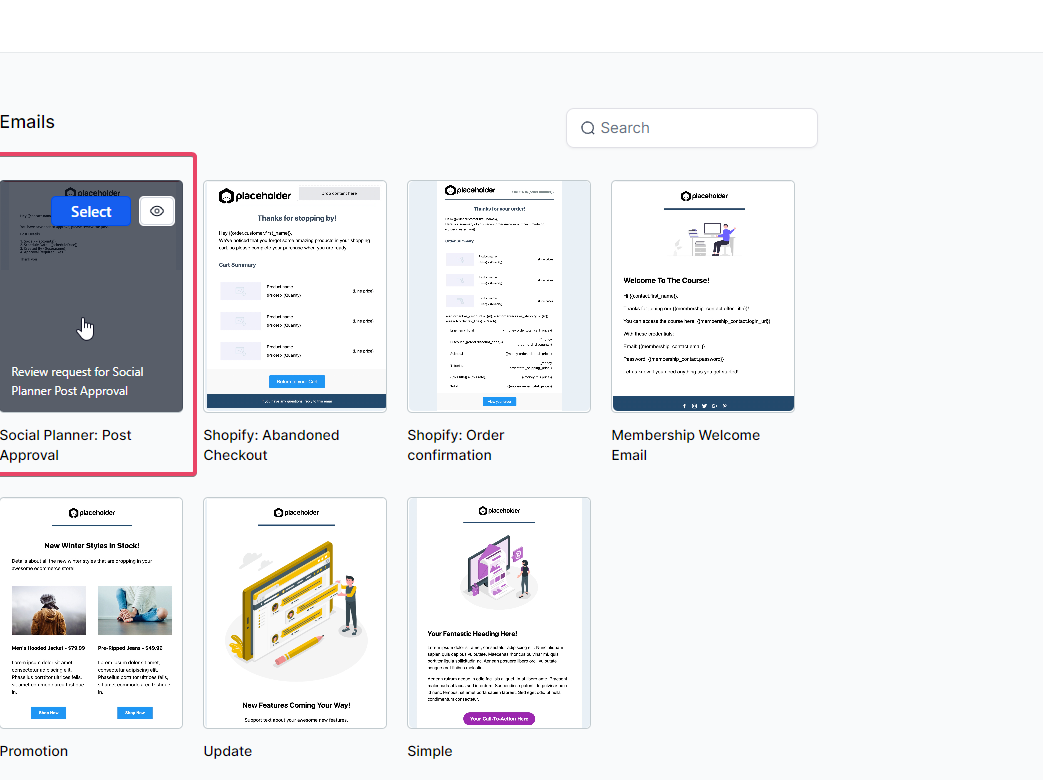
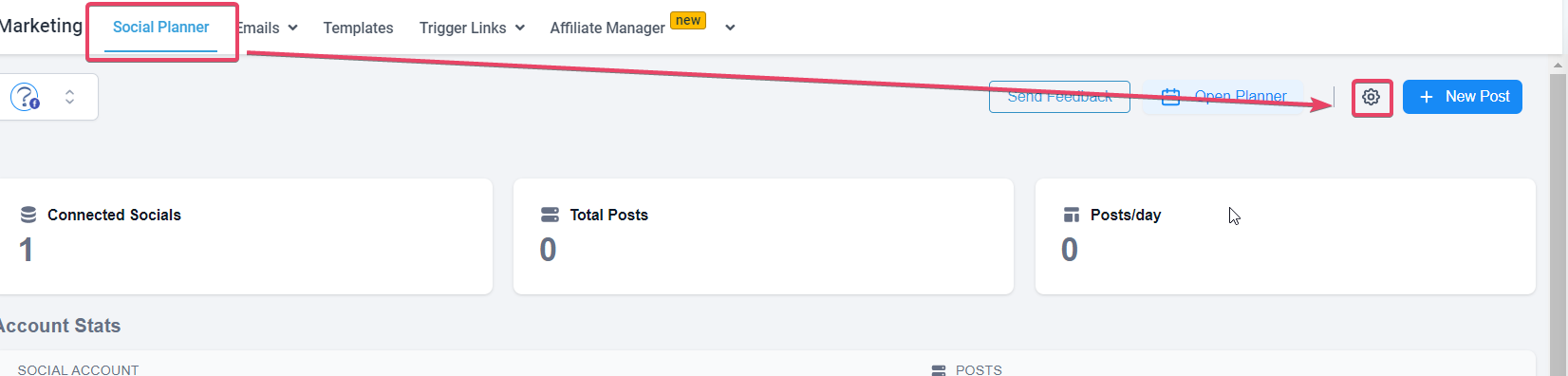
That template can then be applied to the post approval email flow in Social Planner Settings > Notifications.
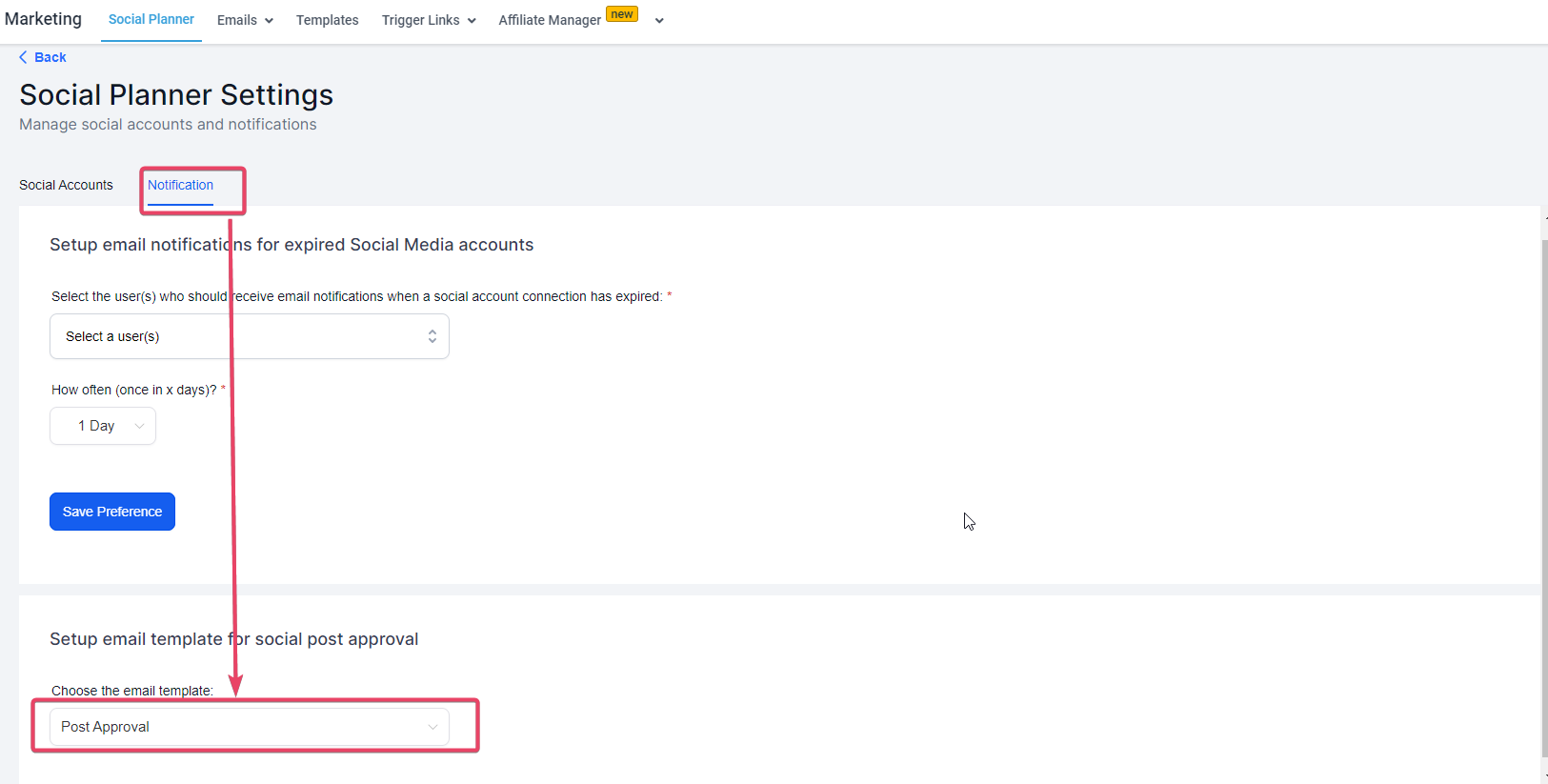
Choose the email template under Setup Email Template for Social Post Approval.
If you upload posts in bulk with a CSV, you can route the entire batch to an approver at once.
Create a new CSV by clicking the New Post button.
Once you add the CSV file and select the socials, you will see an option to Select an Approver.
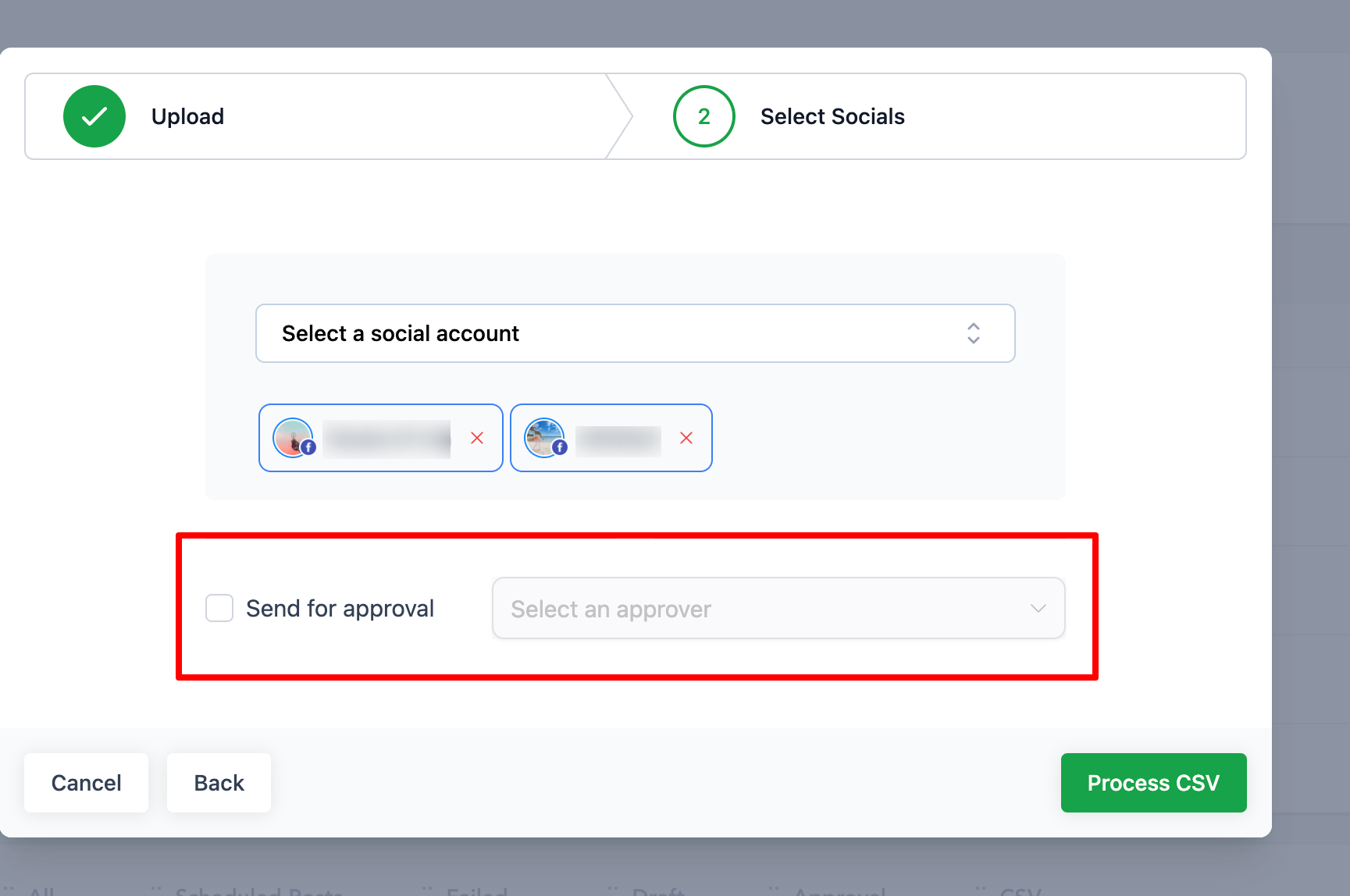
Once the posts are imported, they go for review from the chosen approver. Once approved, they are scheduled on the social calendar.
The external approval flow lets you share social posts with clients or stakeholders for approval using a secure link (a Magic Link), without requiring them to log in to your account. This streamlines approvals, reduces back-and-forth, and keeps collaboration inside Social Planner.
With this feature you can:
Share posts using a secure approval link
Allow external users to approve, reject, or reschedule posts
Add and view approval notes
Track all approval links in one place
Manage approvals without adding users to your account
Go to Marketing > Social Planner.
Select an Approver from the dropdown.
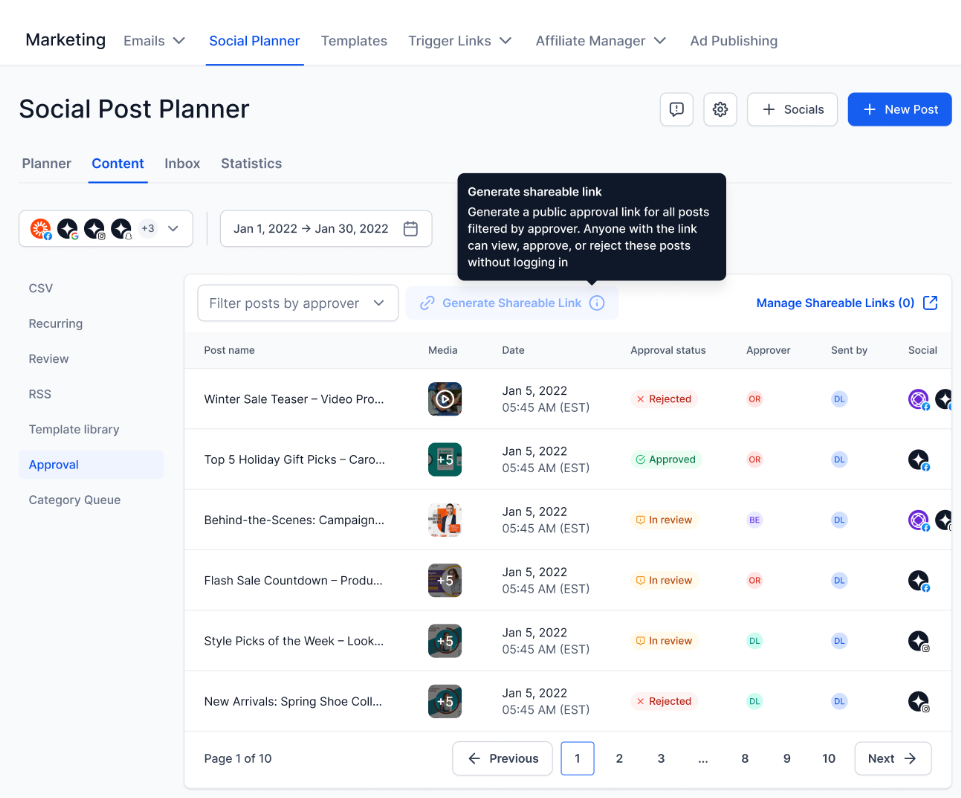
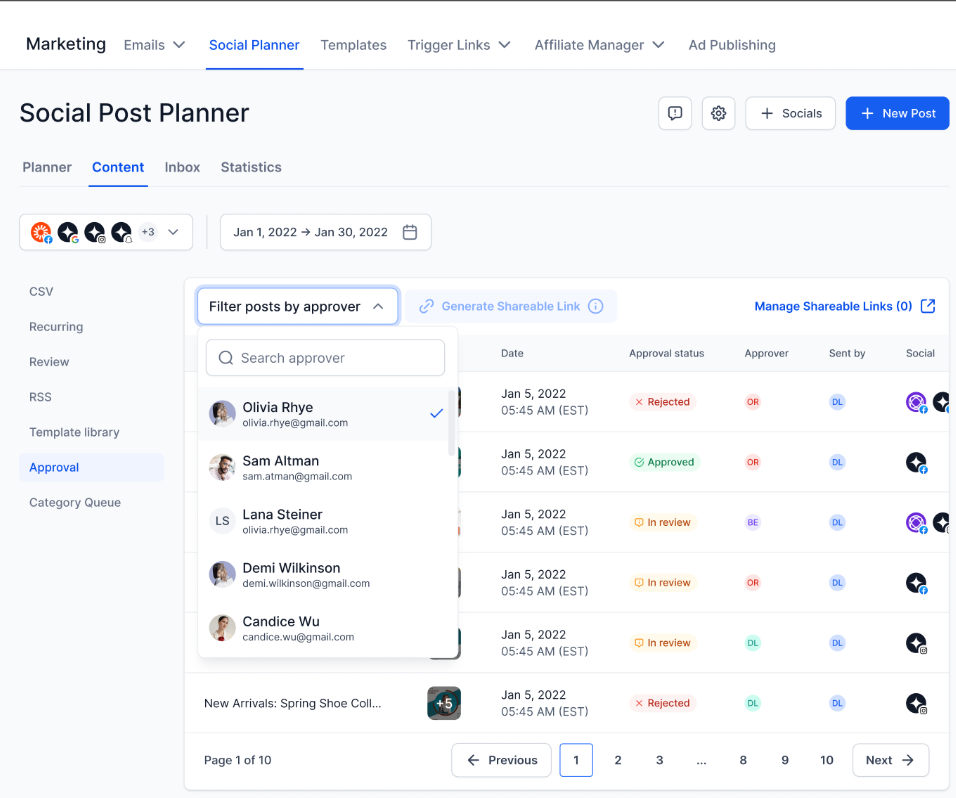
Click Generate Approval Link.
Set a password, either auto-generated or a custom password.
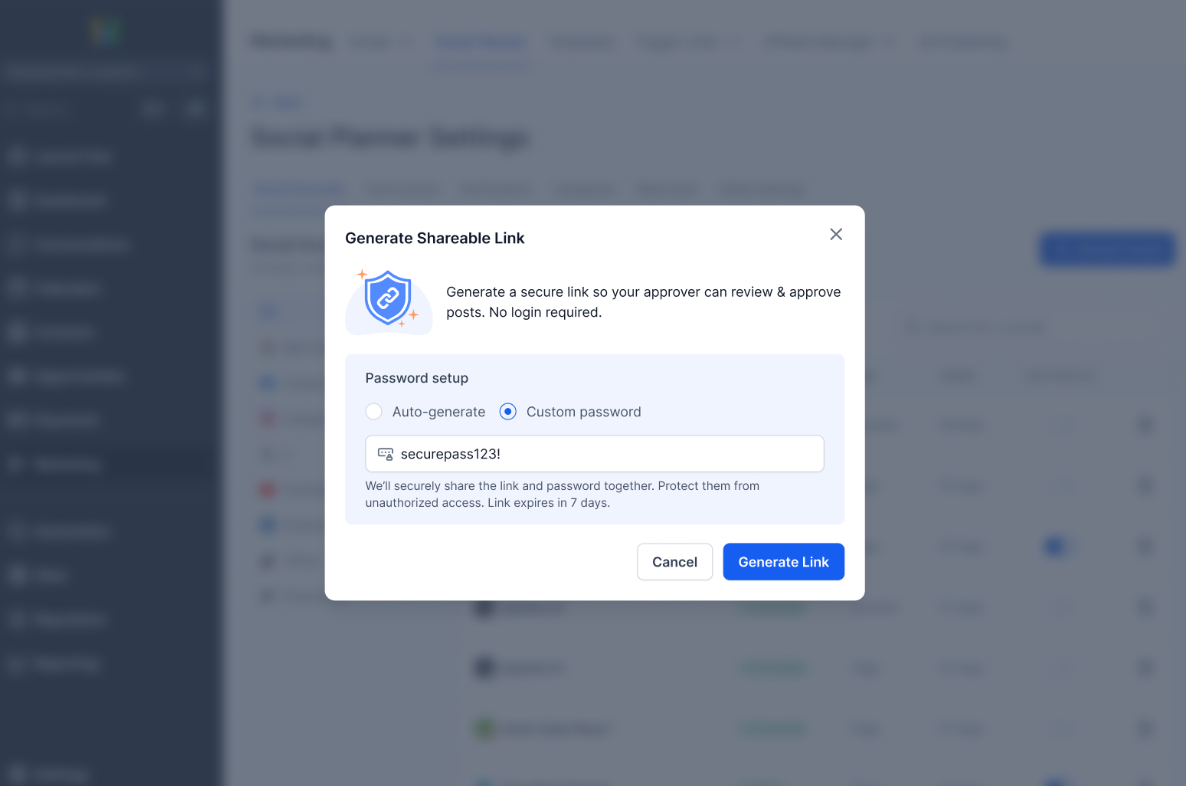
Copy and share the link with your client or stakeholder.
You can share the approval link via email, WhatsApp, Slack, or any messaging platform.
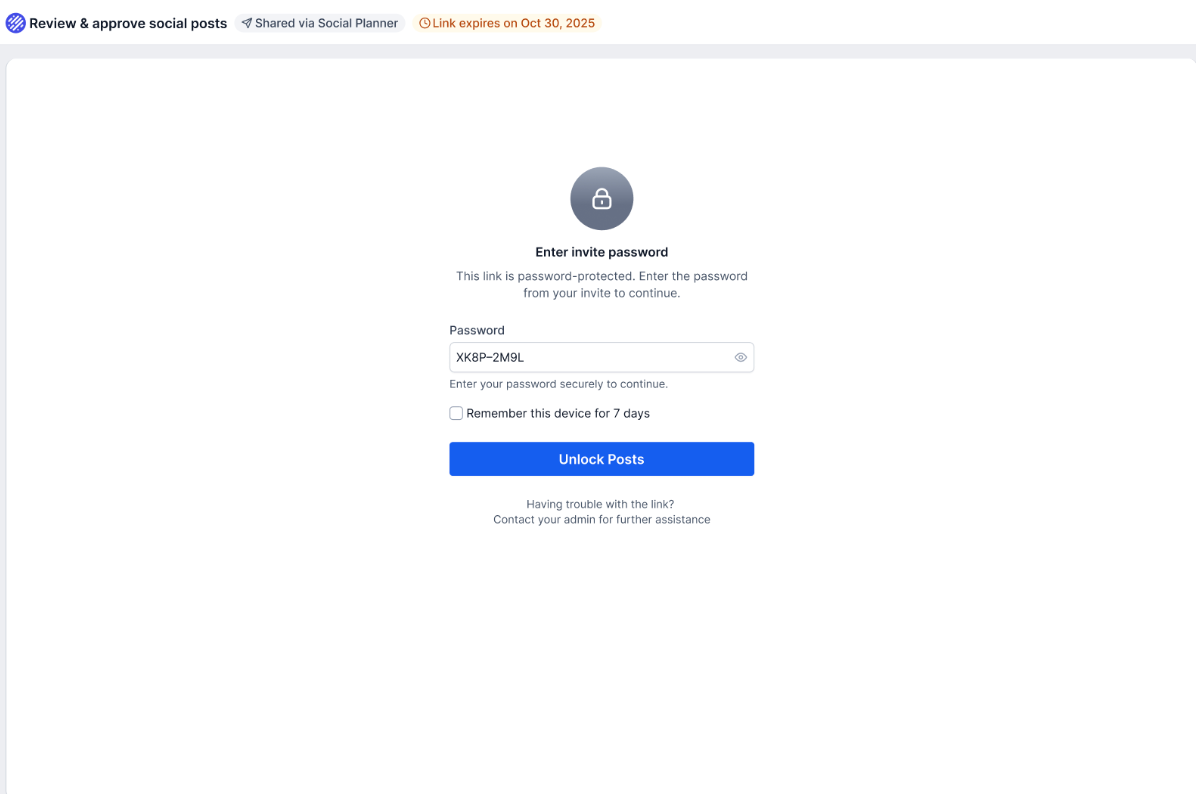
When the approver opens the link, they can view the post content (caption and media), the scheduled date and time, the platform details, and any notes added by the creator. This ensures they have full context before taking action.
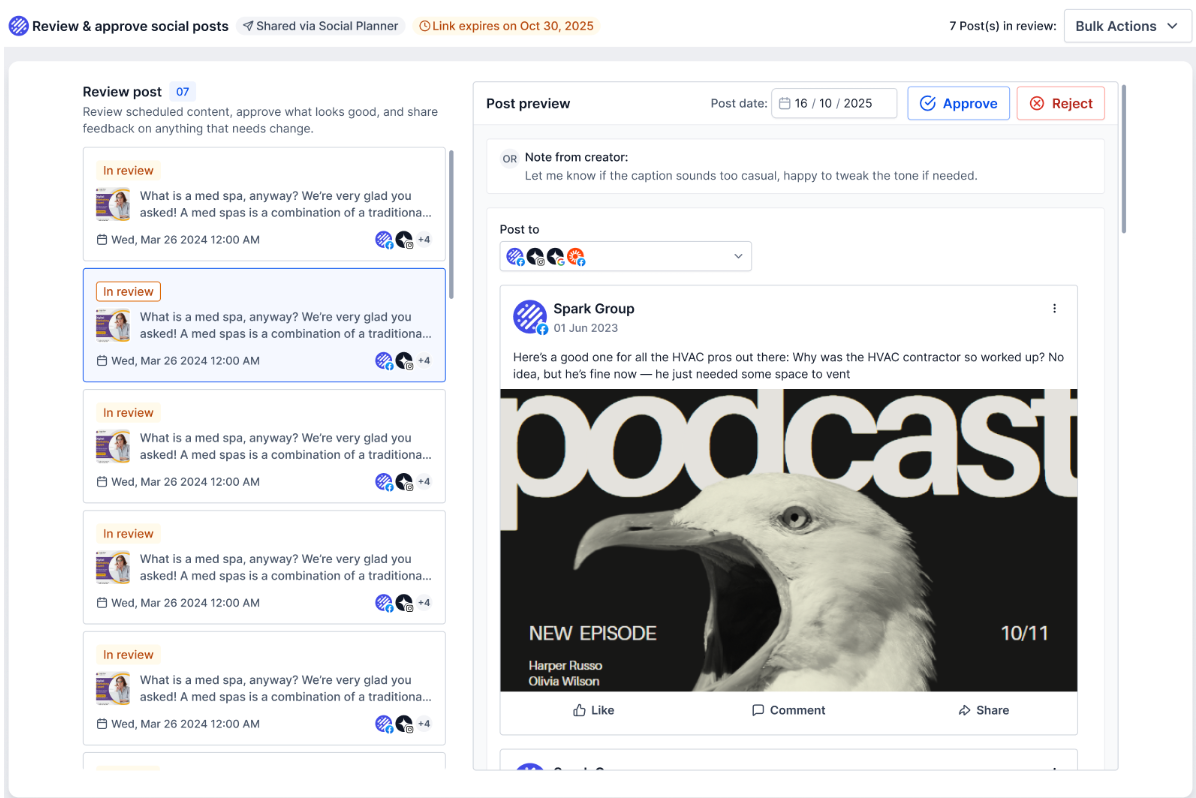
The approver can:
Approve the post (with optional notes)
Reject the post (with feedback)
Reschedule the post
Approve or reject multiple posts (bulk actions)
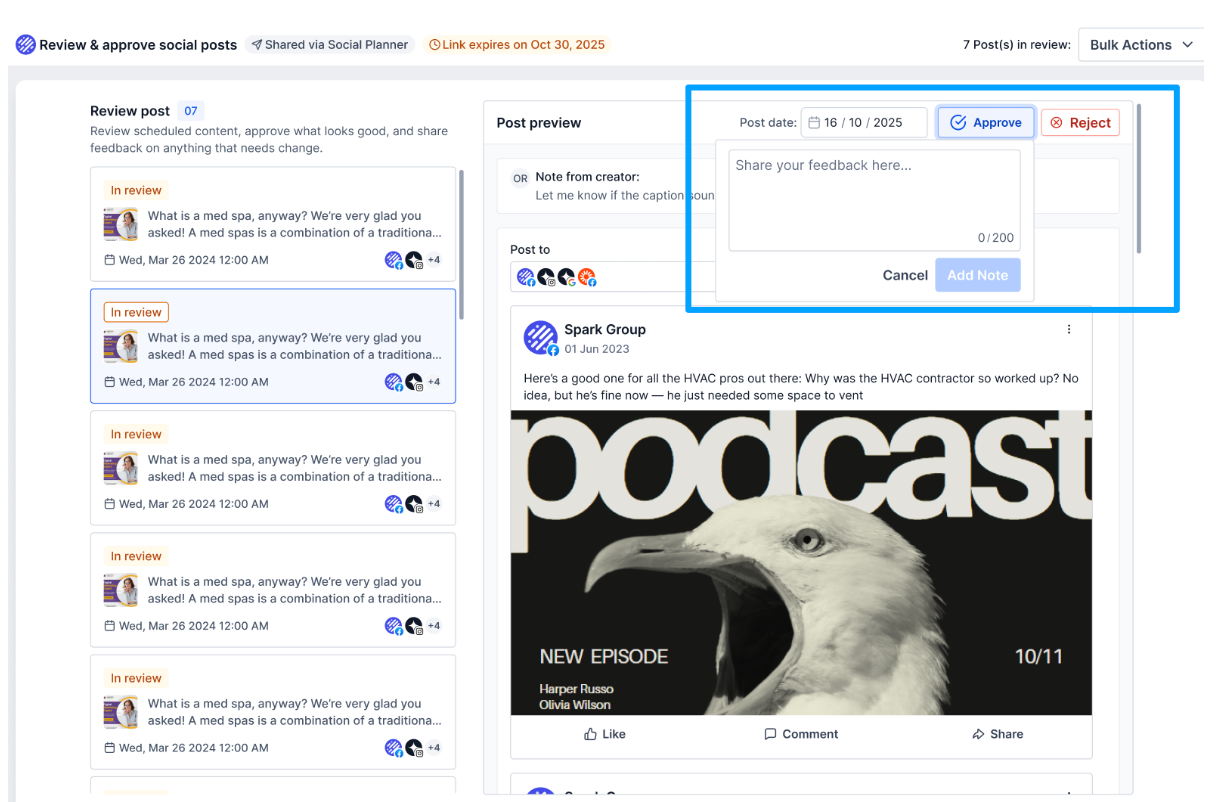
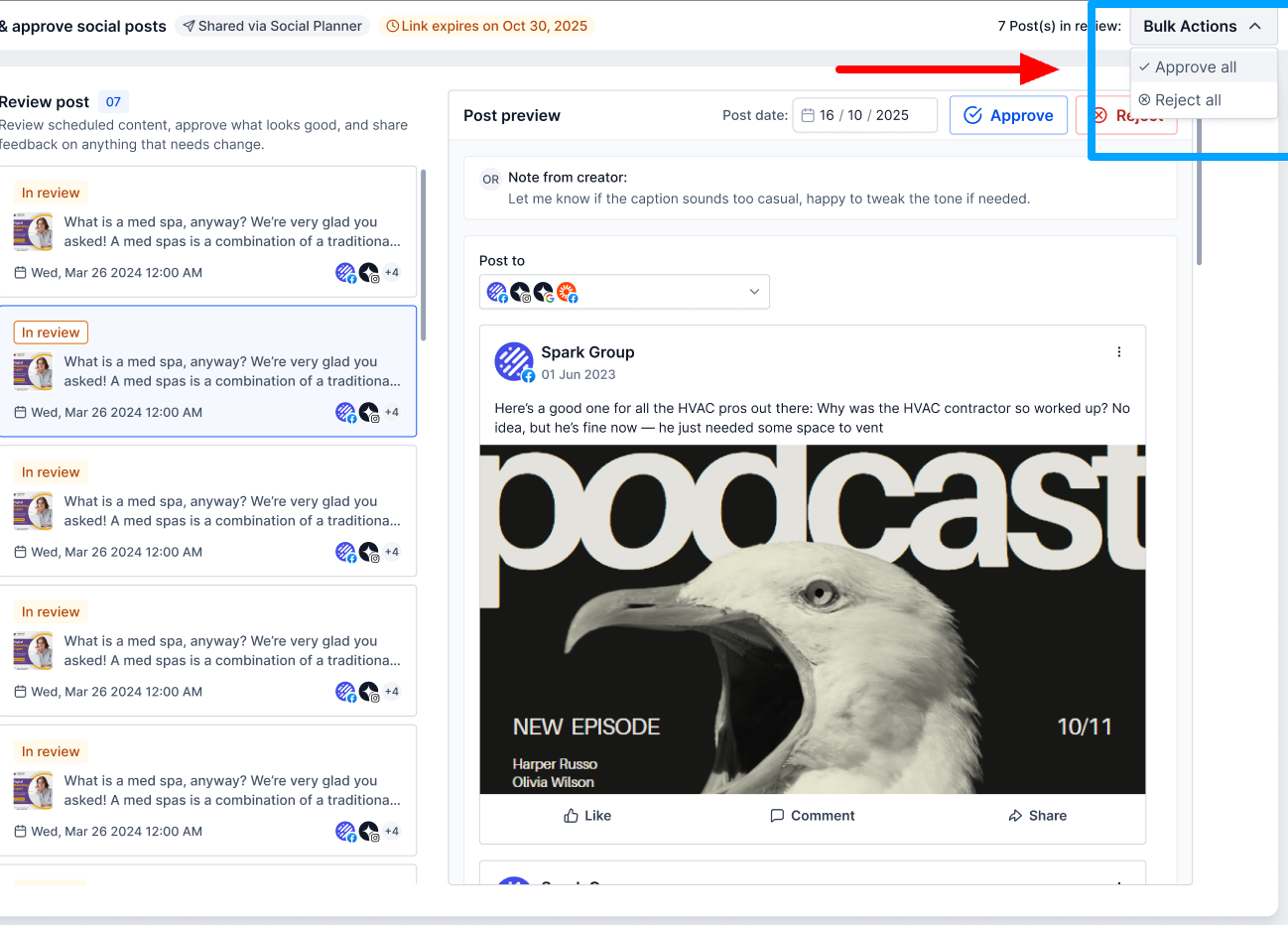
Once action is taken, the post status updates in Social Planner, you can view the approval or rejection notes, and you can edit and resend if changes are required. Approved posts proceed to scheduled publishing.
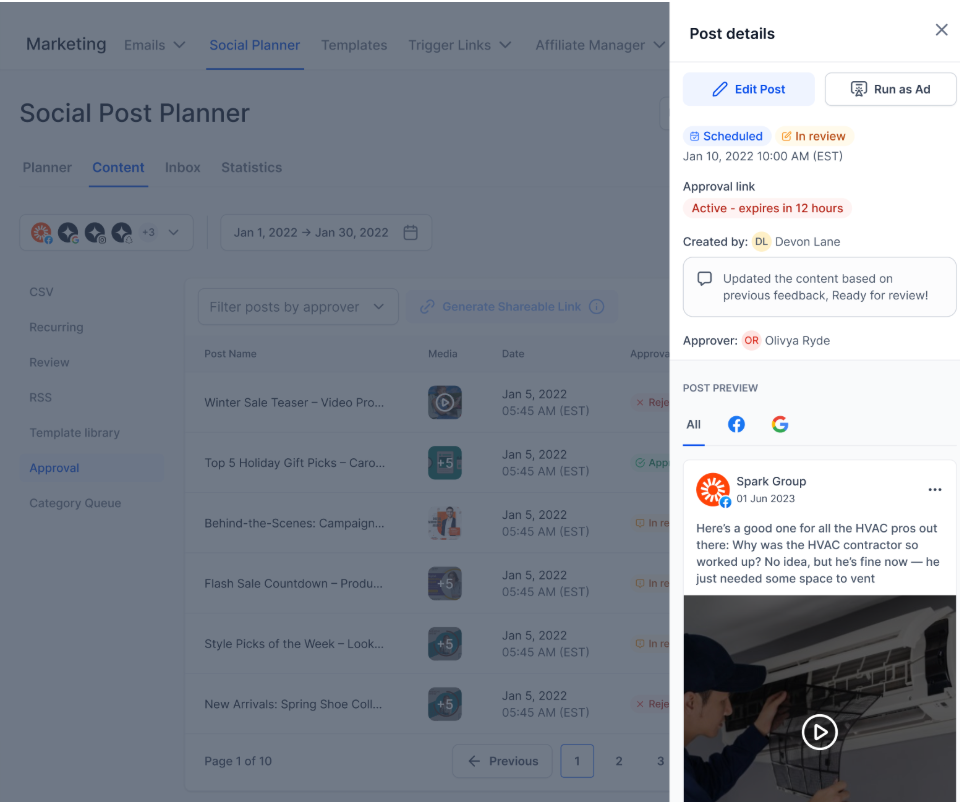
You can manage all your approval links from one place. Go to Settings > Manage Links. From there you can:
View all approval links
Check status (Active, Expired, or Revoked)
Regenerate links
Revoke access
Extend validity
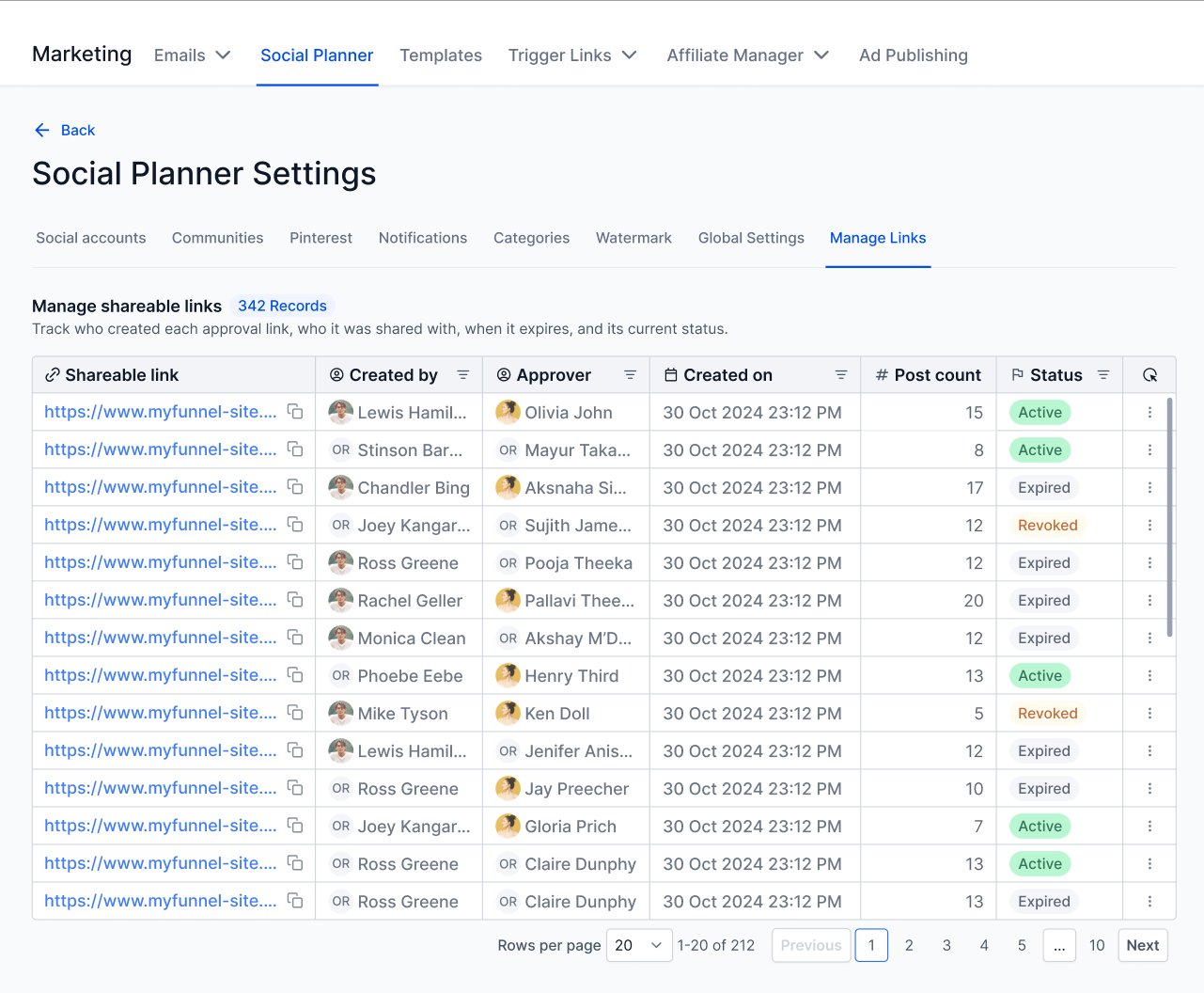
Approval links are valid for 30 days. After expiry, the approver can request a new link, or you can regenerate the link instantly.
Approval links are password protected.
Links expire after 30 days, and you can regenerate or revoke them anytime.
Actions are restricted once a post is published.
Only users with the required permissions can generate links.
The approver can currently open the external approval link on desktop and web only. A mobile view is in progress and will release soon.
Add clear notes for approvers to avoid confusion.
Share links with the right stakeholders only.
Monitor approval status regularly to avoid delays.
Regenerate links if a client reports access issues.
What is the difference between the internal approval flow and the external link approval flow? The internal flow routes a post to a team member who has a login to your account and reviews it in the Approval tab. The external flow generates a secure, password-protected link you can send to a client or outside partner, so they can approve, reject, or reschedule without any login.
Do external approvers need an account to review posts? No. External approvers open a secure Magic Link and review the post directly. You do not need to add them as users in your account.
Can an approver change the scheduled date during review? Yes. Both internal and external approvers can reschedule from the approval screen. They click the scheduled date and time, choose a new one, and approve. The calendar updates immediately.
What happens when a post is rejected? The post is not scheduled, and the creator can view the note or feedback the reviewer left explaining why. The creator can edit and resend the post for another round of review.
How do I customize the approval email that approvers receive? Build an email template under Marketing > Emails > Templates using the Social Planner: Post Approval system template, then apply it in Social Planner Settings > Notifications under Setup Email Template for Social Post Approval.
Can I send a whole batch of posts for approval at once? Yes. When you upload posts with a CSV using the New Post button, you can choose an approver for the entire batch. All imported posts go to that approver, and approved posts are scheduled automatically.
How long is an external approval link valid, and can I extend it? Links are valid for 30 days. You can regenerate, revoke, or extend a link at any time from Settings > Manage Links.
