YouTube is one of the largest social platforms, and it is a valuable channel for aesthetic practices sharing treatment explainers, patient education, before and after reveals, and event recaps. With the Social Planner in Aesthetix CRM you can publish or schedule both YouTube Videos and Shorts from the same place you manage the rest of your social content.
Go to Marketing > Social Planner.

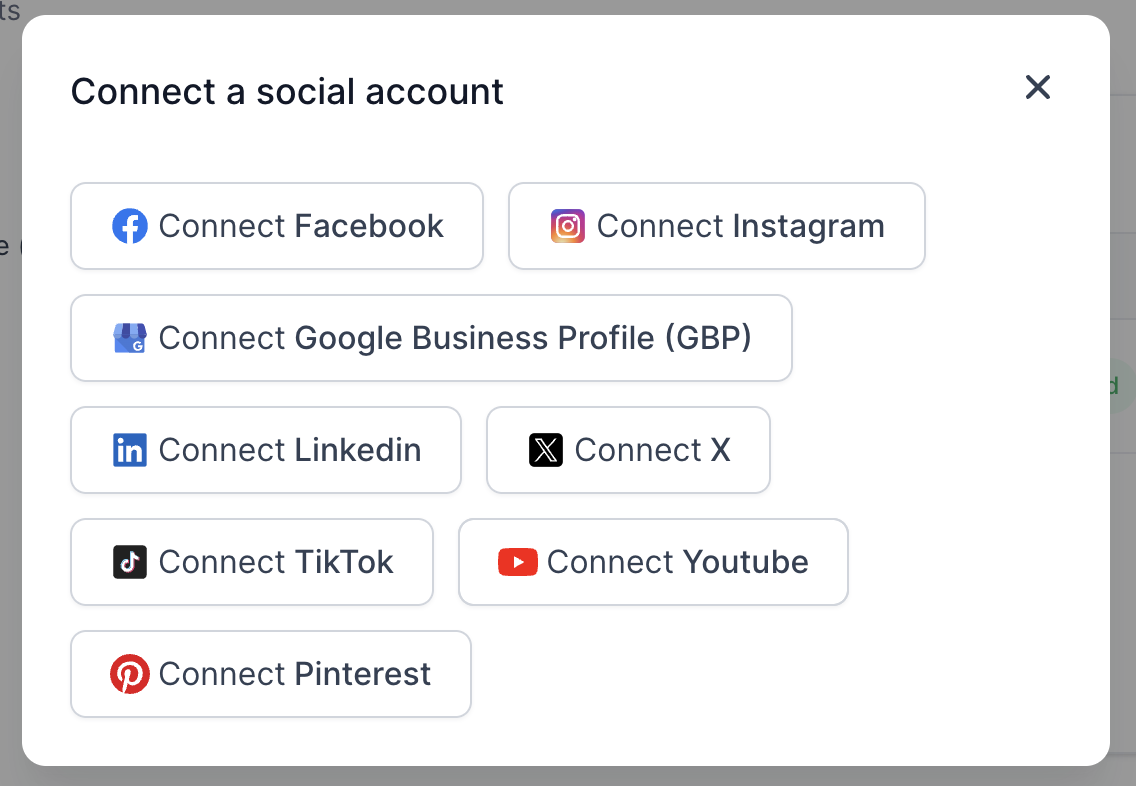
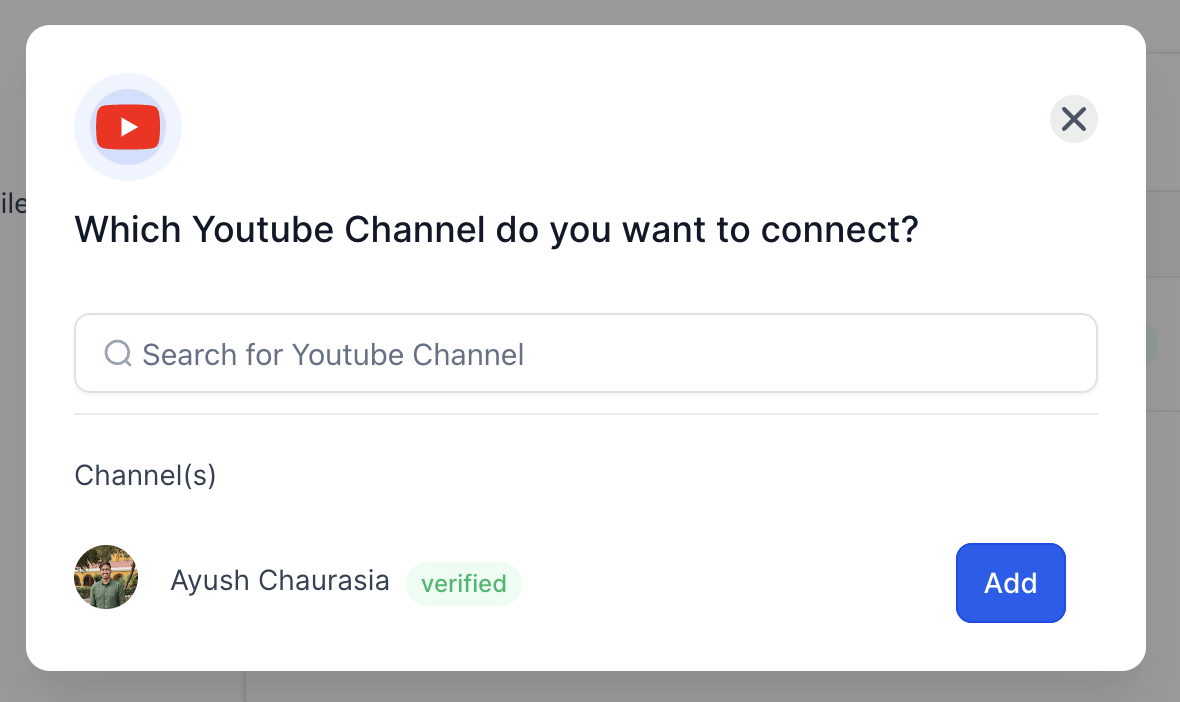
Connect your YouTube account through the Google integration and select the account.
To verify that your Google account owns a YouTube channel, sign in to your YouTube account settings page. Your YouTube channel will be listed there, or you will see a Create a channel option if you do not have one yet.
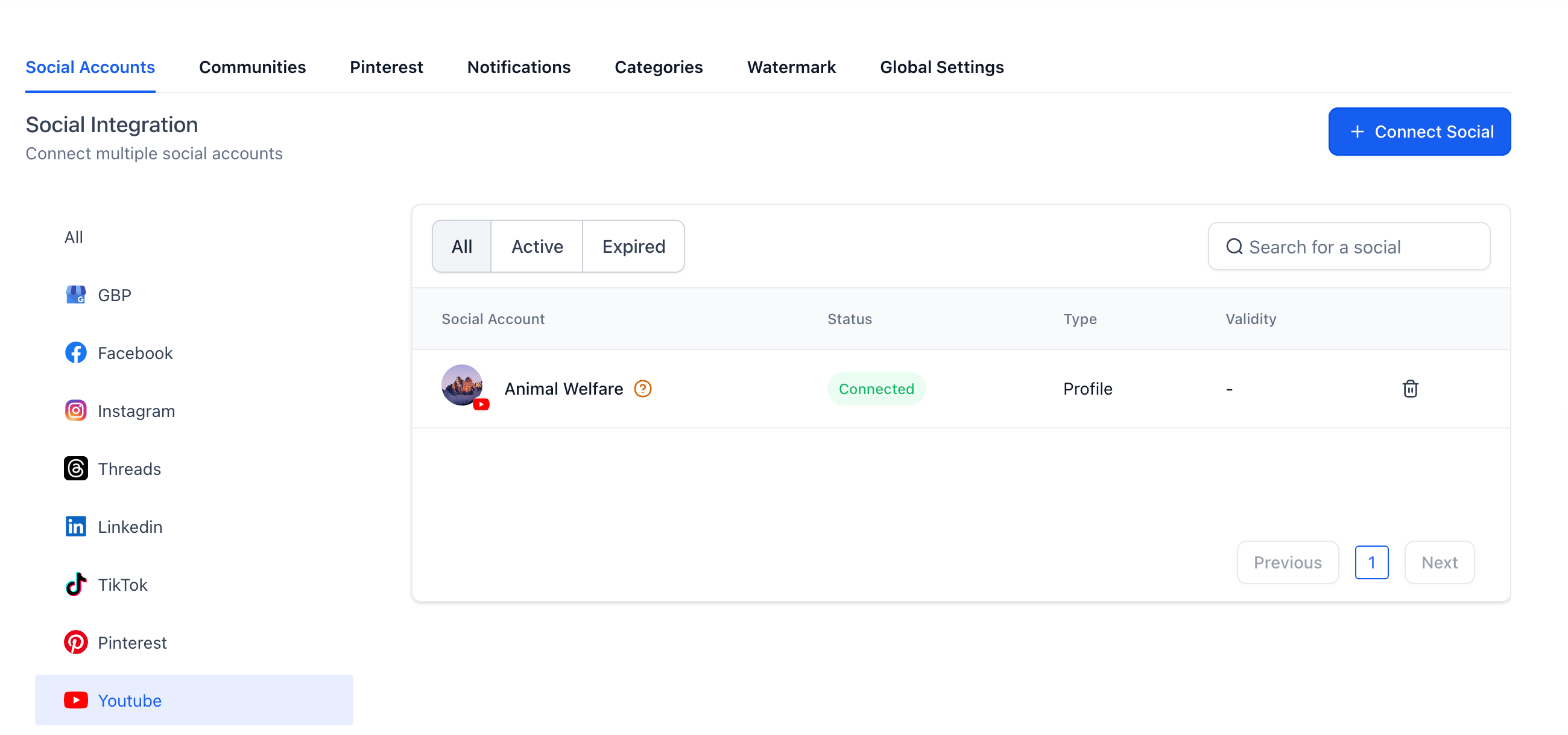
Note: The YouTube token no longer has a fixed validity period. Your connection stays active until it is manually revoked or disconnected.
Go to Create New Post.
Select the YouTube channel for posting.
Add your video description in the caption, along with hashtags and emojis.
Select either the Video or Shorts option.
Add a title for your YouTube Video or Short.
Note: By default, #shorts is appended to the title when the Shorts option is selected.
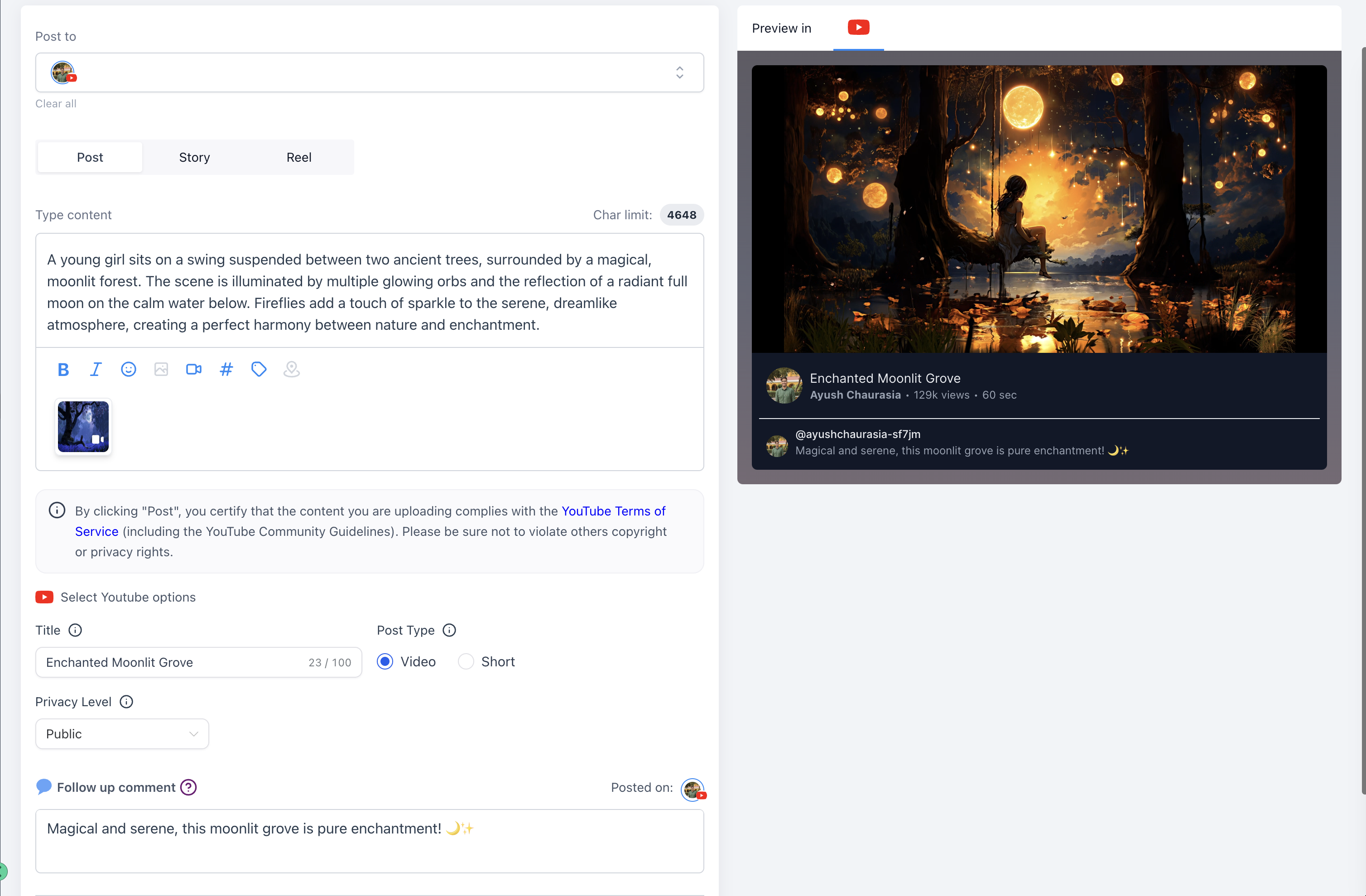
Set the privacy level: Public, Private, or Unlisted.
Add a follow-up comment to your post if needed.
Schedule your YouTube Video or Short.


You can add videos and shorts of up to 1 GB.
Thumbnails can be PNG or JPEG and up to 2 MB in size for a verified user.
Thumbnails are supported only for YouTube Videos, not YouTube Shorts.
Shorts can be up to 3 minutes long and should have a vertical aspect ratio (recommended 9:16).
Currently, YouTube does not allow users with Manager access to connect a channel through third-party integrations like the Social Planner.
Per Google's guidelines, only the primary owner of a YouTube channel can authorize and connect the account through APIs. Users with Manager or other delegated roles can manage the channel directly within YouTube or YouTube Studio, but they cannot connect it to external tools. This is a platform limitation set by YouTube and applies across all tools in the market.
What you can do:
Ask the Primary Owner of the YouTube channel to connect the account in the Social Planner.
Once connected, you can continue managing content in the Social Planner based on your access level.
How do I connect my YouTube channel? Connect your YouTube account through the Google integration in the Social Planner, then select the channel you want to publish to. Make sure the Google account you use actually owns a YouTube channel.
What is the difference between posting a Video and a Short? Both publish to your channel from the same composer. Choose Shorts for vertical, short-form clips (up to 3 minutes, recommended 9:16), and #shorts is added to the title automatically. Choose Video for standard uploads, which also support a custom thumbnail.
Can I set a custom thumbnail? Yes, for YouTube Videos. Thumbnails can be PNG or JPEG up to 2 MB for a verified user. Custom thumbnails are not supported for Shorts.
What is the maximum file size? You can upload videos and shorts up to 1 GB.
How do I control who can see the post? Set the privacy level when you create the post: Public, Private, or Unlisted. Unlisted is useful when you want to share a link with specific patients without listing the video publicly.
Why can't I connect my channel even though I can manage it in YouTube Studio? YouTube only lets the channel's primary owner authorize third-party connections. If you have Manager or another delegated role, ask the primary owner to connect the channel in the Social Planner, and you can manage content from there afterward.
Do I need to reconnect my YouTube account periodically? No. The YouTube connection no longer has a fixed expiration and stays active until it is manually revoked or disconnected.
Can I add a follow-up comment to my video? Yes. You can add a follow-up comment when you create the post, which is a good place for links, timestamps, or a booking call to action.
