Instagram Stories are a fast, personal way to keep prospective patients engaged: treatment countdowns, flash promos, event reminders, and behind-the-scenes moments that fit naturally into a busy content schedule. The Story Post Composer in the Aesthetix CRM Social Planner lets you build and schedule Stories directly from the CRM, so you can plan content ahead instead of posting from your phone every time.
The composer supports Instagram Professional accounts and lets you upload up to 10 images or videos per Story. You can publish immediately, schedule for later, or save a draft and return to it. For Stories that need native touches like stickers, links, music, or trending audio, the planner also supports a push-notification workflow that reminds you (or a teammate) to finish and publish inside the Instagram app at the scheduled time.
Treatment or product launch: build a series of Stories unveiling a new service and schedule them to publish in sync with your launch date.
Event promotion: design a countdown of Stories leading up to an open house or patient event to build anticipation.
Content consistency: plan a full week of Stories in advance so your posting frequency stays steady even when your schedule is full.
Time zone management: schedule Stories to publish when your audience is most active, even outside your working hours.
Flash sales: announce the start and end of a limited-time promotion so prospective patients know the window.
Saving drafts: capture an idea as a draft and finish it later when the timing or creative is right.
Connect an Instagram Professional account. Publishing Stories from a personal or creator account is not supported, which is a limitation set by Meta.
Upload the images and videos you want to use to the Media Library first.
Click the Marketing tab.
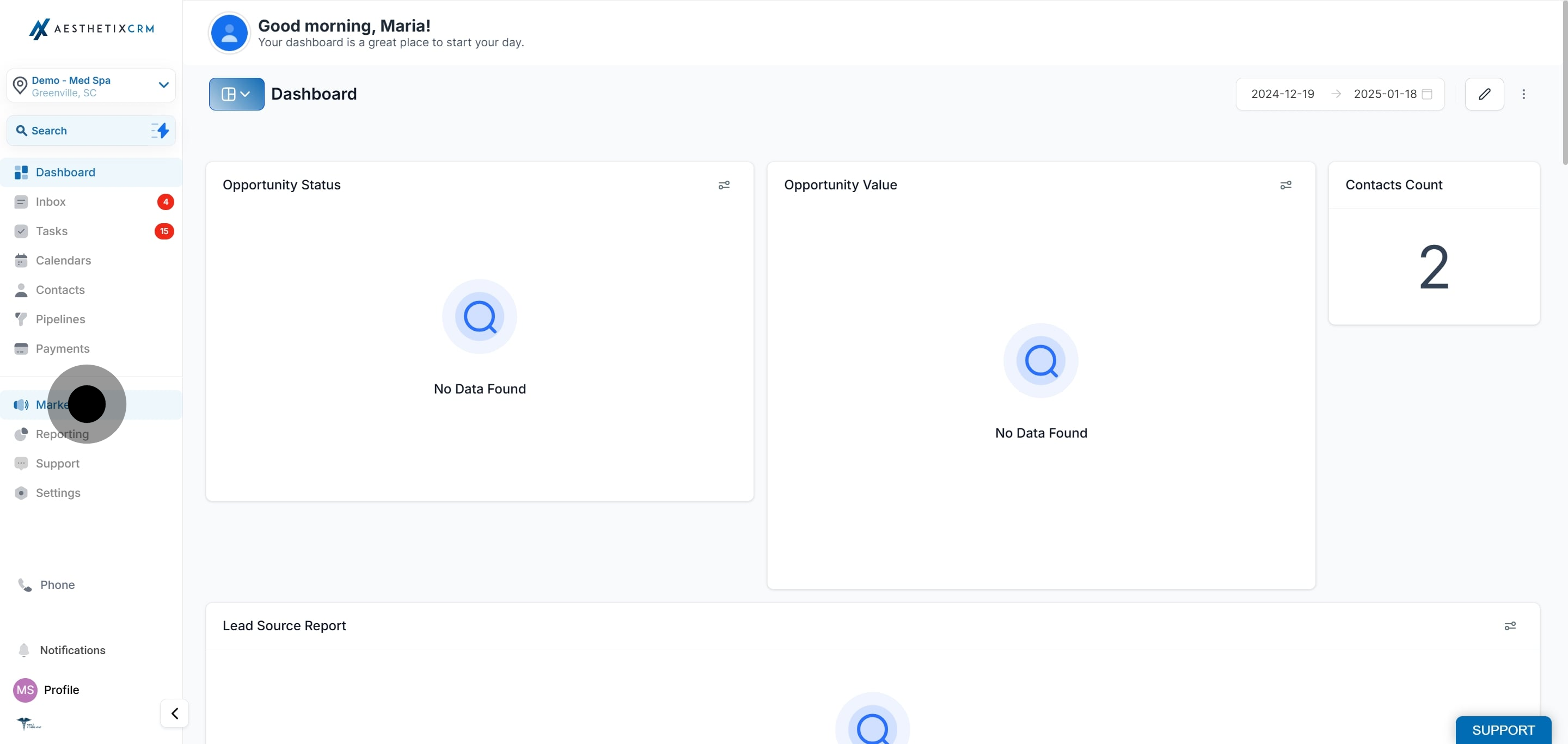
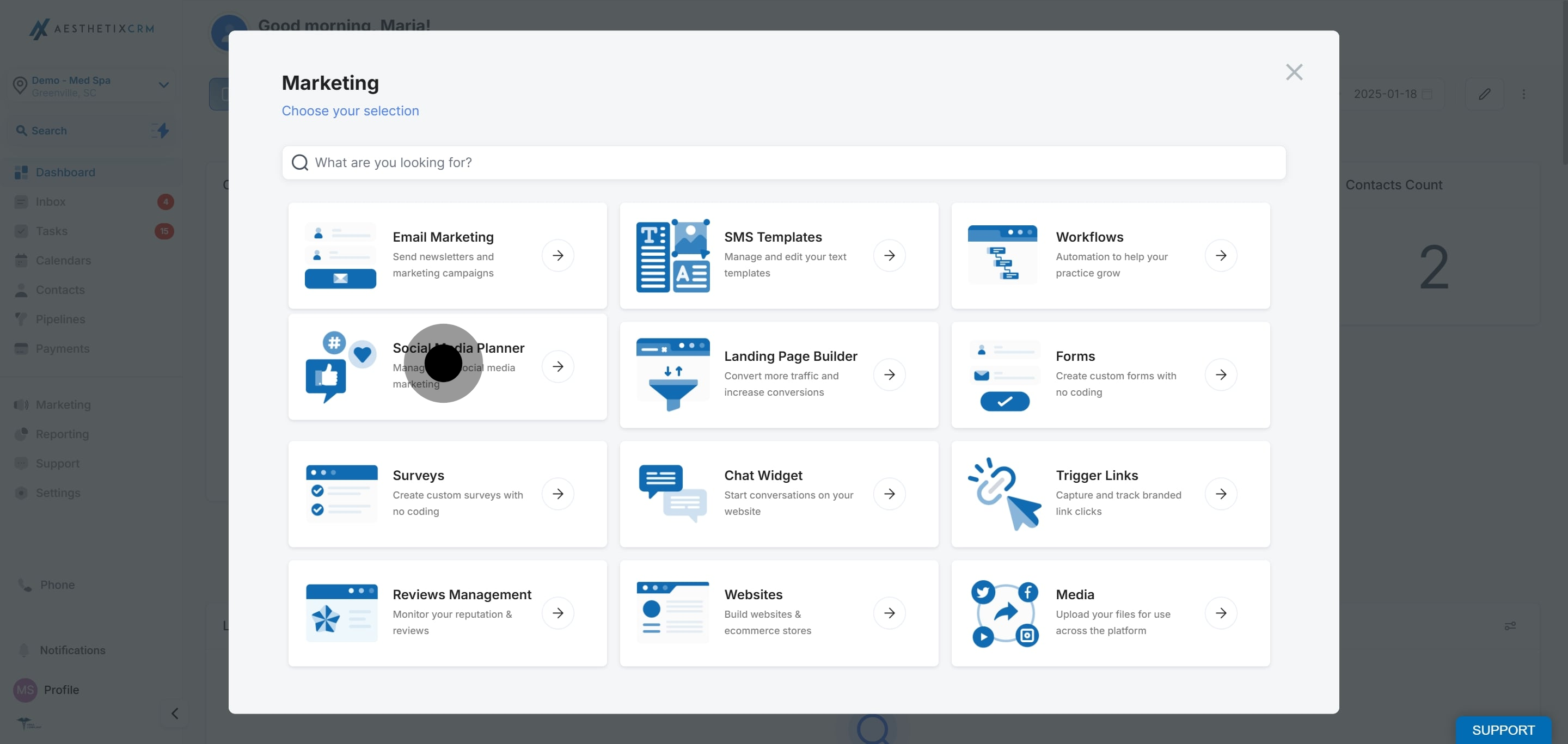
Open the Social Planner.
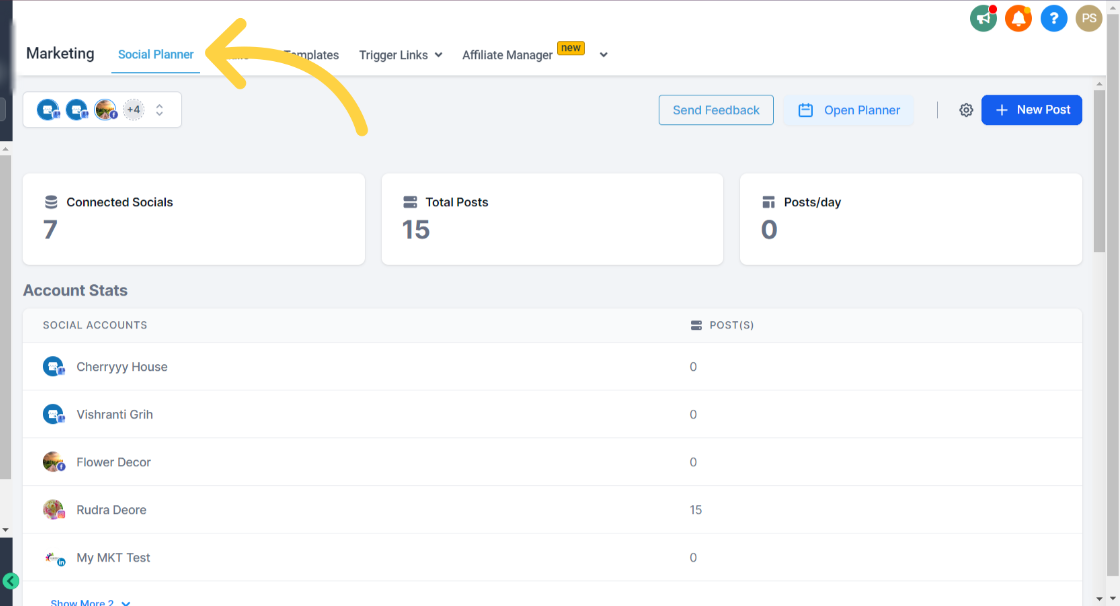
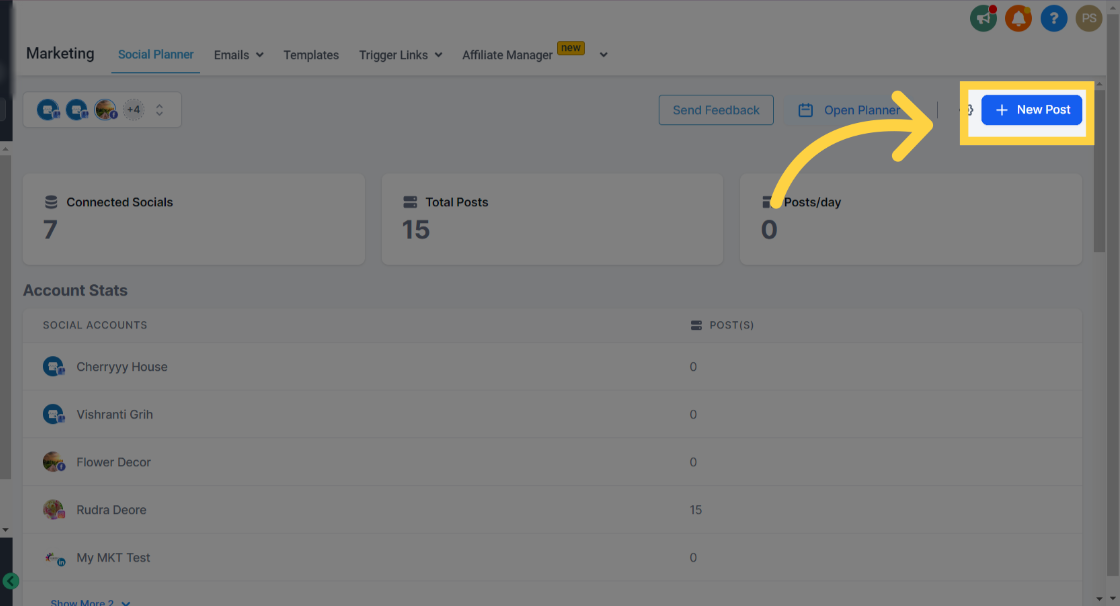
Click New Post.
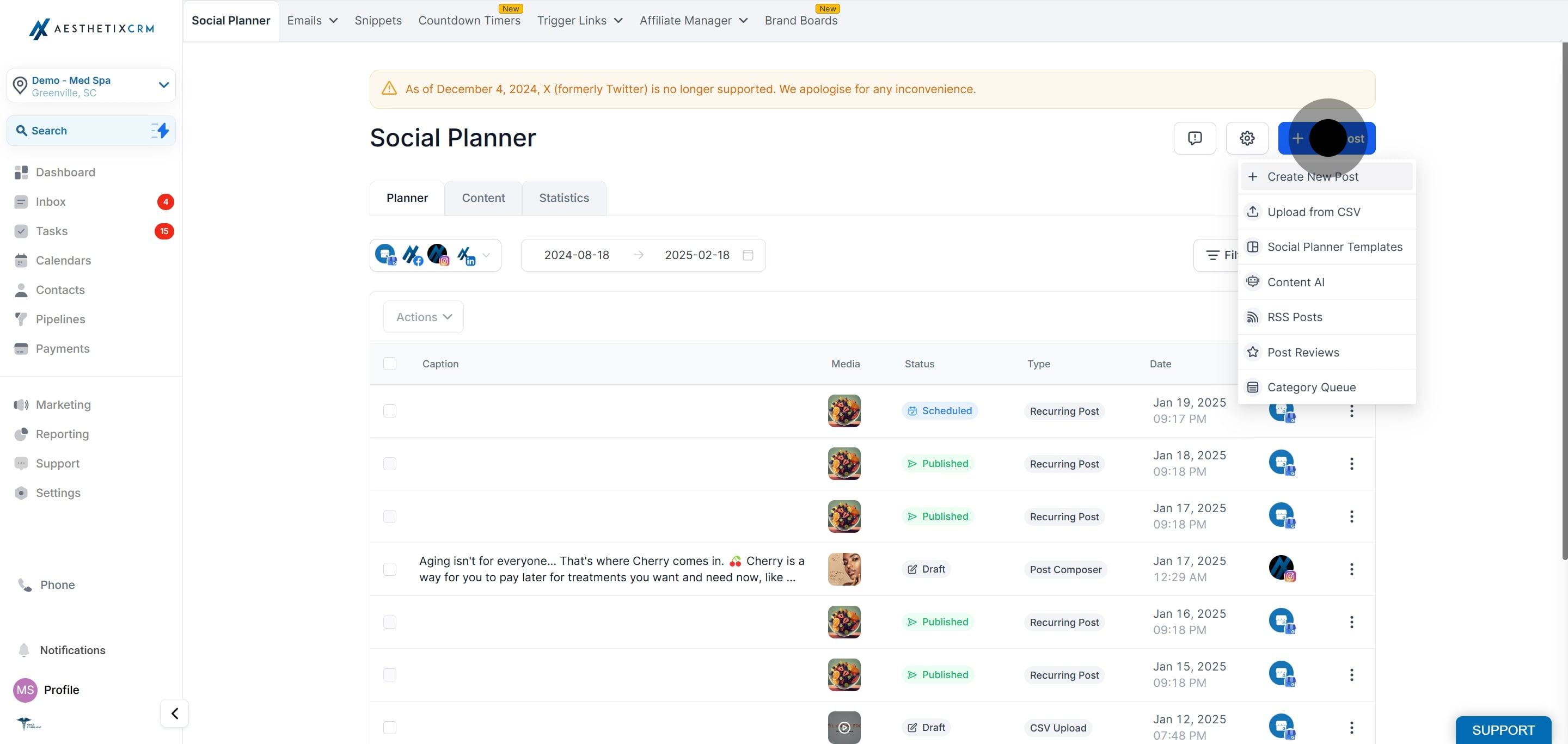
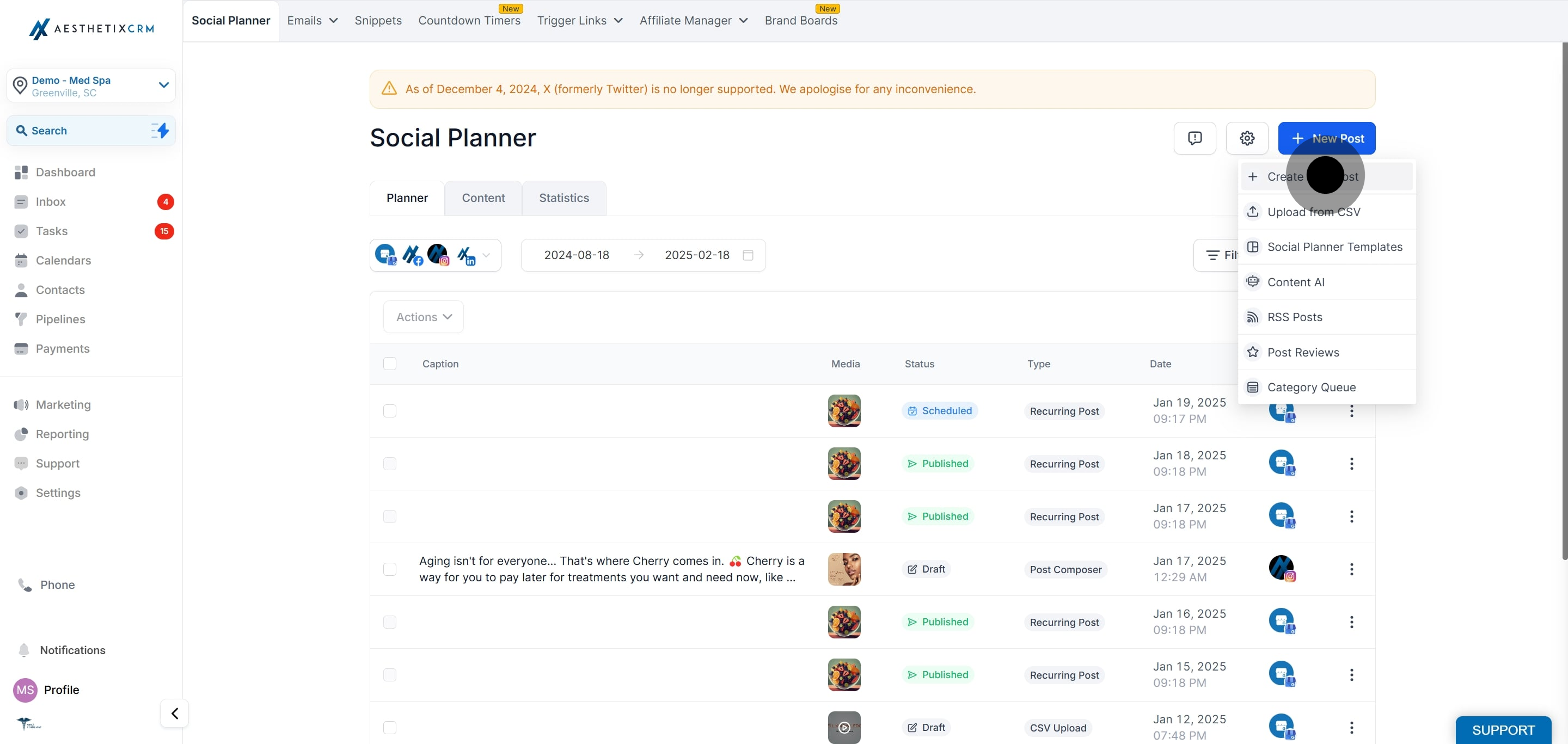
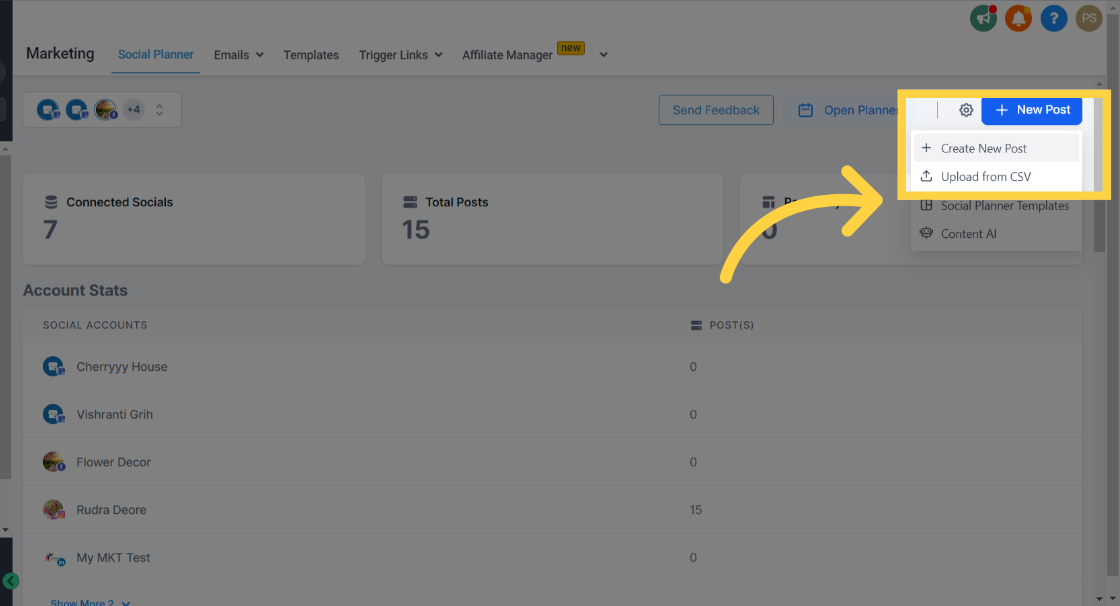
Click Create New Post.
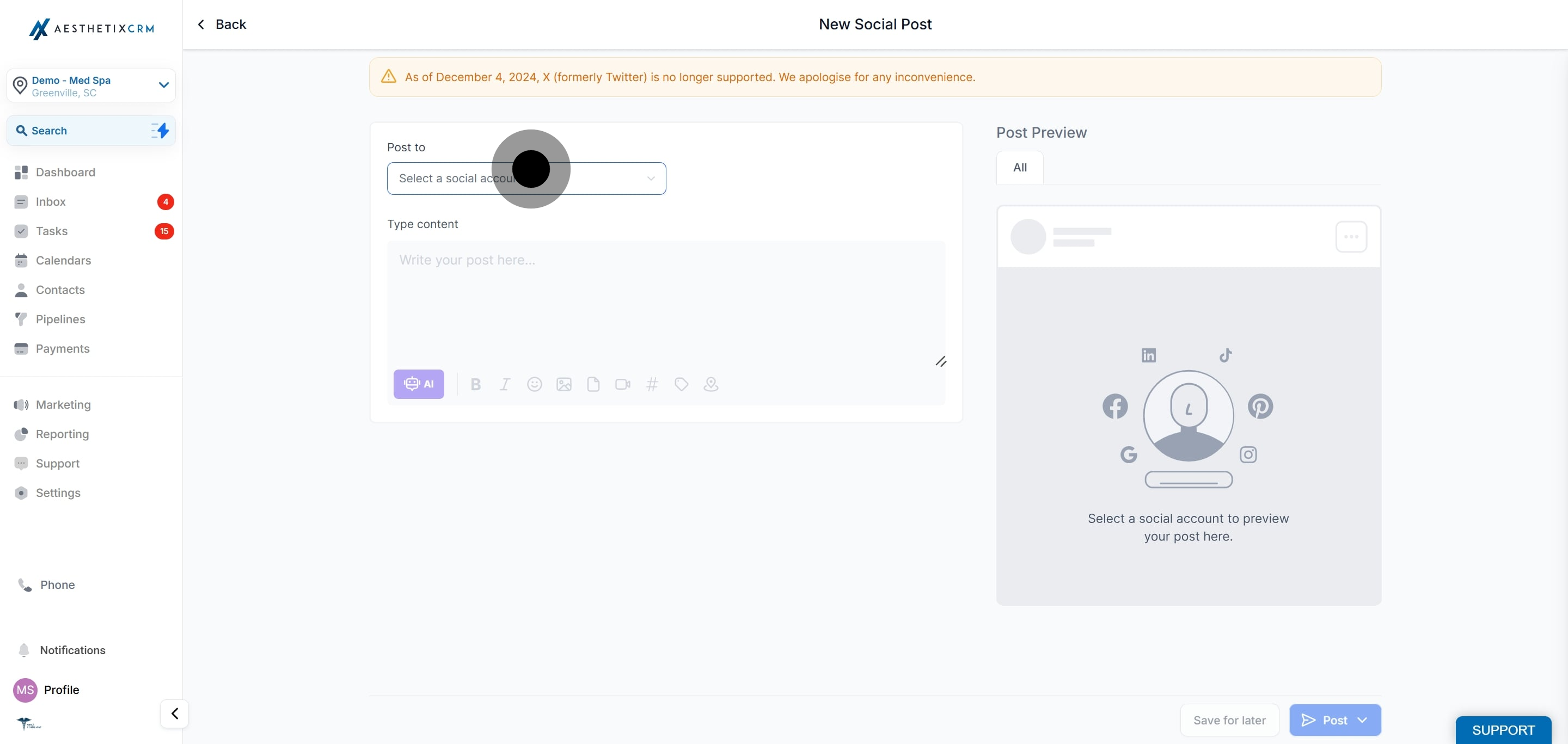
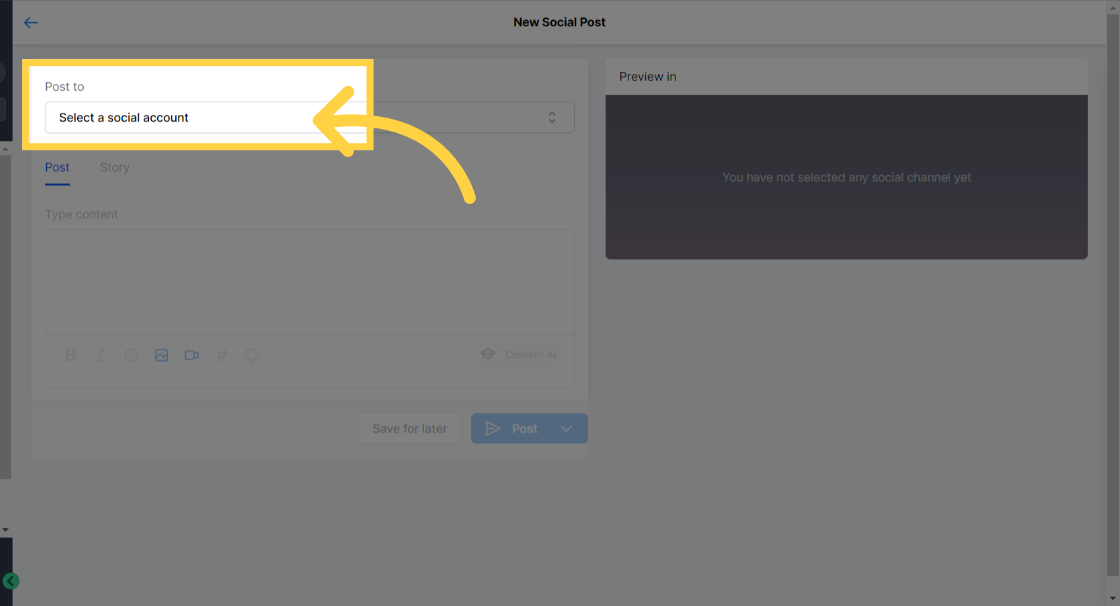
Under Post to, click Select a social account.
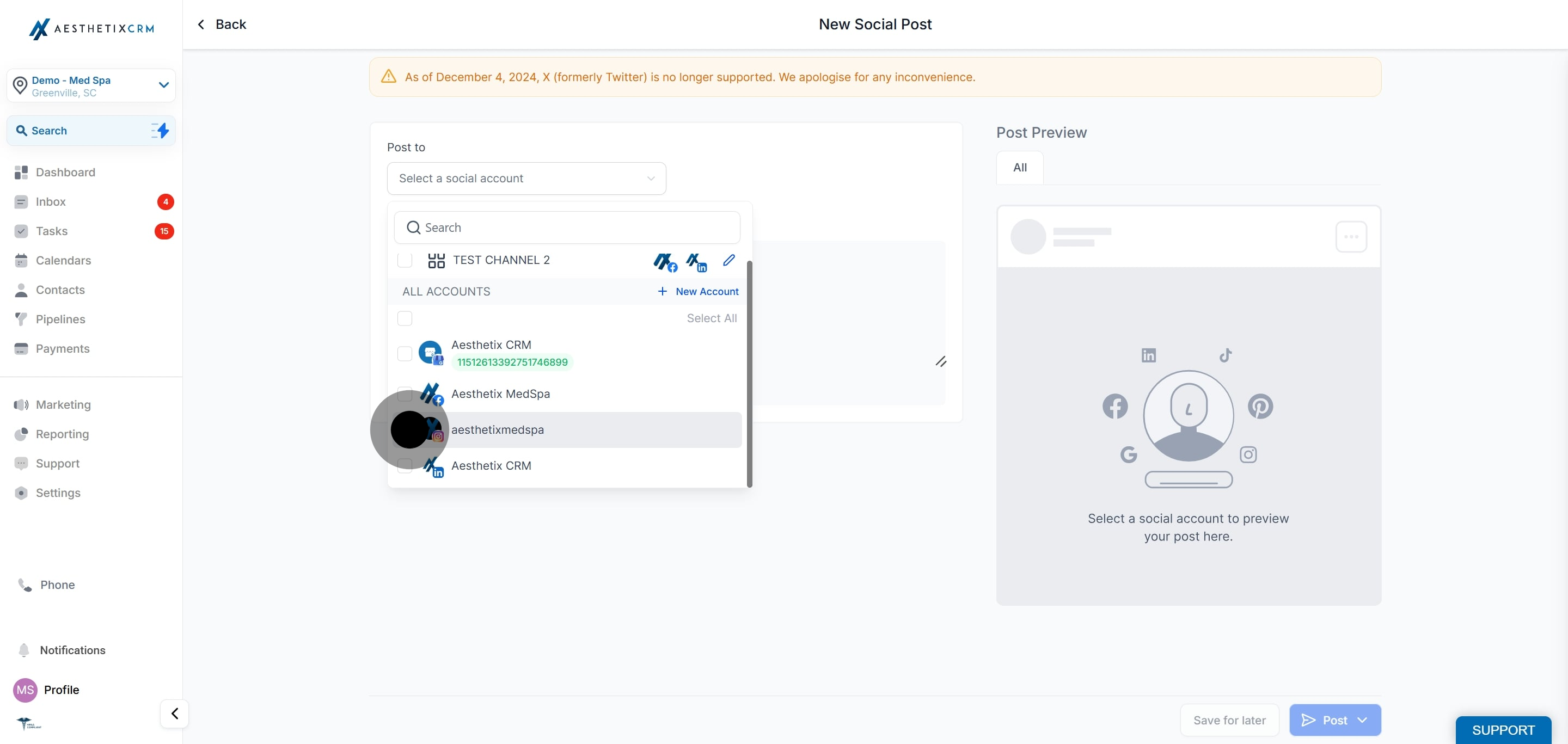
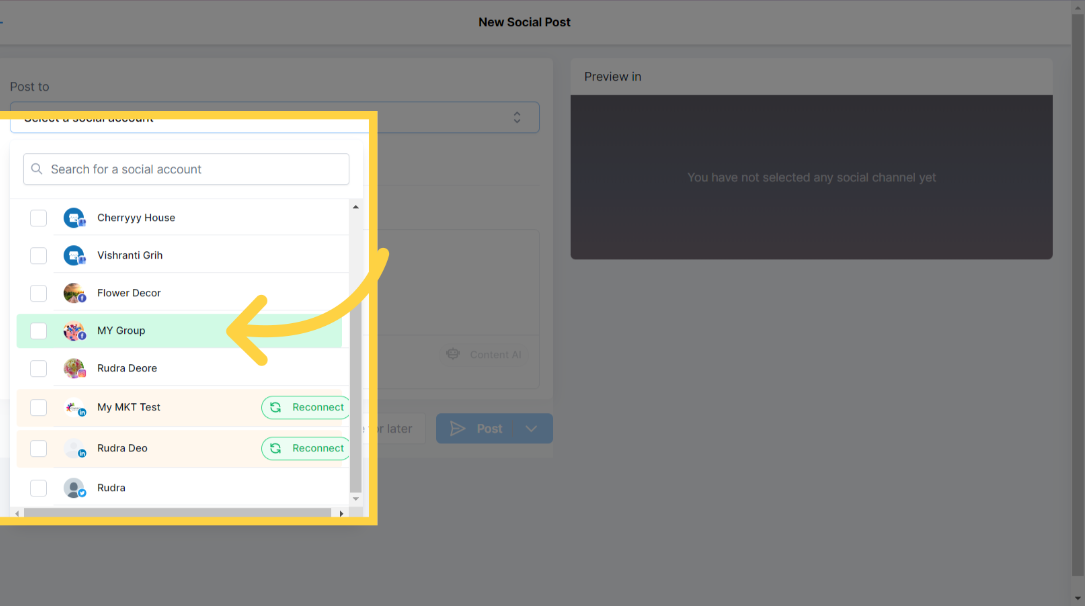
Select your Instagram Professional account or accounts. If you select another type of social account, the Story will not be visible. You must choose one or more Instagram Professional accounts to publish to Instagram.
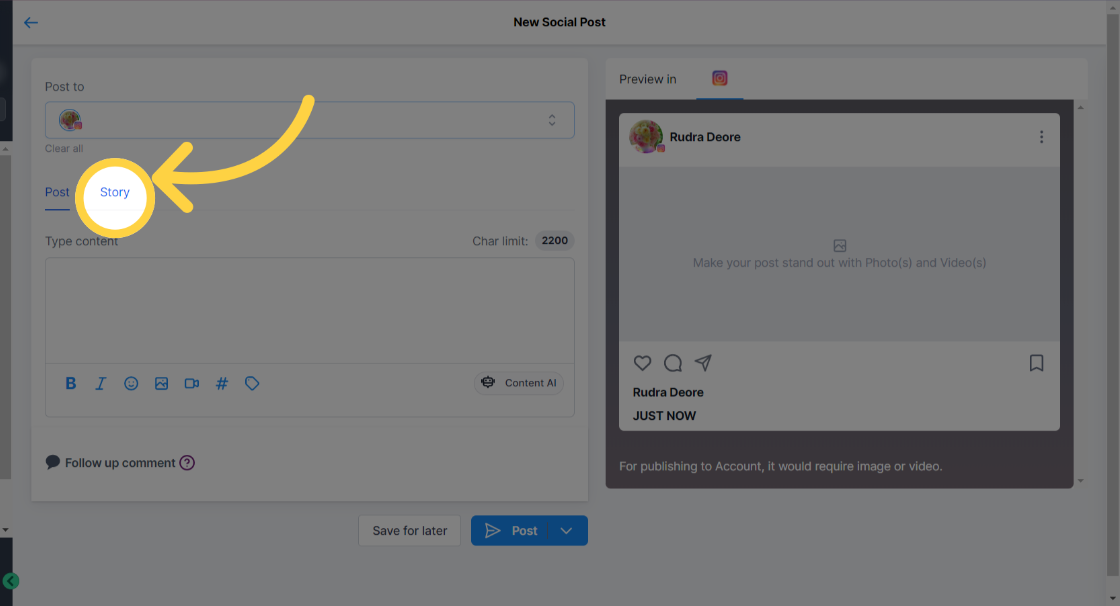
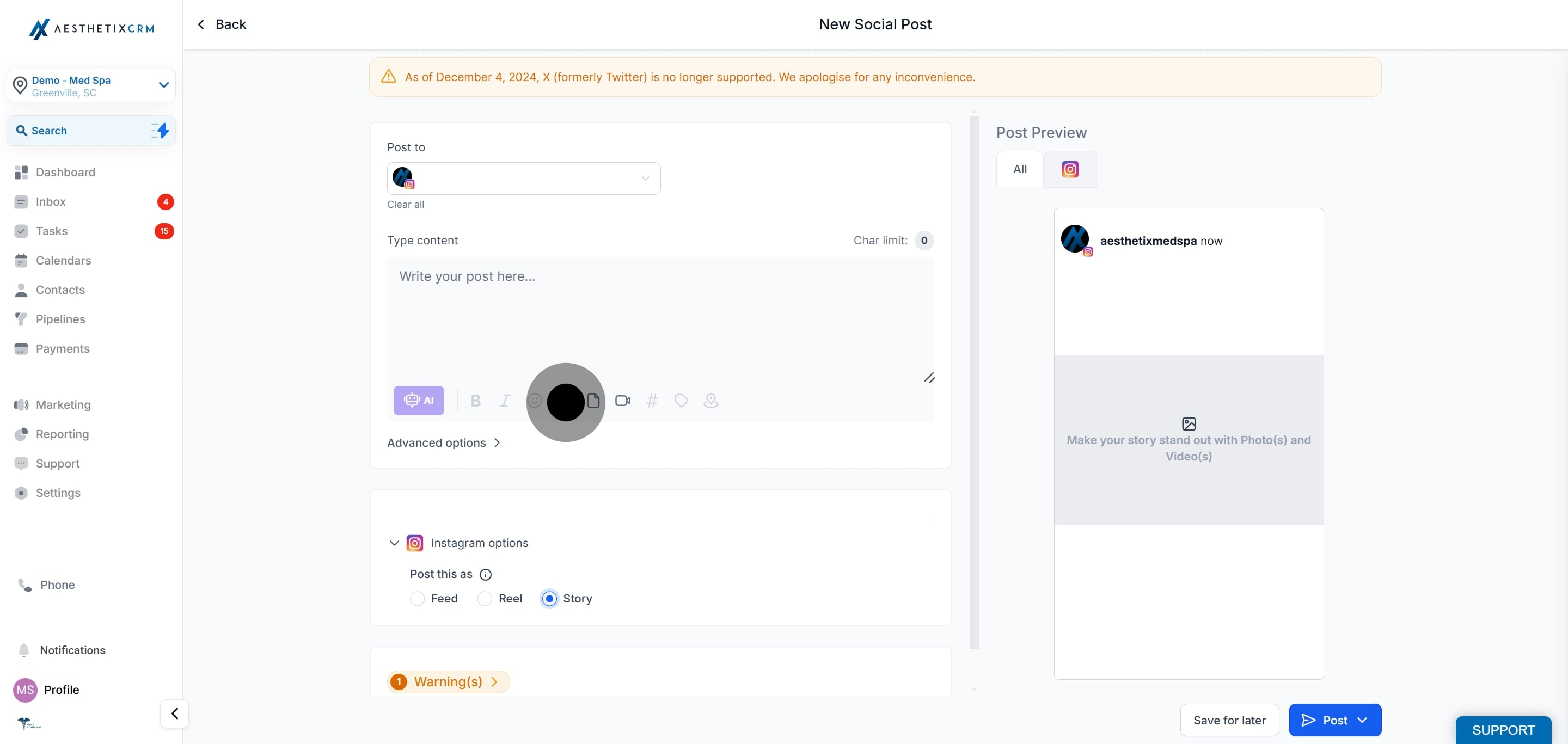
Under Content Type, click Story.
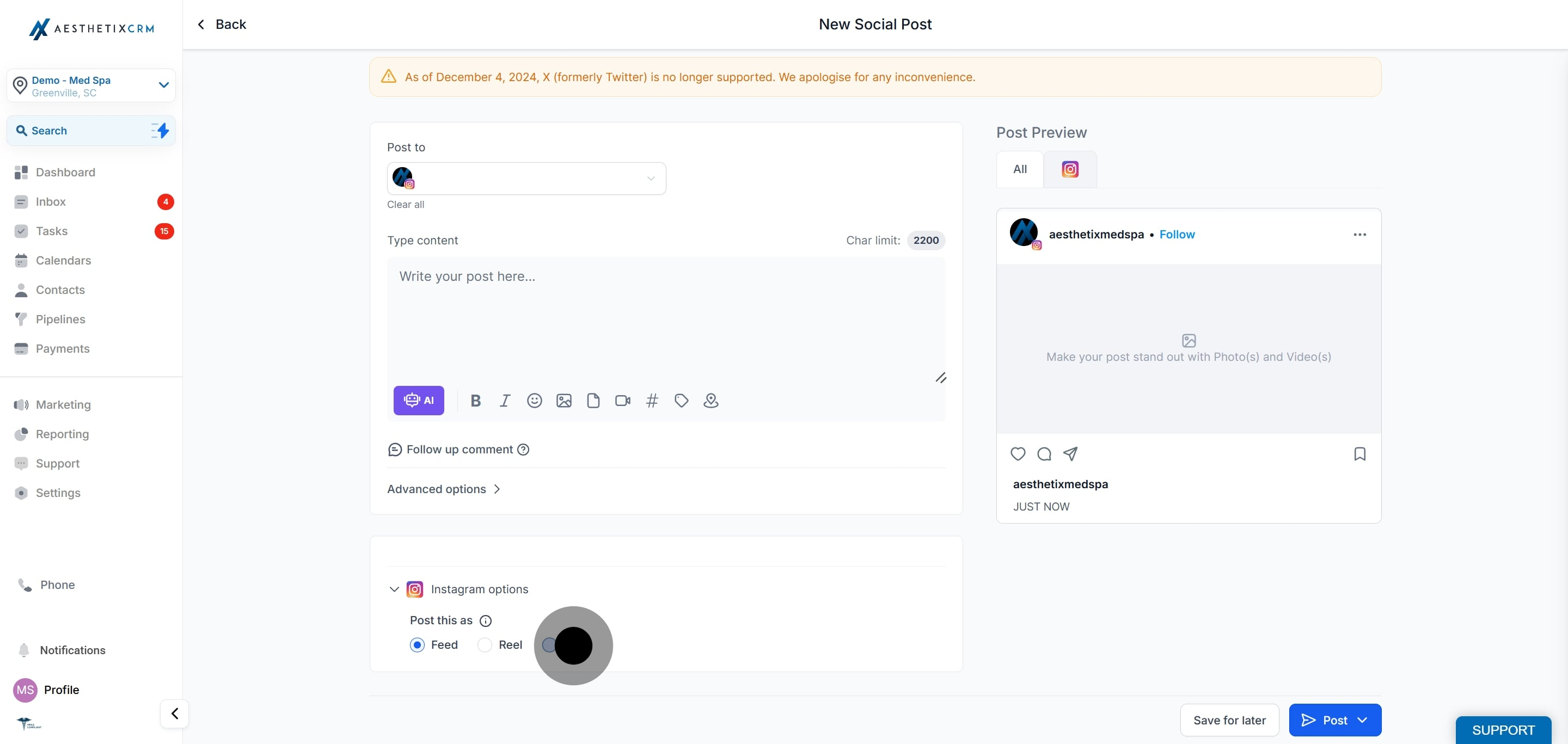
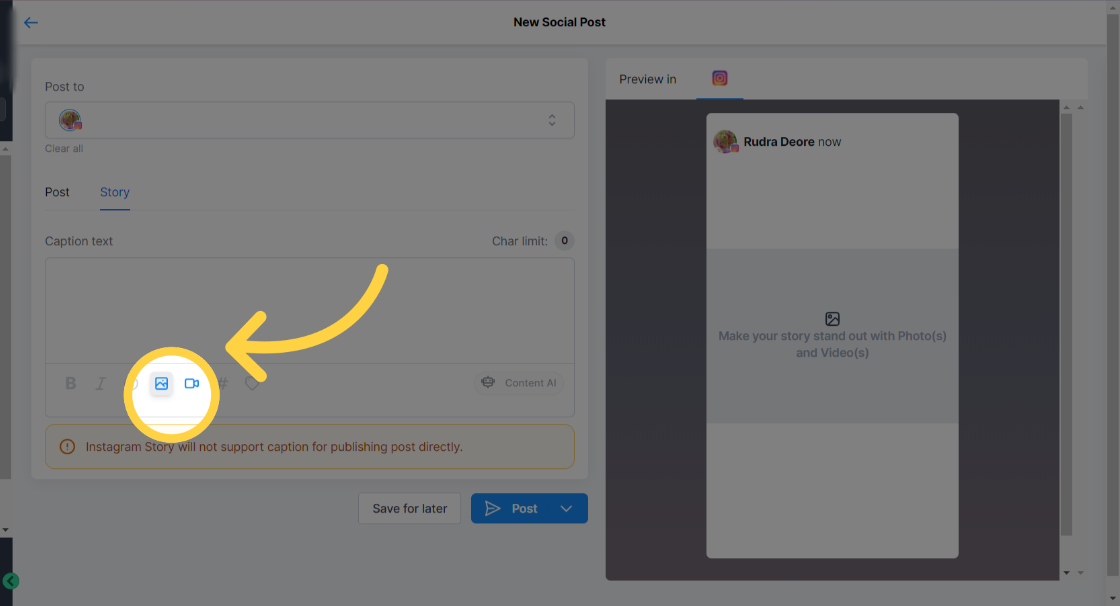
Click Upload image or video to add your media. You can attach up to 10 images or videos to a single Story. The maximum image file size is 8 MB, and videos must be under 60 seconds. Adding captions or text to the content is not supported for Instagram Stories through the third-party API.
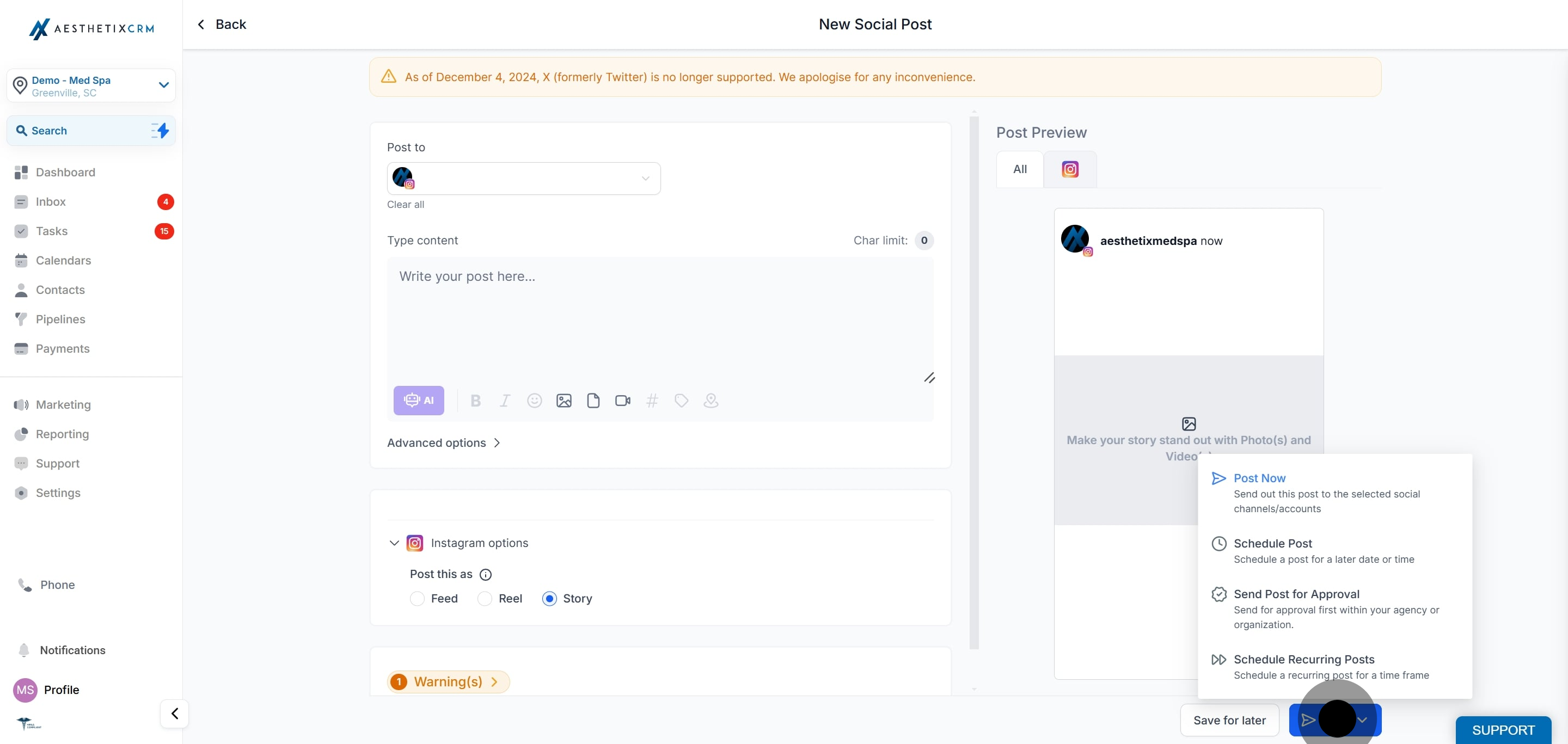
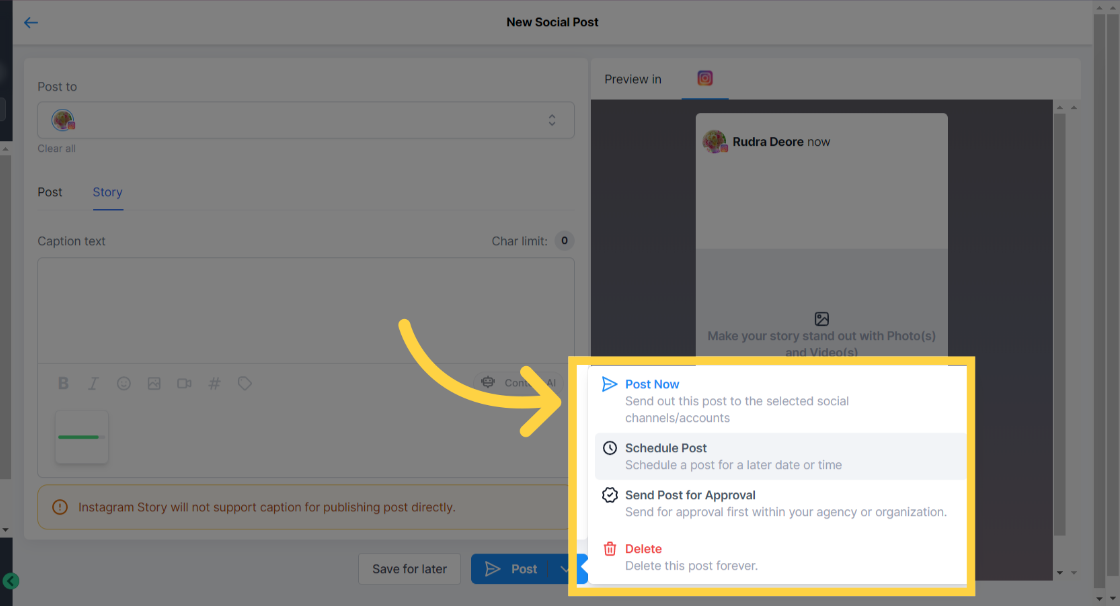
Click the arrow next to Post to choose when to publish or to send the post for approval.
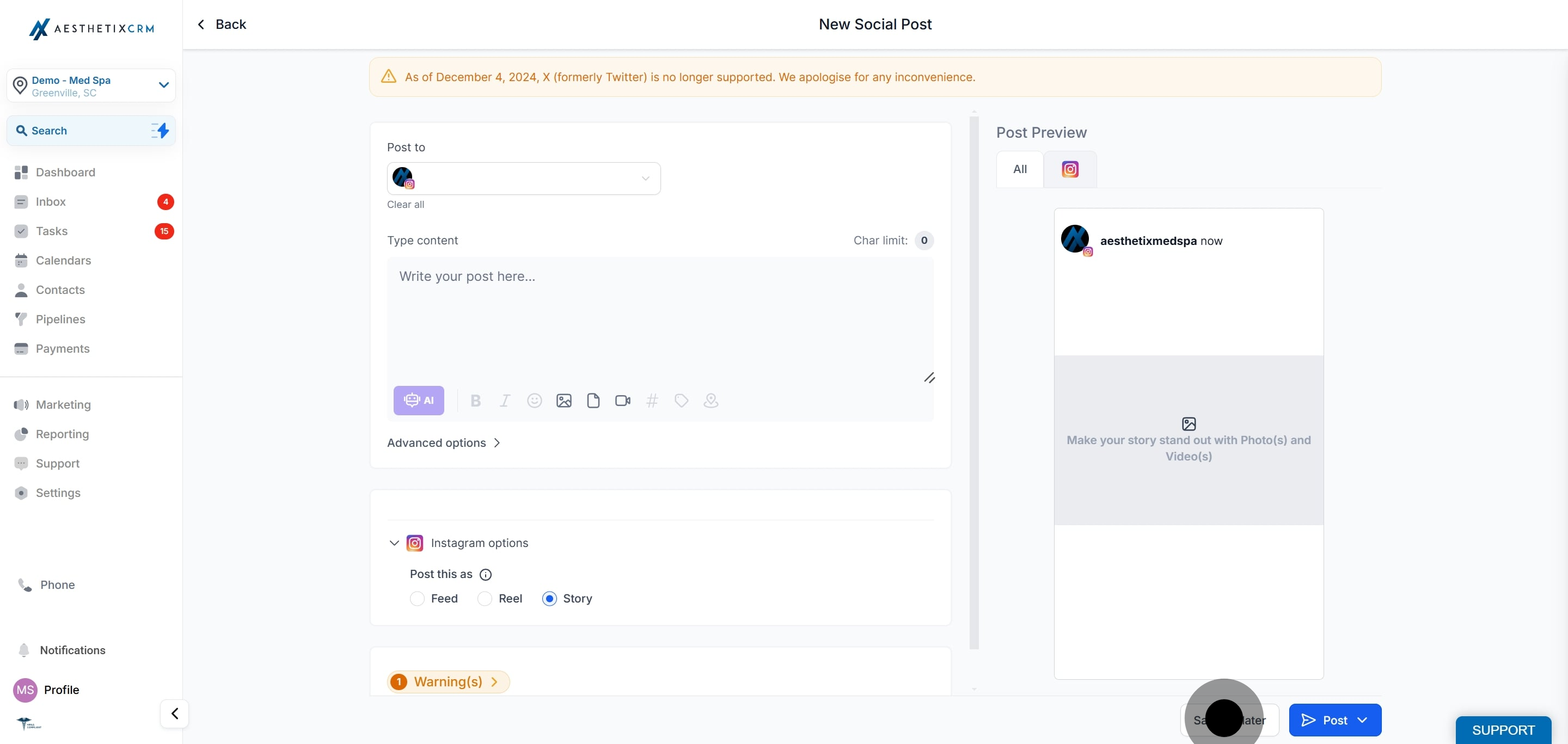
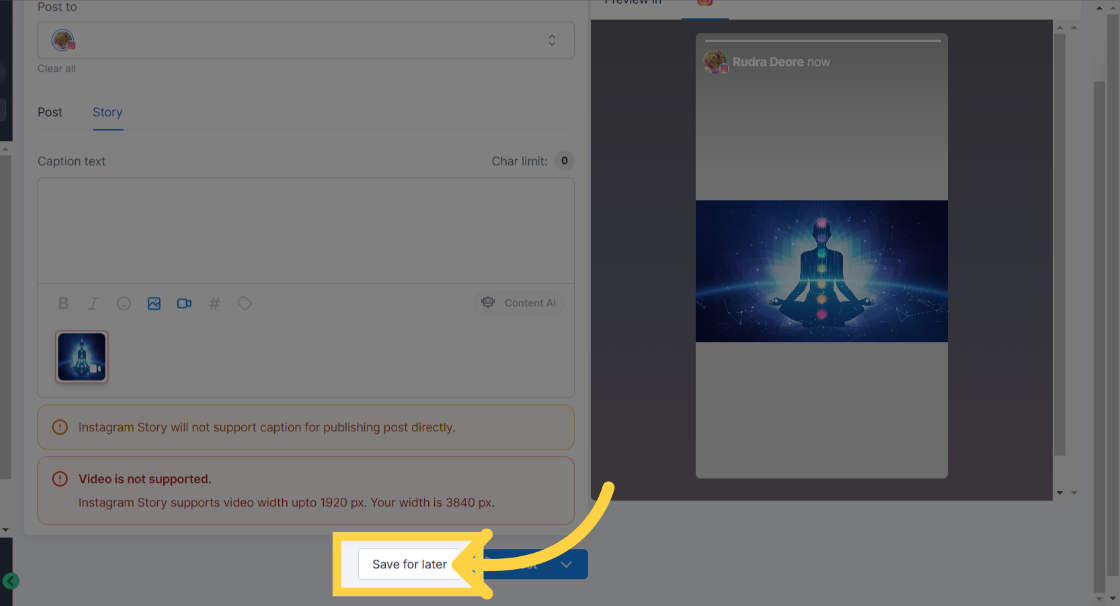
To save the Story as a draft and finish it later, click Save for Later.
If your Story includes patient before and after photos, confirm you have written consent to use those images publicly before you publish. Once a Story is live on Instagram it is outside Aesthetix CRM and cannot be recalled through the planner.
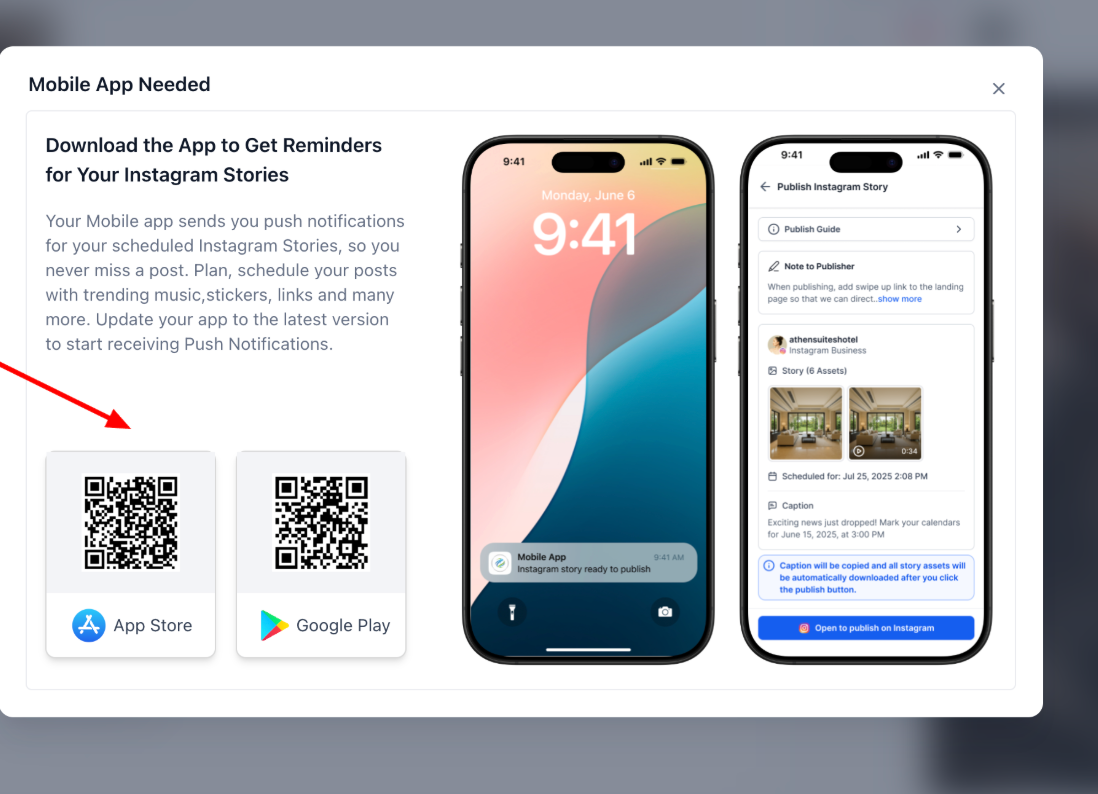
Instagram does not allow any third-party platform to directly publish Stories that include interactive elements like stickers, links, music, or trending audio. To let you still plan this content ahead of time, the Social Planner supports publishing Instagram Stories through a mobile push notification. You schedule the Story in the CRM, get a reminder on your phone when it is time, and finish posting inside the Instagram app.
With this workflow you can:
Schedule Instagram Stories in the Social Planner.
Add notes for the teammate who will publish it.
Receive a push notification on your phone when it is time to post.
Tap the notification to open Instagram with the Story media ready. The caption is copied to your clipboard and the media is downloaded automatically.
Add stickers, links, music, and other native elements inside Instagram before posting.
View all scheduled Stories in the Social Planner.
Before you start, make sure you have the mobile app installed, push notifications turned on, and you are logged into the correct Instagram account.
Go to Marketing → Social Planner → Create Post.
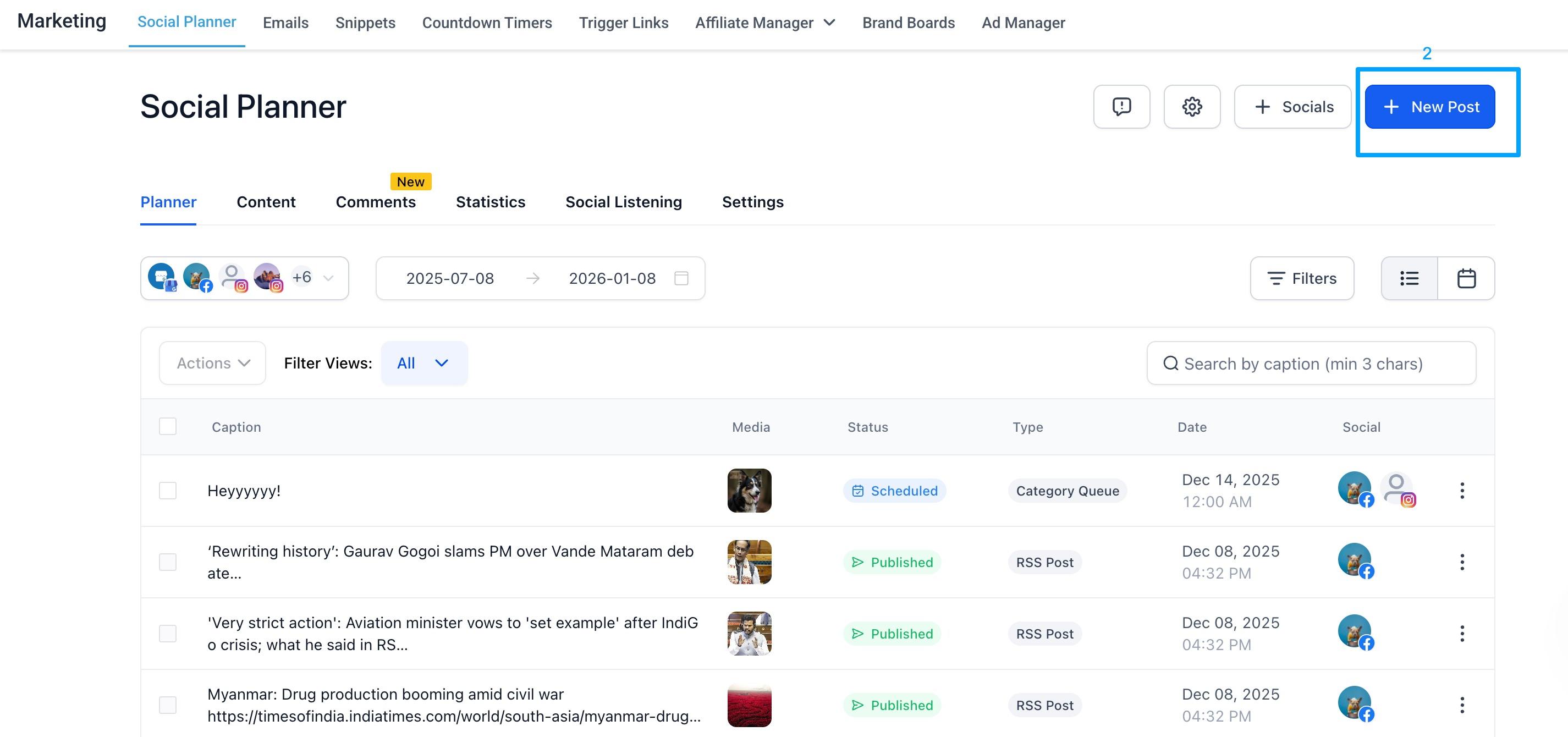
Select Instagram Story.
Upload your Story media and add a caption.
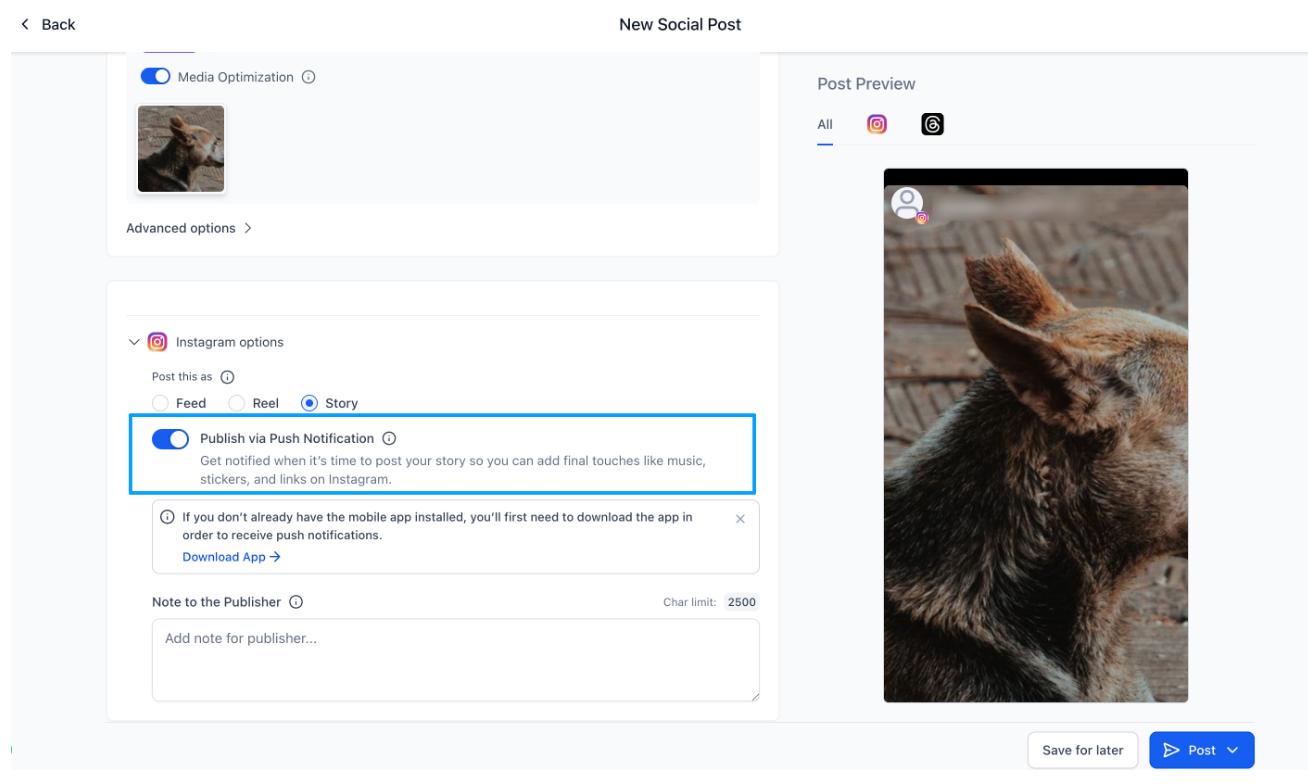
Toggle Publish via Push Notification.
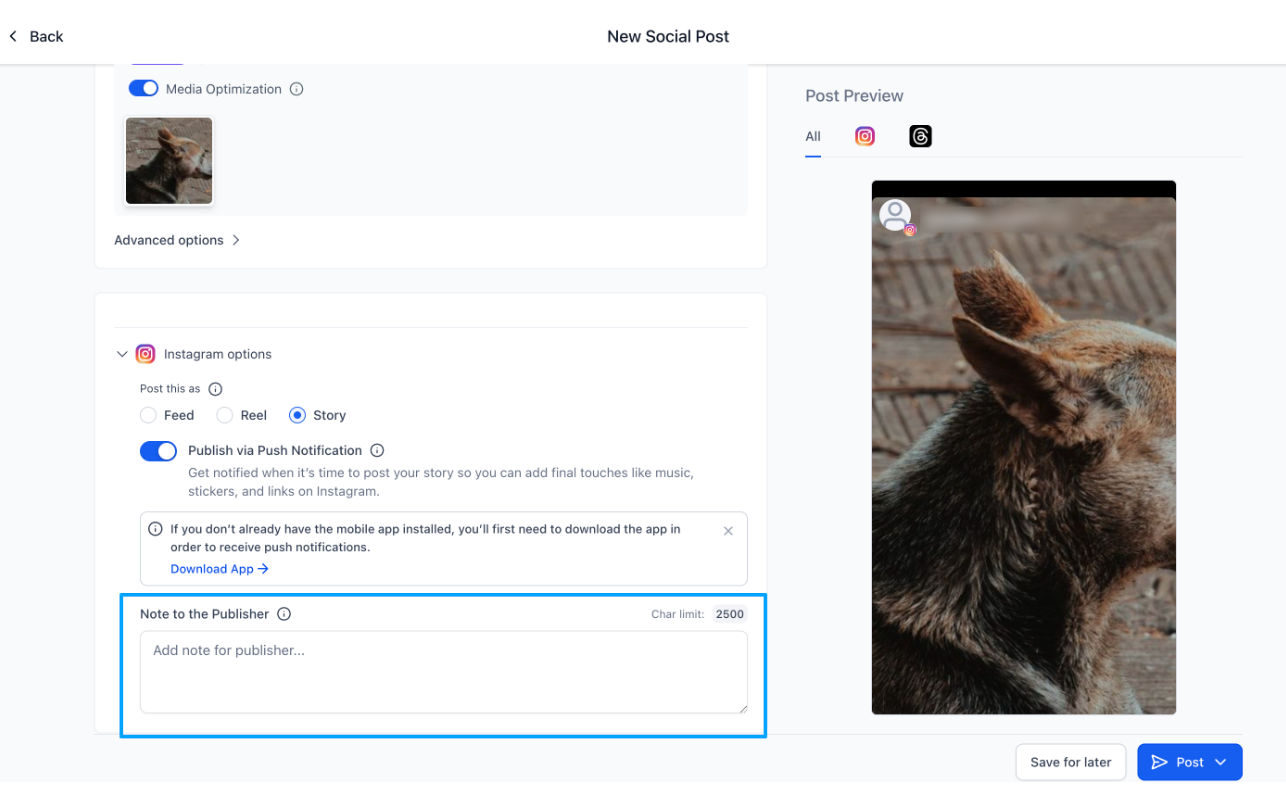
(Optional) Add Notes for the teammate who will publish, for example: "Add the trending New Year sticker before posting."
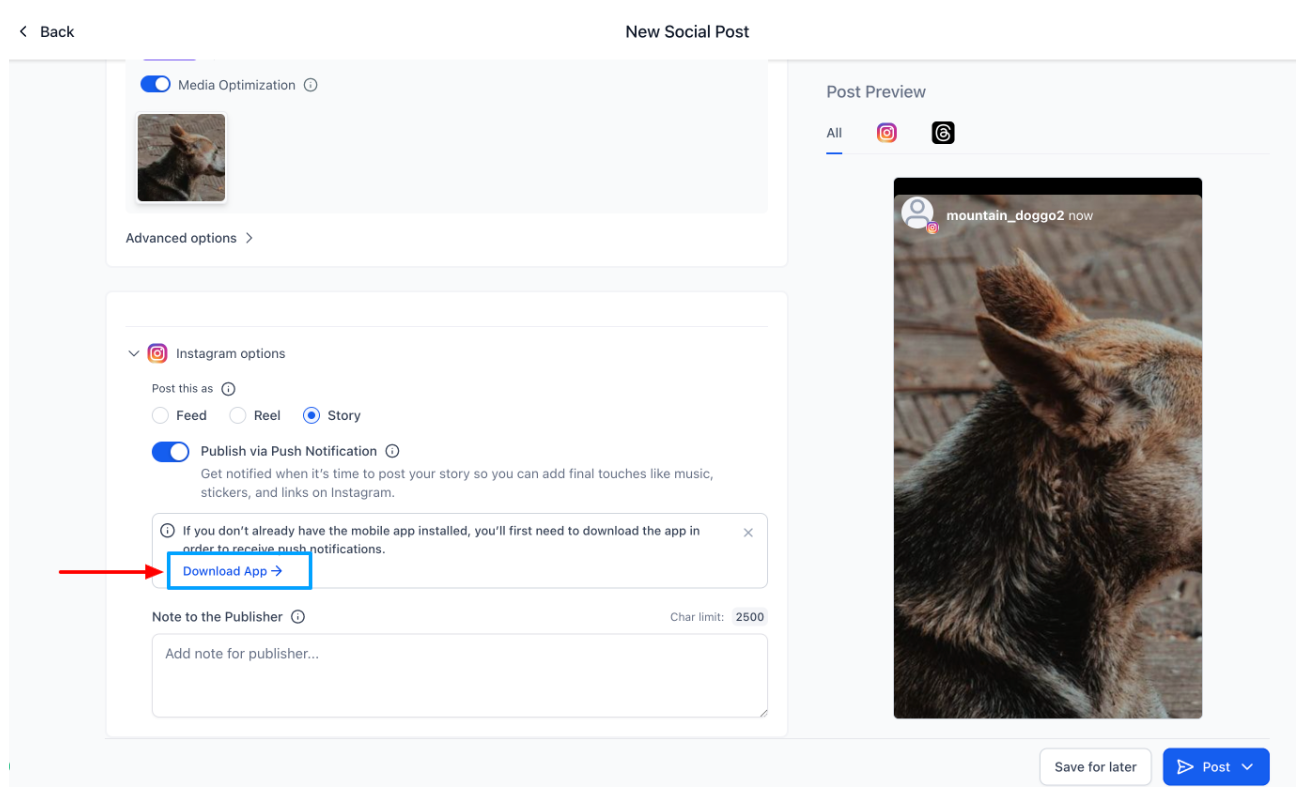
If you do not have the mobile app installed, click Download App and scan the QR code to get the latest app.
Choose a date and time.
Click Schedule. The Story now appears in the Scheduled list.
Confirm you have the mobile app installed and push notifications enabled for that Instagram profile.
At the scheduled time, you receive a push notification.
Tap the notification. The app downloads the Story media, copies the caption and notes to your clipboard, and opens Instagram automatically.
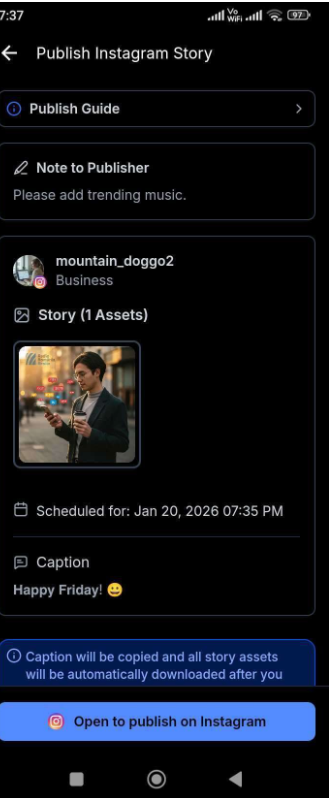
Inside Instagram, add any stickers, links, music, or mentions, paste the caption, and publish your Story.
Which Instagram accounts can publish Stories? Only Instagram Professional (business) accounts. Personal and creator accounts are not supported, which is an API limitation set by Meta.
How many images or videos can one Story include? Up to 10 images or videos per Story through the composer.
What are the media limits for Stories? The maximum image file size is 8 MB, and videos must be under 60 seconds.
Can I add text or stickers to a Story through the composer? Not through the standard composer, because third-party APIs cannot add text or stickers directly to Instagram Stories. To include stickers, links, music, or trending audio, use the push-notification workflow and add those elements inside the Instagram app before posting.
Can I tag people or businesses in a Story through the Social Planner? Tagging in Stories is generally limited to the Instagram app itself and is not supported through third-party tools. Instagram's policies can change, so check Instagram's official documentation or contact our support team if you need the latest details.
Why can't Instagram Stories be auto-published with stickers or music? Instagram restricts auto-publishing of interactive Story features like stickers, music, links, and audio. The push-notification workflow exists so you can still schedule the content and add those elements natively at posting time.
Do I need the mobile app to use push-notification publishing? Yes. The notification and hand-off to Instagram happen on your phone. Until it is published, the Story stays in your Notified list, and you can clone and reschedule it anytime.
Can more than one team member publish a scheduled Story? Yes. Any team member who receives the notification for that profile can publish it.
What happens when I tap the notification? The media downloads, the caption copies to your clipboard, and Instagram opens automatically so you can finish and post.
