Image generation with Content AI creates original images from a description you write in plain language. It is built into the Aesthetix CRM Social Planner, so you can produce custom visuals for your social posts without needing graphic design skills. You describe the image you want, choose how many variations to see, and pick a style. Content AI then generates images that match your description and style, ready to drop into a post.
For a medical aesthetics practice, generated images work well for posts where you do not want to use a real patient photo or a stock image. A few examples:
Treatment and service promos: "A calm, modern med spa treatment room with soft natural lighting and a spa bed."
Seasonal specials: "A warm, cozy winter scene with a cup of tea and a wellness theme."
Educational content: "A clean, minimalist infographic-style background for skincare tips."
Event announcements: "An elegant open-house invitation with a sleek reception desk and flowers."
Brand and lifestyle posts: "A serene wellness setting with fresh greenery and neutral tones."
Product or skincare features: "A minimalist organic skincare product set against a backdrop of natural greenery."
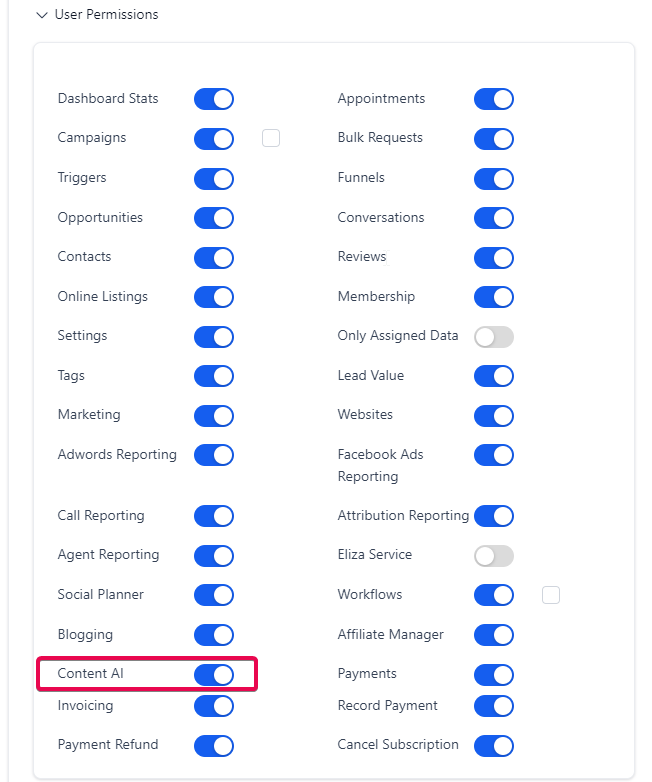
Each staff member who will use Content AI needs the permission enabled on their user profile. To turn it on, go to Settings > My Staff, edit the user, open User Permissions, and enable Content AI.
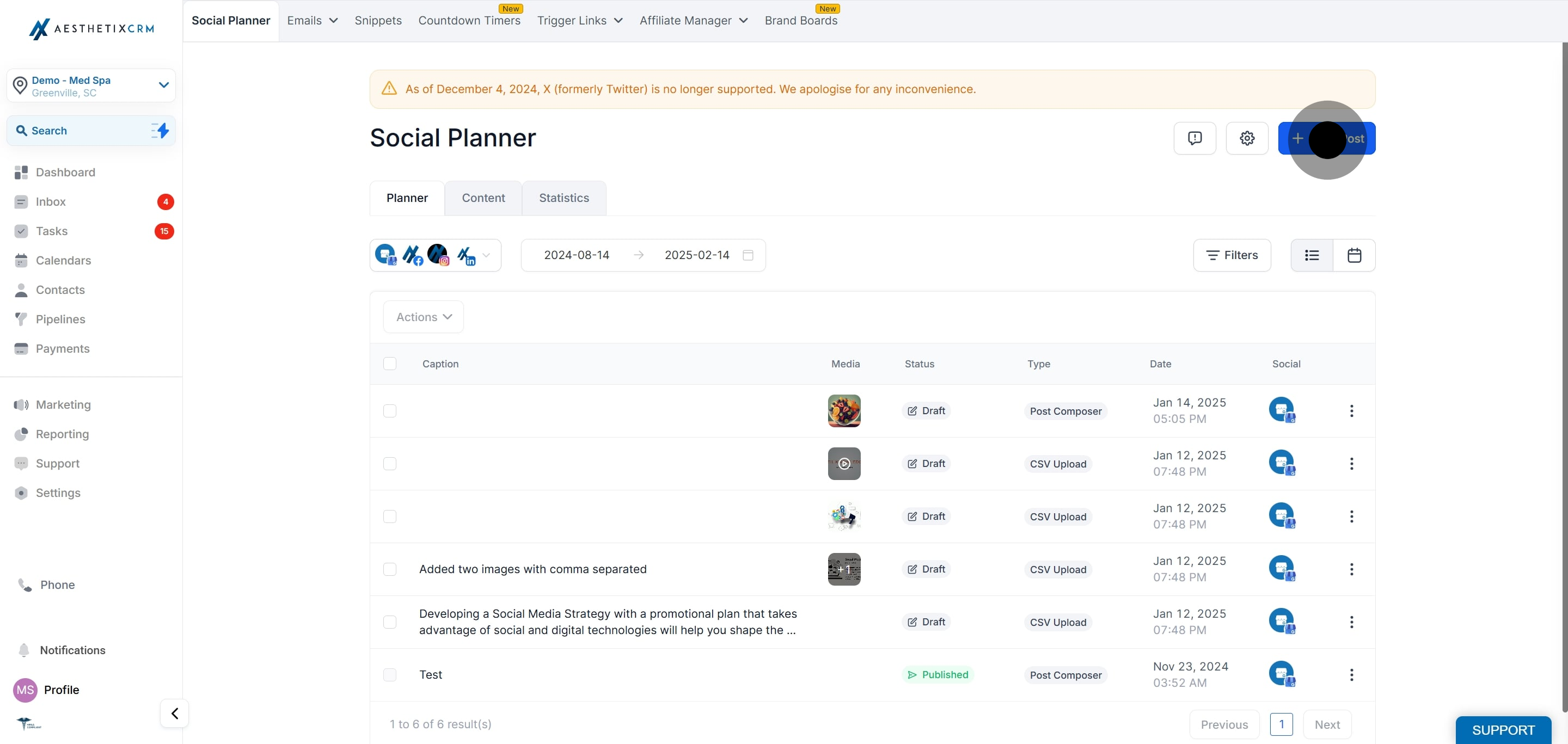
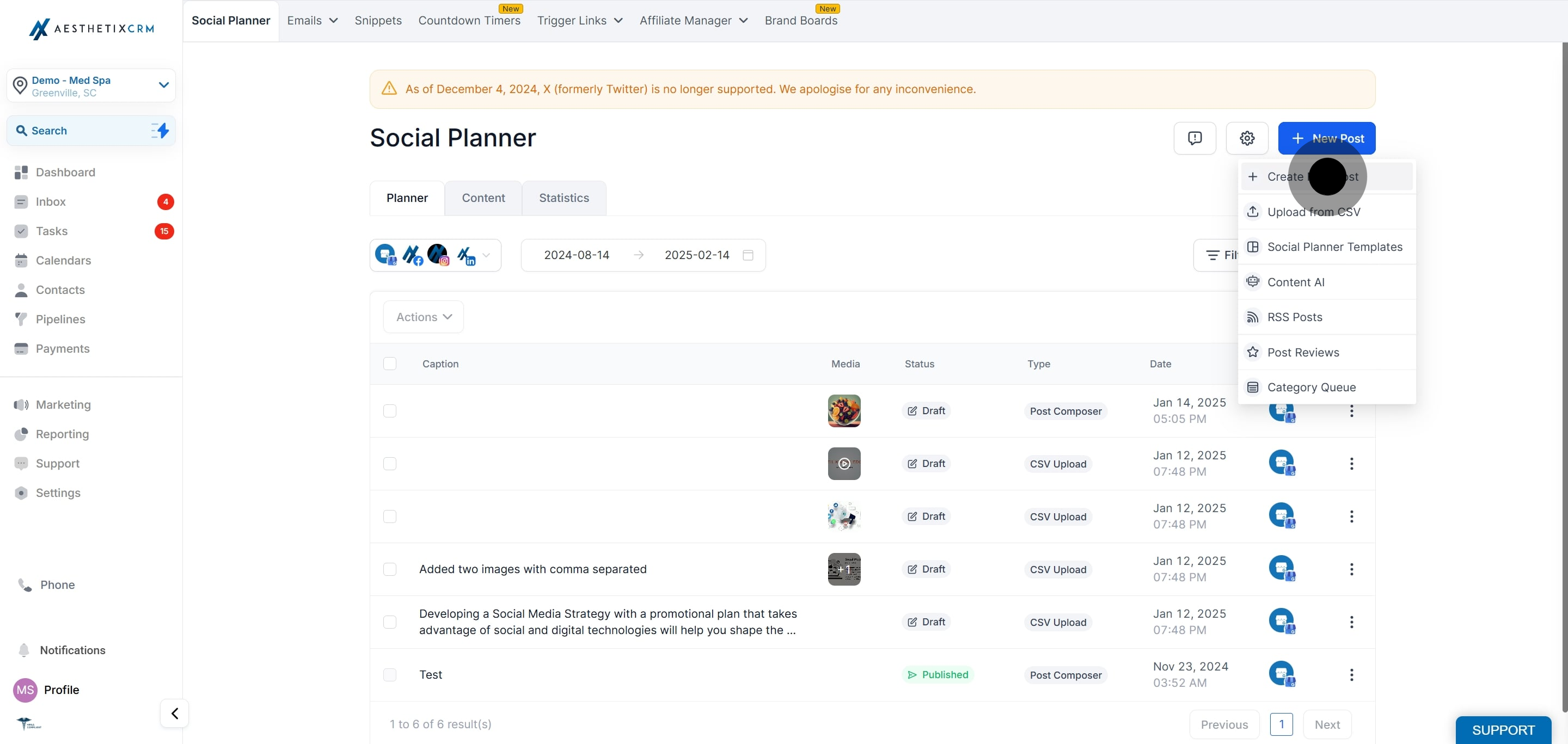
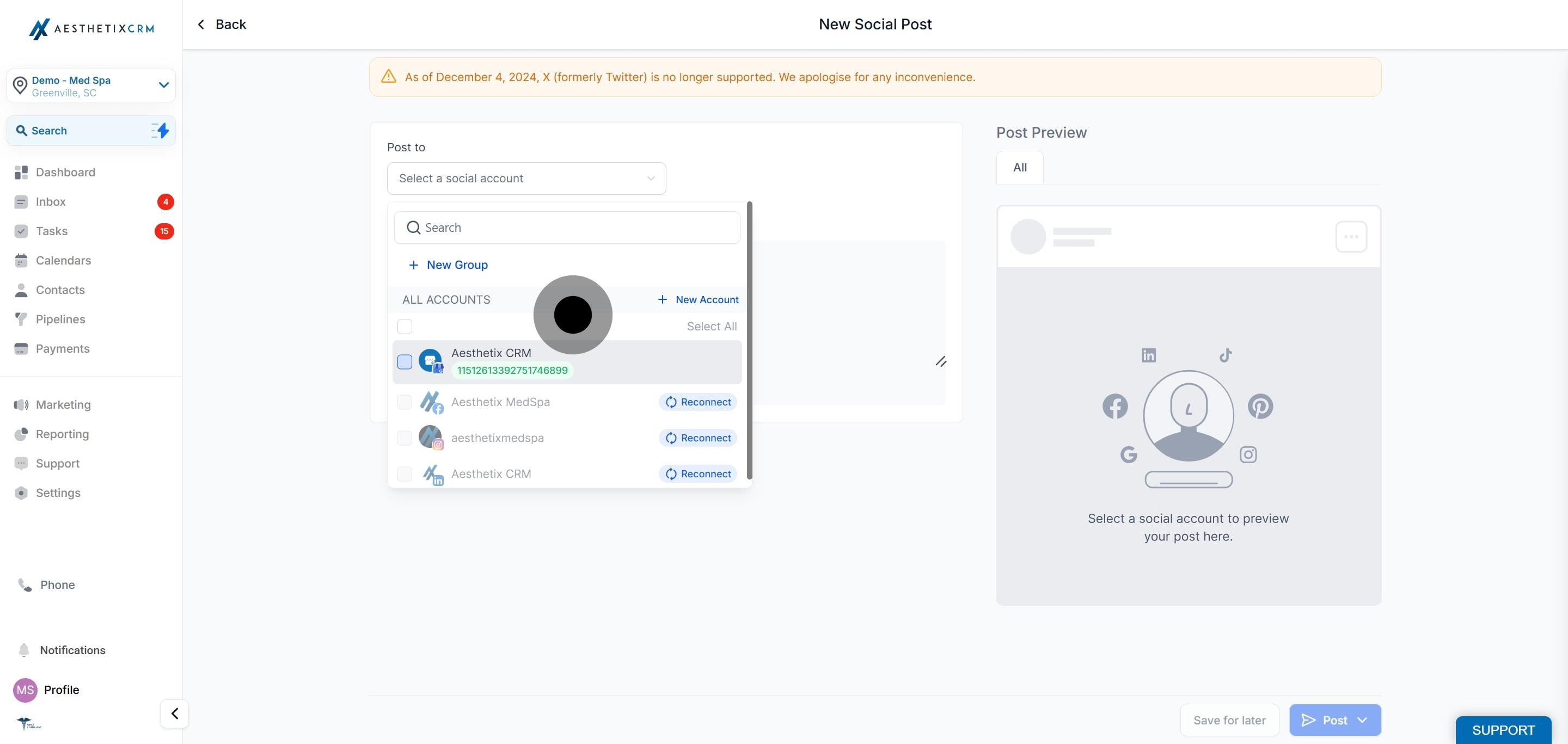
Click the image upload icon, then select "Generate Image with AI" from the dropdown.
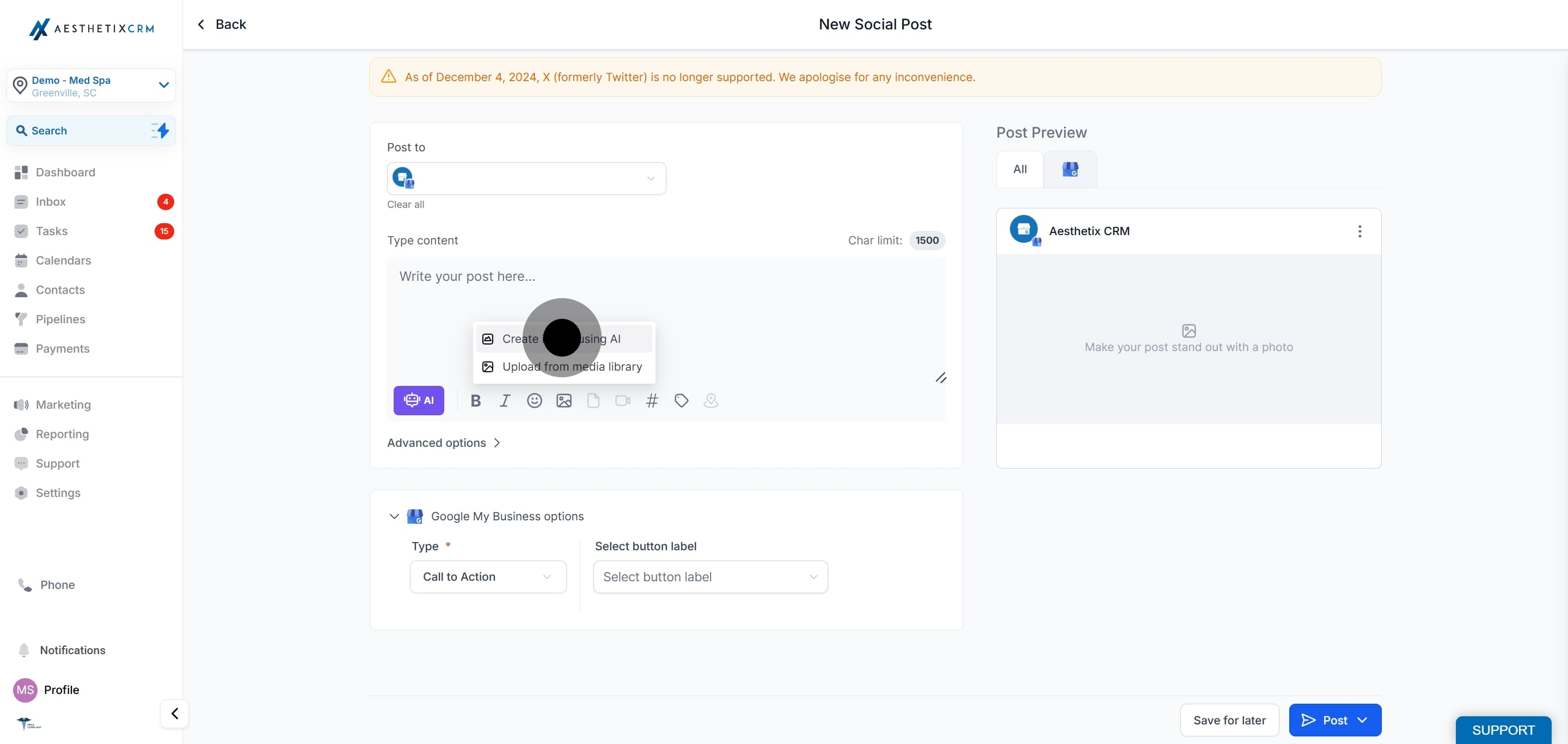
Write a clear, realistic description of the image you want, following the example style above. Avoid promotional words like "discount" or "sale," and avoid symbols, as these can produce poor results.
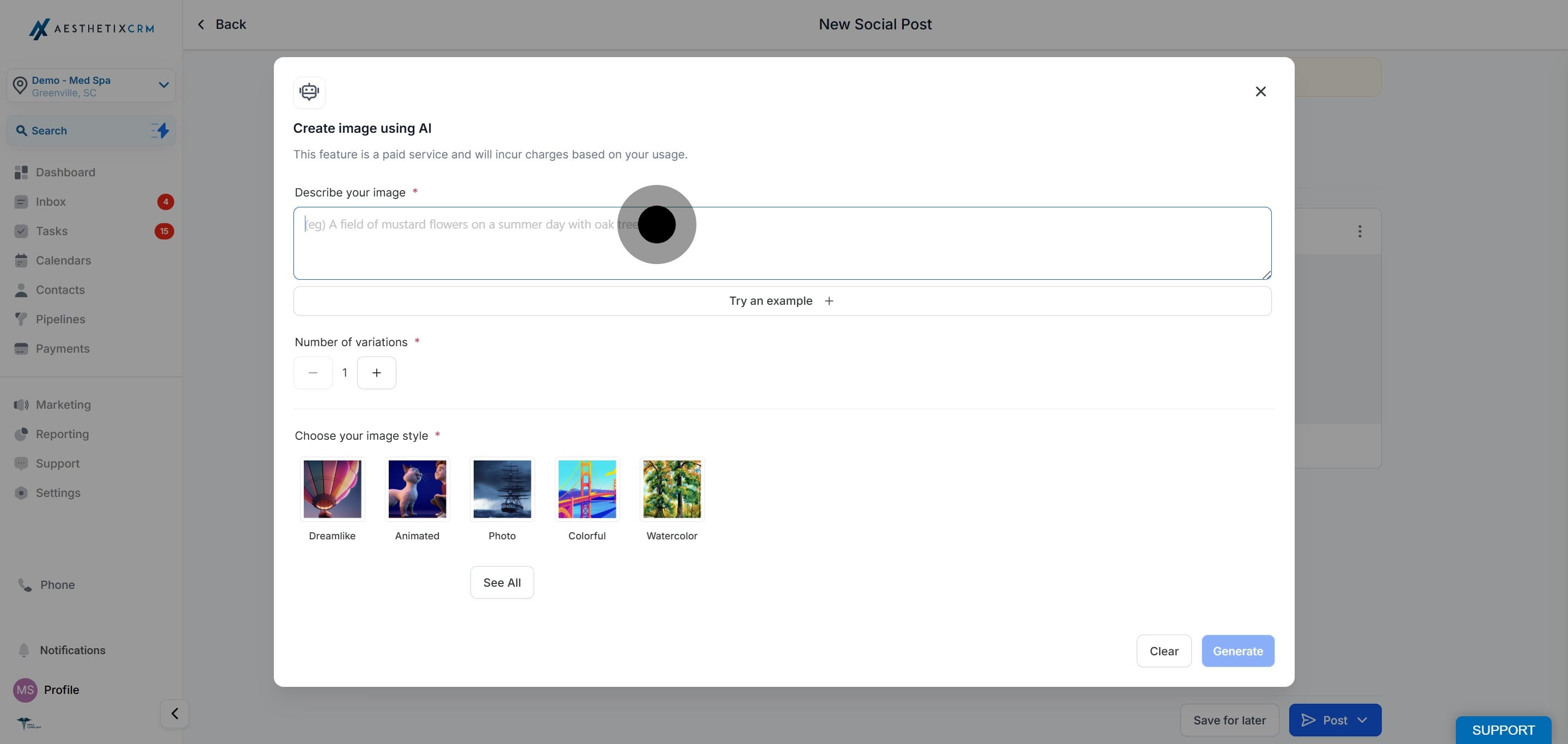
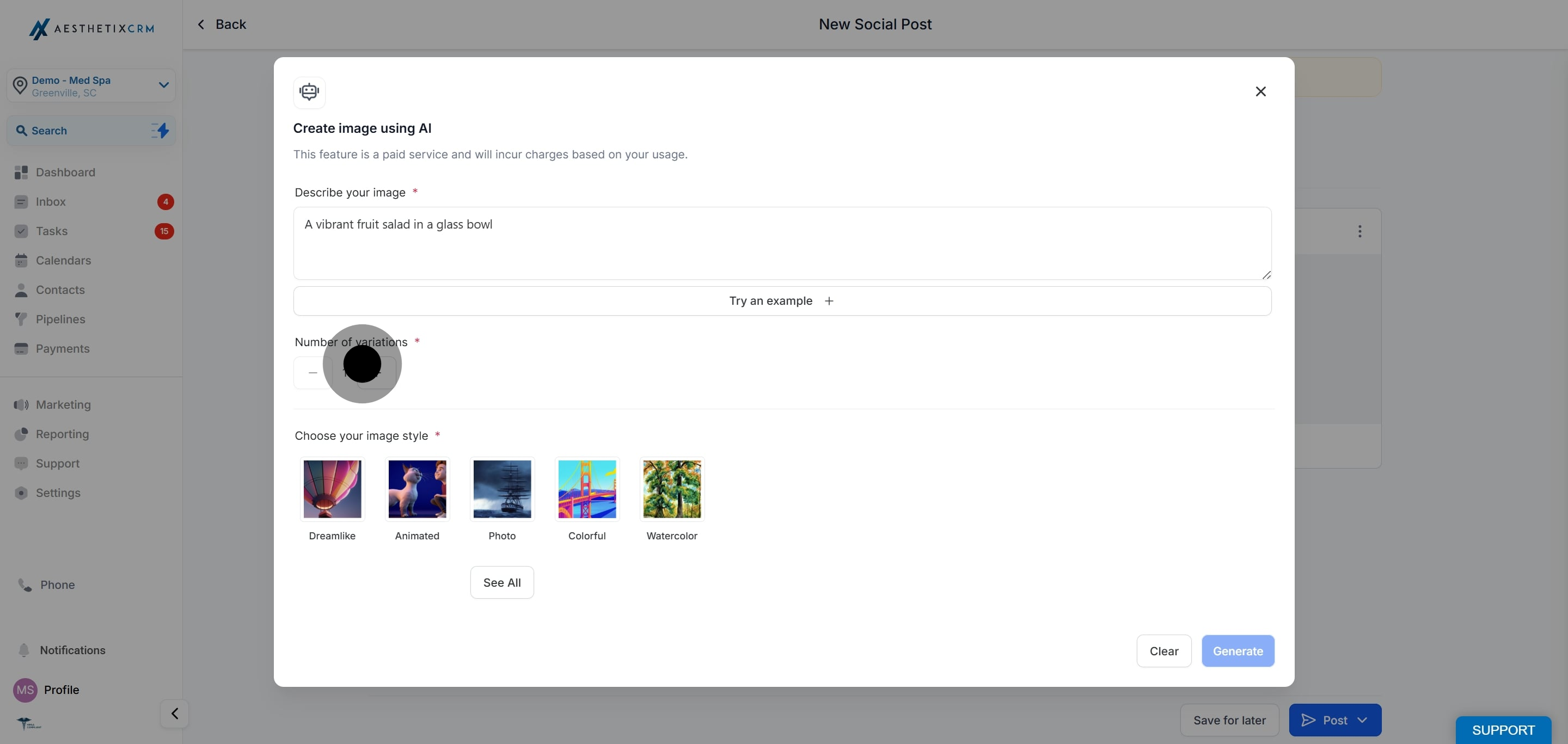
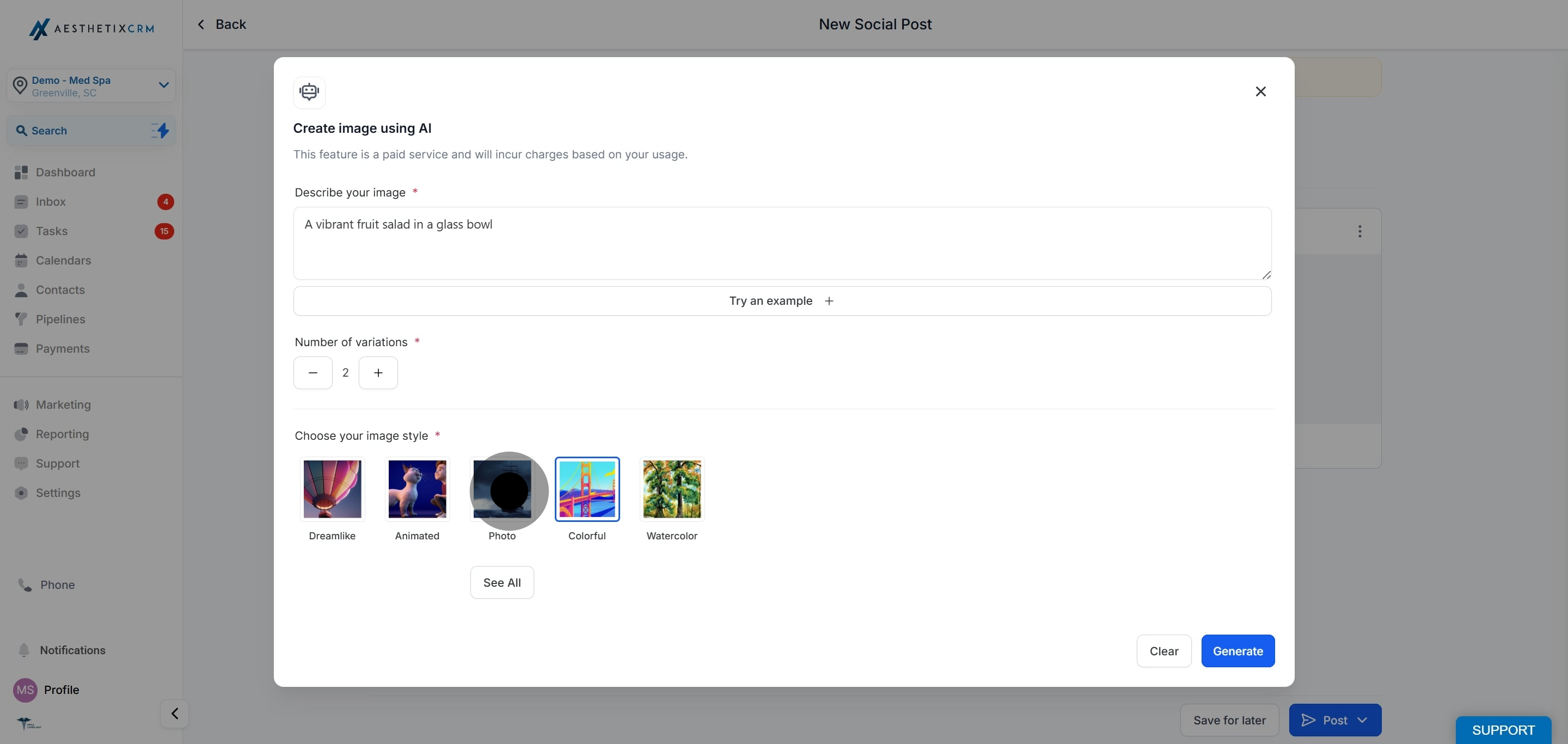
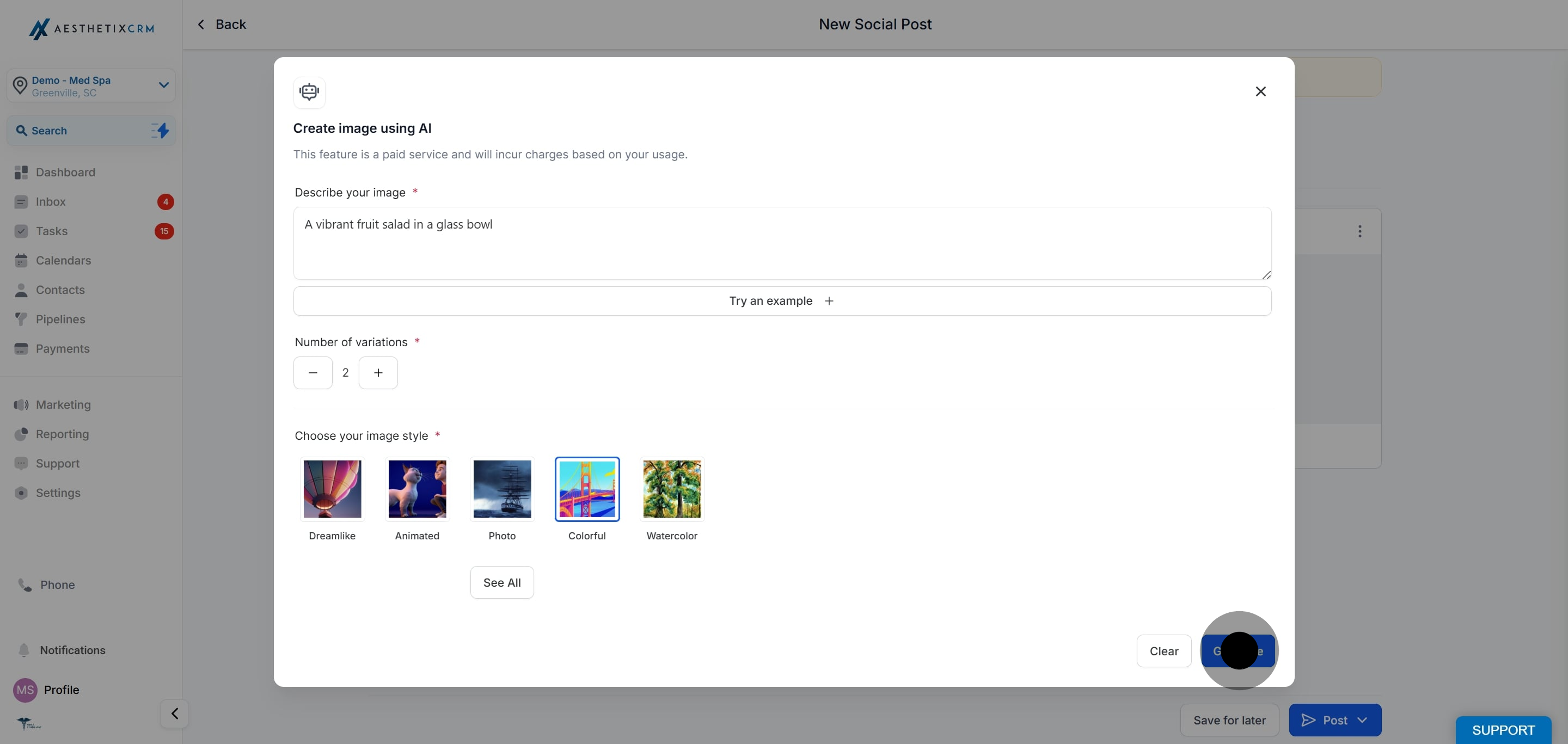
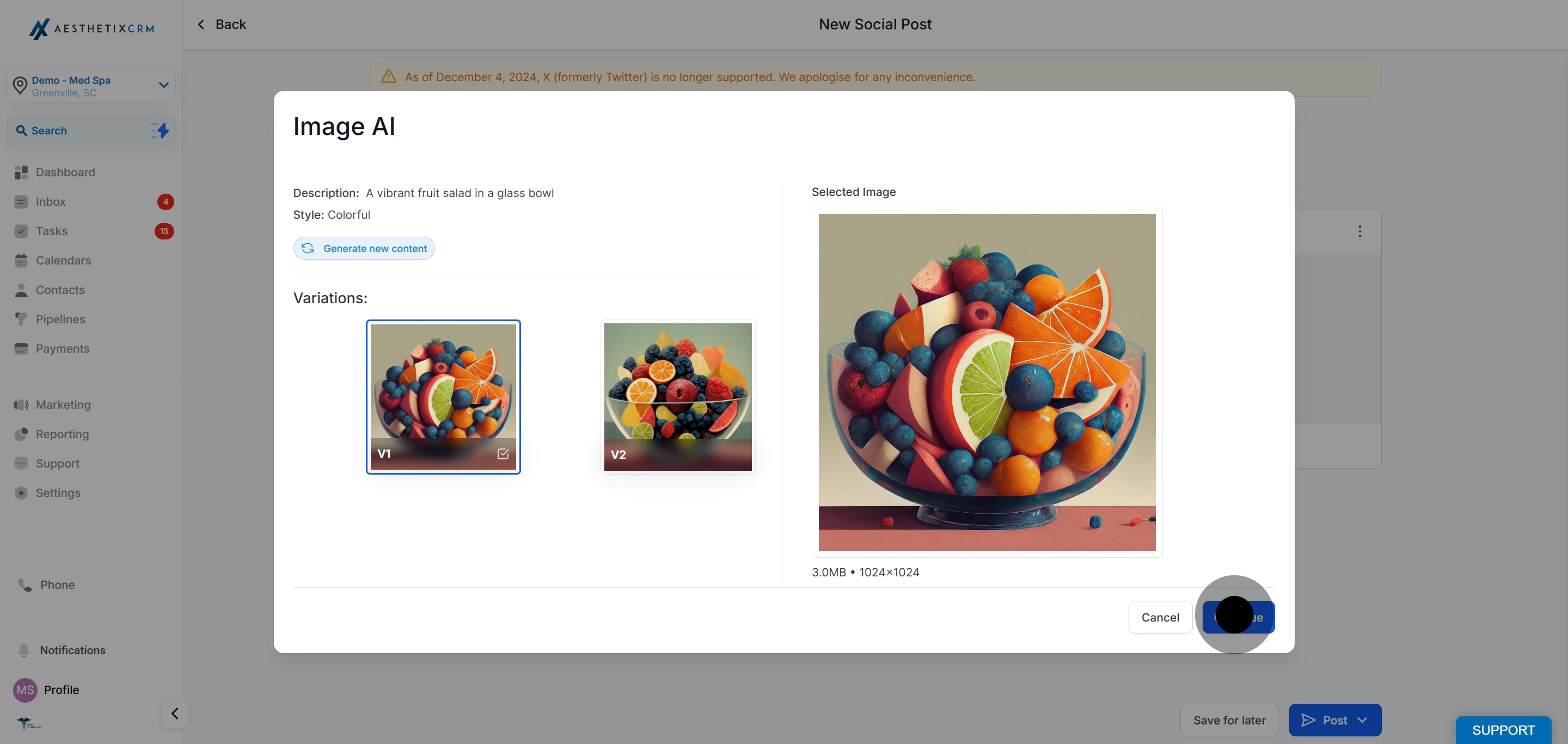
When the generated image matches what you need, select it and click Continue to add it to your post.
Describe realistically. Content AI produces the best results from natural, believable descriptions. Vague or exaggerated prompts tend to produce lower-quality images.
Leave out prices and symbols. Words like "sale" and "discount" and characters like "%" or "$" can confuse the generator. Add any offer text after the image is created, using the post caption or a design tool.
Do not use generated images as clinical proof. AI-generated visuals are illustrative only. Never present a generated image as an actual patient result or before-and-after outcome, and do not use it to imply a specific treatment result.
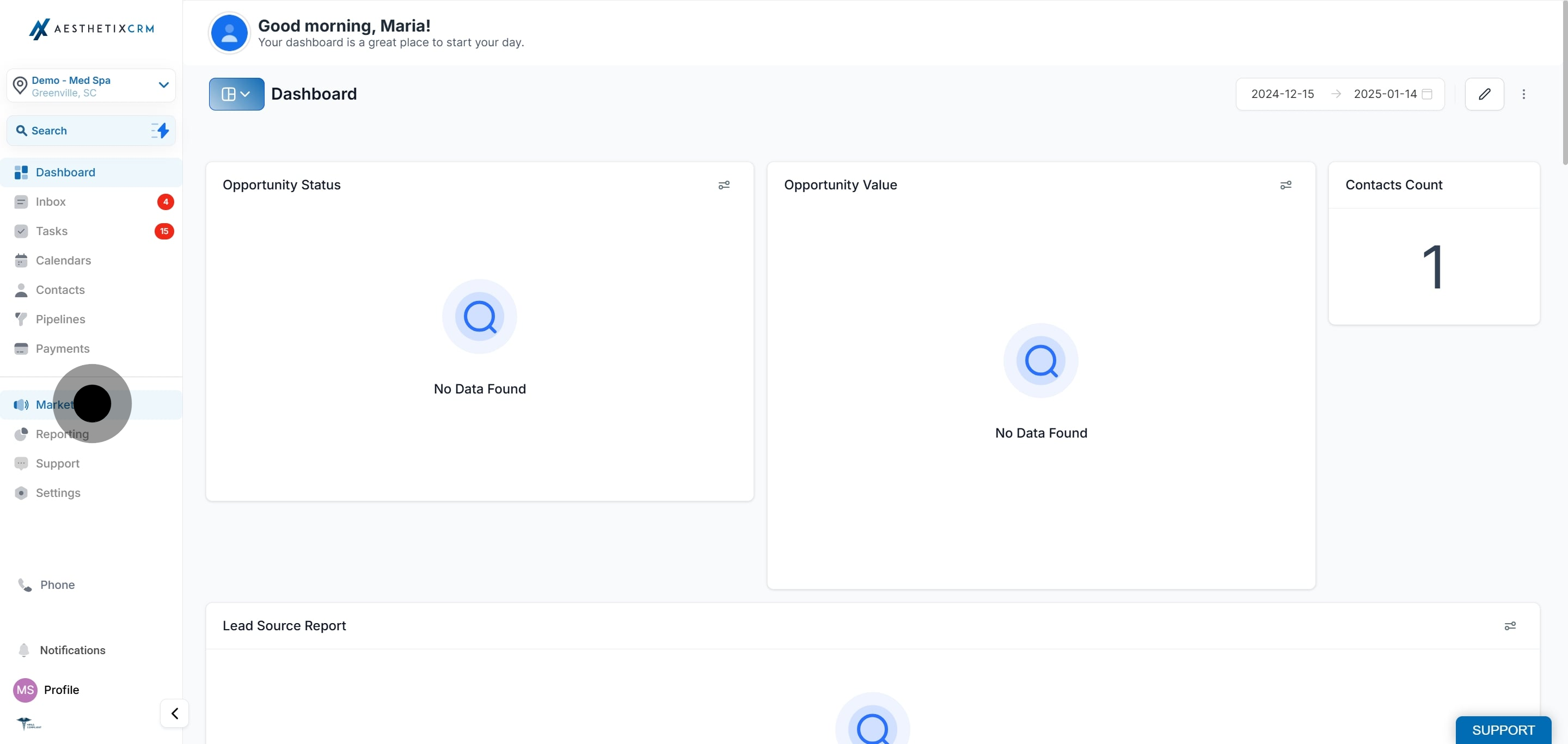
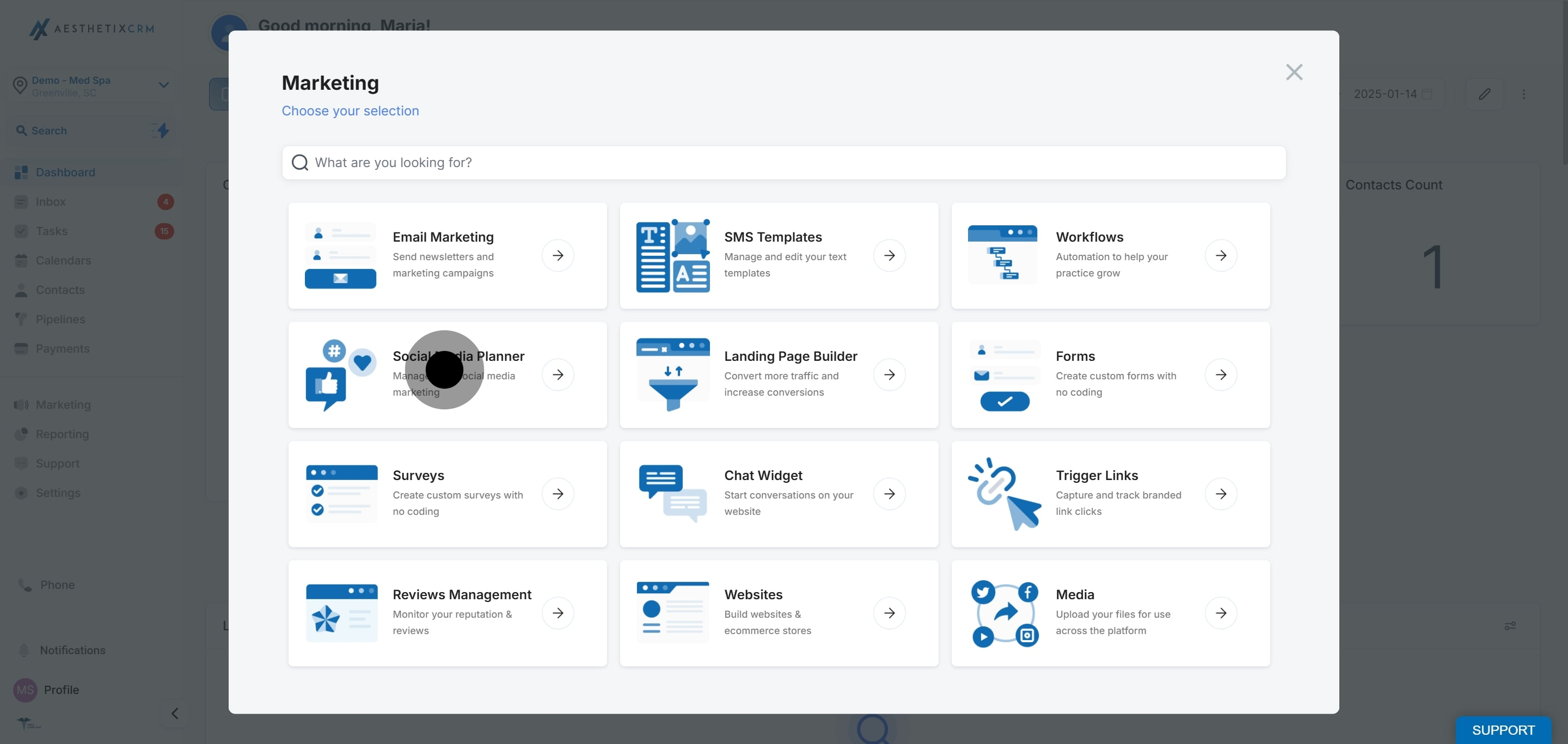
Where is image generation in Aesthetix CRM? It is in the Social Planner. Go to Marketing > Social Media Planner, create a new post, click the image upload icon, and choose "Generate Image with AI."
Do I need a permission enabled to use it? Yes. Each user needs the Content AI permission turned on under Settings > My Staff > (edit user) > User Permissions.
How many image variations can I generate at once? You choose the number of variations before generating, then select the one you want to use.
Can I control the look of the image? Yes. You select a style before generating. Rewriting your description also changes the result, so adjust the wording if the first set is not right.
Why does my description need to avoid words like "sale" or "discount"? Promotional words and symbols can produce distorted or low-quality images. Describe the scene realistically and add offer wording in the caption or with a design tool afterward.
Can I edit the generated image before posting? The generator creates the image and adds it to your post. To make further edits, download it or use your own design tool, then upload the edited version.
Can I use a generated image as a before-and-after or patient result? No. Generated images are illustrative and are not real patient outcomes. Do not present them as actual results, and only use real patient photos with documented written consent.
Is image generation available for every social network? The generator creates a standard image you can attach to your post. Each network still has its own image format, size, and aspect-ratio limits, so review the image and video guidelines before scheduling.
