Review post automation in the Social Planner lets you turn the reviews your practice receives on your Google Business Profile or Facebook Page into branded social media posts, published automatically on a schedule you set. Positive patient feedback becomes social proof that builds trust, boosts engagement, and strengthens your online presence, all without you designing each post by hand.
Who is this for: any practice or marketing team that wants to promote positive feedback and use reviews as a recurring part of its social media strategy.
Why it works:
Builds trust and credibility: Positive reviews turn happy patients into advocates and establish credibility for your practice.
Boosts visibility: Social algorithms reward engagement, and review posts earn likes, comments, and shares that lift your reach.
Social proof: Every positive review signals to prospective patients that your services are worth booking.
Protect patient privacy: Reviews often include a patient's name and comments about treatment. Only share reviews the reviewer chose to post publicly, and never add protected health information to captions. Do not include a patient's treatment details, medical history, appointment specifics, or any identifying information beyond what appears in the public review. When in doubt, use initials or first name only for the display name and keep captions general.
Complete these prerequisites so the automation can fetch and publish reviews:
Connect your social accounts from the Integrations tab under the Settings menu.
Make sure the platform you want to pull reviews from is integrated. You need a connected Facebook Page or Google Business Profile.
To connect a Facebook Page for reviews, go to Reputation, then Settings, then Integration, and add your Facebook Page URL.
Check your existing reviews under the Reputation menu, in the Reviews tab.
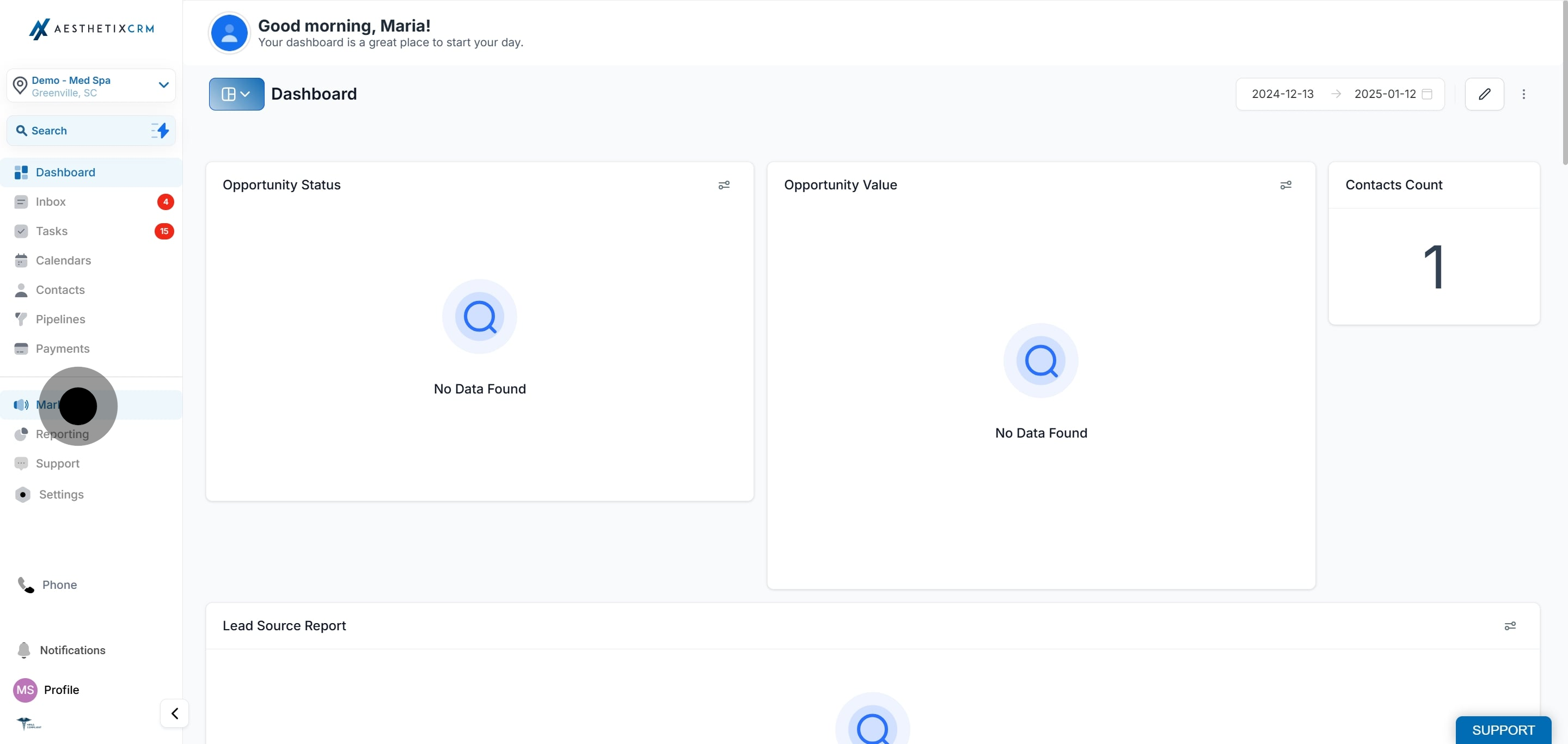
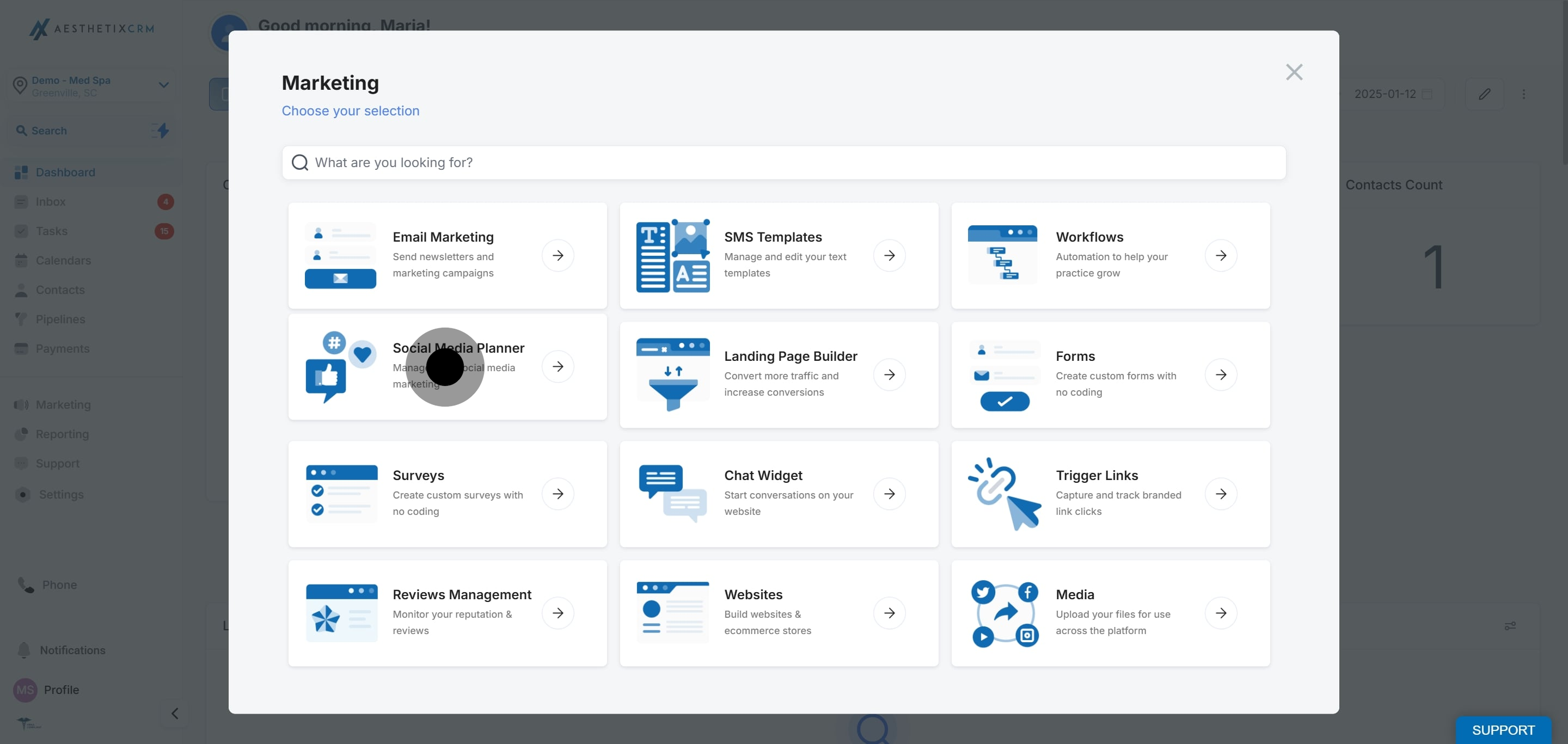
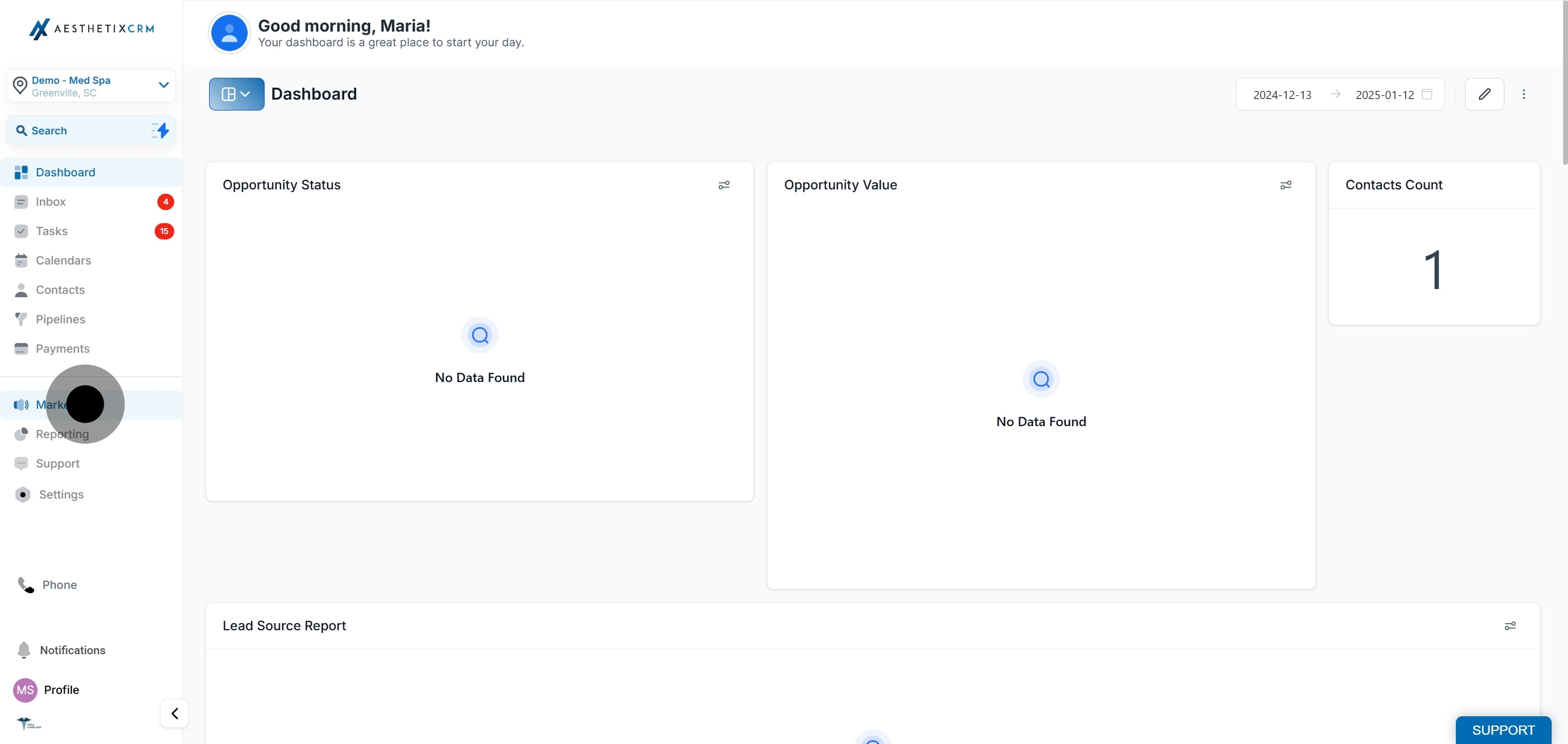
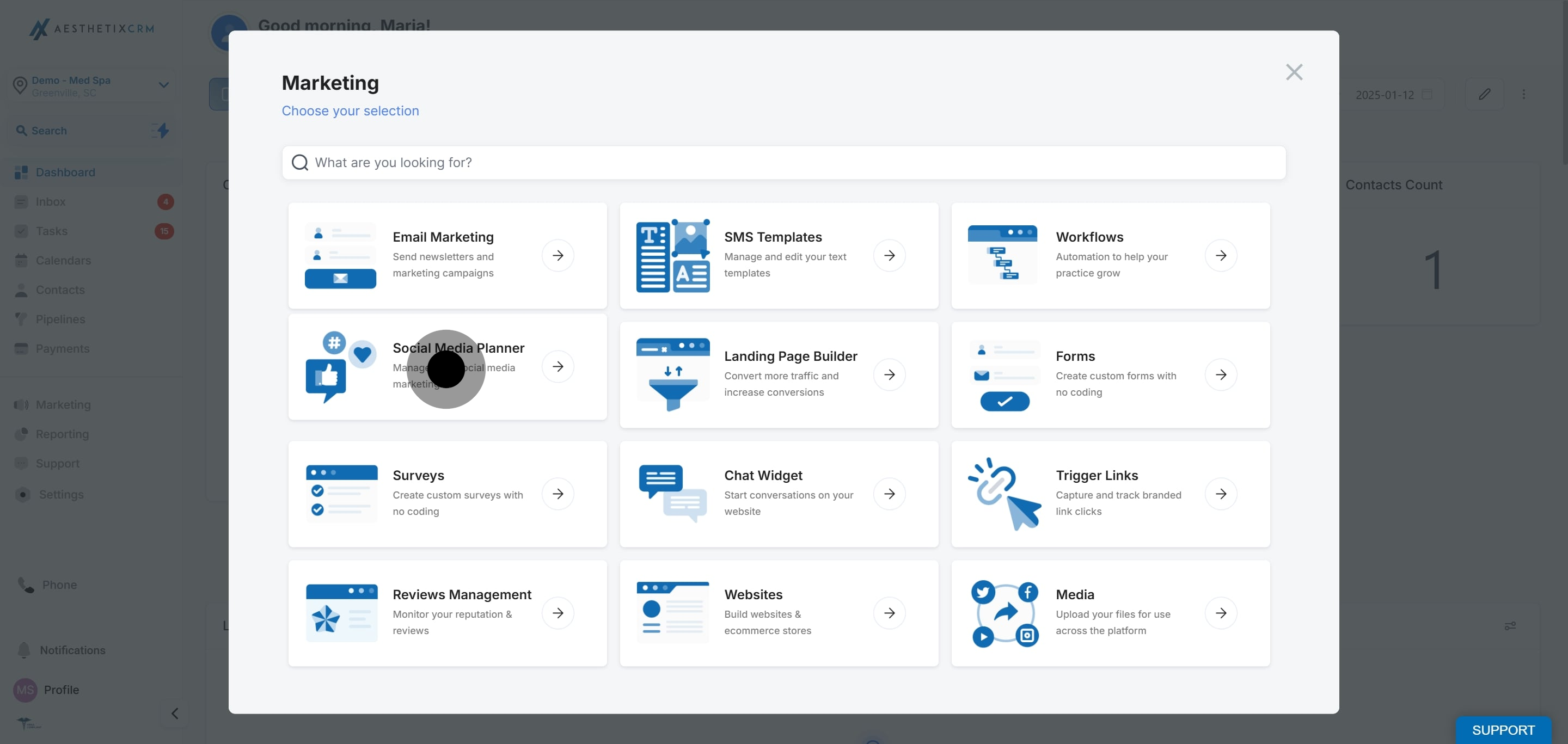
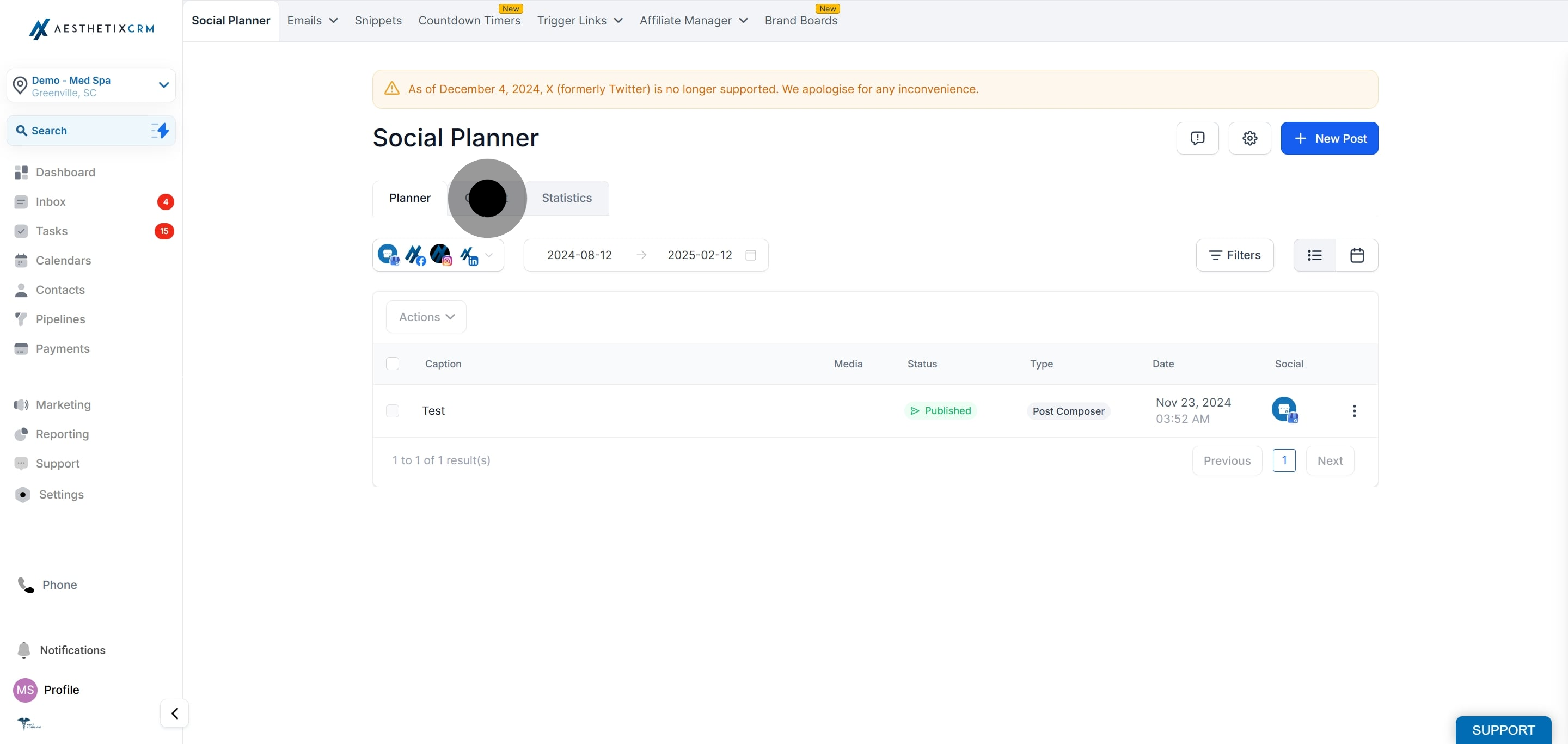
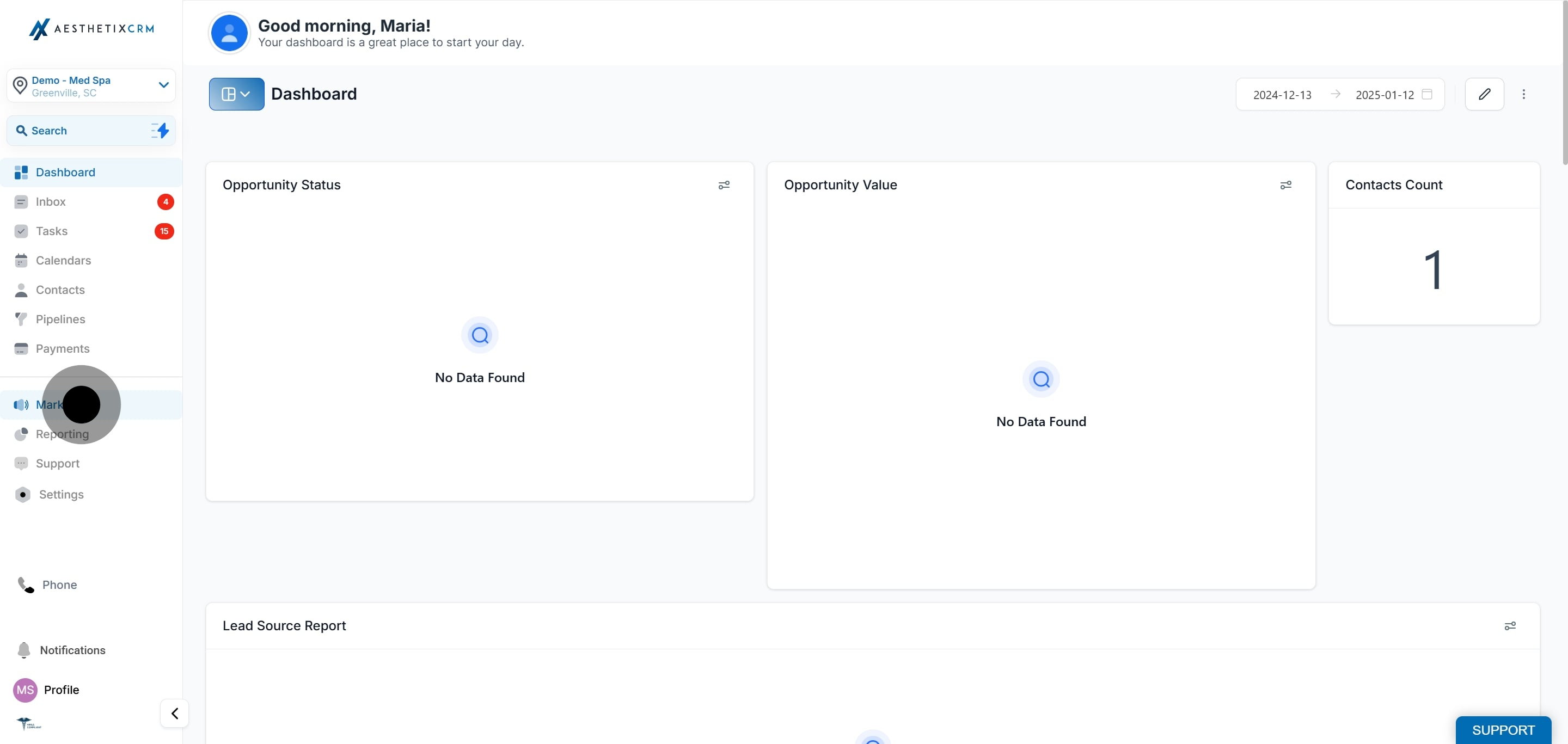
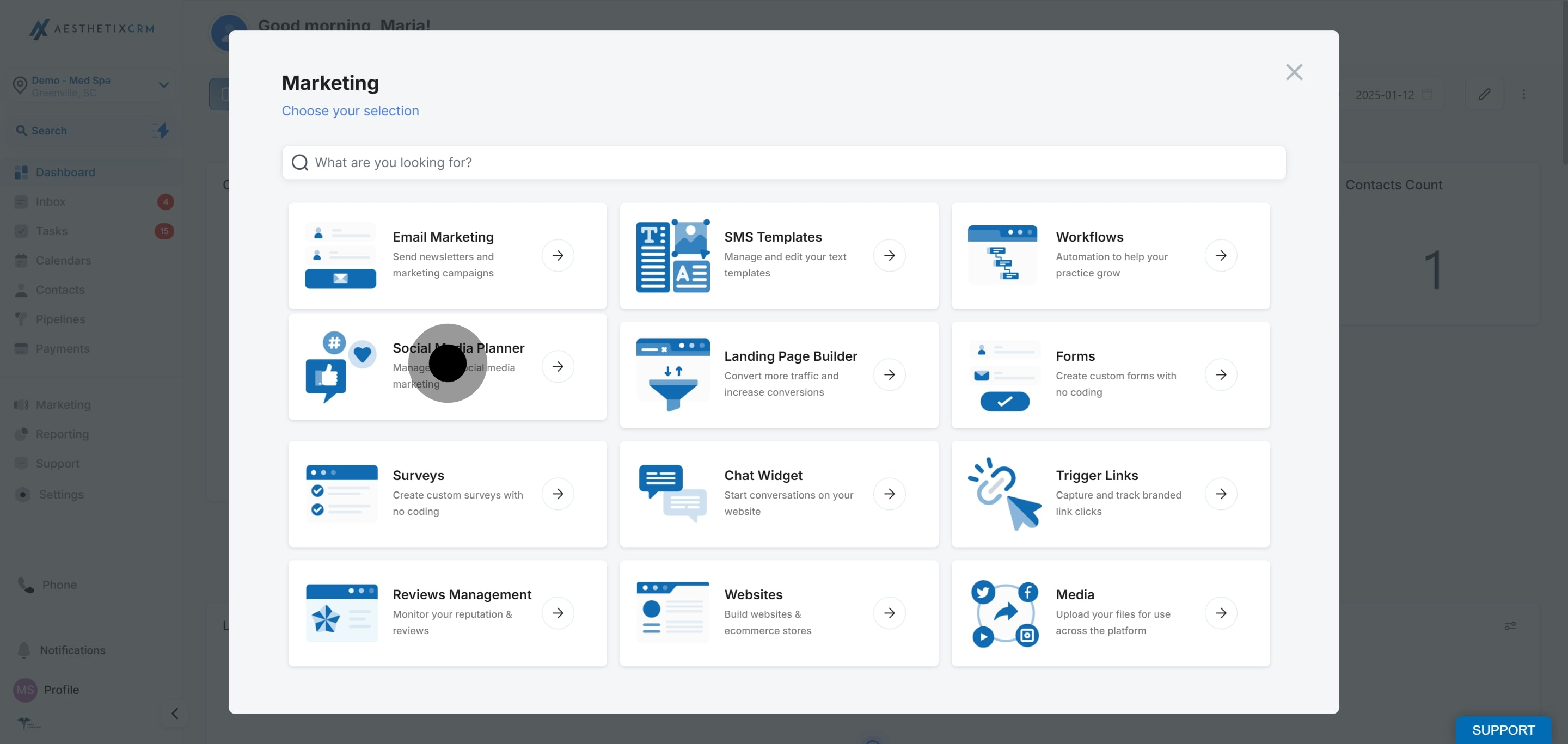
Go to Marketing, then click Social Media Planner.
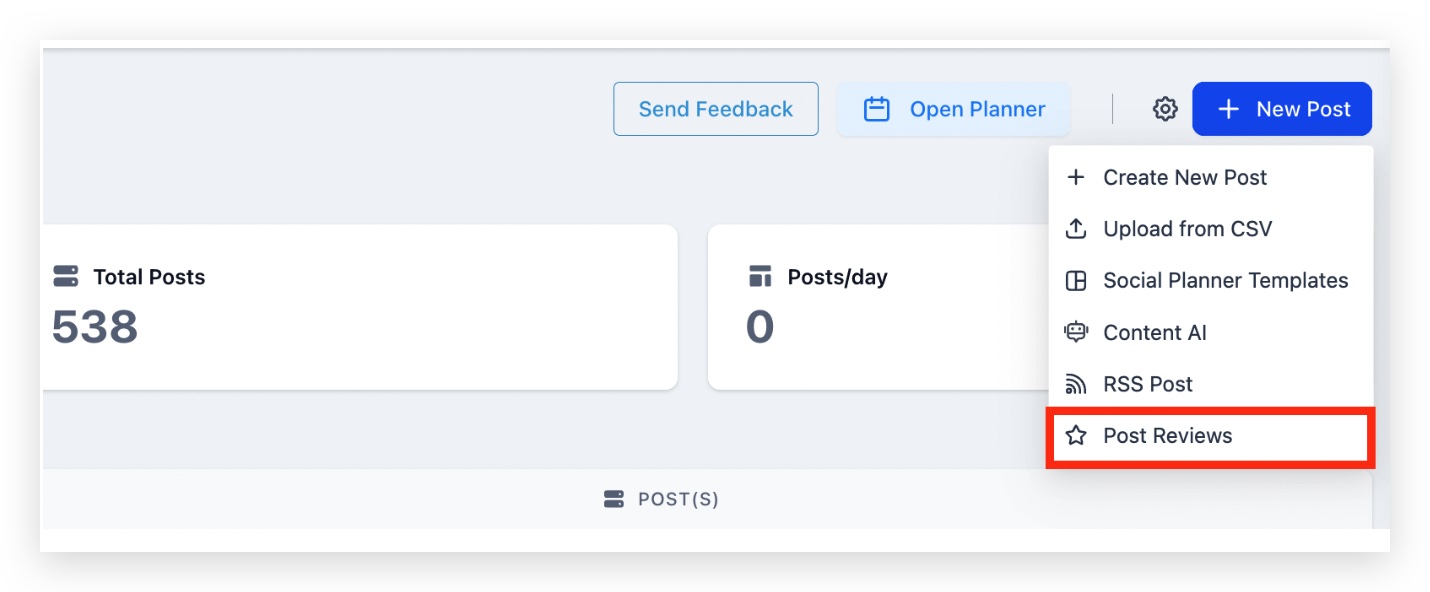
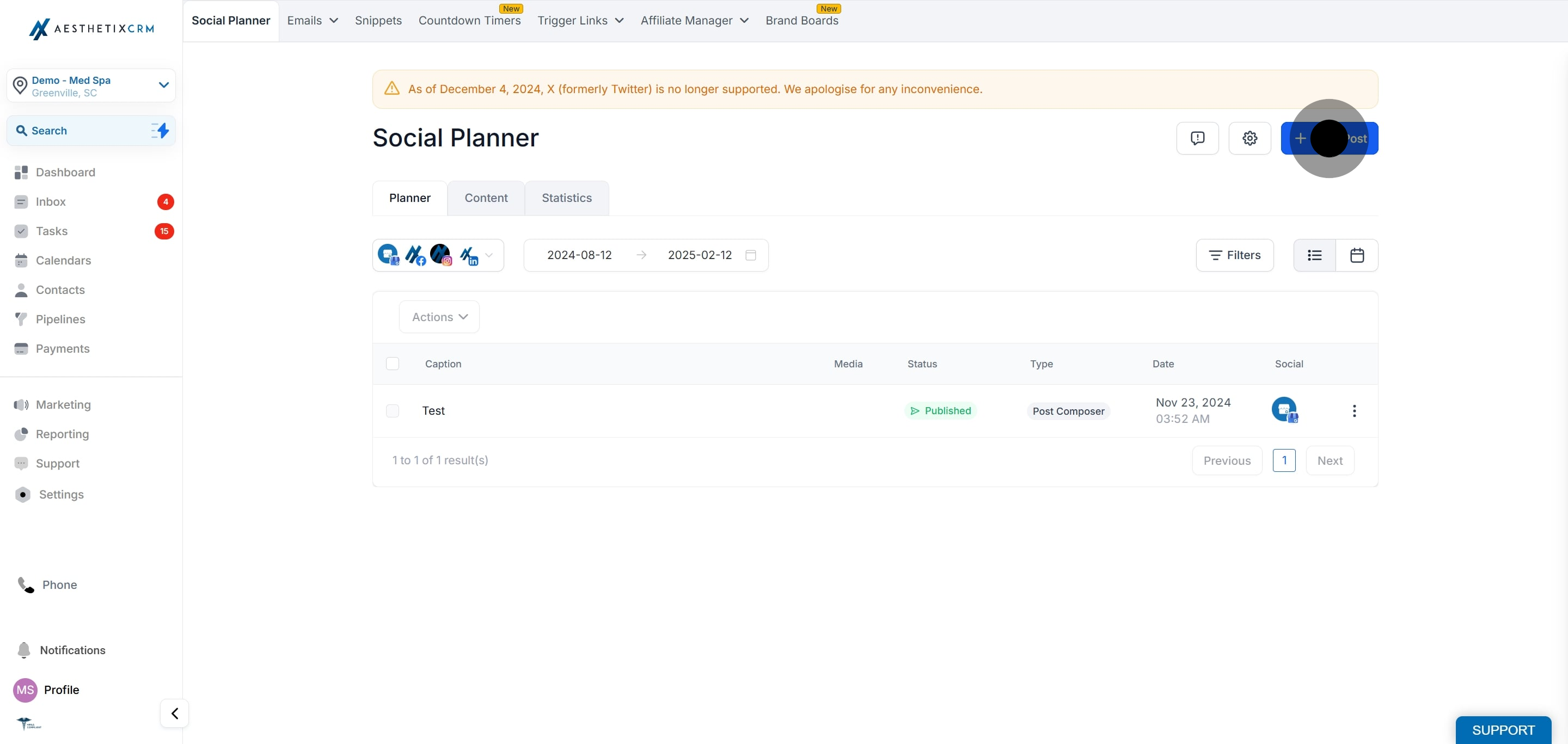
Click New Post, then select Post Reviews.
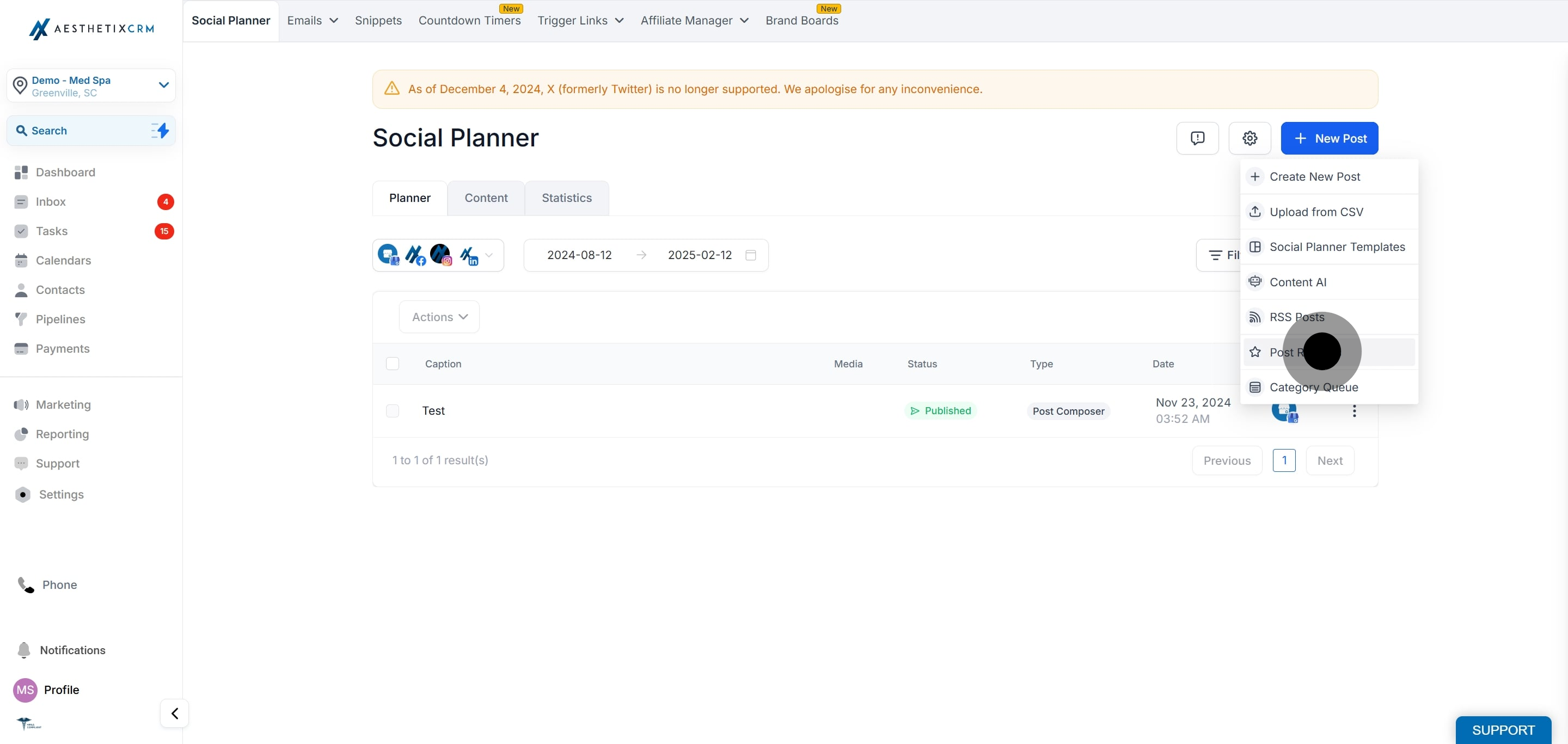
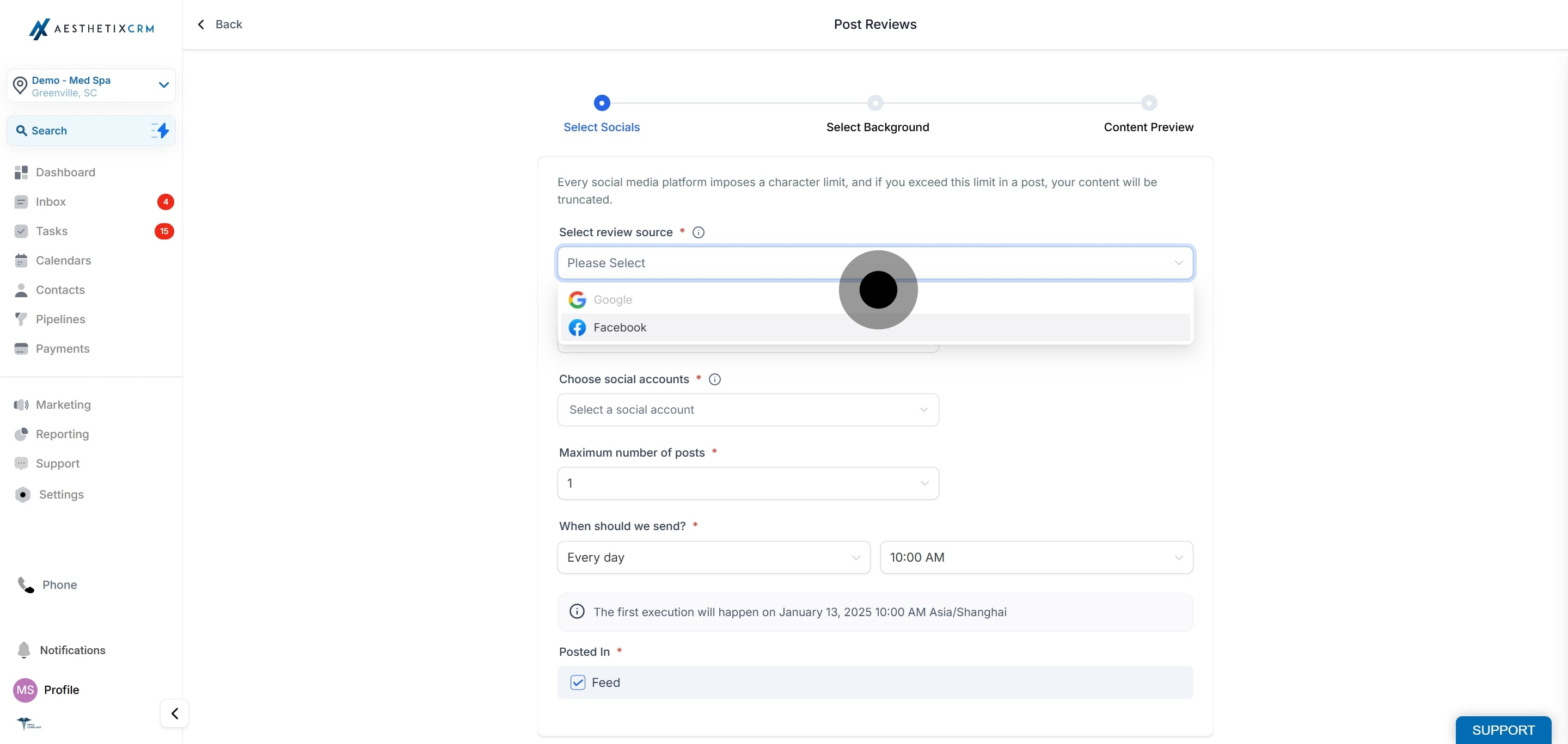
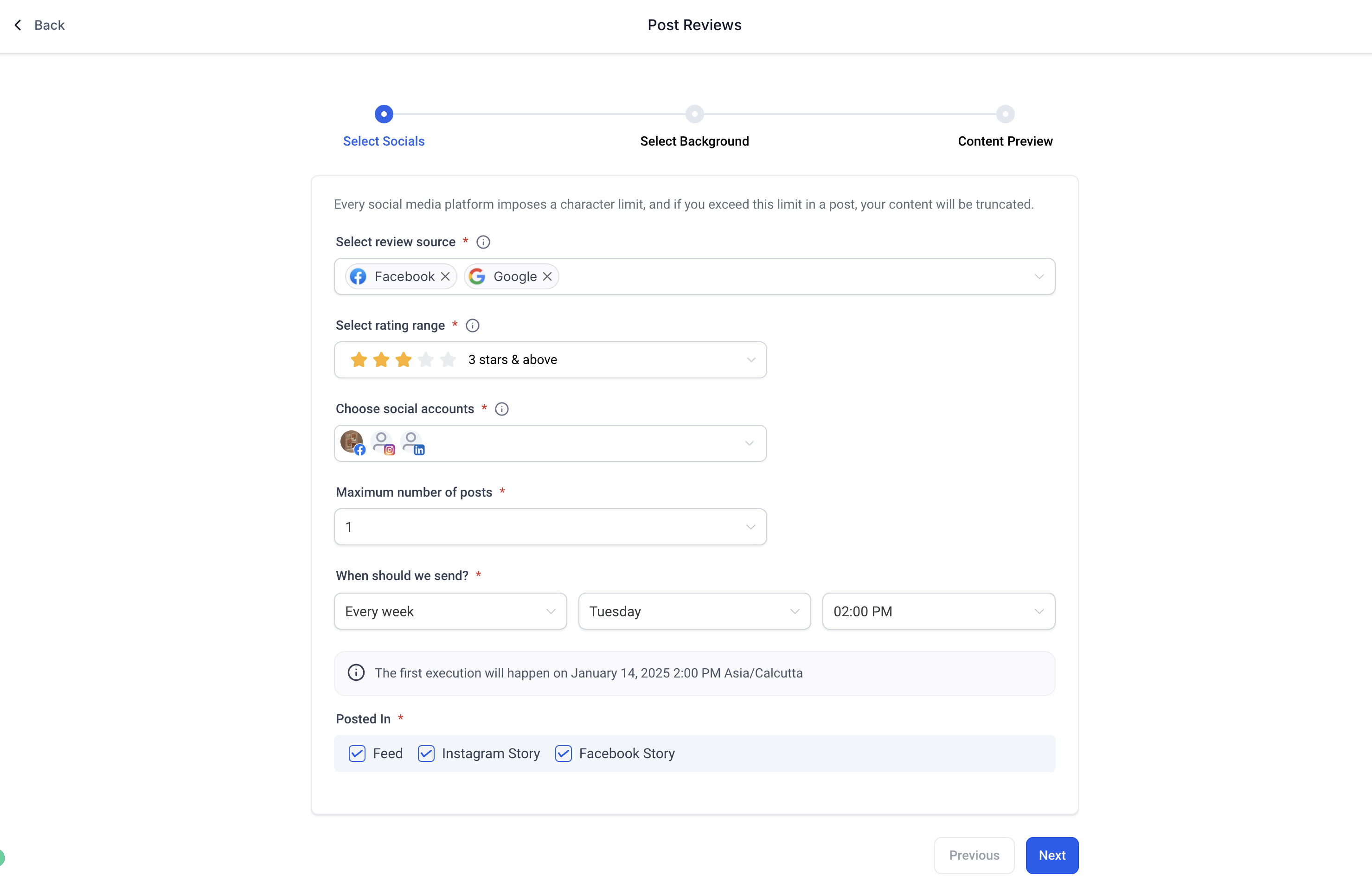
Select the platform to pull reviews from (Facebook or Google). Make sure you have integrated your Facebook Page or Google Business Profile.
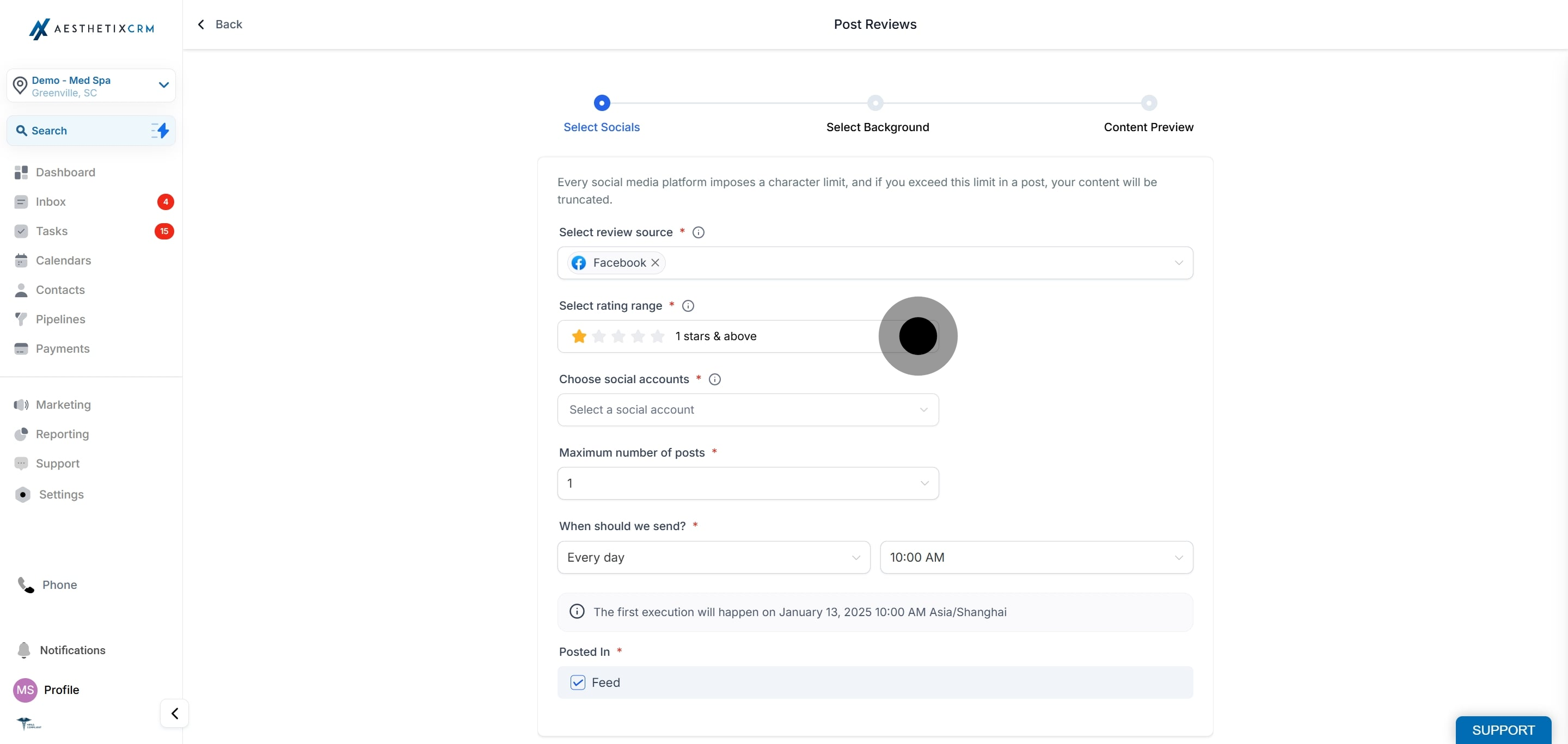
Specify the star rating range for the reviews you want to fetch, so only reviews within that range are published.
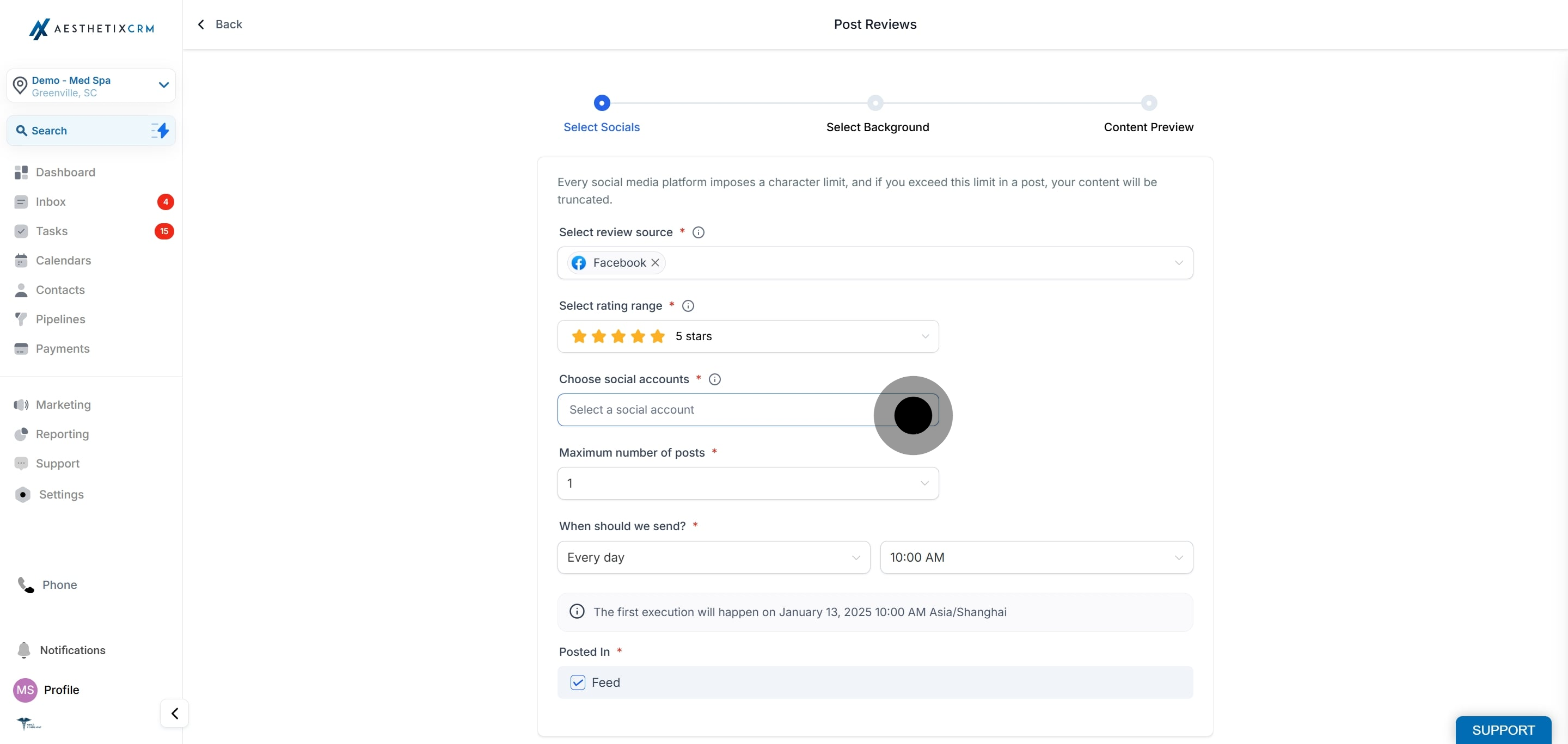
Select the social account or accounts where the reviews will be published.
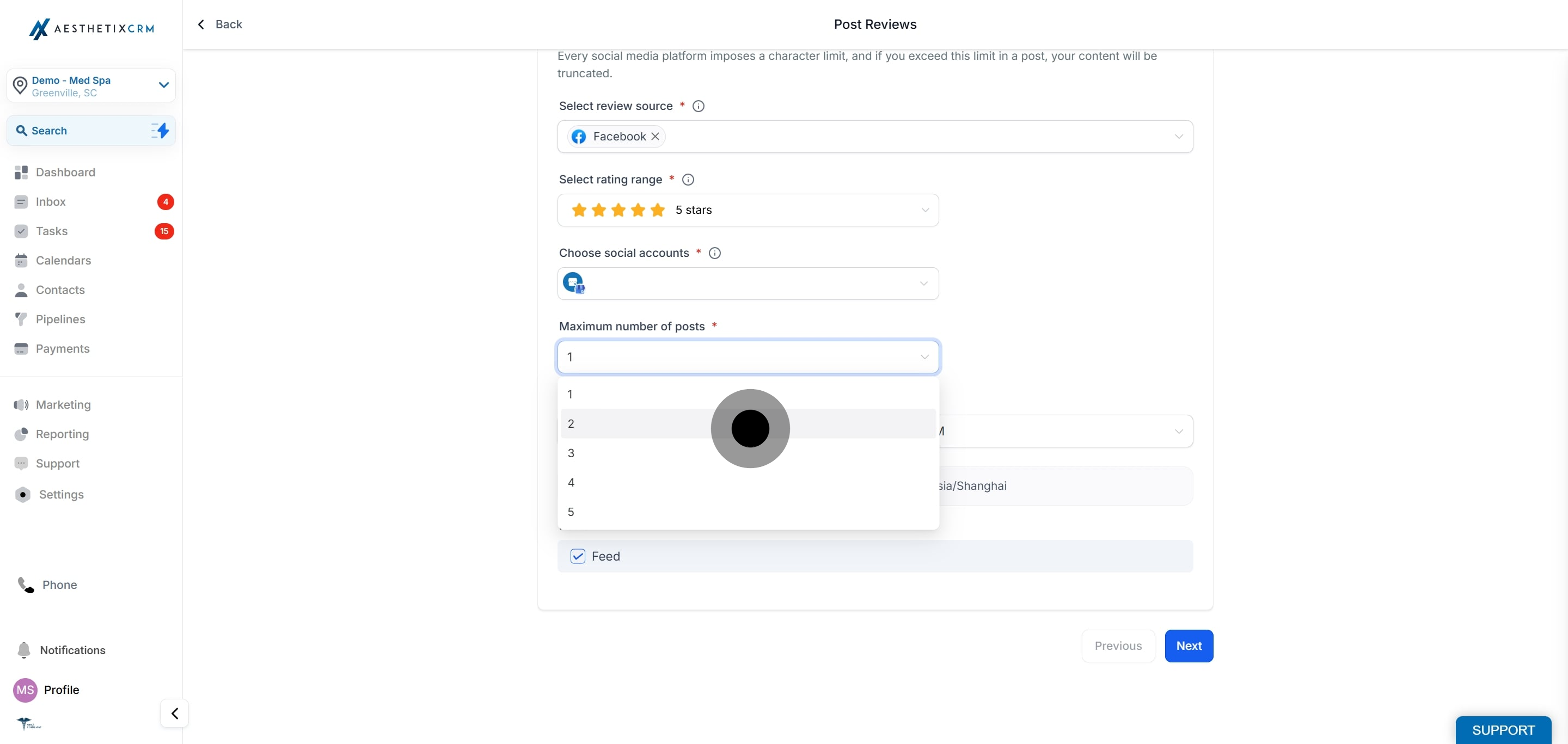
Choose the maximum number of review posts to publish per scheduled run.
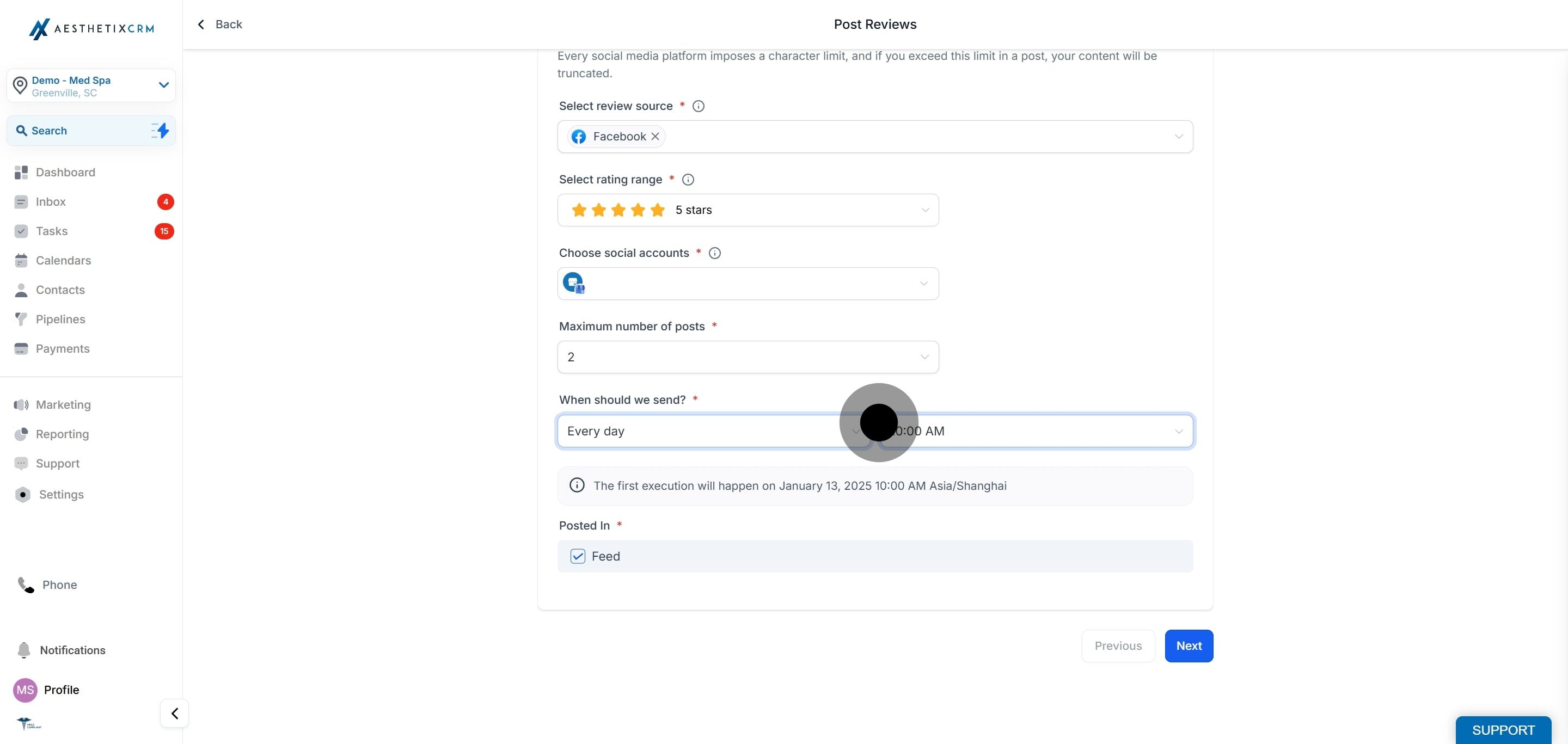
Use "When should we send?" to set the frequency (every day, week, or month) and the date and time for posting.
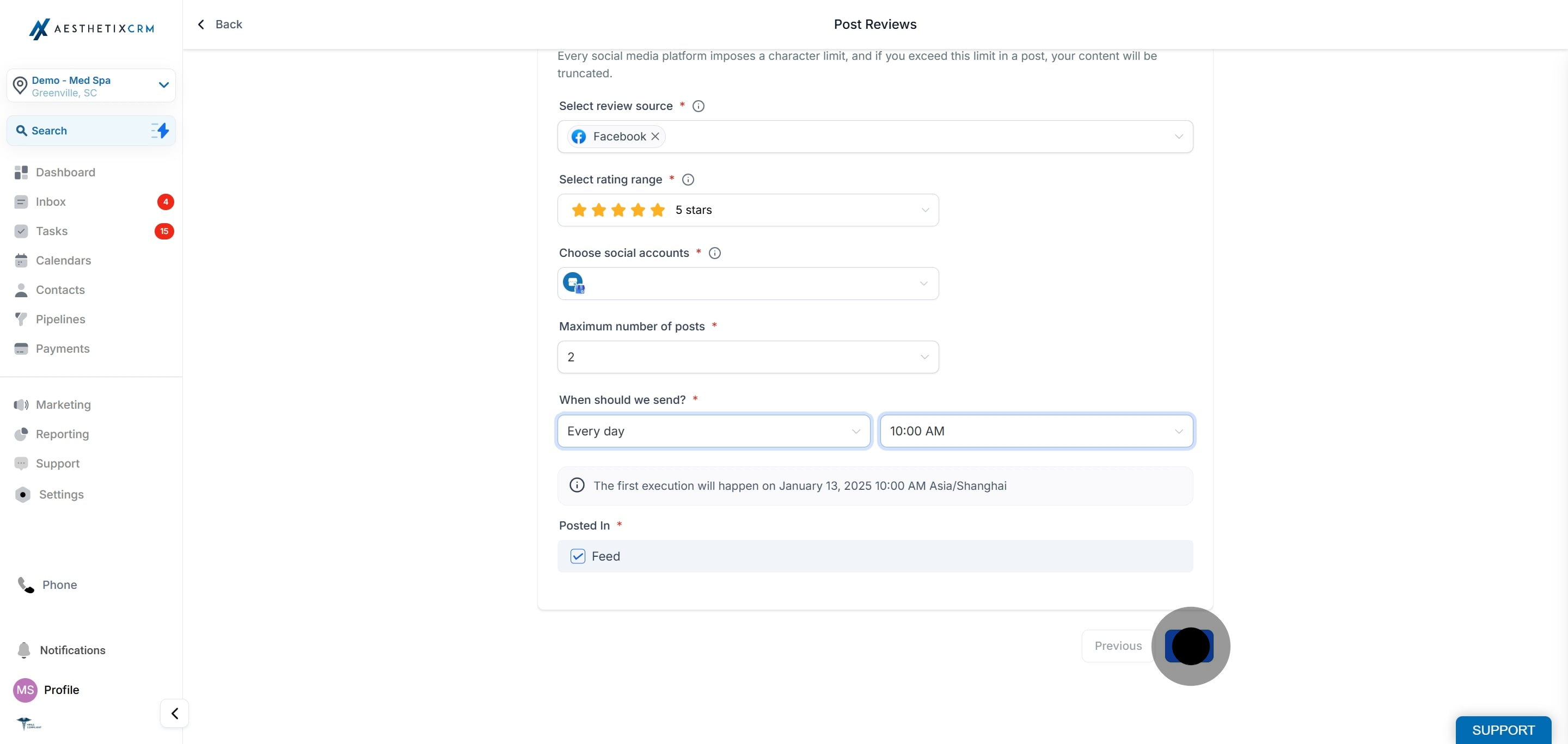
Click Next.
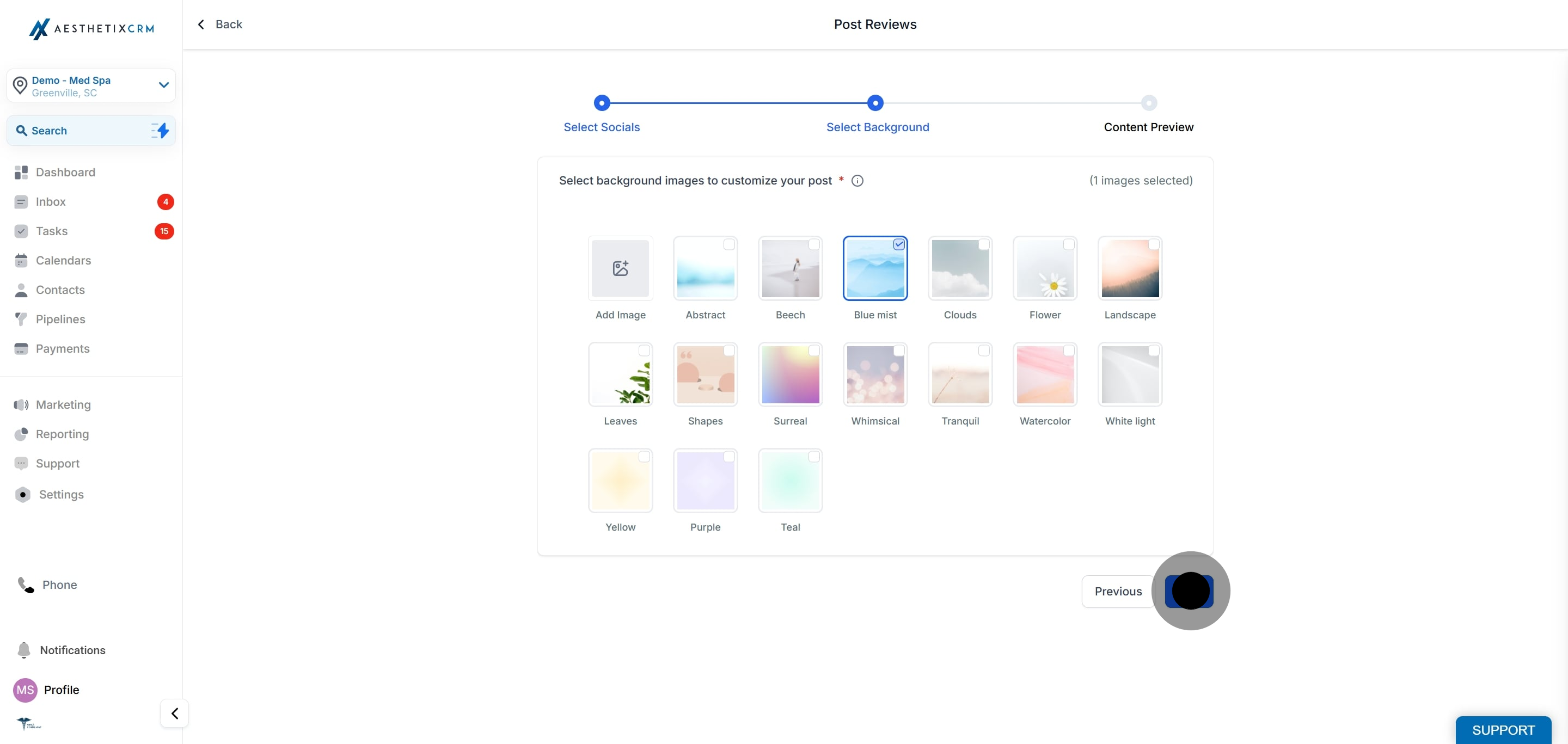
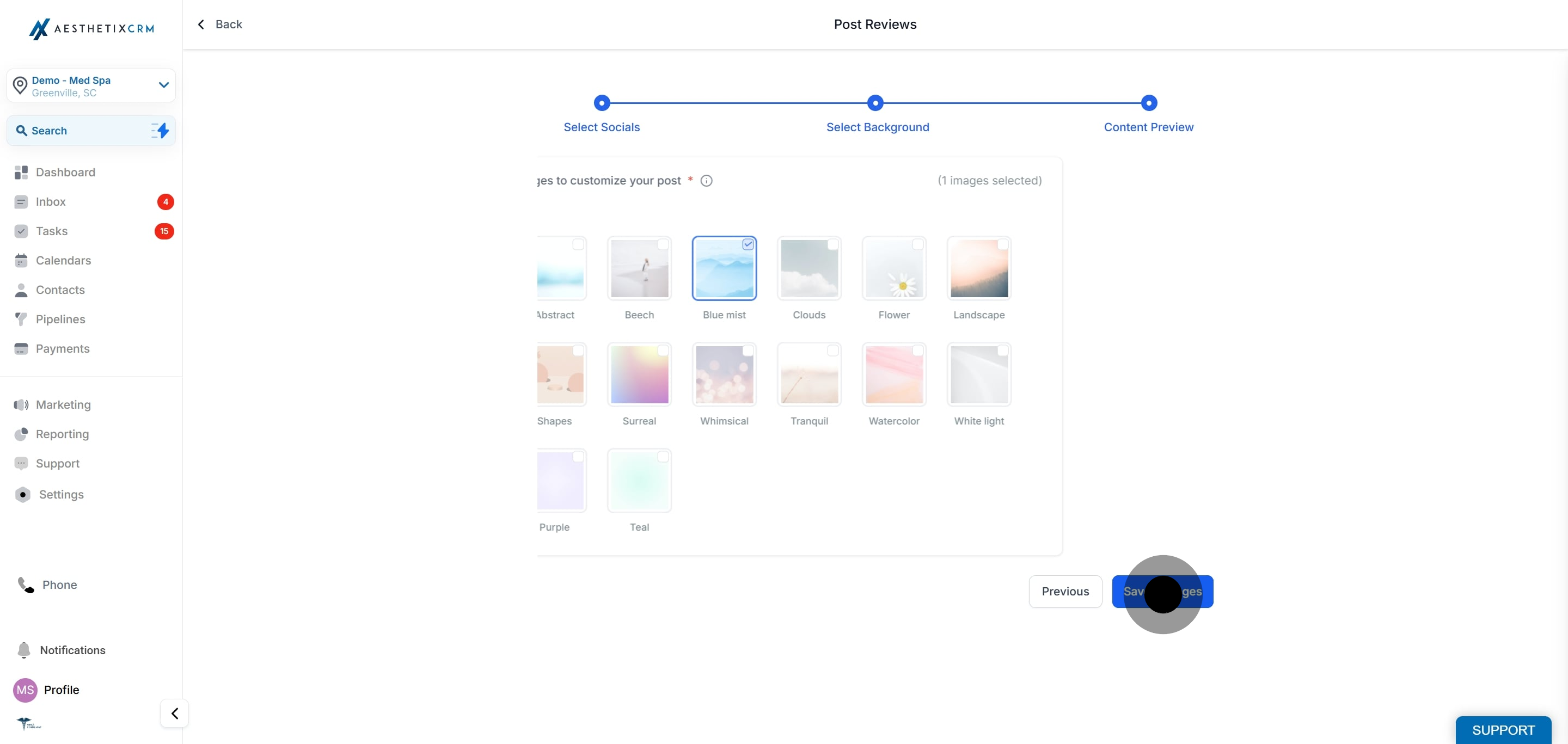
Upload or select multiple background images for your review posts. Images must be JPEG or PNG, 1:1 ratio, maximum 5MB.
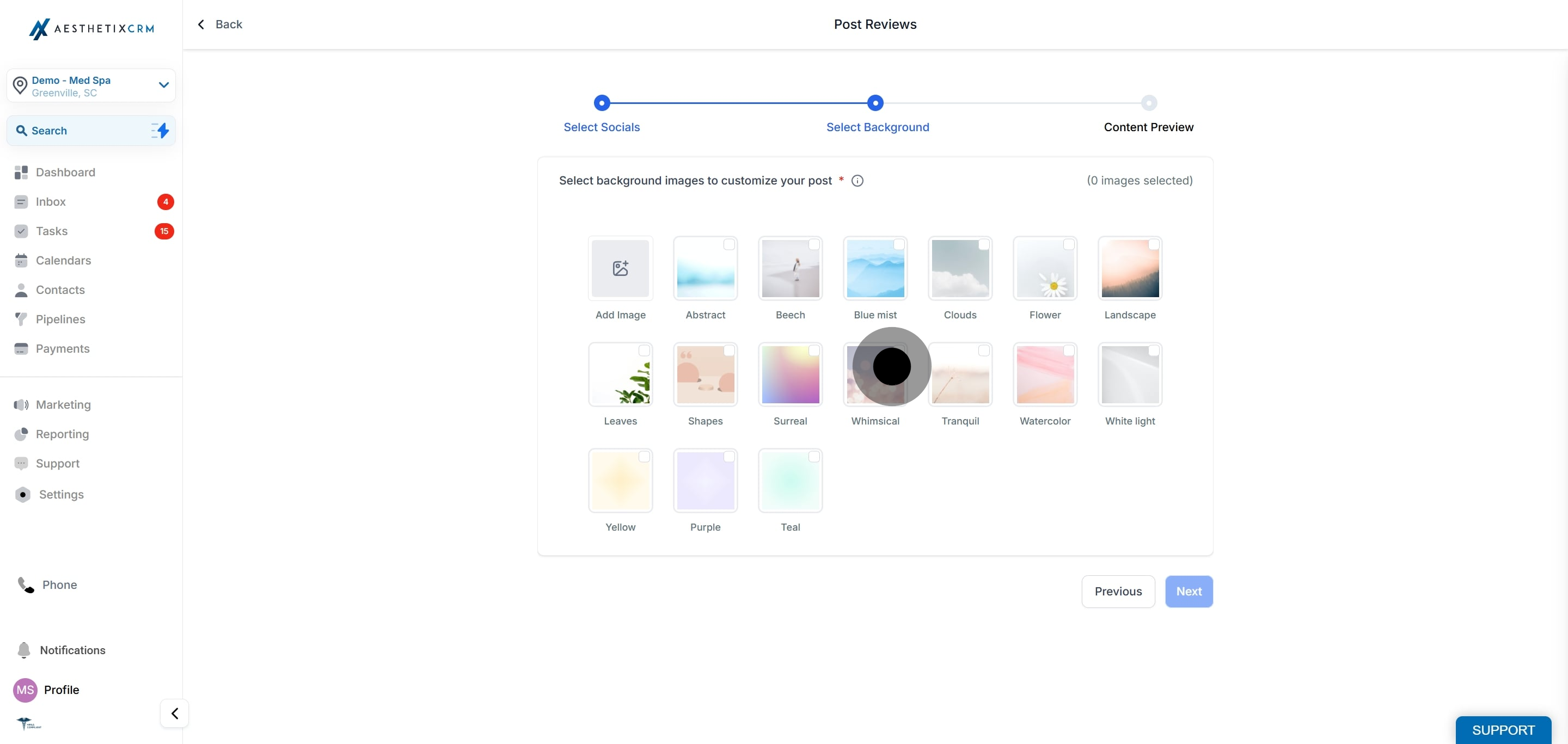
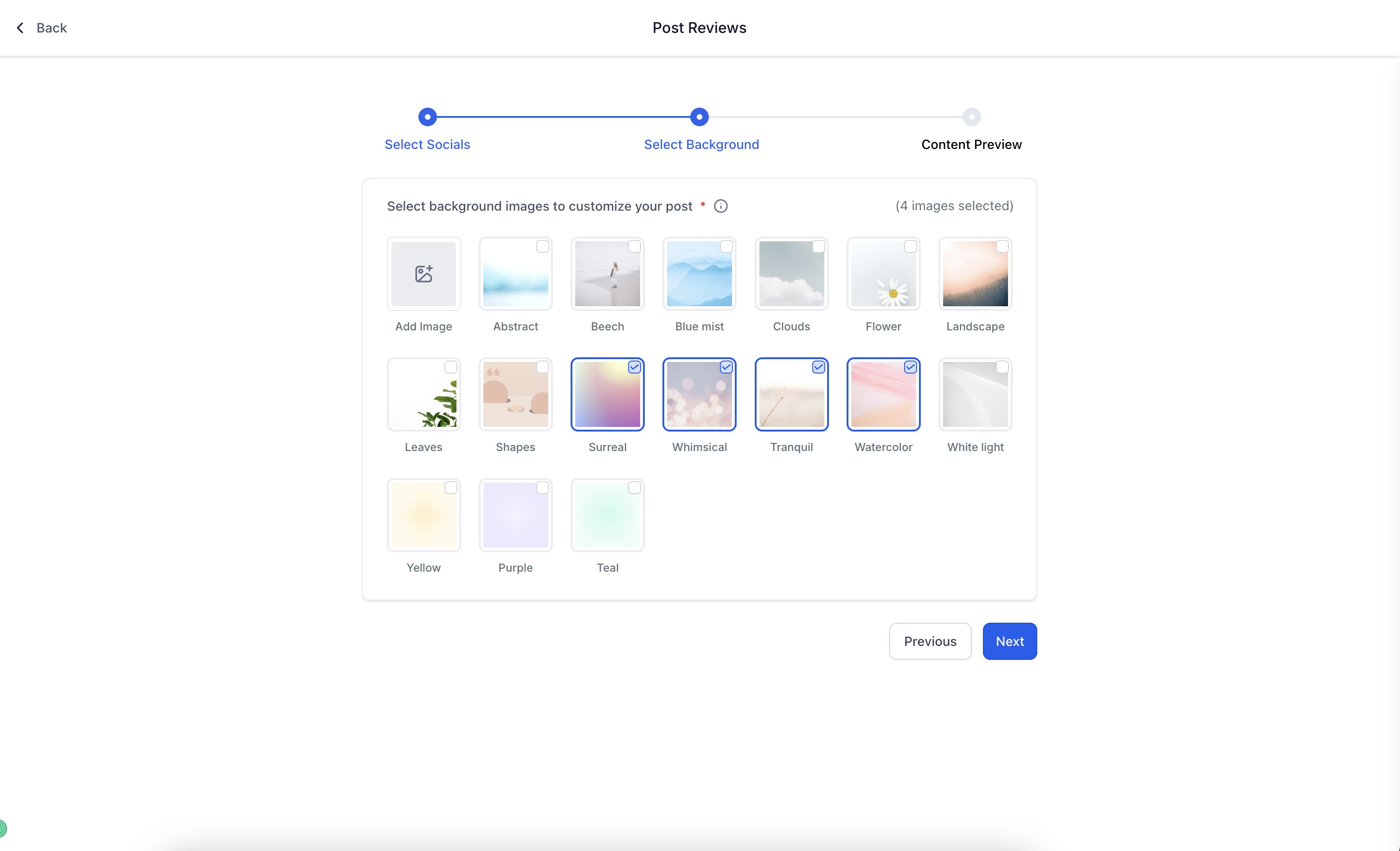
Click Next.
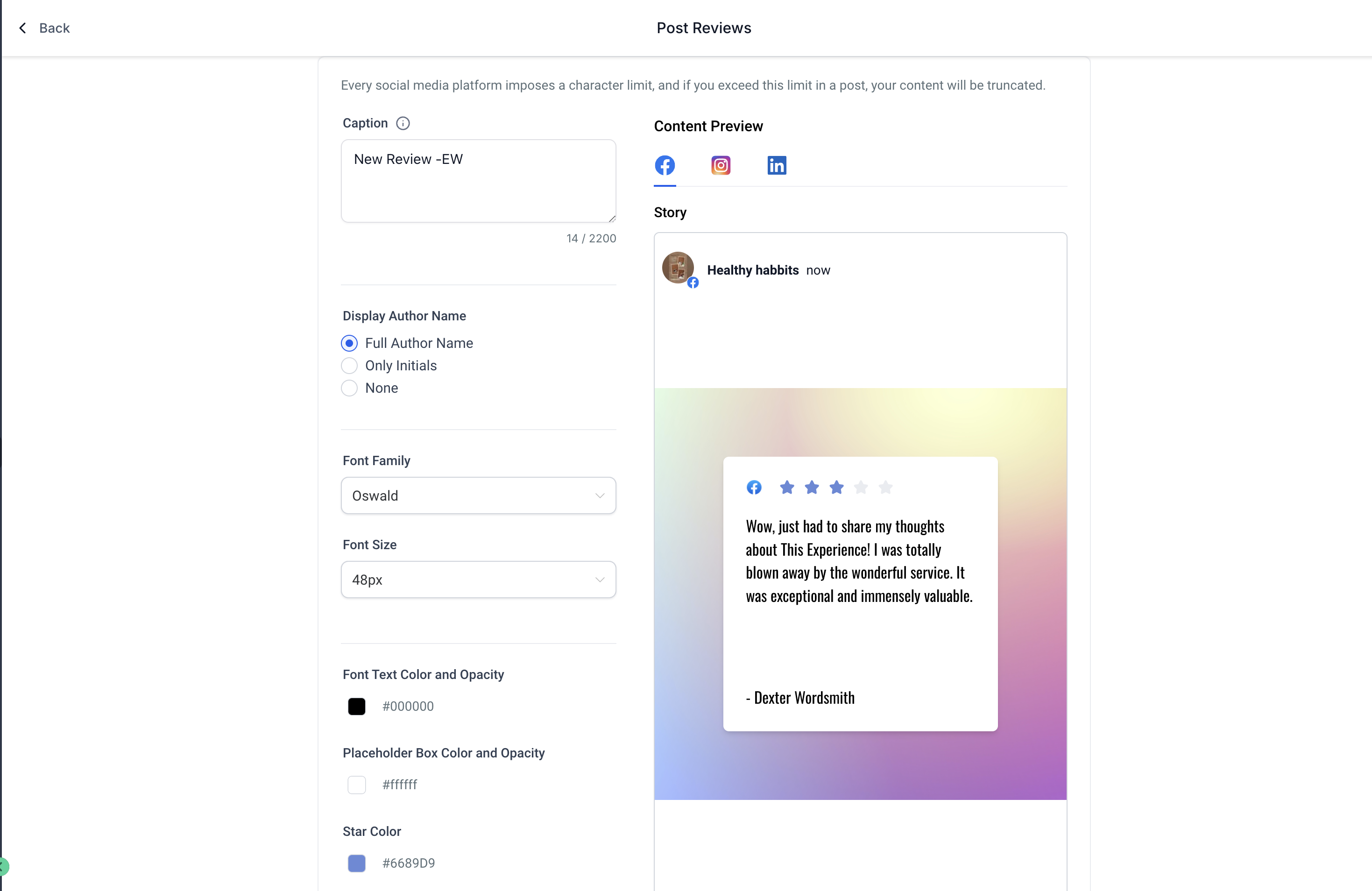
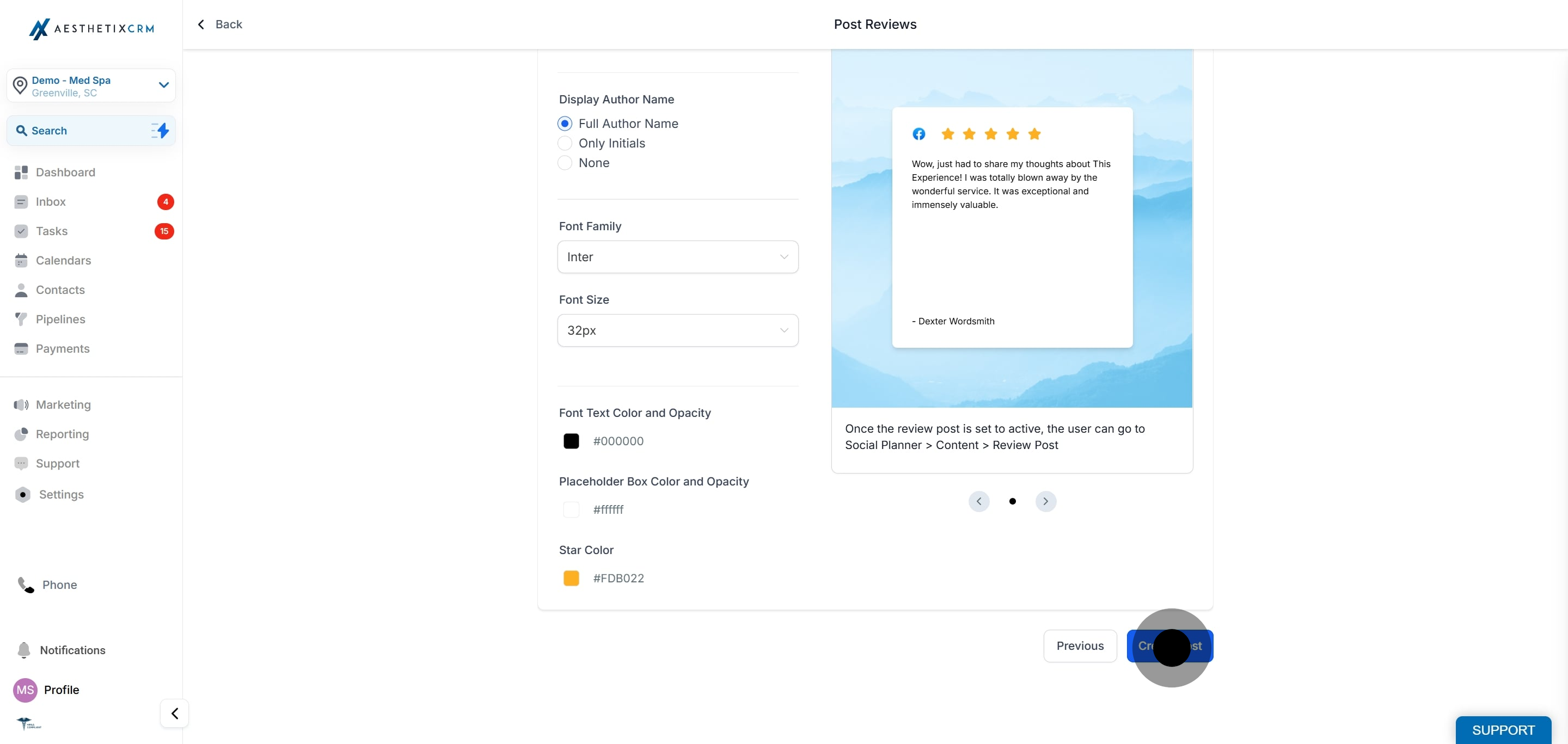
Set your content personalization options to match your brand:
Add a custom caption, or use the review content as the caption.
Choose how the reviewer's name is displayed: Full Name, First Name, or Initials. Using first name or initials helps protect patient privacy.
Choose a font family and font size.
Customize font color, background color, star color, and opacity.
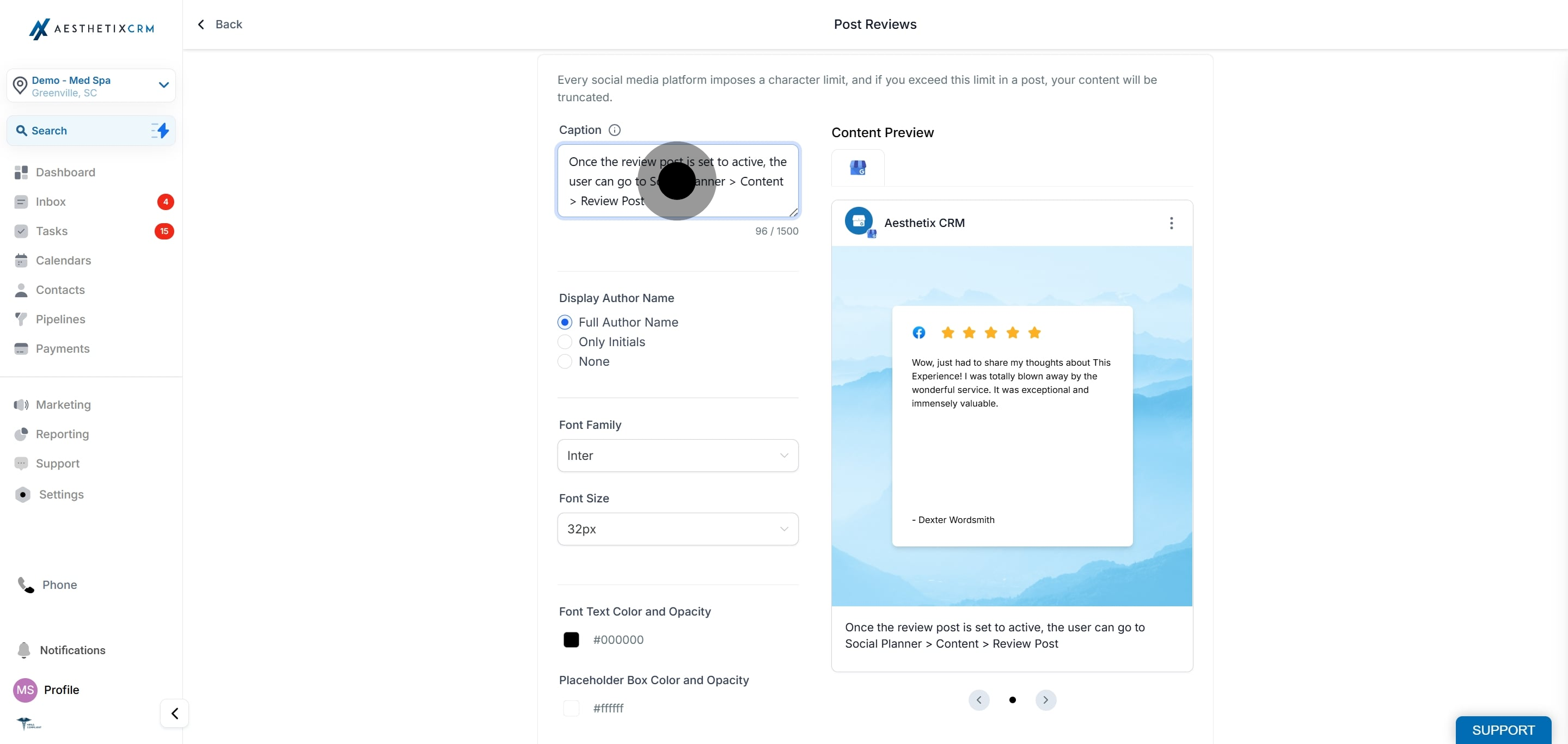
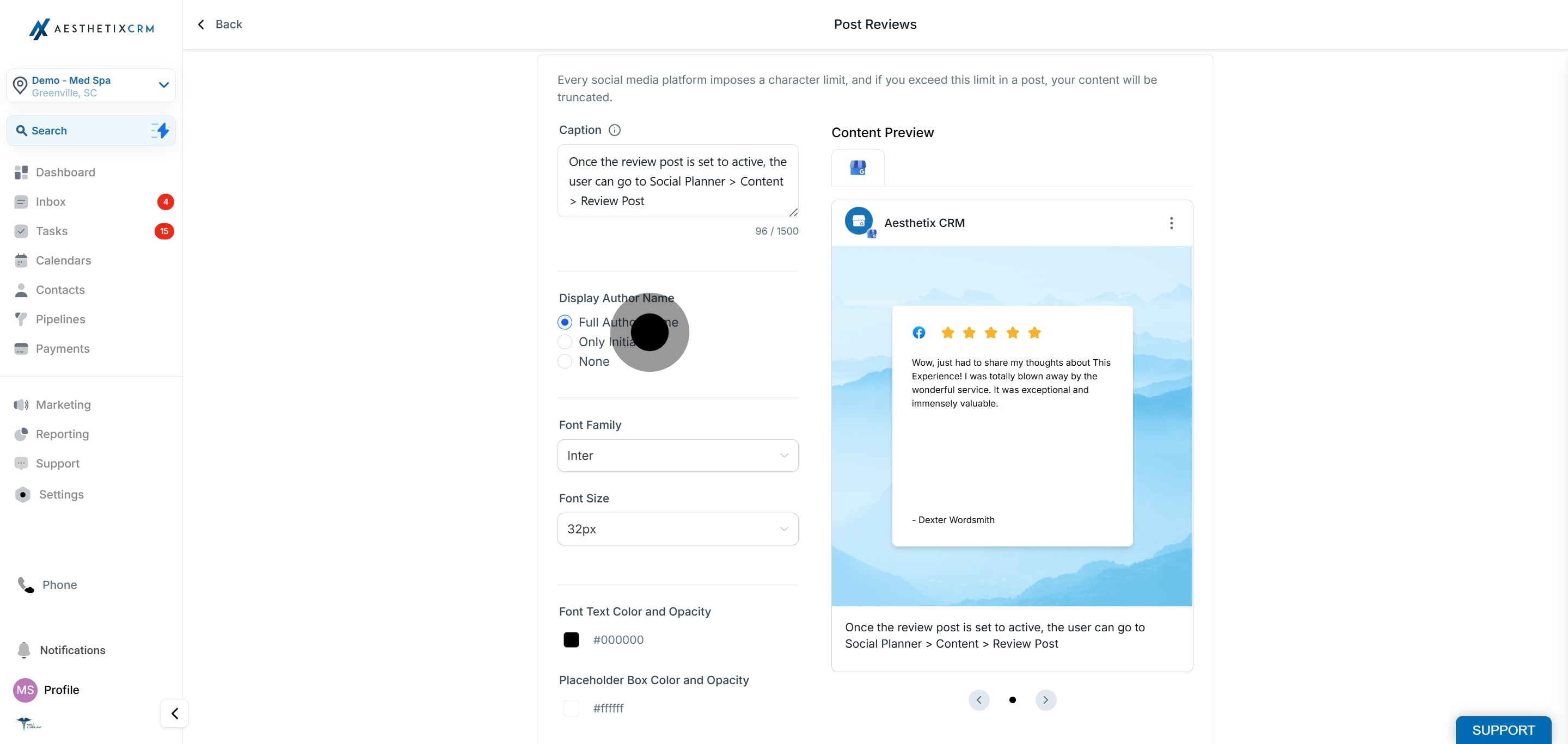
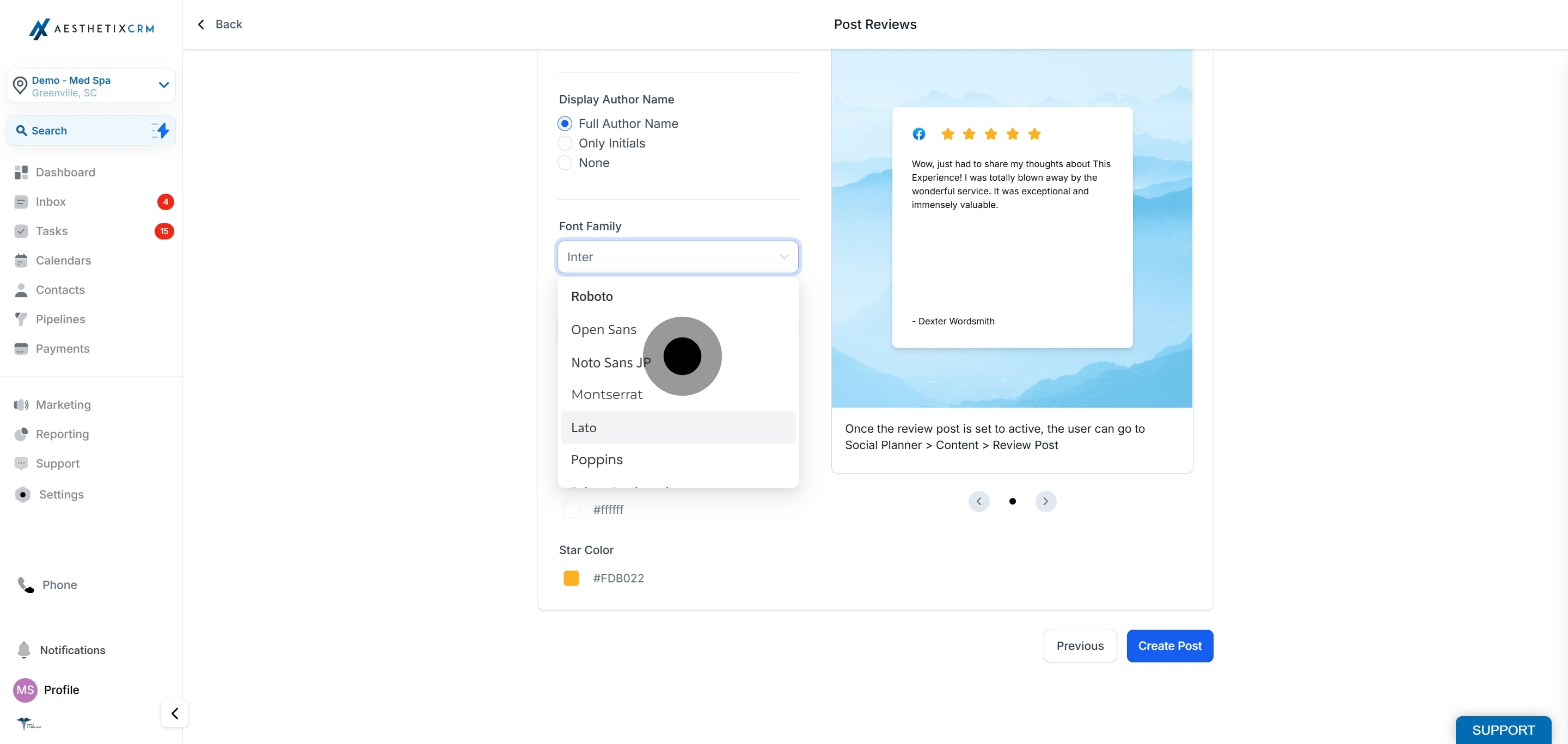
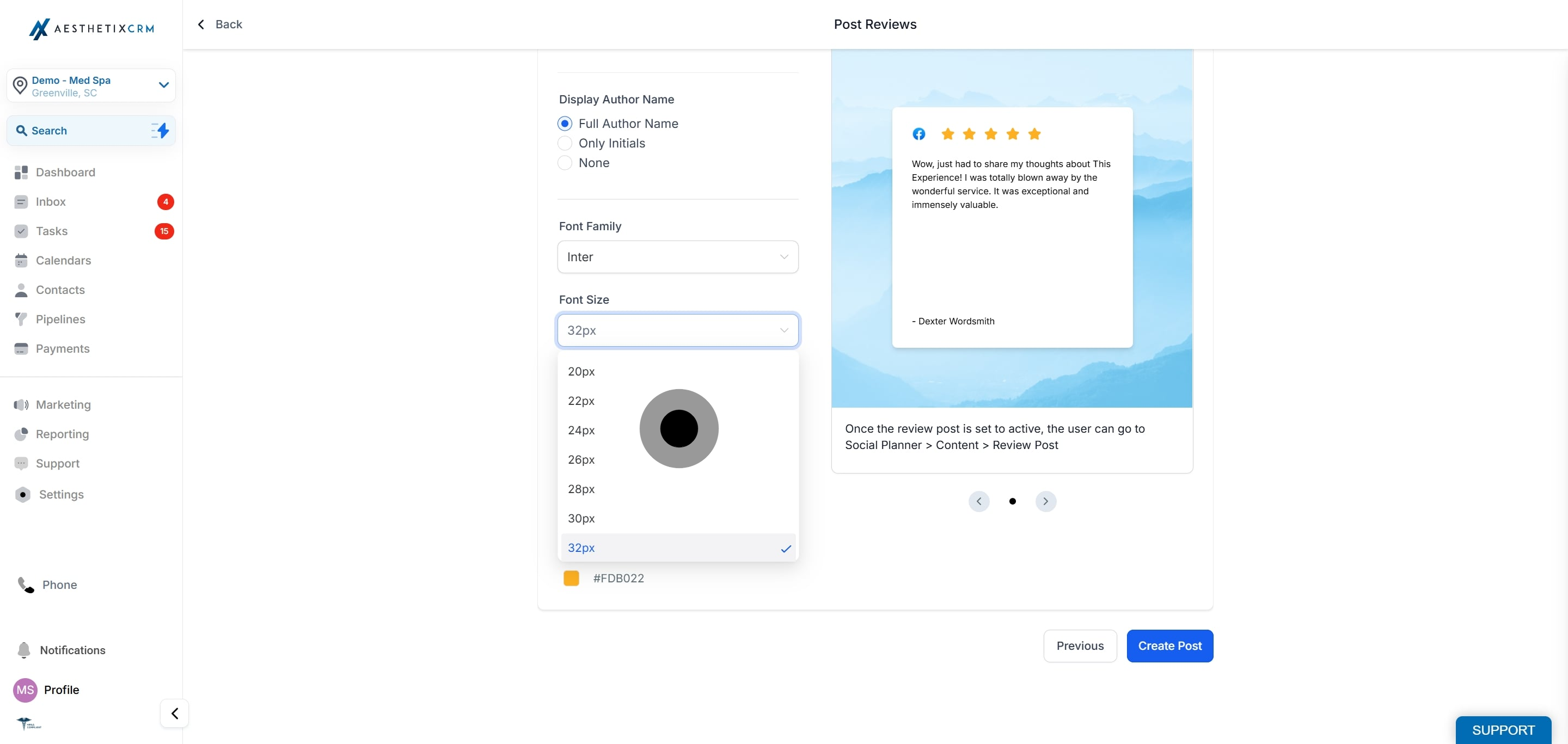
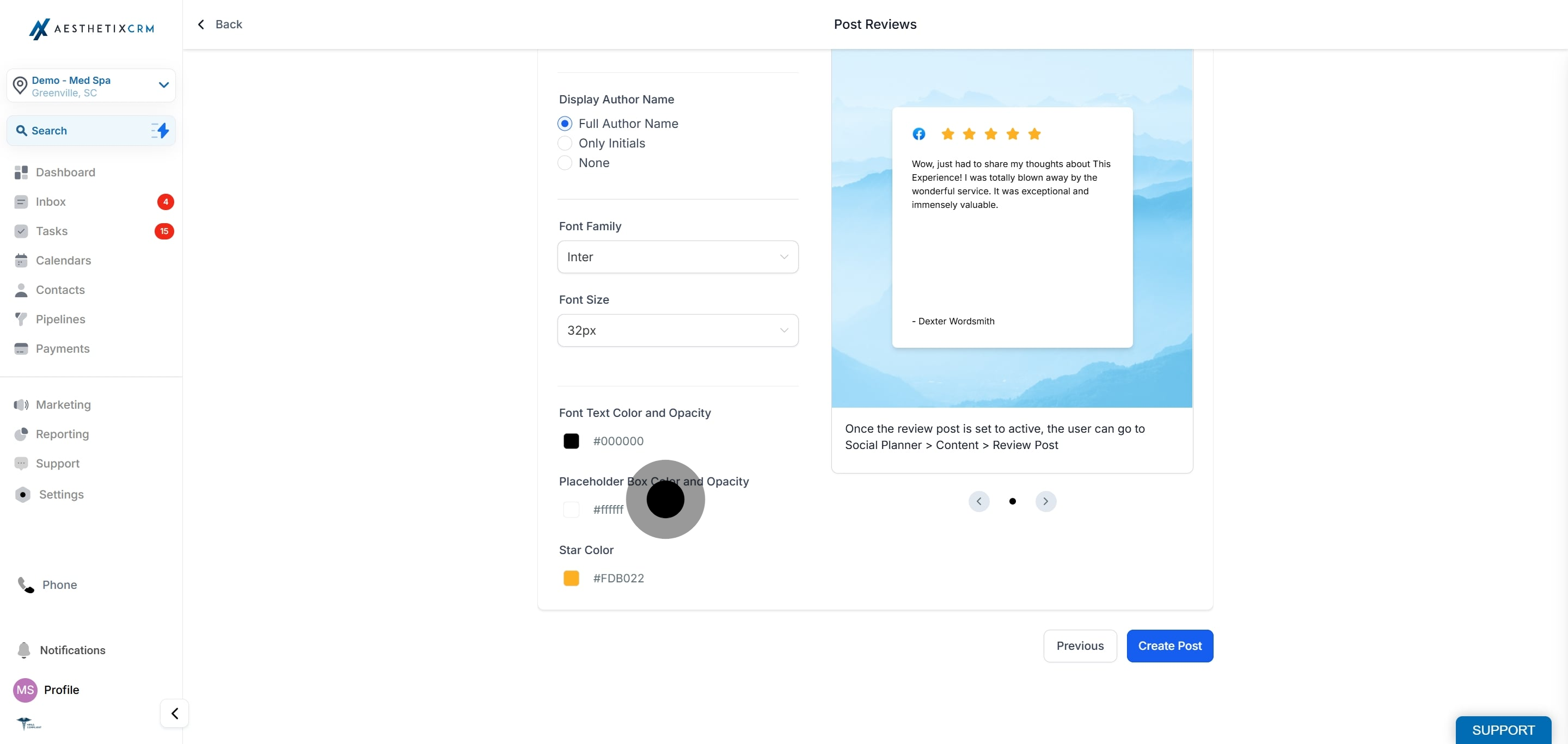
Once all edits are done, click Create Post.
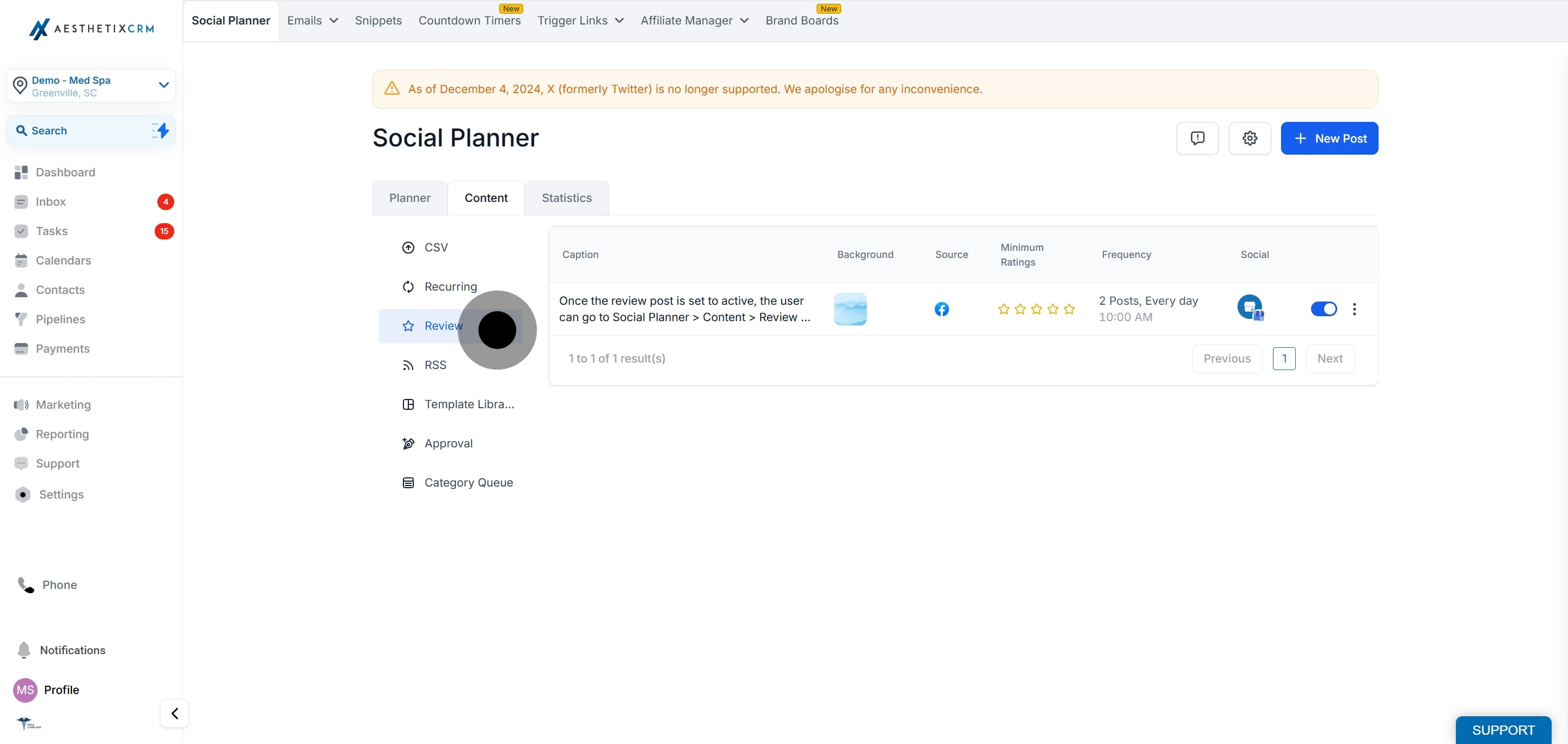
Once the review post is set to Active, manage it under Social Planner, then Content, then the Review Post tab. From there you can pause, edit, or delete the automation at any time.
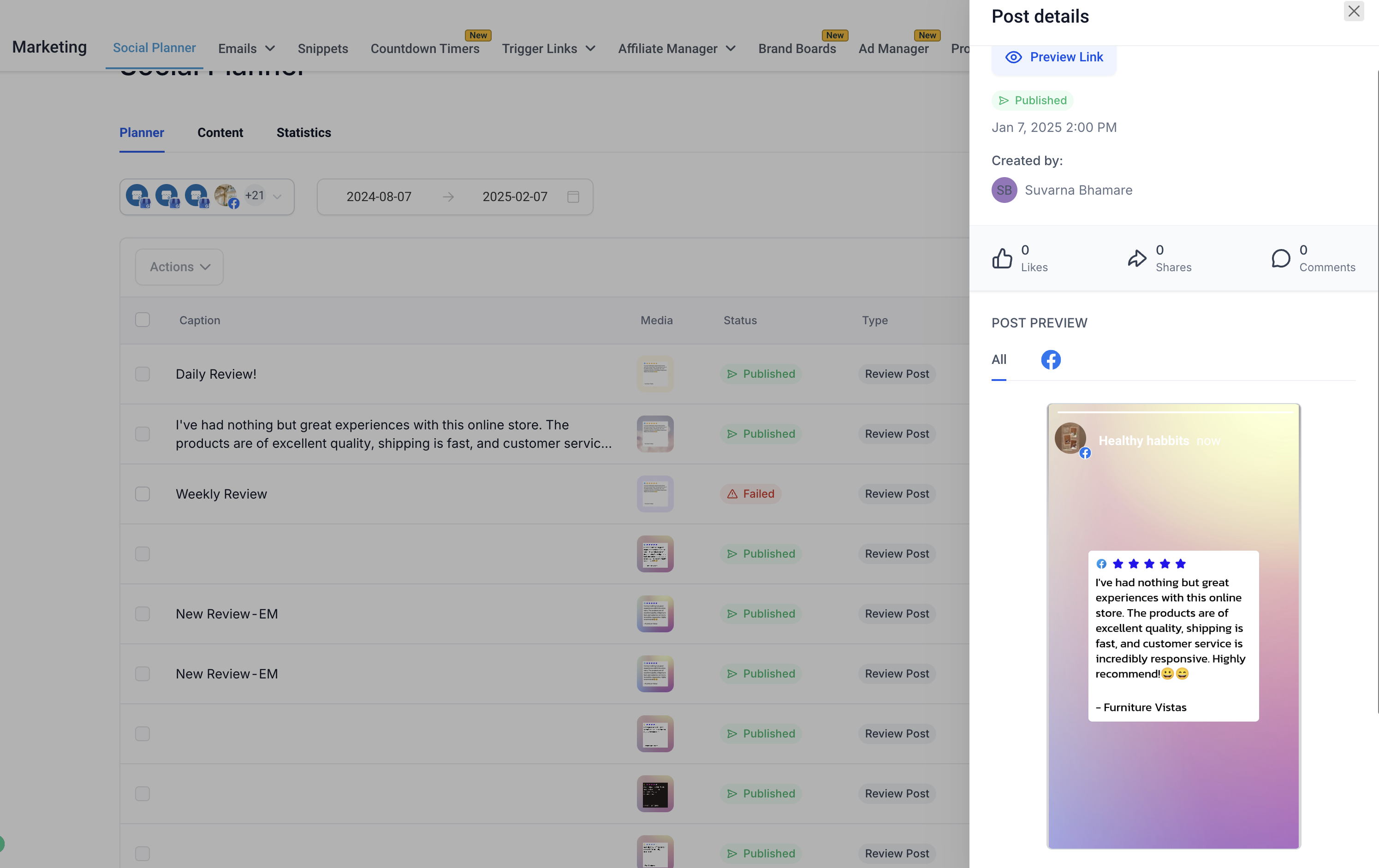
The maximum post count is the number of reviews published on a single scheduled day, not multiple times within that period. Because of this, only one scheduled review card appears on the calendar per run. The same logic applies to daily, weekly, and monthly frequencies.
Example 1: If you connect your Google Business Profile, receive a new review on January 1 at 6 PM, and set the planner to post 5 reviews per day at 8:37 AM, that review publishes the next day, January 2, at 8:37 AM. If more than 5 reviews are available, the system selects by star rating and posts 5.
Example 2: If you set the frequency to Every Week with a post count of 3, starting October 22 at 11 AM, then 3 reviews publish weekly (every 7th day from the creation date). On October 29, 3 reviews publish at 11 AM, provided 3 eligible reviews exist between the creation and execution times.
Reviews posted after the date you create the automation are fetched and published. Reviews added before the setup date are not considered.
Only reviews that include written text are published. Reviews with a star rating and no written content are skipped automatically.
If no eligible new reviews exist at the time of a scheduled run, the post is skipped. If the automation repeats, the system may publish on the next scheduled date.
The scheduling time follows your local timezone. Internal systems may display times in UTC or server time, but this does not affect the actual publishing time.
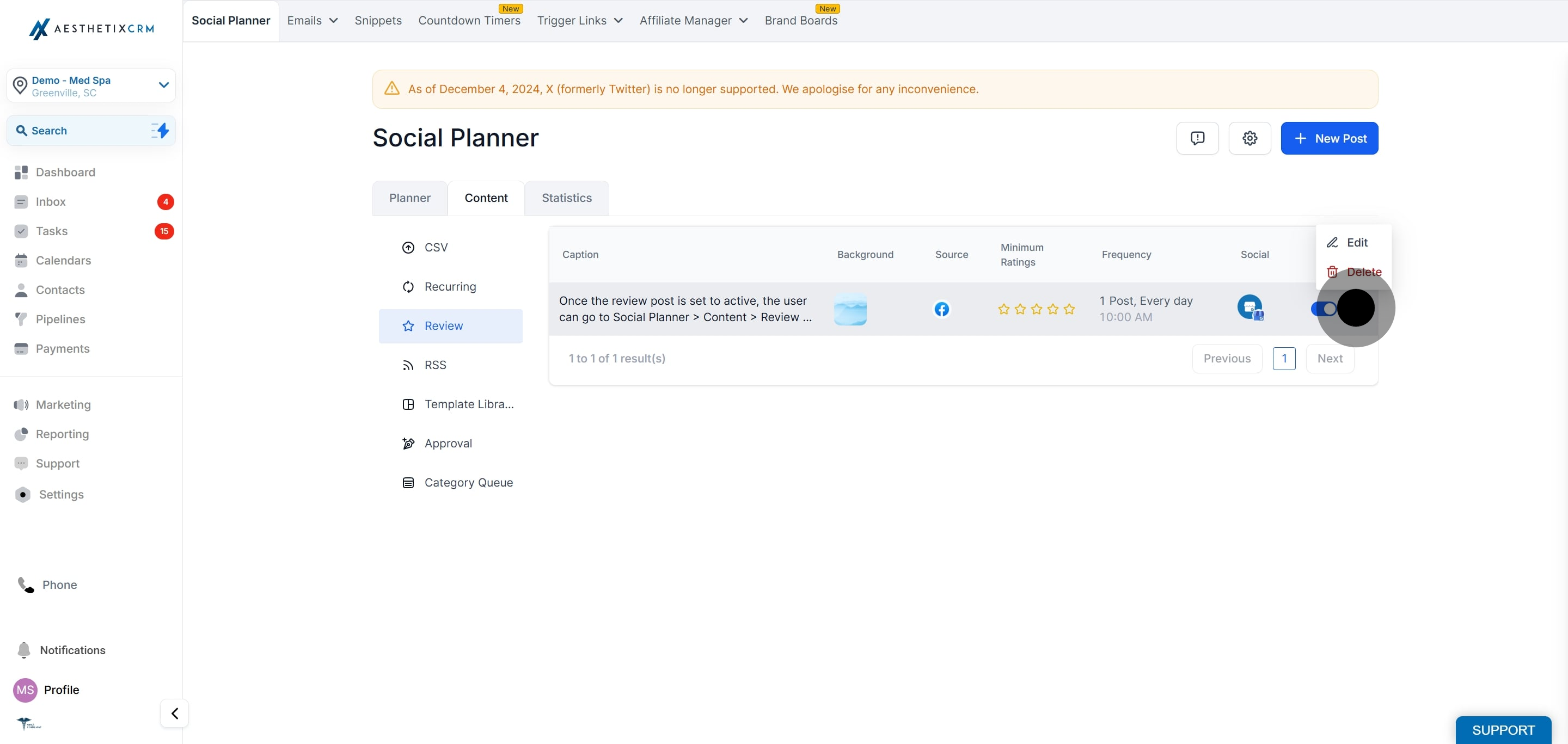
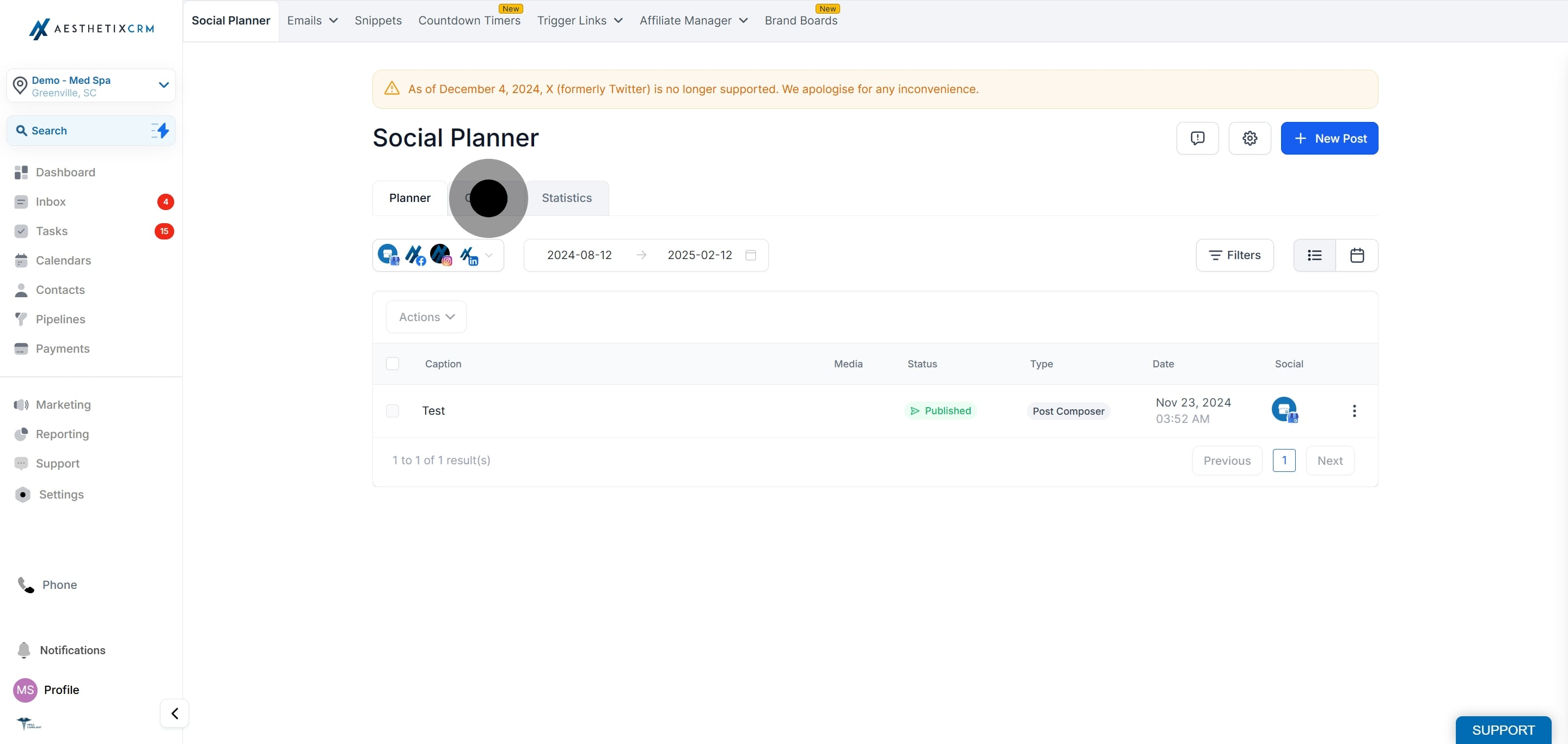
Go to Marketing, then Social Media Planner, then Content, then the Review tab.
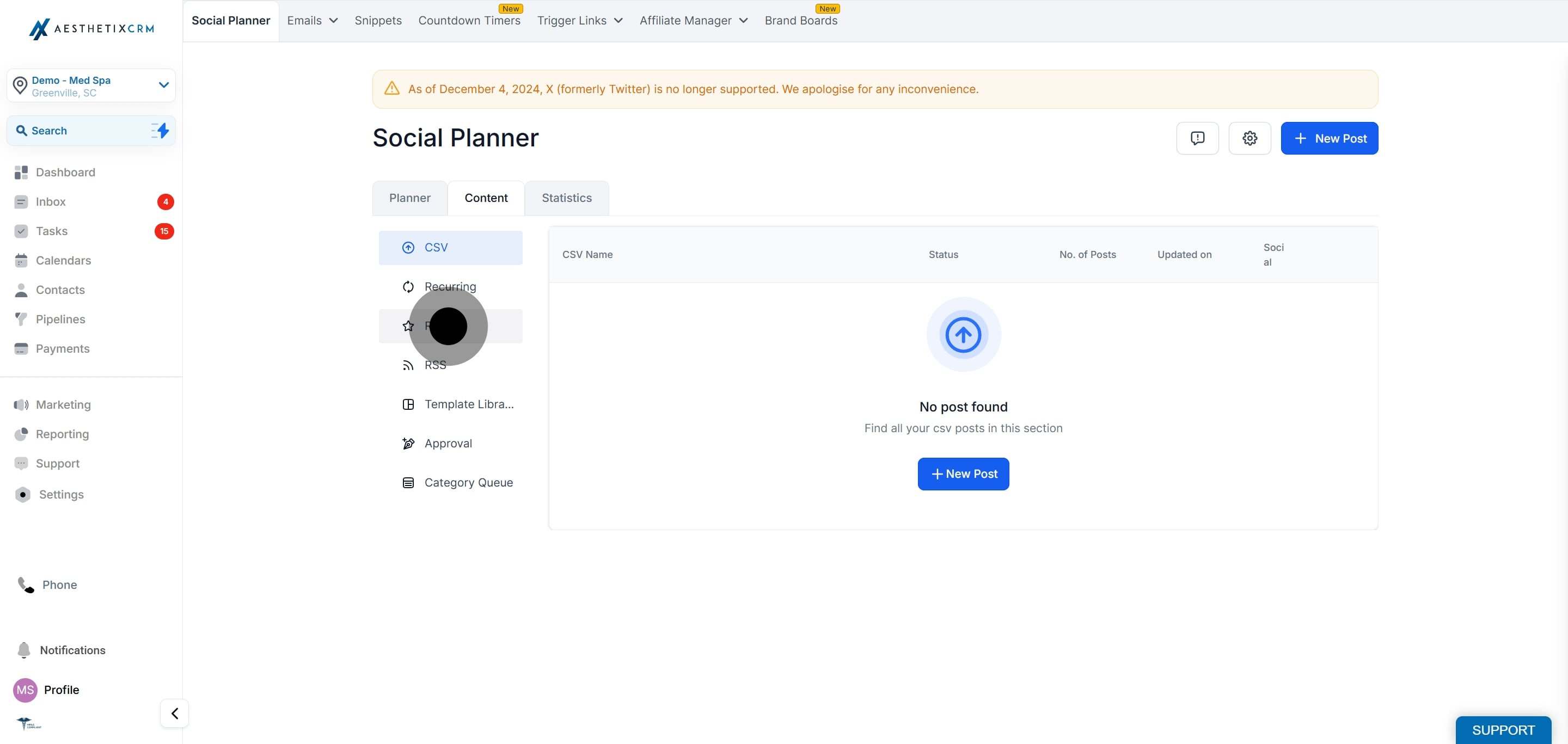
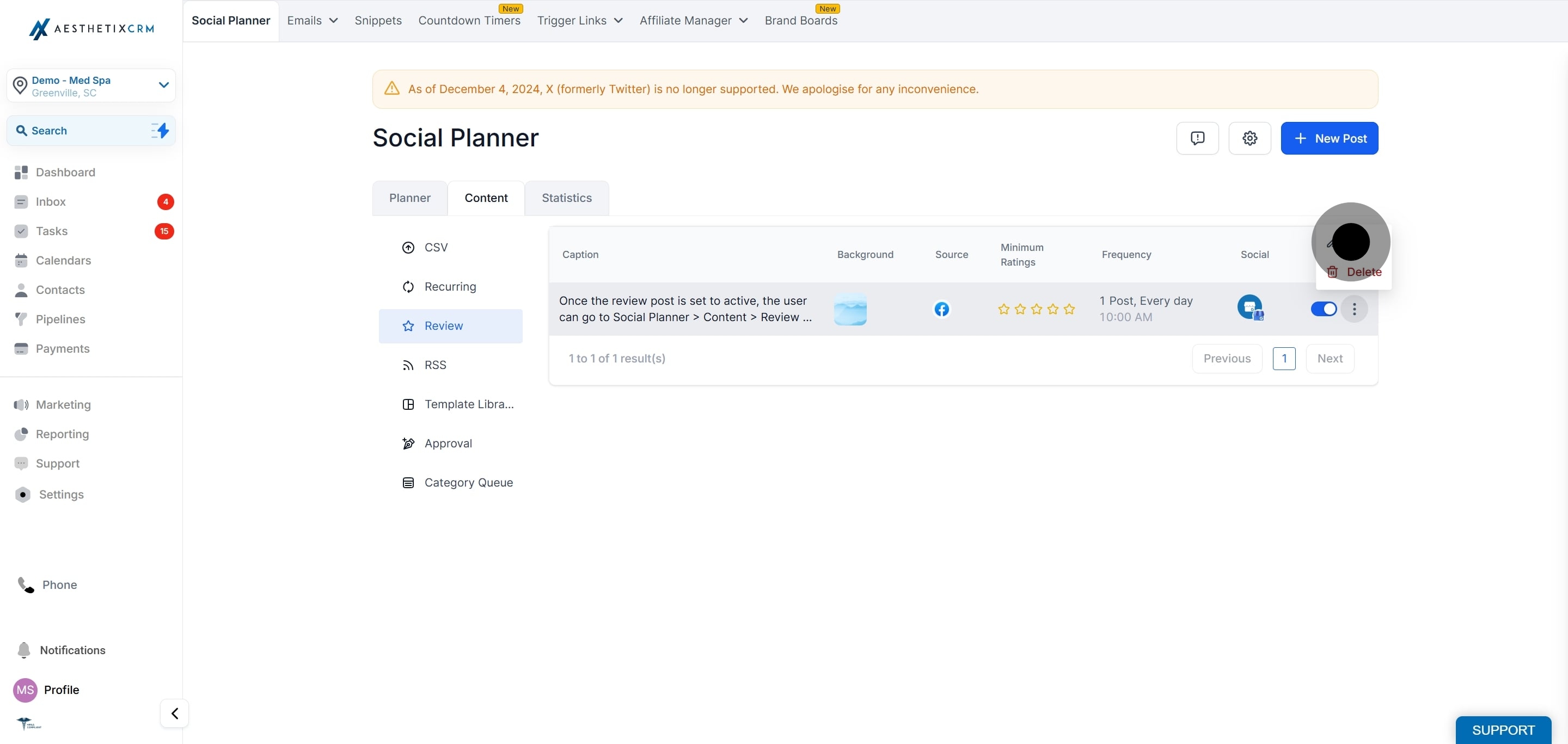
Click the three dots next to the review post you want to edit, then click Edit.
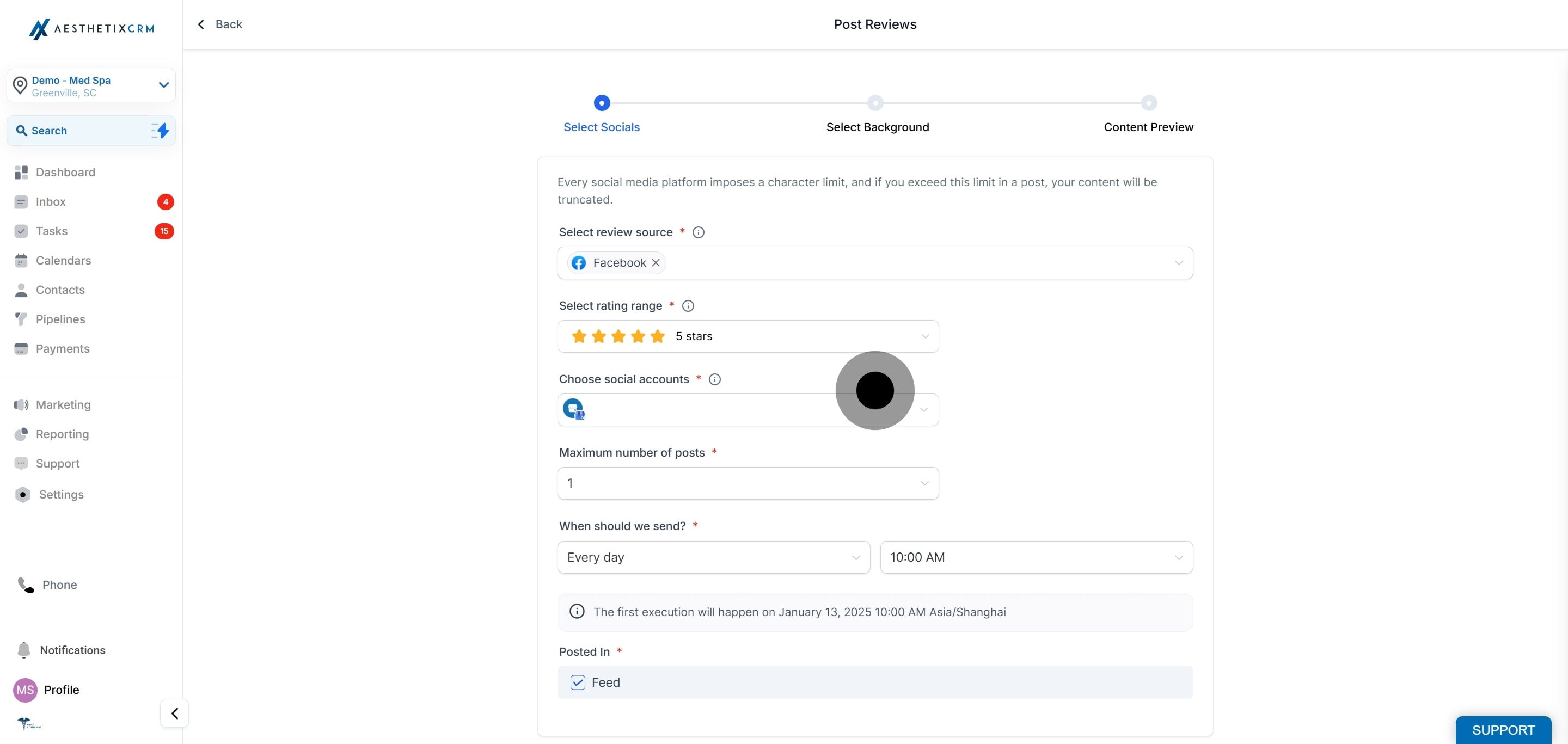
Edit the details you want to change, such as the review source, schedule, or design.
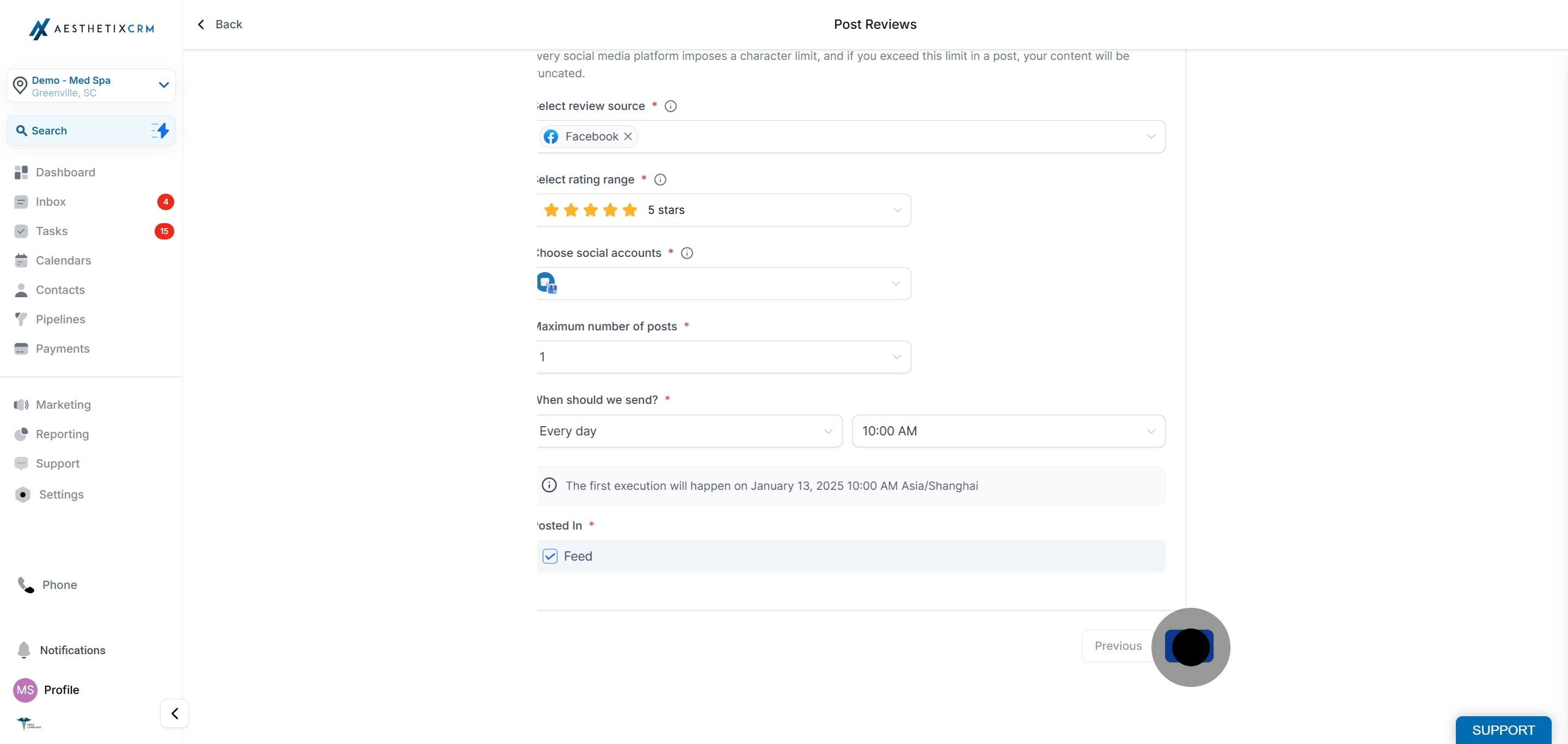
Click Save Changes to apply your edits.
Go to Marketing, then Social Media Planner, then Content, then the Review tab.
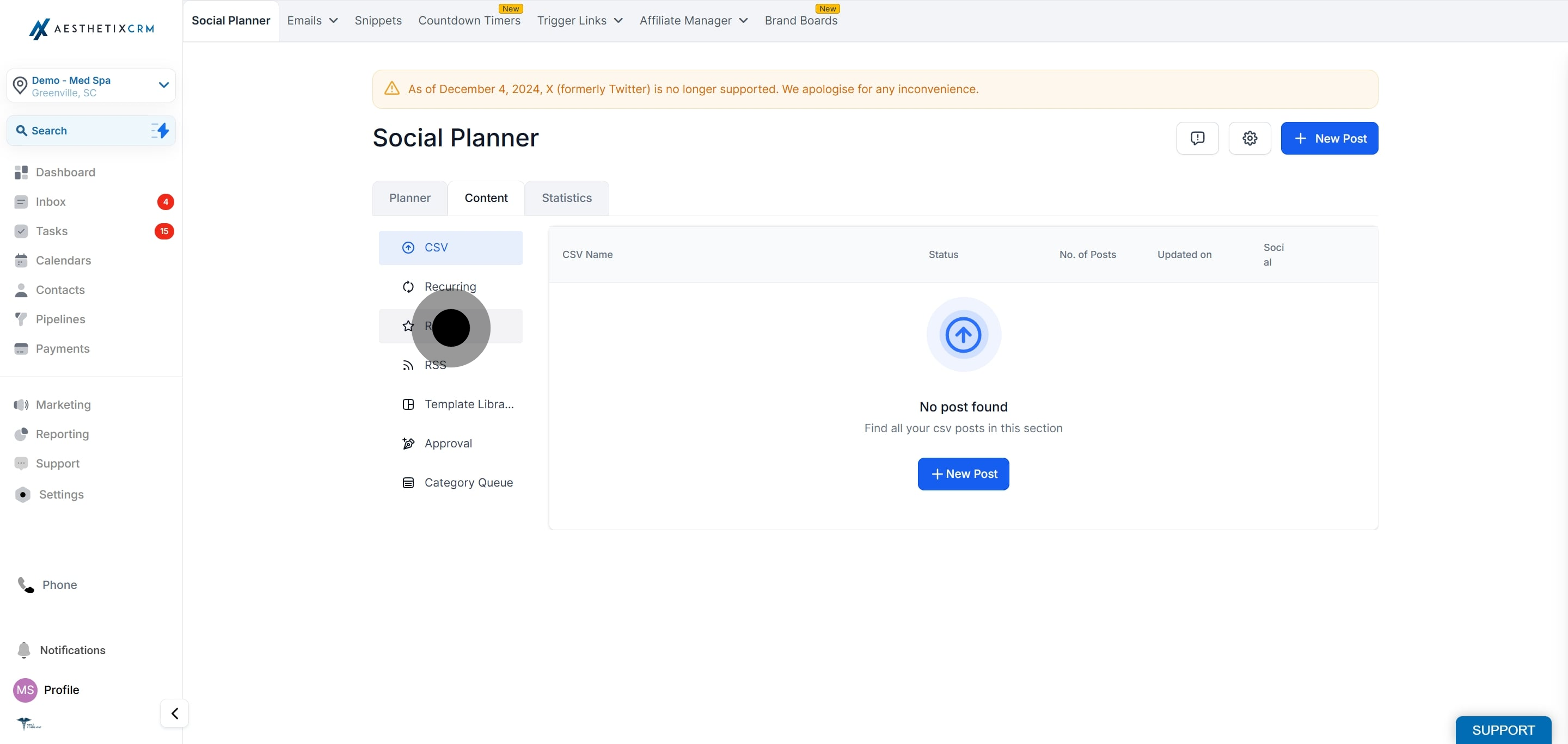
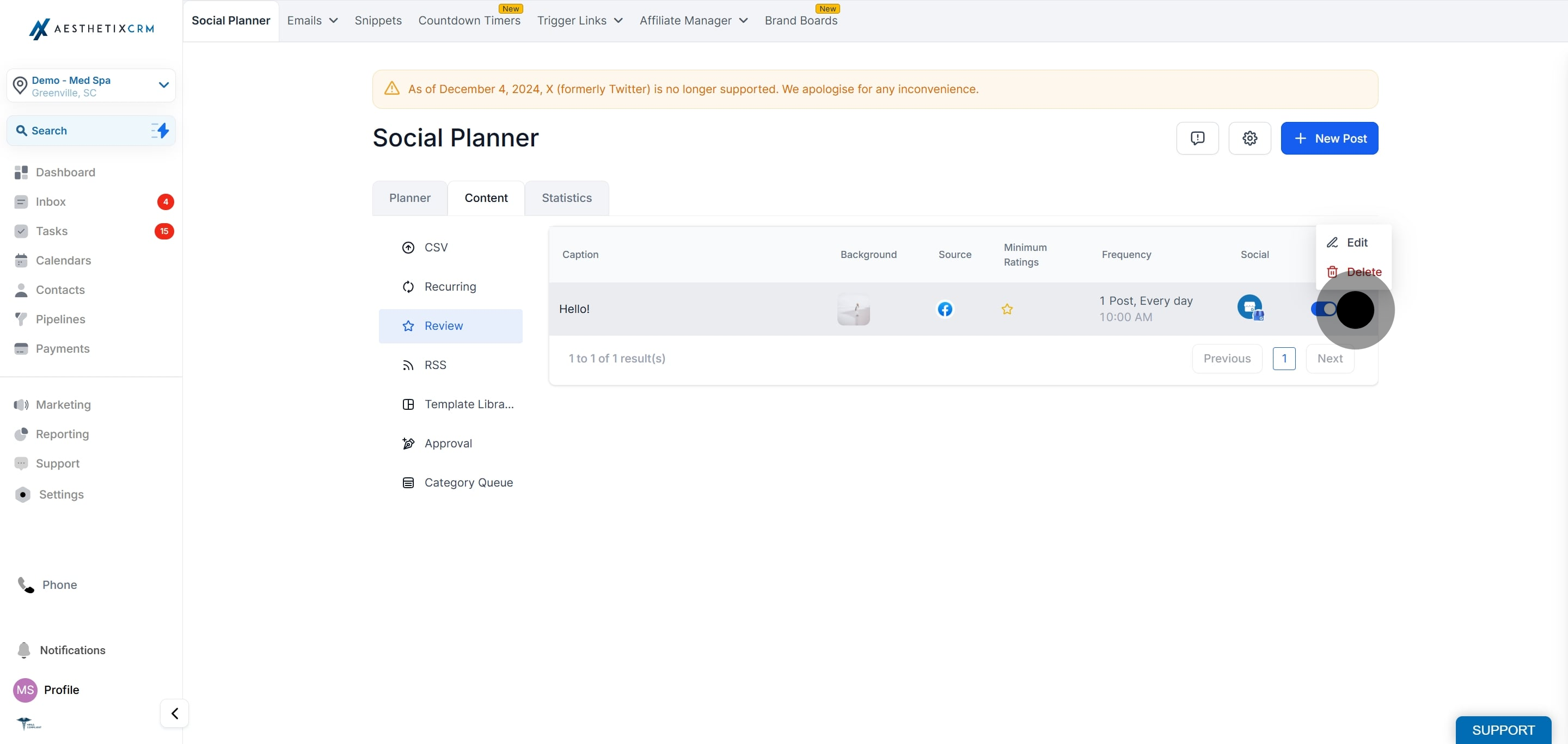
Click the three dots next to the review post, then click Delete.
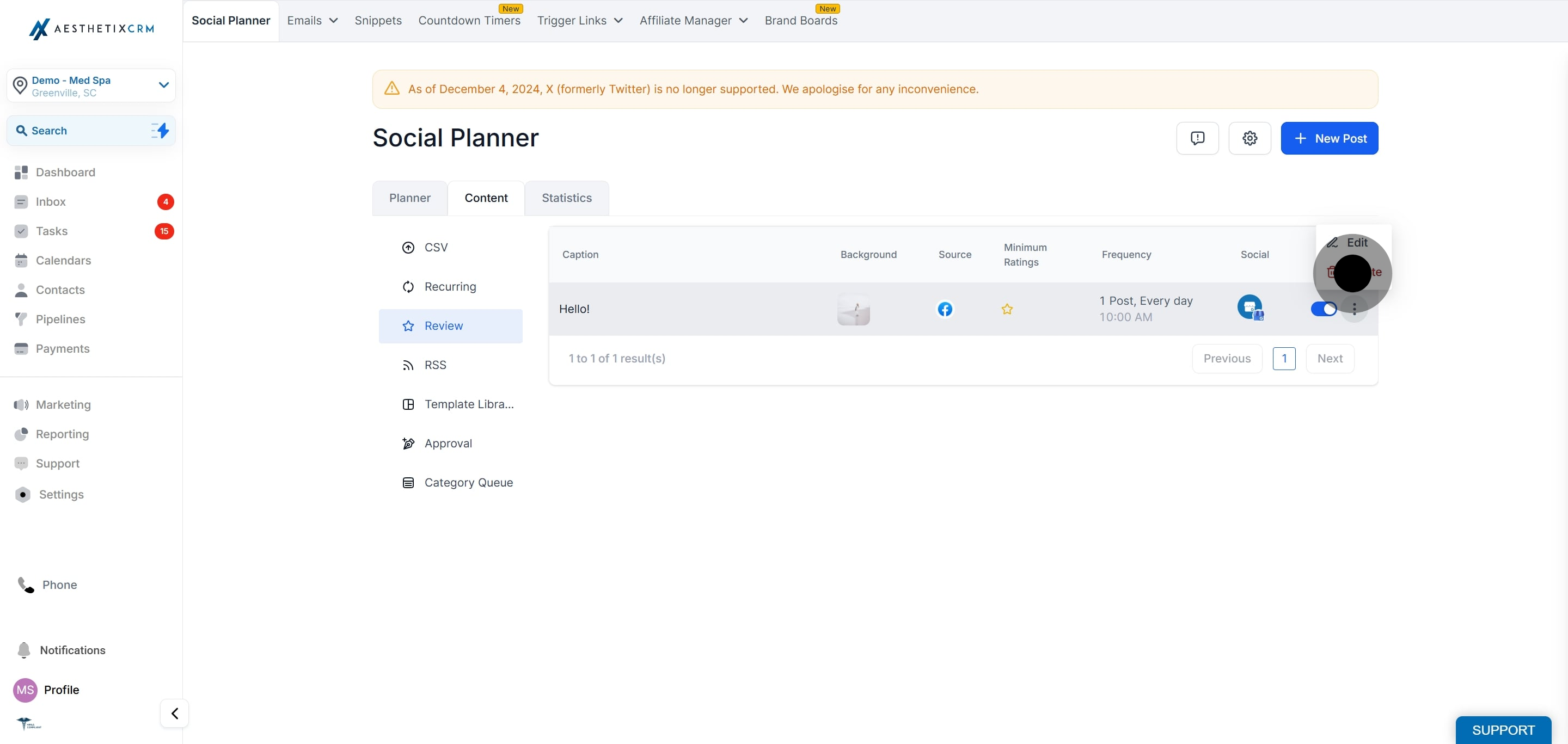
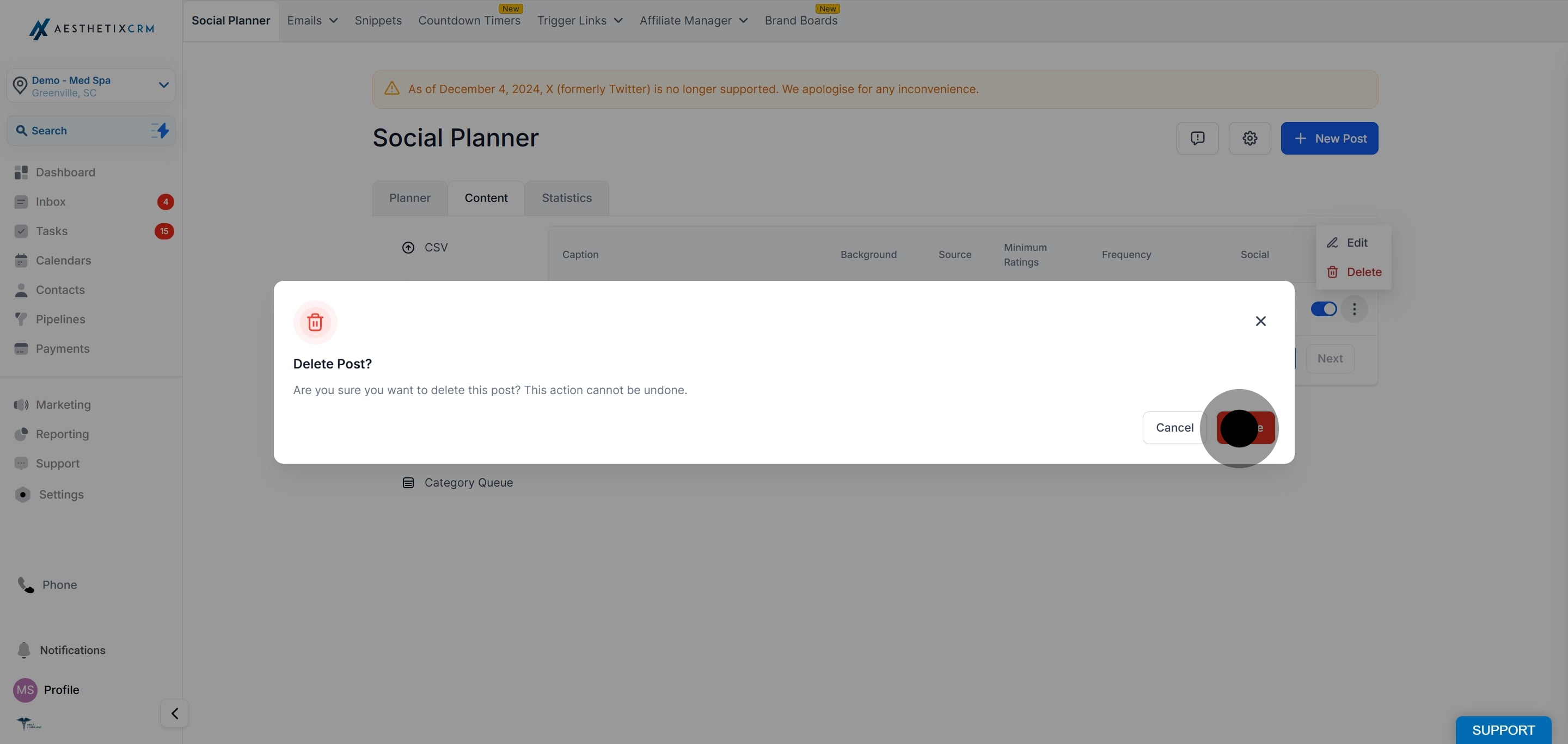
Confirm by clicking Delete.
Which platforms can I pull reviews from? You can pull reviews from your Facebook Page or your Google Business Profile, as long as they are connected under Integrations.
Where can I share the review posts? You can publish review posts to your connected social accounts, including Facebook, Instagram, LinkedIn, and X, depending on your account settings and integrations.
Can I customize the caption on a review post? Yes. Add a custom caption or use the review content as the caption, and adjust hashtags and any additional text for your audience.
How do I protect patient privacy when sharing reviews? Only share reviews the patient posted publicly, and never add protected health information to a caption. Use First Name or Initials for the display name, and keep captions general with no treatment details, medical history, or identifying information beyond the public review.
Why aren't my reviews getting posted? Reviews are fetched from the Reputation module, which needs all connected socials to stay active. If a session token expires or an account disconnects, reconnect it so reviews can post. Also confirm the review was posted after your automation's creation date and includes written text.
Which reviews get skipped? Reviews added before you created the automation, and reviews that contain only a star rating with no written text, are skipped automatically.
How does the maximum post count work? It is the number of reviews published on a single scheduled day, not the number of times per week or month. That is why only one review card appears on the calendar per run.
Can I preview and schedule posts for specific times? Yes. You set the frequency, date, and time when creating the automation, and you can review the design before it goes live.
How do I edit, pause, or delete a review automation? Go to Social Planner, then Content, then the Review tab. Use the three-dot menu to edit or delete, and use the automation's status to pause it.
Do watermarks apply to review posts? No. Review posts do not support watermarks.
