Many social platforms have engagement algorithms that reward comments on a post, especially comments made soon after the post is first published. The Follow-Up Comment feature lets you schedule an automatic first comment that posts alongside your content. This is a great place to add hashtags, a booking link, treatment details, or a call to action without cluttering your main caption.
For a med spa, a follow-up comment is useful for adding a link to book a consultation, listing the treatments featured in the post, or dropping campaign hashtags to extend reach.
The Follow-Up Comment feature works on the following platforms:
Facebook Pages
Facebook Groups (comments appear from the Facebook Page selected in your Social Planner settings)
Instagram Business Accounts
LinkedIn Profiles
LinkedIn Pages
X (formerly Twitter) Accounts
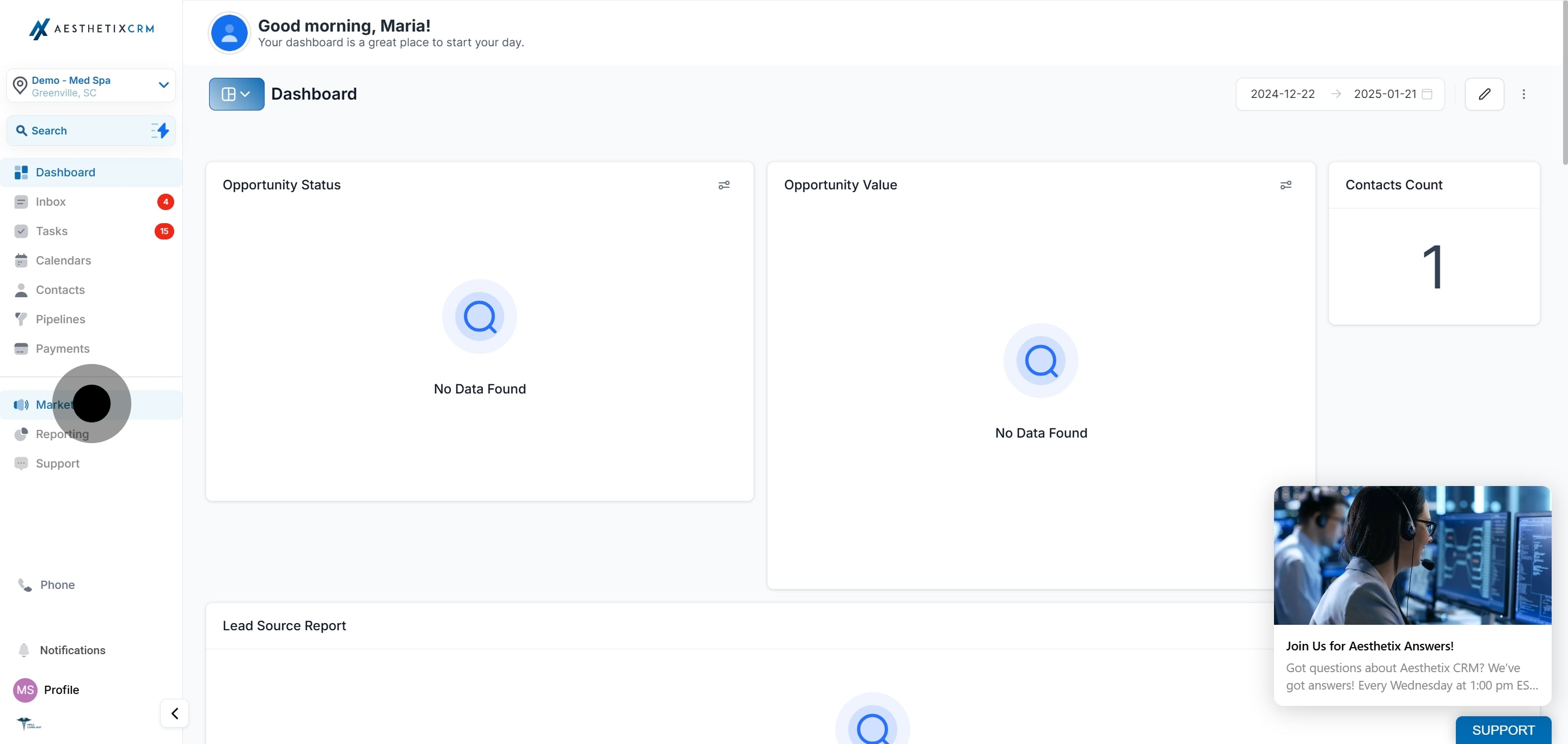
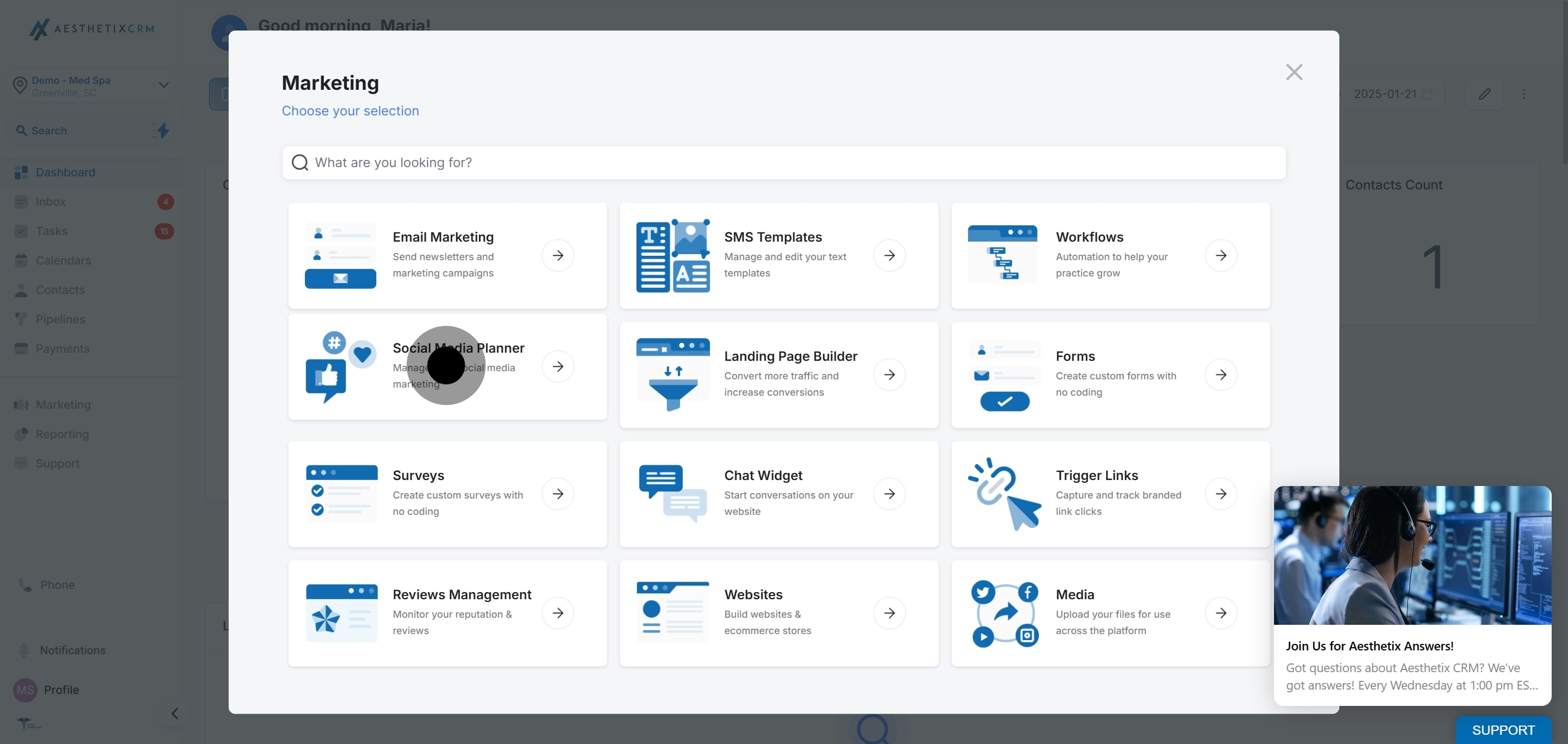
Go to Marketing, then click Social Media Planner.
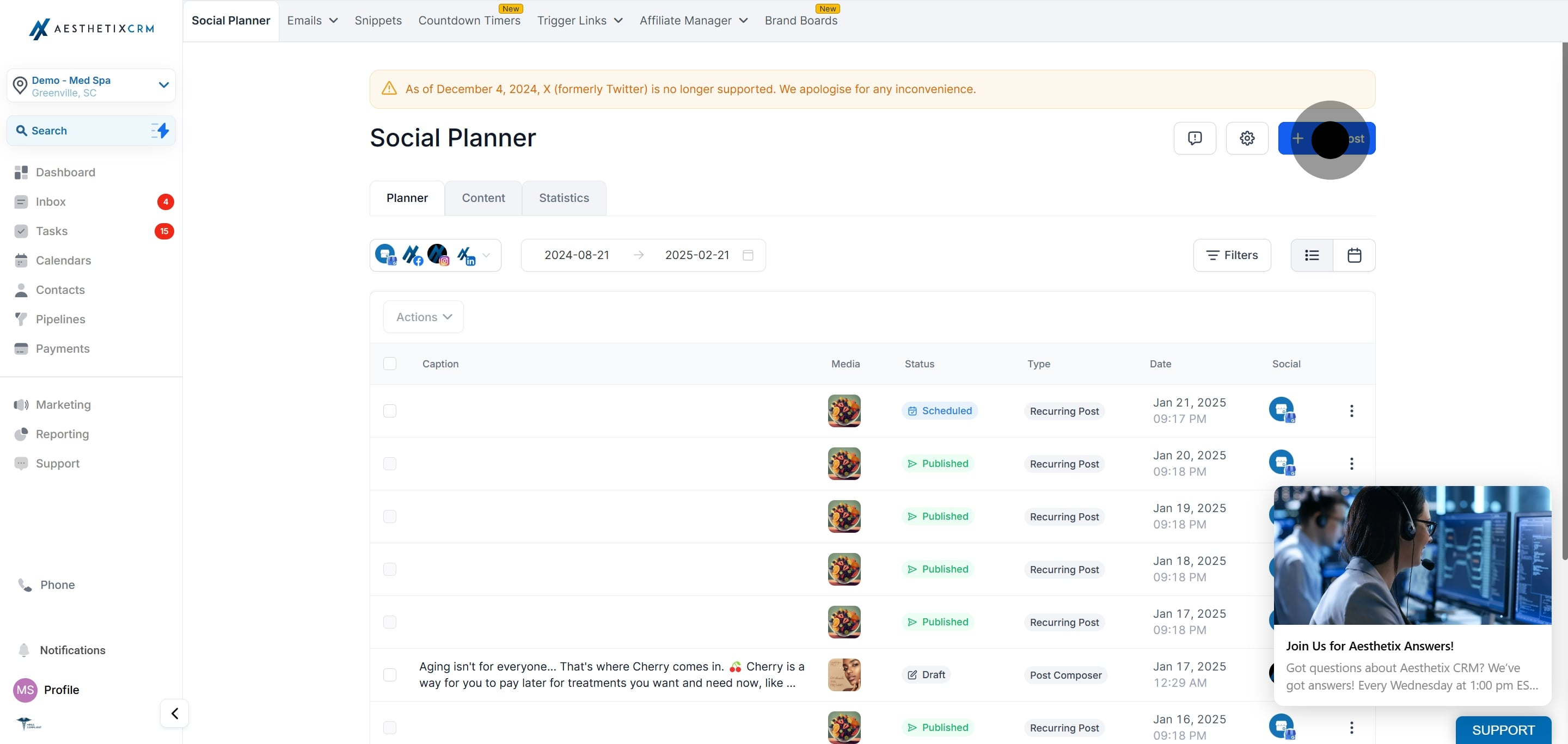
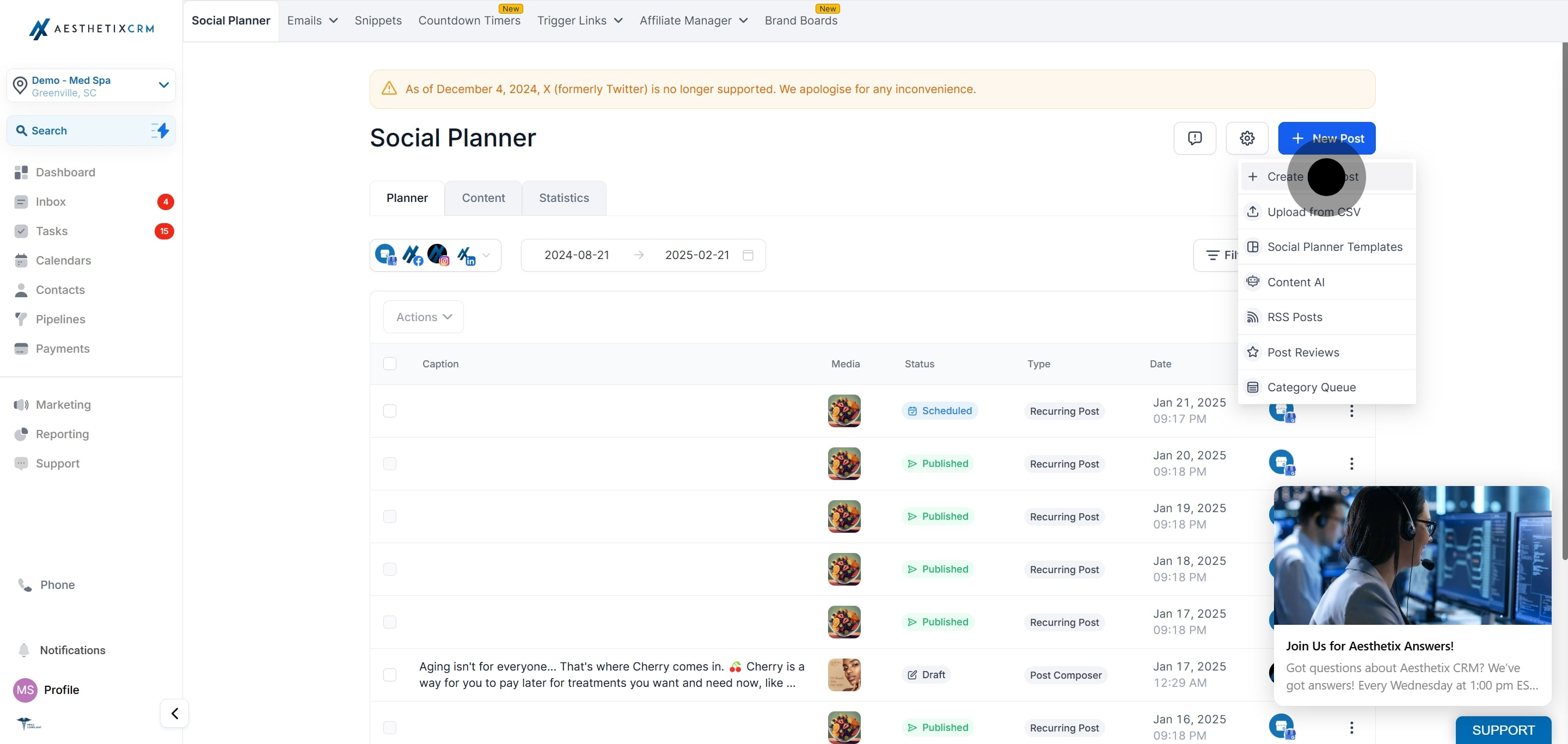
Click New Post, then Create New Post.
Select the social account you want to post to.
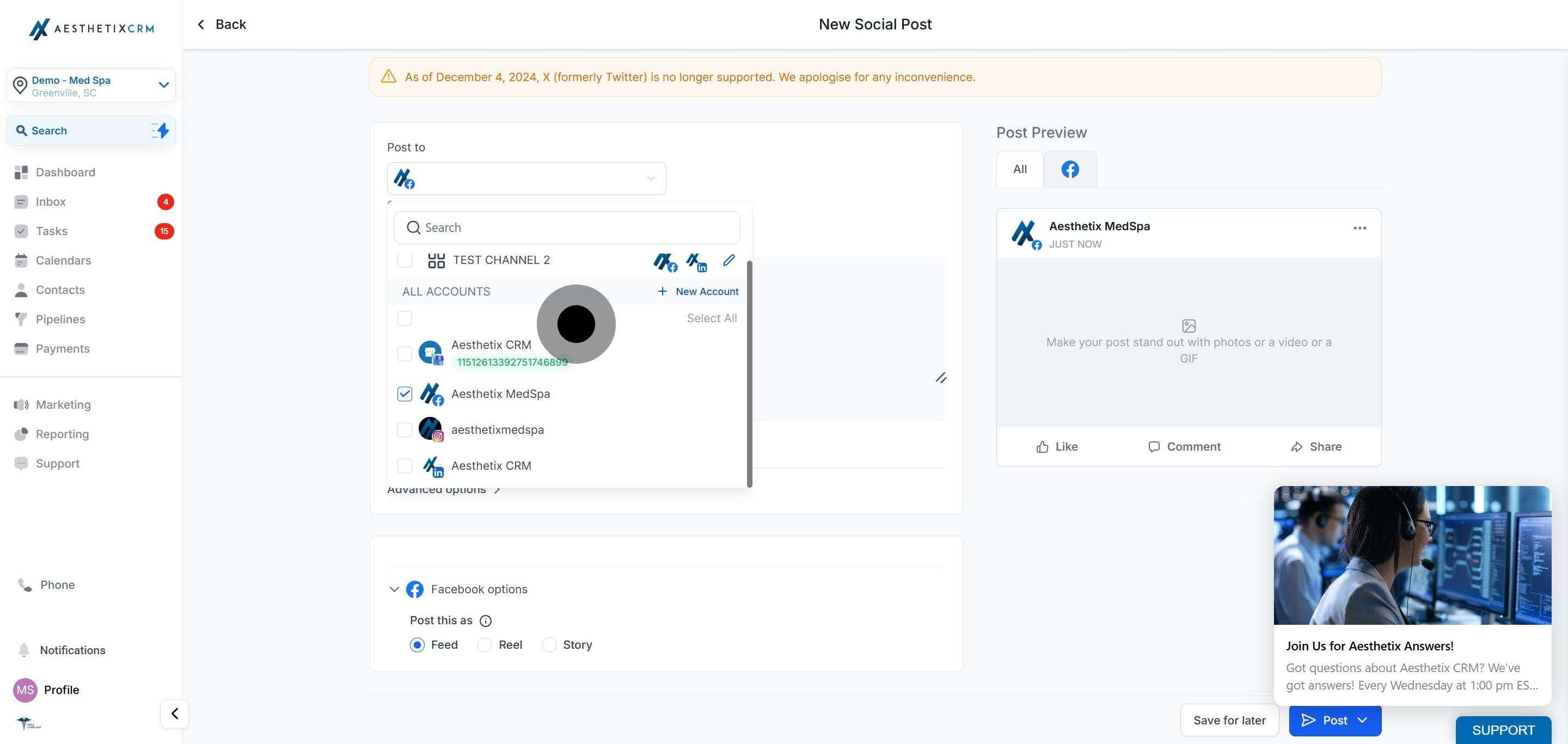
Click Follow Up Comment and enter the text you want to post as the first comment. It will publish automatically right after your post goes live.
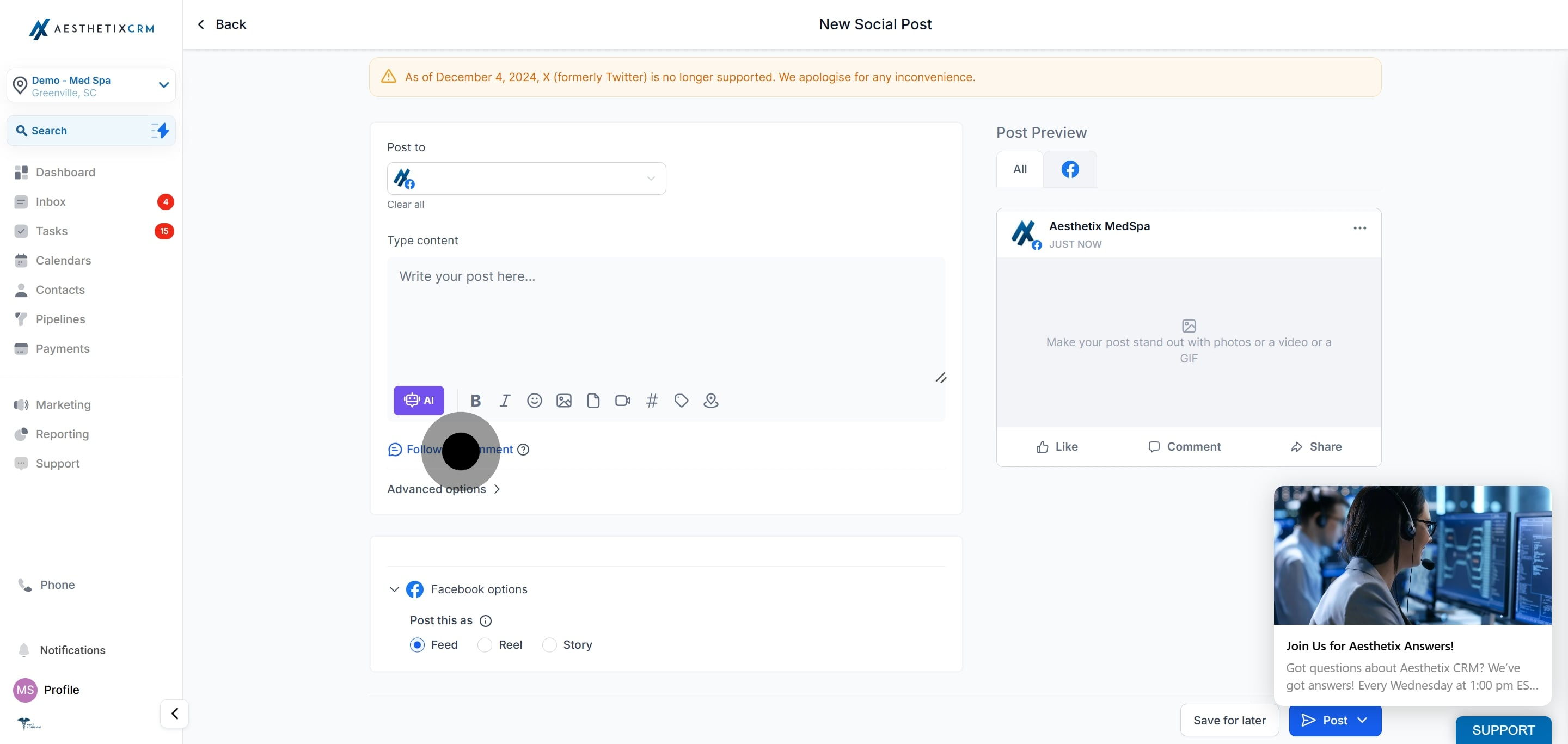
What is a follow-up comment? It is an automatic first comment that publishes on your post right after it goes live. Platforms often boost posts that receive early comments, so this can improve engagement.
Which platforms support follow-up comments? Facebook Pages, Facebook Groups, Instagram Business Accounts, LinkedIn Profiles, LinkedIn Pages, and X (formerly Twitter).
How do comments work for Facebook Groups? For a Facebook Group post, the follow-up comment appears from the Facebook Page selected in your Social Planner settings.
What should I put in a follow-up comment? It is a good spot for hashtags, a booking or consultation link, treatment details, or a call to action that you would rather keep out of the main caption.
When does the comment post? The comment publishes automatically shortly after the main post is published.
Should I mention patient details in a follow-up comment? No. Keep patient information out of comments. Avoid anything that could identify a patient or their treatment, and never include protected health information.
Can I add a follow-up comment when bulk scheduling? Yes. The Advanced CSV template includes a followUpComment column so you can add first comments during bulk uploads for supported platforms.
