Scheduling posts in bulk with a CSV or XLSX file is the fastest way to plan your practice's social calendar in advance. A CSV (comma-separated values) file stores your post details in a structured layout, so you can prepare weeks of treatment promos, before-and-after highlights, seasonal specials, and event announcements at once and upload them all in a single pass. The Social Planner supports both .csv and .xlsx files.
There are two upload formats:
Basic CSV: covers Date, Content, link preview (OG Meta URL), image links, video links, and GIFs.
Advanced CSV: the most comprehensive importer available. It unlocks platform-specific post types (Post, Story, Reel, Shorts), watermarks, tags, categories, follow-up comments, Google Business Profile options (post types, call-to-action, events, offers), YouTube settings (title, privacy, video type), TikTok controls, LinkedIn PDFs, Pinterest board selection, and more.
When you start a bulk upload, the importer lets you download a sample template for whichever format you choose (Basic or Advanced), so you always get the current layout. The latest templates include a thumbnailUrl column for video thumbnails. The full column reference is also listed later in this guide.
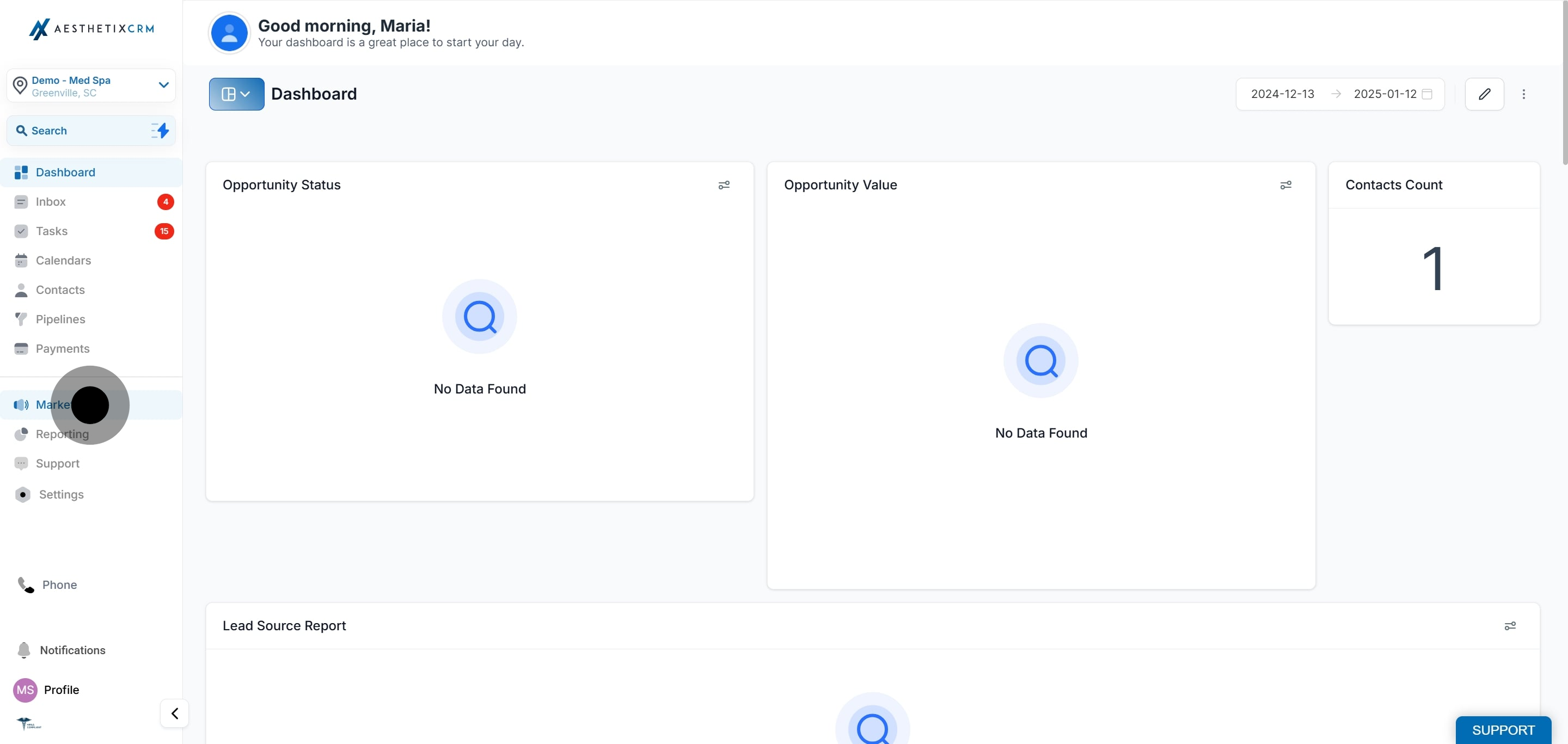
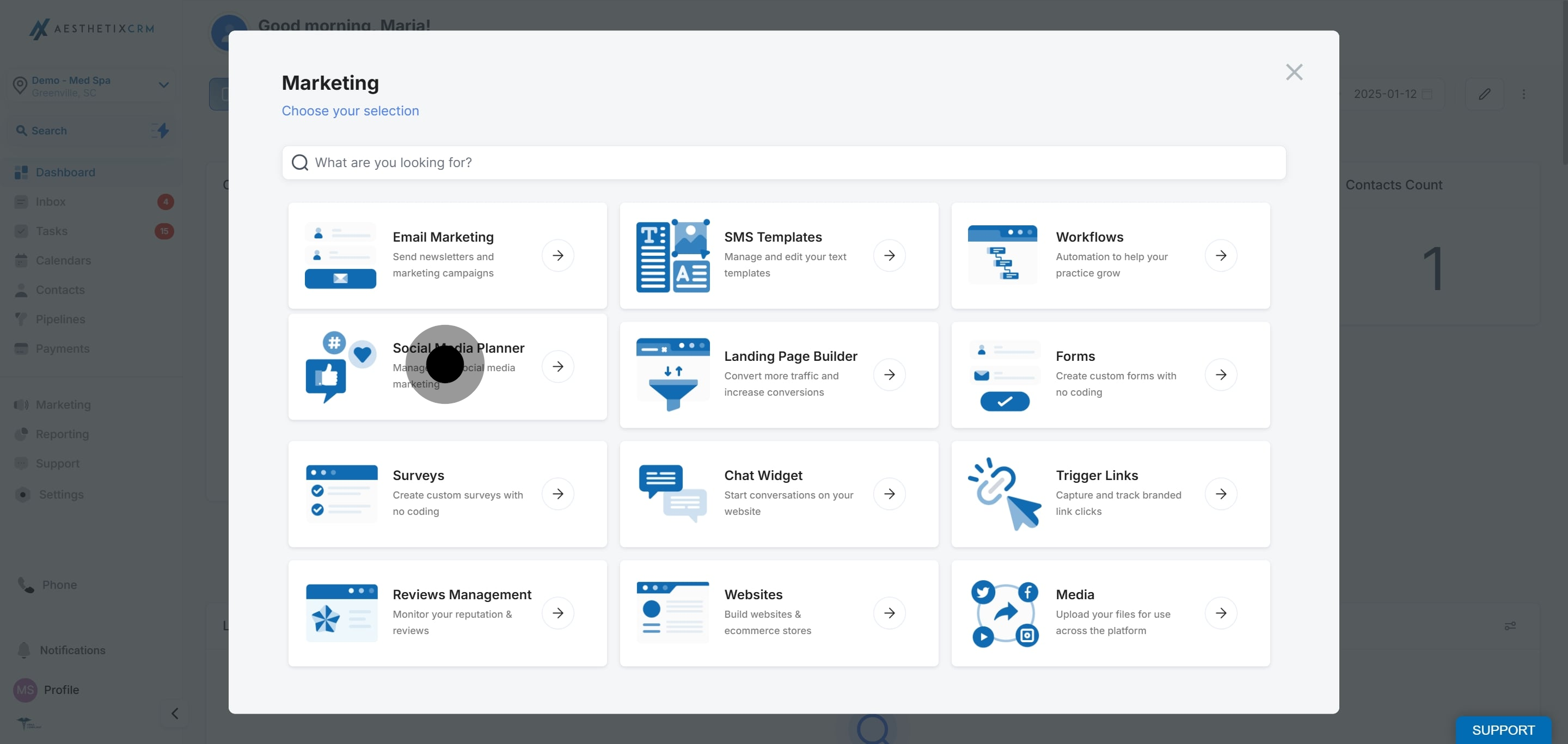
Go to Marketing, then click Social Media Planner, and connect your preferred social accounts.
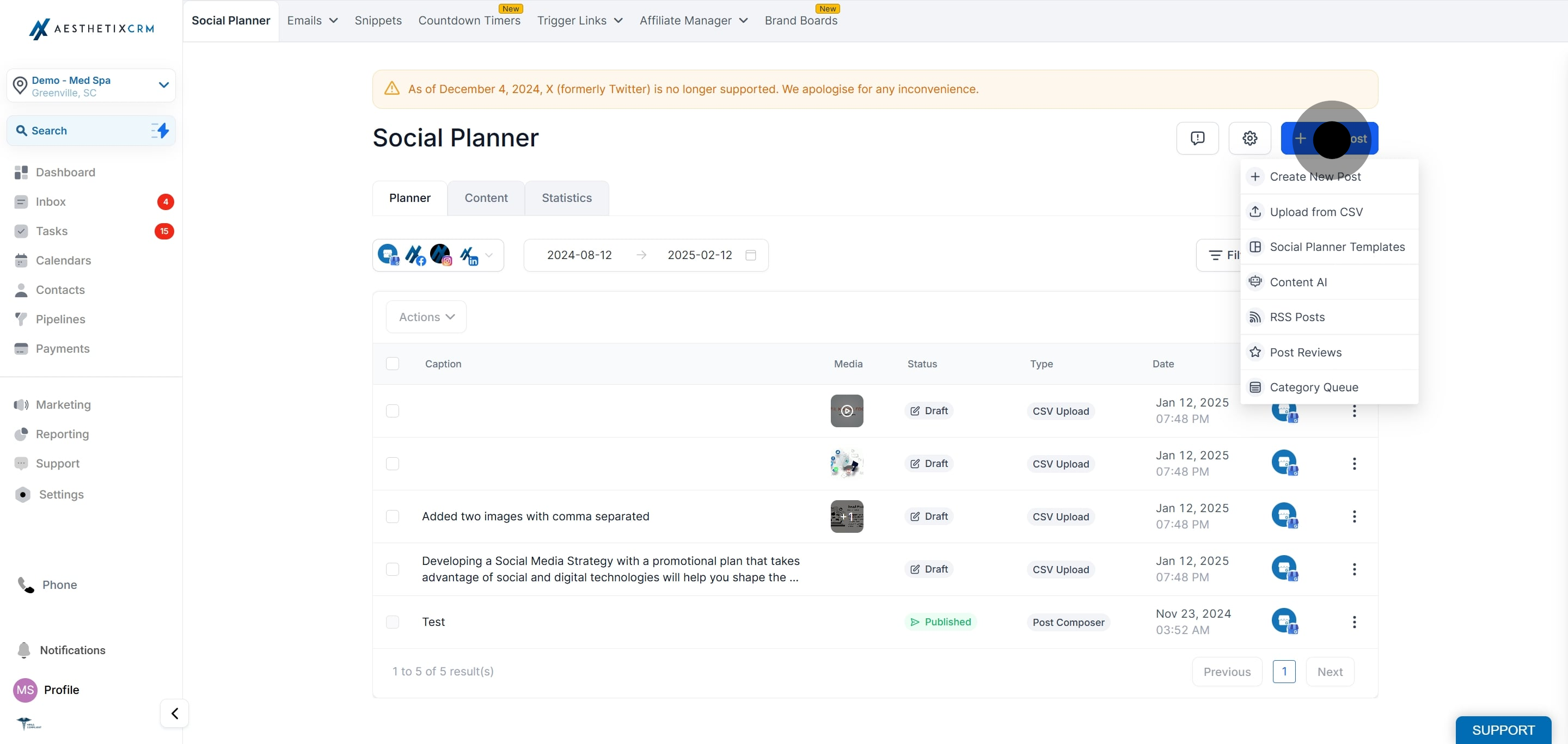
Click New Post, then select Upload from CSV.
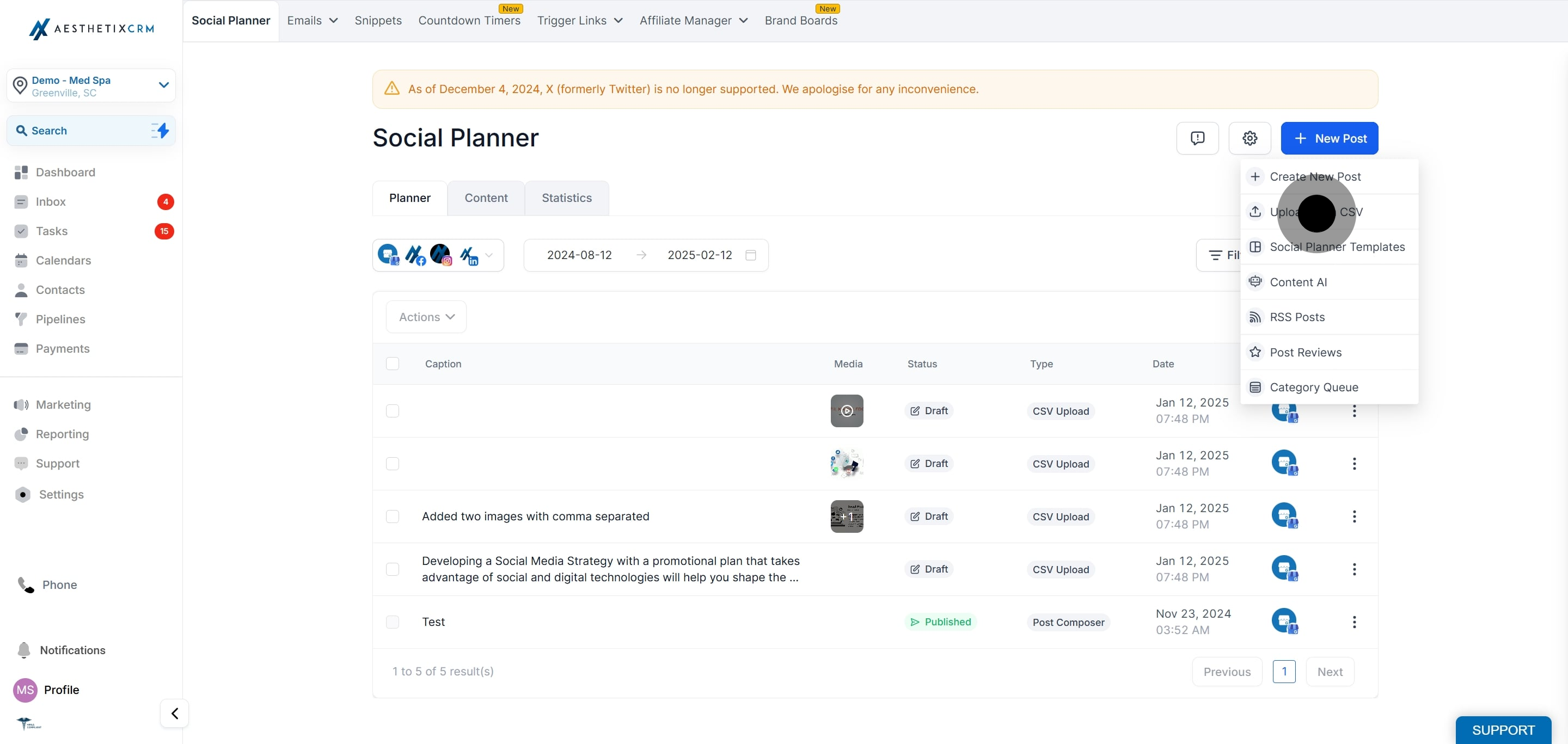
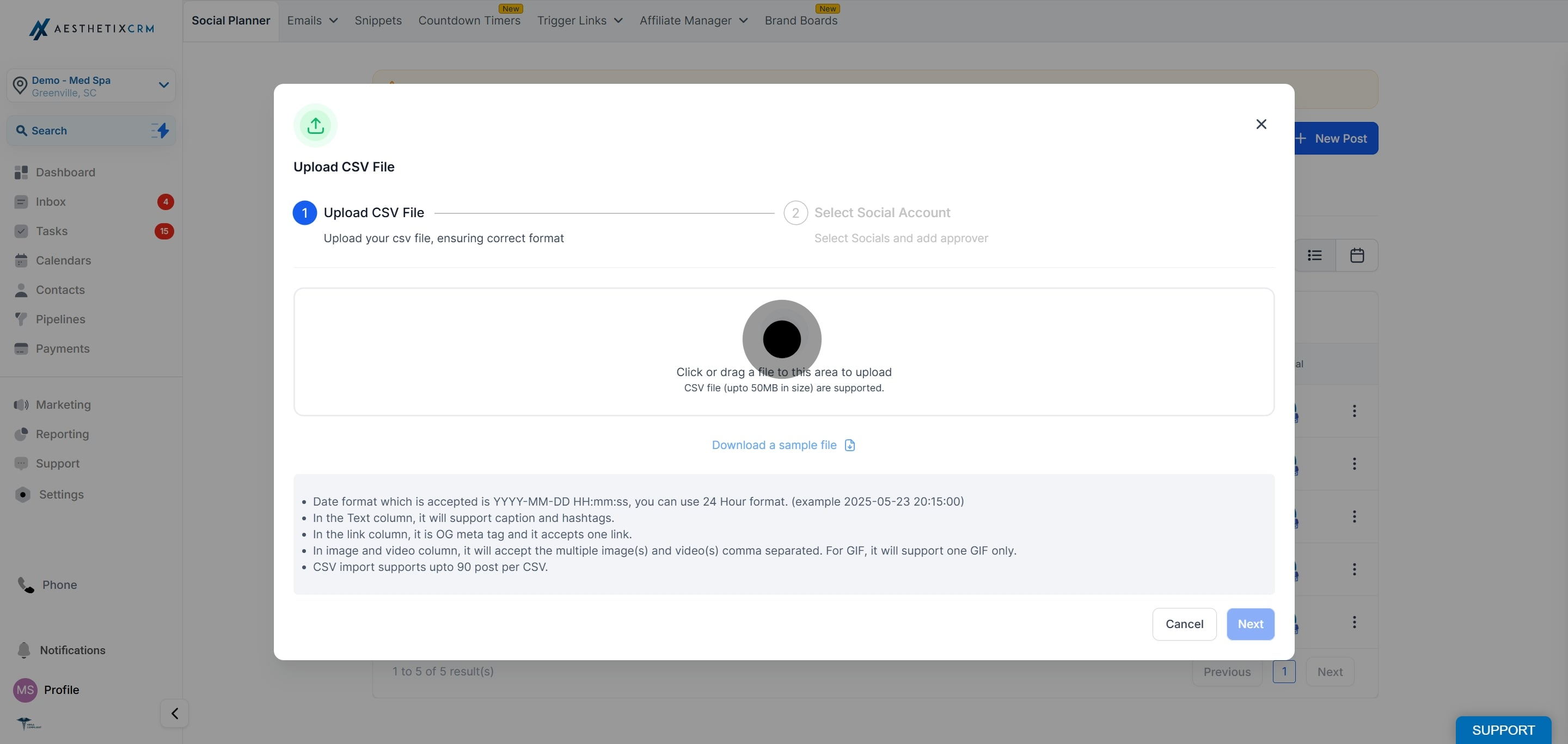
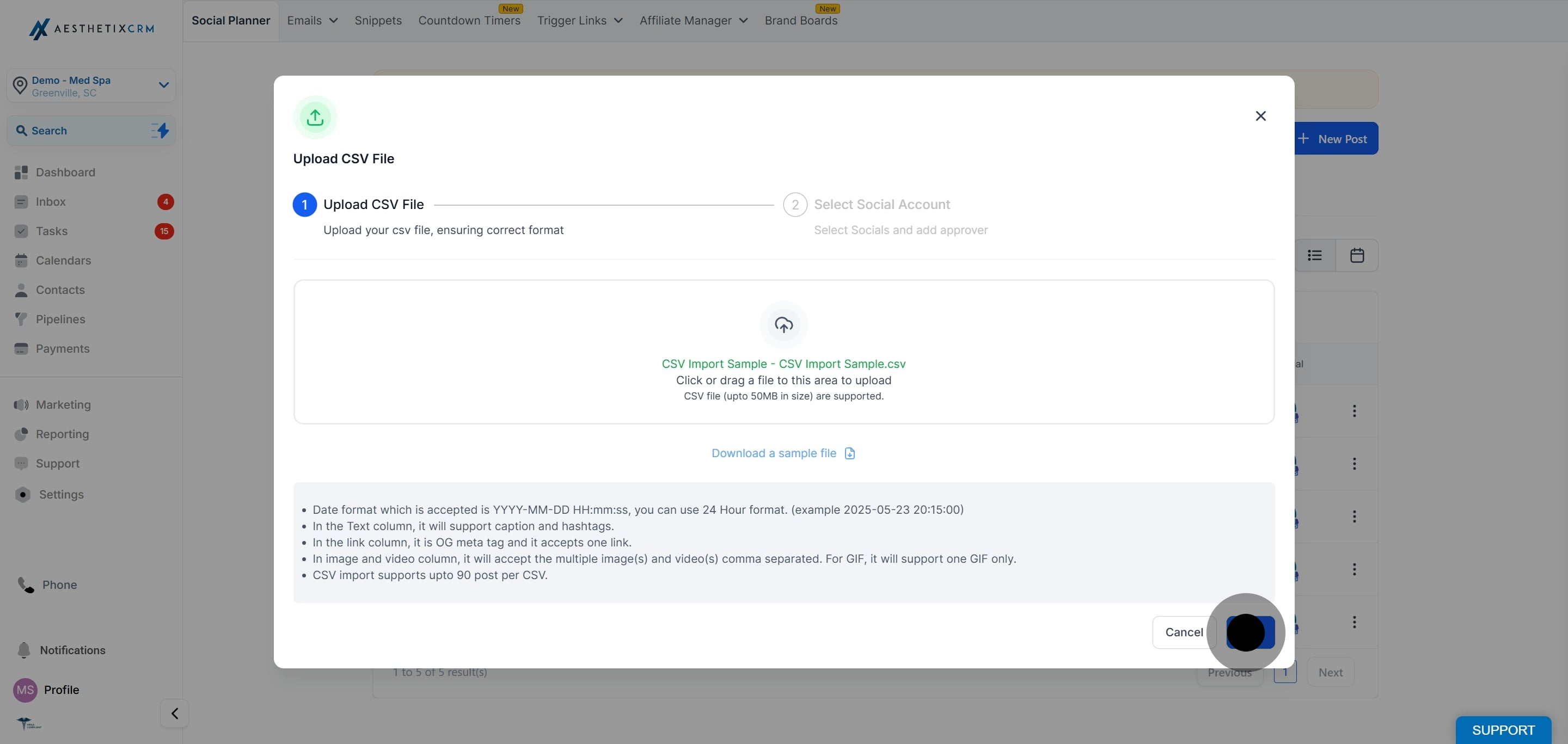
Select the Basic Format or the Advanced Format (choose Advanced to unlock all enhanced features), upload your completed .csv or .xlsx file, then click Next.
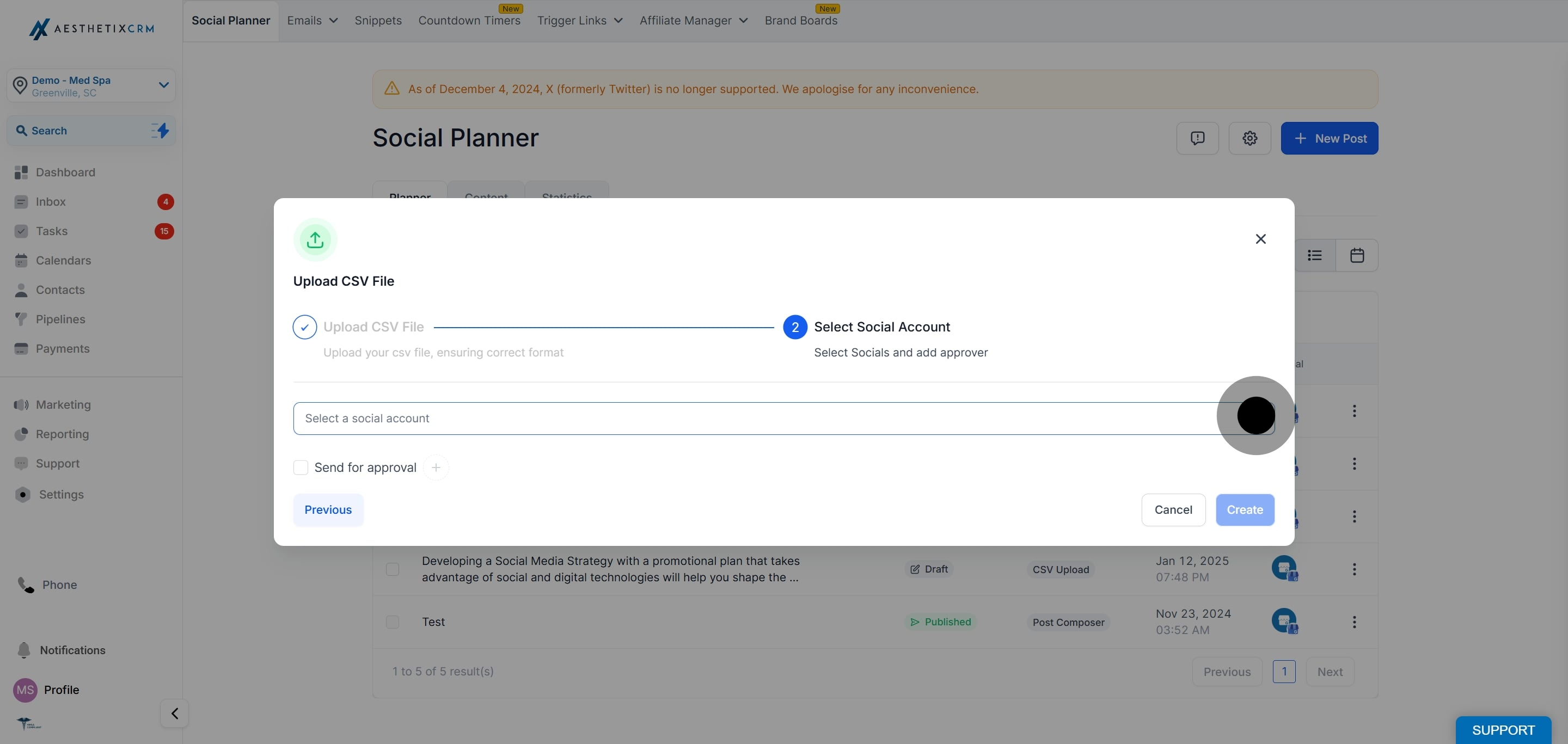
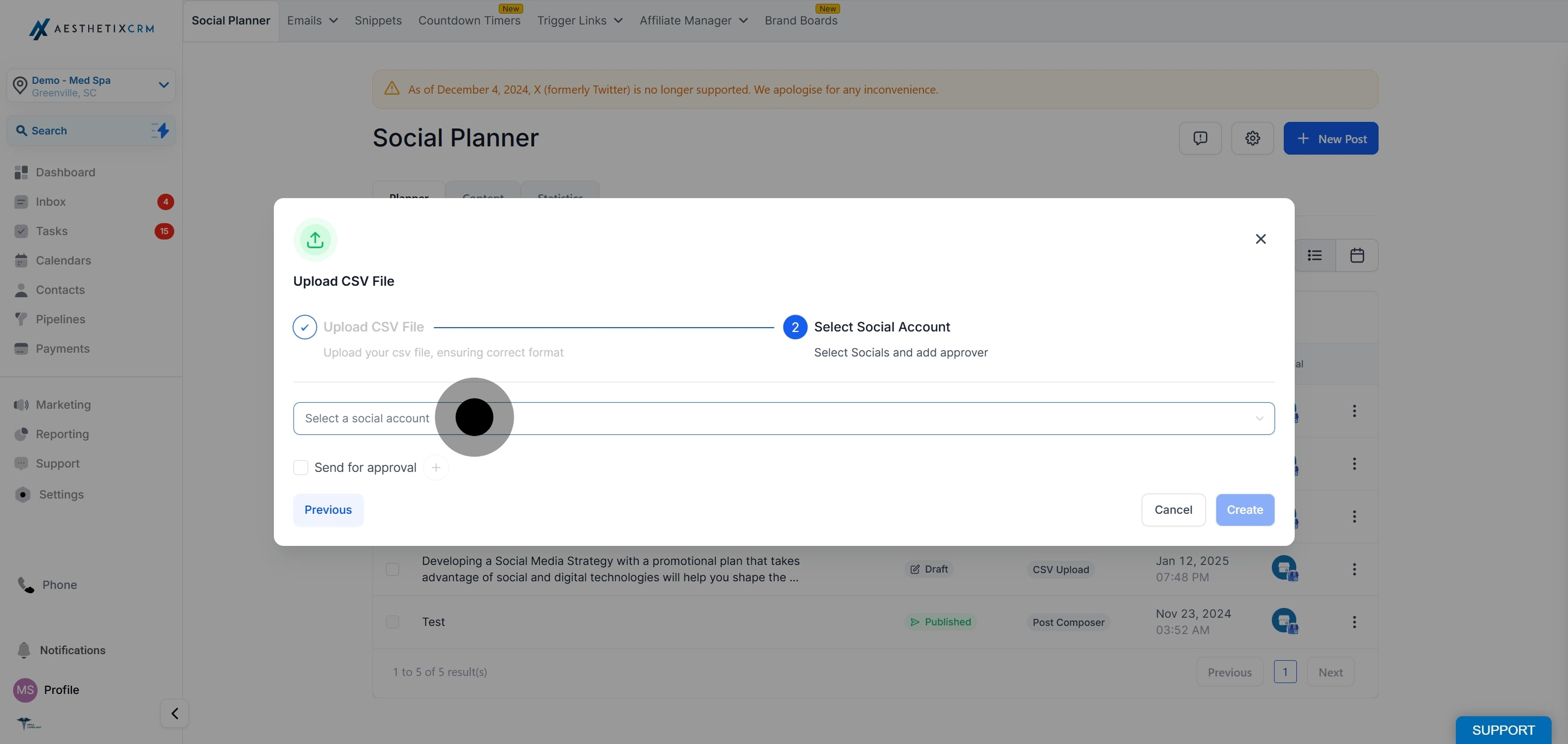
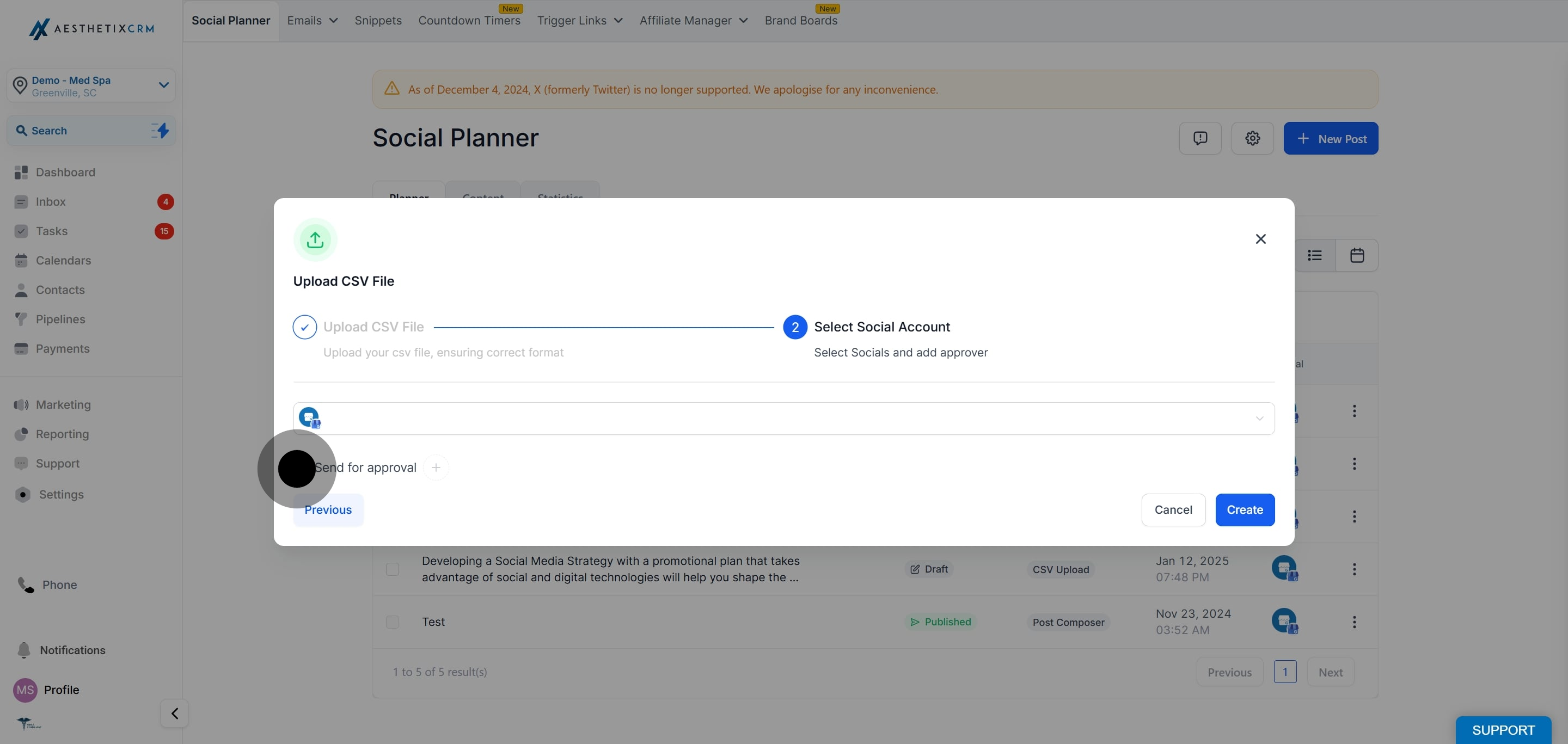
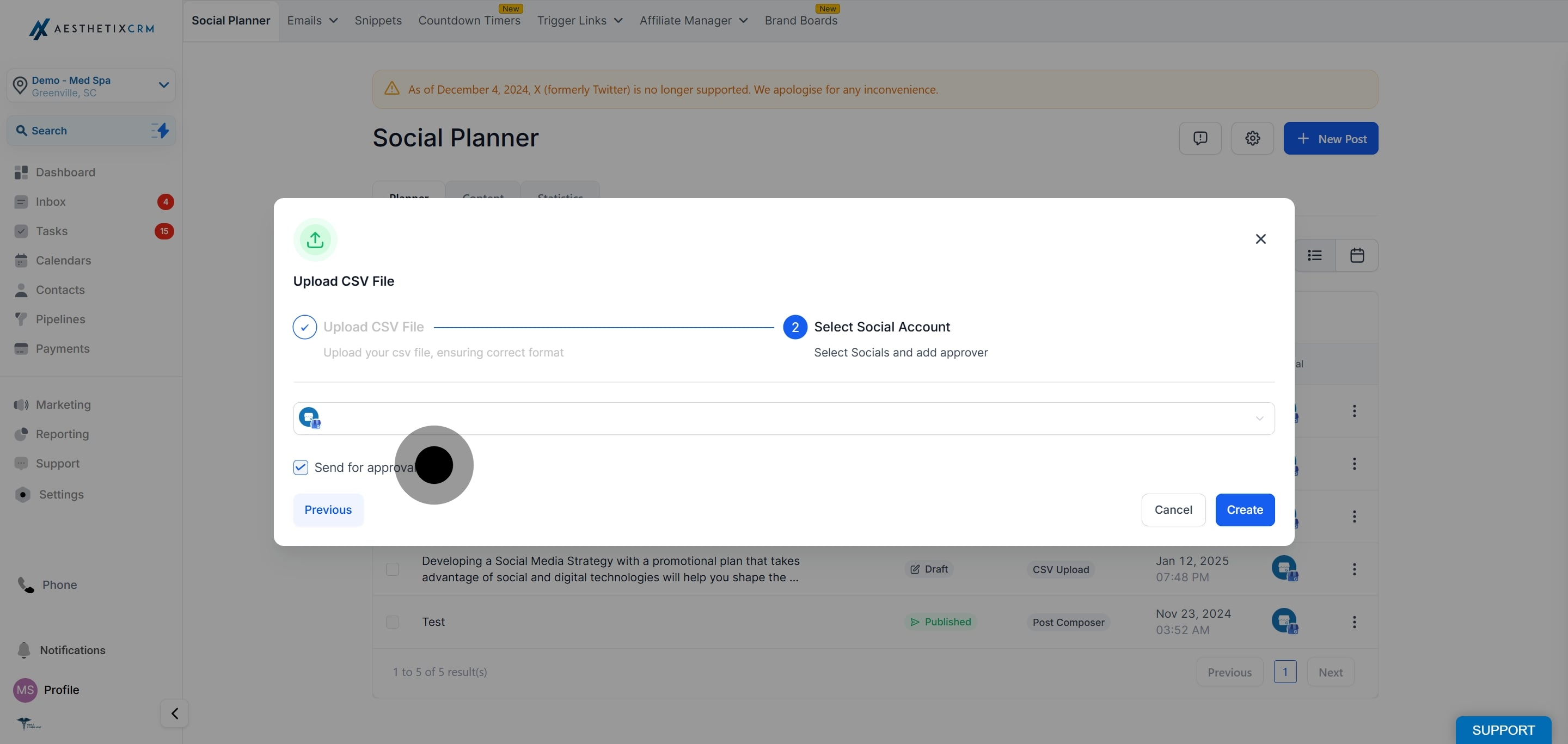
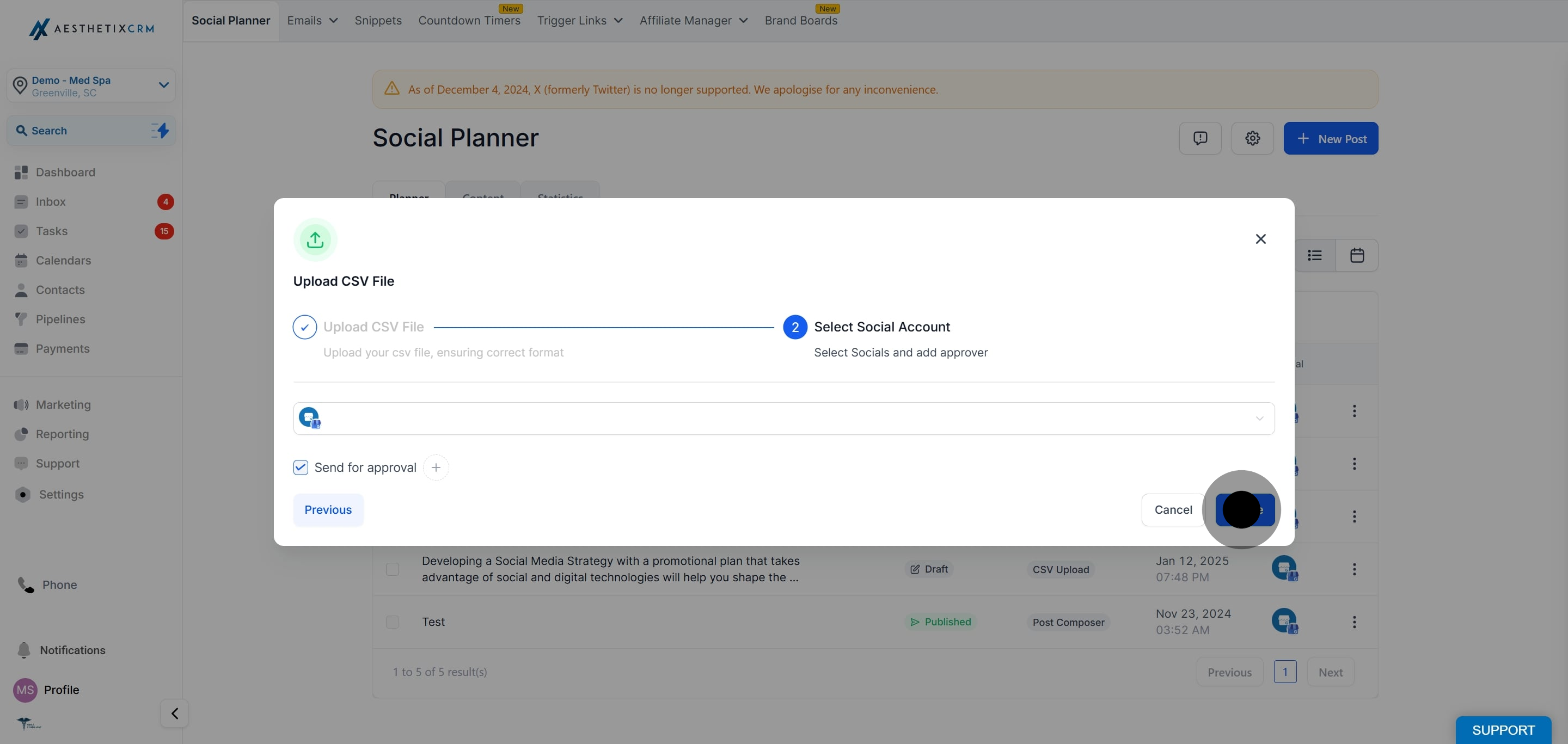
Select the social channel or channels you want to post to. If the posts need approval, turn on the Send for Approval option and choose an approver who will review and approve the posts. Then click Create.
The system checks your file and flags any issues. Review the status of the upload and correct the errors, or remove the posts that contain errors, before proceeding.
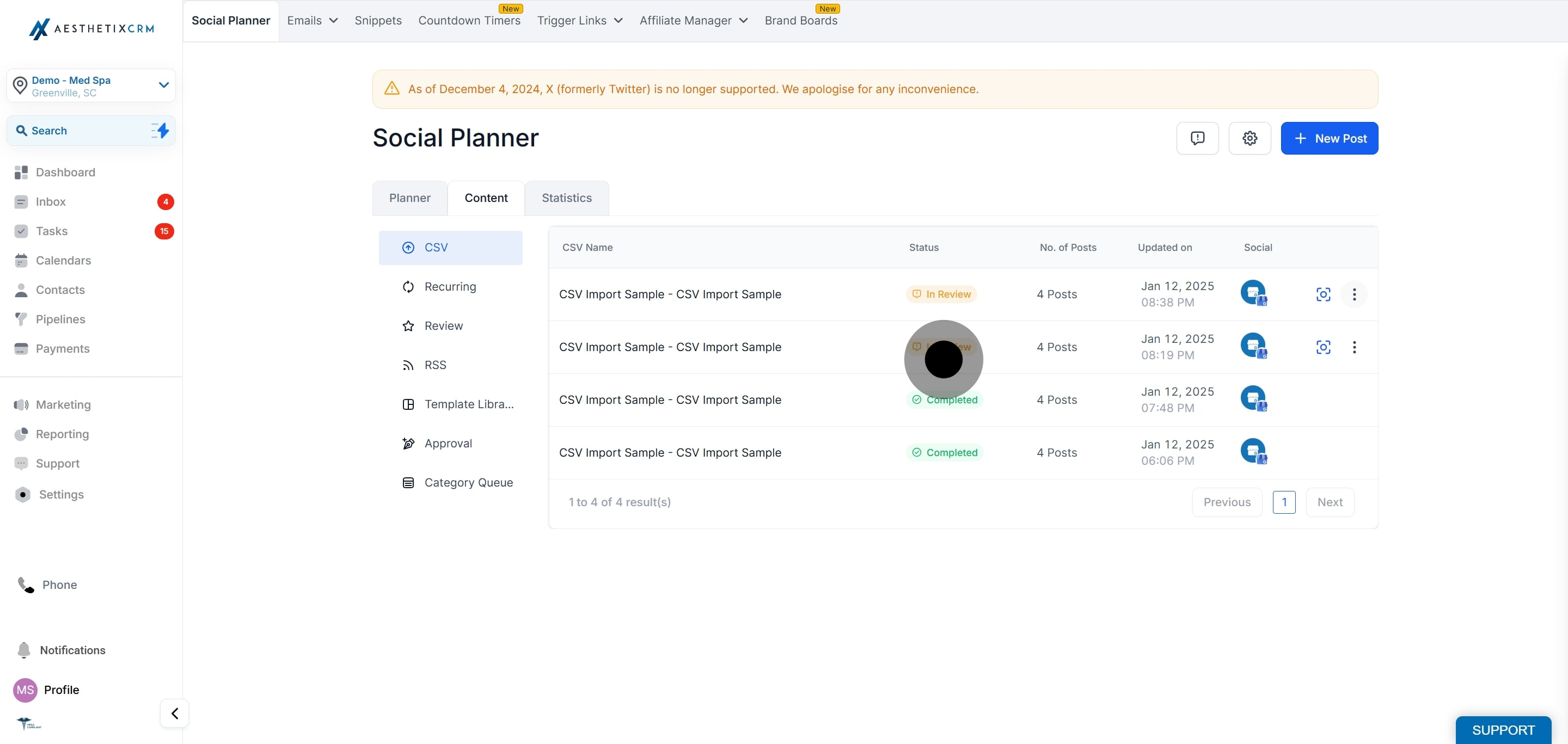
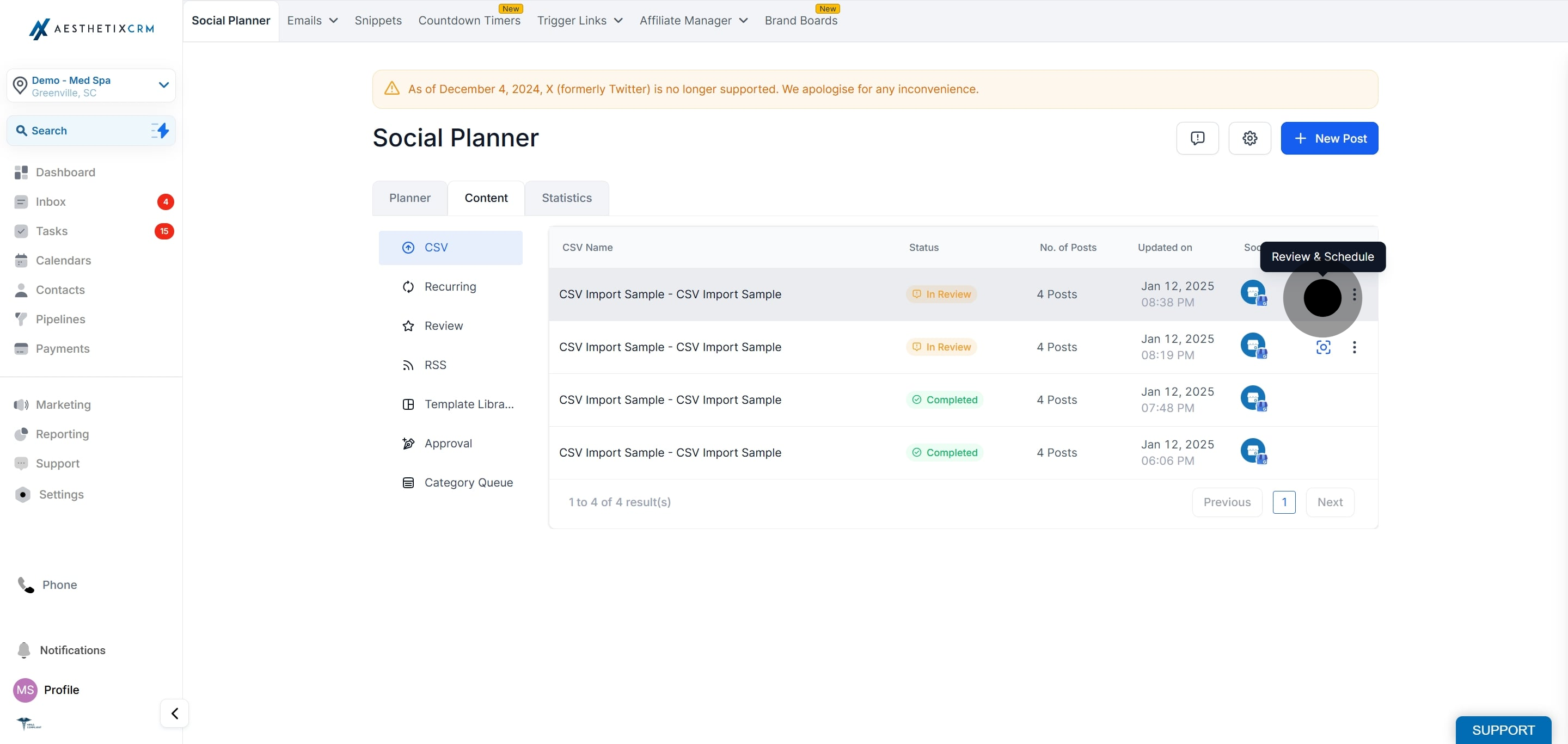
Once errors are resolved, click Schedule, then click Import to add all approved posts to the Social Planner.
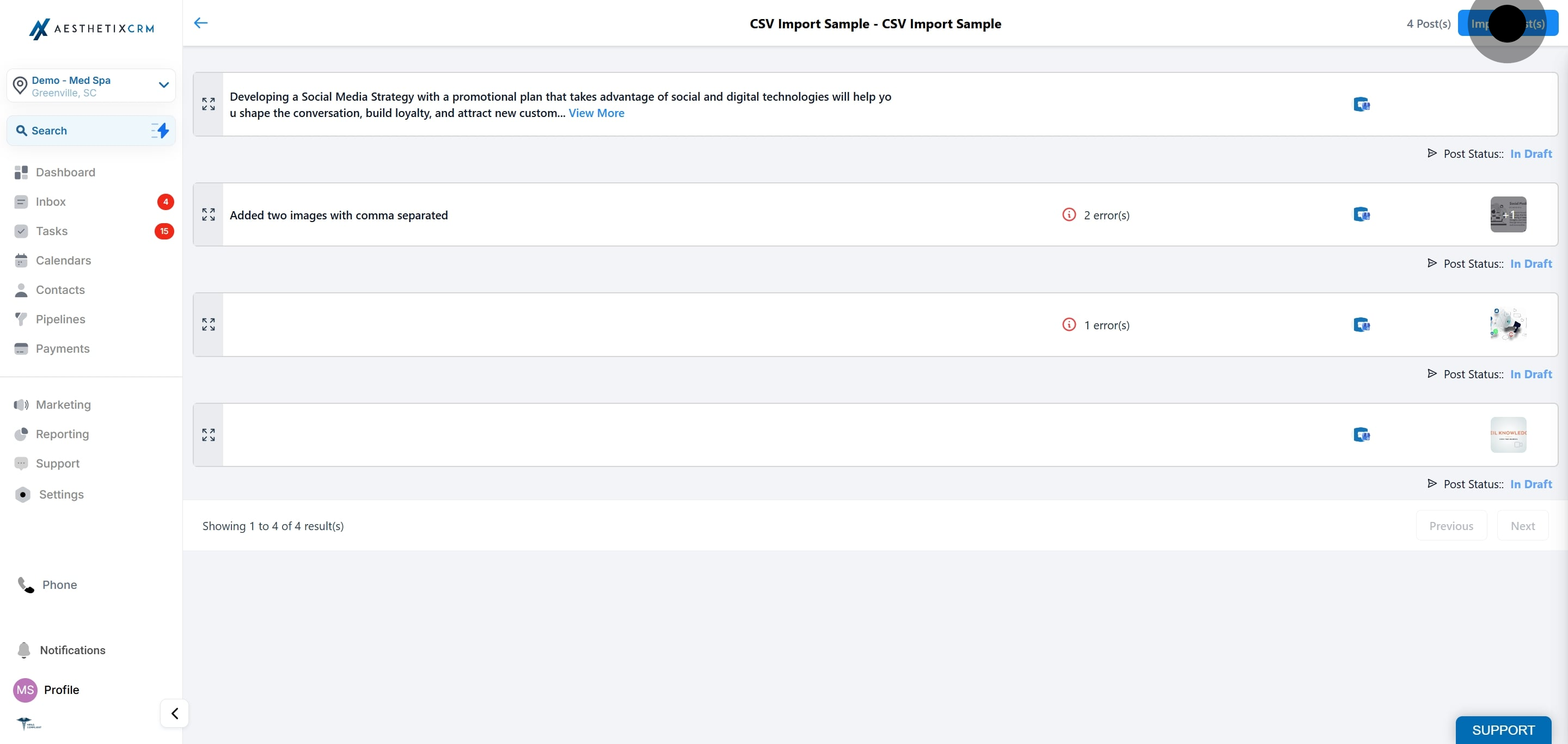
The Social Planner dashboard shows which posts came in via CSV upload and which were created in the post composer.
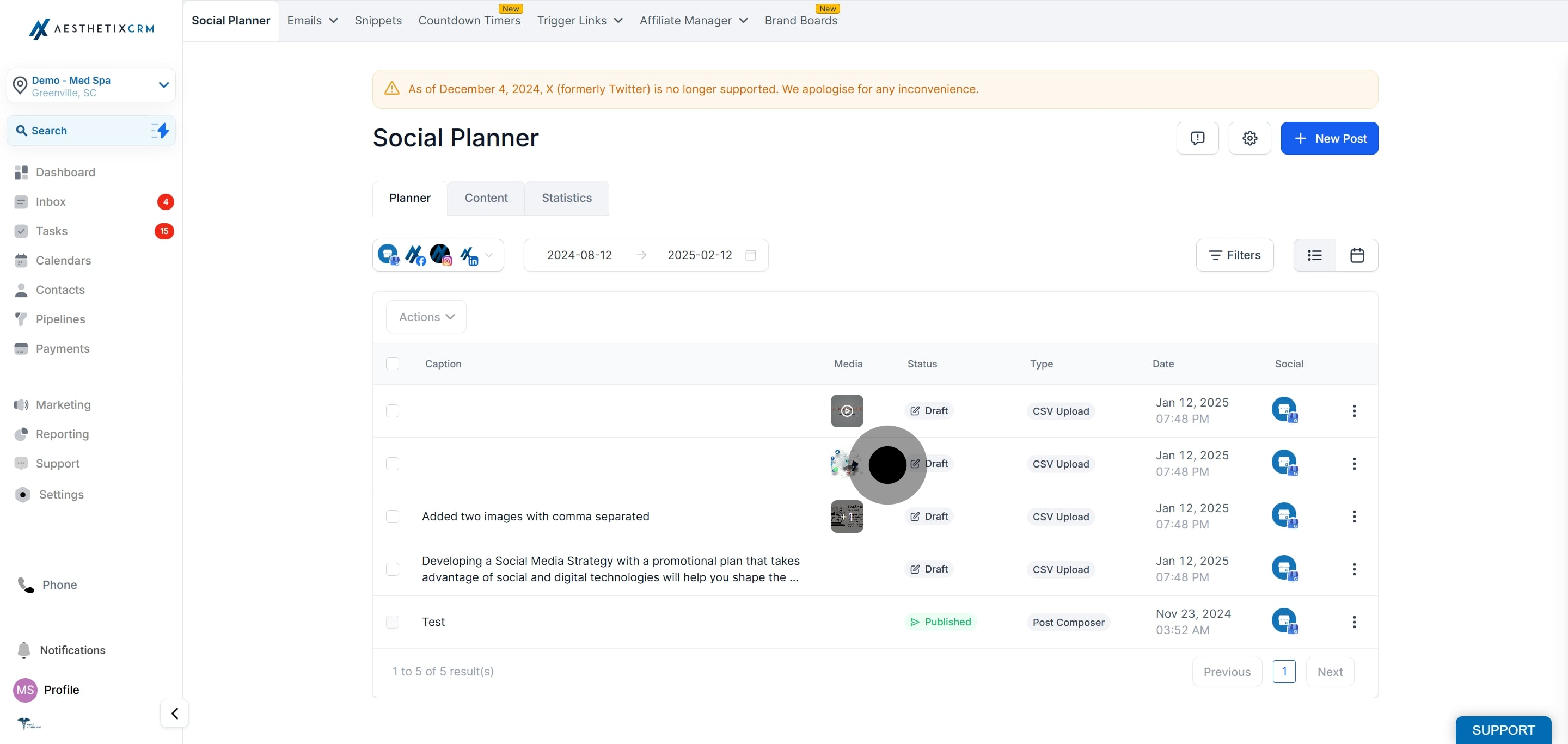
Your file must use the exact column headers shown in the sample template. If a header does not match, that column will not import. In the guidance below, [Both] means the column works in Basic and Advanced formats, and [Advanced] means it is available only in the Advanced format.
Enter the date and time you want the post to publish, formatted exactly as shown at the top of the column.
Use 24-hour format. Example: 2025-08-25 21:30.
If the date column is empty, the post is saved as a Draft.
The header must match the sample. Supported formats include: postAtSpecificTime YYYY-MM-DD HH:mm, YYYY-MM-DD HH:mm:ss, YYYY/MM/DD HH:mm:ss, YYYY/MM/DD HH:mm, M/D/YYYY H:mm:ss, and M/D/YYYY H:mm.
Schedule every post at least 10 minutes after the time you upload the file. For example, for a post scheduled for 2025-10-14 15:00, upload the CSV no later than 2:50 PM that day.
The schedule works in 24-hour format, not 12-hour. If you need help converting, use an online 24-hour time converter.
Type or paste the caption for your post, including any hashtags. The header must be: content. The caption must stay within the character limits of the platform you are posting to.
Type or paste the URL you want to appear as the link preview. The header must be: link (OGmetaUrl). If any media columns (images, GIF, or video) are filled in, they override the link preview, and the URL is appended to the content column as a link instead.
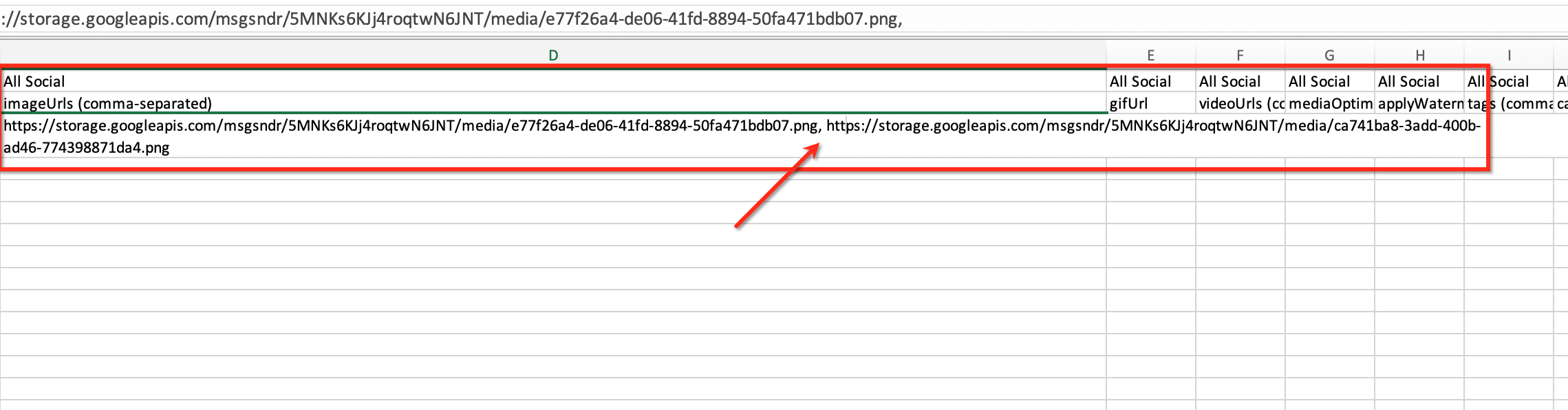
Paste the image URL or URLs for your post. The header must be: imageUrls. Add multiple image URLs separated by commas. Images must be in a supported format such as PNG or JPEG/JPG, and other requirements depend on the platform. The maximum is 10 images.
Paste the GIF URL for your post. The header must be: gifUrl. Do not fill in any other media column (link, imageUrls, or videoUrls) if you use a GIF.
Paste the video URL or URLs. The header must be: videoUrls. Add multiple video URLs separated by commas, up to 10 videos per post. Do not fill in any other media column if you add a video.
Set a custom thumbnail for video posts. The header is: thumbnailUrl. The thumbnail is automatically applied to the first video in the post. Multiple video thumbnails are not supported, and behavior may vary by platform.
Enter True or False. When True, dimension or format errors are resolved automatically. For example, if an Instagram Story requires a .mov file but you uploaded an .mp4, it is converted to .mov. The header must be: mediaOptimization (true/false).
Enter True or False to apply your watermark to the media. The header must be: applyWatermark (true/false).
Add multiple tags to organize your posts. Tags that do not already exist create a new entry in your filters and dropdowns. Separate tags with commas. The header must be: tags (comma-separated).
Add a category to organize your posts. A new category creates a new entry in your filters and dropdowns. The header must be: Category.
Add a first comment for engagement. Follow-up comments are supported for Facebook Pages, Instagram Business Accounts, LinkedIn Profiles and Pages, YouTube Videos and Shorts, and Communities. The header must be: followUpComment.
Set the Facebook post type: post, story, or reel. The header must be: type (post/story/reel).
Set the Instagram post type: post, story, or reel. The header must be: type (post/story/reel).
To post a PDF to LinkedIn, add the PDF title and set whether to post as a PDF instead of images. The headers must be: pdfTitle and postAsPdf (true/false).
Set Google Business Profile options such as call_to_action, event, or offer, then fill the related columns based on your selection. The headers must be: eventType (call_to_action/event/offer), actionType (none/order/book/shop/learn_more/call/sign_up), title, offerTitle, startDate (YYYY-MM-DD HH:mm:ss), endDate (YYYY-MM-DD HH:mm:ss), termsConditions, couponCode, redeemOnlineUrl, actionUrl.
Which fields apply depends on the post type:
Button (actionType) | Action URL | Title | Offer Title | Start Date | End Date | Terms (termsConditions) | Coupon Code | Redeem Online URL | |
|---|---|---|---|---|---|---|---|---|---|
Call to Action | yes | yes | no | no | no | no | no | no | no |
Event | yes | yes | yes | no | yes | yes | no | no | no |
Offer | no | no | no | yes | yes | yes | yes | yes | yes |
Set YouTube options such as title, privacy, and type. The headers must be: title, privacyLevel (private/public/unlisted), and type (video/short).
Set TikTok options such as privacy level and content controls. The headers must be: privacyLevel (everyone/friends/only_me), promoteOtherBrand (true/false), enableComment (true/false), enableDuet (true/false), enableStitch (true/false), videoDisclosure (true/false), and promoteYourBrand (true/false).
Set Community options such as the title and member notification. The headers must be: title and notifyAllGroupMembers (true/false).
Set Pinterest options such as the title and link. The headers must be: title and link. You can also target a specific board by adding a column labeled Pinterest board even if it is not included by default; in each row, enter either the board name or board ID (both are supported). You can also set a default Pinterest board within Social Planner Settings.
When bulk scheduling with the Advanced CSV, you can post across platforms such as Facebook, Instagram, Google My Business, LinkedIn, and more. Media support varies by platform, so follow the guidelines below to make sure posts schedule successfully. A sample spreadsheet is shown below.
Facebook and Instagram:
Support image carousels.
You can add multiple image URLs in the spreadsheet, comma-separated.
Google My Business:
Supports only one image per post.
Image carousels are not supported.
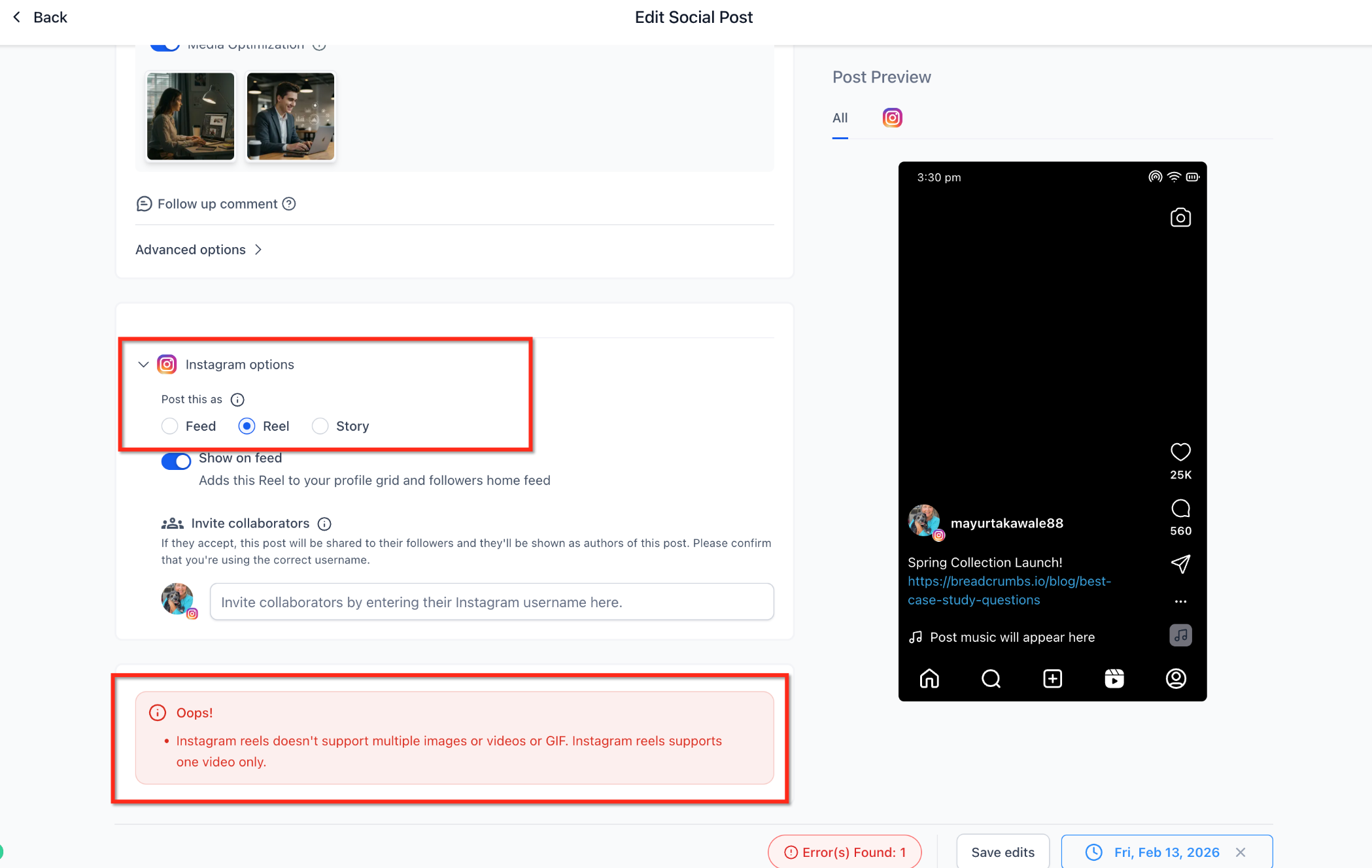
Only one video or reel is supported per post.
Carousels are not supported for reels or videos.
If multiple video URLs are added, the post may fail to schedule.
You can set a custom thumbnail using the thumbnailUrl field. It applies to the first video in the post. Multiple video thumbnails are not supported, and behavior may vary by platform.
Besides adding media URLs in the spreadsheet, you can add or change images during the scheduling flow. On the review screen, you can:
Add new images.
Update existing images.
Upload additional images where the platform supports it.
Use this if you prefer not to include all media URLs directly in the file.
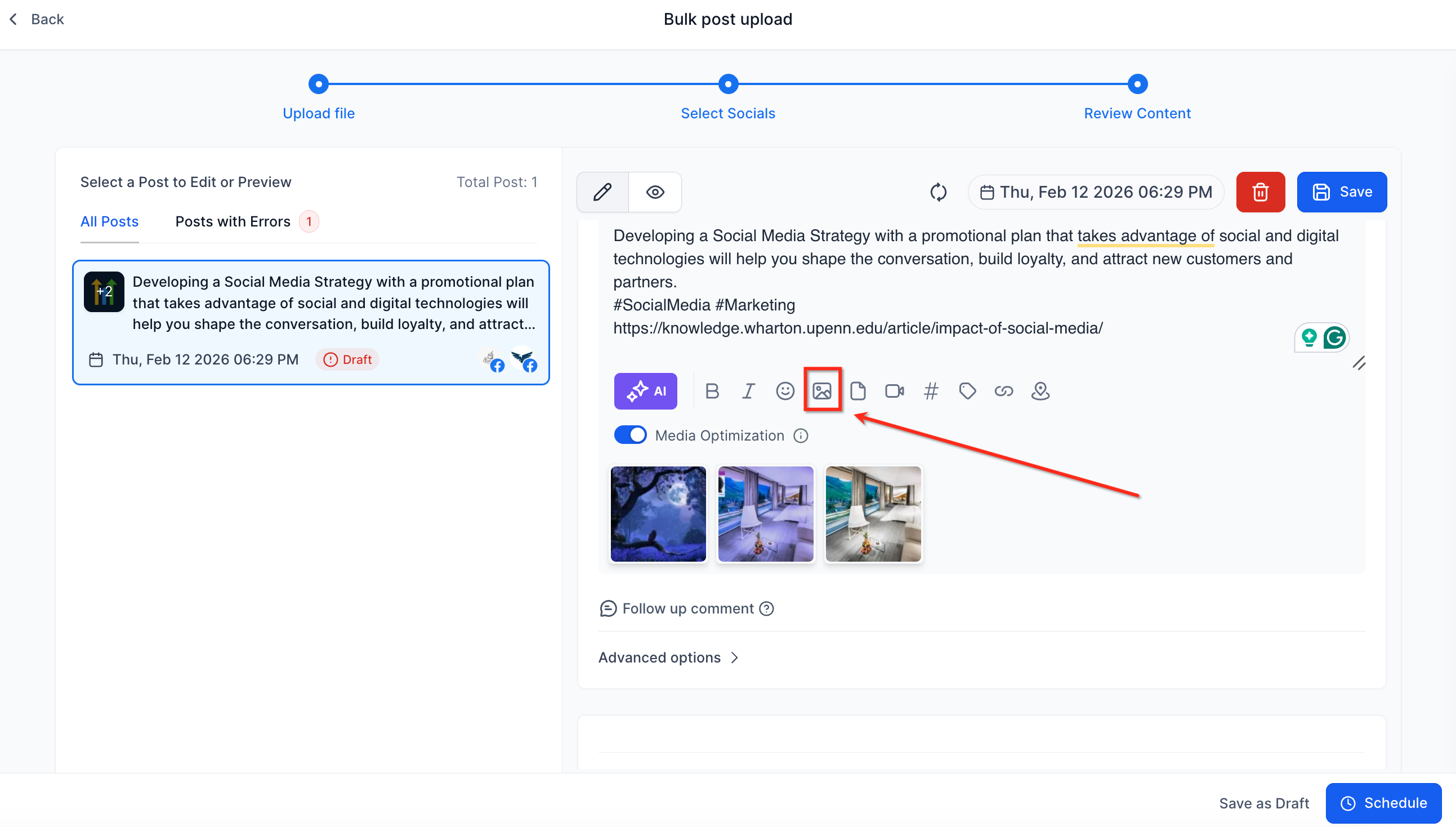
If you select Facebook (which supports multiple images in a carousel) and Google My Business (which supports only one image per post), the first image selected is posted to Google My Business, and all images are posted to Facebook.
Watermark automation: Automatically brand your media with watermarks for a consistent visual identity across posts. Watermarks are applied during import for supported platforms.
Smart media optimization: Images and videos are auto-optimized (resized, compressed, or reformatted) to meet each platform's requirements.
Tag and category assignment: Assign tags and categories in the file to streamline reporting, automation, and organization. Note that tags and categories do not transfer when importing from a snapshot or template into a new account.
Pinterest default board: Set the default board per post so you do not have to assign it manually after upload.
Flexible date-time parsing: The importer recognizes a wide range of common date-time formats, reducing import errors.
Can I use both .csv and .xlsx files? Yes. Both file formats are supported for Basic and Advanced uploads.
How many posts can I schedule in one CSV? Up to 90 posts per CSV. That total is divided across all the social accounts you are posting to.
Why can't I use Google Drive links in my CSV anymore? Due to a change by Google, Google Drive links can no longer be processed during CSV imports. Upload your media to the Media Library and use those links instead.
What happens if my CSV contains errors? The system flags errors during the review step. You must correct them, or remove the affected posts, before importing.
Will tags and categories transfer if I import from a snapshot or template? No. Tags and categories do not transfer when importing from a snapshot or template into a new account.
Are watermarks applied to all media? Watermarks apply to supported image formats as specified in the CSV. Video watermarking is not supported.
Can I schedule stories, reels, and other post types in one upload? Yes. The Advanced CSV supports posts, stories, reels, shorts, Google Business Profile posts, TikTok, Pinterest, and more in a single upload.
How do I specify a Pinterest board in the CSV? Enter the board name or board ID in the Pinterest board column. You can also set a default board in Social Planner Settings.
How do I add a first comment to a post? Use the followUpComment column in the Advanced template for supported platforms.
Should I put patient information in my bulk posts? No. Keep protected health information out of captions, comments, and media. Do not include patient names, treatment details, or before-and-after photos without proper written consent.
