Social Planner can automatically turn new items from an RSS or Atom feed into social posts on your connected accounts. This is a hands-off way to share your latest blog articles, videos, podcast episodes, or news the moment they publish, keeping your feed active without manual reposting.
Note: Posting to X (formerly Twitter) via RSS is not supported due to API restrictions. All other supported networks in Social Planner can be used with RSS.
RSS (Really Simple Syndication) is a useful way to manage and curate content for social media:
Content curation: Aggregate content from various sources into one feed to easily find items to share.
Automated sharing: Auto-post content to your social accounts to save time and keep a steady flow.
Stay current: Subscribe to industry blogs and news to create timely, relevant posts.
Less overload: Consolidate content in one place instead of browsing many sites.
Consistent cadence: Keep a steady posting schedule with less manual effort.
A valid RSS or Atom feed URL (for example, from your blog or YouTube channel).
Social accounts connected in Marketing > Social Planner > Settings (for example, Facebook Page, Instagram Business, LinkedIn profile or page, Google Business Profile, or Pinterest).
RSS feeds are still widely available, though they can be harder to spot since browsers no longer highlight them. Here are quick ways to locate one when a simple search does not work:
WordPress sites (a large share of the web): add /feed to the end of the URL, for example https://yoursite.com/feed.
Tumblr sites: add /rss to the URL, for example https://example.tumblr.com/rss.
Blogger sites: add feeds/posts/default to the end, for example example.blogspot.com/feeds/posts/default.
Medium publications: insert /feed/ before the publication name, so medium.com/example-site becomes medium.com/feed/example-site.
YouTube channels: the channel page URL can often be used directly as a feed in an RSS reader.
If none of these work, you can check a page's source code. Right-click an empty area of the page and choose View Page Source (wording varies by browser).
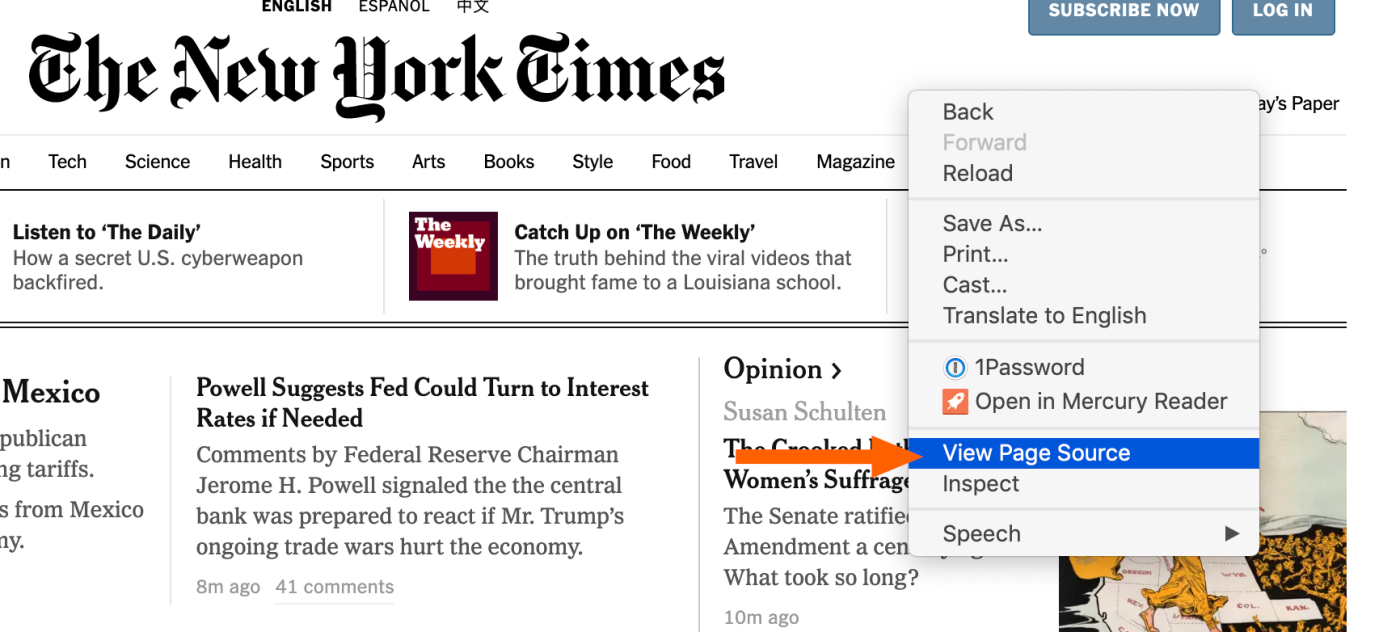
Then search the code with Ctrl+F (Windows or Linux) or Command+F (Mac) for "rss".

If "rss" returns nothing, try "atom" instead. Look for a feed URL, then copy it into Social Planner.
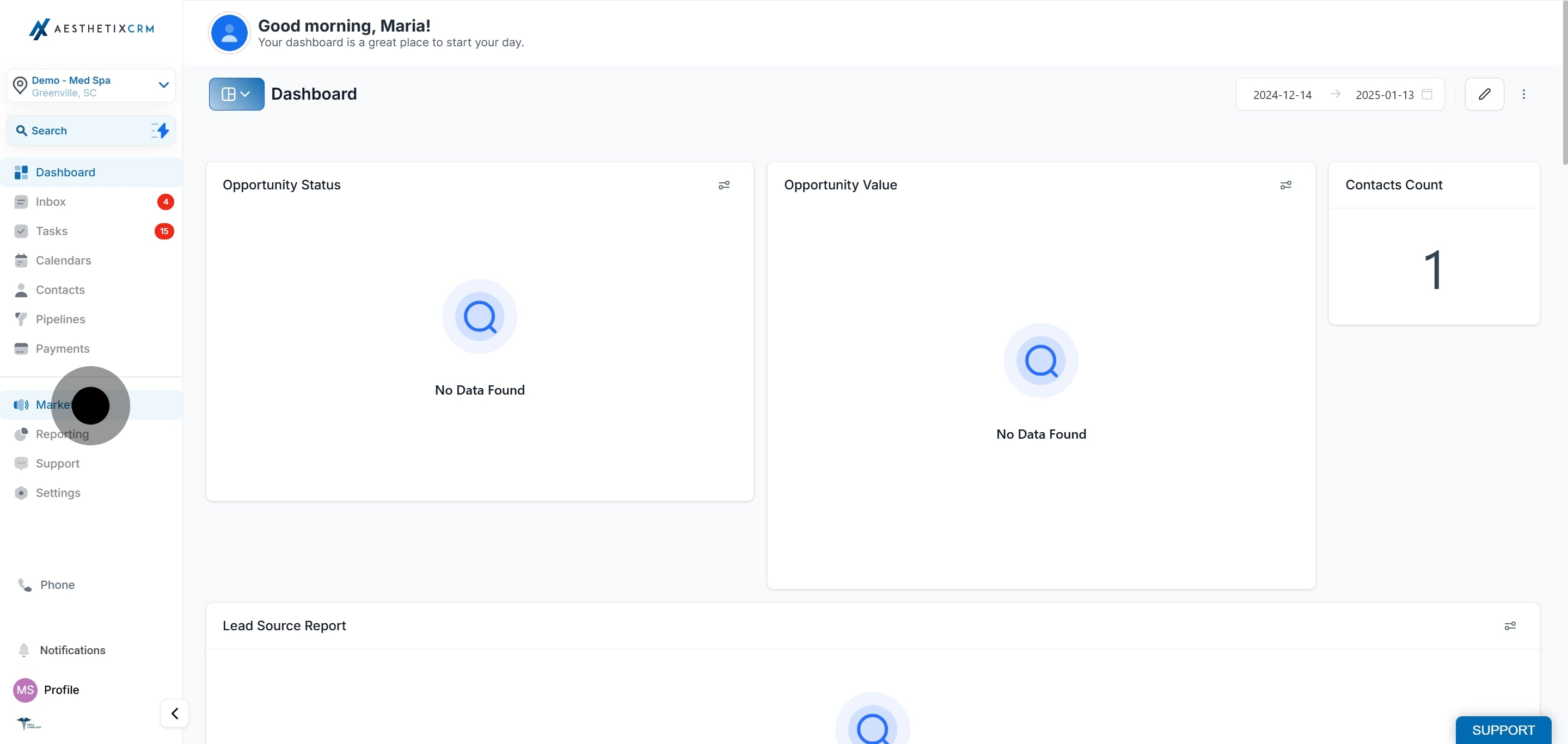
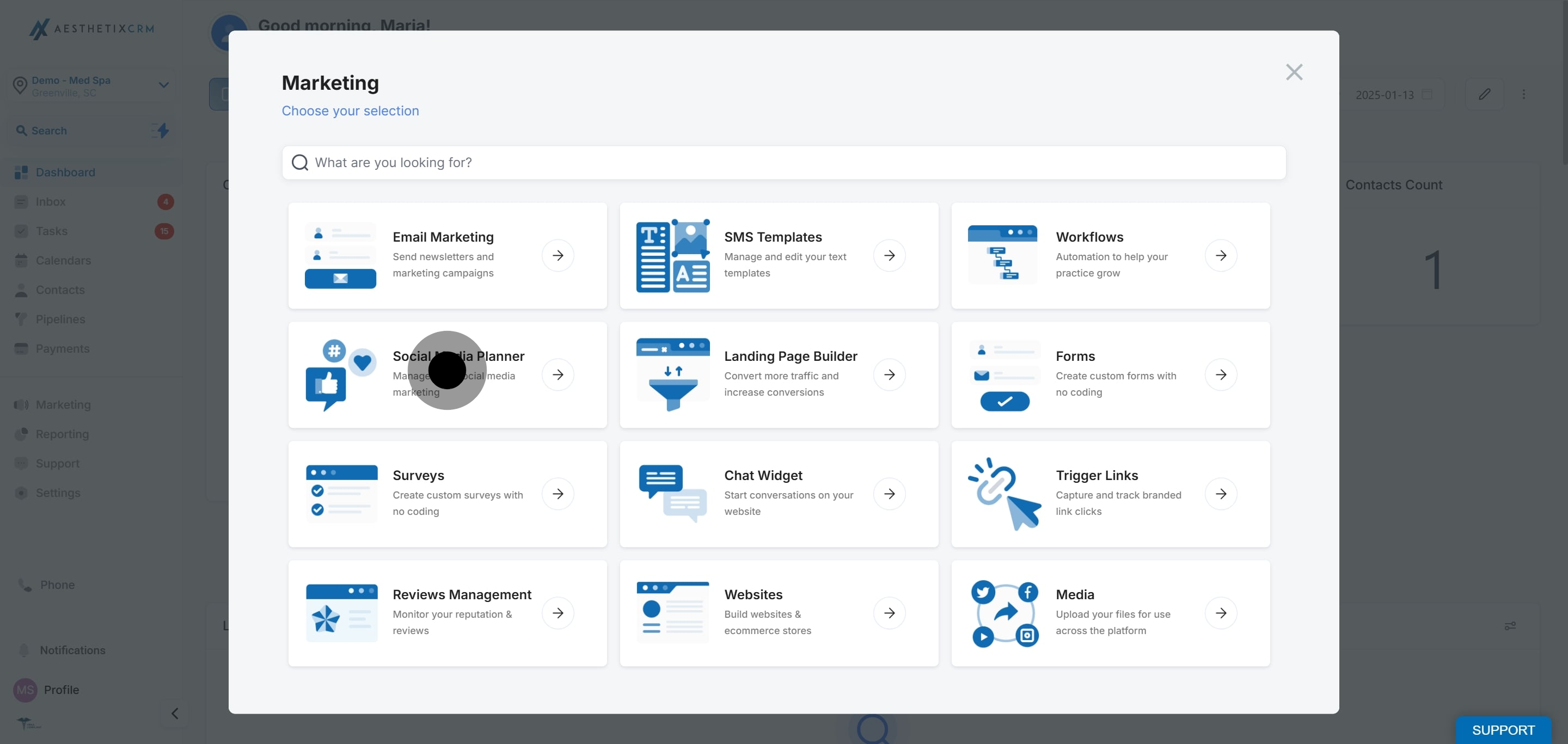
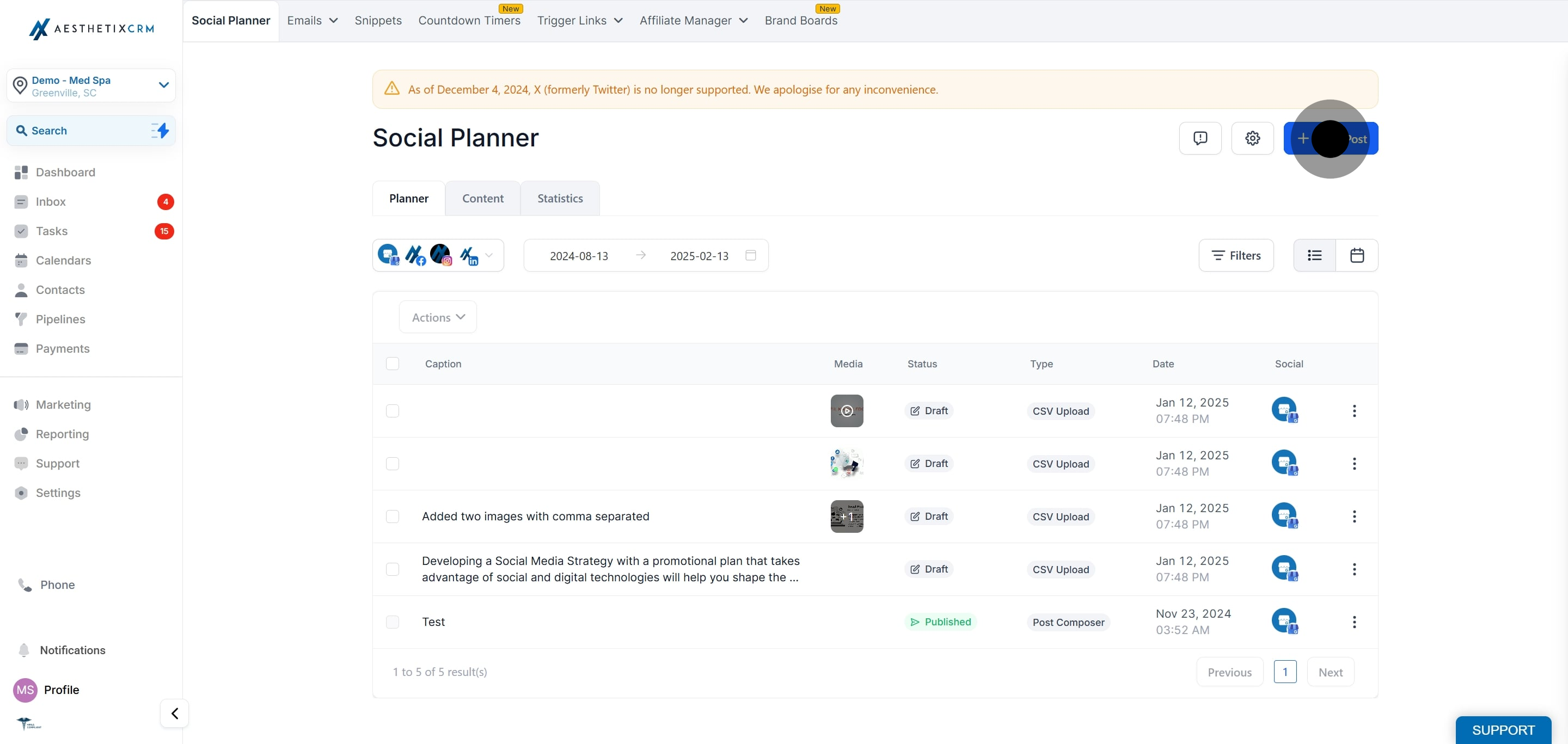
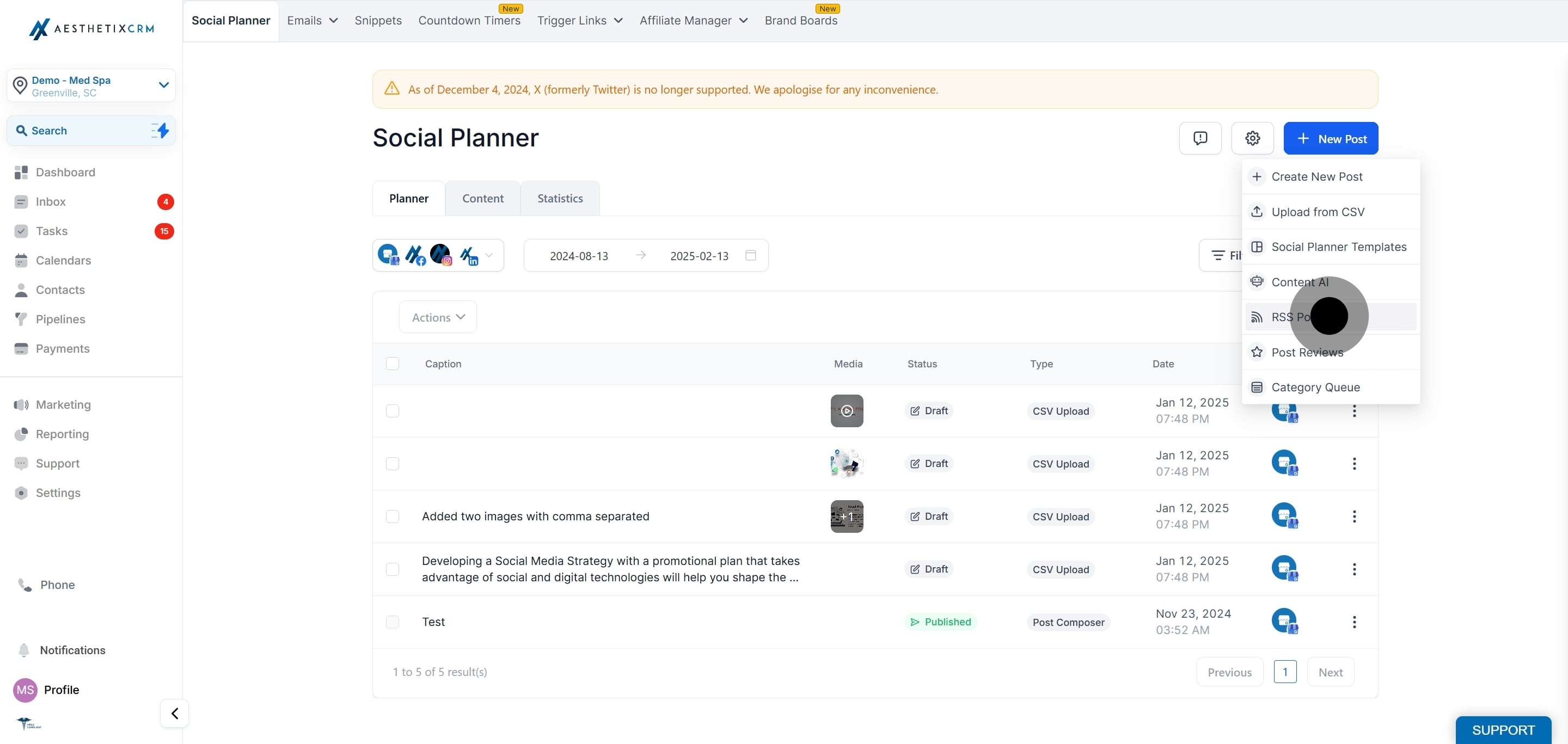
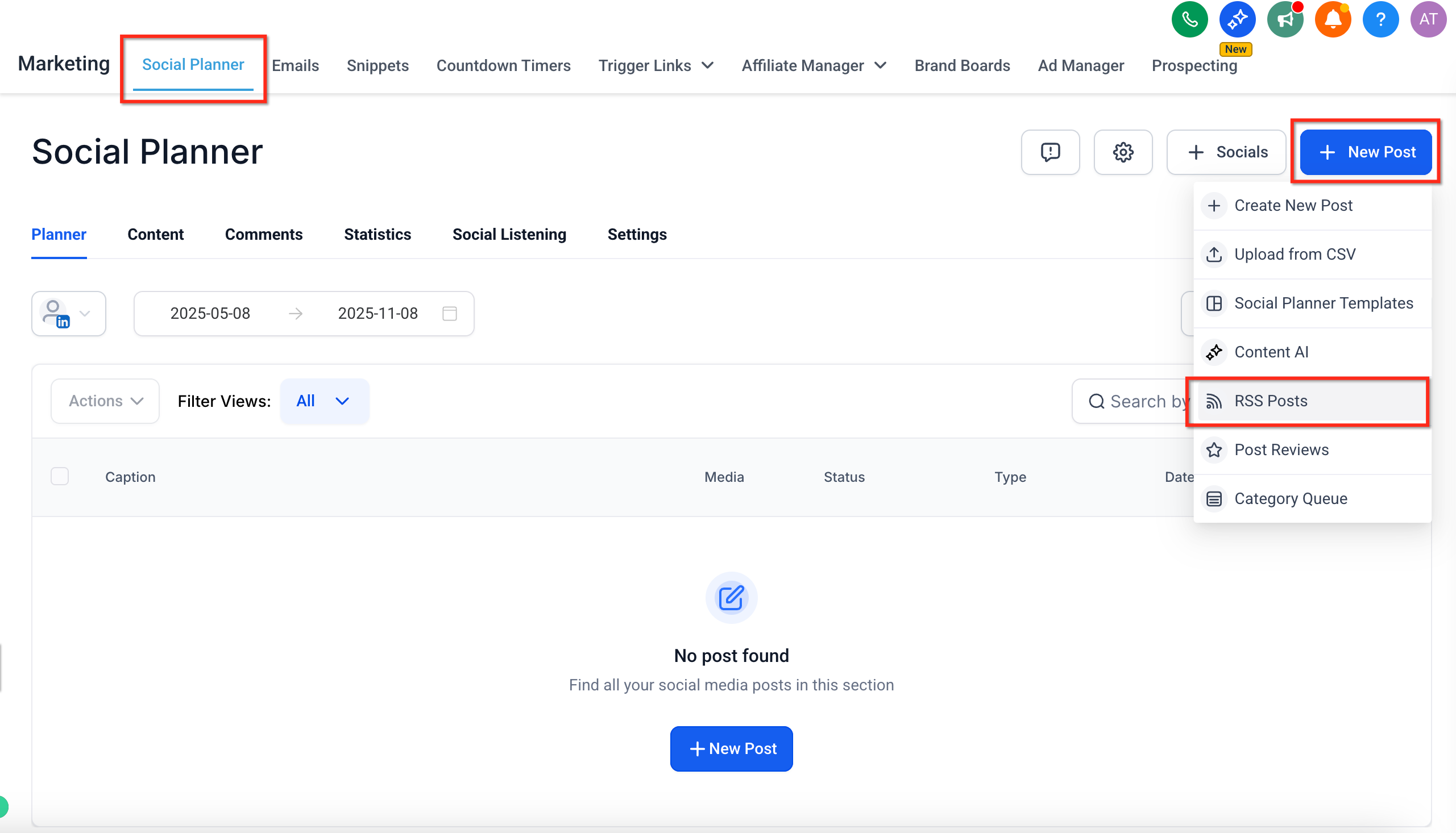
Go to Marketing, click Social Planner, then click New Post and select the RSS Post option.
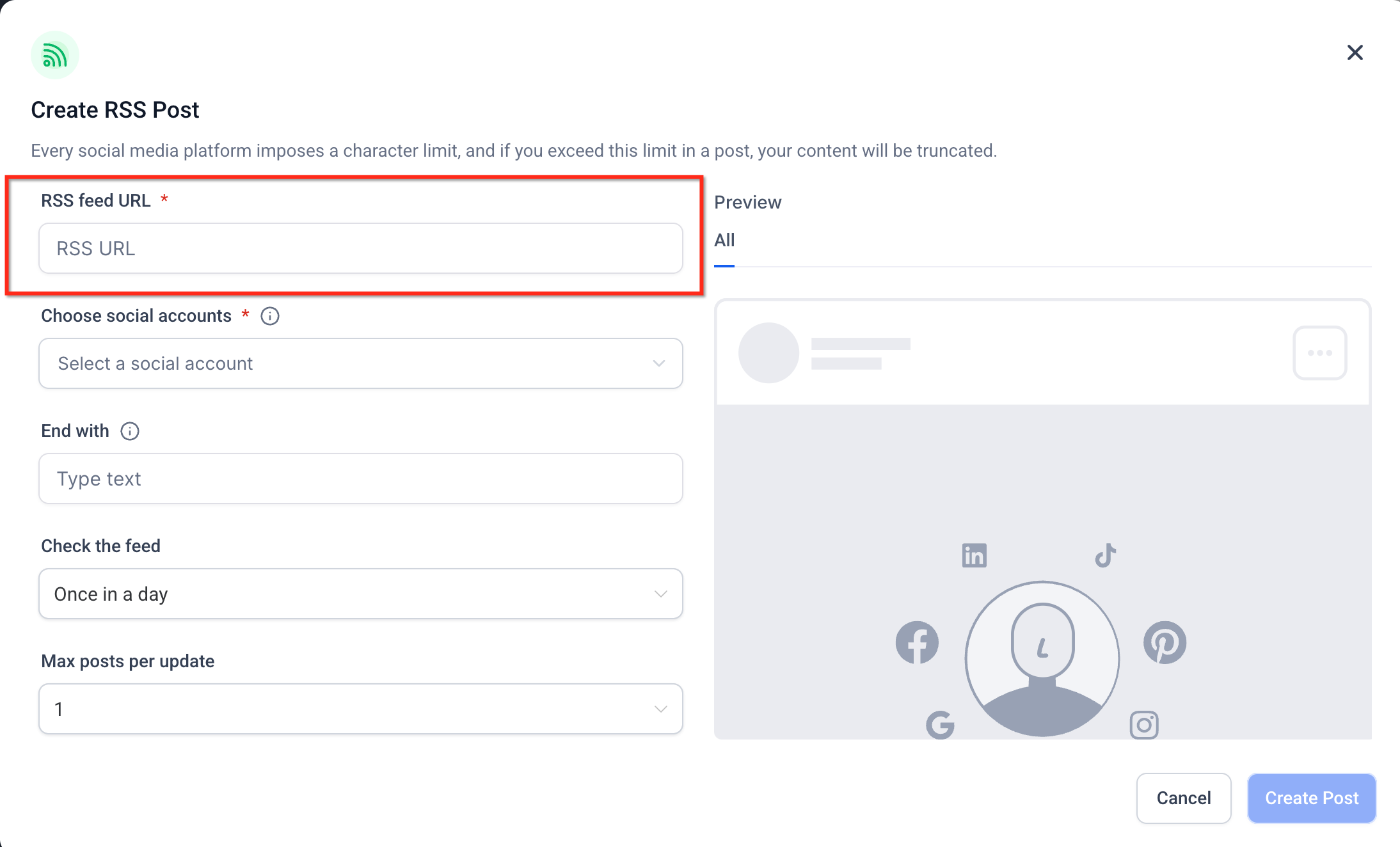
Add the URL of your RSS feed (see the section above for how to find it).
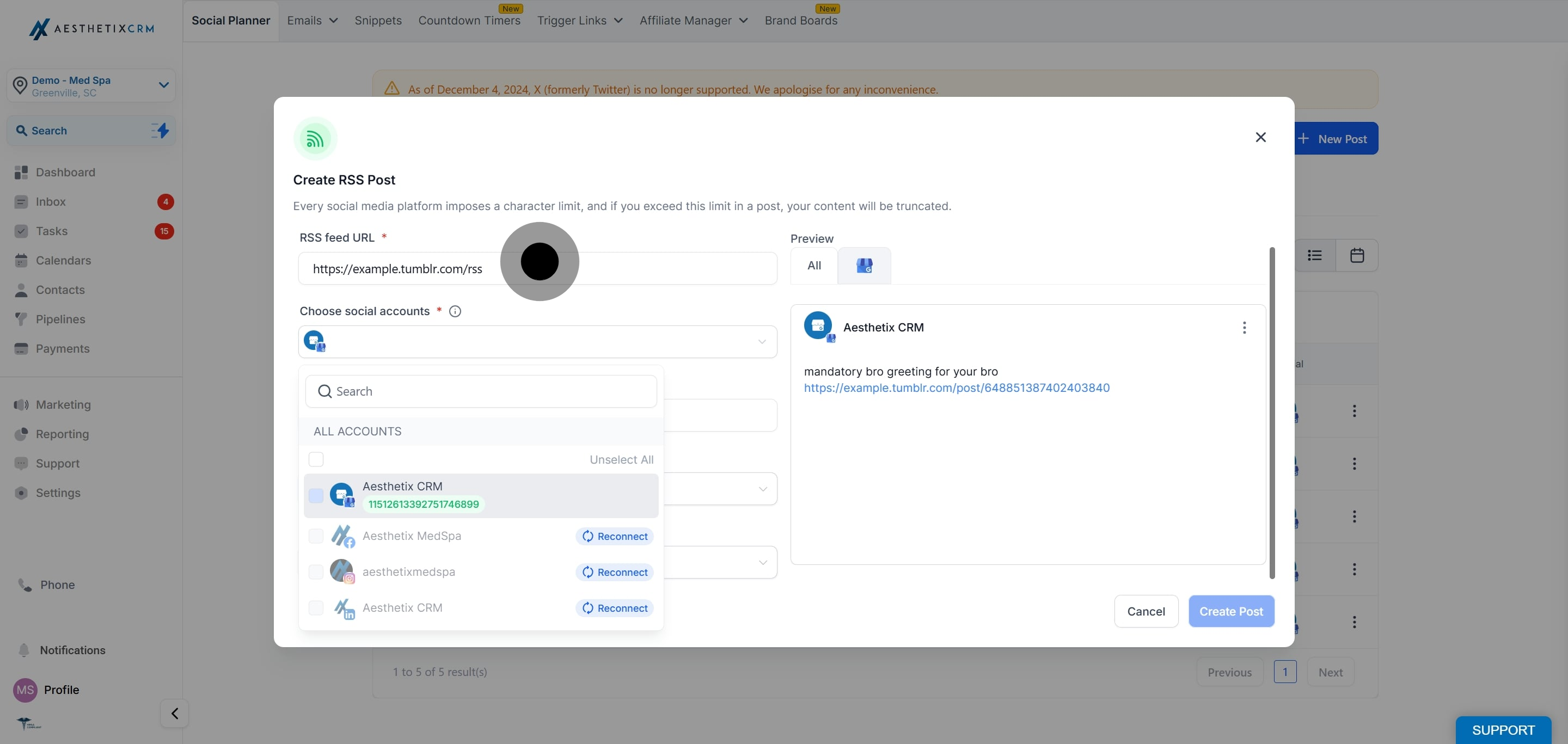
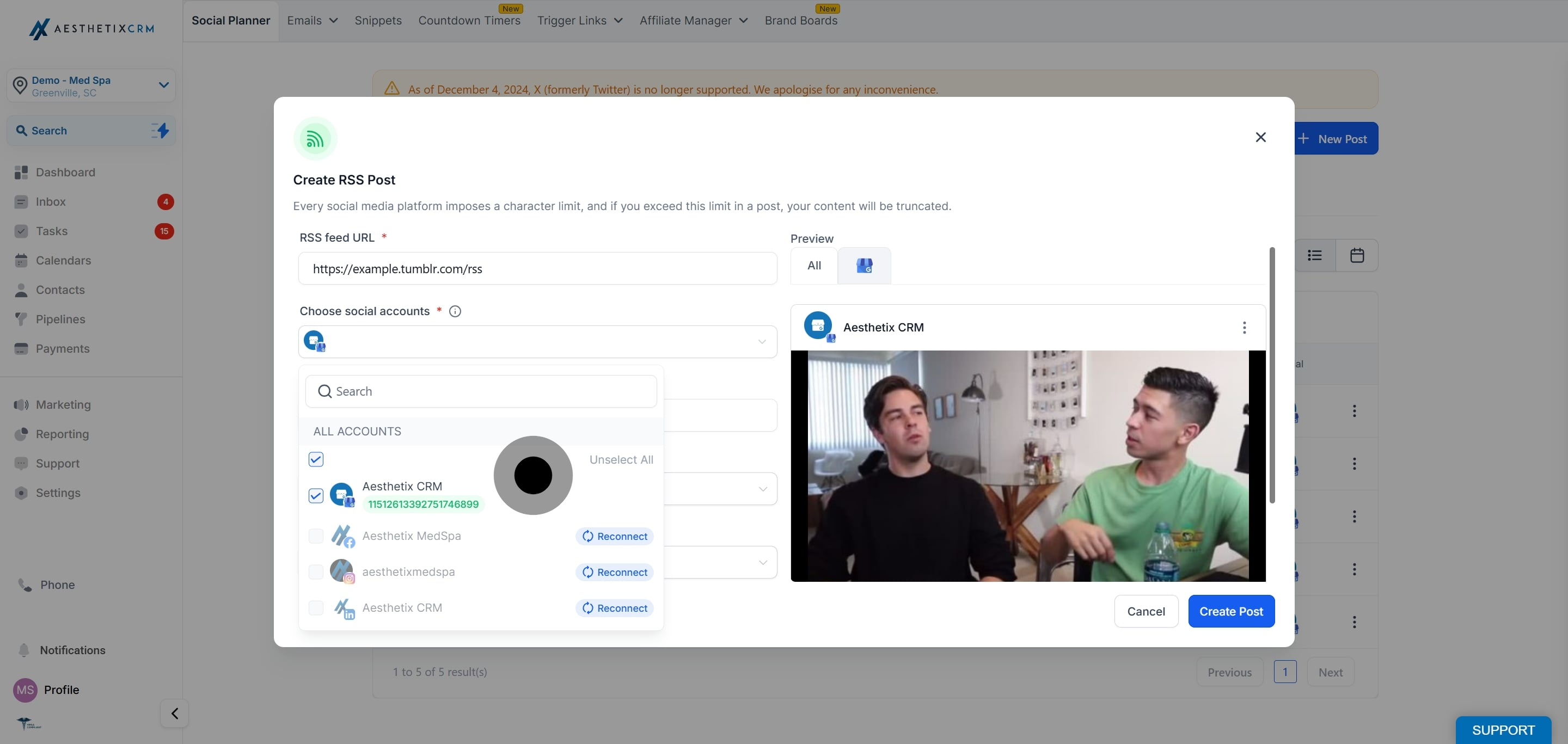
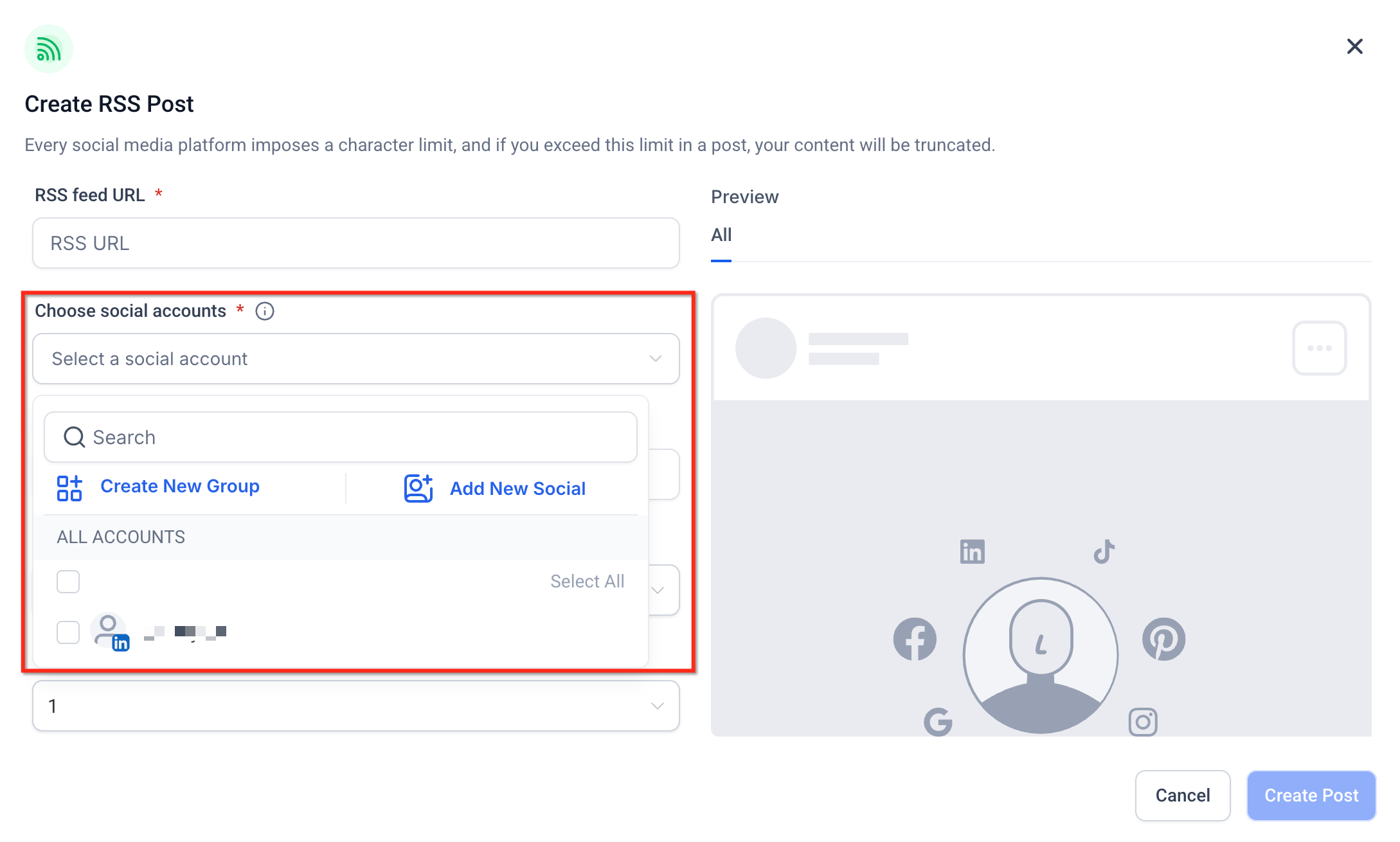
Choose the social accounts where you want to publish. X (formerly Twitter) cannot be selected because RSS posting to it is not supported.
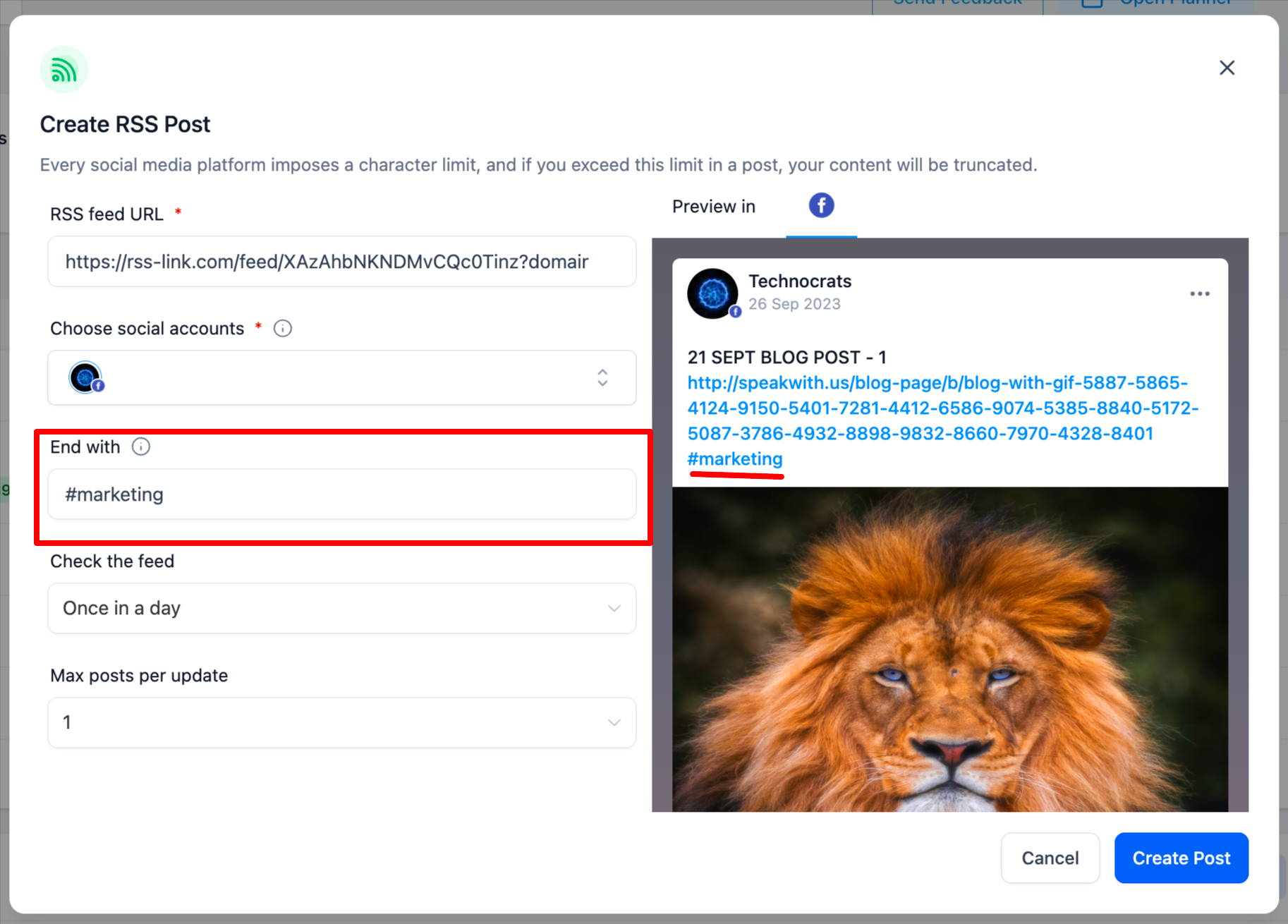
Use the End with option to append text, hashtags, or links to every RSS post.
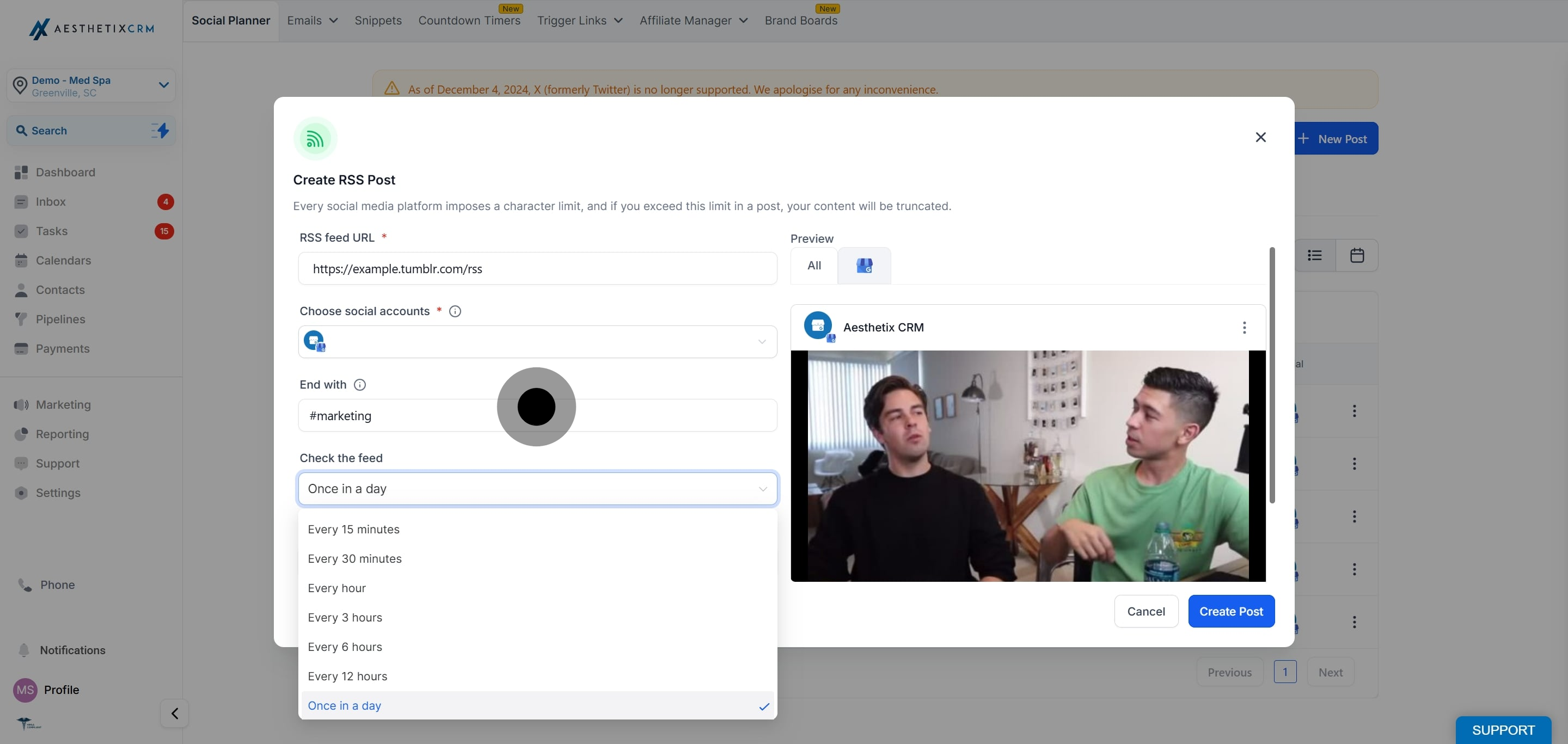
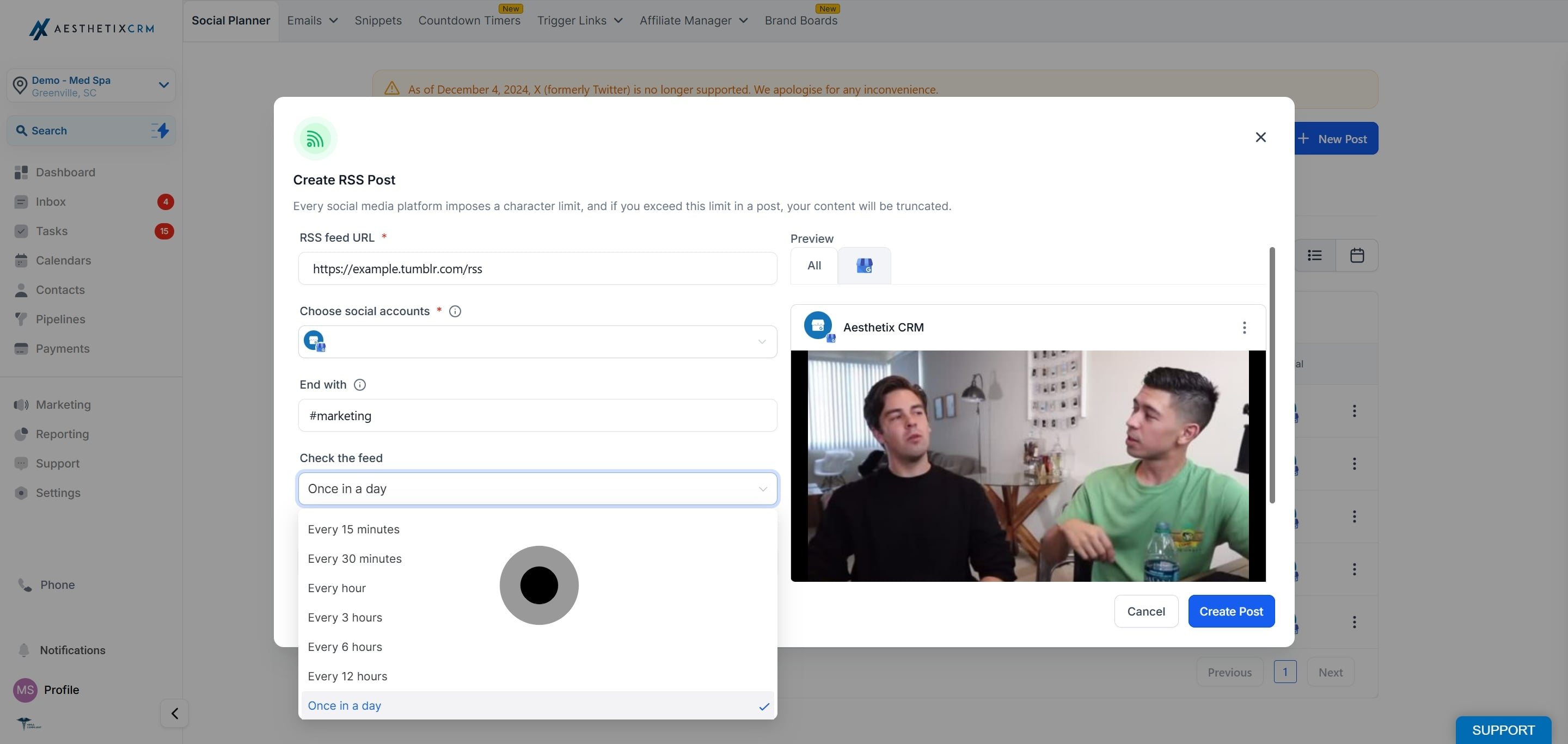
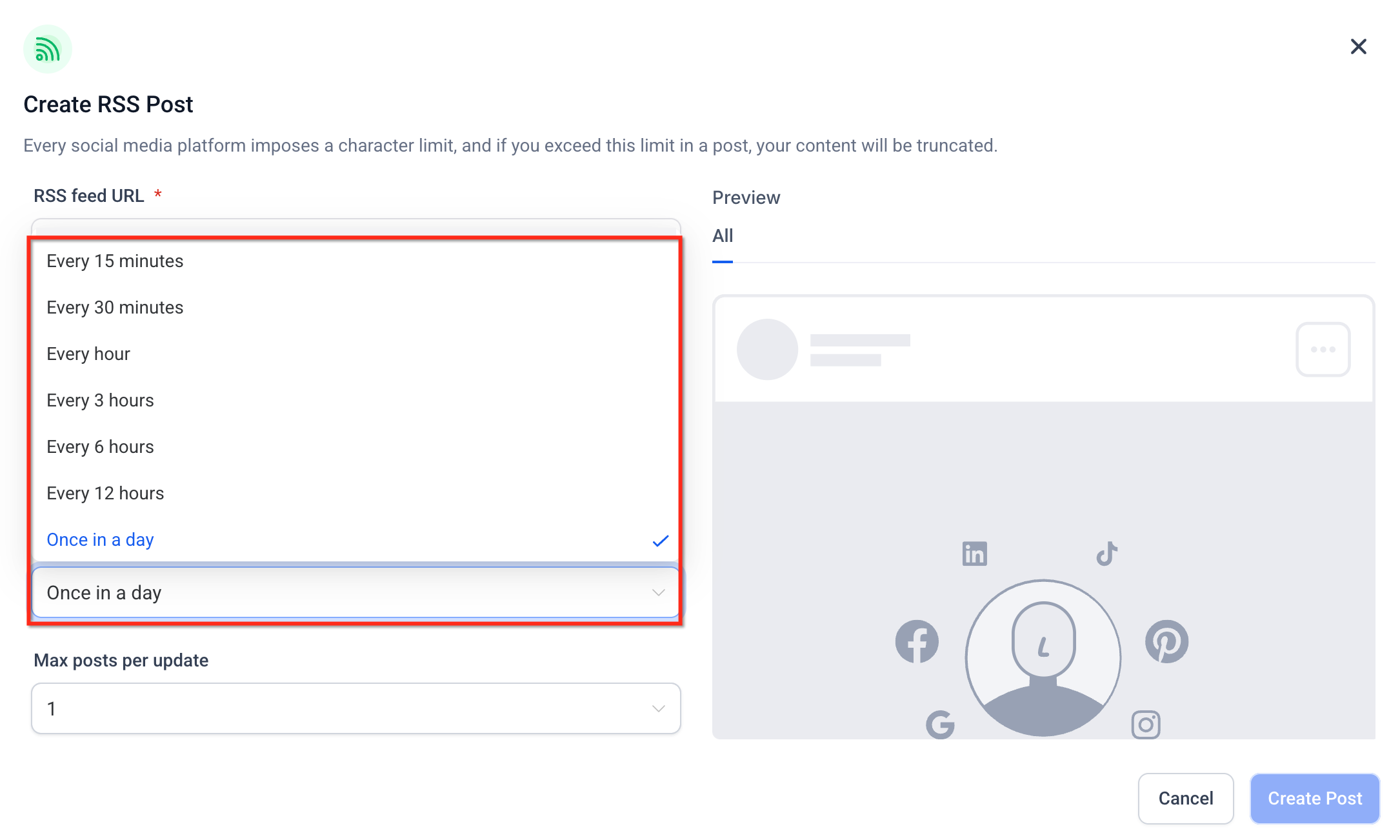
Choose how often Social Planner checks the feed for new content, from every 5 minutes up to once a day.
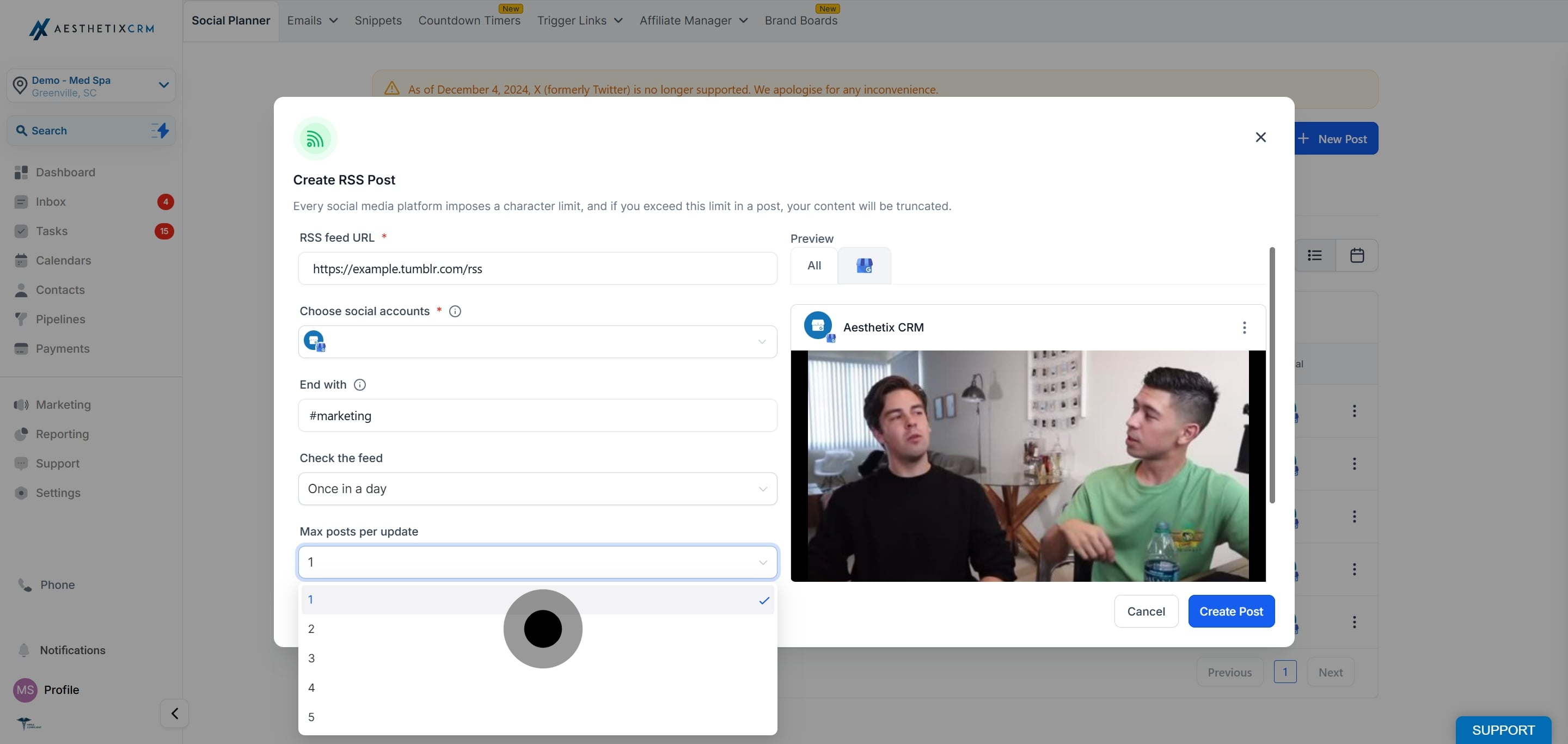
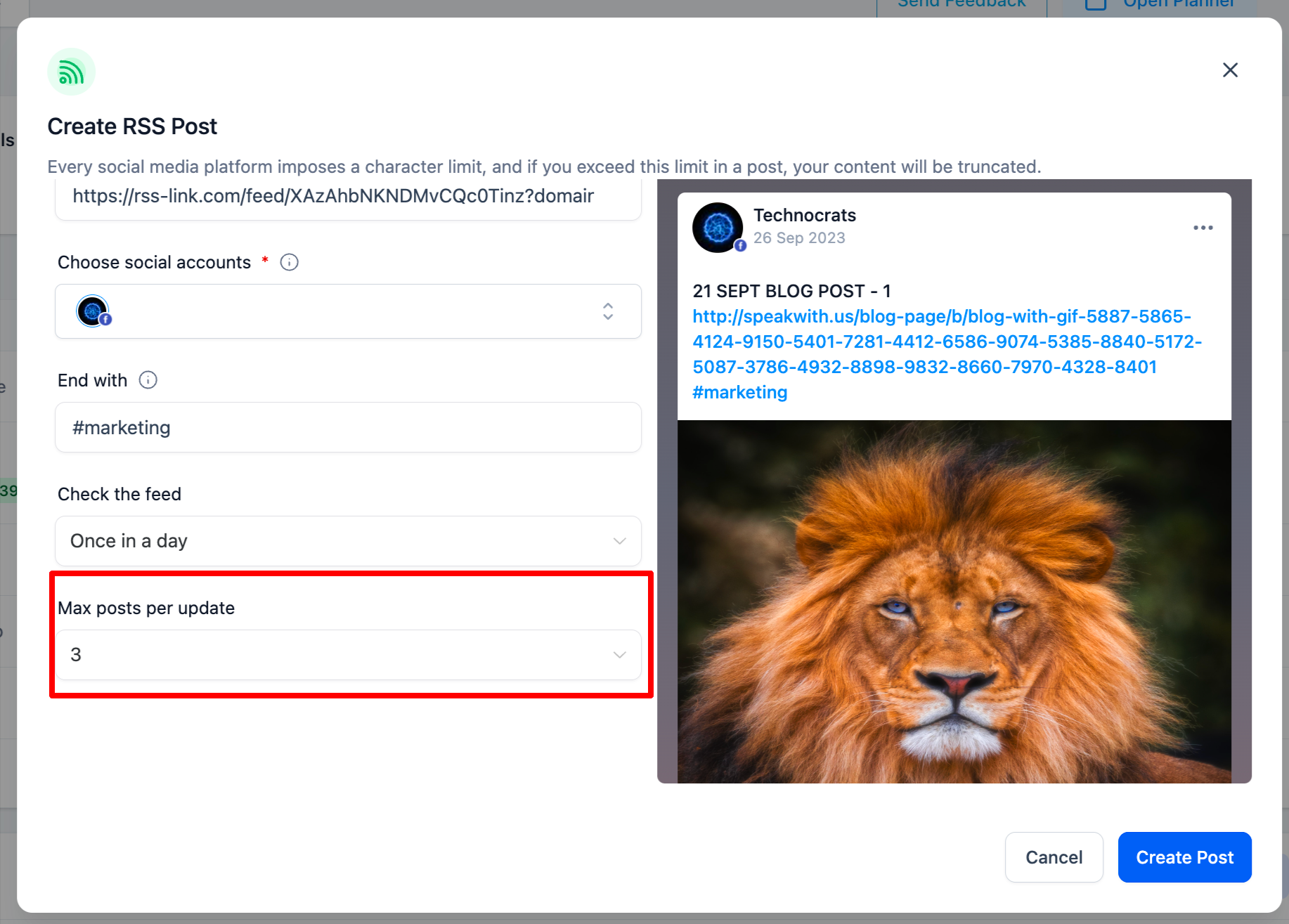
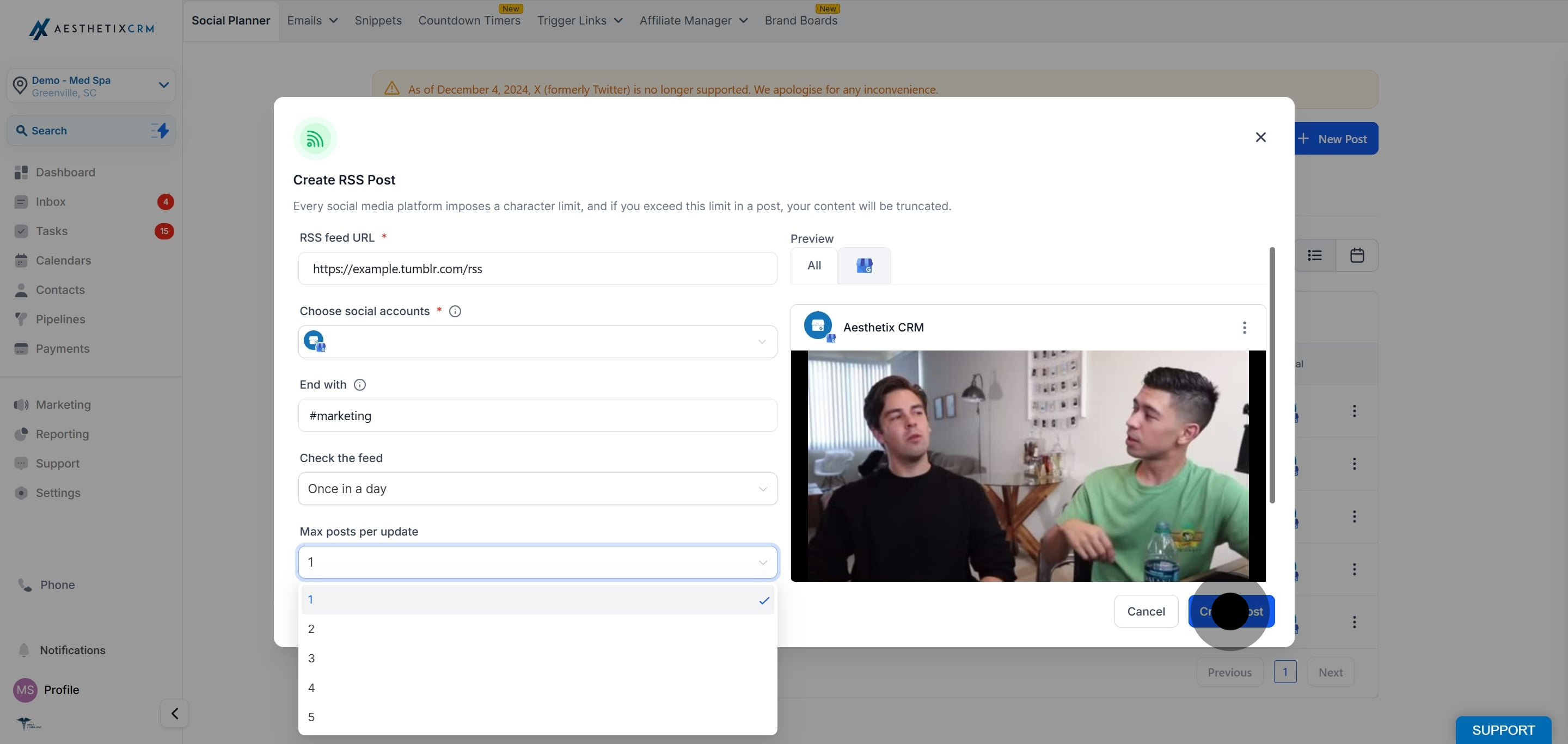
Choose how many unique items to fetch from the feed each time it checks for new content (minimum 1, maximum 5).
For example, choosing 3 pulls up to the 3 most recent items at the time of posting.
This does not republish the same post multiple times. Each fetched item is published once as its own social post.
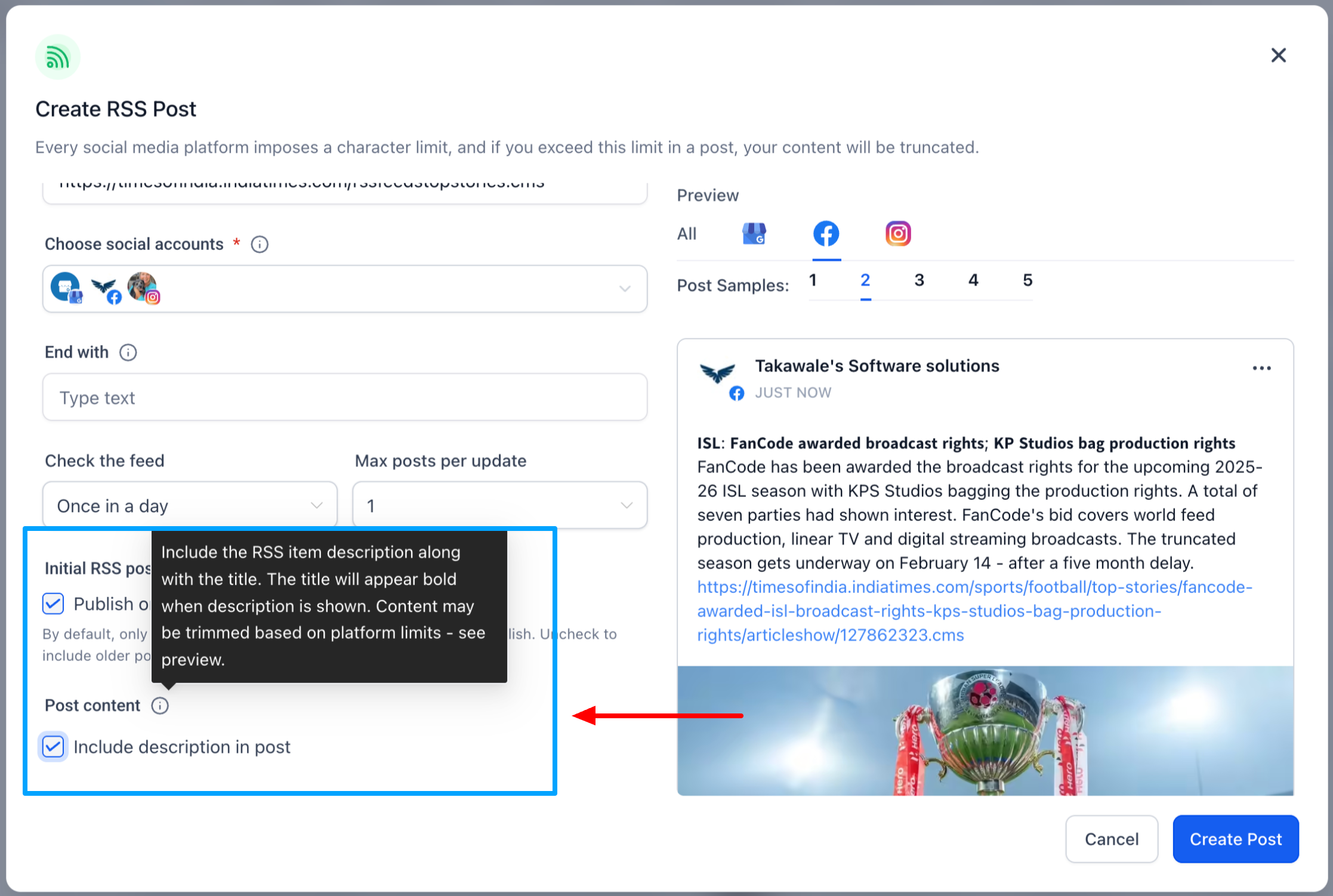
You can choose whether to include the RSS item description when publishing:
Enable Include Description to publish posts with both the title and description from the feed.
Disable it to publish title-only posts.
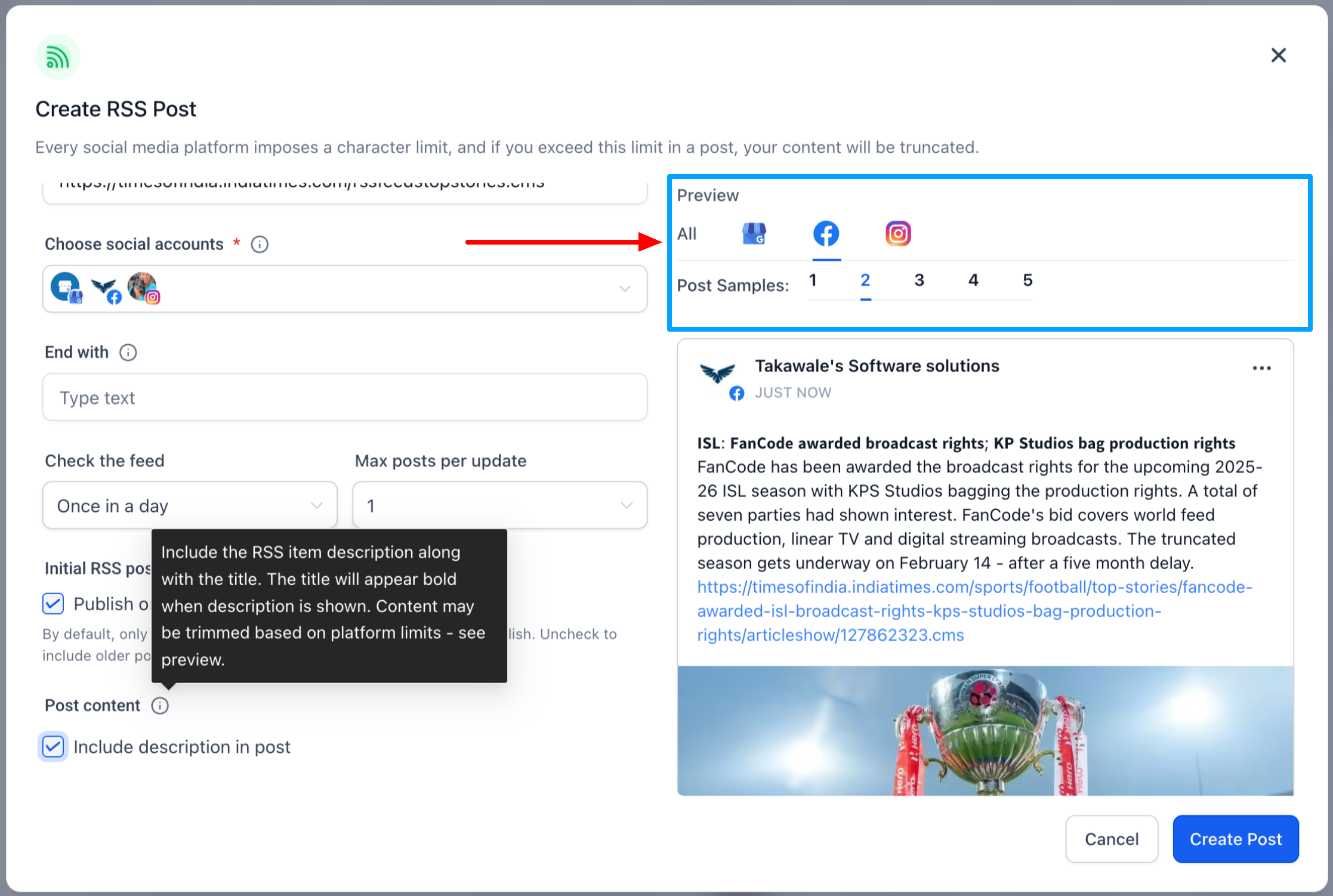
Use the multi-item preview (up to 5 items) to review formatting, length, and any truncation before saving.
When you publish RSS posts to multiple networks, Social Planner generates post text per platform based on each network's character limits. This reduces unexpected truncation when the same item posts to different platforms. Use the multi-item preview to confirm formatting and see where truncation may occur before you save.
Click Create Post to activate the RSS automation.
Social Planner tracks RSS feed items for 90 days to prevent missed or duplicate posts. When the feed syncs, it checks each item individually, identifying it by its GUID (or by the item's link and title if no GUID is available). This lets Social Planner:
Publish each valid feed item once
Skip duplicate feed items
Detect items that appear late or out of order
Keep existing RSS automations working without manual changes
Can I change the frequency later?
Yes. Edit the RSS post to adjust the update time or the maximum number of posts.
Will the same article post multiple times?
No. Each item is published once. If there is no new content, nothing is posted.
Which networks are supported?
Most Social Planner networks can be selected. X (formerly Twitter) is not supported for RSS posting.
Do images appear automatically?
Link previews are controlled by each social network. For the most reliable visuals, include featured images and Open Graph tags on the source page.
Why does the same RSS item look different on different networks?
Each network has its own character limits, so Social Planner generates the post text per platform. The same item may truncate differently depending on the network.
Can I add my own hashtags or a link to every RSS post?
Yes. Use the End with option to append text, hashtags, or a link to each post the feed generates.
How often does Social Planner check my feed?
You set this in the update frequency step, anywhere from every 5 minutes to once a day.
