The Category Queue in Social Planner is a way to automate and repurpose your evergreen content. Instead of scheduling one post at a time, you group posts under a category and set a posting schedule. Social Planner then cycles through every post in that category, and when it reaches the end it resets and starts again. This keeps a steady stream of content flowing without manually rescheduling each item, which is ideal for a med spa's ongoing treatment education, testimonials, and standing promotions.
A category queue lets you plan evergreen content by reusing already-published and future posts tagged to a category, or by adding a new category with new content. Rather than schedule a single post, you schedule a whole category of posts, and the system publishes them in a recurring loop.
Automated evergreen scheduling: Content cycles through a category and posts consistently without manual rescheduling.
Reuse published and future content: Repurpose already-published posts and automatically include future posts tagged to the same category.
Priority control for new content: Choose to move newer content to the front of the queue to keep your feed fresh.
Custom scheduling by category: Set the specific days and times each queue publishes so posts go live when your audience is active.
Future-proof planning: Enable future posting so new content tagged to the category flows into your ongoing schedule automatically.
To build a queue from existing content, you should already have a set of published posts tagged to a category. You can also create brand-new posts and a new category as you build the queue.
Go to Marketing > Social Planner.
Click + New Post > Category Queue.
Select a Category to build the queue from an existing category, or add a new one by typing the category name.
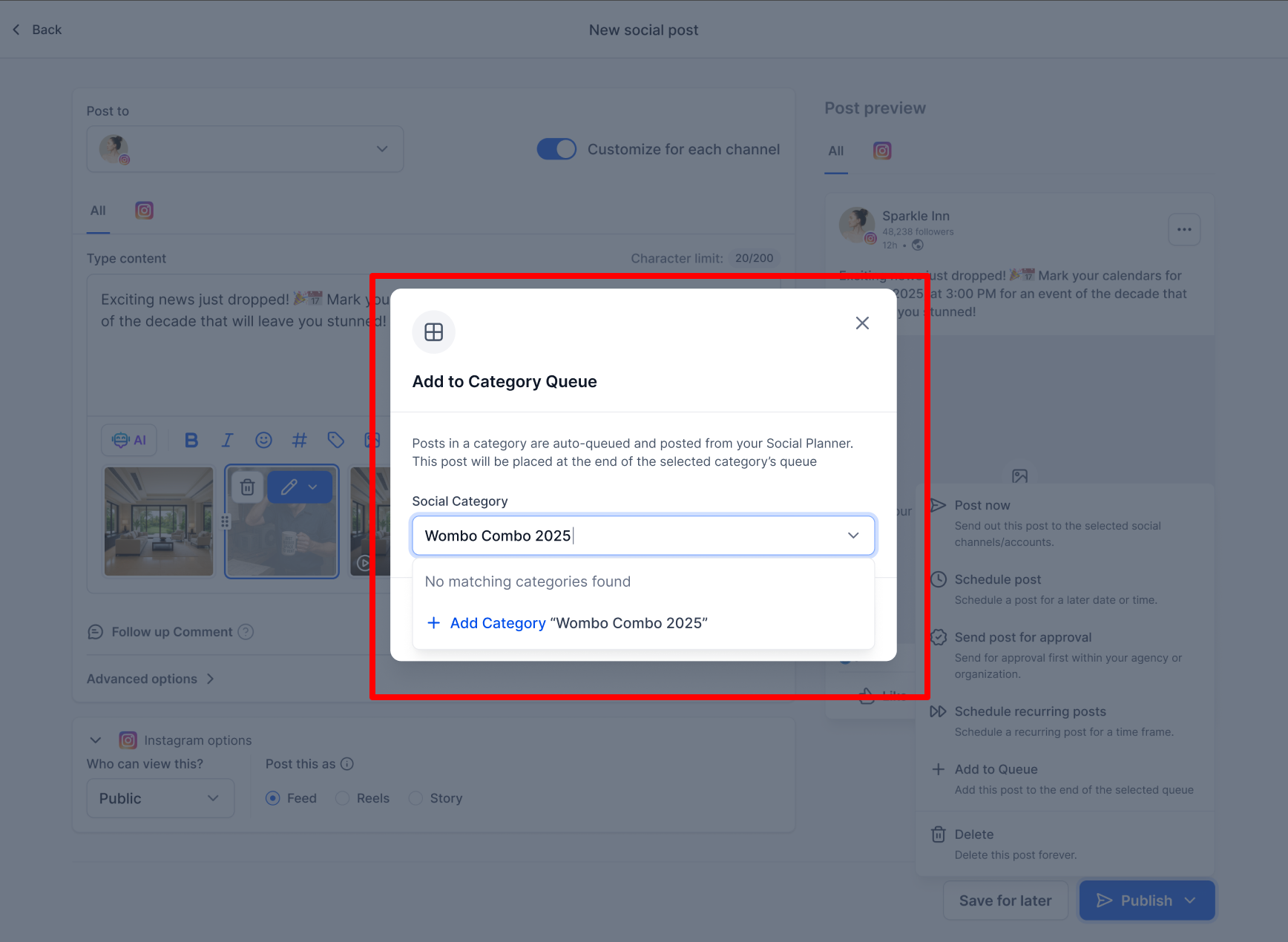
Set your content options:
Future Posting: adds any upcoming content published or added under this category to the queue.
Prioritise Content: adds new content to the front of the queue so it publishes first.
Click Continue.
Set the posting schedule: choose the preferred days and times for your posts.
Click Queue Posts.
Review and edit the media or content of each post as needed.
Use New Post to add a new post into the queue at any position in the sequence.
Optionally add multiple content variations so posts shuffle between versions and media formats to stay unique.
Fix any errors flagged by the caution, error, and warning messages.
Click Queue Post to schedule the posts once no errors remain.
You can also Save (as Draft), Delete, or Reset the queue.
From the Content tab, you can pause or resume a category queue at any time by toggling it on or off.
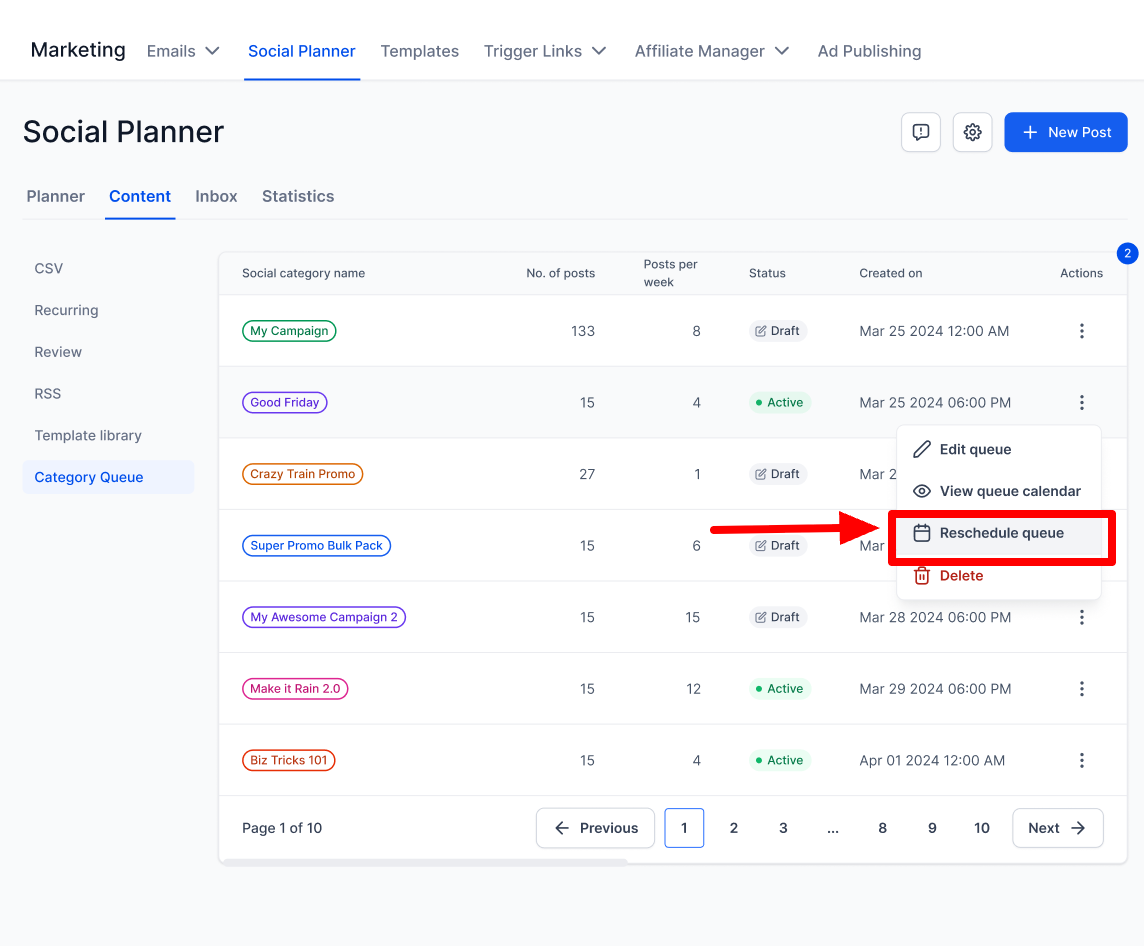
You can edit, reorder, reschedule, and control how new posts are added to a queue without rebuilding it. Click an existing category queue and open the three-dot menu to see the editing options.
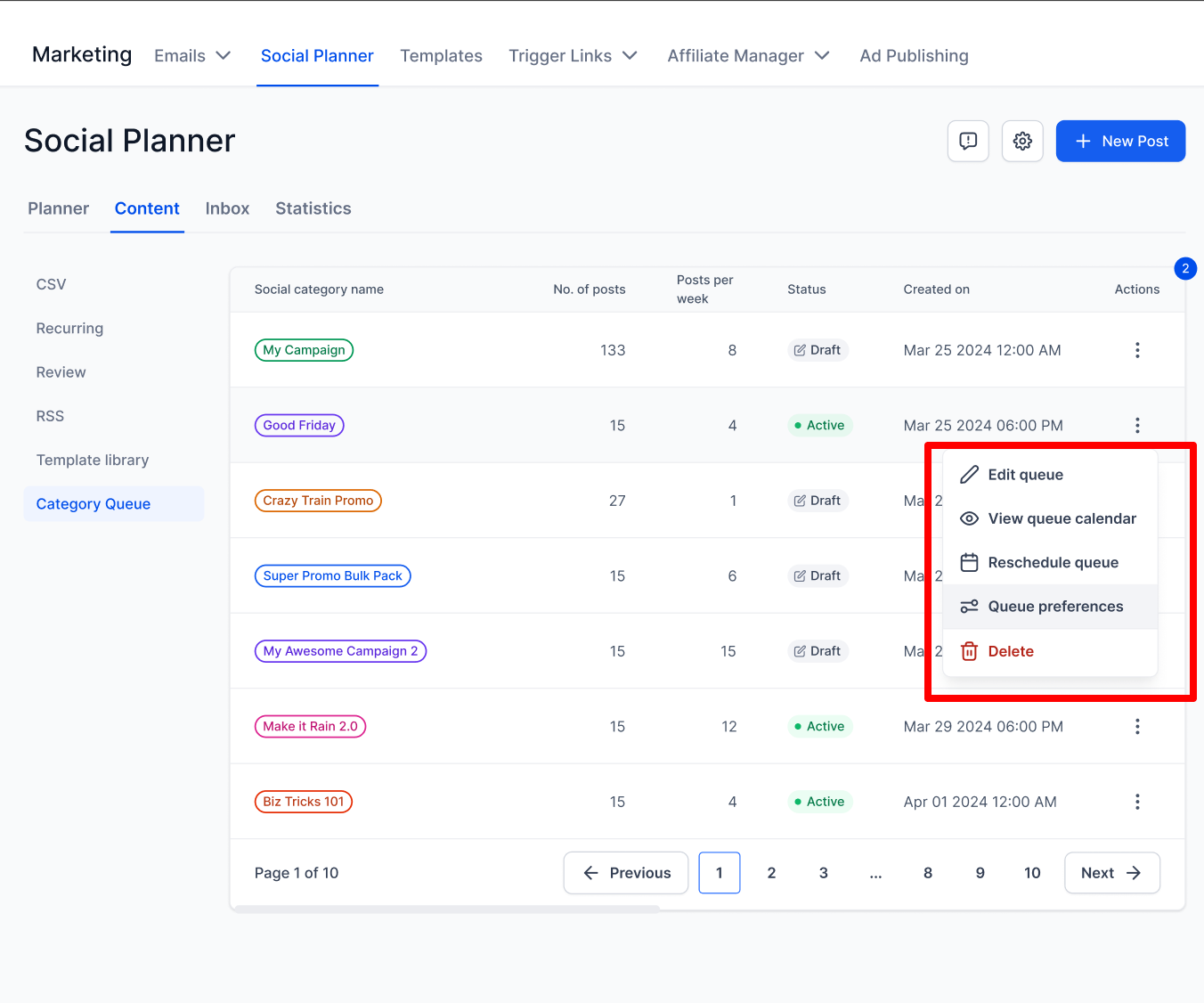
Update the details of an existing queue without deleting or recreating it. You can edit:
Post details, caption, and media
Posting frequency (daily, weekly, and so on)
The queue's time slots
Post order (drag and drop to rearrange)
When you add a new post to the queue, you control where it appears:
Prioritise New Content: checked adds the post to the top of the queue; unchecked adds it to the end.
Enable Future Queue: automatically adds all posts with the category attached into the category queue.
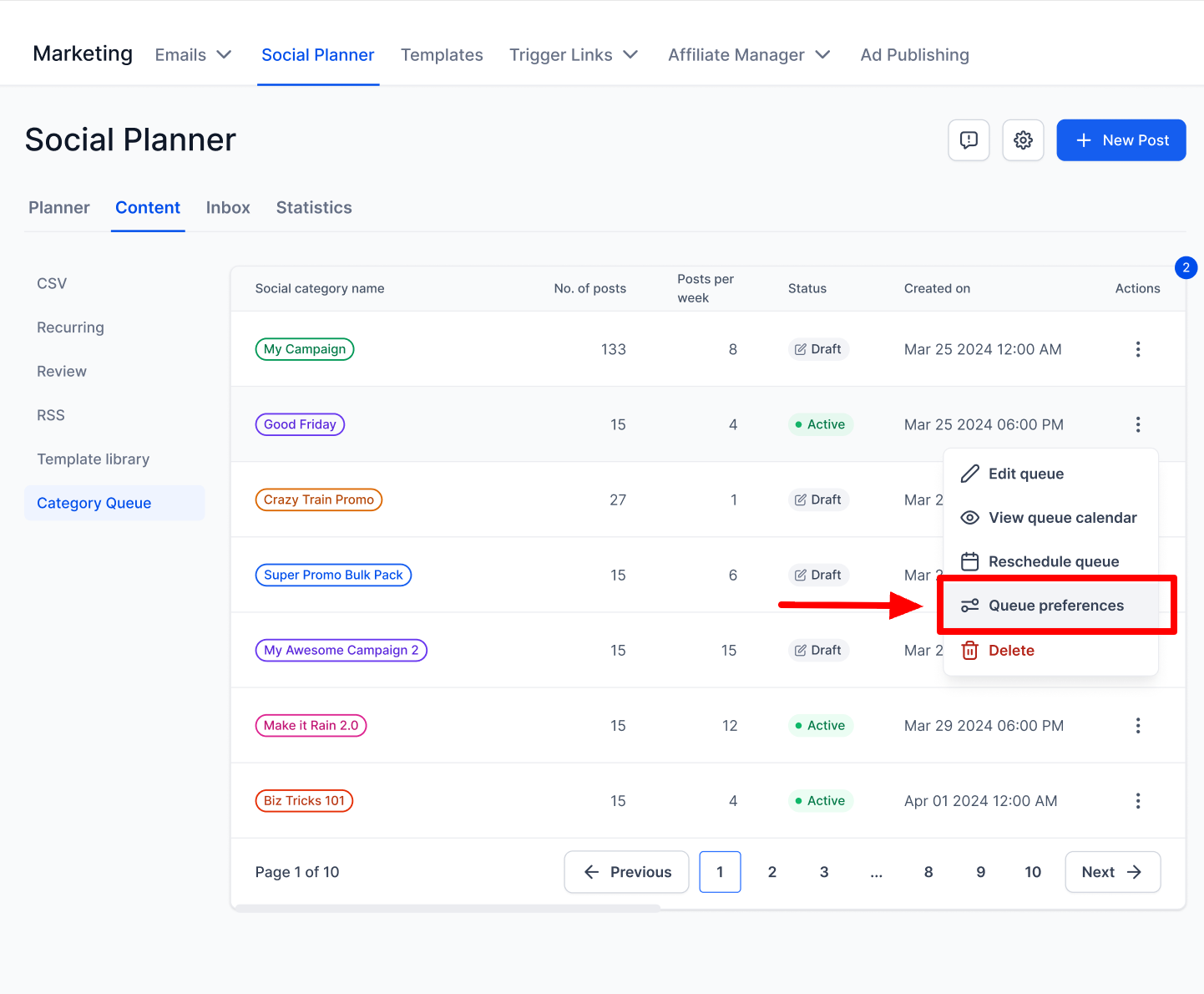
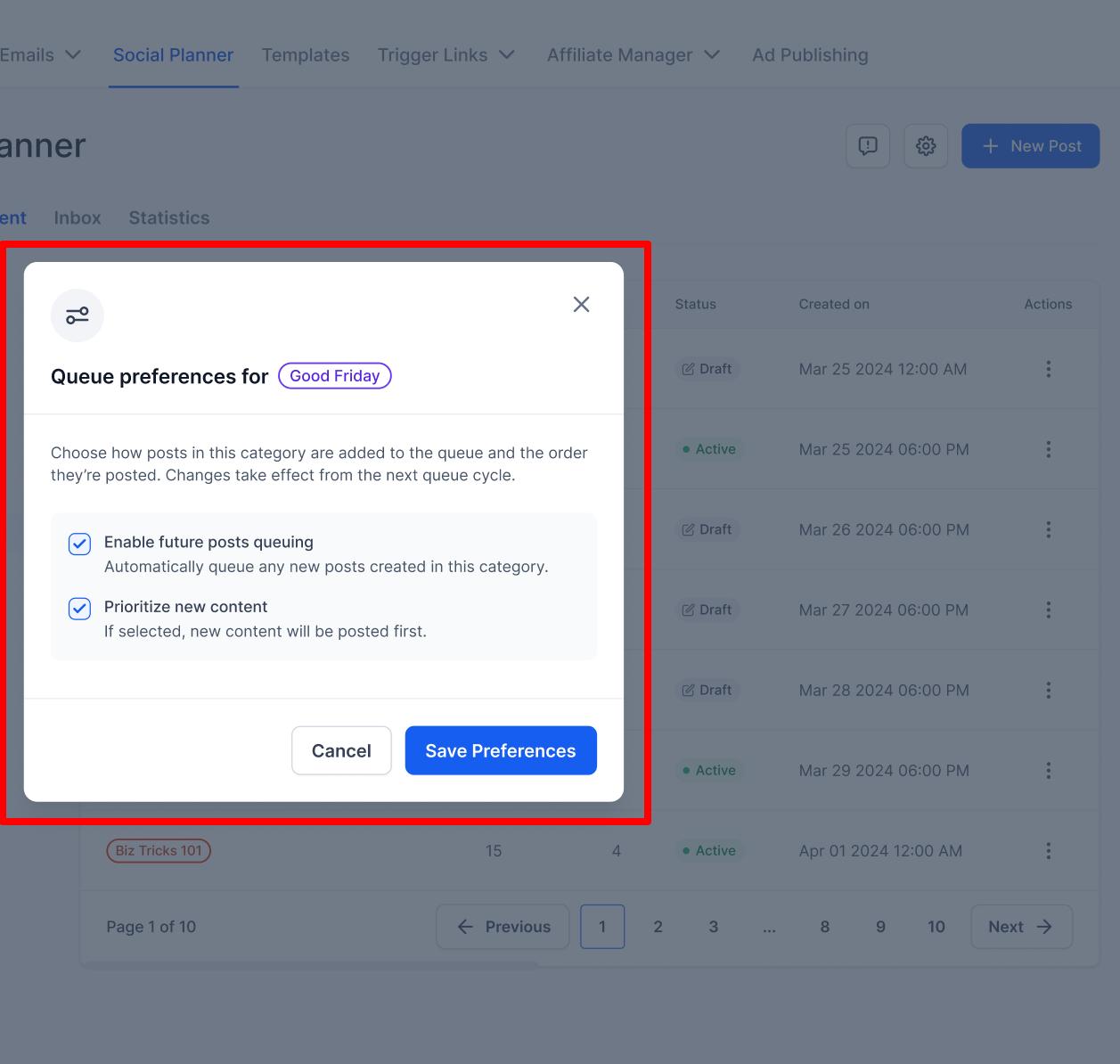
See your entire queue visually on a calendar in weekly or monthly view. Use it to see how posts are distributed and to spot gaps or content-heavy days.
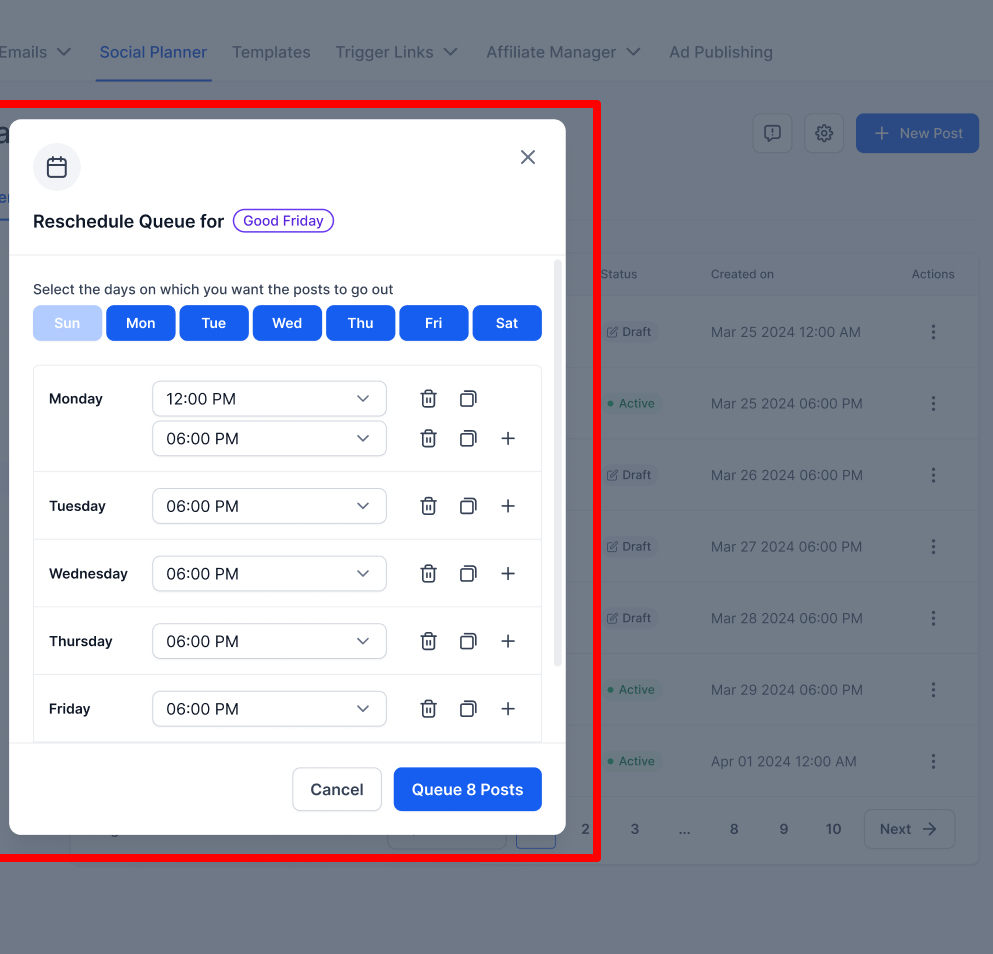
If your campaign dates shift, move the whole queue to start from a new date using a date picker. Social Planner reschedules based on your existing frequency rules and shows a confirmation before applying. For example, if a campaign is postponed by a week, pick a new start date and all posts auto-adjust.
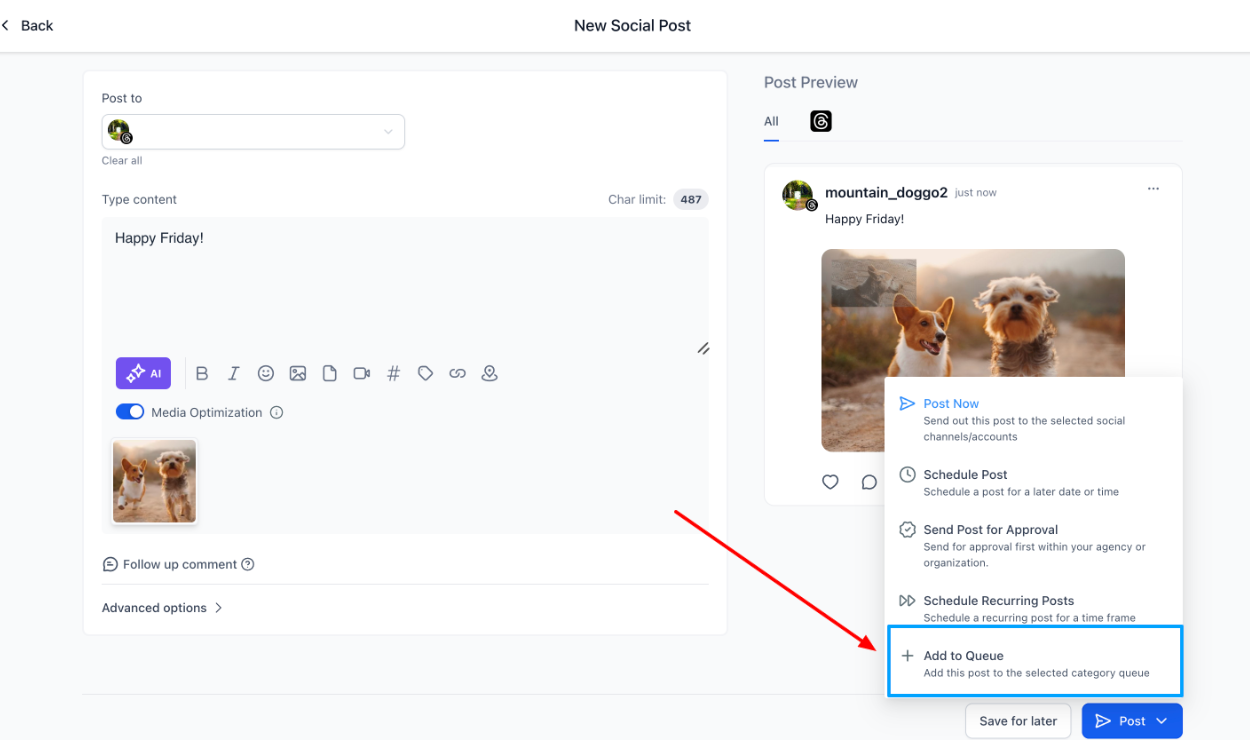
While composing a post, you can add it directly to a category queue:
Selecting an existing category sends the post to that queue.
Creating a new category automatically creates a fresh queue.
Category queues can be built from already-published content tagged to a category, or from new posts and a new category.
Insights are not real-time. Freshly published, scheduled, draft, or not-yet-synced posts may not show current engagement data.
Queues can be paused or resumed at any time to fit your content plan.
A queue can be deleted if you no longer want that content to publish.
You can edit or update the content of previously published posts while building the queue.
You can add a new post into the middle of the queue.
Edit an existing queue from the three-dot menu to change posting frequency, time slots, and post order.
You can reschedule the entire queue to start on a new date. Rescheduling a single post is not supported.
Rescheduling or reshuffling from the Category Queue calendar is not supported.
To confirm category and queue status, go to Marketing > Social Planner > Settings > Categories. The status column shows whether a queue is active or inactive, and a badge shows whether a category is linked to a queue.
If your practice works with a developer or integration, category queues can also be created and managed programmatically through the Social Planner Category Queue API, using your account API key or an OAuth token. This is optional and not needed for normal day-to-day use.
How do I include future posts in a category queue?
All previous and future posts tagged to the category are added to the queue automatically. To push new posts to the front, select Enable Future Posting and Prioritise Content.
Can I change the scheduled date and time of a queue?
Yes. Use Edit Category Queue to change the posting frequency and time slots, and Reschedule Entire Queue to shift the whole queue to a new start date. Rescheduling a single post is not supported.
How do I add new posts to a queue?
Open the queue, choose New Post, write your content, add media, optionally create variations to rotate versions, and drag the post to the position you want in the sequence.
Can I add multiple variations of a post?
Yes. Variations rotate and shuffle so your content stays fresh and unique.
What media can I use in a queue?
You can add images or video along with text for richer posts.
Can I change the order of posts later?
Yes. Open your queue and drag posts to adjust the sequence.
Can I pause a queue?
Yes. From the Content tab, toggle a queue off to pause it and on to resume it at any time.
Where do I check whether a category queue is active?
Go to Marketing > Social Planner > Settings > Categories and review the status column, which shows active or inactive along with a badge if the category is linked to a queue.
