Recurring posts let your practice keep a steady presence on social media without rebuilding the same content over and over. You create a post once, set it to repeat on a daily, weekly, monthly, or yearly schedule, and Social Planner publishes it automatically across your connected accounts. This is ideal for evergreen content like standing promotions, appointment reminders, seasonal specials, and recurring event announcements.
Flexible scheduling: Repeat a post every day, week, month, or year, choosing specific days, date ranges, and post times.
Parent and child posts: The original post you schedule is the parent. Each individual scheduled instance is a child. Editing the parent updates all child posts. Editing a single child does not affect the parent.
Recurring Posts tab: Once scheduled, the parent post appears in the Recurring Posts area, where you can change the time and date range for the whole series.
Content and media: You can include text, images, and video, and use the built-in AI content tools to draft copy.
Long-term planning: Set up a series once and keep your feed active for weeks or months without manual reposting.
Platform awareness: Some networks flag repetitive content. X (formerly Twitter) in particular may flag recurring posts as repetitive, so vary your content when posting there frequently.
Seasonal promotions: Schedule specials to publish at the start of each season, planned out for the whole year.
Weekly skincare tips: Share a recurring tip or treatment education post each week to build authority.
Monthly treatment showcases: Feature a different service each month with its benefits and results.
Recurring event reminders: Keep followers informed about regular open houses, injectable days, or webinars.
Milestone celebrations: Automatically celebrate your practice anniversary or other annual dates.
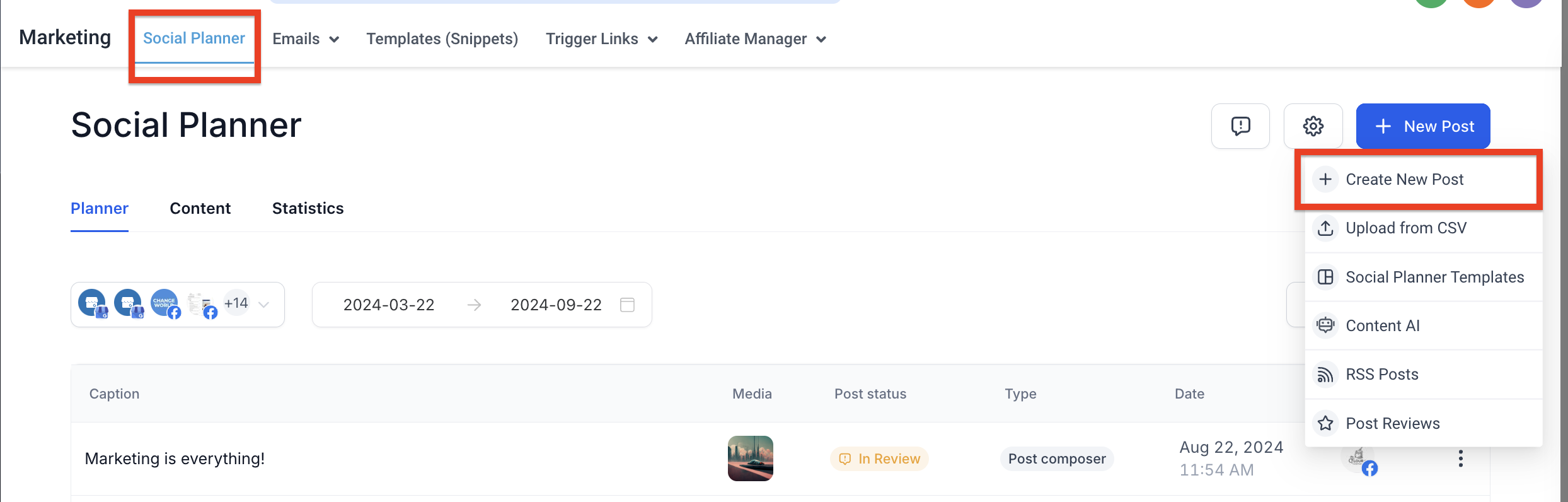
Go to Marketing > Social Planner.
Click New Post, then Create New Post.
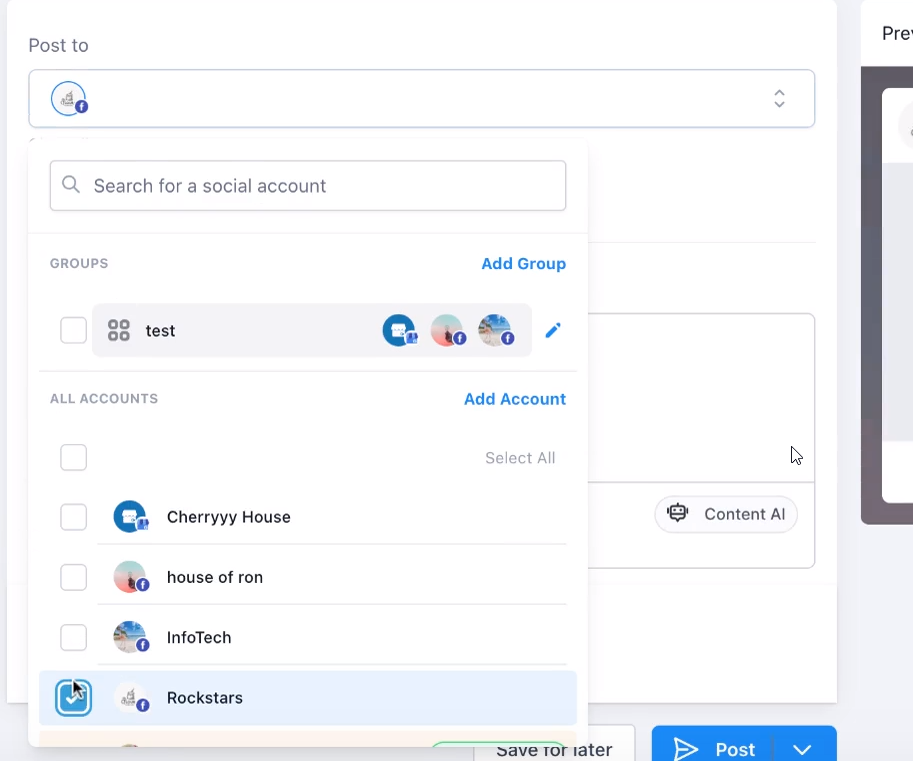
Select the social account(s) for your recurring post. If you have not connected any accounts yet, you can still set up the recurring schedule, and Social Planner prompts you to connect before you save or schedule.
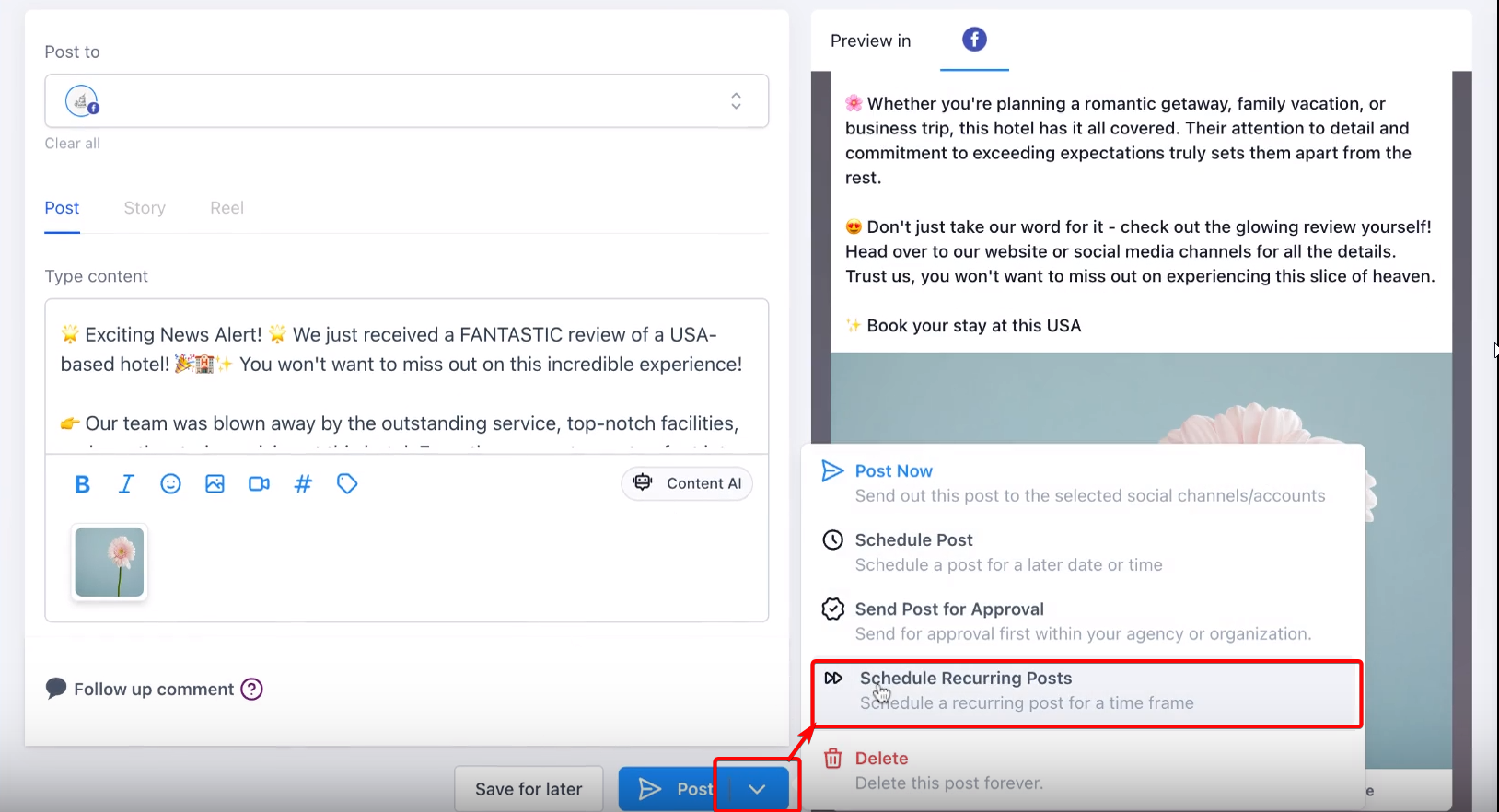
Write your content and add any media, then choose to create the post with a recurring schedule.
Choose your repeat frequency and set the schedule:
Day: Choose the date and time to post on repeat every day.
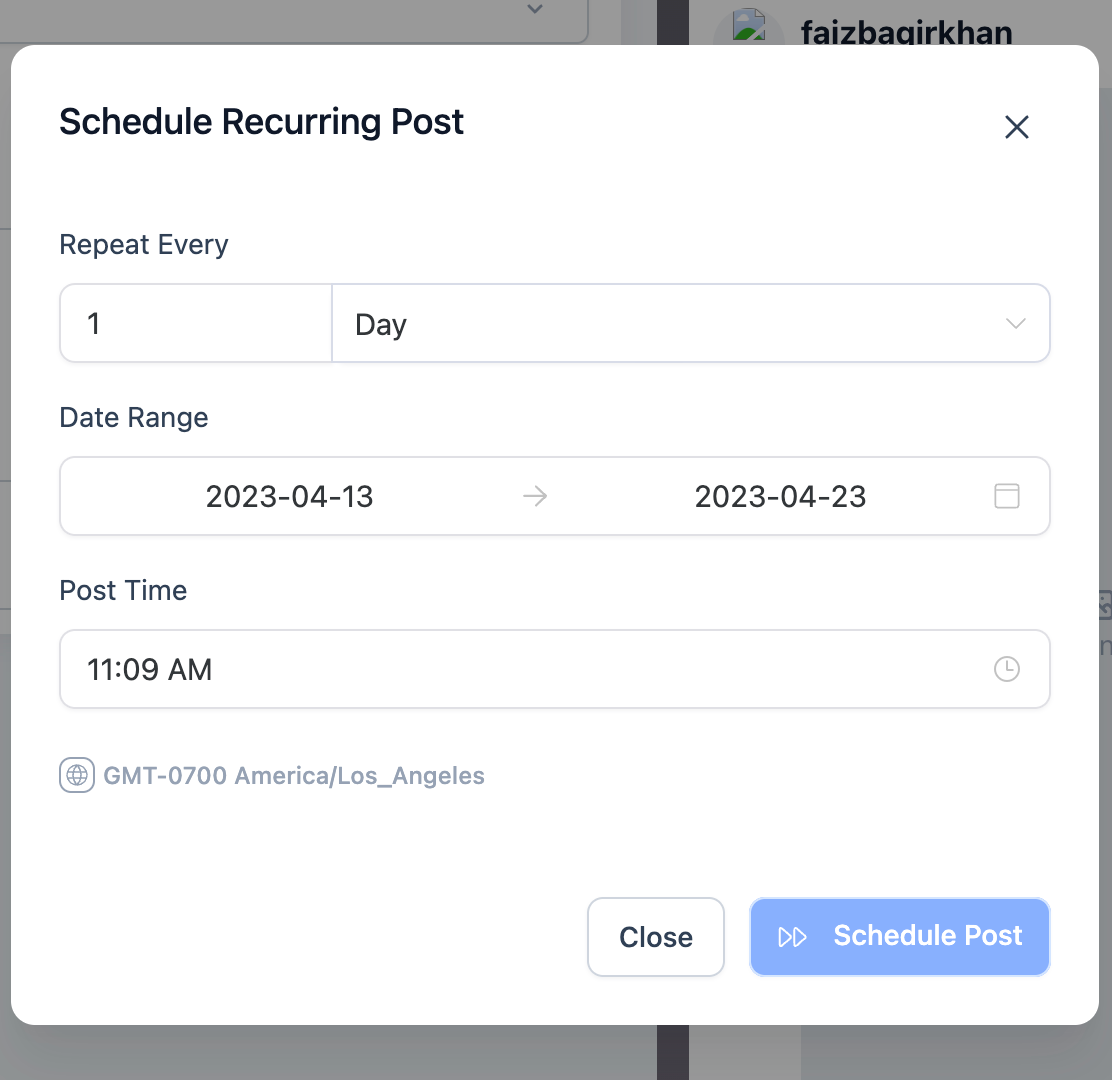
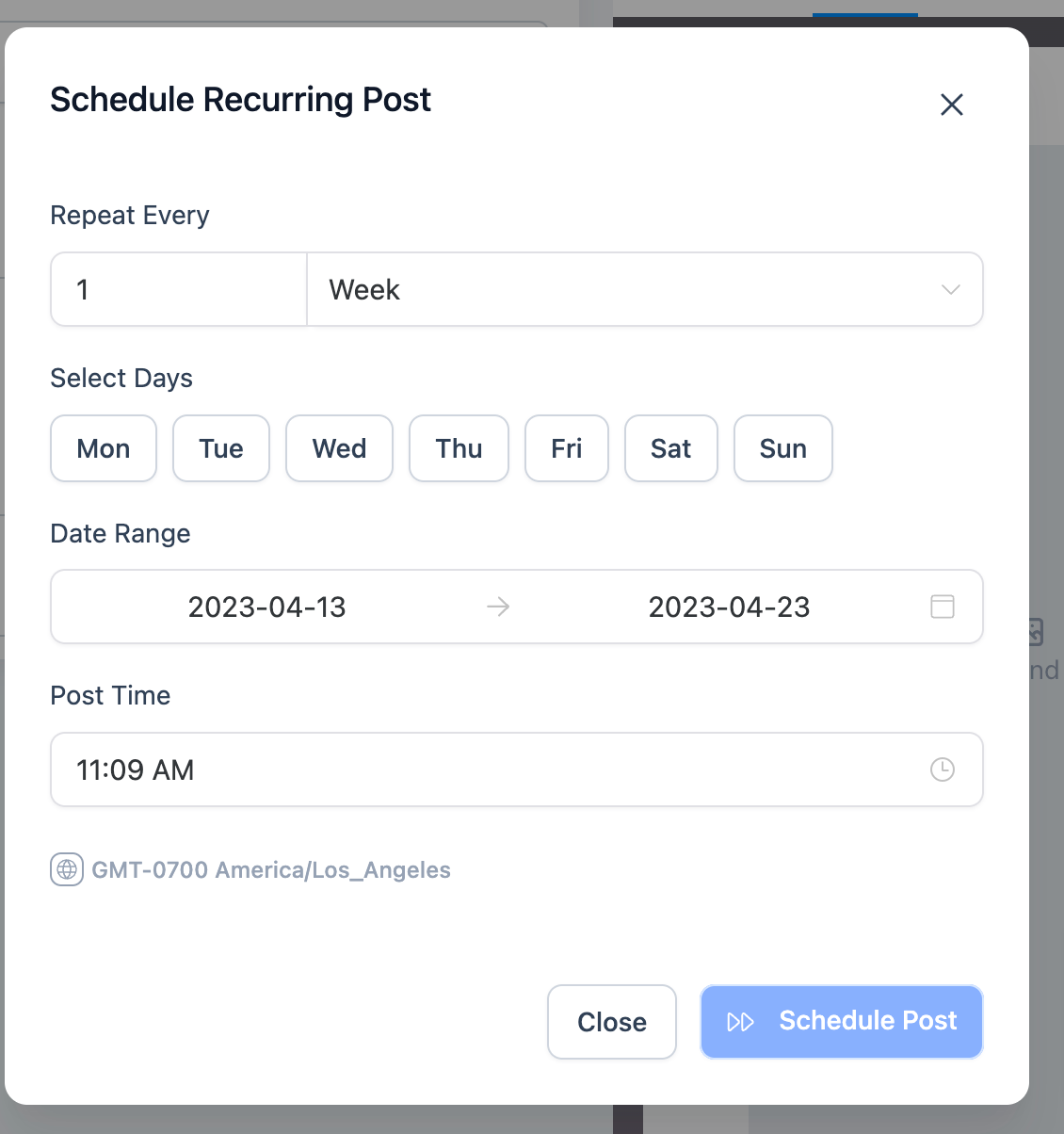
Week: Choose the day of the week to repeat, along with the date range and post time.
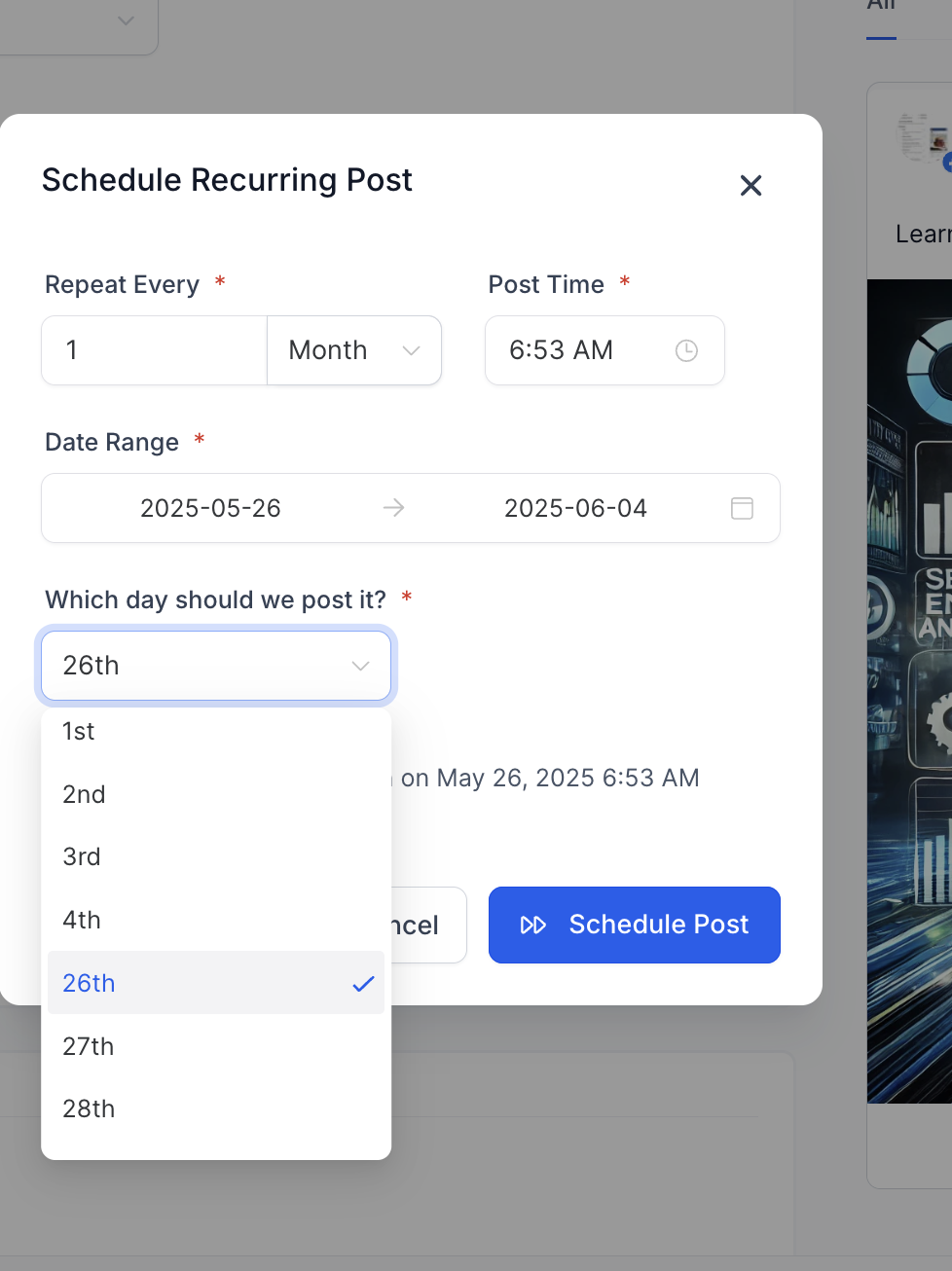
Month: Choose the date and time to post on repeat once a month.
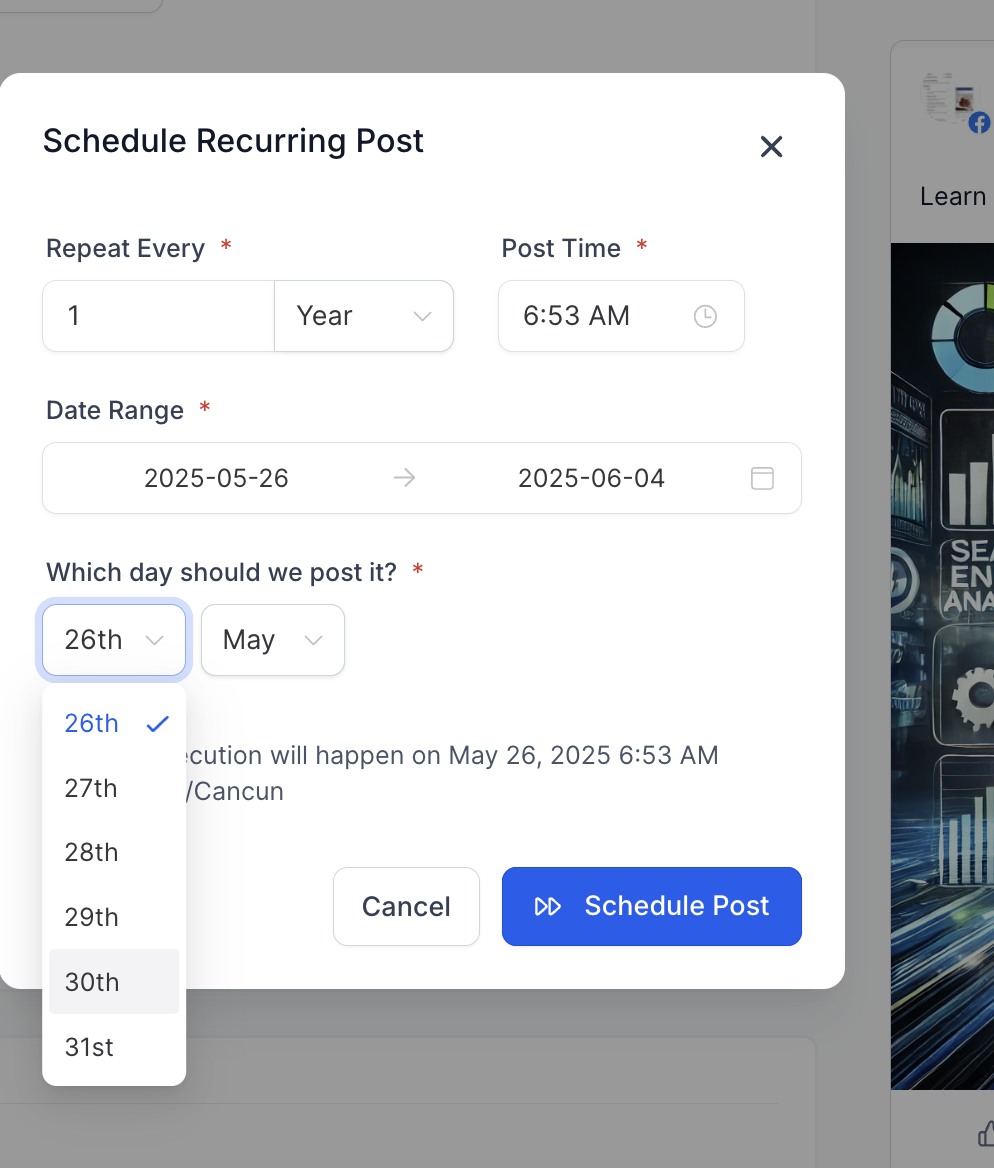
Year: Choose the date and time to post on repeat once a year.
Once the recurring post is scheduled, the parent post is added to the Content > Recurring Posts tab.
Click Edit on the parent post to change the time and date range for the whole series.
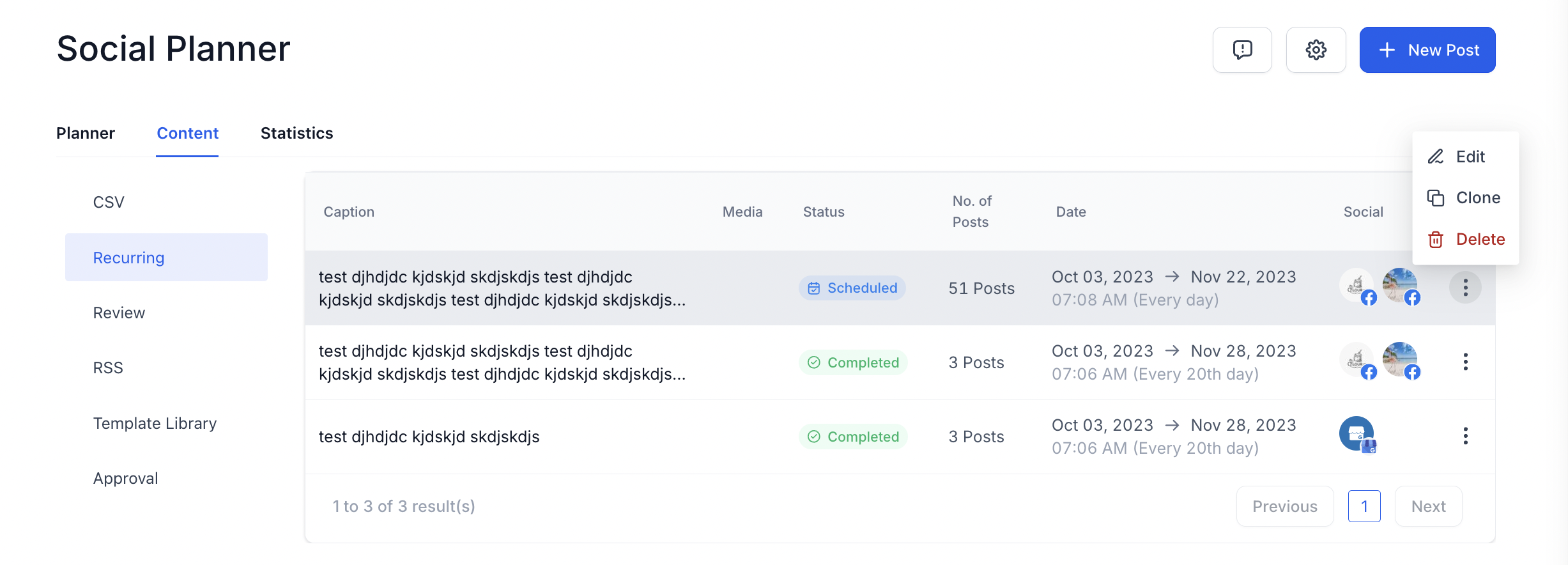
How a recurring post behaves depends on which view you edit it from.
Content tab:
The parent post entry is visible and editable here.
Edit: updates all instances of the series with the selected date and time range.
Delete: deletes all parent entries of the recurring series.
Calendar view:
All individual posts are visible and editable here.
Edit: updates all instances of the series with the selected date and time range.
Delete: deletes the individual recurring post.
List view:
The next active scheduled post (the one publishing next) is visible and editable here.
Edit: updates all instances of the series with the selected date and time range.
Delete: deletes the individual recurring post.
Avoid repetitiveness: Vary your content so it stays fresh, especially on networks like X that may flag repeated content as spam.
Review regularly: Update recurring posts as your offers, pricing, or messaging change so nothing goes out of date.
Mind time zones: Set post times for the time zone of the audience you want to reach.
Back up your content: Keep a copy of your recurring content in case you need to recreate it.
Watch sensitive timing: During unexpected events or sensitive periods, review scheduled posts so nothing inappropriate publishes automatically.
Keep a human touch: Mix recurring posts with real-time, personalized content and engage with the comments and messages your posts generate.
Stay accessible: Add captions to video and alt text to images so all followers can engage with your content.
If any recurring post involves patient photos or patient stories, confirm you have written consent before it goes into a series that publishes automatically over time.
Can I set recurring posts for specific holidays or annual events?
Yes. Schedule a yearly recurring post to automate content for holidays, your practice anniversary, or other annual dates.
What happens if I edit the parent post of a recurring schedule?
Editing the parent replicates the changes across all child scheduled posts. Changes made to an individual child post do not affect the parent.
Can I mix media types, like images and videos, in my recurring posts?
Yes. You can include images, video, or GIFs within a recurring post to make it more engaging.
How does the recurring post feature handle time zones?
You set the post time yourself, so schedule it for the time zone of your target audience. Keep global audiences in mind if that applies to you.
Is there a limit to how far in advance I can schedule recurring posts?
Depending on your settings and each platform's guidelines, you can schedule recurring posts days, weeks, months, or even years in advance.
Can I pause or temporarily stop a recurring post series?
No. A recurring post series cannot be paused or temporarily stopped. To stop it, delete the series.
What if I want different content for different platforms in a recurring post?
Use the Customize for Each Post feature to tailor a recurring post per platform, aligning the content with each network's character limits and guidelines.
Can recurring posts be part of a larger campaign with other content?
Yes. You can combine recurring posts with one-time posts and other marketing so your messaging stays cohesive.
Will X (formerly Twitter) flag my recurring posts?
X may flag repeated content as repetitive. Vary your wording and media when posting there frequently to stay within its policies.
