Connecting YouTube to Social Planner lets your practice schedule and publish video content directly from Aesthetix CRM. This is ideal for treatment explainers, patient education videos, and practice tours that you want to keep on a consistent posting schedule alongside your other social channels.
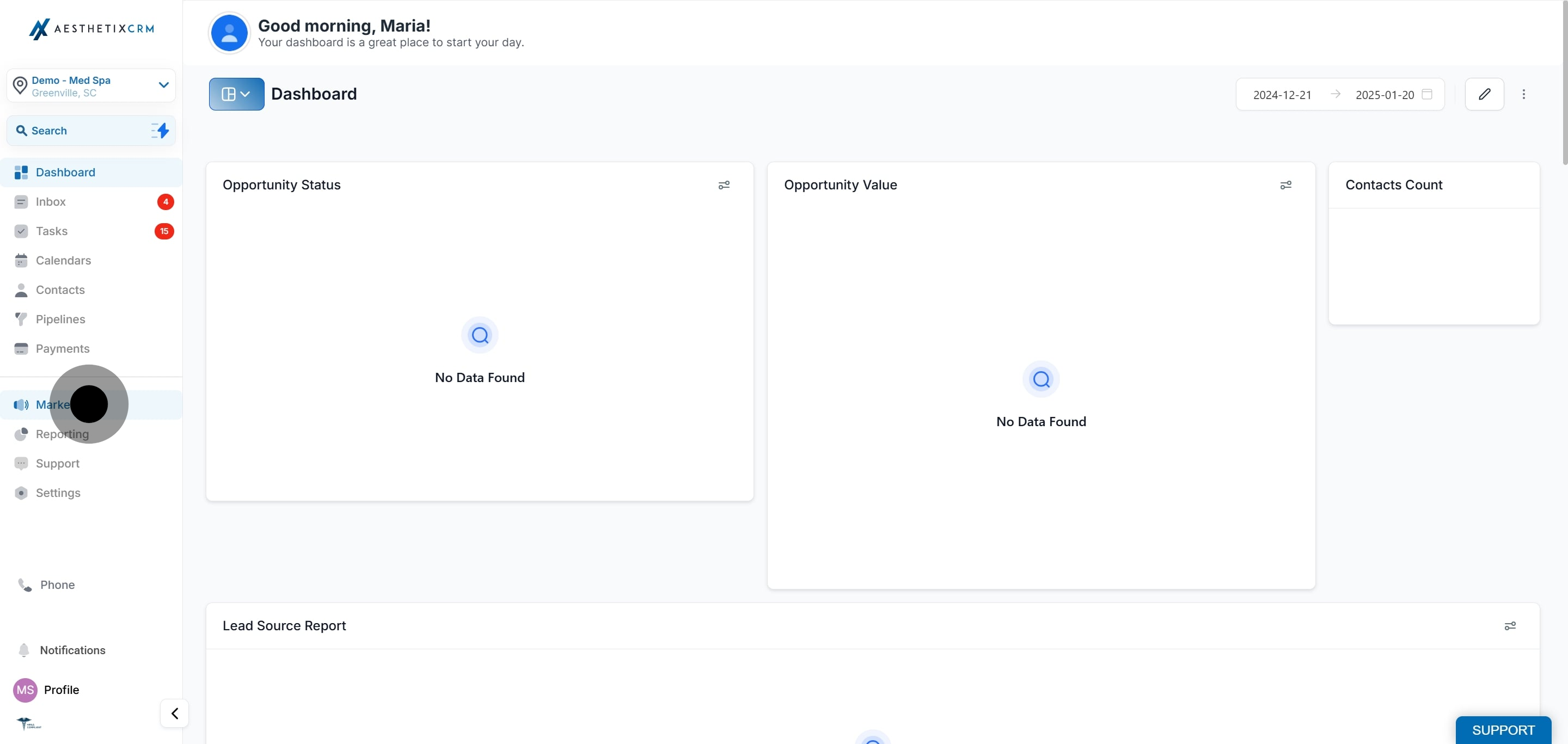
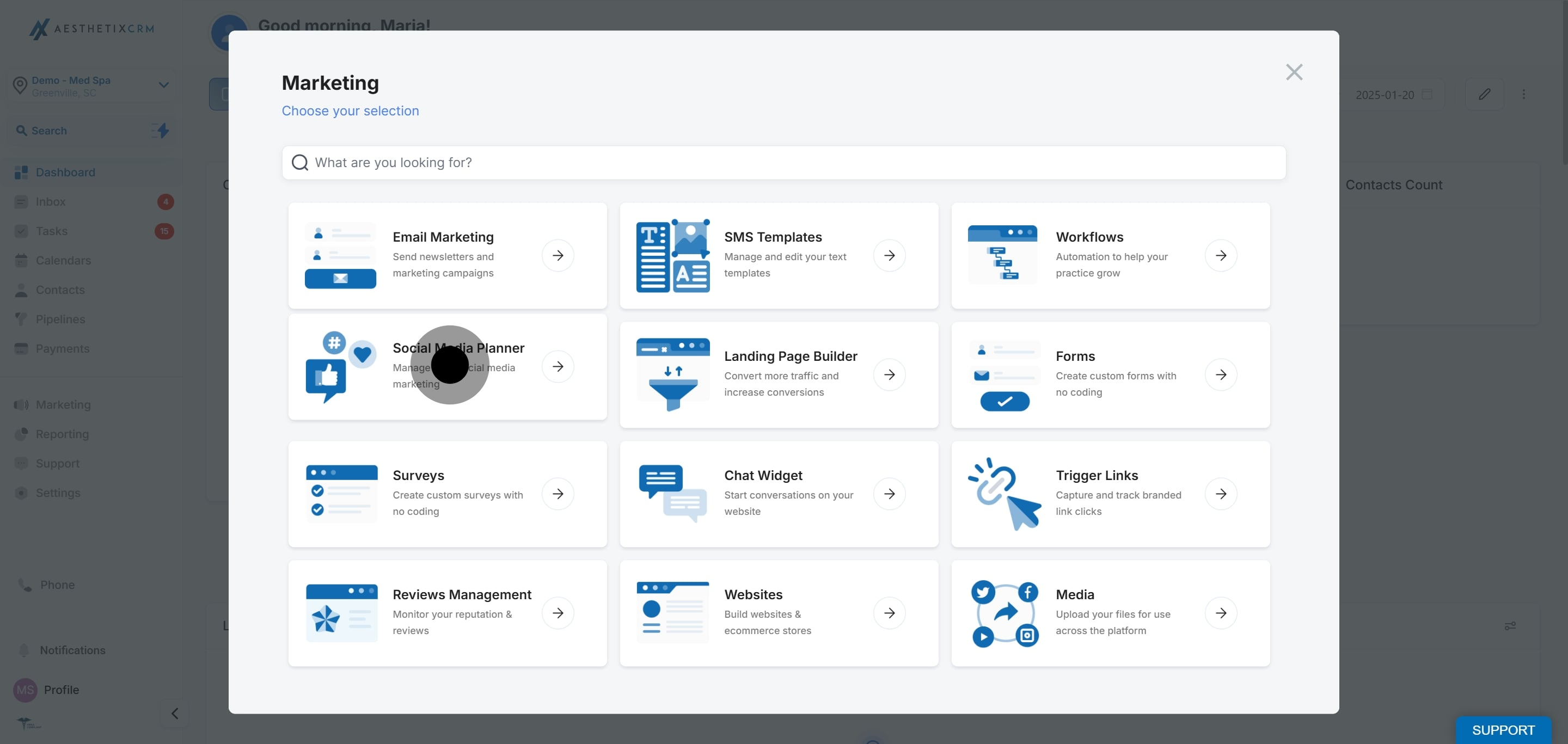
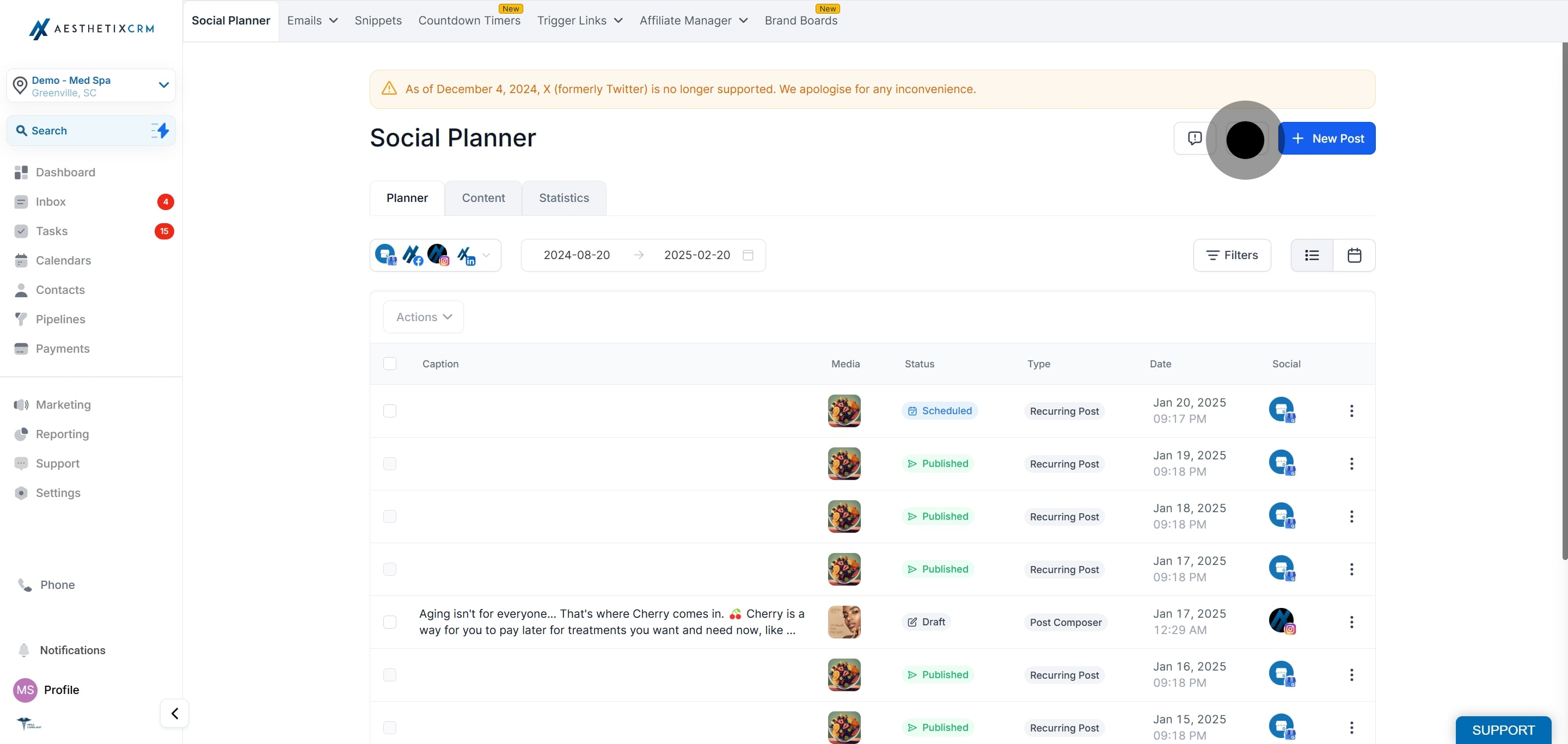
In the top-right corner of Social Planner, click the Settings (gear) icon.
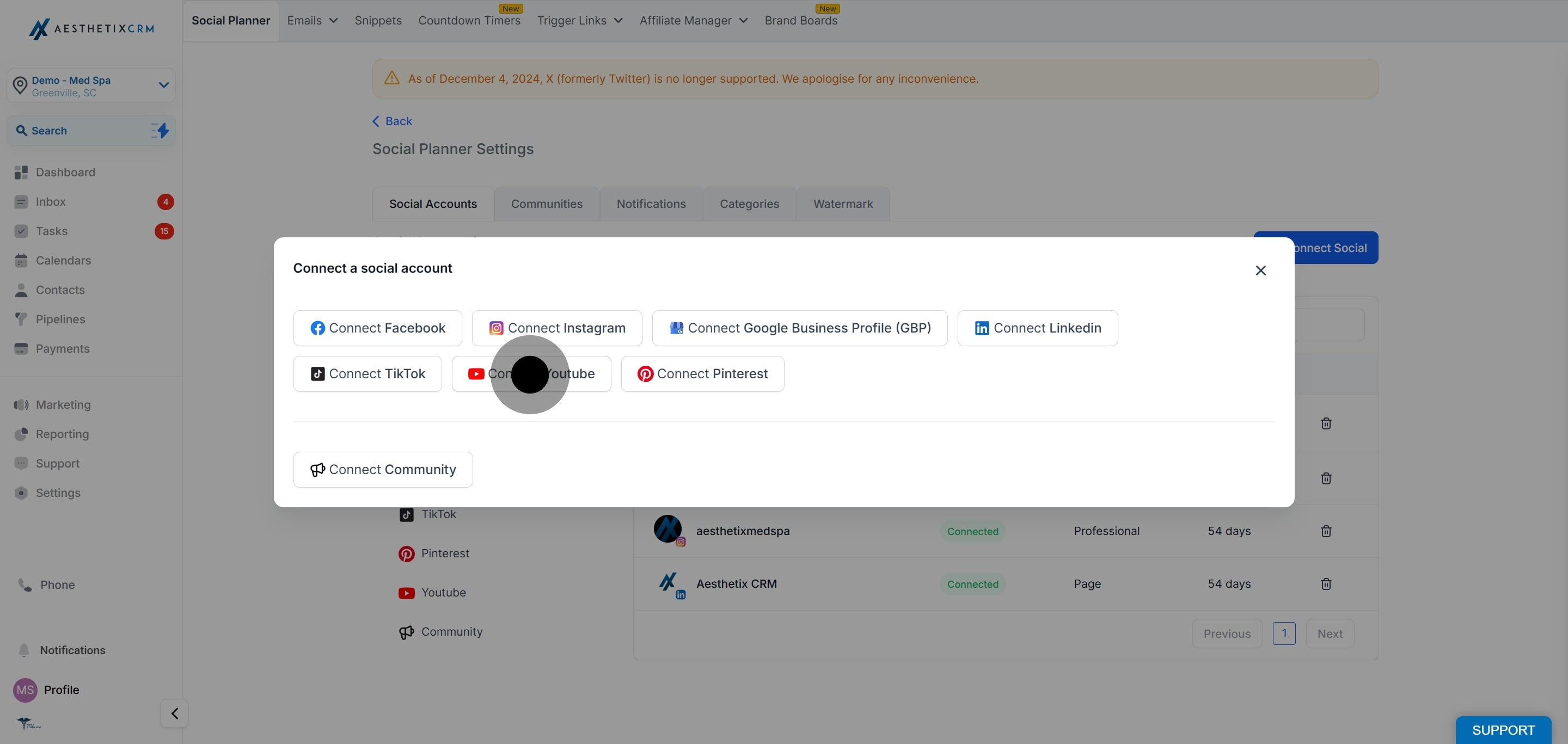
From the connect options, click Connect YouTube.
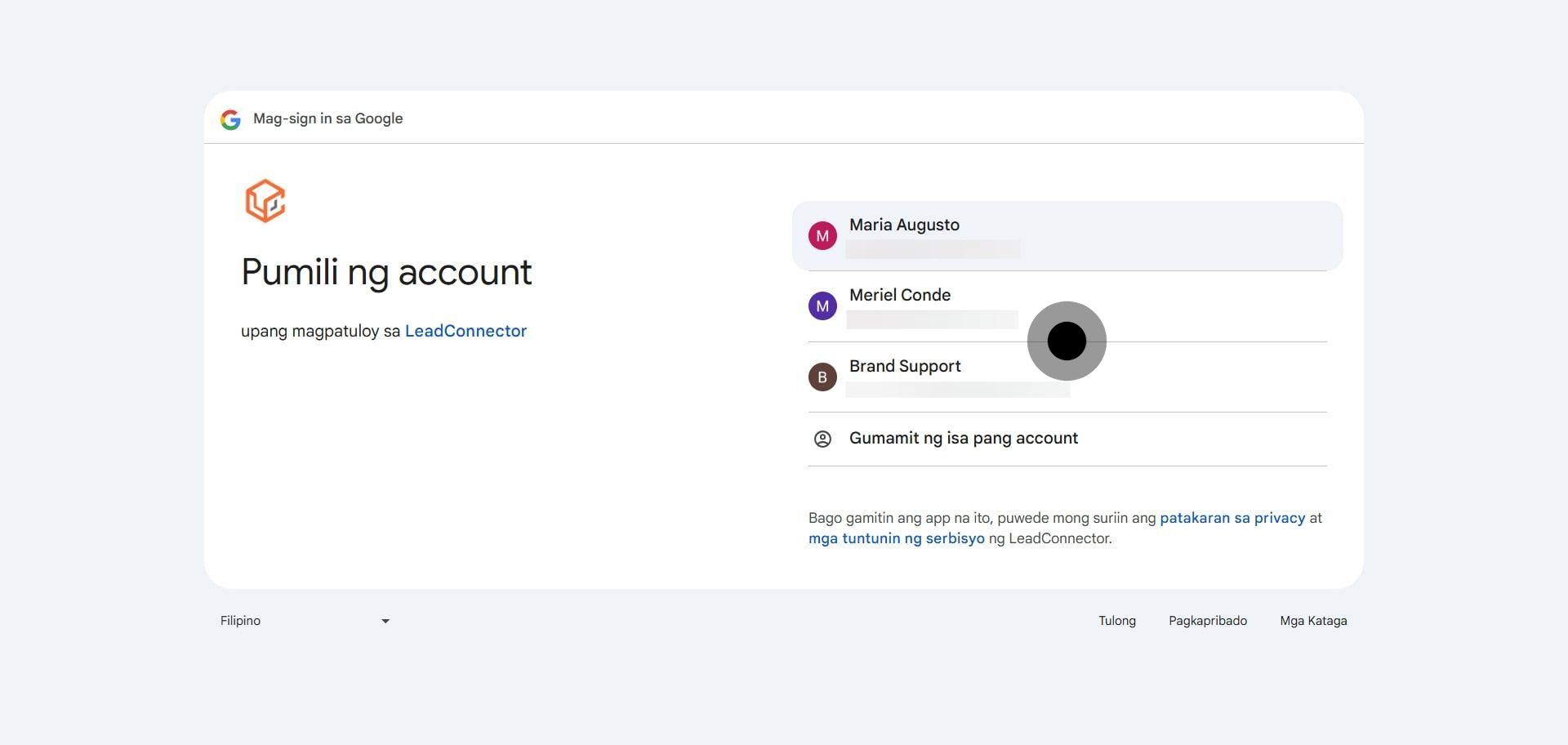
Select the Google account tied to the YouTube channel you want to connect.
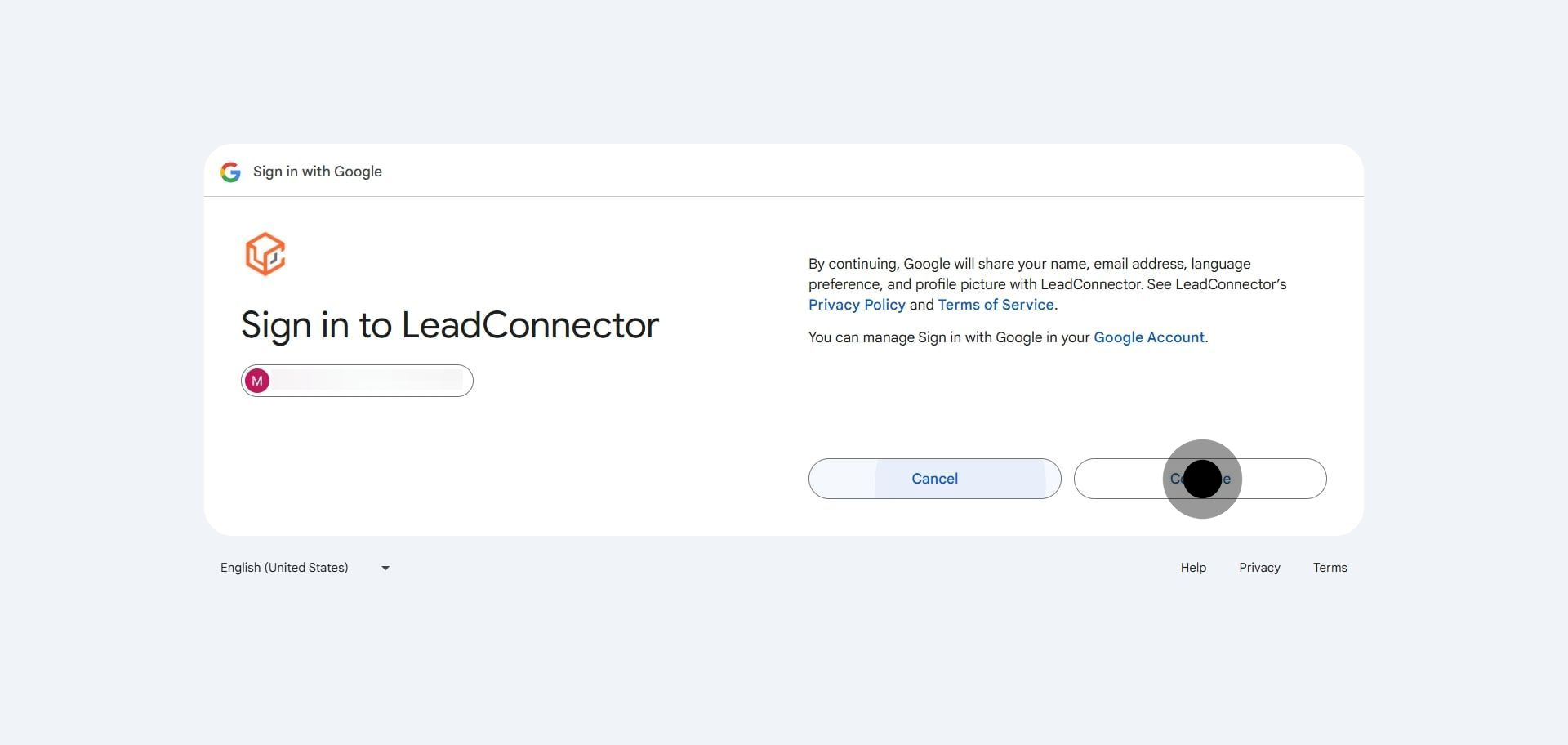
After selecting the account, review the requested permissions and click Continue to finish connecting.
You may see LeadConnector, our underlying social integration provider, referenced on the Google consent screen. This is expected and safe: it is simply the service that powers the connection behind the scenes.
Which Google account should I sign in with?
Sign in with the Google account that owns or manages the YouTube channel you want to publish to. If you manage multiple channels, choose the account tied to the correct one.
Why does the consent screen mention LeadConnector?
LeadConnector is the underlying provider that powers the social connection for Aesthetix CRM. Seeing it on the Google authorization screen is expected and safe, and it does not change how your channel is managed.
Can I connect more than one YouTube channel?
Yes. Repeat the connection steps for each channel, then choose which one to publish to when you create a post.
Do I need to grant all the requested permissions?
Yes. YouTube requires the requested permissions for Social Planner to publish on your behalf. If you decline them, the connection will not complete.
How do I reconnect YouTube if it disconnects?
Return to Marketing > Social Planner, open Settings, and reconnect from the Social Accounts section. If a connection has expired, you will typically see a prompt to re-authorize.
Where do I manage or remove a connected YouTube channel?
Open the Settings (gear) icon in Social Planner to view and manage all connected accounts, including YouTube.
