Social Planner lets your practice add all of your Facebook Pages so you can schedule posts, publish updates, and engage your Facebook audience without leaving Aesthetix CRM. This is a great way to keep treatment promotions, before-and-after highlights, seasonal specials, and event announcements running on a consistent calendar.
A few requirements from Facebook determine whether your Pages will connect successfully:
You must have Admin rights on the Pages. Log in with the same Facebook profile that has admin access to every Page you want to connect. Only Pages where you are an admin will be available to select.
Personal profiles are not supported. Because of Facebook's API rules, Social Planner publishes to Facebook Pages, not personal profiles. You can, however, add Pages from different Facebook profiles.
Already connected these Pages before? If you previously connected these Pages under a different profile and now want to add new ones, first remove the app from your Facebook account under Facebook Settings > Business Integrations, then run the steps below again.
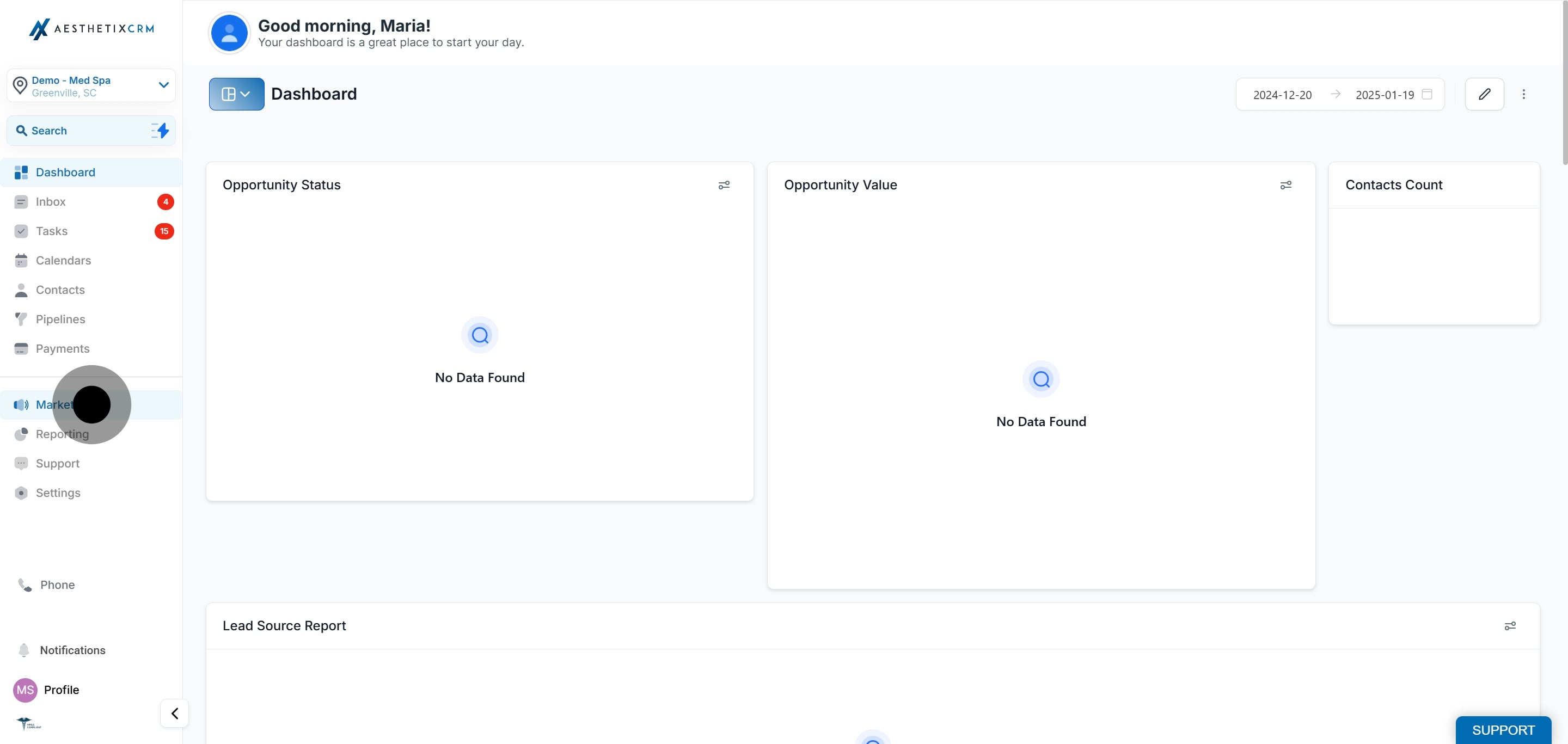
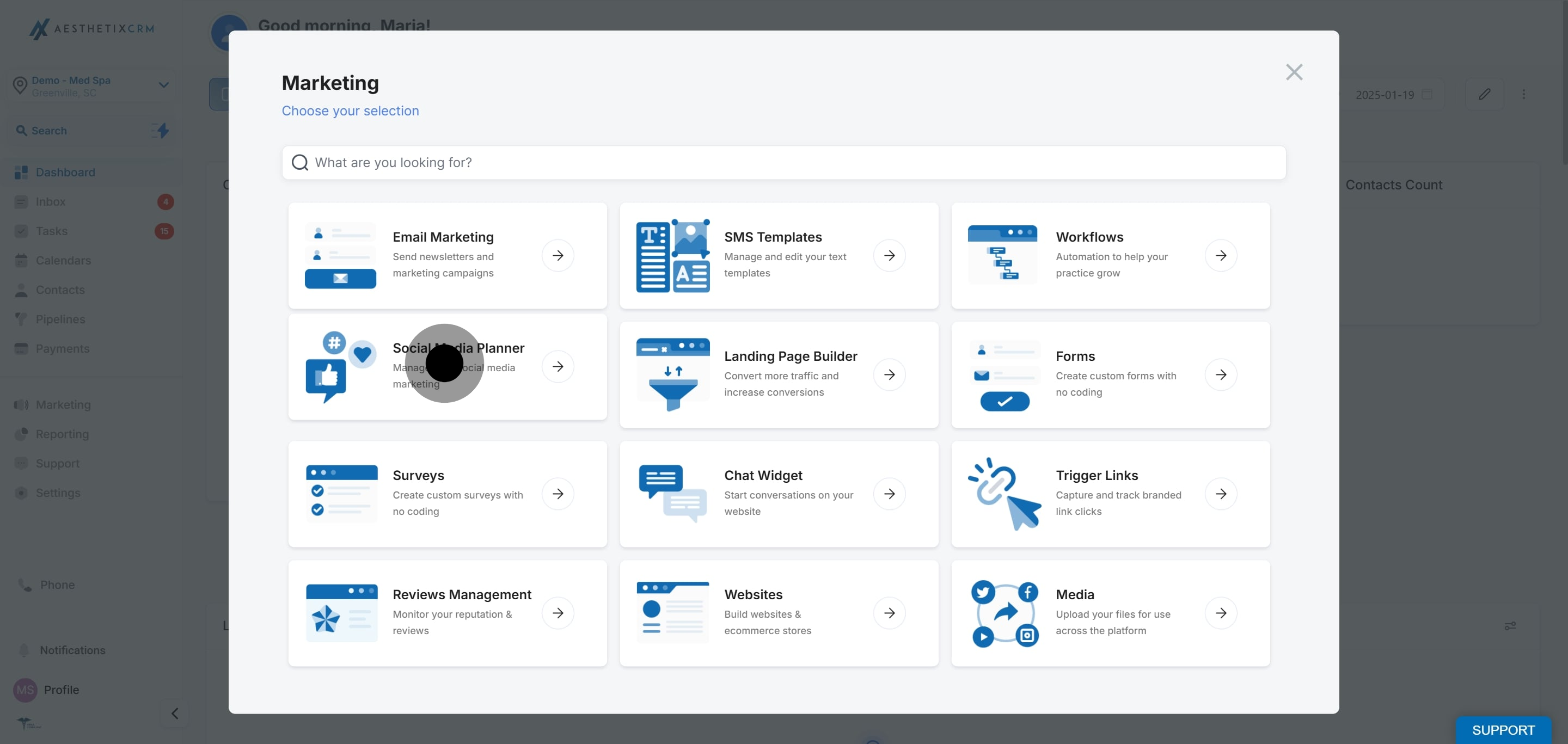
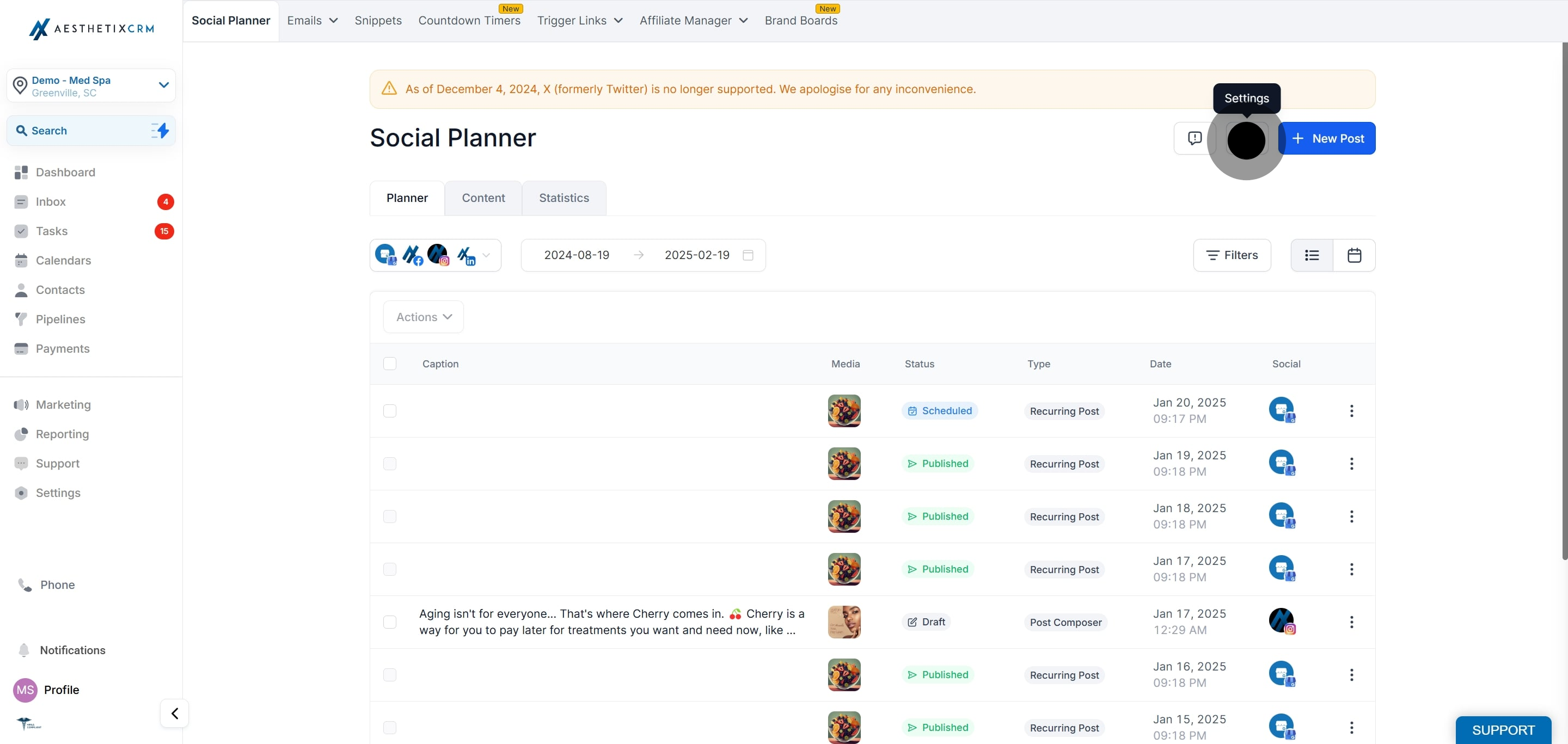
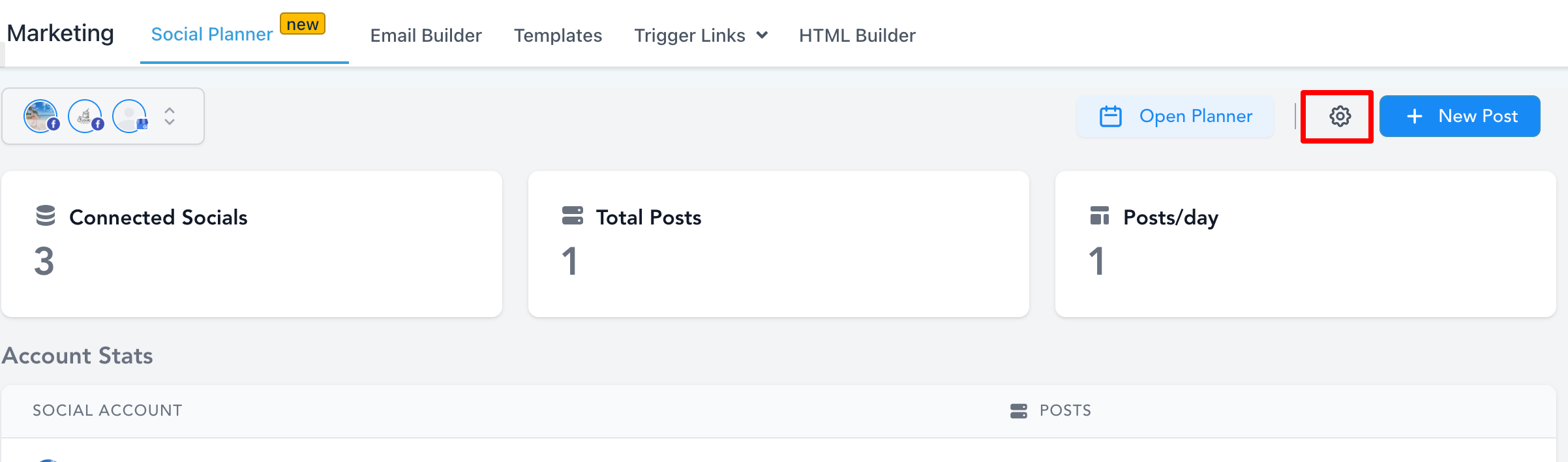
In the top-right corner of Social Planner, click the Settings (gear) icon.
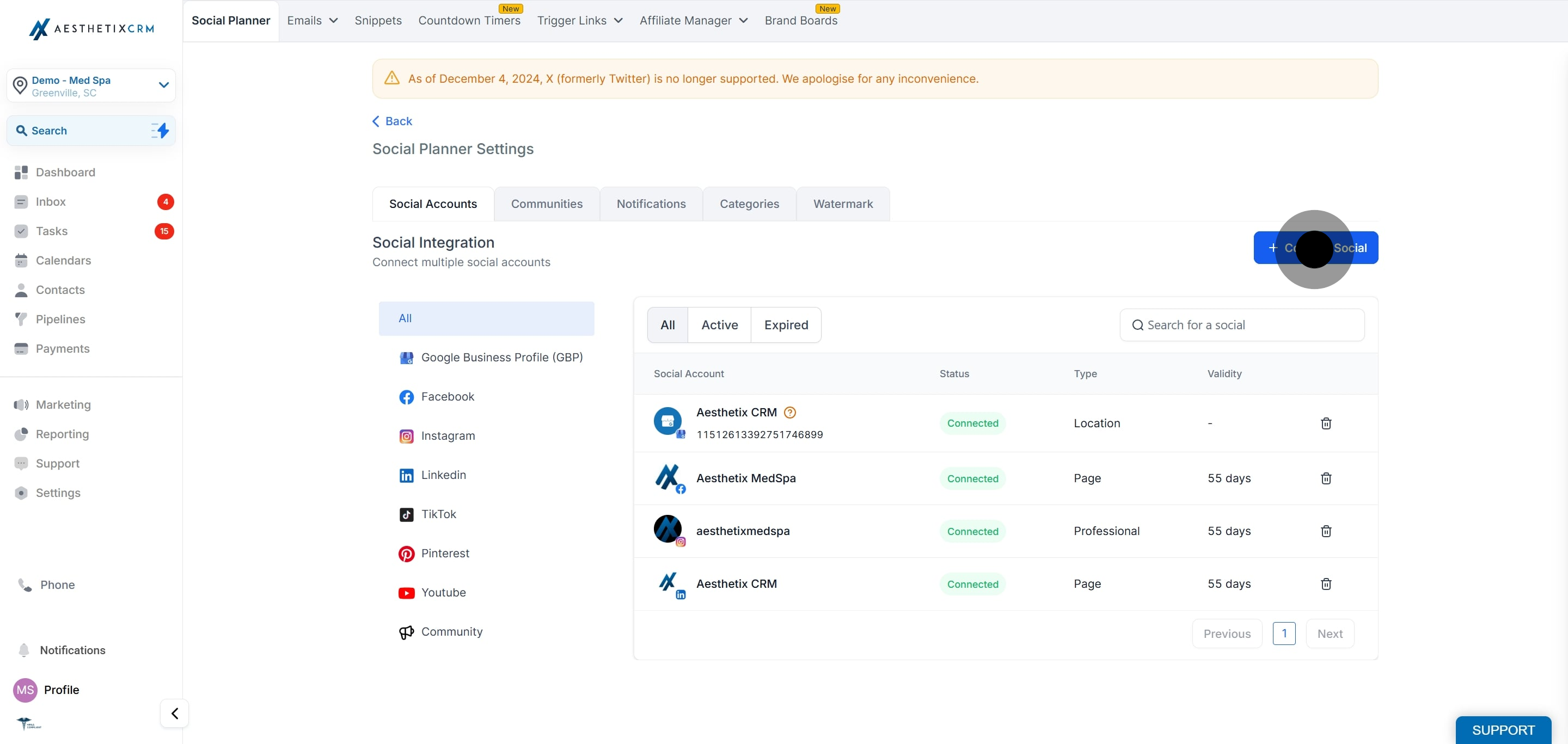
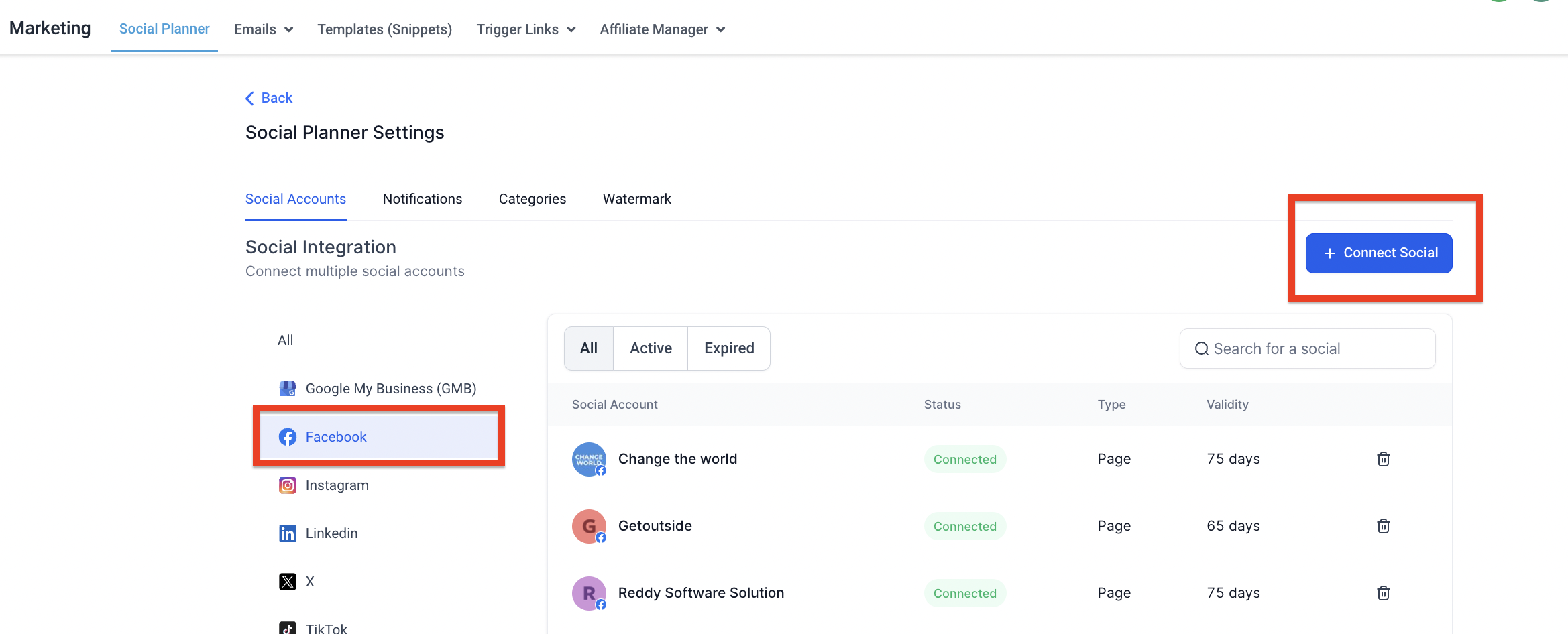
In the Social Accounts table, click Connect Social and select the option to connect a new Facebook Page.
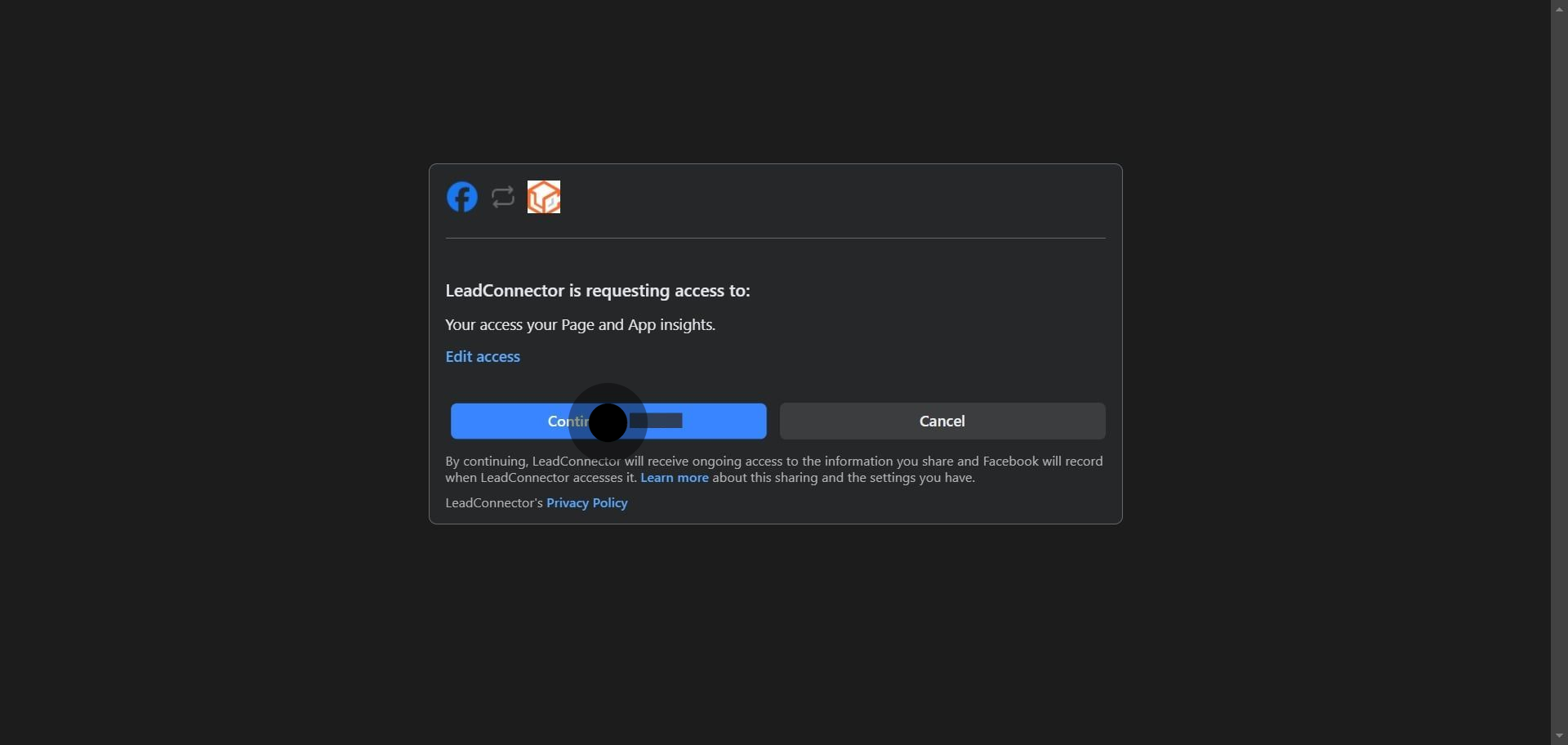
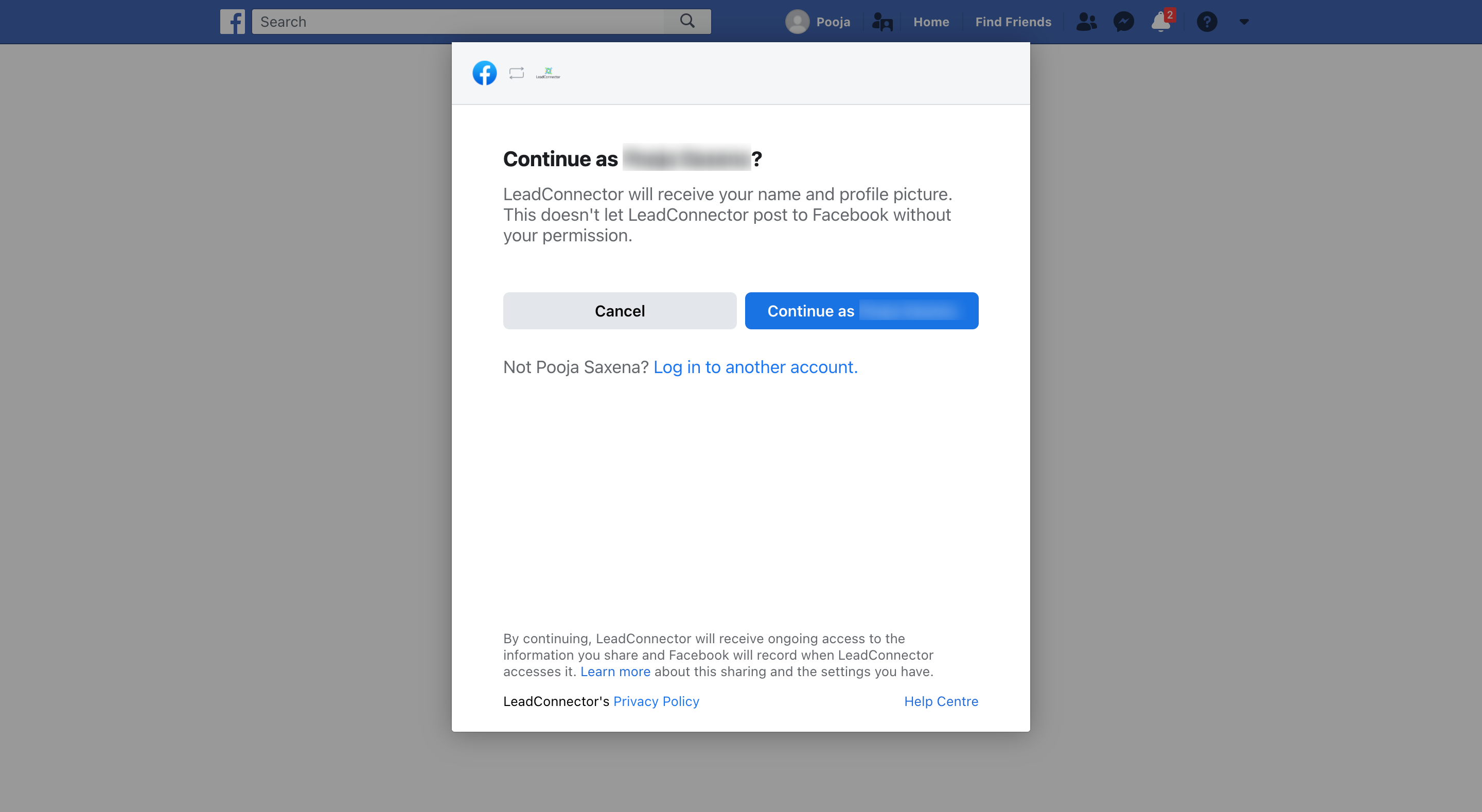
If this is the first time you are connecting this profile, make sure you grant all requested permissions. Click Continue to complete the authorization.
You may notice the consent screen references LeadConnector, our underlying social integration provider. This is expected and safe: it is simply the service that powers the connection behind the scenes.
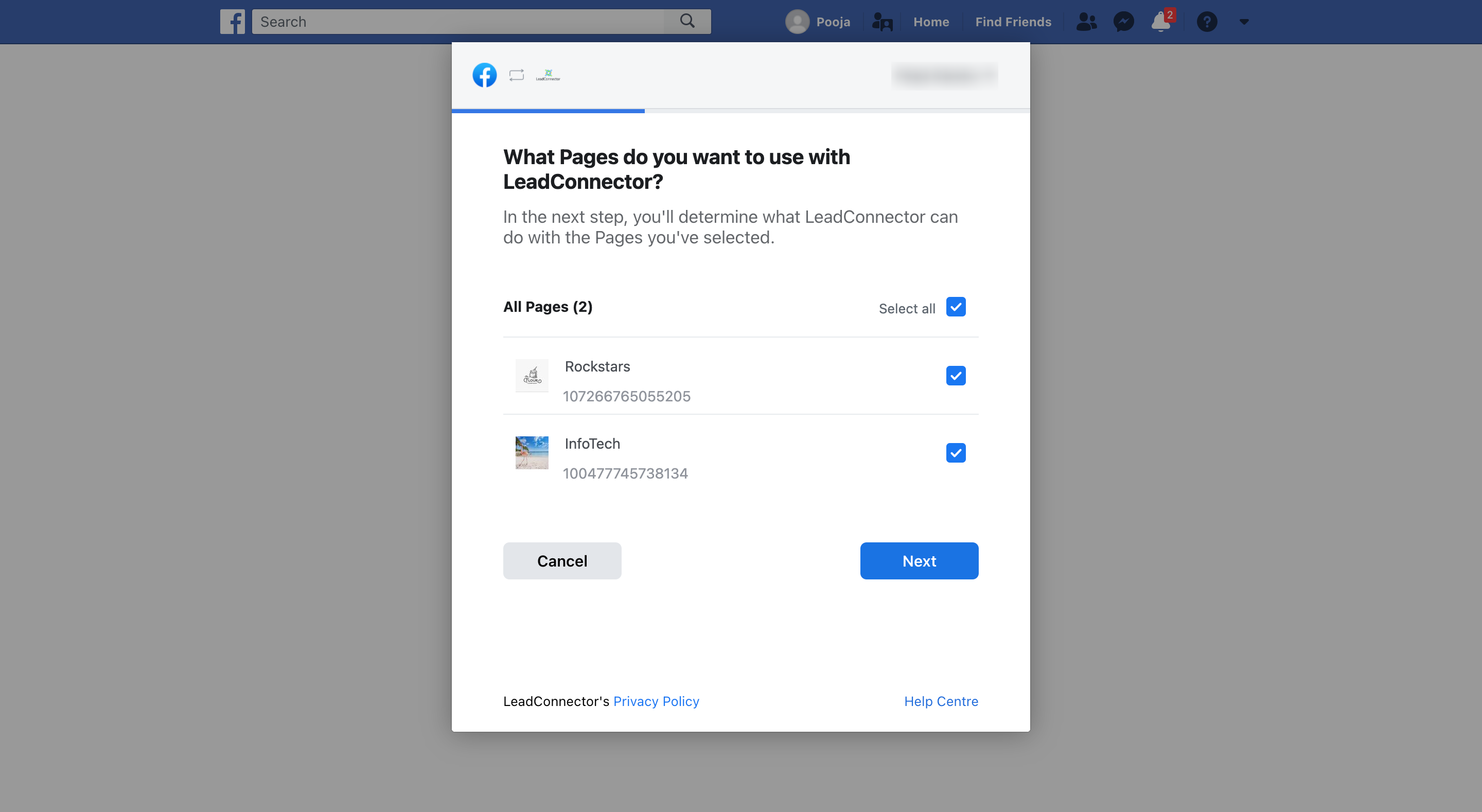
Facebook lists every Page tied to this profile. Select the ones you want to publish to from Social Planner.

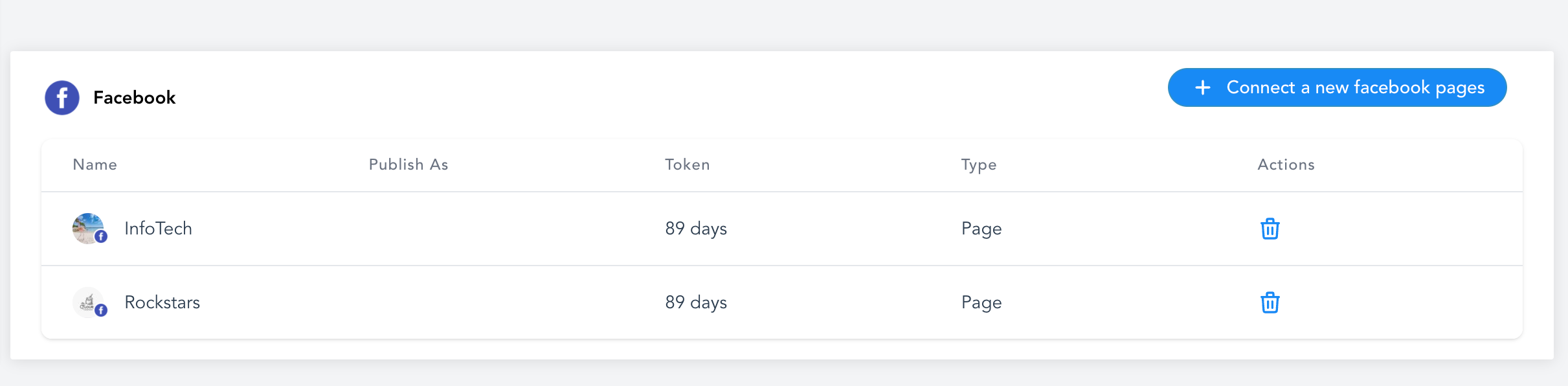
Every Page you selected will be listed as connected. You can repeat these steps to add as many Pages as you like, from the same or different Facebook profiles.
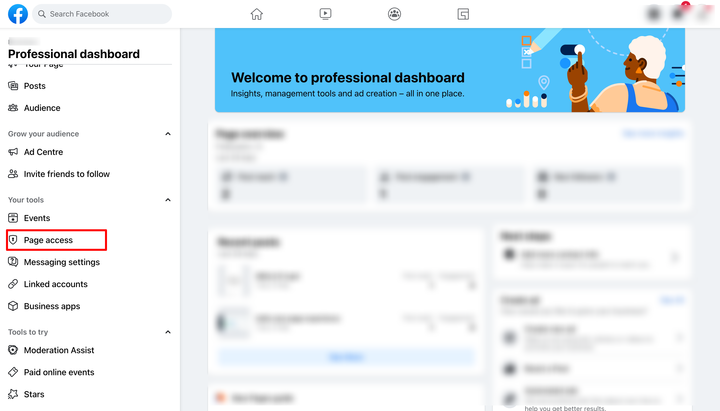
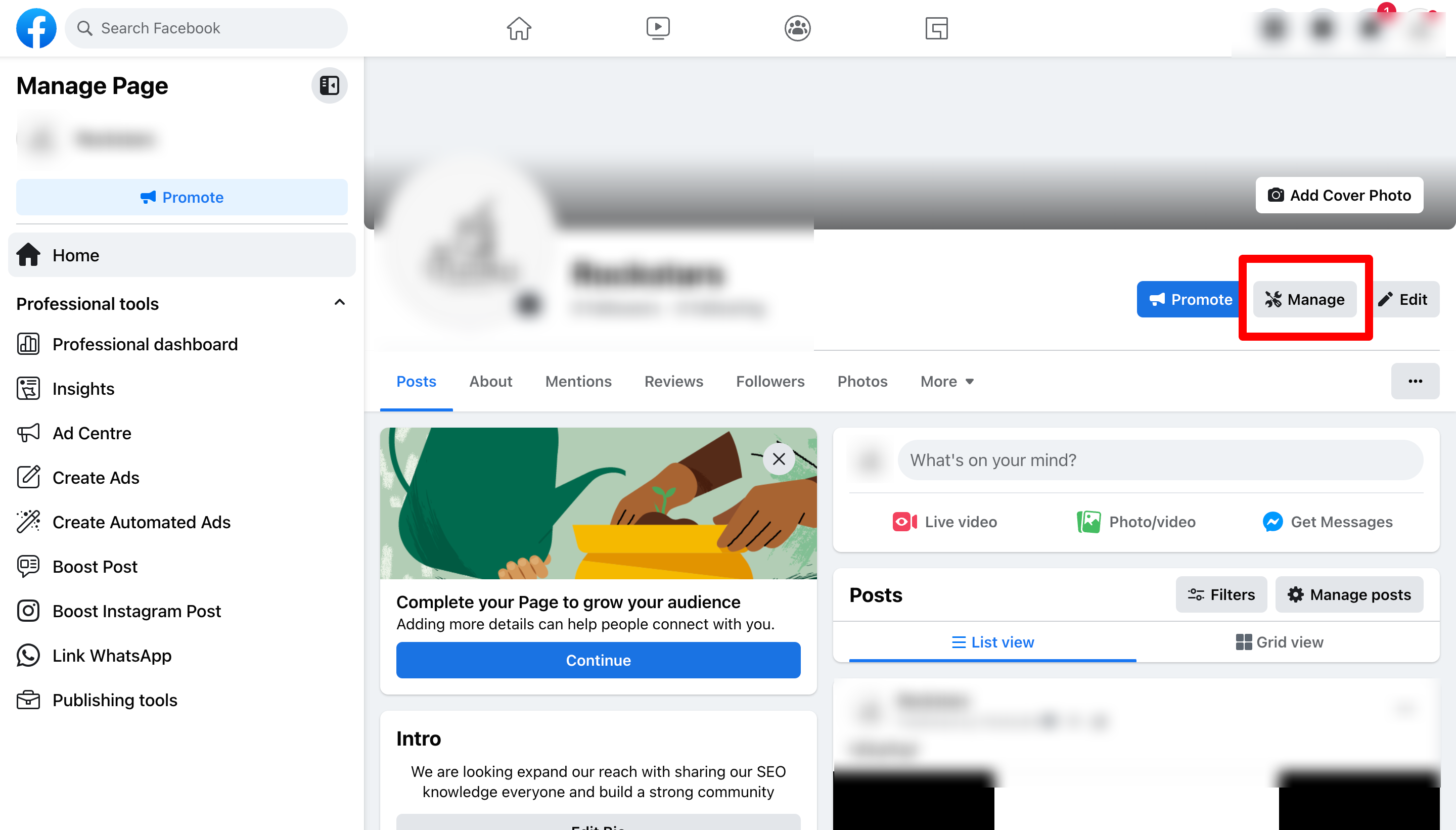
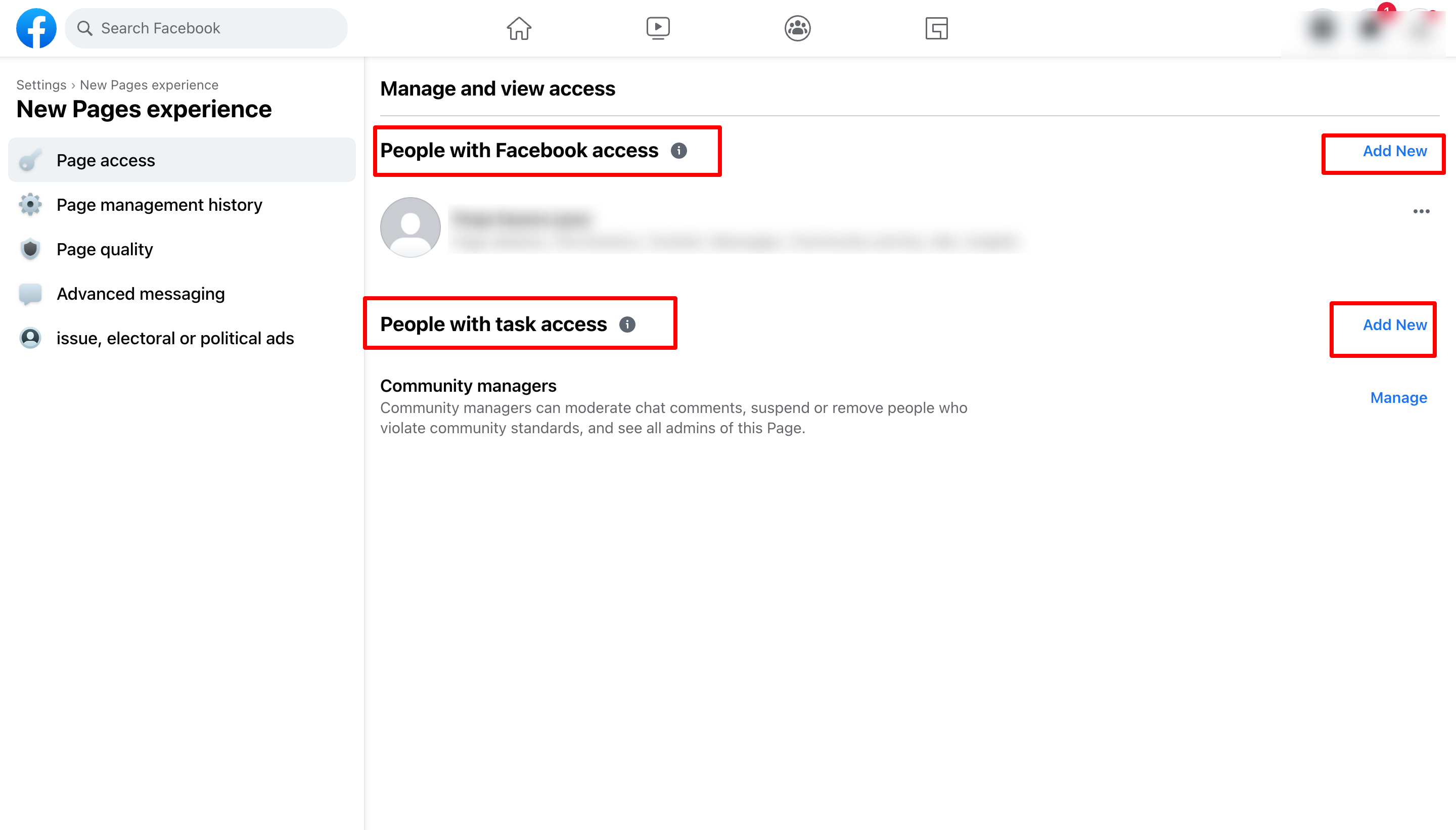
If your Page uses Facebook's New Page Experience, you will be required to grant the following access role during authorization:

Do I need to be an admin on the Facebook Page?
Yes. You must have Admin rights on any Page you want to connect, and you must log in with the profile that holds that admin access. Pages where you are not an admin will not appear in the selection list.
Can I connect a personal Facebook profile?
No. Facebook's API only allows publishing to Pages, not personal profiles. If you want to post to Facebook, use a Facebook Page.
Can I connect Pages from more than one Facebook profile?
Yes. Repeat the connection steps while logged in to each profile that owns the Pages you want. You can add as many Pages as you need.
Why does the consent screen mention LeadConnector?
LeadConnector is the underlying provider that powers the social connection for Aesthetix CRM. Seeing it on the Facebook authorization screen is expected and safe, and it does not change how your Page or account is managed.
I connected these Pages before under a different profile. How do I move them?
Remove the app from your Facebook account under Facebook Settings > Business Integrations, then run through the connection steps again while logged in with the profile you want to use going forward.
How do I add more Pages later?
Return to Marketing > Social Planner, open Settings, click Connect Social, and repeat the process. Newly authorized Pages are added alongside your existing ones.
Why is one of my Pages missing from the list?
The most common reasons are that you are not an admin on that Page or you are logged in with the wrong Facebook profile. Confirm your role, log in with the correct profile, and reconnect.
