The Social Media Planner in Aesthetix CRM lets your practice manage every social channel from one place. Connect your accounts, draft posts, add photos and video, and either publish right away or schedule content ahead of time. It is built for busy med spas and aesthetic practices that want a consistent presence on Facebook, Instagram, and other platforms without logging in and out of each network.
This guide walks you through the essentials so you can start planning and posting your treatment promotions, before and after highlights, and seasonal specials.
A little preparation before you start connecting accounts and building posts helps you avoid missing profiles or failed posts later.
Confirm you can sign in to each social platform you plan to connect.
Verify you have admin or publishing access to the page, profile, channel, or board you want to manage.
Prepare your captions, links, images, or videos ahead of time.
Confirm your media meets the requirements of the platform you are posting to.
Review your practice's timezone before scheduling posts, since scheduled times follow it.
You can explore the Social Planner and prepare content without connecting an account, but you will need an active connection before you can publish or schedule to that channel.
Navigate to the Marketing tab in Aesthetix CRM.
Select Social Planner from the menu.
Confirm that your social media accounts are connected before you begin creating posts.
Before you can publish, you need to link at least one social profile to the planner.
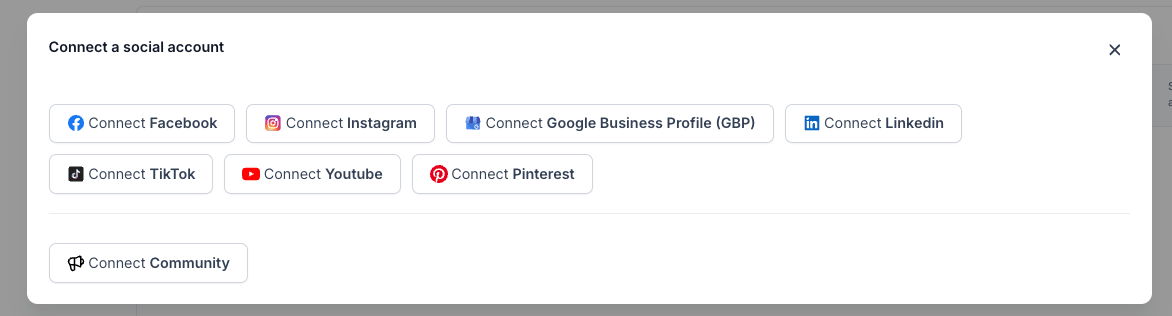
Click New Account in the Social Planner.
Follow the prompts to connect the profiles you want to manage, such as your Facebook Page, Instagram Business account, or other supported channels.
For Facebook Pages, sign in with a Facebook profile that has admin access to every Page you want to connect.
When you connect Facebook, Instagram, or Google Business Profile, you may see a consent screen that mentions LeadConnector. This is the underlying provider that powers the connection, so the screen is expected and safe to approve.
Click New Post to start drafting your content.
Assign the post to a specific account, or post to a Group to reach several profiles at once. Groups let you manage multiple profiles and publish to all of them simultaneously, which is helpful when you want the same promotion on Facebook and Instagram together.
A single custom post is not your only option. The Social Planner also gives you a few other ways to build out your content calendar:
Bulk Scheduling: upload up to 90 posts at once from a CSV or XLSX file, useful for loading a full month of content in one pass.
Evergreen Queue Post: build a reusable queue of posts that you can edit, reorder, view, or reschedule at any time.
Recurring Post: set a post to repeat automatically on a schedule you choose.
RSS Post: turn new items from an RSS feed into social posts automatically.
You will find these options alongside New Post when you start building content in the Social Planner.
Strong visuals are what make aesthetic content stand out. Add your images and video directly inside the planner.
Enter your post copy in the text field.
Click the picture icon to add visuals.
Design your graphics in Canva or your preferred tool, such as a treatment promo or an event announcement.
Save the finished images to your computer or cloud storage.
Upload the images to the Media Library in Aesthetix CRM so they are available for this post and future posts.
If your creative includes patient before and after photos, confirm you have written consent to use those images publicly before you post. Once content is live on a social platform it is outside the CRM and cannot be recalled.
When your post is ready, choose how you want it to go out:
Post Immediately: publish to your connected accounts right away.
Schedule for Later: set a future date and time for the post to go live.
Send for Review: submit the post for approval before it publishes, which is useful when a team member drafts content for a manager to sign off on.
Confirm your choice to finalize the post.
With the Social Media Planner, your practice can keep a steady social presence with far less effort. Whether you post instantly or build out a calendar of scheduled content, the planner keeps drafting, approval, and publishing in one workflow.
Where do I find the Social Media Planner in Aesthetix CRM? Go to Marketing → Social Planner. If you do not see it, confirm your user role has access to the Marketing menu.
Which platforms can I connect? The planner supports the major social networks including Facebook, Instagram, TikTok, LinkedIn, YouTube, Pinterest, Threads, Bluesky, Google Business Profile, and X. The exact set of options appears when you click New Account.
Do I have to connect an account before I can create a post? No. You can explore the Social Planner and draft content before connecting an account. You just need an active connection to the platform before you can publish or schedule a post to that channel.
What is a Group and why would I use one? A Group bundles several profiles together so you can publish the same post to all of them at once instead of selecting each account every time.
Can I schedule a post for a future date? Yes. When you finish a post, choose Schedule for Later and set the date and time you want it to go live.
What does Send for Review do? It routes the post for approval before publishing, so a manager can review content a team member drafted before it reaches your audience.
Where do the images I upload live? Uploaded visuals are stored in your Media Library, so you can reuse them across future posts without re-uploading.
Can I post before and after photos of patients? Only with the patient's written consent to use their images publicly. Once a post is live on a social network it is outside Aesthetix CRM and cannot be taken back through the planner.
Can I upload several posts at once instead of creating them one by one? Yes. Use Bulk Scheduling to upload up to 90 posts from a CSV or XLSX file, or set up a Recurring Post to repeat content on a schedule you choose.
Can I turn my blog or news feed into social posts automatically? Yes. Use RSS Post to automatically turn new items from an RSS feed into social posts.
