Connecting WhatsApp to your account and messaging patients reliably depends on a handful of Meta rules. Most errors you will see fall into a few predictable groups. Use the sections below to find your symptom, understand what it means, and apply the fix.
These errors appear while you are connecting a WhatsApp number to your account or verifying it for the first time.
What it means
Your existing WhatsApp Business Account (WABA) already has an active payment method attached. Meta does not allow a WABA with an existing payment method to be connected again through another platform, so onboarding fails if you try to reuse that WABA.
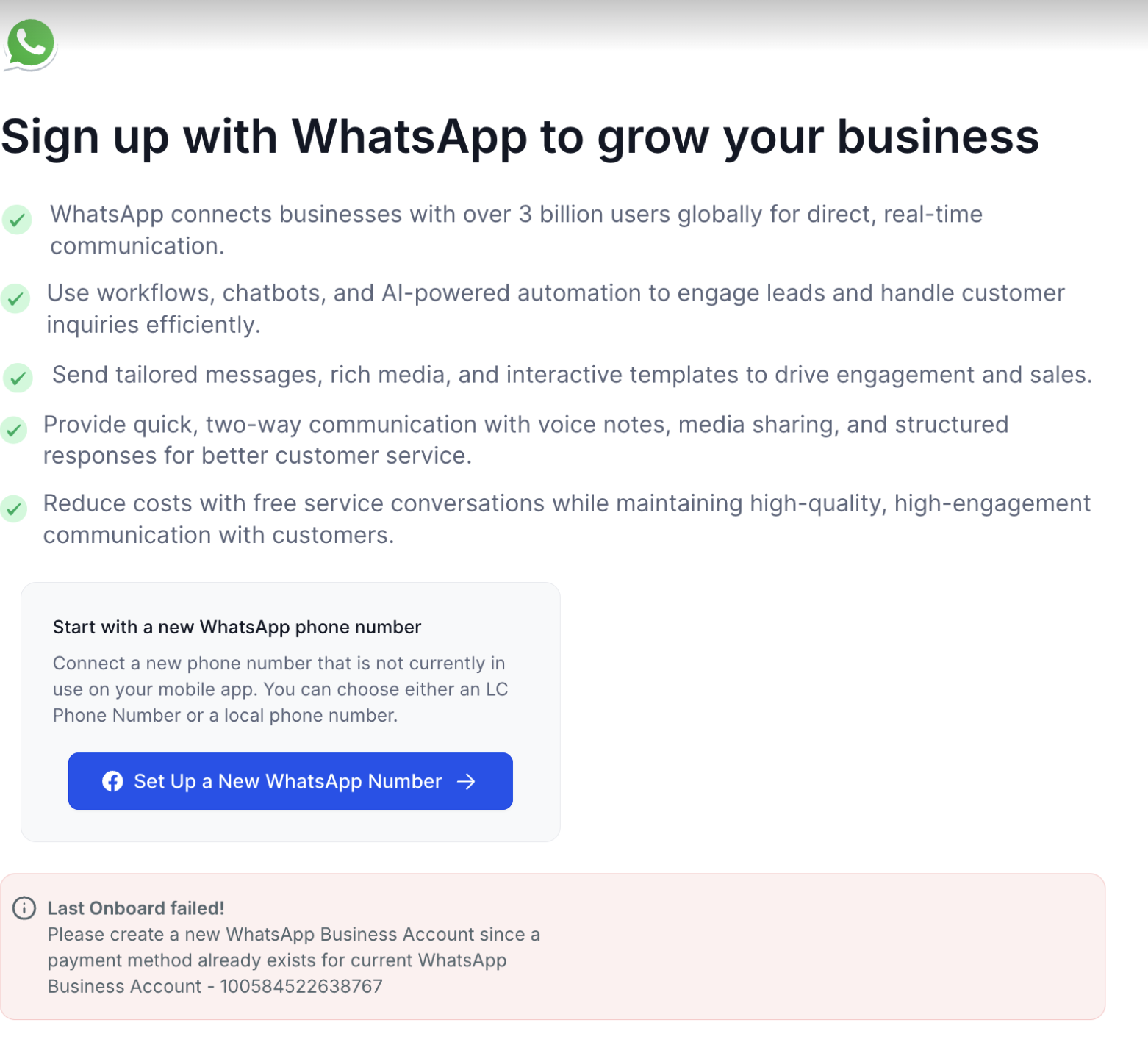
This usually happens when the WABA was already used before, either directly in Meta or through another provider, and Meta blocks it to avoid duplicate billing.
How to fix
Create a new WhatsApp Business Account under your existing Meta Business Manager:
Go to Meta Business Settings and log in with the Facebook account that manages your business assets.
In the left-hand menu, go to Accounts → WhatsApp Accounts.
Click + Add, then select Create a New WhatsApp Business Account.
Enter a unique name for the new account (for example, YourBusinessName-New) and complete the setup prompts.
Return to your WhatsApp onboarding flow. When prompted to select a WhatsApp Business Account, choose the newly created WABA and continue normally.
A few tips: do not delete your old WABA if it is linked to other services or campaigns. If you are unsure which payment method is attached, review it in Meta Payment Settings. Always use a new WABA for onboarding if you previously connected the same number with another provider.
Which setup should you use?
Already using the WhatsApp Business App and want to keep using it? Use Coexistence, if your number is eligible.
Moving from another WhatsApp provider? Use the migration path for an existing WhatsApp Business Account.
Starting with a new or unused number? Create a new WABA.
Seeing the payment-method error on the WABA you selected? Create or select a different eligible WABA.
Creating a new WABA does not always mean you need a new phone number.
If a new WABA still fails
A new WABA can still fail if the phone number is already connected somewhere else, or another onboarding issue exists. Check the following:
Confirm the new WABA was actually selected during onboarding.
Read the new error message carefully; it may point to a different issue.
Check whether the phone number is still connected to WhatsApp, WhatsApp Business, or another provider.
Confirm you are using the correct onboarding path for your situation.
Retry phone verification.
If the issue continues, gather the escalation details below before contacting support.
"Last onboarding failed" because the WABA is already connected elsewhere
This message can appear when the WABA is already connected to another account. If the error names an account ID:
Note the account ID shown in the error.
Locate the account where that WABA is currently connected.
Disconnect the WABA from that account.
Return to the correct account and restart onboarding.
Do not create another WABA just because you see this error; disconnecting the existing association usually resolves it.
What to include when escalating a WABA onboarding issue
If onboarding still fails after trying the steps above, gather the following before contacting support:
Your account ID
Phone number, with country code
WABA ID
Phone Number ID, if available
The exact error message
A screenshot of the error
The approximate time of the failed attempt
Which onboarding path you used (new WABA, Coexistence, or migration)
Whether the number is connected to WhatsApp, WhatsApp Business, or another provider
Troubleshooting steps you have already completed
Any Meta error code or fbtrace_id, if available
What it means
WhatsApp has flagged the number as not having enough business activity to qualify for the platform. To confirm the number belongs to a legitimate, active business, WhatsApp requires some engagement through the WhatsApp Business App before it will approve onboarding for Coexistence.
How to fix
Build up authentic business activity, then retry:
Start engaging in real conversations. Send and receive messages with real patients or internal testers, use features like quick replies, labels, and greeting messages, and share different content types (text, images, documents). Respond promptly and keep conversations active. Aim to maintain daily messaging activity for about a month.
After consistent activity, return to your WhatsApp onboarding flow and retry connecting your number.
Avoid these common mistakes: do not try to onboard a fresh or unused number, do not use a number that was never registered on the WhatsApp Business App, and do not delete the WhatsApp Business App too early. Maintain activity until onboarding succeeds. If you are on a deadline, consider using a different number that has already been used actively on the WhatsApp Business App and has some customer interactions.
What it means
The most common reason OTP (one-time password) verification fails is that the number you are onboarding is already registered with the WhatsApp Business App or WhatsApp Messenger. A number can only be actively used on one WhatsApp platform at a time, so WhatsApp blocks OTP delivery during onboarding.
How to fix
First, confirm whether the number is already registered on WhatsApp using one of these checks:
Click to Chat: Open a browser and go to https://wa.me/<countrycode><phonenumber> (for example, https://wa.me/919876543210), then press Enter. If WhatsApp opens, the number is registered. If you see "Phone number shared via url is invalid," the number is not registered.
Inside the WhatsApp Business App: Save the number in your phone contacts, open WhatsApp, start a new chat, and search for the contact. If the contact appears, the number is on WhatsApp. If the profile shows "Business Account" or "Verified Business" (often with a business name, category, or catalog), the number is on WhatsApp Business.
Then choose one of the following solutions:
Option 1 (recommended): Use a different phone number. Use a fresh number that has never been registered on WhatsApp and proceed with onboarding.
Option 2: Remove the existing WhatsApp account. If you must reuse the same number, install WhatsApp (Business or regular) on your mobile device with that number, open Settings → Account → Delete Account, and confirm. Wait a few minutes, then retry onboarding and OTP verification in your account. Note: deleting the account permanently removes chat history and data associated with that number.
If the number is not registered on WhatsApp and you still cannot receive the OTP, raise a support ticket with the phone number (including country code), your account ID, a screenshot or the exact error shown during verification, and the approximate time of the failed attempt. Our support team will investigate further with Meta.
What it means
The number you are onboarding is already connected to an existing WhatsApp account. A number can only be linked to one WhatsApp account at a time, so it cannot be reused for onboarding until it is disconnected from the current account.

You may see this because the number is active on the WhatsApp mobile app (personal or business), it is already connected to another WhatsApp Business Platform or provider, it was recently disconnected but WhatsApp is still processing the change, or it was previously used and not fully released yet.
How to fix
Disconnect the number from the existing WhatsApp account. If it is active on a mobile device, open WhatsApp, go to Settings → Account → Delete Account, and confirm by entering the phone number. Deleting the account permanently removes chat history and disconnects the number from WhatsApp. If the number is connected to another provider, contact that provider and request a full release or deletion from their WhatsApp Business Platform account.
Wait for the number to refresh. Allow up to 3 minutes for WhatsApp systems to update the number's status; it may take slightly longer depending on Meta's backend processing. Do not retry repeatedly, as that can cause additional delays.
Retry onboarding. Return to the onboarding screen, re-enter the phone number, and complete the verification steps.
This is not a system failure; it is a WhatsApp safeguard ensuring each number is uniquely tied to a single account. Once the number is disconnected and refreshed, onboarding should complete.
If you're setting up Coexistence
The Coexistence setup flow checks your phone number's existing WhatsApp Business Account associations automatically in the background, so you may not get a chance to manually pick a WABA before this error appears. Even if the number looks like it is only connected to the WhatsApp Business mobile app, it can still have an existing Cloud API WABA association on record, for example from an earlier integration, a trial, or a setup done by another admin.
Before retrying Coexistence onboarding:
Open the Business Portfolio (Business Manager) for your organization in Meta.
Review the WhatsApp Business Accounts associated with your business.
Check whether the phone number you are trying to connect is already tied to an existing Cloud API WABA.
If it is tied to an unwanted or outdated WABA, remove that association. Do not remove a WABA or phone number association that is actively used for another WhatsApp integration.
Restart the Coexistence onboarding process.
What it means
The WhatsApp connection has stayed in a pending state for a week or more. This almost always means the number is still in use on a mobile device or another business platform. A number can only be used in one location at a time and cannot run across multiple platforms simultaneously.
How to fix
Disconnect the WhatsApp number from any mobile device or other business platform where it may currently be in use, then allow the connection to complete. To confirm whether the same number is still registered on WhatsApp, use the checks shown below.
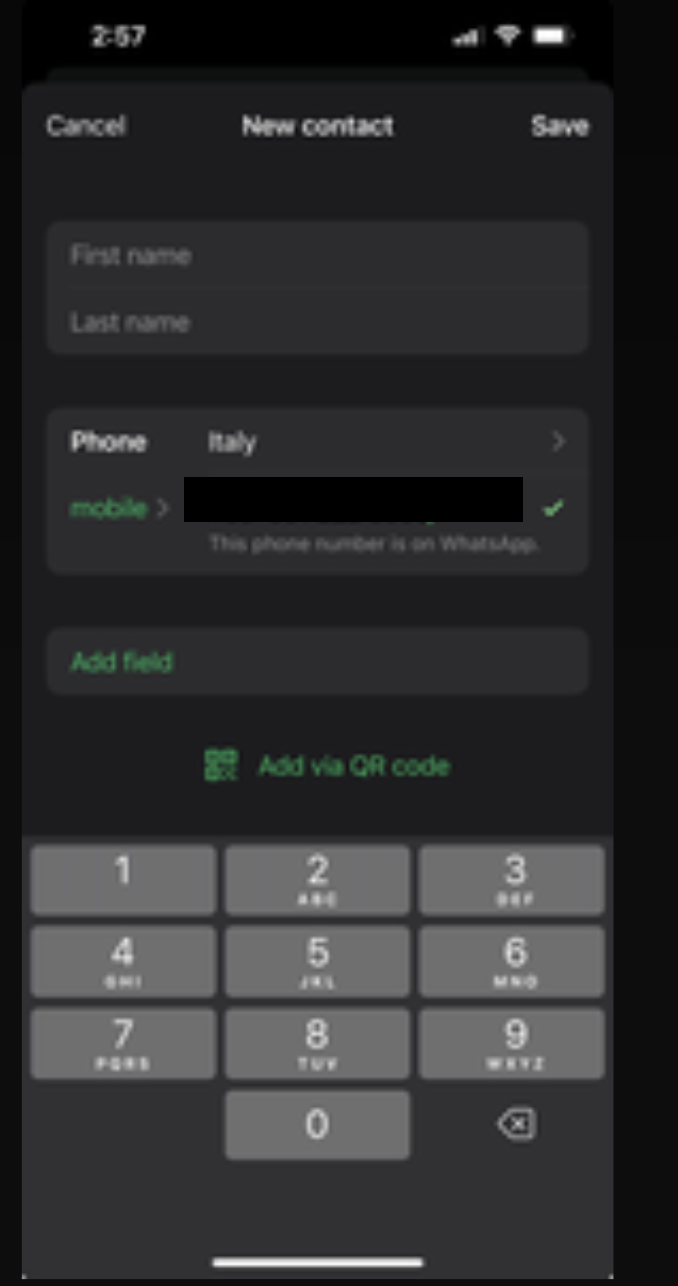
Fully disconnect the number from any conflicting device or platform before retrying, rather than retrying repeatedly. Registration attempts are rate-limited to 10 requests per number in a rolling 72-hour window, and repeated retries while the number is still tied up elsewhere can trip this limit (error code 133016), which delays resolution further. Once the number is fully released from the other location, retry the connection.
What it means
An account connected to WhatsApp Coexistence may not show an option to disable it from within your account. Coexistence lets you use your existing WhatsApp Business App account alongside advanced CRM tools powered by the WhatsApp Cloud API, which is why the control lives in the mobile app rather than your account.
How to fix
Disconnect the integration directly from your WhatsApp mobile app by tapping the disconnect button there.
These errors appear when a message shows as "sent" but not "delivered," or fails to send altogether.
What it means
When you send a message through the WhatsApp Business API, it may show as "sent" but never "delivered." This can happen for several reasons:
Recipient offline for more than 30 days. WhatsApp stores messages for offline users up to 30 days; if the recipient does not come online in that window, the message is not delivered.
Recipient blocked your number. If the recipient blocked your business number (or another number under your account), messages will not be delivered.
Geographic restrictions. The WhatsApp Business Platform is not available for users or businesses in Cuba, Iran, North Korea, Syria, or Crimea, Donetsk, and Luhansk (Ukraine). As of May 15, 2024, Türkiye is supported for Cloud API messaging.
Outdated app or Terms not accepted. Delivery may fail if the recipient uses an outdated WhatsApp version or has not accepted the latest Terms of Service.
High-quality messaging restrictions. WhatsApp limits how many marketing messages a user receives to protect quality. If a user gets too many (typically 5 to 6 in a day), further marketing messages may be temporarily blocked.
Invalid or unregistered number. If the number is not registered with WhatsApp or was entered incorrectly, the message will not be delivered.
API errors or invalid parameters. Missing or incorrectly formatted fields (such as improperly formatted variables) can cause the request to be rejected.
Conflicting delivery status. A message may show both "delivered" and "failed" if the user is logged into WhatsApp on multiple devices. If it is delivered to at least one device, it is considered delivered.
How to fix
When the cause is unclear, ask the customer to help confirm or resolve it:
Confirm they have not blocked your WhatsApp number.
Ask them to message your business first, which reopens the 24-hour customer service window.
Ensure they have accepted WhatsApp's latest Terms of Service via https://wa.me/tos/20210210.
Have them update to the latest version of WhatsApp for their device.
Verify they are not using a restricted app version or an unsupported region.
For authentication and authorization errors (an invalid or under-permissioned access token), use Meta's Access Token Debugger to verify token permissions. Ensure the token includes the whatsapp_business_management and whatsapp_business_messaging scopes, and regenerate it with the correct permissions if not. If you see Meta API downtime (error code 2), brief outages of up to 5 minutes can occur when Meta updates its API; wait five minutes and retry.
What it means
Meta chose not to deliver the message to maintain a healthy engagement ecosystem. This primarily applies to marketing template messages subject to Per-User Marketing Template Message Limits. WhatsApp may limit marketing template messages to users who are less likely to engage, which improves the recipient experience and reduces unwanted messages.
How to fix
Do not retry immediately. Retry in gradually increasing time increments until the message is delivered. This keeps you compliant with Meta's limits and prevents further disruptions.
Work within the marketing limits. If a marketing conversation is already open, one additional marketing message can be sent without triggering the limit. Once the user responds, you can send unlimited free-form messages.
To reduce this error over time, make marketing messages timely, relevant, and expected. Use personalized content that adds value (such as information about a recent visit or an exclusive offer), and monitor delivery and engagement so you can adjust your strategy. Higher-quality engagement also makes your account eligible for more features on the WhatsApp Business Platform.
What it means
WhatsApp did not deliver a marketing template message because the recipient has already received the maximum number of marketing template messages allowed within a rolling period. This limit counts marketing messages the recipient received from other business platforms as well, not just yours, so it can trigger even when you have sent that patient very few messages. This is expected behavior, not a fault in your account.
How to fix
The limit clears on its own after 24 hours, after which the error disappears and you can send template messages to that recipient again. In the meantime:
Wait 24 hours before retrying the marketing template.
Send a Utility template instead if you need to reach the patient sooner, since utility templates are not subject to this marketing limit.
Ask the patient to message your business first, which reopens the 24-hour customer service window and lets you send free-form messages.
What it means
The message was sent from your system but could not be delivered to the recipient's device. Common reasons include: the recipient's number is not a registered WhatsApp number, the recipient has not accepted WhatsApp's latest Terms of Service and Privacy Policy, or the recipient is using an outdated version of WhatsApp.
How to fix
Verify recipient details. Confirm the recipient's number is registered on WhatsApp. Note that authentication templates currently cannot be sent to users in India.
Ensure compliance with WhatsApp Terms and updates. Verify the recipient has accepted WhatsApp's latest Terms of Service and Privacy Policy, and ask them to update to the latest WhatsApp client: Android 2.21.15.15 or later, iOS 2.21.170.4 or later, or KaiOS 2.2130.10 or later.
Validate communication. Confirm the recipient can send a message to your WhatsApp business number, and use a non-WhatsApp channel to guide them through fixing any issues with their WhatsApp account.
What it means
The WhatsApp consumer app offers many message types (stickers, polls, voice notes, GIFs, contact cards, and more), but the WhatsApp Business Platform (Cloud API) that powers your account only supports a specific set. When a customer sends a type the Business API does not support, your account cannot display or process it, and Meta assigns error code 131051. This is not a bug in your account; it is a Meta API limitation that applies to every platform built on the WhatsApp Business API.
The error appears in two situations. Inbound: a customer sends a type the API cannot process (such as a poll, GIF, or deleted message), and your account receives a webhook with type: "unsupported" instead of the content. Outbound: a message fails to send because its type or format is not supported by the API.
Supported types (sent and received unless noted) include:
Message Type | Direction | Details |
|---|---|---|
Text | Both | Plain text, including emojis and links |
Image | Both | JPEG, PNG. Max 5MB |
Video | Both | MP4, 3GPP. Max 16MB |
Audio | Both | AAC, MP4, MPEG, AMR, OGG. Max 16MB |
Document | Both | PDF, Word, Excel, PowerPoint, and more. Max 100MB |
Sticker | Both | Static WebP (outbound). Animated WebP (inbound only) |
Location | Both | Share or receive a map pin with coordinates |
Template Messages | Outbound | Pre-approved Marketing, Utility, and Authentication templates |
Interactive | Outbound | List messages, reply buttons, CTA URL buttons |
Contacts | Both | Structured contact cards via the API only |
Reaction | Both | Emoji reactions to messages (API v2.45+) |
Unsupported types include polls, ephemeral (disappearing) messages, deleted messages, GIFs, regular voice and video calls from the consumer app, group messages, contact cards shared natively from a phonebook, and business-to-business (API to API) messaging. When a customer sends one of these, your conversation view shows a placeholder such as "Unsupported Message." The message still appears as received, so you know something was sent, but the content cannot be read. You can still reply to the contact normally.
How to fix
Identify the message type by checking the conversation to understand what the customer was trying to send.
Reply to the customer asking them to resend using a supported format such as text, image, audio, or document.
If you are sending a message and get this error, verify your message type and format match the supported types above.
If the error persists for outbound messages, check that your API parameters are correct and no unsupported fields are included in the payload.
Inbound unsupported messages cannot be recovered; there is no way to read the content of a poll, deleted message, or GIF through the Business API. As a best practice, consider adding an automated reply that triggers when an unsupported message is received, letting the customer know their message could not be read and asking them to resend as text, image, audio, or document.
What it means
A restricted WhatsApp Business account means you are temporarily unable to send or respond to messages. WhatsApp may apply this for security reasons or when it detects activity that does not comply with its policies, including violations of the WhatsApp Business Terms of Service, the Business Messaging Policy, or the Commerce Policy.
How to fix
If you believe the restriction was a mistake, request a review from Meta:
Access Business Support Home. Go to Business Support Home, scroll down, and locate your restricted WhatsApp Business account.
Request a review. Click Request Review and check the box confirming you are a real person.
Verify your identity. Enter your mobile phone number, choose to receive a confirmation code via SMS or WhatsApp, enter the code, and click Continue. If you do not receive a code, click Get another code.
Upload your photo ID. Upload a valid photo ID such as a passport or driver's license. This confirms the account belongs to you; WhatsApp keeps your personal information secure.
Submit your request. Click Continue to complete the request. A confirmation message will indicate it was submitted.
WhatsApp aims to review and respond within 48 hours, though it can take longer. Your account stays restricted until the review is complete. If the appeal is approved, your account is restored; if not, WhatsApp will provide the reasons for the restriction.
What it means
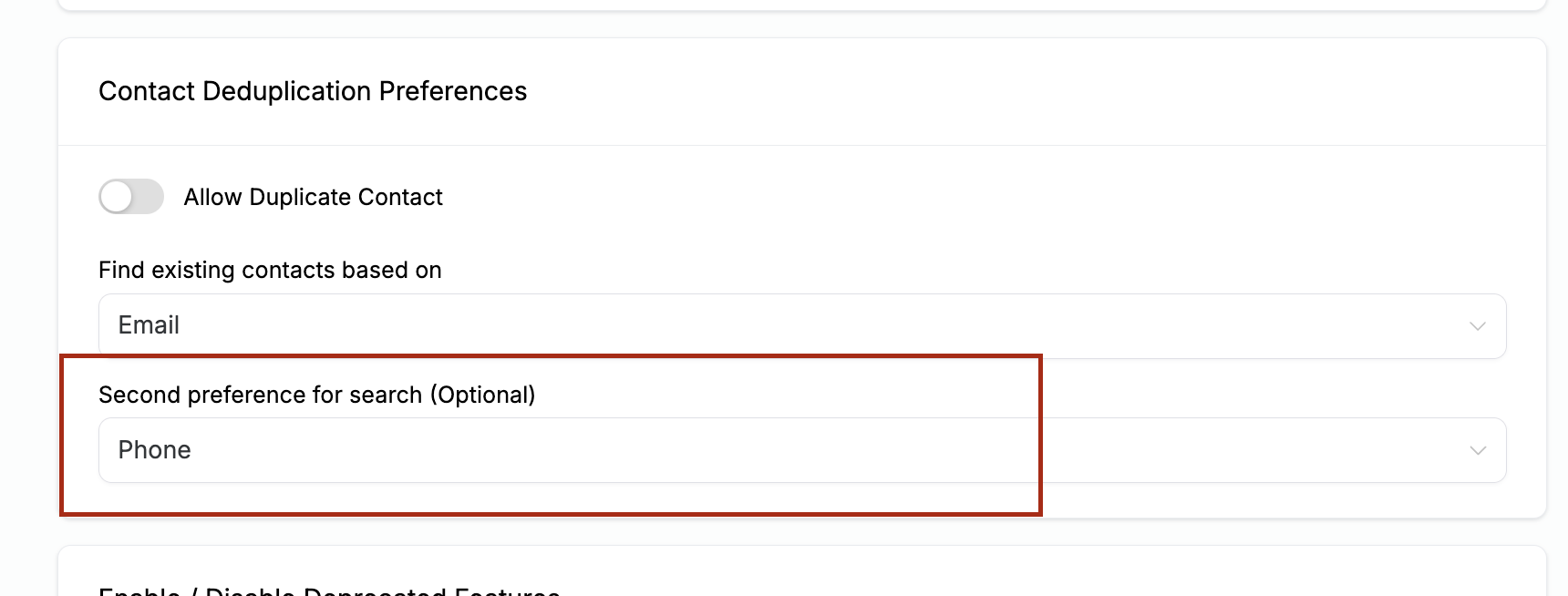
Duplicate contact entries appear for WhatsApp messages even when the Allow Duplicate Contact option is disabled in your Business Profile. This usually happens when contact search preferences are not set to include phone numbers as a secondary search criterion, so incoming WhatsApp messages are not matched to existing contacts.
How to fix
Navigate to Business Profile.
Go to Contact Duplicate Preference.
Under Second Preference for Search (Optional), make sure Phone is selected.
Selecting Phone as the secondary search preference lets the system match contacts by phone number, which prevents duplicate entries from being created.
Why was my WhatsApp message marked as sent but not delivered?
Several reasons are possible: the recipient has been offline for over 30 days, blocked your number, has not accepted WhatsApp's latest Terms of Service, is using an outdated version of WhatsApp, has an invalid number not connected to WhatsApp, is in a restricted region, or your message was flagged by marketing quality limits.
What is the 24-hour customer service window?
Once a patient sends a message to your business, you have 24 hours to respond with free-form messages. After that window closes, you can only re-initiate the conversation using pre-approved templates.
What is the "High-Quality User Experience" error, and how do I resolve it?
If a user receives too many marketing messages (typically 5 to 6 per day), WhatsApp may restrict further marketing messages to protect quality; utility templates are not affected. To resolve it, ask the customer to message you first (which reopens the 24-hour window), use a Utility template instead of a Marketing template, or wait and retry later.
A marketing message failed with a "Per-User Marketing Template Message Limits" error. How long does it last?
The limit clears on its own after 24 hours, after which you can send template messages to that recipient again. The limit counts marketing messages the recipient received across other business platforms too, so it can trigger even if you sent very few. To reach the patient sooner, send a Utility template (which is not subject to this limit) or ask them to message you first.
How can I check if a recipient blocked my number?
WhatsApp will not tell you directly, due to privacy policies. If other messages to the same recipient are delivered, or the recipient is unresponsive over a long period, they may have blocked you.
How do I know if a user's WhatsApp version is outdated?
Ask them to update to at least Android 2.21.15.15, iOS 2.21.170.4, or Web 2.2132.6. Older versions may not support newer API features and can block delivery.
Can users in all countries receive WhatsApp Business messages?
No. The WhatsApp Business Platform is restricted in certain countries, including Cuba, Iran, North Korea, Syria, and Crimea, Donetsk, and Luhansk (Ukraine).
What does it mean if I see both "delivered" and "failed" for the same message?
This can happen when the user is logged into WhatsApp on multiple devices. The message reached at least one device but may have failed on another; it is still considered delivered.
A customer sent me a poll or GIF, why can't I see it?
Polls, GIFs, and similar types are not supported by the WhatsApp Business Platform API, so they arrive as unsupported (error code 131051) and cannot be displayed. Ask the customer to resend their response as text.
A customer deleted a message, can I recover what they sent?
No. Deleted messages are not recoverable through the API. Once the customer deletes a message, neither your account nor Meta's servers retain its content.
Can I still reply to a customer who sent an unsupported message?
Yes. Even though you cannot see the content, the conversation stays open, and you can reply with any supported type such as text, image, or audio.
How long does a restricted-account review take?
WhatsApp typically responds within 48 hours, though it can occasionally take longer. Your account remains restricted until the review is complete.
What should I do about authentication or permission errors when sending messages?
Use Meta's Access Token Debugger to validate your token, and ensure it includes the whatsapp_business_management and whatsapp_business_messaging permissions. If not, regenerate the token with the correct permissions.
