WhatsApp is one of the fastest ways for prospective patients to reach your practice. This guide covers two connected tools: the WhatsApp chat widget you embed on your website, and the Click-to-WhatsApp ads trigger that automatically starts a conversation the moment someone taps your Meta ad or Facebook Page button.
You will build the chat widget under Web Tools → Chat Widget and set up the ads automation under Marketing → Ad Manager with a workflow trigger. Together they capture high-intent leads and route them straight into your inbox.
Note: You must have WhatsApp enabled and a phone number in place to use these features. Confirm your WhatsApp number is configured in your account before you begin.
The chat widget places a WhatsApp button on your website. When a visitor starts a chat, their message is redirected to the WhatsApp number you select, and you receive a notification in your inbox so you can reply.
In the left menu, go to Web Tools → Chat Widget.
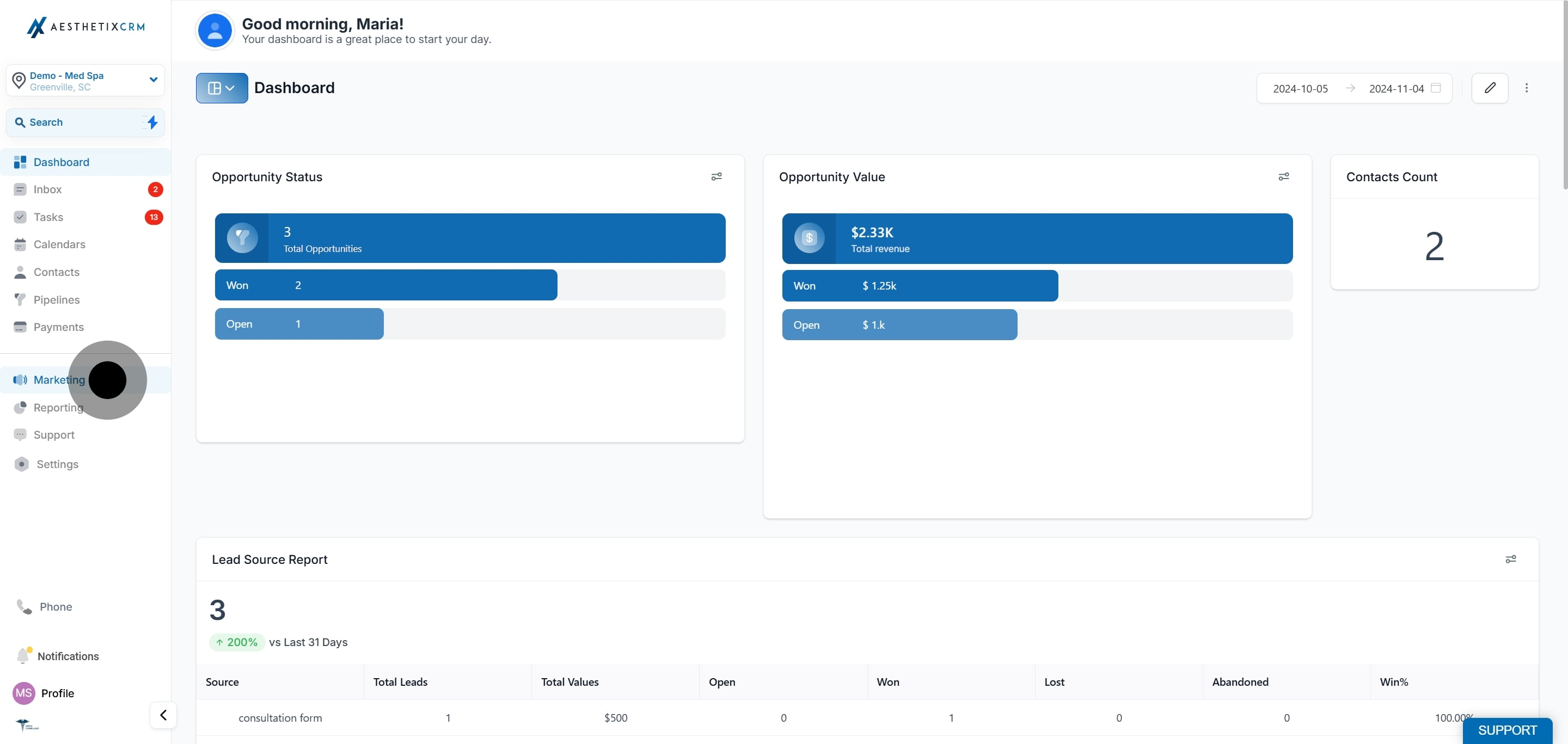
Open Chat Widget.
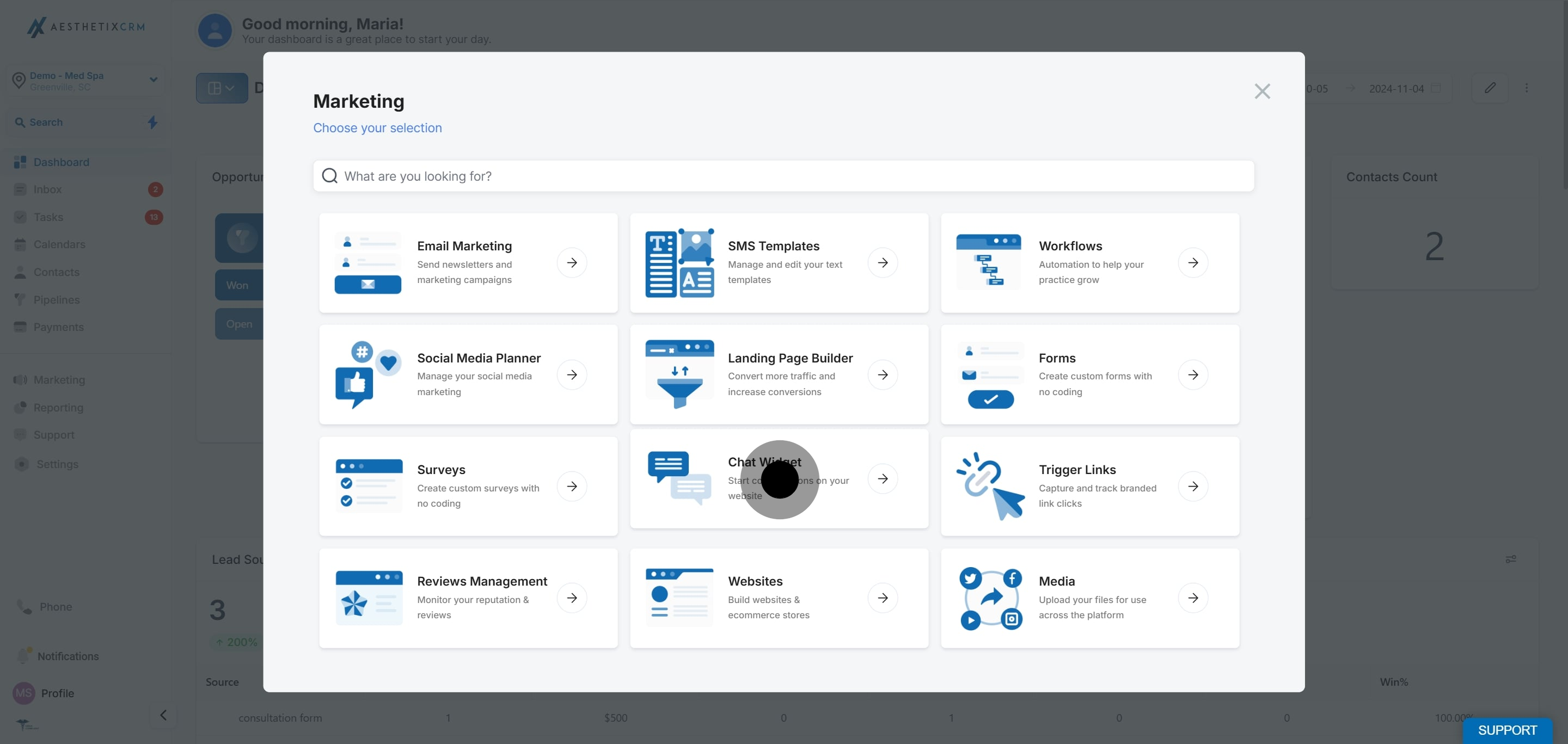
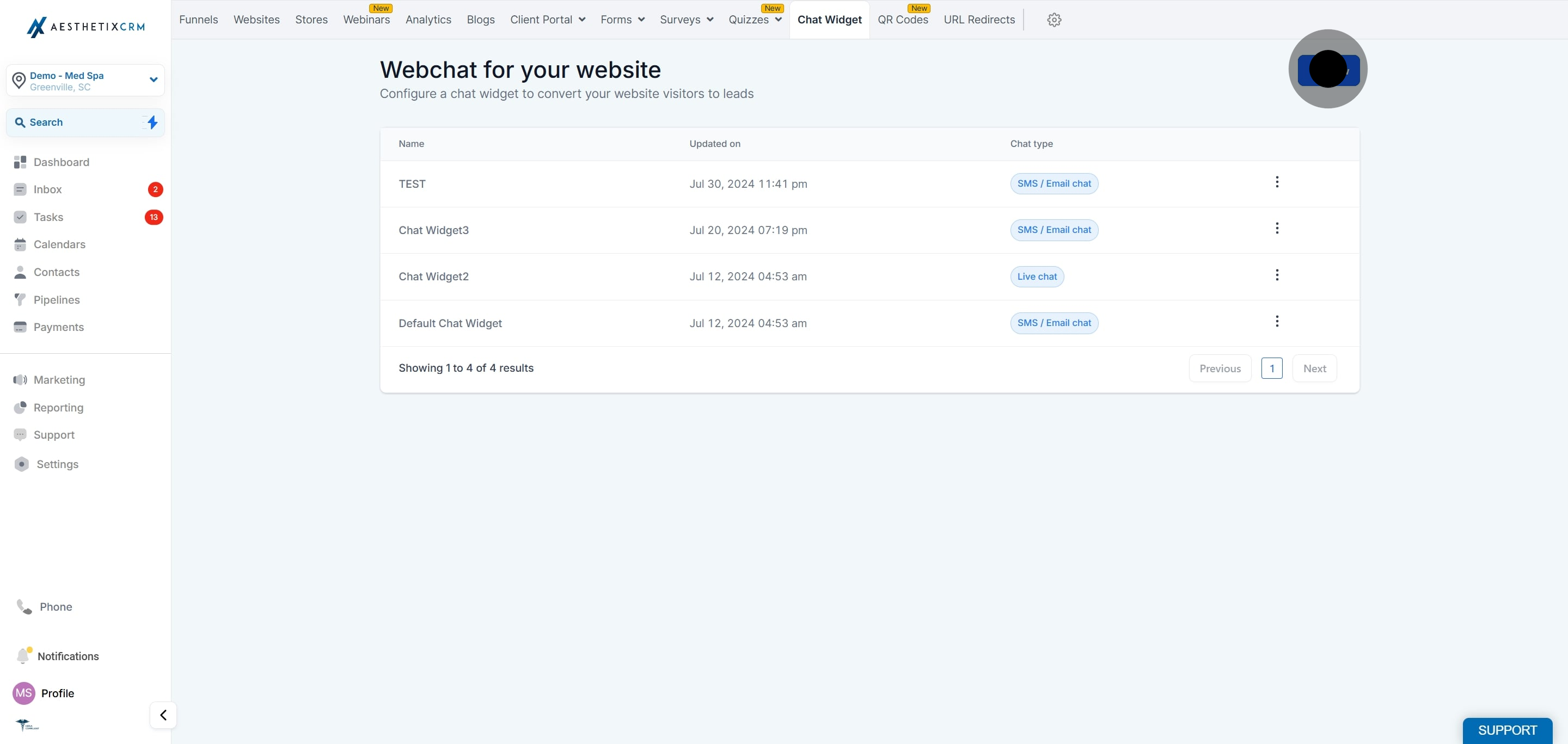
Click New.
Under chat type, select WhatsApp and choose Select.
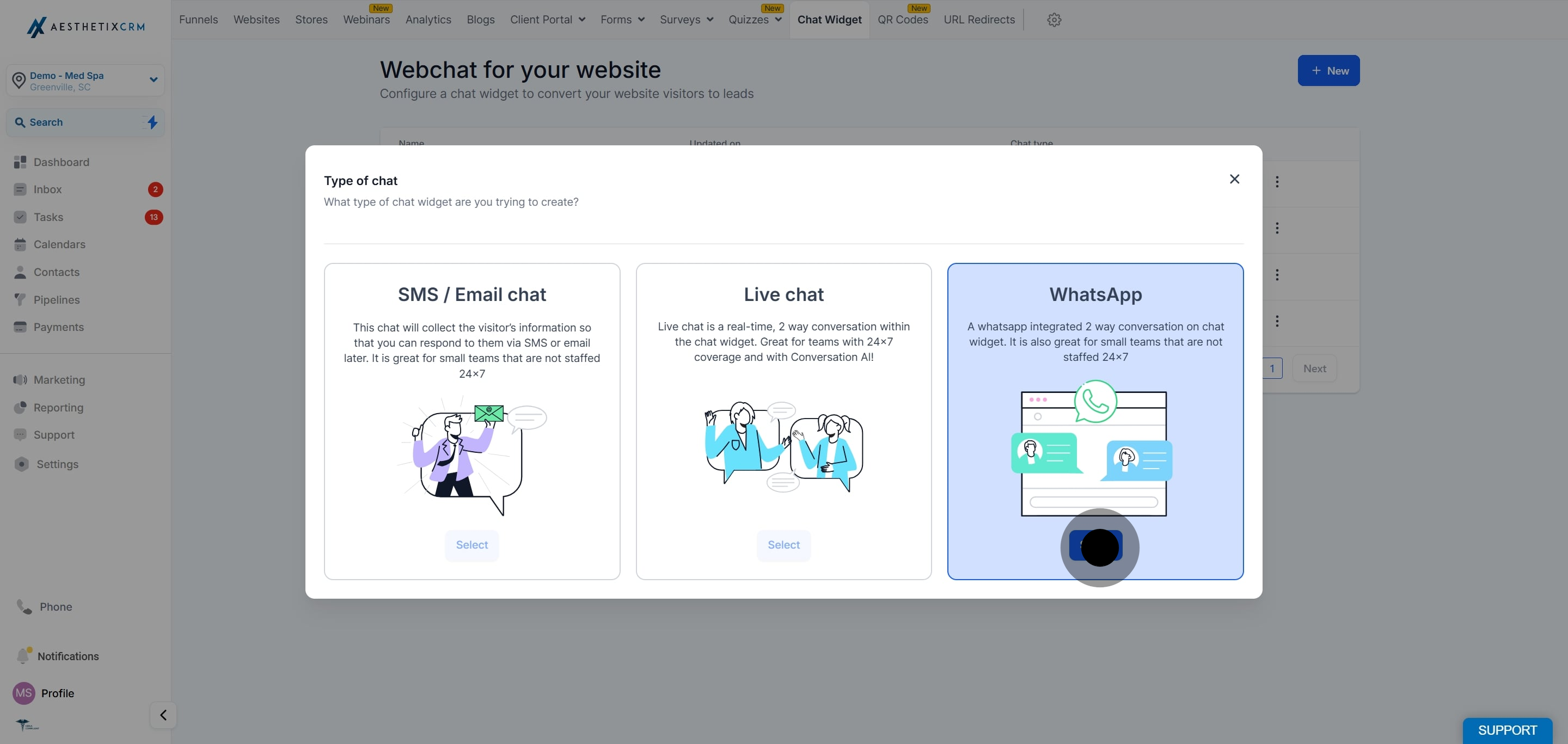
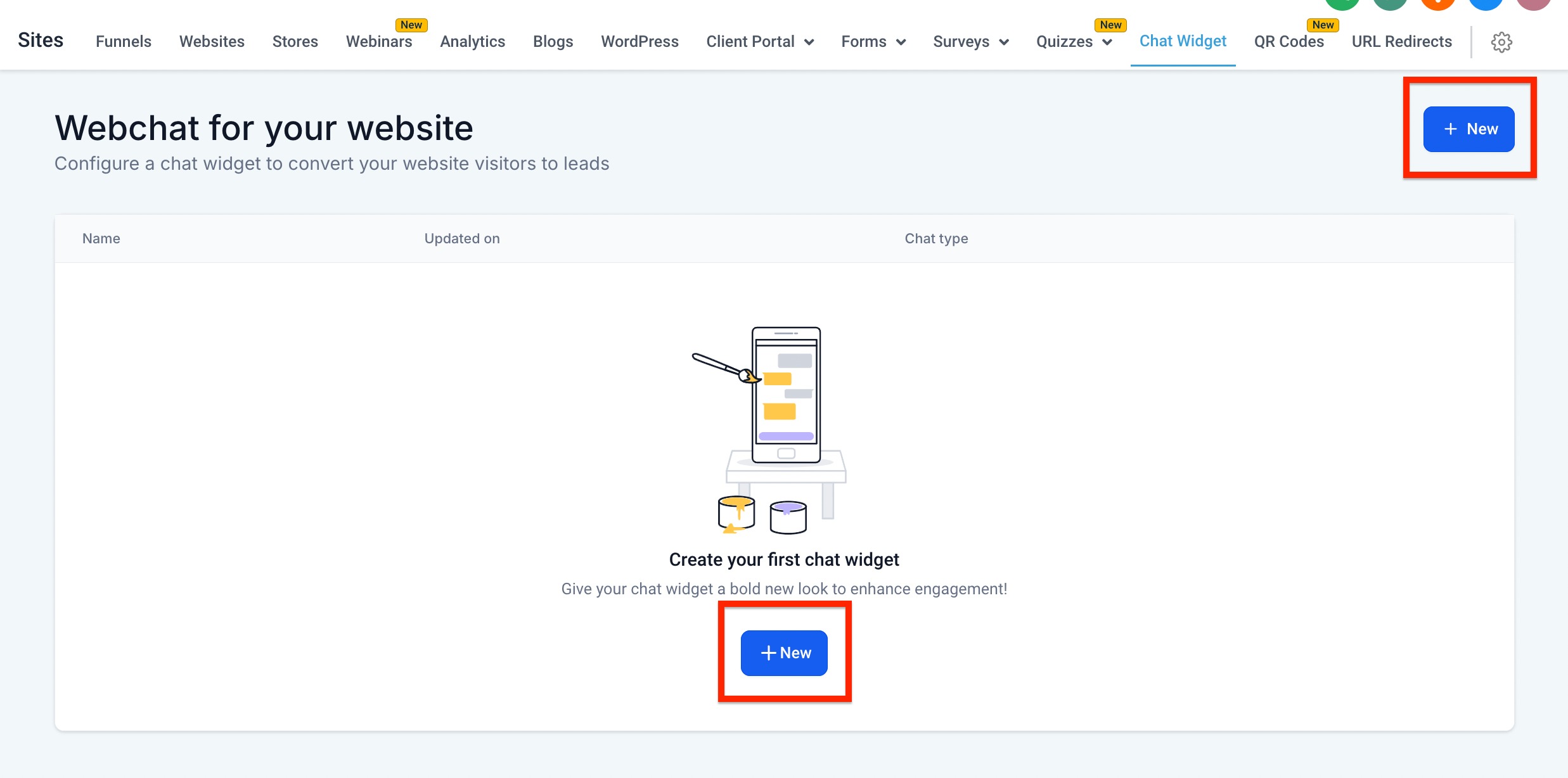
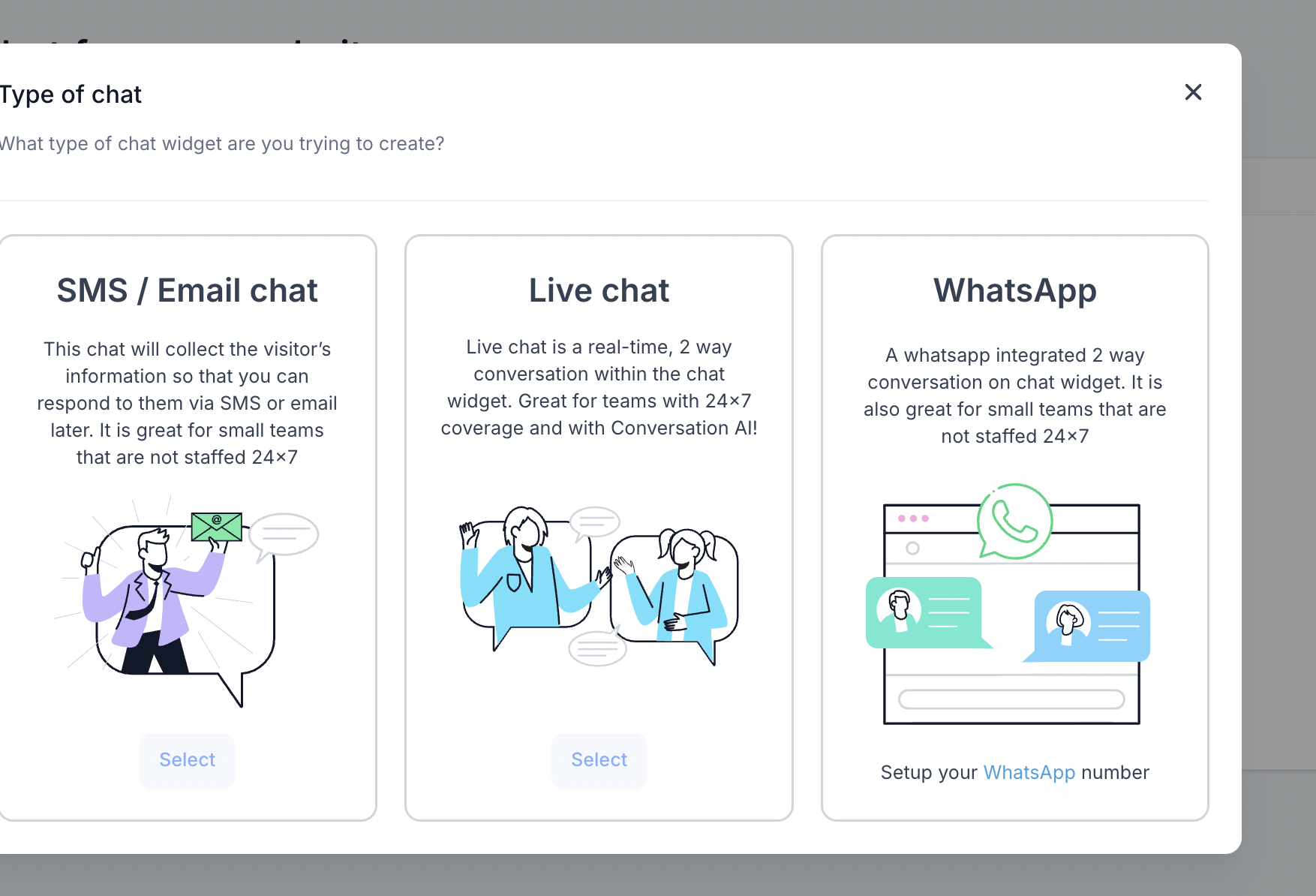
Note: If a WhatsApp number is not yet configured, you will be redirected to settings to add your WhatsApp number first.
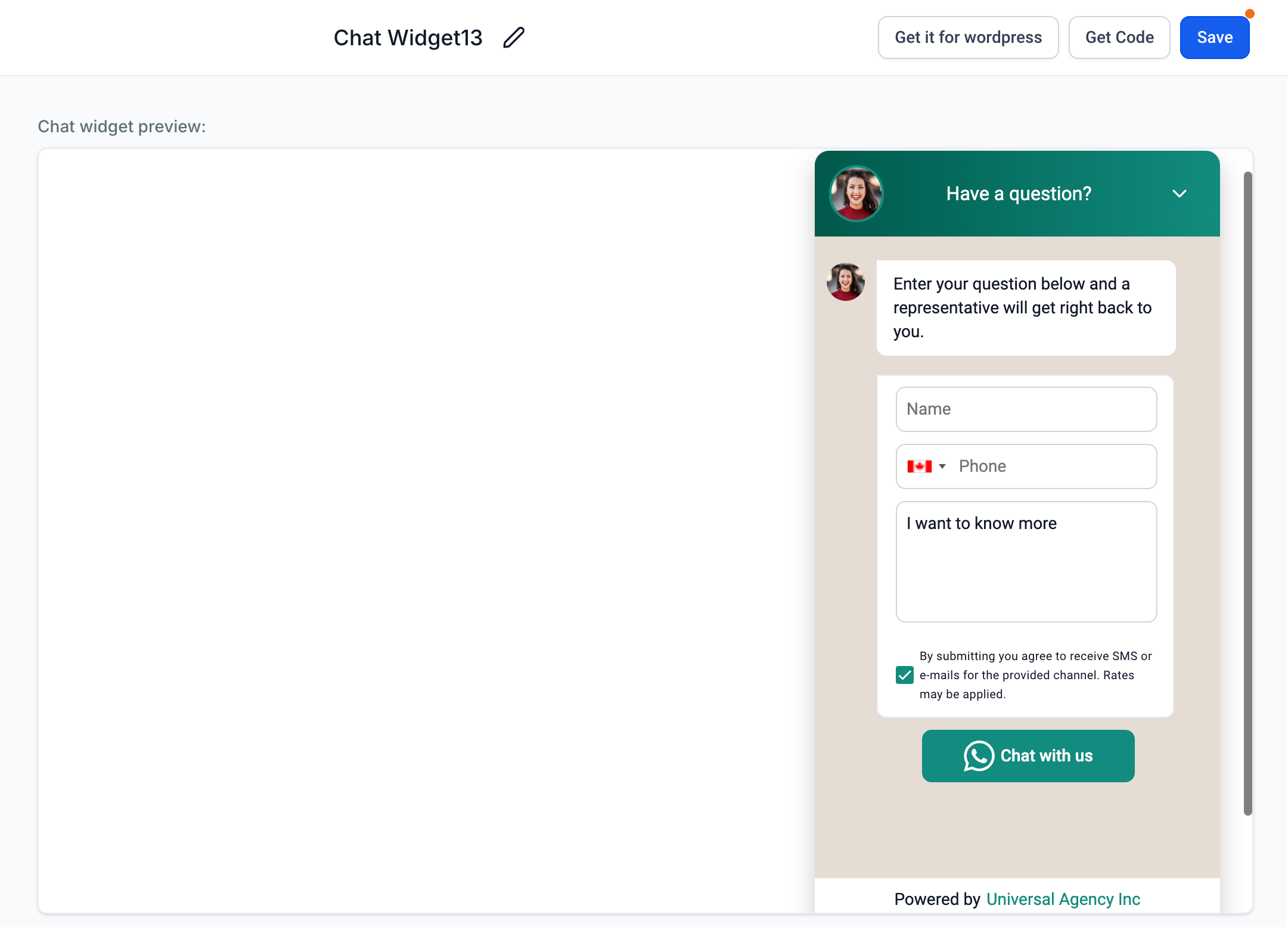
In the widget window, customize the text, colors, branding, and forms with email and phone fields. With the WhatsApp chat type, the widget uses WhatsApp green by default, and you can configure your own colors to match your practice.
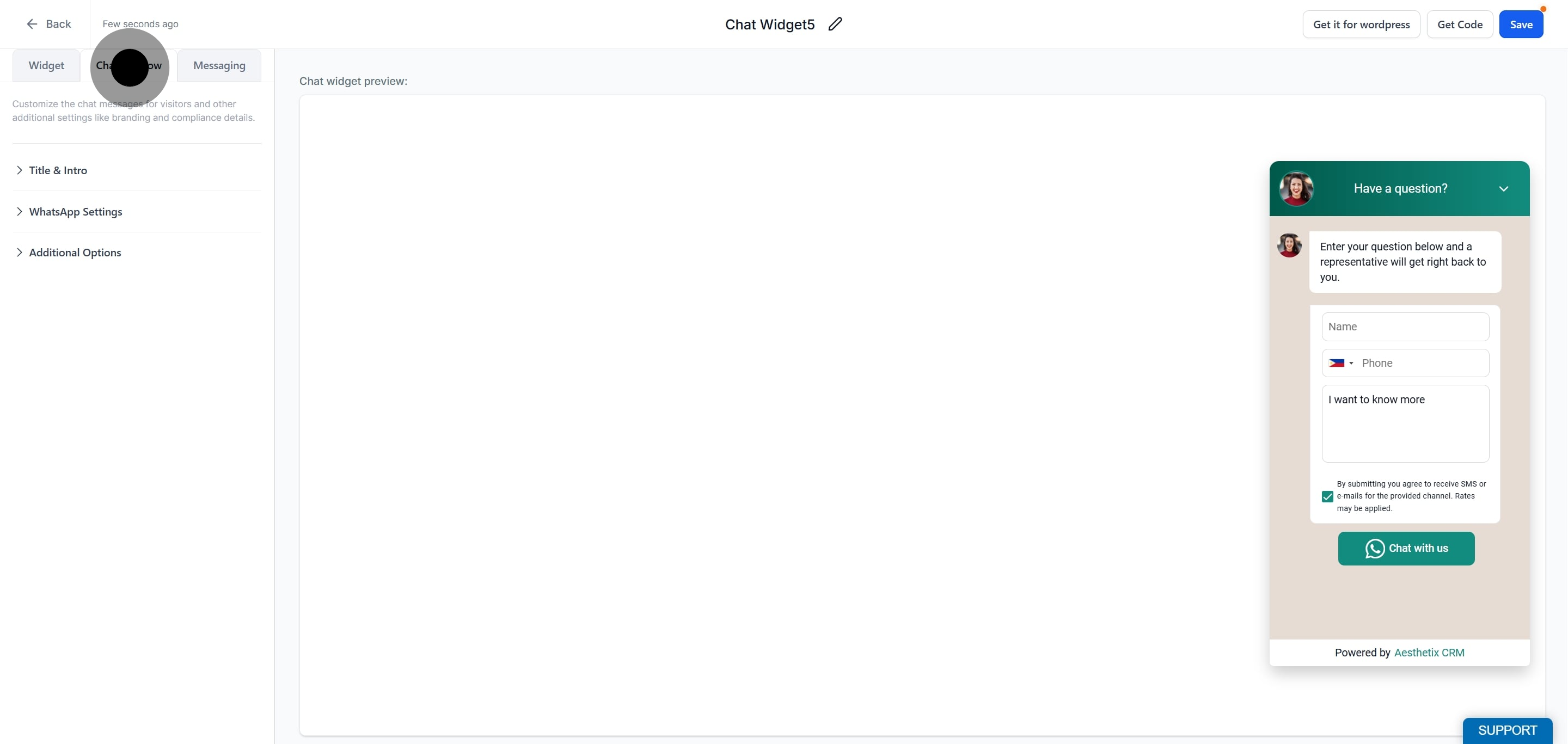
Open WhatsApp Settings.
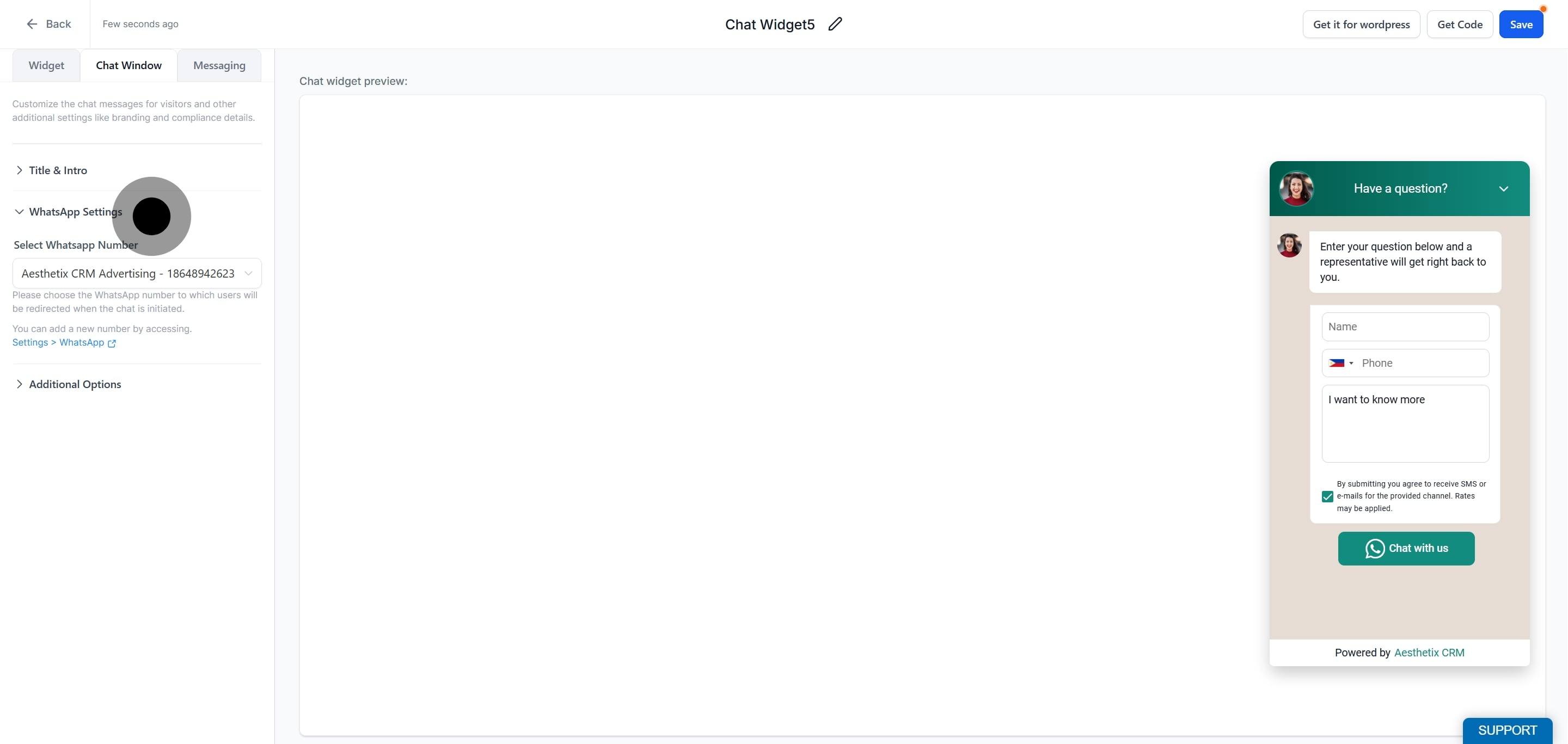
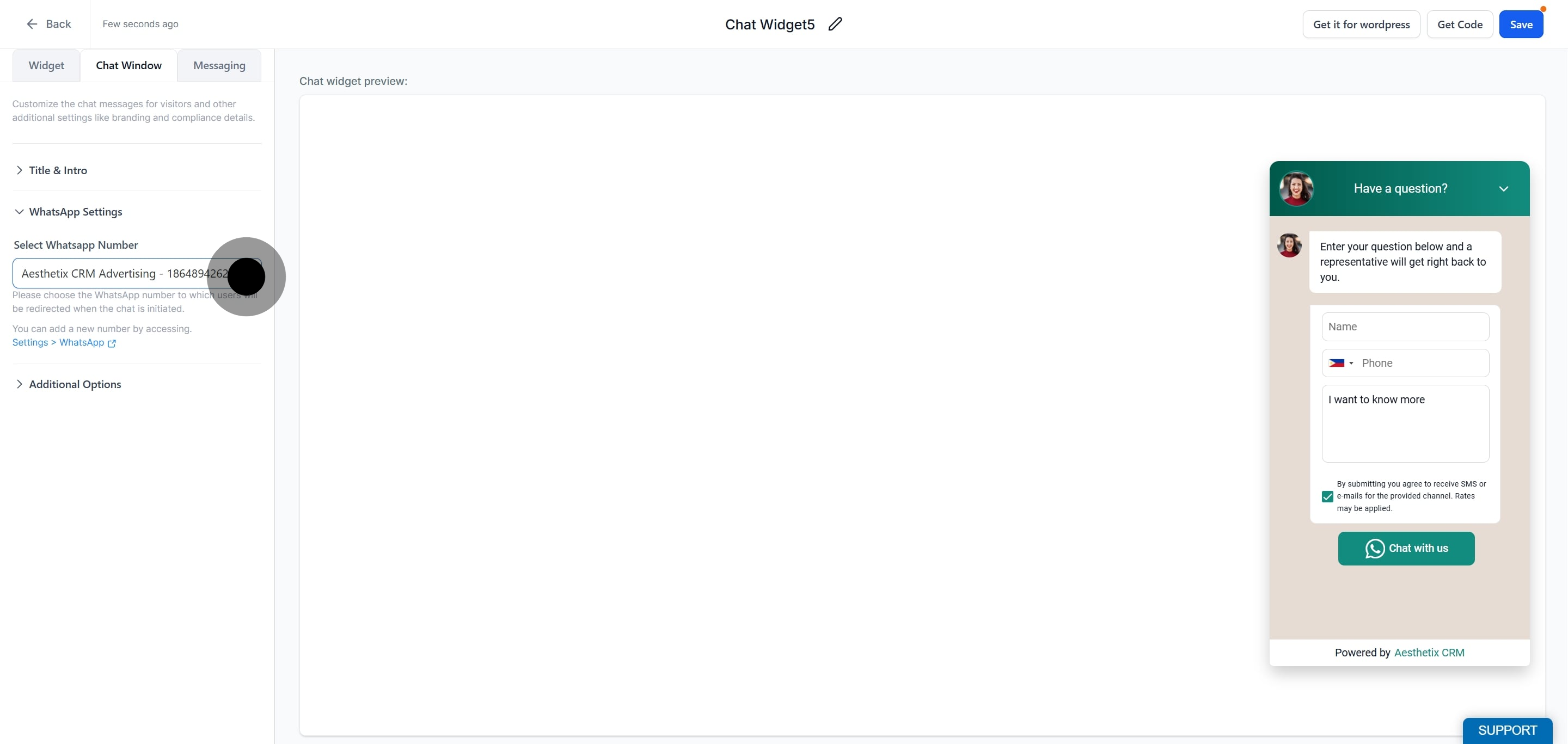
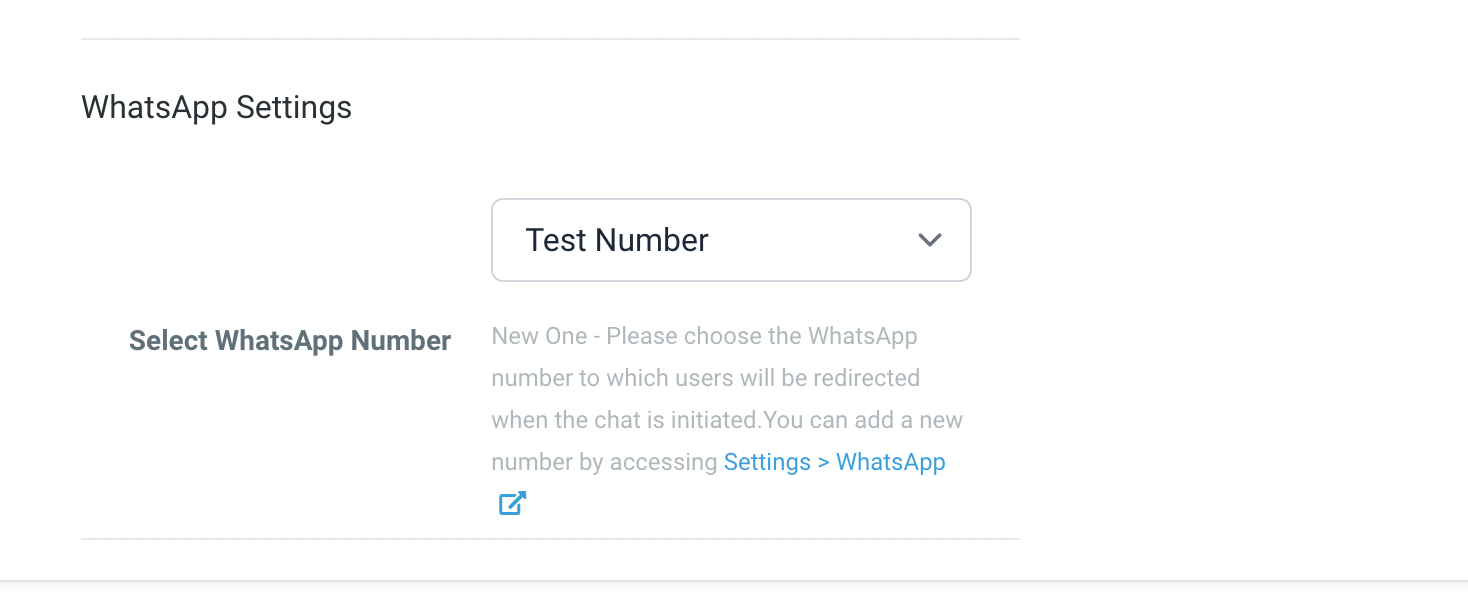
Select the WhatsApp number. This is the number that a visitor's message is redirected to when they start a chat.
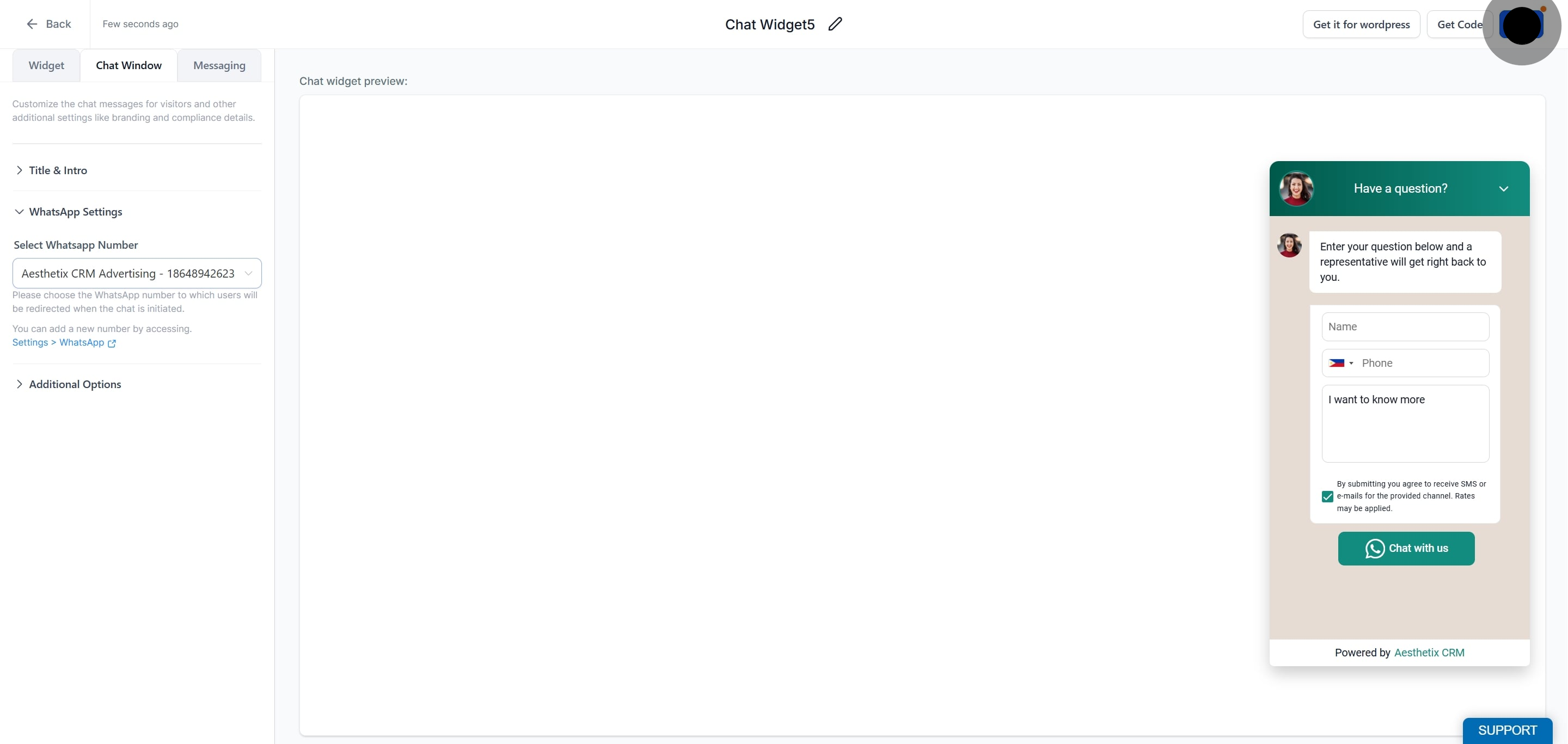
Click Save.
Once your widget is built, embed it and put it to work:
Add the widget code to your landing page header, or turn on the widget toggle in your Funnel or Website settings.
When the widget is embedded, it displays on the page as soon as it loads in a browser.
When a visitor completes and submits the form, they are redirected to the WhatsApp web app with a message pre-addressed to the number you selected in the widget window.
You then receive a notification in your inbox and can message the contact directly.
The WhatsApp workflow trigger fires the instant someone reaches out through a Meta Click-to-WhatsApp ad or the WhatsApp button on your Facebook Page. When a prospect taps your ad or page call-to-action, your account receives the incoming WhatsApp message, opens a conversation, and launches any workflow attached to the trigger. No manual monitoring required. By meeting prospects while intent is high, you shorten the path to a booked consultation and improve the return on every ad dollar.
Instant lead engagement: Prospects get an immediate reply, increasing the chance they stay in the chat.
Cost-efficient messaging: 72 hours of free messaging (both free-form and template) unlock when you respond within 24 hours, saving budget on follow-up.
Seamless follow-up: Automatically tag, assign, and nurture leads with workflow actions so nothing slips through the cracks.
This trigger detects every inbound message that originates from a Meta Click-to-WhatsApp ad or your Facebook Page's WhatsApp button.
Launches the workflow the moment the WhatsApp message arrives.
Maintains context by passing the Ad ID and campaign names into custom fields.
Bridges ad engagement and personalized messaging so you never miss a warm lead.
Filters let you fine-tune which ad interactions should (or should not) fire your automation, giving you granular control over campaign-specific workflows.
Ad ID / Post ID / URL filters: Restrict the trigger to one specific promotion.
Headline and source-type filters: Narrow activations further by ad headline or Meta surface.
Segment messaging paths by campaign goal without cloning entire workflows.
Proper configuration is critical. One missed filter can prevent a workflow from firing. This trigger activates when a customer on an Android or iOS device messages you via:
A Click-to-WhatsApp ad
A Facebook Page call-to-action (CTA) button
This interaction opens a free entry-point conversation as long as you respond within 24 hours.
Step 1: Go to your automation area, click Add New Trigger, and select Click to WhatsApp Ads.
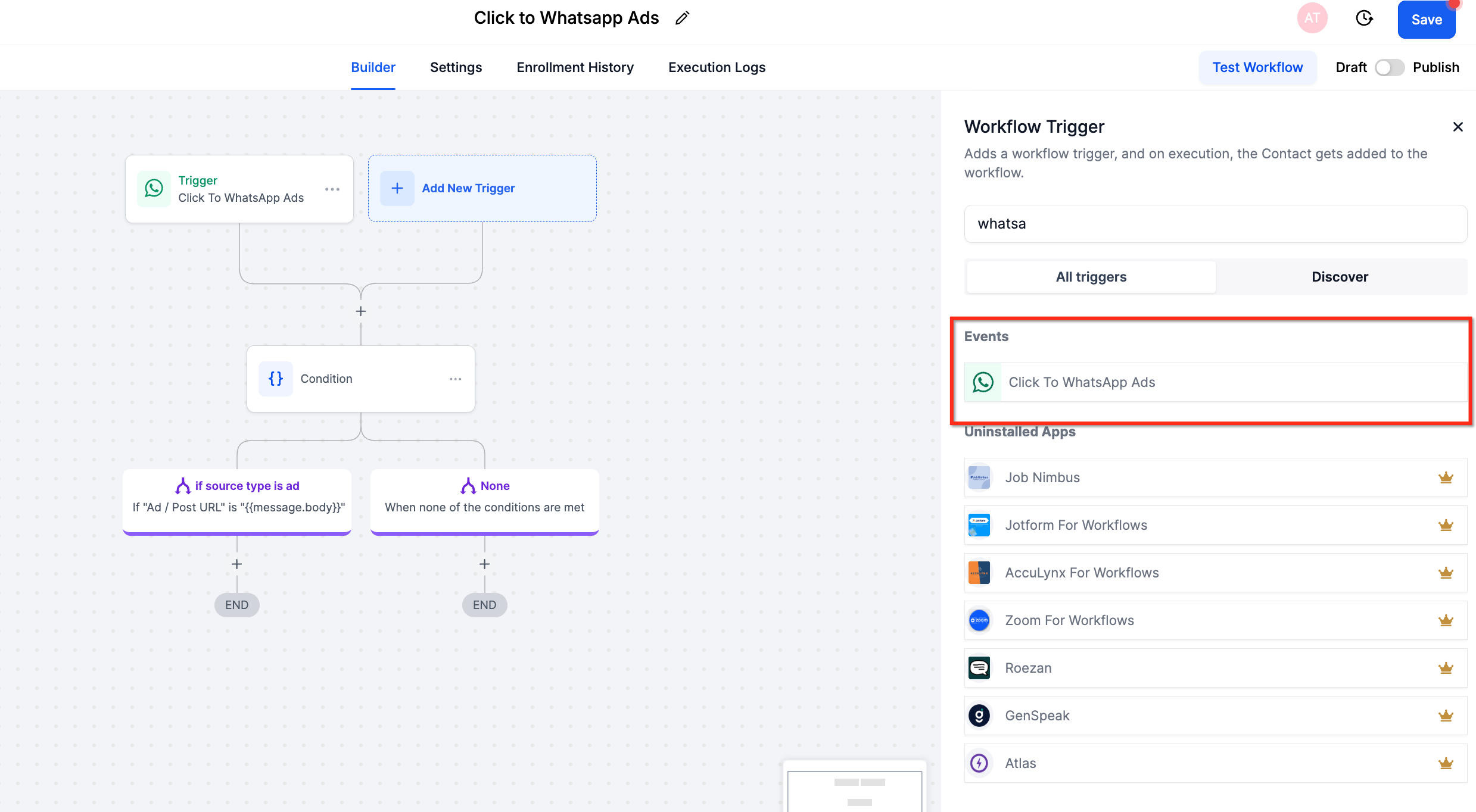
Step 2: Apply Ad ID, Post ID, URL, Headline, or Source-Type filters to limit which campaigns activate the workflow.
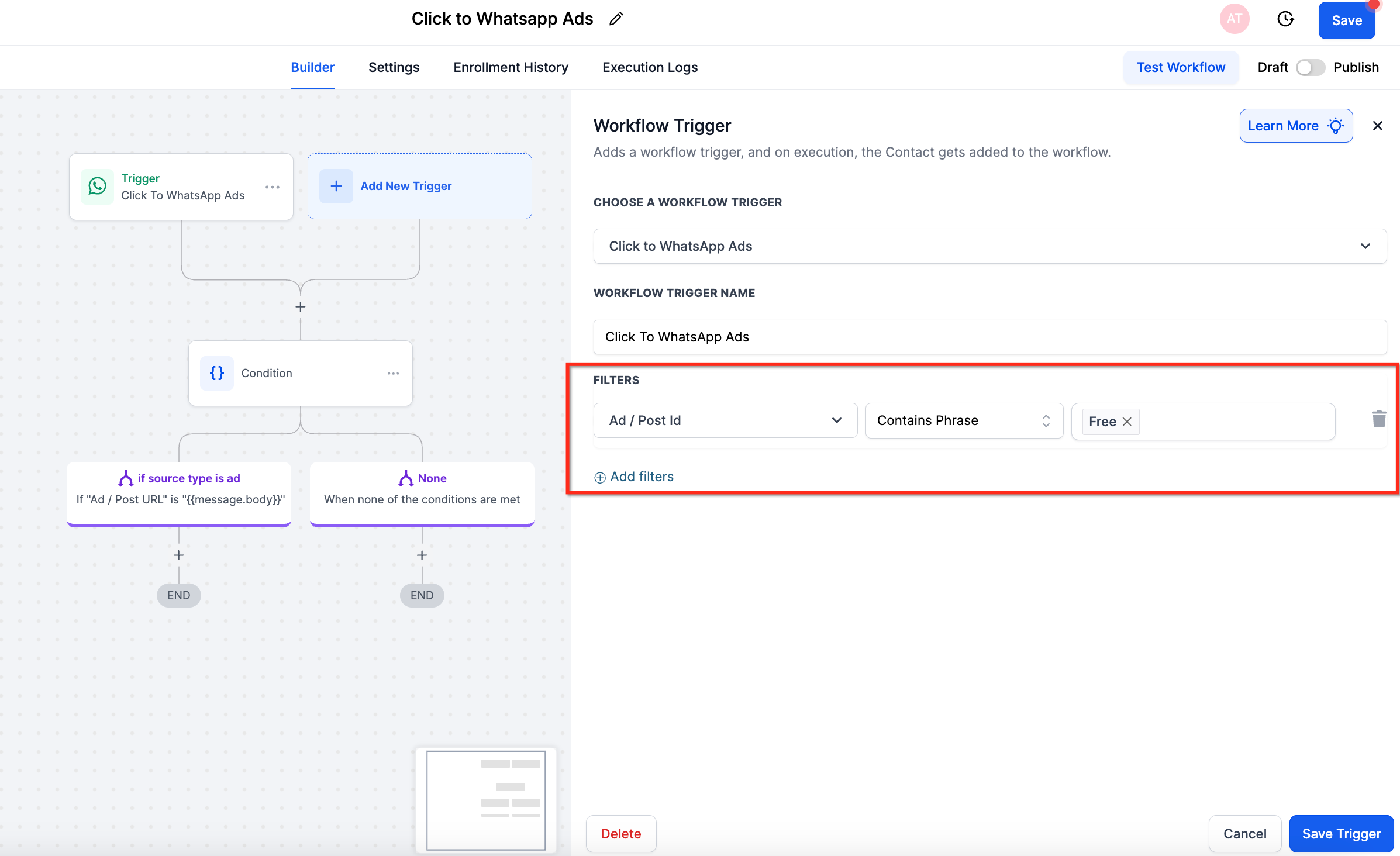
Note: Add your desired workflow actions, such as Send WhatsApp Message, Assign to Pipeline Stage, Add Tag, or Webhook. Then save the workflow to get started.
You can pair this trigger with a Click-to-WhatsApp ad you build under Marketing → Ad Manager, so every ad tap flows directly into an automated conversation.
A free entry point conversation opens when (1) a customer on an Android or iOS device messages you via a Click-to-WhatsApp ad or Facebook Page call-to-action button and (2) you respond within 24 hours. If you do not respond within 24 hours, a free entry point conversation is not opened, and you must use a template to message the customer, which opens a marketing, utility, or authentication conversation based on the template category.
The free entry point conversation opens as soon as your message is delivered and lasts 72 hours. When it opens, it automatically closes all other open conversations between you and the customer, and no new conversations open until the free entry point conversation expires.
Once the free entry point conversation is open, you can send any type of message to the customer without incurring additional charges. However, you can only send non-template messages while there is an open customer service window between you and the customer.
For example, if the customer messages you via a Click-to-WhatsApp ad at 10 am and you respond via a template message at 10 pm the same day:
The free entry point conversation starts at 10 pm and lasts 72 hours.
You can send template messages at no charge during those 72 hours.
You can send non-template messages until 10 am the next day, when the customer service window closes, as it is independent of the free entry point conversation. If the customer messages you again, it opens another 24-hour customer service window in which you can send any type of message.
What number does the chat widget send messages to?
The widget redirects each visitor's message to the WhatsApp number you select in the widget window under WhatsApp Settings. Choose the number your team monitors so replies land in the right inbox.
Where do I embed the chat widget once it's built?
Add the widget code to your landing page header code, or enable the widget toggle in your Funnel or Website settings. It appears automatically once the page loads in a browser.
What is the Click-to-WhatsApp ads workflow trigger?
It activates a workflow when a user taps a Click-to-WhatsApp ad or a Facebook Page CTA button and messages you from an Android or iOS device. It is ideal for automating responses to high-intent leads.
How do I configure the Click-to-WhatsApp ads workflow trigger?
In your automation area, click Add New Trigger and select Click to WhatsApp Ads. Apply optional filters (Ad/Post ID, URL, Headline, Source Type), then save the trigger and add your desired actions, such as sending a message or assigning the contact.
What are Free Entry Point conversations?
A Free Entry Point conversation is a special WhatsApp session that opens when a customer taps a Click-to-WhatsApp ad or Facebook CTA and you respond within 24 hours. The conversation is free (no messaging fees), lasts 72 hours from when your message is delivered, and closes all other conversations until the session expires.
How are conversations charged under this trigger?
If you respond within 24 hours of the customer's initial message, a free entry point conversation opens and you are not charged for messages (including templates) during the 72-hour period. If you respond after 24 hours, no free session starts and you must use a paid template message to re-engage.
Can I send both template and non-template messages under this trigger?
Yes, but it depends on timing. Within 24 hours of the customer's message, you can send free-form (non-template) messages. After 24 hours, only template messages are allowed unless the customer sends another message, which resets the 24-hour customer service window.
