WhatsApp Subscription: Trial & Cancellation
WhatsApp lets your practice reach patients on the channel they already use every day, from appointment reminders to promotional campaigns. This guide covers how to activate a free WhatsApp subscription trial so you can evaluate the integration at no subscription cost, and how to cancel your WhatsApp subscription whenever you choose. Standard WhatsApp messaging usage charges are separate from the subscription and are billed based on your actual message volume.
The free WhatsApp subscription trial lets you activate WhatsApp on your account for a set trial period without paying the usual subscription fee. During the trial, all WhatsApp features and automations are fully available. After the trial ends, regular subscription billing resumes unless you cancel first.
Risk-free evaluation: Test WhatsApp integration and automation without any subscription charges during the trial period.
Full feature access: Use all WhatsApp features, including automation, throughout the trial.
Fast onboarding: Get your practice started quickly with no upfront subscription cost.
No surprise billing: Subscription billing only begins after the trial ends, giving you time to assess the value.
Better patient engagement: Put WhatsApp's engagement tools to work to strengthen patient communication and conversions.
Open Settings in your account.
Navigate to the WhatsApp section.
Confirm the trial activation and agree to enable WhatsApp for your account.
Click Start Free Subscription Trial.
Note: WhatsApp messaging usage charges still apply during the trial and are billed as usual based on your actual message volume. Only the subscription fee is waived.
You can cancel your WhatsApp subscription at any time directly from your account settings. Cancellation stops future subscription charges and disables WhatsApp features on your account.
Note: Only account Admins and Owners can cancel the WhatsApp subscription.
Note: A prorated refund is issued based on the number of unused days remaining in your subscription period, typically within 7 to 8 working days.
Step 1: Navigate to Settings.
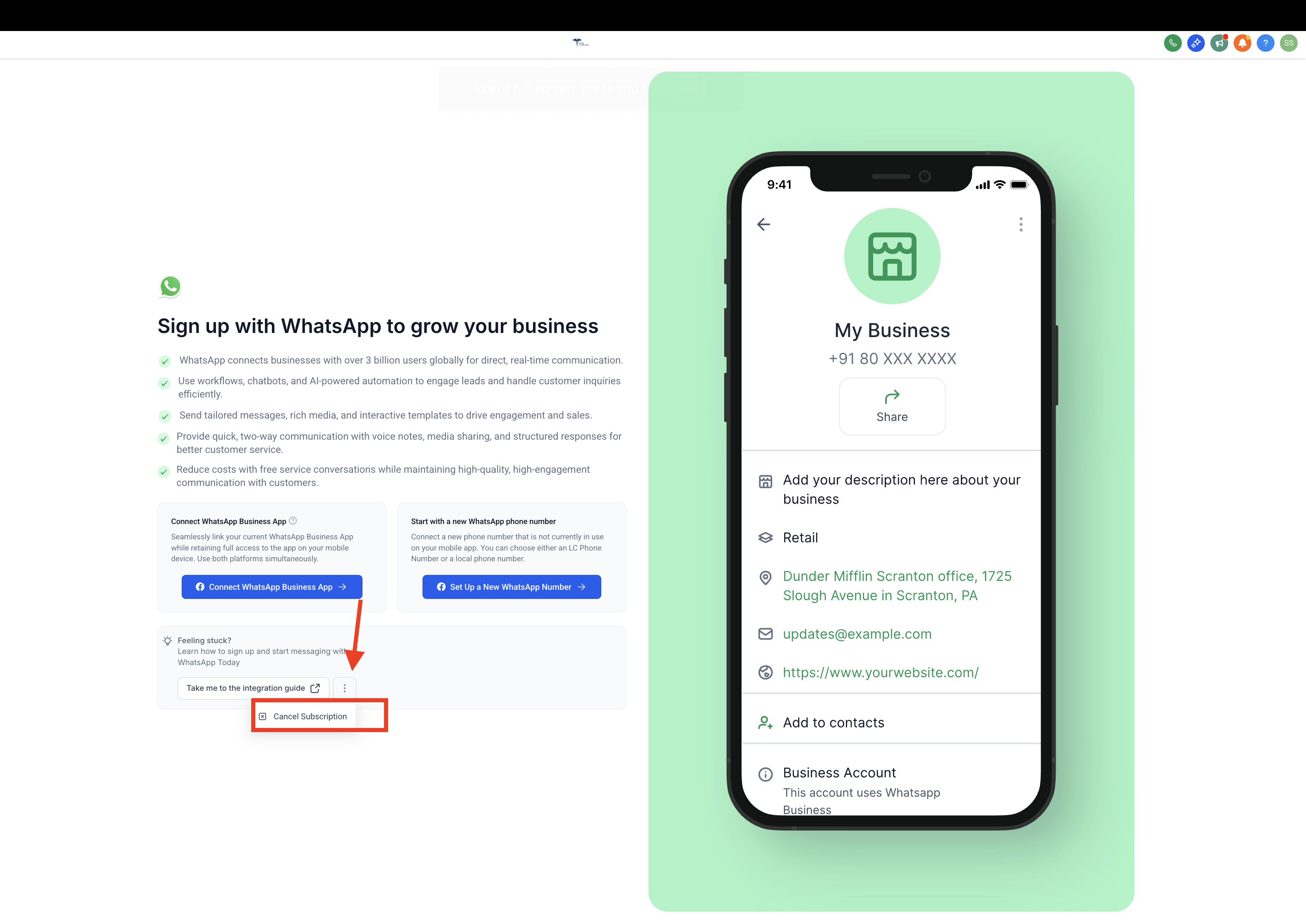
Step 2: Click WhatsApp, tap the three dots, then select Cancel Subscription.
Step 3: Click Proceed to Cancellation.
Step 4: Select the reason for cancellation, then tap Cancel Subscription to finalize the process.
If you subscribed to WhatsApp but have not finished the integration yet, you can still cancel your subscription at any time from your account settings.
Navigate to the WhatsApp section.
Click the three-dot menu (⋮).
Select Cancel Subscription from the dropdown options.
Confirm the cancellation when prompted.
Does the trial include all WhatsApp features?
Yes. The trial provides full access to all WhatsApp features and automations.
Are there any charges during the trial period?
The subscription fee is waived during the trial, but standard WhatsApp messaging usage charges still apply based on your message volume.
What happens after the trial ends?
Automatic subscription billing begins unless you cancel the WhatsApp subscription before the trial concludes. If payment fails after the trial, the subscription is canceled and WhatsApp access is suspended until valid payment information is provided.
Who can cancel the WhatsApp subscription?
Only account Admins and Owners can cancel the WhatsApp subscription. If you do not see the cancellation option, ask an Admin or Owner on your account to complete the cancellation.
Where do I find the option to cancel my subscription?
The cancellation option is available under Settings > WhatsApp > three-dot menu > Cancel Subscription.
Will I receive a confirmation after canceling?
Yes. After completing the cancellation process, you should receive a confirmation message stating that your subscription has been successfully canceled.
What happens after I cancel my WhatsApp subscription?
Once canceled, you will no longer be charged for the subscription, and your WhatsApp Business services may be limited or disabled depending on your plan. You may lose access to certain WhatsApp Business features.
Do I need to provide a reason for cancellation?
Yes. During the cancellation process, you will be prompted to select a reason before confirming.
Will I receive a refund if I cancel?
A prorated refund is issued based on the number of unused days remaining in your subscription period.
Will I lose my templates or data if I cancel and later resubscribe?
No. Canceling your WhatsApp subscription will not delete your existing templates or data. All approved message templates, WhatsApp Business Account (WABA) settings, and historical data remain intact. When you resubscribe, you can access and use the same templates without reapplying for approval, though you will not be able to send messages until the subscription is active again.
Can I reactivate my subscription after canceling?
Yes. If you want to use WhatsApp Business services again, you can subscribe again by going to Settings and selecting a new plan.
