WhatsApp messaging in your account follows Meta's conversation and message-based pricing model, layered with a platform subscription fee. This guide explains how charges are calculated, how the different message categories behave, how messaging limits scale as your practice grows, and how your quality rating affects your ability to reach patients. Understanding these concepts helps your practice communicate with patients efficiently while keeping costs predictable.
WhatsApp billing in your account has two parts: a recurring platform subscription fee per WhatsApp-enabled account, plus Meta's usage-based charges for the messages you send. Usage charges follow Meta's rates, which vary by message category and by the country or region where the message is delivered. A standard payment processing fee is also applied on top of these rates.
Because rates change by market and category, plan campaigns with regional costs in mind. For current per-message rates by category and country, see the Aesthetix CRM WhatsApp pricing page.
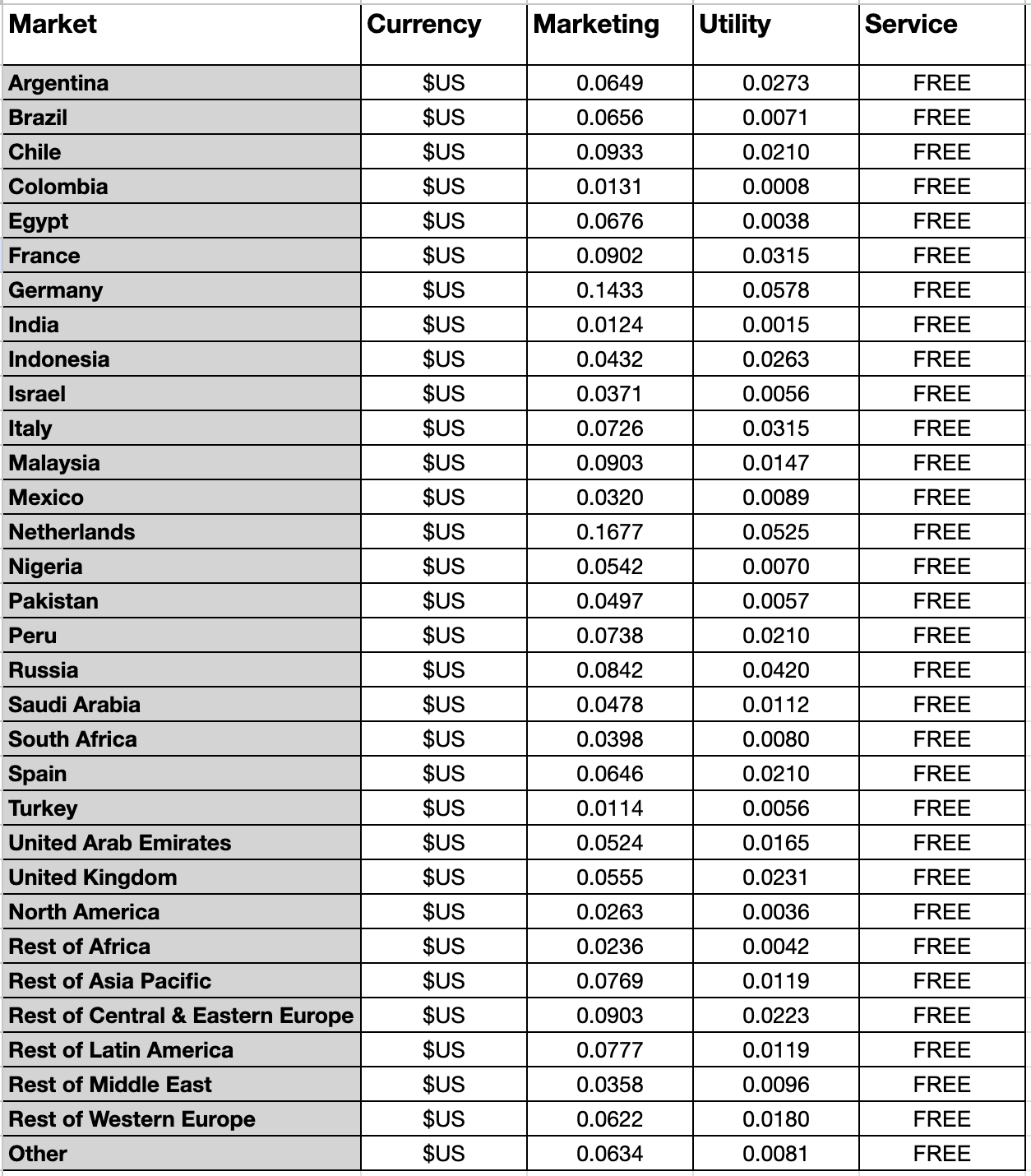
The platform subscription is $29 per month per account, charged for each WhatsApp-enabled account. Template and per-message usage is billed on top of this subscription, based on the pricing in the sheet linked above.
When you enable WhatsApp, two billing relationships are set up: one for your patient-facing messaging usage, and one for the recurring platform subscription fee.
Your usage rate for each category is derived from Meta's base rate for that category and market, with a standard processing multiplier applied.
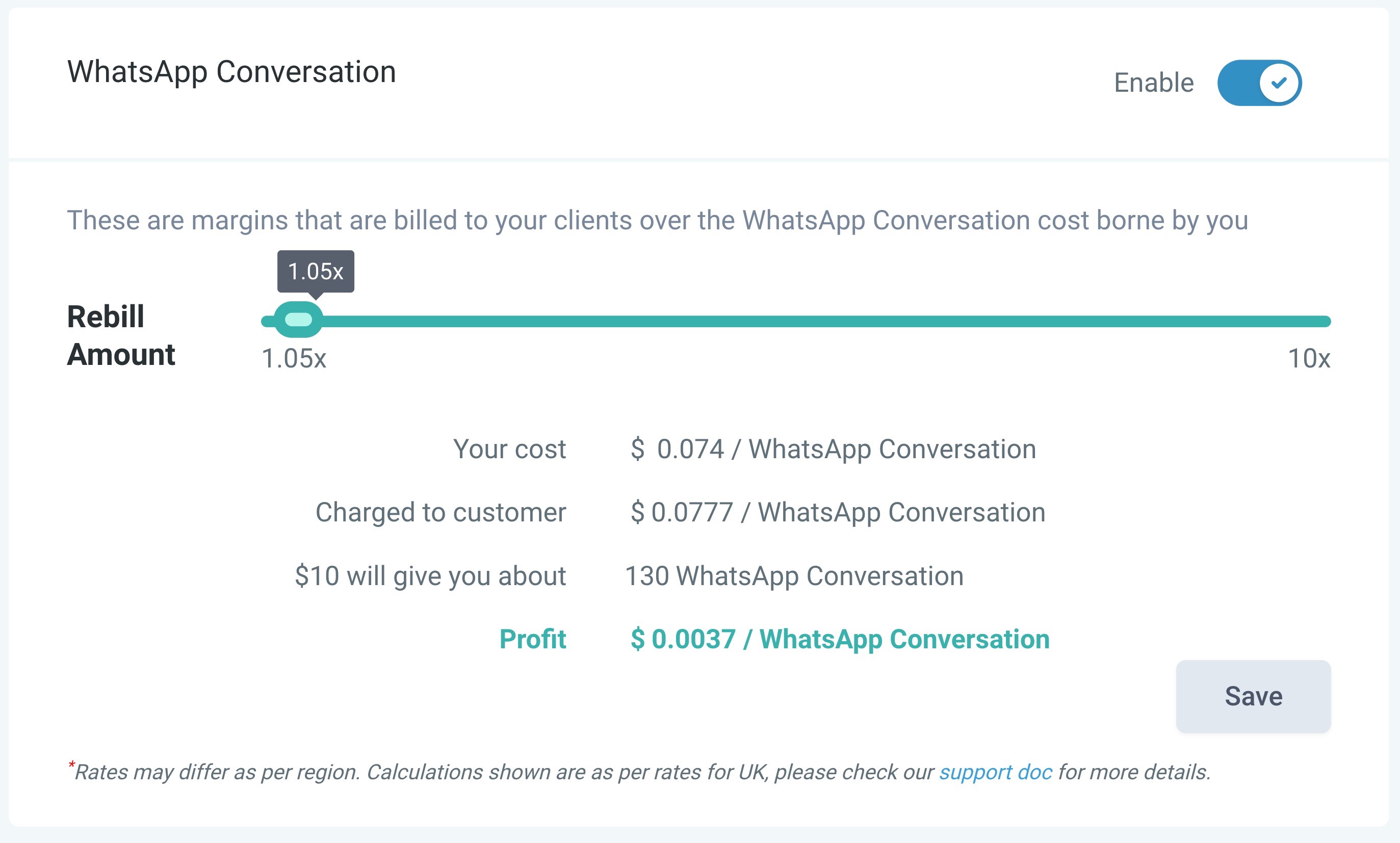
Note: Meta periodically updates its underlying per-message rates, and your usage charges follow those updates. The most recent update took effect with July 2026 billing. Most markets saw no change, several markets had rate adjustments, and a handful of markets (including Hong Kong, Singapore, Hungary, Poland, and Romania) moved from a regional "Rest of" rate to their own dedicated rate. Service conversations remain free in all markets. Always refer to the pricing sheet above for the current per-message rate in each market.
Note: WhatsApp uses a message-based pricing model that charges for each delivered message rather than a flat fee per 24-hour conversation window. This offers greater transparency and control over messaging costs, enabling more precise budgeting.
Meta is updating how two message types are billed. Both changes take effect October 1, 2026.
Service messages are no longer unlimited and free. Each WhatsApp phone number gets 1,000 free service messages per month, and the allowance resets at the start of each month. After that, service messages are billed per message. Service messages are the free-form replies you send to a patient inside an open 24-hour customer service window.
Utility messages sent inside an open window are now billable. Utility templates delivered inside an active customer service window used to be free. They are now billed per message, the same as utility templates sent outside the window.
What is not changing:
Incoming messages from patients are still free. You are only billed for the messages your practice sends.
Free entry point conversations are still free. When a patient messages you from a Click to WhatsApp ad, the 72-hour window stays free for all message types.
Marketing and authentication templates are billed per delivered message, the same as before.
Meta also updated rates in several markets on the same date, including Mexico, Saudi Arabia, the United Arab Emirates, Pakistan, Peru, and South Africa, and moved nine countries from a regional rate to their own dedicated rate. Current rates for every market are on the WhatsApp pricing page.
What this means for your practice: replying to patients is still inexpensive, but high-volume conversation work is no longer free. If your team handles more than 1,000 patient replies a month on one number, budget for those messages.
Meta charges your practice for each delivered message, categorized into the types below. Aligning your outreach with these categories lets you take advantage of cost-saving opportunities, such as free utility messages sent within an open customer service window, while maintaining high-quality engagement with patients.
Definition: Outbound promotional messages sent to patients, such as service offers, announcements, and re-engagement campaigns.
Pricing: Charged per delivered message, regardless of customer service window status.
Use case examples: Promotions, event invitations, seasonal specials.
Definition: Transactional messages that relate to a specific, agreed-upon transaction or update.
Pricing: Charged per delivered message. As of October 1, 2026, this includes utility messages sent inside an open 24-hour customer service window, which used to be free.
Use case examples: Appointment confirmations, reminders, follow-up updates.
Definition: Messages that authenticate patients with one-time passcodes, potentially at multiple steps in a login or verification process.
Use case examples: Account verification, account recovery, integrity challenges.
Definition: Messages used to resolve patient inquiries and issues.
Opened by: Free-form messages (any message that is not a template).
Cost: The first 1,000 service messages per phone number each month are free. As of October 1, 2026, service messages beyond that monthly allowance are billed per message.
Note: Marketing, utility, and authentication conversations can only be opened with template messages. Service conversations can only be opened with free-form (non-template) messages.
The table below summarizes which message types are billable and when they can be sent. CSW stands for customer service window; FEP stands for free entry point.
Message type | Message category | When it can be sent | Delivered outside CSW | Delivered inside CSW | Delivered inside FEP window |
|---|---|---|---|---|---|
Template messages | Marketing | Anytime | Billable | Billable | Free |
Template messages | Authentication | Anytime | Billable | Billable | Free |
Template messages | Utility | Anytime | Billable | Billable | Free |
Non-template (free-form) messages | Service | Only inside an open CSW | N/A | Free for the first 1,000 per number each month, then billable | Free |
Conversations are categorized into one of the following categories, each aligned with a specific goal:
Marketing: Achieve a wide range of goals, from generating awareness to driving bookings and retargeting patients. Examples include new service or feature announcements, targeted promotions and offers, and re-engagement reminders.
Utility: Follow up on patient actions or requests. Examples include opt-in confirmation, appointment and update management, account alerts such as payment reminders, and feedback surveys.
Authentication: Authenticate patients with one-time passcodes, potentially at multiple steps in the login process (account verification, account recovery, integrity challenges).
Service: Resolve patient inquiries.
Conversations are opened when you send a template message or a free-form message under the following conditions.
These conversations open when you send an approved marketing, utility, or authentication template message to a patient and no open conversation of that category already exists between you and that patient.
For example, if an open authentication conversation exists between you and a patient and you send another authentication template message within 24 hours, a new conversation is not opened. If you send a marketing message instead, a new marketing conversation opens, resulting in two open conversations.
Service conversations open when you are within a customer service window, you send a free-form message to a patient, and no open conversation of any category exists between you and the patient.
For example, if an open conversation of any category exists and you send a free-form message within 24 hours, no new conversation opens. However, if no open conversation exists and the patient messages you (which starts a customer service window) and you reply within 24 hours with a free-form message, a new service conversation opens.
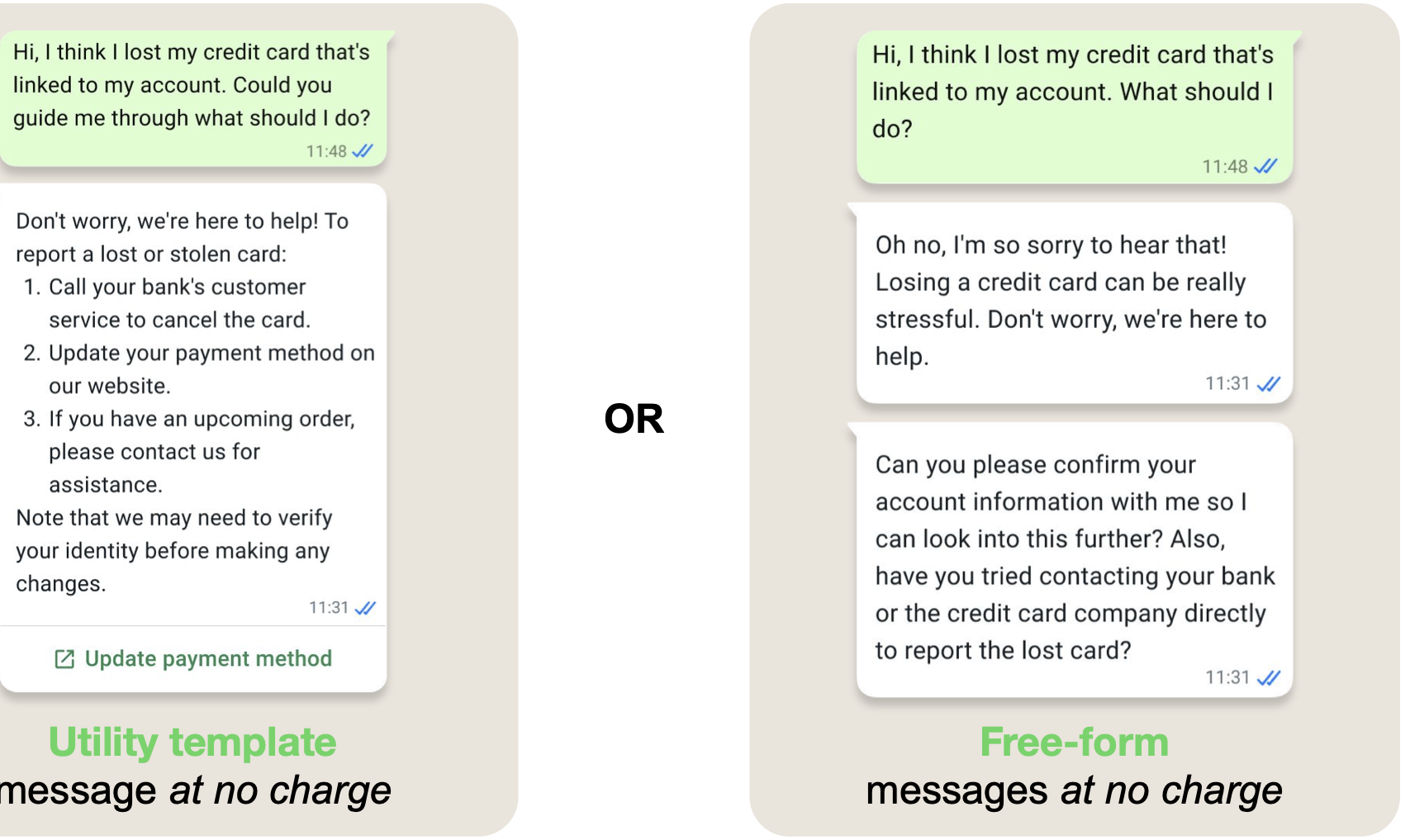
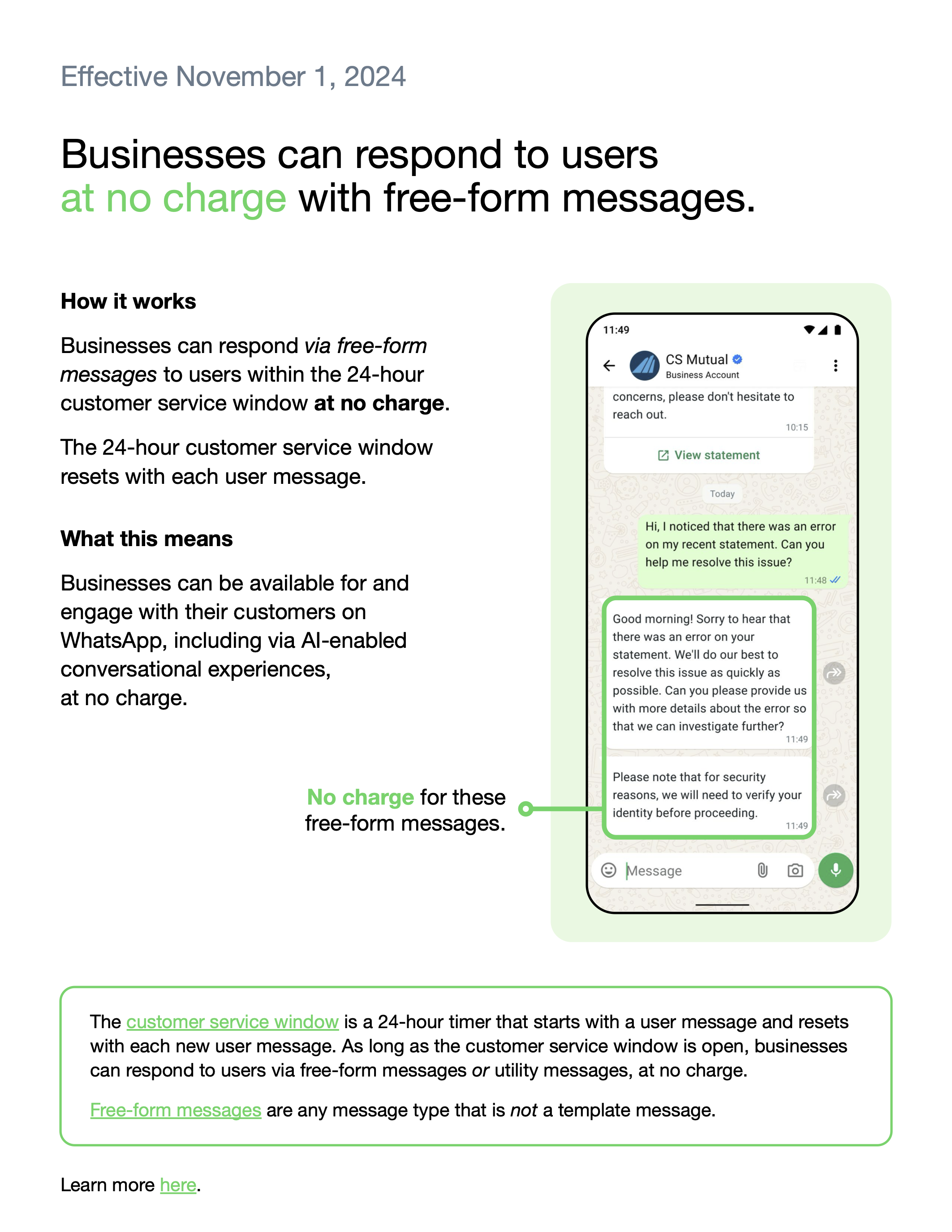
When a patient messages you, a 24-hour timer called a customer service window starts and resets with each new patient message. While you are within the window, you can send free-form messages or template messages. Outside the window, you can only send template messages. As long as the window is open, your practice can respond with free-form messages or utility templates. As of October 1, 2026, utility templates sent inside the window are billable, and free-form replies count against the 1,000 free service messages each number gets per month.
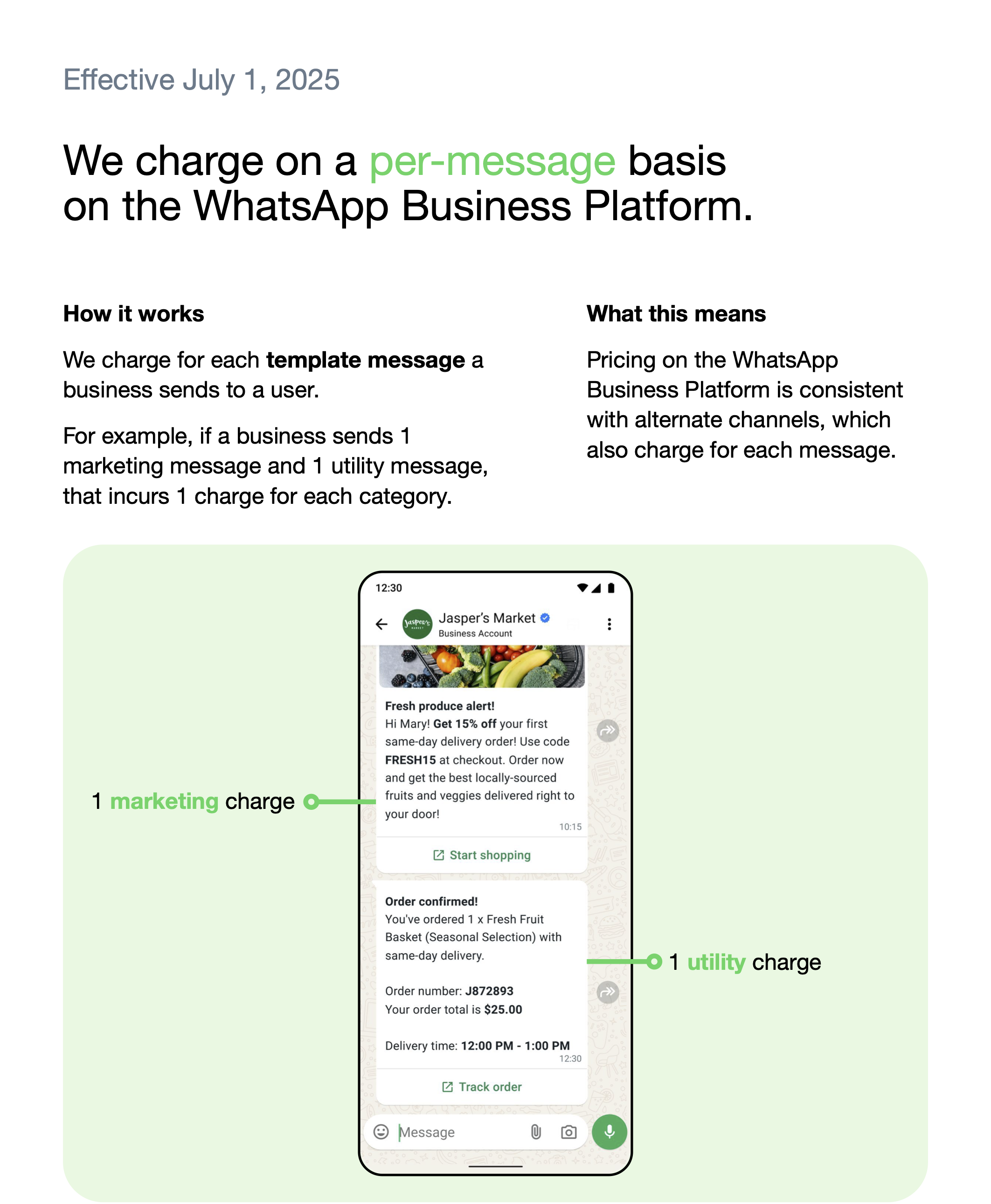
For example, each template message a business sends to a patient incurs a charge. If a business sends one marketing message and one utility message, that is one charge for each category.
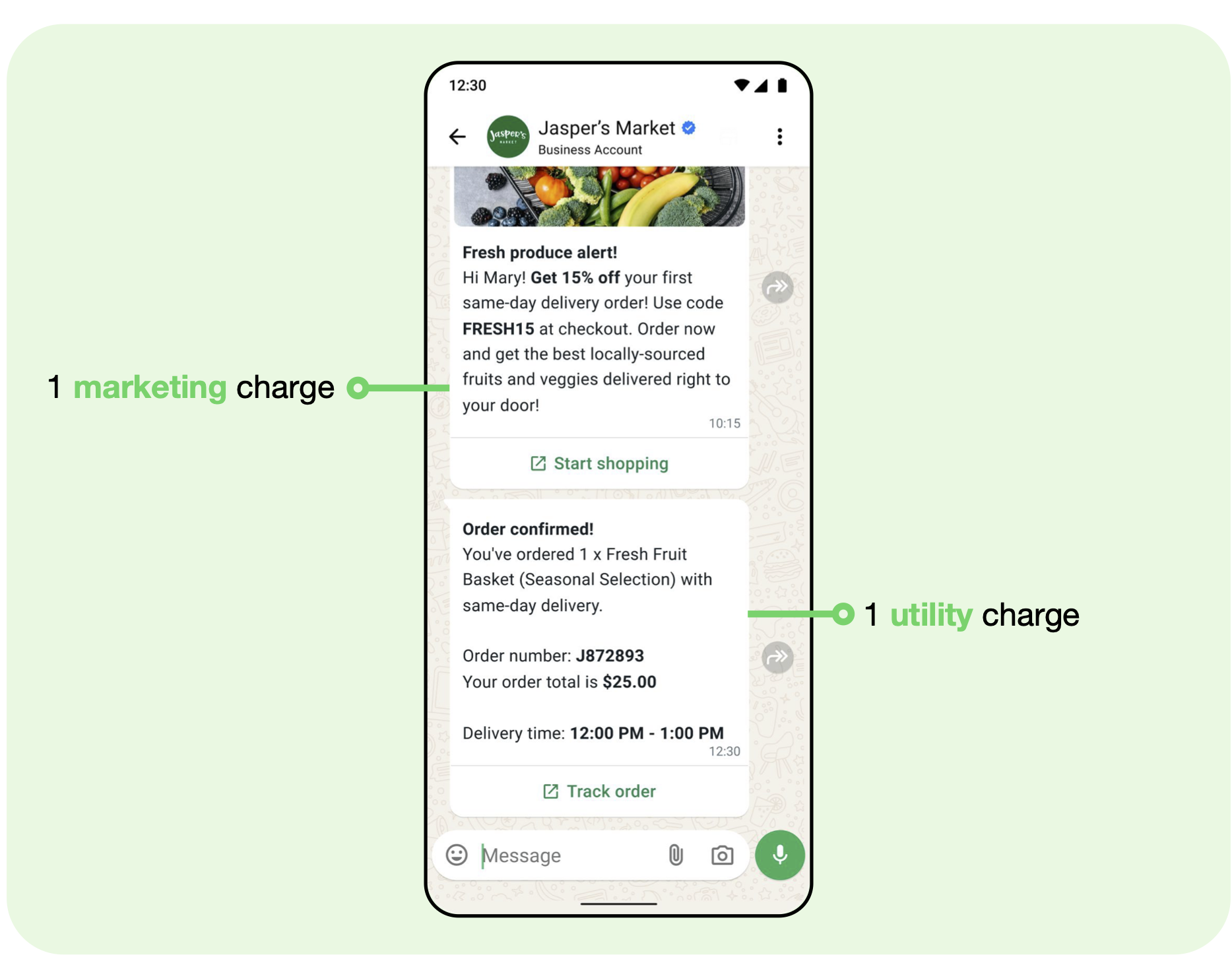
While the customer service window is open, your practice can also respond with free-form messages and utility template messages. As of October 1, 2026, utility templates are billed even inside the window, and free-form replies are free only until you use up the 1,000 free service messages that number gets each month.
Marketing, utility, authentication, and service conversations last 24 hours unless closed by a newly opened free entry point conversation. Free entry point conversations last 72 hours.
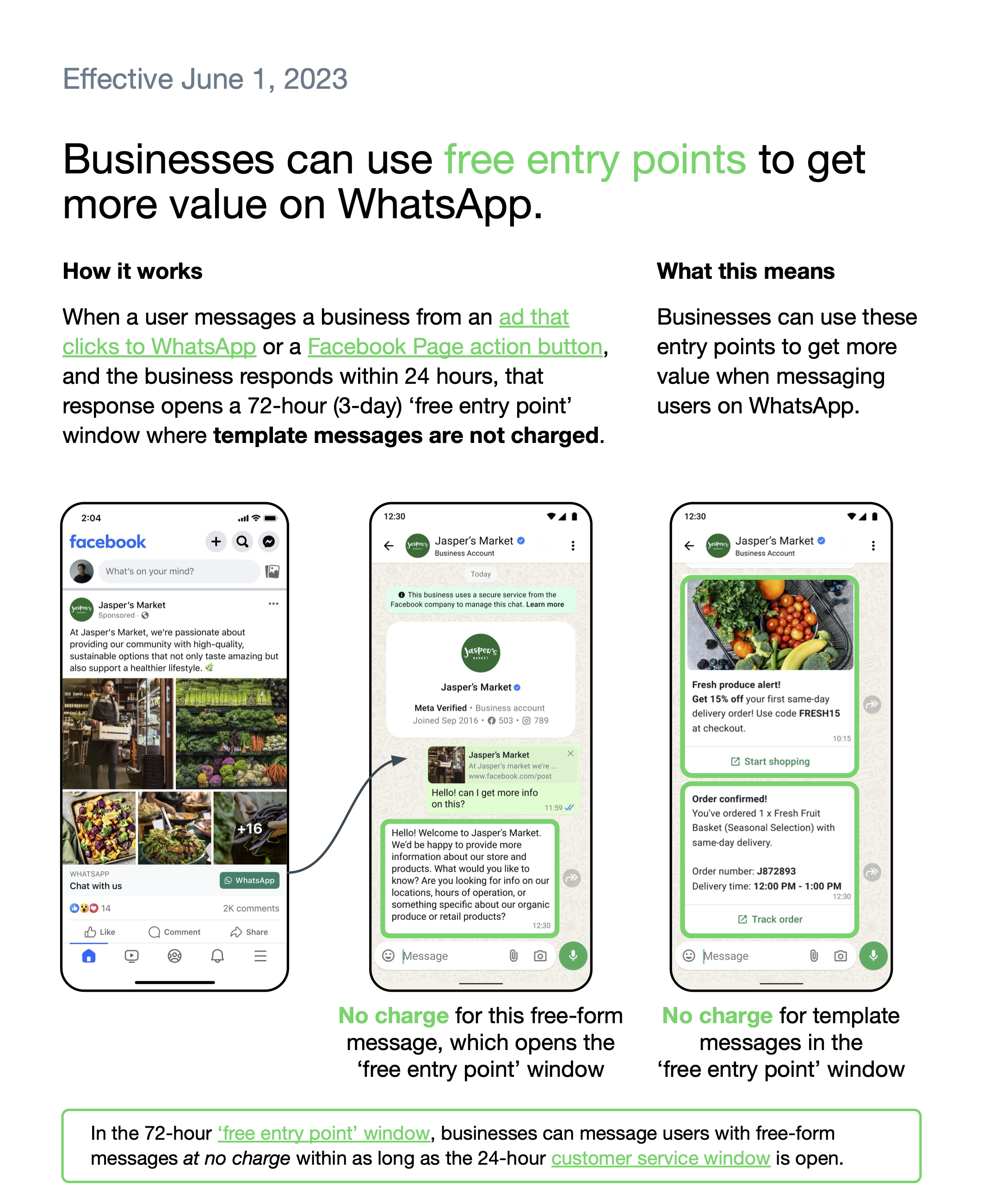
A free entry point conversation provides cost-saving opportunities by allowing free communication for a limited duration. It opens when a patient using a device running Android or iOS messages you via a Click to WhatsApp ad or Facebook Page call-to-action button, and you respond within 24 hours. If you do not respond within 24 hours, a free entry point conversation is not opened, and you must use a template to message the patient, which opens a marketing, utility, or authentication conversation per the category of the template.
The free entry point conversation opens as soon as your message is delivered and lasts 72 hours. When it opens, it automatically closes all other open conversations between you and the patient, and no new conversations open until it expires.
Once open, you can send any type of message to the patient without incurring additional charges. However, you can only send free-form messages if there is an open customer service window between you and the patient.
For example, if a patient messages you via a Click to WhatsApp ad at 10 a.m. and you respond via a template message at 10 p.m. the same day:
The free entry point conversation starts at 10 p.m. and lasts 72 hours.
You can send template messages at no charge during those 72 hours.
You can send free-form messages until 10 a.m. the next day, when the customer service window closes (it is independent of the free entry point conversation). If the patient messages you again, that opens another 24-hour customer service window in which you can send free-form messages.
WhatsApp calling rates are charged per minute and vary by market. They apply to business-initiated calls. User-initiated (inbound) calls, where a patient calls your practice, are free of charge.
Businesses are charged for calls based on:
Duration of the call: Calculated in six-second pulses. Fractional pulses are always counted as one full pulse. For example, a 56-second call equals 9.33 pulses, rounded up to 10 pulses.
Country code of the phone number being called.
User-initiated calling is available everywhere WhatsApp's Cloud API is available, with no country restrictions. Business-initiated calling is available in most countries, but not if your business phone number is registered in the United States, Canada, Egypt, Nigeria, Vietnam, or Turkey.
Note: The country restriction applies to your business phone number, not your patients. Your patients can be located in any country where WhatsApp is supported.
Meta sets and calculates messaging limits at the business portfolio level, not per individual phone number. Every WhatsApp number connected to the same business portfolio shares one messaging limit pool, so heavy usage on one number reduces the capacity available to your other numbers in that portfolio.
A messaging limit is the maximum number of business-initiated conversations (conversations opened by sending a marketing, utility, or authentication template to a WhatsApp user) your business portfolio can open in a 24-hour moving period. Messaging limits do not apply to user-initiated conversations.
A business-initiated conversation starts when the first message is delivered to a patient and ends 24 hours later. A conversation cannot end before then. If you reach your messaging limit, you can start more conversations only as active conversations end.
Every new business portfolio starts with a messaging limit of 250 business-initiated conversations in a rolling 24-hour period. This limit is shared across every WhatsApp number in the portfolio, and it can grow through the following tiers:
250 conversations, the starting limit for every new portfolio
2,000 conversations, reached by completing a scaling path
10,000 conversations, reached through Meta's automatic scaling
100,000 conversations, reached through automatic scaling
Unlimited conversations, reached through automatic scaling

Note: Your messaging limit is shared across every WhatsApp number in the same business portfolio. A single high-volume number can consume the entire portfolio's daily limit.
There are several ways to increase your messaging limit. Complete any one of the paths below to become eligible for an increase to 2,000; from there, Meta can continue to raise your limit automatically based on your ongoing usage and messaging quality.
Submit your business for Meta's business verification, or have your platform provider verify your business on your behalf if you were onboarded through a solution partner. If your business is approved, Meta analyzes your messaging quality to determine whether your activity warrants an increase to 2,000.

If you submit your business for verification and are approved, you may be asked to verify your identity. When this happens, the WhatsApp Manager > Overview > Limits panel displays a notification.

If you complete identity verification and your identity is confirmed, Meta will approve a messaging limit increase. If your identity is not confirmed, Meta will deny the increase, and the WhatsApp Manager > Overview > Limits panel will display a notification.

Instead of business verification, send 2,000 delivered messages outside an open customer service window, to unique patients, within a rolling 30-day period, using templates with a high quality rating. Once you reach this threshold, Meta analyzes your messaging quality to determine whether your activity warrants an increase to 2,000.
If you are rejected for business or identity verification, ensure you are sending high-quality messages. Meta periodically reevaluates your messaging activity and quality, and based on this analysis may approve an increase. Guidelines for high-quality messages:
Follow the WhatsApp Business Messaging Policy.
Only send messages to patients who have opted in to receiving messages from your practice.
Make messages highly personalized and useful. Avoid open-ended welcome or introductory messages.
Be mindful of messaging frequency. Avoid sending patients too many messages a day, and optimize informational messages for content and length.
Once your portfolio reaches the 2,000 tier, Meta can continue to raise your limit automatically toward 10,000, then 100,000, then Unlimited, based on your ongoing messaging quality and usage. There is no separate application for these higher tiers. Maintaining a High quality rating gives your portfolio the best chance of scaling automatically.
If you completed business or identity verification, or met the 2,000-qualifying-messages threshold, but are still limited to 250 business-initiated conversations, you can open a direct support ticket with Meta and request a messaging tier upgrade:
Ask a Question > WABiz: Phone Number & Registration > Request type > Request a Messaging Tier Upgrade
Based on your submission and messaging quality, Meta will either approve or deny the increase.
Your quality rating is based on the messages your patients received over the past seven days. It is determined by patient feedback, such as the reason given for blocking your phone number and other reporting issues.
You can find the quality rating under the Phone numbers tab in your Meta WhatsApp Manager. The Quality rating column displays:
Green: High quality
Yellow: Medium quality
Red: Low quality
Maintaining a High quality rating makes your practice eligible for more features. When a patient blocks your business, they can select a block reason, including No longer needed, Didn't sign up, Spam, Offensive messages, or No reason.
If your quality rating is medium or low, hover over the rating in WhatsApp Manager to view insights into block reasons where available. This helps your practice understand why patients are blocking you, avoid sending low-quality templates, and reduce the risk of more patients blocking your number.
You can view the quality rating over the past 30 days by clicking the icon in the Settings column, including the lowest quality score on a given day, which helps you understand what may have caused the rating to change.
You can subscribe to be notified of quality-related updates. You will receive an email and a notification in Meta Business Manager when a phone number's status changes to Flagged or when that status is removed, and when there is a change to a phone number's messaging limits.
When your quality rating reaches low quality, your phone number's quality rating changes to Low. If the quality is Low and on track to be downgraded to a lower message tier, the phone number status changes to Flagged. Your practice cannot upgrade messaging limit tiers while the status is Flagged.
Connected: You can send outgoing messages within your set messaging limit.
Flagged: Occurs when the quality rating changes to Low and is on track to be downgraded. If the quality improves to high or medium by the seventh day, the status returns to Connected and your messaging limit tier is unaffected. If it does not improve by the seventh day, the status returns to Connected, but your messaging limit decreases to the next level (for example, a 100,000 limit drops to 10,000).
Restricted: Occurs when you reach your messaging limit, regardless of quality rating. While Restricted, you cannot send outgoing messages until 24 hours have elapsed. You can still respond to messages that patients initiate.
If your quality rating reaches low quality, or your status changes to Flagged or Restricted, you will receive an email and a notification in Business Manager as a warning.
Opt-in consent: Always ensure patients have explicitly opted in to receive messages from your practice on WhatsApp. Respect their privacy and preferences.
Timely responses: Respond to patient inquiries promptly. Quick responses enhance satisfaction and improve the overall experience.
Personalization: Tailor messages to each patient whenever possible. Personalized messages are more engaging and foster stronger relationships.
Value-added content: Provide valuable content, such as service updates, exclusive offers, and helpful tips related to medical aesthetics.
Clear communication: Keep messages concise, clear, and relevant. Avoid spammy or irrelevant content that could annoy patients.
Security measures: Protect patient data and ensure the confidentiality of conversations. Avoid sharing sensitive information over WhatsApp.
Feedback loop: Encourage patients to share feedback on their experience, and use it to improve your services.
A strong example message: "Hi Sarah! We're excited to share that our spring treatment menu is here. Explore the latest options and enjoy a special offer on your first visit with code SPRING20. Book now: [Link]"
An example to avoid: "Hey Sarah! Did you know we offer other services too? Come visit us for amazing deals!!!!"
How many conversations can I start with my WhatsApp Business account initially?
At first, your business portfolio is limited to 250 business-initiated conversations within a 24-hour moving period, shared across every WhatsApp number in that portfolio. Completing business verification, or sending 2,000 qualifying messages within a rolling 30-day period, makes you eligible for Meta to raise the limit to 2,000.
What does it mean to have a "business-initiated" conversation?
It refers to any conversation your practice starts by sending a marketing, utility, or authentication template to a WhatsApp user.
Is my messaging limit per phone number, or is it shared?
Messaging limits are set at the business portfolio level, not per individual phone number. Every WhatsApp number connected to the same business portfolio shares one limit pool, so heavy usage on one number reduces the capacity available to your other numbers in that portfolio.
How can I increase my conversation limit?
There are two ways to become eligible for an increase to 2,000: complete Meta's business verification (or have your platform provider verify your business on your behalf), or send 2,000 delivered messages outside the customer service window to unique patients within a rolling 30-day period using high-quality templates. Once you reach 2,000, Meta can continue to raise your limit automatically toward 10,000, 100,000, and Unlimited based on your usage and messaging quality. If you meet the criteria above but remain at 250, you can open a support ticket with Meta and request a messaging tier upgrade under Ask a Question > WABiz: Phone Number & Registration > Request type > Request a Messaging Tier Upgrade.
Can my limit be increased automatically?
Yes. Once your portfolio reaches the 2,000 tier and you maintain a good quality rating, Meta can continue to raise your limit automatically toward 10,000, 100,000, and Unlimited based on your ongoing usage and messaging quality.
Why does message quality matter for increasing my limit?
WhatsApp prioritizes a positive user experience. Sending high-quality messages that patients find valuable builds trust and leads to increased conversation limits.
Where can I check my current conversation limit and quality rating?
In your WhatsApp Manager. Limits are in the Overview > Limits panel before reaching the 2,000 tier, and in the Account tools > Insights panel after reaching it. Quality rating is in the Account tools > Phone numbers panel.
Can multiple conversations be open with the same patient?
Yes. Multiple conversations can be open if a new template message of a different category is sent within 24 hours, or if a service conversation exists and a template message of another category is sent within 24 hours.
What happens if I send templates of different categories in the same 24-hour window?
Sending a template of a new category opens a separate conversation and results in an additional charge, unless it is sent during an open conversation of the same category.
What is a customer service window?
A customer service window is a 24-hour timer that starts when a patient messages you and resets with each new patient message. While it is open, you can send free-form messages as well as templates. As of October 1, 2026, utility templates sent inside the window are billable, and free-form replies are free only within the 1,000 free service messages each number gets per month.
Did WhatsApp pricing change recently?
Yes. On October 1, 2026, service messages became billable after 1,000 free messages per phone number each month, and utility templates sent inside an open customer service window became billable. Meta also adjusted rates in several markets and gave nine countries their own dedicated rates. For the current rate in any market, see the WhatsApp pricing page.
Are WhatsApp calls charged per minute or per call?
Business-initiated calls are charged per minute based on the destination market. User-initiated (inbound) calls are completely free. Business-initiated calling is not available if your business phone number is registered in the United States, Canada, Egypt, Nigeria, Vietnam, or Turkey.
