WhatsApp analytics in Aesthetix CRM give you clear visibility into how your messages perform. Campaign statistics show what happened to a bulk send across your patient list, while template-level analytics let you drill into how an individual template is delivering, being read, and driving clicks. Use these insights to refine your messaging and improve engagement across your practice.
When you run a bulk WhatsApp action, each contact is tracked through a series of statuses. The following metrics tell you exactly what happened to your send.
Represents the total number of contacts for which the bulk action was performed.
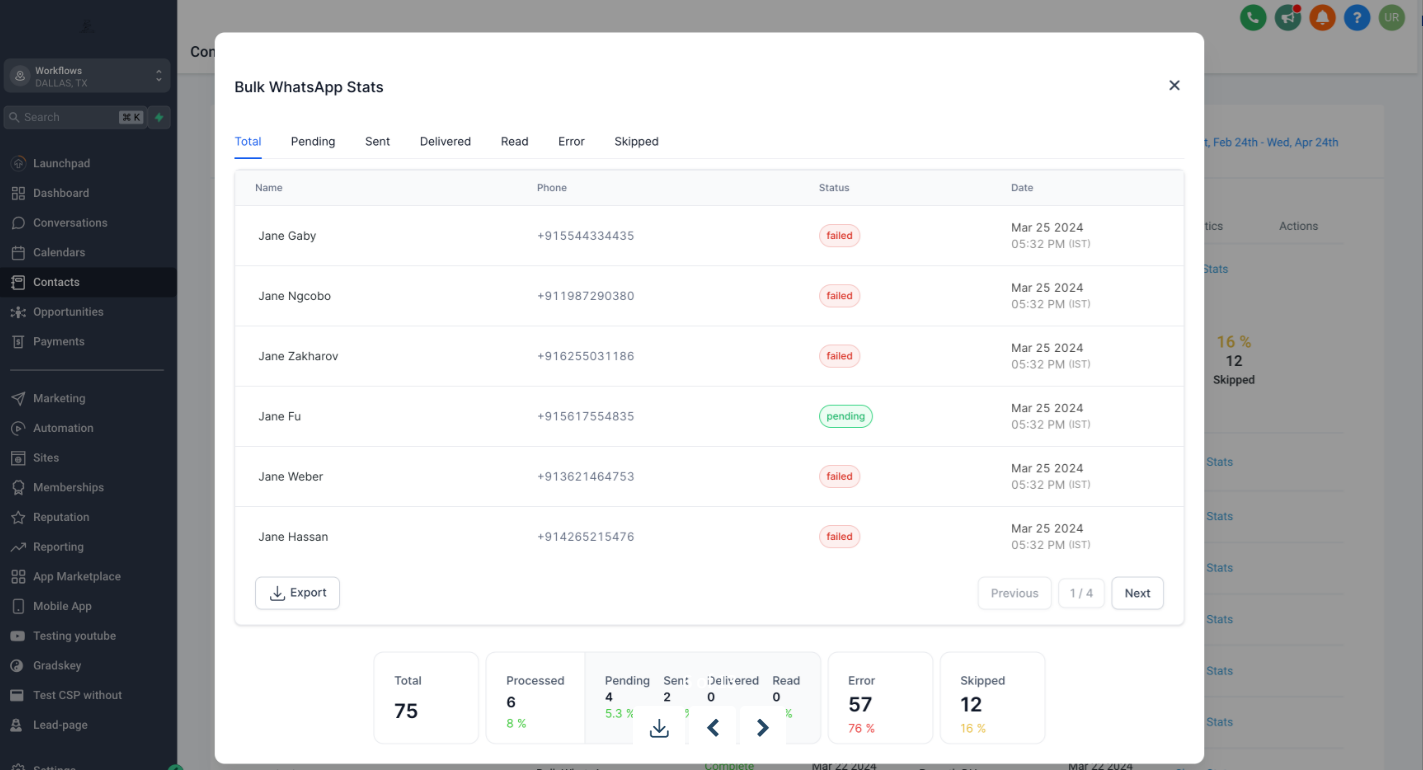
Represents the total number of contacts for which the WhatsApp message is yet to be triggered.
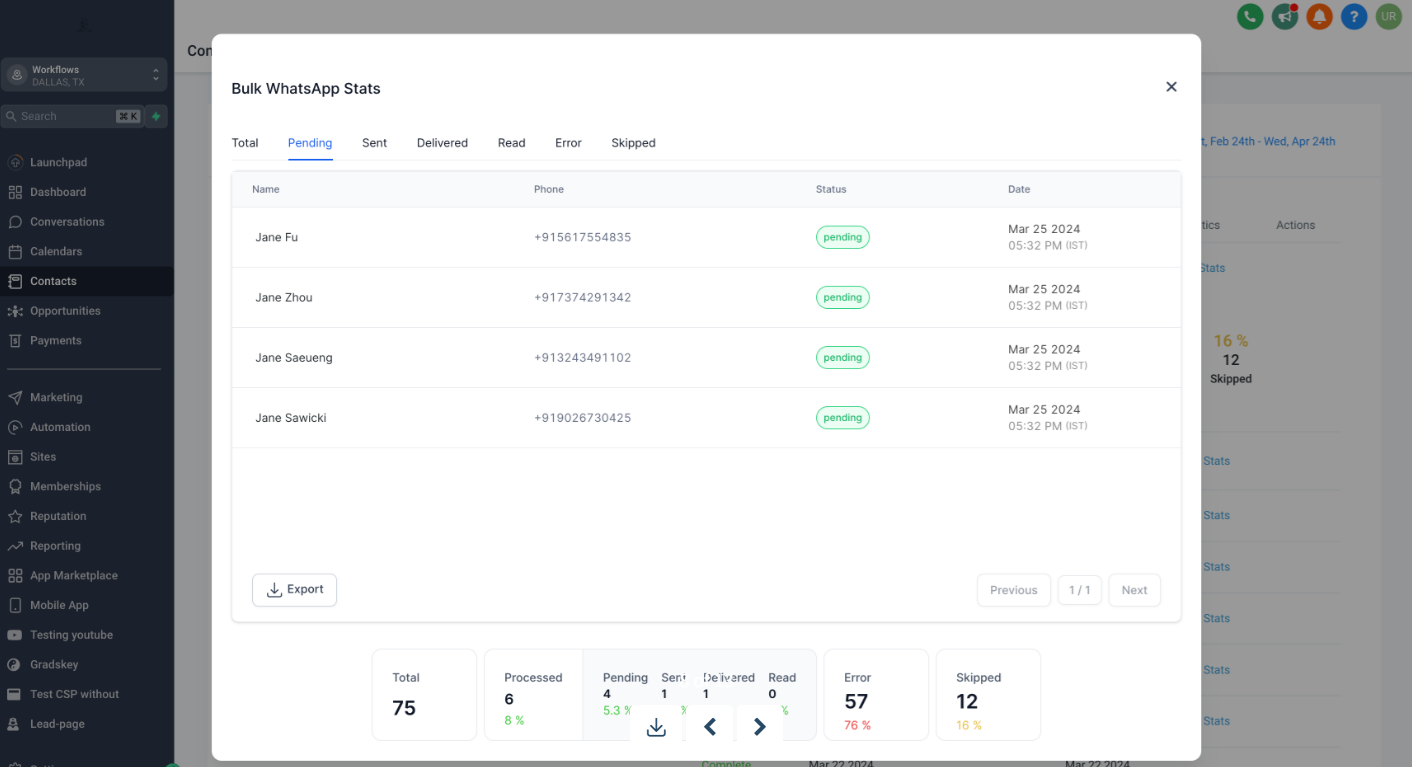
Denotes the total count of contacts to whom WhatsApp messages have been sent.
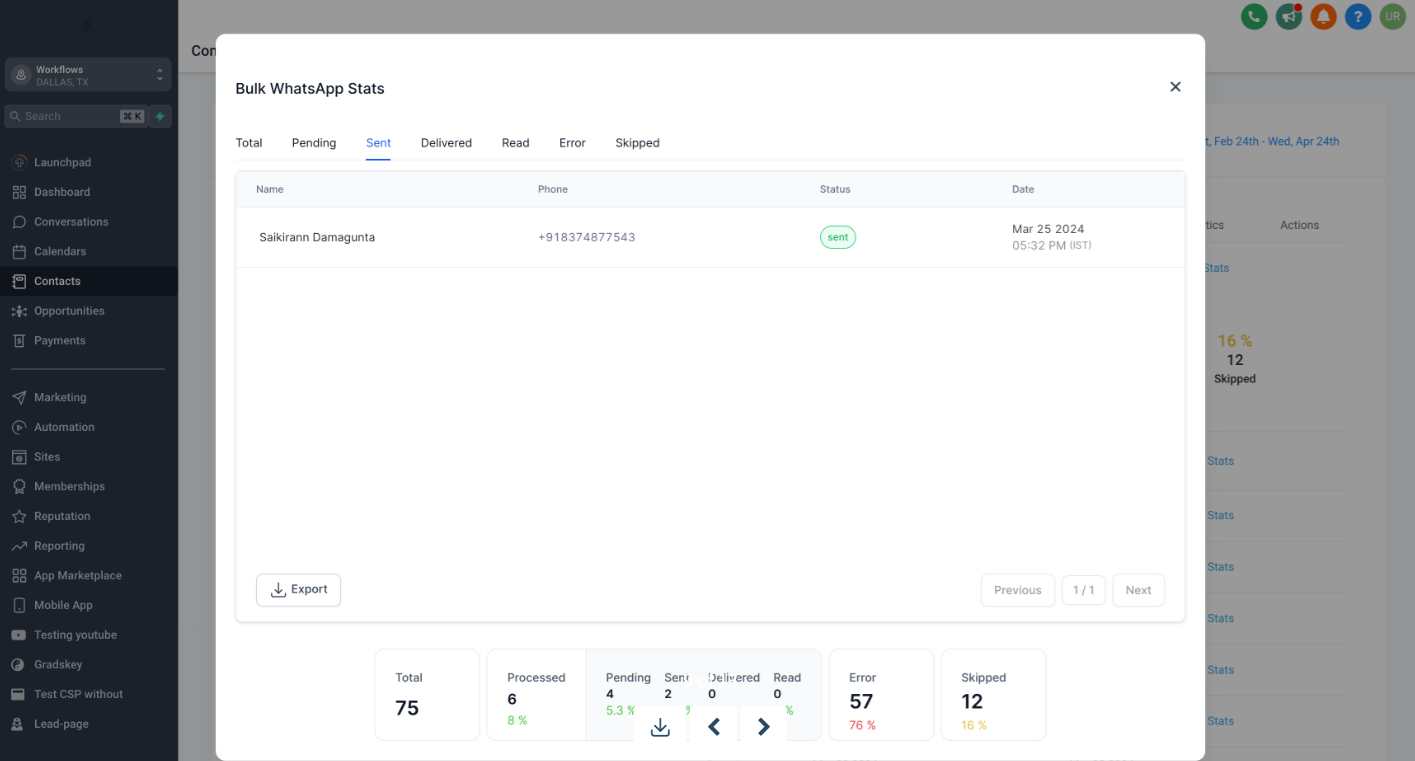
Represents the total number of contacts who received the WhatsApp message.
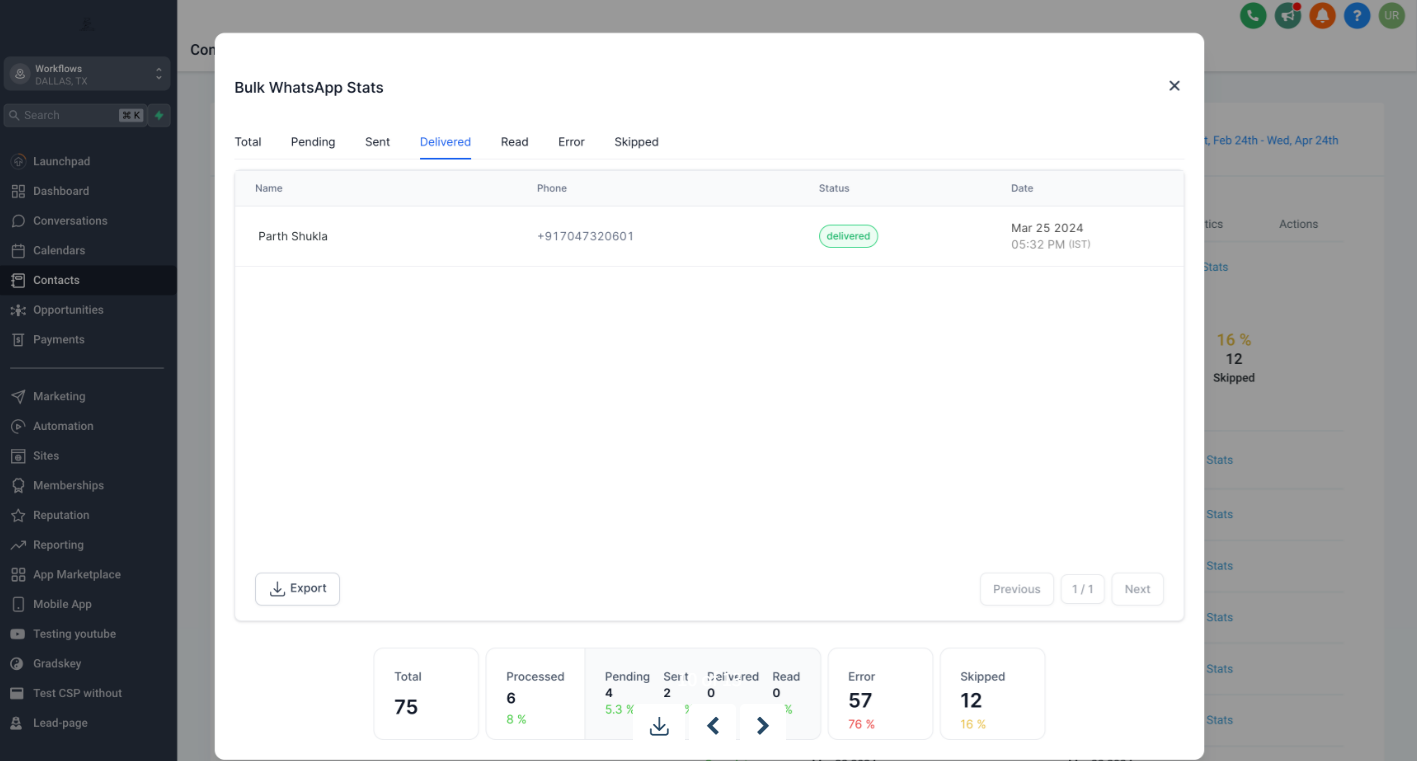
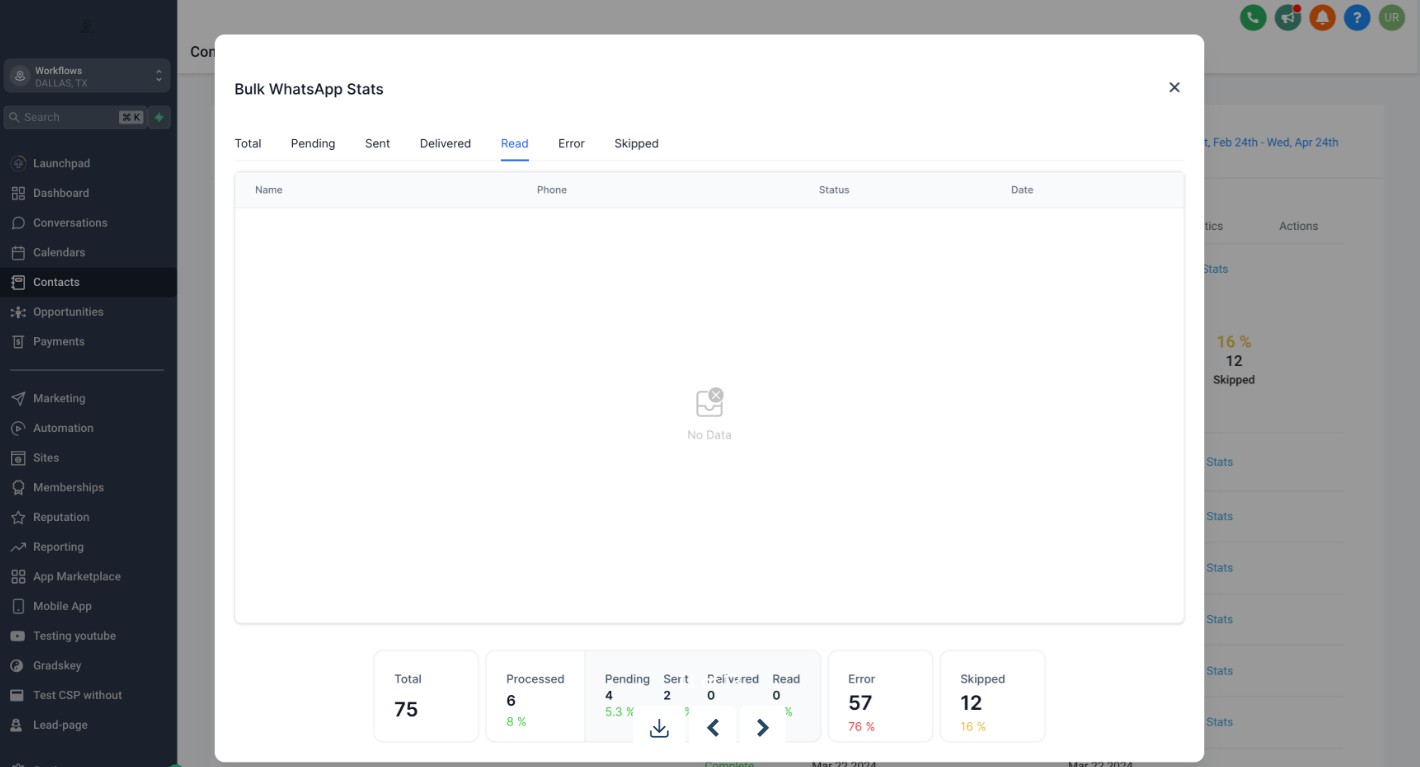
Represents the total number of contacts who read the WhatsApp message.
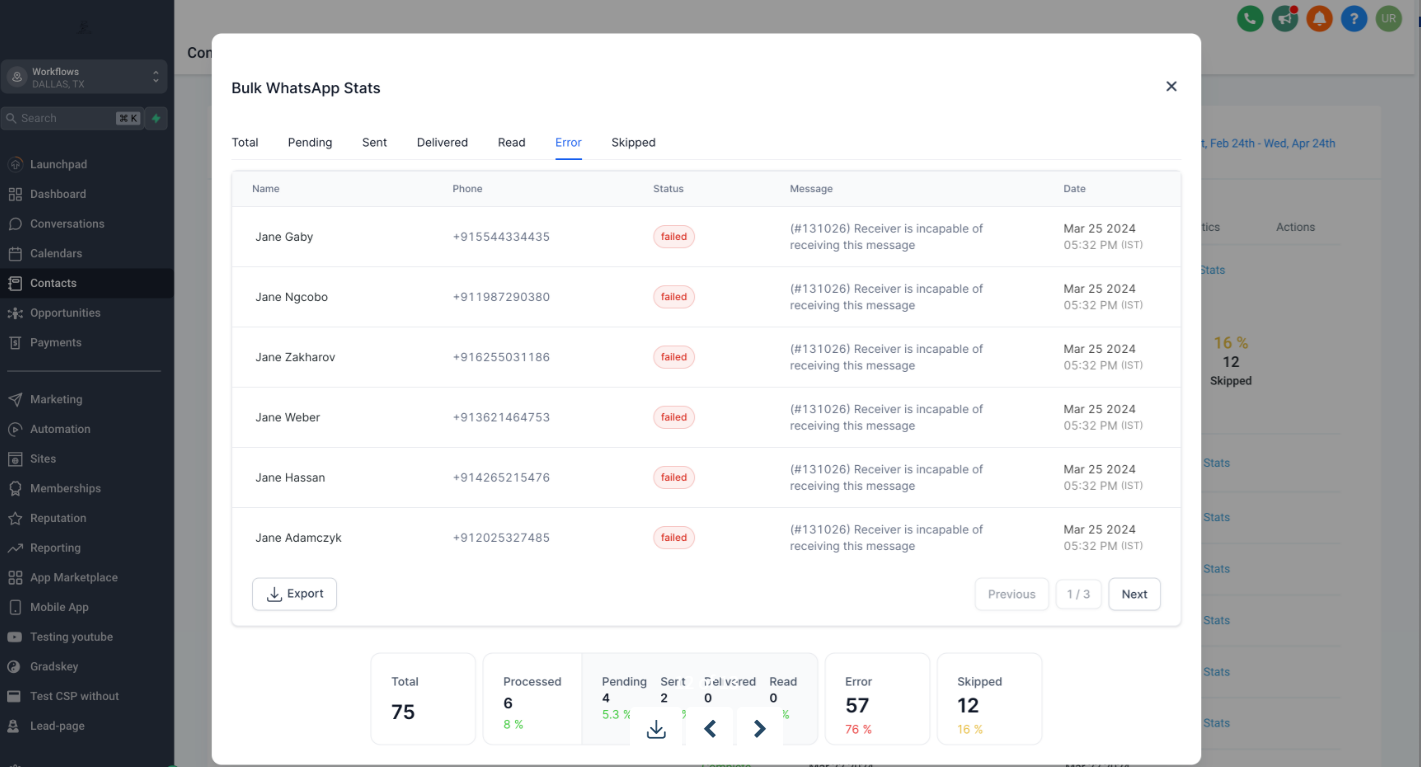
Represents the total number of contacts where an error was encountered. These could range from the contact not being on WhatsApp to the template being blacklisted or the WhatsApp account being blocked on Meta.
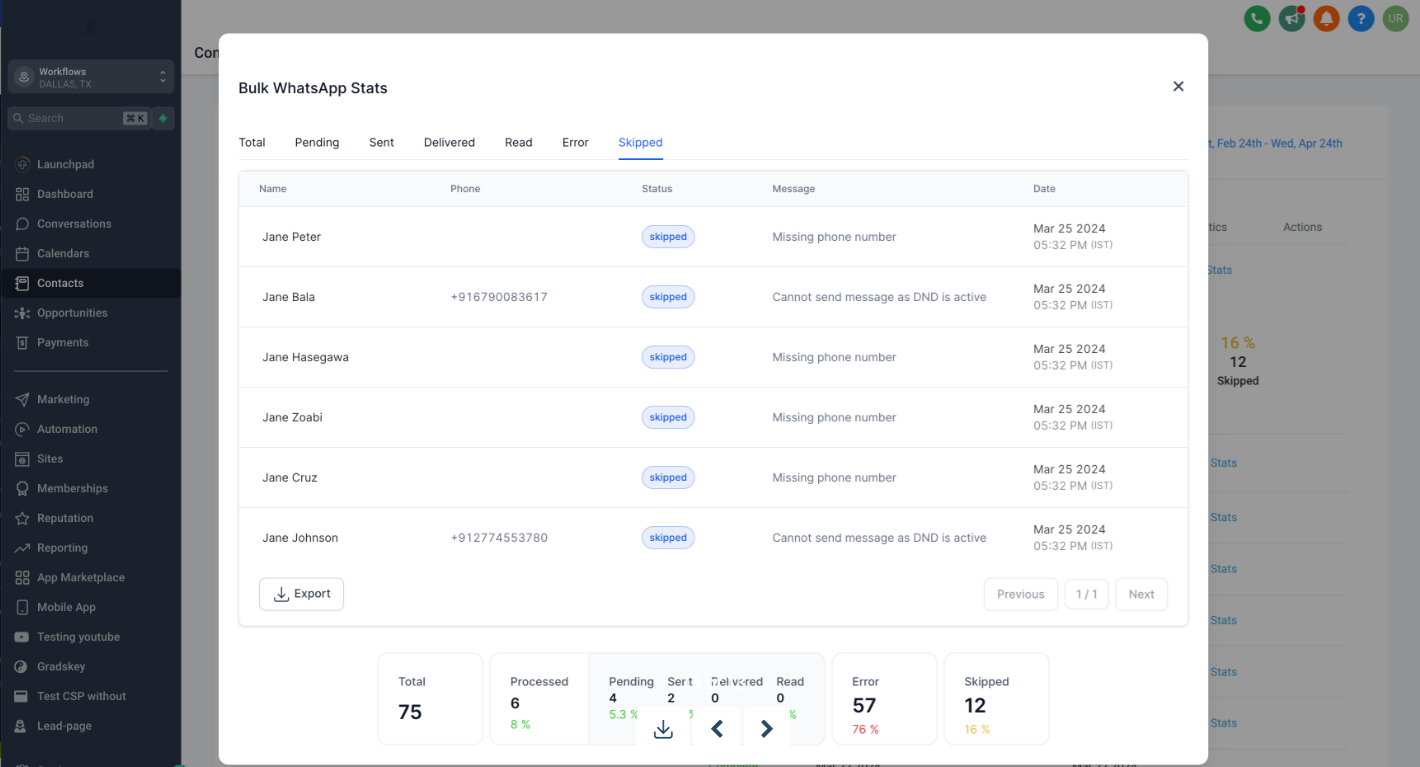
Represents the total number of contacts which were skipped from the bulk action. These could include contacts who have DND enabled or contacts with a missing phone number.
Template-level analytics give you detailed performance insights for each messaging template. Rather than viewing only a single campaign, you can track how an individual template performs over time, including:
The number of messages sent, delivered, and read
Button click data for interactive templates (URL buttons and Quick Replies)
These insights help you fine-tune your messaging, improve engagement, and drive better patient experiences.
Note: The report option is not available for the Coex integration.
Template insights describe how many times a template has been sent, delivered, and read, and how many times URL buttons or Quick Reply buttons in the template have been clicked.
Go to Settings > WhatsApp > Templates in your account.
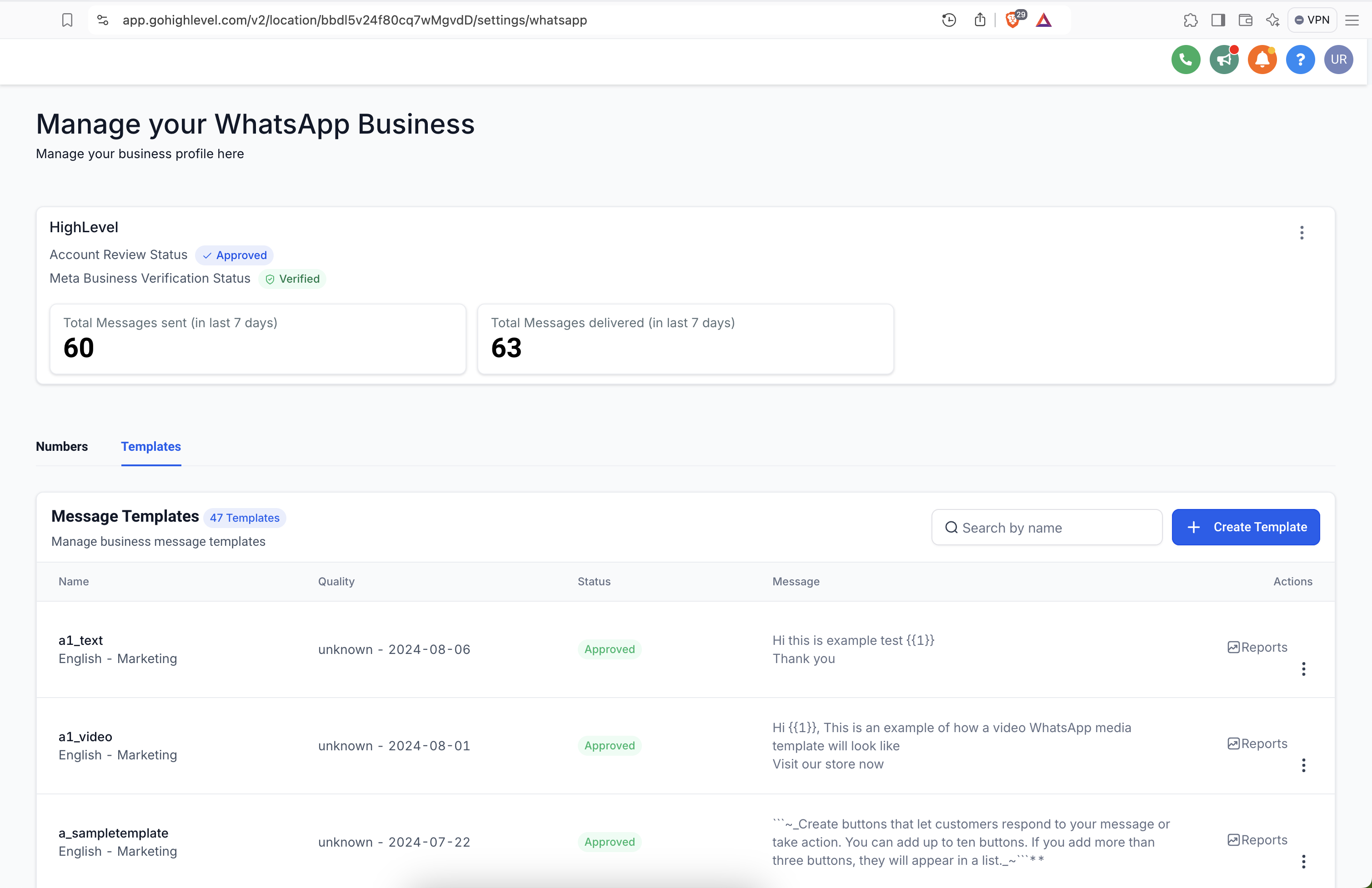
Search for the template and click on Reports.
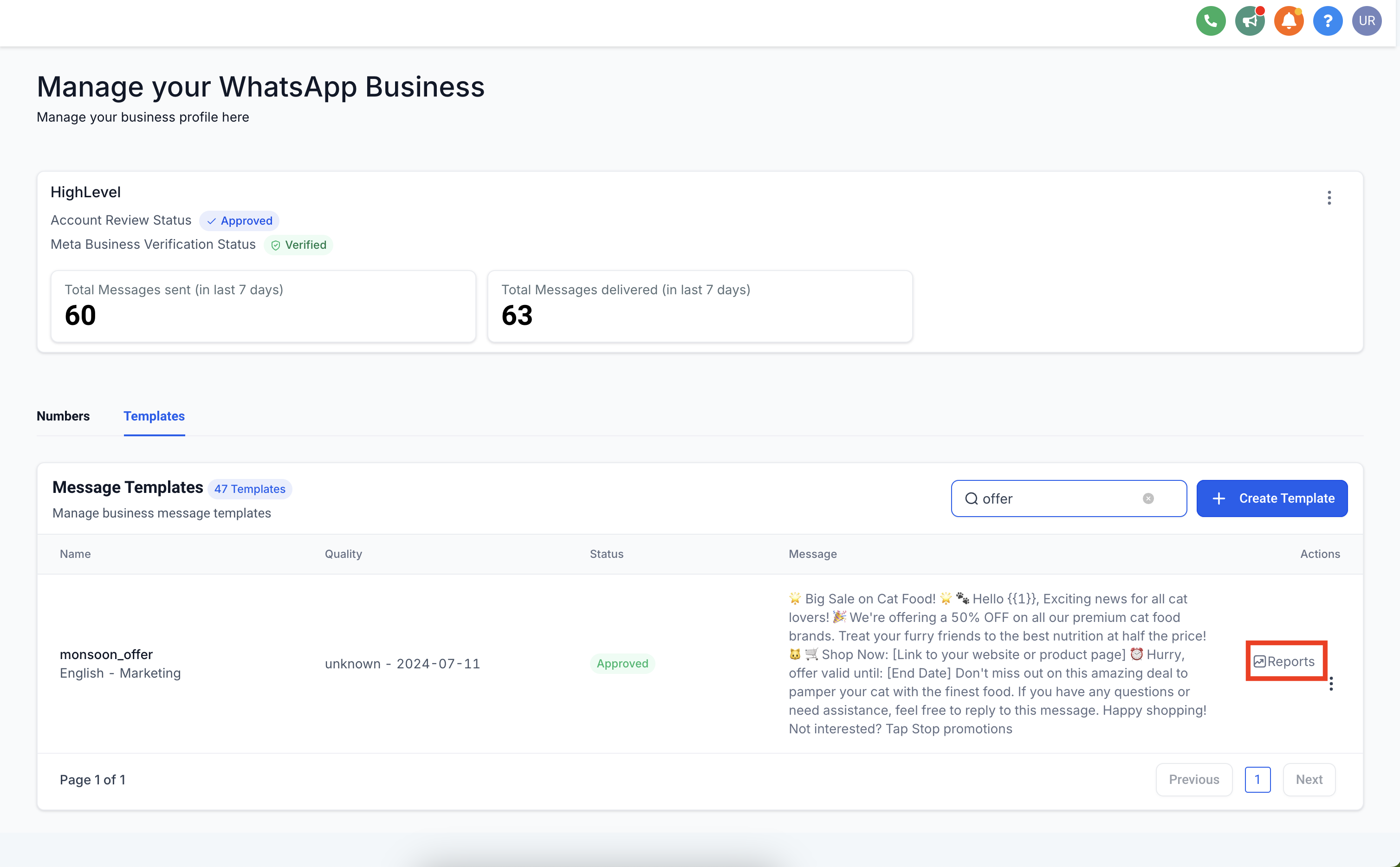
Click on the Deliverability tab.
Select a Start Date and End Date.
Metrics displayed:
Sent: Message sent (1 gray tick)
Delivered: Message delivered (2 gray ticks)
Read: Message opened (blue ticks)
Button click analytics are only available for templates categorized as MARKETING or UTILITY.
Go to Settings > WhatsApp > Templates in your account.
Search for the template and click on Reports.
Click on Button Clicks.
About URL buttons:
URL buttons load the specified URL in the device's default web browser when tapped by the user.
Open a specified URL in the user's web browser.
A template is limited to a maximum of 2 URL buttons.
Note: Button click analytics are not supported for WhatsApp Business Accounts (WABAs) owned by or shared with Meta Business Accounts in the European Union, United Kingdom, or Japan, or for accounts with a business phone number that has a country calling code from any of those countries or regions.
When reviewing template deliverability, each message moves through these ticks:
Sent: One gray tick, indicating the message left your account.
Delivered: Two gray ticks, indicating the message reached the recipient's device.
Read: Blue ticks, indicating the recipient opened the message.
What is the Template-Level Analytics feature?
Template-Level Analytics provides detailed insights into the performance of individual WhatsApp templates. You can monitor key metrics such as the number of messages sent, delivered, and read, as well as track button clicks for templates that include interactive elements like URL or Quick Reply buttons.
How can I view WhatsApp template insights?
Navigate to Settings > WhatsApp > Templates, then search for the desired template and click on Reports. Under the Deliverability section, you can view metrics like sent, delivered, and read counts for that template.
What type of button click data is available?
Button click analytics are available for templates categorized as either MARKETING or UTILITY. The system tracks how many times users click on interactive buttons like URL buttons or Quick Reply buttons, providing real-time data on engagement.
What are Quick Reply buttons?
Quick Reply buttons are custom text-only buttons that immediately message you with a specified text string when tapped by the user. A common use case is a button that allows your patient to easily opt out of marketing messages. Each template can have up to 10 Quick Reply buttons, and buttons must be organized into valid groupings, with Quick Reply buttons grouped together and separated from non-Quick Reply buttons. Valid examples include Quick Reply, Quick Reply; or Quick Reply, Quick Reply, URL, Phone; or URL, Phone, Quick Reply, Quick Reply. Invalid examples include Quick Reply, URL, Quick Reply; or URL, Quick Reply, URL. If grouped incorrectly, the API returns an error indicating an invalid combination.
How many buttons can be included in a template?
A template is limited to two URL buttons and can have up to 10 Quick Reply buttons. Buttons must be grouped correctly, so Quick Reply buttons cannot be mixed in the same group with other button types like URL buttons.
Can I track button clicks for templates used in the European Union, United Kingdom, or Japan?
No. Button click analytics are not supported for WhatsApp Business Accounts (WABAs) owned by or shared with Meta Business Accounts in the European Union, United Kingdom, or Japan, or if the business phone number is from one of these regions.
What kind of granularity is available for template analytics?
Template analytics are available with daily granularity. You can select a custom date range to view performance data for a specific period, such as daily or weekly, by setting the start and end dates.
Can I track URL button clicks in WhatsApp templates?
Yes. URL button clicks are tracked in the analytics for templates that contain URL buttons. When clicked, the URL button opens the specified link in the user's default web browser. These templates can have up to two URL buttons.
What are the benefits of using template-level analytics?
Template-level analytics let you gain actionable insights into the performance of your messages, helping optimize your communication strategy. They help identify which templates drive engagement, such as which buttons patients interact with, and provide visibility into the delivery and read rates of messages. This data lets you refine your templates and improve patient engagement and conversion.
