When a patient asks to stop receiving WhatsApp messages, you can honor that request automatically. By building a workflow that watches for a patient's reply and turns on Do Not Disturb (DND) for the WhatsApp channel, your practice suppresses all future WhatsApp messages to that contact without any manual work.
This guide walks you through creating that workflow from scratch, adding a trigger that listens for a WhatsApp reply containing "STOP," and adding an action that enables DND for the WhatsApp channel.
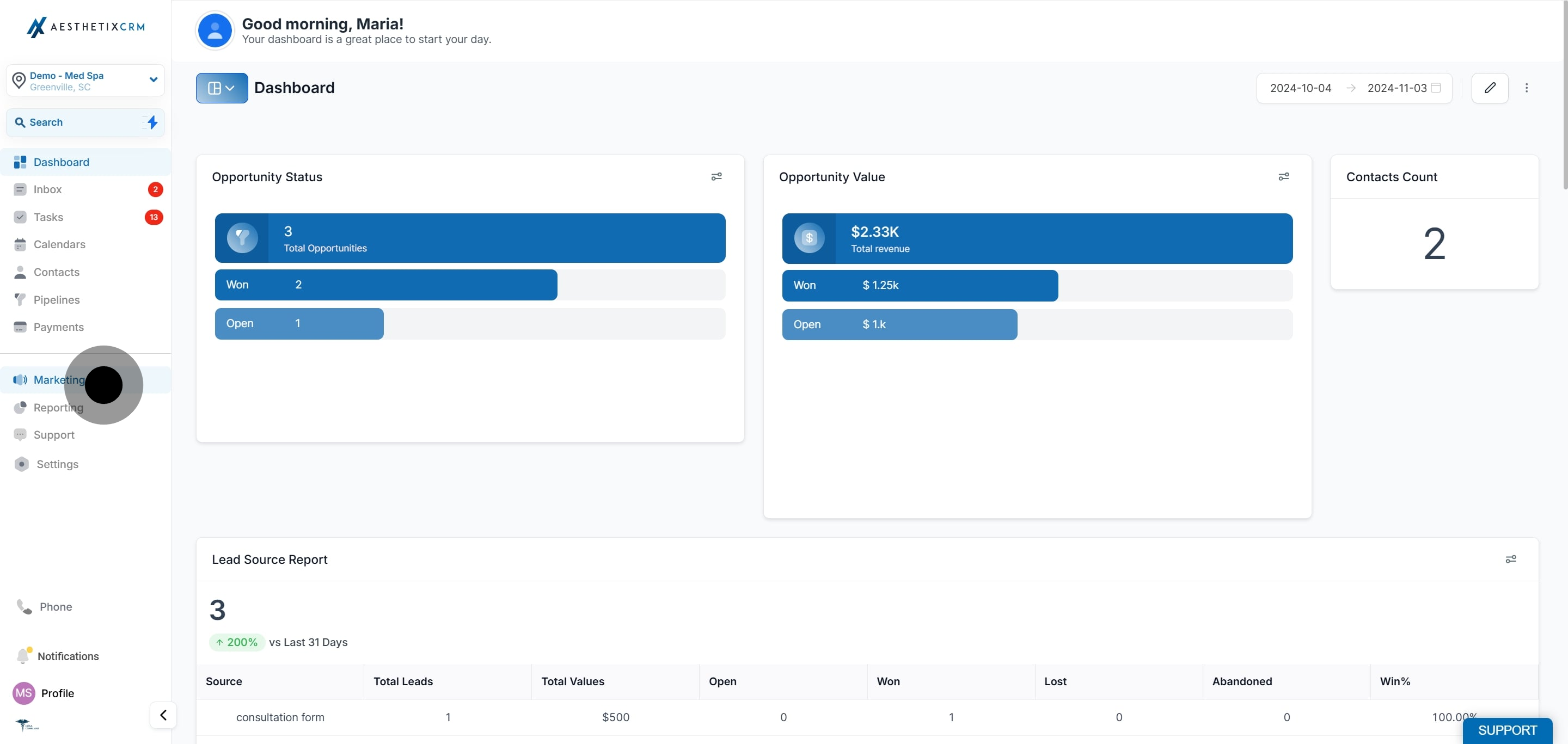
1. First, click "Marketing."
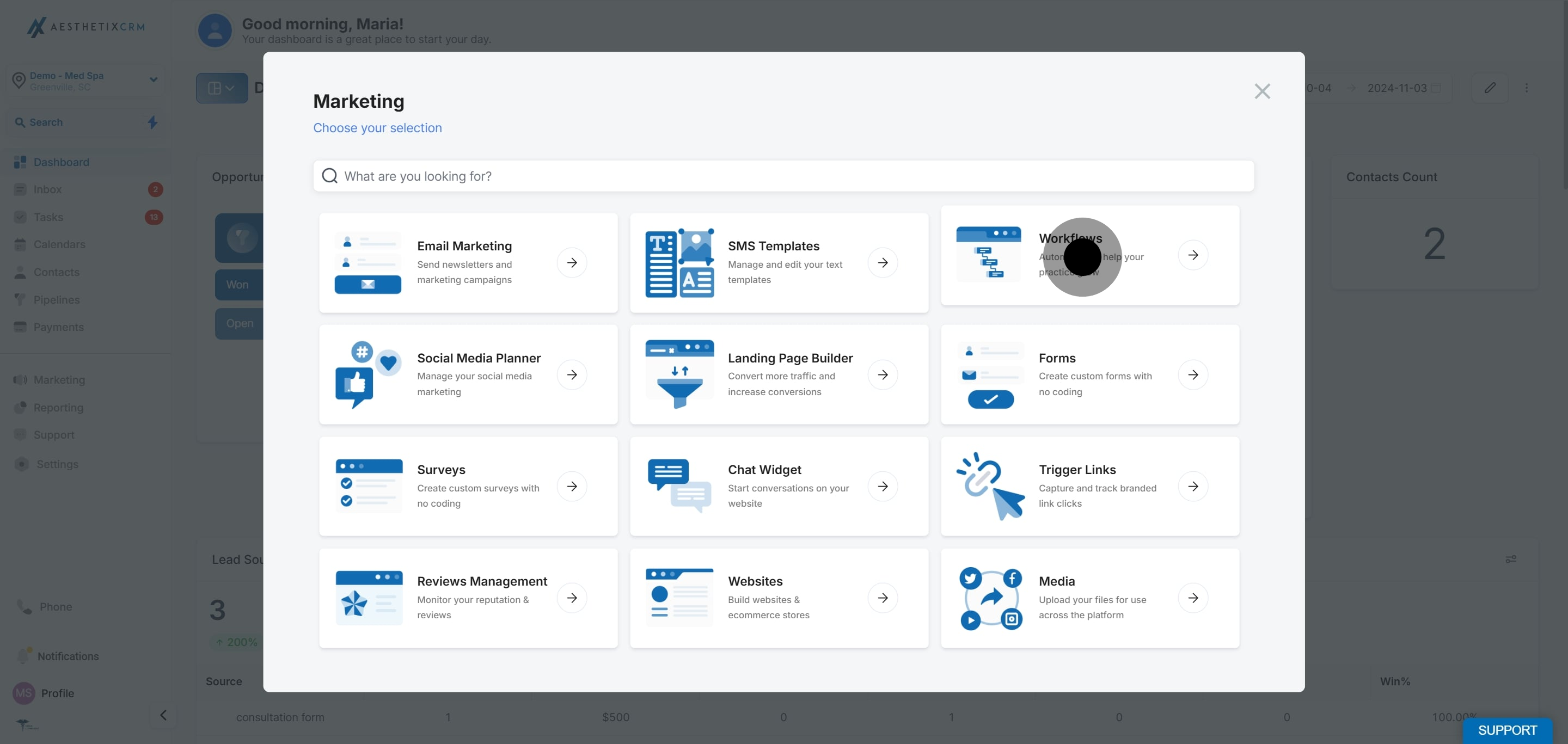
2. Click "Workflows."
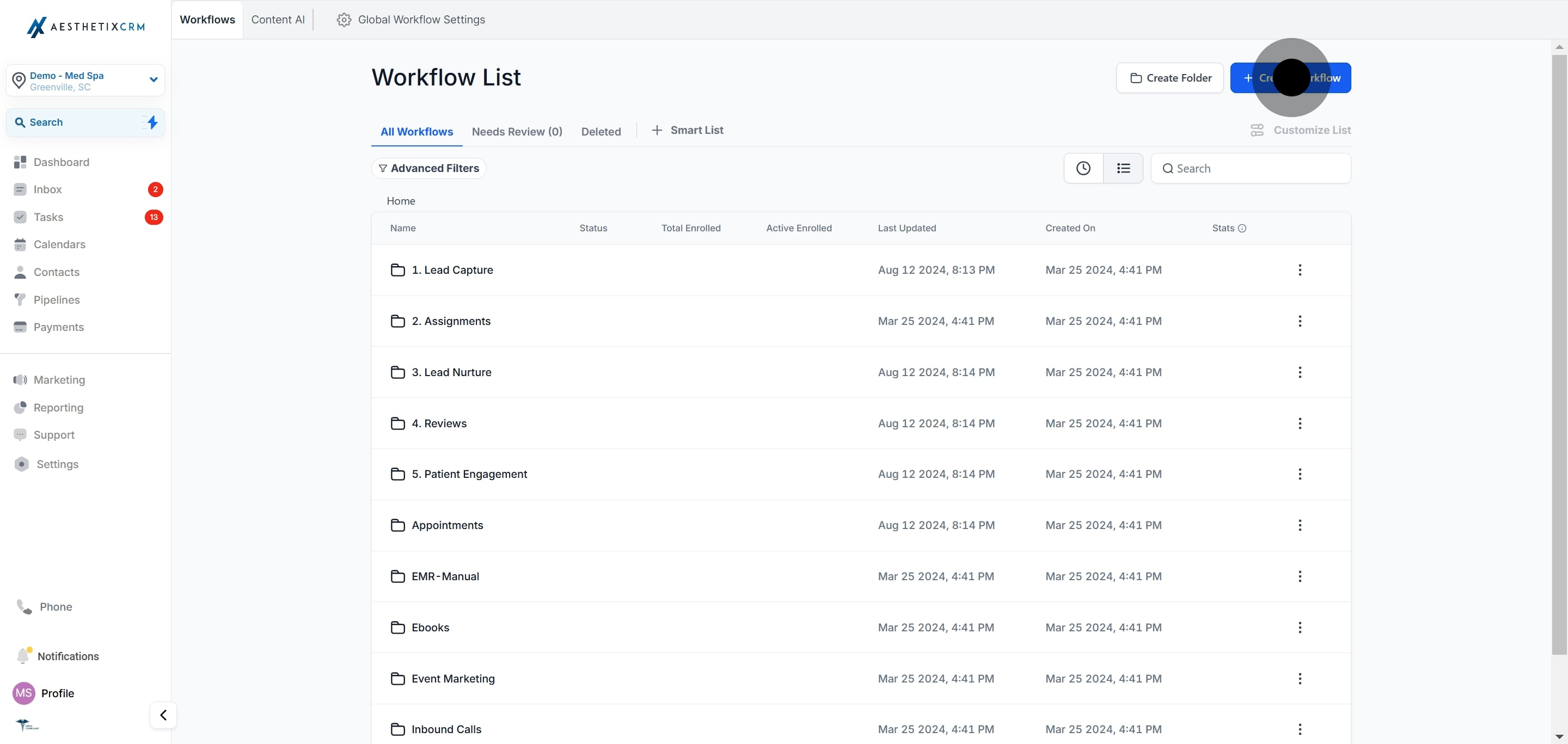
3. Click "Create Workflow."
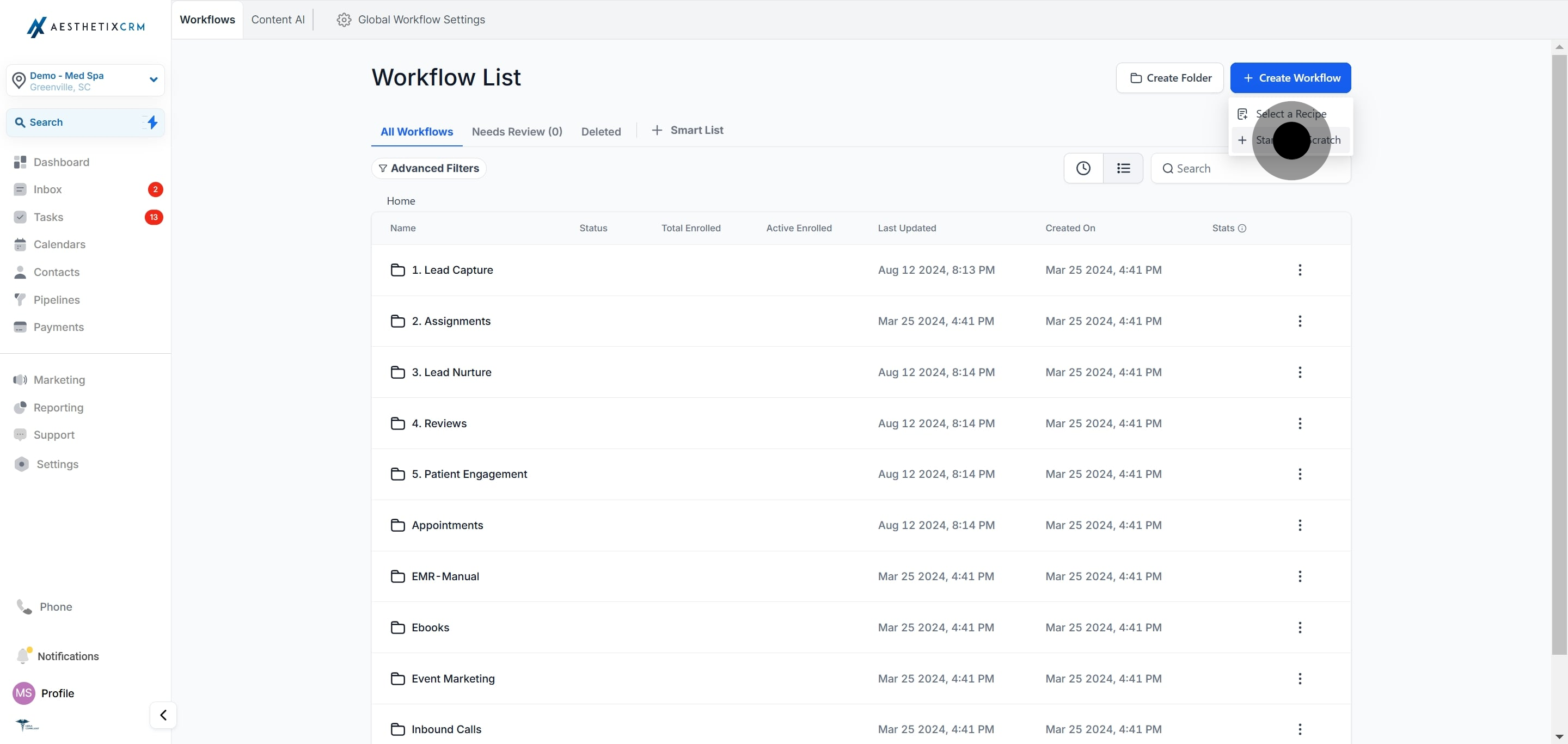
4. Click "Start from Scratch."
5. Click "Add New Trigger."
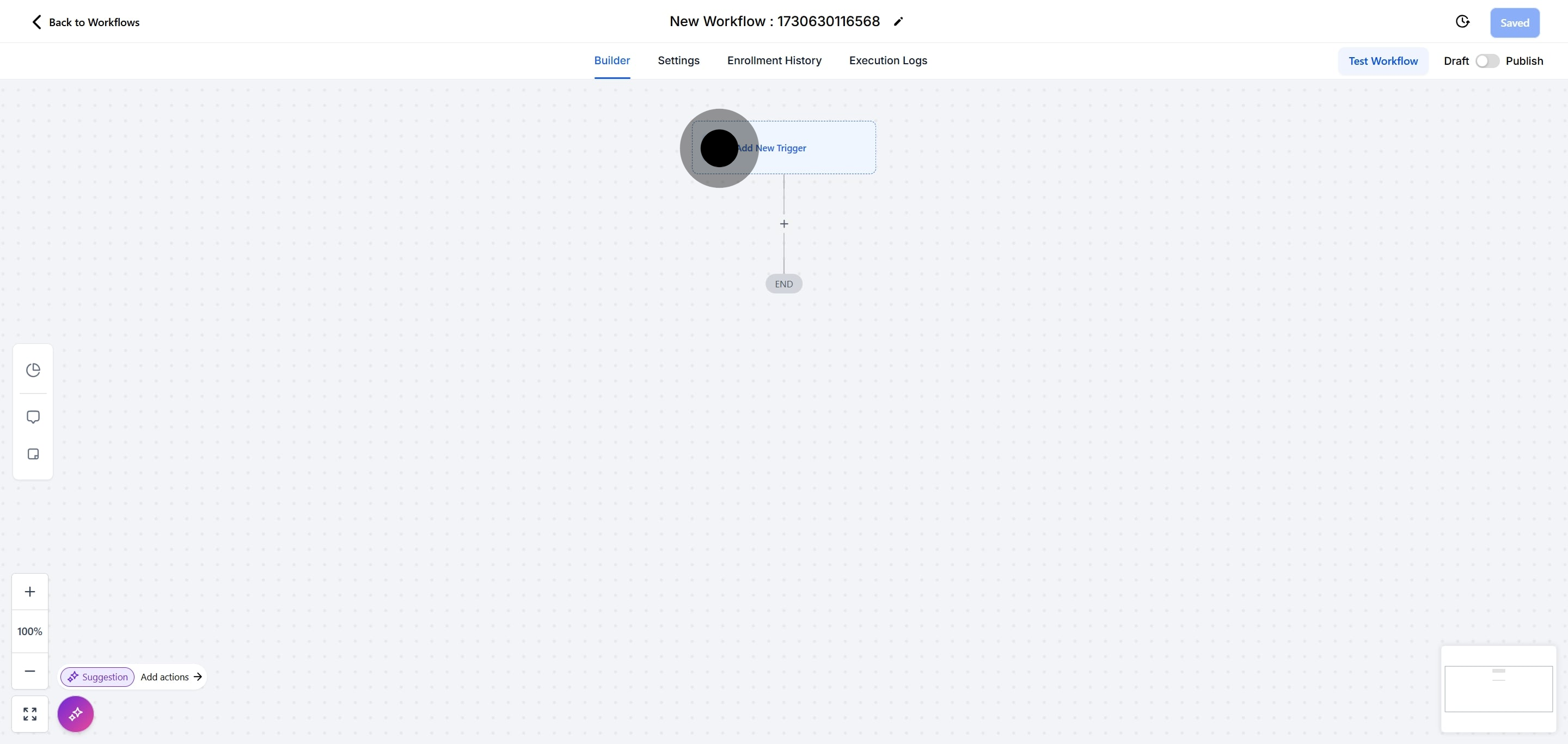
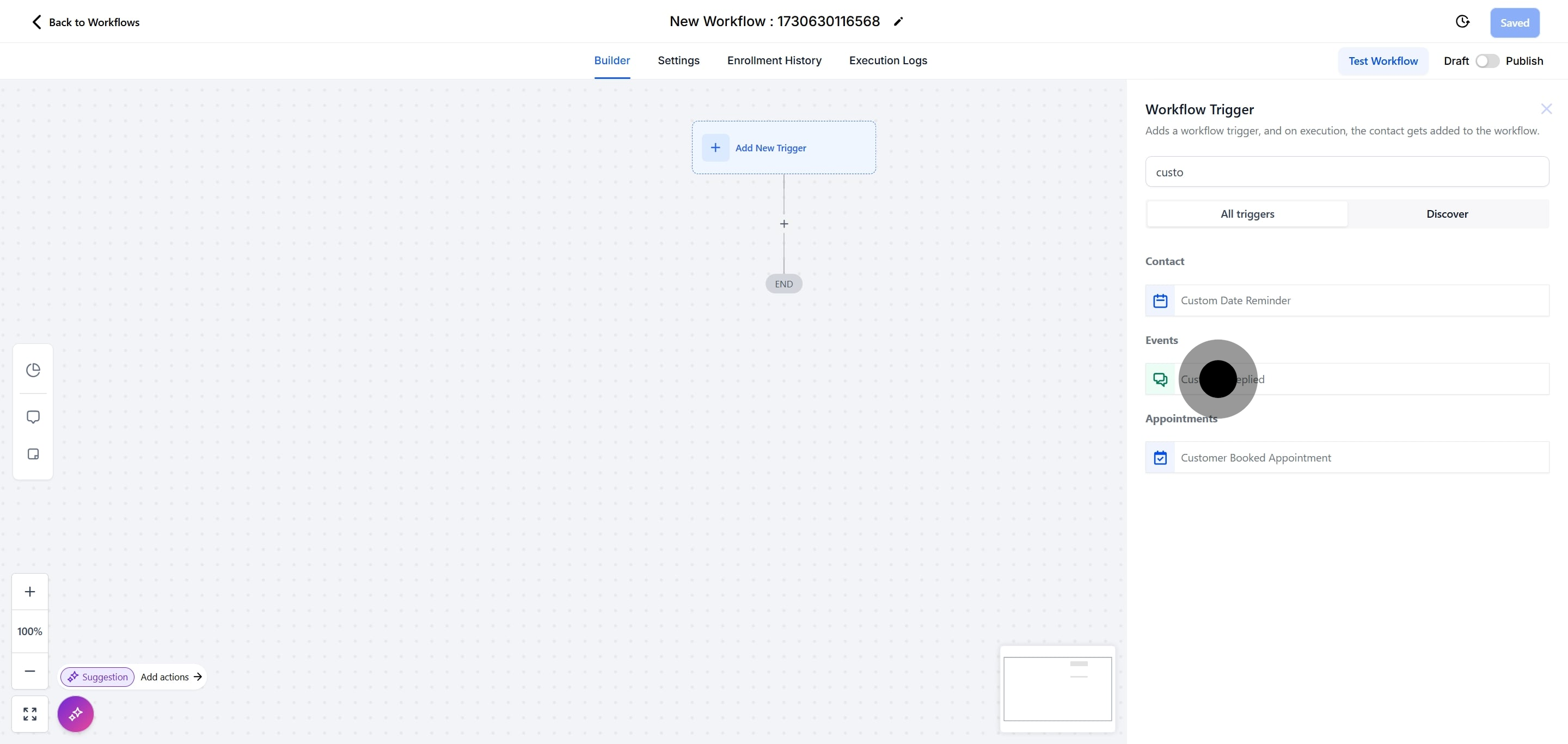
6. Click "Customer replied."
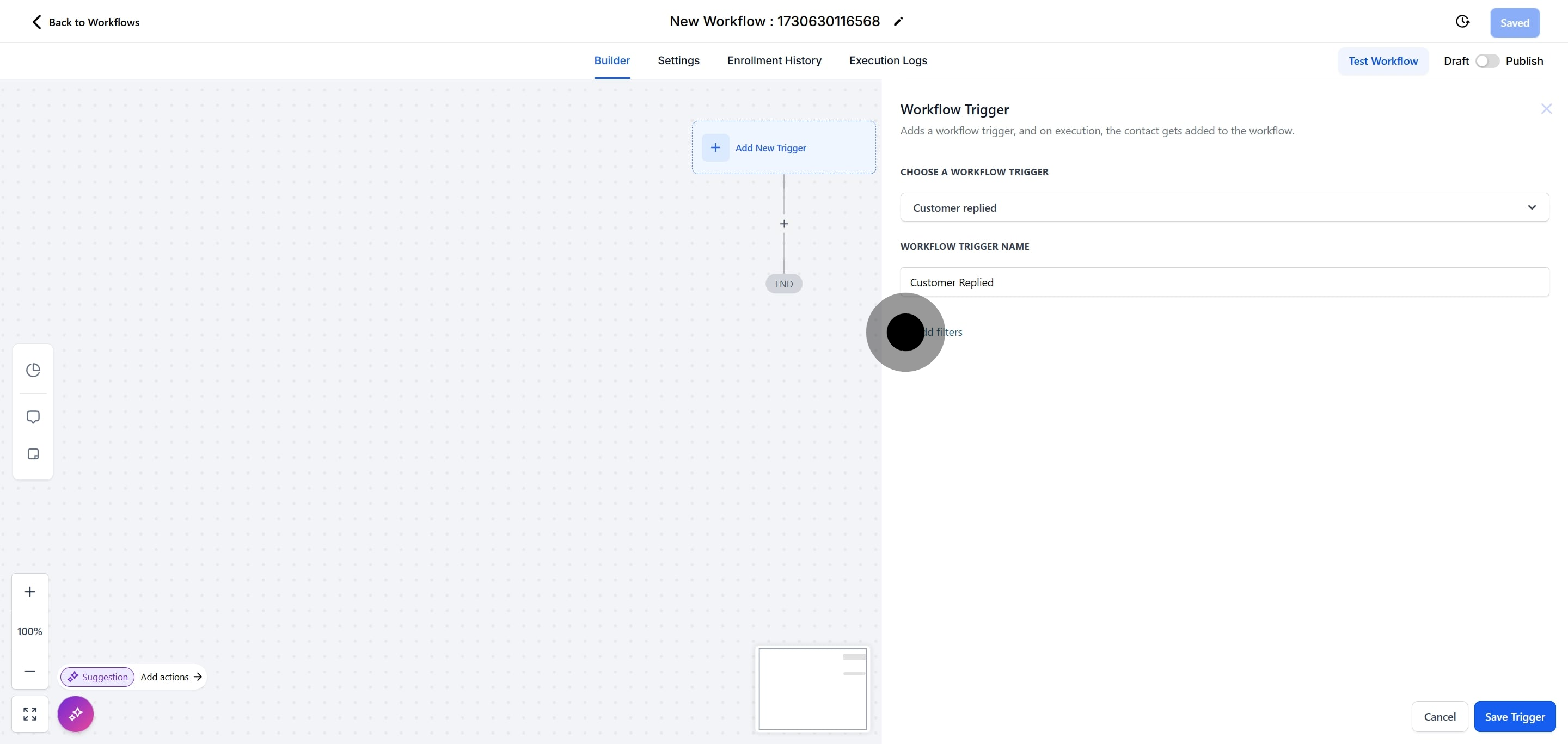
7. Click "Add filters."
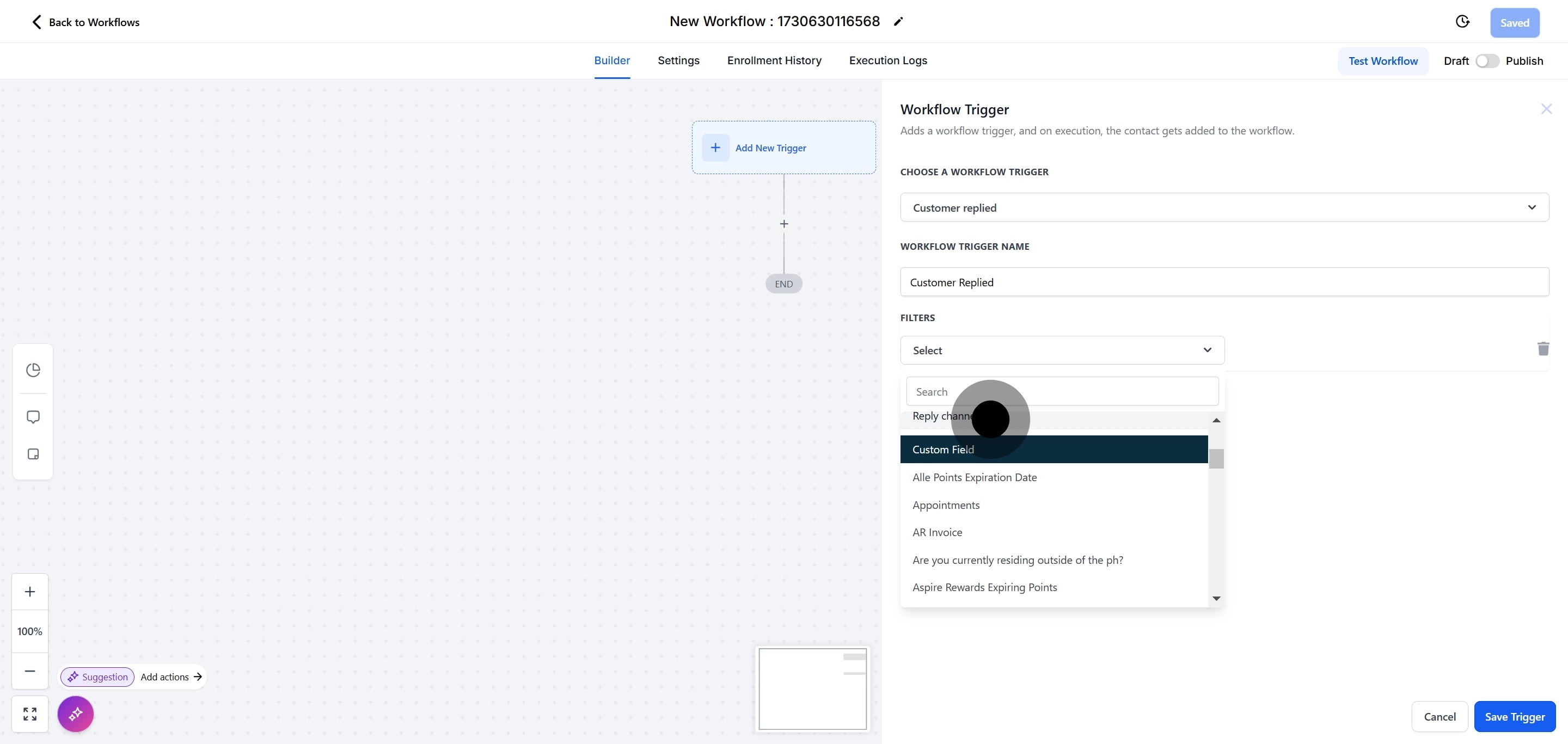
8. Click "Reply channel."
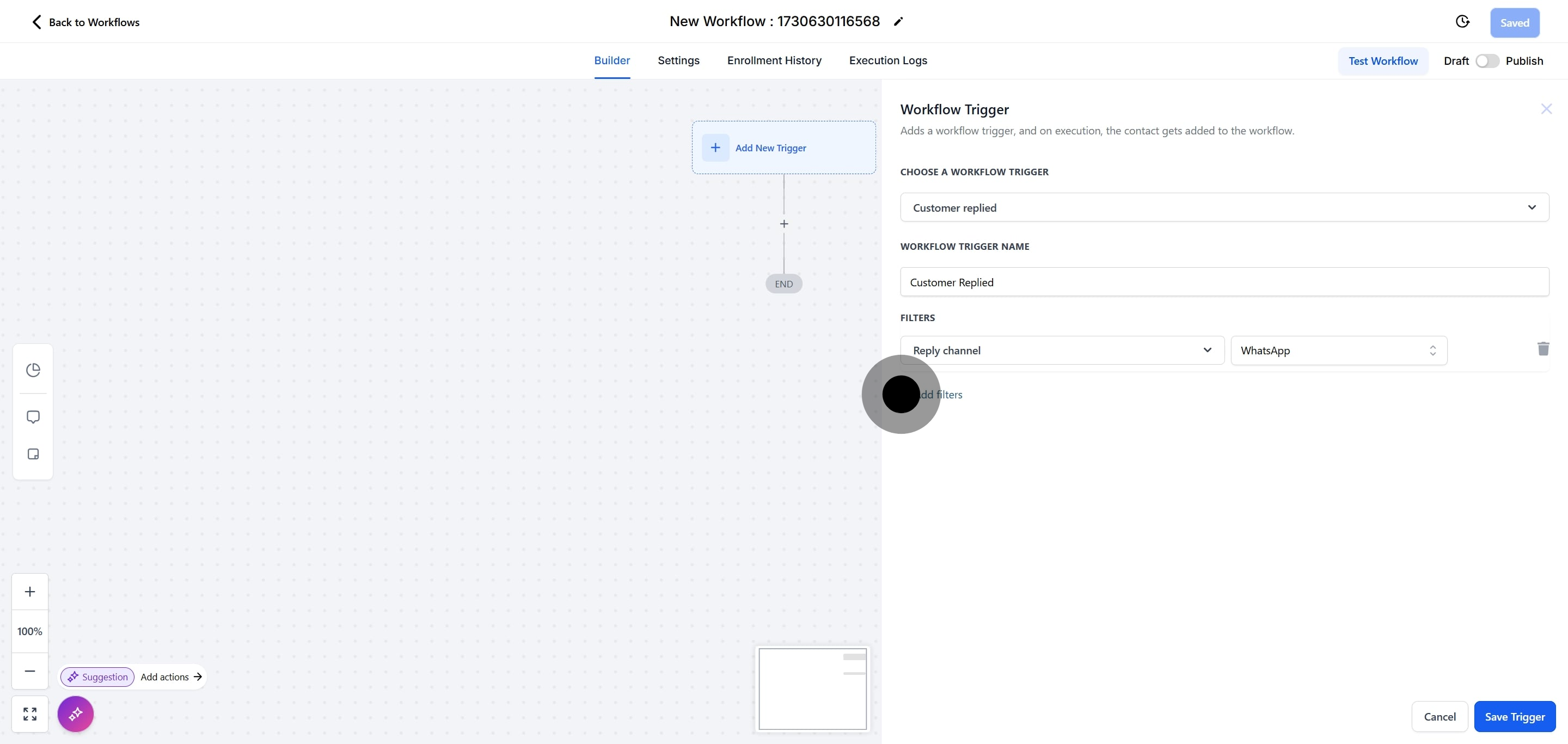
9. Click "WhatsApp."
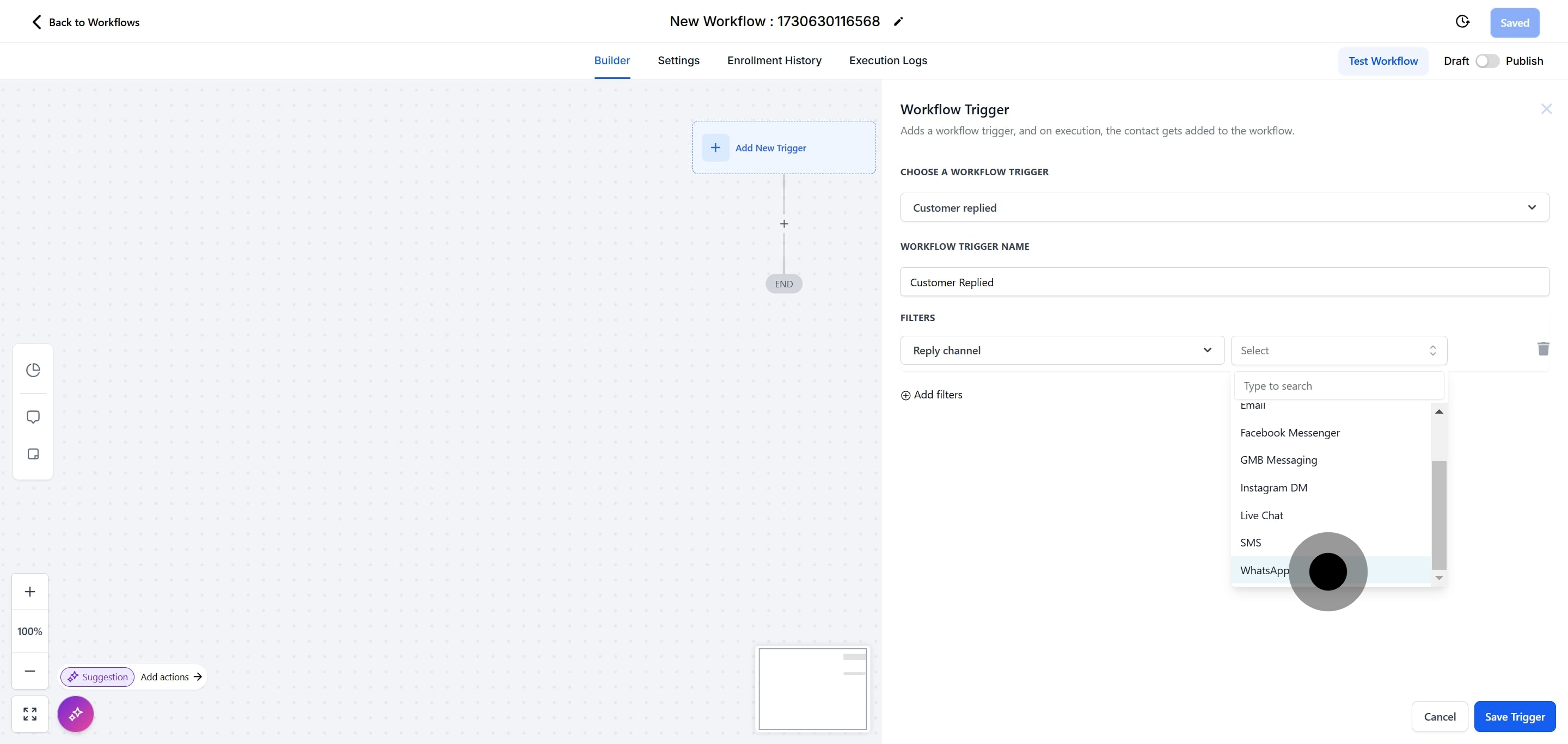
10. Click "Add filters" again to add a second condition.
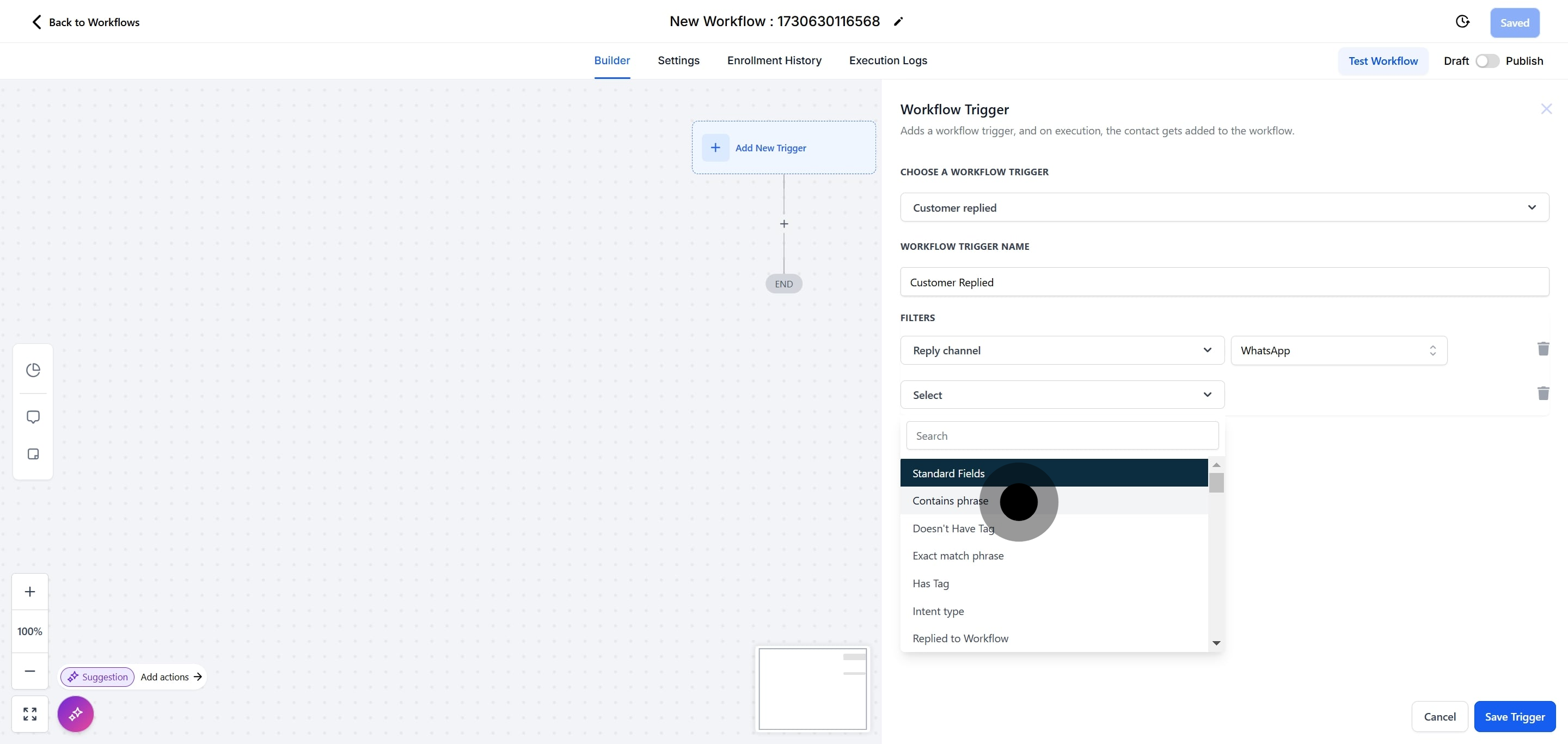
11. Click "Contains phrase."
12. Enter "STOP" as the phrase.
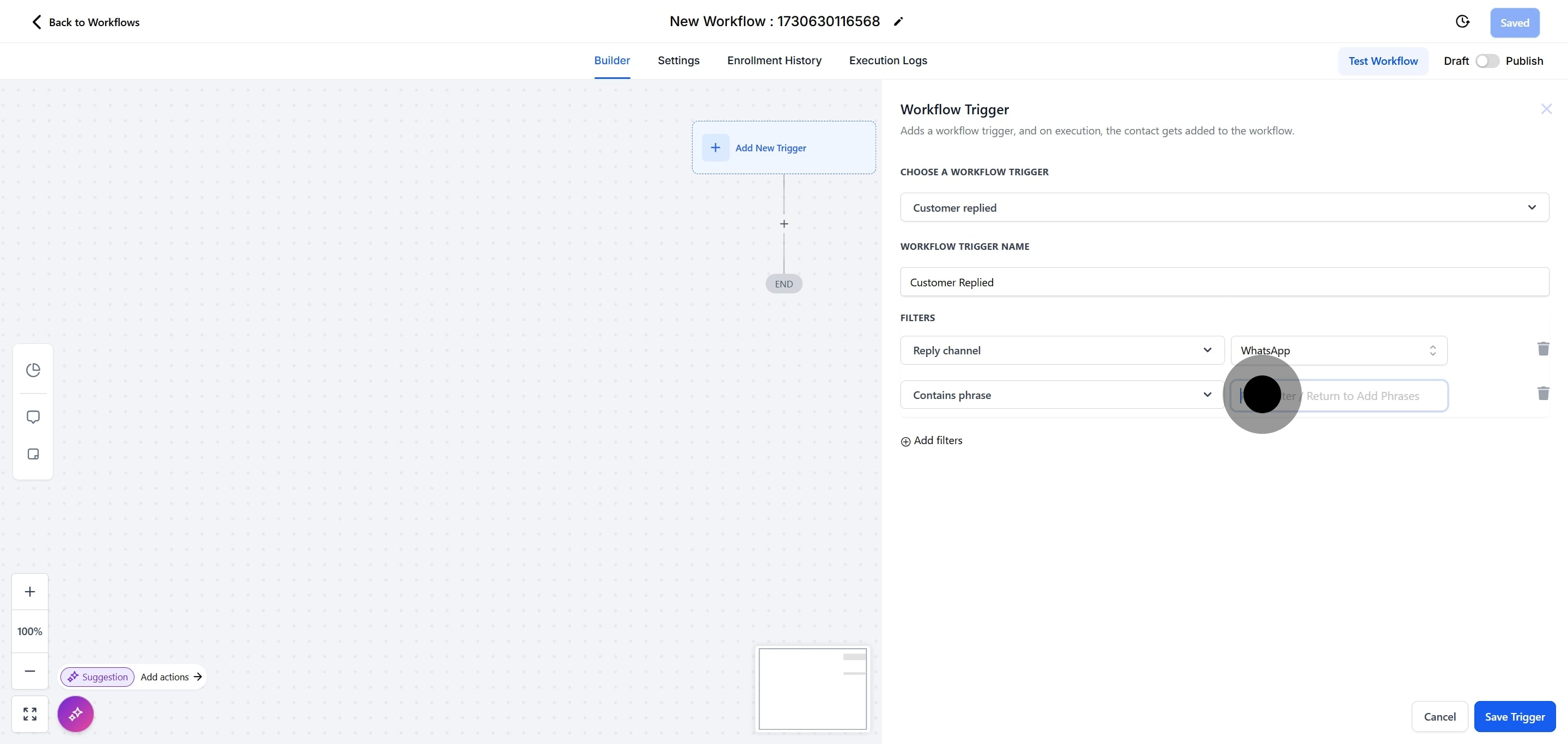
13. Click "Save Trigger."
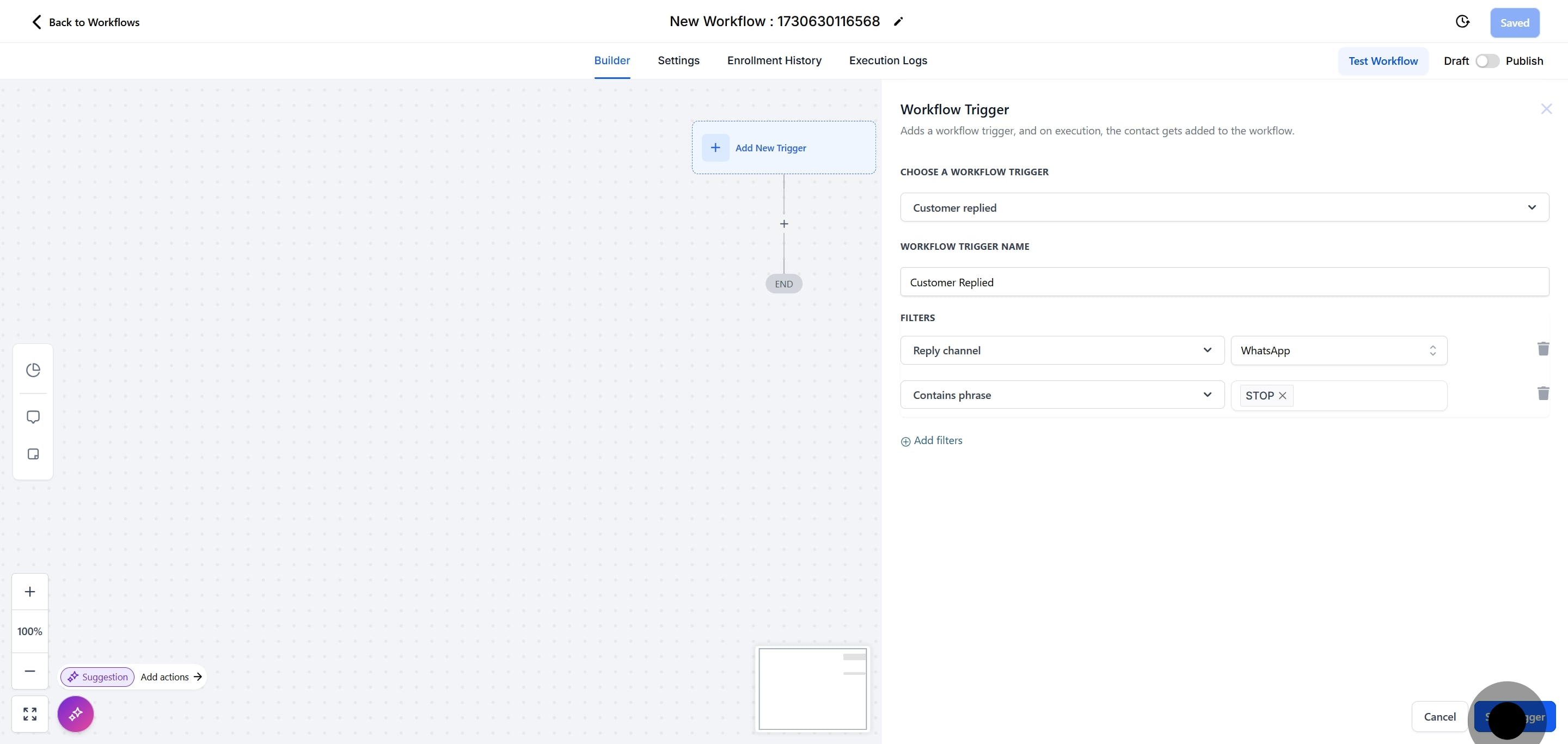
Note: This trigger fires only when a patient replies on WhatsApp with a message that contains the phrase "STOP." Both filters must match, so other channels and other replies are ignored.
14. Click the + button to add an action.
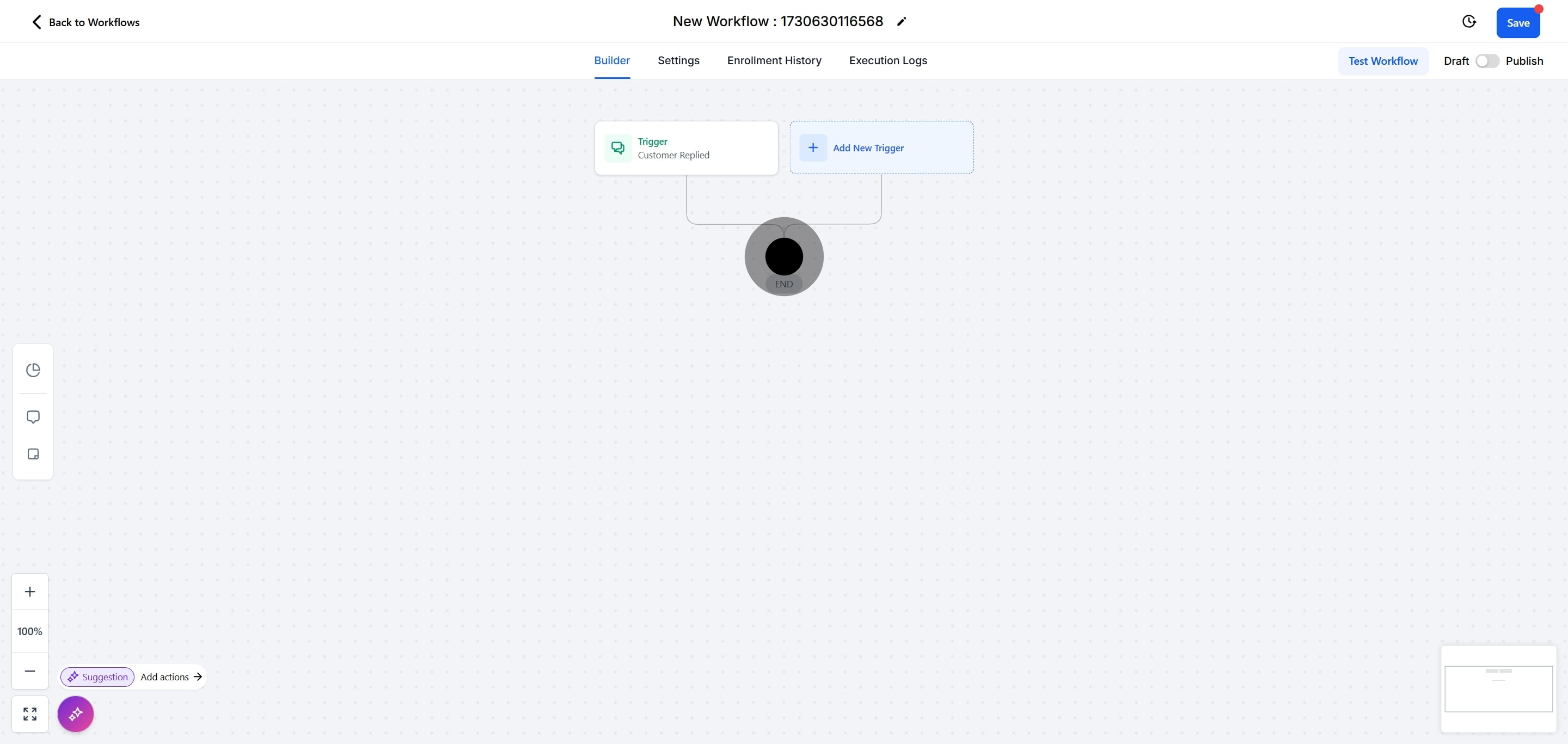
15. Search for "DND" and select the DND action.
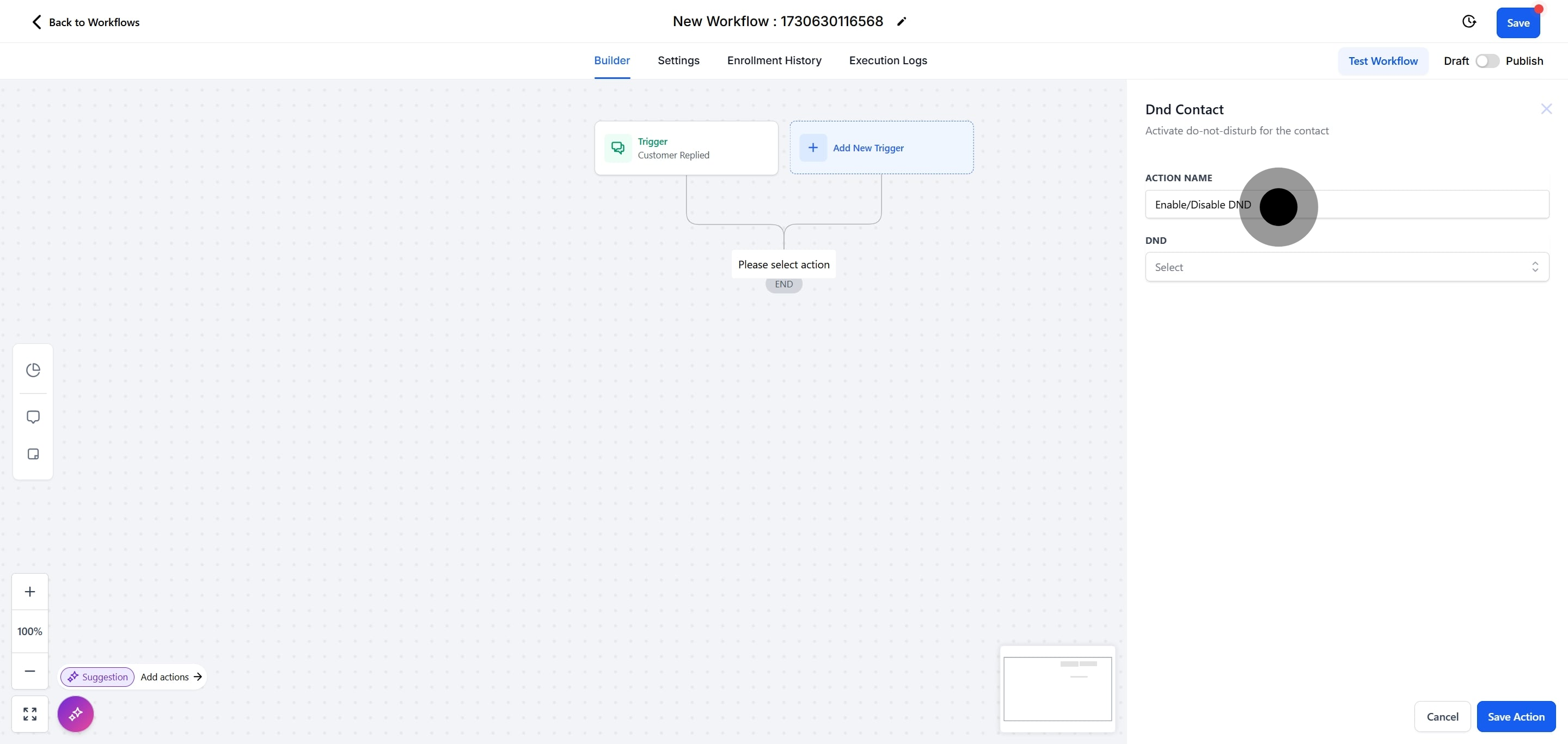
16. Click "Enable DND for specific channels."
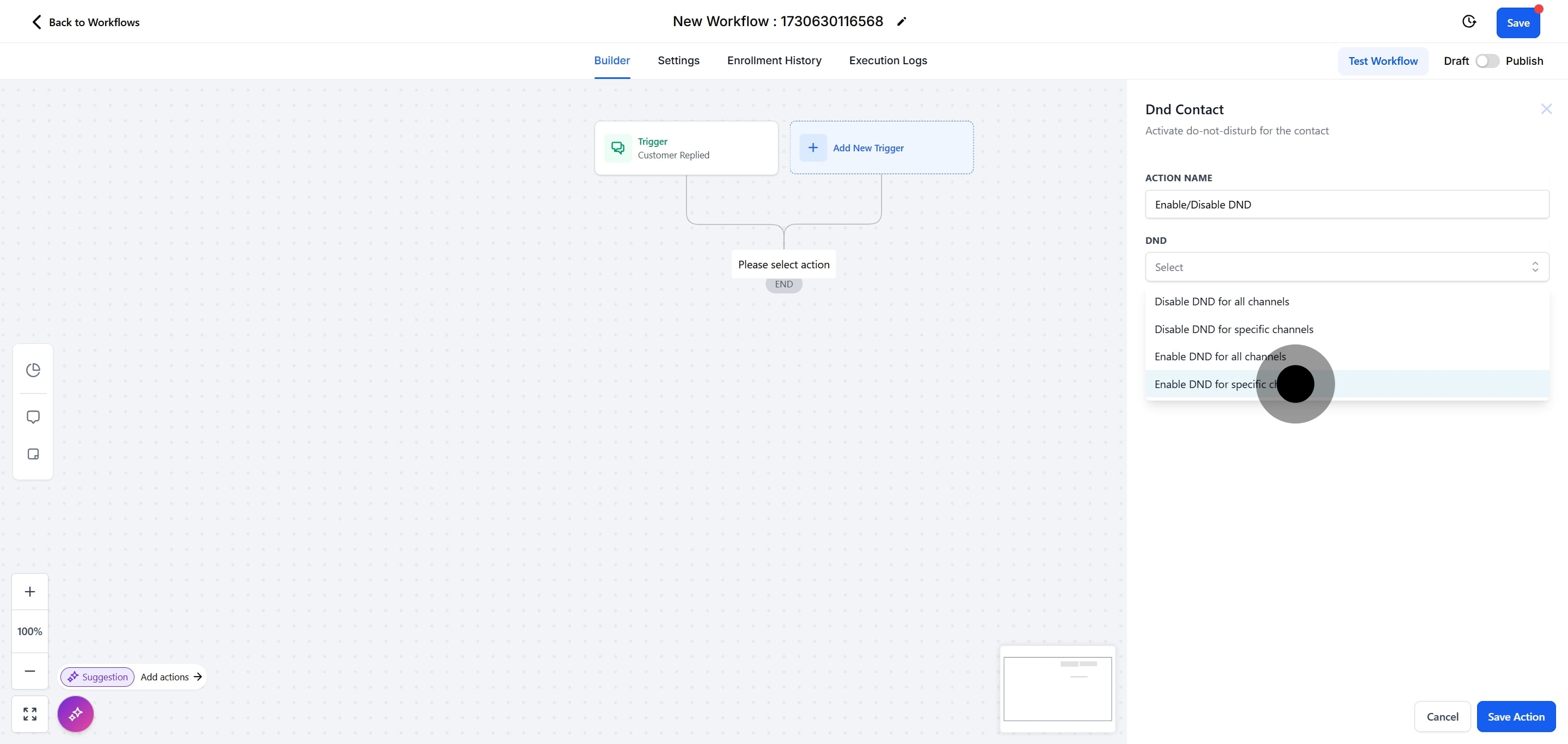
17. Select "WhatsApp" as the channel.
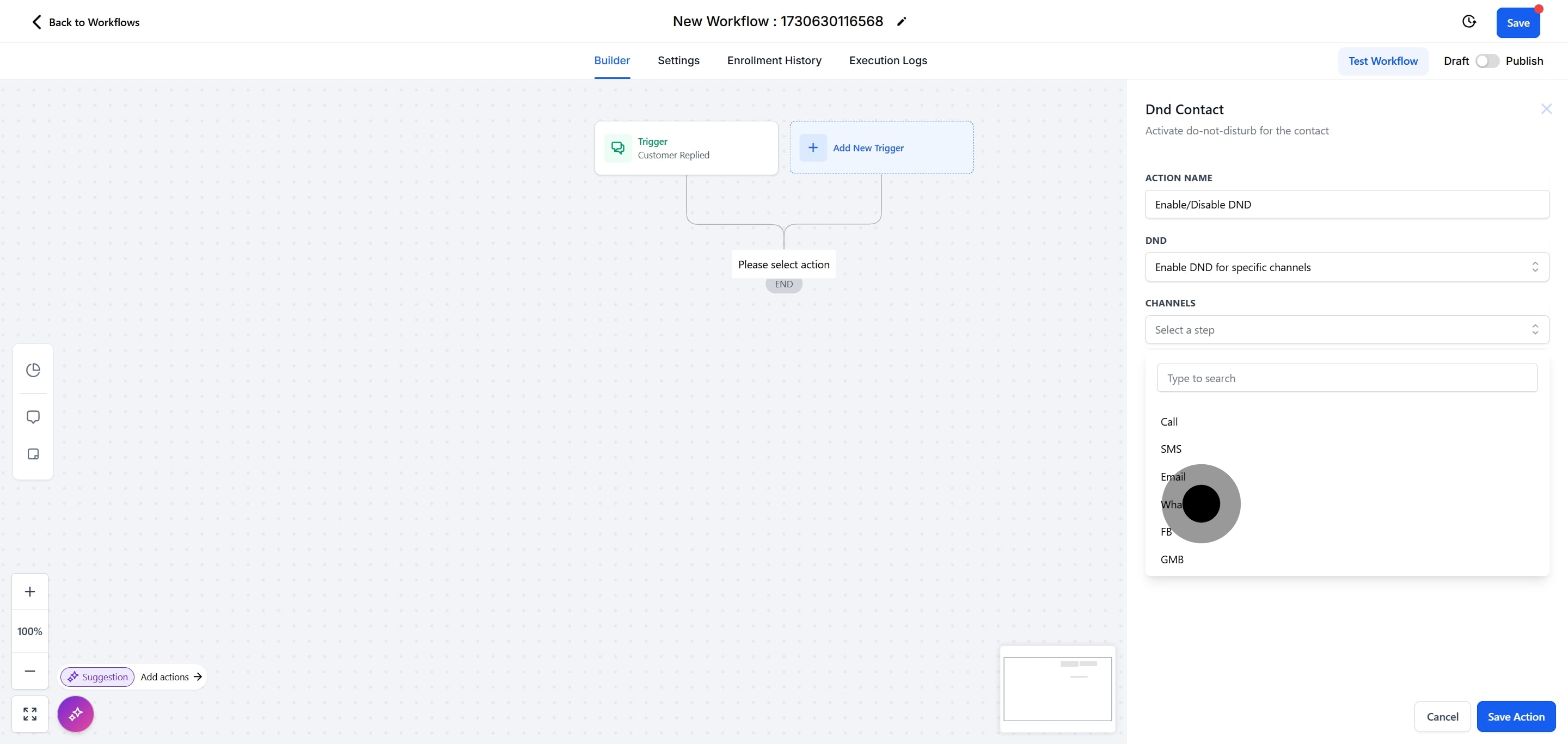
18. Click "Save Action."
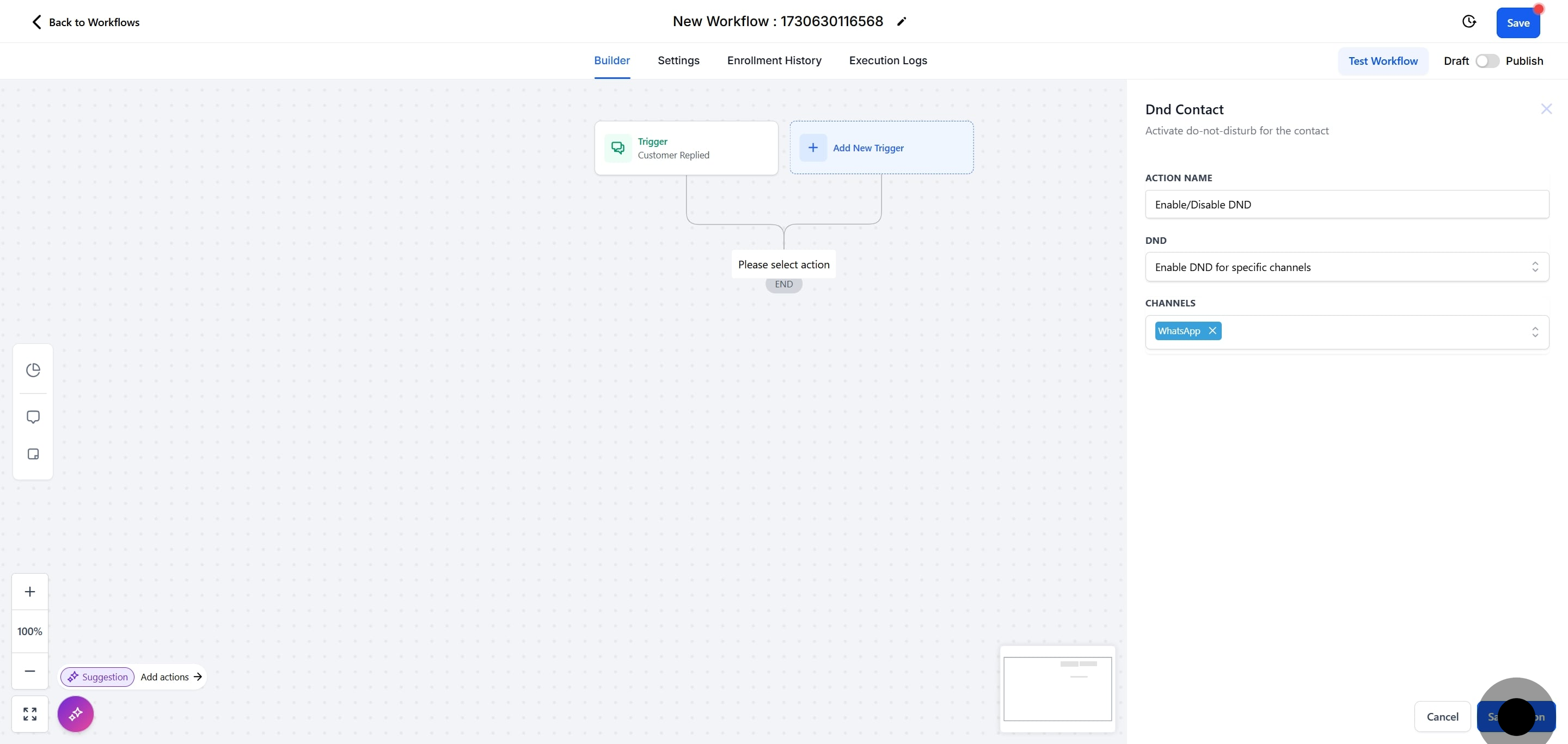
19. Click "Save" to save and activate the workflow.
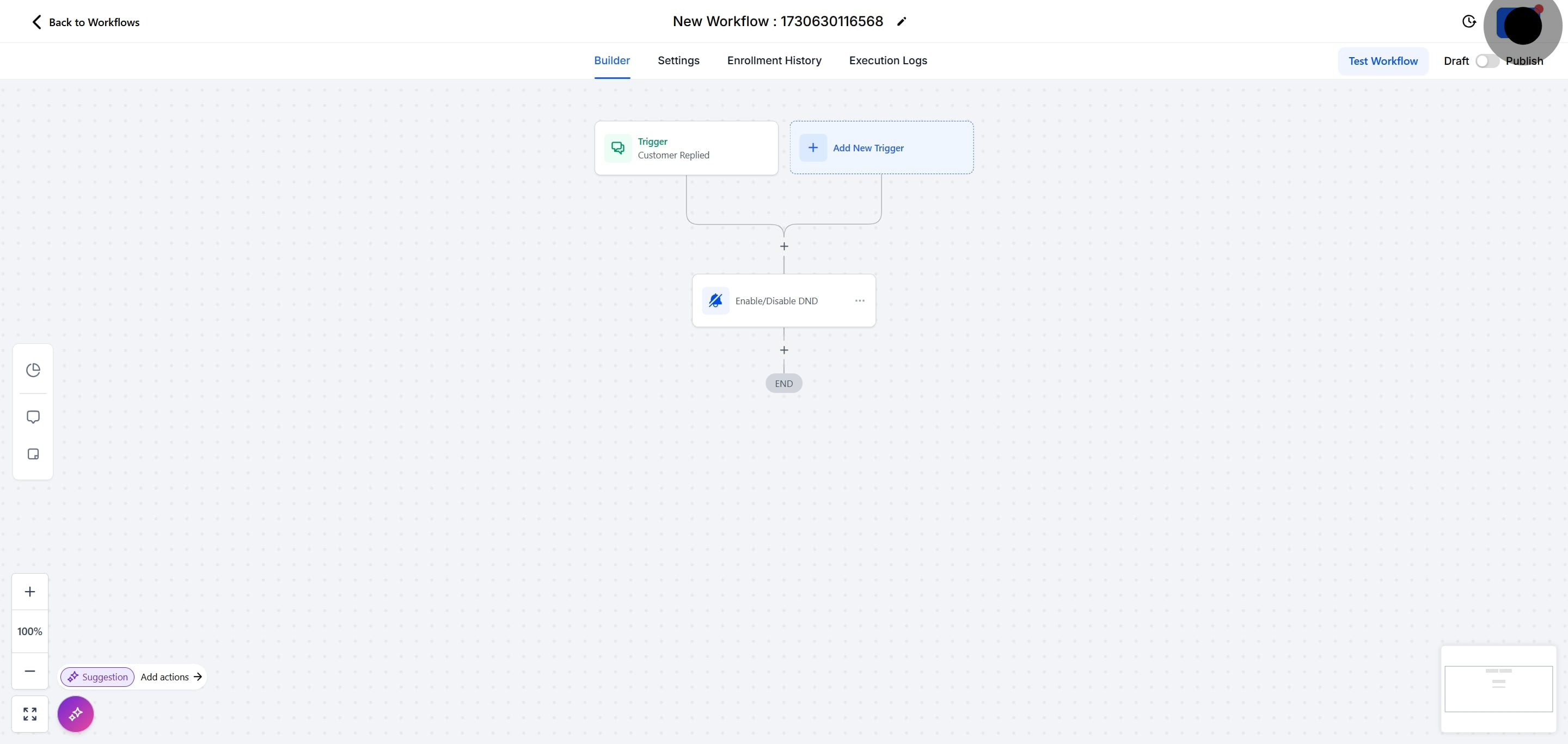
Note: Enabling DND for WhatsApp suppresses only the WhatsApp channel for that contact. Other channels, such as SMS or email, remain active unless you enable DND for them as well.
What does Do Not Disturb (DND) for WhatsApp do? DND for WhatsApp suppresses all outgoing WhatsApp messages to a specific contact. Once enabled, your practice will no longer send that patient WhatsApp messages, while other channels continue to work normally.
Why should I set this up as a workflow? A workflow enables DND automatically the moment a patient replies "STOP" on WhatsApp. This honors opt-out requests instantly and consistently, without anyone on your team needing to update the contact by hand.
What happens if a patient replies "STOP" on WhatsApp? The trigger detects the WhatsApp reply containing "STOP," and the DND action turns on Do Not Disturb for the WhatsApp channel on that contact, suppressing future WhatsApp messages.
Does enabling DND for WhatsApp stop all messages to the patient? No. This action enables DND only for the WhatsApp channel. The patient can still receive messages through other channels, such as SMS or email, unless you also enable DND for those channels.
Can I use a different keyword instead of "STOP"? Yes. In the "Contains phrase" filter, you can enter any keyword or phrase you want the trigger to watch for. "STOP" is a common opt-out keyword, but you can adjust it to match how your patients respond.
How do I turn DND back off for a patient? You can disable DND directly on the contact record by opening the contact and adjusting the DND settings for the desired channel. This restores normal WhatsApp messaging for that patient.
