WhatsApp organizes business messaging around a 24-hour customer service window. Understanding how this window works helps your practice reply to patients naturally, avoid unnecessary messaging costs, and stay compliant with Meta's rules for business-initiated conversations.
The customer service window opens the moment a patient sends a message to your business. For the next 24 hours, you can send unlimited free-form messages back and forth. This is the ideal time to answer questions, confirm appointments, and have a natural conversation.
Once 24 hours pass with no new message from the patient, the window closes. After it closes, you can no longer send free-form text. To re-open the conversation, you must send a pre-approved WhatsApp template message.
Window open: Send any free-form message, at no additional cost for the first 1,000 service conversations each month.
Window closed: Only pre-approved Marketing or Utility templates can be used to start a new conversation.
Note: Free-form messages sent inside the open window are included at no additional cost because the patient replied to you, opening a service conversation.
You can automatically check whether the customer service window is open before a workflow sends a message. This lets your automation choose the right message type every time.
Add the WhatsApp: Customer Service Window Check action to your workflow. It creates two branches: Open and Closed.
Under the Open branch, add a WhatsApp Send Message action and choose None - Free Form Message. When the window is open, you can send free-form messages without restrictions and take advantage of the free tier of 1,000 conversations per month.
Under the Closed branch, add a WhatsApp Send Message action and choose an approved Marketing or Utility template. When the window is closed (no patient response in the last 24 hours), only a pre-approved template can re-open the conversation.
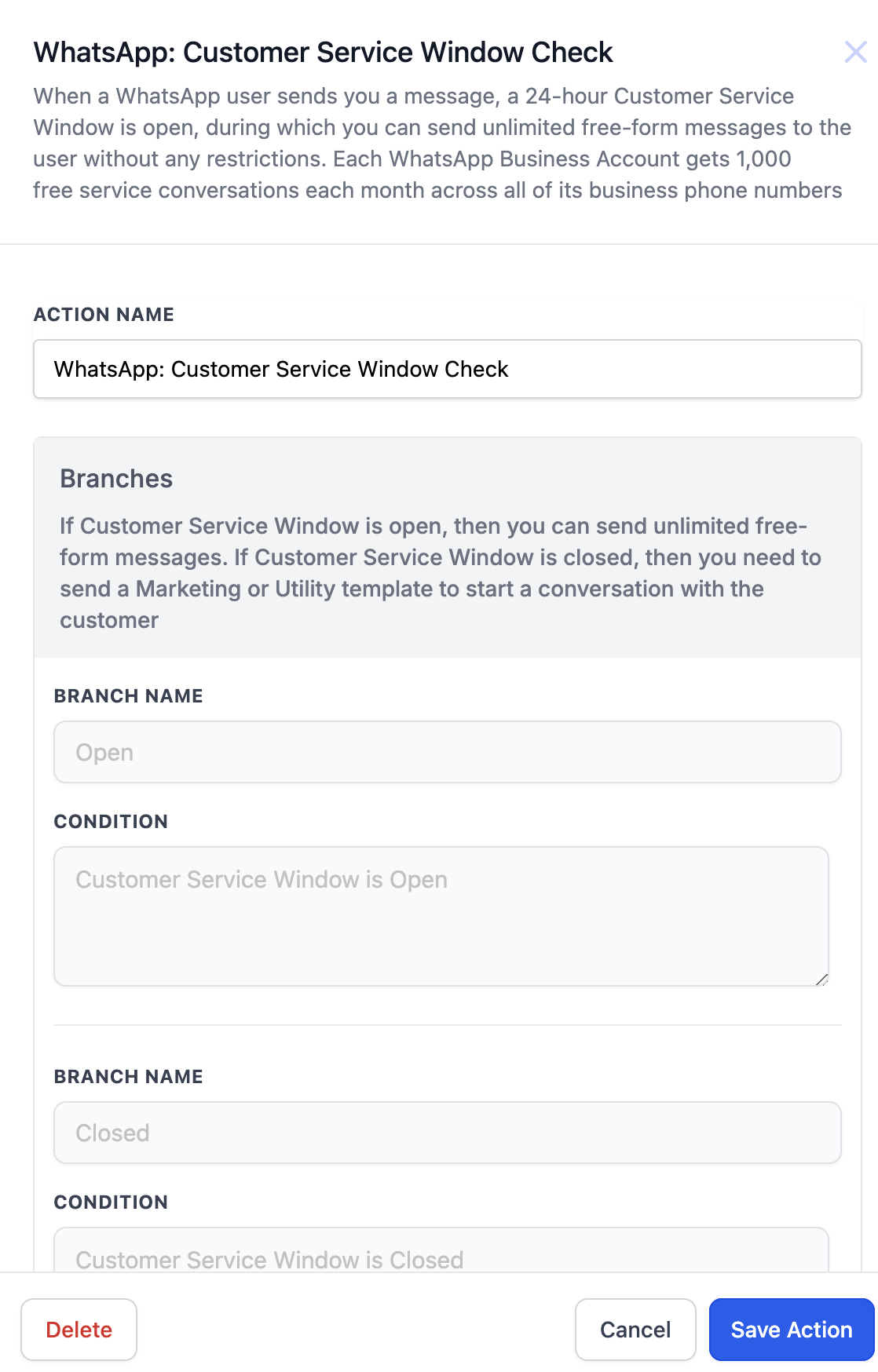
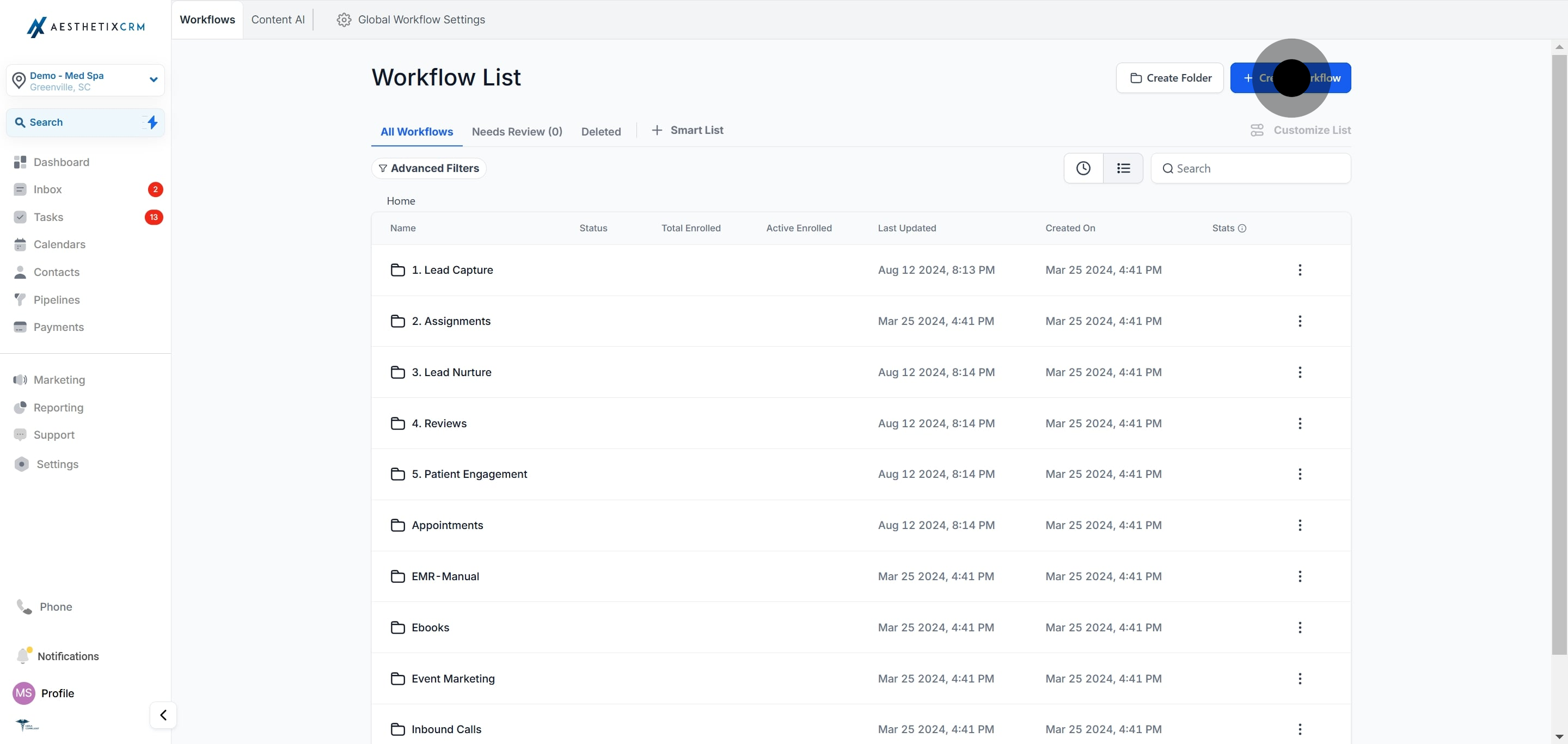
Scenario: Your practice wants to follow up with a patient 24 hours after an appointment to check whether they need further assistance.
Trigger: Appointment booked
Action: WhatsApp Customer Service Window Check
Open branch: Send a free-form follow-up asking if they need any help.
Closed branch: Send a pre-approved WhatsApp template to re-initiate the conversation.
Outcome: If the window is open, the patient receives a personalized message that counts against your monthly allowance of free service messages. If it is closed, a template message is sent to re-engage them.
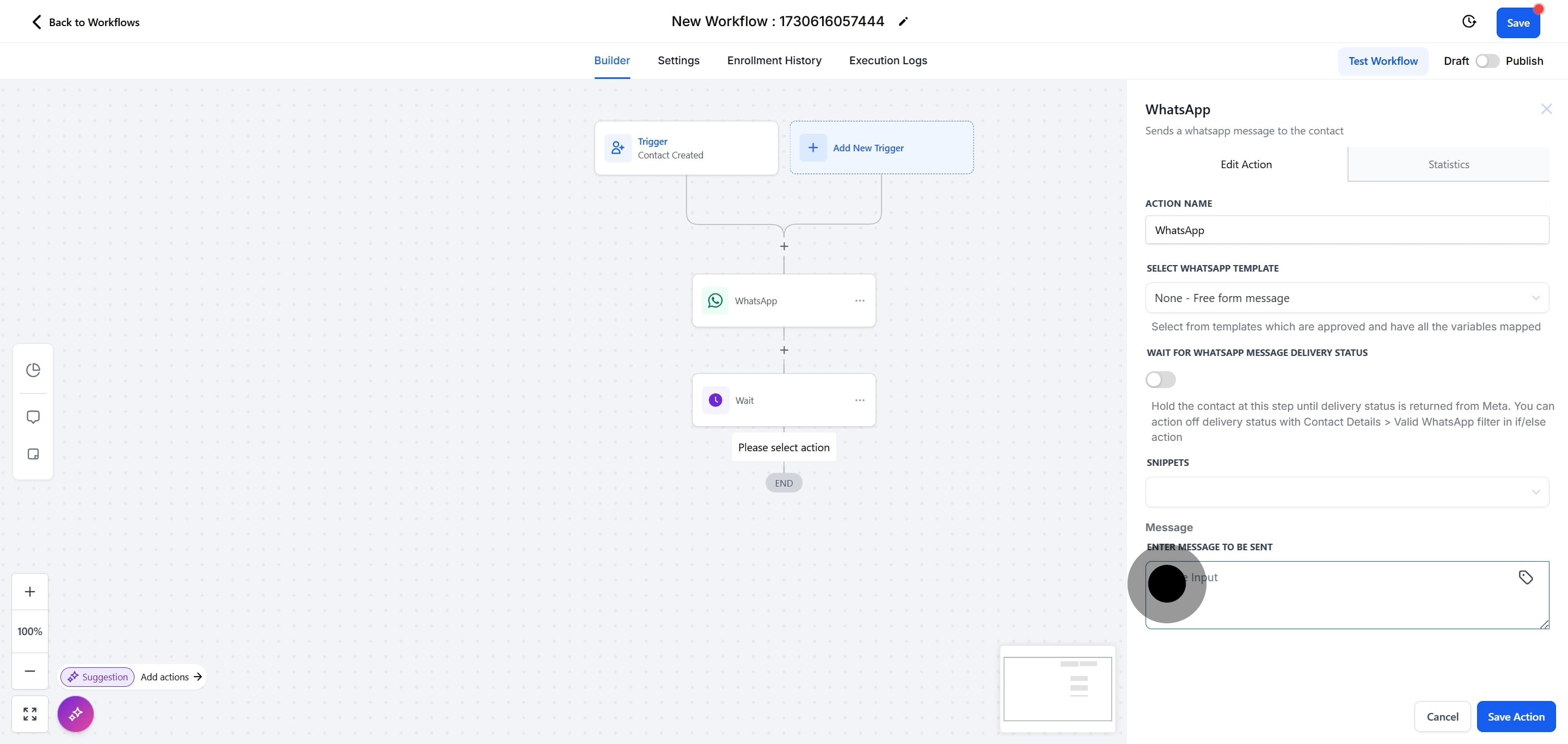
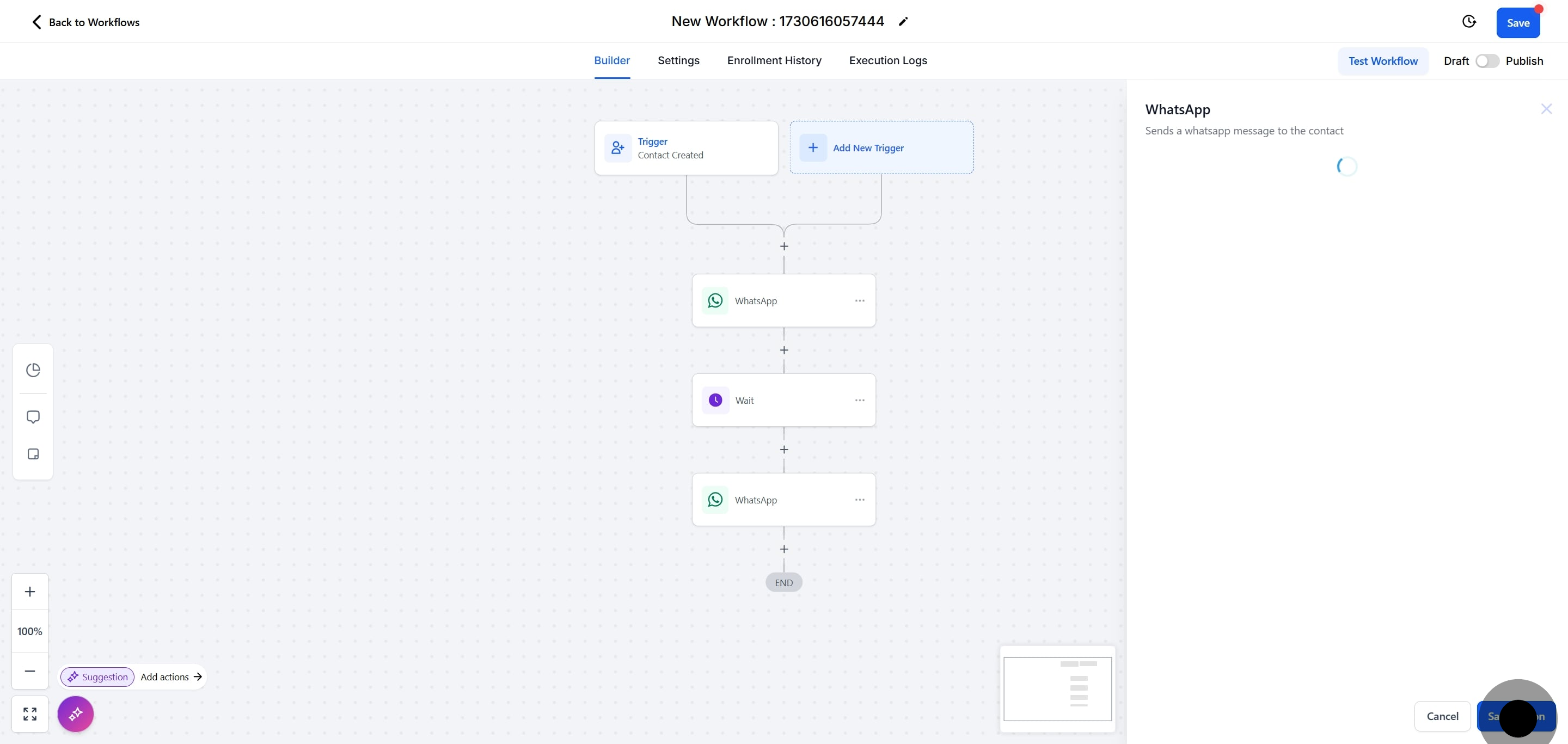
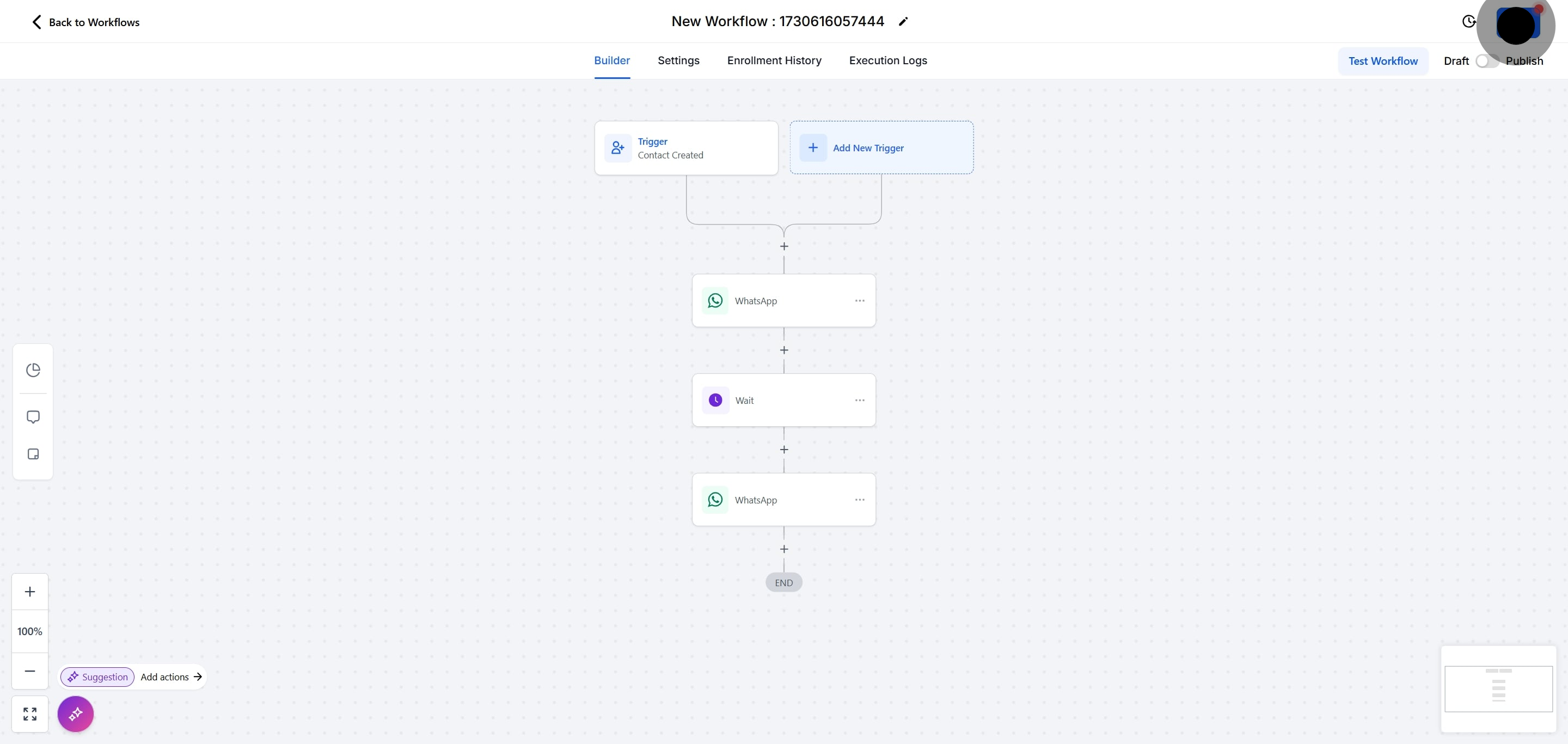
You can send an initial WhatsApp message and then have the workflow wait for the patient's reply before triggering the next step. This creates more natural, responsive conversations inside your automations and takes full advantage of the open service window.
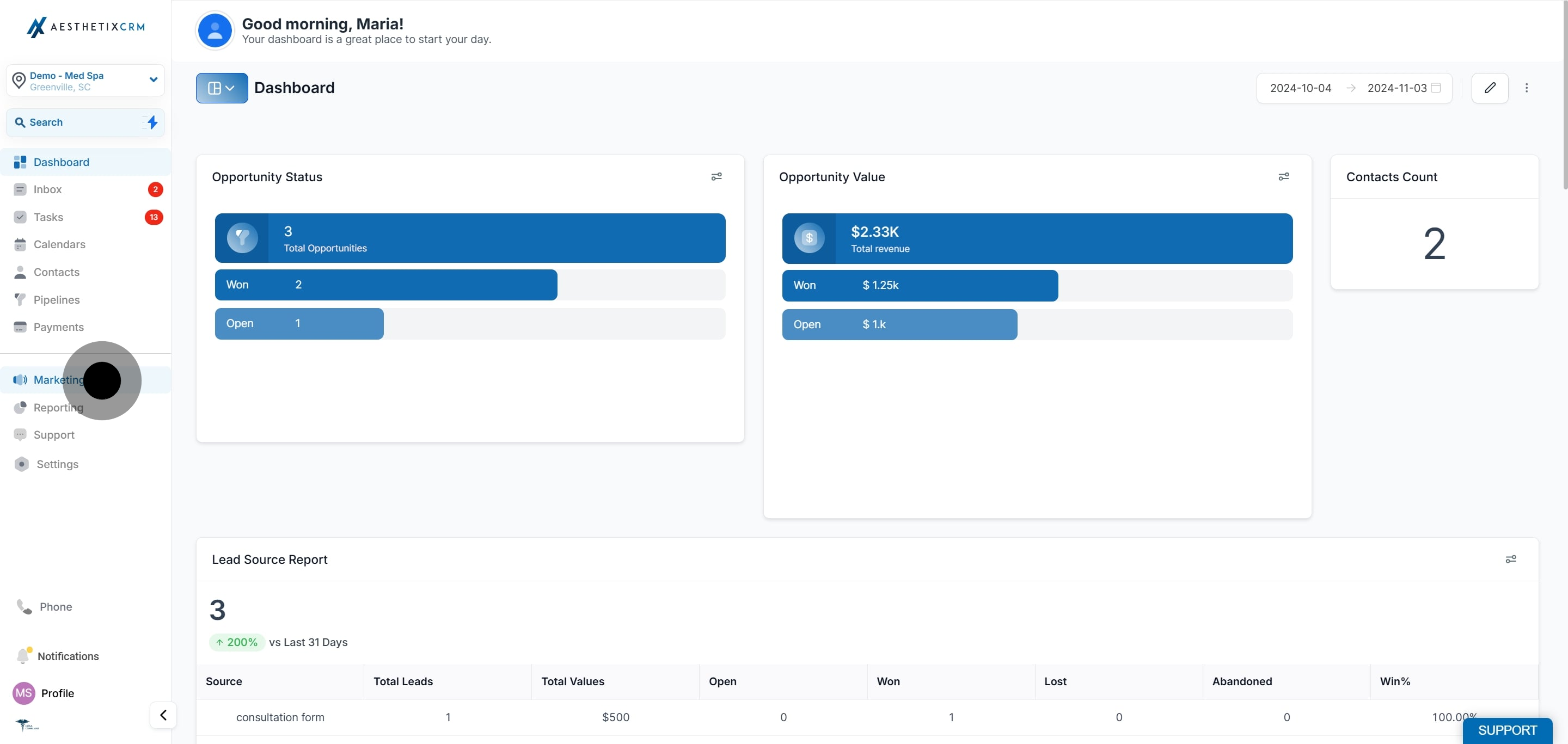
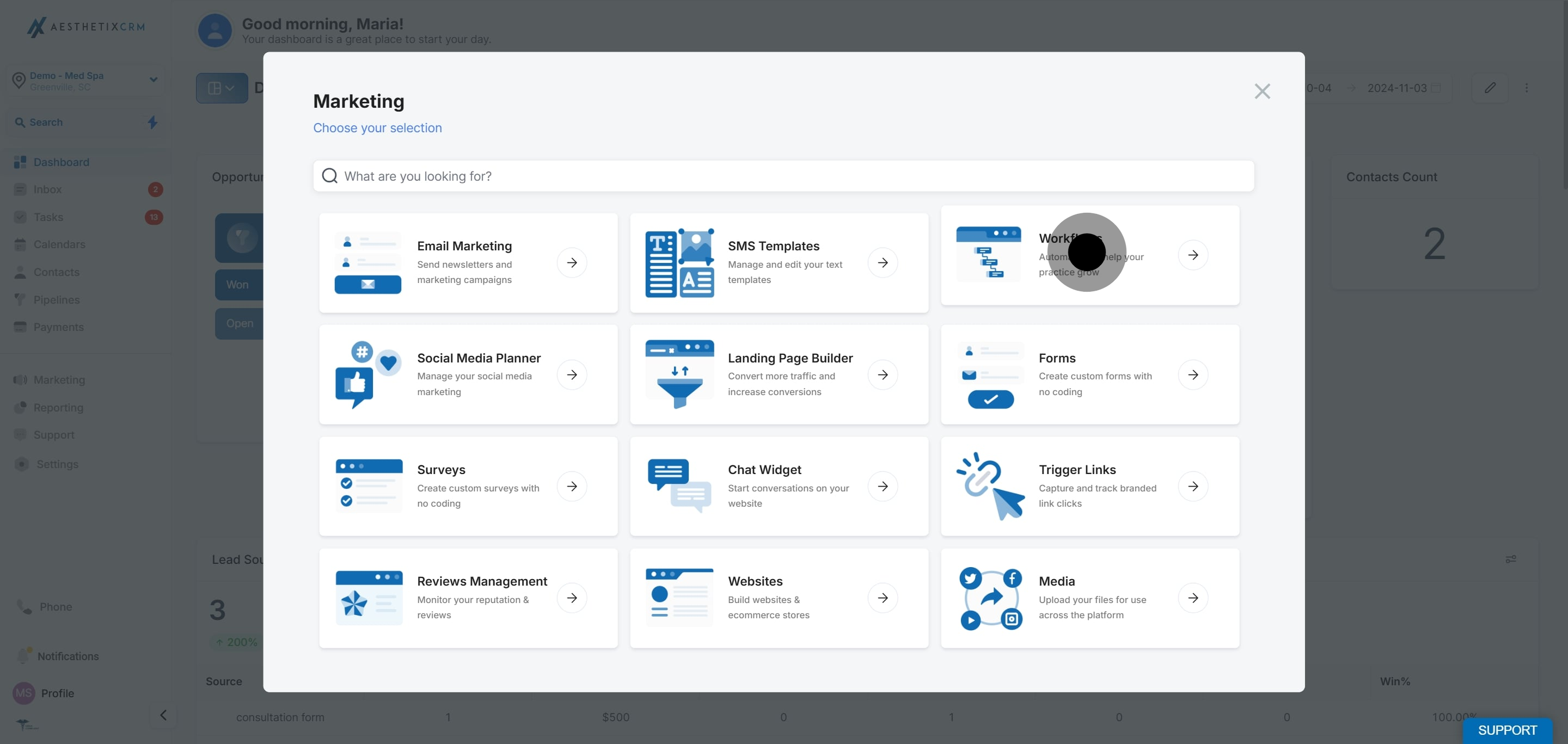
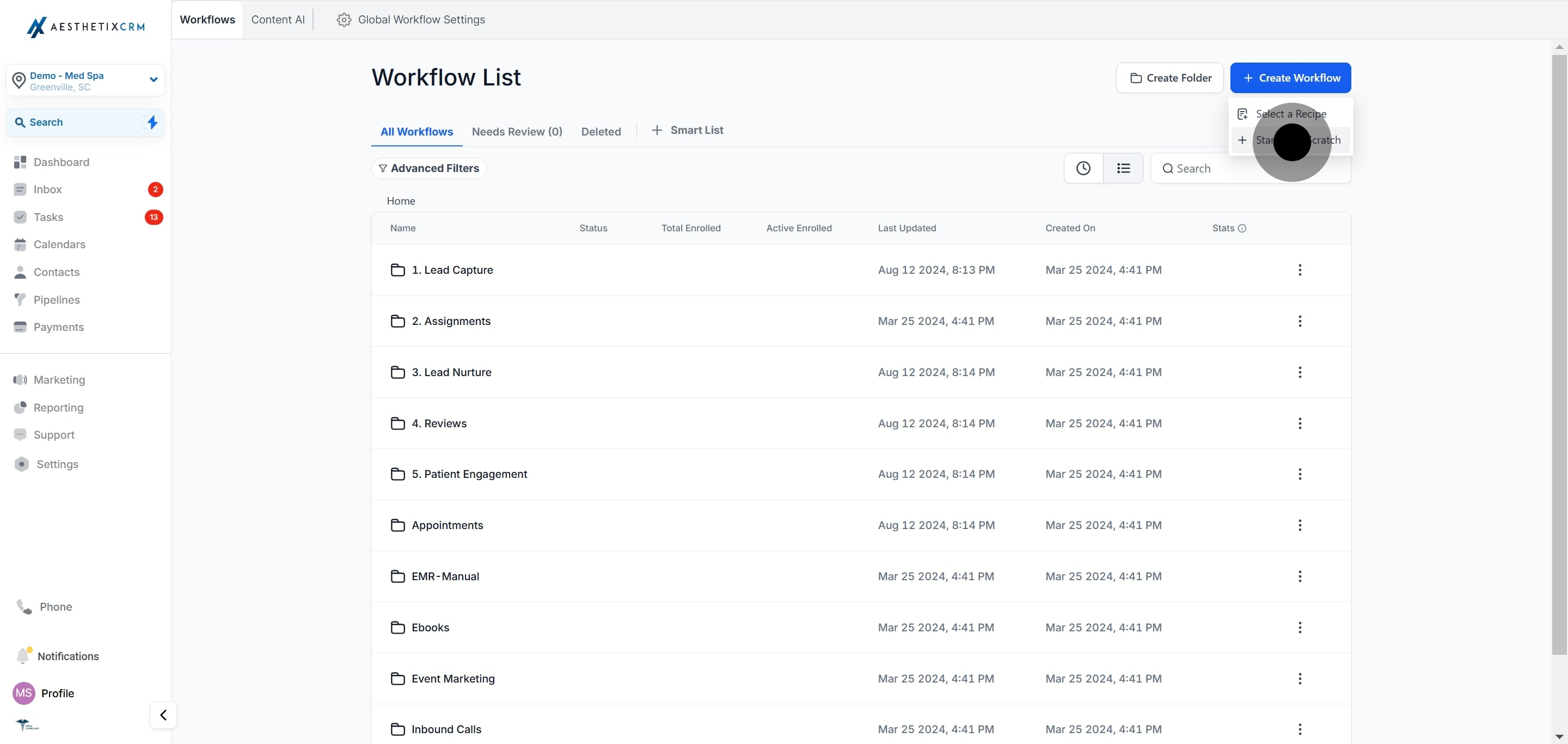
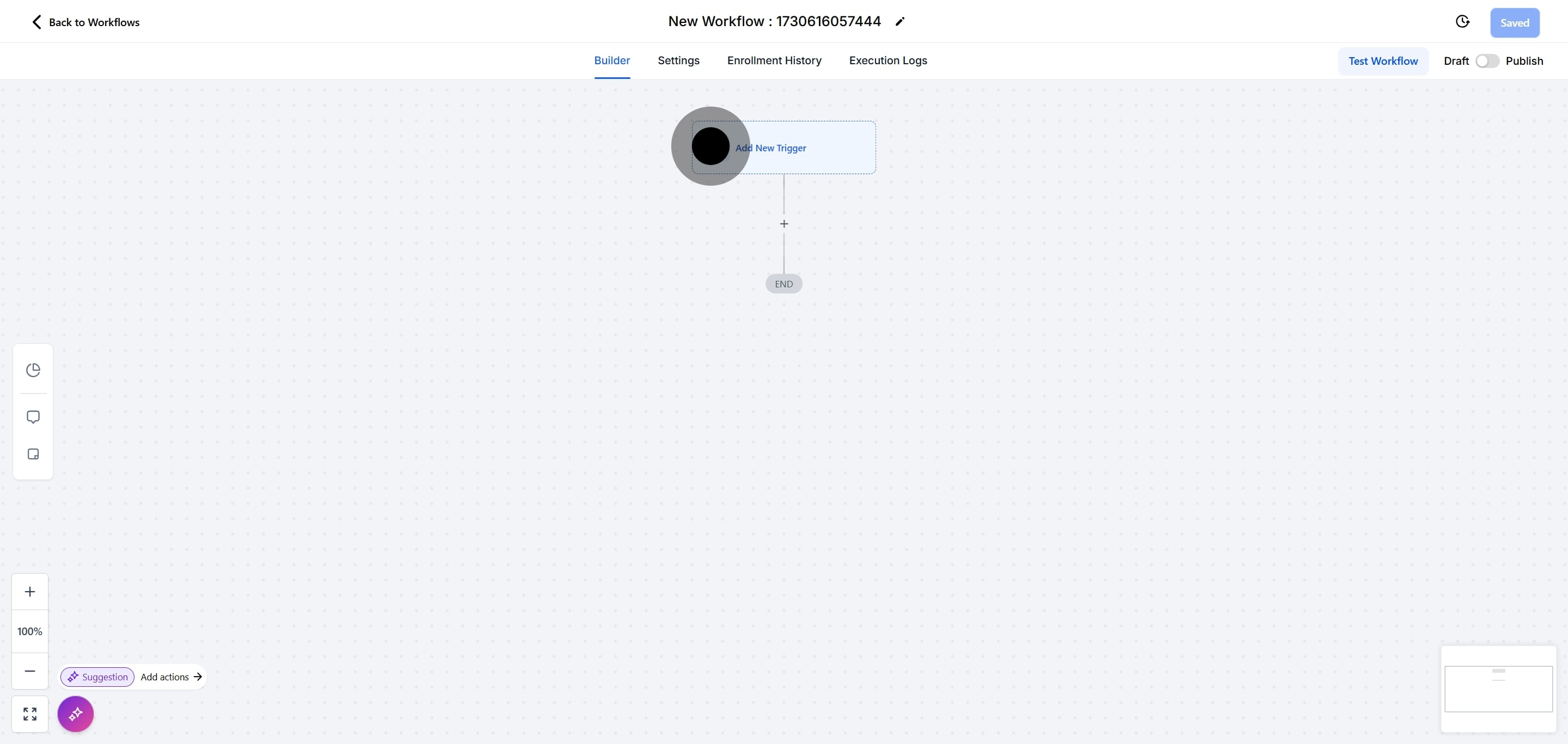
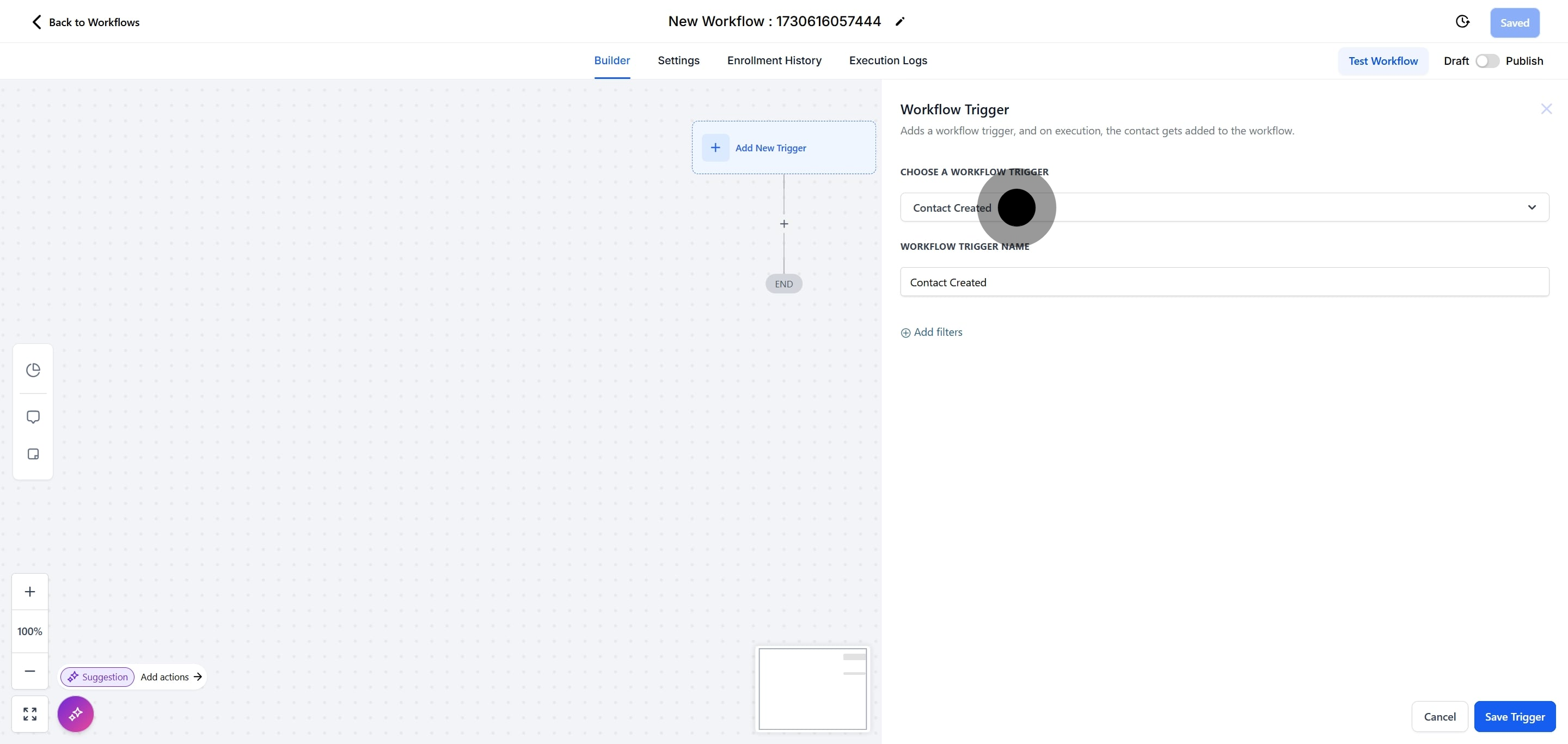
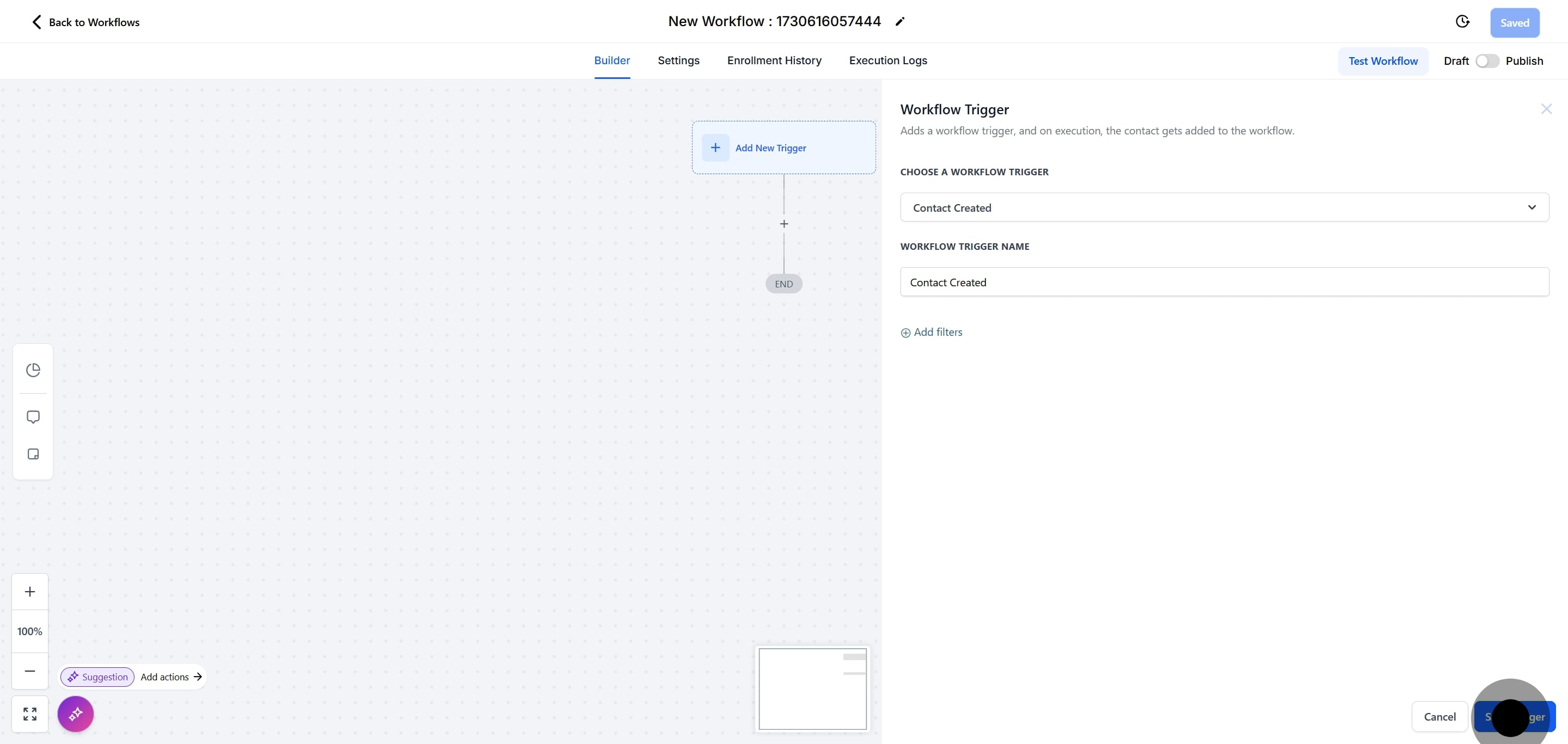
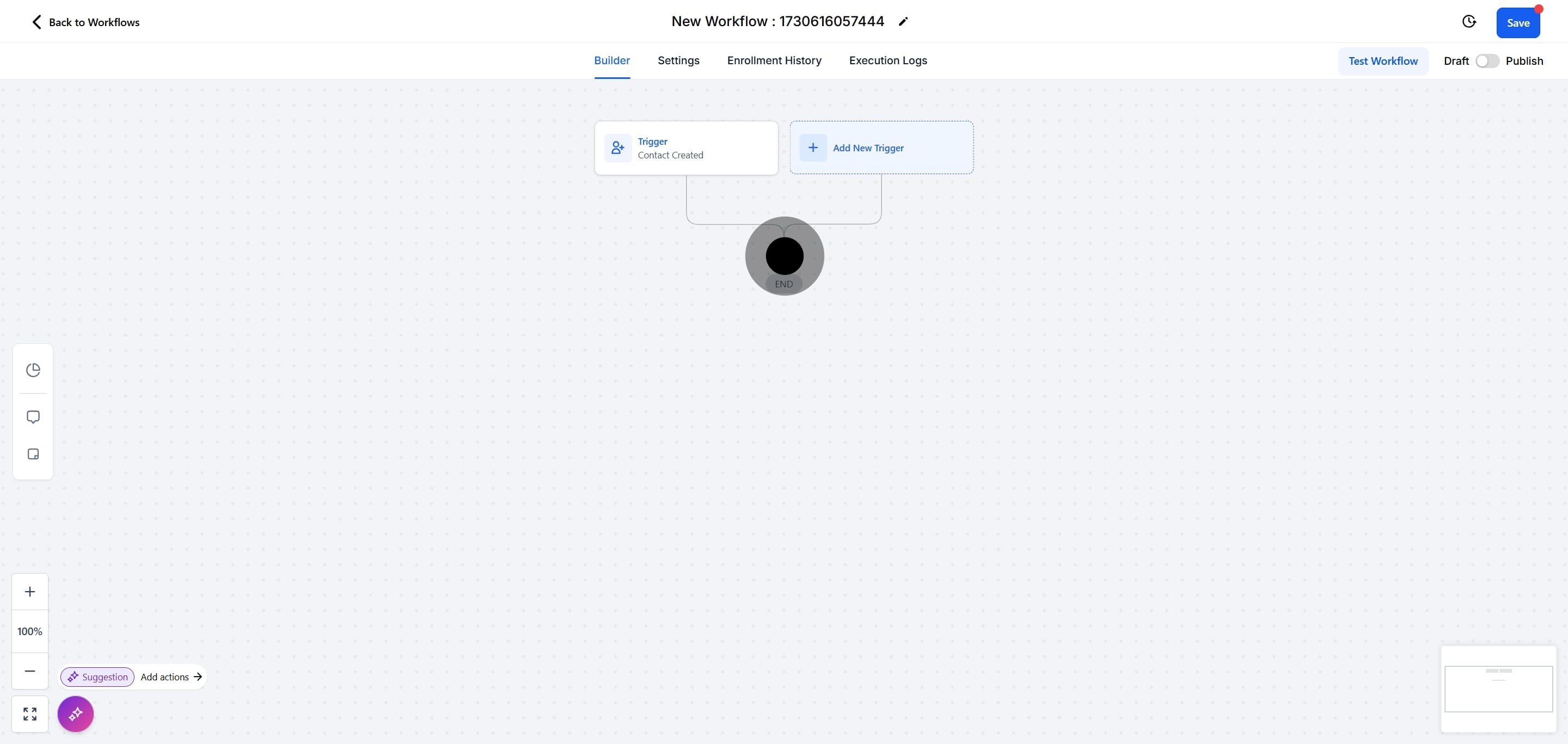
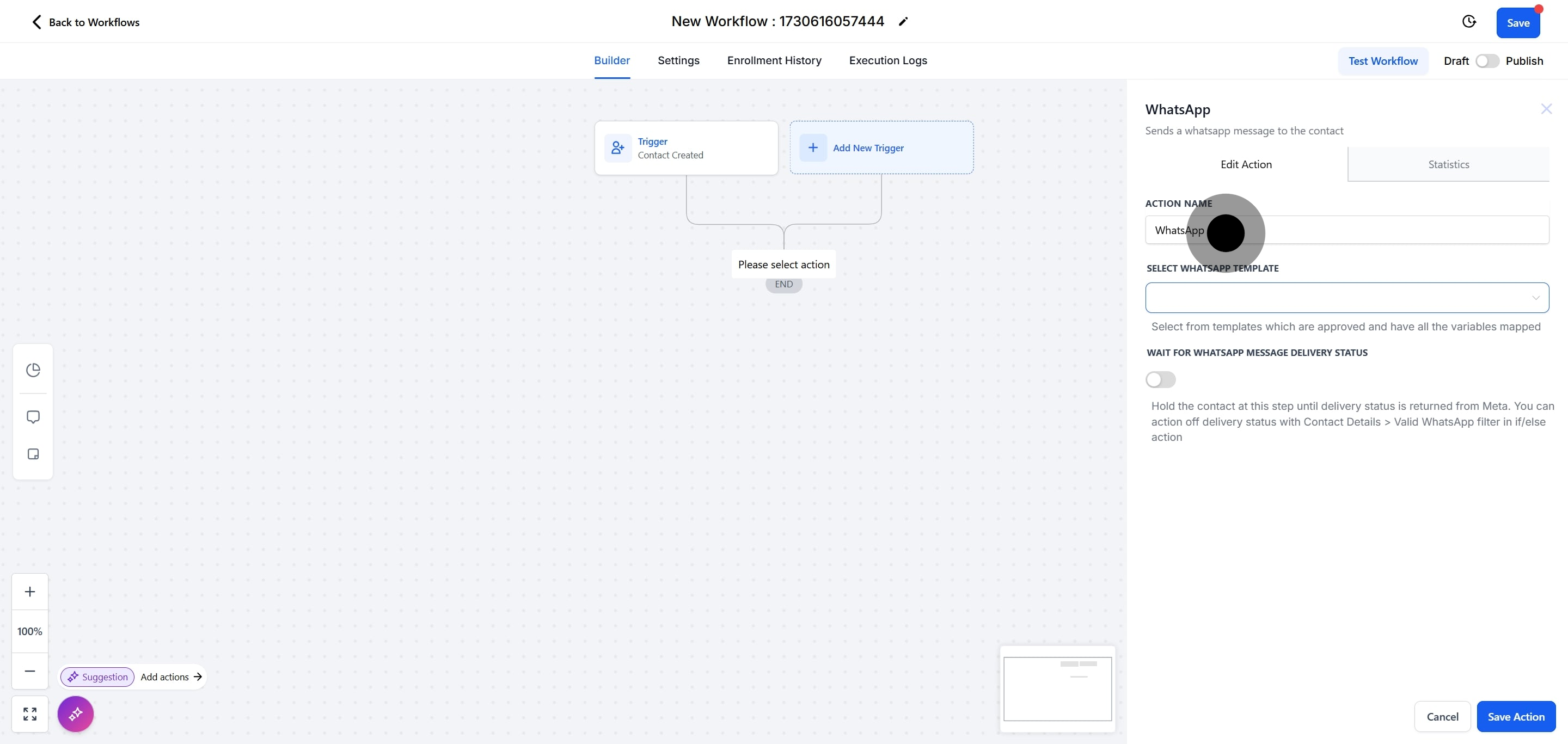
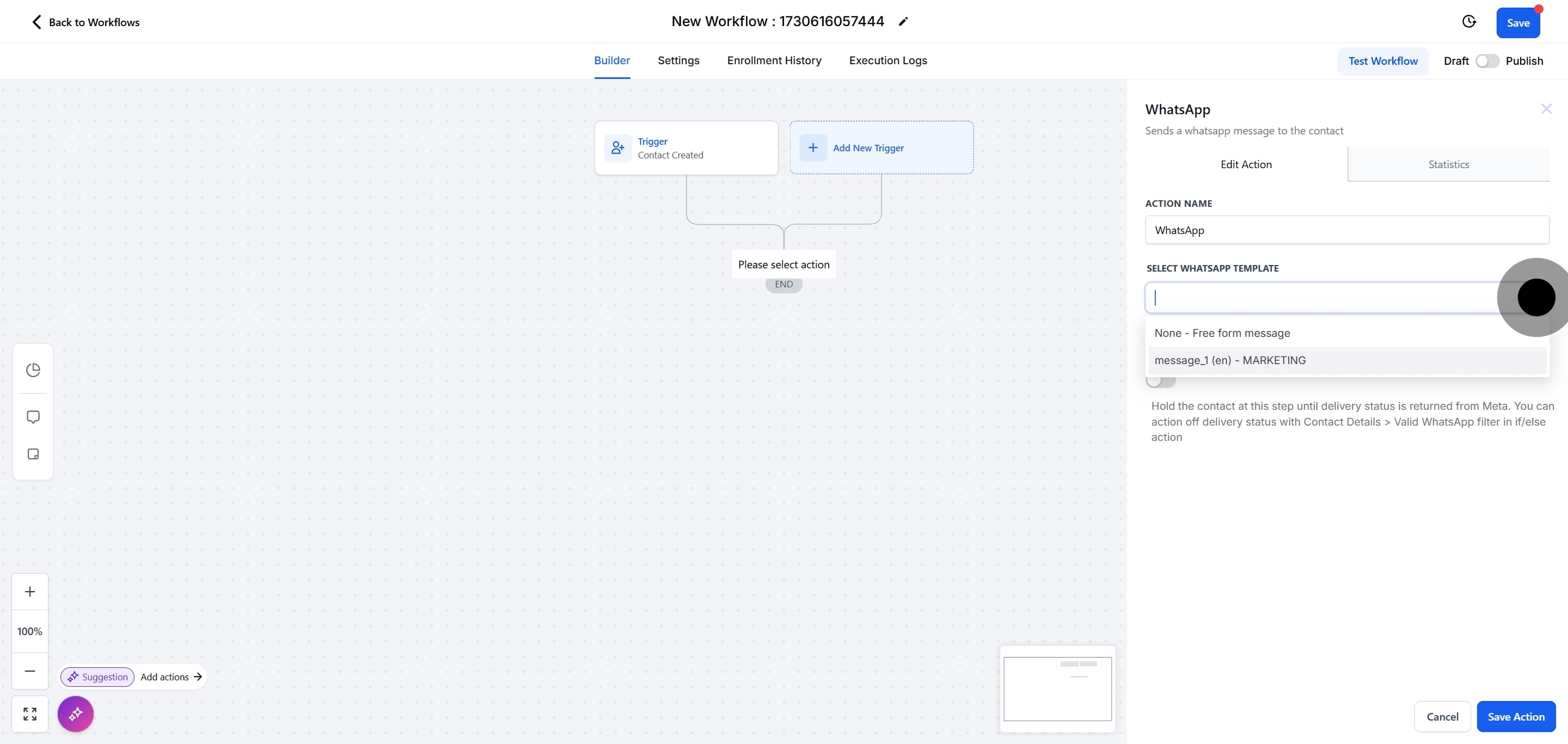
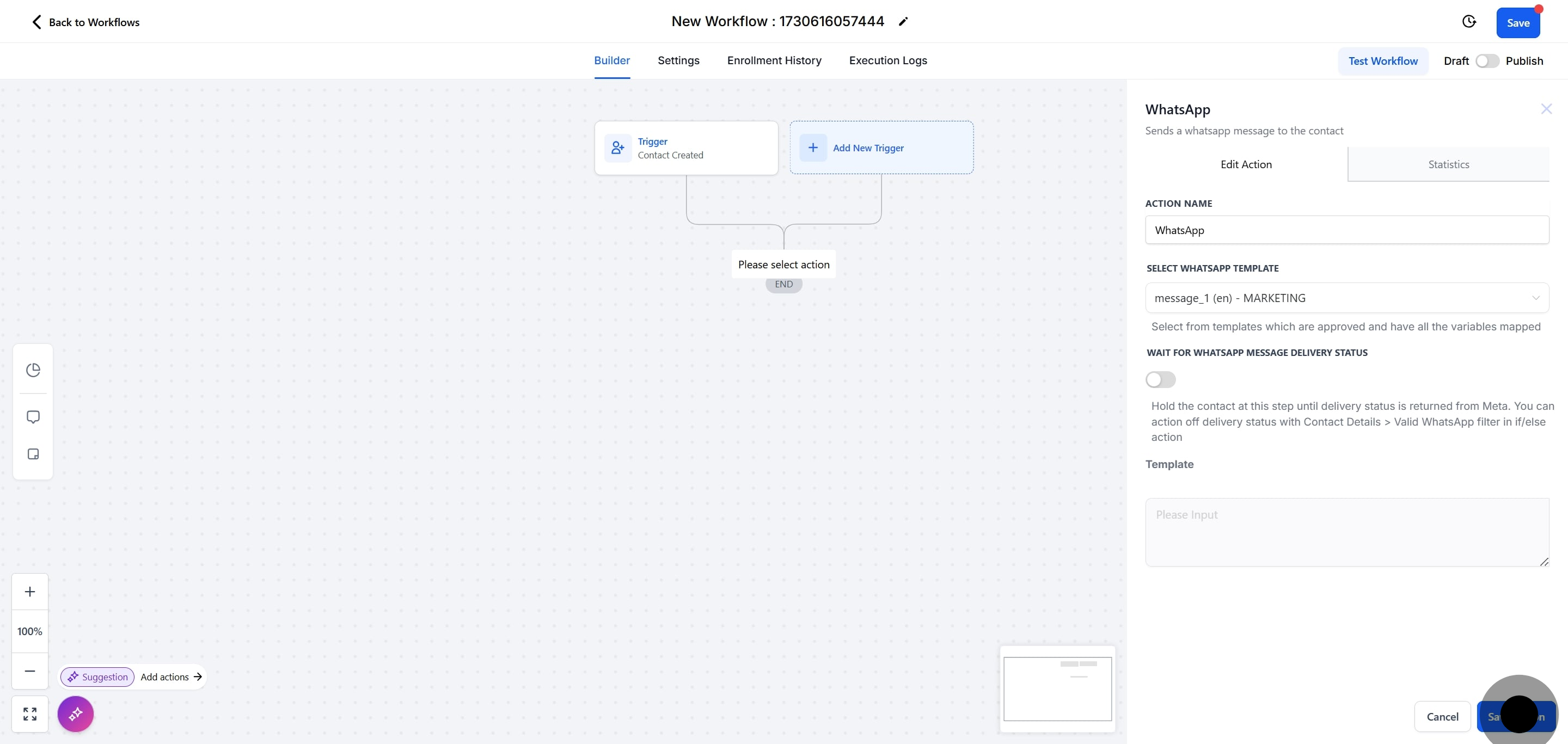
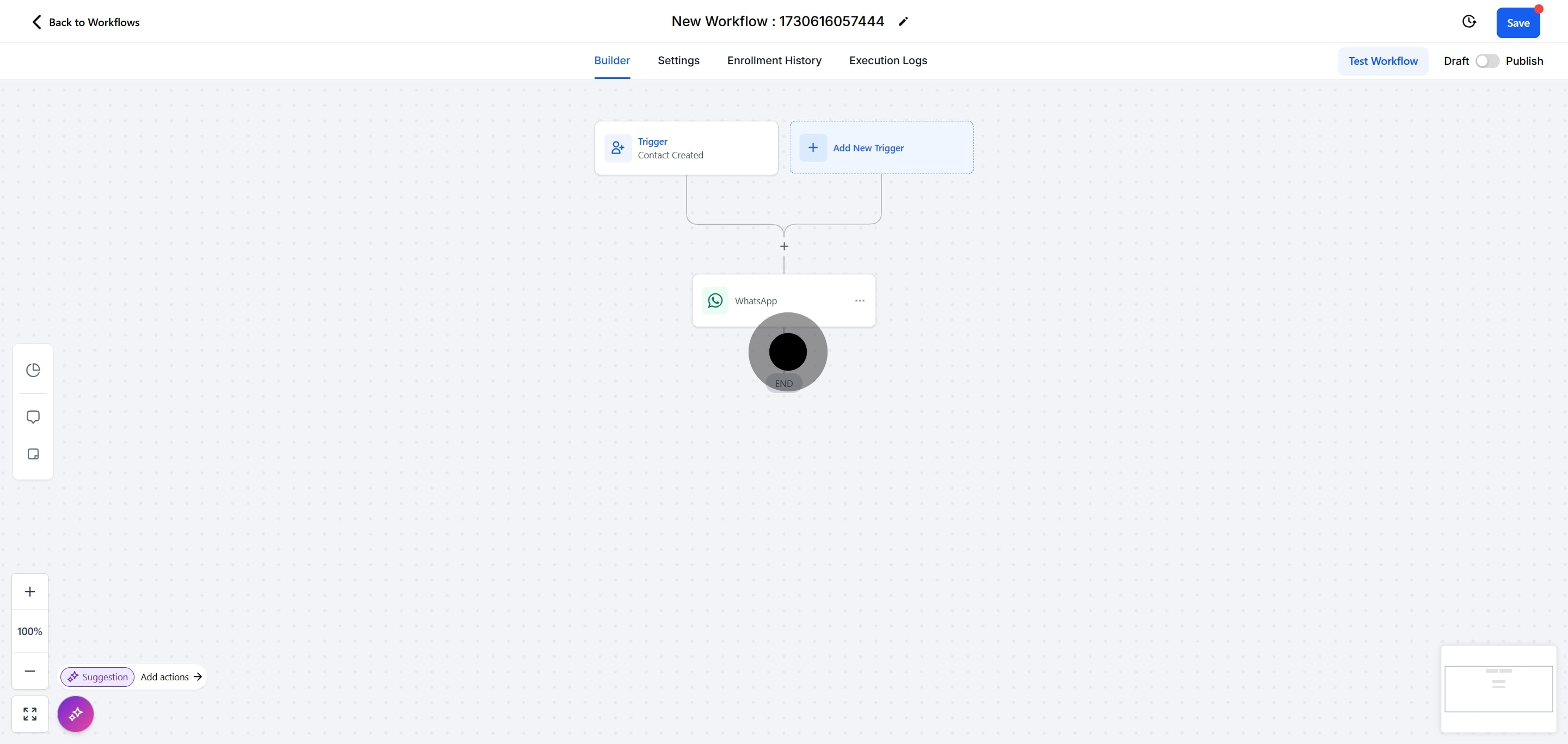
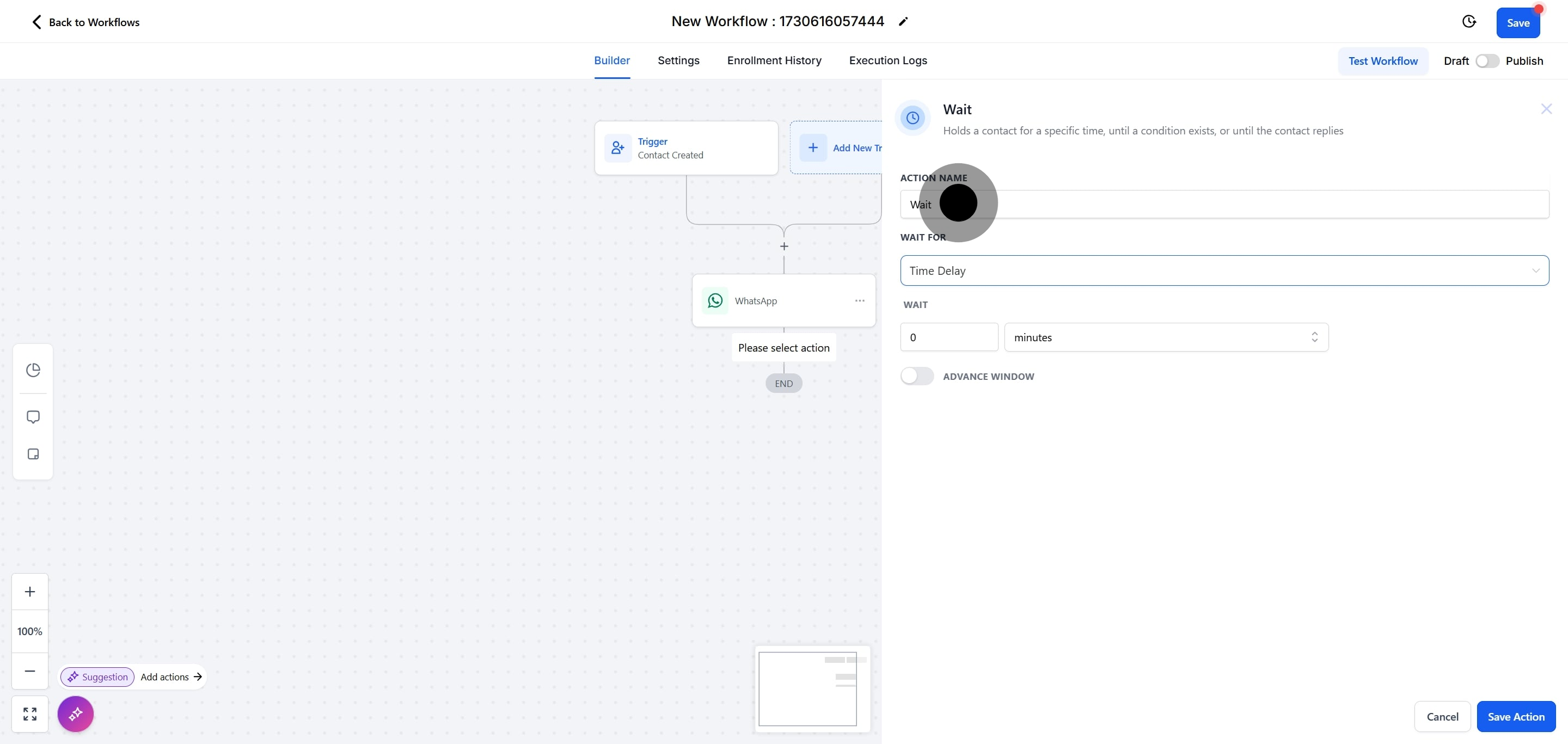
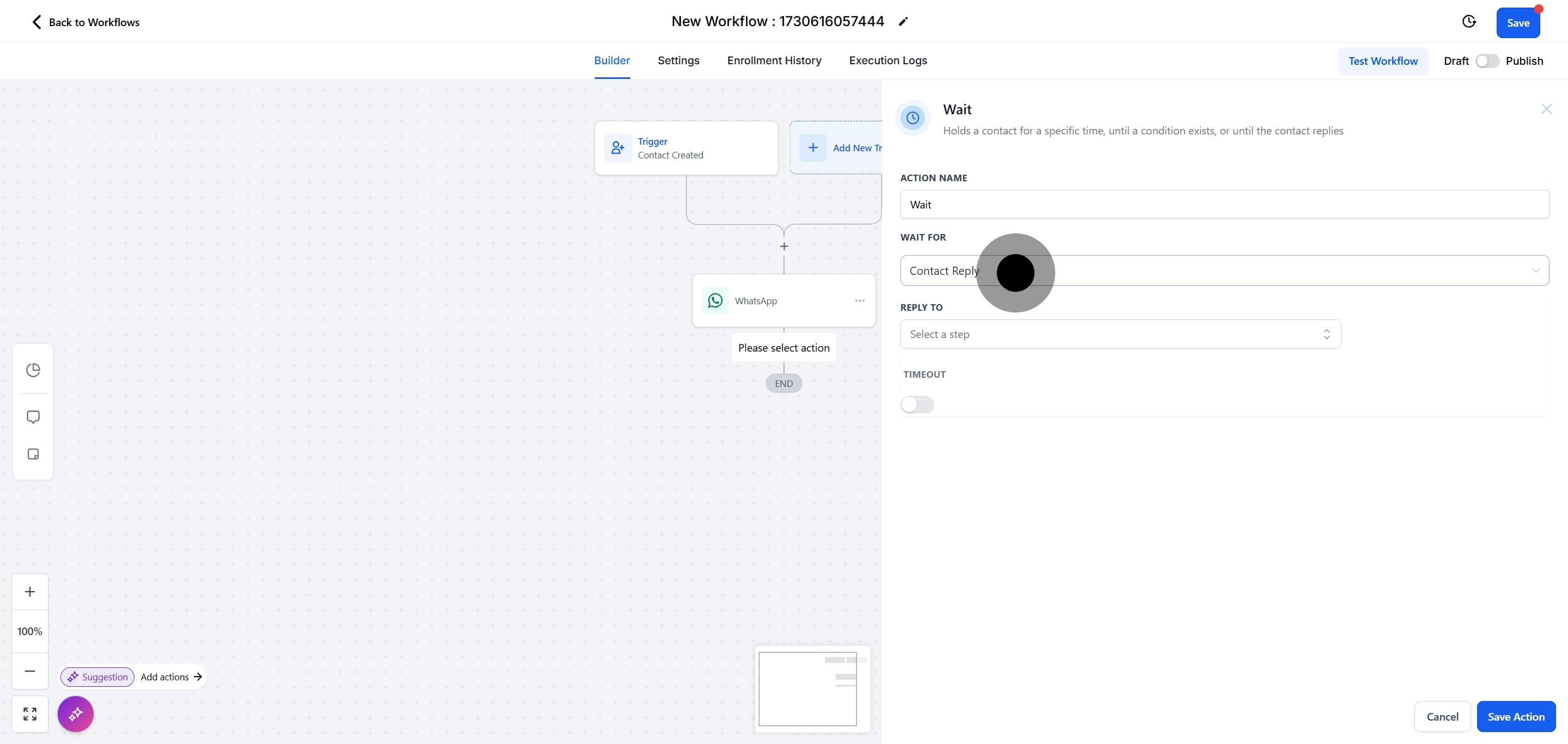
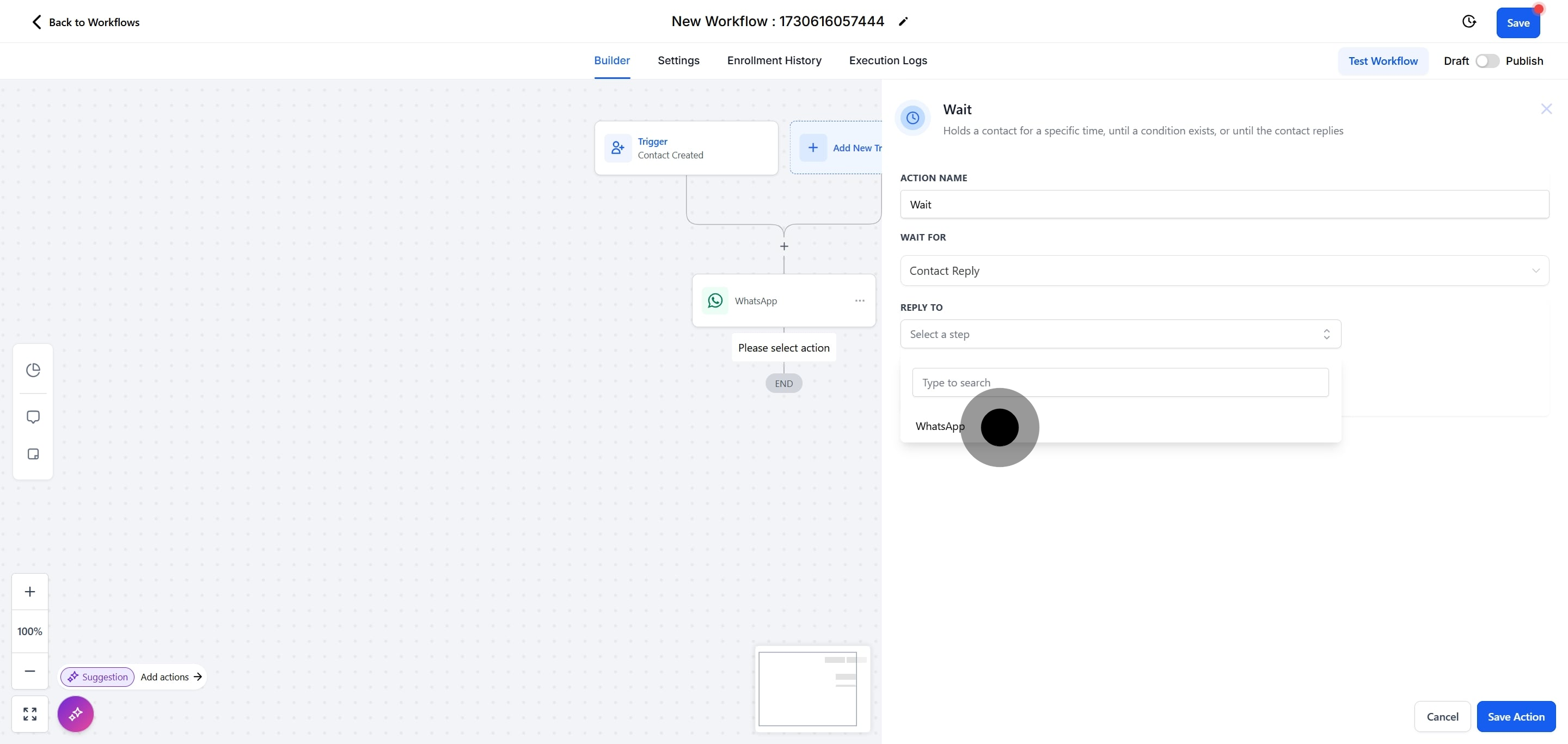
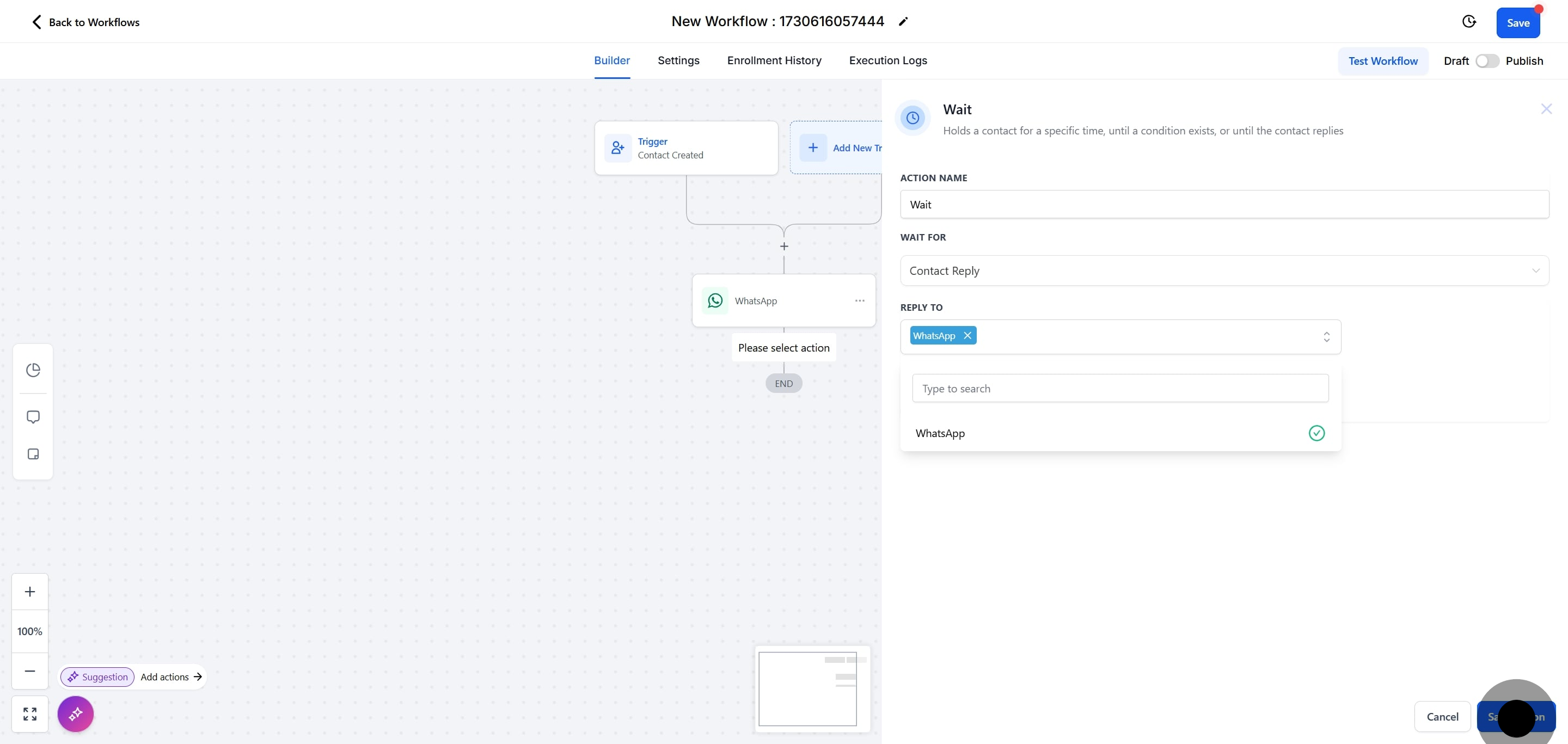
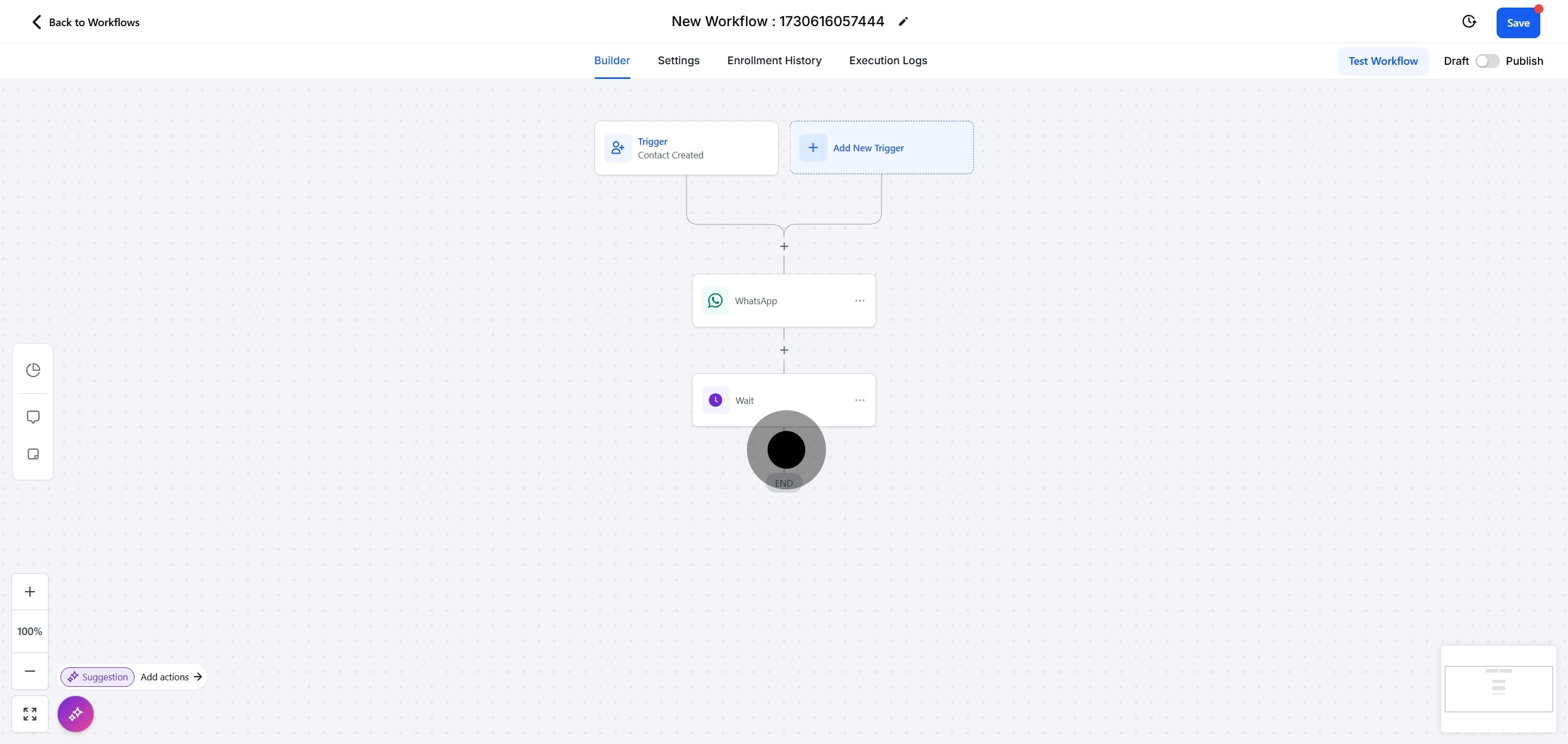
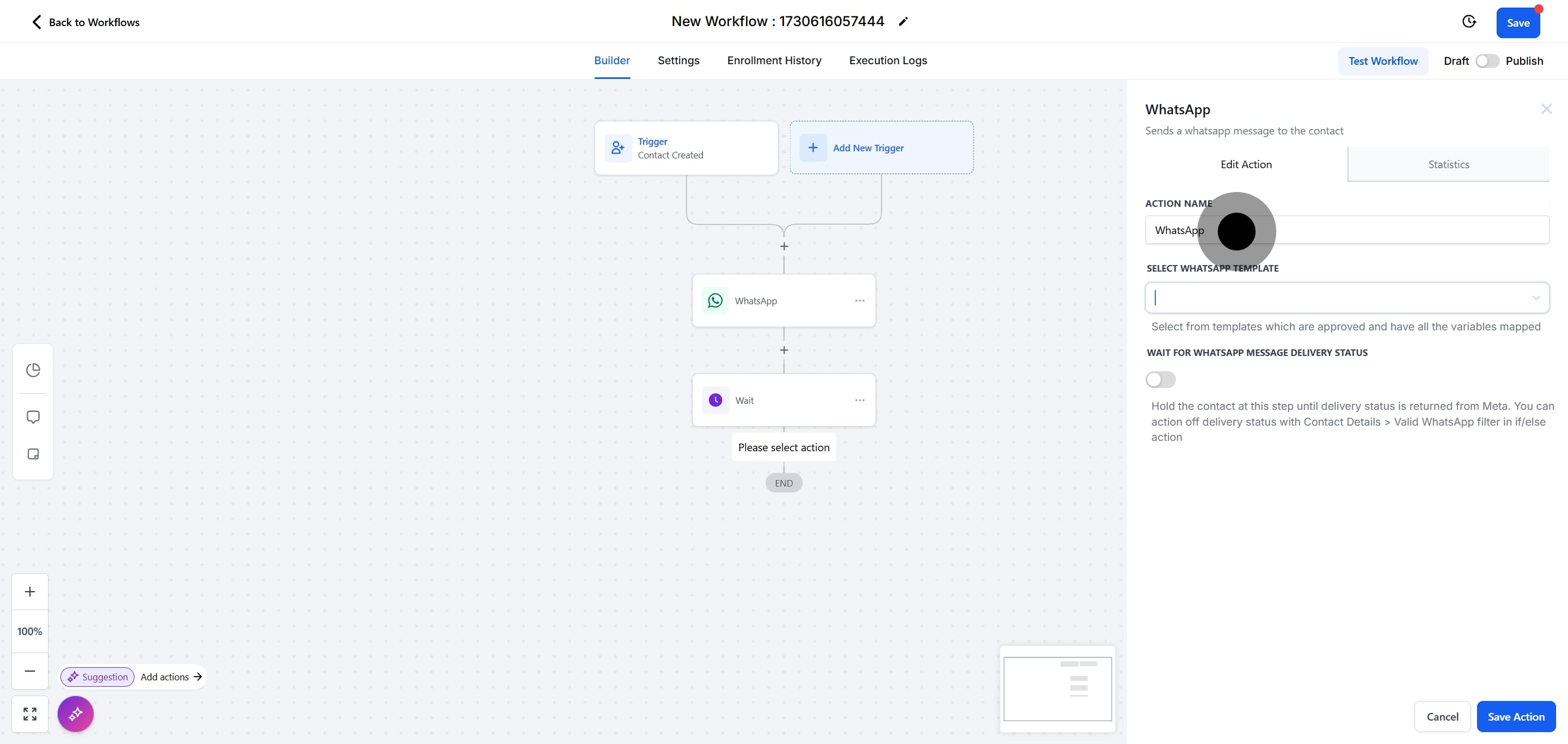
Because the patient replied to you, the service window is open and you can send free text messages. Each phone number includes 1,000 free service messages per month; beyond that, replies are billed per message.
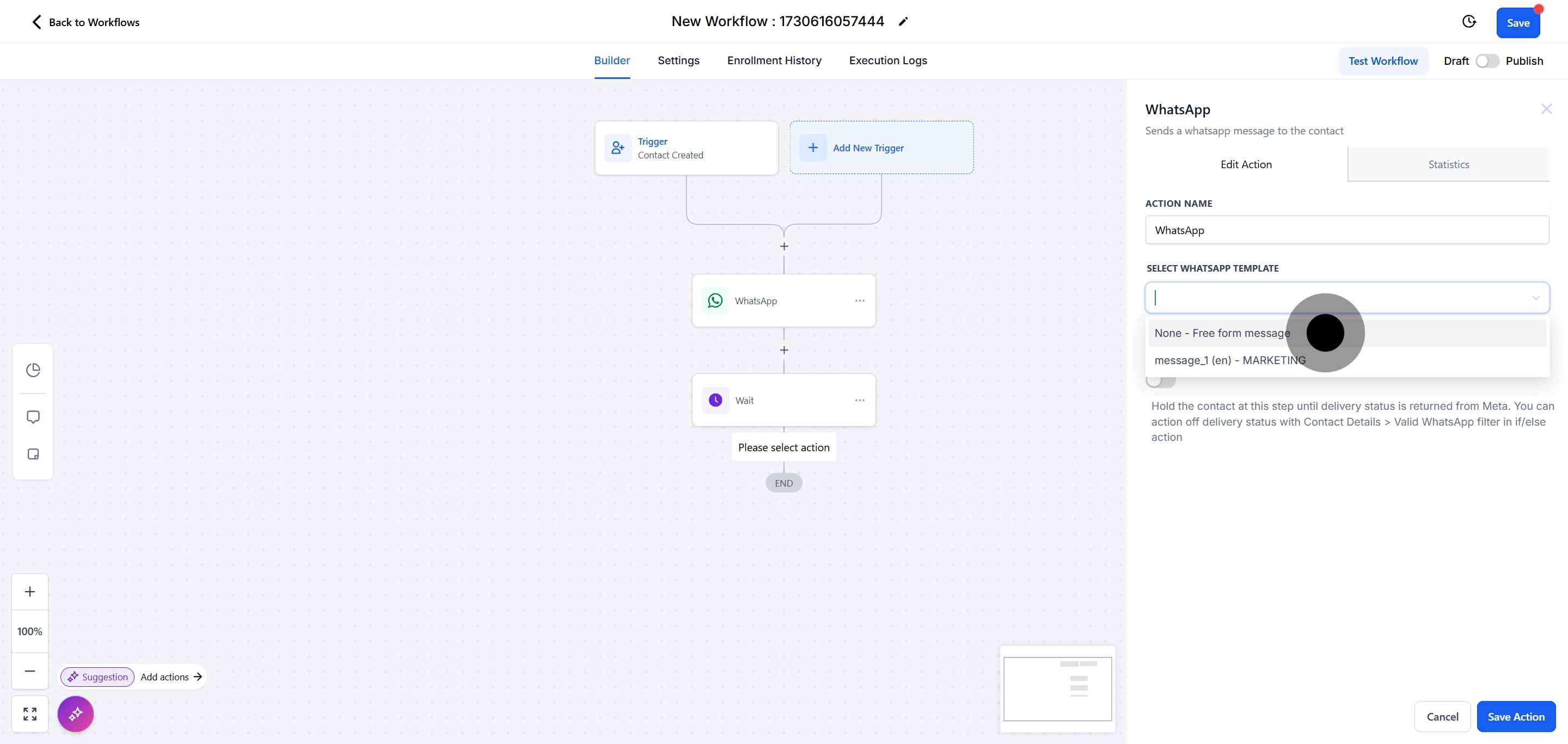
What is the difference between "None - Free Form Message" and selecting a template?
"None - Free Form Message" lets you send any message within the open 24-hour customer service window. Templates are used outside the window for specific purposes, such as marketing or utility messages, and must be pre-approved.
Can I message a patient outside the 24-hour window?
Yes. Once the window closes, you can still reach the patient by sending a pre-approved WhatsApp template. Free-form text is not allowed until the patient replies again and re-opens the window.
How much do messages inside the window cost?
When the window is open, free-form messages are free for the first 1,000 service messages per phone number each month. Beyond that allowance, they are billed per message. As of October 1, 2026, utility templates sent inside the window are billed per message as well. See the WhatsApp pricing page for current rates.
How can I check my free service message count?
You can view your free tier usage in Facebook Business Manager under Account Tools > Insights.
What is a Free Entry Point Conversation?
A Free Entry Point Conversation is triggered when a patient engages through a "Click to WhatsApp" ad or CTA button. It lasts 72 hours and allows both free-form and template messages during that time.
What do I need before using WhatsApp in workflows?
WhatsApp must be enabled on your account. To send business-initiated messages, you also need at least one approved WhatsApp template. Complete your WhatsApp account setup and create your templates before building these workflows.
