Sometimes a quick voice message or a live call resolves a patient question faster than a long chat thread. Aesthetix CRM lets your team send native WhatsApp voice notes with optional transcripts and, where available, place and receive WhatsApp voice calls directly inside the same conversation. Patients stay in one thread, your team keeps the full context, and no one has to switch apps or dial a separate number.
This guide covers sending voice notes with transcripts and using WhatsApp voice calling.
Native WhatsApp voice notes are audio messages that play inline in WhatsApp, just like messages recorded inside the WhatsApp app. Voice notes sent from Aesthetix CRM auto-download and play instantly for the recipient, and patients who enable WhatsApp's transcript setting on their device can read a text version of supported voice notes.
Voice notes are ideal for pre-treatment reassurance, quick post-care check-ins, or explaining something that is easier to say than to type, all while keeping the exchange in the patient's WhatsApp thread.
Instant playback: Messages auto-download and play inline in WhatsApp, reducing friction.
Optional transcripts: Recipients who enable transcripts in their WhatsApp app can read supported messages.
Higher response rates: Inline audio feels natural and keeps conversations moving.
Accessibility: Reading transcripts helps in noisy environments or for patients with hearing difficulties.
Fewer delivery issues: Using the native voice-note format reduces failures linked to unsupported attachments.
You can record directly in a WhatsApp thread or upload an audio clip, then send it as a native voice note with no extra tools or templates.
Open Conversations and select a WhatsApp thread.
Click the microphone icon (web) or press and hold the mic (mobile) to record.
Pause, resume, re-record, or delete as needed.
Click Send. Aesthetix CRM handles the format conversion and delivers a native WhatsApp voice note.
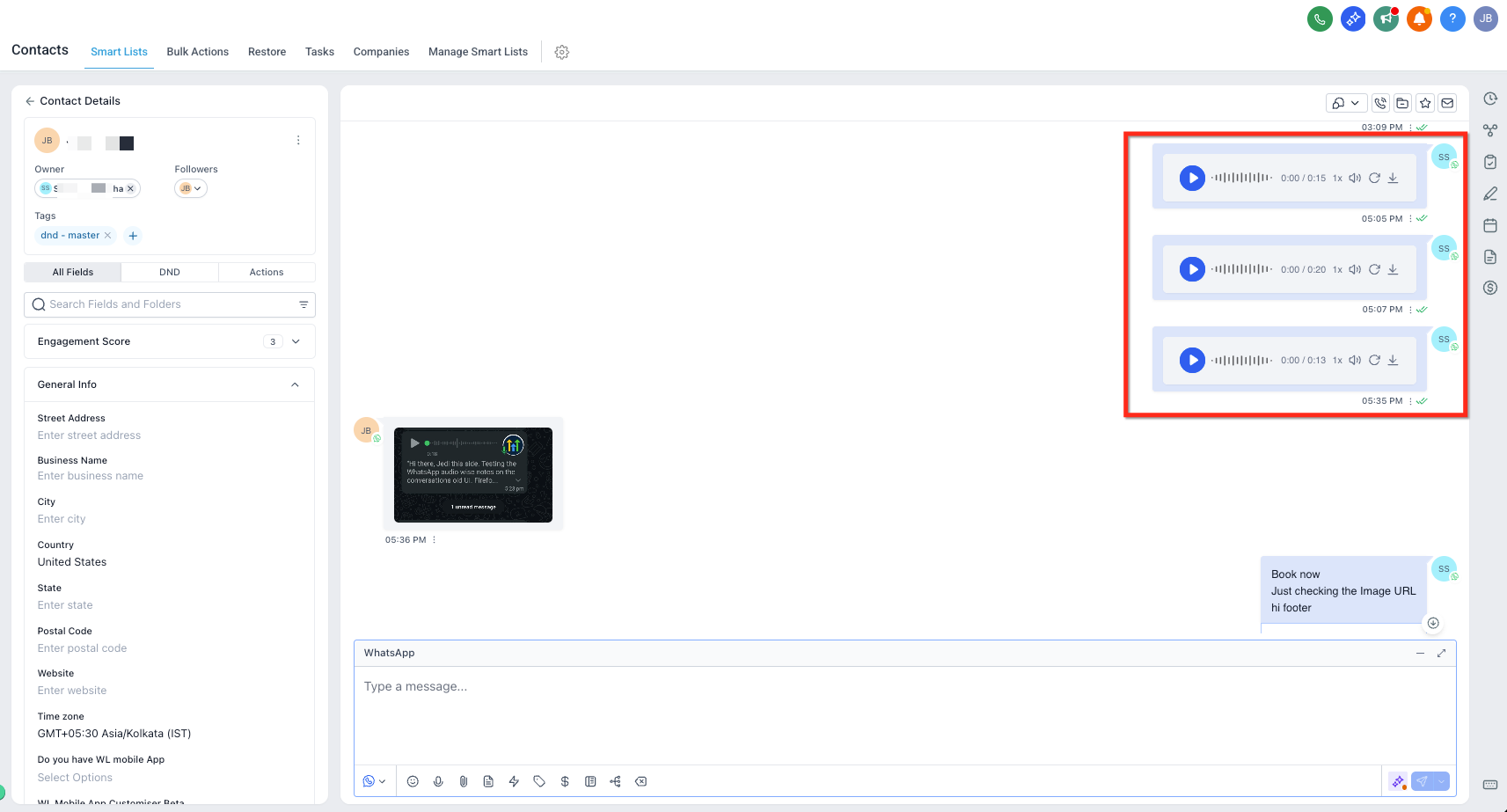
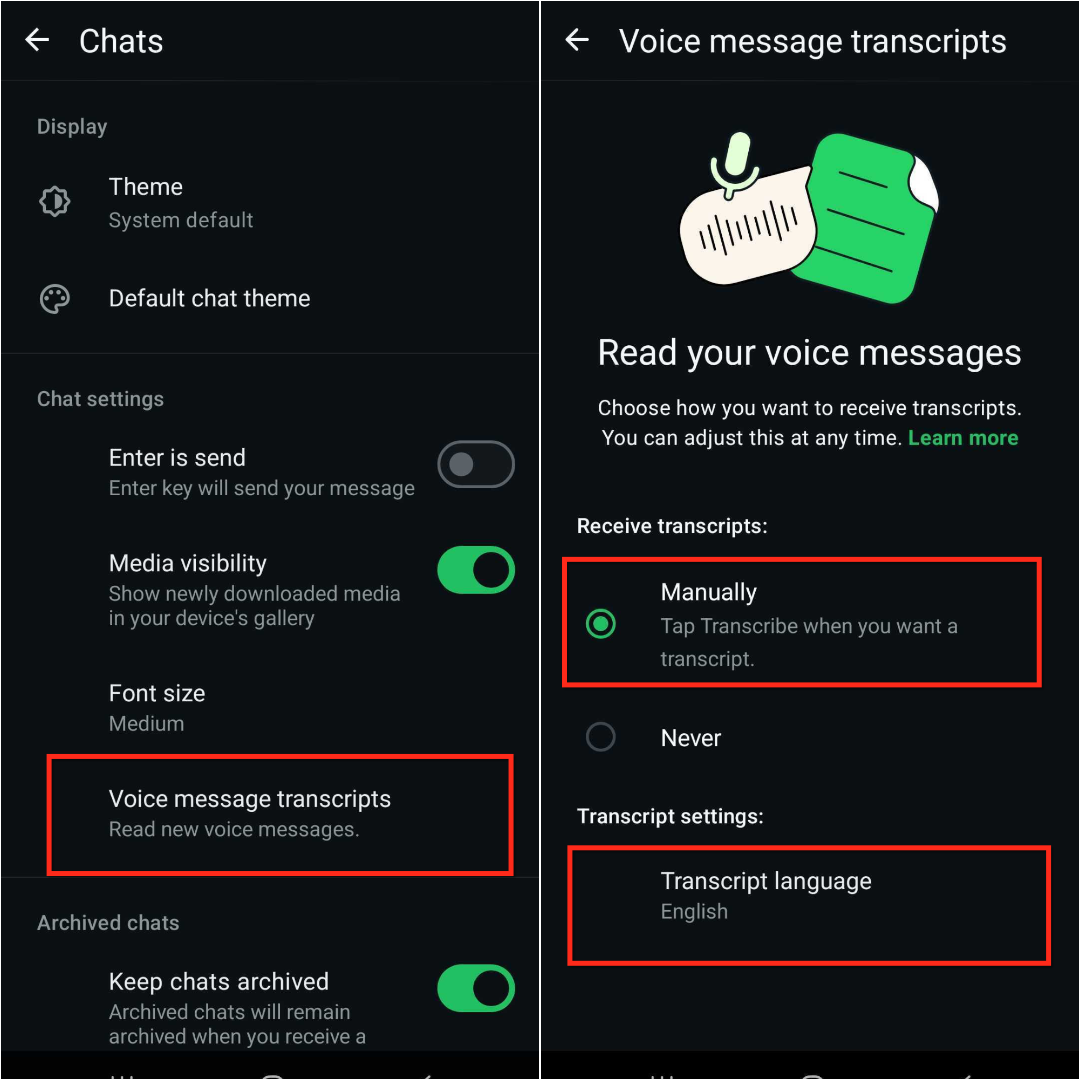
Transcripts are controlled by the recipient's WhatsApp app settings, not by Aesthetix CRM. If transcripts are disabled on the patient's device, no transcript will appear.
Recipients can open WhatsApp Settings → Chats → Voice message transcripts.
They may choose a transcript mode or language based on WhatsApp's availability for their device.
When enabled, recipients can tap Transcribe on supported voice notes to view the text.
If the setting is off or unsupported on that device, transcripts will not display.
Following these technical guidelines helps ensure consistent delivery and playback in WhatsApp.
Format: Outbound WhatsApp voice notes are sent in OGG/Opus, WhatsApp's native voice-note container. Aesthetix CRM handles the conversion automatically when you record or send from Conversations.
Maximum duration: Up to 10 minutes per voice note.
Media availability: WhatsApp and Meta host media for a limited time. Very old voice notes can appear unavailable or blank in the message view.
WhatsApp Voice Calling lets your team place and receive voice calls directly inside WhatsApp conversations. Instead of asking patients to switch apps, dial a separate number, or continue a long back-and-forth chat, your team can move from message to voice in the same conversation thread.
This helps your practice resolve complex questions faster, support high-intent leads, and reduce drop-offs caused by channel switching. With WhatsApp Voice Calling, users can make outbound calls, receive inbound calls, show call buttons in the conversation view, and let patients request callbacks after missed calls.
Note: WhatsApp Voice Calling is currently available in closed beta and is web-only at this time. Mobile support may be added in a future release.
Key capabilities include:
Inbound WhatsApp voice calls
Outbound WhatsApp voice calls
Callback requests for missed calls
Call buttons inside WhatsApp conversations
Available call hours
Temporarily unavailable call hours
Call permission flows based on the WhatsApp service window
Voice calling helps your team handle conversations that are too urgent, complex, or high-value for text alone. By keeping calls inside WhatsApp, your practice can provide faster support while preserving the context of the existing chat conversation.
Faster issue resolution: Resolve complex patient questions with a quick call instead of long message threads.
Improved lead conversion: Connect with high-intent leads at the moment they are most engaged.
Reduced channel switching: Keep the patient in WhatsApp instead of asking them to move to another app or phone call.
Better conversation context: Continue from the existing WhatsApp chat so users can reference prior messages, files, and patient details.
Missed call recovery: Allow patients to request a callback when a call is missed.
Controlled team availability: Define when your team can receive calls using available and temporarily unavailable hours.
WhatsApp Voice Calling requires the connected WhatsApp number and WhatsApp Business Account to meet specific eligibility conditions. These requirements help ensure the number is properly connected, supported, and available for calling.
Before enabling WhatsApp Voice Calling, confirm the following for your account:
The WhatsApp phone number must be in a connected state.
The WhatsApp Business Account messaging limit must be at the 2,000 tier or higher.
The WhatsApp phone number must not be using WhatsApp Coexistence.
Your account must have access to the closed beta.
Users must configure calling from the web app.
Note: WhatsApp Voice Calling is not available for phone numbers using WhatsApp Coexistence. Coexistence may still allow calling from the WhatsApp Business App, but those calls are separate from the web-based WhatsApp Calling feature.
Inbound and outbound WhatsApp calls let users connect with patients by voice from the same WhatsApp conversation where messaging already happens. This is useful when a patient needs immediate help, wants clarification, or is ready to make a decision.
Inbound calls: Patients can call your practice through WhatsApp when calling is enabled and the business is available. Users can answer the call from the conversation experience. Common inbound scenarios include:
A patient needs immediate help with an order, appointment, or service request.
A lead wants to speak with your team before booking.
A patient has a question that is easier to explain by voice.
Outbound calls: Users can place WhatsApp voice calls from the patient conversation. This lets your team escalate a chat into a live call without asking the patient to switch channels. Common outbound scenarios include:
Calling a lead who asks a detailed question in chat.
Following up with a patient after a missed call or callback request.
Resolving a support issue that requires live troubleshooting.
Callback on missed calls helps your practice recover missed WhatsApp voice calls by letting patients request a callback. This prevents missed calls from becoming lost opportunities and gives patients a simple way to continue the conversation.
Note: Callback on missed calls is different from Missed Call WhatsApp Back. Callback on missed calls applies to missed WhatsApp voice calls. Missed Call WhatsApp Back is a Phone System feature that sends a WhatsApp message after a regular phone call is missed.
Call buttons give users and patients an easy way to move from text messaging to a voice conversation. When enabled, call buttons appear inside the WhatsApp conversation experience so calls can be started without searching for another phone option.
Call permission flows help manage whether your practice can call a patient through WhatsApp based on the current WhatsApp conversation window. These flows help ensure calls are initiated appropriately depending on whether the service window is open or closed.
WhatsApp Voice Calling supports two call permission scenarios:
Template-based call permission when the service window is closed.
Interactive call permission through automation when the service window is open.
When the service window is closed: Call permission may require a template-based request. This helps your practice request permission before initiating a call outside the active messaging window.
When the service window is open: Call permission may be handled through an interactive automation-based flow. This lets the patient give permission while the conversation is active.
Proper setup ensures your WhatsApp number is eligible for voice calling and that patients can reach your team during the right hours. Before enabling calling, confirm the phone number is connected, meets the required messaging-limit tier, and is not using coexistence.
Go to Settings in your account.
Select WhatsApp.
Open the Calling tab.
Select the WhatsApp phone number you want to configure.
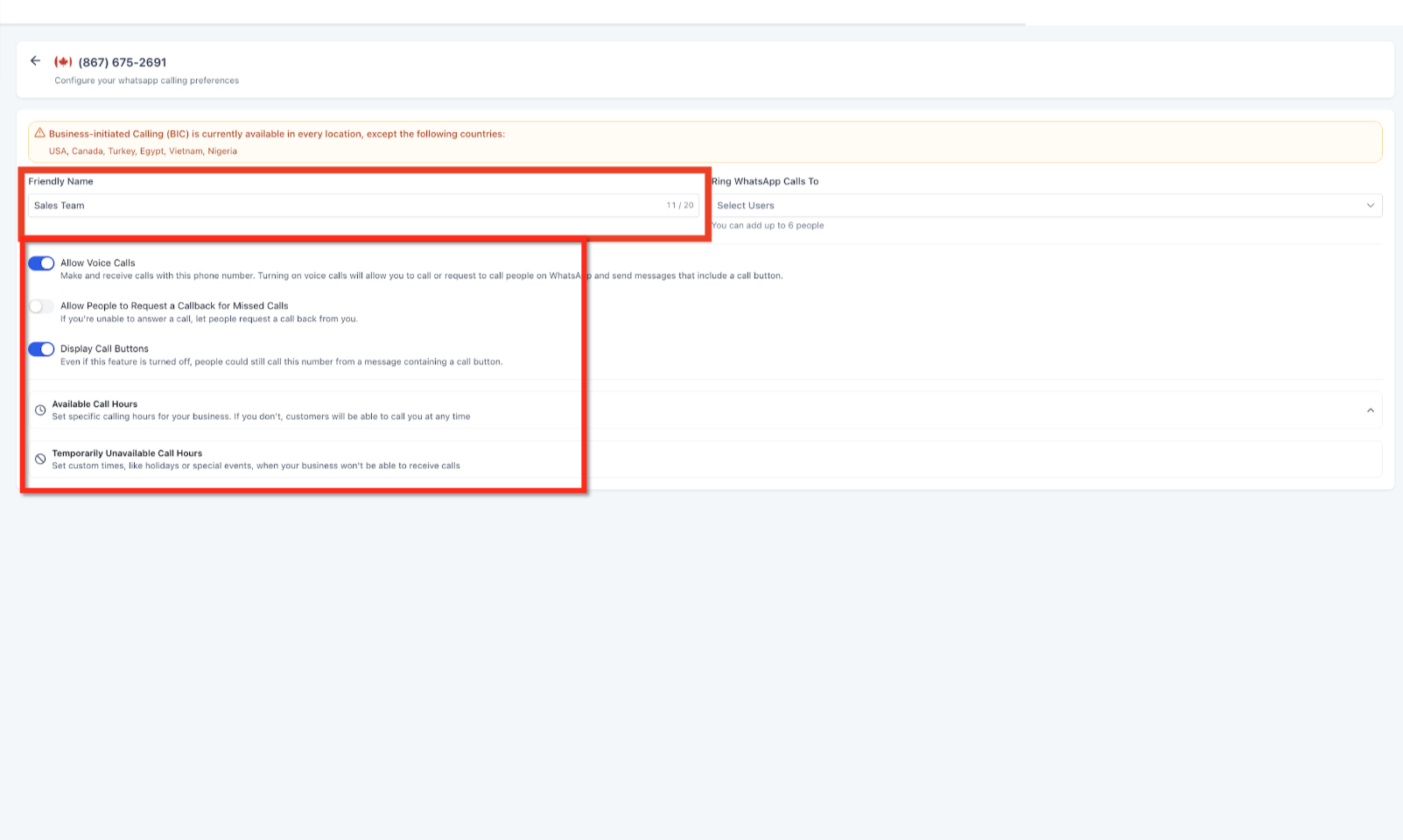
Enable Allow calls. Configure Callback on missed calls if you want patients to request callbacks after missed WhatsApp calls. Configure Call buttons if you want call options to appear inside the conversation view.
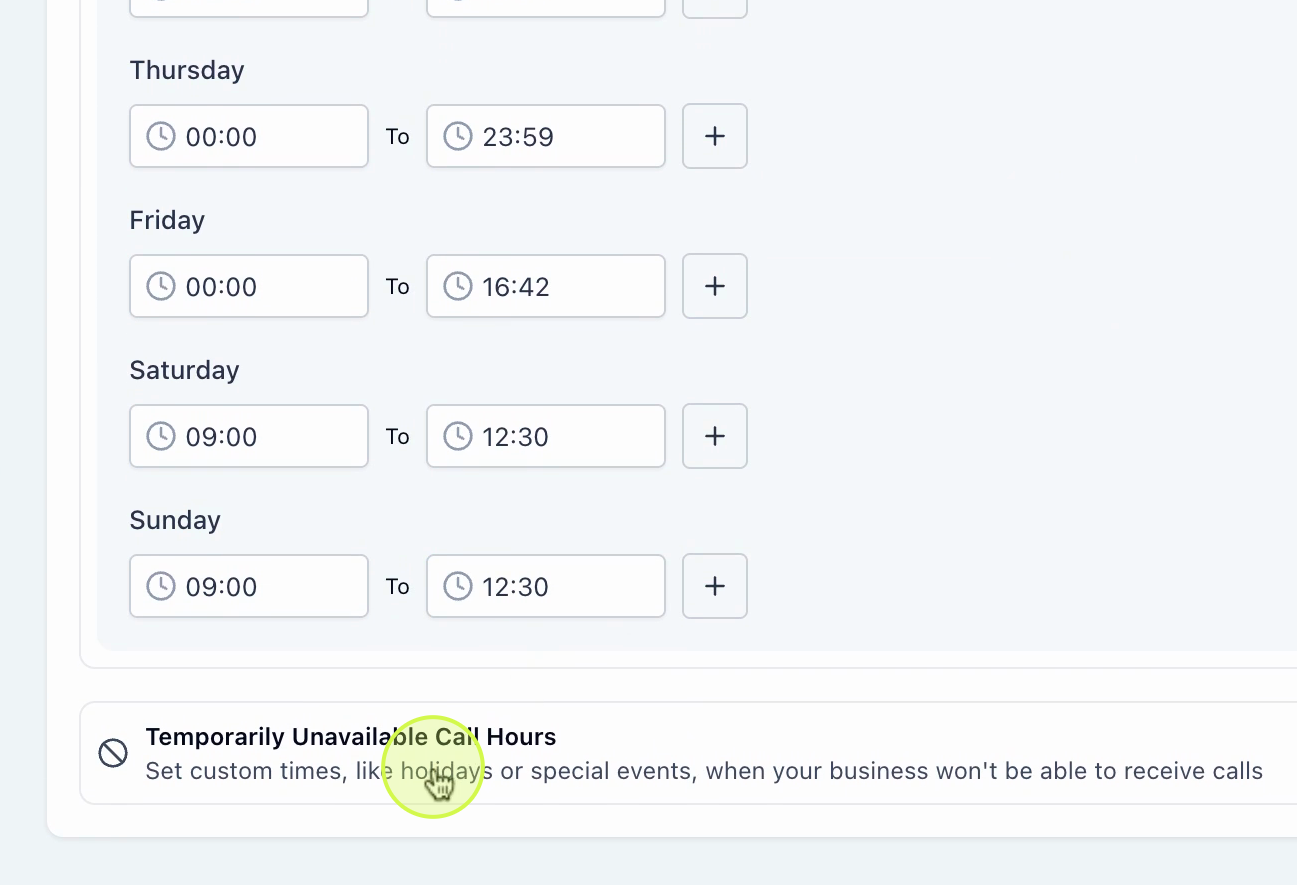
Set your Available hours and any Temporarily unavailable hours.
Save your changes.
WhatsApp Voice Calling is especially useful when patients need quick answers, reassurance, or live guidance. Moving from chat to voice can reduce delays and help your team complete high-value conversations faster.
Consultation follow-up: Call a lead who asked detailed questions in chat about a treatment, pricing, or expected results.
Appointment confirmation: Front desk teams can confirm appointments, answer pre-consultation questions, or clarify patient requests while keeping related messages in the same WhatsApp thread.
Pre-treatment reassurance: Walk an anxious patient through what to expect before an injectable, laser, or in-office procedure.
Post-care check-ins: Call a patient after treatment to review aftercare instructions or address concerns by voice.
High-intent lead recovery: Follow up on a missed call or callback request to keep an interested patient engaged.
Membership and package questions: Explain package details, financing, or membership benefits in a live conversation instead of long message threads.
Why can't I see the Calling tab under WhatsApp settings?
Your account may not have beta access, the WhatsApp number may not be connected, the WhatsApp Business Account messaging limit may be below the required tier, or the number may be using WhatsApp Coexistence.
What messaging limit is required for WhatsApp Voice Calling?
The WhatsApp Business Account must have a messaging limit of the 2,000 tier or higher.
Can I use WhatsApp Voice Calling with WhatsApp Coexistence?
No. Native WhatsApp Voice Calling is not available for phone numbers using WhatsApp Coexistence.
What happens if a WhatsApp call is missed?
If Callback on missed calls is enabled, the patient can request a callback so your team can follow up.
Are Callback on missed calls and Missed Call WhatsApp Back the same feature?
No. Callback on missed calls applies to missed WhatsApp voice calls. Missed Call WhatsApp Back applies to regular missed phone calls and sends a WhatsApp follow-up message.
Can I control when my team receives WhatsApp calls?
Yes. You can configure Available hours and Temporarily unavailable hours from the WhatsApp Calling tab.
Can users make outbound WhatsApp calls from conversations?
Yes. Users can place outbound WhatsApp voice calls from the conversation experience when calling is enabled and permission requirements are met.
Is WhatsApp Voice Calling available on mobile?
Not at this time. WhatsApp Voice Calling is currently web-only. Mobile support may be added in a future release.
What are call permission flows and why do they matter?
Call permission flows determine how your practice requests patient consent before initiating a call, based on whether the WhatsApp service window is open or closed. When the window is closed, a template-based request may be needed. When open, an interactive automation-based flow handles consent in real time.
Do I need a WhatsApp template for every voice note?
Not when replying within the 24-hour session window. Templates are required for outbound messages outside that window.
Will older attachment-style voice notes change to the new native format automatically?
No. Existing messages remain as they were. Native delivery applies to new voice notes going forward.
Are voice note transcripts stored in Aesthetix CRM?
No. Transcripts are enabled and displayed by the recipient's WhatsApp app. Aesthetix CRM does not store or generate them.
Can patients reply with a voice note, and how does it appear?
Yes. Replies appear in Conversations as inbound WhatsApp voice notes you can play inline.
