Scheduling lets you prepare a WhatsApp message now and have it delivered automatically at the date and time you choose. You can schedule both approved WhatsApp templates and freeform messages, which is useful for appointment reminders, follow-ups, and any outreach that should land at just the right moment. This guide walks through both methods.
Template messages can be scheduled at any time, even outside an active conversation, because they use pre-approved content.
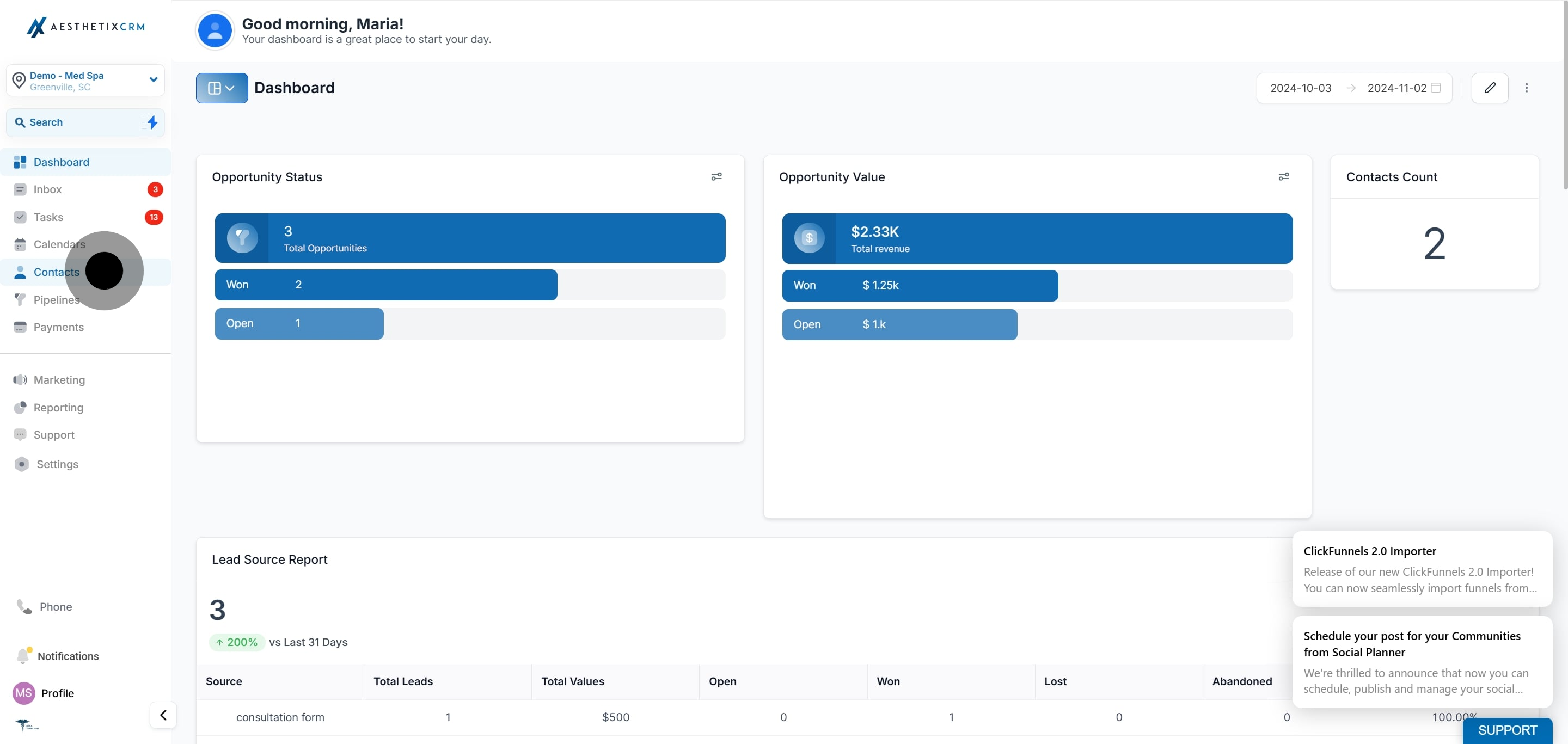
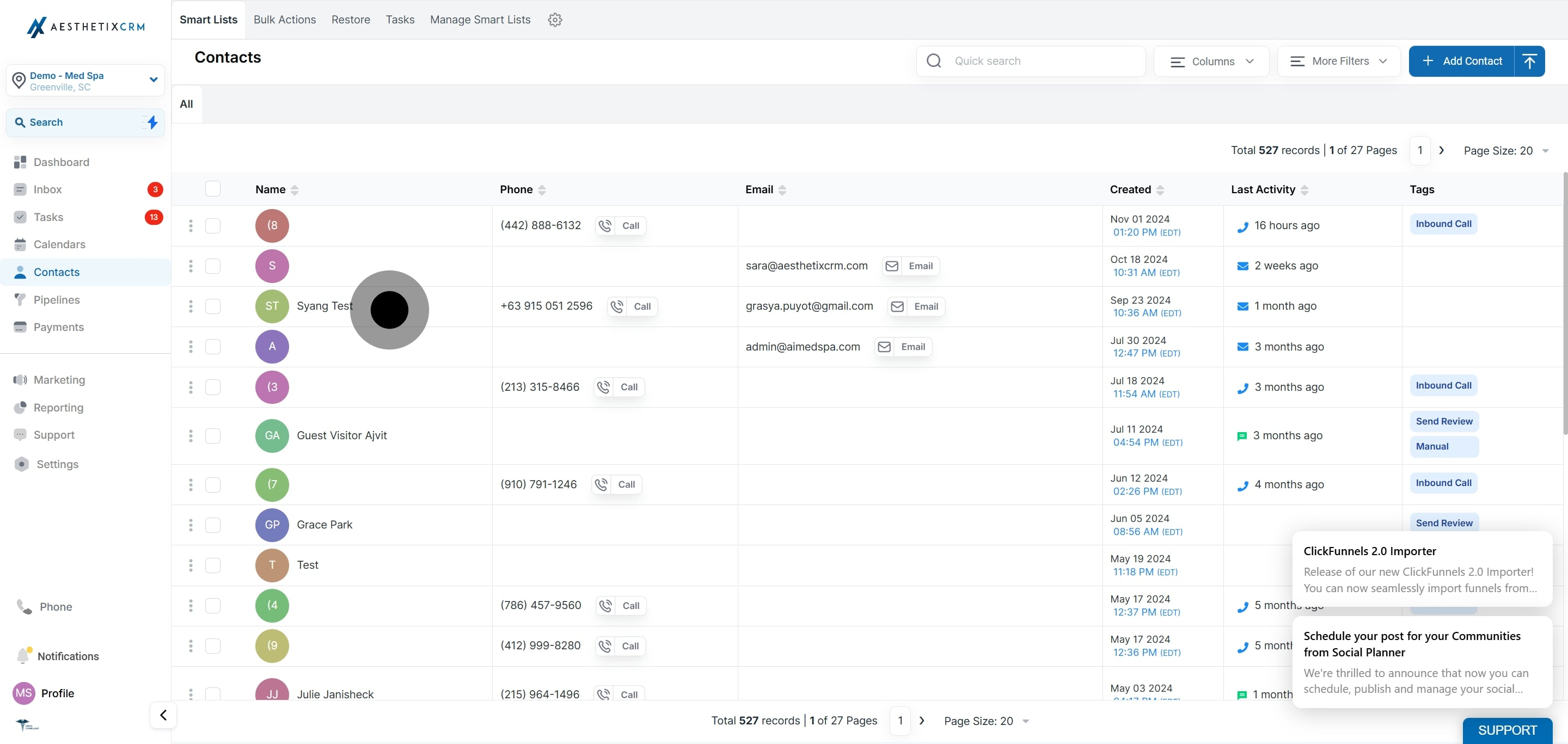
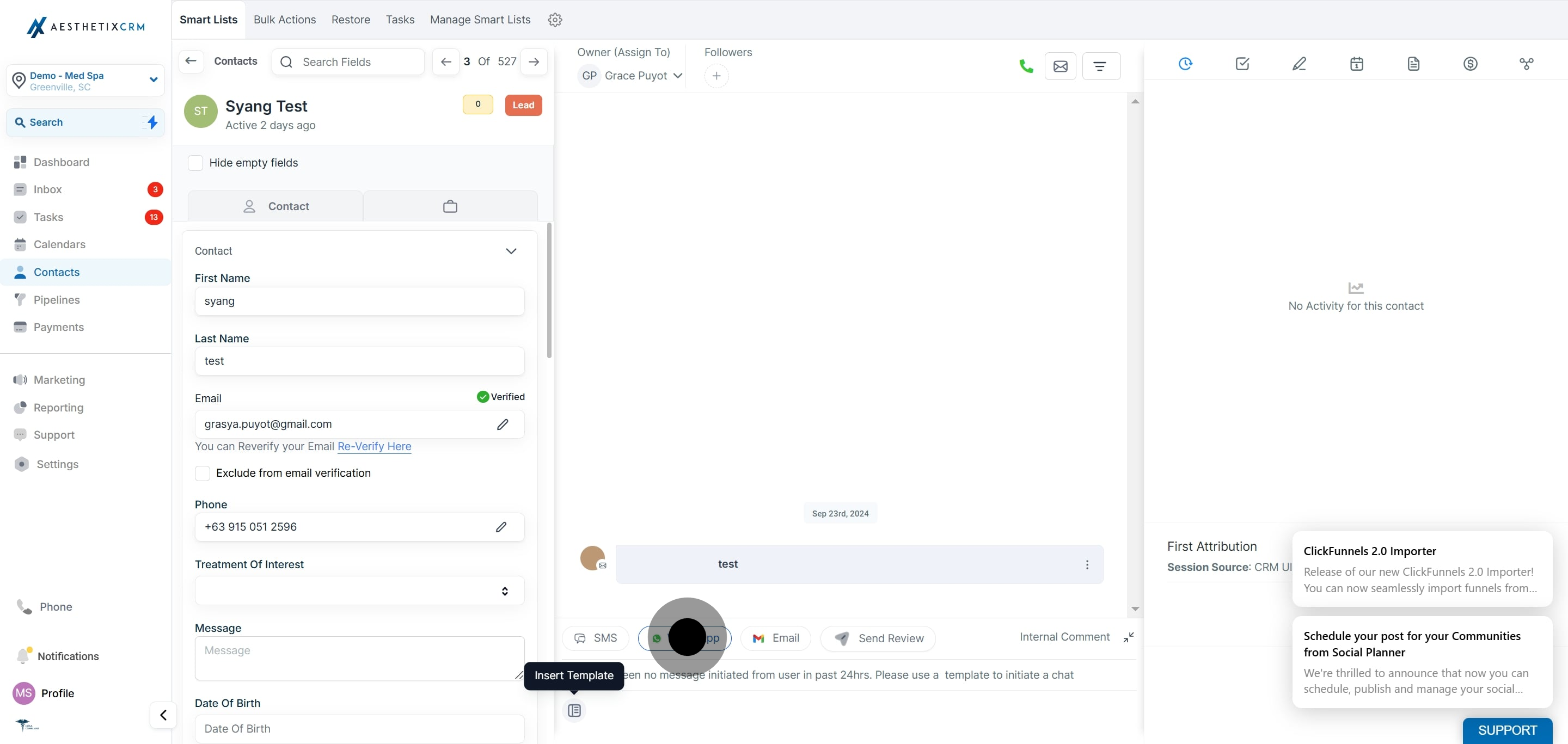
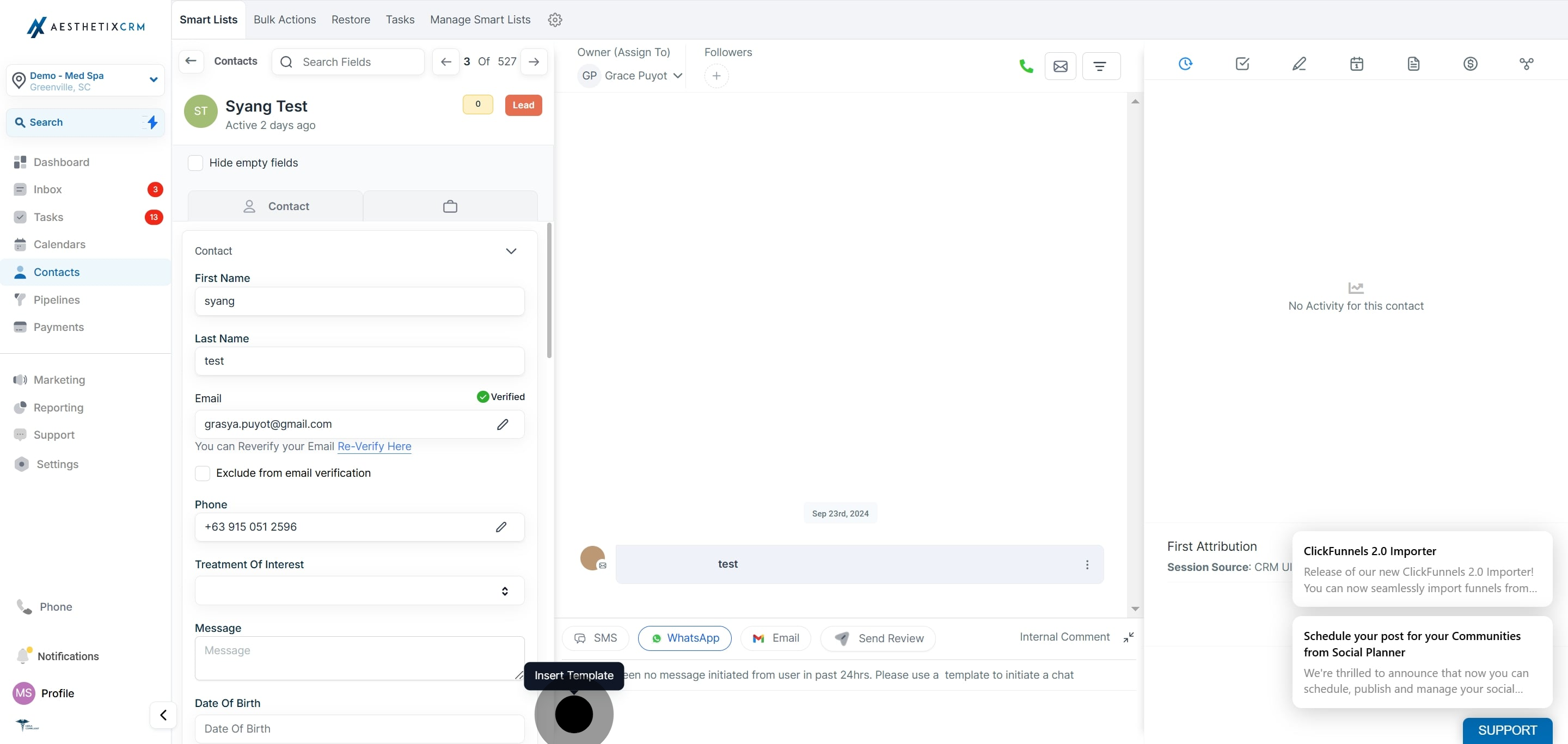
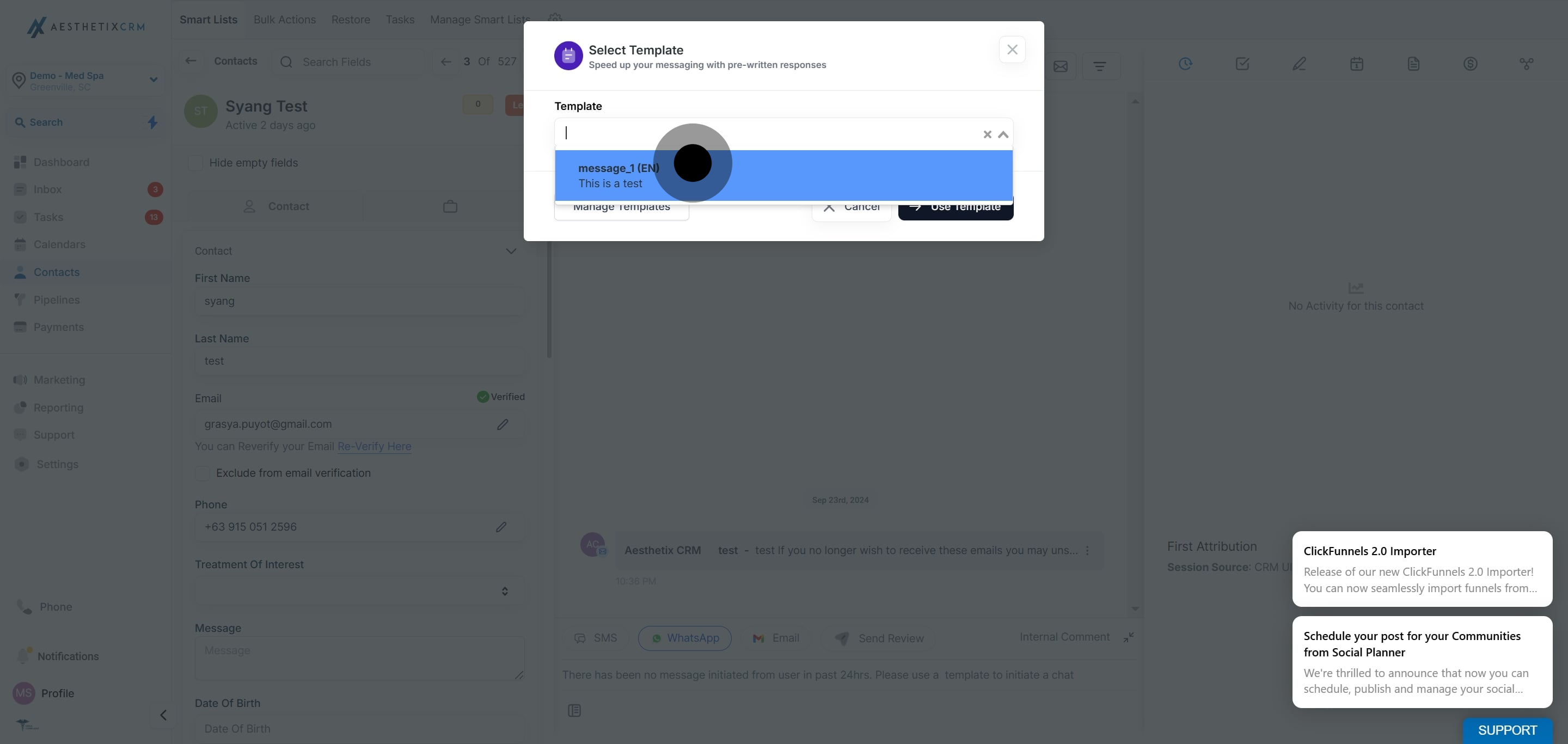
**
**
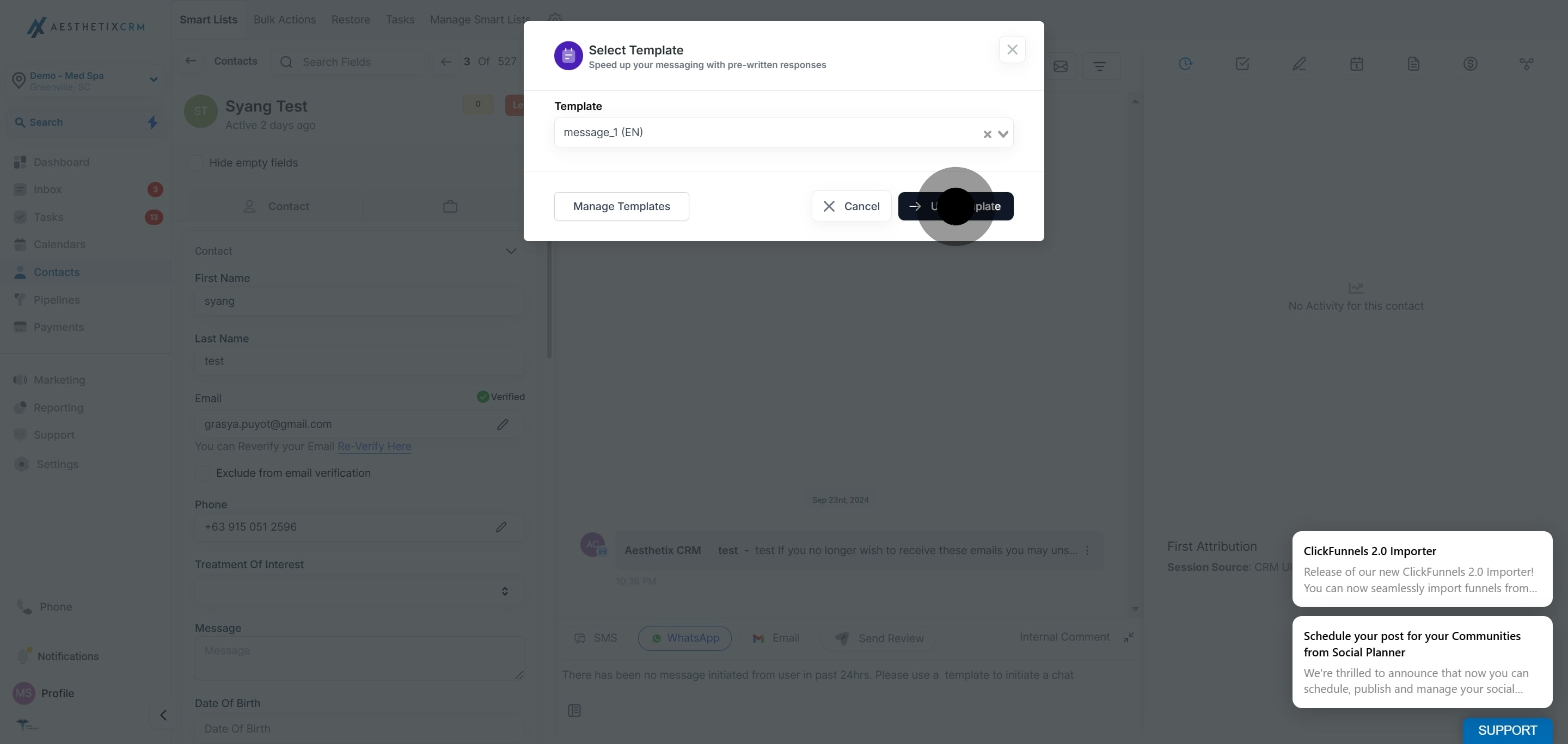
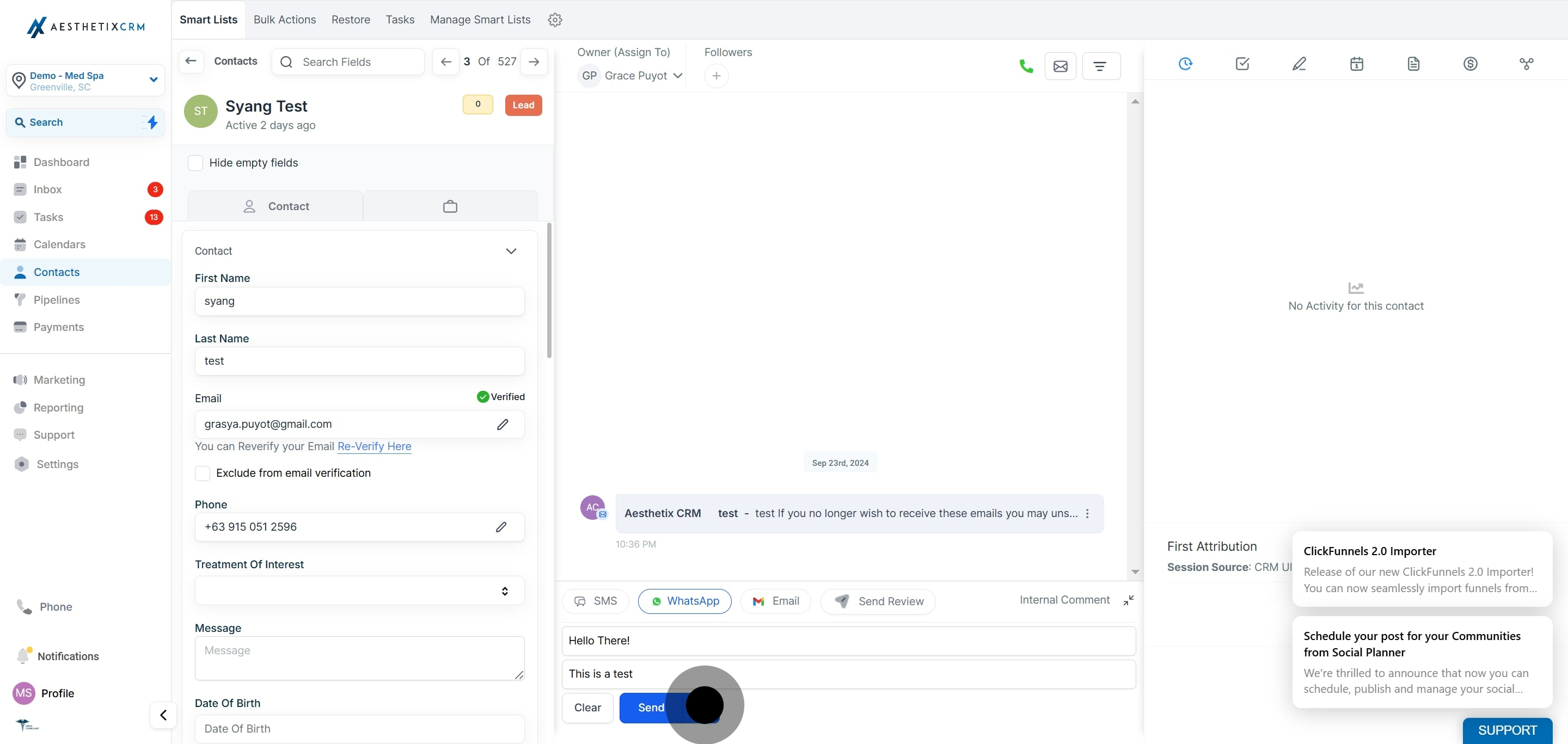
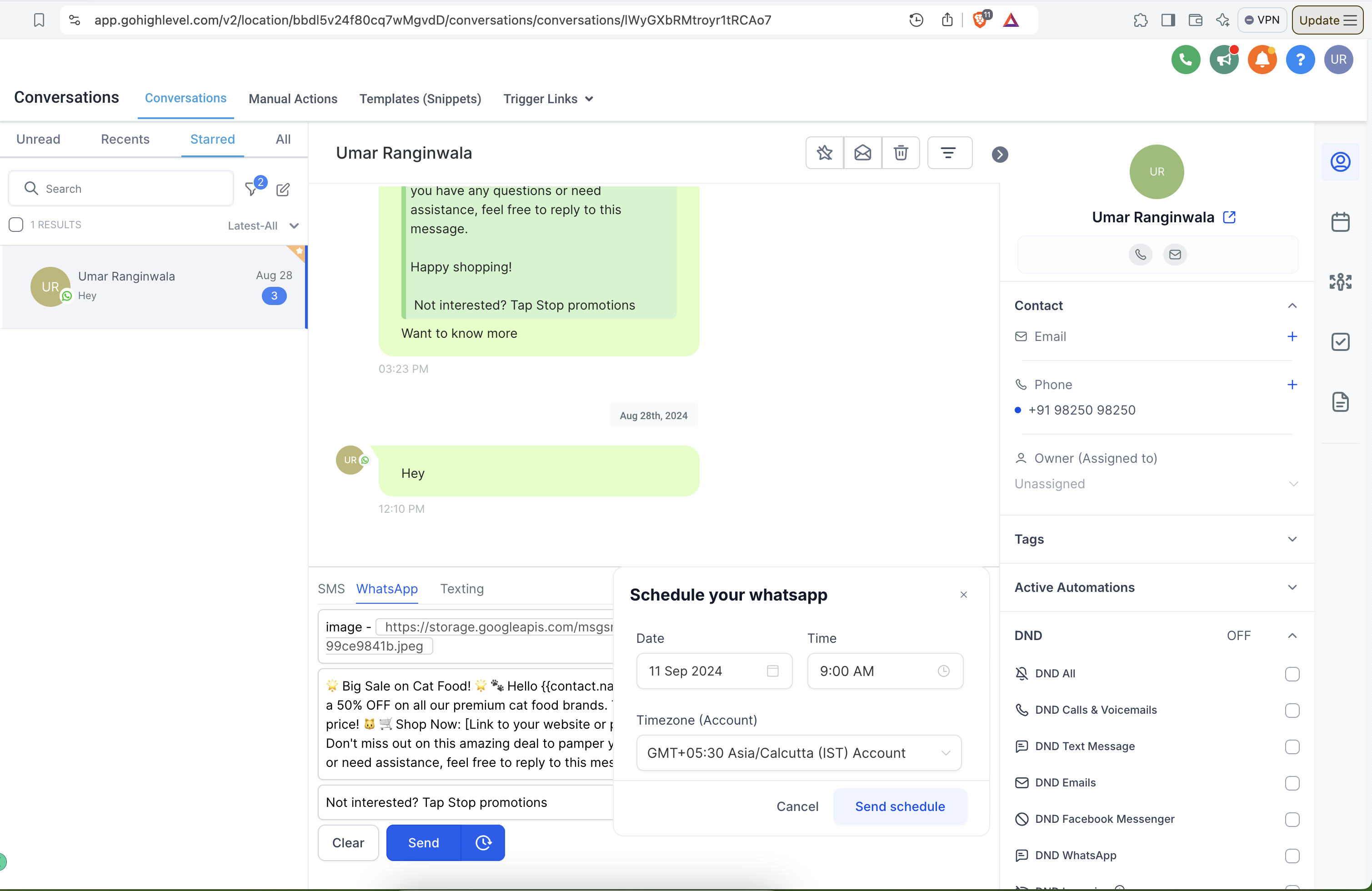
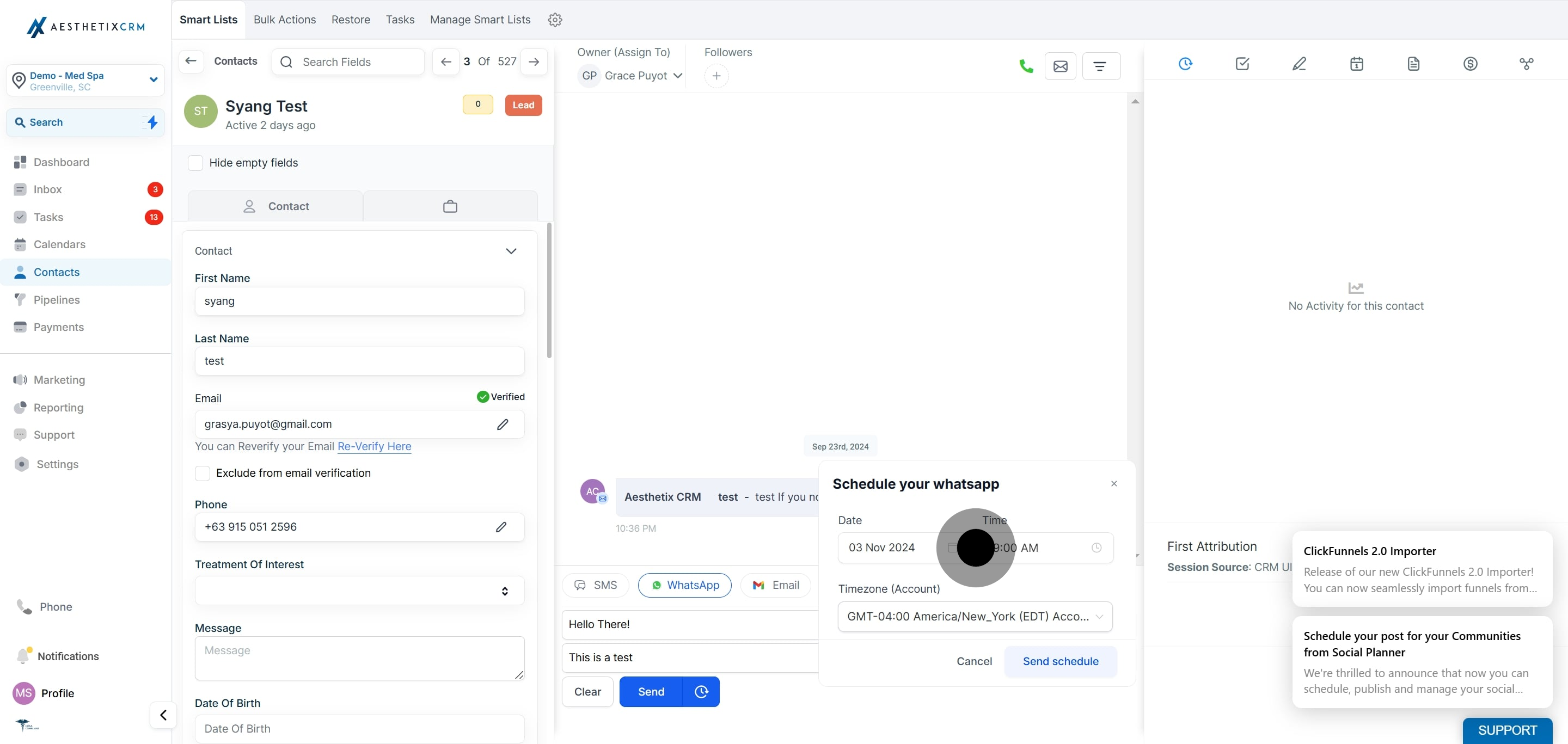
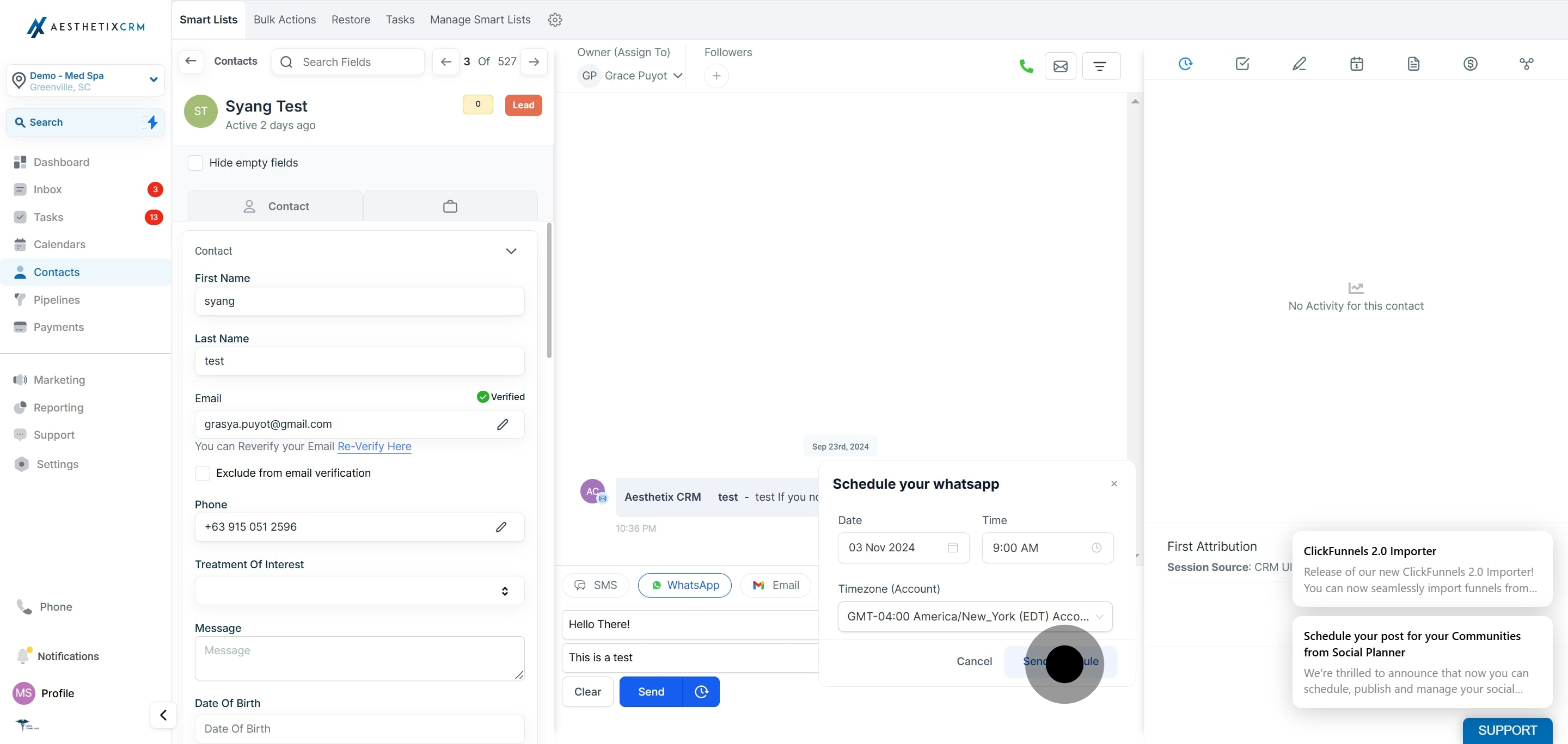
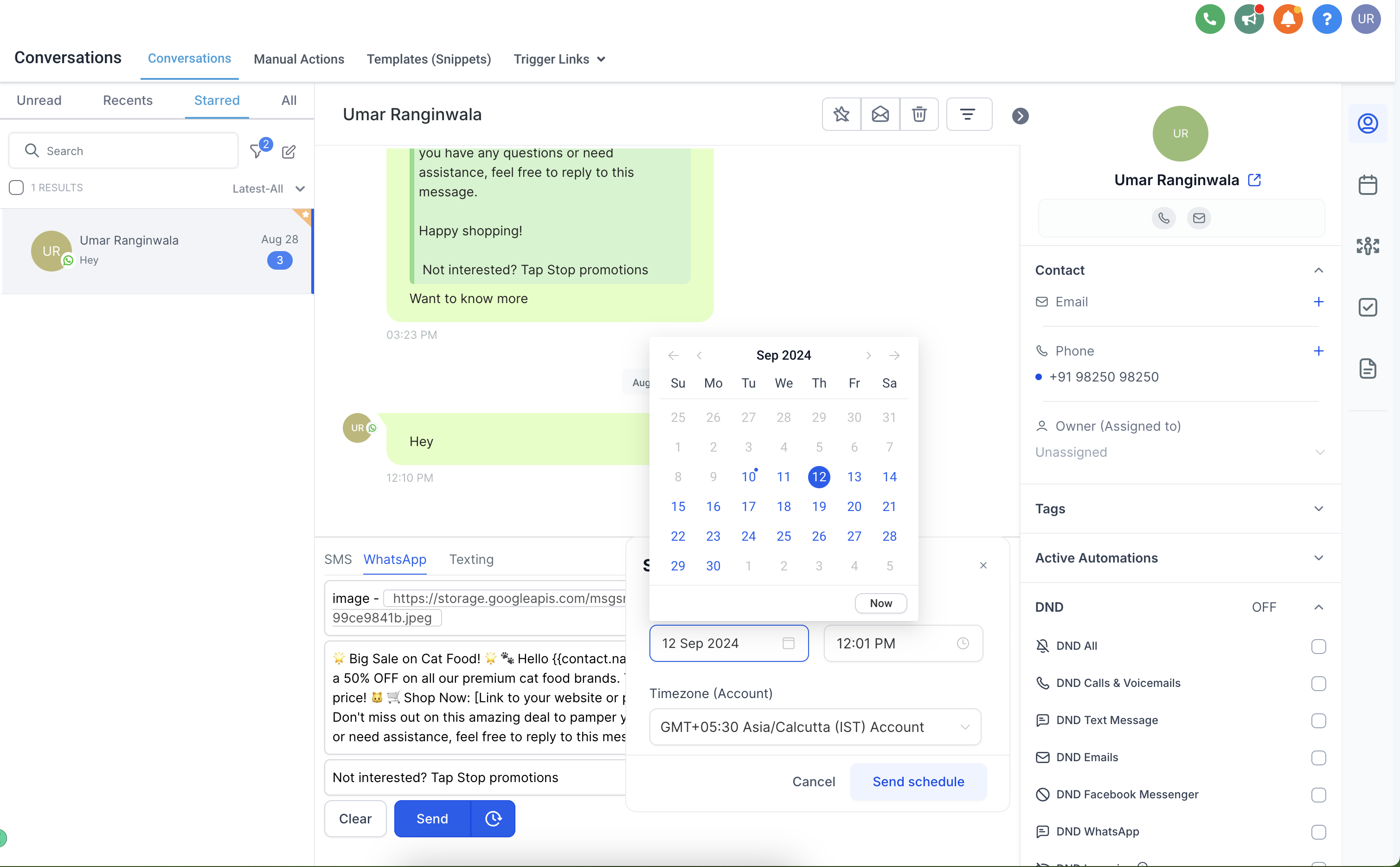
Note: The date and time you select must be in the future.
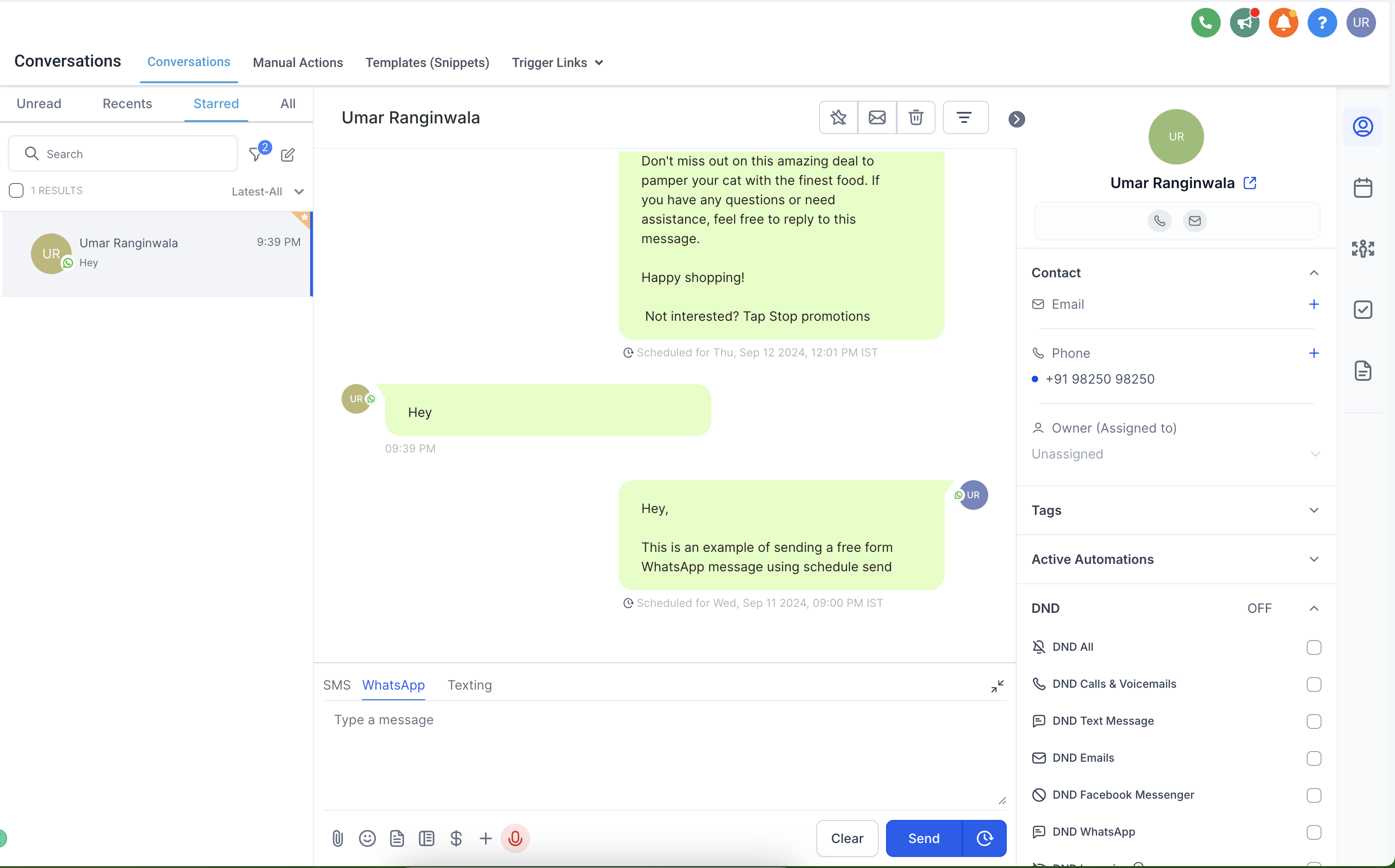
Freeform messages are custom, non-template messages. They can only be scheduled while a Customer Service Window is open with the client.
Note: To schedule a freeform WhatsApp message, an open Customer Service Window must be active with the client. This window is a 24-hour period that begins when the client sends you a message.
Go to the Inbox, select the contact, choose WhatsApp, and type the freeform message you want to send.
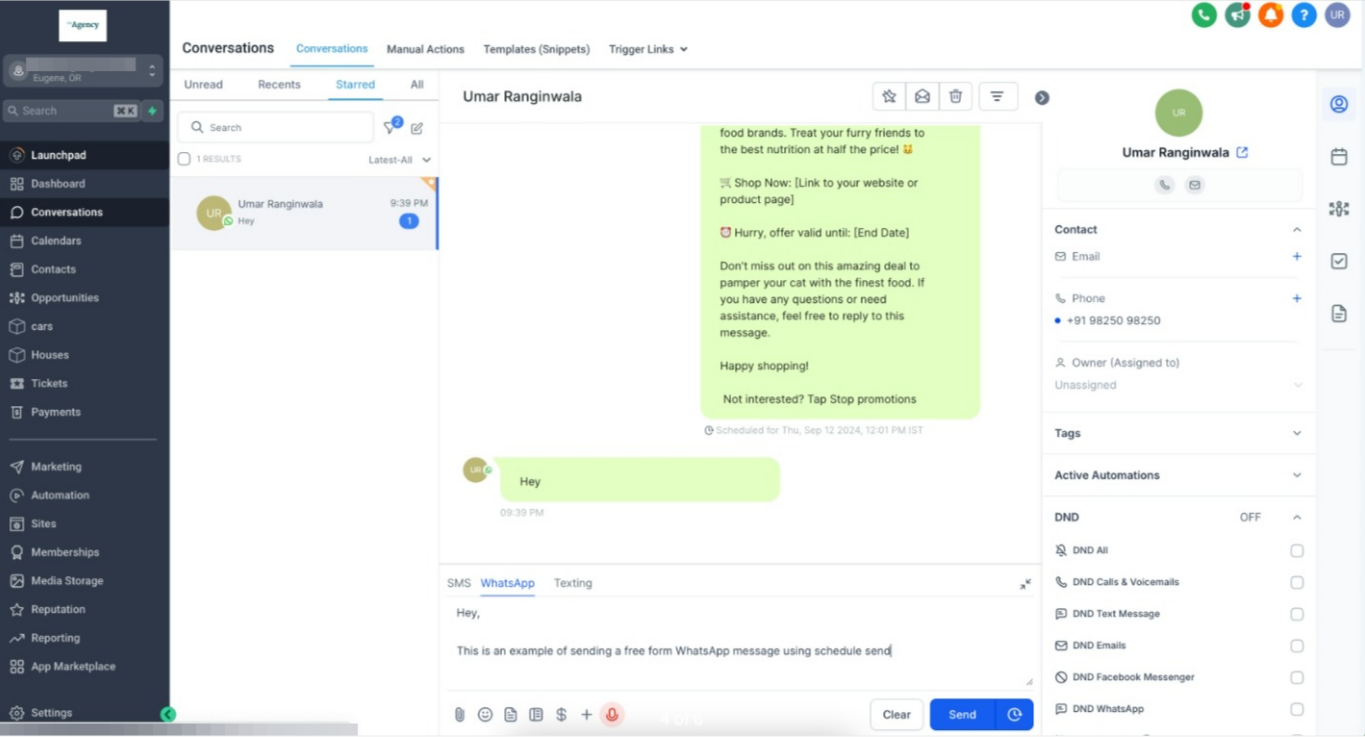
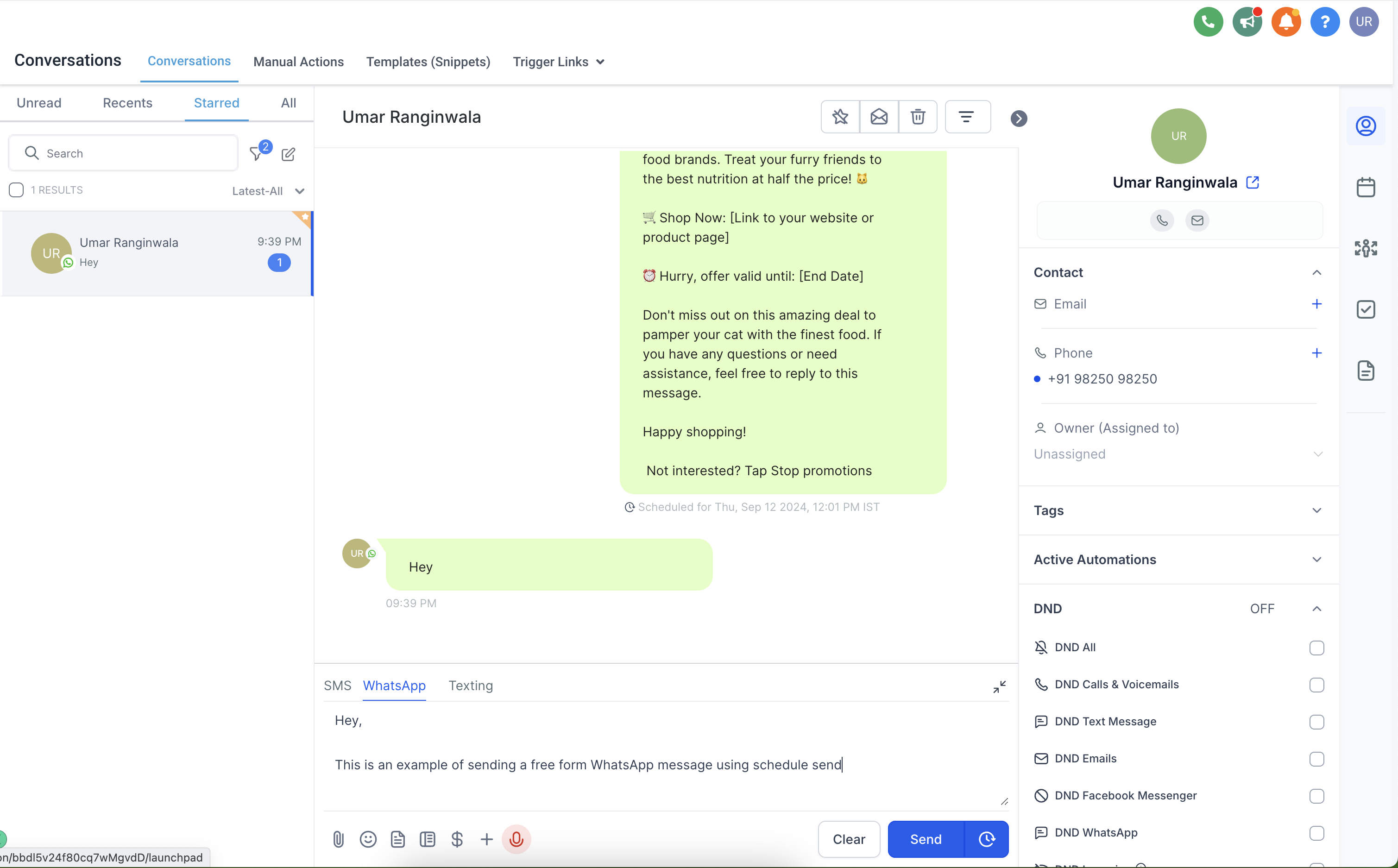
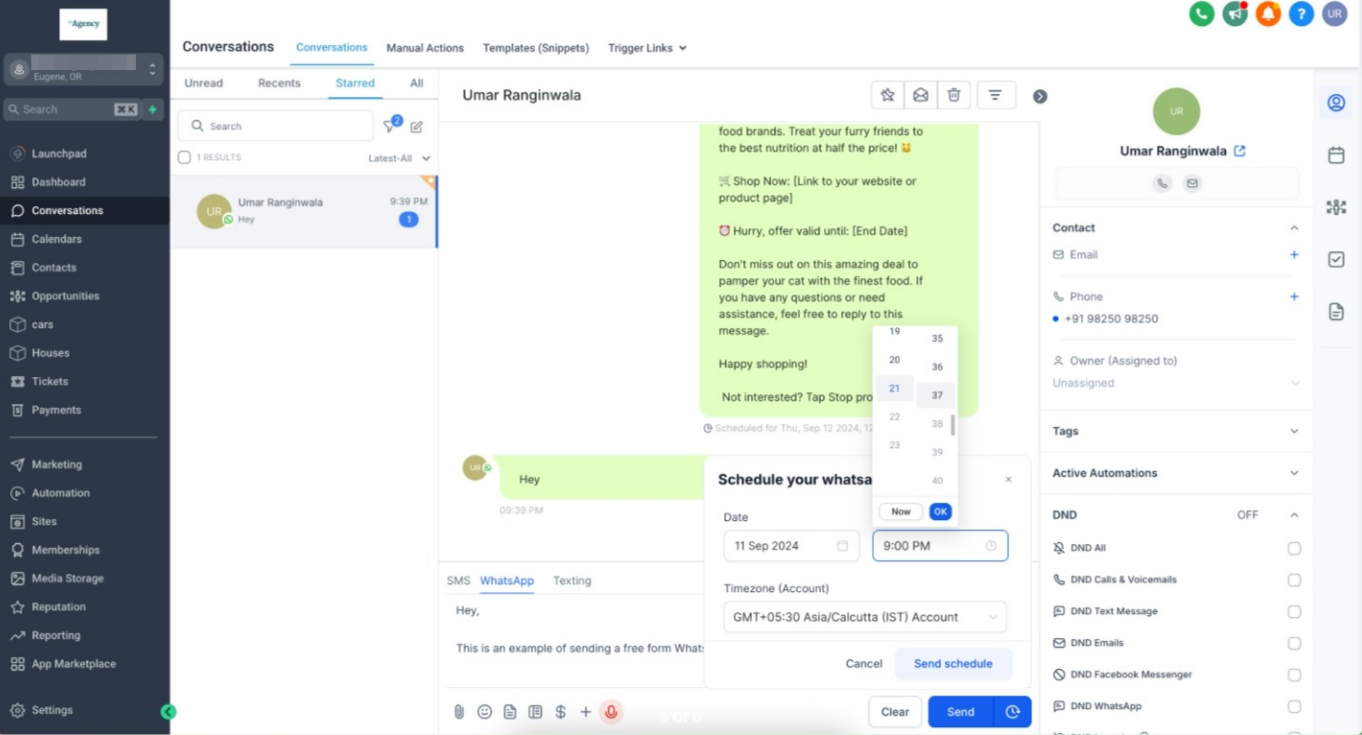
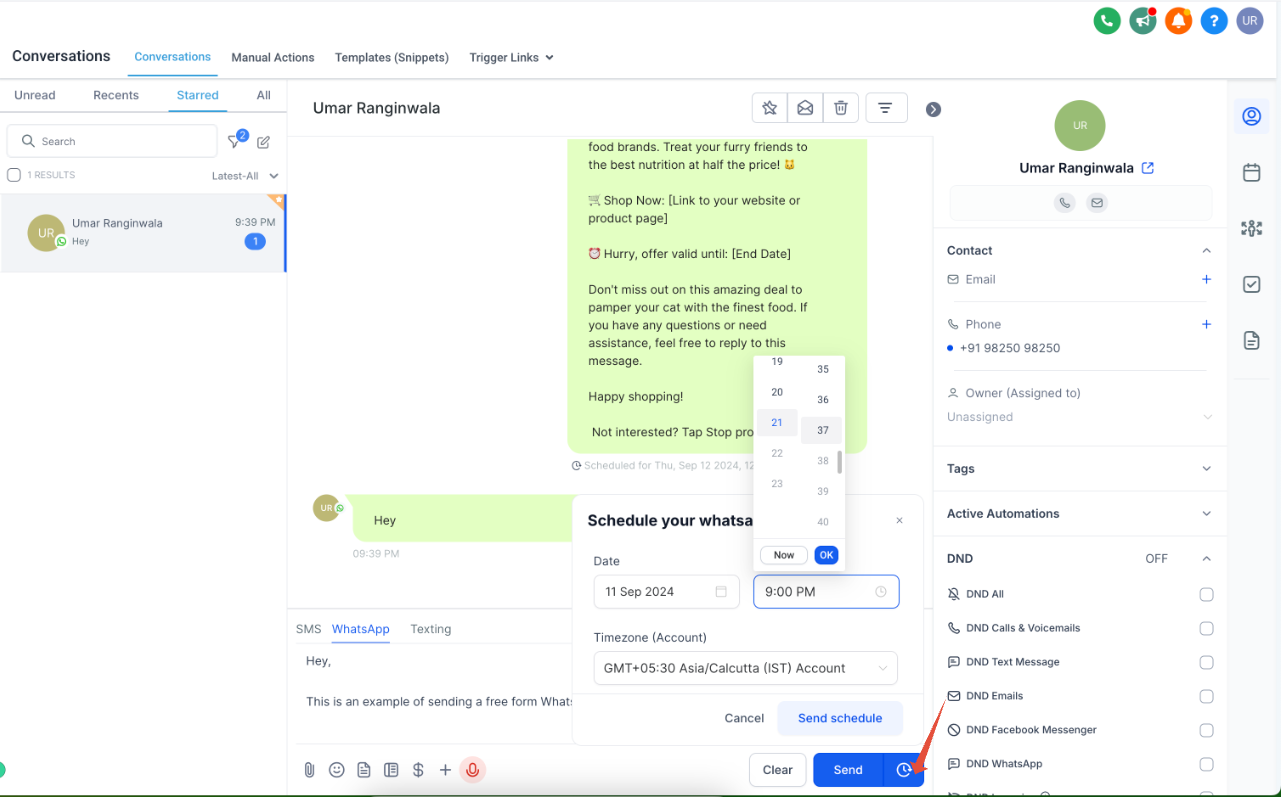
Note: You can schedule freeform messages up to 24 hours from the last inbound message received from the client.
Can I schedule a WhatsApp template message for later?
Yes. Select the template inside the conversation, click the dropdown next to Send, and choose the desired future date and time. Templates can be scheduled at any time because they use pre-approved content.
Can I schedule freeform WhatsApp messages too?
Yes, but only within an active Customer Service Window. Freeform messages can be scheduled up to 24 hours from the client's last inbound message.
What is a Customer Service Window?
It is a 24-hour period that begins when a client sends you a message. During this window, you can send freeform replies without using pre-approved templates.
What happens if I try to schedule a freeform message outside the 24-hour window?
The system will not allow scheduling outside the open window. In that case, you will need to use a WhatsApp template instead.
How do I know if my message has been successfully scheduled?
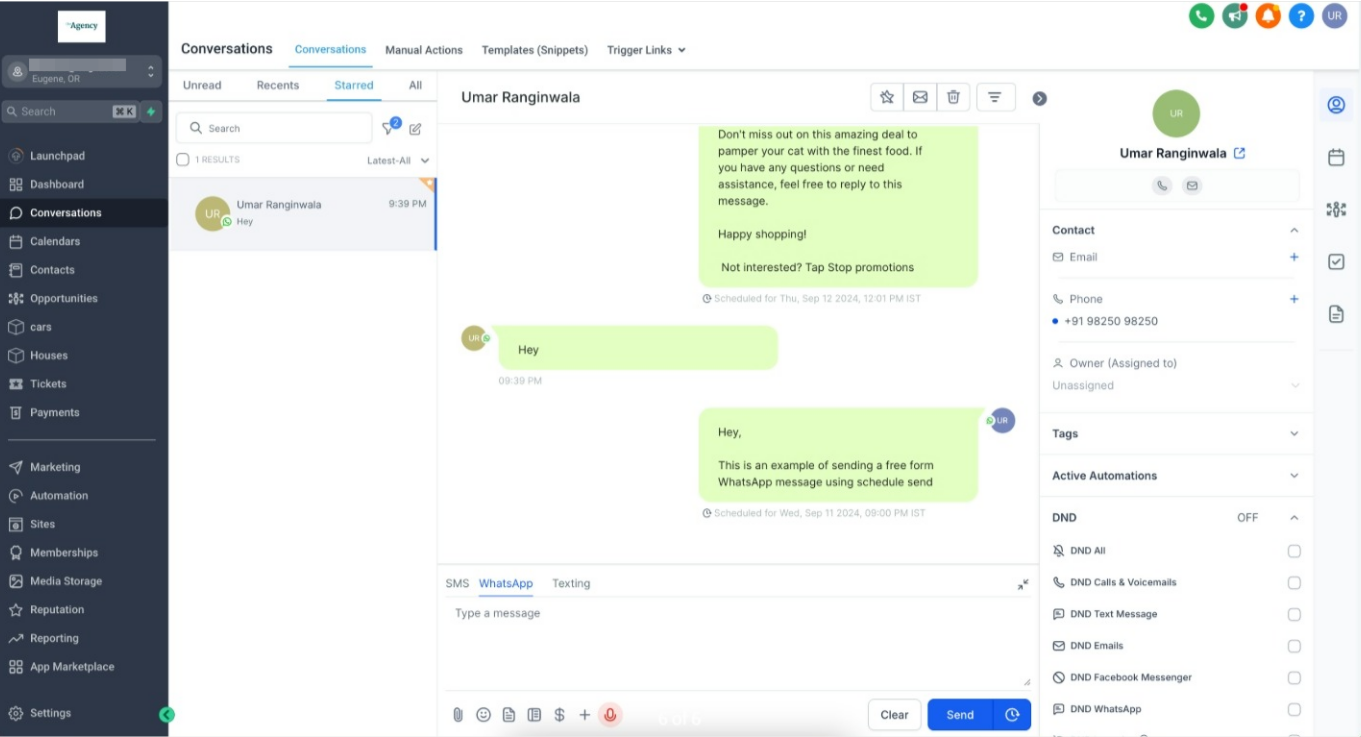
After selecting the send date and time, click Schedule Send. A confirmation appears in the chat showing the scheduled message along with its timestamp.
Can I edit or cancel a scheduled message?
Scheduled messages cannot currently be edited. To make changes, delete the scheduled message and create a new one.
