Bulk WhatsApp Actions let your practice run large-scale WhatsApp campaigns directly from Contacts or Smart Lists. Send an approved template to many patients at once, preview it before sending, monitor open and delivery rates, and fall back to SMS when a message cannot be delivered. This guide walks through selecting patients, choosing a template, launching the campaign, and reading your results.
Note: Only message patients who have opted in to receive WhatsApp or SMS from your practice. Always honor opt-out requests promptly and stay within TCPA and Meta messaging rules. For consent and opt-out handling, see Opt-Outs & Marketing Consent.
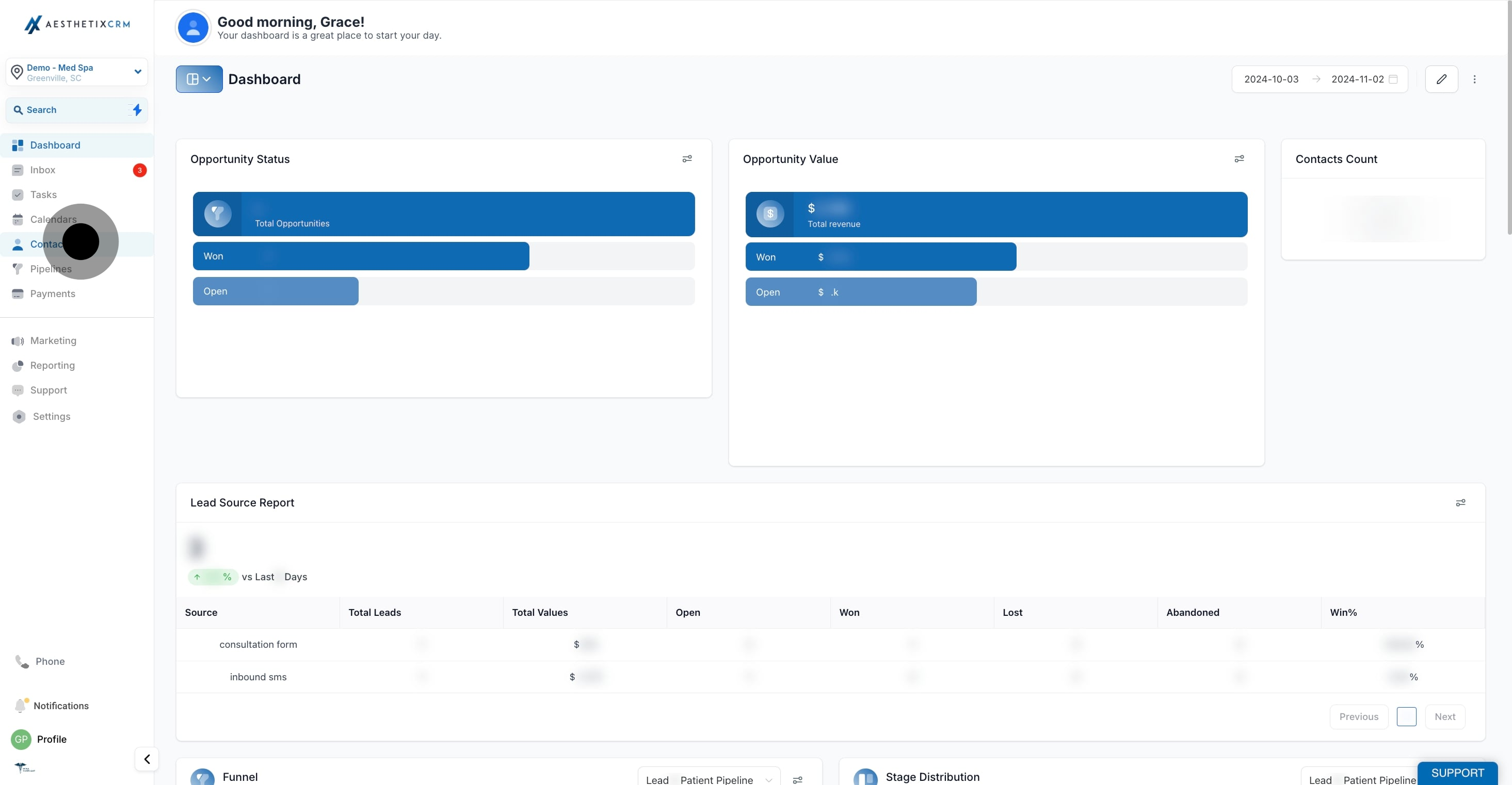
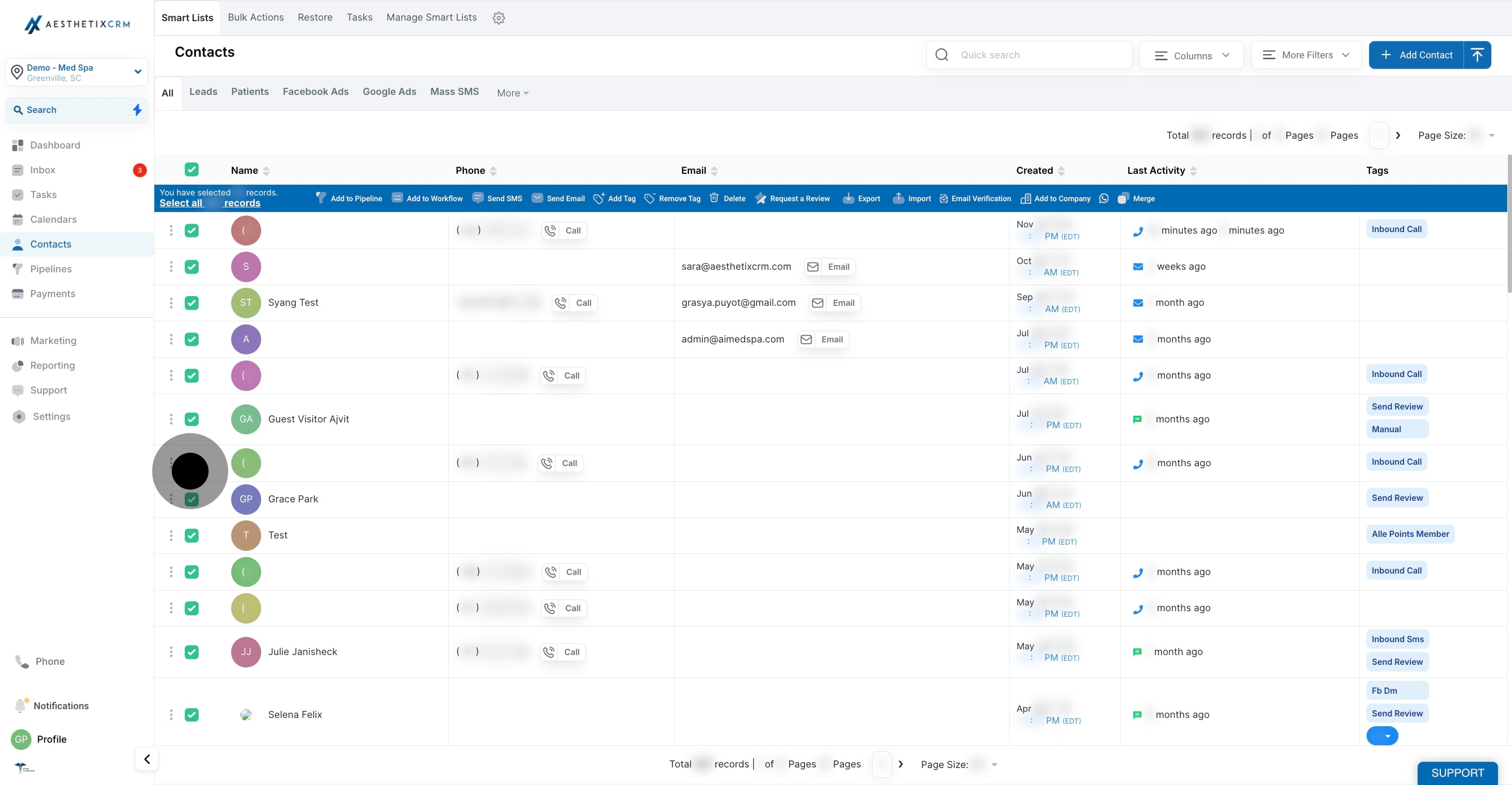
Go to Contacts.
Use filters or Smart Lists to find the patients you want to message.
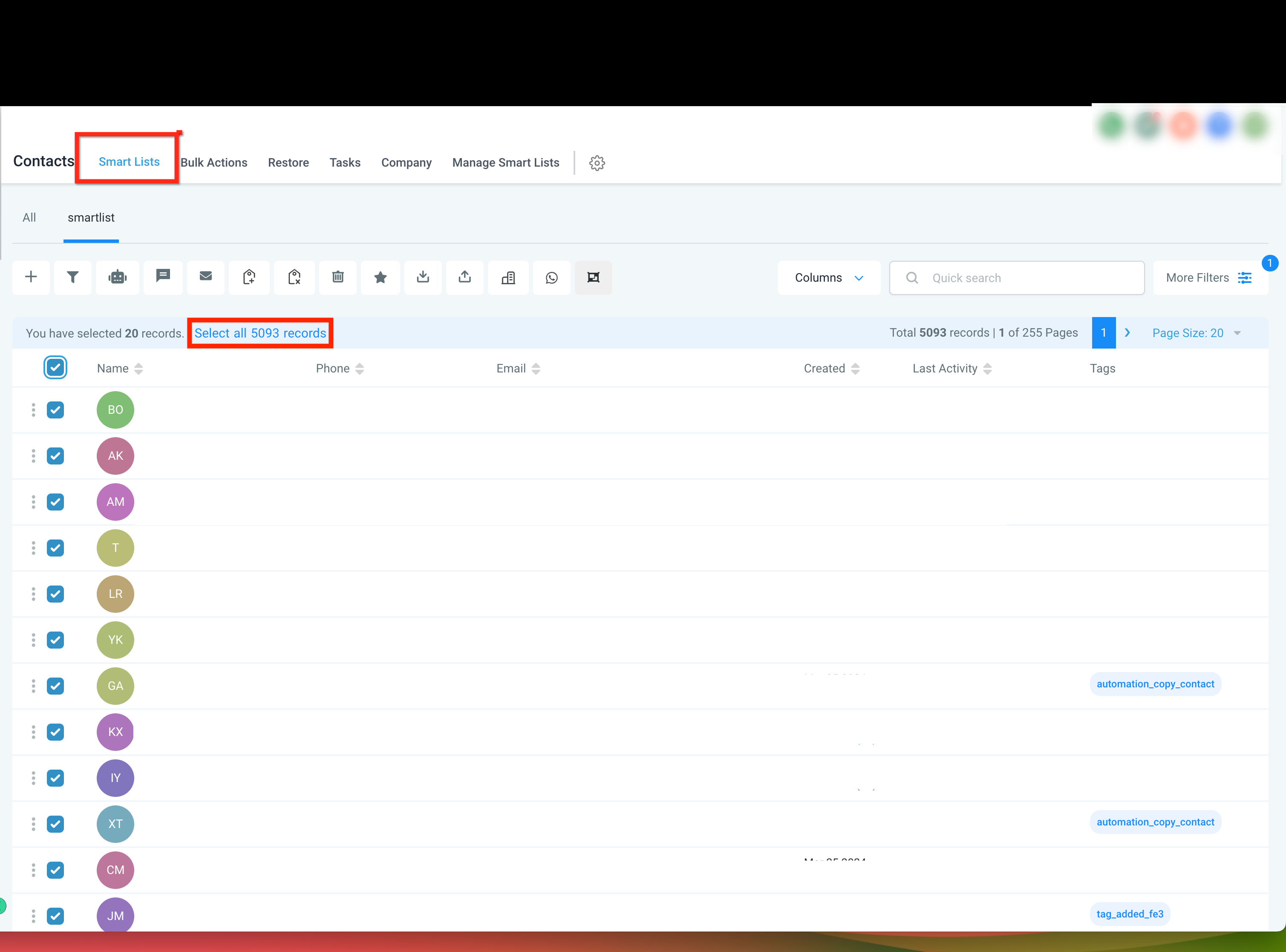
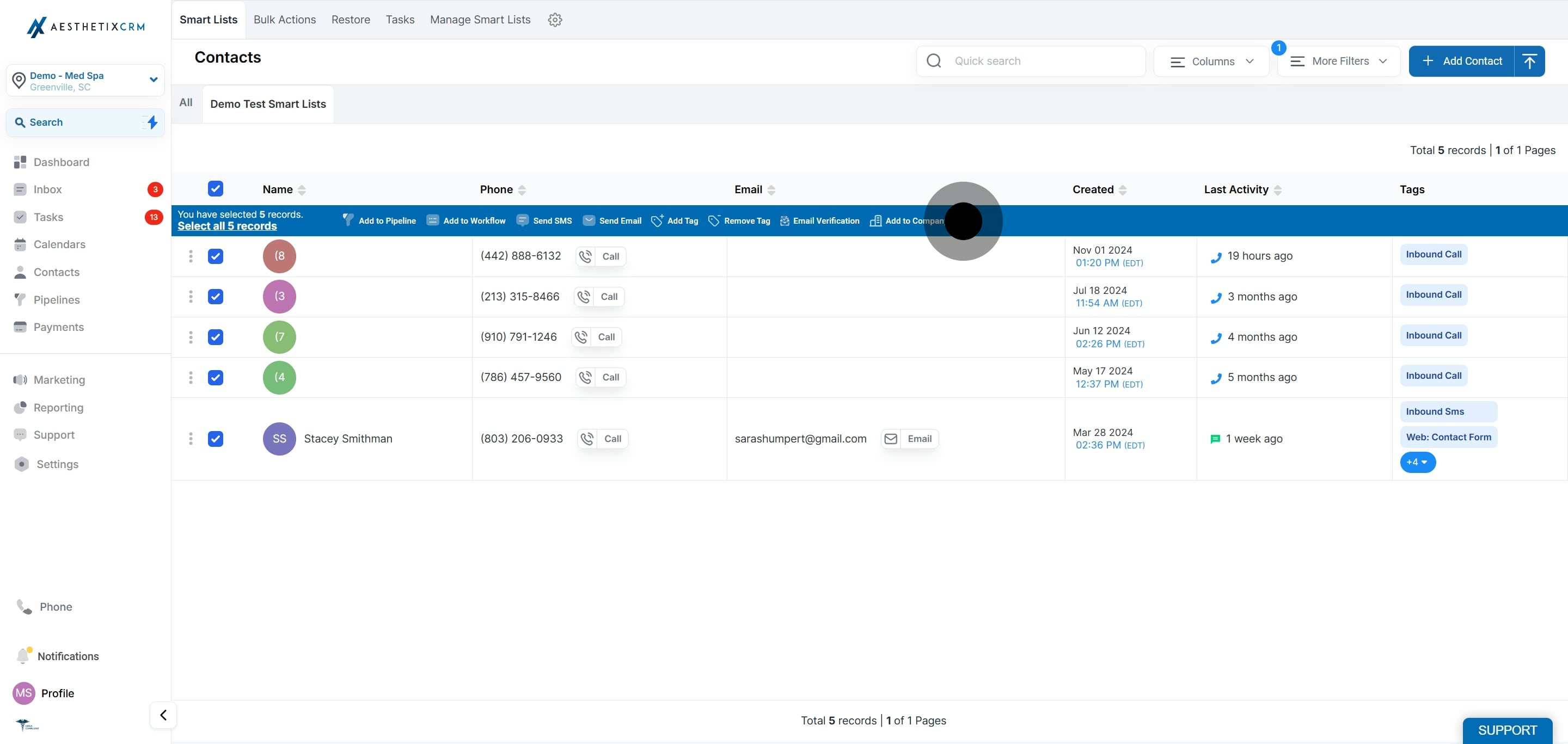
Select patients individually, or click Select all records to include everyone in the list.
**
**
Note: You can create Smart Lists to message an entire audience segment at once.
If you want to send to a saved segment:
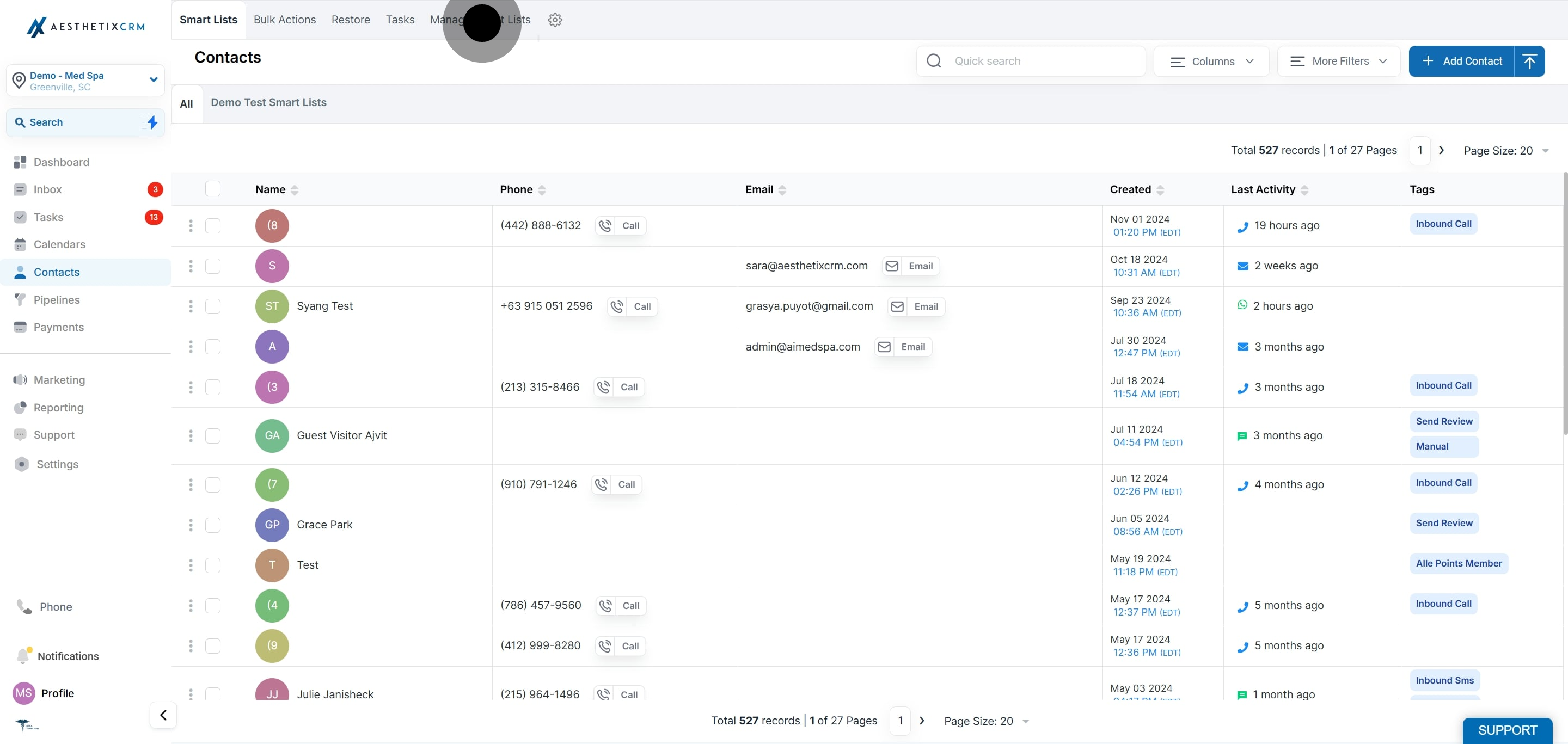
Click Contacts.
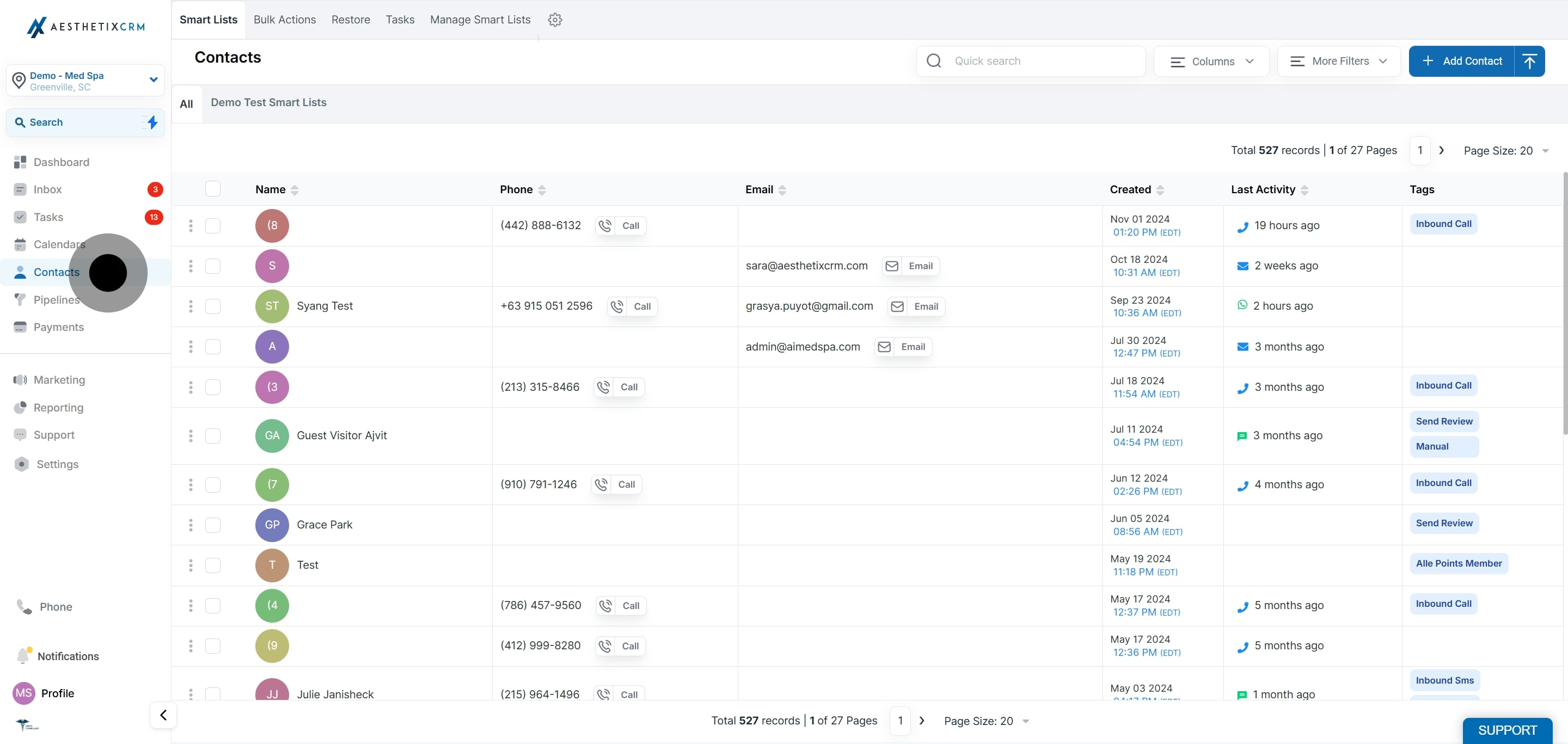
Click Manage Smart Lists.
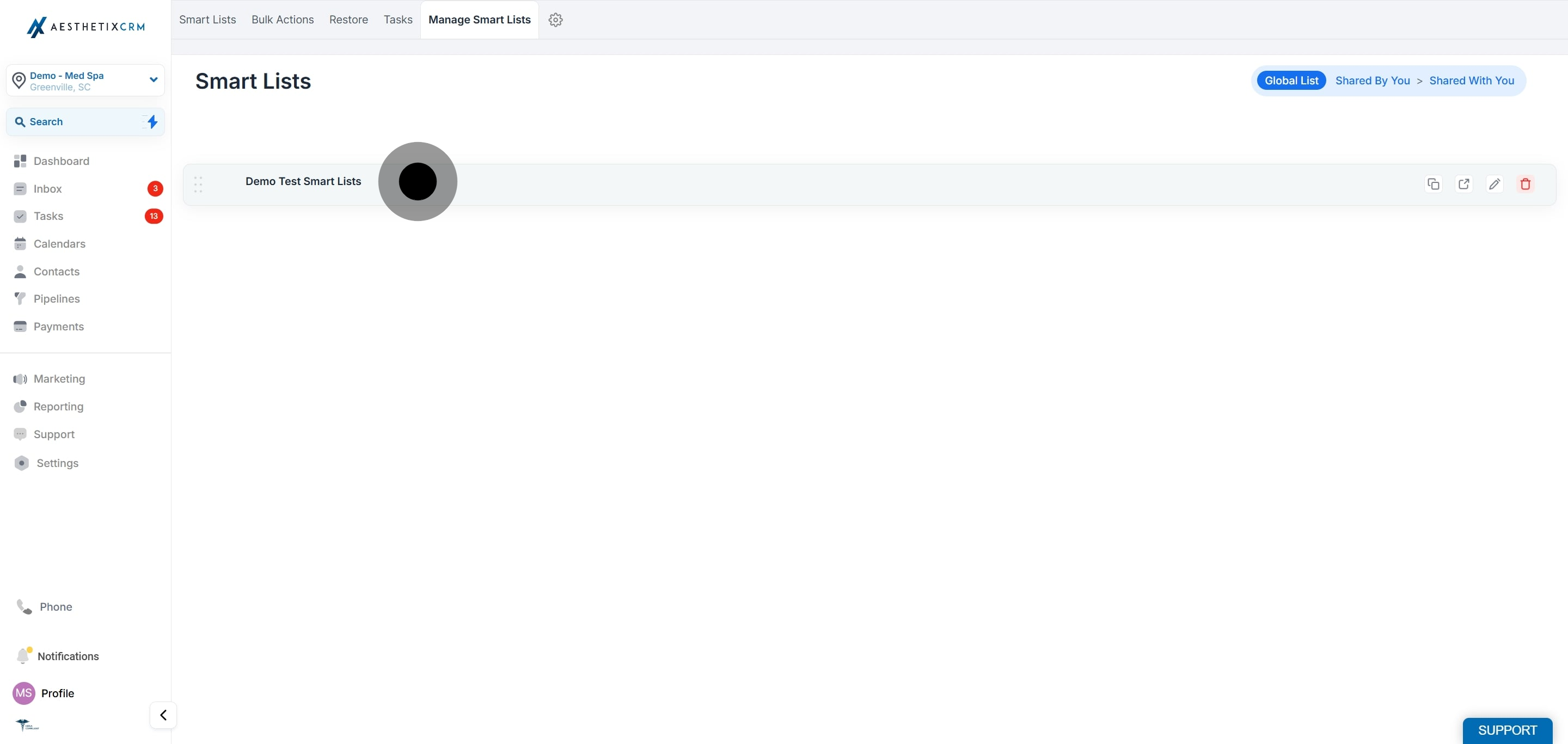
Select the Smart List you want to send the bulk WhatsApp message to.
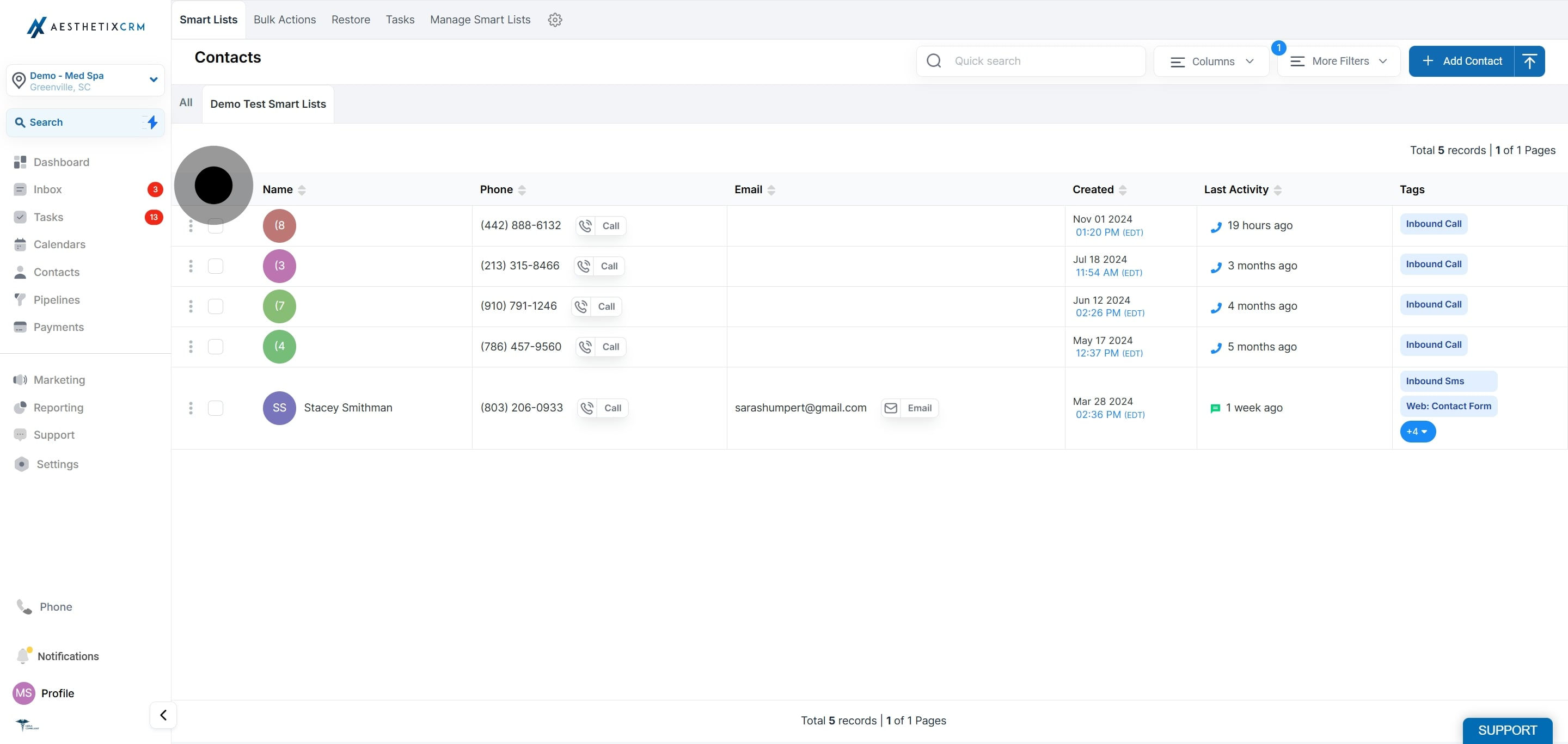
Select all contacts in the list.
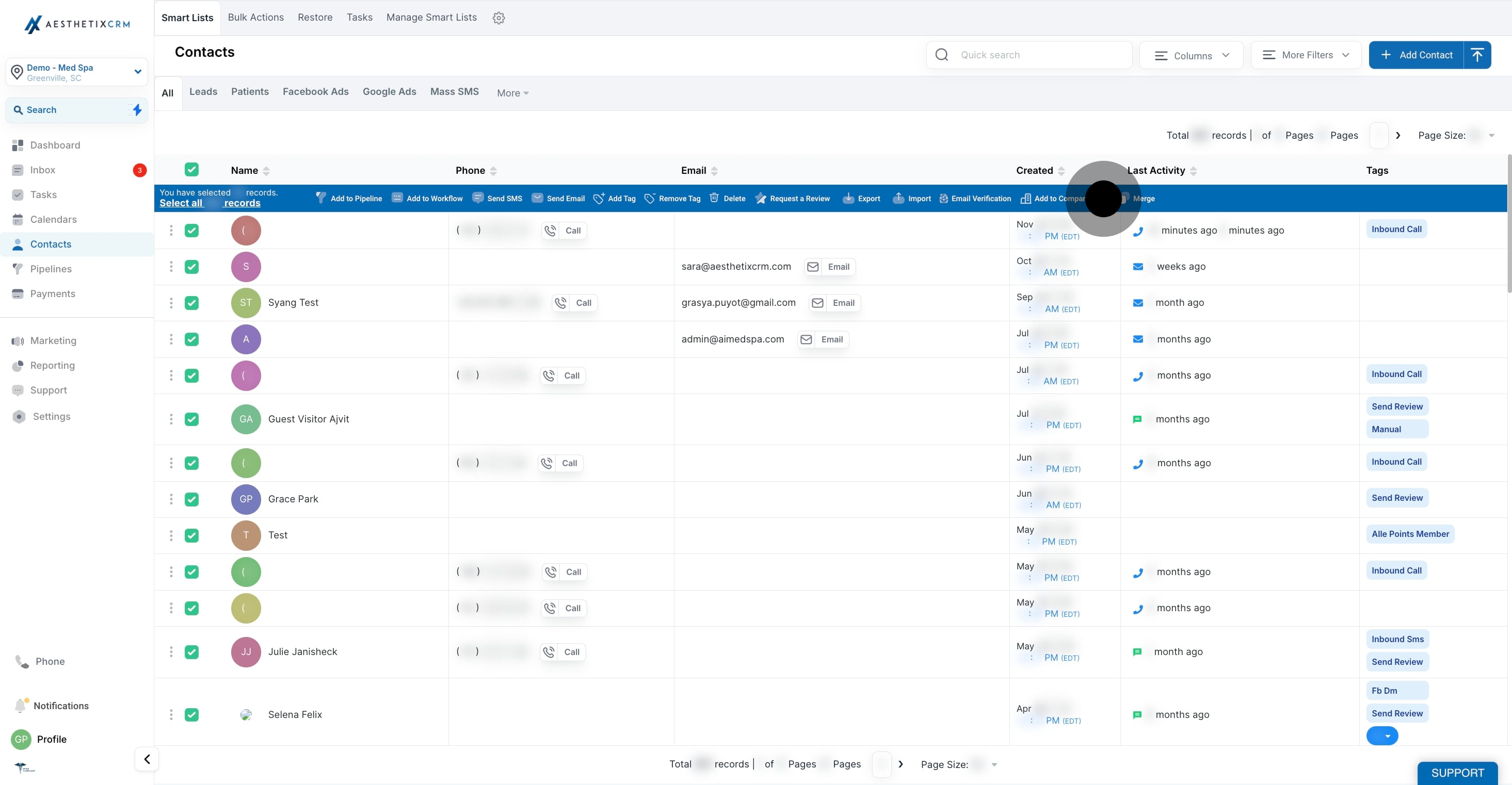
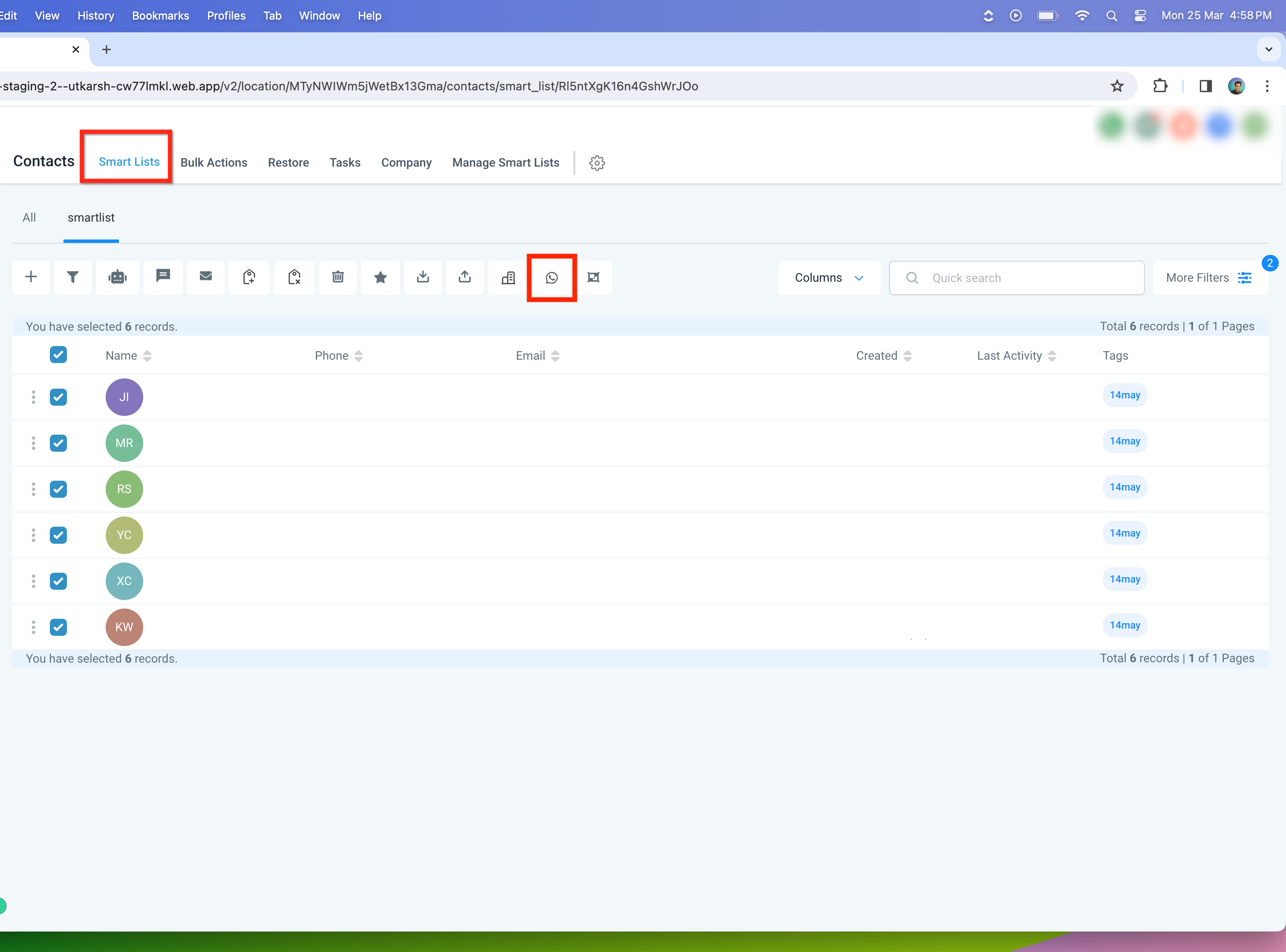
With patients selected, click the WhatsApp icon in the Bulk Actions toolbar.
Choose Send WhatsApp to begin a bulk WhatsApp campaign.
**
**
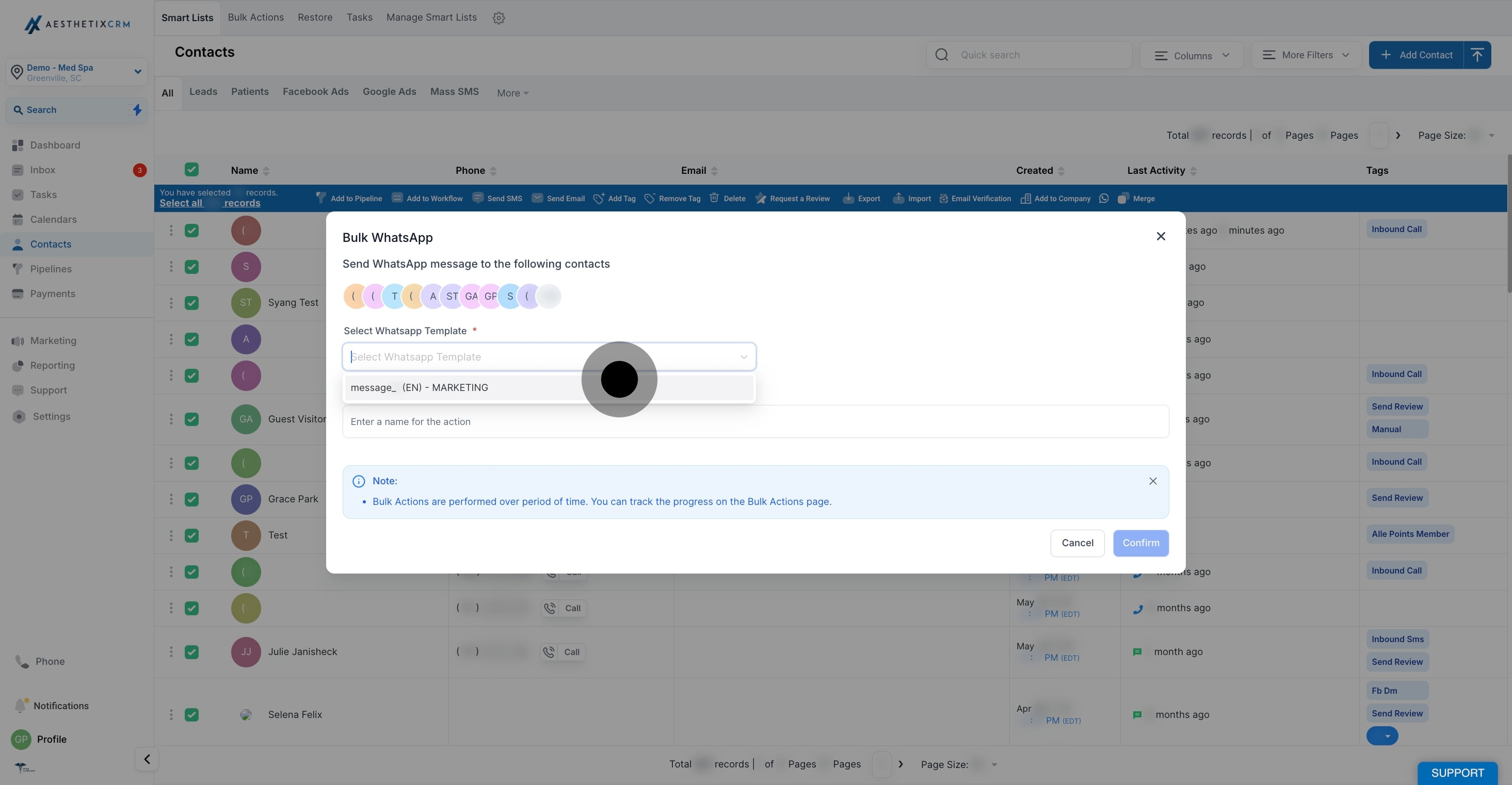
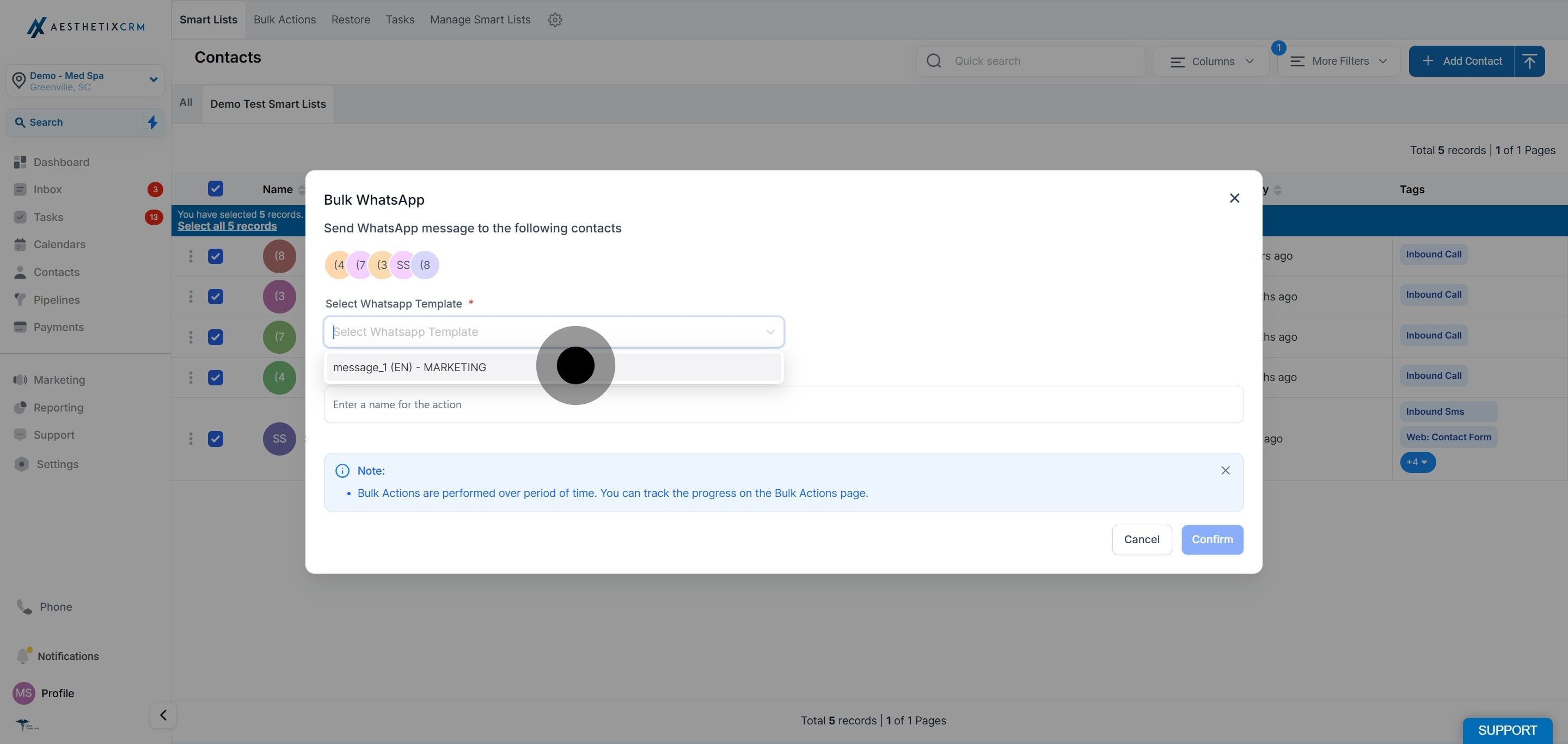
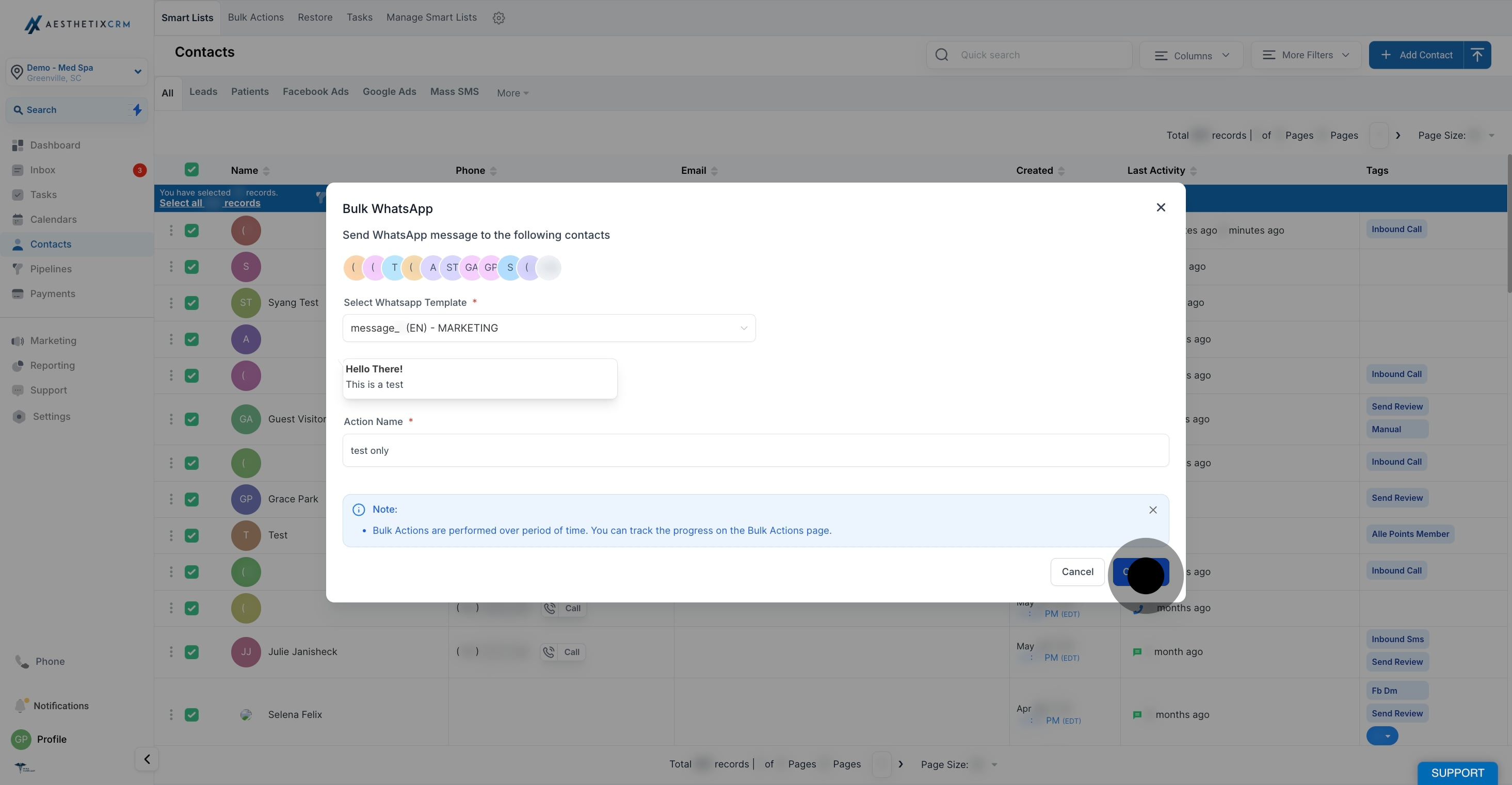
Choose a WhatsApp template from the template list.
A live preview of the template is displayed immediately. The preview shows:
Template message content
Template category (for example, Marketing or Utility)
Template language
**
**
Note: Only approved WhatsApp templates are visible during selection.
If the selected template contains media (such as an image or video):
Click Replace media in the template preview.
Select a file from your local device.
The media updates instantly in the preview.
This replaces the media only for this campaign and does not modify the approved template.
**
**
Enter an Action Name so you can reference and track the campaign later.
Choose how the campaign should be sent:
Send immediately
Schedule for a later time
Send in drip mode
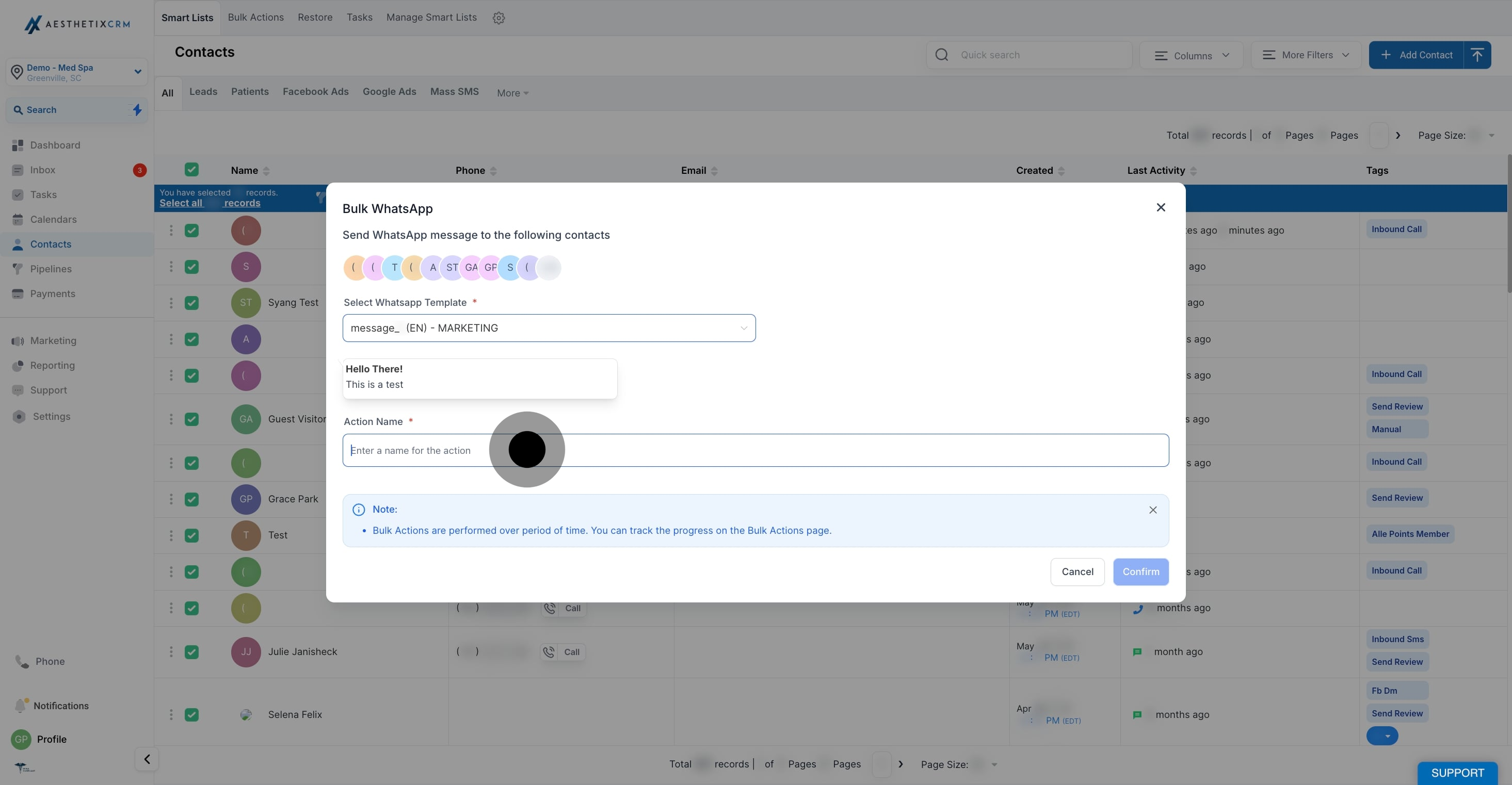
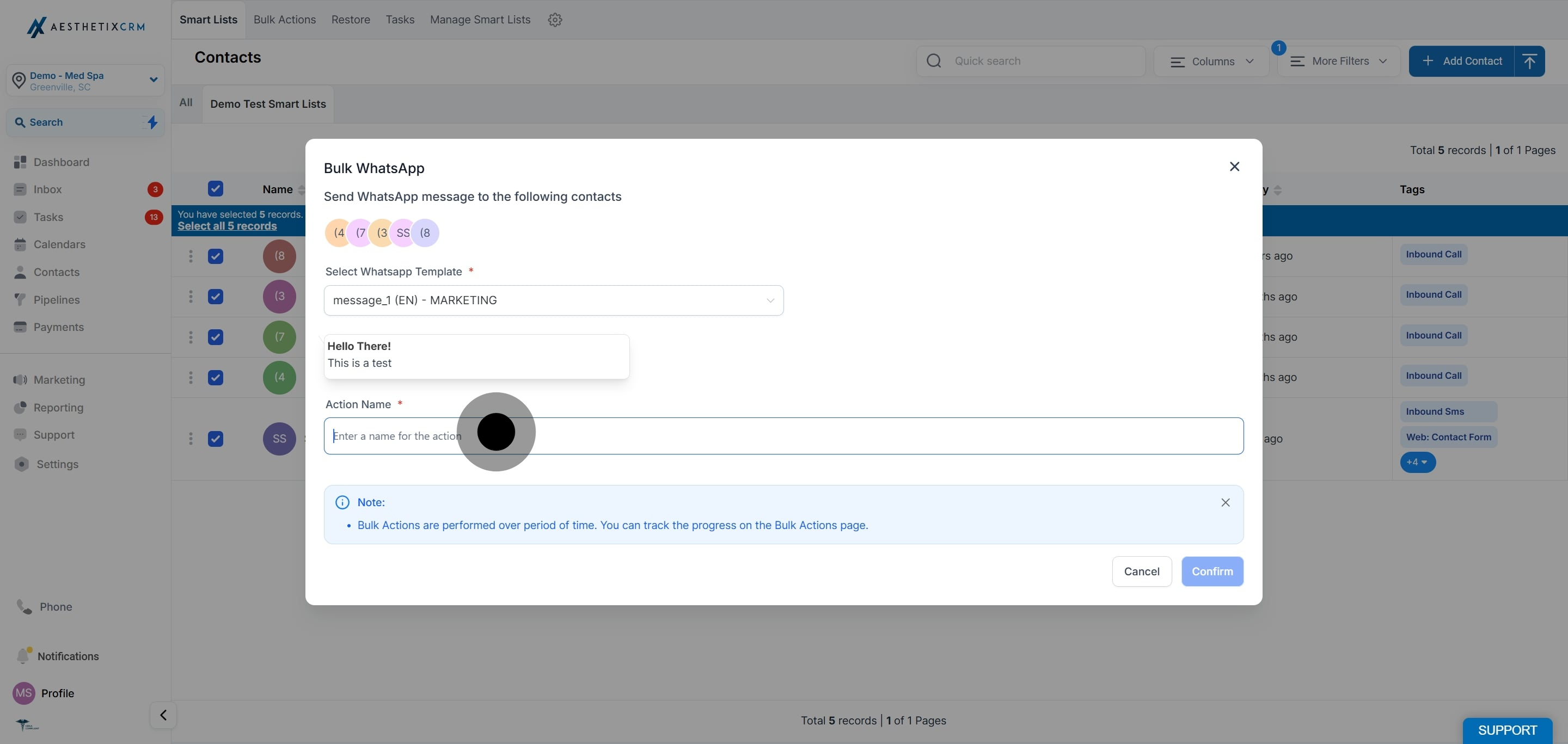
Review the campaign details.
Click Confirm to proceed.
The bulk WhatsApp campaign begins processing.
**
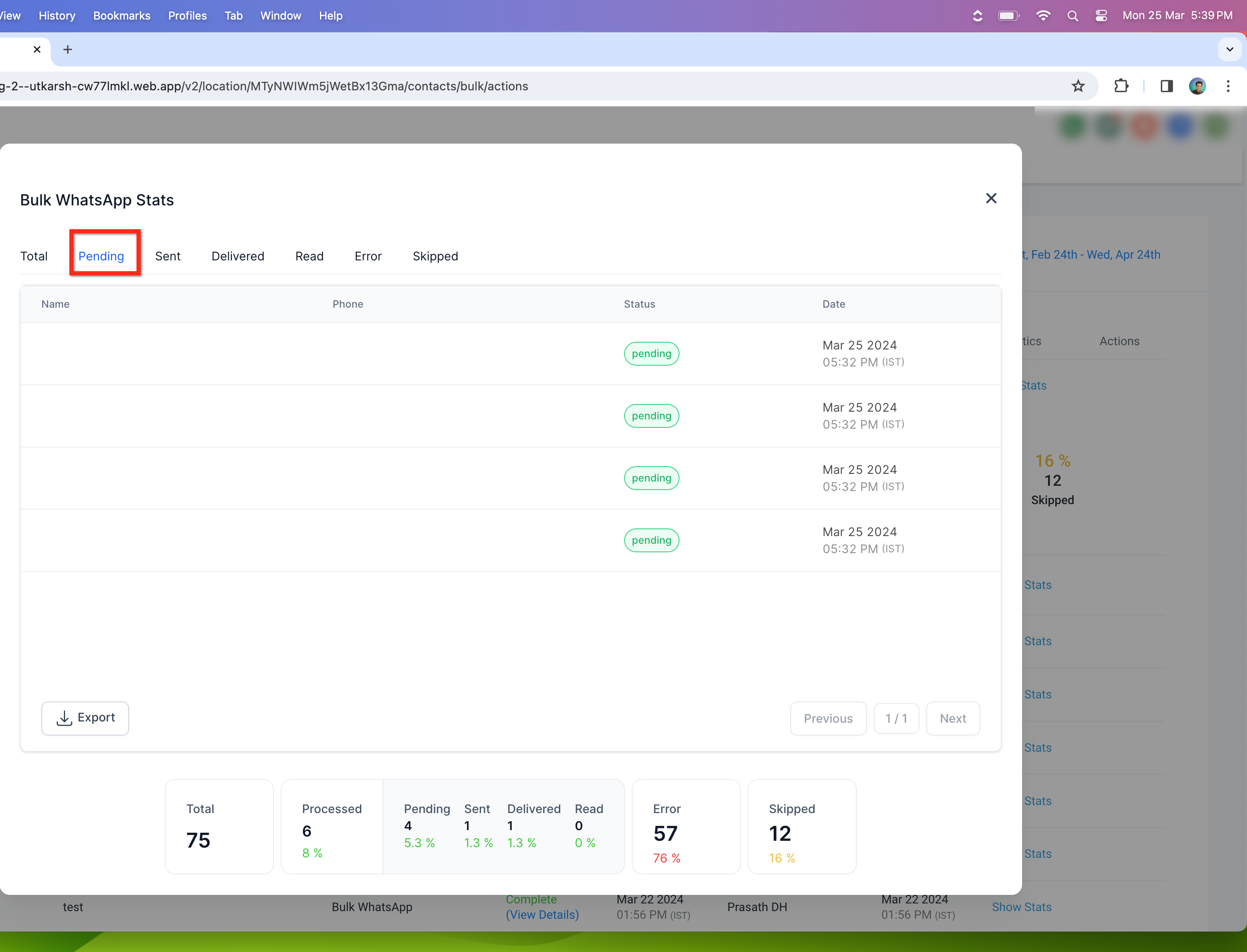
**
Note: Once your Meta messaging limit is reached, remaining WhatsApp messages will not be sent. Make sure your selected patients are within the 24-hour messaging window and that you do not breach the message limit Meta has set for your WhatsApp number when triggering a bulk action.
To keep your outreach effective when a WhatsApp message cannot be delivered, you can automatically fall back to SMS. This is especially useful for US patients, where Meta restricts marketing messages, and for other cases where Meta reports a delivery failure.
Navigate to the Bulk Messaging area under the Conversations tab.
Select WhatsApp as the primary channel for your message.
Create or import your recipient list.
In the Fallback Settings section, enable Fallback to SMS.
Enter a fallback message to use if the WhatsApp message fails. This message should comply with SMS formatting and character limits.
Review the fallback mapping to ensure it aligns with your campaign goals.
Click Send to launch your campaign.
Fallback to SMS activates when:
Meta explicitly returns a delivery failure (for example, "Message not delivered due to policy").
The recipient's WhatsApp account is inactive or unreachable.
The WhatsApp template is rejected after submission due to marketing content violations.
Fallback is not triggered for:
Soft delivery failures (temporary network issues or retries).
Manual message cancellations.
Unreachable destinations where SMS is not supported.
Tip: If you frequently send marketing content, use the Template Rewriter to adapt your templates into utility-compliant formats that Meta is more likely to approve. This reduces reliance on fallback and improves delivery.
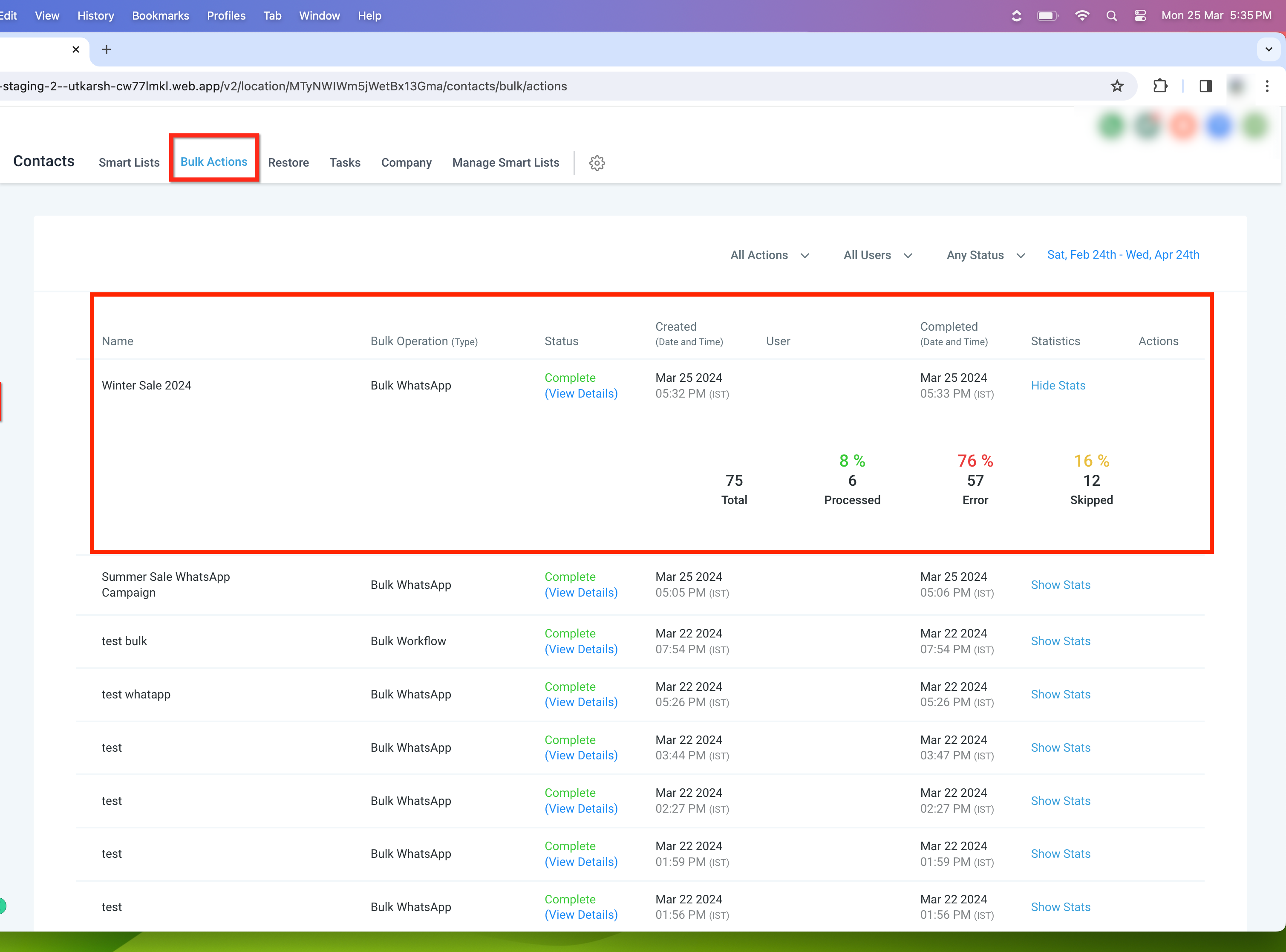
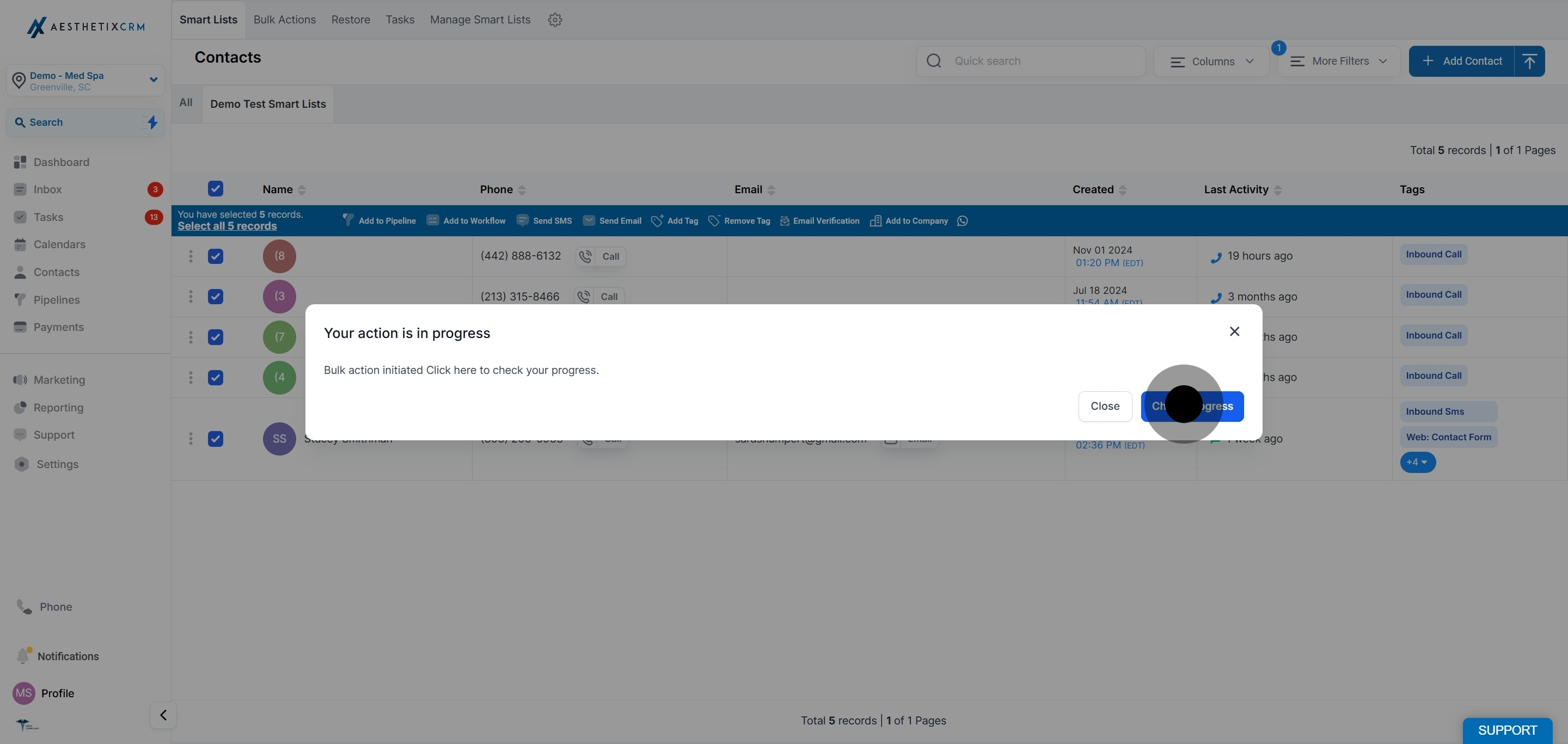
Go to Contacts → Bulk Actions.
Locate the WhatsApp campaign.
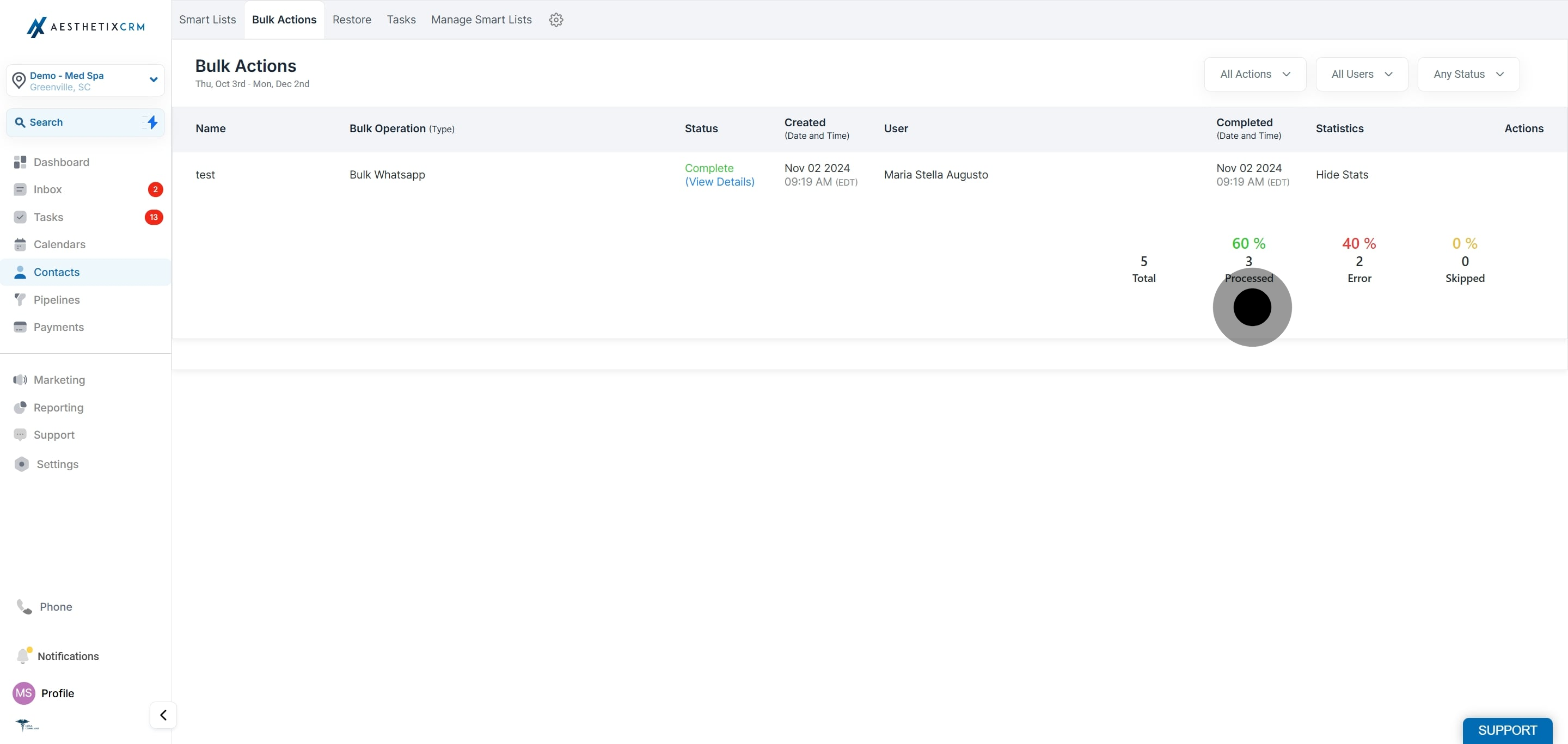
Click View Details or Show Stats to monitor progress.
**
**
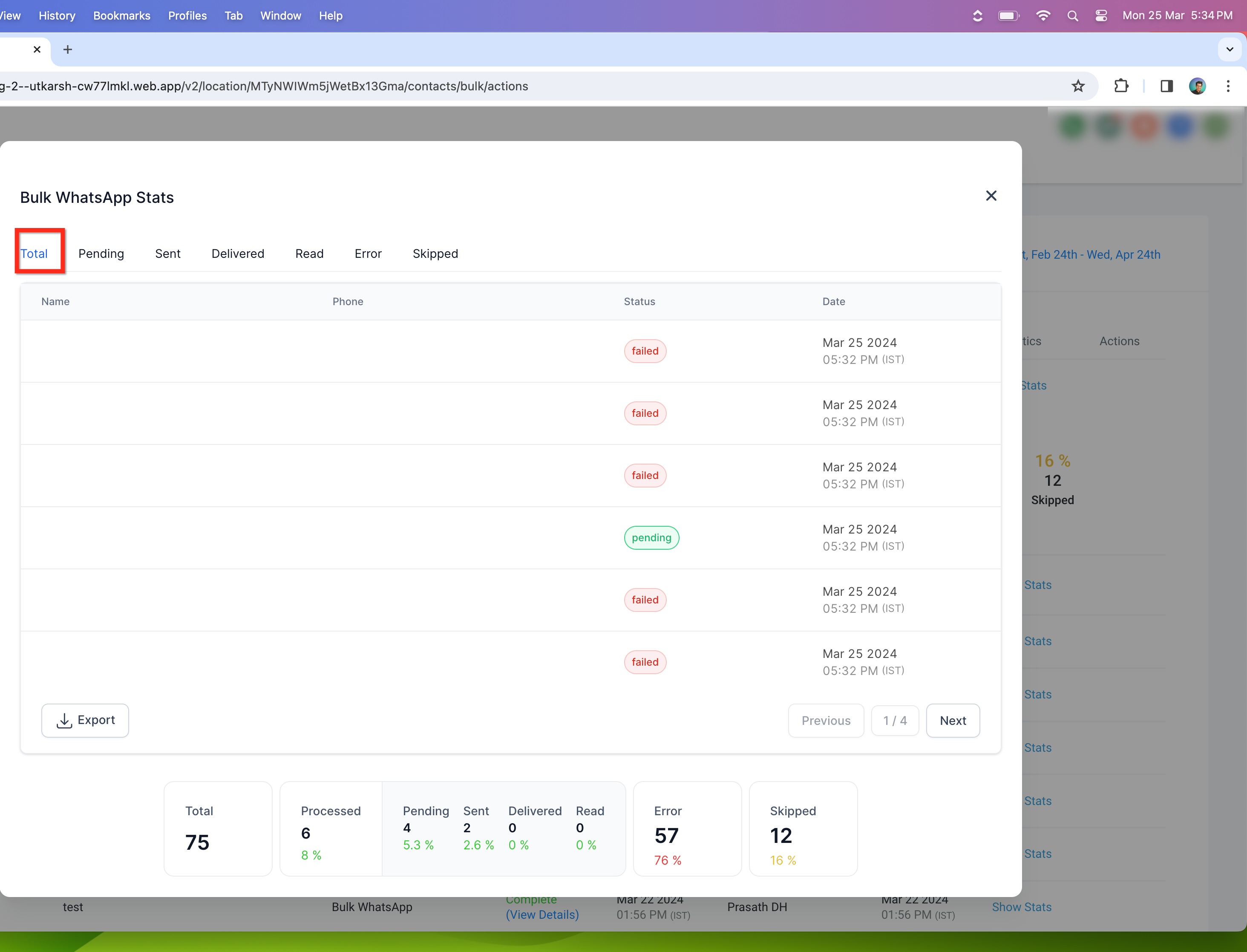
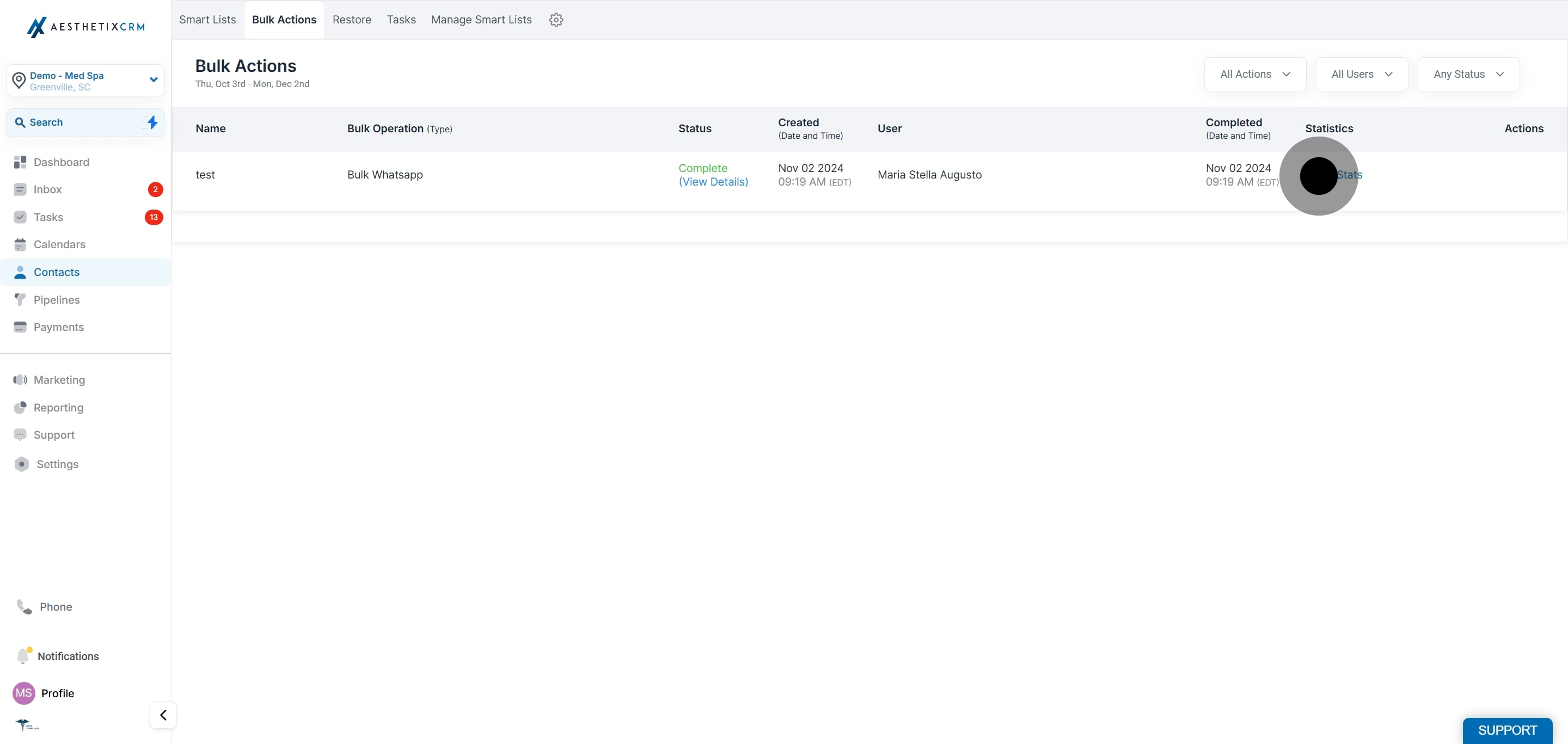
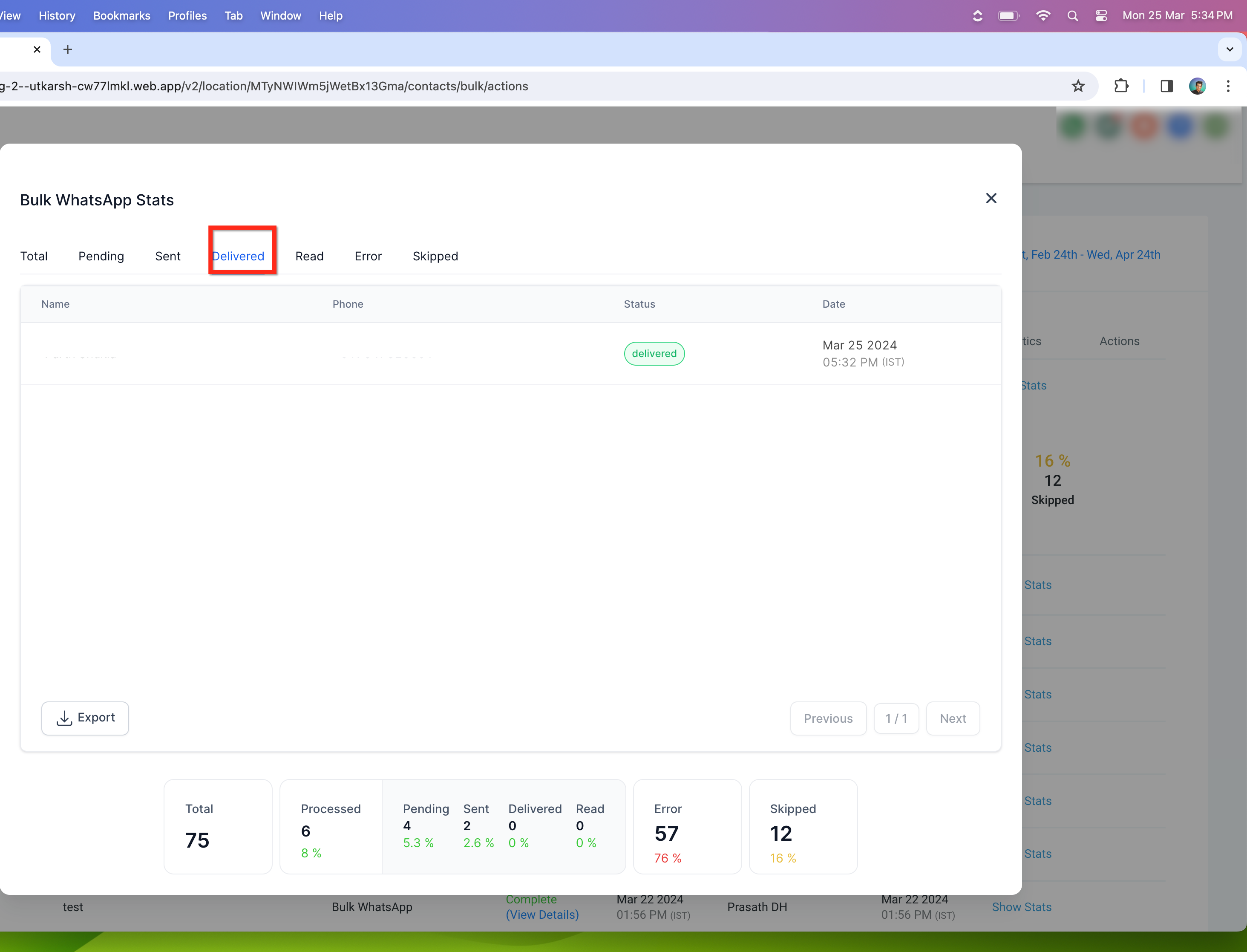
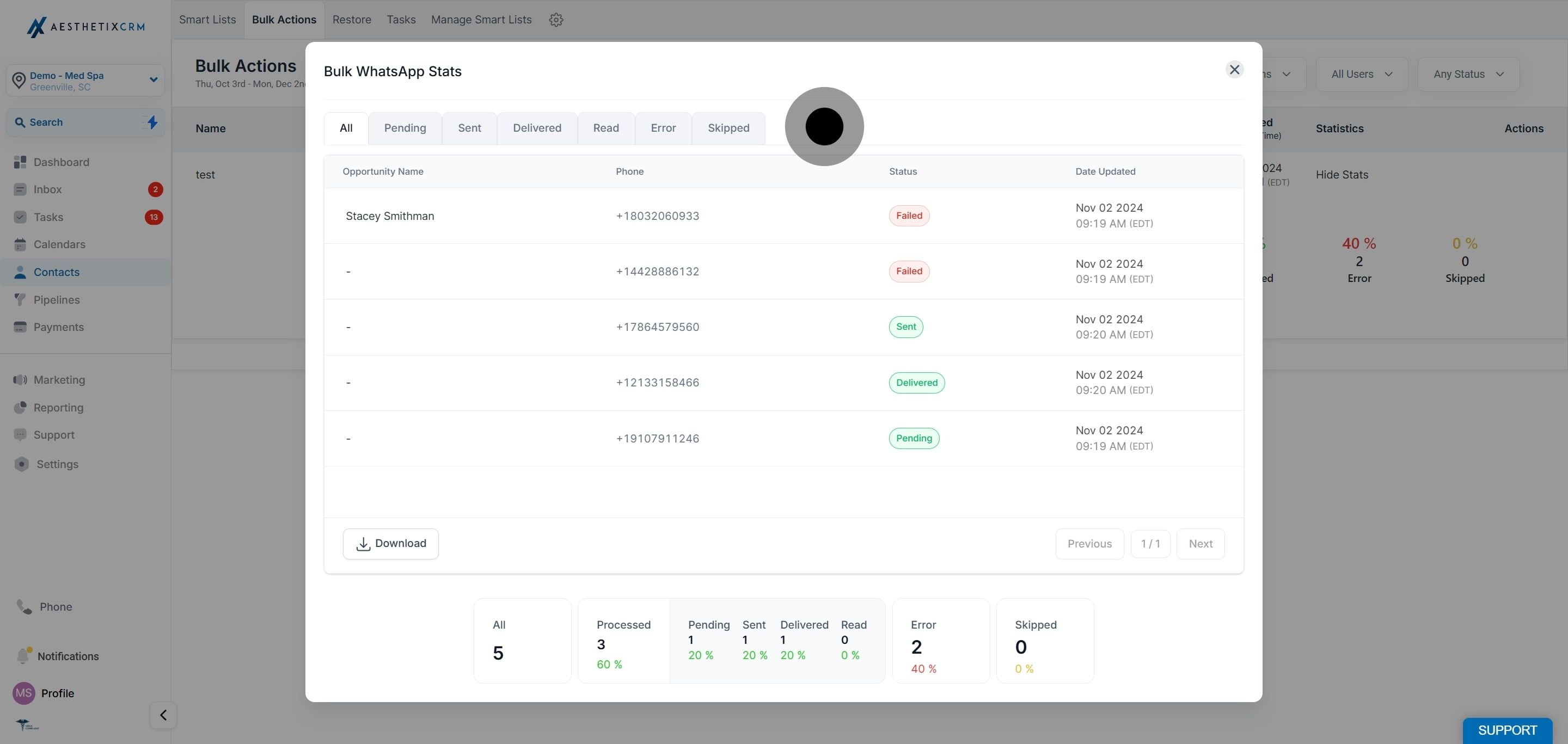
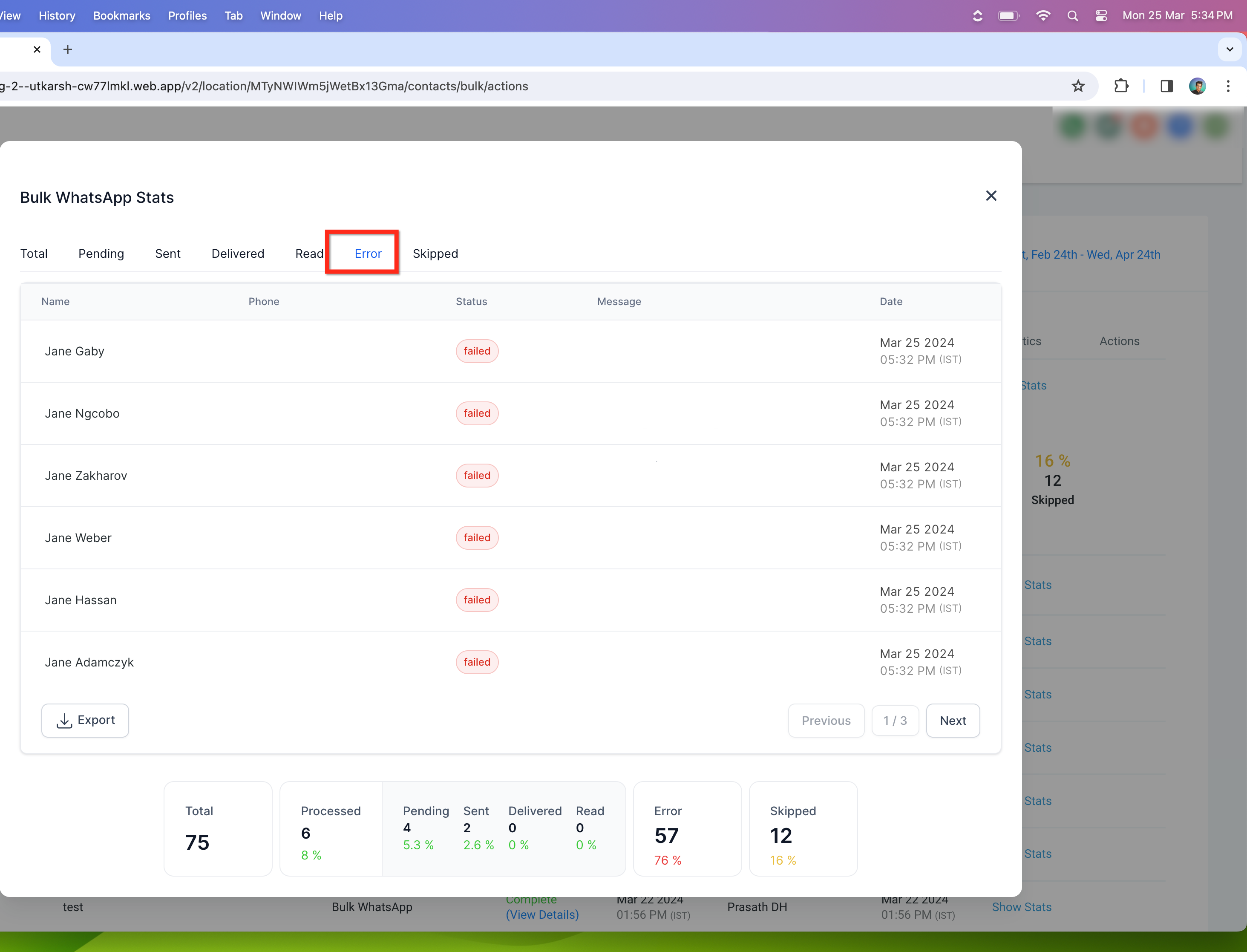
Opening campaign statistics displays a detailed view with tabs for Total, Pending, Sent, Delivered, Read, Error, and Skipped. You can also export campaign statistics for reporting.
**
**
Total: Total number of patients included in the bulk action.
Pending: Patients for whom the WhatsApp message has not yet been triggered.
Sent: Patients to whom the WhatsApp message has been sent.
Delivered: Patients who successfully received the WhatsApp message.
Read: Patients who opened and read the WhatsApp message.
Error: Patients for whom delivery failed. Reasons may include the contact not being on WhatsApp, template issues, the Meta messaging limit being exceeded, or WhatsApp account restrictions.
Skipped: Patients excluded from the campaign due to DND settings, a missing phone number, or messaging restrictions.
What happens if my Meta messaging limit is breached during an ongoing WhatsApp bulk action?
Messages for patients beyond the limit will fail and appear under Error in your campaign statistics. Any remaining WhatsApp messages will not be sent.
What is the rate limit for sending bulk WhatsApp messages?
WhatsApp messages are sent at a rate of up to 1,000 messages per hour, subject to Meta limits.
What is the Meta messaging limit?
Meta messaging limits control how many new business-initiated conversations you can start within a rolling 24-hour period. To check your current limits, go to WhatsApp Manager → Overview Dashboard → Insights in Meta. If your tier quota is complete, you will not be able to initiate additional business conversations until the quota resets.
What is a quality rating and how does it affect my messaging limit?
Quality rating reflects patient feedback over a seven-day period. Low ratings can reduce your messaging limits. To maintain a high rating, follow WhatsApp Business and Commerce policies, message only opted-in patients, personalize your messages, and avoid excessive messaging frequency.
Does SMS fallback apply to individual messages too?
No. Fallback currently applies only to bulk actions (campaigns and mass messaging), not to one-off individual messages.
Will I be charged for both WhatsApp and SMS if fallback is triggered?
Only the successful channel is billed. If a WhatsApp message fails and an SMS is sent instead, you are billed for the SMS. If both WhatsApp and SMS fail, both failures are reported in the delivery log and no further retries are attempted.
Can I customize the SMS fallback message, and are there content limits?
Yes. During setup you can define a custom SMS message specific to the fallback case. SMS messages must comply with your carrier's regulations, character limits, and opt-in/opt-out requirements.
Is SMS fallback available globally?
Fallback is primarily designed for US-based WhatsApp failures but can also apply in other countries when Meta reports a delivery failure. It affects only the specific bulk action and does not alter any automation sequences or follow-ups you have configured separately.
How can I monitor fallback success rates?
Use the Message Delivery Reports available in the Conversations or Reporting areas to track fallback triggers and SMS success rates.
