Sharing media over WhatsApp lets your practice send before-and-after imagery, aftercare instructions, price sheets, consent forms, and other files directly inside a conversation. You can send media manually from the Conversations composer, reuse files from Media Storage, or automate delivery with a workflow. This guide covers what you can send, how to add captions, and how to save received media to a contact's record for long-term access.
Note: WhatsApp media messages can only be sent while the 24-hour customer service window is open. The window opens each time the customer sends you an inbound WhatsApp message and lasts 24 hours from the timestamp of that message. To reopen a closed window, send an approved WhatsApp message template (marketing or utility).
Note: WhatsApp is not a HIPAA-compliant channel. Avoid sending or requesting protected health information (PHI) over WhatsApp, including photos of treatment areas, patient records, or anything that identifies a patient's care. Use your account's secure tools for clinical media.
Files must match the supported formats and size limits below before they can be sent successfully. These limits apply to media sent from the composer, from Media Storage, and from a workflow.
Media Type | Supported Formats | Maximum File Size |
|---|---|---|
Images | PNG, JPG, JPEG | 5 MB |
Videos | MP4, 3GP (H.264 video + AAC audio) | 16 MB |
Audio | AAC, AMR, MP3, M4A, OGG (OPUS) | 16 MB |
Documents | TXT, PDF, DOC, DOCX, XLS, XLSX, PPT, PPTX | 100 MB |
Trying to send a file larger than these limits will return an error from the WhatsApp API.
Composer uploads let you send a file from your device while replying to a WhatsApp conversation. This is helpful when the file is local, newly created, or not already stored in Media Storage.
To send media from the composer:
Open Conversations and open the contact's WhatsApp conversation.
Confirm that WhatsApp is selected as the message channel.
Click the attachment option in the composer.
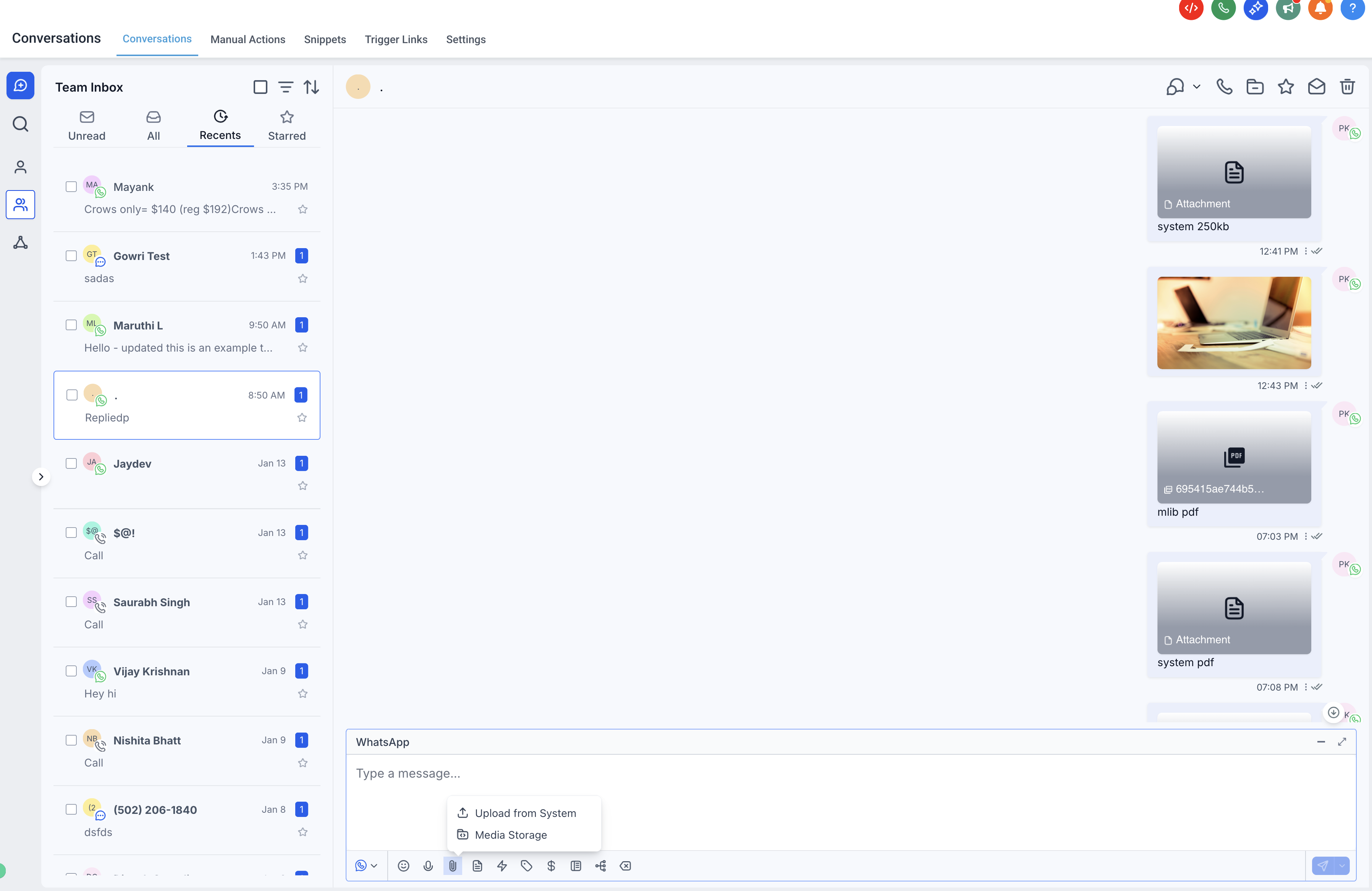
Upload a supported file from your device.
Enter message text if you want to include a caption.
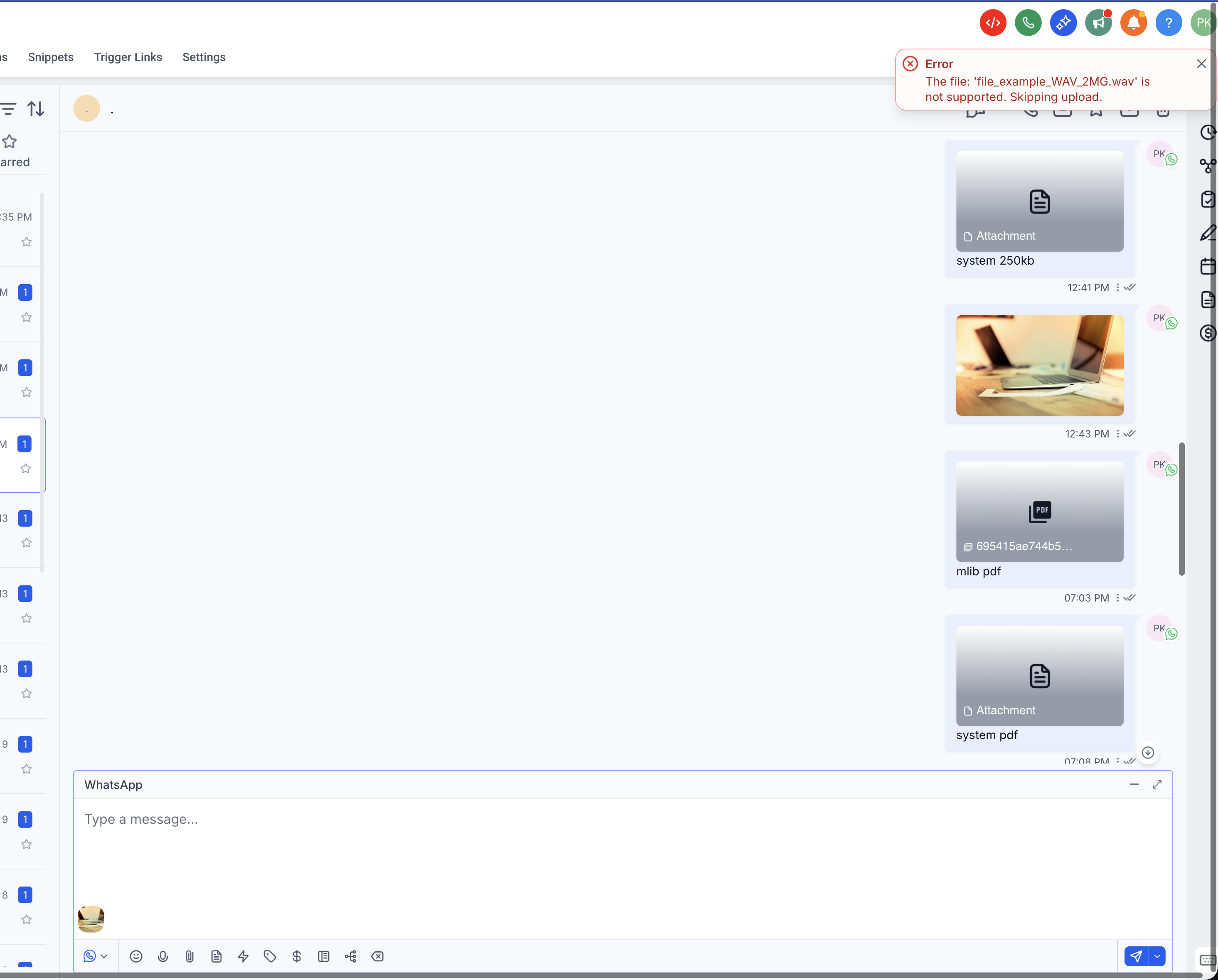
Send the message.
When media and text are sent together, the composer text is used as the caption for the media, rather than sending the text and the file as two separate messages.
Media Storage attachments let you reuse files that are already uploaded to your account, which is useful for frequently shared assets such as brochures, price sheets, aftercare documents, service menus, or videos. Media Storage is a centralized place to upload, organize, preview, and manage files.
To send media from Media Storage:
Open Conversations and open the contact's WhatsApp conversation.
Confirm that WhatsApp is selected as the message channel.
Open the attachment or Media Storage option in the composer.
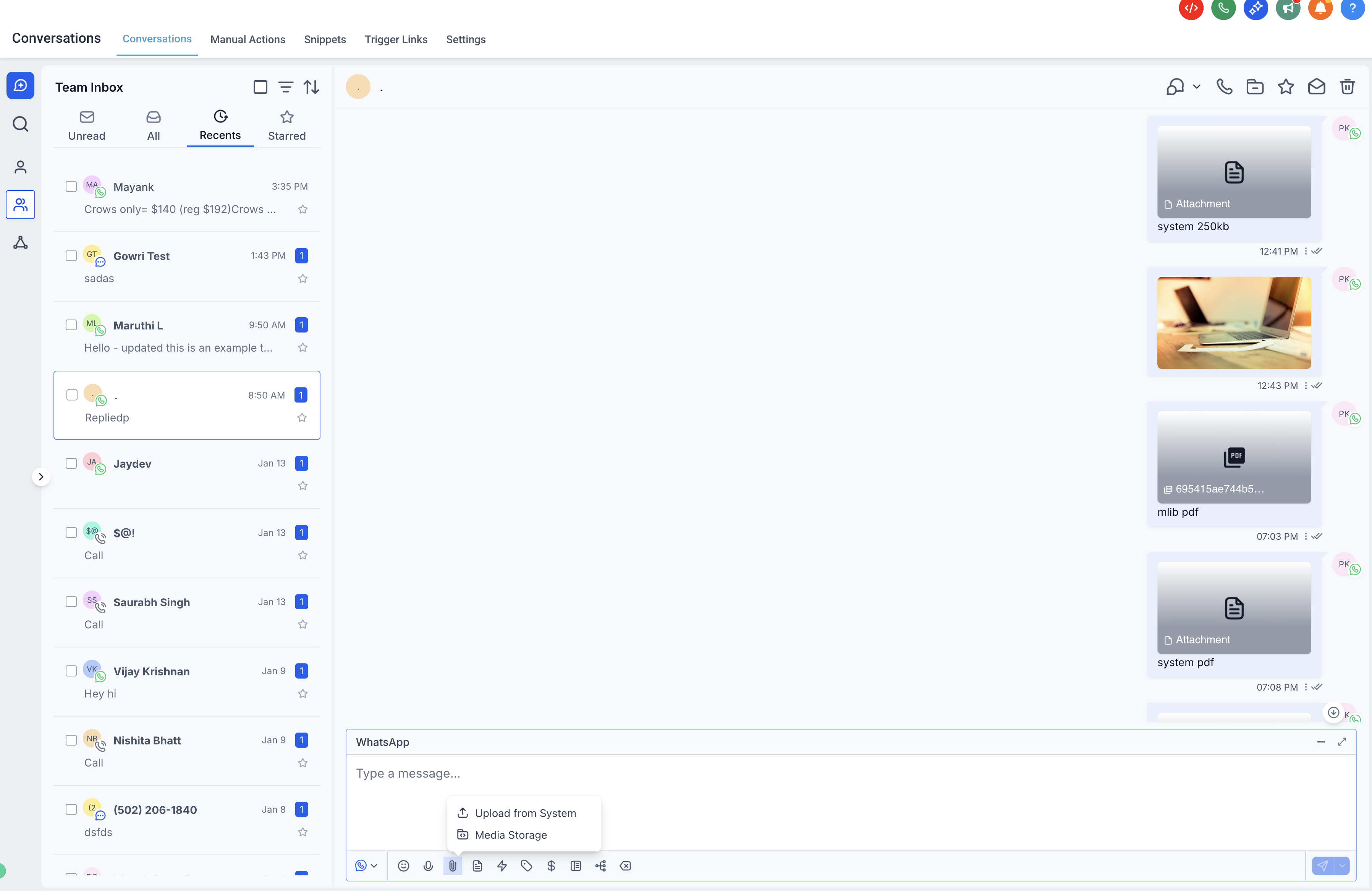
Browse or search for the file you want to send.
Select one or more supported files.
Add text in the composer if you want to include a caption.
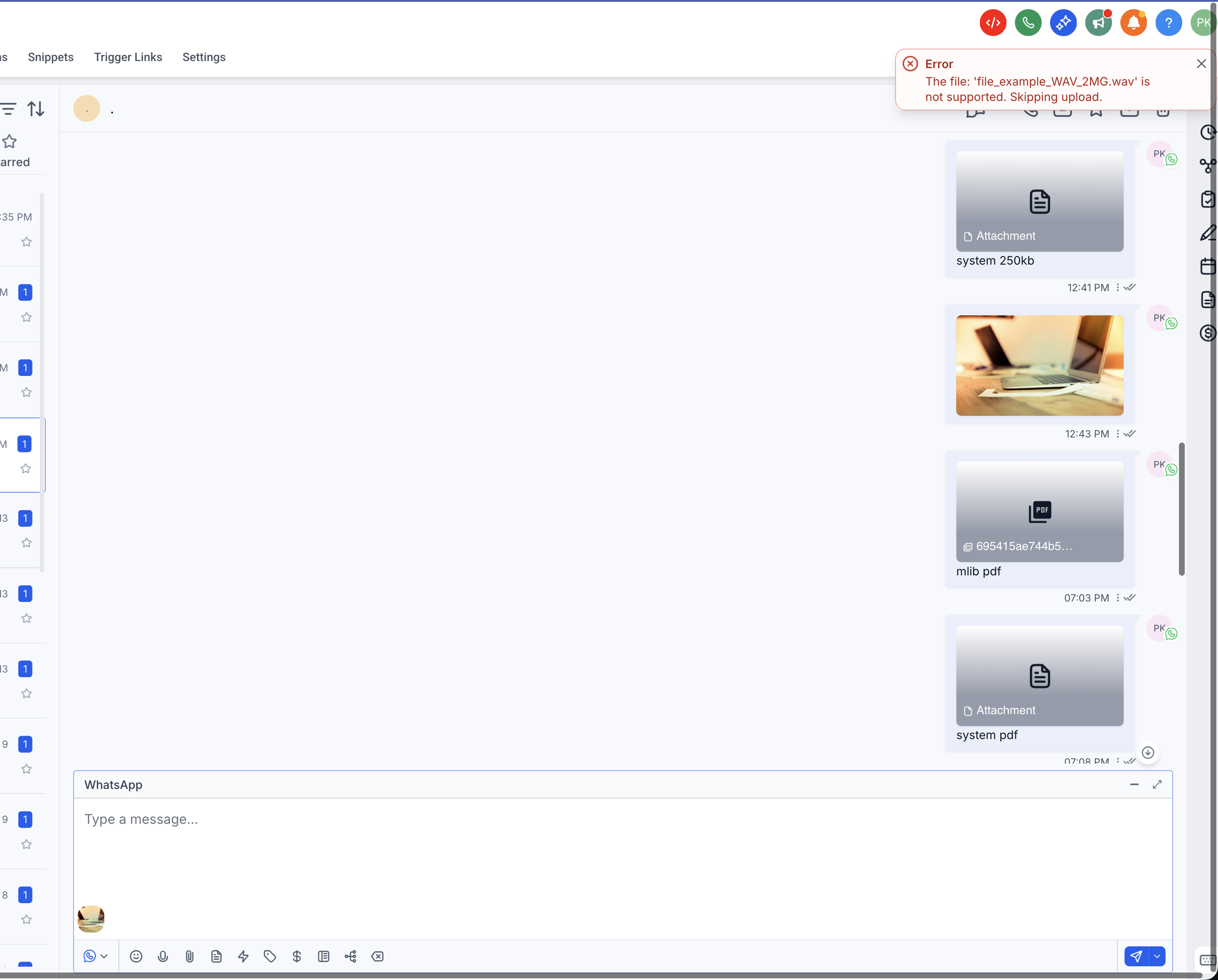
Send the message.
Captions give recipients helpful context about the media they receive. Instead of sending an attachment with no explanation, you can include text that explains what the file is, why it was sent, or what the recipient should do next.
Captions are supported for images, videos, and documents.
Captions are not supported for audio files; any text entered in the caption field for audio is ignored.
Captions are supported for media sent from both composer uploads and Media Storage attachments.
When multiple attachments are sent with text in the composer, that text is automatically used as the caption across the sent attachment messages, which keeps text and attachments from being separated unexpectedly.
The WhatsApp Media action automates the delivery of images, videos, documents, and audio directly from a workflow, so files can go out as part of an automated sequence.
Go to Automation and search for the WhatsApp Media action.
Add a WhatsApp: Customer Service Window Check step so the media is only sent while the 24-hour window is open.
Select the FROM number, choose the media type, upload the media, and add any captions.
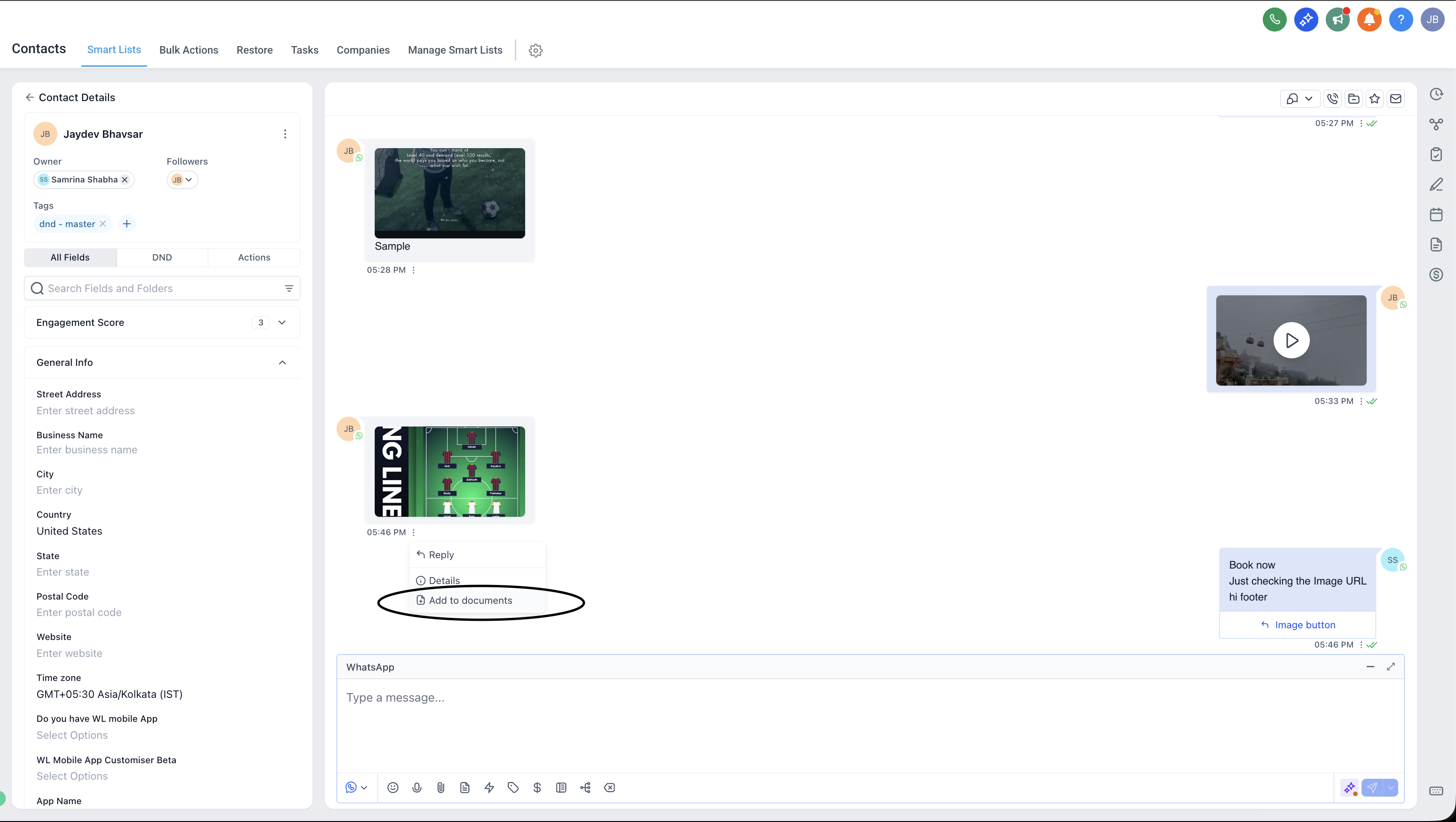
WhatsApp media assets expire, which can prevent you from accessing important files later. The Add to Documents flow saves a message attachment to the contact's Documents tab so customer-submitted files, signed assets, proof documents, and other business-critical attachments stay available long term.
Add to Documents is available on all inbound and outbound WhatsApp media messages (images, videos, PDFs, audio, and other files). Saved attachments are stored in the contact's Documents for 1 year from the time they are saved, mirroring the familiar Email and SMS attachment experience.
To save WhatsApp media to Documents:
Open Conversations and select a thread with WhatsApp messages containing media.
On the media message, open the message actions (the three-dot or ellipsis menu).
Click Add to Documents.
Watch for the success toast confirming the attachment was saved.
Go to Contacts > [Contact Name] > Documents to verify the file appears.
Media expired: The original file is no longer available from WhatsApp. Ask the contact to resend it, then use Add to Documents promptly.
Permission denied: Confirm the user has access to Conversations and to the contact's Documents.
File type or size issue: Verify the attachment meets the supported types and limits above.
Network or transient error: Retry saving after a few seconds.
Are media messages free inside the 24-hour window?
There is no extra charge for attaching media. Media sent during an open customer service window counts as a service message: the first 1,000 per phone number each month are free, and messages beyond that allowance are billed per message as of October 1, 2026.
What happens if I try to send media after the 24-hour window closes?
The media message will fail. To reopen the window, send an approved WhatsApp message template (marketing or utility) to the customer.
Can I add captions to every media type?
Captions are supported for images, videos, and documents. Captions are not supported for audio files; any text entered in the caption field for audio is ignored.
Why does the CRM show a generic attachment icon after sending media?
Successfully sent attachment messages may display a generic attachment icon. This is current expected behavior.
How long is WhatsApp media available for download?
Inbound media received from users is available for 7 days from the time it was sent. Outbound media sent by your business is available for 30 days. After this period the media link expires and the file can no longer be accessed. If you need to keep important media longer, download and store it securely, or use Add to Documents within that window.
Does Add to Documents work for both inbound and outbound WhatsApp media?
Yes. The option is available on all inbound and outbound WhatsApp media messages.
How long are saved WhatsApp files kept in Documents?
One year from when the file is saved.
What happens if the media already expired on WhatsApp when I try to save it?
The save action will fail. Ask the contact to resend the file and save it before it expires.
Where do I find saved files later?
Open the contact record and go to Documents to view or manage saved files.
Can I save multiple attachments from a single message?
Add to Documents applies per media item. If a message contains multiple attachments, repeat the action for each one.
Does deleting a file from Documents affect the conversation message?
Deleting from Documents removes the stored copy in the contact record. The original conversation message remains unchanged.
