WhatsApp lets your practice message patients on a channel they already use every day. From the Inbox, you can start or continue a WhatsApp conversation, send an approved template, and pick which connected WhatsApp number the message comes from. This keeps every conversation tied to the correct business identity and helps you stay within WhatsApp's messaging rules.
You can send a WhatsApp message to a patient directly from their conversation in the Inbox. When you need to start or reopen a conversation outside the 24-hour customer service window, use an approved WhatsApp template.
Open Contacts.
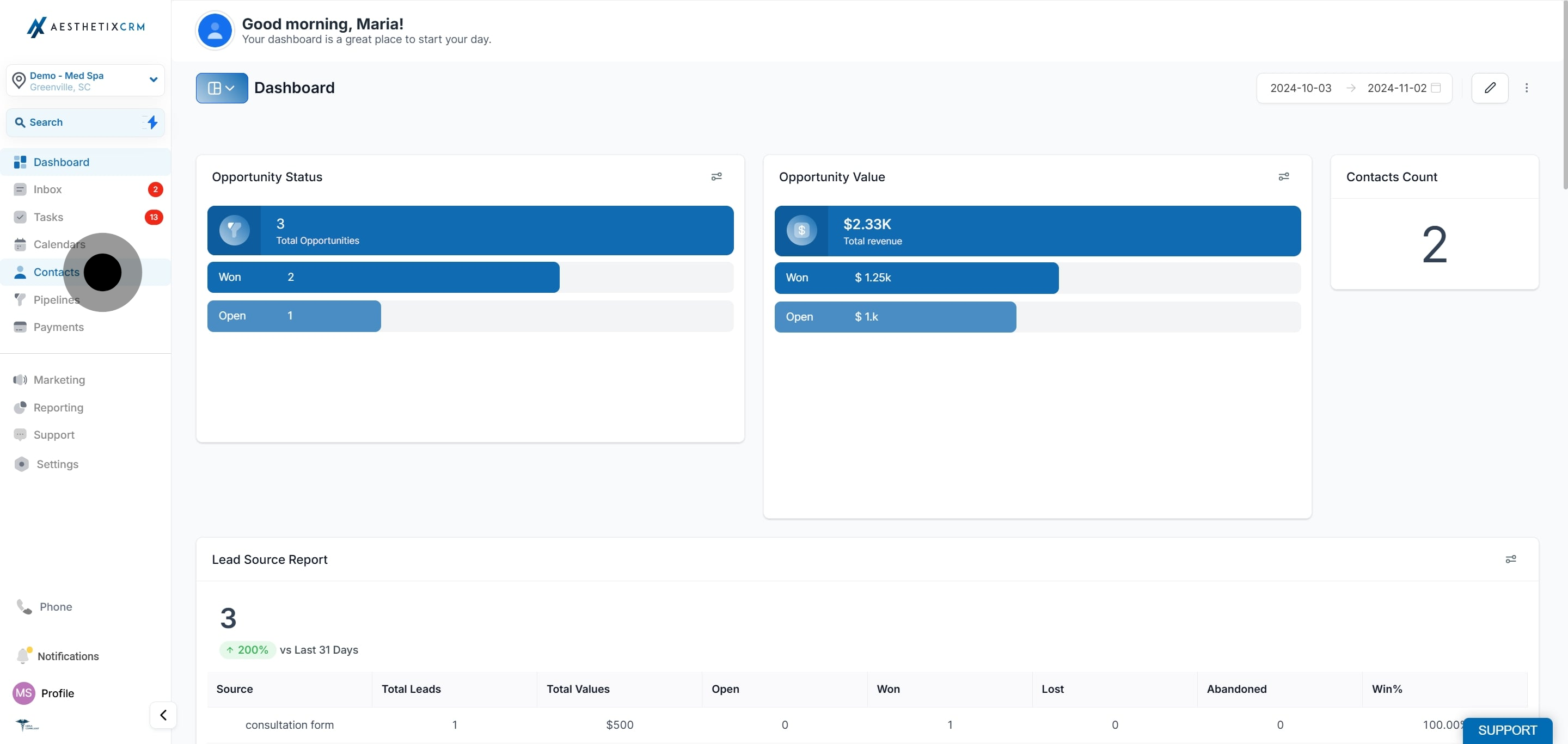
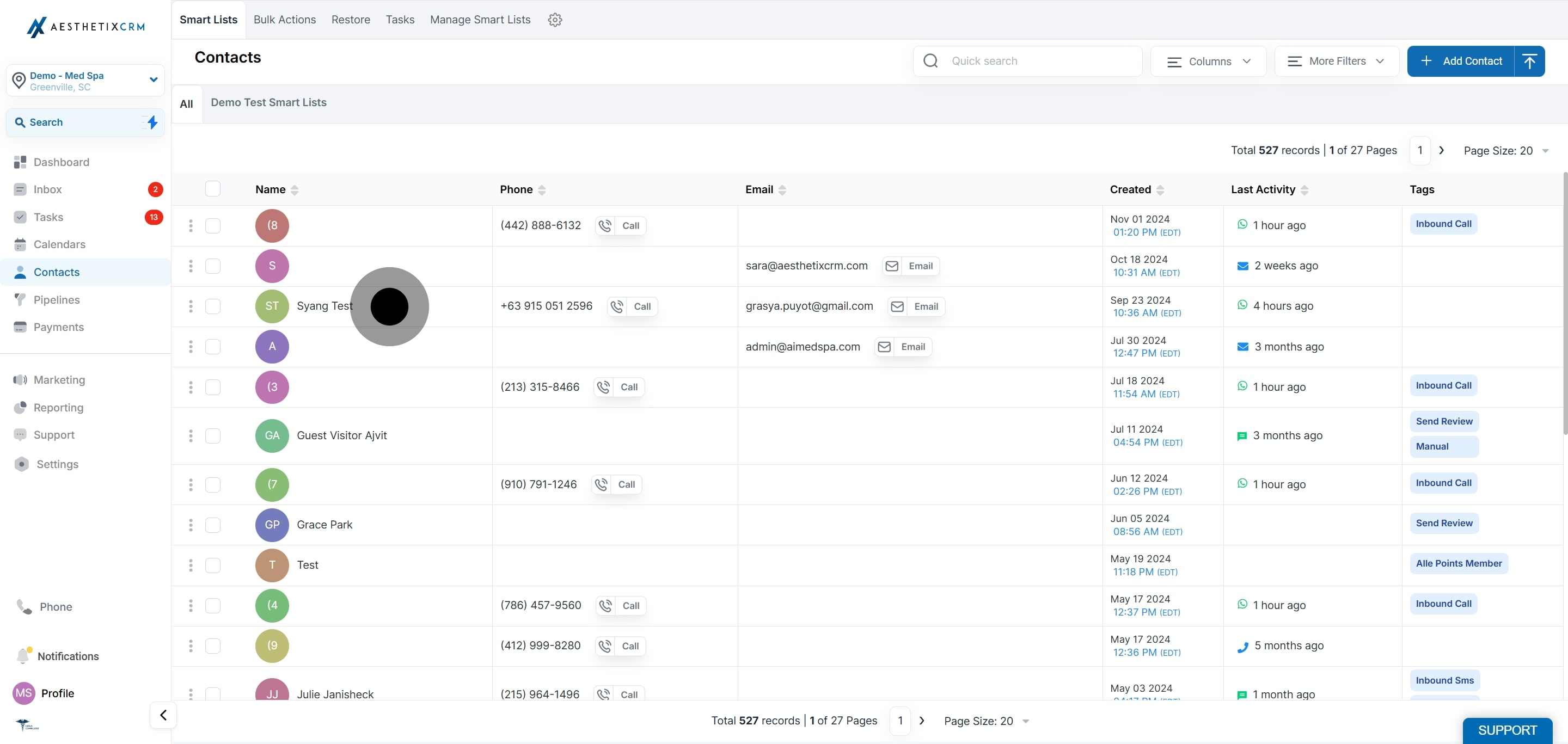
Select the contact you want to send a WhatsApp template to.
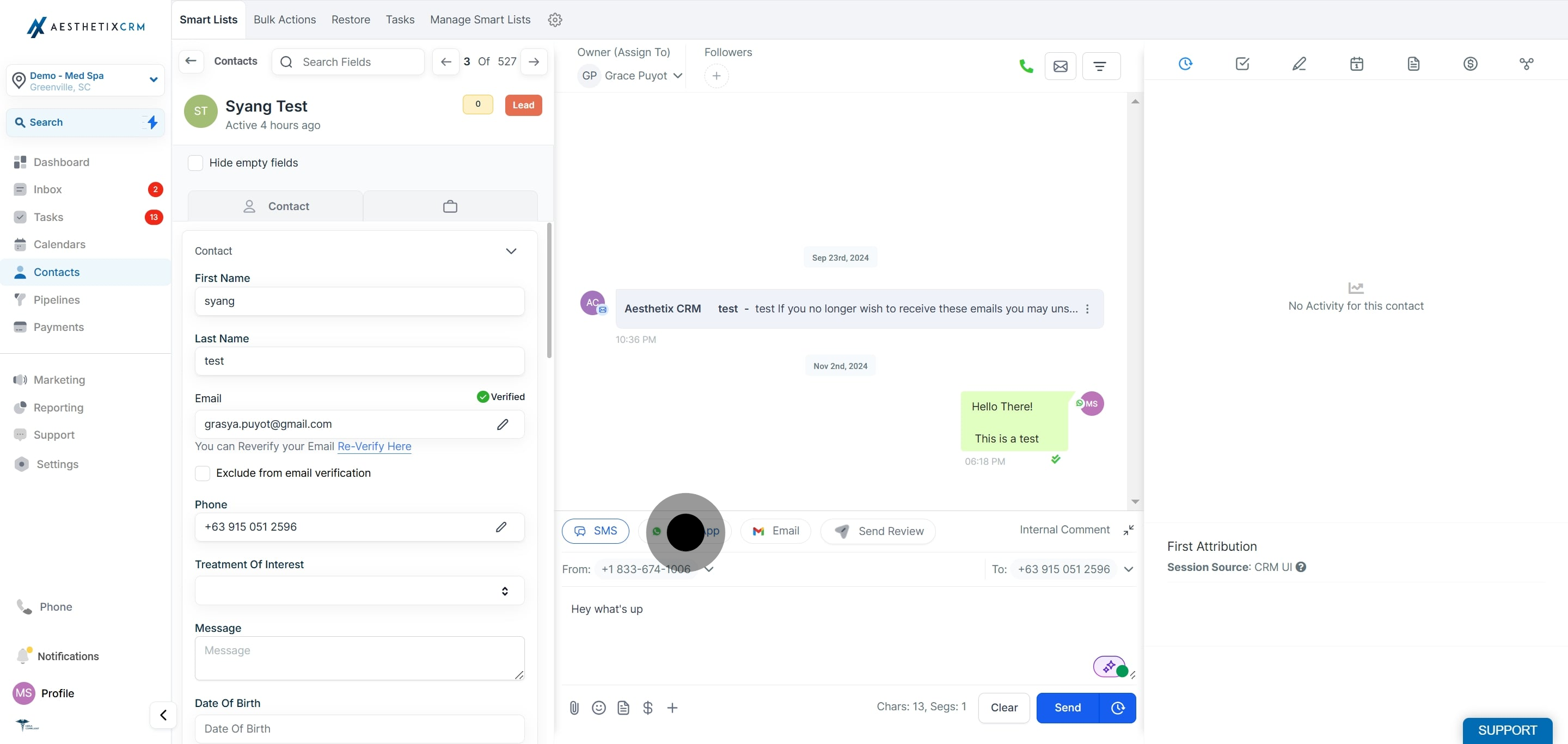
Click WhatsApp.
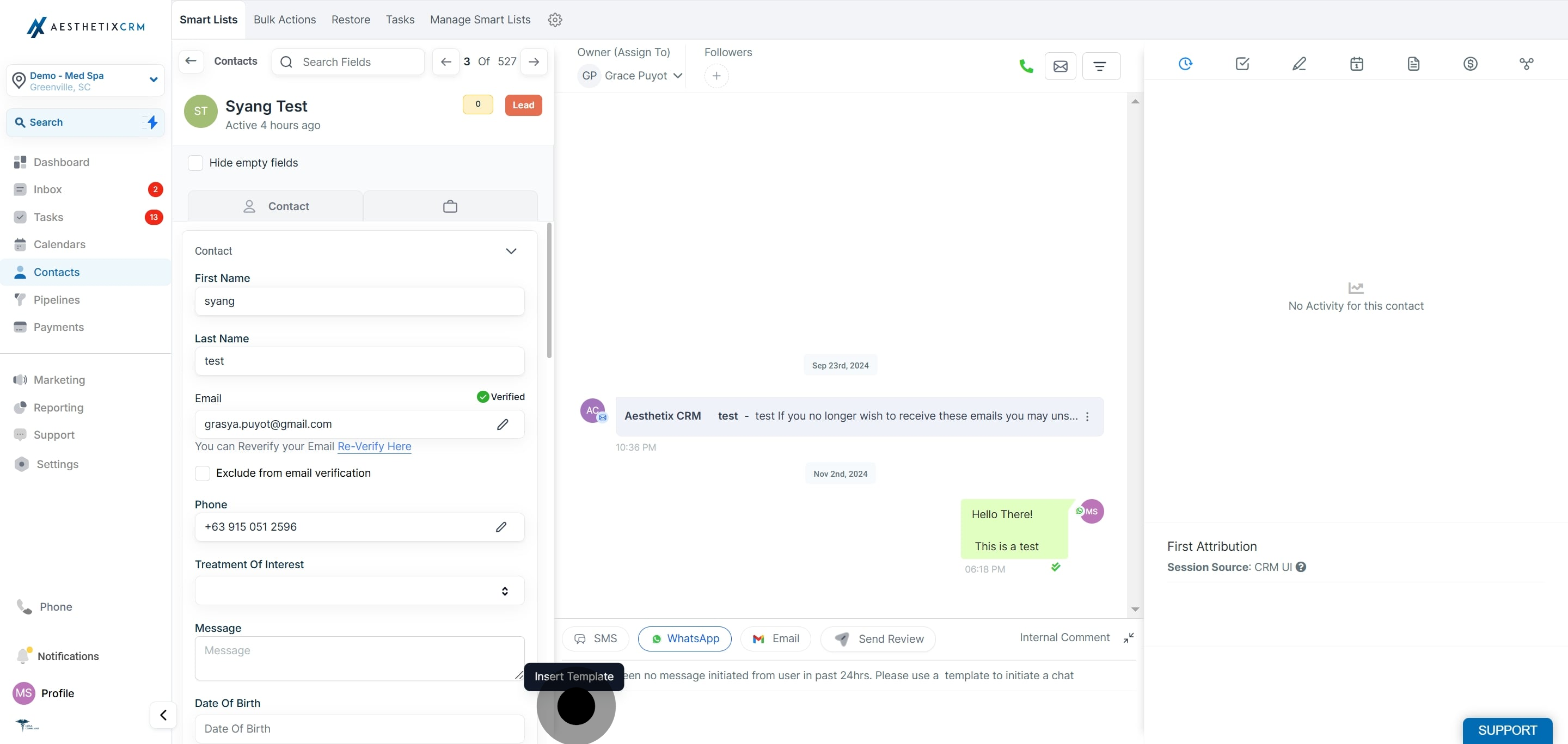
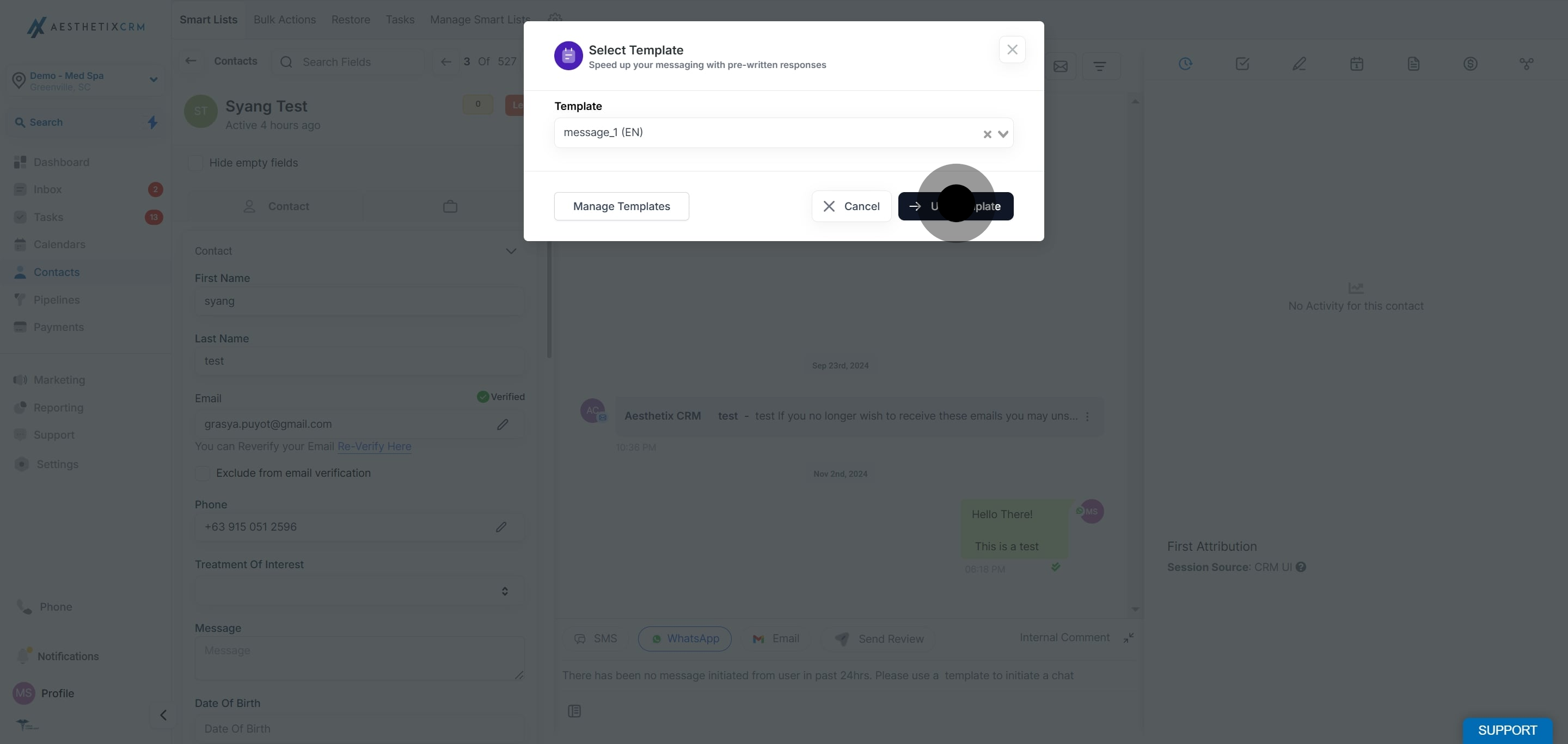
Use Insert Template to initiate the chat.
Select the template you want to send.

Click Use Template.
Click Send.
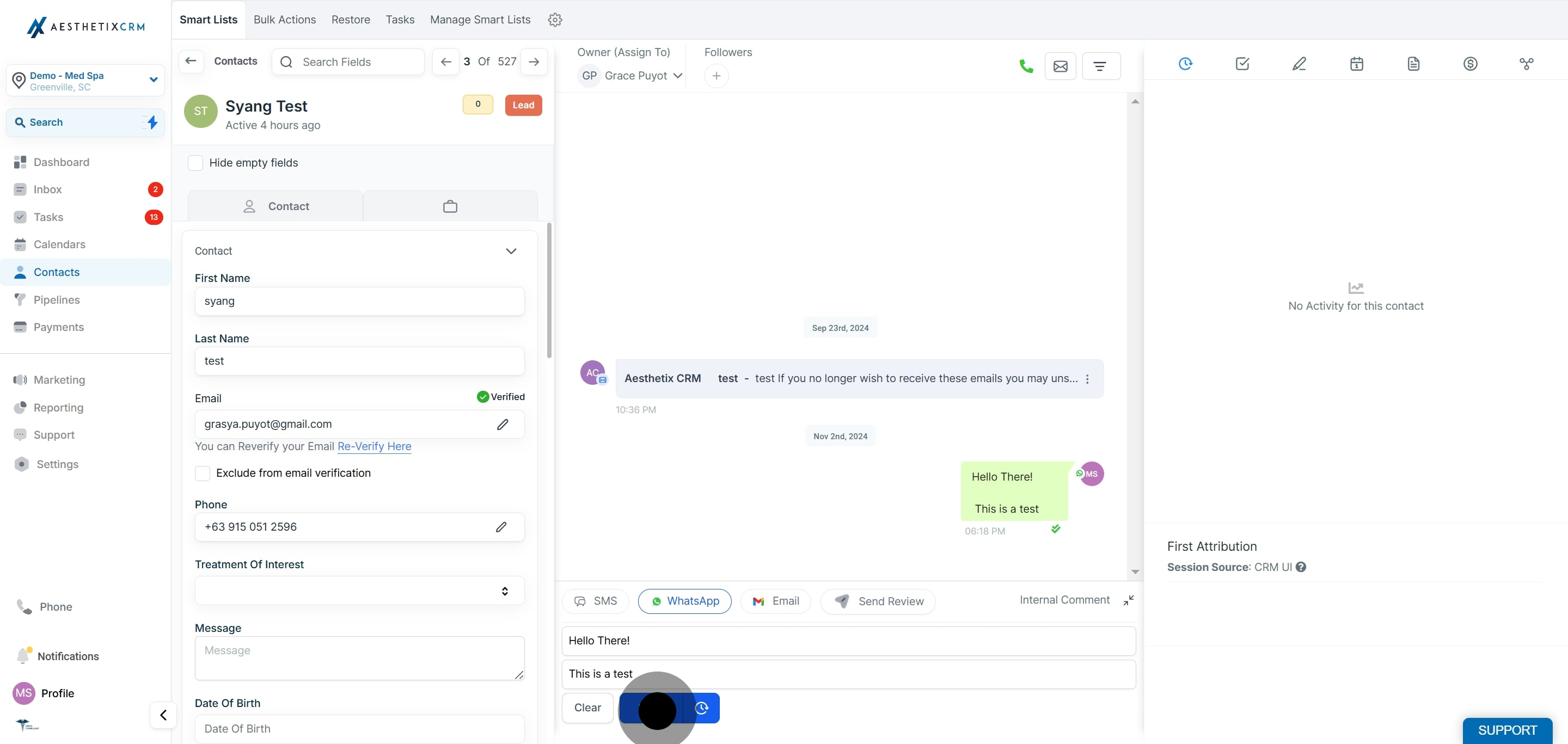
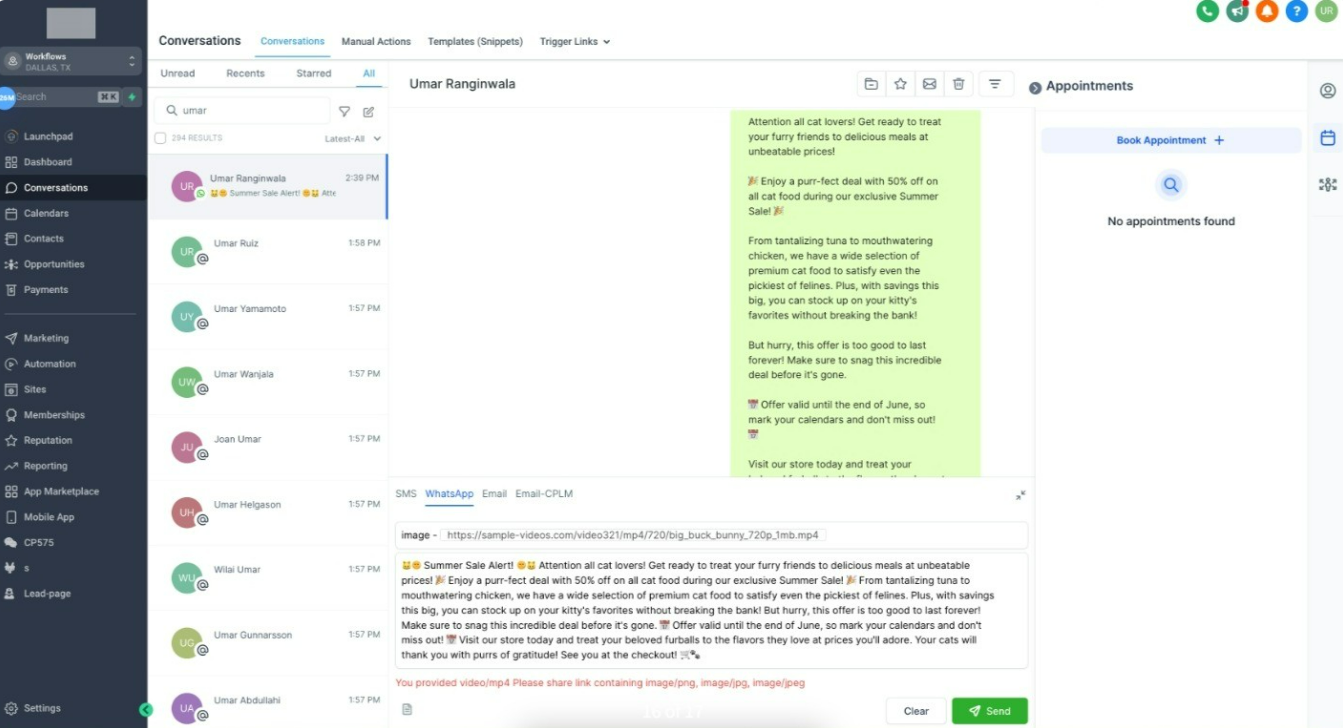
You can change the media in a template by changing the media URL. The URL should be a public link and must contain the same type of media as the template. For example, if it is an Image template, it will only accept PNG and JPEG files.
You will see an error when you use media that is not approved. For example, if you try to add a video file to an Image template, the following error appears.
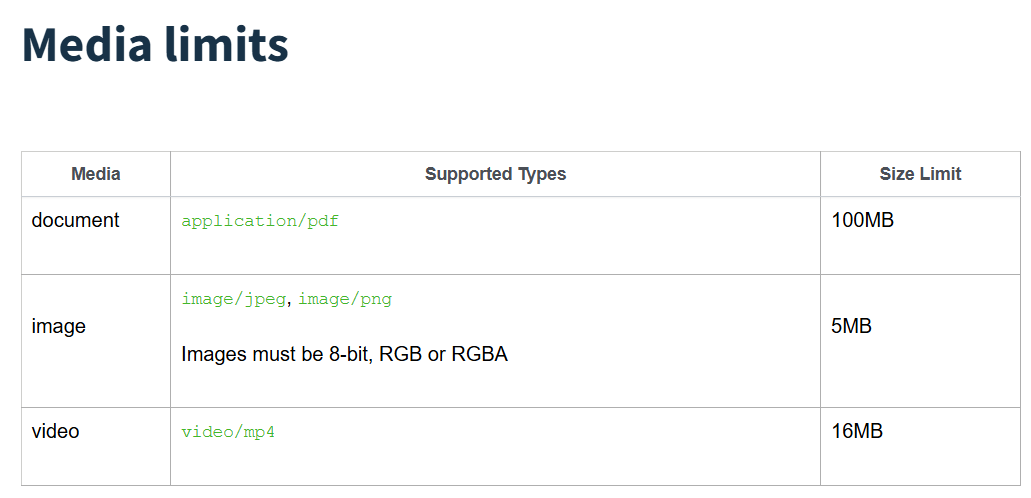
If you try to upload a media file that exceeds the size limit, the following error appears.
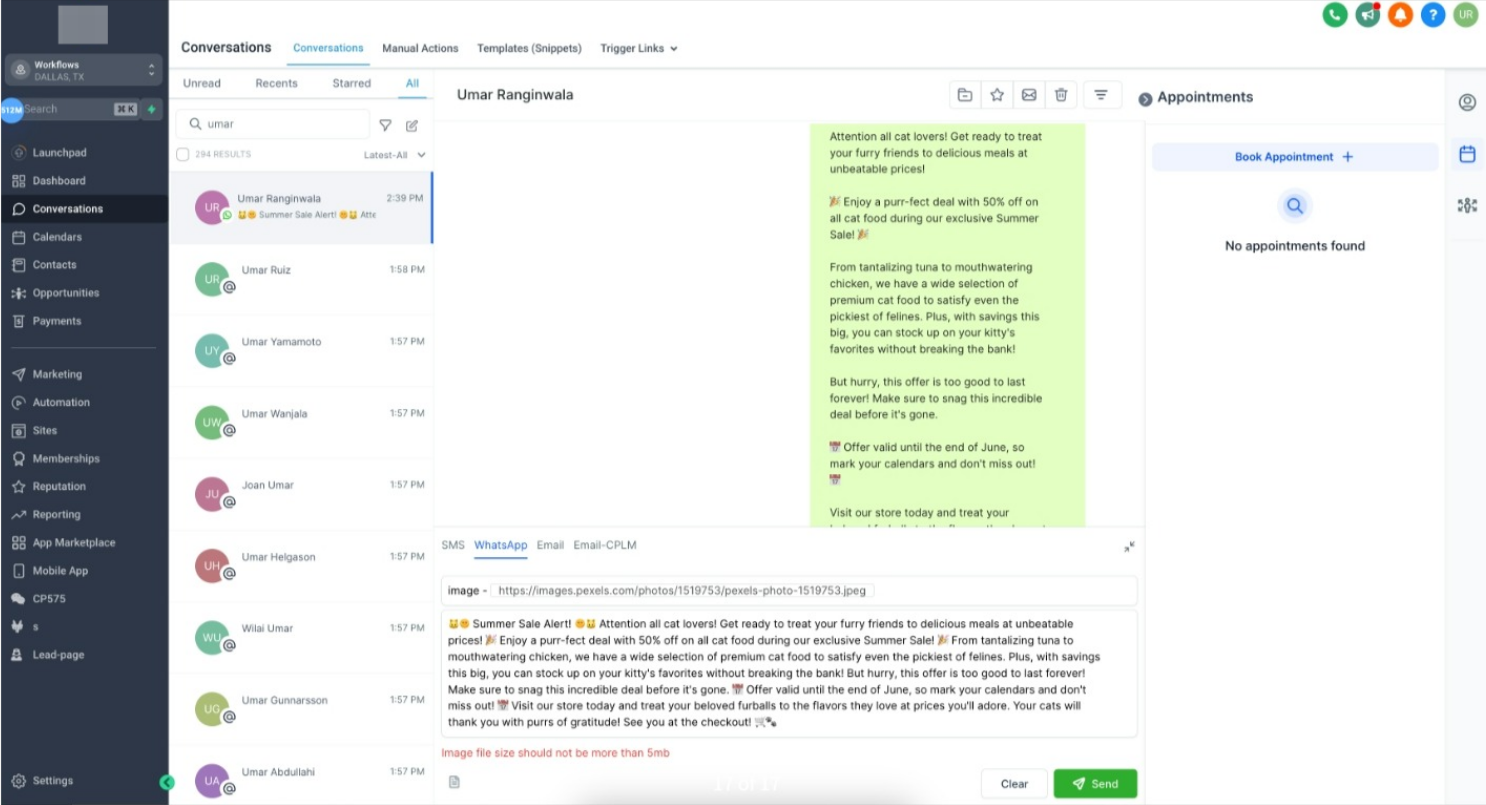
If your practice manages multiple WhatsApp numbers, it is easy to message from the wrong business identity. The Inbox helps reduce errors by automatically selecting the correct WhatsApp From number and applying compliance guardrails when needed.
From number: The business WhatsApp number used to send messages.
To number: The patient's phone number you are messaging.
The Inbox automatically:
Pre-selects the correct default WhatsApp From number when you start a new conversation.
Detects and locks the correct From number for active conversations based on the current WhatsApp 24-hour session.
Maintains independent WhatsApp conversation states for contacts with multiple phone numbers.
Transitions to approved template messaging when you intentionally switch the From number and compliance requires it.
Choosing the correct WhatsApp sender number helps your practice keep patient conversations clear, accurate, and compliant. When multiple WhatsApp numbers are connected, the sender number becomes visible and easier to control from the composer.
Improved accuracy: Send replies from the correct WhatsApp number tied to the patient's conversation.
Better patient experience: Keep conversations consistent so patients recognize the number messaging them.
Reduced team confusion: Avoid accidental replies from the wrong department, brand, or number.
Compliance support: Follow WhatsApp customer service window rules with automatic guidance for free-form messages and templates.
Web and mobile flexibility: Select eligible sender numbers from the Inbox on web and mobile.
Future-ready messaging: Support clearer handling of WhatsApp templates and calling-related conversation events as WhatsApp features expand.
The Inbox helps protect conversation accuracy by showing available WhatsApp sender numbers and applying smart behavior when a specific number should be used. This prevents you from accidentally changing the sender number in situations where doing so could break conversation context or require a different message type.
Depending on the conversation, the Inbox may:
Pre-select the WhatsApp From number that matches the active conversation.
Allow you to choose from multiple eligible connected WhatsApp numbers.
Lock the From number when the active WhatsApp conversation should continue from a specific number.
Require an approved WhatsApp template when the selected number is outside the 24-hour customer service window.
You can choose the sender number when eligible, but the Inbox may limit or guide the selection when WhatsApp rules or conversation history require it.
Note: The sender number picker only appears when WhatsApp numbers are already connected and available in your account. WhatsApp setup and configuration are managed from the web app, where you can add phone numbers, manage account status, and configure message templates from WhatsApp Settings.
WhatsApp allows free-form replies during an open customer service window. This window is triggered when a patient messages your practice and lasts 24 hours. If the window is closed, you generally need to use an approved WhatsApp template to send a message.
Sender number selection works with these messaging rules. If the selected WhatsApp number has an open customer service window with the patient, you may be able to send a regular reply. If the window is closed for that number, the Inbox may require you to send an approved template instead.
Note: This is especially important when switching between WhatsApp numbers. One number may have an active customer service window with the patient, while another may not.
WhatsApp templates are approved message formats used when starting or reopening conversations outside the 24-hour customer service window. The Inbox supports template previews, category and language information, and template handling wherever you send WhatsApp messages.
When a selected sender number requires a template, choose an approved template before sending. This keeps outbound WhatsApp messages compliant and ensures the patient receives a valid message.
Proper setup ensures the correct WhatsApp numbers appear in the Inbox and helps you avoid sending from the wrong number. Complete WhatsApp number configuration from the web app before expecting sender number options to appear in the web or mobile composer.
Go to Settings and open WhatsApp.
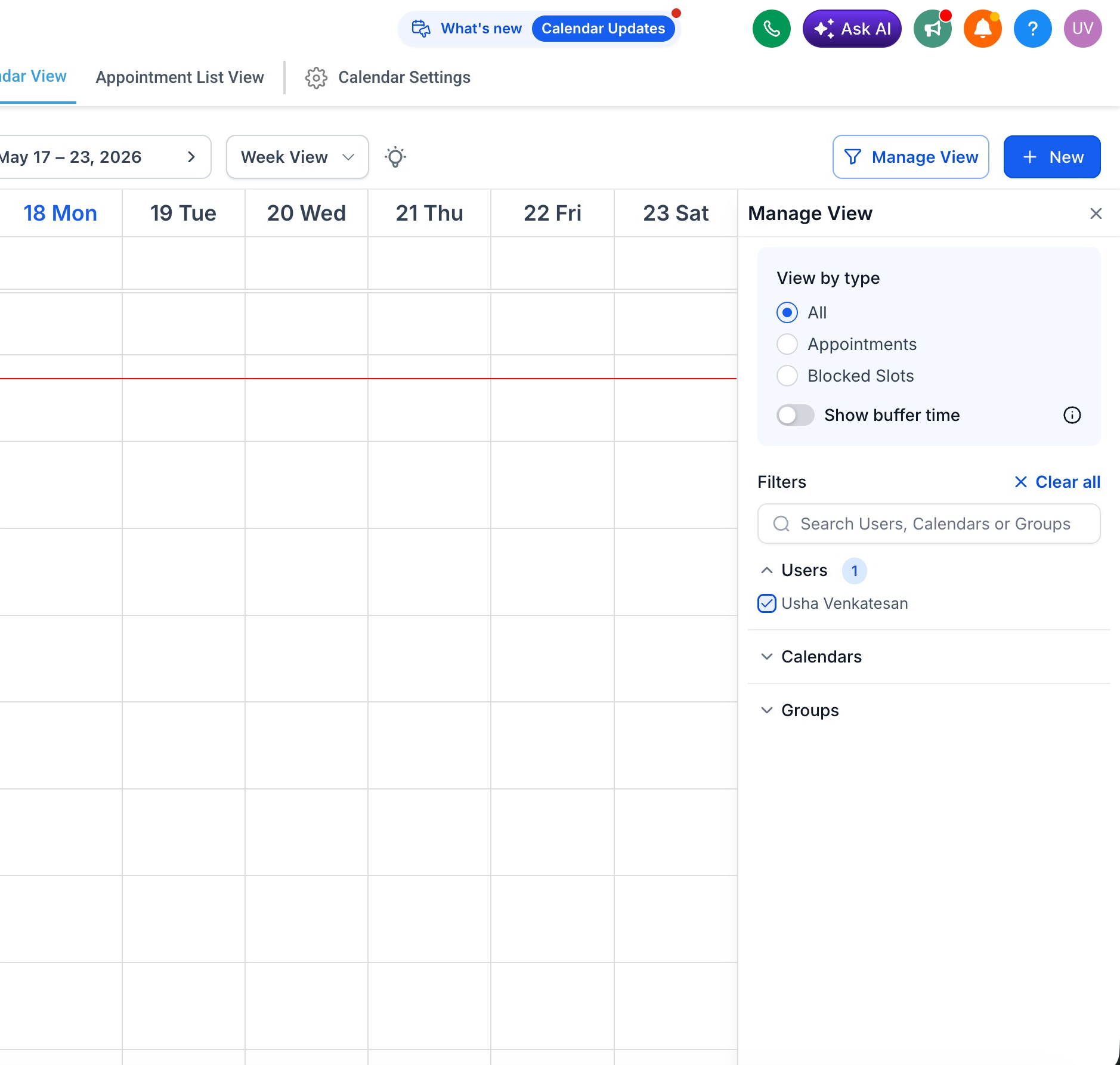
Confirm that the WhatsApp account is connected and active.
Open the Numbers area to review connected WhatsApp numbers.
Add or configure any required WhatsApp numbers.
Confirm each number is connected and available.
Open the Inbox.
Select a conversation with a WhatsApp contact.
Locate the WhatsApp sender number picker in the message composer.
Select the desired WhatsApp From number when available.
Write the message or choose an approved template if required.
Send the message.
Go to the Inbox.
Start a new message to a contact.
Verify the WhatsApp From number shown in the composer.
Send your message.
The correct default WhatsApp number is automatically pre-selected. The Inbox detects and uses the correct WhatsApp From number tied to the active 24-hour session, reducing the risk of replying from the wrong number. When you change the From number, the Inbox transitions to template messaging when required to stay compliant. It also maintains independent conversation states per contact phone number and updates the WhatsApp routing automatically when you switch the contact's phone number.
Why do I not see the WhatsApp sender number picker? The picker may not appear if only one WhatsApp number is connected, if no eligible WhatsApp number is available, or if the conversation is not a WhatsApp conversation. Confirm the number is connected in WhatsApp Settings.
Can I choose any connected WhatsApp number for every message? Not always. The Inbox may pre-select or lock a sender number when needed to maintain the active conversation context or follow WhatsApp messaging rules.
Why is the WhatsApp From number already selected? The Inbox automatically selects the number that best matches the active WhatsApp conversation. This helps prevent replies from being sent from the wrong business number and removes ambiguity, especially when you have multiple WhatsApp numbers.
Why can't I change the sender number in some conversations? In active conversations, the From number is locked to the correct WhatsApp number based on the current 24-hour session. This preserves conversation continuity and prevents compliance and routing issues.
What happens if I switch the WhatsApp From number? If compliance requires it, the Inbox transitions the message to approved template messaging using existing compliance logic.
Can I use the WhatsApp sender number picker on mobile? Yes. The sender number picker is available in the Inbox on mobile for eligible WhatsApp conversations. WhatsApp number setup, however, is available on web only.
What happens if a contact has more than one phone number? The Inbox maintains independent WhatsApp conversation states for each contact phone number. When you switch the contact's phone number, the WhatsApp routing updates automatically, keeping each conversation aligned with the correct sender and recipient combination.
Does this affect WhatsApp messages sent from Workflows? No. Manual sender number selection in the Inbox is separate from Workflow WhatsApp actions. Workflow WhatsApp actions have their own From number selection settings.
Do templates need to be approved before I can use them? Yes. WhatsApp templates must be approved and available before they can be used for template-based outbound messages.
