Before your practice can send and receive WhatsApp messages, the phone number tied to your WhatsApp Business Account must be verified. Verification confirms your account is linked to the correct number and unlocks messaging inside Aesthetix CRM. You can use a native Twilio phone number from your account, and Meta will send a one-time passcode (OTP) by SMS or by phone call to complete the process. This guide walks you through verifying an existing number and registering a Twilio number for a new WhatsApp Business Account.
If your number is already connected and only needs verification, complete the steps below.
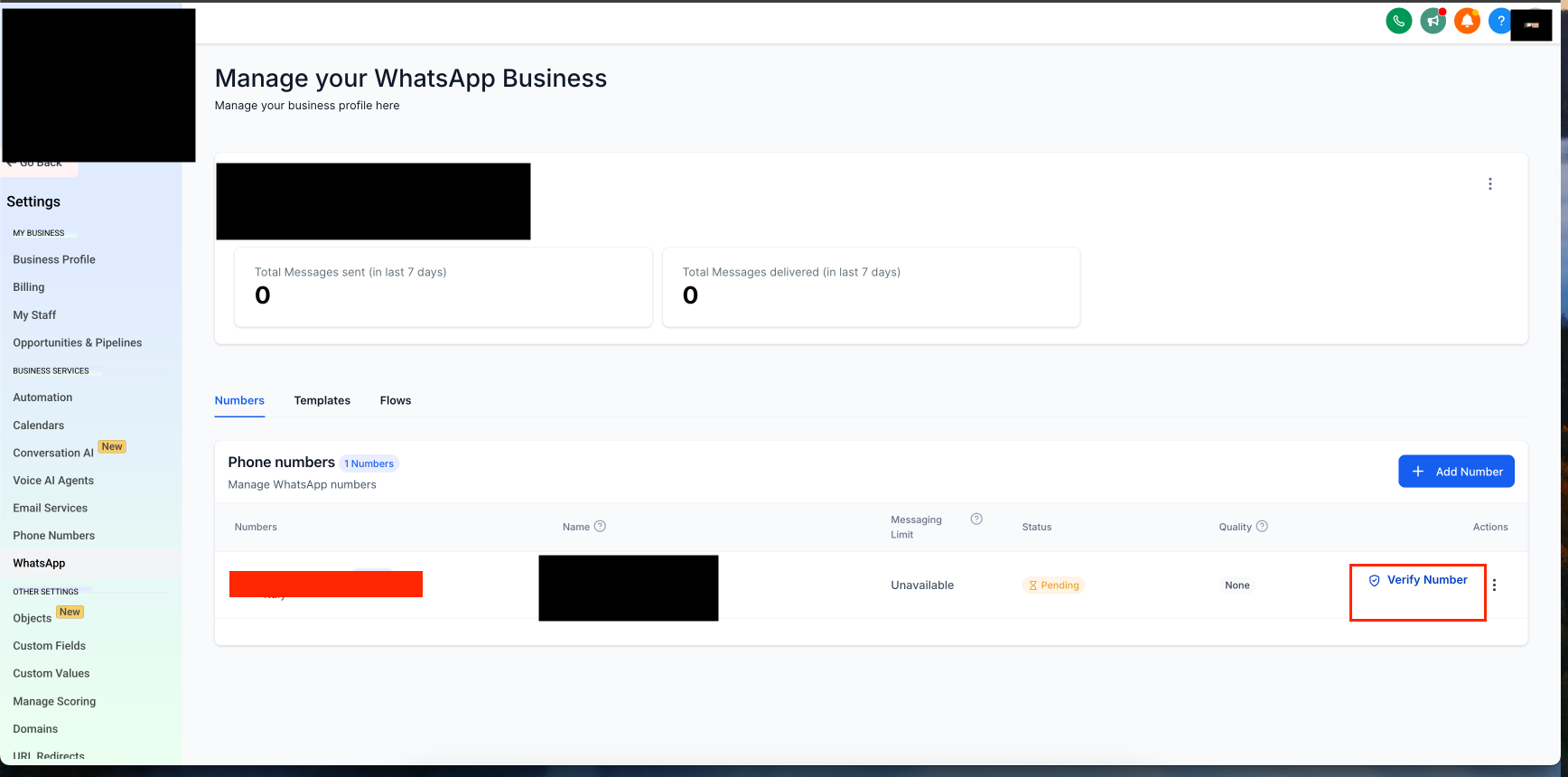
Go to Settings
Select WhatsApp
Click on Verify Phone Number
Select whether you want to receive the OTP via call or text message
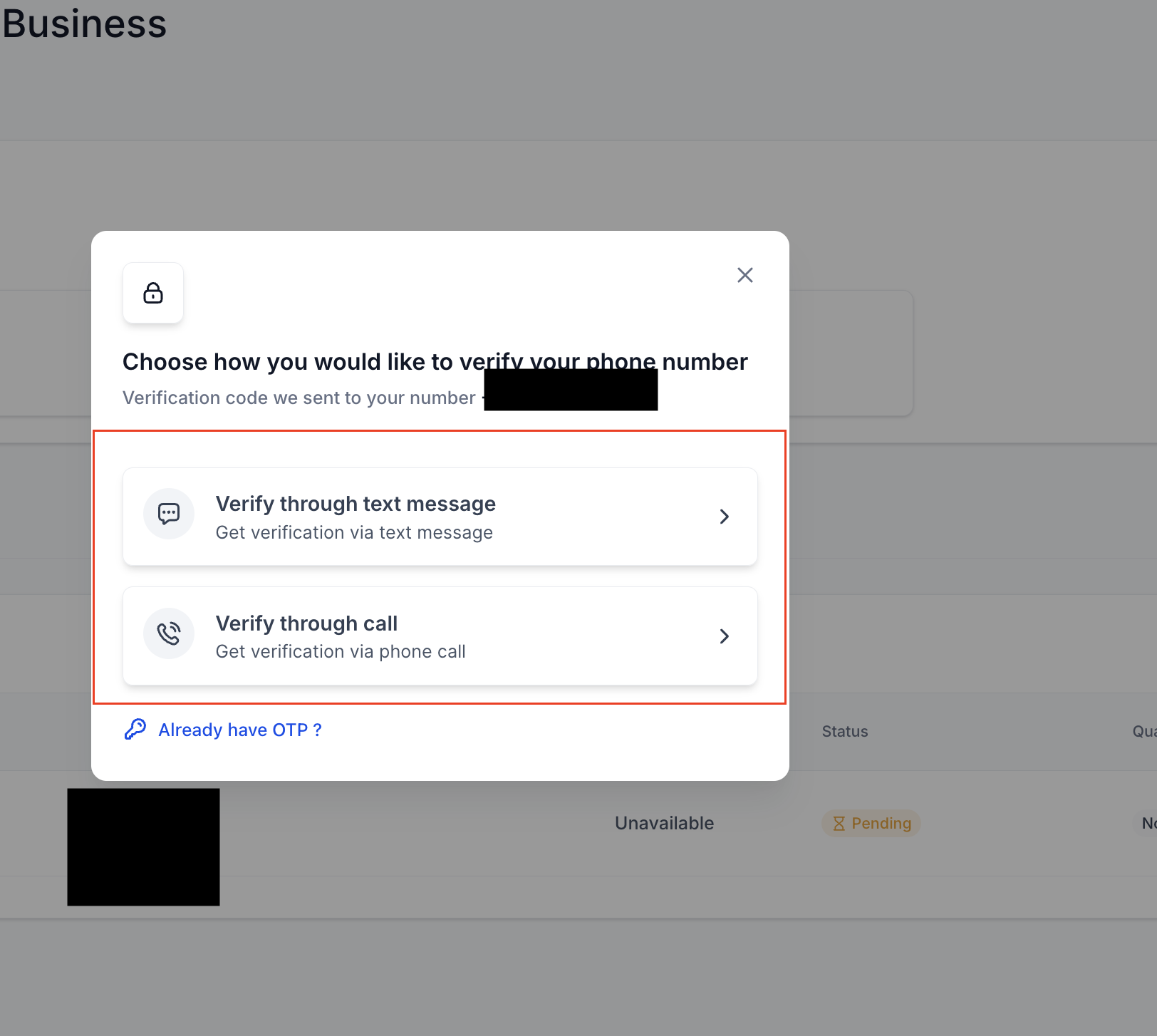
Enter the OTP when prompted
Once entered correctly, your phone number will be verified
You can use any Twilio phone number from your account as your WhatsApp Business number. Meta will send a verification code to the number, either via SMS or by phone call forwarded to your personal number. Follow the steps below to complete registration.
Note: Call forwarding is required if your Twilio number only has voice capabilities. During WhatsApp registration, Meta will send a verification OTP via phone call, so you must be able to receive it.
Before starting WhatsApp registration, make sure you have a Facebook Account and a Meta Business Account. The onboarding flow will guide you through creating a WhatsApp Business Account (WABA) and a Business Profile if you do not already have one.
Step 1 Go to Phone Numbers > Click Add Number > Select the number > Click Proceed to Buy
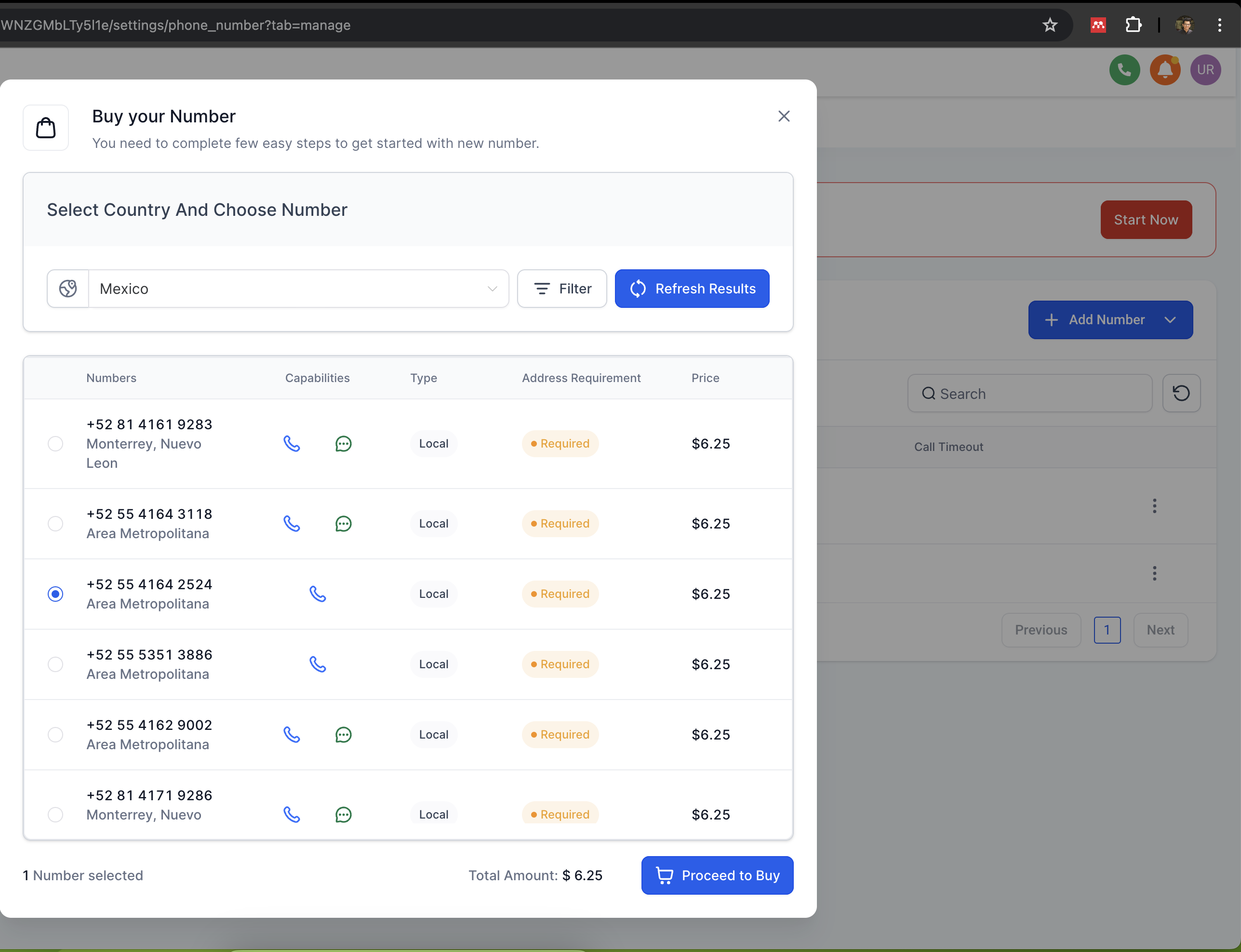
Step 2 Set up Call Forwarding to a personal number you can receive calls on
Note: This is required if your phone number only has voice capabilities. Meta sends an OTP via phone call during WhatsApp registration, so make sure you have access to the forwarding number before proceeding.
Step 3 Go to Settings > WhatsApp > Click Buy WhatsApp
Step 4 Click Signup with Facebook to begin the Meta onboarding flow
Step 5 Log in to your Facebook account, using the account connected to your Meta Business Manager
Step 6 Click Get Started to begin creating your WhatsApp Business Account
Step 7 Fill in your business information by selecting a Business Portfolio, entering your Business Name, adding your website or profile link, and selecting your Country
Step 8 Create or Select your WhatsApp Business Account (WABA). If you already have one, select it; otherwise create a new one
Step 9 Create your WhatsApp Business Profile by entering your Business Account Name, Display Name, and selecting your Business Category
Step 10 Enter your Twilio Phone Number and select your verification method
Note: Select Phone Call if your number only has voice capabilities, and make sure call forwarding is enabled first. Select SMS if your number supports text messages. If you choose SMS, the OTP from Meta will appear under Conversations in your account.
If you selected SMS, go to Conversations in your account. The verification code from Meta will appear there as an incoming message.
Step 11 Enter the verification code received via phone call or SMS
Step 12 Review and accept the permissions requested to manage your WhatsApp Business Account
Step 13 Setup complete! Your WhatsApp integration is ready, and you can now send and receive messages directly from your account
Note: If you already have a personal WhatsApp account on the same number, you must delete it first. Go to WhatsApp > Settings > Account > Delete my account. Your personal chat history will not be migrated after deletion.
Why do I need to verify my phone number on WhatsApp Business?
Verifying your phone number ensures that you can send and receive messages through WhatsApp Business. It also confirms that your business account is linked to the correct number.
What should I do if I don't receive the OTP?
Ensure your phone number is entered correctly. Check for network issues that may delay the message or call. If you did not receive the OTP, click Get another code to resend it. If it still does not arrive, restart your phone and try again.
Can I verify my phone number using an email instead?
No. WhatsApp Business requires verification via a phone number through SMS or a voice call.
How long does it take to verify my phone number?
The process is usually instant but can take a few minutes depending on network conditions.
What happens after my phone number is verified?
Once your phone number is verified, you can start using WhatsApp Business to send and receive messages directly from your account.
Can I use the same phone number for both WhatsApp Business and WhatsApp Messenger?
No. A phone number can only be used on either WhatsApp Business or WhatsApp Messenger, not both at the same time. If you wish to switch, you will need to reverify the number on the new platform.
What should I do if my phone number verification fails?
Double-check that your phone number is correct, ensure you have a stable internet connection, and try requesting the OTP again.
Can I use a Twilio number on WhatsApp if my A2P 10DLC registration is incomplete?
Yes. You can register your number on WhatsApp without completing A2P 10DLC. However, it is strongly recommended to complete A2P 10DLC registration for better compliance and message delivery reliability.
How do I set up call forwarding on my Twilio number?
After purchasing the phone number, go to Settings > Phone Numbers, find your number, and configure Call Forwarding to a personal number you can receive calls on. This ensures the WhatsApp OTP reaches you during registration.
I received an error saying the number is already registered to an existing WhatsApp account. What do I do?
This error occurs in two situations.
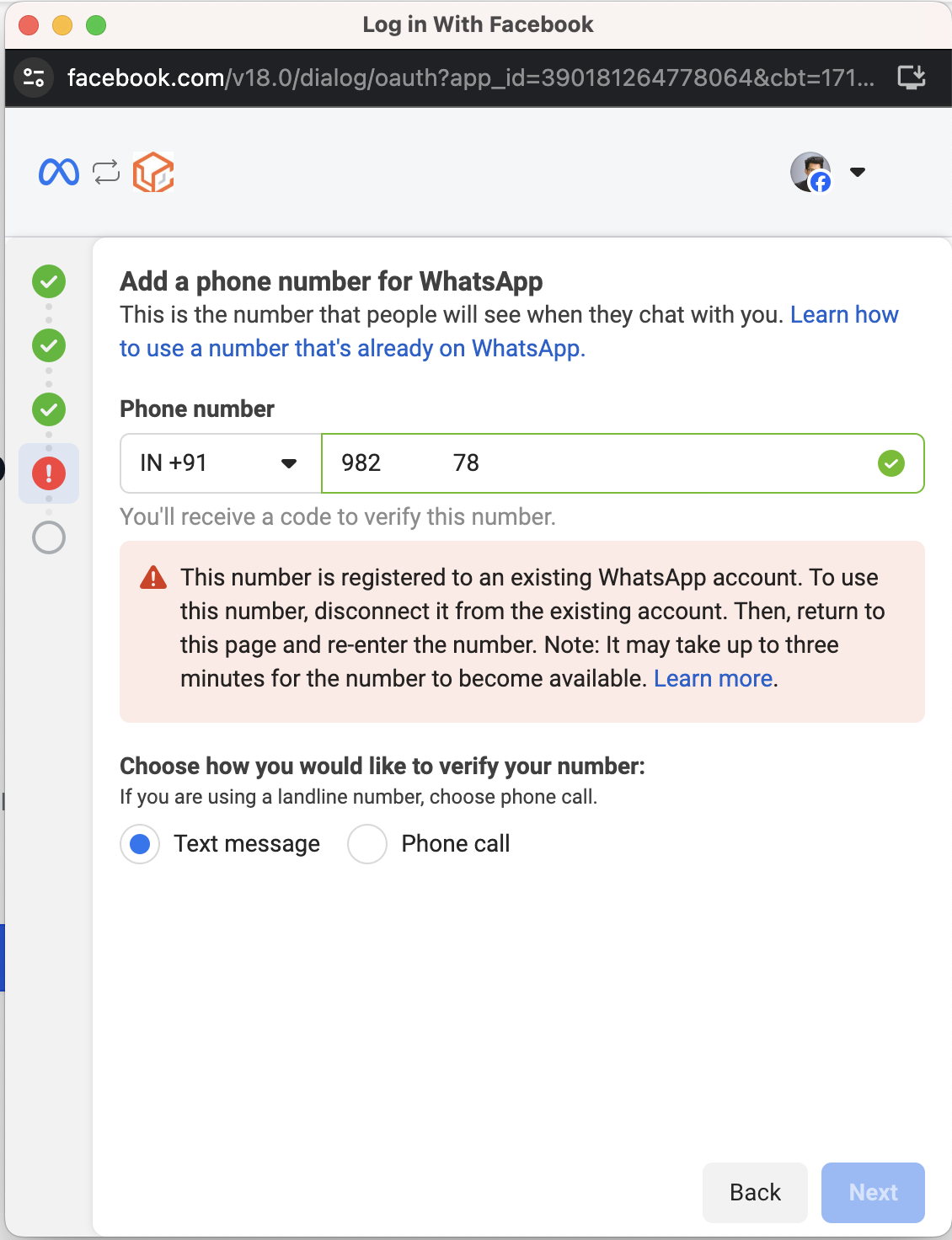
Situation 1, personal WhatsApp on your phone: You have an active personal WhatsApp account using this number. Delete it first by opening WhatsApp > Settings > Account > Delete my account. Your personal chat history will not be migrated. You can also migrate an existing number to a Business Account through Meta's documentation.
Situation 2, number linked to another provider: Your number is connected to a different WhatsApp Business provider. You will need to create a new WABA and migrate your number to it.
I am getting a "Message Undeliverable" error. What are the reasons?
There are a few common causes. The recipient's phone number is not registered on WhatsApp. You are sending an authentication template to a +91 (India) number, and authentication templates cannot currently be sent to WhatsApp users in India. The message was blocked due to Per-User Marketing Template Message Limits.
