Business Verification confirms to Meta that your practice is a legitimate business that matches official records. Once approved, your practice can send more messages each day, register more phone numbers, and show your business display name to patients instead of a bare phone number. This guide walks you through verifying your business inside Aesthetix CRM, setting and changing your WhatsApp display name, and requesting an Official Business Account with the verified green tick.
WhatsApp Business Verification is Meta's process to confirm that your business is legitimate and matches official records. Approval links your legal entity to your WhatsApp Business account, which raises your messaging limits and improves your account standing.
With in-app Business Verification, you complete the same verification without leaving Aesthetix CRM. You upload the required documents and submit your verification request securely to Meta directly from your account, which speeds up the process and removes the need to submit through Meta Business Manager separately.
These benefits explain how verification speeds up setup, raises messaging limits, and gives your practice better oversight so your team can scale WhatsApp with confidence.
Faster onboarding: Cuts verification time by up to 40%.
Higher messaging limits: Unlocks 1,000+ daily conversations after approval.
More phone numbers: Register up to 20 phone numbers once verified.
Fewer support issues: Reduced failures and abandonment compared with Meta-only flows, which means fewer support requests and saved time.
Lower drop-off: Simpler, more reliable verification reduces stalled onboarding and increases adoption.
Follow these steps to submit verification from inside Aesthetix CRM. Clear, complete submissions lead to faster approvals and fewer rejections.
Go to Settings in the lower-left corner.
From the left side-bar, select WhatsApp.
Go to Business Verification.
Click Start Verification.
Choose the business you want to verify.
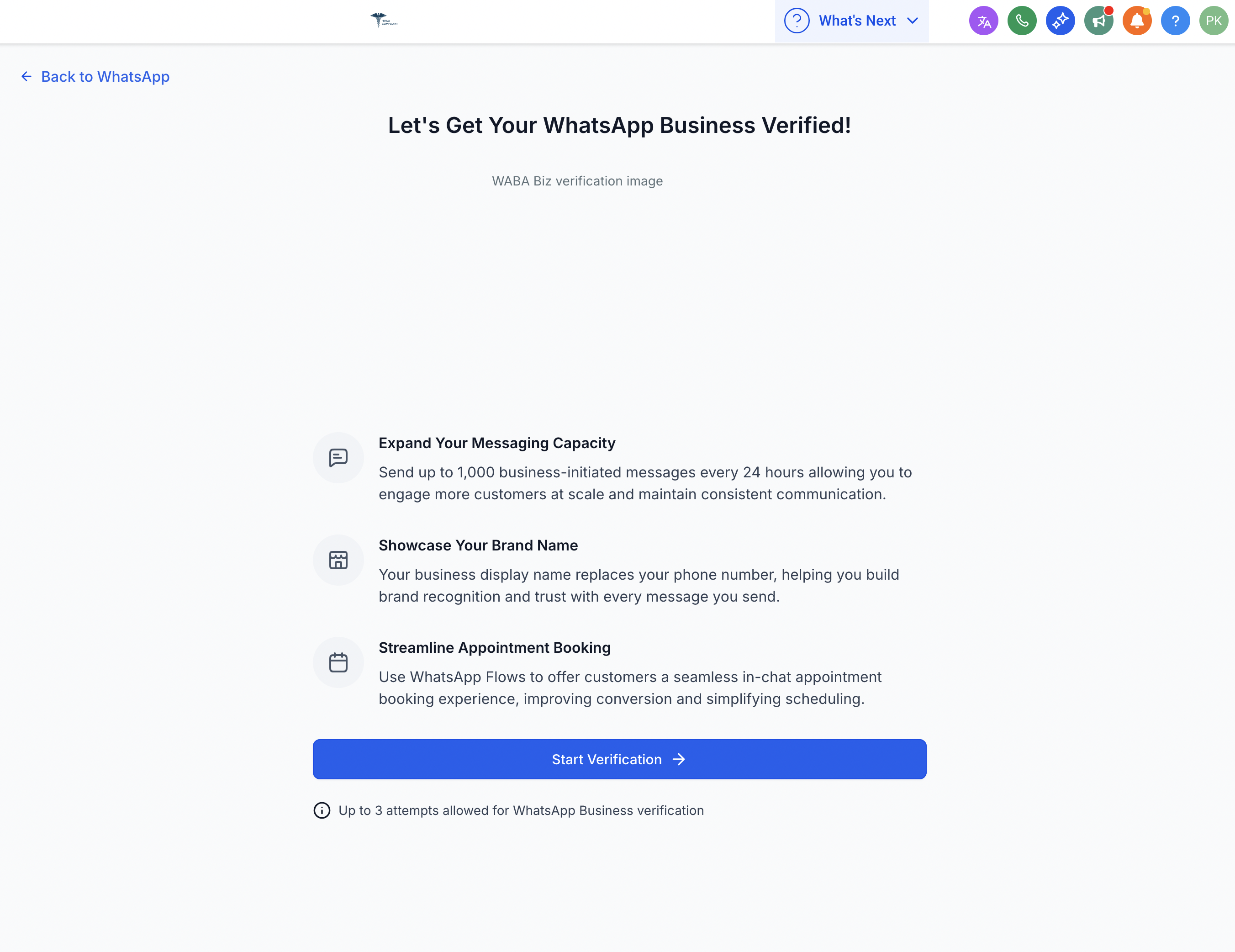
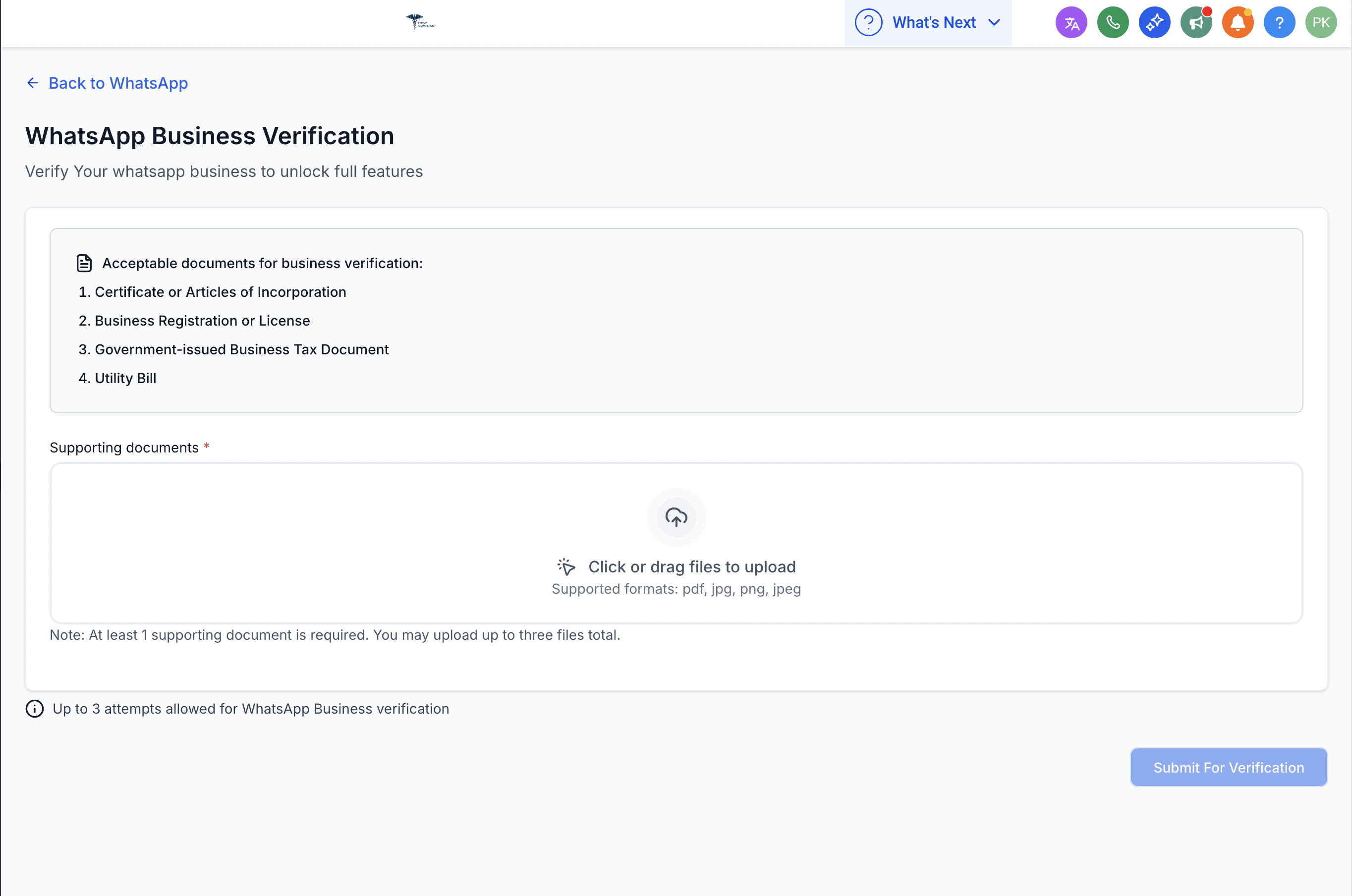
Upload the required documents (for example, legal name, address, and proof of business).
Submit. Everything is sent to Meta on your behalf.
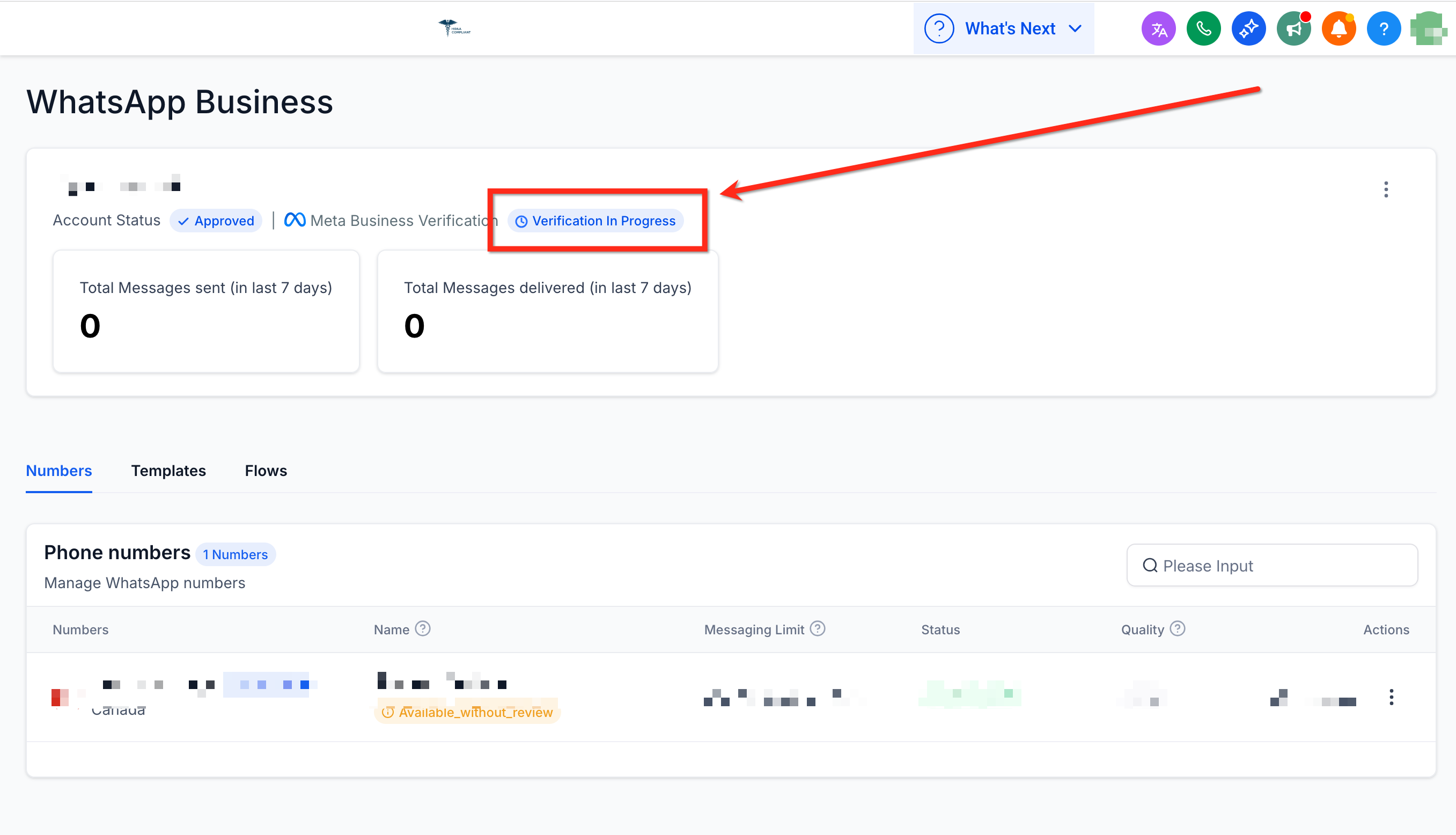
Real-time badges make it easy to see where your verification stands without opening a ticket.
If your request is rejected, you will see clear rejection reasons.
Fix the issue and resubmit using the built-in resubmission steps.
There are two types of WhatsApp Business Accounts:
Name | Description |
|---|---|
Business Account | By default, any account using the WhatsApp Business Platform or WhatsApp Business App is a business account. WhatsApp verifies the authenticity of a brand for every account on the WhatsApp Business Platform. If the account has completed Business Verification, the name of the business is visible even if the patient has not added your business to their address book. |
Official Business Account | An Official Business Account has a green checkmark badge in its profile and chat thread headers. |
If your WhatsApp account is a business account, the display name is only shown in the contacts view in smaller text; all other views show the phone number, unless the account is Business verified, in which case the business display name is visible. Help patients learn more about your practice by filling out your business info, including your website, address, and hours.
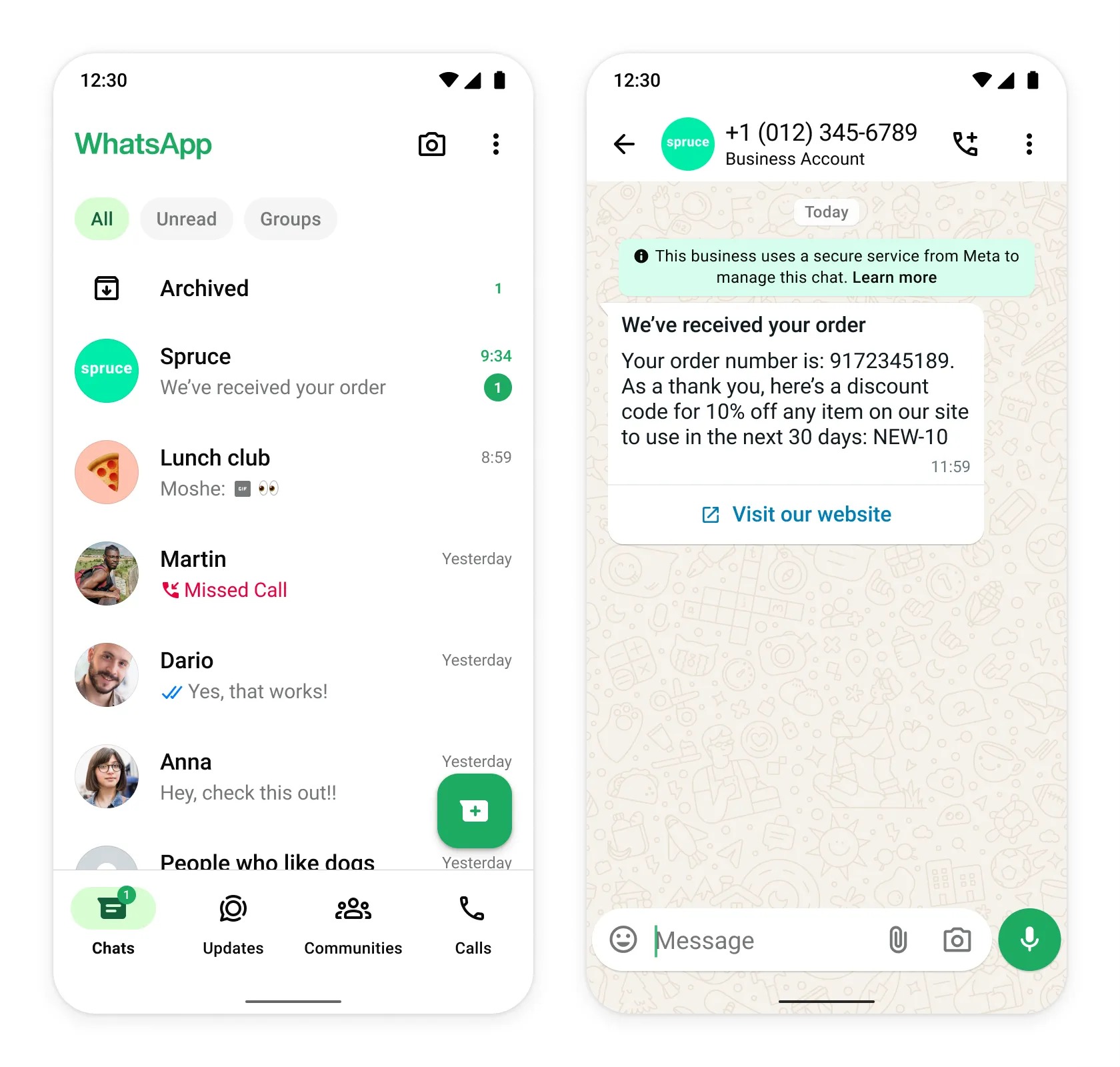
Your practice can start messaging patients immediately. You only need to complete Business Verification when you are ready to scale marketing, utility, and authentication conversations, to request to become an Official Business Account, or to get your business phone number's display name to appear in the WhatsApp client.
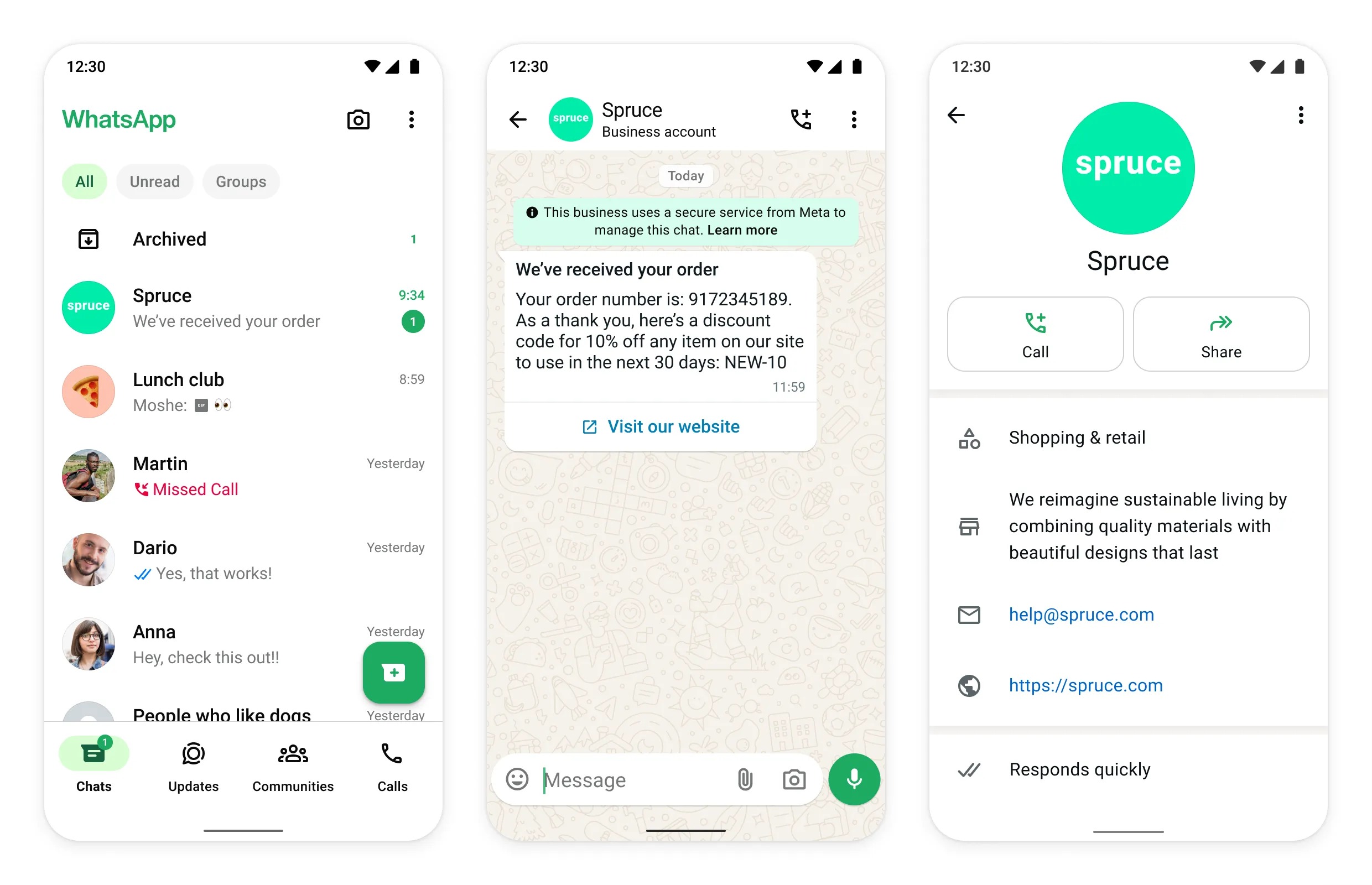
Your display name is the first thing patients see when they interact with your practice on WhatsApp. It should be clear, professional, and accurately represent your practice while following WhatsApp's policies. Changing your display name correctly helps prevent repeated declines and ensures the updated name is submitted through the right Meta workflow. The process depends on your account type, and your practice should meet the prerequisites before submitting a change.
Make sure the following requirements are met:
A business portfolio has been created.
You signed up for the WhatsApp Business Platform by either creating a WhatsApp Business account through a Business Solution Provider (BSP), or setting up a WhatsApp Business account as a BSP.
A connected phone number is linked to your WhatsApp Business account.
Your business qualifies for a display name review.
Go to Meta Business Manager and select your business.
Click WhatsApp Manager.
Select the WhatsApp account where you want to update the display name.
In the left-hand menu, click Phone Numbers.
Under the Name column, hover over the current display name and click the pencil icon.
In Edit Display Name, enter your new display name.
Click Next to submit the change for approval.
Official Business Accounts follow a different process for display name changes.
For Official Business Accounts (OBA): Contact Direct Support for assistance.
For regular business accounts: Use the self-serve steps above in WhatsApp Manager.
Meta handles the review outcome after you submit the display name change:
If your business is NOT verified: Your display name is immediately confirmed, and the certificate is available for download.
If your business IS verified: Your display name shows a Pending Review label under Certificate in the Phone Numbers section. Once approved, a View button appears so you can download the certificate.
Once your new display name is approved, update it using the correct registration method:
WhatsApp Business Platform (Cloud API): Register the number using the Registration endpoint (no certificate needed).
WhatsApp Business Platform (On-Premises API): Register the new display name using the Account endpoint.
When your display name shows a Declined status in Aesthetix CRM, it means Meta rejected the WhatsApp Business Profile (display name) during its review. Meta checks every display name against its Commerce Policy and Business Policy when you connect a number to the WhatsApp Business Platform, and a name that does not meet the requirements is declined.
Common reasons a display name is declined:
The name is too generic or misleading.
The name does not match your legal business name or documentation.
The name uses restricted terms such as "Official" or "Global," or unsupported symbols.
There is no strong association between the display name and your verified business assets (for example, your Facebook Page or Business Manager).
To fix a declined name, resubmit it in WhatsApp Manager following the best practices below, and keep it closely tied to your verified business identity. Restricted or prohibited products and services cannot appear in the name, even alongside an otherwise valid business name.
Example (restricted product in the name):
Sarah's Sporting Goods Shop (accepted)
Sarah's Sporting Goods Shop, Guns Department (not accepted)
If your brand is a one-word name, avoid spaces.
Avoid emojis, slogans, unnecessary capitalization, and stylized symbols.
Keep the display name strongly tied to your verified business identity and assets.
Example (legal name: Owner Connector Solutions Ltd):
Owner Connector (accepted)
OwnerConnector Solutions (accepted)
OwnerConnector Official (not accepted)
Note: Businesses can change their display name up to 10 times within 30 days. After 30 days, a new cycle begins with the same limit. The new display name certificate is only valid for 14 days; if it expires, you will need to resubmit the display name for approval. A display name review is no longer required to get started on the WhatsApp Business Platform, but approval is still necessary if you want your display name shown instead of your phone number.
An Official Business Account (OBA) displays a verified green checkmark badge in your profile and chat thread headers. Follow these instructions to request one.
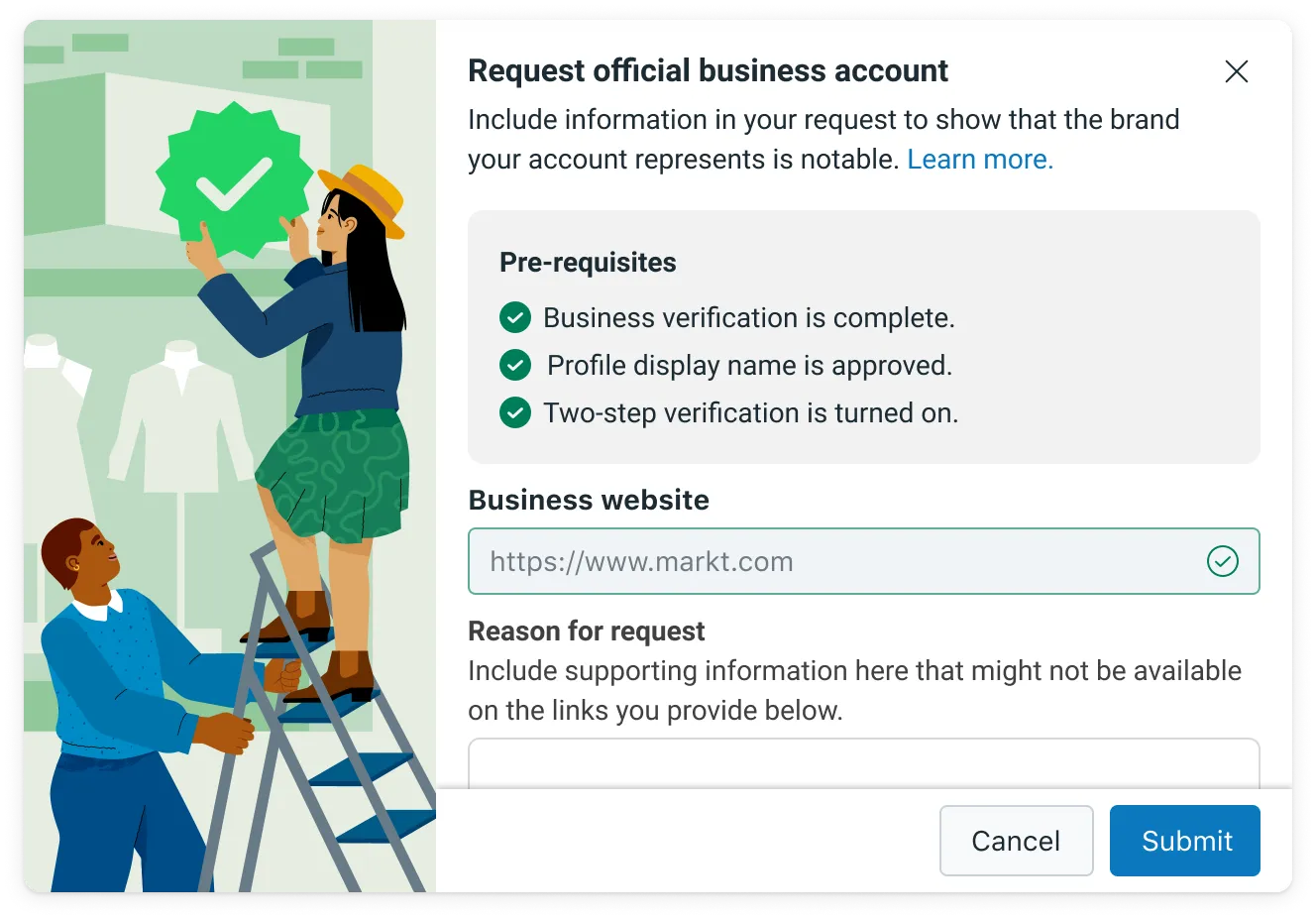
Access WhatsApp Manager from your Business Manager. Click on the phone number for which you want to request OBA within the Overview section.
Turn on two-step verification for this phone number to apply for OBA.
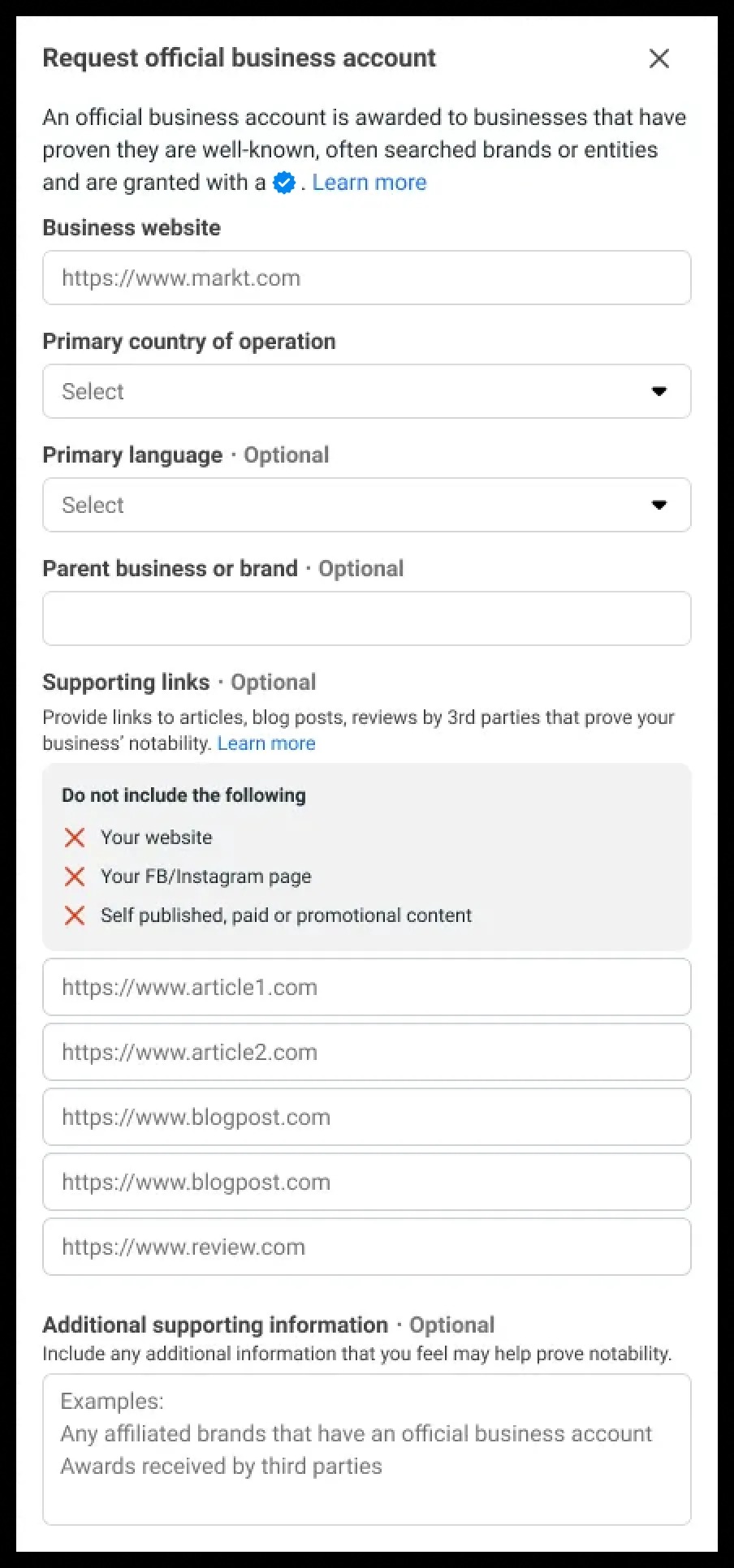
Click the Submit Request button and fill out the required information. - You can submit up to 5 supporting links, especially from renowned publications (for example, major national newspapers, business journals, or Wikipedia), to show that the business is notable, which helps Meta determine notability.
Fields like countries of operation, parent business or brand (especially if it is a well-known brand), and primary language help Meta further understand your brand and eligibility for OBA.
Note: Your Business Verification and Display Name approval must be complete before applying for OBA.
Once Meta reviews your request, you will receive a notification letting you know whether your account has been granted OBA. If your request is rejected, you can submit a new request after 30 days.
Official Business Accounts are not granted to business employees, test accounts, or Business App accounts. They are only available to WhatsApp Business Platform users, since accounts on the Business App do not go through Business Verification.
Notability requires a business to represent a well-known, often-searched brand or entity. This should not be taken as a signal of the authenticity of the business; it reflects a substantial presence in online news articles. Notability is assessed based on an account's presence in news articles from publications with sizable audiences. Paid or promotional content is not considered a source for review, including business or app listings.
Official Business Accounts are issued at the phone number and display name level. Meta assesses notability for the display name of the account requesting OBA status. If the display name is changed after receiving OBA status, Meta will need to re-assess the new display name for notability and display name compliance.
Previous OBA approvals within a WhatsApp Business Account do not guarantee approval for other numbers (with different display names) associated with that account. If your account contains one main parent brand and the phone number associated with that brand meets notability requirements, consider updating the display names for child brands as: {{sub-brand name}} by {{notable name}}.
If your OBA request has been denied, it means Meta's team has carefully reviewed your account and it is not eligible for OBA status at this time. Currently, these decisions cannot be appealed.
You can continue to grow your presence and wait 30 days before submitting another OBA request. It may take time to build your business's presence in news articles as described above. This decision does not limit your ability to share your business details. Each phone number also has a business profile that includes the profile picture, email, website, and business description, which you can edit at any time.
How long does verification take?
Review time varies by Meta's queue and your document quality. You will see live status inside Aesthetix CRM and can act immediately on any rejections.
What's the difference between Business Verification and WhatsApp phone number verification?
Business Verification confirms your legal entity with Meta using business documents. Approval unlocks higher messaging limits and lets you register more numbers. Phone number verification (OTP) proves you own a specific phone number so it can connect to the WhatsApp Business Platform. You need both steps: complete OTP for each number you add, and complete Business Verification to raise limits and scale. OTP alone does not increase limits, and Business Verification does not replace OTP.
Is there a separate cost for verification?
There is no separate verification fee. Standard messaging fees and conversation charges still apply per WhatsApp policies.
Can I keep sending messages while verification is in progress or if it's rejected?
Yes. You can continue within your current limits. If your request is rejected, fix the issue and resubmit to unlock higher limits.
Why does my display name show a Declined status?
Meta declined the display name during its review because it did not meet the Commerce and Business policies. Common causes are a name that is too generic or misleading, a name that does not match your legal business name, restricted terms such as "Official" or "Global," unsupported symbols, or no strong link to your verified business assets. Fix the issue, then resubmit the name in WhatsApp Manager.
What are the key guidelines for setting up a display name?
Your display name must comply with WhatsApp's Commerce and Business policies, clearly represent your business or service, and be linked to your business (even for a test or demo account). It should not be a generic term (for example, "Skincare"), a geographic location (for example, "New York"), include words like Official or Verified that imply WhatsApp verification, or contain Meta product names such as WhatsApp, Facebook, or Messenger. It also must not include any restricted or prohibited items under WhatsApp's Commerce Policy.
Who can change their WhatsApp Business Display Name, and how long does approval take?
Any business on the WhatsApp Business Platform can change their display name. Regular business accounts change it through WhatsApp Manager, while Official Business Accounts must contact Direct Support. Approval typically takes a few minutes to a few hours, though in some cases it may take longer.
How many times can I change my display name, and what if the certificate expires?
You can change your display name up to 10 times within a 30-day period, after which you must wait for a new cycle. The display name certificate is valid for 14 days; if it expires, you will need to resubmit your display name for approval.
